Lecture # 17
Image Representation
Rahmatullah Danish 1
"Be wary, therefore, when
some demand public
tolerance for whatever
their private indulgences
are!"
Rahmatullah Danish 2
"Be wary, therefore, when
some demand public
tolerance for whatever
their private indulgences
are!"
- Neal A. Maxwell
Rahmatullah Danish 3
Image Representation
Digital Image Sources
 Digital Cameras
 Scanned Film & Photographs
 Digitized TV Signals
 Computer Graphics
 Radar & Sonar
 Medical Imaging Devices (X-Ray, CT)
 The Internet
Rahmatullah Danish 5
Images - 2D array of values = pixels
 Pixel = “Picture Element”
 Image [x,y] = pixel value (number)
Rahmatullah Danish 6
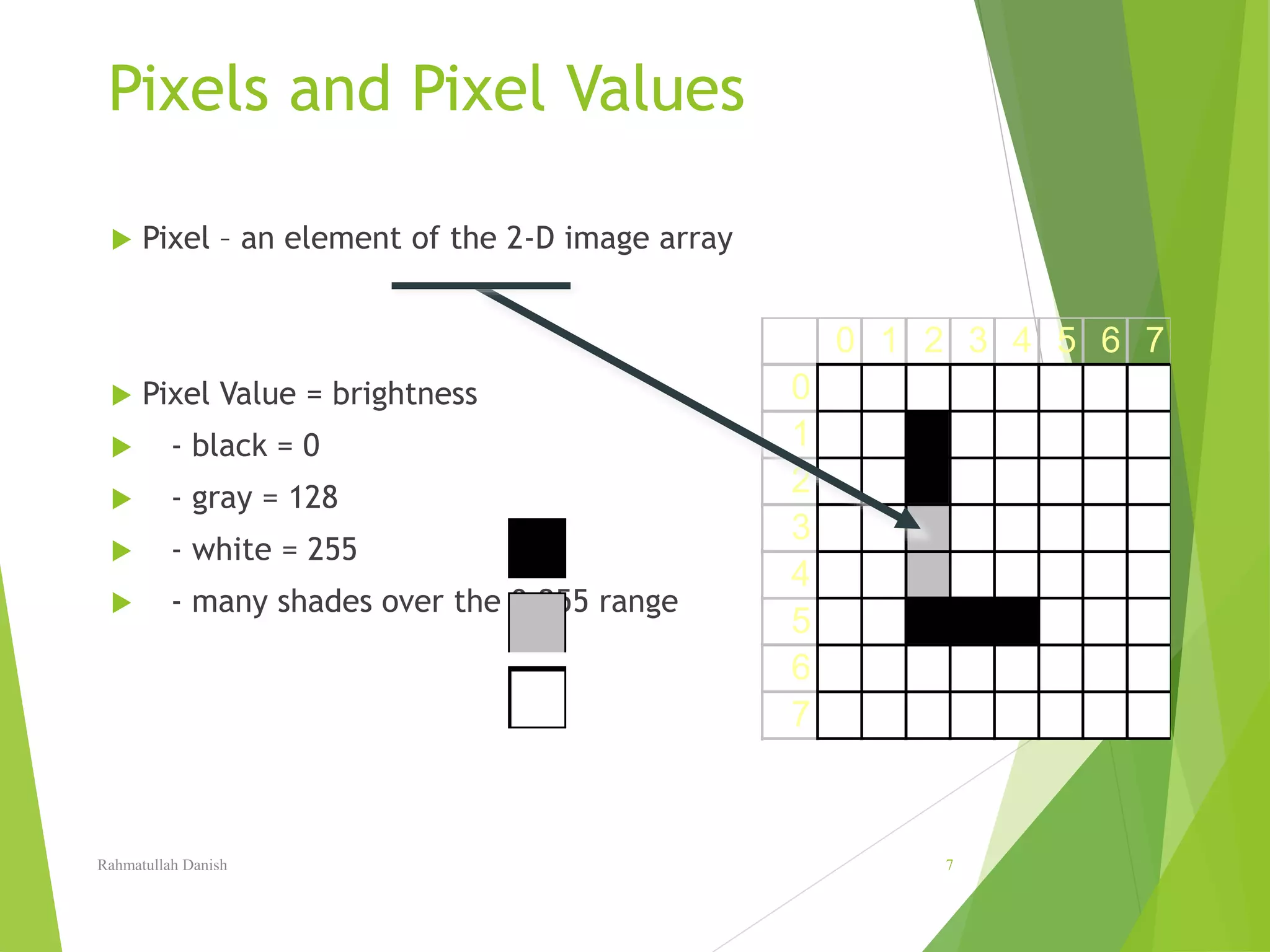
Pixels and Pixel Values
 Pixel – an element of the 2-D image array
 Pixel Value = brightness
 - black = 0
 - gray = 128
 - white = 255
 - many shades over the 0-255 range
0 1 2 3 4 5 6 7
0
1
2
3
4
5
6
7
Rahmatullah Danish 7
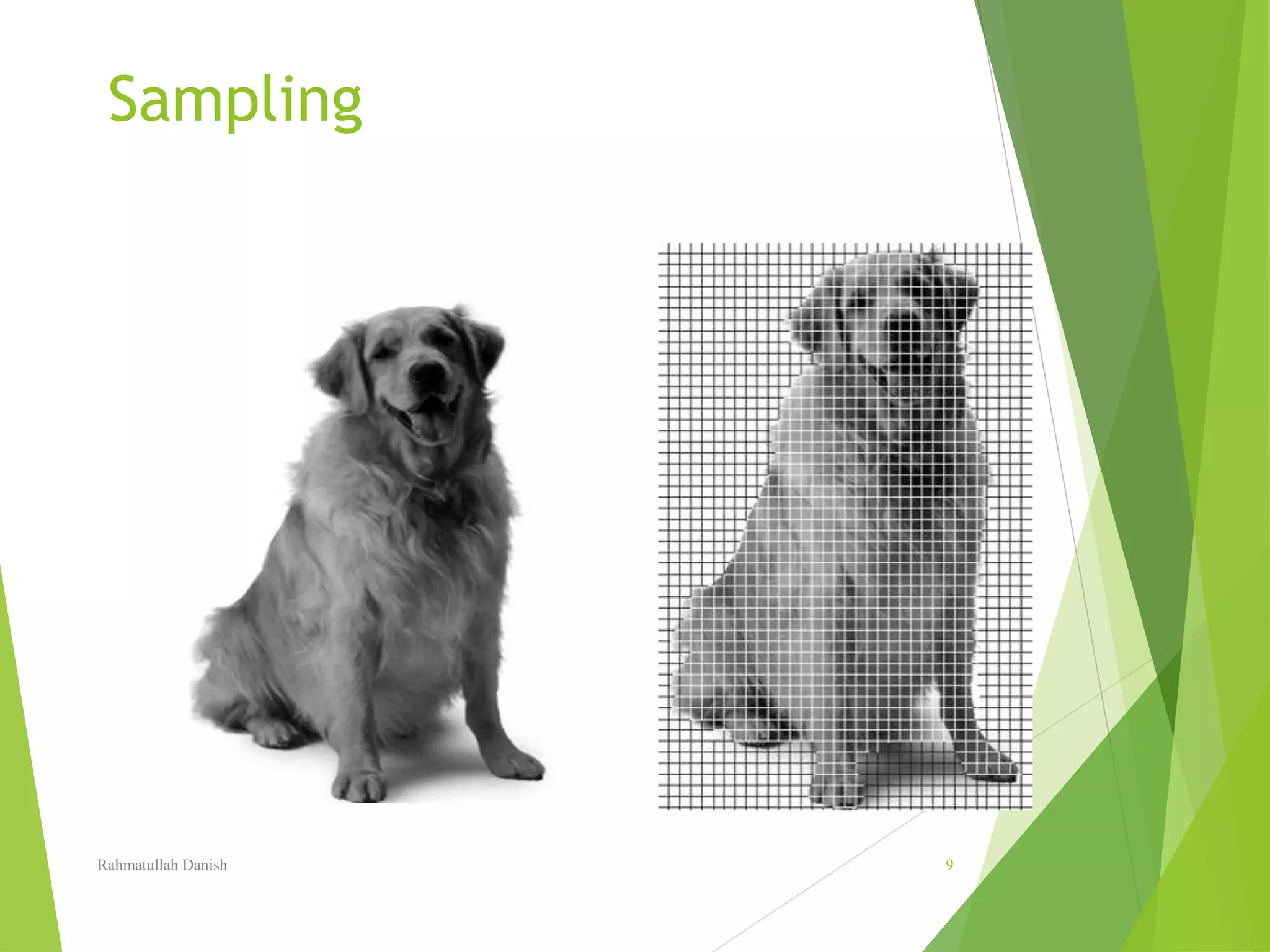
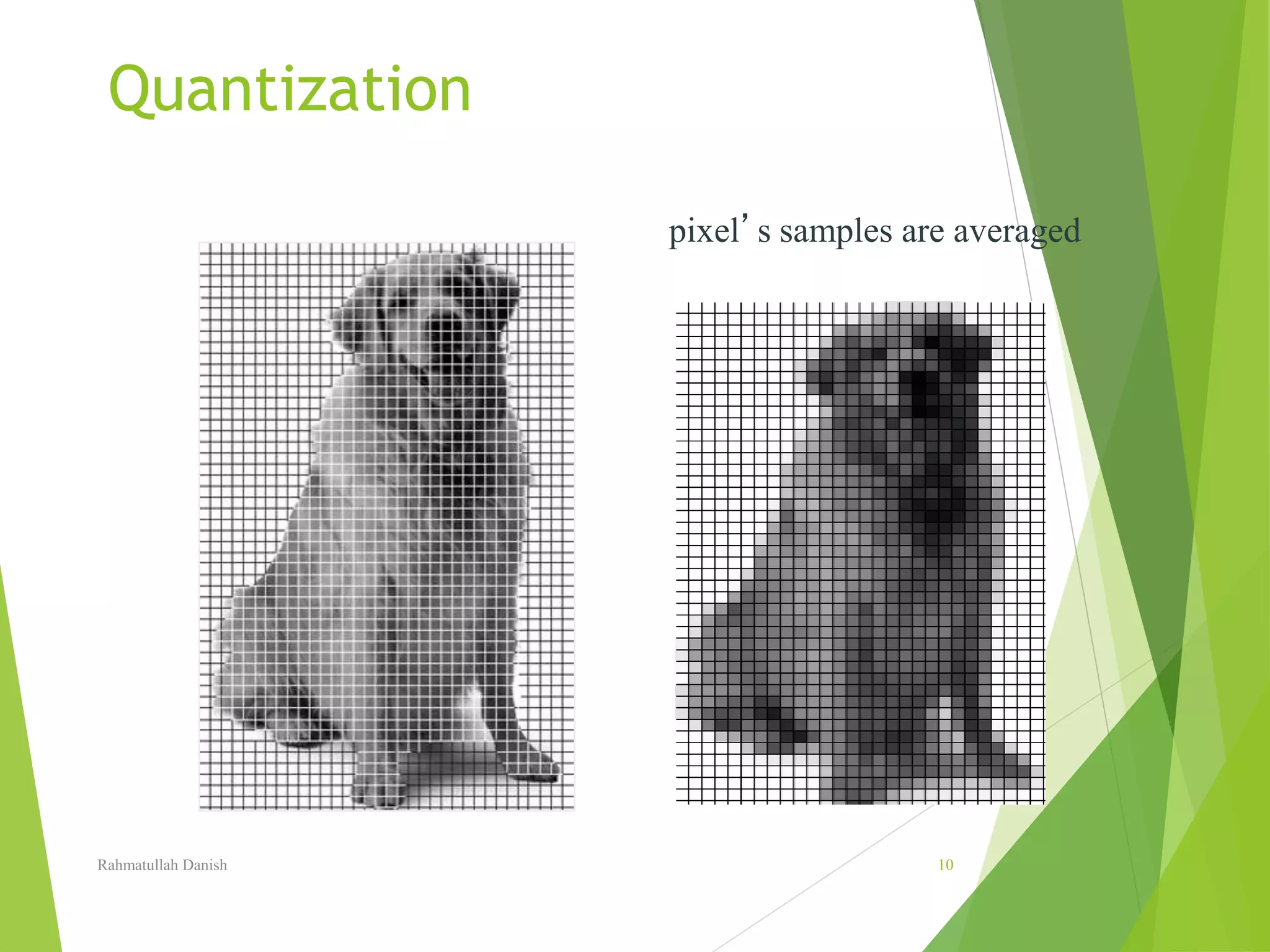
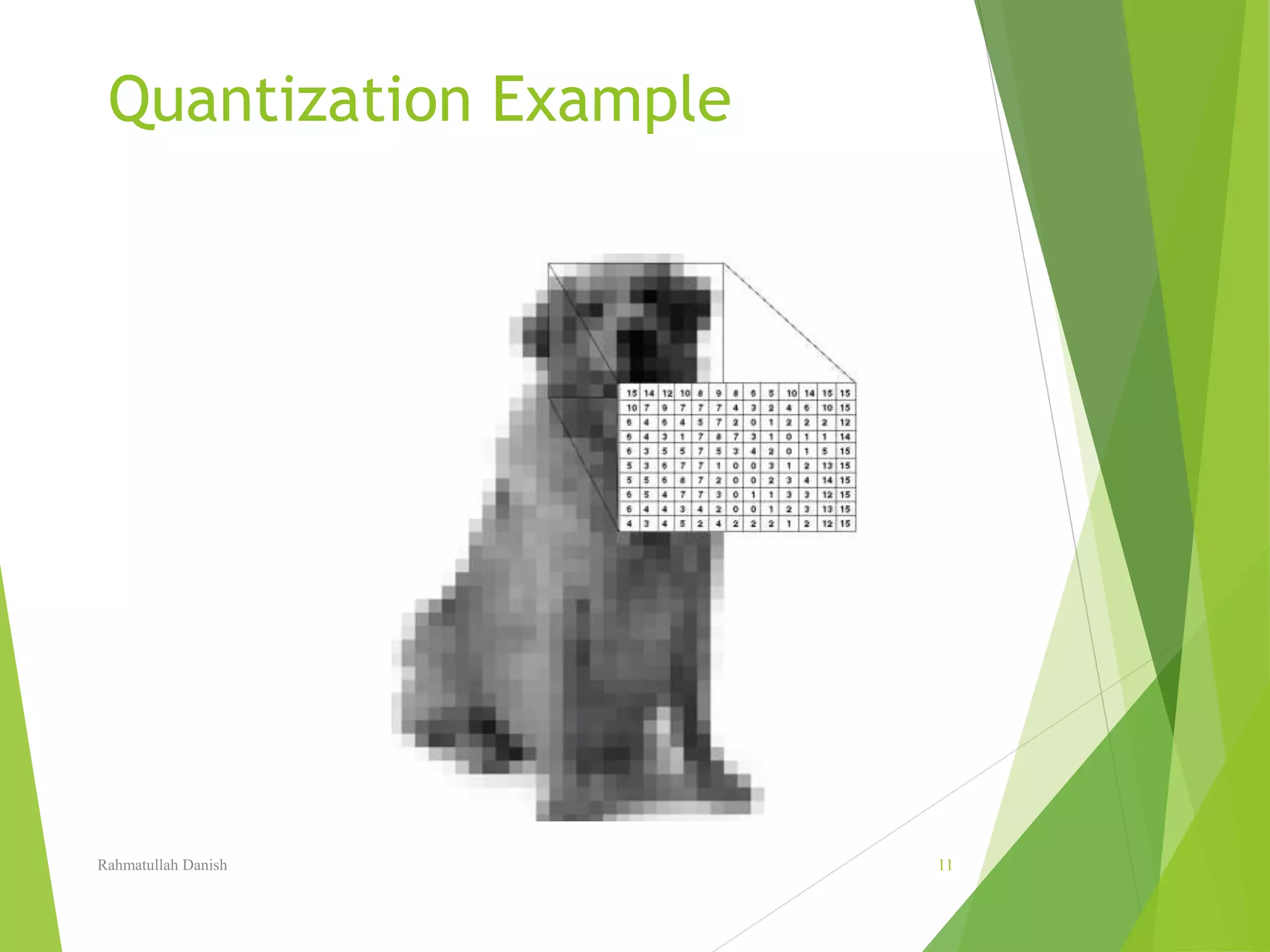
Digitizing Images
Images are digitized using a two step
process:
1. sampling the continuous tone image
2. quantizing pixels
Rahmatullah Danish 8
Sampling
Rahmatullah Danish 9
Quantization
pixel’s samples are averaged
Rahmatullah Danish 10
Quantization Example
Rahmatullah Danish 11
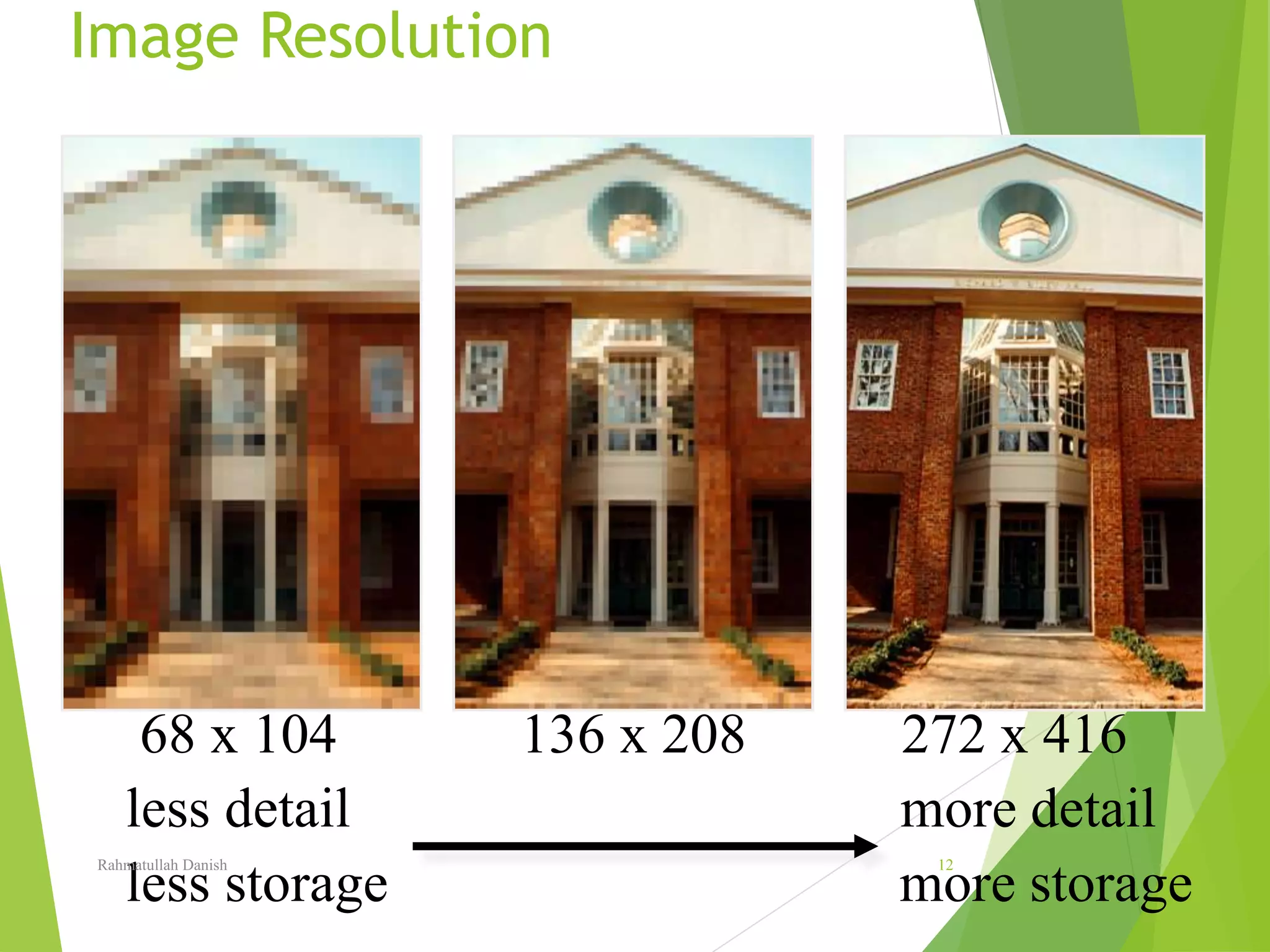
Image Resolution
68 x 104 136 x 208 272 x 416
less detail more detail
less storage more storage
Rahmatullah Danish 12
Digital Cameras
 Very Low Res 640x480 (TV grade)
 Medium-Low Res 1024x768
 Medium Res 2048x1536
 Medium-Hi Res 3072x2048
 Hi-Res 3264x2448
Rahmatullah Danish 13
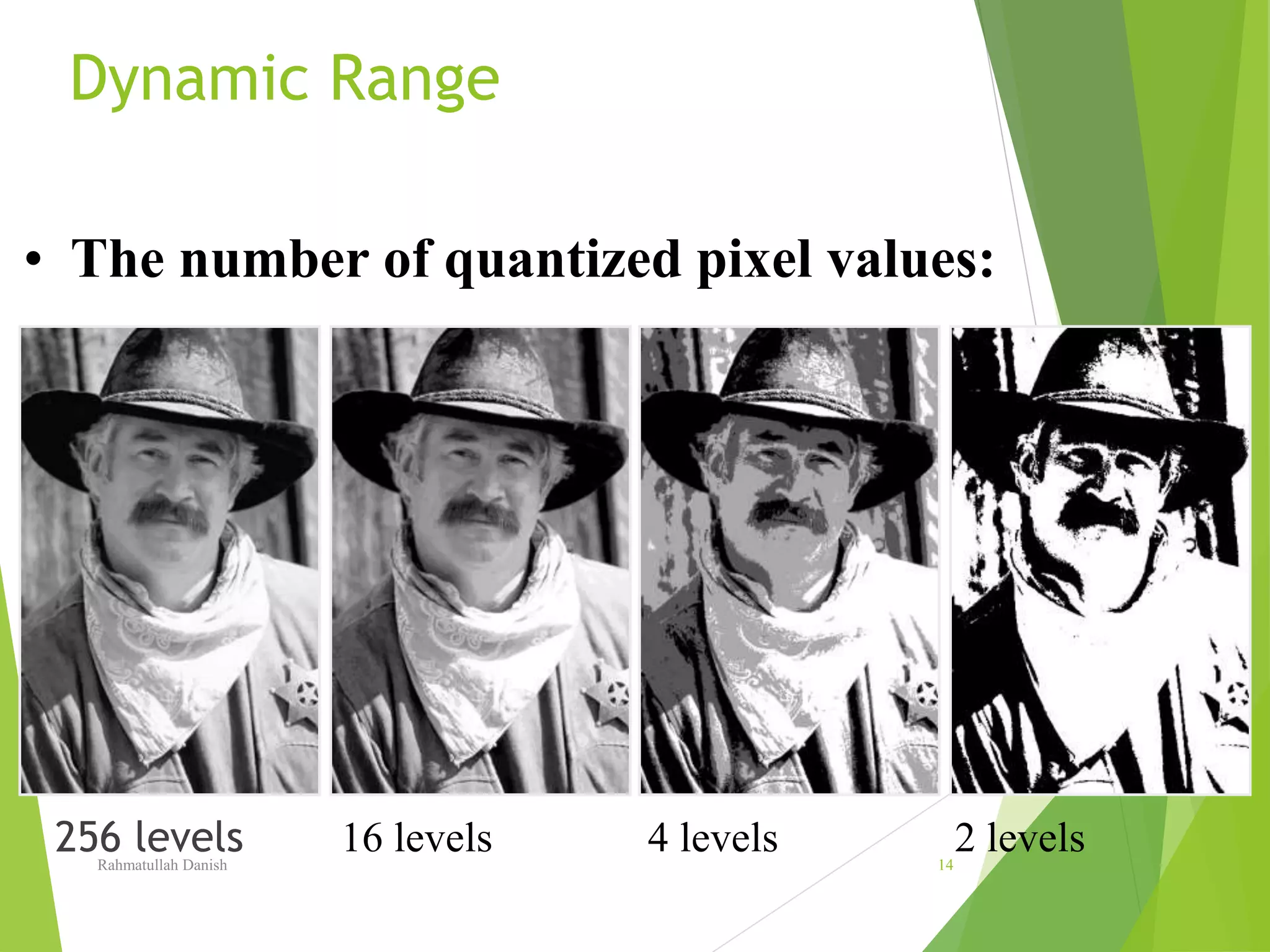
Dynamic Range
256 levels
• The number of quantized pixel values:
16 levels 4 levels 2 levelsRahmatullah Danish 14
Images - 2D array of values
 Binary Images (pixel values = 0,1)
 Grayscale Images (pixel values = 0-255)
 Color Images
 Each pixel has three color components
 For example, (red, green, blue) or RGB
 Each color component is 0-255
Rahmatullah Danish 15
Color Images
3 Images Overlayed
Red
Green
Blue
Rahmatullah Danish 16
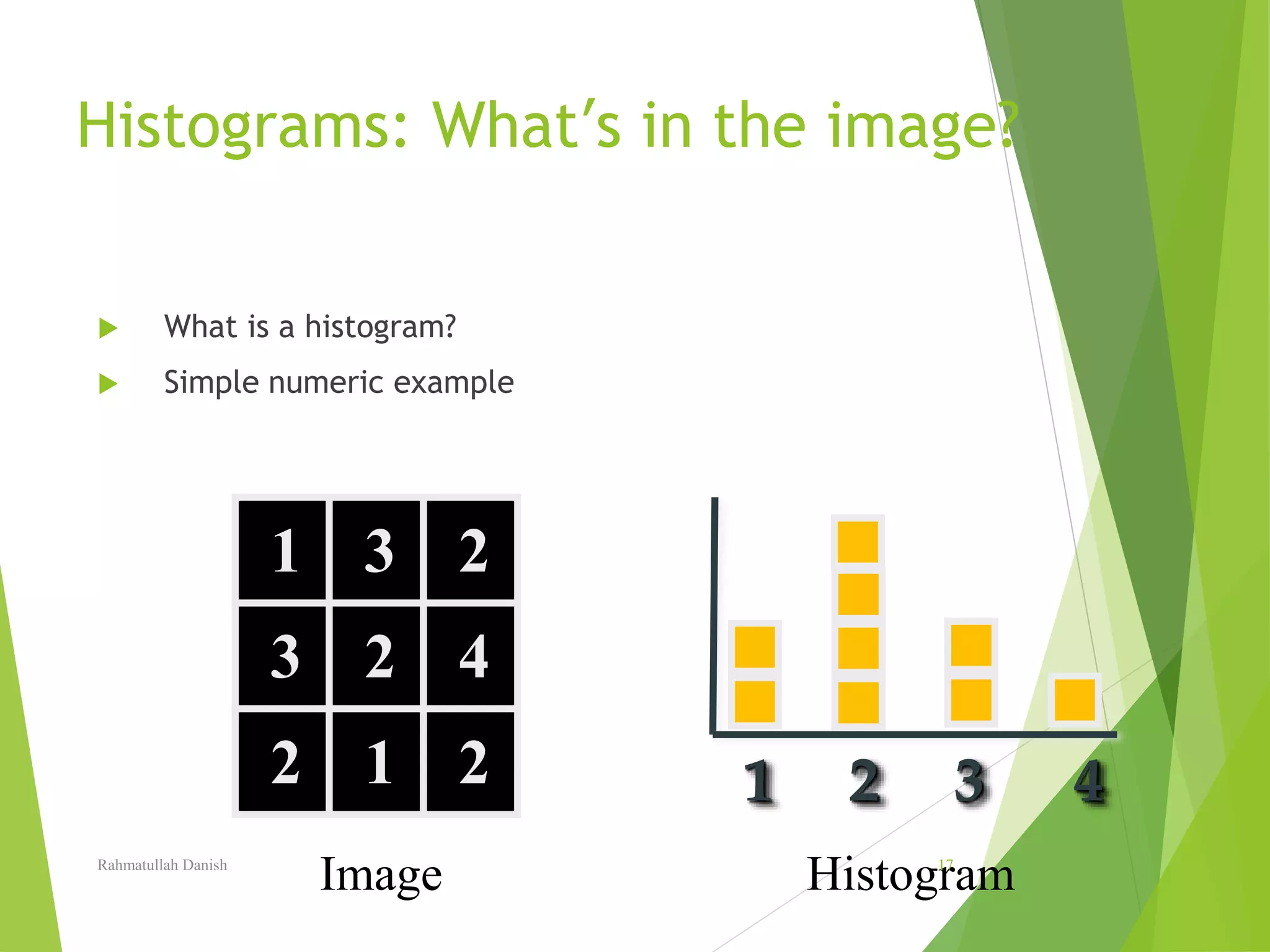
Histograms: What’s in the image?
 What is a histogram?
 Simple numeric example
1 3 2
13
1
2
1
4
2 1 2 1 2 3 4
HistogramImageRahmatullah Danish 17
Color Image Histograms
 Histogram for each color
Rahmatullah Danish 18
RGB Additive Color Model
RED
bright values => high amounts of that color
dark values => low amounts of that color
GREEN BLUE
Rahmatullah Danish 19
CMYK Subtractive Color Model
Bright => use less of
that ink color
Dark => use lots of
that ink color BLACK
CYAN MAGENTA
YELLOWRahmatullah Danish 20
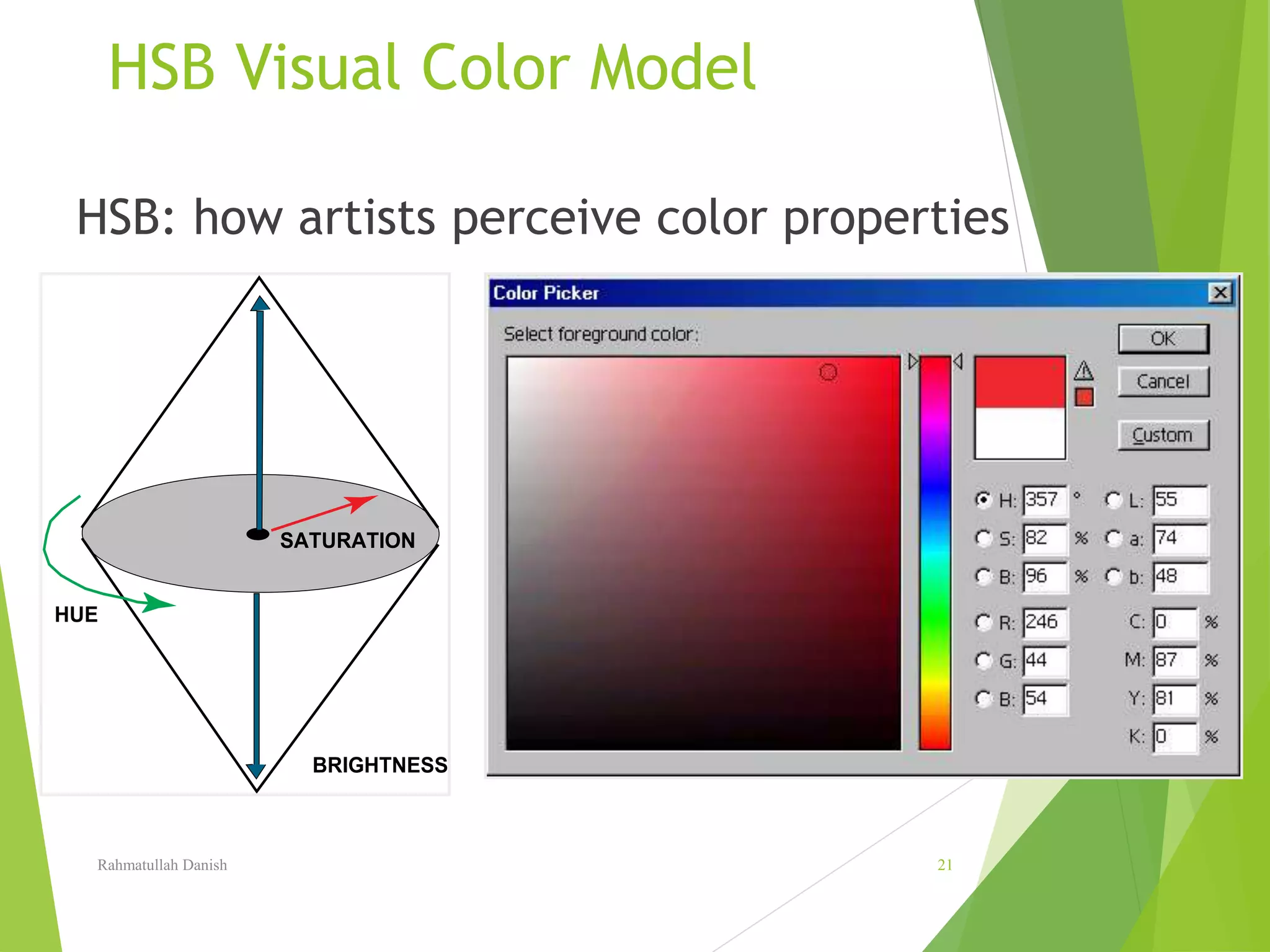
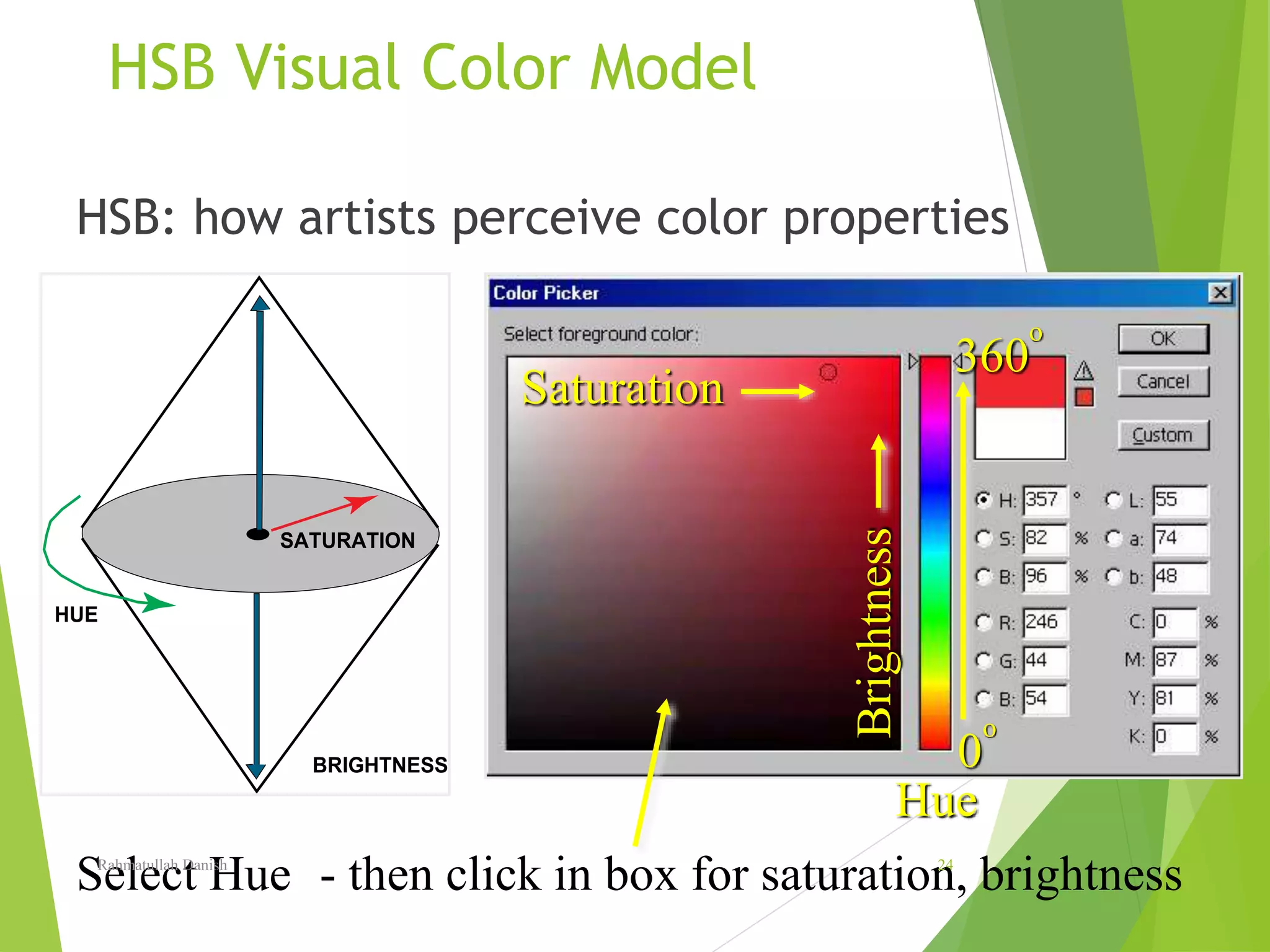
HSB Visual Color Model
HUE
BRIGHTNESS
SATURATION
HSB: how artists perceive color properties
Rahmatullah Danish 21
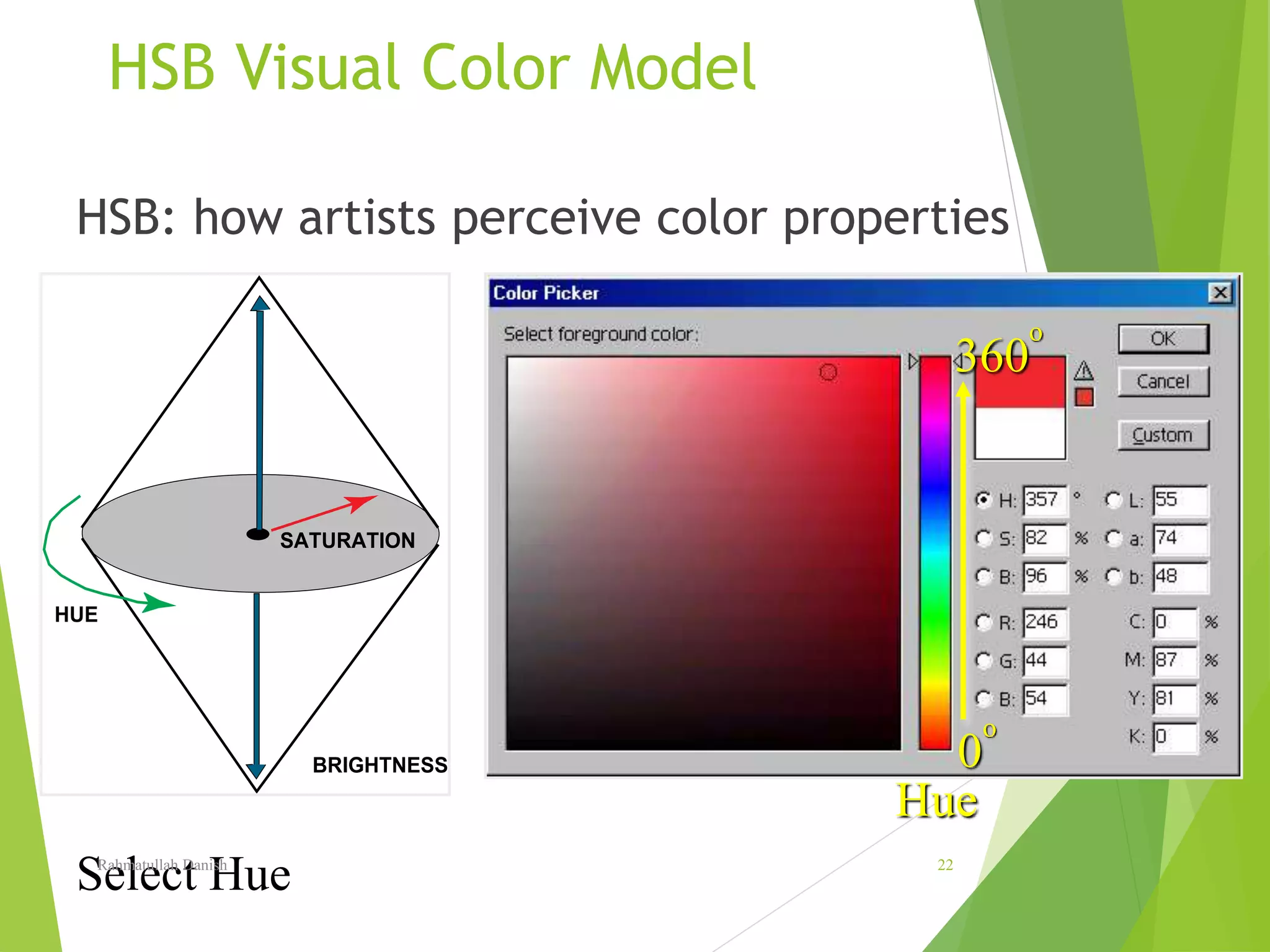
HSB Visual Color Model
HUE
BRIGHTNESS
SATURATION
HSB: how artists perceive color properties
Select Hue
0
o
Hue
360
o
Rahmatullah Danish 22
HSB Visual Color Model
HUE
BRIGHTNESS
SATURATION
HSB: how artists perceive color properties
Saturation
Select Hue
0
o
Hue
360
o
- then click in box for saturation, brightnessRahmatullah Danish 23
HSB Visual Color Model
HUE
BRIGHTNESS
SATURATION
HSB: how artists perceive color properties
Brightness
Saturation
Select Hue
0
o
Hue
360
o
- then click in box for saturation, brightnessRahmatullah Danish 24
Storing Digital Images
 Digital images are converted to files
for storage and transfer
 The file type is a special format for
ordering and storing the bytes that
make up the image
 File types or formats are not
necessarily compatible
 You must often match the file type
with the application
Rahmatullah Danish 25
Storing Digital Images
 GIF (Graphic Interchange Format)
 indexed color (up to 256 colors)
 compressed
 used in Web applications
 JPEG (Joint Photographic Experts Group)
 lossy compression with variable controls
 also used in Web applications
Rahmatullah Danish 26
Storing Digital Images
 PNG (Portable Network Graphics)
 designed for online viewing (e.g., Web)
 patent-free replacement for GIF
 lossless compression
 BMP
 MS Windows image format
Rahmatullah Danish 27
How Many Bytes to Store an Image?
 Suppose we a have an image that is 500x500 pixels in size
 That’s a total of 250,000 pixels
 Binary image (1 bit/pixel) = 31,250 bytes
 Grayscale image (8 bits/pixel) = 250,000 bytes
 Color image (24 bits/pixel) = 750,000 bytes
Rahmatullah Danish 28
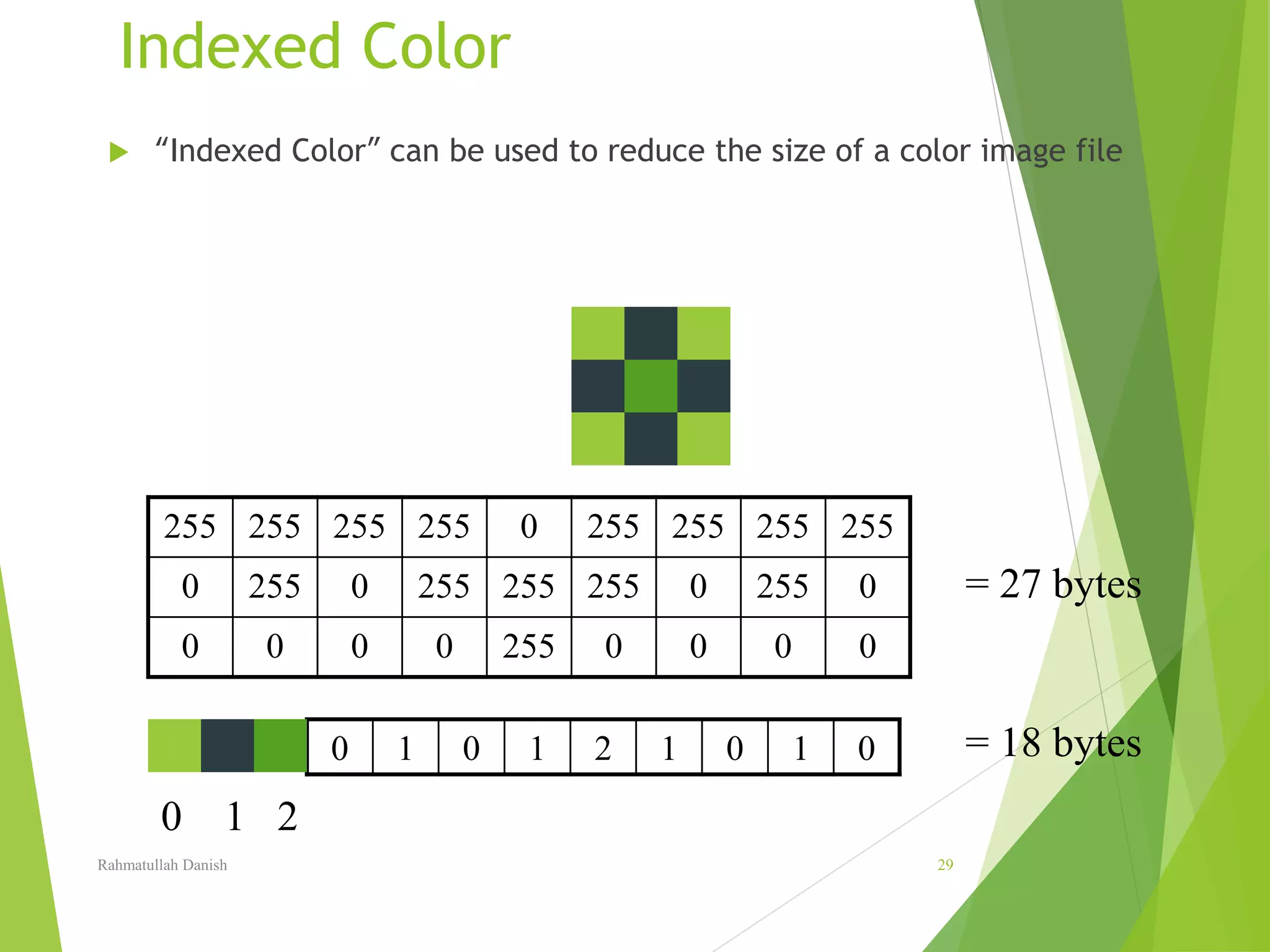
Indexed Color
 “Indexed Color” can be used to reduce the size of a color image file
0 1 0 1 2 1 0 1 0
0 1 2
255 255 255 255 0 255 255 255 255
0 255 0 255 255 255 0 255 0
0 0 0 0 255 0 0 0 0
= 27 bytes
= 18 bytes
Rahmatullah Danish 29
Indexed Color Images
 are derived from full
color images
 are smaller or more
compact in storage
 are composed of
pixels selected from
a limited palette of
colors or shades
Demo: GIMP PosterizeRahmatullah Danish 30
Image Processing II
Rahmatullah Danish 31
2 Classes of Digital Filters
 Global filters transform each pixel uniformly according to the function
regardless of its location in the image
 Local filters transform a pixel depending upon its relation to
surrounding ones
Rahmatullah Danish 32
Global Filters: REVIEW
 Brightness and Contrast control
 Histogram thresholding
 Histogram stretching or equalization
 Color corrections
 Inversions
Rahmatullah Danish 33
Image
Editing
Rahmatullah Danish 34
Image Editing
 Selection Tools
 Painting Tools
 Cut & Paste
 Cloning
 Layers and Blending
Rahmatullah Danish 35
Selection Tools
 Rectangular Selection
 Oval Selection
 Lasso Tool
 Magic Wand
 Color Select Tool
 Intelligent Scissors
 Foreground Select Tool
DEMOS
Tool Bar
Rahmatullah Danish 36
Image Editing
 Selection Tools
 Painting Tools
 Cut & Paste
 Cloning
 Layers and Blending
Rahmatullah Danish 37
Painting Tools
 Paint Bucket Tool
 Gradient Shade
 Pencil Tool
 Paintbrush Tool
 Eraser
 Airbrush Tool
 Ink Tool
DEMOS
Rahmatullah Danish 38
Image Editing
 Selection Tools
 Painting Tools
 Cut & Paste
 Cloning
 Layers and Blending
Rahmatullah Danish 39
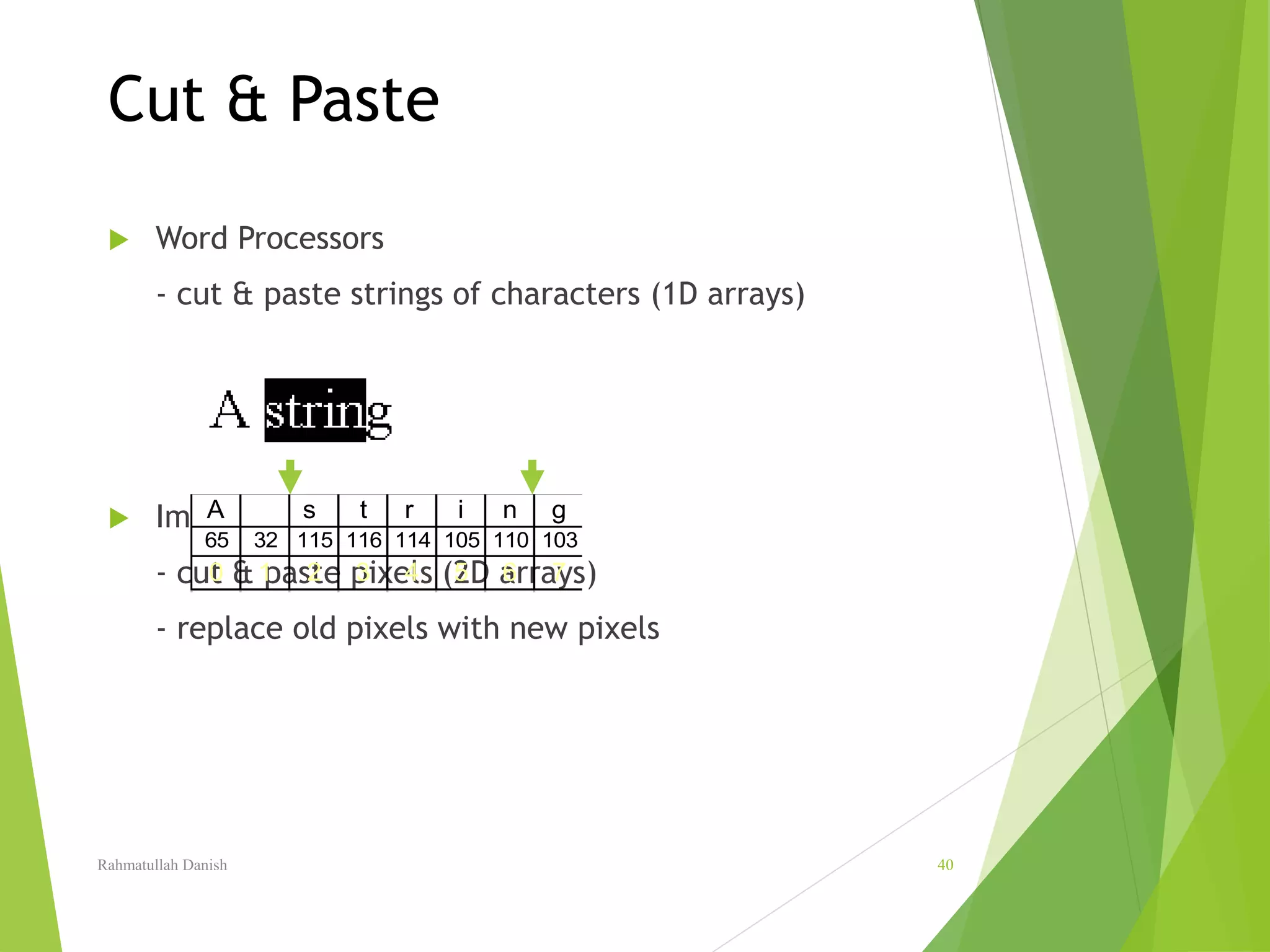
Cut & Paste
 Word Processors
- cut & paste strings of characters (1D arrays)
 Image Editing
- cut & paste pixels (2D arrays)
- replace old pixels with new pixels
A s t r i n g
65 32 115 116 114 105 110 103
0 1 2 3 4 5 6 7
Rahmatullah Danish 40
Image Editing
 Selection Tools
 Painting Tools
 Cut & Paste
 Cloning
 Layers and Blending
Rahmatullah Danish 41
Cloning
 Copy pixels from
one part of an image
- to another part of an image ... Interactively
DEMORahmatullah Danish 42
Image Editing
 Selection Tools
 Painting Tools
 Cut & Paste
 Cloning
 Layers and Blending
Rahmatullah Danish 43
Layers and Blending
Can create arbitrary number of layers for
- animation
- special effects in movies
- morphing
Layer 1
Layer 2
Layer n
Rahmatullah Danish 44
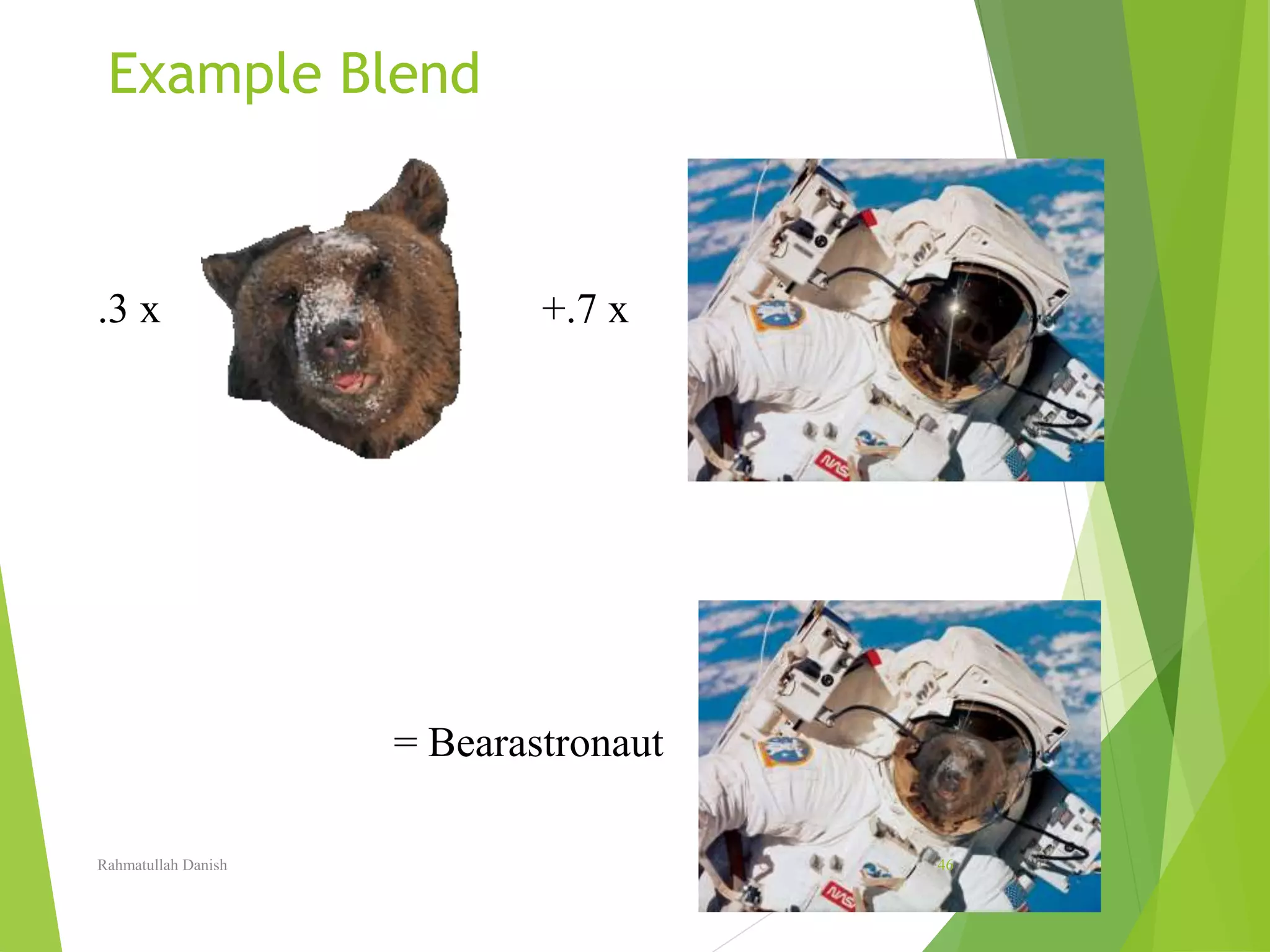
Blending
 The idea: Blended image
= .3 x + .7 x
is a weighted combination (sum) of
two or more other images.
Rahmatullah Danish 45
Example Blend
.3 x +.7 x
= Bearastronaut
Rahmatullah Danish 46
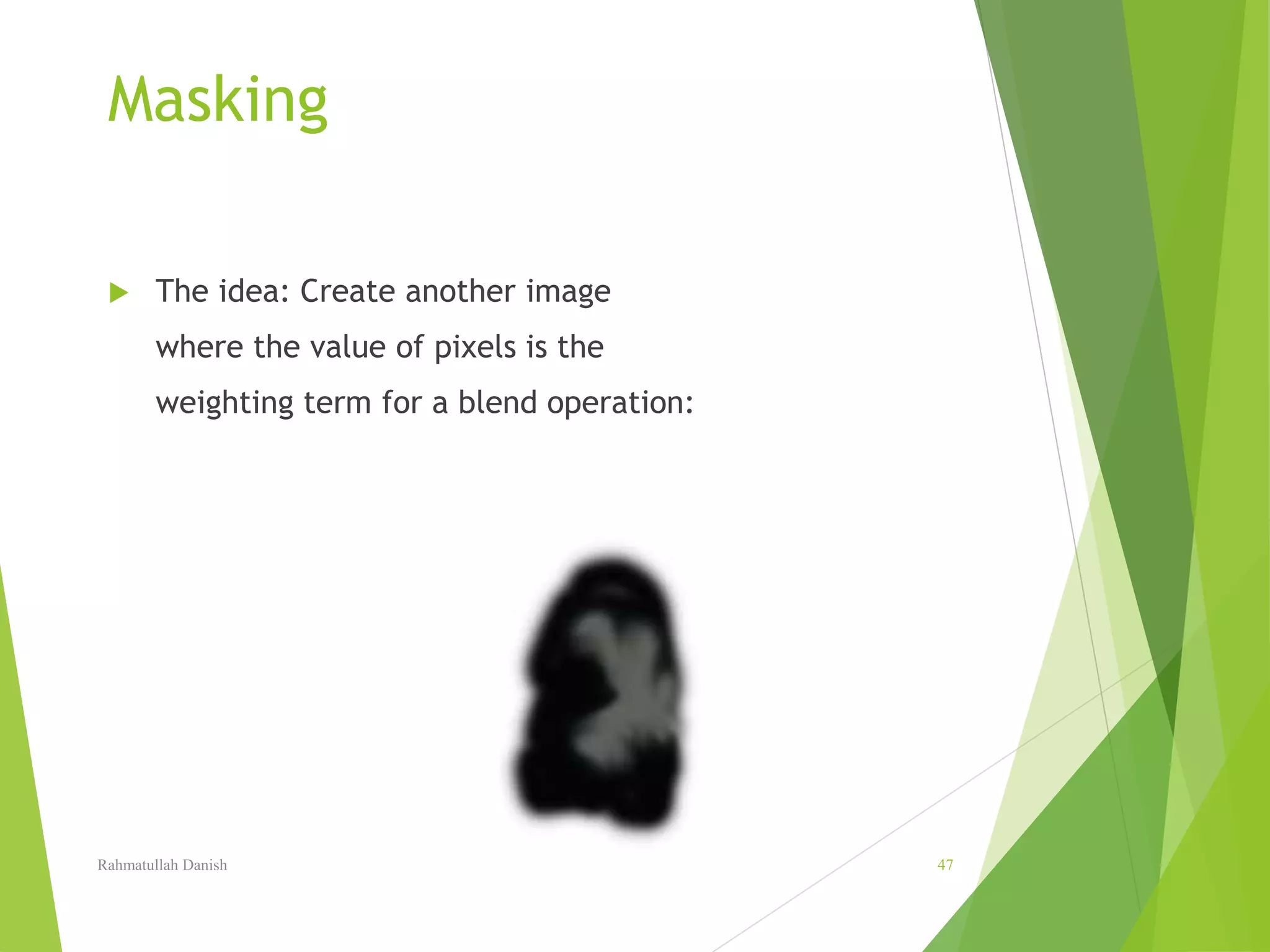
Masking
 The idea: Create another image
where the value of pixels is the
weighting term for a blend operation:
Rahmatullah Danish 47

Image representation

  • 1.
    Lecture # 17 ImageRepresentation Rahmatullah Danish 1
  • 2.
    "Be wary, therefore,when some demand public tolerance for whatever their private indulgences are!" Rahmatullah Danish 2
  • 3.
    "Be wary, therefore,when some demand public tolerance for whatever their private indulgences are!" - Neal A. Maxwell Rahmatullah Danish 3
  • 4.
  • 5.
    Digital Image Sources Digital Cameras  Scanned Film & Photographs  Digitized TV Signals  Computer Graphics  Radar & Sonar  Medical Imaging Devices (X-Ray, CT)  The Internet Rahmatullah Danish 5
  • 6.
    Images - 2Darray of values = pixels  Pixel = “Picture Element”  Image [x,y] = pixel value (number) Rahmatullah Danish 6
  • 7.
    Pixels and PixelValues  Pixel – an element of the 2-D image array  Pixel Value = brightness  - black = 0  - gray = 128  - white = 255  - many shades over the 0-255 range 0 1 2 3 4 5 6 7 0 1 2 3 4 5 6 7 Rahmatullah Danish 7
  • 8.
    Digitizing Images Images aredigitized using a two step process: 1. sampling the continuous tone image 2. quantizing pixels Rahmatullah Danish 8
  • 9.
  • 10.
    Quantization pixel’s samples areaveraged Rahmatullah Danish 10
  • 11.
  • 12.
    Image Resolution 68 x104 136 x 208 272 x 416 less detail more detail less storage more storage Rahmatullah Danish 12
  • 13.
    Digital Cameras  VeryLow Res 640x480 (TV grade)  Medium-Low Res 1024x768  Medium Res 2048x1536  Medium-Hi Res 3072x2048  Hi-Res 3264x2448 Rahmatullah Danish 13
  • 14.
    Dynamic Range 256 levels •The number of quantized pixel values: 16 levels 4 levels 2 levelsRahmatullah Danish 14
  • 15.
    Images - 2Darray of values  Binary Images (pixel values = 0,1)  Grayscale Images (pixel values = 0-255)  Color Images  Each pixel has three color components  For example, (red, green, blue) or RGB  Each color component is 0-255 Rahmatullah Danish 15
  • 16.
    Color Images 3 ImagesOverlayed Red Green Blue Rahmatullah Danish 16
  • 17.
    Histograms: What’s inthe image?  What is a histogram?  Simple numeric example 1 3 2 13 1 2 1 4 2 1 2 1 2 3 4 HistogramImageRahmatullah Danish 17
  • 18.
    Color Image Histograms Histogram for each color Rahmatullah Danish 18
  • 19.
    RGB Additive ColorModel RED bright values => high amounts of that color dark values => low amounts of that color GREEN BLUE Rahmatullah Danish 19
  • 20.
    CMYK Subtractive ColorModel Bright => use less of that ink color Dark => use lots of that ink color BLACK CYAN MAGENTA YELLOWRahmatullah Danish 20
  • 21.
    HSB Visual ColorModel HUE BRIGHTNESS SATURATION HSB: how artists perceive color properties Rahmatullah Danish 21
  • 22.
    HSB Visual ColorModel HUE BRIGHTNESS SATURATION HSB: how artists perceive color properties Select Hue 0 o Hue 360 o Rahmatullah Danish 22
  • 23.
    HSB Visual ColorModel HUE BRIGHTNESS SATURATION HSB: how artists perceive color properties Saturation Select Hue 0 o Hue 360 o - then click in box for saturation, brightnessRahmatullah Danish 23
  • 24.
    HSB Visual ColorModel HUE BRIGHTNESS SATURATION HSB: how artists perceive color properties Brightness Saturation Select Hue 0 o Hue 360 o - then click in box for saturation, brightnessRahmatullah Danish 24
  • 25.
    Storing Digital Images Digital images are converted to files for storage and transfer  The file type is a special format for ordering and storing the bytes that make up the image  File types or formats are not necessarily compatible  You must often match the file type with the application Rahmatullah Danish 25
  • 26.
    Storing Digital Images GIF (Graphic Interchange Format)  indexed color (up to 256 colors)  compressed  used in Web applications  JPEG (Joint Photographic Experts Group)  lossy compression with variable controls  also used in Web applications Rahmatullah Danish 26
  • 27.
    Storing Digital Images PNG (Portable Network Graphics)  designed for online viewing (e.g., Web)  patent-free replacement for GIF  lossless compression  BMP  MS Windows image format Rahmatullah Danish 27
  • 28.
    How Many Bytesto Store an Image?  Suppose we a have an image that is 500x500 pixels in size  That’s a total of 250,000 pixels  Binary image (1 bit/pixel) = 31,250 bytes  Grayscale image (8 bits/pixel) = 250,000 bytes  Color image (24 bits/pixel) = 750,000 bytes Rahmatullah Danish 28
  • 29.
    Indexed Color  “IndexedColor” can be used to reduce the size of a color image file 0 1 0 1 2 1 0 1 0 0 1 2 255 255 255 255 0 255 255 255 255 0 255 0 255 255 255 0 255 0 0 0 0 0 255 0 0 0 0 = 27 bytes = 18 bytes Rahmatullah Danish 29
  • 30.
    Indexed Color Images are derived from full color images  are smaller or more compact in storage  are composed of pixels selected from a limited palette of colors or shades Demo: GIMP PosterizeRahmatullah Danish 30
  • 31.
  • 32.
    2 Classes ofDigital Filters  Global filters transform each pixel uniformly according to the function regardless of its location in the image  Local filters transform a pixel depending upon its relation to surrounding ones Rahmatullah Danish 32
  • 33.
    Global Filters: REVIEW Brightness and Contrast control  Histogram thresholding  Histogram stretching or equalization  Color corrections  Inversions Rahmatullah Danish 33
  • 34.
  • 35.
    Image Editing  SelectionTools  Painting Tools  Cut & Paste  Cloning  Layers and Blending Rahmatullah Danish 35
  • 36.
    Selection Tools  RectangularSelection  Oval Selection  Lasso Tool  Magic Wand  Color Select Tool  Intelligent Scissors  Foreground Select Tool DEMOS Tool Bar Rahmatullah Danish 36
  • 37.
    Image Editing  SelectionTools  Painting Tools  Cut & Paste  Cloning  Layers and Blending Rahmatullah Danish 37
  • 38.
    Painting Tools  PaintBucket Tool  Gradient Shade  Pencil Tool  Paintbrush Tool  Eraser  Airbrush Tool  Ink Tool DEMOS Rahmatullah Danish 38
  • 39.
    Image Editing  SelectionTools  Painting Tools  Cut & Paste  Cloning  Layers and Blending Rahmatullah Danish 39
  • 40.
    Cut & Paste Word Processors - cut & paste strings of characters (1D arrays)  Image Editing - cut & paste pixels (2D arrays) - replace old pixels with new pixels A s t r i n g 65 32 115 116 114 105 110 103 0 1 2 3 4 5 6 7 Rahmatullah Danish 40
  • 41.
    Image Editing  SelectionTools  Painting Tools  Cut & Paste  Cloning  Layers and Blending Rahmatullah Danish 41
  • 42.
    Cloning  Copy pixelsfrom one part of an image - to another part of an image ... Interactively DEMORahmatullah Danish 42
  • 43.
    Image Editing  SelectionTools  Painting Tools  Cut & Paste  Cloning  Layers and Blending Rahmatullah Danish 43
  • 44.
    Layers and Blending Cancreate arbitrary number of layers for - animation - special effects in movies - morphing Layer 1 Layer 2 Layer n Rahmatullah Danish 44
  • 45.
    Blending  The idea:Blended image = .3 x + .7 x is a weighted combination (sum) of two or more other images. Rahmatullah Danish 45
  • 46.
    Example Blend .3 x+.7 x = Bearastronaut Rahmatullah Danish 46
  • 47.
    Masking  The idea:Create another image where the value of pixels is the weighting term for a blend operation: Rahmatullah Danish 47