Human Interface Guidelines
For Dummies
Jeremy Curcio
Baltimore Cocoa - 3/30/2015
Who Am I?
Software Developer from
Baltimore, Maryland
Works for Planit
Advertising
Writing iOS Apps since 2008
Hockey Player
Pokémon Player
What Will We Cover?
Dos and Don’ts of App Design
What Apple Expects
What Will Guarantee a Rejection Email

What Does Apple Expect?
Your App should have three main focuses:
Deference
Quickly understand how to use the app
Clarity
Text is readable
Icons precise
Functionality dictates design
Depth
Layers
Motion
UIKit
Is. Your. Friend.
All UI elements
Nav Bars
Tab Bars
Alert Views
Buttons
Your App is viewed as a “Screen” 
Layout
Size classes
New to iOS8
Easily make an app for any screen size
Maintain focus
Put important elements to the top left 
Keep layouts consistent
Touch areas should be minimum of 44px x 44px 
Navigation
Users should always know where they are
And how to change to last/next screen
Navigation Bars
Great for data driven apps
Tab Bars
Great for apps with multiple categories of content or
functionality 
Avoid multiple paths to same screen
Interactivity
Keep default touch actions 
Tap: Select
Drag: Scroll
Swipe: Reveal hidden views
Double Tap/Pinch: Zoom
Touch and Hold: More information
Shake: Undo
More Interactivity
Don’t make gestures only way to complete
action
Have a button available
Avoid make complex gestures 
Hard for people with disabilities
When in doubt, don’t invent a gesture
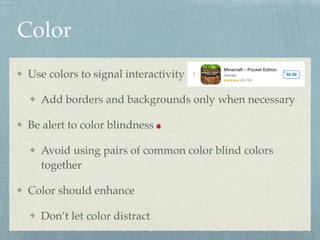
Color
Use colors to signal interactivity
Add borders and backgrounds only when necessary
Be alert to color blindness 
Avoid using pairs of common color blind colors
together
Color should enhance
Don’t let color distract
Graphics
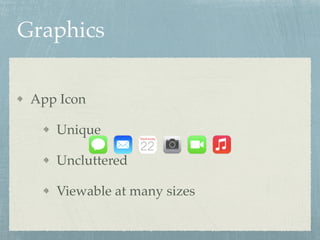
App Icon
Unique
Uncluttered
Viewable at many sizes
Graphics
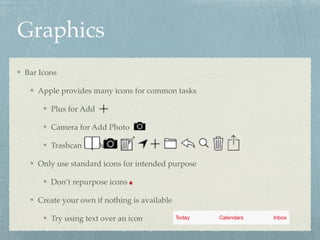
Bar Icons
Apple provides many icons for common tasks
Plus for Add
Camera for Add Photo
Trashcan for Delete
Only use standard icons for intended purpose
Don’t repurpose icons 
Create your own if nothing is available
Try using text over an icon
Graphics
Build for Retina
2x and 3x
Don’t replicate:
Apple products 
Apple trademarks 
Apple App icons, screenshots 
Text
All text is creating a conversation with user
Tone is important
Friendly, but professional 
Keep terminology your users will understand
Good: Medical terms in app aimed at doctors
Bad: Medical terms in app aimed at beginner exercisers
Be consistent
Each word matters - keep it short, but meaningful 
iOS Elements
Don’t mix and match
Use elements from a single iOS version
Preferably latest available
Use same style throughout app
Don’t create custom elements for standard actions 
Use what Apple provided when you can
Take advantage of iOS Technologies
Multitasking
VoiceOver
GameCenter
Wrap-Up
Use Apple’s apps as guidance
Apple’s opinion is law
Keep it simple whenever possible
Apple provides plenty of icons, use them
Questions?
Slides Available At jcurcio.com
Short-link to the HIG apple.co/1uk1nuV

Human Interface Guidelines: For Dummies

  • 1.
    Human Interface Guidelines ForDummies Jeremy Curcio Baltimore Cocoa - 3/30/2015
  • 2.
    Who Am I? SoftwareDeveloper from Baltimore, Maryland Works for Planit Advertising Writing iOS Apps since 2008 Hockey Player Pokémon Player
  • 3.
    What Will WeCover? Dos and Don’ts of App Design What Apple Expects What Will Guarantee a Rejection Email
  • 4.
  • 5.
    What Does AppleExpect? Your App should have three main focuses: Deference Quickly understand how to use the app Clarity Text is readable Icons precise Functionality dictates design Depth Layers Motion
  • 7.
    UIKit Is. Your. Friend. AllUI elements Nav Bars Tab Bars Alert Views Buttons Your App is viewed as a “Screen” 
  • 8.
    Layout Size classes New toiOS8 Easily make an app for any screen size Maintain focus Put important elements to the top left  Keep layouts consistent Touch areas should be minimum of 44px x 44px 
  • 9.
    Navigation Users should alwaysknow where they are And how to change to last/next screen Navigation Bars Great for data driven apps Tab Bars Great for apps with multiple categories of content or functionality  Avoid multiple paths to same screen
  • 11.
    Interactivity Keep default touchactions  Tap: Select Drag: Scroll Swipe: Reveal hidden views Double Tap/Pinch: Zoom Touch and Hold: More information Shake: Undo
  • 12.
    More Interactivity Don’t makegestures only way to complete action Have a button available Avoid make complex gestures  Hard for people with disabilities When in doubt, don’t invent a gesture
  • 13.
    Color Use colors tosignal interactivity Add borders and backgrounds only when necessary Be alert to color blindness  Avoid using pairs of common color blind colors together Color should enhance Don’t let color distract
  • 15.
  • 16.
    Graphics Bar Icons Apple providesmany icons for common tasks Plus for Add Camera for Add Photo Trashcan for Delete Only use standard icons for intended purpose Don’t repurpose icons  Create your own if nothing is available Try using text over an icon
  • 17.
    Graphics Build for Retina 2xand 3x Don’t replicate: Apple products  Apple trademarks  Apple App icons, screenshots 
  • 18.
    Text All text iscreating a conversation with user Tone is important Friendly, but professional  Keep terminology your users will understand Good: Medical terms in app aimed at doctors Bad: Medical terms in app aimed at beginner exercisers Be consistent Each word matters - keep it short, but meaningful 
  • 20.
    iOS Elements Don’t mixand match Use elements from a single iOS version Preferably latest available Use same style throughout app Don’t create custom elements for standard actions  Use what Apple provided when you can Take advantage of iOS Technologies Multitasking VoiceOver GameCenter
  • 21.
    Wrap-Up Use Apple’s appsas guidance Apple’s opinion is law Keep it simple whenever possible Apple provides plenty of icons, use them
  • 22.
    Questions? Slides Available Atjcurcio.com Short-link to the HIG apple.co/1uk1nuV