Information Technology II
What is it?
 HTML = HyperText Markup Language is
  the markup language used for hypertext (yeah, that
  says very little...)
 A markup language is a system of tags that describe
  how to format a document. There's usually some kind
  of interpreter that reads a document in the markup
  language and displays it in a nicely formatted way.
 Hypertext is the technical term for web pages, i.e.
  text with formatting and which the user can interact
  with (e.g. clicking links, hence the "hyper" part). The
  interpreter for hypertext is a web browser.


                                                            2
Types of classical structures
There are four types of classical structures to
outline the contents of aWeb site.


                                                  3
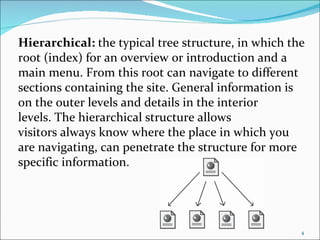
Hierarchical: the typical tree structure, in which the
root (index) for an overview or introduction and a
main menu. From this root can navigate to different
sections containing the site. General information is
on the outer levels and details in the interior
levels. The hierarchical structure allows
visitors always know where the place in which you
are navigating, can penetrate the structure for more
specific information.


                                                     4
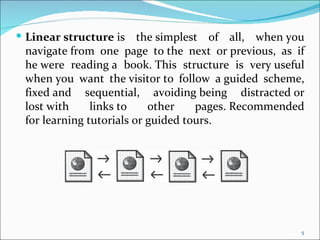
 Linear structure is    the simplest of all, when you
 navigate from one page to the next or previous, as if
 he were reading a book. This structure is very useful
 when you want the visitor to follow a guided scheme,
 fixed and sequential, avoiding being distracted or
 lost with     links to    other    pages. Recommended
 for learning tutorials or guided tours.


                                                     5
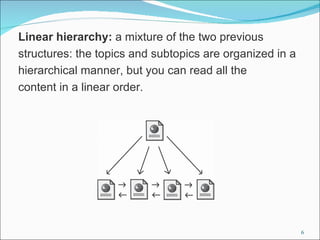
Linear hierarchy: a mixture of the two previous
structures: the topics and subtopics are organized in a
hierarchical manner, but you can read all the
content in a linear order.


                                                          6
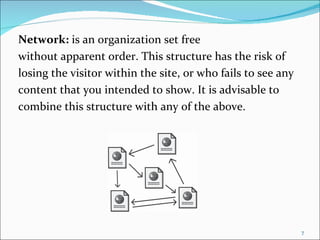
Network: is an organization set free
without apparent order. This structure has the risk of
losing the visitor within the site, or who fails to see any
content that you intended to show. It is advisable to
combine this structure with any of the above.


                                                              7
Activity 1
 Surf the Internet and identifies a Web site based in
 each of the types of structure: Hierarchy, Linear,
 Linear Network with hierarchy.


                                                         8
Tags and HTML Files
 HTML files are plain text files --> no formatting


 We need ways to tell the web browser when to start
 formatting text in certain ways, insert things like
 horizontal rules and links, etc. These are the tags.
 They're code that is understood by the writer and
 replaced by the interpreter with appropriate
 formatting.


                                                        9
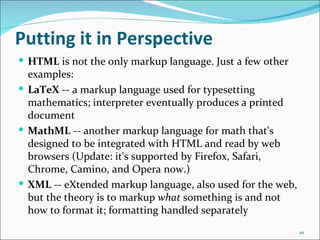
Putting it in Perspective
 HTML is not the only markup language. Just a few other
  examples:
 LaTeX -- a markup language used for typesetting
  mathematics; interpreter eventually produces a printed
  document
 MathML -- another markup language for math that's
  designed to be integrated with HTML and read by web
  browsers (Update: it's supported by Firefox, Safari,
  Chrome, Camino, and Opera now.)
 XML -- eXtended markup language, also used for the web,
  but the theory is to markup what something is and not
  how to format it; formatting handled separately
                                                            10
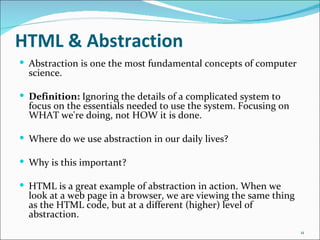
HTML & Abstraction
 Abstraction is one the most fundamental concepts of computer
  science.

 Definition: Ignoring the details of a complicated system to
  focus on the essentials needed to use the system. Focusing on
  WHAT we're doing, not HOW it is done.

 Where do we use abstraction in our daily lives?

 Why is this important?

 HTML is a great example of abstraction in action. When we
  look at a web page in a browser, we are viewing the same thing
  as the HTML code, but at a different (higher) level of
  abstraction.
                                                                   11
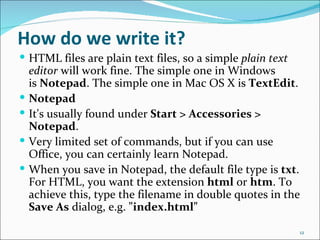
How do we write it?
 HTML files are plain text files, so a simple plain text
    editor will work fine. The simple one in Windows
    is Notepad. The simple one in Mac OS X is TextEdit.
   Notepad
   It's usually found under Start > Accessories >
    Notepad.
   Very limited set of commands, but if you can use
    Office, you can certainly learn Notepad.
   When you save in Notepad, the default file type is txt.
    For HTML, you want the extension html or htm. To
    achieve this, type the filename in double quotes in the
    Save As dialog, e.g. "index.html"

                                                            12
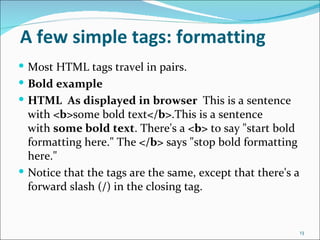
A few simple tags: formatting
 Most HTML tags travel in pairs.
 Bold example
 HTML As displayed in browser This is a sentence
  with <b>some bold text</b>.This is a sentence
  with some bold text. There's a <b> to say "start bold
  formatting here." The </b> says "stop bold formatting
  here."
 Notice that the tags are the same, except that there's a
  forward slash (/) in the closing tag.


                                                             13
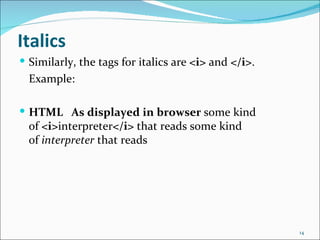
Italics
 Similarly, the tags for italics are <i> and </i>.
  Example:

 HTML As displayed in browser some kind
  of <i>interpreter</i> that reads some kind
  of interpreter that reads


                                                      14
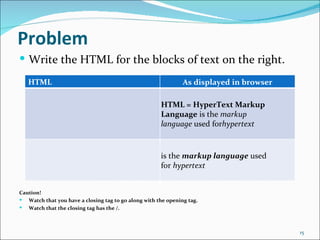
Problem
 Write the HTML for the blocks of text on the right.

   HTML                                                        As displayed in browser

                                                      HTML = HyperText Markup
                                                      Language is the markup
                                                      language used forhypertext


                                                      is the markup language used
                                                      for hypertext


Caution!
 Watch that you have a closing tag to go along with the opening tag.
 Watch that the closing tag has the /.


                                                                                         15
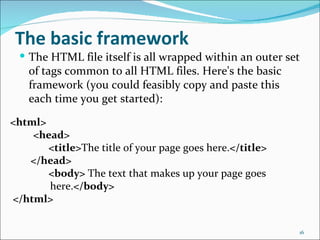
The basic framework
  The HTML file itself is all wrapped within an outer set
   of tags common to all HTML files. Here's the basic
   framework (you could feasibly copy and paste this
   each time you get started):

<html>
    <head>
       <title>The title of your page goes here.</title>
   </head>
       <body> The text that makes up your page goes
       here.</body>
</html>

                                                          16
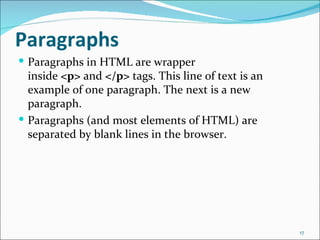
Paragraphs
 Paragraphs in HTML are wrapper
  inside <p> and </p> tags. This line of text is an
  example of one paragraph. The next is a new
  paragraph.
 Paragraphs (and most elements of HTML) are
  separated by blank lines in the browser.


                                                      17
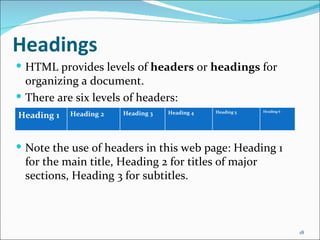
Headings
 HTML provides levels of headers or headings for
  organizing a document.
 There are six levels of headers:
                                                Heading 5   Heading 6
            Heading 2   Heading 3   Heading 4
Heading 1


 Note the use of headers in this web page: Heading 1
  for the main title, Heading 2 for titles of major
  sections, Heading 3 for subtitles.


                                                                        18
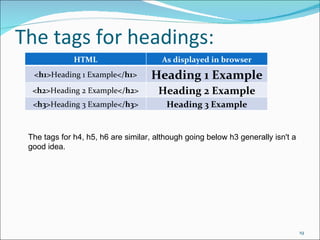
The tags for headings:
              HTML                      As displayed in browser
  <h1>Heading 1 Example</h1>        Heading 1 Example
  <h2>Heading 2 Example</h2>           Heading 2 Example
  <h3>Heading 3 Example</h3>             Heading 3 Example


 The tags for h4, h5, h6 are similar, although going below h3 generally isn't a 
 good idea.


                                                                                   19
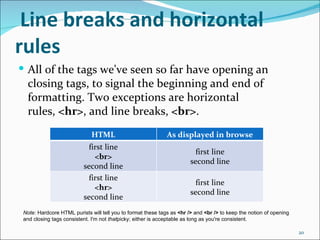
Line breaks and horizontal
rules
 All of the tags we've seen so far have opening an
  closing tags, to signal the beginning and end of
  formatting. Two exceptions are horizontal
  rules, <hr>, and line breaks, <br>.
                              HTML                            As displayed in browse
                            first line
                                                                          first line
                              <br>
                                                                        second line
                          second line
                            first line
                                                                          first line
                              <hr>
                                                                        second line
                          second line
 Note: Hardcore HTML purists will tell you to format these tags as <hr /> and <br /> to keep the notion of opening 
 and closing tags consistent. I'm not thatpicky; either is acceptable as long as you're consistent.

                                                                                                                      20
Using them
 Generally, HRs (typical to abbreviate elements by
  their tags like this) are used to divide up content. As
  you've seen, my philosophy is to use HRs to divide up
  content at higher levels of hierarchy (e.g. before each
  H2 in the notes) and use lower-level headings (e.g. H3
  in the notes) to divide up information at lower levels
  of hierarchy. HRs are also handy to separate content
  from contact info, disclaimers, etc.
 Use BRs within other HTML elements, e.g. table cells
  and list items where a line break is necessary. Break
  up paragraphs with the paragraph tag -- the
  whitespace provided fosters readability.
                                                        21
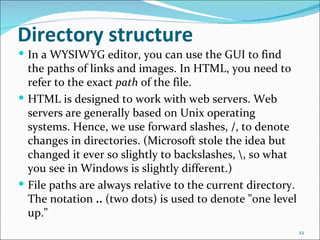
Directory structure
 In a WYSIWYG editor, you can use the GUI to find
  the paths of links and images. In HTML, you need to
  refer to the exact path of the file.
 HTML is designed to work with web servers. Web
  servers are generally based on Unix operating
  systems. Hence, we use forward slashes, /, to denote
  changes in directories. (Microsoft stole the idea but
  changed it ever so slightly to backslashes, , so what
  you see in Windows is slightly different.)
 File paths are always relative to the current directory.
  The notation .. (two dots) is used to denote "one level
  up."
                                                             22
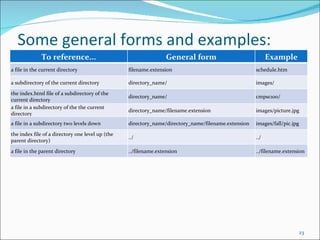
Some general forms and examples:
              To reference...                                     General form                             Example
a file in the current directory                   filename.extension                                 schedule.htm

a subdirectory of the current directory           directory_name/                                    images/

the index.html file of a subdirectory of the
                                                  directory_name/                                    cmpsc100/
current directory
a file in a subdirectory of the the current
                                                  directory_name/filename.extension                  images/picture.jpg
directory
a file in a subdirectory two levels down          directory_name/directory_name/filename.extension   images/fall/pic.jpg

the index file of a directory one level up (the
                                                  ../                                                ../
parent directory)

a file in the parent directory                    ../filename.extension                              ../filename.extension


                                                                                                                       23
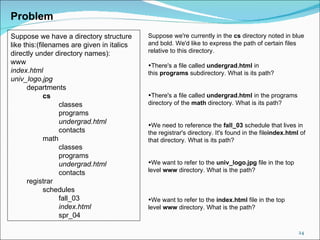
Problem
Suppose we have a directory structure        Suppose we're currently in the cs directory noted in blue 
like this:(filenames are given in italics    and bold. We'd like to express the path of certain files 
directly under directory names):             relative to this directory.
www                                          •There's a file called undergrad.html in 
index.html                                   this programs subdirectory. What is its path? 
univ_logo.jpg
      departments
             cs                              •There's a file called undergrad.html in the programs 
                  classes                    directory of the math directory. What is its path?
                  programs
                  undergrad.html             •We need to reference the fall_03 schedule that lives in 
                  contacts                   the registrar's directory. It's found in the fileindex.html of 
             math                            that directory. What is its path?
                  classes
                  programs
                  undergrad.html             •We want to refer to the univ_logo.jpg file in the top 
                  contacts                   level www directory. What is the path?
      registrar
             schedules
                  fall_03                    •We want to refer to the index.html file in the top 
                  index.html                 level www directory. What is the path?
                  spr_04

                                                                                                        24
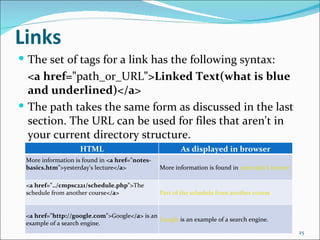
Links
 The set of tags for a link has the following syntax:
  <a href="path_or_URL">Linked Text(what is blue
  and underlined)</a>
 The path takes the same form as discussed in the last
  section. The URL can be used for files that aren't in
  your current directory structure.
                    HTML                               As displayed in browser
 More information is found in <a href="notes-
 basics.htm">yesterday's lecture</a>            More information is found in yesterday's lecture

 <a href="../cmpsc221/schedule.php">The
 schedule from another course</a>               Part of the schedule from another course


 <a href="http://google.com">Google</a> is an
                                              Google is an example of a search engine.
 example of a search engine.
                                                                                                   25
Problem
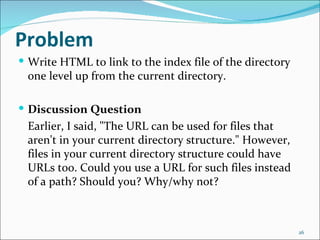
 Write HTML to link to the index file of the directory
 one level up from the current directory.

 Discussion Question
 Earlier, I said, "The URL can be used for files that
 aren't in your current directory structure." However,
 files in your current directory structure could have
 URLs too. Could you use a URL for such files instead
 of a path? Should you? Why/why not?


                                                          26
Lists
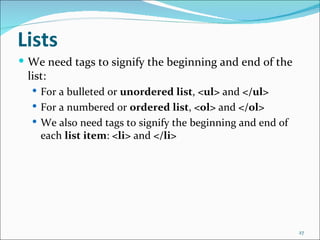
 We need tags to signify the beginning and end of the
 list:
   For a bulleted or unordered list, <ul> and </ul>
   For a numbered or ordered list, <ol> and </ol>
   We also need tags to signify the beginning and end of
    each list item: <li> and </li>


                                                            27
Examples
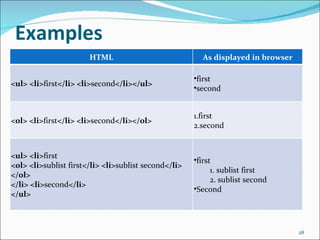
                       HTML                             As displayed in browser

                                                      •first
<ul> <li>first</li> <li>second</li></ul>
                                                      •second


                                                      1.first
<ol> <li>first</li> <li>second</li></ol>
                                                      2.second


<ul> <li>first
                                                      •first
<ol> <li>sublist first</li> <li>sublist second</li>
                                                            1. sublist first
</ol>
                                                            2. sublist second
</li> <li>second</li>
                                                      •Second
</ul>


                                                                                  28
Problem
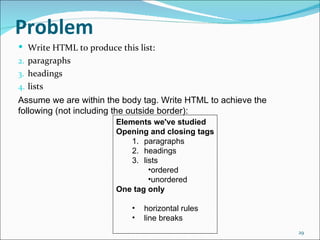
 Write HTML to produce this list:
2. paragraphs
3. headings
4. lists
Assume we are within the body tag. Write HTML to achieve the 
following (not including the outside border):
                        Elements we've studied
                        Opening and closing tags
                            1. paragraphs
                            2. headings
                            3. lists
                                 •ordered
                                 •unordered
                        One tag only

                            •   horizontal rules
                            •   line breaks
                                                                29
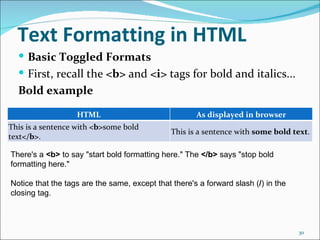
Text Formatting in HTML
   Basic Toggled Formats
   First, recall the <b> and <i> tags for bold and italics...
  Bold example

                   HTML                               As displayed in browser
This is a sentence with <b>some bold
                                               This is a sentence with some bold text.
text</b>.

There's a <b> to say "start bold formatting here." The </b> says "stop bold 
formatting here."

Notice that the tags are the same, except that there's a forward slash (/) in the 
closing tag.


                                                                                     30
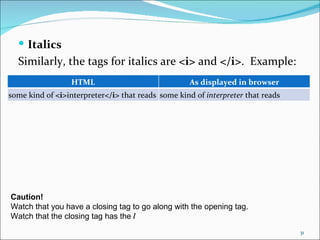
 Italics
  Similarly, the tags for italics are <i> and </i>. Example:
                  HTML                              As displayed in browser
some kind of <i>interpreter</i> that reads some kind of interpreter that reads


Caution!
Watch that you have a closing tag to go along with the opening tag.
Watch that the closing tag has the /
                                                                                 31
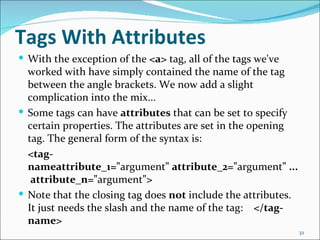
Tags With Attributes
 With the exception of the <a> tag, all of the tags we've
  worked with have simply contained the name of the tag
  between the angle brackets. We now add a slight
  complication into the mix...
 Some tags can have attributes that can be set to specify
  certain properties. The attributes are set in the opening
  tag. The general form of the syntax is:
  <tag-
  nameattribute_1="argument" attribute_2="argument" ...
   attribute_n="argument">
 Note that the closing tag does not include the attributes.
  It just needs the slash and the name of the tag: </tag-
  name>
                                                               32
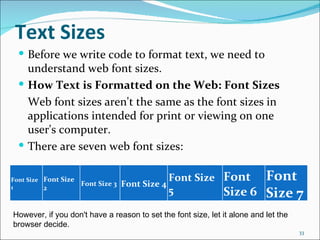
Text Sizes
   Before we write code to format text, we need to
    understand web font sizes.
   How Text is Formatted on the Web: Font Sizes
    Web font sizes aren't the same as the font sizes in
    applications intended for print or viewing on one
    user's computer.
   There are seven web font sizes:


Font Size Font Size
                      Font Size 3   Font Size 4
                                                  Font Size Font           Font
1         2                                       5         Size 6         Size 7
However, if you don't have a reason to set the font size, let it alone and let the 
browser decide.
                                                                                      33
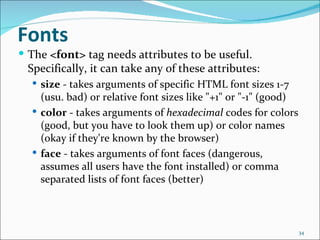
Fonts
 The <font> tag needs attributes to be useful.
 Specifically, it can take any of these attributes:
   size - takes arguments of specific HTML font sizes 1-7
    (usu. bad) or relative font sizes like "+1" or "-1" (good)
   color - takes arguments of hexadecimal codes for colors
    (good, but you have to look them up) or color names
    (okay if they're known by the browser)
   face - takes arguments of font faces (dangerous,
    assumes all users have the font installed) or comma
    separated lists of font faces (better)


                                                                 34
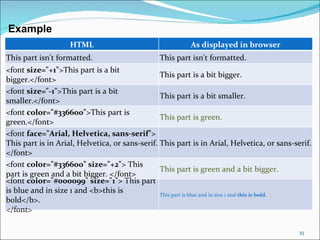
Example
                    HTML                                   As displayed in browser
This part isn't formatted.                       This part isn't formatted.
<font size="+1">This part is a bit
                                                 This part is a bit bigger.
bigger.</font>
<font size="-1">This part is a bit
                                                 This part is a bit smaller.
smaller.</font>
<font color="#336600">This part is
                                                 This part is green.
green.</font>
<font face="Arial, Helvetica, sans-serif">
This part is in Arial, Helvetica, or sans-serif. This part is in Arial, Helvetica, or sans-serif.
</font>
<font color="#336600" size="+2"> This
                                                 This part is green and a bit bigger.
part is green and a bit bigger. </font>
<font color="#000099" size="1"> This part
is blue and in size 1 and <b>this is             This part is blue and in size 1 and this is bold.
bold</b>.
</font>

                                                                                              35
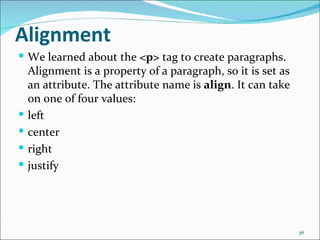
Alignment
 We learned about the <p> tag to create paragraphs.
    Alignment is a property of a paragraph, so it is set as
    an attribute. The attribute name is align. It can take
    on one of four values:
   left
   center
   right
   justify


                                                              36
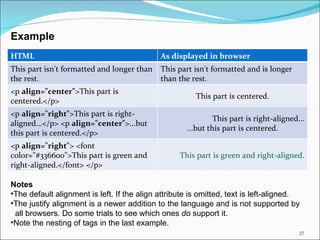
Example
HTML                                        As displayed in browser
This part isn't formatted and longer than   This part isn't formatted and is longer
the rest.                                   than the rest.
<p align="center">This part is
                                                       This part is centered.
centered.</p>
<p align="right">This part is right-
                                                             This part is right-aligned...
aligned...</p> <p align="center">...but
                                                    ...but this part is centered.
this part is centered.</p>
<p align="right"> <font
color="#336600">This part is green and            This part is green and right-aligned.
right-aligned.</font> </p>

Notes
•The default alignment is left. If the align attribute is omitted, text is left-aligned.
•The justify alignment is a newer addition to the language and is not supported by   
  all browsers. Do some trials to see which ones do support it.
•Note the nesting of tags in the last example.
                                                                                        37
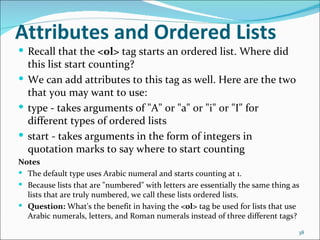
Attributes and Ordered Lists
 Recall that the <ol> tag starts an ordered list. Where did
  this list start counting?
 We can add attributes to this tag as well. Here are the two
  that you may want to use:
 type - takes arguments of "A" or "a" or "i" or "I" for
  different types of ordered lists
 start - takes arguments in the form of integers in
  quotation marks to say where to start counting
Notes
 The default type uses Arabic numeral and starts counting at 1.
 Because lists that are "numbered" with letters are essentially the same thing as
  lists that are truly numbered, we call these lists ordered lists.
 Question: What's the benefit in having the <ol> tag be used for lists that use
  Arabic numerals, letters, and Roman numerals instead of three different tags?
                                                                                 38
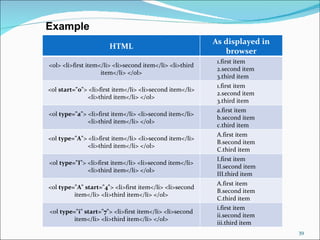
Example
                                                          As displayed in
                       HTML
                                                             browser
                                                           1.first item
<ol> <li>first item</li> <li>second item</li> <li>third
                                                           2.second item
                    item</li> </ol>
                                                           3.third item
                                                           1.first item
<ol start="0"> <li>first item</li> <li>second item</li>
                                                           2.second item
              <li>third item</li> </ol>
                                                           3.third item
                                                           a.first item
<ol type="a"> <li>first item</li> <li>second item</li>
                                                           b.second item
              <li>third item</li> </ol>
                                                           c.third item
                                                           A.first item
<ol type="A"> <li>first item</li> <li>second item</li>
                                                           B.second item
              <li>third item</li> </ol>
                                                           C.third item
                                                           I.first item
<ol type="I"> <li>first item</li> <li>second item</li>
                                                           II.second item
              <li>third item</li> </ol>
                                                           III.third item
                                                           A.first item
<ol type="A" start="4"> <li>first item</li> <li>second
                                                           B.second item
         item</li> <li>third item</li> </ol>
                                                           C.third item
                                                           i.first item
<ol type="i" start="7"> <li>first item</li> <li>second
                                                           ii.second item
         item</li> <li>third item</li> </ol>
                                                           iii.third item
                                                                            39
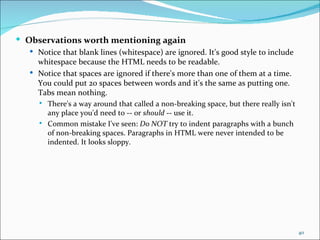
 Observations worth mentioning again
   Notice that blank lines (whitespace) are ignored. It's good style to include
    whitespace because the HTML needs to be readable.
   Notice that spaces are ignored if there's more than one of them at a time.
    You could put 20 spaces between words and it's the same as putting one.
    Tabs mean nothing.
        There's a way around that called a non-breaking space, but there really isn't
         any place you'd need to -- or should -- use it.
        Common mistake I've seen: Do NOT try to indent paragraphs with a bunch
         of non-breaking spaces. Paragraphs in HTML were never intended to be
         indented. It looks sloppy.


                                                                                         40

HTML

  • 1.
  • 2.
    What is it? HTML = HyperText Markup Language is the markup language used for hypertext (yeah, that says very little...)  A markup language is a system of tags that describe how to format a document. There's usually some kind of interpreter that reads a document in the markup language and displays it in a nicely formatted way.  Hypertext is the technical term for web pages, i.e. text with formatting and which the user can interact with (e.g. clicking links, hence the "hyper" part). The interpreter for hypertext is a web browser. 2
  • 3.
    Types of classicalstructures There are four types of classical structures to outline the contents of aWeb site. 3
  • 4.
    Hierarchical: the typicaltree structure, in which the root (index) for an overview or introduction and a main menu. From this root can navigate to different sections containing the site. General information is on the outer levels and details in the interior levels. The hierarchical structure allows visitors always know where the place in which you are navigating, can penetrate the structure for more specific information. 4
  • 5.
     Linear structureis the simplest of all, when you navigate from one page to the next or previous, as if he were reading a book. This structure is very useful when you want the visitor to follow a guided scheme, fixed and sequential, avoiding being distracted or lost with links to other pages. Recommended for learning tutorials or guided tours. 5
  • 6.
  • 7.
    Network: is anorganization set free without apparent order. This structure has the risk of losing the visitor within the site, or who fails to see any content that you intended to show. It is advisable to combine this structure with any of the above. 7
  • 8.
    Activity 1  Surfthe Internet and identifies a Web site based in each of the types of structure: Hierarchy, Linear, Linear Network with hierarchy. 8
  • 9.
    Tags and HTMLFiles  HTML files are plain text files --> no formatting  We need ways to tell the web browser when to start formatting text in certain ways, insert things like horizontal rules and links, etc. These are the tags. They're code that is understood by the writer and replaced by the interpreter with appropriate formatting. 9
  • 10.
    Putting it inPerspective  HTML is not the only markup language. Just a few other examples:  LaTeX -- a markup language used for typesetting mathematics; interpreter eventually produces a printed document  MathML -- another markup language for math that's designed to be integrated with HTML and read by web browsers (Update: it's supported by Firefox, Safari, Chrome, Camino, and Opera now.)  XML -- eXtended markup language, also used for the web, but the theory is to markup what something is and not how to format it; formatting handled separately 10
  • 11.
    HTML & Abstraction Abstraction is one the most fundamental concepts of computer science.  Definition: Ignoring the details of a complicated system to focus on the essentials needed to use the system. Focusing on WHAT we're doing, not HOW it is done.  Where do we use abstraction in our daily lives?  Why is this important?  HTML is a great example of abstraction in action. When we look at a web page in a browser, we are viewing the same thing as the HTML code, but at a different (higher) level of abstraction. 11
  • 12.
    How do wewrite it?  HTML files are plain text files, so a simple plain text editor will work fine. The simple one in Windows is Notepad. The simple one in Mac OS X is TextEdit.  Notepad  It's usually found under Start > Accessories > Notepad.  Very limited set of commands, but if you can use Office, you can certainly learn Notepad.  When you save in Notepad, the default file type is txt. For HTML, you want the extension html or htm. To achieve this, type the filename in double quotes in the Save As dialog, e.g. "index.html" 12
  • 13.
    A few simpletags: formatting  Most HTML tags travel in pairs.  Bold example  HTML As displayed in browser This is a sentence with <b>some bold text</b>.This is a sentence with some bold text. There's a <b> to say "start bold formatting here." The </b> says "stop bold formatting here."  Notice that the tags are the same, except that there's a forward slash (/) in the closing tag. 13
  • 14.
    Italics  Similarly, thetags for italics are <i> and </i>. Example:  HTML As displayed in browser some kind of <i>interpreter</i> that reads some kind of interpreter that reads 14
  • 15.
    Problem  Write theHTML for the blocks of text on the right. HTML As displayed in browser HTML = HyperText Markup Language is the markup language used forhypertext is the markup language used for hypertext Caution!  Watch that you have a closing tag to go along with the opening tag.  Watch that the closing tag has the /. 15
  • 16.
    The basic framework  The HTML file itself is all wrapped within an outer set of tags common to all HTML files. Here's the basic framework (you could feasibly copy and paste this each time you get started): <html> <head> <title>The title of your page goes here.</title> </head> <body> The text that makes up your page goes here.</body> </html> 16
  • 17.
    Paragraphs  Paragraphs inHTML are wrapper inside <p> and </p> tags. This line of text is an example of one paragraph. The next is a new paragraph.  Paragraphs (and most elements of HTML) are separated by blank lines in the browser. 17
  • 18.
    Headings  HTML provideslevels of headers or headings for organizing a document.  There are six levels of headers: Heading 5 Heading 6 Heading 2 Heading 3 Heading 4 Heading 1  Note the use of headers in this web page: Heading 1 for the main title, Heading 2 for titles of major sections, Heading 3 for subtitles. 18
  • 19.
    The tags forheadings: HTML As displayed in browser <h1>Heading 1 Example</h1> Heading 1 Example <h2>Heading 2 Example</h2> Heading 2 Example <h3>Heading 3 Example</h3> Heading 3 Example The tags for h4, h5, h6 are similar, although going below h3 generally isn't a  good idea. 19
  • 20.
    Line breaks andhorizontal rules  All of the tags we've seen so far have opening an closing tags, to signal the beginning and end of formatting. Two exceptions are horizontal rules, <hr>, and line breaks, <br>. HTML As displayed in browse first line first line <br> second line second line first line first line <hr> second line second line Note: Hardcore HTML purists will tell you to format these tags as <hr /> and <br /> to keep the notion of opening  and closing tags consistent. I'm not thatpicky; either is acceptable as long as you're consistent. 20
  • 21.
    Using them  Generally,HRs (typical to abbreviate elements by their tags like this) are used to divide up content. As you've seen, my philosophy is to use HRs to divide up content at higher levels of hierarchy (e.g. before each H2 in the notes) and use lower-level headings (e.g. H3 in the notes) to divide up information at lower levels of hierarchy. HRs are also handy to separate content from contact info, disclaimers, etc.  Use BRs within other HTML elements, e.g. table cells and list items where a line break is necessary. Break up paragraphs with the paragraph tag -- the whitespace provided fosters readability. 21
  • 22.
    Directory structure  Ina WYSIWYG editor, you can use the GUI to find the paths of links and images. In HTML, you need to refer to the exact path of the file.  HTML is designed to work with web servers. Web servers are generally based on Unix operating systems. Hence, we use forward slashes, /, to denote changes in directories. (Microsoft stole the idea but changed it ever so slightly to backslashes, , so what you see in Windows is slightly different.)  File paths are always relative to the current directory. The notation .. (two dots) is used to denote "one level up." 22
  • 23.
    Some general formsand examples: To reference... General form Example a file in the current directory filename.extension schedule.htm a subdirectory of the current directory directory_name/ images/ the index.html file of a subdirectory of the directory_name/ cmpsc100/ current directory a file in a subdirectory of the the current directory_name/filename.extension images/picture.jpg directory a file in a subdirectory two levels down directory_name/directory_name/filename.extension images/fall/pic.jpg the index file of a directory one level up (the ../ ../ parent directory) a file in the parent directory ../filename.extension ../filename.extension 23
  • 24.
    Problem Suppose we have a directory structure  Suppose we're currently in the cs directory noted in blue  like this:(filenames are given in italics  and bold. We'd like to express the path of certain files  directly under directory names): relative to this directory. www •There's a file called undergrad.html in  index.html this programs subdirectory. What is its path?  univ_logo.jpg departments cs •There's a file called undergrad.html in the programs  classes directory of the math directory. What is its path? programs undergrad.html •We need to reference the fall_03 schedule that lives in  contacts the registrar's directory. It's found in the fileindex.html of  math that directory. What is its path? classes programs undergrad.html •We want to refer to the univ_logo.jpg file in the top  contacts level www directory. What is the path? registrar schedules fall_03 •We want to refer to the index.html file in the top  index.html level www directory. What is the path? spr_04 24
  • 25.
    Links  The setof tags for a link has the following syntax: <a href="path_or_URL">Linked Text(what is blue and underlined)</a>  The path takes the same form as discussed in the last section. The URL can be used for files that aren't in your current directory structure. HTML As displayed in browser More information is found in <a href="notes- basics.htm">yesterday's lecture</a> More information is found in yesterday's lecture <a href="../cmpsc221/schedule.php">The schedule from another course</a> Part of the schedule from another course <a href="http://google.com">Google</a> is an Google is an example of a search engine. example of a search engine. 25
  • 26.
    Problem  Write HTMLto link to the index file of the directory one level up from the current directory.  Discussion Question Earlier, I said, "The URL can be used for files that aren't in your current directory structure." However, files in your current directory structure could have URLs too. Could you use a URL for such files instead of a path? Should you? Why/why not? 26
  • 27.
    Lists  We needtags to signify the beginning and end of the list:  For a bulleted or unordered list, <ul> and </ul>  For a numbered or ordered list, <ol> and </ol>  We also need tags to signify the beginning and end of each list item: <li> and </li> 27
  • 28.
    Examples HTML As displayed in browser •first <ul> <li>first</li> <li>second</li></ul> •second 1.first <ol> <li>first</li> <li>second</li></ol> 2.second <ul> <li>first •first <ol> <li>sublist first</li> <li>sublist second</li> 1. sublist first </ol> 2. sublist second </li> <li>second</li> •Second </ul> 28
  • 29.
    Problem  Write HTMLto produce this list: 2. paragraphs 3. headings 4. lists Assume we are within the body tag. Write HTML to achieve the  following (not including the outside border): Elements we've studied Opening and closing tags 1. paragraphs 2. headings 3. lists •ordered •unordered One tag only • horizontal rules • line breaks 29
  • 30.
    Text Formatting inHTML  Basic Toggled Formats  First, recall the <b> and <i> tags for bold and italics... Bold example HTML As displayed in browser This is a sentence with <b>some bold This is a sentence with some bold text. text</b>. There's a <b> to say "start bold formatting here." The </b> says "stop bold  formatting here." Notice that the tags are the same, except that there's a forward slash (/) in the  closing tag. 30
  • 31.
     Italics Similarly, the tags for italics are <i> and </i>. Example: HTML As displayed in browser some kind of <i>interpreter</i> that reads some kind of interpreter that reads Caution! Watch that you have a closing tag to go along with the opening tag. Watch that the closing tag has the / 31
  • 32.
    Tags With Attributes With the exception of the <a> tag, all of the tags we've worked with have simply contained the name of the tag between the angle brackets. We now add a slight complication into the mix...  Some tags can have attributes that can be set to specify certain properties. The attributes are set in the opening tag. The general form of the syntax is: <tag- nameattribute_1="argument" attribute_2="argument" ... attribute_n="argument">  Note that the closing tag does not include the attributes. It just needs the slash and the name of the tag: </tag- name> 32
  • 33.
    Text Sizes  Before we write code to format text, we need to understand web font sizes.  How Text is Formatted on the Web: Font Sizes Web font sizes aren't the same as the font sizes in applications intended for print or viewing on one user's computer.  There are seven web font sizes: Font Size Font Size Font Size 3 Font Size 4 Font Size Font Font 1 2 5 Size 6 Size 7 However, if you don't have a reason to set the font size, let it alone and let the  browser decide. 33
  • 34.
    Fonts  The <font>tag needs attributes to be useful. Specifically, it can take any of these attributes:  size - takes arguments of specific HTML font sizes 1-7 (usu. bad) or relative font sizes like "+1" or "-1" (good)  color - takes arguments of hexadecimal codes for colors (good, but you have to look them up) or color names (okay if they're known by the browser)  face - takes arguments of font faces (dangerous, assumes all users have the font installed) or comma separated lists of font faces (better) 34
  • 35.
    Example HTML As displayed in browser This part isn't formatted. This part isn't formatted. <font size="+1">This part is a bit This part is a bit bigger. bigger.</font> <font size="-1">This part is a bit This part is a bit smaller. smaller.</font> <font color="#336600">This part is This part is green. green.</font> <font face="Arial, Helvetica, sans-serif"> This part is in Arial, Helvetica, or sans-serif. This part is in Arial, Helvetica, or sans-serif. </font> <font color="#336600" size="+2"> This This part is green and a bit bigger. part is green and a bit bigger. </font> <font color="#000099" size="1"> This part is blue and in size 1 and <b>this is This part is blue and in size 1 and this is bold. bold</b>. </font> 35
  • 36.
    Alignment  We learnedabout the <p> tag to create paragraphs. Alignment is a property of a paragraph, so it is set as an attribute. The attribute name is align. It can take on one of four values:  left  center  right  justify 36
  • 37.
    Example HTML As displayed in browser This part isn't formatted and longer than This part isn't formatted and is longer the rest. than the rest. <p align="center">This part is This part is centered. centered.</p> <p align="right">This part is right- This part is right-aligned... aligned...</p> <p align="center">...but ...but this part is centered. this part is centered.</p> <p align="right"> <font color="#336600">This part is green and This part is green and right-aligned. right-aligned.</font> </p> Notes •The default alignment is left. If the align attribute is omitted, text is left-aligned. •The justify alignment is a newer addition to the language and is not supported by      all browsers. Do some trials to see which ones do support it. •Note the nesting of tags in the last example. 37
  • 38.
    Attributes and OrderedLists  Recall that the <ol> tag starts an ordered list. Where did this list start counting?  We can add attributes to this tag as well. Here are the two that you may want to use:  type - takes arguments of "A" or "a" or "i" or "I" for different types of ordered lists  start - takes arguments in the form of integers in quotation marks to say where to start counting Notes  The default type uses Arabic numeral and starts counting at 1.  Because lists that are "numbered" with letters are essentially the same thing as lists that are truly numbered, we call these lists ordered lists.  Question: What's the benefit in having the <ol> tag be used for lists that use Arabic numerals, letters, and Roman numerals instead of three different tags? 38
  • 39.
    Example As displayed in HTML browser 1.first item <ol> <li>first item</li> <li>second item</li> <li>third 2.second item item</li> </ol> 3.third item 1.first item <ol start="0"> <li>first item</li> <li>second item</li> 2.second item <li>third item</li> </ol> 3.third item a.first item <ol type="a"> <li>first item</li> <li>second item</li> b.second item <li>third item</li> </ol> c.third item A.first item <ol type="A"> <li>first item</li> <li>second item</li> B.second item <li>third item</li> </ol> C.third item I.first item <ol type="I"> <li>first item</li> <li>second item</li> II.second item <li>third item</li> </ol> III.third item A.first item <ol type="A" start="4"> <li>first item</li> <li>second B.second item item</li> <li>third item</li> </ol> C.third item i.first item <ol type="i" start="7"> <li>first item</li> <li>second ii.second item item</li> <li>third item</li> </ol> iii.third item 39
  • 40.
     Observations worthmentioning again  Notice that blank lines (whitespace) are ignored. It's good style to include whitespace because the HTML needs to be readable.  Notice that spaces are ignored if there's more than one of them at a time. You could put 20 spaces between words and it's the same as putting one. Tabs mean nothing.  There's a way around that called a non-breaking space, but there really isn't any place you'd need to -- or should -- use it.  Common mistake I've seen: Do NOT try to indent paragraphs with a bunch of non-breaking spaces. Paragraphs in HTML were never intended to be indented. It looks sloppy. 40