2
How to Use
Evernote
3
annaleequinto.com
Evernote is the modern
workspace that enables
you to be your most
productive
4
annaleequinto.com
Use Evernote to:
• Takes note
• Collect everything
• Find what you need
• Share your work
5
annaleequinto.com
How to Install
Evernote
6
annaleequinto.com
Open your web browser
7
annaleequinto.com
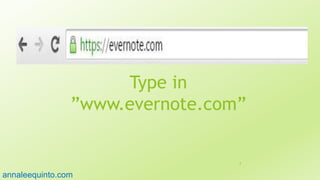
Type in
”www.evernote.com”
8
annaleequinto.com
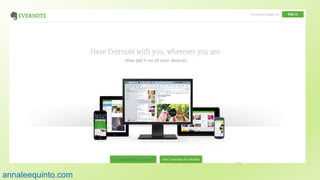
This is how the Evernote
Homepage will look like9
annaleequinto.com
Click Sign up now button10
annaleequinto.com
Type in your email
address
11
annaleequinto.com
Set your password 12
annaleequinto.com
Then click sign up 13
annaleequinto.com
Click continue
14
annaleequinto.com
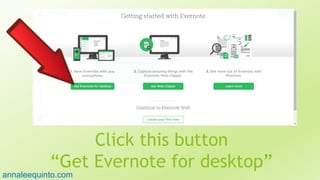
Click this button
“Get Evernote for desktop”15
annaleequinto.com
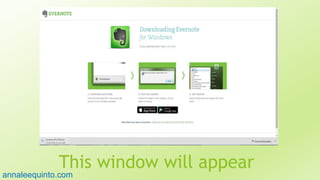
This window will appear16
annaleequinto.com
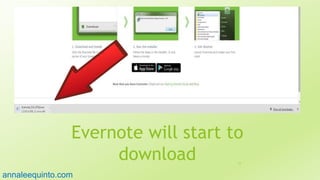
Evernote will start to
download 17
annaleequinto.com
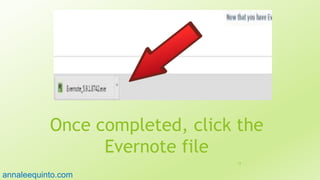
Once completed, click the
Evernote file
18
annaleequinto.com
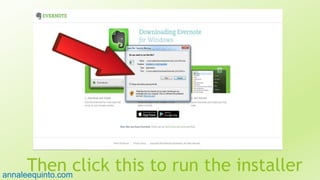
Then click this to run the installer19
annaleequinto.com
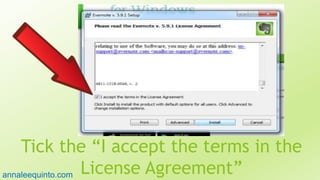
Tick the “I accept the terms in the
License Agreement”
20
annaleequinto.com
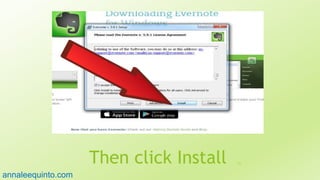
Then click Install 21
annaleequinto.com
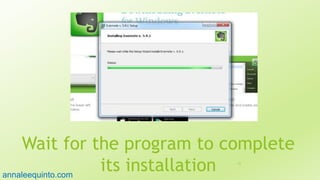
Wait for the program to complete
its installation 22
annaleequinto.com
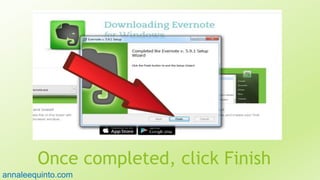
Once completed, click Finish23
annaleequinto.com
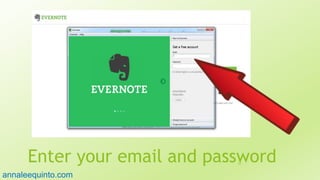
Enter your email and password24
annaleequinto.com
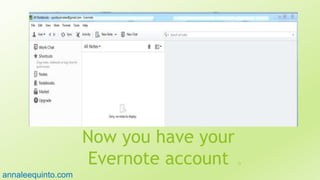
Now you have your
Evernote account 25
annaleequinto.com
How to create a
new note
26
annaleequinto.com
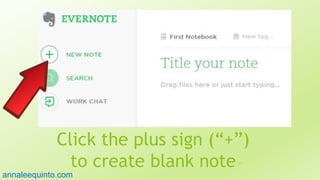
Click the plus sign (“+”)
to create blank note27
annaleequinto.com
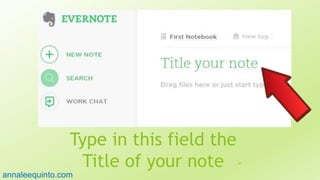
Type in this field the
Title of your note 28
annaleequinto.com
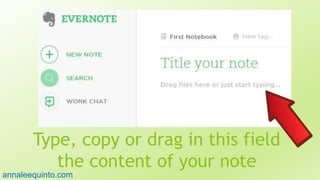
Type, copy or drag in this field
the content of your note29
annaleequinto.com
How to edit
your note
30
annaleequinto.com
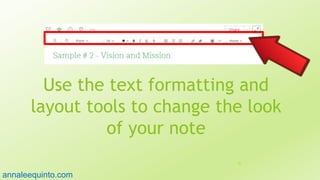
Use the text formatting and
layout tools to change the look
of your note
31
annaleequinto.com
How to add
images or
photos
32
annaleequinto.com
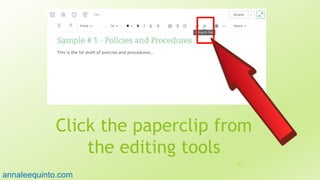
Click the paperclip from
the editing tools
33
annaleequinto.com
click 'Choose file' and select
photo/image file from your computer34
annaleequinto.com
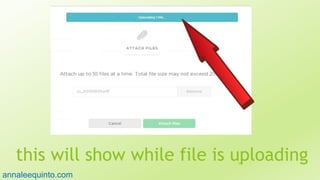
this will show while file is uploading35
annaleequinto.com
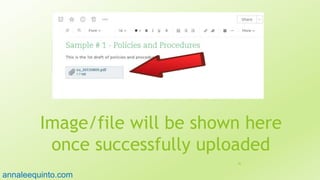
Image/file will be shown here
once successfully uploaded
36
annaleequinto.com
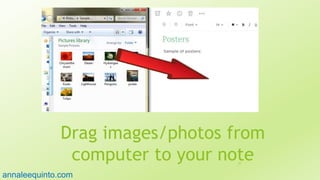
Drag images/photos from
computer to your note37
annaleequinto.com
image will appear here in your
note once uploaded 38
annaleequinto.com
Click the “Done” button
to save
39
annaleequinto.com
How to delete
a note
40
annaleequinto.com
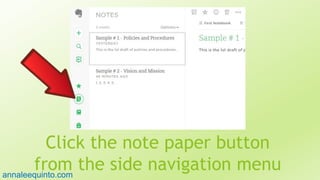
Click the note paper button
from the side navigation menu41
annaleequinto.com
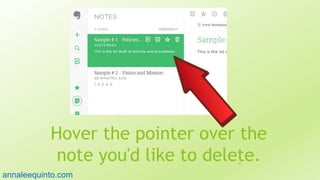
Hover the pointer over the
note you'd like to delete.42
annaleequinto.com
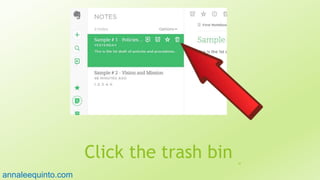
Click the trash bin 43
annaleequinto.com
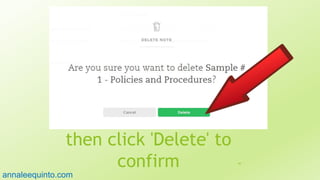
then click 'Delete' to
confirm 44
annaleequinto.com
How to create a
new notebook
45
annaleequinto.com
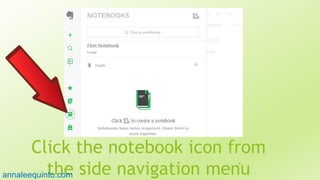
Click the notebook icon from
the side navigation menu
46
annaleequinto.com
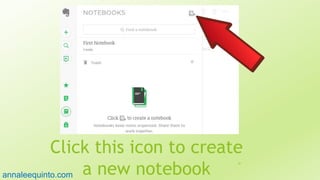
Click this icon to create
a new notebook
47
annaleequinto.com
Type the title of your
notebook
48
annaleequinto.com
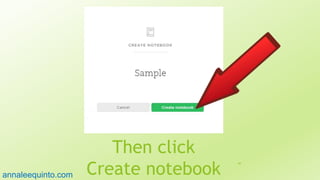
Then click
Create notebook
49
annaleequinto.com
How to rename
notebook
50
annaleequinto.com
Click the 'i‘ icon on the
top right corner of a
selected notebook
51
annaleequinto.com
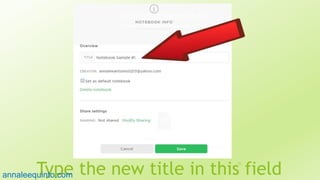
Type the new title in this field
52
annaleequinto.com
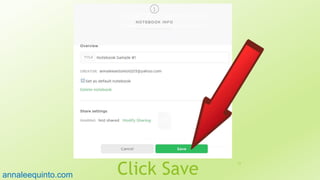
Click Save
53
annaleequinto.com
How to transfer
a note to a new
Notebook
54
annaleequinto.com
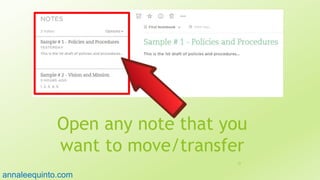
Open any note that you
want to move/transfer
55
annaleequinto.com
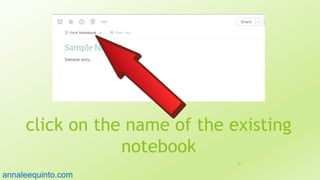
click on the name of the existing
notebook
56
annaleequinto.com
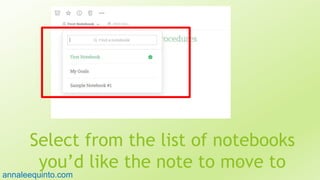
Select from the list of notebooks
you’d like the note to move to57
annaleequinto.com
How to delete
a notebook
58
annaleequinto.com
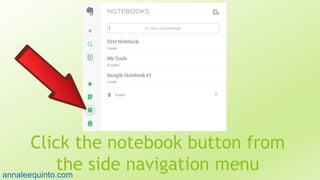
Click the notebook button from
the side navigation menu59
annaleequinto.com
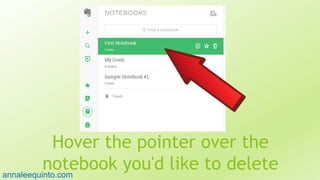
Hover the pointer over the
notebook you'd like to delete60
annaleequinto.com
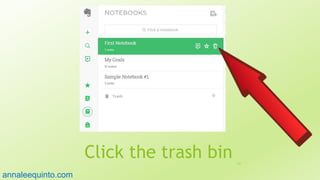
Click the trash bin 61
annaleequinto.com
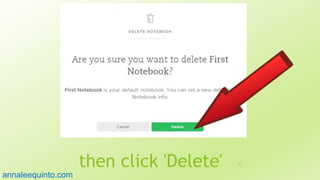
then click 'Delete' 62
annaleequinto.com
The Notebook
is now moved to
your 'Trash'
notebook
63
annaleequinto.com
How to share
an individual note
64
annaleequinto.com
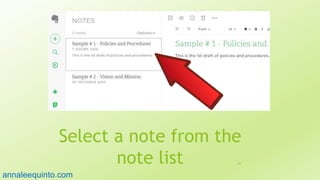
Select a note from the
note list 65
annaleequinto.com
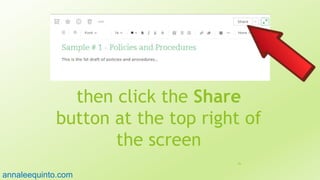
then click the Share
button at the top right of
the screen
66
annaleequinto.com
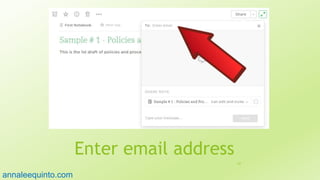
Enter email address
67
annaleequinto.com
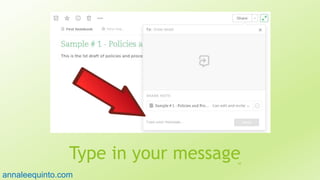
Type in your message68
annaleequinto.com
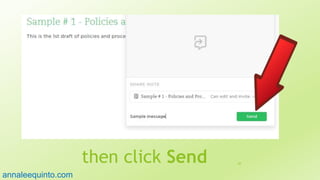
then click Send 69
annaleequinto.com
How to organize
your notes with
TAGS
70
annaleequinto.com
You can put Tags on
your notes.

71
annaleequinto.com
Tags can make it easier
for you to find notes
that could belong to
multiple notebooks.
72
annaleequinto.com
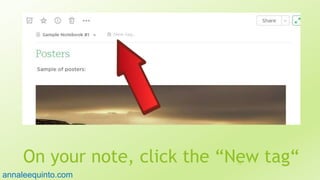
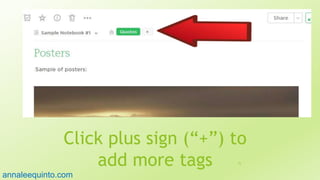
On your note, click the “New tag“73
annaleequinto.com
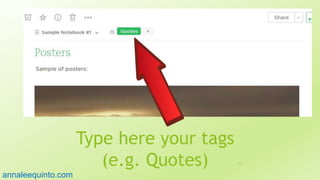
Type here your tags
(e.g. Quotes) 74
annaleequinto.com
Click plus sign (“+”) to
add more tags 75
annaleequinto.com
Evernote
Web Clipper
76
annaleequinto.com
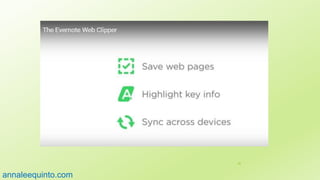
What is Evernote Web Clipper?
77
annaleequinto.com
Evernote Web
Clipper is a simple
extension for your
web browser
78
annaleequinto.com
It allows you to
clip web pages
as you browse
79
annaleequinto.com
You can capture
articles, images,
text, important
emails and any web
page 80
annaleequinto.com
You can save
everything to
Evernote and
keep it forever
81
annaleequinto.com
82
annaleequinto.com
How to
download the
Evernote Web
Clipper
83
annaleequinto.com
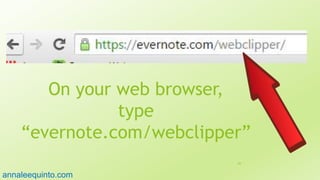
On your web browser,
type
“evernote.com/webclipper”
84
annaleequinto.com
Then it will lead you to this site85
annaleequinto.com
Click on “Get Web Clipper
for Chrome” to download86
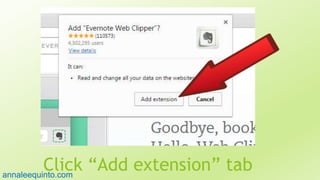
annaleequinto.com
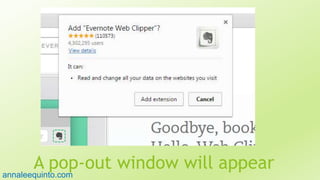
A pop-out window will appear87
annaleequinto.com
Click “Add extension” tab88
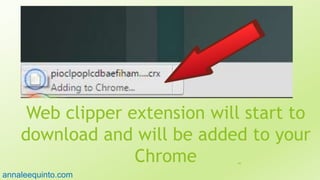
annaleequinto.com
Web clipper extension will start to
download and will be added to your
Chrome 89
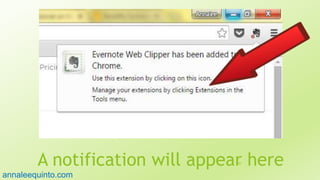
annaleequinto.com
A notification will appear here90
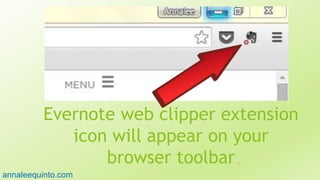
annaleequinto.com
Evernote web clipper extension
icon will appear on your
browser toolbar 91
annaleequinto.com
How to use Web
Clipper
92
annaleequinto.com
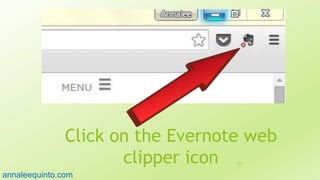
Click on the Evernote web
clipper icon 93
annaleequinto.com
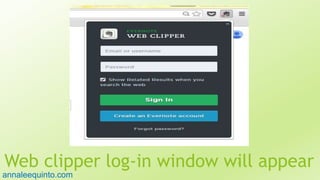
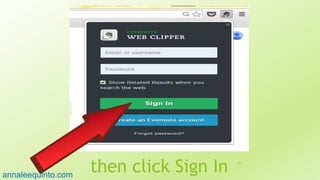
Web clipper log-in window will appear94
annaleequinto.com
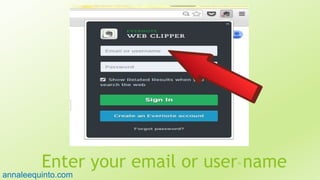
Enter your email or user name95
annaleequinto.com
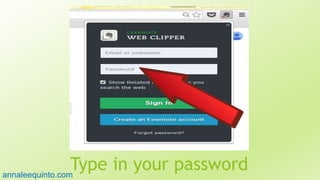
Type in your password96
annaleequinto.com
then click Sign In 97
annaleequinto.com
On the web page you want can to clip,
click on the this icon98
annaleequinto.com
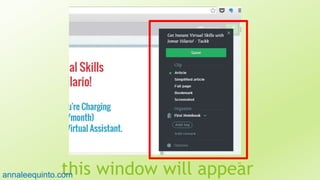
this window will appear
99
annaleequinto.com
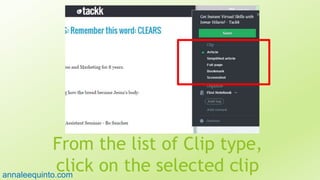
From the list of Clip type,
click on the selected clip100
annaleequinto.com
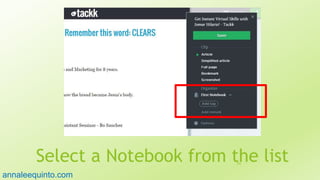
You can organize your
notes by clipping this
article/web page on a
specific Notebook
101
annaleequinto.com
Select a Notebook from the list102
annaleequinto.com
Then click Save 103
annaleequinto.com
Clipping the article/web page104
annaleequinto.com
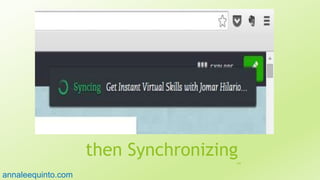
then Synchronizing105
annaleequinto.com
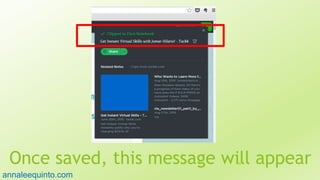
Once saved, this message will appear106
annaleequinto.com
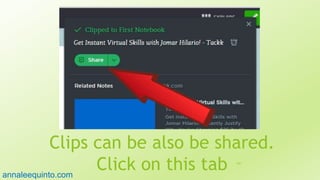
Clips can be also be shared.
Click on this tab 107
annaleequinto.com
Drop down list will show where you
can share your clip 108
annaleequinto.com
How to
Annotate key
info
109
annaleequinto.com
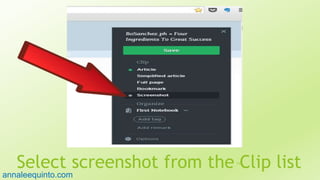
Select screenshot from the Clip list110
annaleequinto.com
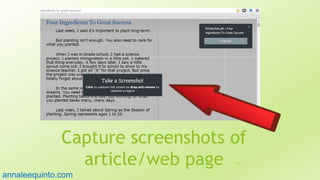
Capture screenshots of
article/web page 111
annaleequinto.com
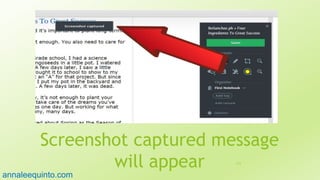
Screenshot captured message
will appear 112
annaleequinto.com
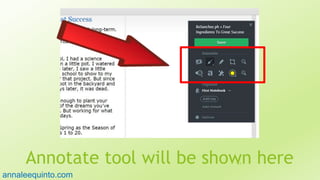
Annotate tool will be shown here113
annaleequinto.com
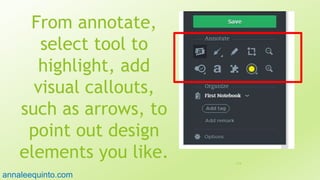
From annotate,
select tool to
highlight, add
visual callouts,
such as arrows, to
point out design
elements you like. 114
annaleequinto.com
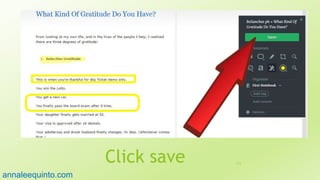
Click save 115
annaleequinto.com
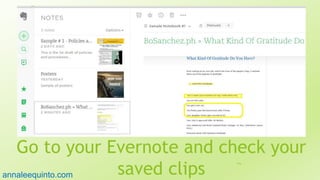
Go to your Evernote and check your
saved clips
116
annaleequinto.com
117
annaleequinto.com
Thank you
118
annaleequinto.com

How to use Evernote