How to use Basecamp
PROJECT MANAGEMENT SOFTWARE
What is Basecamp?
Is a web-based project management tool
developed by Basecamp and launched in 2004
More about Basecamp
The entire Basecamp system is accessed and managed
online, so none of the software or data is actually stored on
your computer.
You can share the project management with
your fellow freelancers or an entire company.
Basecamp helps you manage multiple
projects at a time with to-do lists, file sharing,
chatting, messages, calendars and time
tracking.
You'll never want to write a to-do list on
paper again. In Basecamp, you can create
multiple to-do lists per project.
Once a list is created (such as "Logo Revisions"),
you add specific items and can assign people in
your group (or yourself) to be responsible for
each one. When complete, you just check off
the item and it moves to the completed list.
Let’s get started!
Choose your browser.
For this tutorial we’ll use Google Chrome
Key in basecamp.com at the address bar.
Basecamp page will show.
Check out this part of the page.
Encode the information needed to sign-up.
You can sign-up using your email.
Encode your name here.
Your e-mail address.
Encode your password.
Then click on sign-up.
You can also sign-up using your Google
account.
For this we’ll choose Google account.
Your screen will show this box upon choosing Google.
Select your Google account and it will show
this information.
Click on allow.
Fill-out the information needed.
Name of your company.
Job title
Then click here.
Congratulations!
Now to discover more, click here.
Let’s work on exploring the basecamp site.
Go ahead and click on the tutorial below.
Your basecamp has 6 basic sections.
Campfire
Is your group chat box sharing casual conversation, links and
opinions.
Message Board
Is for your permanent conversation messages, kick-off
messages and new ideas.
To-do lists
It keeps track of the to-do list that the team needs to
complete, like keeping the website up to date, changes with
newsletter etc.
Schedule
Where we keep all the important dates and events – like
meetings, interviews and important calls.
Automatic Check-ins
Is short questions where basecamp automatically asks the
team on a regular basis.
Docs and Files
Where we write longer documents and upload the files
needed for the project.
Now, let’s create your own project.
From your screen, select make your own
basecamp.
Your screen will show this page.
Key in the name of your project here.
Add some description of your project here.
Click here.
Your next page will show.
Name of your
project.
Select whether you
want to update your
client or not.
Click the link here to help you decide if you want
to share the project with your client or not.
For this tutorial, I’ll choose no thanks.
The next page will ask you to encode the information
about the team you will involve in your project.
Key in your team names here.
Their e-mail addresses.
Their job title (optional).
Name of organization or company or business.
Click here.
Now you’ll see your own project!
You’ll see the information of your project here.
Project name:
Description:
Participants:
From the page, click here and be guided upon
starting the project.
Think of the start date, then click here.
Encode the timeframe set for your event.
Add the name of the event for your
project.
Select the duration of the event here, whether it’s
for a day or for a period of time.
For this, we’ll make it a 1 day event. Click
all day and set the date.
Add participants here.
Then insert notes needed for the event.
Click on publish the event.
You can add one or more events needed for
your project.
For this tutorial, here is the event we created.
Think of the files, documents, requirements
needed for the project.
Click here.
It will lead to your stored documents at your
computer from which you’ll select the file.
Example for this tutorial is this picture.
Then post it by clicking here.
You can always add one or more files for your
event.
It’s up to you if you want a daily discussion that will
be saved by the system for your planned event.
You can now add your to-do list. Click here.
Add to-do list here.
You can add here on to whom is the task
assigned.
Add due date or time frame here.
Click here to confirm the to-do list.
You can add more if needed.
Or click here if done.
Now, if you have a kickoff message, you can add
here, click on yes I do.
Here’s a sample of a kickoff message.
Then send the message by clicking here.
Now this is your own basecamp site for your
project.
At the bottom of the page you’ll see the updates
done within the day.
You can check on the settings icon for any
changes or updates you want for the project.
You can add and remove the people within the
project by clicking here.
You can either add more participants or
remove from this page.
Remove by clicking here
Add participants here
So this is how it will look like.
Click here to update.
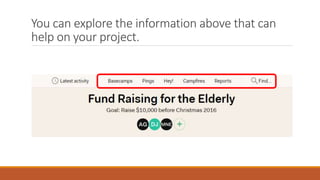
You can explore the information above that can
help on your project.
Basecamps – add more projects here.
Pings – send messages here
Hey – where new updates is seen.
Campfires – name of your project
Reports – mainly about follow-ups
You can check this out for further
assistance.
Now, you just had learned the basics of
basecamp!
Go ahead and explore further this useful tool for
your business.
References:
https://en.wikipedia.org/wiki/Basecamp_(software)
http://graphicdesign.about.com/od/recommendedsoftware/fr/basecamp.htm
How to use Basecamp

How to use Basecamp