How to use Basecamp
A project management tool
1
What is Basecamp?
It’s an online tool that makes
project management and
collaboration easy.
2
It helps you manage multiple
projects at a time …
3
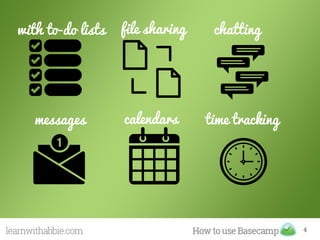
with to-do lists file sharing chatting
messages calendars time tracking
4
So, how to
get started?
5
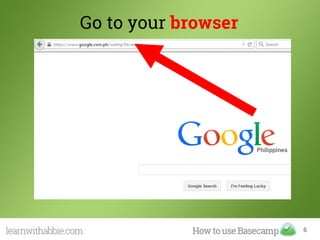
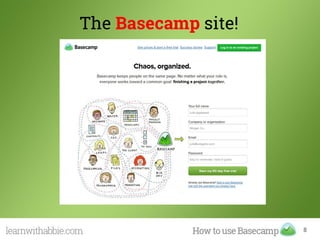
Go to your browser
6
Type basecamp.com
7
The Basecamp site!
8
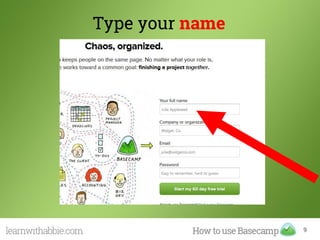
Type your name
9
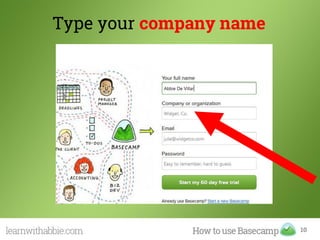
Type your company name
10
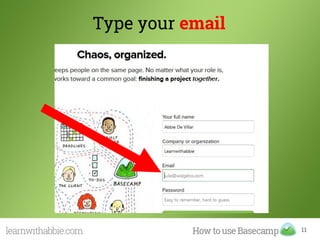
Type your email
11
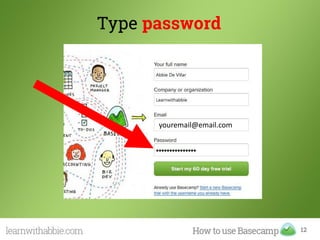
Type password
12
youremail@email.com
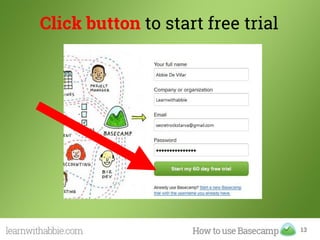
Click button to start free trial
13
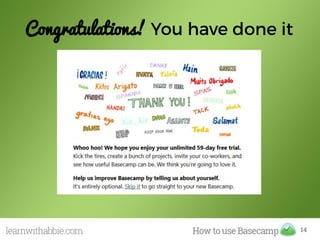
Congratulations!
14
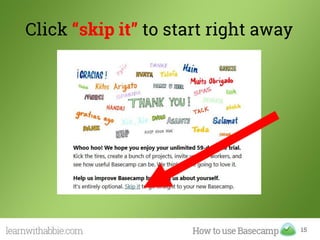
Click “skip it” to start right away
15
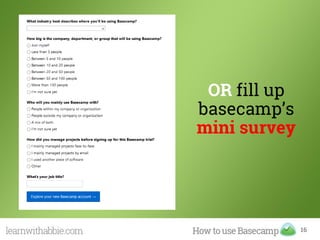
OR fill up
basecamp’s
mini survey
16
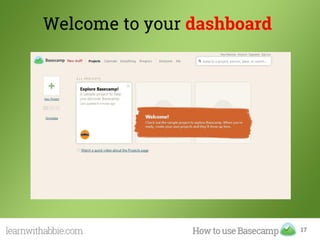
Welcome to your dashboard
17
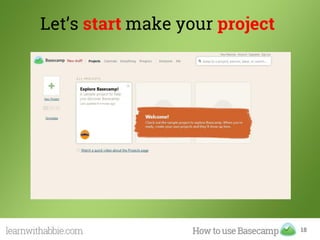
Let’s start make your project
18
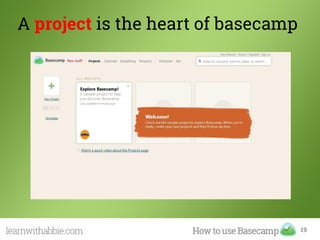
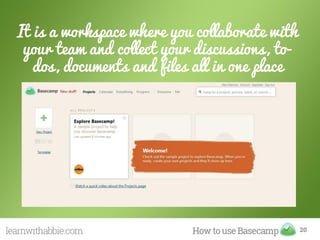
A project is the heart of basecamp
19
It is a workspace where you collaborate with
your team and collect your discussions, to-
dos, documents and files all in one place
20
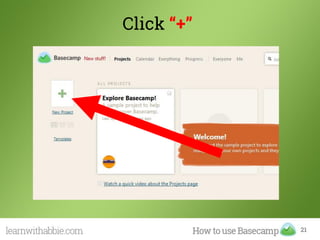
Click “+”
21
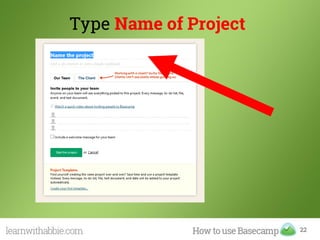
Type Name of Project
22
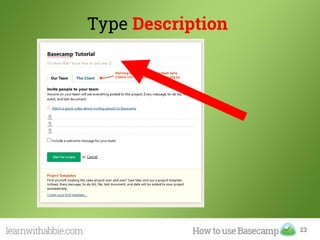
Type Description
23
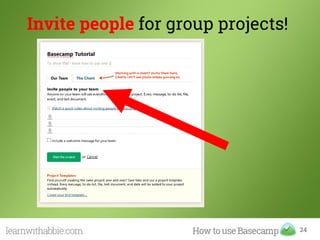
Invite people for group projects!
24
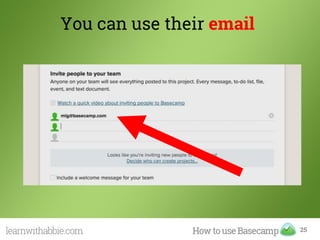
You can use their email
25
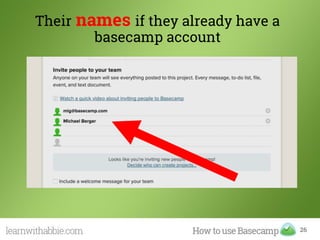
Their names if they already have a
basecamp account
26
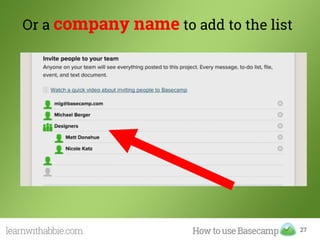
Or a company name to add to the list
27
Everyone you
invite will get an
email
28
With a link to
your project
29
30
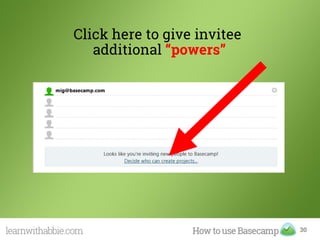
Click here to give invitee
additional “powers”
31
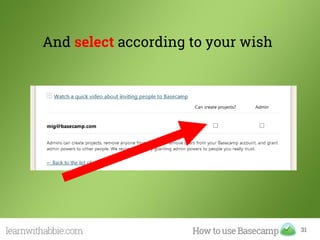
And select according to your wish
32
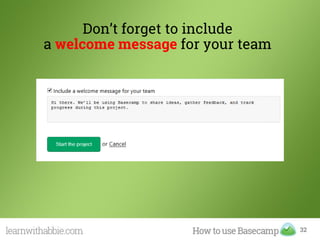
Don’t forget to include
a welcome message for your team
If you are working
with a client
33
34
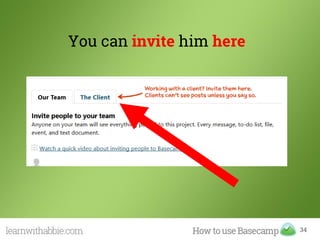
You can invite him here
35
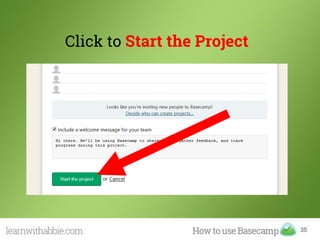
Click to Start the Project
36
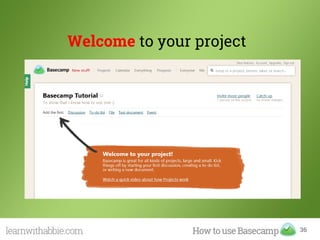
Welcome to your project
37
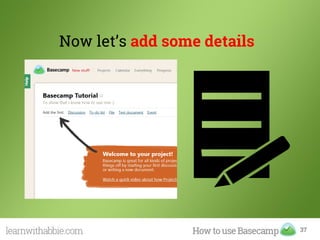
Now let’s add some details
38
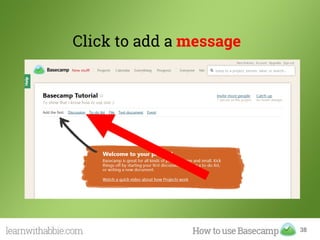
Click to add a message
39
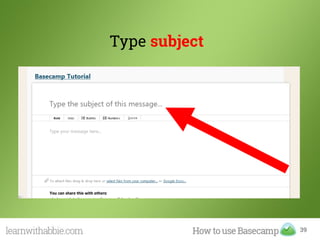
Type subject
40
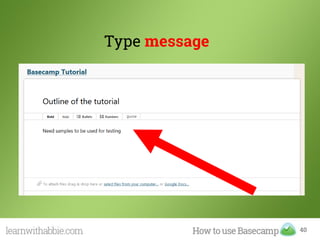
Type message
41
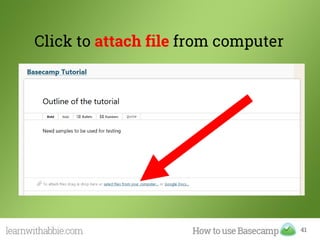
Click to attach file from computer
42
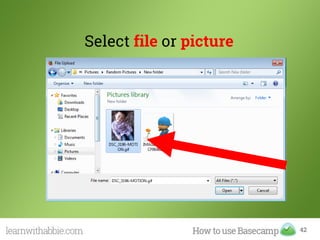
Select file or picture
43
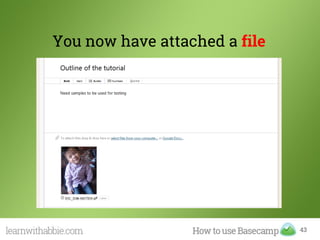
You now have attached a file
44
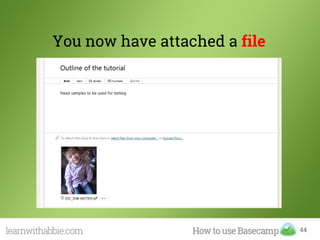
You now have attached a file
45
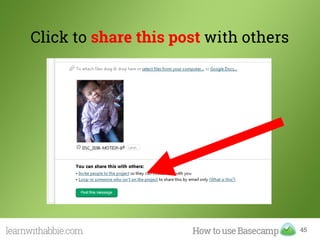
Click to share this post with others
46
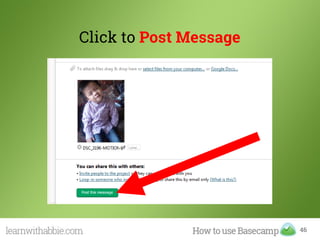
Click to Post Message
47
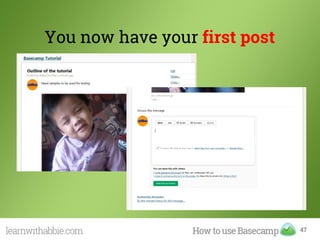
You now have your first post
48
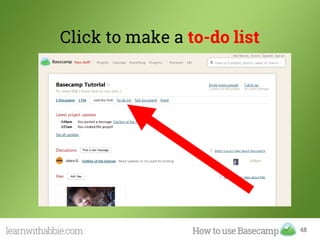
Click to make a to-do list
49
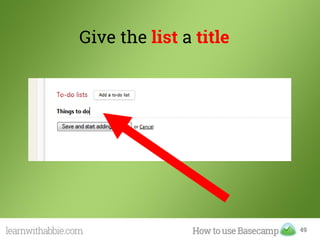
Give the list a title
50
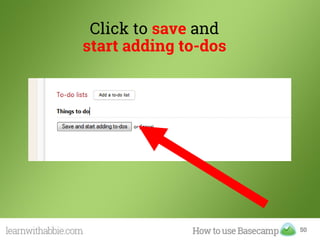
Click to save and
start adding to-dos
51
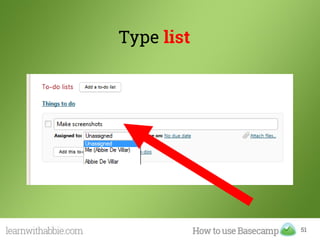
Type list
52
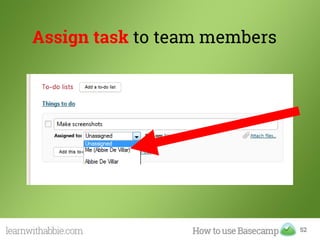
Assign task to team members
53
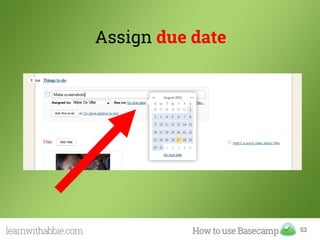
Assign due date
54
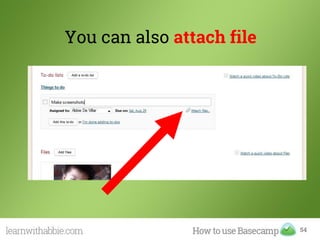
You can also attach file
55
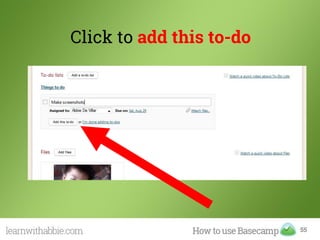
Click to add this to-do
56
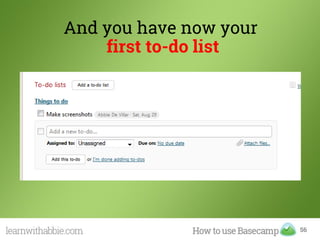
And you have now your
first to-do list
57
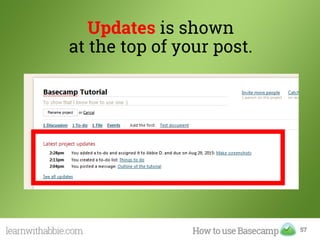
Updates is shown
at the top of your post.
58
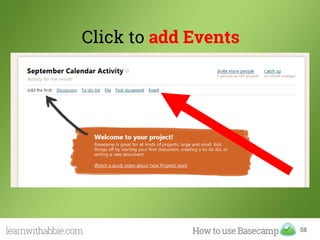
Click to add Events
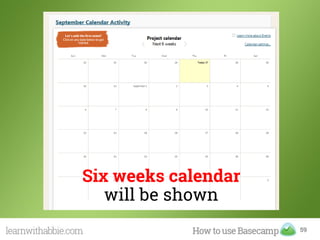
59
Six weeks calendar
will be shown
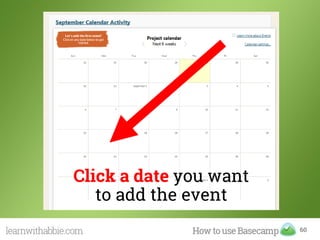
60
Click a date you want
to add the event
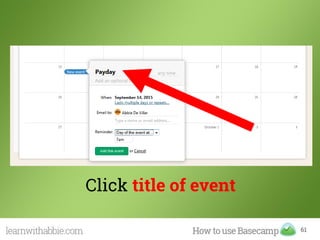
61
Click title of event
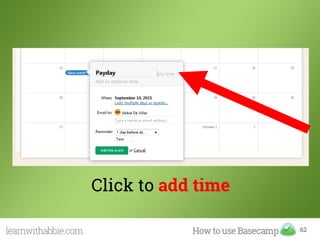
62
Click to add time
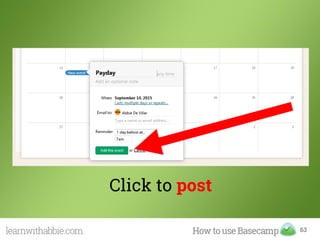
63
Click to post
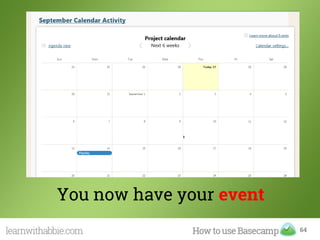
64
You now have your event
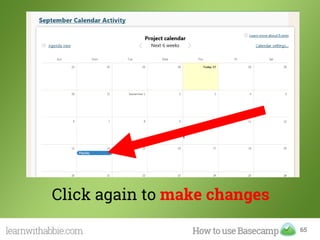
65
Click again to make changes
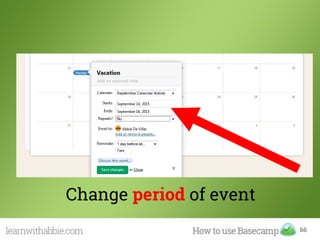
66
Change period of event
67
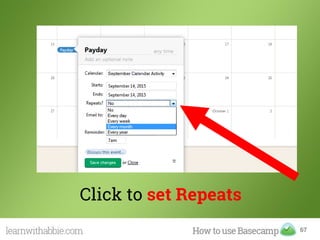
Click to set Repeats
68
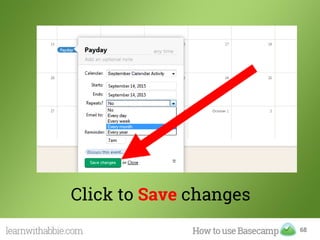
Click to Save changes
69
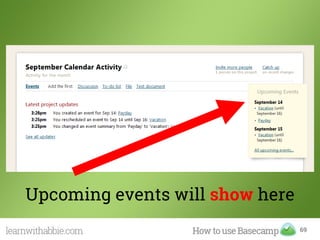
Upcoming events will show here
70
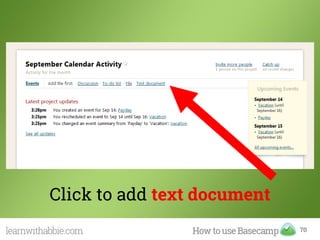
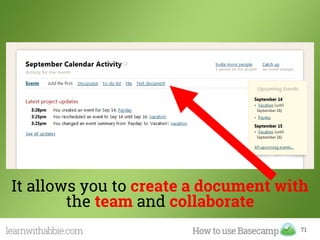
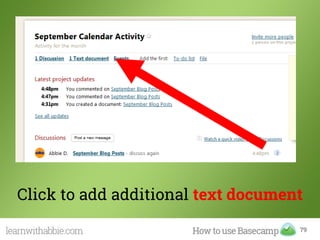
Click to add text document
71
It allows you to create a document with
the team and collaborate
72
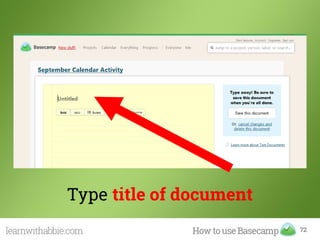
Type title of document
73
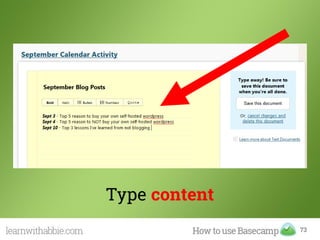
Type content
74
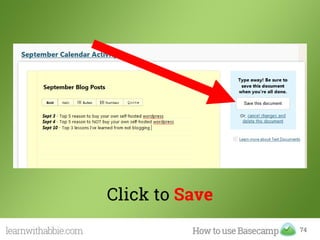
Click to Save
75
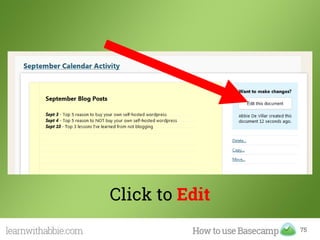
Click to Edit
76
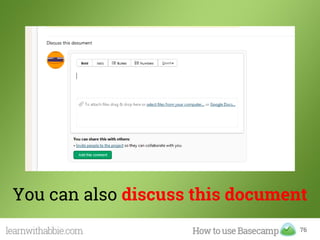
You can also discuss this document
77
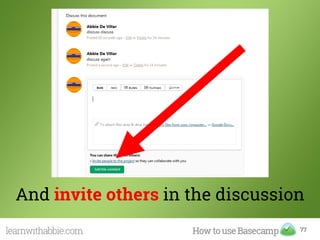
And invite others in the discussion
78
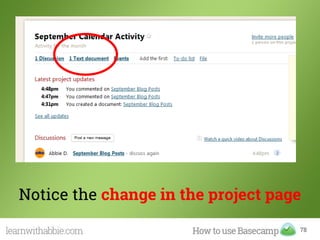
Notice the change in the project page
79
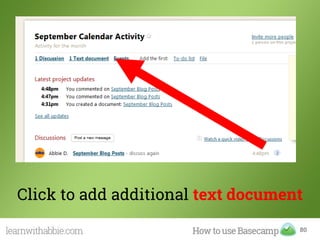
Click to add additional text document
80
Click to add additional text document
81
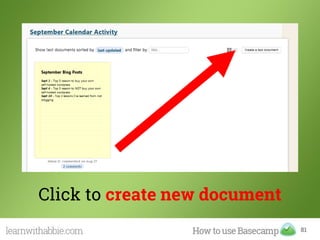
Click to create new document
82
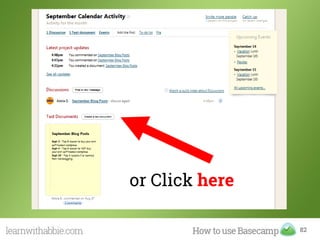
or Click here
83
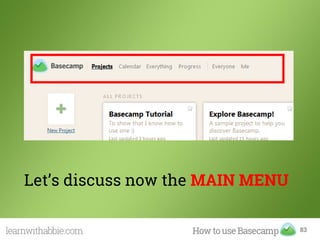
Let’s discuss now the MAIN MENU
84
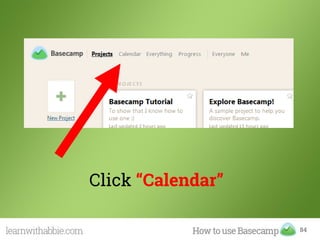
Click “Calendar”
85
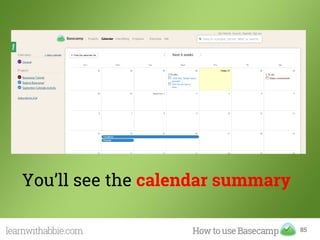
You’ll see the calendar summary
86
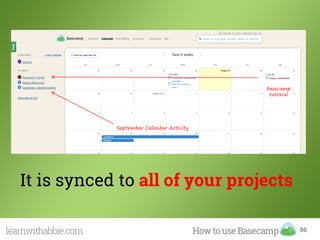
It is synced to all of your projects
basecamp
tutorial
September Calendar Activity
87
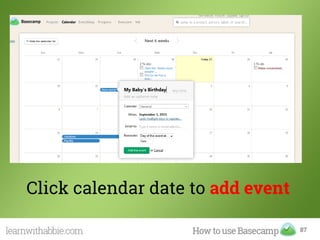
Click calendar date to add event
88
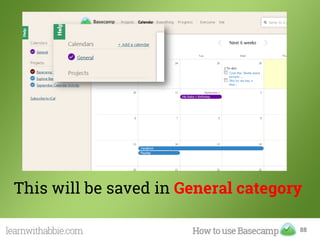
This will be saved in General category
89
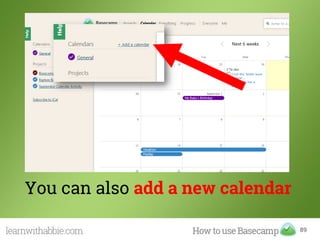
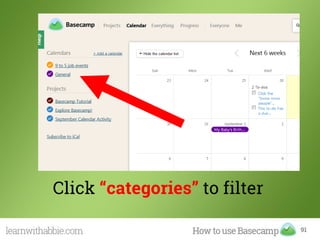
You can also add a new calendar
90
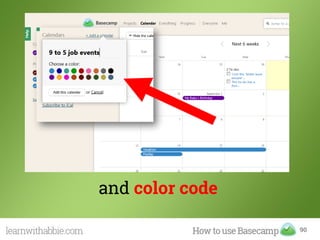
and color code
91
Click “categories” to filter
92
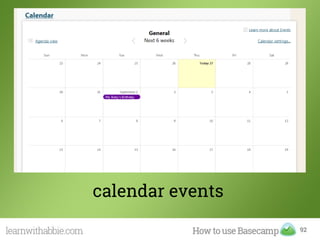
calendar events
93
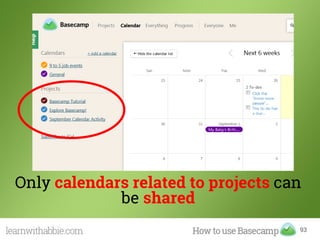
Only calendars related to projects can
be shared
94
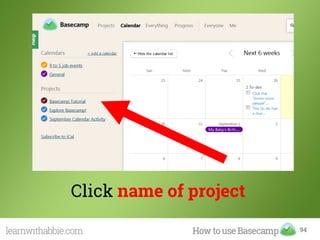
Click name of project
95
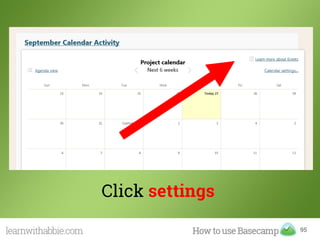
Click settings
96
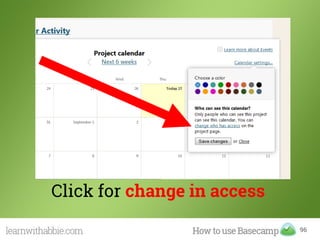
Click for change in access
97
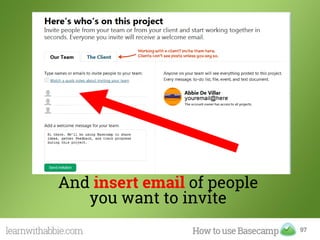
And insert email of people
you want to invite
98
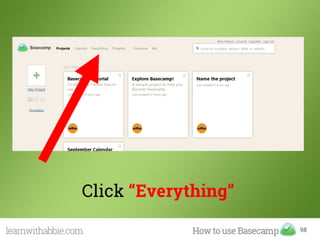
Click “Everything”
99
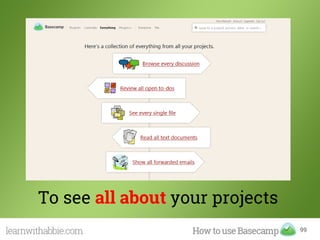
To see all about your projects
100
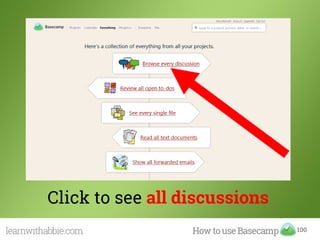
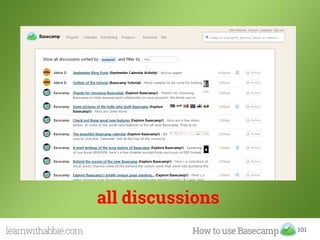
Click to see all discussions
101
all discussions
102
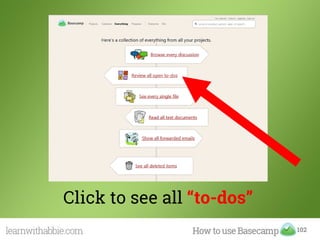
Click to see all “to-dos”
103
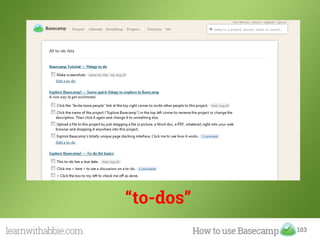
“to-dos”
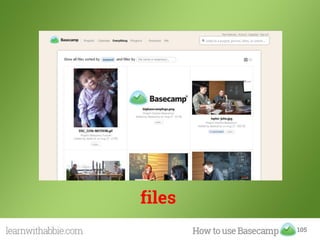
104
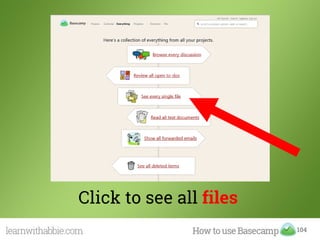
Click to see all files
105
files
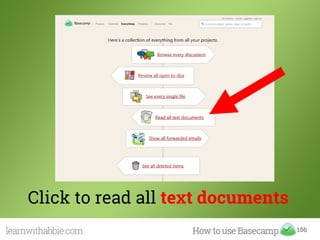
106
Click to read all text documents
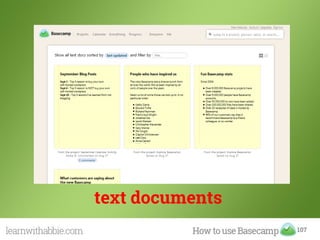
107
text documents
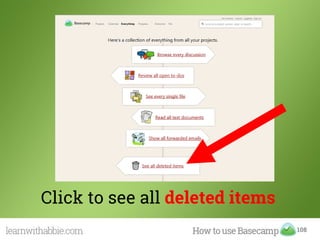
108
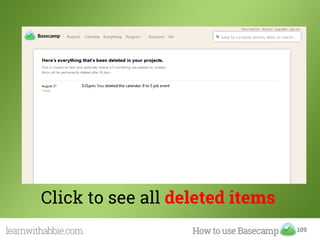
Click to see all deleted items
109
Click to see all deleted items
110
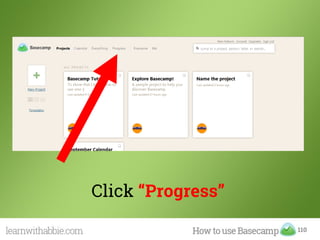
Click “Progress”
111
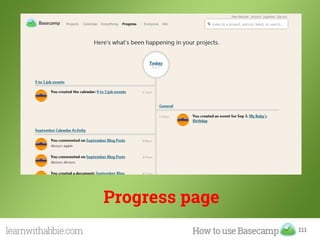
Progress page
112
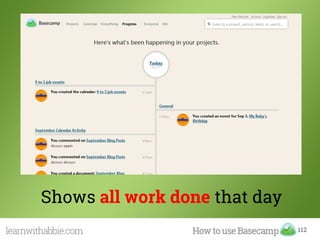
Shows all work done that day
113
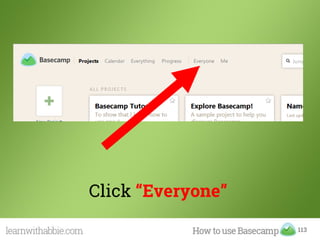
Click “Everyone”
114
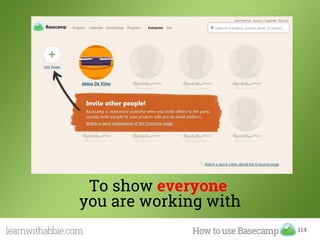
To show everyone
you are working with
115
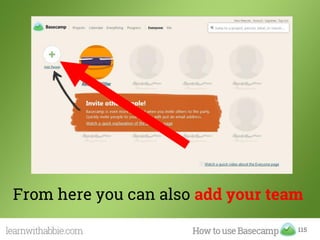
From here you can also add your team
116
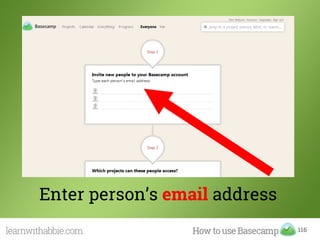
Enter person’s email address
117
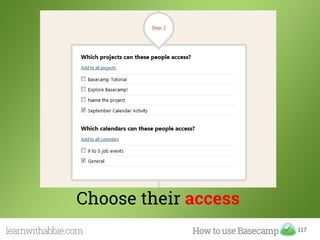
Choose their access
118
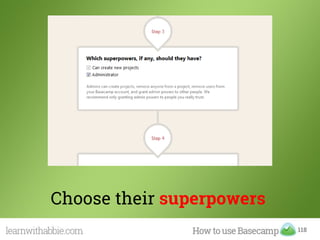
Choose their superpowers
119
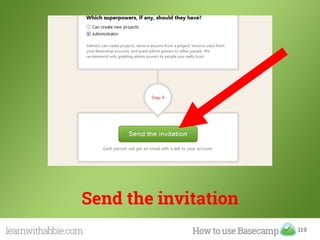
Send the invitation
120
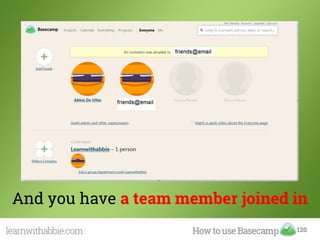
And you have a team member joined in
121
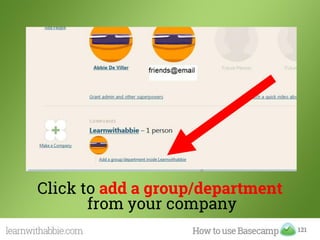
Click to add a group/department
from your company
122
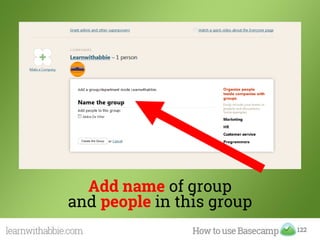
Add name of group
and people in this group
123
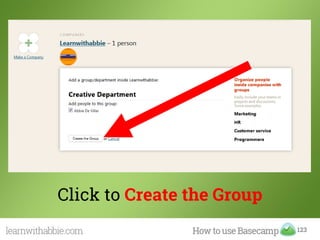
Click to Create the Group
124
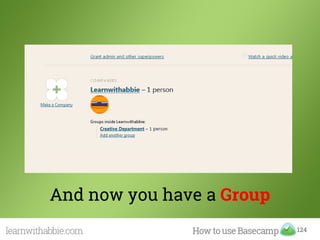
And now you have a Group
125
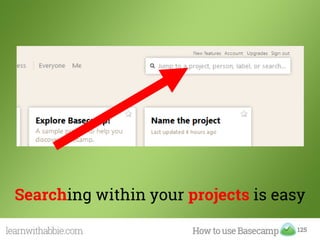
Searching within your projects is easy
126
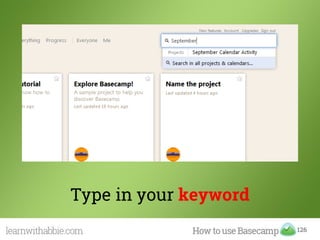
Type in your keyword
127
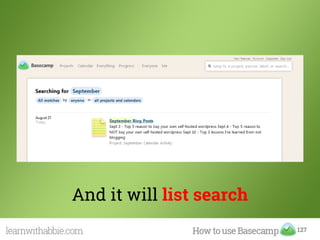
And it will list search
128
Tipswhile working
with Basecamp
129
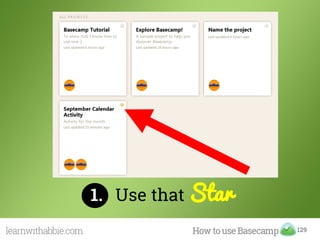
1. Use that Star
130
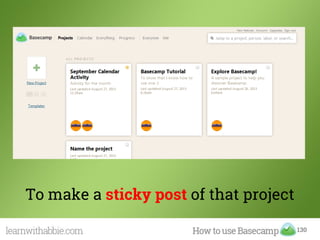
To make a sticky post of that project
131
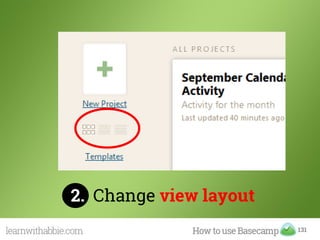
2. Change view layout
132
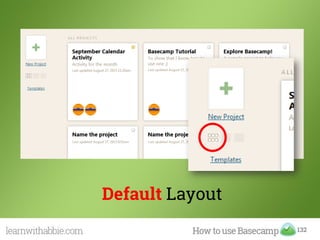
Default Layout
133
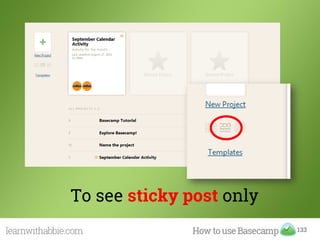
To see sticky post only
134
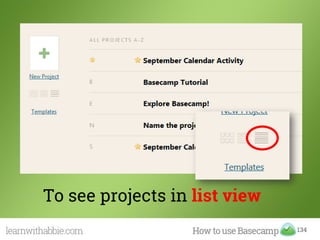
To see projects in list view
135
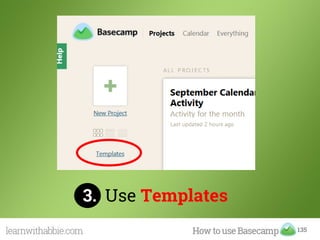
3. Use Templates
136
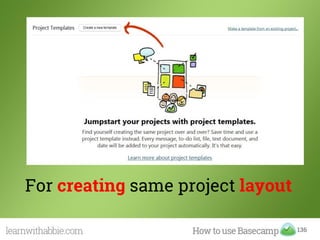
For creating same project layout
137
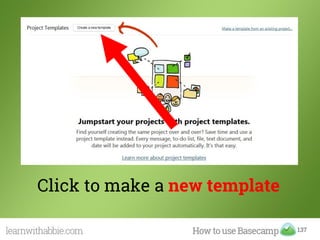
Click to make a new template
138
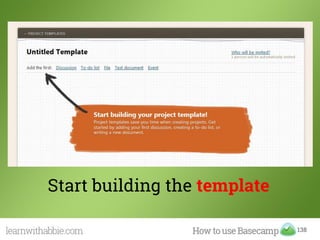
Start building the template
139
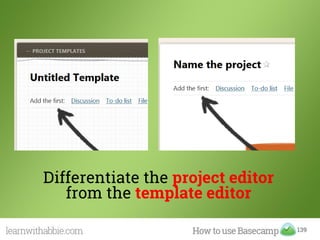
Differentiate the project editor
from the template editor
140
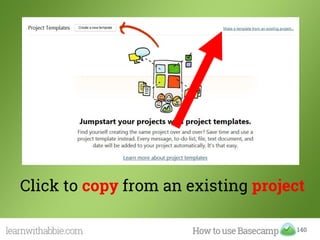
Click to copy from an existing project
141
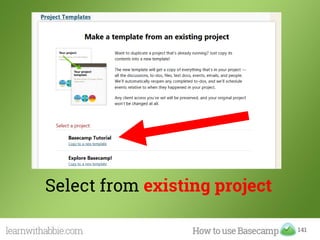
Select from existing project
142
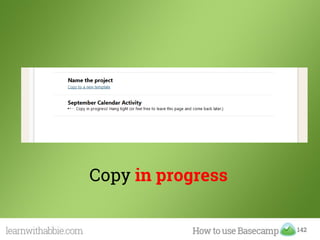
Copy in progress
143
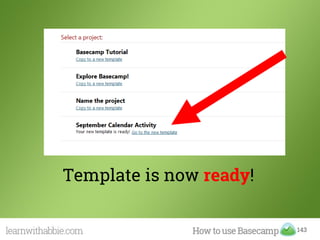
Template is now ready!
144
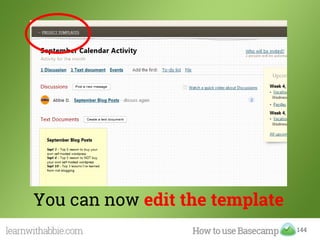
You can now edit the template
145
And that’s the basics of
Basecamp
146
Thanks for
learning with abbie
Credits:
147
Simple
148
149
150
Thank you
Virtual Assistant

How to use Basecamp - A project management tool (2015)