How to
Integrate
Paytm Payment
Gateway using
ReactJS in
Seven Easy
Steps
www.bacancytechnology.com
Introduction
01
Are you stuck with a requirement of
integrating a payment gateway into your
project? Are you aggressively looking for a
simple tutorial regarding the same? If yes,
this tutorial: Integrate Paytm payment
gateway using ReactJs is for you! In this
step-by-step guide, we will learn how to
implement a payment gateway in seven
easy steps. So, without further ado, let’s get
started with our tutorial.
02
Tutorial Goal:
Integrate
Paytm
Payment
Gateway
using ReactJS
03
You might be wondering what we are going
to do in this tutorial. We will build a small
demo application consisting of a button
‘Pay Now’. With the click of the button a
modal will be displayed as shown below.
The library allows you to customize the
modal and add various payment methods
the way you want.
04
Create a new
Paytm
developer
account
05
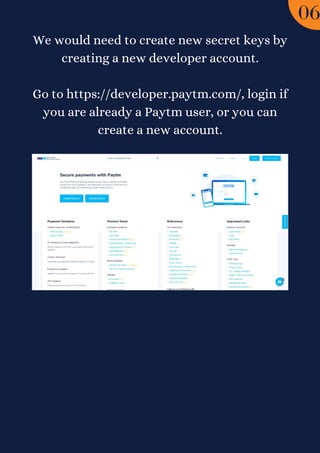
We would need to create new secret keys by
creating a new developer account.


Go to https://developer.paytm.com/, login if
you are already a Paytm user, or you can
create a new account.
06
Collect the
API keys
07
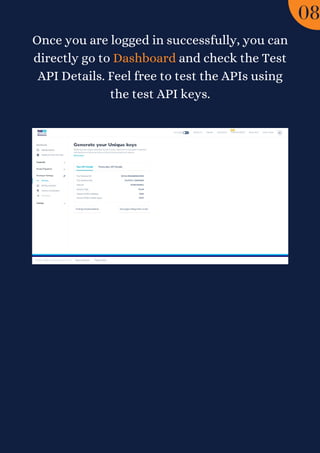
Once you are logged in successfully, you can
directly go to Dashboard and check the Test
API Details. Feel free to test the APIs using
the test API keys.
08
Create a
ReactJS
Application
09
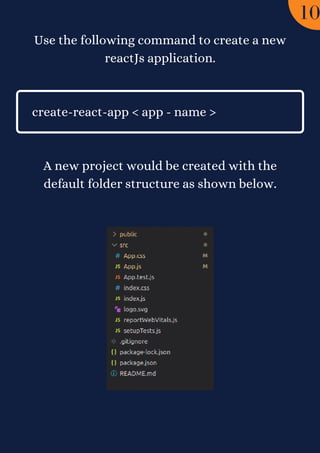
Use the following command to create a new
reactJs application.


A new project would be created with the
default folder structure as shown below.
create-react-app < app - name >
10
Adding the
scripts to
index.html
11
Hire ReactJS developer from us to
add varied skillset to your existing
in-house development. We can help
you develop next-gen web solution
from ideation to development to
final delivery
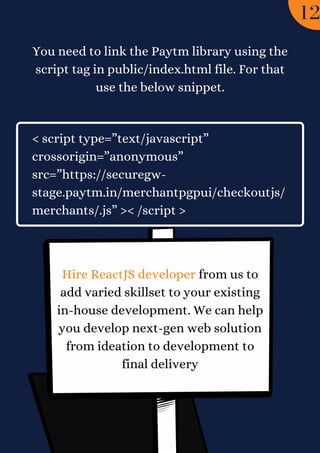
< script type=”text/javascript”
crossorigin=”anonymous”
src=”https://securegw-
stage.paytm.in/merchantpgpui/checkoutjs/
merchants/.js” >< /script >
You need to link the Paytm library using the
script tag in public/index.html file. For that
use the below snippet.


12
Logic & UI:
Paytm
Payment
Integration
13
Create a new file paytmButton.js inside
/paytm-button folder. This file will contain
the main logic and functionality for the
Paytm payment integration using ReactJS.


The user interface would have a “Pay Now”
button that will trigger the Paytm checkout
modal.


Create a new function initializePaytm() that
will contain all the initialization
configurations and token generation steps
that will be triggered on page load using
useEffect.
useEffect(() => {
initialize();
}, []);
14
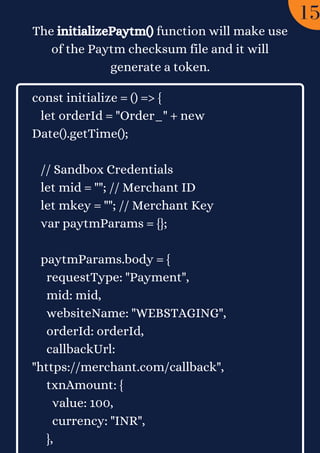
The initializePaytm() function will make use
of the Paytm checksum file and it will
generate a token.
const initialize = () => {
let orderId = "Order_" + new
Date().getTime();
// Sandbox Credentials
let mid = ""; // Merchant ID
let mkey = ""; // Merchant Key
var paytmParams = {};
paytmParams.body = {
requestType: "Payment",
mid: mid,
websiteName: "WEBSTAGING",
orderId: orderId,
callbackUrl:
"https://merchant.com/callback",
txnAmount: {
value: 100,
currency: "INR",
},
15
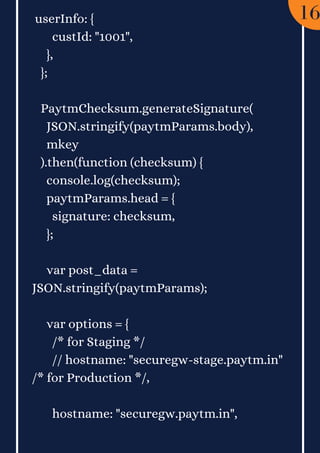
userInfo: {
custId: "1001",
},
};
PaytmChecksum.generateSignature(
JSON.stringify(paytmParams.body),
mkey
).then(function (checksum) {
console.log(checksum);
paytmParams.head = {
signature: checksum,
};
var post_data =
JSON.stringify(paytmParams);
var options = {
/* for Staging */
// hostname: "securegw-stage.paytm.in"
/* for Production */,
hostname: "securegw.paytm.in",


16
port: 443,
path: `/theia/api/v1/initiateTransaction?
mid=${mid}&orderId=${orderId}`,
method: "POST",
headers: {
"Content-Type": "application/json",
"Content-Length": post_data.length,
},
};
var response = "";
var post_req = https.request(options,
function (post_res) {
post_res.on("data", function (chunk) {
response += chunk;
});
post_res.on("end", function () {
console.log("Response: ", response);
// res.json({data: JSON.parse(response),
orderId: orderId, mid: mid, amount:
amount});
setPaymentData({
17
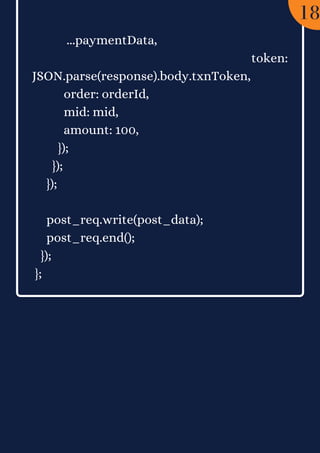
...paymentData,
token:
JSON.parse(response).body.txnToken,
order: orderId,
mid: mid,
amount: 100,
});
});
});
post_req.write(post_data);
post_req.end();
});
};
18
Explanation
19
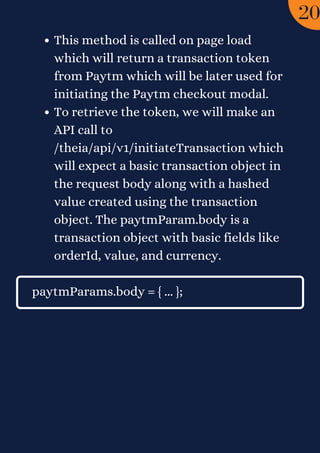
This method is called on page load
which will return a transaction token
from Paytm which will be later used for
initiating the Paytm checkout modal.
To retrieve the token, we will make an
API call to
/theia/api/v1/initiateTransaction which
will expect a basic transaction object in
the request body along with a hashed
value created using the transaction
object. The paytmParam.body is a
transaction object with basic fields like
orderId, value, and currency.
paytmParams.body = { ... };
20
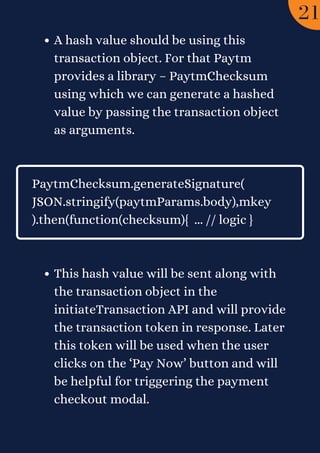
A hash value should be using this
transaction object. For that Paytm
provides a library – PaytmChecksum
using which we can generate a hashed
value by passing the transaction object
as arguments.
This hash value will be sent along with
the transaction object in the
initiateTransaction API and will provide
the transaction token in response. Later
this token will be used when the user
clicks on the ‘Pay Now’ button and will
be helpful for triggering the payment
checkout modal.
PaytmChecksum.generateSignature(
JSON.stringify(paytmParams.body),mkey
).then(function(checksum){ ... // logic }
21
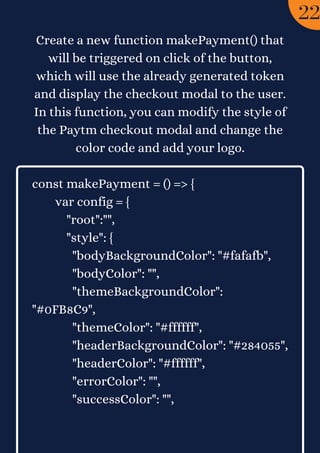
Create a new function makePayment() that
will be triggered on click of the button,
which will use the already generated token
and display the checkout modal to the user.
In this function, you can modify the style of
the Paytm checkout modal and change the
color code and add your logo.


const makePayment = () => {
var config = {
"root":"",
"style": {
"bodyBackgroundColor": "#fafafb",
"bodyColor": "",
"themeBackgroundColor":
"#0FB8C9",
"themeColor": "#ffffff",
"headerBackgroundColor": "#284055",
"headerColor": "#ffffff",
"errorColor": "",
"successColor": "",
22
"card": {
"padding": "",
"backgroundColor": ""
}
},
"data": {
"orderId": paymentData.order,
"token": paymentData.token,
"tokenType": "TXN_TOKEN",
"amount": paymentData.amount /*
update amount */
},
"payMode": {
"labels": {},
"filter": {
"exclude": []
},
23
"order": [
"CC",
"DC",
"NB",
"UPI",
"PPBL",
"PPI",
"BALANCE"
]
},
"website": "WEBSTAGING",
"flow": "DEFAULT",
"merchant": {
"mid": paymentData.mid,
"redirect": false
},
"handler": {
"transactionStatus":
function transactionStatus(paymentStatus){
console.log(paymentStatus);
},
24
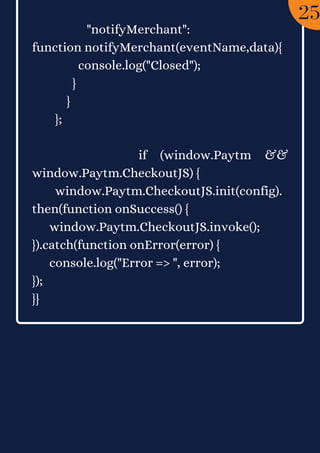
"notifyMerchant":
function notifyMerchant(eventName,data){
console.log("Closed");
}
}
};
if (window.Paytm &&
window.Paytm.CheckoutJS) {
window.Paytm.CheckoutJS.init(config).
then(function onSuccess() {
window.Paytm.CheckoutJS.invoke();
}).catch(function onError(error) {
console.log("Error => ", error);
});
}}
25
Call the makePayment() method on click
event of the button.


return (
< div >
{loading ? (
< img src="https://c.tenor.com/I6kN-
6X7nhAAAAAj/loading-buffering.gif" / >
) : (
< button onClick={makePayment}>Pay
Now< /button >
)}
< /div >
);
26
Import
PaytmButton
in App.js
27
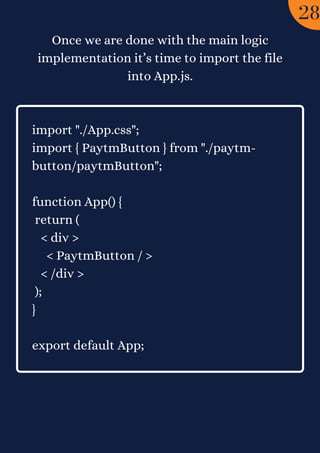
Once we are done with the main logic
implementation it’s time to import the file
into App.js.


import "./App.css";
import { PaytmButton } from "./paytm-
button/paytmButton";
function App() {
return (
< div >
< PaytmButton / >
< /div >
);
}
export default App;
28
Run the
Server
29
So, finally, we are done with the tutorial:
How to Integrate Paytm Payment Gateway
using ReactJS. Now using the below
command, run your server.


npm start


Visit http://localhost:3000/ and test the
demo app.
The entire source code is available on the
github repo: paytm-payment-gateway-
integration. Feel free to clone the repository
and play around with the code.
30
Conclusion
31
I hope the tutorial has helped you learn how
to integrate Paytm payment gateway using
ReactJS. We value your feedback and
suggestions, so feel free to write back. Our
team is trying to explore and add more such
topics to ReactJS tutorials. If you are a
ReactJS enthusiast, visit the ReactJS
tutorials page without wasting your time,
clone the github repository, and polish your
technical side.
32
Thank You
www.bacancytechnology.com

How to integrate paytm payment gateway using react js in seven easy steps

  • 1.
    How to Integrate Paytm Payment Gatewayusing ReactJS in Seven Easy Steps www.bacancytechnology.com
  • 2.
  • 3.
    Are you stuckwith a requirement of integrating a payment gateway into your project? Are you aggressively looking for a simple tutorial regarding the same? If yes, this tutorial: Integrate Paytm payment gateway using ReactJs is for you! In this step-by-step guide, we will learn how to implement a payment gateway in seven easy steps. So, without further ado, let’s get started with our tutorial. 02
  • 4.
  • 5.
    You might bewondering what we are going to do in this tutorial. We will build a small demo application consisting of a button ‘Pay Now’. With the click of the button a modal will be displayed as shown below. The library allows you to customize the modal and add various payment methods the way you want. 04
  • 6.
  • 7.
    We would needto create new secret keys by creating a new developer account. Go to https://developer.paytm.com/, login if you are already a Paytm user, or you can create a new account. 06
  • 8.
  • 9.
    Once you arelogged in successfully, you can directly go to Dashboard and check the Test API Details. Feel free to test the APIs using the test API keys. 08
  • 10.
  • 11.
    Use the followingcommand to create a new reactJs application. A new project would be created with the default folder structure as shown below. create-react-app < app - name > 10
  • 12.
  • 13.
    Hire ReactJS developerfrom us to add varied skillset to your existing in-house development. We can help you develop next-gen web solution from ideation to development to final delivery < script type=”text/javascript” crossorigin=”anonymous” src=”https://securegw- stage.paytm.in/merchantpgpui/checkoutjs/ merchants/.js” >< /script > You need to link the Paytm library using the script tag in public/index.html file. For that use the below snippet. 12
  • 14.
  • 15.
    Create a newfile paytmButton.js inside /paytm-button folder. This file will contain the main logic and functionality for the Paytm payment integration using ReactJS. The user interface would have a “Pay Now” button that will trigger the Paytm checkout modal. Create a new function initializePaytm() that will contain all the initialization configurations and token generation steps that will be triggered on page load using useEffect. useEffect(() => { initialize(); }, []); 14
  • 16.
    The initializePaytm() functionwill make use of the Paytm checksum file and it will generate a token. const initialize = () => { let orderId = "Order_" + new Date().getTime(); // Sandbox Credentials let mid = ""; // Merchant ID let mkey = ""; // Merchant Key var paytmParams = {}; paytmParams.body = { requestType: "Payment", mid: mid, websiteName: "WEBSTAGING", orderId: orderId, callbackUrl: "https://merchant.com/callback", txnAmount: { value: 100, currency: "INR", }, 15
  • 17.
    userInfo: { custId: "1001", }, }; PaytmChecksum.generateSignature( JSON.stringify(paytmParams.body), mkey ).then(function(checksum) { console.log(checksum); paytmParams.head = { signature: checksum, }; var post_data = JSON.stringify(paytmParams); var options = { /* for Staging */ // hostname: "securegw-stage.paytm.in" /* for Production */, hostname: "securegw.paytm.in", 16
  • 18.
    port: 443, path: `/theia/api/v1/initiateTransaction? mid=${mid}&orderId=${orderId}`, method:"POST", headers: { "Content-Type": "application/json", "Content-Length": post_data.length, }, }; var response = ""; var post_req = https.request(options, function (post_res) { post_res.on("data", function (chunk) { response += chunk; }); post_res.on("end", function () { console.log("Response: ", response); // res.json({data: JSON.parse(response), orderId: orderId, mid: mid, amount: amount}); setPaymentData({ 17
  • 19.
    ...paymentData, token: JSON.parse(response).body.txnToken, order: orderId, mid: mid, amount:100, }); }); }); post_req.write(post_data); post_req.end(); }); }; 18
  • 20.
  • 21.
    This method iscalled on page load which will return a transaction token from Paytm which will be later used for initiating the Paytm checkout modal. To retrieve the token, we will make an API call to /theia/api/v1/initiateTransaction which will expect a basic transaction object in the request body along with a hashed value created using the transaction object. The paytmParam.body is a transaction object with basic fields like orderId, value, and currency. paytmParams.body = { ... }; 20
  • 22.
    A hash valueshould be using this transaction object. For that Paytm provides a library – PaytmChecksum using which we can generate a hashed value by passing the transaction object as arguments. This hash value will be sent along with the transaction object in the initiateTransaction API and will provide the transaction token in response. Later this token will be used when the user clicks on the ‘Pay Now’ button and will be helpful for triggering the payment checkout modal. PaytmChecksum.generateSignature( JSON.stringify(paytmParams.body),mkey ).then(function(checksum){ ... // logic } 21
  • 23.
    Create a newfunction makePayment() that will be triggered on click of the button, which will use the already generated token and display the checkout modal to the user. In this function, you can modify the style of the Paytm checkout modal and change the color code and add your logo. const makePayment = () => { var config = { "root":"", "style": { "bodyBackgroundColor": "#fafafb", "bodyColor": "", "themeBackgroundColor": "#0FB8C9", "themeColor": "#ffffff", "headerBackgroundColor": "#284055", "headerColor": "#ffffff", "errorColor": "", "successColor": "", 22
  • 24.
    "card": { "padding": "", "backgroundColor":"" } }, "data": { "orderId": paymentData.order, "token": paymentData.token, "tokenType": "TXN_TOKEN", "amount": paymentData.amount /* update amount */ }, "payMode": { "labels": {}, "filter": { "exclude": [] }, 23
  • 25.
    "order": [ "CC", "DC", "NB", "UPI", "PPBL", "PPI", "BALANCE" ] }, "website": "WEBSTAGING", "flow":"DEFAULT", "merchant": { "mid": paymentData.mid, "redirect": false }, "handler": { "transactionStatus": function transactionStatus(paymentStatus){ console.log(paymentStatus); }, 24
  • 26.
    "notifyMerchant": function notifyMerchant(eventName,data){ console.log("Closed"); } } }; if (window.Paytm&& window.Paytm.CheckoutJS) { window.Paytm.CheckoutJS.init(config). then(function onSuccess() { window.Paytm.CheckoutJS.invoke(); }).catch(function onError(error) { console.log("Error => ", error); }); }} 25
  • 27.
    Call the makePayment()method on click event of the button. return ( < div > {loading ? ( < img src="https://c.tenor.com/I6kN- 6X7nhAAAAAj/loading-buffering.gif" / > ) : ( < button onClick={makePayment}>Pay Now< /button > )} < /div > ); 26
  • 28.
  • 29.
    Once we aredone with the main logic implementation it’s time to import the file into App.js. import "./App.css"; import { PaytmButton } from "./paytm- button/paytmButton"; function App() { return ( < div > < PaytmButton / > < /div > ); } export default App; 28
  • 30.
  • 31.
    So, finally, weare done with the tutorial: How to Integrate Paytm Payment Gateway using ReactJS. Now using the below command, run your server. npm start Visit http://localhost:3000/ and test the demo app. The entire source code is available on the github repo: paytm-payment-gateway- integration. Feel free to clone the repository and play around with the code. 30
  • 32.
  • 33.
    I hope thetutorial has helped you learn how to integrate Paytm payment gateway using ReactJS. We value your feedback and suggestions, so feel free to write back. Our team is trying to explore and add more such topics to ReactJS tutorials. If you are a ReactJS enthusiast, visit the ReactJS tutorials page without wasting your time, clone the github repository, and polish your technical side. 32
  • 34.