How to Give a Powerful Presentation By: Lucy Johnson
Step 1. Having a Good Visual Design Must have a balanced design Legible text Minimal letter styles and sizes  Appealing colors Provides unity and direction Consistent and cohesive Relevant images
Nonprojected Visuals That are Used and Helpful in Presentations Real Objects Models Exhibits Graphics and Photographs Flip Chart  Magnetic Board Felt Board Chalkboard Whiteboard
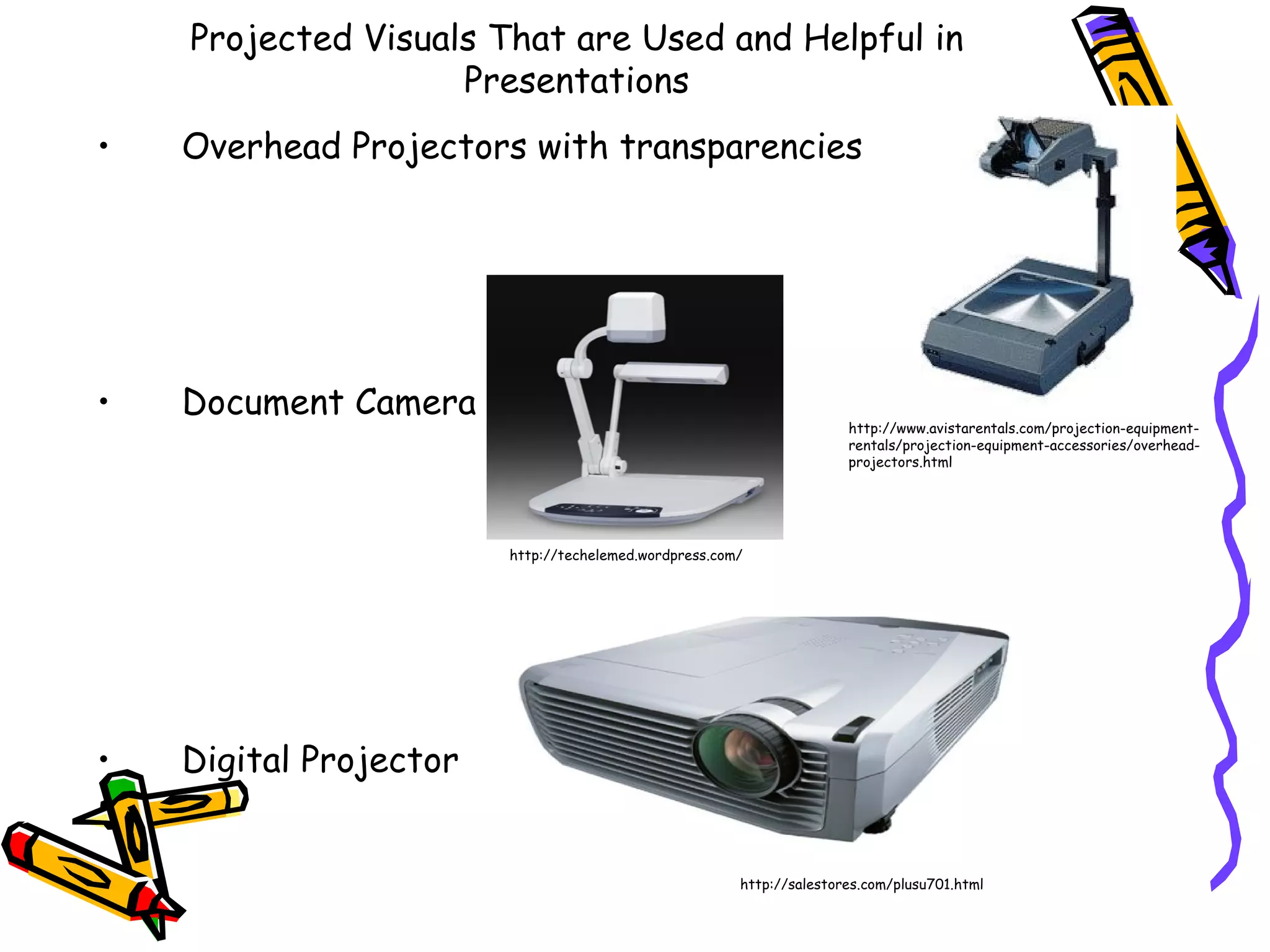
Projected Visuals That are Used and Helpful in Presentations Overhead Projectors with transparencies Document Camera Digital Projector http://www.avistarentals.com/projection-equipment-rentals/projection-equipment-accessories/overhead-projectors.html http://techelemed.wordpress.com/ http://salestores.com/plusu701.html
Learning With Visuals Use color contrast to add interest Include graphics but keep them simple and avoid complex diagrams Eliminate unnecessary detail to maintain a clear message Include minimal text
How to Use Presentation Software Be consistent Use text effectively Use special effects sparingly Break down your message Cut text down to the bare minimum Edit information continuously
Graphic Design Using PowerPoint Only add images that reinforces your message Remember proportion, relevancy, and theme when choosing images Technical quality Apparent motion The impact of color on the audience Contrast Balance Overall design For more information on Graphic design guidelines visit:  http:// desktoppub.about.com/od/designguidelines /
References I used the Teaching and Learning with Technology textbook by Judy Lever-Duffy and Jean B. McDonald and the handout titled Bringing Down the House: Creating Sensational Knock-Your-Socks Off Presentations: How to Deliver Your Message with Power and Pizzazz by Ian Jukes

How to give a powerful presentation

  • 1.
    How to Givea Powerful Presentation By: Lucy Johnson
  • 2.
    Step 1. Havinga Good Visual Design Must have a balanced design Legible text Minimal letter styles and sizes Appealing colors Provides unity and direction Consistent and cohesive Relevant images
  • 3.
    Nonprojected Visuals Thatare Used and Helpful in Presentations Real Objects Models Exhibits Graphics and Photographs Flip Chart Magnetic Board Felt Board Chalkboard Whiteboard
  • 4.
    Projected Visuals Thatare Used and Helpful in Presentations Overhead Projectors with transparencies Document Camera Digital Projector http://www.avistarentals.com/projection-equipment-rentals/projection-equipment-accessories/overhead-projectors.html http://techelemed.wordpress.com/ http://salestores.com/plusu701.html
  • 5.
    Learning With VisualsUse color contrast to add interest Include graphics but keep them simple and avoid complex diagrams Eliminate unnecessary detail to maintain a clear message Include minimal text
  • 6.
    How to UsePresentation Software Be consistent Use text effectively Use special effects sparingly Break down your message Cut text down to the bare minimum Edit information continuously
  • 7.
    Graphic Design UsingPowerPoint Only add images that reinforces your message Remember proportion, relevancy, and theme when choosing images Technical quality Apparent motion The impact of color on the audience Contrast Balance Overall design For more information on Graphic design guidelines visit: http:// desktoppub.about.com/od/designguidelines /
  • 8.
    References I usedthe Teaching and Learning with Technology textbook by Judy Lever-Duffy and Jean B. McDonald and the handout titled Bringing Down the House: Creating Sensational Knock-Your-Socks Off Presentations: How to Deliver Your Message with Power and Pizzazz by Ian Jukes