1
A Refresher!
RESEARCHING PRESENTATIONS
 Copyright © 2018 Bedford/St. Martin’s. All rights reserved.
2Copyright © 2018 Bedford/St. Martin’s. All rights reserved.
Online Research
 Search engines
 URL contains information about the source
 .gov = a government site
 .edu = an education site
 .org = non-profit organization site*
 .com may be business, organizational or personal site*
 .uk = British, .cn = China, .ru = Russia
* anyone may buy these domains
3Copyright © 2018 Bedford/St. Martin’s. All rights reserved.
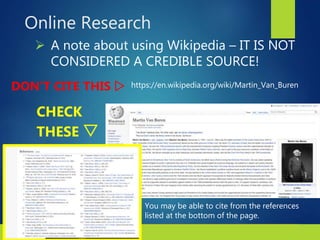
 A note about using Wikipedia – IT IS NOT
CONSIDERED A CREDIBLE SOURCE!
https://en.wikipedia.org/wiki/Martin_Van_BurenDON’T CITE THIS 
CHECK
THESE 
Online Research
You may be able to cite from the references
listed at the bottom of the page.
4Copyright © 2018 Bedford/St. Martin’s. All rights reserved.
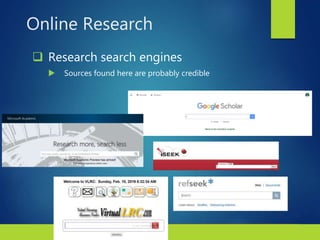
 Research search engines
 Sources found here are probably credible
Online Research
5Copyright © 2018 Bedford/St. Martin’s. All rights reserved.
Search the Literature
 Directories
 guide you to the main page of a
website organized within a wider
subject category
 Library gateways
 databases and information sites
arranged by subjects and are
generally peer reviewed
6Copyright © 2018 Bedford/St. Martin’s. All rights reserved.
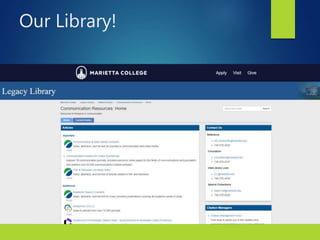
Search the Legacy Library
 The next four slides show you how to
find sources through Marietta’s Legacy
Library interface.
 If you feel comfortable using the library
website, you may want to skip the rest of
this slideshow!
7
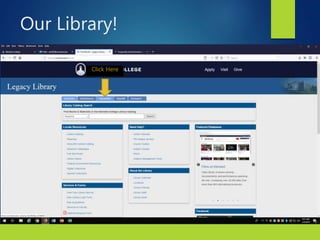
Click Here
Our Library!
8
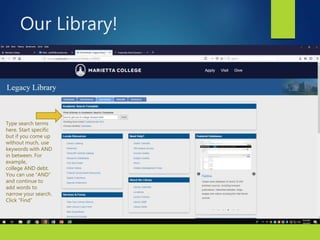
Type search terms
here. Start specific
but if you come up
without much, use
keywords with AND
in between. For
example,
college AND debt.
You can use “AND”
and continue to
add words to
narrow your search.
Click “Find”
Our Library!
9
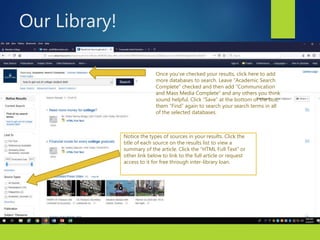
Notice the types of sources in your results. Click the
title of each source on the results list to view a
summary of the article. Click the “HTML Full Text” or
other link below to link to the full article or request
access to it for free through inter-library loan.
Once you’ve checked your results, click here to add
more databases to search. Leave “Academic Search
Complete” checked and then add “Communication
and Mass Media Complete” and any others you think
sound helpful. Click “Save” at the bottom of the box,
them “Find” again to search your search terms in all
of the selected databases.
Our Library!
10
Our Library!

How to find information for your speech

  • 1.
    1 A Refresher! RESEARCHING PRESENTATIONS Copyright © 2018 Bedford/St. Martin’s. All rights reserved.
  • 2.
    2Copyright © 2018Bedford/St. Martin’s. All rights reserved. Online Research  Search engines  URL contains information about the source  .gov = a government site  .edu = an education site  .org = non-profit organization site*  .com may be business, organizational or personal site*  .uk = British, .cn = China, .ru = Russia * anyone may buy these domains
  • 3.
    3Copyright © 2018Bedford/St. Martin’s. All rights reserved.  A note about using Wikipedia – IT IS NOT CONSIDERED A CREDIBLE SOURCE! https://en.wikipedia.org/wiki/Martin_Van_BurenDON’T CITE THIS  CHECK THESE  Online Research You may be able to cite from the references listed at the bottom of the page.
  • 4.
    4Copyright © 2018Bedford/St. Martin’s. All rights reserved.  Research search engines  Sources found here are probably credible Online Research
  • 5.
    5Copyright © 2018Bedford/St. Martin’s. All rights reserved. Search the Literature  Directories  guide you to the main page of a website organized within a wider subject category  Library gateways  databases and information sites arranged by subjects and are generally peer reviewed
  • 6.
    6Copyright © 2018Bedford/St. Martin’s. All rights reserved. Search the Legacy Library  The next four slides show you how to find sources through Marietta’s Legacy Library interface.  If you feel comfortable using the library website, you may want to skip the rest of this slideshow!
  • 7.
  • 8.
    8 Type search terms here.Start specific but if you come up without much, use keywords with AND in between. For example, college AND debt. You can use “AND” and continue to add words to narrow your search. Click “Find” Our Library!
  • 9.
    9 Notice the typesof sources in your results. Click the title of each source on the results list to view a summary of the article. Click the “HTML Full Text” or other link below to link to the full article or request access to it for free through inter-library loan. Once you’ve checked your results, click here to add more databases to search. Leave “Academic Search Complete” checked and then add “Communication and Mass Media Complete” and any others you think sound helpful. Click “Save” at the bottom of the box, them “Find” again to search your search terms in all of the selected databases. Our Library!
  • 10.