HOW TO CREATE A
“FACEBOOK PAGE”
TUTORIAL
◦ Pages are for businesses, brands, organizations and public
figures to share their stories and connect with people. Like
profiles, Pages can be customized with stories, events and
more. People who like or follow a Page can get updates in
News Feed.
◦In this tutorial, I will teach you how to make Facebook
Page step by step.
◦What you'll need to set up your
Facebook Page are:
Name for your Page and a blurb about
your business
◦ Your Page name can be your business name or another name that
people may search for to find your page/business. Use the About
section to tell people a little bit about what your business does.
Profile photo and cover photo
◦ Choose photos that represent your page/business well. You can use
your logo as your profile photo and an image of your shop, products or
one from a current marketing campaign as your cover photo.
The action that you want people to take
when they come to your Page
◦ At the top of your Page you can add a call to action that directs your
Page visitors to do something, such as visit your website or phone your
shop. Adding a call-to-action button is as easy as a few clicks.
◦Once you've created your
Page...
Publish your Page when it's complete
◦ You can make sure that people only see your Page when it's
finished by keeping it unpublished while you're creating it.
You can change these details in your Settings tab at any time.
Start posting straight away
◦ You want your Page to be active and informative before you
start promoting it. So start posting updates about your
business, special offers and more as soon as it's live.
Turn on messaging
◦Facebook Messenger is integrated with your Page, so
you can connect with customers one to one.
Messaging on your Page makes it easy for people to
contact your business with questions and feedback.
Understand your Page's results
◦Click on Insights at the top of your Page to see how
people are engaging with your business on Facebook.
You'll learn how many people your posts are reaching
and much more.
◦So, this is it! The basic step that you need to
follow with picture so you can create your own
facebook page.
Open Google Chrome
Type Facebook
1. Log-in your facebook account
2. Create an Account if you don’t have a
facebook
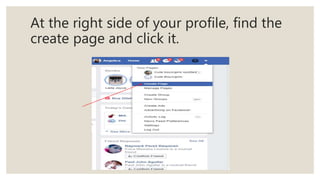
At the right side of your profile, find the
create page and click it.
Choose one category
Fill up those information needed
Click “Upload a Profile Picture” to add
photos
Choose the photo you want
◦The Size of the Profile Picture of your Facebook must
be:
◦180 x 180 (Displays 160 x 160 on Desktop)
◦Business Page Profile Picture: 180 x 180 (Displays 160
x 160 on Desktop)
Upload a Cover Photo
Choose the photo you want and click
open
◦While the Cover Photo is: 820 x 312
Tadaaaaaah! Welcome to your new page

You can invite your friends to like your
page
You can post status to inform people
about your page
Promote your page
Continuation..
Create a page username; so that people
will easily find your page
Check if the username you want is
available then click “Create Username”
And then you’re all set! Click ok
You can turn on instant replies if you
want, it depends on you
◦You have your own facebook page now,
manage it well 
◦That’s all! Thank you.

How to create a "Facebook Page" Tutorial

  • 1.
    HOW TO CREATEA “FACEBOOK PAGE” TUTORIAL
  • 2.
    ◦ Pages arefor businesses, brands, organizations and public figures to share their stories and connect with people. Like profiles, Pages can be customized with stories, events and more. People who like or follow a Page can get updates in News Feed.
  • 3.
    ◦In this tutorial,I will teach you how to make Facebook Page step by step.
  • 4.
    ◦What you'll needto set up your Facebook Page are:
  • 5.
    Name for yourPage and a blurb about your business ◦ Your Page name can be your business name or another name that people may search for to find your page/business. Use the About section to tell people a little bit about what your business does.
  • 6.
    Profile photo andcover photo ◦ Choose photos that represent your page/business well. You can use your logo as your profile photo and an image of your shop, products or one from a current marketing campaign as your cover photo.
  • 7.
    The action thatyou want people to take when they come to your Page ◦ At the top of your Page you can add a call to action that directs your Page visitors to do something, such as visit your website or phone your shop. Adding a call-to-action button is as easy as a few clicks.
  • 8.
  • 9.
    Publish your Pagewhen it's complete ◦ You can make sure that people only see your Page when it's finished by keeping it unpublished while you're creating it. You can change these details in your Settings tab at any time.
  • 10.
    Start posting straightaway ◦ You want your Page to be active and informative before you start promoting it. So start posting updates about your business, special offers and more as soon as it's live.
  • 11.
    Turn on messaging ◦FacebookMessenger is integrated with your Page, so you can connect with customers one to one. Messaging on your Page makes it easy for people to contact your business with questions and feedback.
  • 12.
    Understand your Page'sresults ◦Click on Insights at the top of your Page to see how people are engaging with your business on Facebook. You'll learn how many people your posts are reaching and much more.
  • 13.
    ◦So, this isit! The basic step that you need to follow with picture so you can create your own facebook page.
  • 14.
  • 15.
  • 16.
    1. Log-in yourfacebook account
  • 17.
    2. Create anAccount if you don’t have a facebook
  • 18.
    At the rightside of your profile, find the create page and click it.
  • 19.
  • 20.
    Fill up thoseinformation needed
  • 21.
    Click “Upload aProfile Picture” to add photos
  • 22.
  • 23.
    ◦The Size ofthe Profile Picture of your Facebook must be: ◦180 x 180 (Displays 160 x 160 on Desktop) ◦Business Page Profile Picture: 180 x 180 (Displays 160 x 160 on Desktop)
  • 24.
  • 25.
    Choose the photoyou want and click open
  • 26.
    ◦While the CoverPhoto is: 820 x 312
  • 27.
    Tadaaaaaah! Welcome toyour new page 
  • 28.
    You can inviteyour friends to like your page
  • 29.
    You can poststatus to inform people about your page
  • 30.
  • 31.
  • 32.
    Create a pageusername; so that people will easily find your page
  • 33.
    Check if theusername you want is available then click “Create Username”
  • 34.
    And then you’reall set! Click ok
  • 35.
    You can turnon instant replies if you want, it depends on you
  • 36.
    ◦You have yourown facebook page now, manage it well 
  • 37.