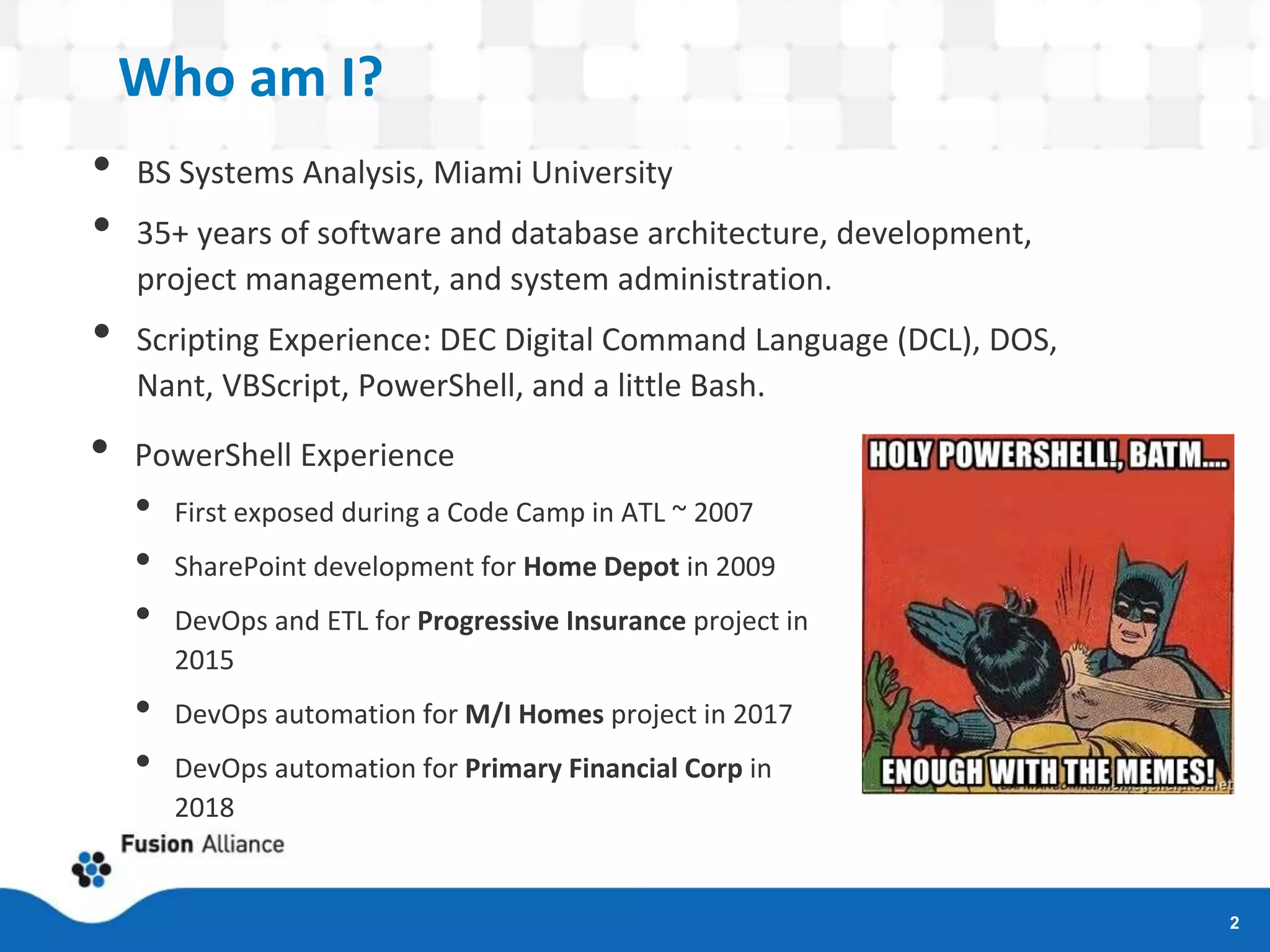
Holy PowerShell!, BATman!
Dave Diehl
.Net Competency Lead
Fusion Alliance
Columbus, Ohio
ddiehl@fusionalliance.com
Skype: j.david.diehl
Linked-In: daviddiehl
Who am I?
• BS Systems Analysis, Miami University
• 35+ years of software and database architecture, development,
project management, and system administration.
• Scripting Experience: DEC Digital Command Language (DCL), DOS,
Nant, VBScript, PowerShell, and a little Bash.
2
• PowerShell Experience
• First exposed during a Code Camp in ATL ~ 2007
• SharePoint development for Home Depot in 2009
• DevOps and ETL for Progressive Insurance project in
2015
• DevOps automation for M/I Homes project in 2017
• DevOps automation for Primary Financial Corp in
2018
Gratuitous Plug
3
What we will cover
• PowerShell from the ground up – via firehose
• How to find and run it.
• How to add functionality to it via Extensions and
Providers
• The most common issues you’ll probably run into.
• How to program in it.
• One demo script and two working examples.
Target audience: Anyone who has never used PowerShell, only
used it as an shell, or has frustratingly tried to write scripts.
4
What we won’t cover
• Stuff you can find in the built-in help system, e.g. command
reference.
• Stuff you can find in a quick internet search.
• Topics that a sys admin would find interesting: Invoke-
Command, *-PSSession, Remoting, *-Service, *-WmiObject,
ADSI, etc.
• Debugging your any specific problem you might have. We
just don’t have time (though bring it up after the session
and we’ll have a look).
5
Structure of Session
• 85% Slides
• 15% Examples
• Valuable references that I use regularly and that were used
to prepare for this presentation
This presentation, examples, and references will all be
available for download after this session at:
https://tinyurl.com/holypowershell
6
ARCHITECTURE AND TOOLS
What is PowerShell?
• Interactive Shell and Scripting Language
• Cmdlets & Aliases & Pipelines
• Development constructs
• Scripts, Functions, Providers, and Modules (used to be called Snap-ins)
• Originally released in 2007. Latest versions split in two:
• Windows PowerShell 6
• PowerShell 6.1 (released 9/13) based on .Net Core and runnable on
Windows, Linux, and macOS.
• Compatiblity
• Windows PS 6 backward compatible with older versions of WinPS
• PS Core 6.0 was not backward compatible. Might be in 6.1.
• You can run BOTH on a Windows machine.
8
Where is PowerShell
• On every version of Windows since v7 and Windows Server since
2008 R2
• Downloadable on older versions of Windows and on macOS and
Linux.
• In the cloud (Azure Cloud Shell (Core 6.1 on Ubuntu))
• In Visual Studio (Package Manager Console)
• In apps that use the PowerShell Managed API (Exchange Web
Services, System Center VM Manager, Vmware vSphere PowerCLI,
NetApp PowerShell Toolkit, and four more…).
• Apps that support providers: SQL Server, SharePoint, Amazon Web
Services, JAMS Scheduler, LOGINventory, etc.
9
Where to get EVERYTHING
http://docs.microsoft.com/en-us/powershell
10
Important PowerShell Concepts
• Pipelines pass objects, not text. Objects can be a collection
of objects as well.
• Cmdlets (or Commands) are Extendable
• PS handles Console Input and Display
• PS uses some C# syntax and most of it’s native datatypes.
• PS can call external assemblies.
• PS complexity -- It’s an interactive command line shell AND
a scripting language. Both affect how PS handles command
line string parsing.
11
Commonly Used Tools
• The Console – Everywhere.
o Tab expansion is sexy -- Command or object (including filepaths) support
autocomplete.
o Can still easily get help
o Works in all environments.
o Can get to it from a command line window by running “powershell” for
Windows PowerShell and “pwsh” for PowerShell (Core).
• The Windows PowerShell Integrated Scripting Environment (ISE)
o Provides intellisense, debugger, block selection, and built-in help support.
o As the name says, Windows only.
12
Developer Tools – Visual Studio
13
• Adam Driscoll’s PowerShell Tools for VS
• Bring syntax formatting and IntelliSense support.
• Supports two project types: Script and Module
• Debugging supported
• Caveat: Unless project properties customized, script file name
must match the name of the project.
Developer Tools – Visual Studio Code
14
• VS Code + PowerShell Extension.
• Bring syntax formatting and IntelliSense support.
• Debugging supported
• Supports VSCode’s “folder” source management
• Runs on Windows, Linux, and macOS.
Before we dig into cmdlets & code –
Profiles
• What they’re for
• Global variables, commonly used functions, and prompt customization
• Where is it?
• > $profile
• How they can be changed or added the easy way
• > notepad $profile
• Wait…there’s a different profile between the console app and the
ISE? Yup.
• Also, there’s FOUR different PowerShell profiles: All Users & Shells,
All Users & PS, Current User & All Shells, Current User and PS.
• Profiles are not shared between Windows PS and PS.
15
CMDLETS & PROVIDERS
Cmdlets in a NutShell
• Follow verb-noun naming format and use many standard parameters.
• Getting help Get-Help cmdlet or cmdlet -?
• Pipelines similar to other shells, but PS passes OBJECTS not TEXT.
• Important pipeline cmdlets
• ForEach-Object (%) – iterates through a collection of objects.
• Where-Object (?) – filters on standard and regular expressions
• Select-Object (select) – reduces number of objects or properties
• Examples of format, pipelines, %, ?, and select…
#Get list of all commands
Get-Command “*-Item”
#Get list of all cmdlet verbs
Get-Verb | ? Group -match "common" | format-wide verb -col 5
#Get list of all cmdlet nouns (why isn’t there a Get-Noun?)
$i = 0; Get-Command | ?{$_.ModuleName -match "PowerShell"} | select -ExpandProperty name | %{ $_.Split("-
") } | %{$i++; if (($i % 2) -eq 0) {$_}} | select -uniq | sort | Format-Wide -Force -Property {$_} -Col 5
17
Verbs
• Write-
• Directs messages to one of six streams, progress status indicator, event logs, and other
providers.
• Write-Host, -Output, -Warning, -Error, -Debug, -Information, -Progress
• Out-
• Directs objects to different destinations.
• Out-Host, -Default, -File, -GridView, -Null, -String, -Printer
• Tee-Object
• Cool. Works like Out- only passes on the objects down the pipeline.
• Format-
• Defines how objects are formatted
• Format-Table, -List, -Hex, -Wide
• Clip
• Sends anything that would have gone to the host or output to the clipboard.
18
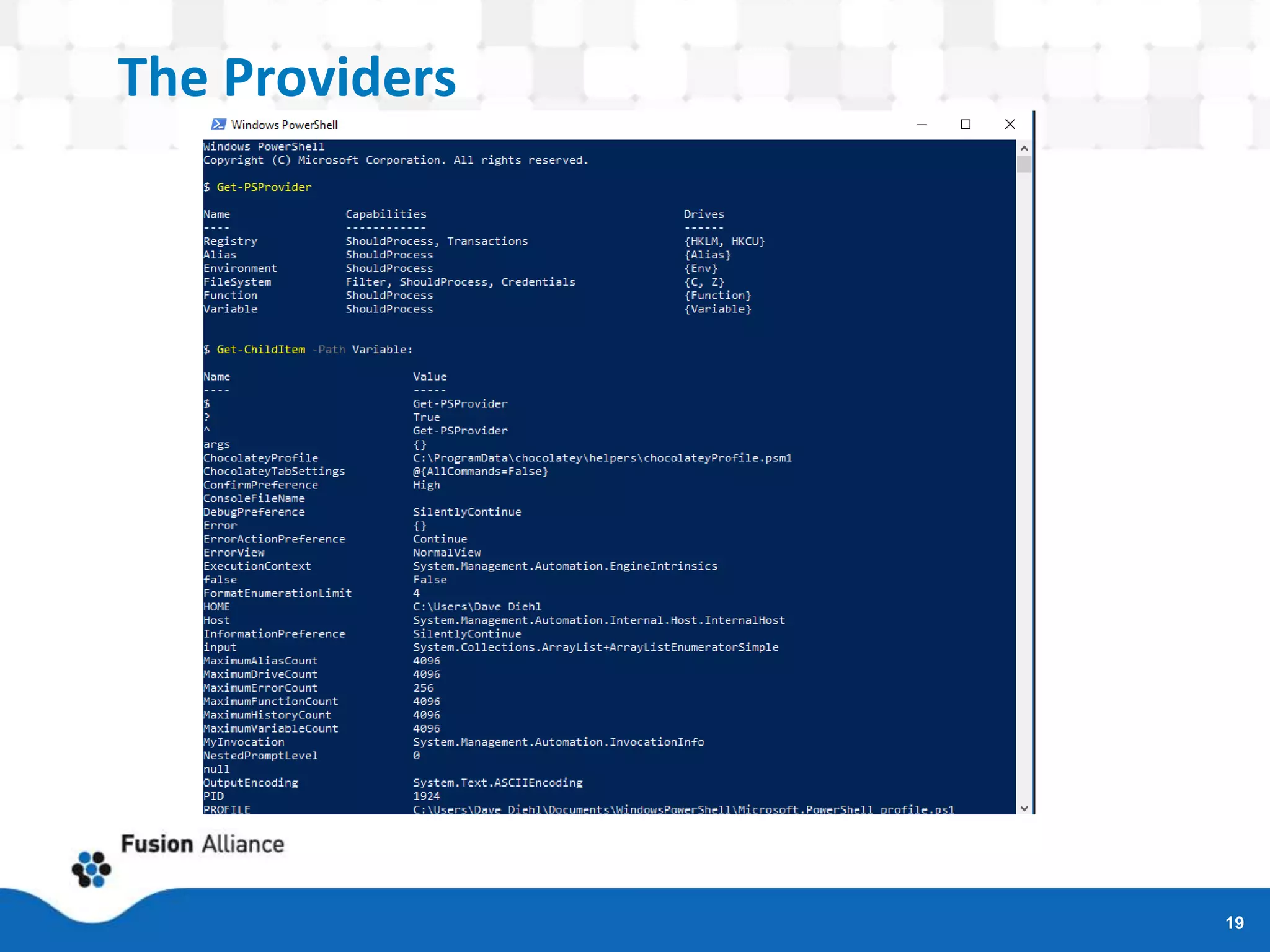
The Providers
19
MODULES
& SCRIPT LIBRARIES
Modules
• Extend PowerShell to a given piece of hardware or software
• Can include script, libraries, help files, providers, manifest, and a directory –
none of which is necessary.
• . Can be script, binary, manifest, or dynamic And…you can write your own.
• *-Module Lifecycle: Find, Install, Import, Remove, and Uninstall.
• List loaded: Get-Module
• List available: Get-Module –ListAvailable #can add name wildcard to filter
• Popular Modules:
21
• FTP Client
• Kerberos Module
• PowerShell Admin Modules
• SQL Server PowerShell
Extensions
• Windows Azure PowerShell
• AWS Tools for Windows PowerShell
• Chocolatey
Modules 2
• Where to get them
• http://www.powershellgallery.com/ and
http://docs.Microsoft.com/en-us/Powershell and
vendor sites (e.g. AWS).
• NuGet
• OneGet and Chocolately
22
Script Libraries
• TechNet Script Center: https://gallery.technet.microsoft.com/scriptcenter
o Almost 9000 PowerShell scripts covering AD, App-V, Databases, Exchange, Hardware, Logs
and Monitoring, Microsoft Dynamics, Office 365, Project Server, SharePoint, Windows Azure,
and dozens of other categories. (Though I did not see any flagged for non-Windows OSs).
o Self-signed certificate generator (PowerShell) -- “This script is an enhanced open-source
PowerShell implementation of [the] deprecated makecert.exe tool and utilizes the most
modern certificate API -- CertEnroll”.
• http://www.powershellgallery.com. > 520 scripts and DSC resources.
• http://community.idera.com/powershell/script_library/
• The ubiquitous http://docs.Microsoft.com/en-us/PowerShell/
• GitHub – just search for “PowerShell”. You’ll get lots of examples, editor plugins,
providers, etc.
23
SCRIPTING
Language Basics - Variables
• Used to store values as well as objects and collections of objects.
• PS is a non-static-typed language. Variables do NOT have to be declared and
typed ahead of time – but they can.
• When scripted, prefaced with a “$”
• To get a list of variables
• All PS variables: Get-ChildItem variable:
• All Environmental variables: Get-ChildItem env:
• To delete all variables
• Remove-Variable –Name * -Force –ErrorAction SilentlyContinue.
• Remember to remove the “$” in front of the name or wildcard if specified.
• Recommended practice: Name variables so they can be removed en mass by wildcard (e.g.
$DD_MyVar and $DD_SomeOtherVar).
25
Language Basics - Scope
• PowerShell Scopes
o Global – Variables and Functions (V&F) present when PowerShell starts AND defined in the
profiles.
o Local – Current scope.
o Script – Scope created when a script runs.
o Private – Can override a global or script V&F within the current scope.
o Numbered – 0=Current, 1=parent, 2=grandparent, etc.
• Also Parent and Child Scopes – all scopes are child scopes of the global. All V&F
from the Parent are available to the Child.
• E.g.
o $a = 1 # local
o $global:a = 2 #global
o $script:a = 3 #script
• Get-Help about_scopes
26
Language Basics - Strings
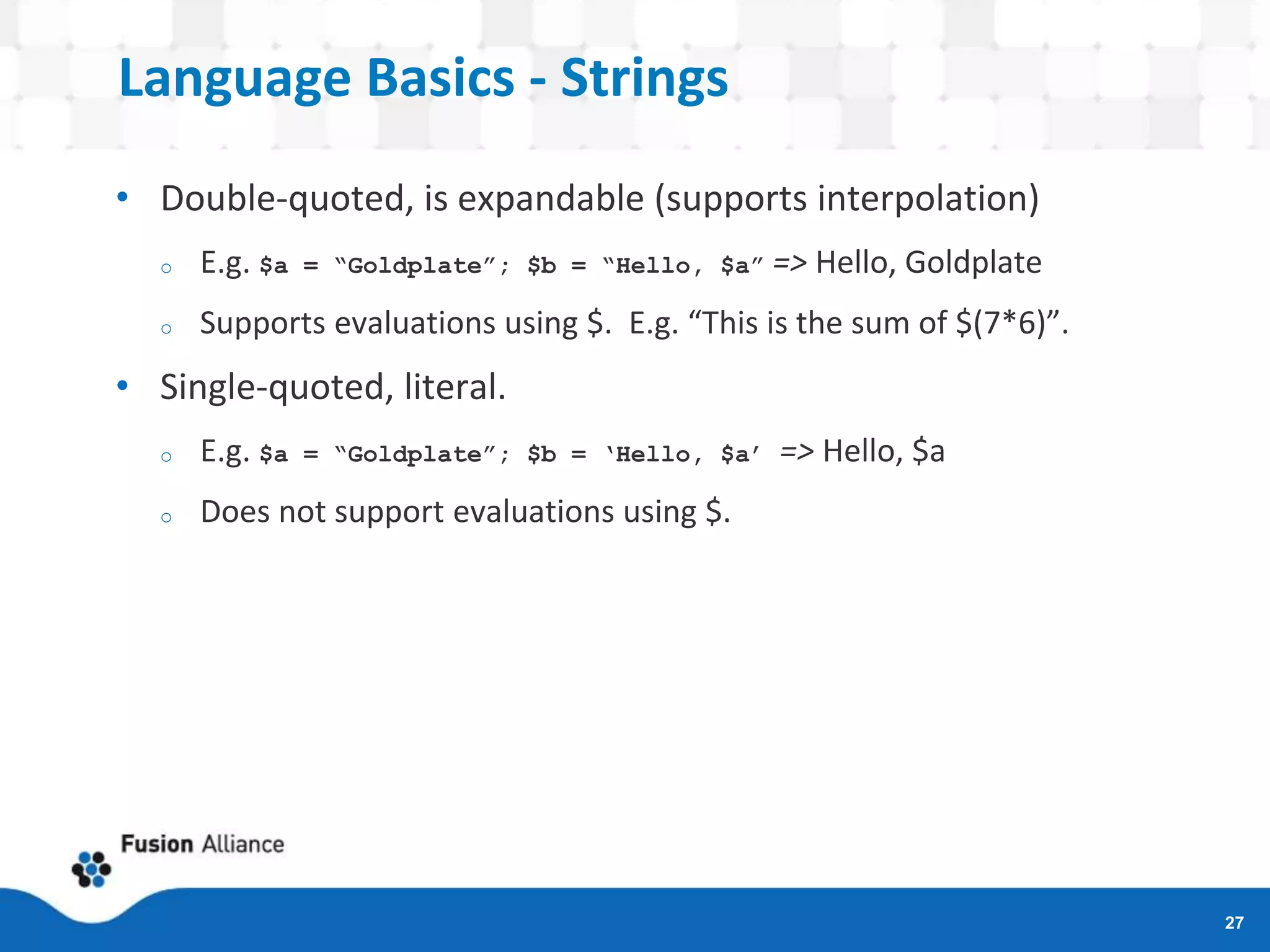
• Double-quoted, is expandable (supports interpolation)
o E.g. $a = “Goldplate”; $b = “Hello, $a” => Hello, Goldplate
o Supports evaluations using $. E.g. “This is the sum of $(7*6)”.
• Single-quoted, literal.
o E.g. $a = “Goldplate”; $b = ‘Hello, $a’ => Hello, $a
o Does not support evaluations using $.
27
Language Basics - Datatypes
• Similar to C#
• String, Char, Byte
• Int, Long
• Decimal, Single, Float, Double
• Boolean
• Array, Hashtable
• Regex
• Switch (used for –switch) type function parameters)
• Xml, PSObject, Type, …
28
Language Basics – Flow-Control, Arrays
and Hash tables
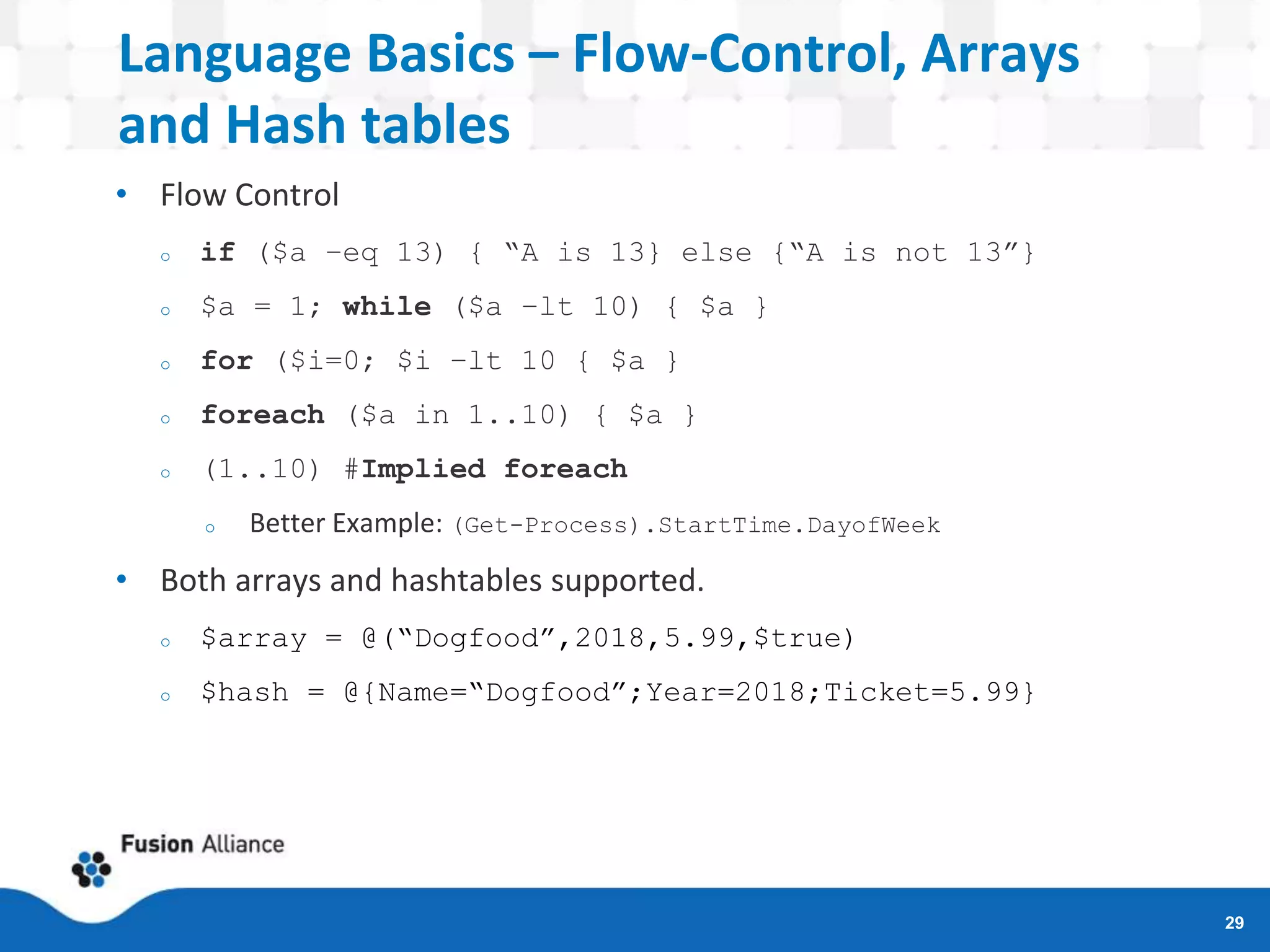
• Flow Control
o if ($a –eq 13) { “A is 13} else {“A is not 13”}
o $a = 1; while ($a –lt 10) { $a }
o for ($i=0; $i –lt 10 { $a }
o foreach ($a in 1..10) { $a }
o (1..10) #Implied foreach
o Better Example: (Get-Process).StartTime.DayofWeek
• Both arrays and hashtables supported.
o $array = @(“Dogfood”,2018,5.99,$true)
o $hash = @{Name=“Dogfood”;Year=2018;Ticket=5.99}
29
Language Basics -- Error Handling
• To throw a non-terminating: Write-Error
• To throw a terminating error: Throw
• Try/Catch supported and recommended as best practice.
30
Language Basics -- Objects
• You can add members (properties, fields, and methods) to existing
objects.
31
Language Basics – Objects continued
• Since V5, PowerShell has provided a C# or Java-like ability
to define classes, properties, methods, $this, constructors,
static classes, non-static instances, and
accessors/mutators.
• Supports polymorphism, abstracts, singleton, factory,
method chaining, and other patterns.
• Please see the link to the “PowerShell v5 Classes &
Concepts” blog article “Power(s)hell v5 Classes & Concepts”
by Michael Willis:
https://xainey.github.io/2016/powershell-classes-and-
concepts/
32
Language Basics – Object Example
33
From Michael Willis’ article…
GOTCHAS
Common Gotchas
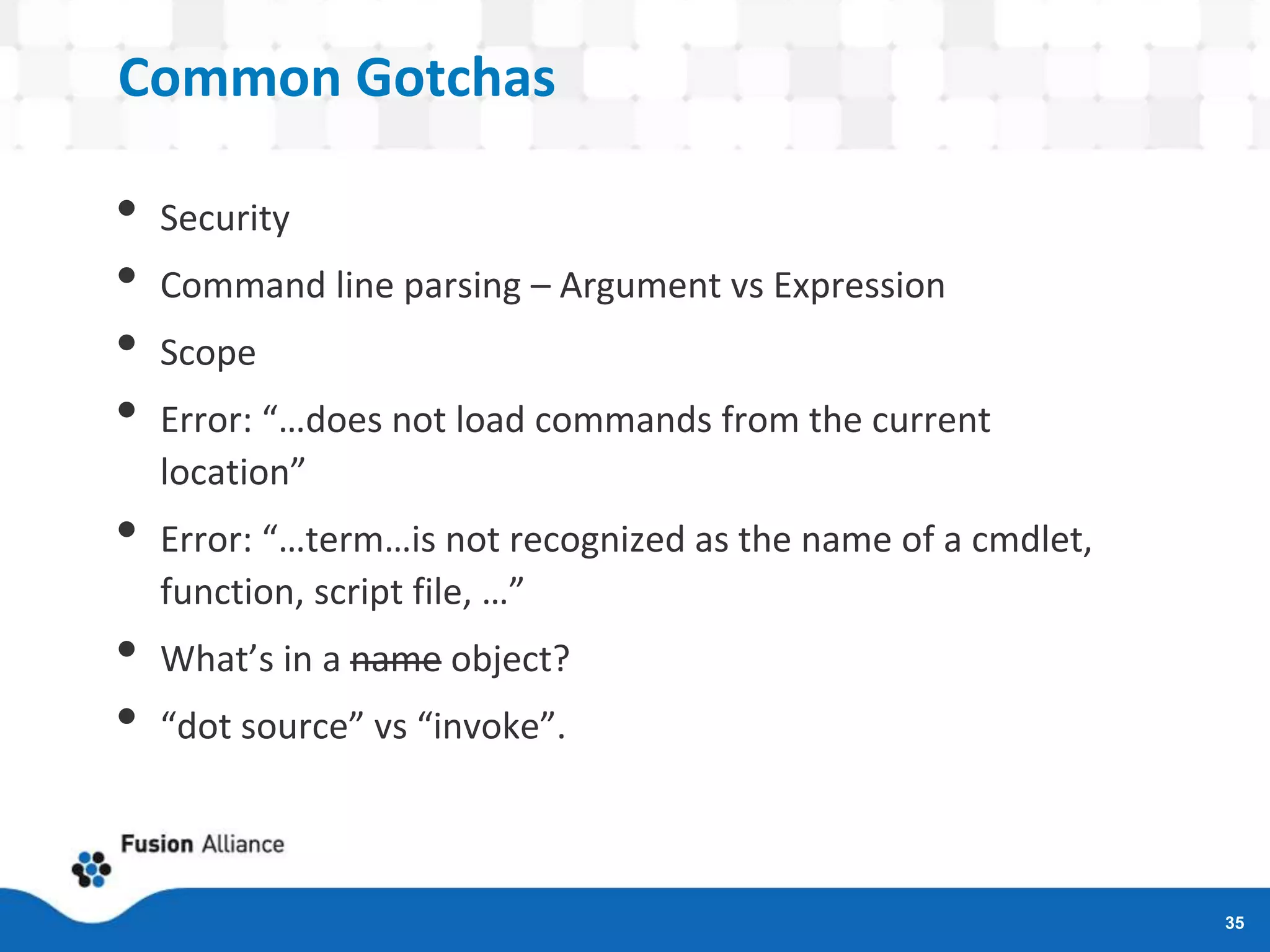
• Security
• Command line parsing – Argument vs Expression
• Scope
• Error: “…does not load commands from the current
location”
• Error: “…term…is not recognized as the name of a cmdlet,
function, script file, …”
• What’s in a name object?
• “dot source” vs “invoke”.
35
Security
36
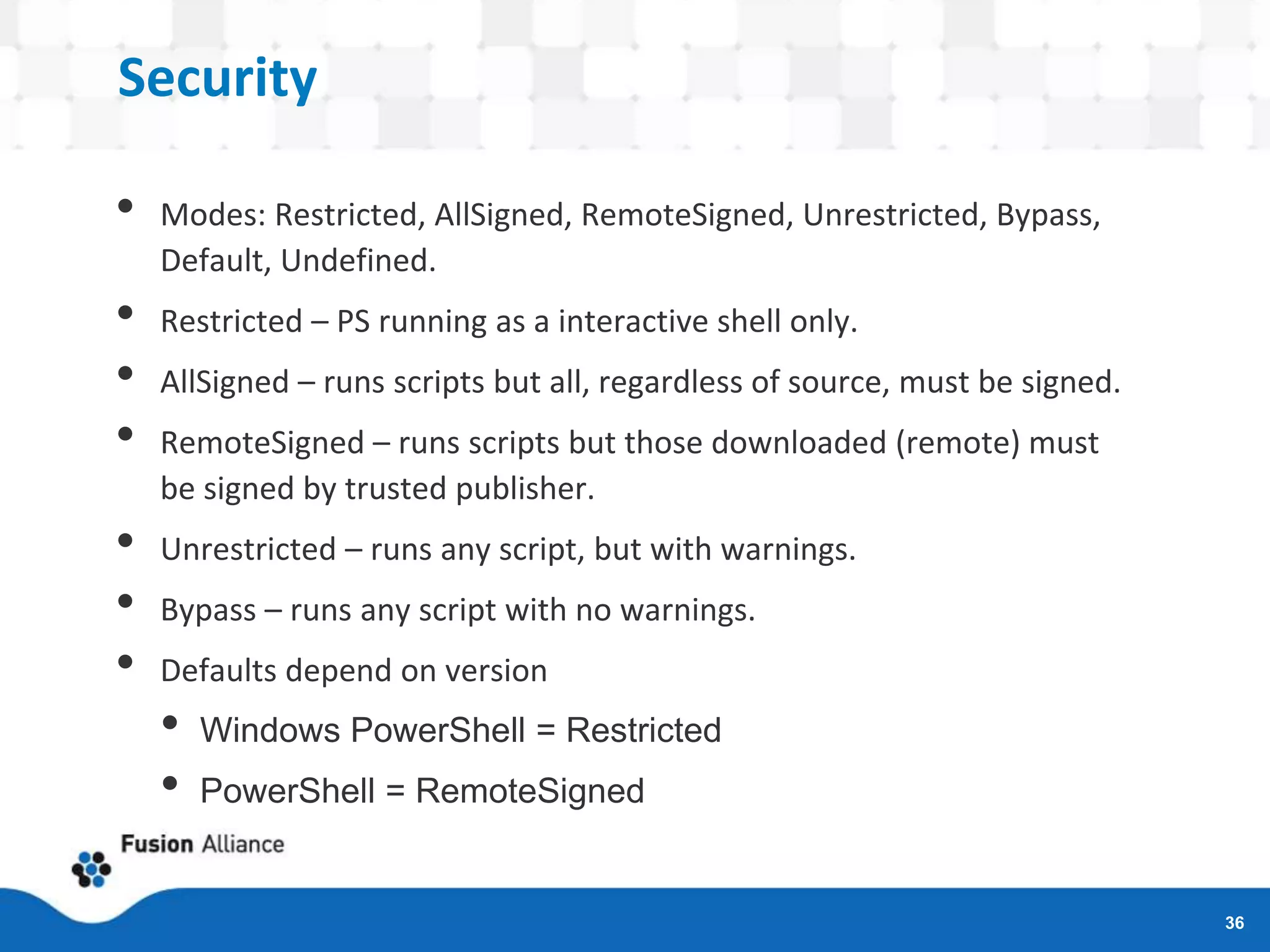
• Modes: Restricted, AllSigned, RemoteSigned, Unrestricted, Bypass,
Default, Undefined.
• Restricted – PS running as a interactive shell only.
• AllSigned – runs scripts but all, regardless of source, must be signed.
• RemoteSigned – runs scripts but those downloaded (remote) must
be signed by trusted publisher.
• Unrestricted – runs any script, but with warnings.
• Bypass – runs any script with no warnings.
• Defaults depend on version
• Windows PowerShell = Restricted
• PowerShell = RemoteSigned
Security continued
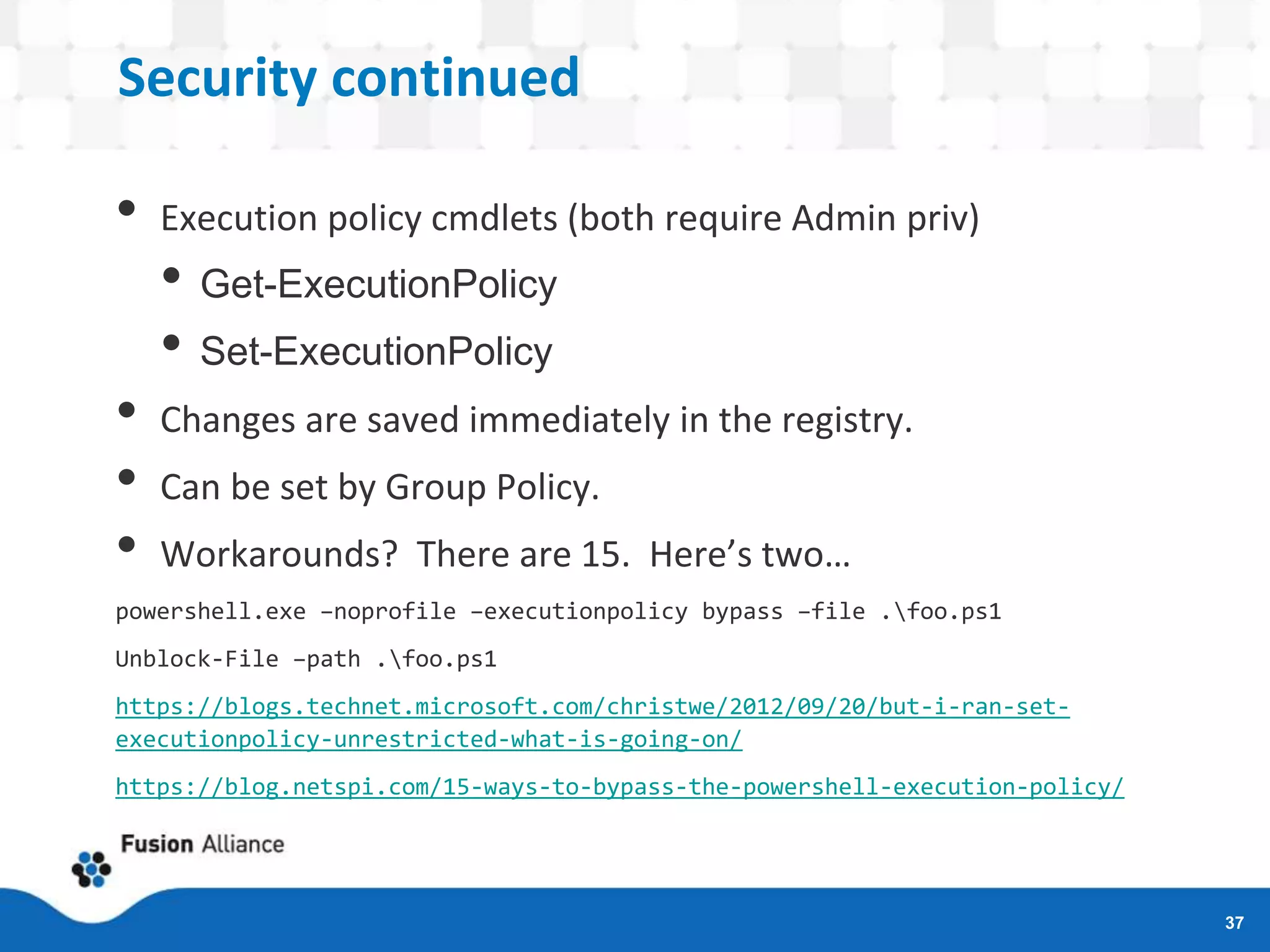
• Execution policy cmdlets (both require Admin priv)
• Get-ExecutionPolicy
• Set-ExecutionPolicy
• Changes are saved immediately in the registry.
• Can be set by Group Policy.
• Workarounds? There are 15. Here’s two…
powershell.exe –noprofile –executionpolicy bypass –file .foo.ps1
Unblock-File –path .foo.ps1
https://blogs.technet.microsoft.com/christwe/2012/09/20/but-i-ran-set-
executionpolicy-unrestricted-what-is-going-on/
https://blog.netspi.com/15-ways-to-bypass-the-powershell-execution-policy/
37
Security continued
• Signing can be based self-signed or authority-signed code-
signing certificate.
• The cool part is that you can use PowerShell to create and
sign the script!
• Details beyond the scope of this presentation. For more
details, recommend
• https://www.hanselman.com/blog/SigningPowerShellScri
pts.aspx
• https://stackoverflow.com/questions/84847/how-do-i-
create-a-self-signed-certificate-for-code-signing-on-
windows
38
The Art of Command Line Parsing
• String parsing complex because of PS’s dual nature – command shell &
programming language.
• Needs to support executing of commands with parameters
• Need to support expressions as with other programming languages
• Command (Argument) Mode
• Strings don’t need to be quoted.
• Expression Mode
• Strings must be quoted.
• Which one is in effect at any time?
• Parsing mode is determined by what’s at the beginning of the statement. If it’s a
command, then the statement is parsed in command mode, else it’s parsed as an
expression.
39
Error: “…does not load commands from the current location”
• Q: If you add a reference from a parent script to a child
script, it looks for the child in the same folder as the parent.
True or False?
• False. It looks for it in the working directory.
• Q: Where’s the working directory?
• $pwd (or it’s in the PS prompt unless you’ve customized it).
Note: the initial working directory may not be where you
think it is – especially if you’re working in the ISE.
• Q: How do you reference a script in the same directory as
the calling script?
• $PSScriptRootmyFunctions.ps1
40
Error: “term…is not recognized as the name of a cmdlet,
function, script file, …”
• PowerShell script references HAVE to have a path or you’ll
get this error.
• Q:If you’re working directory has a script, simply entering
the script name will invoke it. True or False?
• False. You need the path. In this case it’s “.” as it
“.a.ps1”.
41
Objects
• What’s in an object?
• List all methods and properties
• $myObject | Get-Member
• List all properties and their values
• $myObject | Format-List –Property *
42
“dot source” vs invoke
• Both “execute” the script but not in the same scope.
• “dot sourcing”, prefacing the full script path with a “.”, executes the script in the current scope.
Aka “include”.
• Not “dot sourcing” executes the script in a separate process or scope or “invokes” the script.
Anything defined in the script (Variable or Functions) disappears after it executes.
• Most people get confused when they see “.a.ps1”. They assume it’s “dot sourced” and it’s not.
It’s just the path.
43
EXAMPLES
…FINALLY
Examples – Demo and Code WalkThru
• Example of Command vs Expression command line parsing
• Production scripts used for Entity Framework Migration
deployment and rollbacks.
• Magic8Ball demonstrates four different ways of simulating
the toy using PowerShell.
• The code for the first and third demos are included with this
deck for download.
45
REFERENCES & QUESTIONS
References
• https://docs.microsoft.com/en-us/powershell/scripting/getting-started/fundamental/understanding-important-windows-powershell-
concepts?view=powershell-6 "Understanding Important Windows Powershell Concepts"
• https://docs.microsoft.com/en-us/powershell/ "PowerShell Documentation"
• http://www.rlmueller.net/PSGotchas.htm, "Powershell Gotchas"
• https://rkeithhill.wordpress.com/2007/11/24/effective-powershell-item-10-understanding-powershell-parsing-modes/, "Effective
PowerShell Item 10: Understanding PowerShell Parsing Modes"
• Learning PowerShell; Hassell, Jonathan; De Gruyter, March 20, 2017
• https://www.red-gate.com/simple-talk/sysadmin/powershell/powershell-one-liners--collections,-hashtables,-arrays-and-strings/,
"PowerShell One-Liners: Collections, Hashtables, Arrays, and Strings"
• https://powershell.org/2018/01/15/can-we-talk-about-powershell-core-6-0/, "Can We Talk about PowerShell Core 6.0?"
• https://www.ghacks.net/2018/01/12/powershell-vs-powershell-core-what-you-need-to-know/, "
• https://msdn.microsoft.com/en-us/library/dd878324(v=vs.85).aspx, Windows PowerShell, Writing a Windows PowerShell Module,
"Understanding a Windows PowerShell Module".
• https://social.technet.microsoft.com/wiki/contents/articles/4308.popular-powershell-modules.aspx, "Popular PowerShell Modules"
• https://www.daniellittle.xyz/calling-a-rest-json-api-with-powershell/
• https://stackoverflow.com/questions/2022678/how-to-access-a-web-service-from-powershell
• https://blogs.technet.microsoft.com/heyscriptingguy/2014/08/23/weekend-scripter-powershell-and-chocolatey/, "Weekend Scripter:
PowerShell and Chocolatey", The Scripting Guys.
47
References, 2
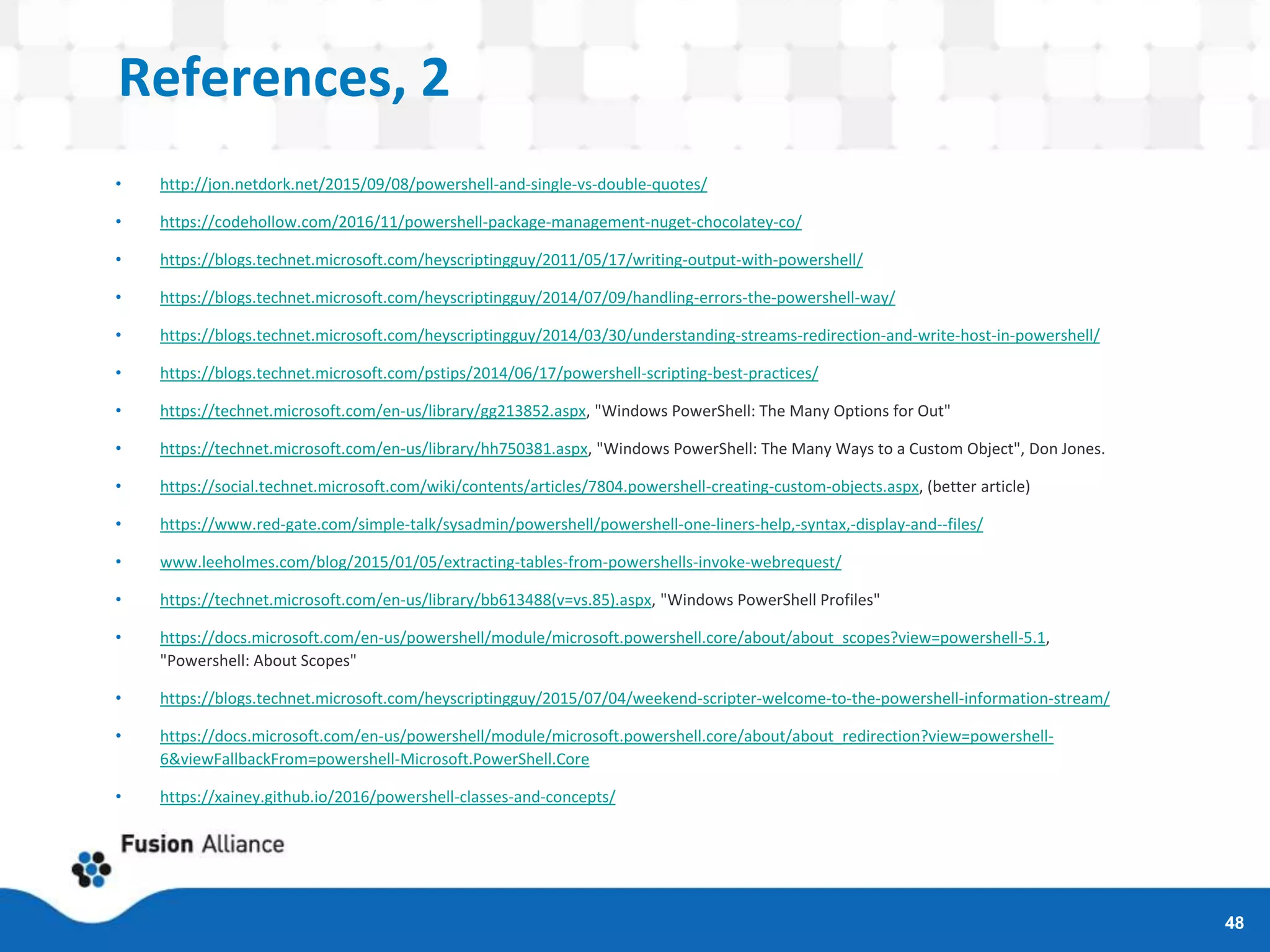
• http://jon.netdork.net/2015/09/08/powershell-and-single-vs-double-quotes/
• https://codehollow.com/2016/11/powershell-package-management-nuget-chocolatey-co/
• https://blogs.technet.microsoft.com/heyscriptingguy/2011/05/17/writing-output-with-powershell/
• https://blogs.technet.microsoft.com/heyscriptingguy/2014/07/09/handling-errors-the-powershell-way/
• https://blogs.technet.microsoft.com/heyscriptingguy/2014/03/30/understanding-streams-redirection-and-write-host-in-powershell/
• https://blogs.technet.microsoft.com/pstips/2014/06/17/powershell-scripting-best-practices/
• https://technet.microsoft.com/en-us/library/gg213852.aspx, "Windows PowerShell: The Many Options for Out"
• https://technet.microsoft.com/en-us/library/hh750381.aspx, "Windows PowerShell: The Many Ways to a Custom Object", Don Jones.
• https://social.technet.microsoft.com/wiki/contents/articles/7804.powershell-creating-custom-objects.aspx, (better article)
• https://www.red-gate.com/simple-talk/sysadmin/powershell/powershell-one-liners-help,-syntax,-display-and--files/
• www.leeholmes.com/blog/2015/01/05/extracting-tables-from-powershells-invoke-webrequest/
• https://technet.microsoft.com/en-us/library/bb613488(v=vs.85).aspx, "Windows PowerShell Profiles"
• https://docs.microsoft.com/en-us/powershell/module/microsoft.powershell.core/about/about_scopes?view=powershell-5.1,
"Powershell: About Scopes"
• https://blogs.technet.microsoft.com/heyscriptingguy/2015/07/04/weekend-scripter-welcome-to-the-powershell-information-stream/
• https://docs.microsoft.com/en-us/powershell/module/microsoft.powershell.core/about/about_redirection?view=powershell-
6&viewFallbackFrom=powershell-Microsoft.PowerShell.Core
• https://xainey.github.io/2016/powershell-classes-and-concepts/
48
QUESTIONS?
Remember:
This deck and all examples, code, plus
some other goodies, are available at
https://tinyurl.com/holypowershell

Holy PowerShell, BATman! - dogfood edition

  • 1.
    Holy PowerShell!, BATman! DaveDiehl .Net Competency Lead Fusion Alliance Columbus, Ohio ddiehl@fusionalliance.com Skype: j.david.diehl Linked-In: daviddiehl
  • 2.
    Who am I? •BS Systems Analysis, Miami University • 35+ years of software and database architecture, development, project management, and system administration. • Scripting Experience: DEC Digital Command Language (DCL), DOS, Nant, VBScript, PowerShell, and a little Bash. 2 • PowerShell Experience • First exposed during a Code Camp in ATL ~ 2007 • SharePoint development for Home Depot in 2009 • DevOps and ETL for Progressive Insurance project in 2015 • DevOps automation for M/I Homes project in 2017 • DevOps automation for Primary Financial Corp in 2018
  • 3.
  • 4.
    What we willcover • PowerShell from the ground up – via firehose • How to find and run it. • How to add functionality to it via Extensions and Providers • The most common issues you’ll probably run into. • How to program in it. • One demo script and two working examples. Target audience: Anyone who has never used PowerShell, only used it as an shell, or has frustratingly tried to write scripts. 4
  • 5.
    What we won’tcover • Stuff you can find in the built-in help system, e.g. command reference. • Stuff you can find in a quick internet search. • Topics that a sys admin would find interesting: Invoke- Command, *-PSSession, Remoting, *-Service, *-WmiObject, ADSI, etc. • Debugging your any specific problem you might have. We just don’t have time (though bring it up after the session and we’ll have a look). 5
  • 6.
    Structure of Session •85% Slides • 15% Examples • Valuable references that I use regularly and that were used to prepare for this presentation This presentation, examples, and references will all be available for download after this session at: https://tinyurl.com/holypowershell 6
  • 7.
  • 8.
    What is PowerShell? •Interactive Shell and Scripting Language • Cmdlets & Aliases & Pipelines • Development constructs • Scripts, Functions, Providers, and Modules (used to be called Snap-ins) • Originally released in 2007. Latest versions split in two: • Windows PowerShell 6 • PowerShell 6.1 (released 9/13) based on .Net Core and runnable on Windows, Linux, and macOS. • Compatiblity • Windows PS 6 backward compatible with older versions of WinPS • PS Core 6.0 was not backward compatible. Might be in 6.1. • You can run BOTH on a Windows machine. 8
  • 9.
    Where is PowerShell •On every version of Windows since v7 and Windows Server since 2008 R2 • Downloadable on older versions of Windows and on macOS and Linux. • In the cloud (Azure Cloud Shell (Core 6.1 on Ubuntu)) • In Visual Studio (Package Manager Console) • In apps that use the PowerShell Managed API (Exchange Web Services, System Center VM Manager, Vmware vSphere PowerCLI, NetApp PowerShell Toolkit, and four more…). • Apps that support providers: SQL Server, SharePoint, Amazon Web Services, JAMS Scheduler, LOGINventory, etc. 9
  • 10.
    Where to getEVERYTHING http://docs.microsoft.com/en-us/powershell 10
  • 11.
    Important PowerShell Concepts •Pipelines pass objects, not text. Objects can be a collection of objects as well. • Cmdlets (or Commands) are Extendable • PS handles Console Input and Display • PS uses some C# syntax and most of it’s native datatypes. • PS can call external assemblies. • PS complexity -- It’s an interactive command line shell AND a scripting language. Both affect how PS handles command line string parsing. 11
  • 12.
    Commonly Used Tools •The Console – Everywhere. o Tab expansion is sexy -- Command or object (including filepaths) support autocomplete. o Can still easily get help o Works in all environments. o Can get to it from a command line window by running “powershell” for Windows PowerShell and “pwsh” for PowerShell (Core). • The Windows PowerShell Integrated Scripting Environment (ISE) o Provides intellisense, debugger, block selection, and built-in help support. o As the name says, Windows only. 12
  • 13.
    Developer Tools –Visual Studio 13 • Adam Driscoll’s PowerShell Tools for VS • Bring syntax formatting and IntelliSense support. • Supports two project types: Script and Module • Debugging supported • Caveat: Unless project properties customized, script file name must match the name of the project.
  • 14.
    Developer Tools –Visual Studio Code 14 • VS Code + PowerShell Extension. • Bring syntax formatting and IntelliSense support. • Debugging supported • Supports VSCode’s “folder” source management • Runs on Windows, Linux, and macOS.
  • 15.
    Before we diginto cmdlets & code – Profiles • What they’re for • Global variables, commonly used functions, and prompt customization • Where is it? • > $profile • How they can be changed or added the easy way • > notepad $profile • Wait…there’s a different profile between the console app and the ISE? Yup. • Also, there’s FOUR different PowerShell profiles: All Users & Shells, All Users & PS, Current User & All Shells, Current User and PS. • Profiles are not shared between Windows PS and PS. 15
  • 16.
  • 17.
    Cmdlets in aNutShell • Follow verb-noun naming format and use many standard parameters. • Getting help Get-Help cmdlet or cmdlet -? • Pipelines similar to other shells, but PS passes OBJECTS not TEXT. • Important pipeline cmdlets • ForEach-Object (%) – iterates through a collection of objects. • Where-Object (?) – filters on standard and regular expressions • Select-Object (select) – reduces number of objects or properties • Examples of format, pipelines, %, ?, and select… #Get list of all commands Get-Command “*-Item” #Get list of all cmdlet verbs Get-Verb | ? Group -match "common" | format-wide verb -col 5 #Get list of all cmdlet nouns (why isn’t there a Get-Noun?) $i = 0; Get-Command | ?{$_.ModuleName -match "PowerShell"} | select -ExpandProperty name | %{ $_.Split("- ") } | %{$i++; if (($i % 2) -eq 0) {$_}} | select -uniq | sort | Format-Wide -Force -Property {$_} -Col 5 17
  • 18.
    Verbs • Write- • Directsmessages to one of six streams, progress status indicator, event logs, and other providers. • Write-Host, -Output, -Warning, -Error, -Debug, -Information, -Progress • Out- • Directs objects to different destinations. • Out-Host, -Default, -File, -GridView, -Null, -String, -Printer • Tee-Object • Cool. Works like Out- only passes on the objects down the pipeline. • Format- • Defines how objects are formatted • Format-Table, -List, -Hex, -Wide • Clip • Sends anything that would have gone to the host or output to the clipboard. 18
  • 19.
  • 20.
  • 21.
    Modules • Extend PowerShellto a given piece of hardware or software • Can include script, libraries, help files, providers, manifest, and a directory – none of which is necessary. • . Can be script, binary, manifest, or dynamic And…you can write your own. • *-Module Lifecycle: Find, Install, Import, Remove, and Uninstall. • List loaded: Get-Module • List available: Get-Module –ListAvailable #can add name wildcard to filter • Popular Modules: 21 • FTP Client • Kerberos Module • PowerShell Admin Modules • SQL Server PowerShell Extensions • Windows Azure PowerShell • AWS Tools for Windows PowerShell • Chocolatey
  • 22.
    Modules 2 • Whereto get them • http://www.powershellgallery.com/ and http://docs.Microsoft.com/en-us/Powershell and vendor sites (e.g. AWS). • NuGet • OneGet and Chocolately 22
  • 23.
    Script Libraries • TechNetScript Center: https://gallery.technet.microsoft.com/scriptcenter o Almost 9000 PowerShell scripts covering AD, App-V, Databases, Exchange, Hardware, Logs and Monitoring, Microsoft Dynamics, Office 365, Project Server, SharePoint, Windows Azure, and dozens of other categories. (Though I did not see any flagged for non-Windows OSs). o Self-signed certificate generator (PowerShell) -- “This script is an enhanced open-source PowerShell implementation of [the] deprecated makecert.exe tool and utilizes the most modern certificate API -- CertEnroll”. • http://www.powershellgallery.com. > 520 scripts and DSC resources. • http://community.idera.com/powershell/script_library/ • The ubiquitous http://docs.Microsoft.com/en-us/PowerShell/ • GitHub – just search for “PowerShell”. You’ll get lots of examples, editor plugins, providers, etc. 23
  • 24.
  • 25.
    Language Basics -Variables • Used to store values as well as objects and collections of objects. • PS is a non-static-typed language. Variables do NOT have to be declared and typed ahead of time – but they can. • When scripted, prefaced with a “$” • To get a list of variables • All PS variables: Get-ChildItem variable: • All Environmental variables: Get-ChildItem env: • To delete all variables • Remove-Variable –Name * -Force –ErrorAction SilentlyContinue. • Remember to remove the “$” in front of the name or wildcard if specified. • Recommended practice: Name variables so they can be removed en mass by wildcard (e.g. $DD_MyVar and $DD_SomeOtherVar). 25
  • 26.
    Language Basics -Scope • PowerShell Scopes o Global – Variables and Functions (V&F) present when PowerShell starts AND defined in the profiles. o Local – Current scope. o Script – Scope created when a script runs. o Private – Can override a global or script V&F within the current scope. o Numbered – 0=Current, 1=parent, 2=grandparent, etc. • Also Parent and Child Scopes – all scopes are child scopes of the global. All V&F from the Parent are available to the Child. • E.g. o $a = 1 # local o $global:a = 2 #global o $script:a = 3 #script • Get-Help about_scopes 26
  • 27.
    Language Basics -Strings • Double-quoted, is expandable (supports interpolation) o E.g. $a = “Goldplate”; $b = “Hello, $a” => Hello, Goldplate o Supports evaluations using $. E.g. “This is the sum of $(7*6)”. • Single-quoted, literal. o E.g. $a = “Goldplate”; $b = ‘Hello, $a’ => Hello, $a o Does not support evaluations using $. 27
  • 28.
    Language Basics -Datatypes • Similar to C# • String, Char, Byte • Int, Long • Decimal, Single, Float, Double • Boolean • Array, Hashtable • Regex • Switch (used for –switch) type function parameters) • Xml, PSObject, Type, … 28
  • 29.
    Language Basics –Flow-Control, Arrays and Hash tables • Flow Control o if ($a –eq 13) { “A is 13} else {“A is not 13”} o $a = 1; while ($a –lt 10) { $a } o for ($i=0; $i –lt 10 { $a } o foreach ($a in 1..10) { $a } o (1..10) #Implied foreach o Better Example: (Get-Process).StartTime.DayofWeek • Both arrays and hashtables supported. o $array = @(“Dogfood”,2018,5.99,$true) o $hash = @{Name=“Dogfood”;Year=2018;Ticket=5.99} 29
  • 30.
    Language Basics --Error Handling • To throw a non-terminating: Write-Error • To throw a terminating error: Throw • Try/Catch supported and recommended as best practice. 30
  • 31.
    Language Basics --Objects • You can add members (properties, fields, and methods) to existing objects. 31
  • 32.
    Language Basics –Objects continued • Since V5, PowerShell has provided a C# or Java-like ability to define classes, properties, methods, $this, constructors, static classes, non-static instances, and accessors/mutators. • Supports polymorphism, abstracts, singleton, factory, method chaining, and other patterns. • Please see the link to the “PowerShell v5 Classes & Concepts” blog article “Power(s)hell v5 Classes & Concepts” by Michael Willis: https://xainey.github.io/2016/powershell-classes-and- concepts/ 32
  • 33.
    Language Basics –Object Example 33 From Michael Willis’ article…
  • 34.
  • 35.
    Common Gotchas • Security •Command line parsing – Argument vs Expression • Scope • Error: “…does not load commands from the current location” • Error: “…term…is not recognized as the name of a cmdlet, function, script file, …” • What’s in a name object? • “dot source” vs “invoke”. 35
  • 36.
    Security 36 • Modes: Restricted,AllSigned, RemoteSigned, Unrestricted, Bypass, Default, Undefined. • Restricted – PS running as a interactive shell only. • AllSigned – runs scripts but all, regardless of source, must be signed. • RemoteSigned – runs scripts but those downloaded (remote) must be signed by trusted publisher. • Unrestricted – runs any script, but with warnings. • Bypass – runs any script with no warnings. • Defaults depend on version • Windows PowerShell = Restricted • PowerShell = RemoteSigned
  • 37.
    Security continued • Executionpolicy cmdlets (both require Admin priv) • Get-ExecutionPolicy • Set-ExecutionPolicy • Changes are saved immediately in the registry. • Can be set by Group Policy. • Workarounds? There are 15. Here’s two… powershell.exe –noprofile –executionpolicy bypass –file .foo.ps1 Unblock-File –path .foo.ps1 https://blogs.technet.microsoft.com/christwe/2012/09/20/but-i-ran-set- executionpolicy-unrestricted-what-is-going-on/ https://blog.netspi.com/15-ways-to-bypass-the-powershell-execution-policy/ 37
  • 38.
    Security continued • Signingcan be based self-signed or authority-signed code- signing certificate. • The cool part is that you can use PowerShell to create and sign the script! • Details beyond the scope of this presentation. For more details, recommend • https://www.hanselman.com/blog/SigningPowerShellScri pts.aspx • https://stackoverflow.com/questions/84847/how-do-i- create-a-self-signed-certificate-for-code-signing-on- windows 38
  • 39.
    The Art ofCommand Line Parsing • String parsing complex because of PS’s dual nature – command shell & programming language. • Needs to support executing of commands with parameters • Need to support expressions as with other programming languages • Command (Argument) Mode • Strings don’t need to be quoted. • Expression Mode • Strings must be quoted. • Which one is in effect at any time? • Parsing mode is determined by what’s at the beginning of the statement. If it’s a command, then the statement is parsed in command mode, else it’s parsed as an expression. 39
  • 40.
    Error: “…does notload commands from the current location” • Q: If you add a reference from a parent script to a child script, it looks for the child in the same folder as the parent. True or False? • False. It looks for it in the working directory. • Q: Where’s the working directory? • $pwd (or it’s in the PS prompt unless you’ve customized it). Note: the initial working directory may not be where you think it is – especially if you’re working in the ISE. • Q: How do you reference a script in the same directory as the calling script? • $PSScriptRootmyFunctions.ps1 40
  • 41.
    Error: “term…is notrecognized as the name of a cmdlet, function, script file, …” • PowerShell script references HAVE to have a path or you’ll get this error. • Q:If you’re working directory has a script, simply entering the script name will invoke it. True or False? • False. You need the path. In this case it’s “.” as it “.a.ps1”. 41
  • 42.
    Objects • What’s inan object? • List all methods and properties • $myObject | Get-Member • List all properties and their values • $myObject | Format-List –Property * 42
  • 43.
    “dot source” vsinvoke • Both “execute” the script but not in the same scope. • “dot sourcing”, prefacing the full script path with a “.”, executes the script in the current scope. Aka “include”. • Not “dot sourcing” executes the script in a separate process or scope or “invokes” the script. Anything defined in the script (Variable or Functions) disappears after it executes. • Most people get confused when they see “.a.ps1”. They assume it’s “dot sourced” and it’s not. It’s just the path. 43
  • 44.
  • 45.
    Examples – Demoand Code WalkThru • Example of Command vs Expression command line parsing • Production scripts used for Entity Framework Migration deployment and rollbacks. • Magic8Ball demonstrates four different ways of simulating the toy using PowerShell. • The code for the first and third demos are included with this deck for download. 45
  • 46.
  • 47.
    References • https://docs.microsoft.com/en-us/powershell/scripting/getting-started/fundamental/understanding-important-windows-powershell- concepts?view=powershell-6 "UnderstandingImportant Windows Powershell Concepts" • https://docs.microsoft.com/en-us/powershell/ "PowerShell Documentation" • http://www.rlmueller.net/PSGotchas.htm, "Powershell Gotchas" • https://rkeithhill.wordpress.com/2007/11/24/effective-powershell-item-10-understanding-powershell-parsing-modes/, "Effective PowerShell Item 10: Understanding PowerShell Parsing Modes" • Learning PowerShell; Hassell, Jonathan; De Gruyter, March 20, 2017 • https://www.red-gate.com/simple-talk/sysadmin/powershell/powershell-one-liners--collections,-hashtables,-arrays-and-strings/, "PowerShell One-Liners: Collections, Hashtables, Arrays, and Strings" • https://powershell.org/2018/01/15/can-we-talk-about-powershell-core-6-0/, "Can We Talk about PowerShell Core 6.0?" • https://www.ghacks.net/2018/01/12/powershell-vs-powershell-core-what-you-need-to-know/, " • https://msdn.microsoft.com/en-us/library/dd878324(v=vs.85).aspx, Windows PowerShell, Writing a Windows PowerShell Module, "Understanding a Windows PowerShell Module". • https://social.technet.microsoft.com/wiki/contents/articles/4308.popular-powershell-modules.aspx, "Popular PowerShell Modules" • https://www.daniellittle.xyz/calling-a-rest-json-api-with-powershell/ • https://stackoverflow.com/questions/2022678/how-to-access-a-web-service-from-powershell • https://blogs.technet.microsoft.com/heyscriptingguy/2014/08/23/weekend-scripter-powershell-and-chocolatey/, "Weekend Scripter: PowerShell and Chocolatey", The Scripting Guys. 47
  • 48.
    References, 2 • http://jon.netdork.net/2015/09/08/powershell-and-single-vs-double-quotes/ •https://codehollow.com/2016/11/powershell-package-management-nuget-chocolatey-co/ • https://blogs.technet.microsoft.com/heyscriptingguy/2011/05/17/writing-output-with-powershell/ • https://blogs.technet.microsoft.com/heyscriptingguy/2014/07/09/handling-errors-the-powershell-way/ • https://blogs.technet.microsoft.com/heyscriptingguy/2014/03/30/understanding-streams-redirection-and-write-host-in-powershell/ • https://blogs.technet.microsoft.com/pstips/2014/06/17/powershell-scripting-best-practices/ • https://technet.microsoft.com/en-us/library/gg213852.aspx, "Windows PowerShell: The Many Options for Out" • https://technet.microsoft.com/en-us/library/hh750381.aspx, "Windows PowerShell: The Many Ways to a Custom Object", Don Jones. • https://social.technet.microsoft.com/wiki/contents/articles/7804.powershell-creating-custom-objects.aspx, (better article) • https://www.red-gate.com/simple-talk/sysadmin/powershell/powershell-one-liners-help,-syntax,-display-and--files/ • www.leeholmes.com/blog/2015/01/05/extracting-tables-from-powershells-invoke-webrequest/ • https://technet.microsoft.com/en-us/library/bb613488(v=vs.85).aspx, "Windows PowerShell Profiles" • https://docs.microsoft.com/en-us/powershell/module/microsoft.powershell.core/about/about_scopes?view=powershell-5.1, "Powershell: About Scopes" • https://blogs.technet.microsoft.com/heyscriptingguy/2015/07/04/weekend-scripter-welcome-to-the-powershell-information-stream/ • https://docs.microsoft.com/en-us/powershell/module/microsoft.powershell.core/about/about_redirection?view=powershell- 6&viewFallbackFrom=powershell-Microsoft.PowerShell.Core • https://xainey.github.io/2016/powershell-classes-and-concepts/ 48
  • 49.
    QUESTIONS? Remember: This deck andall examples, code, plus some other goodies, are available at https://tinyurl.com/holypowershell

Editor's Notes

  • #2 Welcome First of all, a big thank you to DogFoodCon for inviting me to speak. And especially for scheduling this right after lunch. I’ve provided candy to try and keep you on a sugar high. Feel free to each those and crash at the next session. This session is about PowerShell. Should have been titled: Everything You Always Wanted to Know about PowerShell * But Were Afraid to Ask. The book, not the movie. And I just dated myself… I’ll layout the scope of this presentation in a minute but first…
  • #3 Quick snapshot Bottom line – full stack developer – 10 years in DEC midframe stack -- 28+ years in the Microsoft stack. So why PowerShell? PowerShell becoming the lingua franca for DevOps, Automation, Configuration for Windows and now non-Windows env. Programmers get involved with all three of these activities, sooner or later. Programmers don’t usually write PS scripts on a daily basis – so they keep running into the same gotchas over and over again.
  • #4 The usual gratuitous plug for my employer. Fusion Alliance has been in business for over 25 years in the Columbus area, originally as Quick Solutions, and since 2014 as Fusion Allinace. We’ve worked with almost every major player in the area including Nationwide, THE Ohio State University, The State of Ohio, Worthington Steel, Cardinal Health, McGraw Hill, Safelite Autoglass, M/I Homes, and so on.
  • #5 Will cover in (hopefully) 40 minutes. PowerShell the shell and where you can find it now, tools, how it can be extended, the six most common problems you’ll run into, and Powershell the language. Will touch on most of the functional space but not have time to dwell in the details. Don’t expect you to walk away knowing how to code but knowing that you can, how to start, what to expect, and where to get help. If you’ve used PowerShell on an occasional basis but seem to keep hitting your head on low-hanging objects Or use it regularly but as an interactive shell – this session is for you.
  • #6 This is more about PS the language not PS the interactive shell. Not going to dwell on Pipelines, Providers and Third-party Modules. If you’re an admin looking for details on adminy kinds of things – like what’s listed in the third bullet – I’m not covering that. Whole ‘nother presentation. Got an issue or a question? We’ll take it offline.
  • #7 Can’t cover this effectively with 100% demonstration. There’s just too much base info that has to be shared. Will get though the slides, then we’ll do a walk-though of two examples the rest of the way. One example is actually the last PS script I wrote for a client to automate a deployment task – redacted in the right places. The other example is one I wrote specifically for this presentation and demonstrates how to solve a problem using PS four different ways. So let’s get through this.
  • #8 Architecture and General Questions: What, Where, and When is/was PowerShell and what tools are available?
  • #9 What is PS? Shell and Scripting language Cmdlets – the command line shell part Scripts – the programming language part Functions – named blocks of scripts, just like is says (these can be executed like Cmdlets…but we’ll get into that later). Providers – Drivers Modules – Packaged extensions of all of the above to extend PS’s reach….like to Azure, AWS, FTP, etc. Important note: With Powershell Core, based on .Net Core, PS is now multi-platform. It can also run on the Windows box.
  • #10 Where is PS? Been around since 2006 with the release of Windows XP SP2 and integrated starting with Win 7 and Server 2008 R2 Microsoft started calling PS “Windows PS” with the release of “PowerShell” or what’s also been called “PowerShell Core”. PS appears in Axure running under Ubuntu -- CLI for managing Azure resources. Thx to PowerShell Managed API -- also integrated into Visual Studio (Package Manager Console), Exchange Web Services, and a few others listed on the slide. Third Parties other than Microsoft have provided Providers such as Amazon and VMWare.
  • #11 Where to get Everything. Lots of resources on the web for PowerShell – blogs (Microsoft Scripting Guy (who used to be ONE guy a someone I worked with at Full Service Networking in Cincinnati, Ed Wilson)), multiple unofficial references, GitHub repos, etc. But the best starting point is this URL The latest installs. Documentation. Examples, Community. Etc.
  • #12 Important concepts. The only three I’ll point out here are: PS Pipelines pass objects, not text. Trick is to figure out what those objects are. PS can call external assemblies…just like C#. BUT…there are limitations (haven’t tried to write a Web Service in PS). Because of shell vs scripting environment – one of the gotchas command line parsing. Which we’ll cover today.
  • #13 Tools. The two most important tools are the ISE and the console – and we’ll be using both in this presentation. Both are useful. The ISE especially for it’s intellisense, debugging, and built-in help. Getting to PS from command line easy. Just be aware that PS Windows and PS Core have two different executable names.
  • #14 You also use Developer tools like Visual Studio and Visual Studio Code for writing scripts. For VS you’ll need the Nuget package PowerShell Tools for VS. Two project types: Script and Module. Supports debugging. CAVEAT: Script name == Project name.
  • #15 Similar support with Microsoft’s new Visual Studio Code but need to install the PowerShell Extension. Platform independent. Better of the two, IMO.
  • #16 When using different consoles, tools, and versions, be aware of Profiles. Profiles are the “startup scripts” for PS. Can use to set global variables, commonly used functions, and customizing prompts. Easy to find and edit. Caveat 1: The directories that PS looks for the profile script may not actually exists. You’ll have to create it (from Explorer or PS (New-Item –Itemtype directory –Path “c:\...”)) Caveat 2: There is not ONE profile in PS. They vary depending on the shell: e.g. console vs ISE vs VS Code, and the scope: All Users and Shells, Current User and all Shells, etc.
  • #17 Ok…let’s talk commands or cmdlets the bulk of the shell part of PS for a whole THREE slides….
  • #18 Basic orientation to PowerShell as a shell could take an entire day. We’re going to squeeze this into 5 minutes. Commands or Cmdlets follow verb-noun naming format. Getting help on any cmdlet is as easy as Get-Help cmdlet or cmdlet -? PS has pipelines like a lot of other scripting language but PS passes OBJECTS not text. The objects being passed can be iterated, filtered, or modified using other cmdlets before being passed on. And note there are commonly used shortcuts for these cmdlets. PS also has cmdlets for cmdlets. Get-Command is the simplest – it allows you to search by wildcard. Get-Verb returns a unique list of all verbs available. There’s no Get-Noun cmdlet. You have to code that by hand but, doing so, demonstrates a lot of what’s on this slide. I recommend that, when you get home, you reproduce the “Get-Noun” code, pipeline segment by segment to see how it works and why.
  • #19 Speaking of Verbs – wanted to touch on the five commonly used ones. Write directs strings to six different streams, the event log, a handy-dandy progress meter that works in the console AND in the ISE. Out and Format work with objects. Out defines where they go and Format defines how they’re formatted. Tee-Object works like Out but passes the objects on down the pipeline. One of the handiest is Clip which simply sends all output to the clipboard.
  • #20 We’re not going to spend a lot of time on Providers... but wanted to demonstrate that they’re one huge differentiator from old CMD or Bat files. Allows you to use the usual PS cmdlets on more than just the FileSystem.
  • #21 Now a quick ment5ion of modules and script libraries.
  • #22 Modules extend PS beyond the basic cmdlets and providers. Install or Create modules to add new cmdlets and/or providers. Modules must be downloaded (Find-Module), installed (Install-Module), loaded (Import-Module not Load-Module) before they can be used. When no longer needed, you unload them (Remove-Module, not Export-Module or Unload-Module) and uninstall (Uninstall-Module) them. Get-Module is your friend – tells you what’s installed. Modules allow you to use PS access and manage lots of other resources such as AWS, Azure, SQL Server, etc.
  • #23 Can find modules at the two listed locations and from third-party vendor sites. 1 The built-in NuGet command 2 OneGet 3 Chocolatey
  • #24 Script libraries are a great way of not only “not re-inventing the wheel” but learning by reviewing other’s scripts. Here are five different sources. Be aware that downloaded scripts will not work unless you address the security issues. More on that next.
  • #25 And now, finally to scripting. We’ll cover variables, strings, datatypes, flowcontrol, error handling, and objects
  • #26 Variables Like any other language, PS supports variables. PS is not static-typed. It’s not declarative, so you don’t have to declare them…but you can. All variables, referenced by code, starts with a “$” Variables easily created. PS can be used to find them and remove them. Don’t forget. Variables can store values and objects, begin with a $, and have scope which we’ll talk about next.
  • #27 Scope Here are the 5 documented variable scopes in PS. Mostly you’ll only have to worry about local and script scopes and inheritance. You’ll only have to worry about quantifying variables by scope if there’s any conflicts. If you’re declaring variables in a script as global, don’t do that. You’re probably running into one of the common gotchas – “dot sourcing” vs “invoking” scripts. More on that later.
  • #28 Strings They can be literals or expandable expressions (supporting interpolation) as shown here. The complicated part of parsing strings in PS, and the one that most noobs and regular users stub their toe on is Command vs Expression parsing, which we’ll examine in a few minutes.
  • #29 Data Types Switch is a special datatype to provide support for “-Force-type” switches. Represented in code as Boolean.
  • #30 Flow-Control, arrays and hashtables PS supports the usual constructs: if/else, while, for, foreach, and an implied foreach. It also supports both Arrays and Hashtables.
  • #31 Error Handling PS supports try/catch. But two different ways of throwing an error. Write-Error generates a error message and pushed it out the Error stream. Throw does the same but terminates the script it’s in.
  • #32 And, lastly, objects. You can not only modify existing objects in PS as shown on this slide.
  • #33 Since V5, PS supports real objects. Properties, methods, constructors, static and non-static, etc. They also support polymorphism and abstract, singleton, factory, method chaining, and other patterns. The best resource I’ve found this subject is Michael Willis’ article listed above.
  • #34 For example, this shows a class with a constructor, private variables, and a ToString method..
  • #35 That covers the functional space. We’re through the basics. Now we’ll examine the six most common “gotchas” that you’ll run into sooner or later – especially if you don’t write PS scripts on a daily basis.
  • #36 We’ll cover the following Security Command line parsing Scope The “why can’t I reference this include file” problem. Jeopardy Question: “Get-Member” gives you this. And the differences between dot sourcing and invoking
  • #37 First, security – a necessary evil that prevents you from running evil scripts, hypothetically. Seven modes: restricted (the default), all signed, remote signed, unrestricted, bypass, default, and undefined. We’ll talk about a couple. Local scripts, in this context, are any written by you. Remote scripts are any written and downloaded from somewhere else (co-worker, script library, etc). Restricted – scripts and includes won’t work. Period. No matter where they came from. This is the Windows PowerShell default. Basically restricts PS to work as an interactive shell only. RemoteSigned – will run local scripts and remote remote scripts only if they’re signed or unblocked. This is the PowerShell default. Unrestricted – will run local scripts and remote scripts with a warning. No matter where they came from. ByPass – will run local scripts and remote scripts without a warning.
  • #38 So, what policy is in place and how can we change it? The following displays and changes policy (the Set requires PS be running as a admin). Get-ExecutionPolicy Set-ExecutionPolicy these settings are global for all shells and saved in the registry, immediately. There are also workaround for security policy. You can sue the “-executionpolicy” parmeter when running Powershell from the command line and you can manually unblock a remote file using the Unblock-File cmdlet. Recommend the links listed in the slide for more information.
  • #39 Code signing is complex enough to be it’s own presentation, but I’ve included references that’ll help you through the process.
  • #40 Gotcha #2 – Command Line parsing Because PS works as a interactive shell AND and programming language int needs to - support executing command with parameters - support expressions just like any other programming language Two modes: Command and Expression Command – strings don’t need to be quoted. Expression – strings need to be quoted. Determined by what’s the beginning of a statement. IF command – command otherwise parsed as expression. Easiest way of understanding this is with a demo. Will be the first one after the deck.
  • #41 Gotcha #3: does not load commands form current location. This happens a lot if code a new script that uses an include. You need to reference the built-in variable #PSScriptRoot in the parent to find the child.
  • #42 Gotcha #4. term not recognized This hits people a lot. Everyone assumes that if a script is in the current working directory that you can executing it by just typing in the name. Wrong. You need the path.
  • #43 Gotcha #5 What’s in that object anyway? Get-Member and the –Property parameter is your friend. Get-Member will list the names methods and properties or any object – but not values. For values, use the –Property parmeter.
  • #44 Gotcha #6. This hits just about everyone. When you “execute” a script, whether it’s from the command line or from another script, how it’s preface determines that script executes like an include or a separate thread. Get’s confusing when you execute a script in the current working directory. It looks like an error (“dot dot sourced”) when it’s not.
  • #46 Yeah! Demos The first is a script that demonstrates the differences between command and expression parsing from the command line. The second is the last scripts I wrote for a client. We’ve started working on migrating a fairly complex .Net web application from Nhibernate to Entity Framework Core. The client used separate BAT files to deploy and rollback Fluent Nhibernate migrations to each environment, resulting in about 2-3 dozen files. In setting up a new database, I reduced those down to three PowerShell scripts: One for deploying, one for rolling back, and one that included all of the common variables and functions needed for both and a common place to store connection strings for all environments. The third is a fun project I wrote specifically for this presentation that reads all possible answers for a Magic 8 Ball and randomly displays one answer every time it’s run. But I’ve written it four different ways: as a pipeline, as a script, and an implied foreach, and by calling a web service. The code for the first and third demos are included with this deck for download. The second belongs to a client who has graciously allowed us to show a redacted version for demo purposes.
  • #50 Questions?