In Just One Hour I Will 
Make You A PowerShell 
Ninja 
A Flying Start Into PowerShell
What you should have 
In your meeting invite, you should have received a list of pre-reqs 
● Laptop running Windows 7 or later (not RT) 
● A text file containing, line-by-line, the lyrics to your favourite 
song 
● Your typing fingers 
● Optional: exposure to other programming languages such as C, 
C#, Java, Perl, Python, JavaScript or VBScript 
● Distractions are strictly banned. Close all non-powershell 
windows and put your phone face down on the table.
What we will do 
A crash course into Powershell Basics, including: 
● The Raw Language Basics - covered more fully in a later module 
● The Help System and exploring the environment 
● The Pipeline 
● Working with files and folders 
● A quick peek at Profiles - covered more fully in a later module 
It’s a lot to cover in an hour, and we’re bound to get sidetracked, so 
let’s get started
Getting Started 
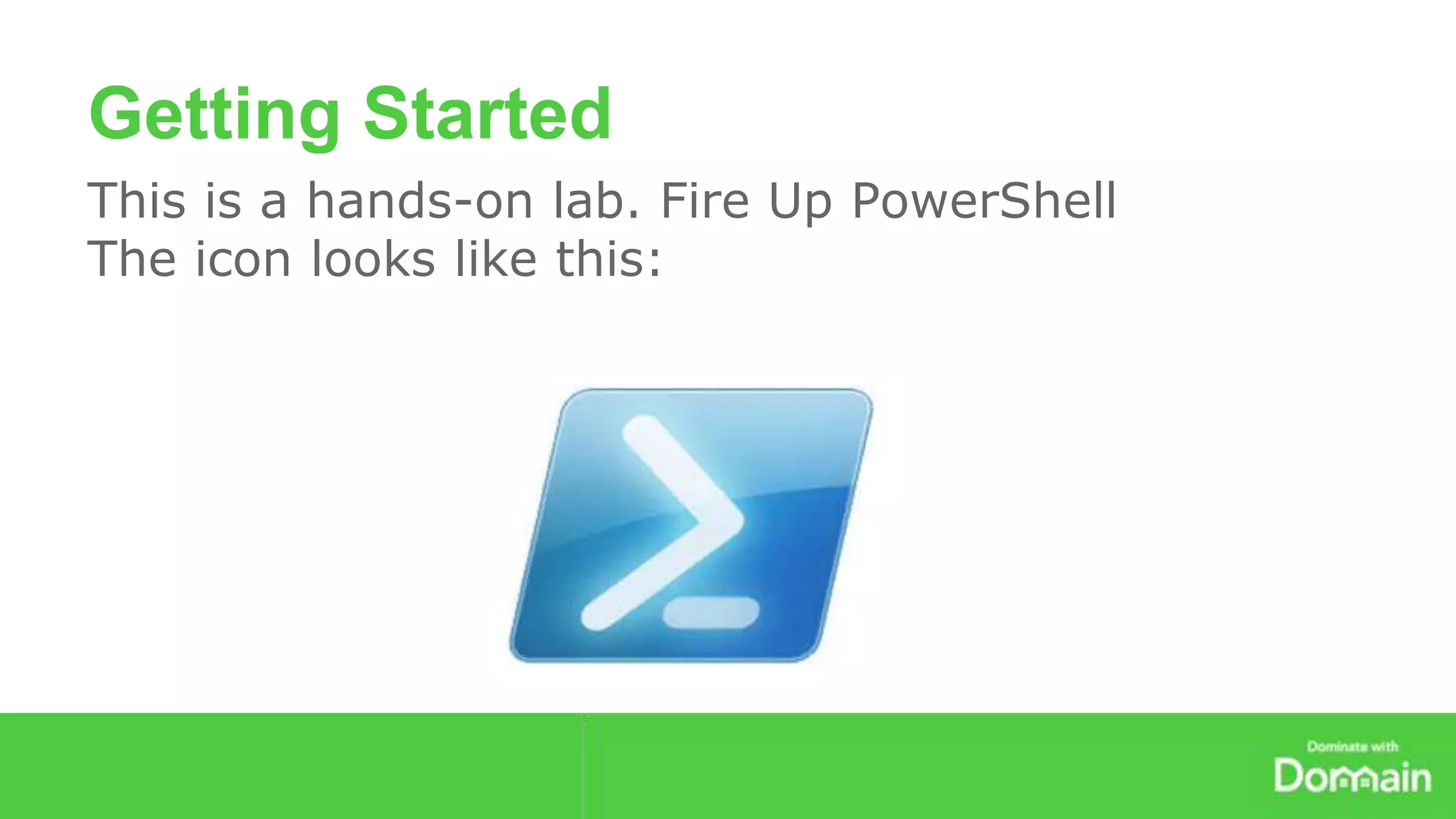
This is a hands-on lab. Fire Up PowerShell 
The icon looks like this:
Getting started with Cmdlets 
Cmdlets are what they sound like. They’re little commands 
They do stuff, usually fairly simple stuff 
They Get- stuff. They Set- stuff. They Invoke- stuff. They 
Test- stuff 
They’re the tiny engines of powershell 
Many of them have quick, snappy aliases
A thing called the pipeline 
the pipeline allows you to string commands 
together, shunting data from left to right
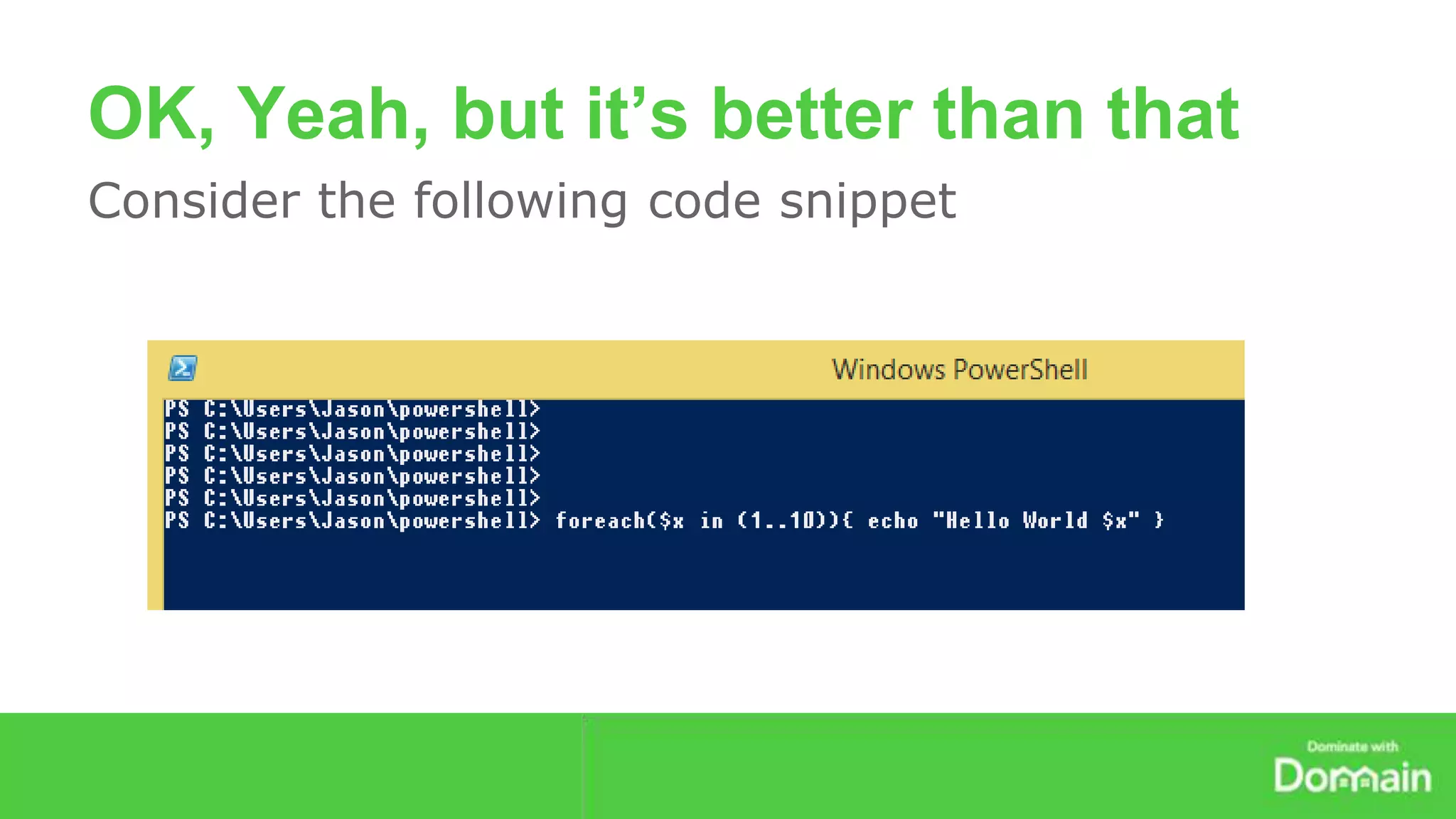
OK, Yeah, but it’s better than that 
Consider the following code snippet
The basics summarised 
● Variables are prefixed with a dollar sign 
● Code blocks are delimited with curly braces 
● Assignment operators are =, +, etc 
● Comparison Operators are -lt, -gt, -eq, -like etc 
● Commands (called Cmdlets in PS World) follow a 
Verb-Noun convention 
● Powershell is extensible via Modules 
● But you REALLY don’t need to remember this 
Because….
Powershell is internally-documented 
There are Cmdlets that tell you about Cmdlets 
● Get-Command 
● Get-Help 
● Get-Alias 
● Get-Module 
● Get-Member
Environment Variables 
You’ll also want to know about environment 
variables 
$Env: 
$home 
$psversiontable
OK, so what next? 
So far you’ve just been working at the prompt 
Now it’s time to start writing basic scripts. 
First, let’s get set up
Simple functions 
Functions allow you to package up lumps of code 
and call them from other lumps of code. 
We’re going to write a function now. 
Then we’re going to modify it 
Then we’re going to run it 
Then (bonus!) we’re going to make it run whenever 
we start powershell
In summary 
You now have the tools you need to: 
● Run commands 
● Write scripts 
● Find help 
● Customise your environment 
So go forth and be a ninja

In just one hour i will make you a power shell ninja

  • 1.
    In Just OneHour I Will Make You A PowerShell Ninja A Flying Start Into PowerShell
  • 3.
    What you shouldhave In your meeting invite, you should have received a list of pre-reqs ● Laptop running Windows 7 or later (not RT) ● A text file containing, line-by-line, the lyrics to your favourite song ● Your typing fingers ● Optional: exposure to other programming languages such as C, C#, Java, Perl, Python, JavaScript or VBScript ● Distractions are strictly banned. Close all non-powershell windows and put your phone face down on the table.
  • 4.
    What we willdo A crash course into Powershell Basics, including: ● The Raw Language Basics - covered more fully in a later module ● The Help System and exploring the environment ● The Pipeline ● Working with files and folders ● A quick peek at Profiles - covered more fully in a later module It’s a lot to cover in an hour, and we’re bound to get sidetracked, so let’s get started
  • 5.
    Getting Started Thisis a hands-on lab. Fire Up PowerShell The icon looks like this:
  • 6.
    Getting started withCmdlets Cmdlets are what they sound like. They’re little commands They do stuff, usually fairly simple stuff They Get- stuff. They Set- stuff. They Invoke- stuff. They Test- stuff They’re the tiny engines of powershell Many of them have quick, snappy aliases
  • 7.
    A thing calledthe pipeline the pipeline allows you to string commands together, shunting data from left to right
  • 8.
    OK, Yeah, butit’s better than that Consider the following code snippet
  • 9.
    The basics summarised ● Variables are prefixed with a dollar sign ● Code blocks are delimited with curly braces ● Assignment operators are =, +, etc ● Comparison Operators are -lt, -gt, -eq, -like etc ● Commands (called Cmdlets in PS World) follow a Verb-Noun convention ● Powershell is extensible via Modules ● But you REALLY don’t need to remember this Because….
  • 10.
    Powershell is internally-documented There are Cmdlets that tell you about Cmdlets ● Get-Command ● Get-Help ● Get-Alias ● Get-Module ● Get-Member
  • 11.
    Environment Variables You’llalso want to know about environment variables $Env: $home $psversiontable
  • 12.
    OK, so whatnext? So far you’ve just been working at the prompt Now it’s time to start writing basic scripts. First, let’s get set up
  • 13.
    Simple functions Functionsallow you to package up lumps of code and call them from other lumps of code. We’re going to write a function now. Then we’re going to modify it Then we’re going to run it Then (bonus!) we’re going to make it run whenever we start powershell
  • 14.
    In summary Younow have the tools you need to: ● Run commands ● Write scripts ● Find help ● Customise your environment So go forth and be a ninja

Editor's Notes

  • #14 This is where we use the lyrics you brought along. We want to make something a little akin to Wordpress’s “Hello Dolly” plugin, which shows a random lyric from Hello Dolly on Admin pages First, we want to open that text file and load it into a variable. We have a cmdlet that can do that for us called Get-Content By default, Get-Content loads a file line-by line into an array of strings. This is perfect for our needs. Try it. Do $lines = Get-Content “filename.txt” and then write $lines to the screen. Good. We’re loading the lyrics Now we need a cmdlet that can pick a random number for us. Get-Help random should tell you what we have available. Now we could use that cmdlet with a -maximum value of the array length, then pick the corresponding element from the array, but we don’t have to, because Get-Random takes pipeline input Try it. Try $lines | Get-Random Ooooh look. Assign that to a variable, $line = ($lines | Get-Random) $line Now we can package that into a function Do ctrl-j, press F and pick Function put your code inside Function Get-Lyric { $lines = Get-Content $homelyrics.txt $randomline = ($filecontent | Get-Random) Write-Host $randomline -foregroundcolor yellow } Oooh, you have a function Highlight the function. Press F8 or hit the “run selection” button Your code is now interpreted and ready to use Type Get-Lyric in the command area Press enter Tada! You have a working function. But we can make it much more elegant, using the pipeline to shunt data from the left to the right Function Get-Lyric { Get-Content $homelyrics.txt | Get-Random | Write-Host -foregroundcolor yellow } Now we can get it to run every time we load powershell type ise $profile.CurrentUserAllHosts paste in your function Type a function call just underneath it Save it. Close all your powershell windows start a new powershell session TADA!! Now type Get-Lyric DOUBLE TADA!! And we’re done.
  • #15 You have all the information you need now to go ahead and start writing awesome powershell scripts You know how to query the help system you know how to call commands and use parameters you know how to write functions You know how to sort, query and filter you know about the ISE - and you should REALLY be using the ISE you know about the pipeline you know how to customise your powershell profile But most importantly you know how to find the information you don’t have Now, delete the shortcut to cmd.exe and replace it with powershell. Get into the habit of starting powershell instead of a command line and whenever you want to do something, consider if you can do it by typing a command Closing Test Questions What cmdlets might I use if I want to do something in PowerShell but can’t remember what the exact command is? What Cmdlet might I use to fire of a request to a REST Service? I want to do a wildcard search of a long array. What cmdlet and what comparison operator might I use? What’s the command to open my default profile in the ise? I need to know if a folder exists, what cmdlet might I use? I want to open a text file, what cmdlet do I use? Why is the pipeline important?