Gross Margin
by Client by Month
Background Tour
Purpose/Background
• Shows how much you make off of each client
(month-by-month) from ALL revenue sources
• Can filter on:
– Line of Business (Fully Managed, T&M, Project, etc.)
– Sales Rep
– Location
• Drill-down into each client, each month for details
– …and further into invoices, hours, time entries, etc.
Notes and Notices
• Figures shown on the report represent
monthly gross margin, which is:
Revenue minus 3rd party costs minus internal
engineering costs allocated on an hour-by-
hour engineer-by-engineer basis.
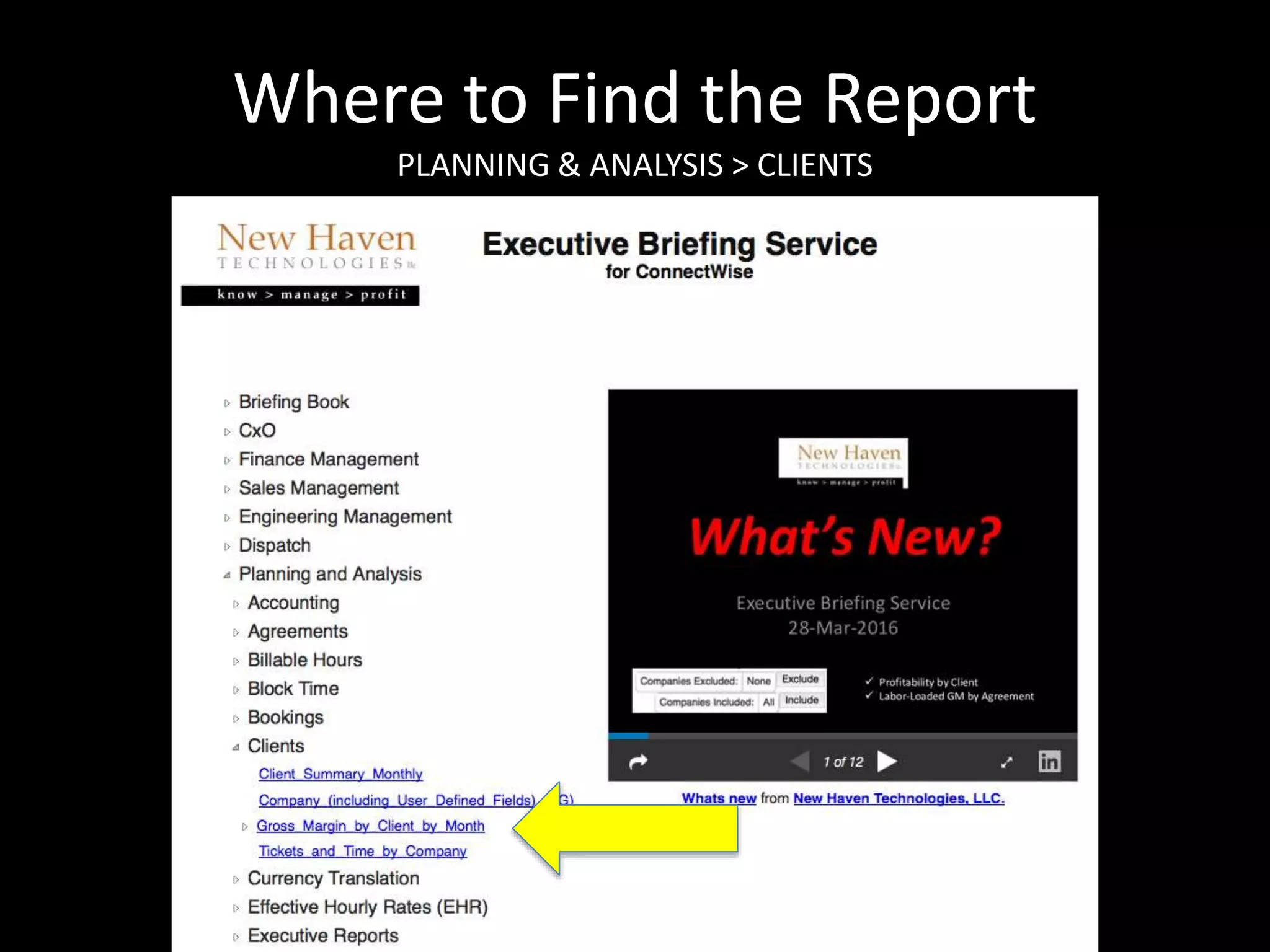
Where to Find the Report
PLANNING & ANALYSIS > CLIENTS
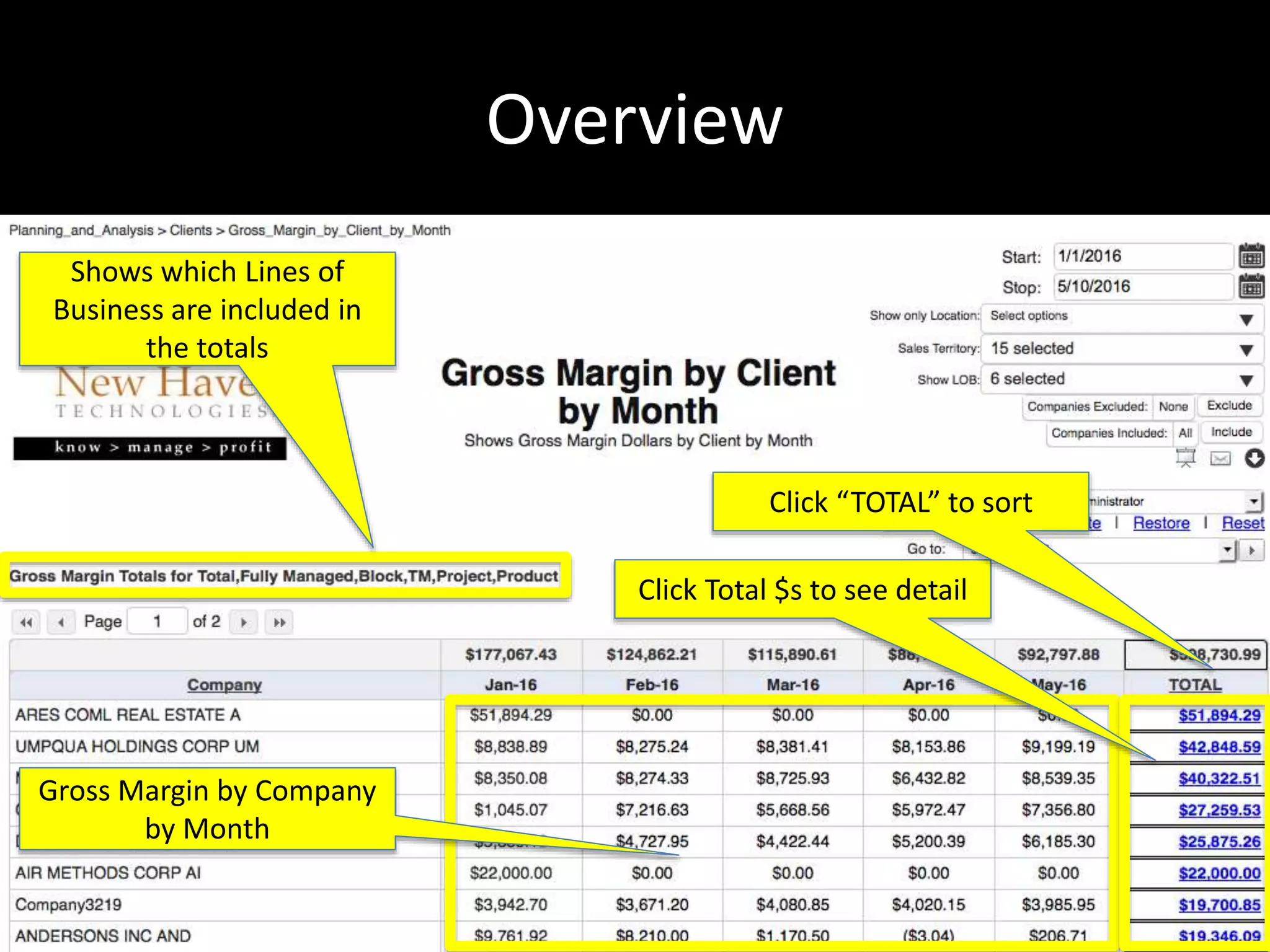
Overview
Gross Margin by Company
by Month
Click Total $s to see detail
Click “TOTAL” to sort
Shows which Lines of
Business are included in
the totals
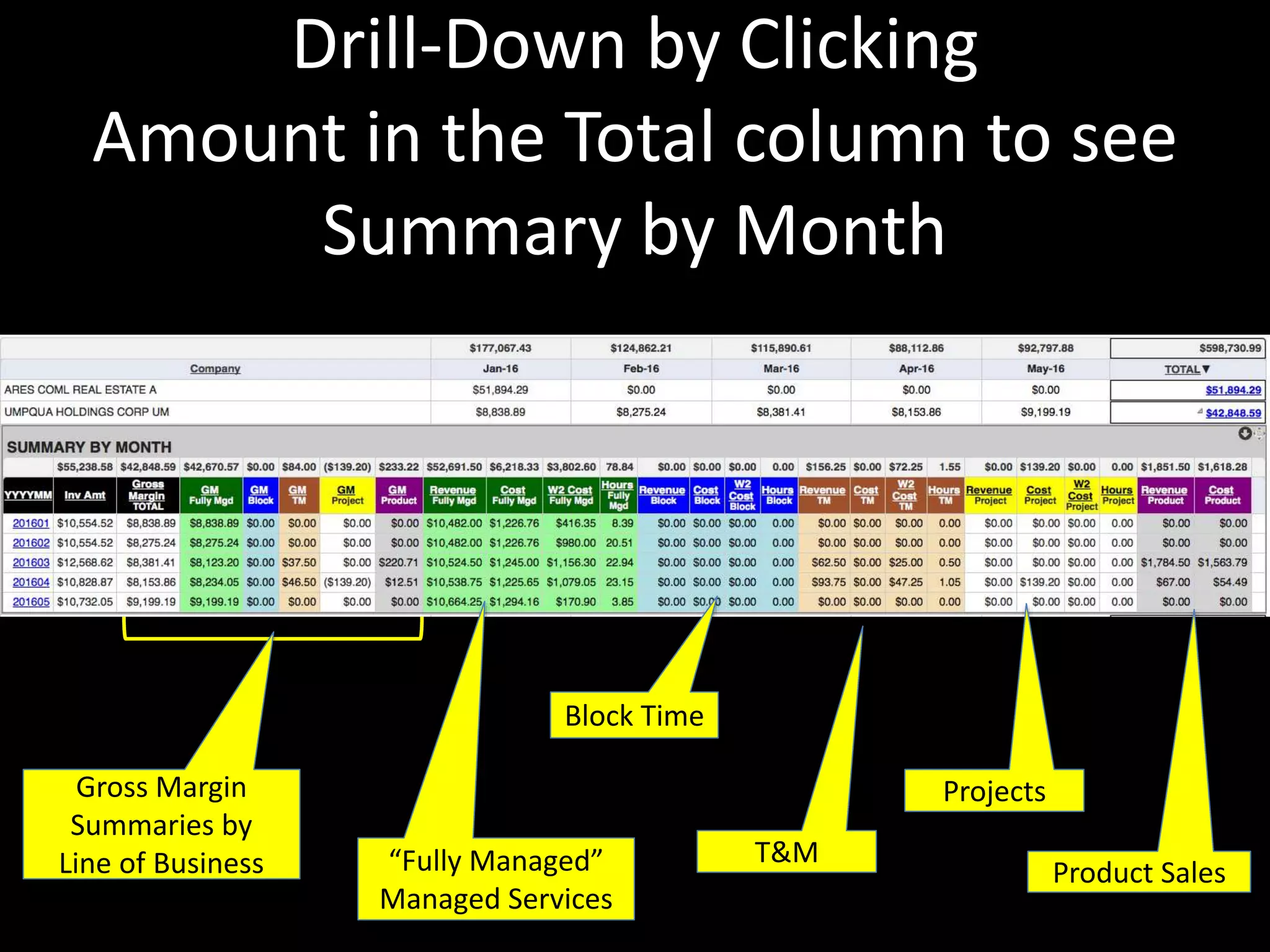
Drill-Down by Clicking
Amount in the Total column to see
Summary by Month
“Fully Managed”
Managed Services
Block Time
T&M
Product Sales
ProjectsGross Margin
Summaries by
Line of Business
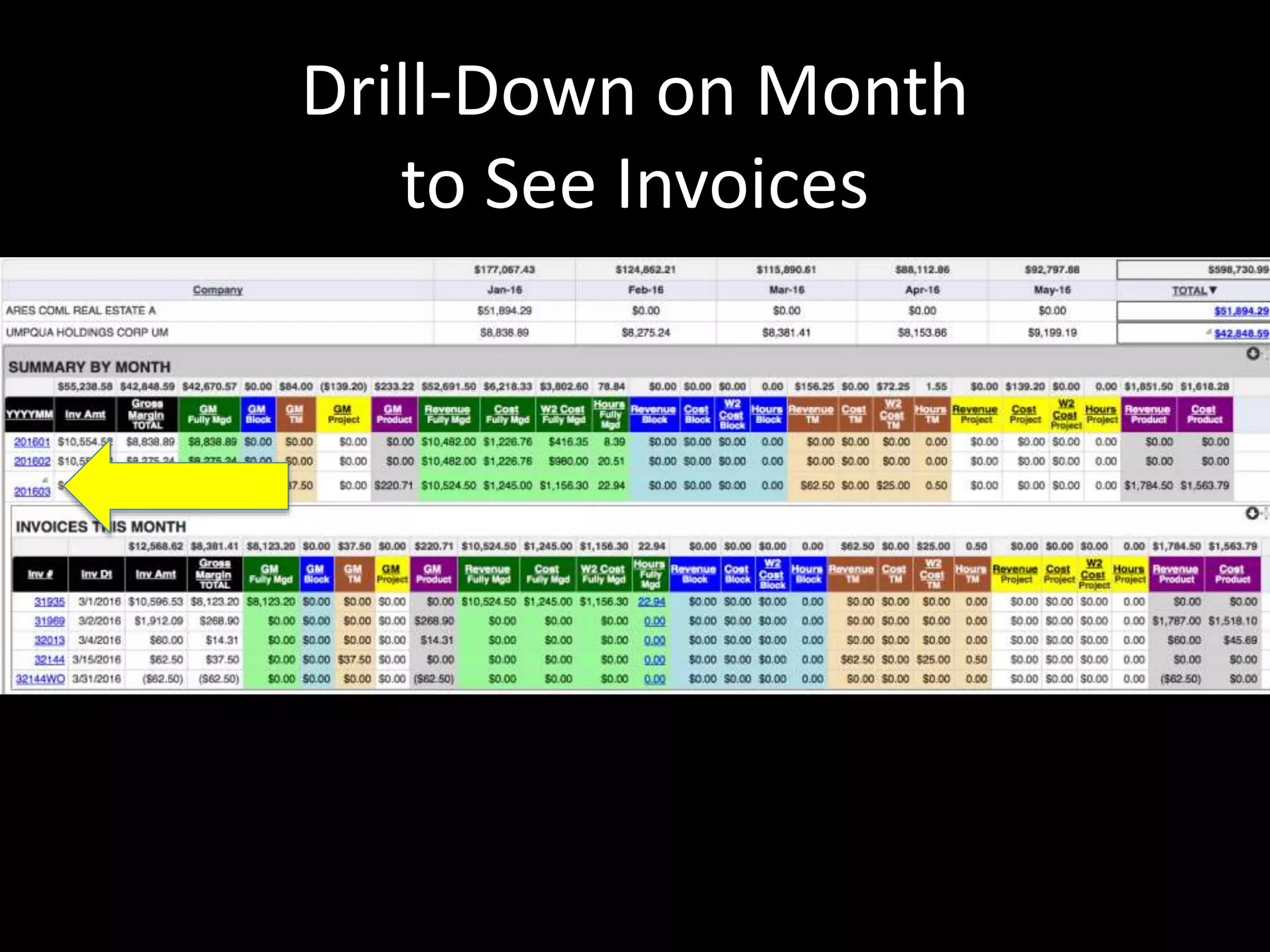
Drill-Down on Month
to See Invoices
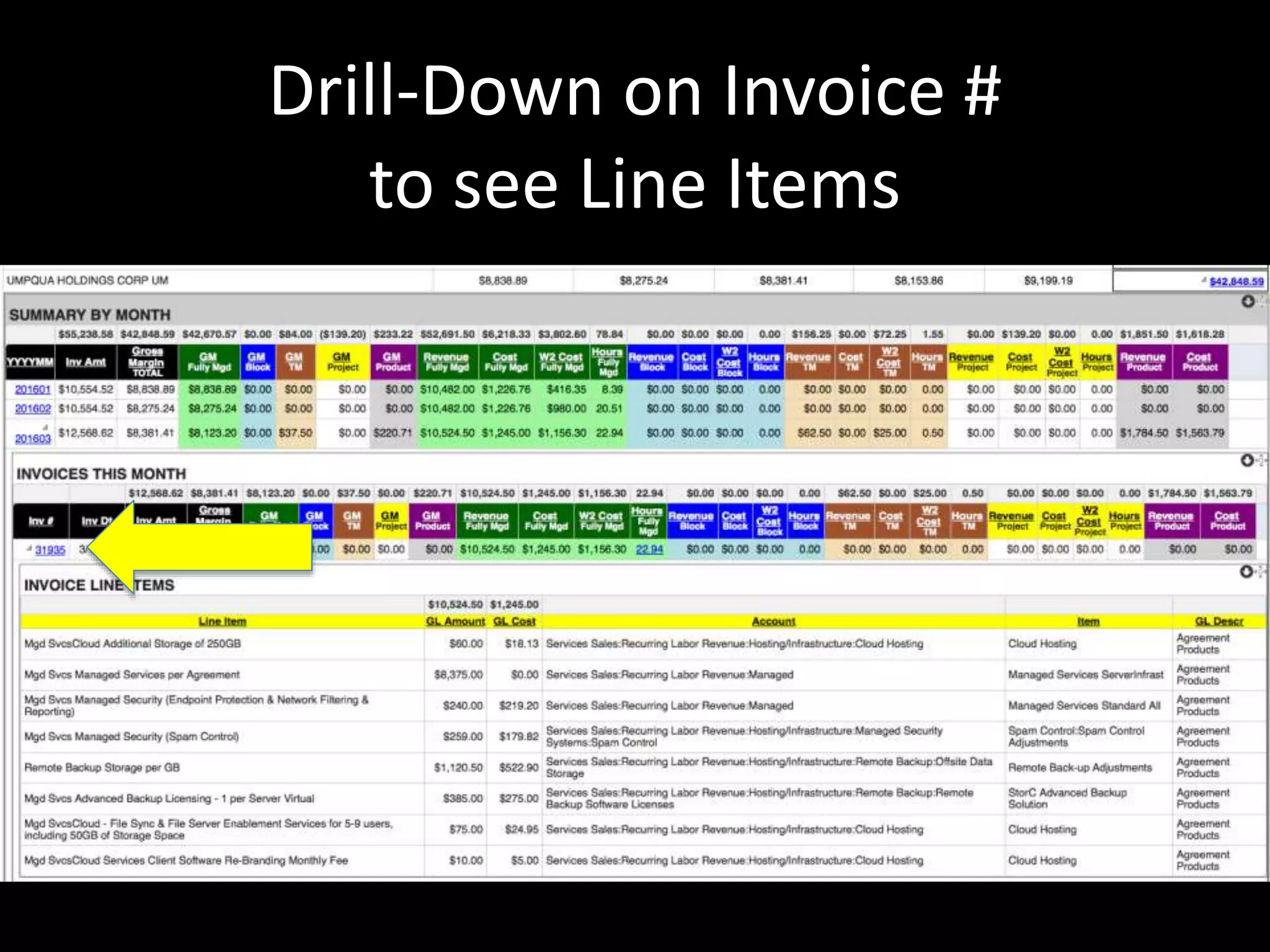
Drill-Down on Invoice #
to see Line Items
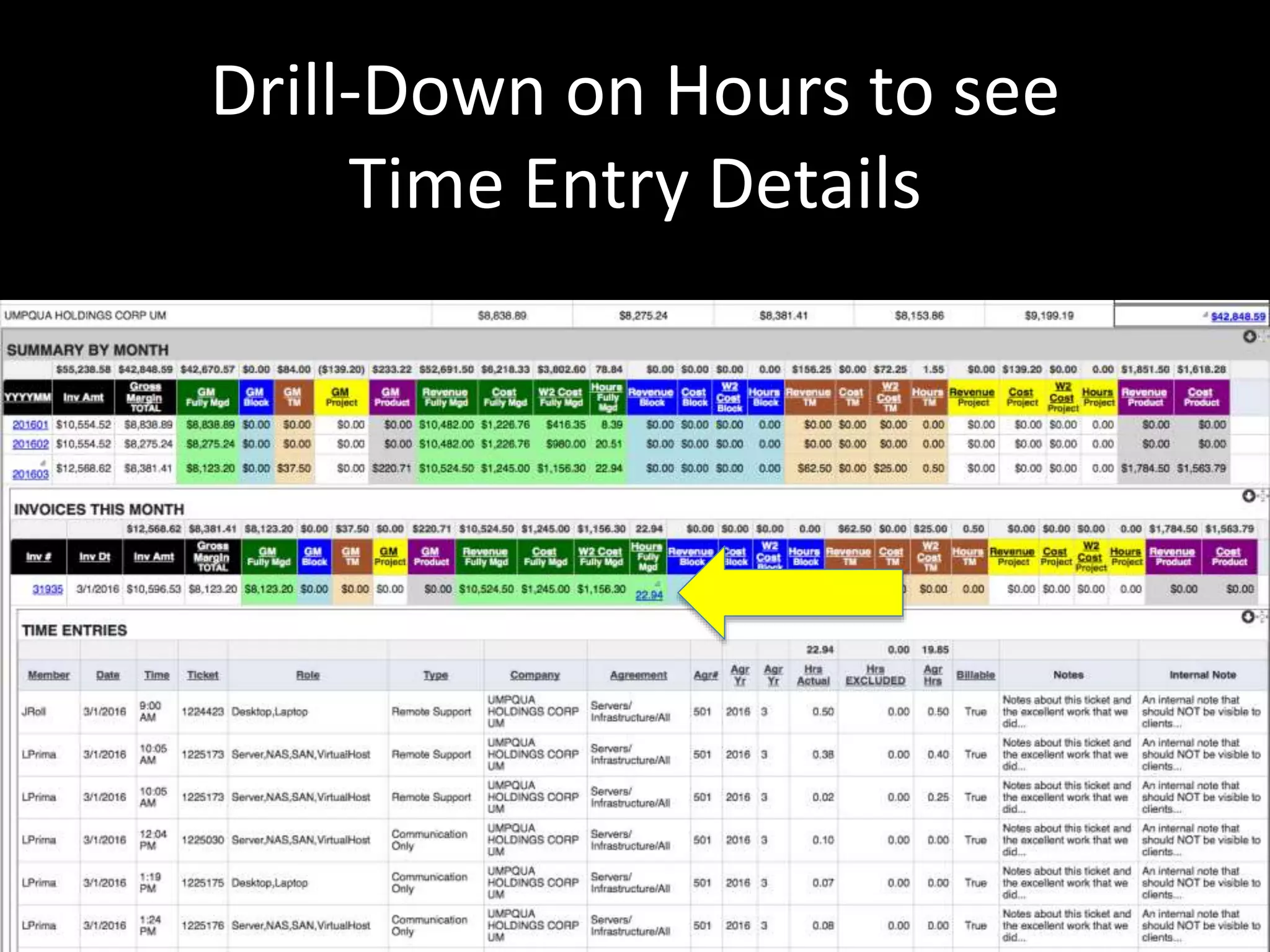
Drill-Down on Hours to see
Time Entry Details
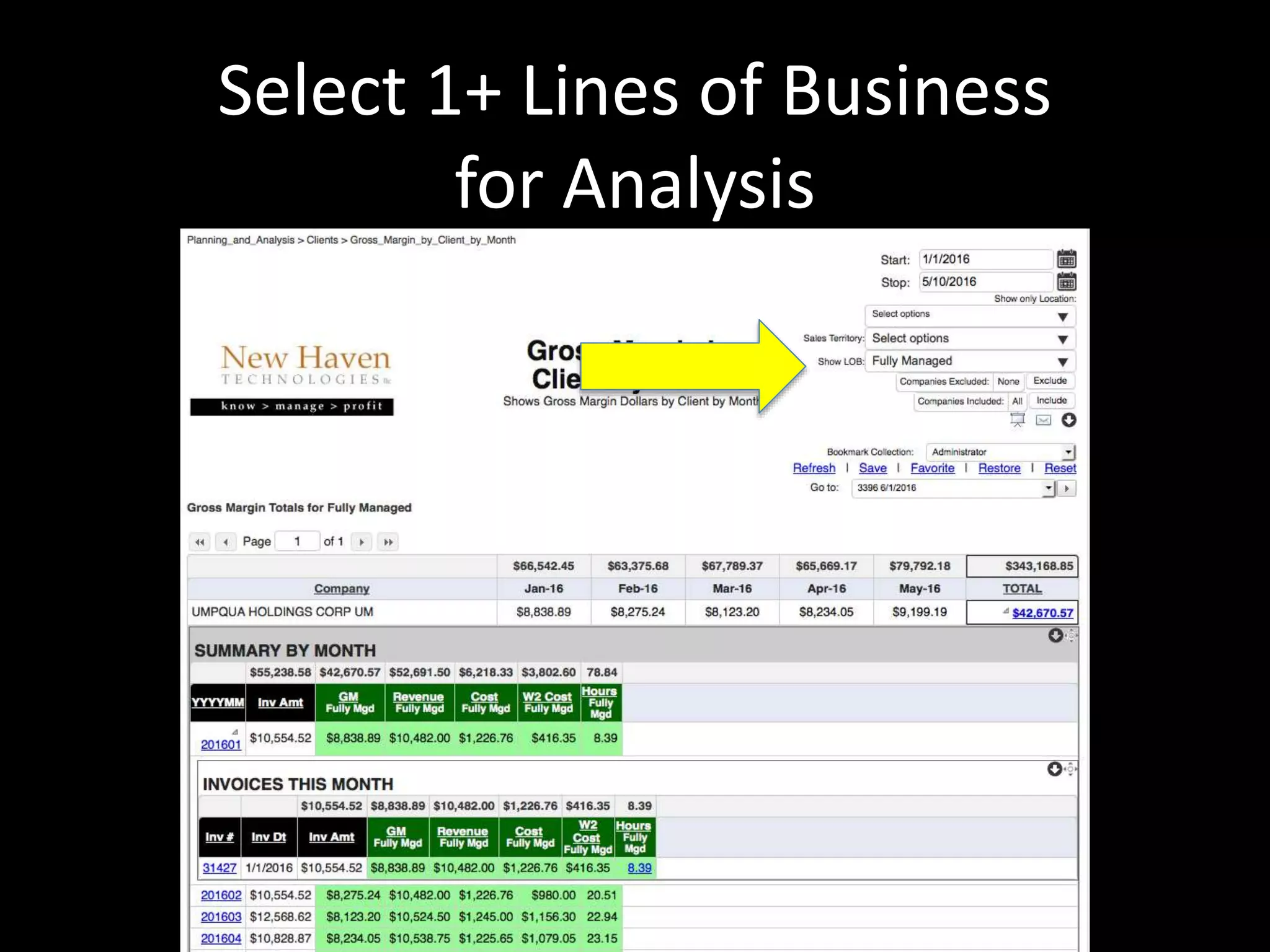
Select 1+ Lines of Business
for Analysis
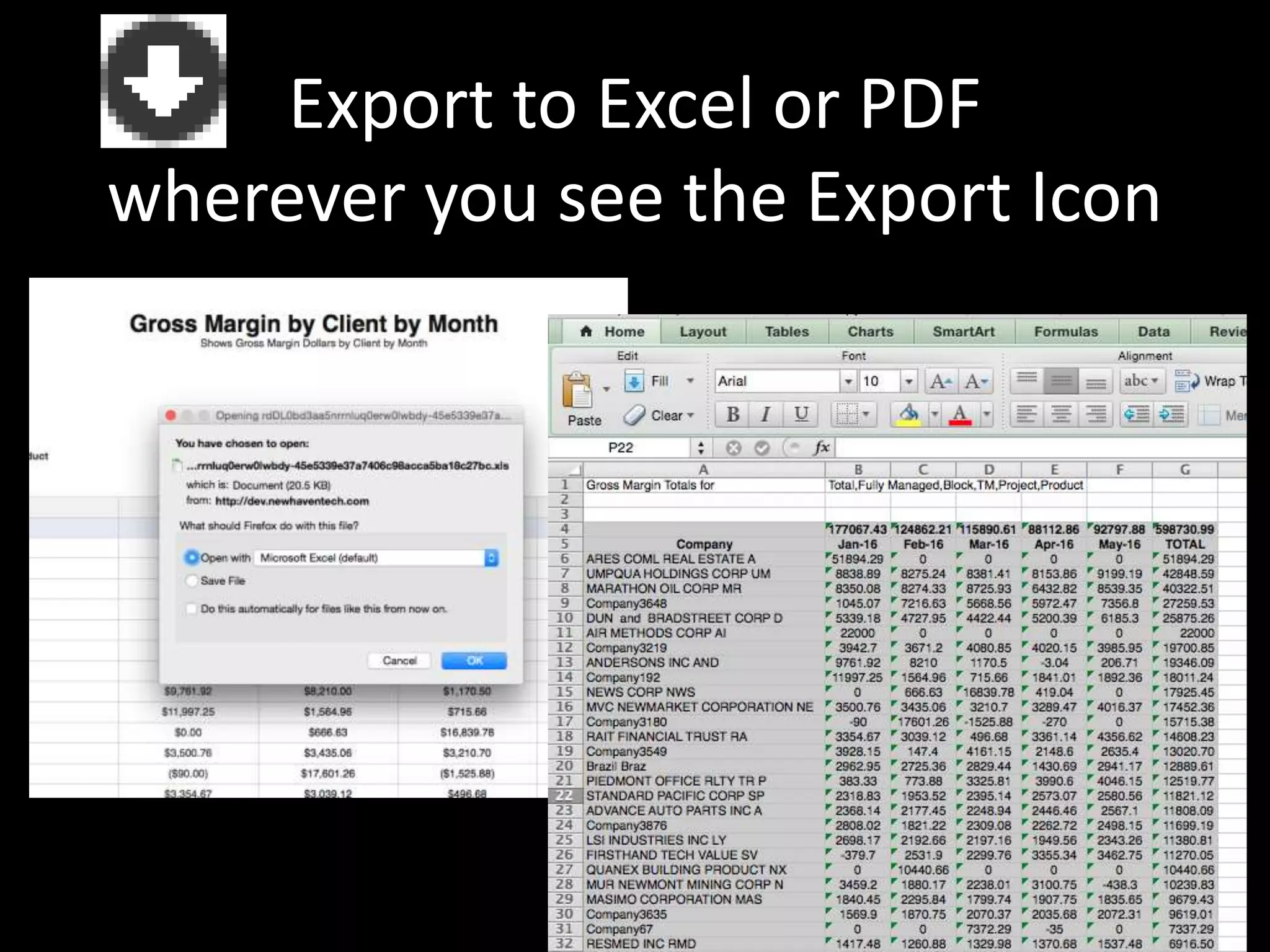
Export to Excel or PDF
wherever you see the Export Icon
Settings
Click down-
arrow icon to
export to
Excel or PDF
Click “Refresh”
after changing
parameters
Select
Locations
to Display Select date range
(Default: Last 12 mos)
Filter by Sales
Territory
Include or
Exclude a
select list of
Companies
Filter by Line
of Business
Save settings as Bookmark
or Favorite for one-click
access
Quick access to Favorites
via the “Go To” menu…
Executive Briefing Service
Other Resources
www.NewHavenTech.com
Support@NewHavenTech.com
www.YouTube.com/NewHavenTech
www.linkedin.com/company/new-haven-technologies-llc
www.FaceBook.com/NewHavenTech
@NewHavenTech
www.SlideShare.net/NewHavenTech
www.ConnectWise.com/Marketplace

Gross margin by client by month

  • 1.
    Gross Margin by Clientby Month Background Tour
  • 2.
    Purpose/Background • Shows howmuch you make off of each client (month-by-month) from ALL revenue sources • Can filter on: – Line of Business (Fully Managed, T&M, Project, etc.) – Sales Rep – Location • Drill-down into each client, each month for details – …and further into invoices, hours, time entries, etc.
  • 3.
    Notes and Notices •Figures shown on the report represent monthly gross margin, which is: Revenue minus 3rd party costs minus internal engineering costs allocated on an hour-by- hour engineer-by-engineer basis.
  • 4.
    Where to Findthe Report PLANNING & ANALYSIS > CLIENTS
  • 5.
    Overview Gross Margin byCompany by Month Click Total $s to see detail Click “TOTAL” to sort Shows which Lines of Business are included in the totals
  • 6.
    Drill-Down by Clicking Amountin the Total column to see Summary by Month “Fully Managed” Managed Services Block Time T&M Product Sales ProjectsGross Margin Summaries by Line of Business
  • 7.
  • 8.
    Drill-Down on Invoice# to see Line Items
  • 9.
    Drill-Down on Hoursto see Time Entry Details
  • 10.
    Select 1+ Linesof Business for Analysis
  • 11.
    Export to Excelor PDF wherever you see the Export Icon
  • 12.
    Settings Click down- arrow iconto export to Excel or PDF Click “Refresh” after changing parameters Select Locations to Display Select date range (Default: Last 12 mos) Filter by Sales Territory Include or Exclude a select list of Companies Filter by Line of Business Save settings as Bookmark or Favorite for one-click access Quick access to Favorites via the “Go To” menu…
  • 13.
    Executive Briefing Service OtherResources www.NewHavenTech.com Support@NewHavenTech.com www.YouTube.com/NewHavenTech www.linkedin.com/company/new-haven-technologies-llc www.FaceBook.com/NewHavenTech @NewHavenTech www.SlideShare.net/NewHavenTech www.ConnectWise.com/Marketplace