
Courtney Brown Southeast Regional Coordinator
Professional Development Office, Indiana State Library
Phone: 317-910-5777 cobrown@library.in.gov│
Basics in Storing, Sharing
and Collaborating
By the end of this session you will:
• Know what “Cloud storage” means & how it
works
• Know the difference between Google Drive,
Google Docs, G Suite and Team Drives
• Know how to use Google docs, sheets, slides,
hangouts & calendars!
Learning Objectives
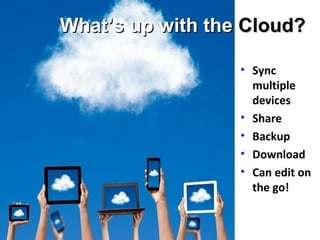
• Sync
multiple
devices
• Share
• Backup
• Download
• Can edit on
the go!
What’s up with theWhat’s up with the Cloud?Cloud?
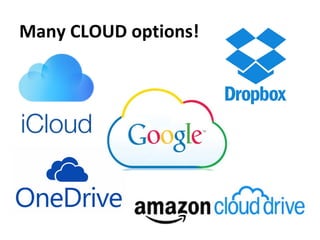
Many CLOUD options!
Many CLOUD options!
• Google Drive is a file storage and 
synchronization service created by Google. 
– It allows users to store files in the cloud 
– Share files and edit documents
– Includes Google’s popular web applications
• Docs, Sheets, Slides, Gmail, Hangouts, Calendar & much 
more!
Basic terms
• G Suite is a suite of cloud computing 
productivity and collaboration software tools 
and software (some are offered on a 
subscription basis by Google).  Google for Nonprofits
• Team Drives is an easier way to share files 
across an organization & give more granular 
control over the shared content.
Basic terms
G Suite for Nonprofits -
https://www.google.com/nonprofits/products/apps-for-nonprofits.html
• Sign up for G Suite for Nonprofits
• Use Tech Soup ID
• Get converted to non-profit status
• Free access to G Suite & Team Drives
• Google Docs  - word processing
• Google Sheets – worksheets 
• Google Slides – presentations
Standard Office Applications
• Google Drive 
• Google Calendar
• Gmail
Communication Applications
• Google Sites  - website
• Google Photos
• Google Drawings
• Google Forms - surveys
Other Applications
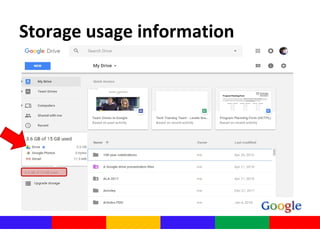
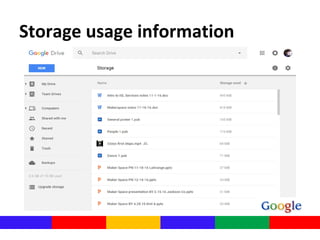
Storage usage information
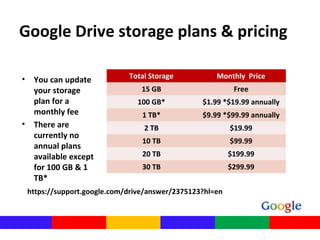
Google Drive storage plans & pricing
Total Storage Monthly Price
15 GB Free
100 GB* $1.99 *$19.99 annually
1 TB* $9.99 *$99.99 annually
2 TB $19.99
10 TB $99.99
20 TB $199.99
30 TB $299.99
https://support.google.com/drive/answer/2375123?hl=en
• You can update
your storage
plan for a
monthly fee
• There are
currently no
annual plans
available except
for 100 GB & 1
TB*
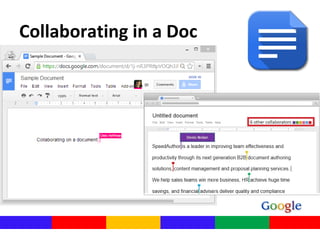
Collaborating in a Doc
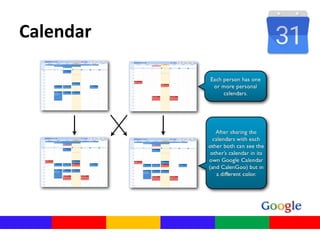
Calendar
Google Hangouts
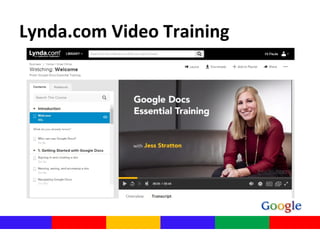
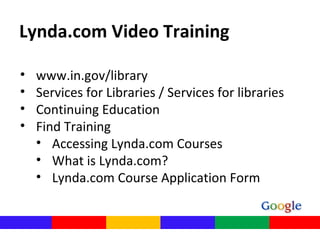
Lynda.com Video Training
• www.in.gov/library
• Services for Libraries / Services for libraries
• Continuing Education
• Find Training
• Accessing Lynda.com Courses
• What is Lynda.com?
• Lynda.com Course Application Form
DEMONSTRATIONDEMONSTRATION
Resources
• https://www.cloudwards.net/how-does-
google-drive-work/ - Step by Step no
nonsense guide to how google drive works
• Google Privacy & Terms -
https://policies.google.com/privacy?hl=en

Google Apps and Docs

Editor's Notes

  • #3 Today, we’re going to talk a bit about cloud storage and some uses. We’re going to learn the difference between drive, docs, G suite and team drives And we’ll touch briefly on how to use docs, sheets, slides, hangouts, and calendars. I am not an expert – but I’ve used this a lot in the last 10 years or so
  • #4 What is cloud storage? It’s saving data to an off-site storage system maintained by a third party. Instead of storing information to your computer's hard drive or other local storage device, you save it to a remote storage location. The Internet provides the connection between your computer and the database. On the surface, cloud storage has several advantages over traditional data storage. For example, if you store your data on a cloud storage system, you'll be able to get to that data from any location that has Internet access. You wouldn't need to carry around a physical storage device or use the same computer to save and retrieve your information. So, essentially, cloud storage’s main purpose is to expand your ability to store files beyond the limits of your hard drive. It sometimes gets confused with an online backup, which is designed to replicate your hard drive, with the goal of disaster recovery, rather than expand it. So it’s pretty convenient and offers lots of flexibility.
  • #5 There are a ton of options for cloud storage. These are the big ones. It really depends on your institution & also your needs, of what will work best for you. Google Drive OneDrive – Microsoft/windows Amazon Cloud Drive Dropbox iCloud - Apple
  • #6 So, more specifically we’re going to go through the process of working with Google Drive Google will give you 15GB of free cloud storage just for signing up. However, it’s important to know that all of that free space is shared between Google Drive, Google Photos and Gmail. Still, that 15GB will go pretty far. Google Drive can store any kind of file: photos, videos, .pdfs,  Microsoft Office files — anything. You can also save email attachments sent to you through Gmail directly to Google Drive, which saves you from having to make the move manually. There are some general file attribute limits that Google Drive enforces, however, they’re pretty generous and shouldn’t impact most use. Documents, for example, can be up to 1.02 million characters in length, and if you convert a document to Google Docs format, it needs to be 50MB or smaller in size. Spreadsheets created in or converted to Google Sheets, which is Google’s spreadsheet application, need to be two million cells or smaller. Presentations created in or converted to Google Slides, a presentation builder, need to be 100MB or smaller. All other file types need to be 5TB or less, provided you’ve purchased that much storage. One of the nice things about Google Drive is that it lets you preview files from within the browser without having to download them, first. Previews are available for Microsoft Office, Adobe and general file types, like .txt files, image files, audio files and even video files. Using Google Drive lets you grant data access to other people, so it’s really ideal for collaborative work. Everyone with access can open the document at the same time.
  • #7 The key to Google drive is … you have to have a google account. Since you guys use google for your work email, that’s a google account. You can use that info to access all the Google Drive bells and whistles.
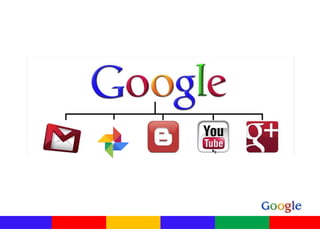
  • #8 Google owns a lot of other companies, so when you have a google account, you also have an account on the following platforms: Gmail Google photos Blogger – web log hosting site (wordpress, live journal) You tube Google plus – social networking, will be defunct in April 2019
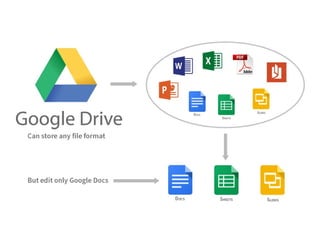
  • #9 Drive can upload and store documents in any file formats. PP, word doc, excel spreadsheet, PDFs. You can also store the Google applications. Docs (MS Word), Sheets (MS Excel), and Slides (PP). The google aplications can be edited within Drive. Others cannot.
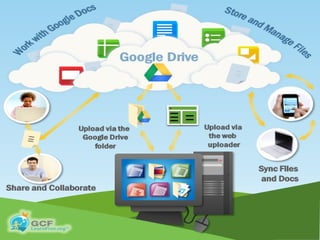
  • #10 Great diagram to visualize how it all works– Work on the documents on your PC Upload to Google Drive – (you can upload via the web, or you can via the google Drive folder on your computer) That document that you upload is saved in the cloud You can share those files with other people in your organization, if you take advantage of the Google apps, you’ll be able to collaborate with other people on the same document. You can also sync files with smartphones & tablets. There is a google drive app, as well as a docs, sheets, etc. Any file moved to your Google Drive using the Google Drive app will no longer be stored on your computer's hard drive. If you would like to keep a version of the file on both your computer and your Google Drive, you can create a copy to store online. Keep in mind, however, that creating multiple versions of a file will not allow you to take advantage of Google Drive's powerful syncing features.
  • #11 Again, in the most basic terms, GD is a file storage and synchronization service created by Google. Syncs everything to the cloud Great for collaboration!
  • #12 G Suite – amps up Google Drive with additional features / moving beyond the free version \ 30 GB storage baseline Google for Non-profits – I’m going to talk a little about this an upcoming slide Team Drives – controls the rights of the documents & prevents users from deleting them Centralizes critical files & also continues access to the files if an employee leaves Huntington switched to G Suite years ago when whey decommissioned their Exchange Email server & went with Gmail. Didn’t touch the rest of G Suite till they hit limits on collaboration with Office (the ability to get into the same file at the same time). G Suite has gradually replaced Office for them!
  • #13 G Suite - Yes, you can get G Suite for free! Google for Nonprofits provides the Education level of G Suite to libraries for free. I imagine the plan is that you sign up, go through the non-profit Techsoup bit, and get converted  
  • #14 Standard office applications I’m going to touch a little bit on some google apps, I know that you guys still use Microsoft Office, but these are good to know about. Plus you can still use them to collaborate with coworkers, then download them as a Word document, or excel spreadsheet…whatever you need. Google Docs is an online word processor that lets you create and format text documents and collaborate with other people in real time. (MS Word) Sheets: online spreadsheet program (MS Excel) Slides: online presentation program (MS PP)
  • #15 Communication applications We’ve already talked about Google Drive Google calendar is an online calendar program that lets you share and sync your calendar with other users Gmail is Google’s email client.
  • #16 Other applications Sites: webpage creation tool that allows you to create simple websites that support collaboration between different editors. Photos: photo sharing and storage service. Drawings: web-based diagramming software that allows users to collaborate and work together in real time to create flowcharts, organizational charts, and other types of diagrams. Forms: survey creation and administration service.
  • #17 You’ll be able to see your usage numbers on the left hand side of your Google Drive.
  • #18 If you click on the storage report, it will tell you how much storage you’re using by document and sort it from the highest to lowest.
  • #19 Again, Google will give you 15GB of free cloud storage just for signing up. But remember, all of that free space is shared between Google Drive, Google Photos and Gmail. You can update your storage plans for a monthly fee…and just a reminder, your organization can get Google for non-profits for free through Tech Soup, which gives you 30GB of storage.
  • #20 Whenever you share a file in a Google Drive format, you'll have the option to allow your co-editors to change and edit the file. Google Drive offers several tools that enhance collaboration by making it easier to communicate with your co-editors and to see which changes have been made and who is responsible for those changes. You can see the other editors there at the top (in the red square). Each person is assigned a color and as you can above, changes within the document are marked with the collaborator’s color so you can see who made the change.
  • #21 You can share calendars so others can see, or you can give certain people permission to edit – You can color code by calendar or by department, if that’s something that would help you in your work. Maybe you have a desk schedule, or even your monthly schedule, that you'd like to share with other departments. all of that can be accomplished with google calendar. So you might have to play around with it a little to meet your needs but it’s pretty handy. Read the slide
  • #22 Hangouts is a video call program…we’ve used this a lot in PDO since we’re always traveling and have some members of our department that work from offices in other counties. We’ll use hangouts to have a staff meeting or to just touch base if we haven’t met in a while. * You can have multiple people in the hangout (10 on the video) & others can view it. You can record your hangout in youtube (haven’t tried that yet but it’s probably pretty intuitive, if you’re familiar with the google suite) – the person who is talking is the larger screen & then it will change as others start to talk
  • #23 ISL website Free to use for any library staff member in Indiana (just have to sign up to get access – your library email & then you set your password) They’re self guided courses, you can start & stop any time (& will save your spot) for when you’re ready to revisit the training. Beginner, Intermediate & Advanced All types of lengths (short to a few hours) All Lynda.com courses are eligible for LEUs. The ISL’s LEU policy is that if you watch a recorded or archived training (so basically anything other than a live training) your Director or HR representative can create the LEU certificate for you. You don’t even have to contact the state library to get your LEUs. If you’re a Director, and you don’t have an HR representative, your board president will need to sign the certificates.
  • #24 ISL website (31 minutes to 60 minutes = LEU).  
  • #25 Questions before demo?