@NNJA
RECOVERING FROM GIT
MISTAKES
NINA ZAKHARENKO
CDA Summit 2018
bit.ly/cda-git-mistakes
@NNJA
@NNJA
OVERVIEW
➤ Understanding commits and references
➤ Where code lives: Working Area, Staging Area, Repository
➤ Recovering from mistakes
➤ What operations are unrecoverable
@NNJA
COMMITS
@NNJA
COMMIT OBJECT
a commit points to:
➤ a tree
and contains metadata:
➤ author and committer
➤ date
➤ message
➤ parent commit (one or more)
the SHA1 of the commit is the hash of all this information
@NNJA
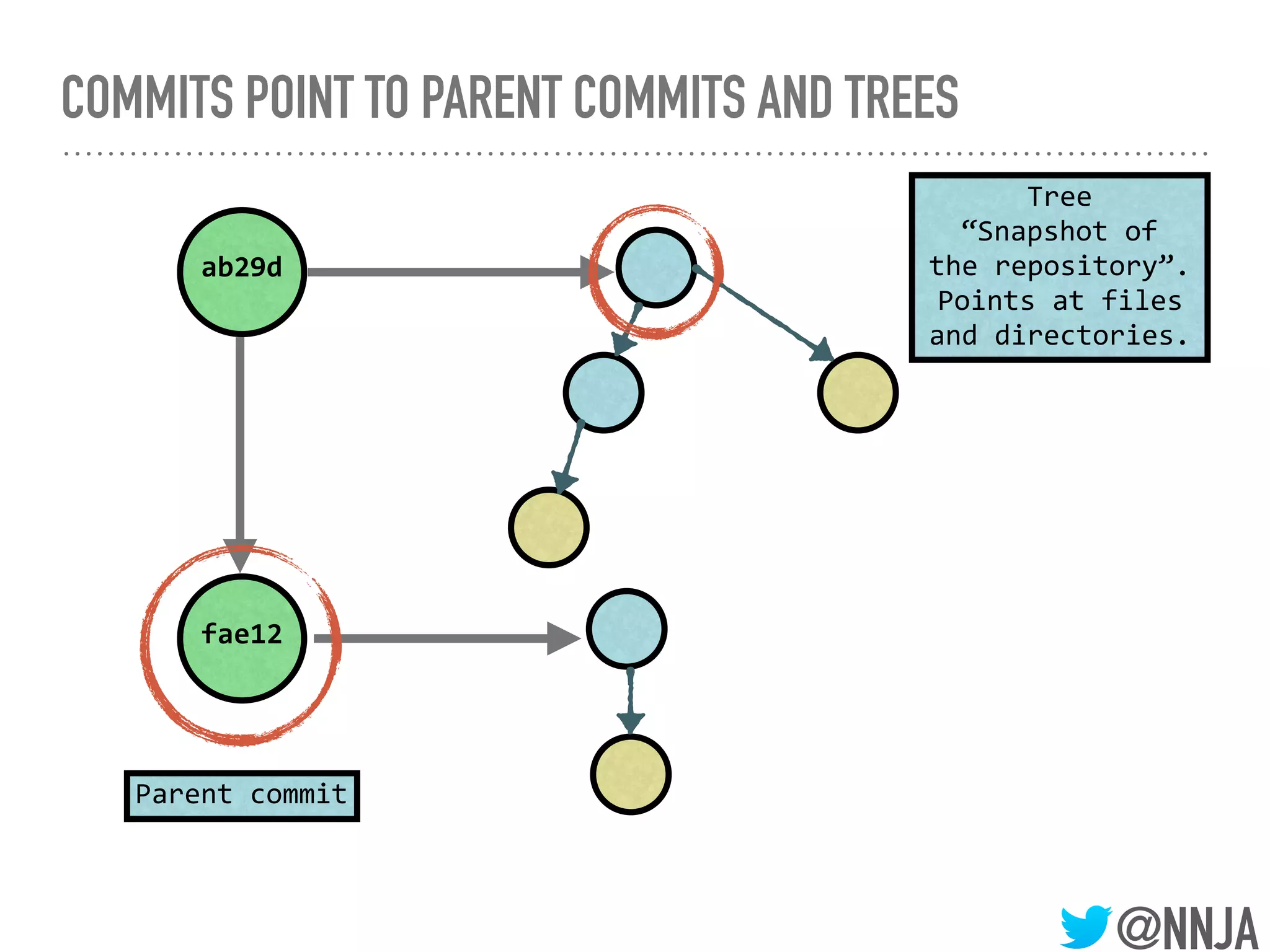
COMMITS POINT TO PARENT COMMITS AND TREES
fae12
ab29d
@NNJA
COMMITS POINT TO PARENT COMMITS AND TREES
fae12
ab29d
Parent commit
@NNJA
COMMITS POINT TO PARENT COMMITS AND TREES
fae12
ab29d
Parent commit
Tree
“Snapshot of
the repository”.
Points at files
and directories.
@NNJA
A COMMIT IS A
CODE SNAPSHOT
@NNJA
WHY CAN’T WE “CHANGE” COMMITS?
➤ If you change any data about the commit, the commit will
have a new SHA1 hash.
➤ Even if the files don’t change, the created date will.
@NNJA
REFERENCES - POINTERS TO COMMITS
➤ Tags
➤ Branches
➤ HEAD - a pointer to the current commit
fae12
ab29d
@NNJA
WHAT IS HEAD?
@NNJA
WHAT IS HEAD?
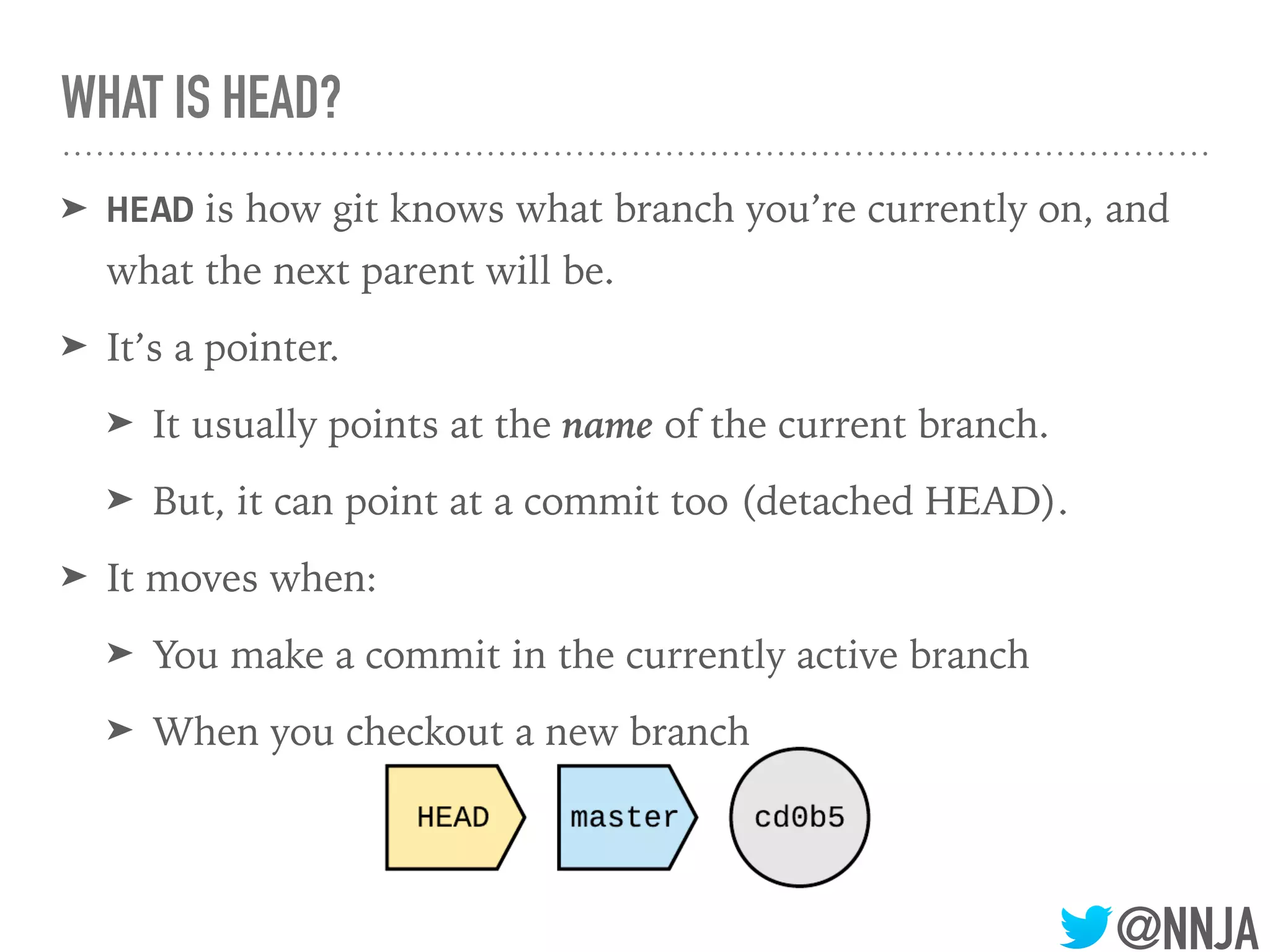
➤ HEAD is how git knows what branch you’re currently on, and
what the next parent will be.
@NNJA
WHAT IS HEAD?
➤ HEAD is how git knows what branch you’re currently on, and
what the next parent will be.
➤ It’s a pointer.
➤ It usually points at the name of the current branch.
➤ But, it can point at a commit too (detached HEAD).
@NNJA
WHAT IS HEAD?
➤ HEAD is how git knows what branch you’re currently on, and
what the next parent will be.
➤ It’s a pointer.
➤ It usually points at the name of the current branch.
➤ But, it can point at a commit too (detached HEAD).
➤ It moves when:
➤ You make a commit in the currently active branch
➤ When you checkout a new branch
@NNJA
WHAT IS HEAD?
➤ HEAD is how git knows what branch you’re currently on, and
what the next parent will be.
➤ It’s a pointer.
➤ It usually points at the name of the current branch.
➤ But, it can point at a commit too (detached HEAD).
➤ It moves when:
➤ You make a commit in the currently active branch
➤ When you checkout a new branch
@NNJA
REFERENCING COMMITS
➤^
➤ the first parent commit
➤~
➤ the first commit back, following 1st parent
@NNJA
THREE AREAS WHERE
CODE LIVES
1. Working Area
2. Staging Area
3. Repository
@NNJA
THE WORKING AREA
➤ Unstaged changes to already staged or commited files
➤ The files in your working area that are also not in the staging
are are not handled by git.
➤ Called untracked files
@NNJA
THE STAGING AREA (A.K.A INDEX, CACHE)
➤ What files or changes are going to be part of the next commit
➤ The staging area is how git knows what will change between
the current commit and the next commit.
@NNJA
THE REPOSITORY
➤ The files git knows about!
➤ Contains all of your commits
@NNJA
CLOSER LOOK:
THE STAGING AREA
@NNJA
THE STAGING AREA
➤ The staging area is how git knows what will change between
the current commit and the next commit.
➤ Tip: a “clean” staging area isn’t empty!
➤ Consider the baseline staging area as being an exact copy of
the latest commit.
@NNJA
THE STAGING AREA
➤ The staging area is how git knows what will change between
the current commit and the next commit.
➤ Tip: a “clean” staging area isn’t empty!
➤ Consider the baseline staging area as being an exact copy of
the latest commit.
❯ git ls-files -s
100644 b8b2583b242add97d513d8d8b85a46b9b5fb29cb 0 index.txt
100644 ed52afd72f64b1f8575e81bb4cb02ef1215739f6 0 posts/
welcome.txt
@NNJA
THE STAGING AREA
➤ The staging area is how git knows what will change between
the current commit and the next commit.
➤ Tip: a “clean” staging area isn’t empty!
➤ Consider the baseline staging area as being an exact copy of
the latest commit.
❯ git ls-files -s
100644 b8b2583b242add97d513d8d8b85a46b9b5fb29cb 0 index.txt
100644 ed52afd72f64b1f8575e81bb4cb02ef1215739f6 0 posts/
welcome.txt
The plumbing command ls-files -s will show you
what’s in the staging area.
@NNJA
MOVING FILES IN & OUT OF THE STAGING AREA
➤ add a file to the next commit:
➤ git add <file>
➤ delete a file in the next commit:
➤ git rm <file>
➤ rename a file in the next commit:
➤ git mv <file>
@NNJA
“UNSTAGE” FILES FROM THE STAGING AREA
➤ Not removing the files.
➤ You’re replacing them with a copy that’s currently in the
repository.
@NNJA
BASICS: HOW CONTENT MOVES IN GIT
@NNJA
CLEANING UP MESSES
amend, fixup, rebase
AMEND A COMMIT
➤ Amend is a quick and easy shortcut that lets you make
changes to the previous commit.
22
AMEND A COMMIT
➤ Amend is a quick and easy shortcut that lets you make
changes to the previous commit.
❯ git commit -m "Add a blog post about Python"
[tech_posts 4080a79] Add a blog post about Python
22
AMEND A COMMIT
➤ Amend is a quick and easy shortcut that lets you make
changes to the previous commit.
❯ git commit -m "Add a blog post about Python"
[tech_posts 4080a79] Add a blog post about Python
oops! I forgot to add the blog post.
22
AMEND A COMMIT
➤ Amend is a quick and easy shortcut that lets you make
changes to the previous commit.
❯ git commit -m "Add a blog post about Python"
[tech_posts 4080a79] Add a blog post about Python
❯ git add posts/python.txt
❯ git commit --amend
[tech_posts de53317] Add a blog post about Python
oops! I forgot to add the blog post.
22
AMEND A COMMIT
➤ Amend is a quick and easy shortcut that lets you make
changes to the previous commit.
❯ git commit -m "Add a blog post about Python"
[tech_posts 4080a79] Add a blog post about Python
❯ git add posts/python.txt
❯ git commit --amend
[tech_posts de53317] Add a blog post about Python
oops! I forgot to add the blog post.
add new changes to the staging area
22
AMEND A COMMIT
➤ Amend is a quick and easy shortcut that lets you make
changes to the previous commit.
❯ git commit -m "Add a blog post about Python"
[tech_posts 4080a79] Add a blog post about Python
❯ git add posts/python.txt
❯ git commit --amend
[tech_posts de53317] Add a blog post about Python
oops! I forgot to add the blog post.
add new changes to the staging area
then, amend the last commit
22
AMEND A COMMIT
➤ Amend is a quick and easy shortcut that lets you make
changes to the previous commit.
❯ git commit -m "Add a blog post about Python"
[tech_posts 4080a79] Add a blog post about Python
❯ git add posts/python.txt
❯ git commit --amend
[tech_posts de53317] Add a blog post about Python
oops! I forgot to add the blog post.
add new changes to the staging area
then, amend the last commit
❓why are the SHAs
different?
22
WARNING: NEVER REWRITE PUBLIC HISTORY!
➤ Rebase / amended / fixed up commits are copies
➤ If other people are working on the same repository they
would be working on different commits.
➤ You could cause massive merge conflicts
➤ Even worse, you can cause people to lose their work!
23
WARNING: NEVER REWRITE PUBLIC HISTORY!
➤ Rebase / amended / fixed up commits are copies
➤ If other people are working on the same repository they
would be working on different commits.
➤ You could cause massive merge conflicts
➤ Even worse, you can cause people to lose their work!
Warning: If you rewrite history and push
to a public repo, you’ll make people
upset!
23
TIP: “AMEND” ANY COMMIT WITH FIXUP & AUTOSQUASH!
What if we want to amend an arbitrary commit?
1. git add new files
2. git commit --fixup <SHA>
1. this creates a new commit, the message starts with ‘fixup!’
3. git rebase -i --autosquash <SHA>^
4. git will generate the right todos for you! just save and quit.
24
REBASING
➤ Commits can be:
➤ edited
➤ removed
➤ combined
➤ Split
➤ re-ordered
➤ inserted
25
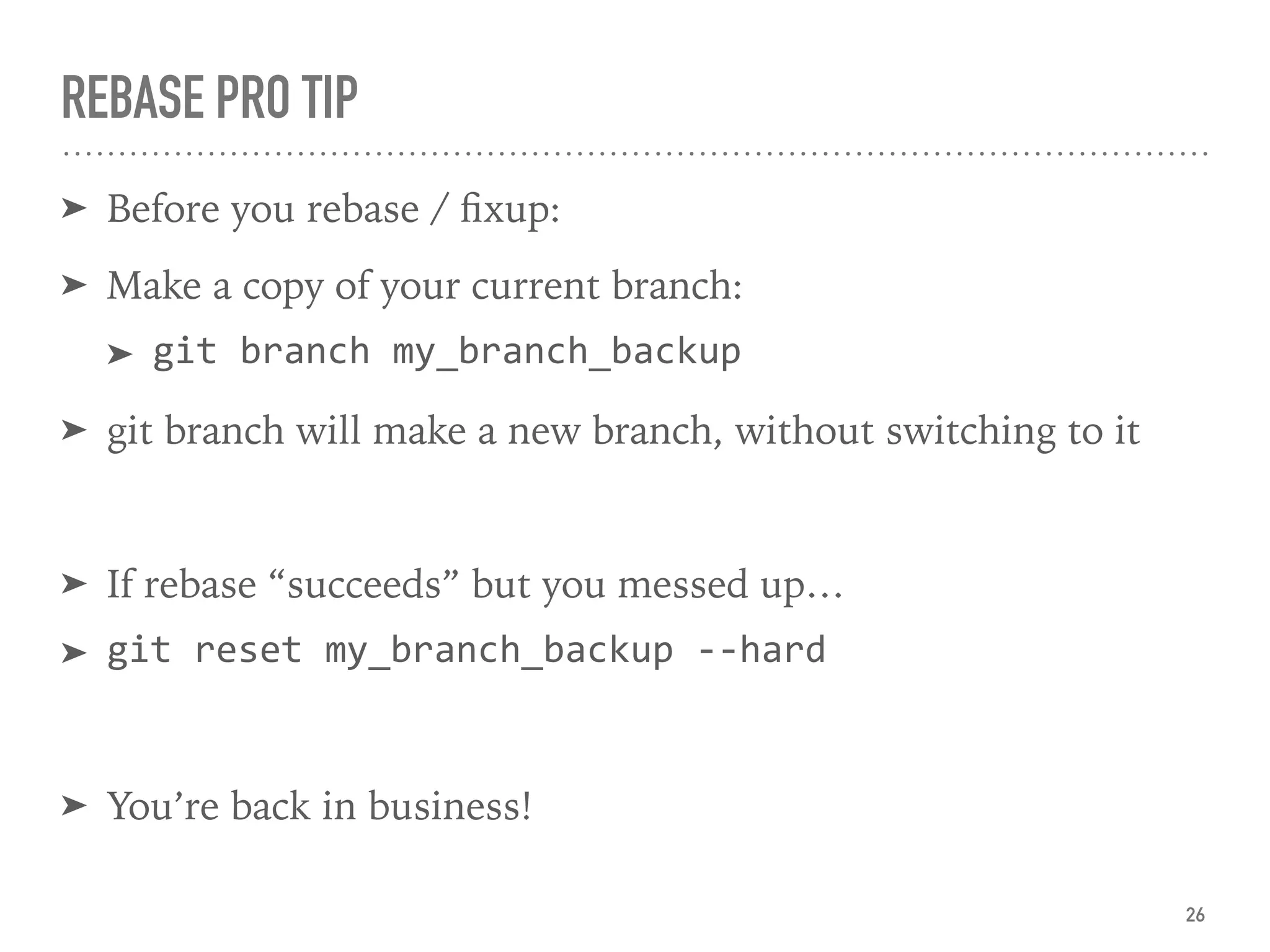
REBASE PRO TIP
➤ Before you rebase / fixup:
➤ Make a copy of your current branch:
➤ git branch my_branch_backup
➤ git branch will make a new branch, without switching to it
➤ If rebase “succeeds” but you messed up…
➤ git reset my_branch_backup --hard
➤ You’re back in business!
26
@NNJA
FIXING MISTAKES
checkout
reset
revert
clean
@NNJA
GIT CHECKOUT
➤ Restore working tree files or switch branches
@NNJA
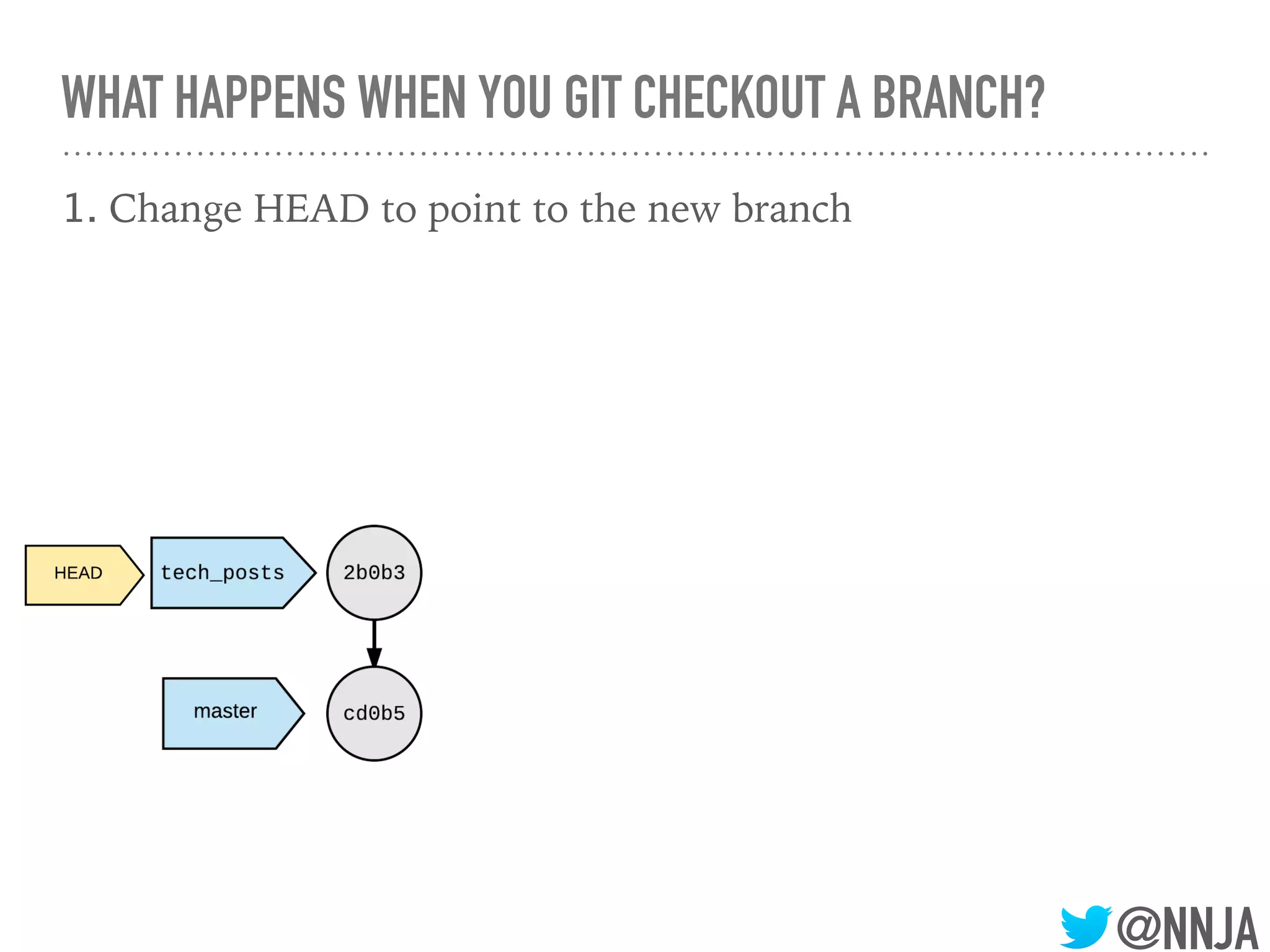
WHAT HAPPENS WHEN YOU GIT CHECKOUT A BRANCH?
@NNJA
WHAT HAPPENS WHEN YOU GIT CHECKOUT A BRANCH?
1. Change HEAD to point to the new branch
@NNJA
WHAT HAPPENS WHEN YOU GIT CHECKOUT A BRANCH?
1. Change HEAD to point to the new branch
@NNJA
WHAT HAPPENS WHEN YOU GIT CHECKOUT A BRANCH?
1. Change HEAD to point to the new branch
@NNJA
WHAT HAPPENS WHEN YOU GIT CHECKOUT A BRANCH?
1. Change HEAD to point to the new branch
@NNJA
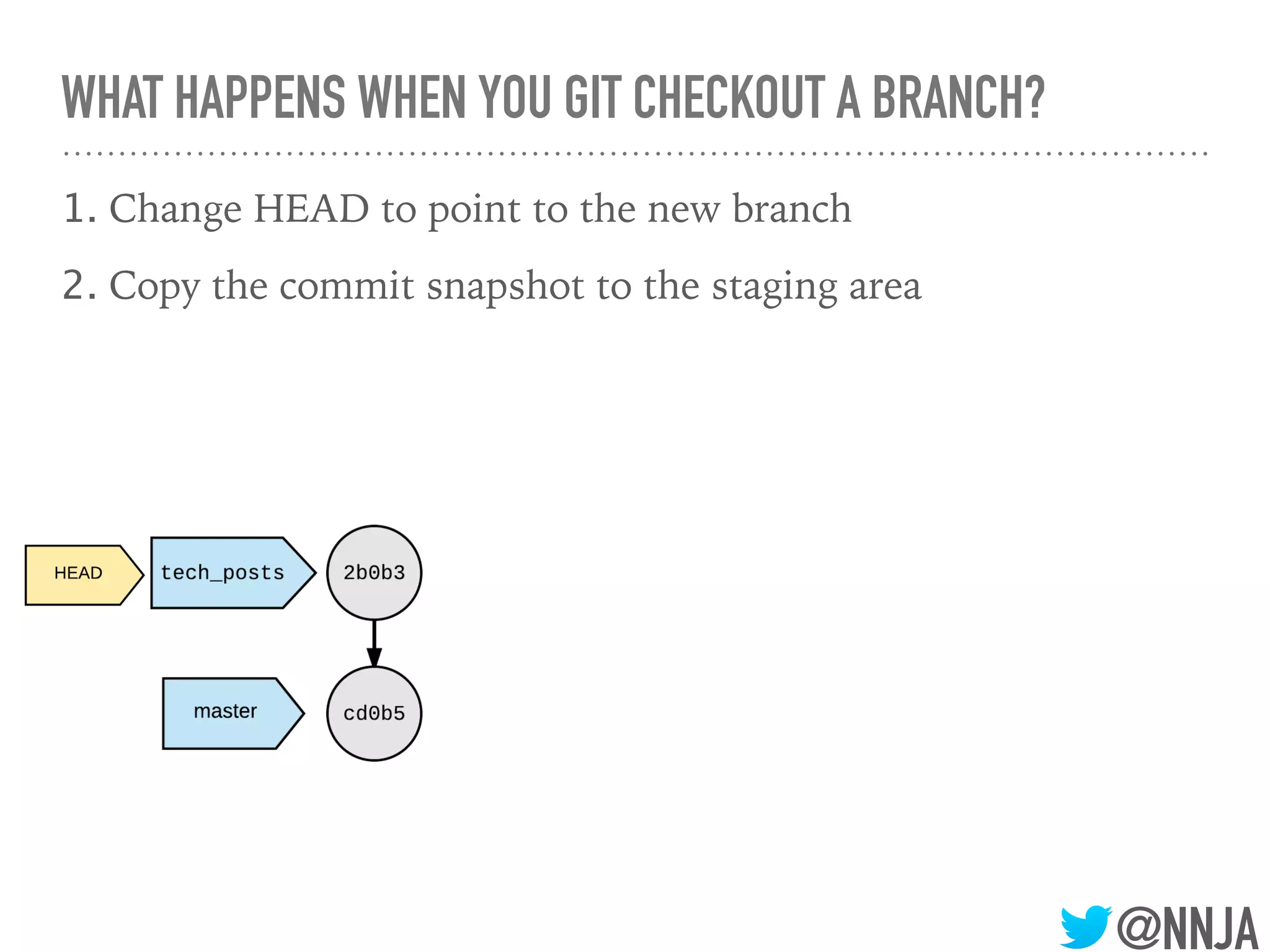
WHAT HAPPENS WHEN YOU GIT CHECKOUT A BRANCH?
1. Change HEAD to point to the new branch
2. Copy the commit snapshot to the staging area
@NNJA
WHAT HAPPENS WHEN YOU GIT CHECKOUT A BRANCH?
1. Change HEAD to point to the new branch
2. Copy the commit snapshot to the staging area
@NNJA
WHAT HAPPENS WHEN YOU GIT CHECKOUT A BRANCH?
1. Change HEAD to point to the new branch
2. Copy the commit snapshot to the staging area
@NNJA
WHAT HAPPENS WHEN YOU GIT CHECKOUT A BRANCH?
1. Change HEAD to point to the new branch
2. Copy the commit snapshot to the staging area
3. Update the working area with the branch contents
@NNJA
WHAT HAPPENS WHEN YOU GIT CHECKOUT A BRANCH?
1. Change HEAD to point to the new branch
2. Copy the commit snapshot to the staging area
3. Update the working area with the branch contents
@NNJA
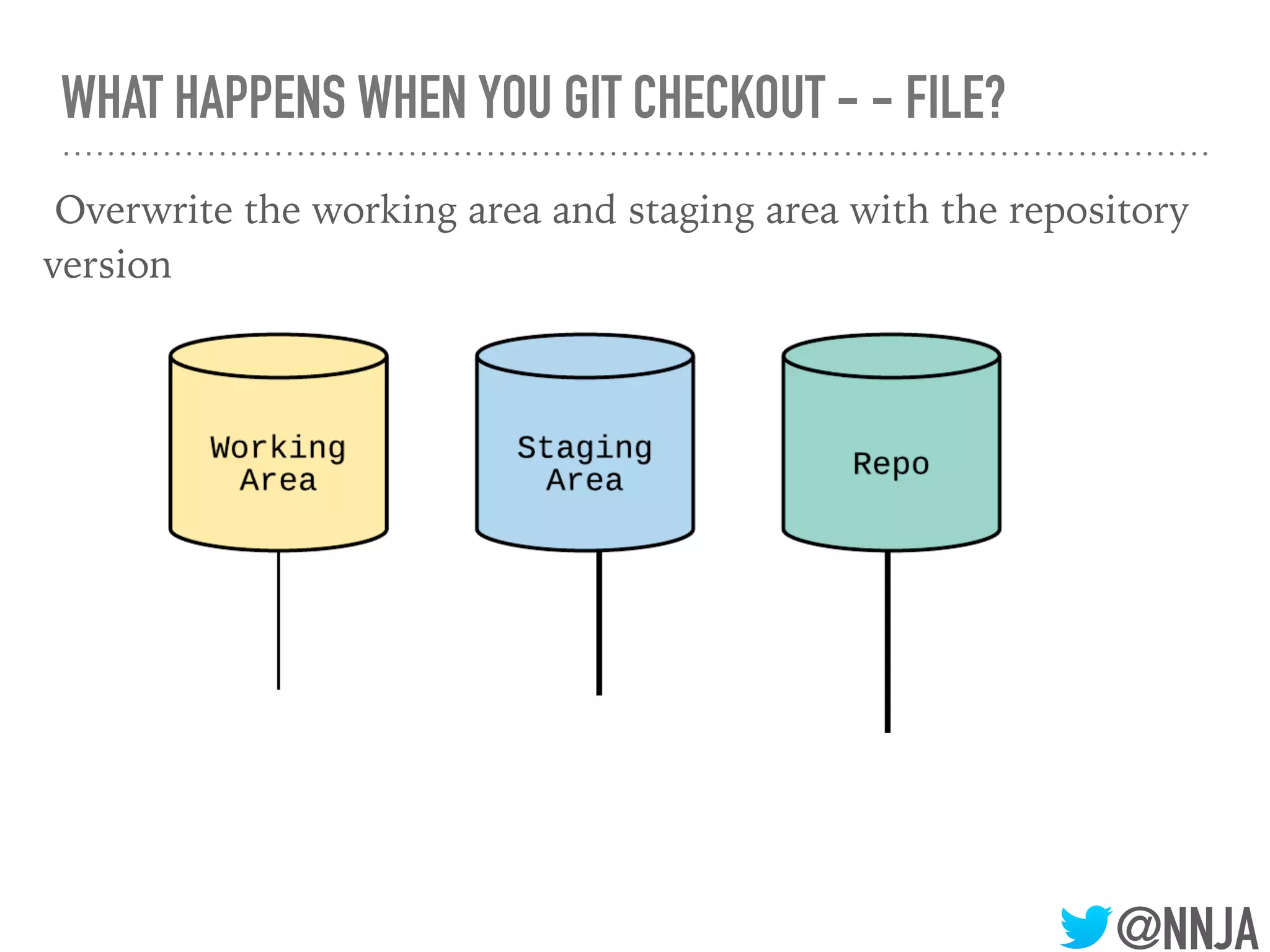
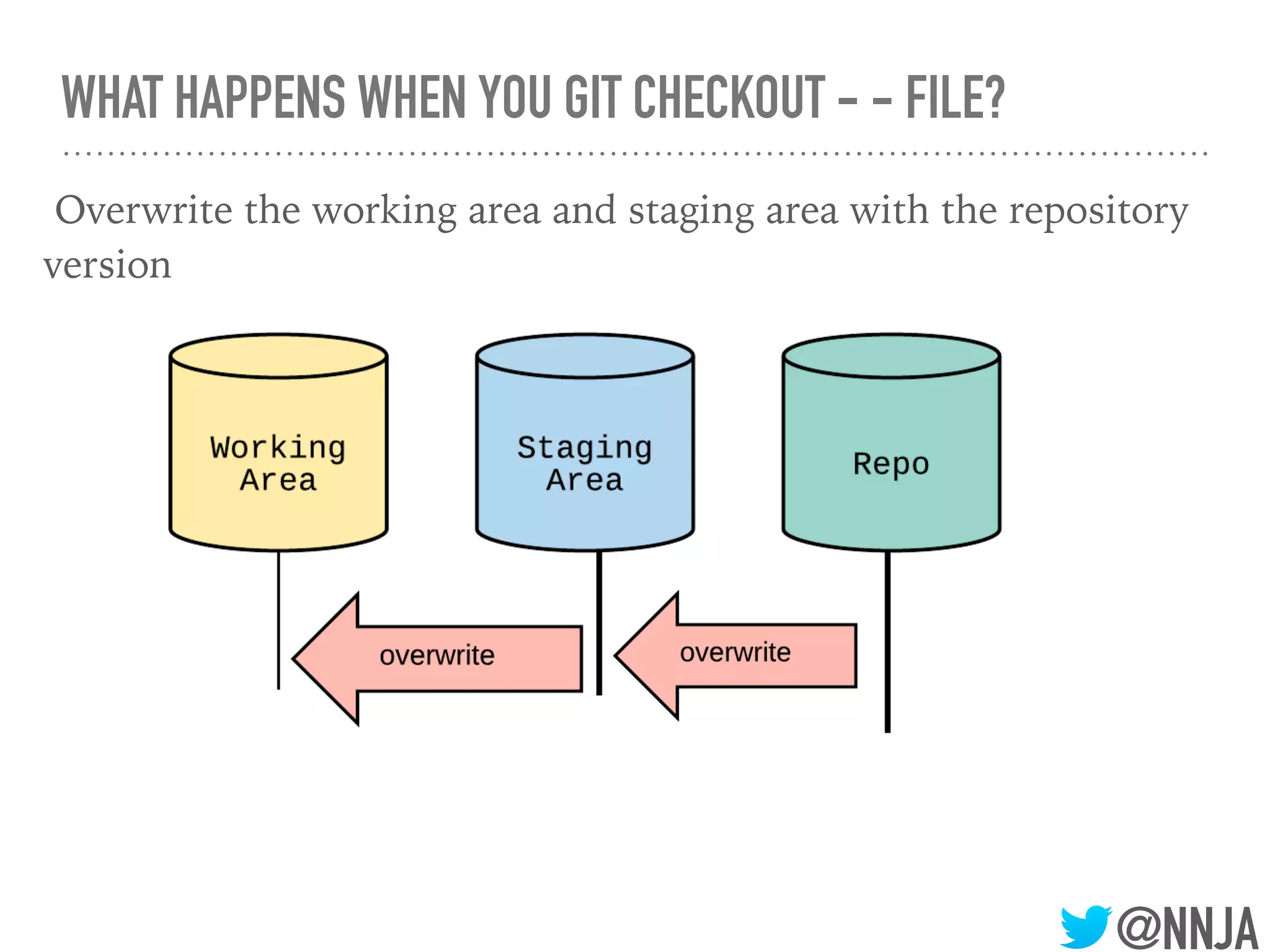
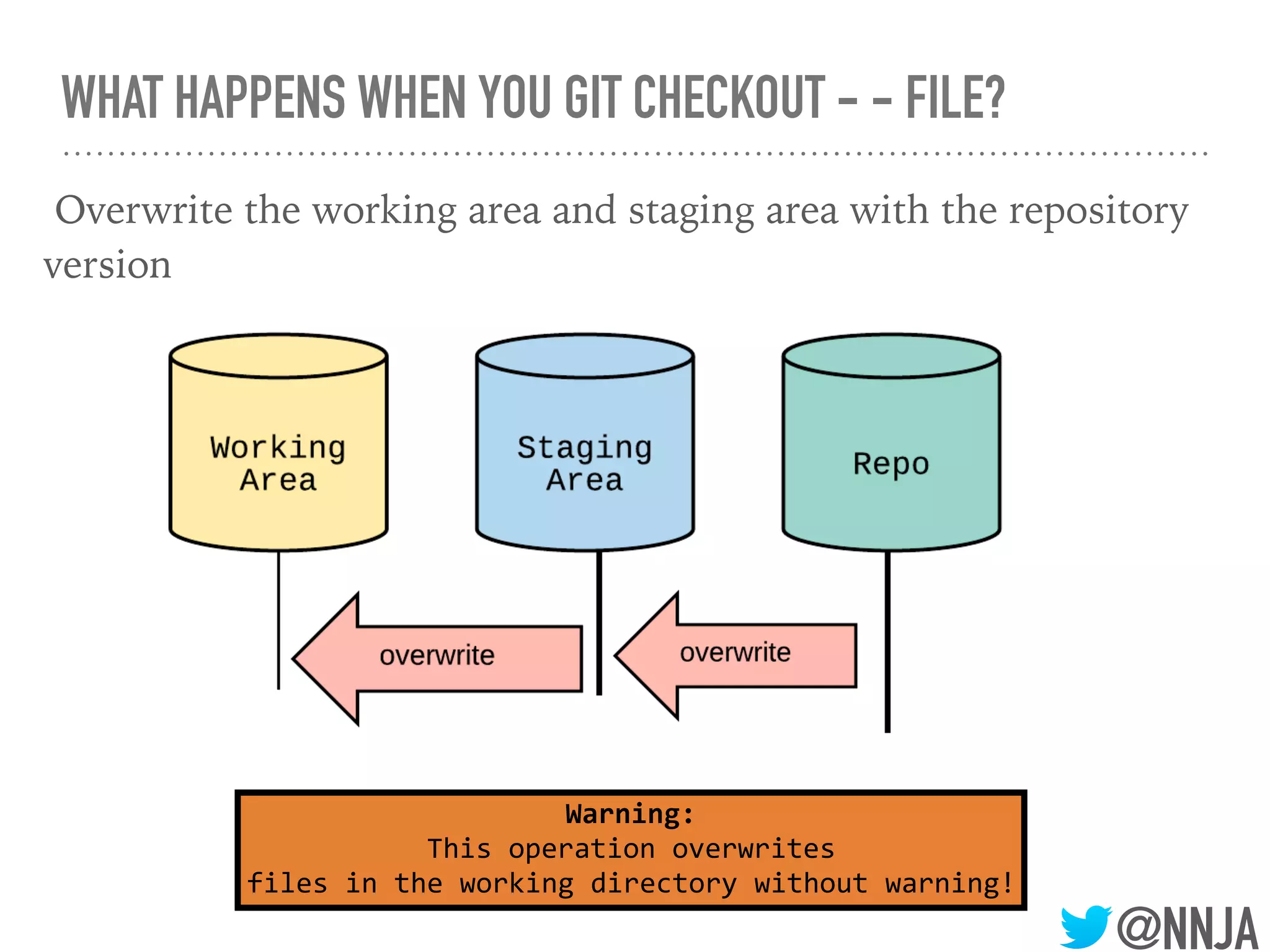
WHAT HAPPENS WHEN YOU GIT CHECKOUT - - FILE?
Overwrite the working area and staging area with the repository
version
@NNJA
WHAT HAPPENS WHEN YOU GIT CHECKOUT - - FILE?
Overwrite the working area and staging area with the repository
version
@NNJA
WHAT HAPPENS WHEN YOU GIT CHECKOUT - - FILE?
Overwrite the working area and staging area with the repository
version
@NNJA
WHAT HAPPENS WHEN YOU GIT CHECKOUT - - FILE?
Overwrite the working area and staging area with the repository
version
@NNJA
WHAT HAPPENS WHEN YOU GIT CHECKOUT - - FILE?
Overwrite the working area and staging area with the repository
version
Warning:
This operation overwrites
files in the working directory without warning!
@NNJA
GIT CHECKOUT: FROM A SPECIFIC COMMIT
@NNJA
GIT CHECKOUT: FROM A SPECIFIC COMMIT
➤ Checkout a file from a specific commit
➤ copies to both working area & staging area
➤ git checkout <commit> -- <file_path>
@NNJA
GIT CHECKOUT: FROM A SPECIFIC COMMIT
➤ Checkout a file from a specific commit
➤ copies to both working area & staging area
➤ git checkout <commit> -- <file_path>
➤ Restore a deleted file
➤ git checkout <deleting_commit>^ -- <file_path>
@NNJA
GIT CHECKOUT: FROM A SPECIFIC COMMIT
➤ Checkout a file from a specific commit
➤ copies to both working area & staging area
➤ git checkout <commit> -- <file_path>
➤ Restore a deleted file
➤ git checkout <deleting_commit>^ -- <file_path>
Warning:
This operation will overwrite
files in the working directory and staging area with no warning!
@NNJA
GIT RESET
@NNJA
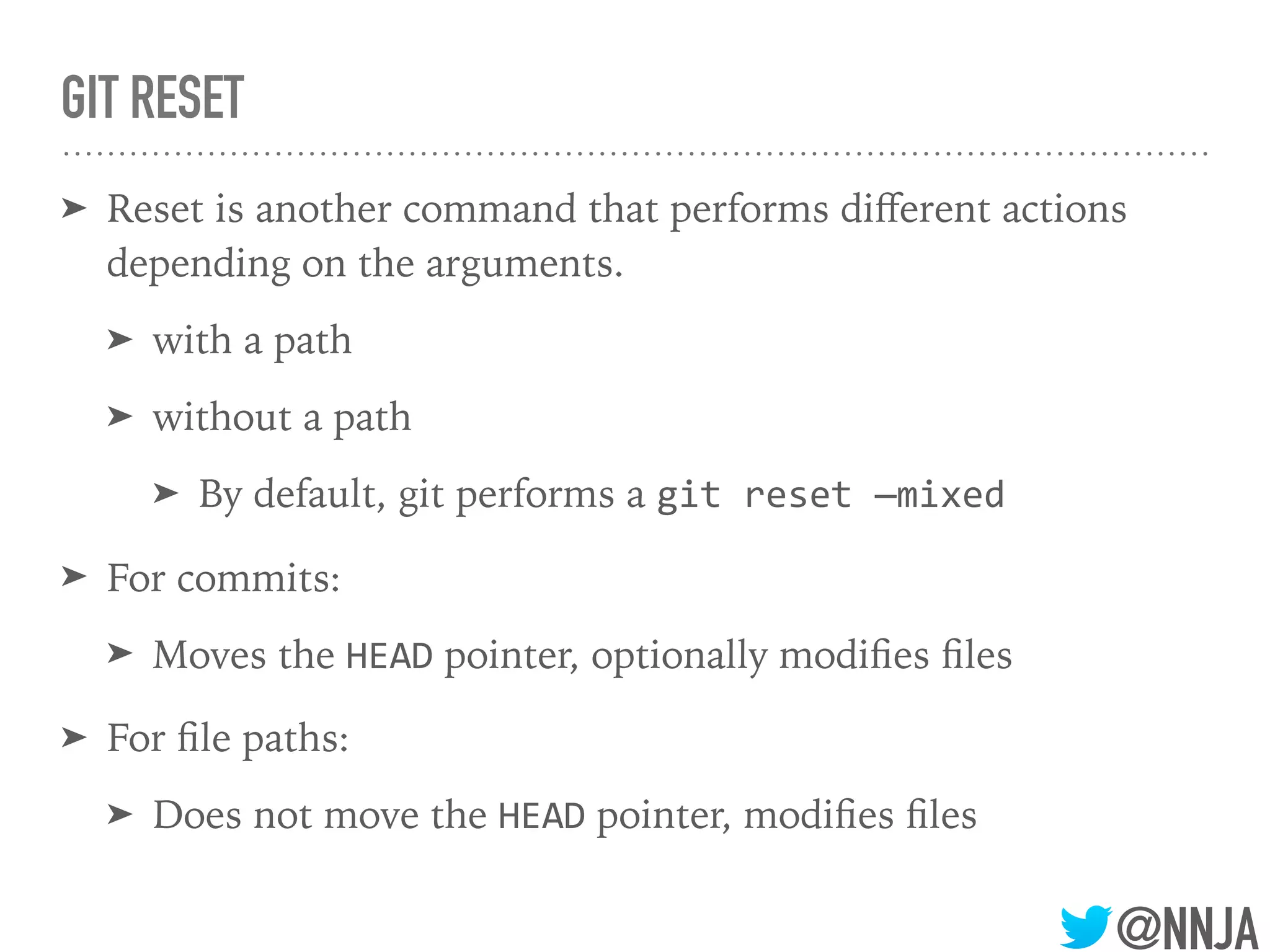
GIT RESET
➤ Reset is another command that performs different actions
depending on the arguments.
➤ with a path
➤ without a path
➤ By default, git performs a git reset —mixed
@NNJA
GIT RESET
➤ Reset is another command that performs different actions
depending on the arguments.
➤ with a path
➤ without a path
➤ By default, git performs a git reset —mixed
➤ For commits:
➤ Moves the HEAD pointer, optionally modifies files
@NNJA
GIT RESET
➤ Reset is another command that performs different actions
depending on the arguments.
➤ with a path
➤ without a path
➤ By default, git performs a git reset —mixed
➤ For commits:
➤ Moves the HEAD pointer, optionally modifies files
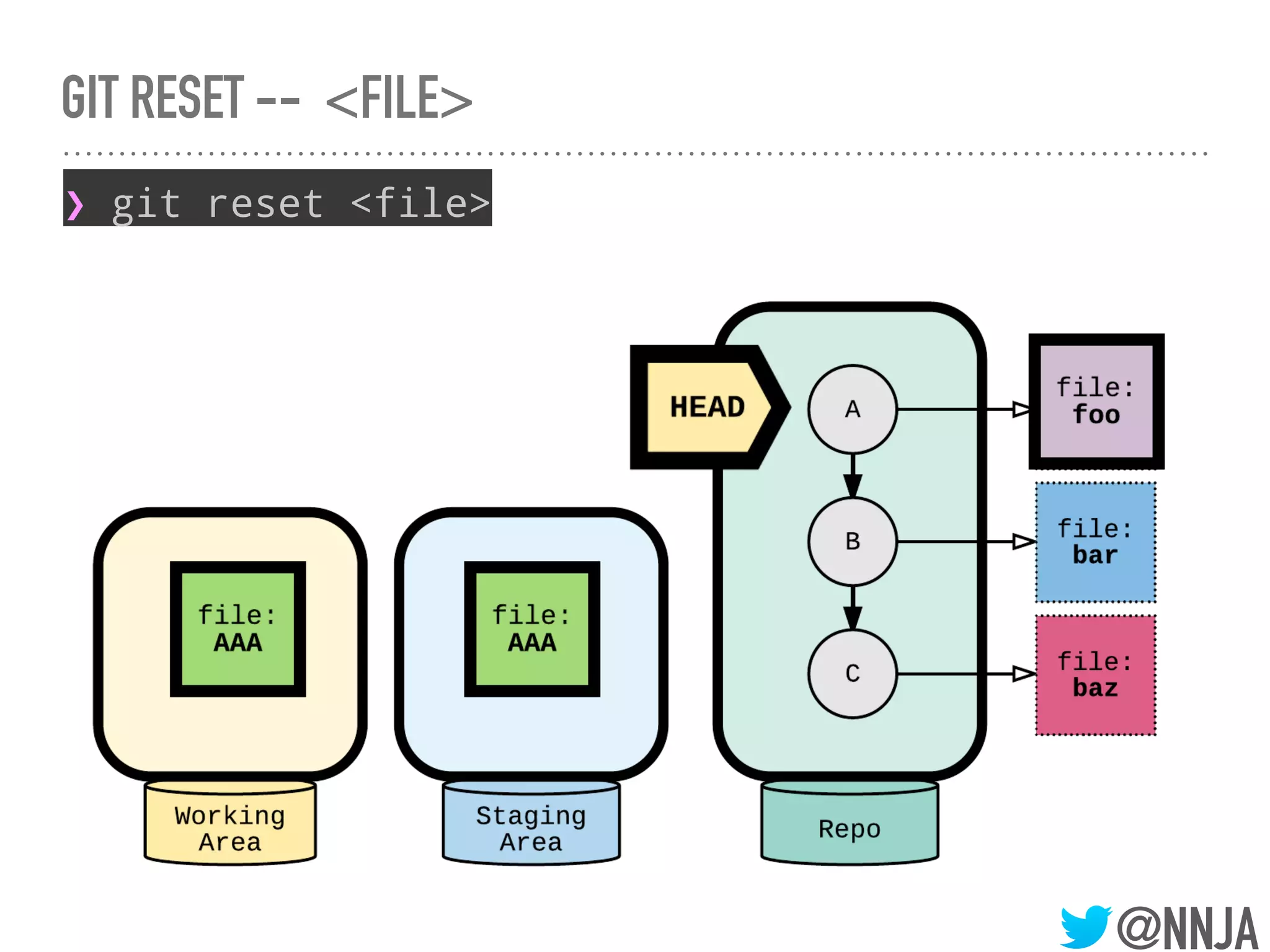
➤ For file paths:
➤ Does not move the HEAD pointer, modifies files
@NNJA
RESET --SOFT: MOVE HEAD
❯ git reset --soft HEAD~
@NNJA
RESET --SOFT: MOVE HEAD
❯ git reset --soft HEAD~
@NNJA
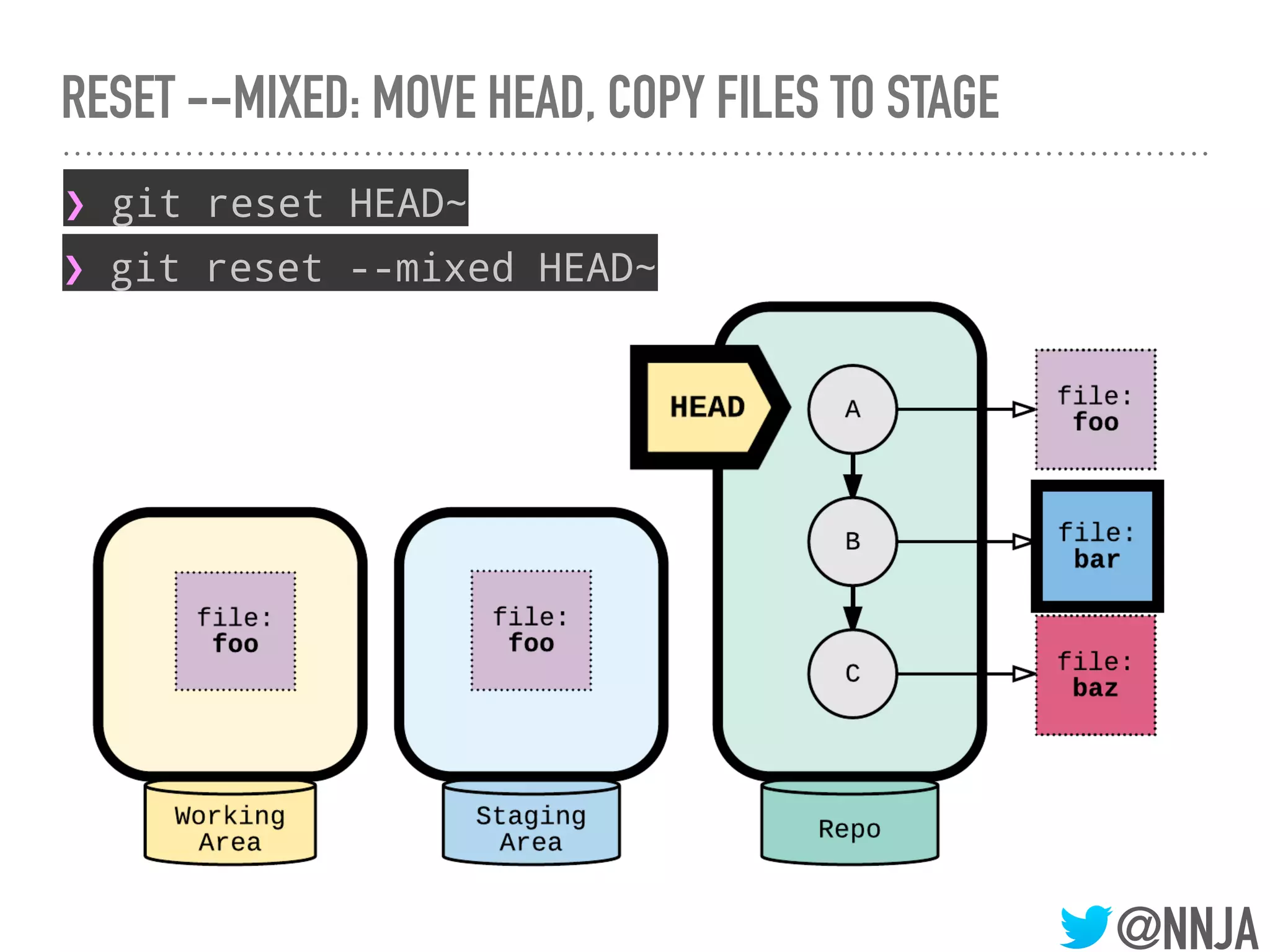
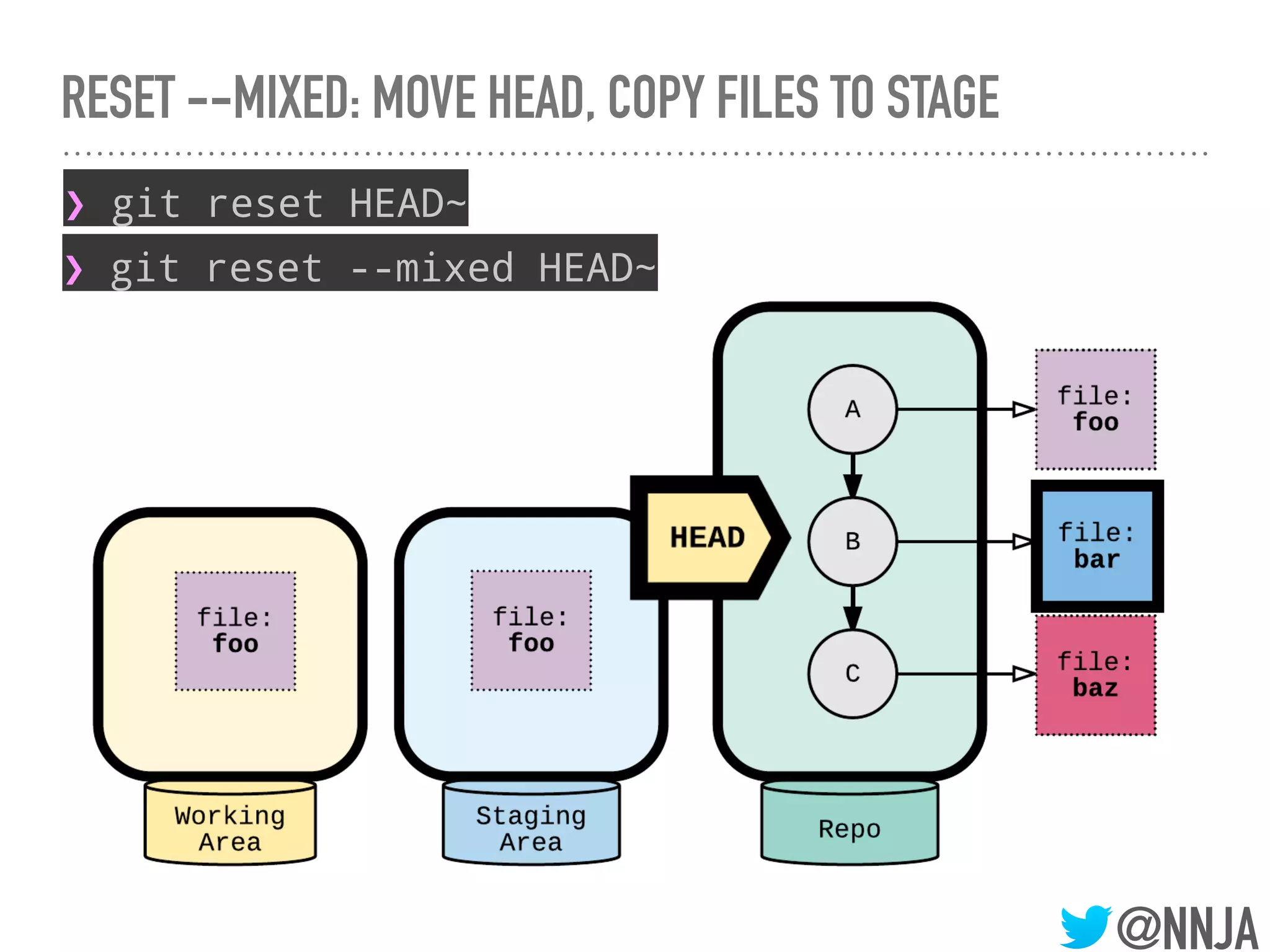
RESET --MIXED: MOVE HEAD, COPY FILES TO STAGE
❯ git reset --mixed HEAD~
❯ git reset HEAD~
@NNJA
RESET --MIXED: MOVE HEAD, COPY FILES TO STAGE
❯ git reset --mixed HEAD~
❯ git reset HEAD~
@NNJA
RESET --MIXED: MOVE HEAD, COPY FILES TO STAGE
❯ git reset --mixed HEAD~
❯ git reset HEAD~
@NNJA
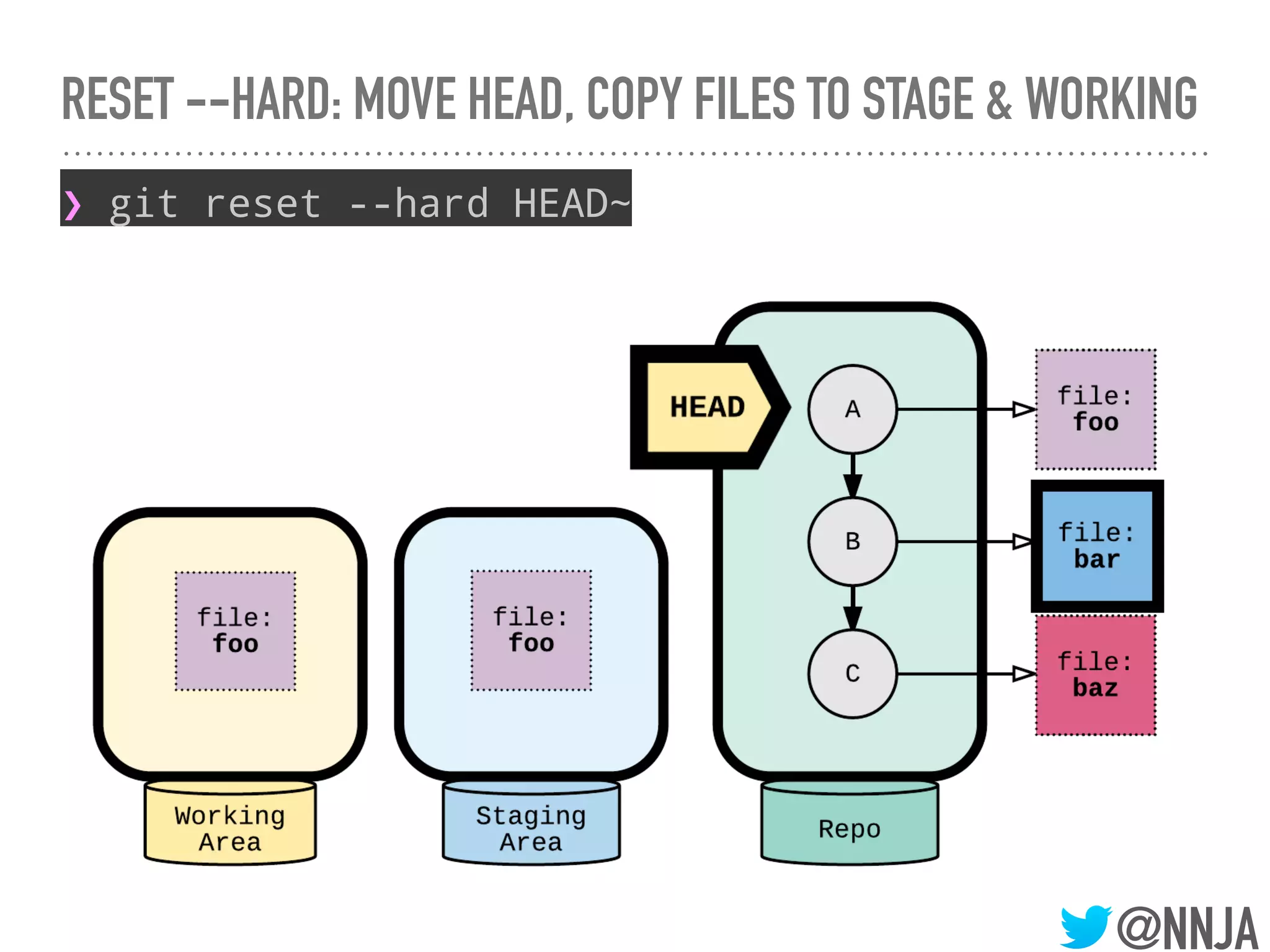
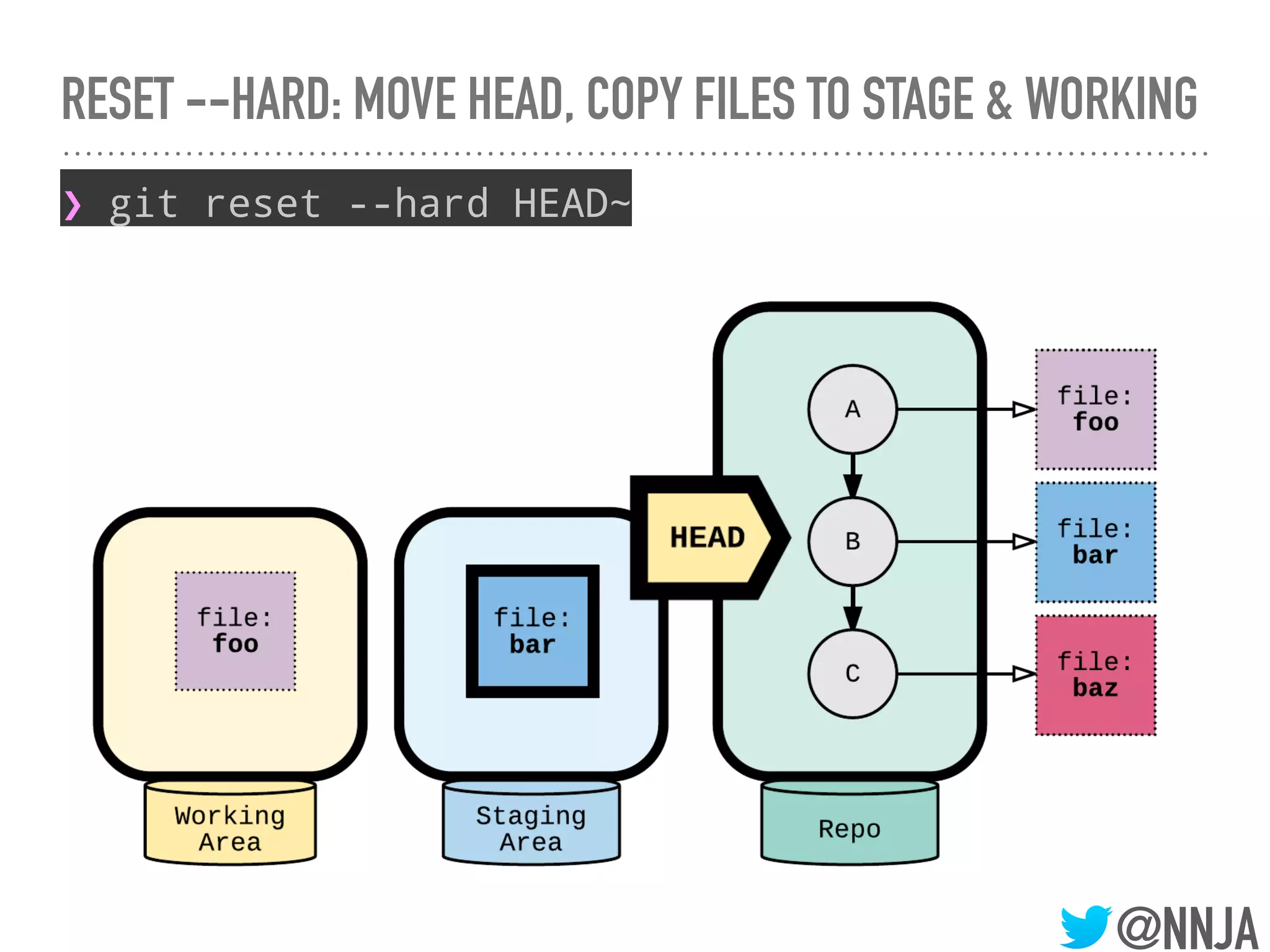
RESET --HARD: MOVE HEAD, COPY FILES TO STAGE & WORKING
❯ git reset --hard HEAD~
@NNJA
RESET --HARD: MOVE HEAD, COPY FILES TO STAGE & WORKING
❯ git reset --hard HEAD~
@NNJA
RESET --HARD: MOVE HEAD, COPY FILES TO STAGE & WORKING
❯ git reset --hard HEAD~
@NNJA
RESET --HARD: MOVE HEAD, COPY FILES TO STAGE & WORKING
❯ git reset --hard HEAD~
@NNJA
RESET --HARD: MOVE HEAD, COPY FILES TO STAGE & WORKING
❯ git reset --hard HEAD~
@NNJA
RESET --HARD: MOVE HEAD, COPY FILES TO STAGE & WORKING
❯ git reset --hard HEAD~
Warning: this overwrites files
and cannot be undone!
@NNJA
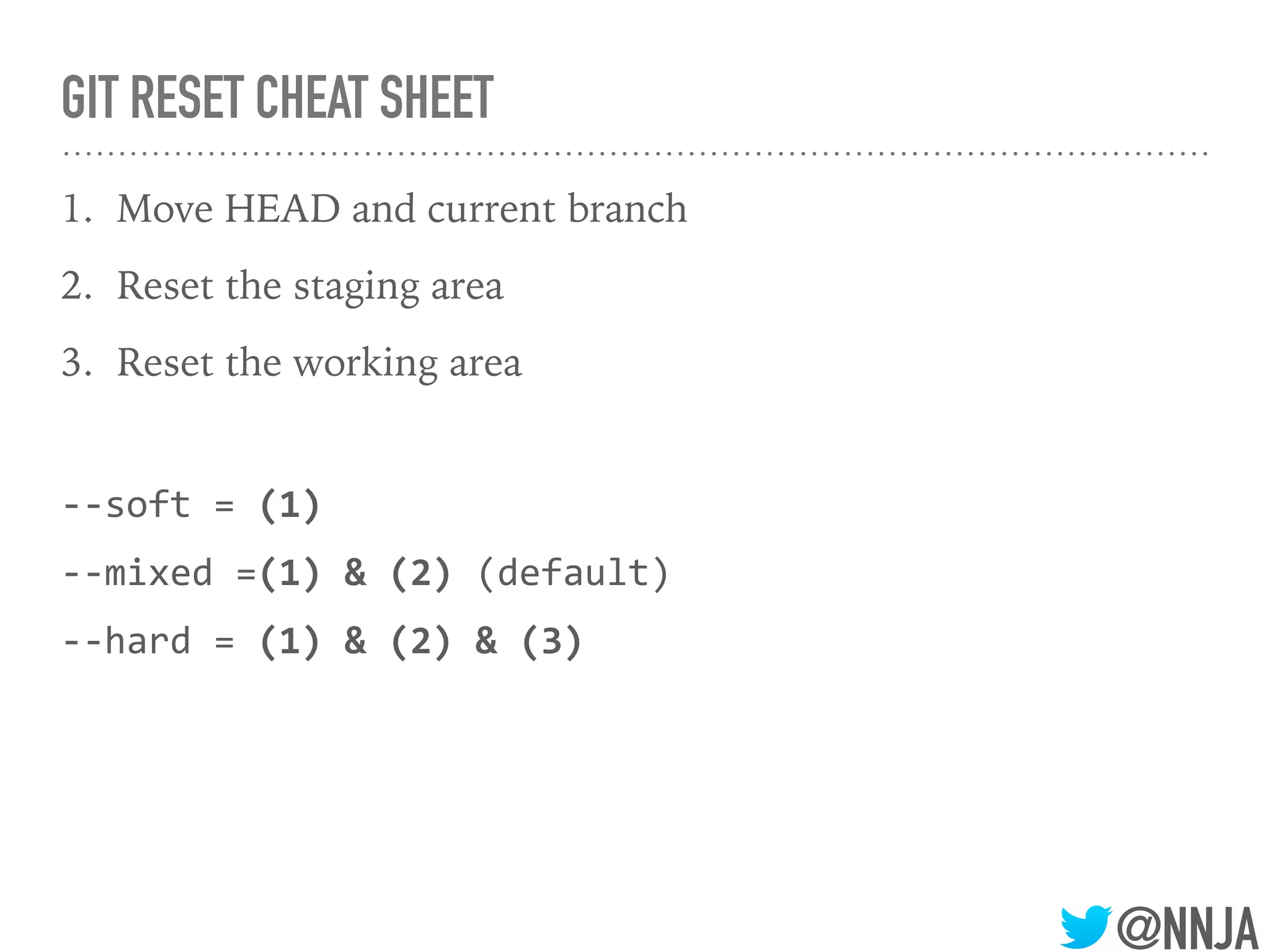
GIT RESET CHEAT SHEET
1. Move HEAD and current branch
2. Reset the staging area
3. Reset the working area
--soft = (1)
--mixed =(1) & (2) (default)
--hard = (1) & (2) & (3)
@NNJA
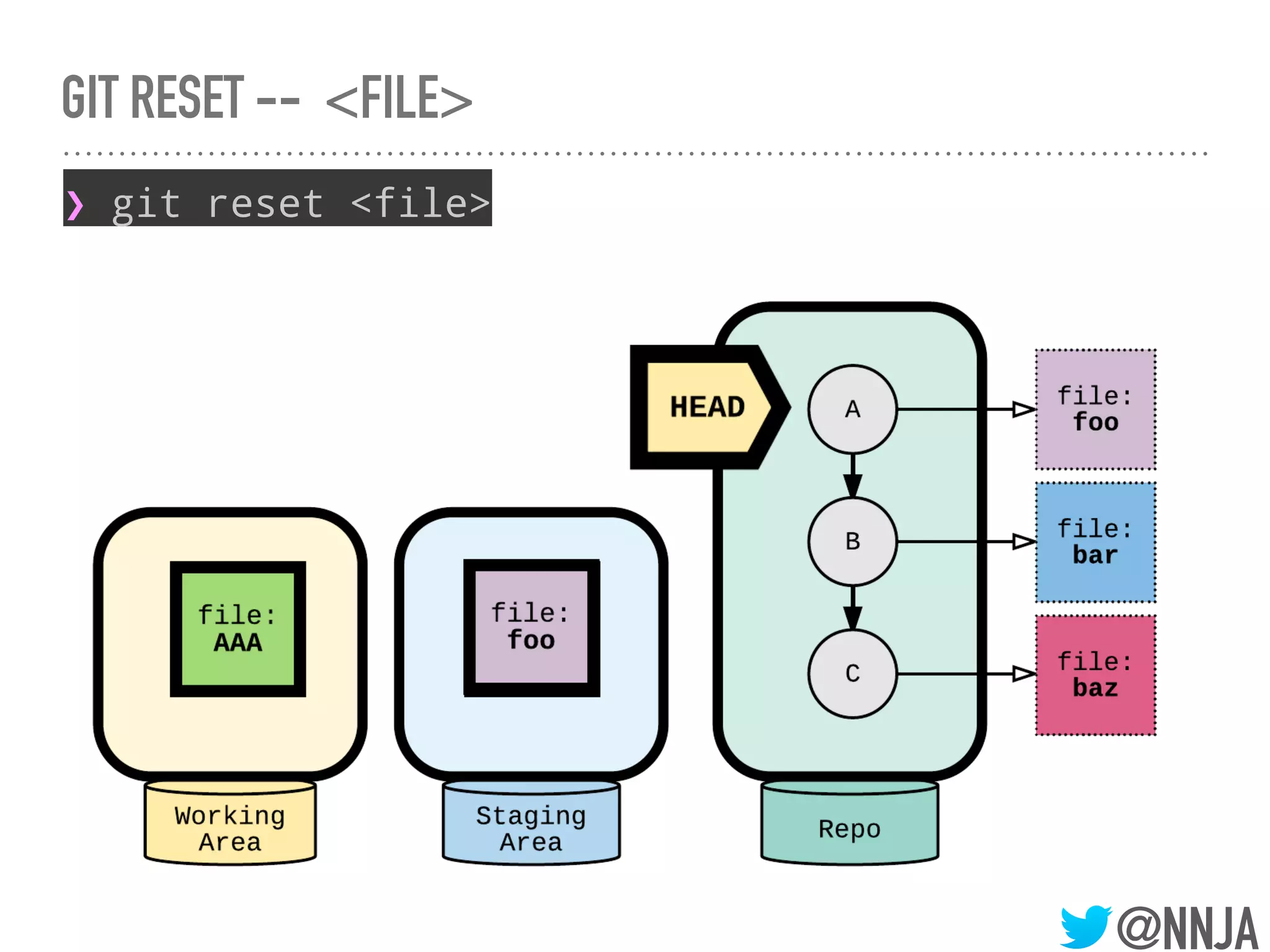
GIT RESET -- <FILE>
❯ git reset <file>
@NNJA
GIT RESET -- <FILE>
❯ git reset <file>
@NNJA
GIT RESET <COMMIT> -- <FILE>
❯ git reset <commit> -- <file>
@NNJA
GIT RESET <COMMIT> -- <FILE>
❯ git reset <commit> -- <file>
@NNJA
UNDO A GIT RESET WITH ORIG_HEAD
➤ In case of an accidental git reset -
➤ Git keeps the previous value of HEAD in a variable called
ORIG_HEAD
➤ To go back to the way things were:
➤ git reset ORIG_HEAD
@NNJA
GIT REVERT - THE “SAFE” RESET
➤ Git revert creates a new commit that introduces the opposite
changes from the specified commit.
➤ The original commit stays in the repository.
➤ Tip:
➤ Use revert if you’re undoing a commit that has already
been shared.
➤ Revert does not change history.
@NNJA
GIT REVERT - PICK A COMMIT TO UNDO
❯ git log --oneline
2b0b3f2 (HEAD -> tech_posts) New blog post about python
cd0b57c (tag: v1.0, tag: my-first-commit, master) Initial commit
❯ git show 2b0b3f2
commit 2b0b3f24f3d7e8df809e46eb10c11ba66139acb8 (HEAD -> tech_posts)
Author: Nina Zakharenko <nina@nnja.io>
Date: Sun Sep 24 14:55:35 2017 -0700
New blog post about python
diff --git a/posts/python.txt b/posts/python.txt
@NNJA
GIT REVERT - THE “SAFE” RESET
@NNJA
GIT REVERT - THE “SAFE” RESET
❯ git revert 2b0b3f2
[tech_posts a08a108] Revert "New blog post about python"
1 file changed, 0 insertions(+), 0 deletions(-)
delete mode 100644 posts/python.txt
@NNJA
GIT REVERT - THE “SAFE” RESET
❯ git revert 2b0b3f2
[tech_posts a08a108] Revert "New blog post about python"
1 file changed, 0 insertions(+), 0 deletions(-)
delete mode 100644 posts/python.txt
@NNJA
GIT REVERT - THE “SAFE” RESET
❯ git revert 2b0b3f2
[tech_posts a08a108] Revert "New blog post about python"
1 file changed, 0 insertions(+), 0 deletions(-)
delete mode 100644 posts/python.txt
❯ git log --oneline
a08a108 (HEAD -> tech_posts) Revert "New blog post about python"
2b0b3f2 New blog post about python
cd0b57c (tag: v1.0, tag: my-first-commit, master) Initial commit
@NNJA
SUMMARY: COMMON WAYS OF UNDOING CHANGES
➤ checkout
➤ reset
➤ revert
DANGER ZONE
@NNJA
@NNJA
LOCAL DESTRUCTIVE OPERATIONS
➤ git checkout -- <file>
➤ If the file is present in the staging area, it’ll be overwritten.
➤ git reset --hard
➤ Will overwrite changes that are staged and in the working
area.
➤ Unless changes are stashed, there’s no way of getting them
back!
➤ Tip: use git stash --include-untracked to include
working area changes in your stash
@NNJA
REMOTE DESTRUCTIVE OPERATIONS - REWRITING HISTORY
➤ There are many operations that can rewrite history:
➤ rebase
➤ amend
➤ reset
➤ If your code is hosted or shared:
➤ Never run git push -f
@NNJA
RECOVER LOST WORK
➤ Use ORIG_HEAD:
➤ The commit HEAD was pointing to before a:
➤ reset
➤ merge
➤ Check for repository copies:
➤ github
➤ coworker
@NNJA
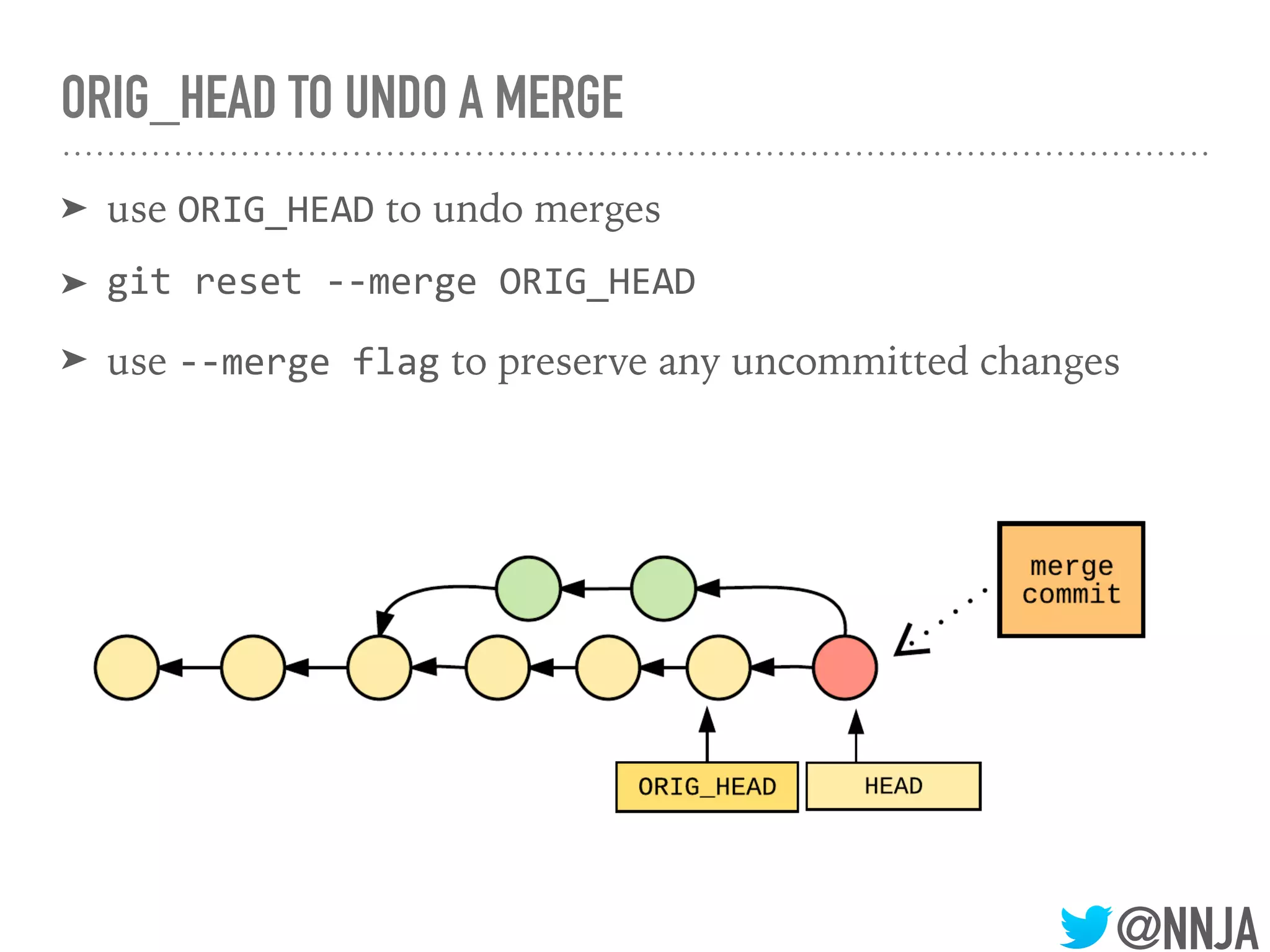
ORIG_HEAD TO UNDO A MERGE
➤ use ORIG_HEAD to undo merges
➤ git reset --merge ORIG_HEAD
➤ use --merge flag to preserve any uncommitted changes
@NNJA
ORIG_HEAD TO UNDO A MERGE
➤ use ORIG_HEAD to undo merges
➤ git reset --merge ORIG_HEAD
➤ use --merge flag to preserve any uncommitted changes
git reset —merge
@NNJA
ORIG_HEAD TO UNDO A MERGE
➤ use ORIG_HEAD to undo merges
➤ git reset --merge ORIG_HEAD
➤ use --merge flag to preserve any uncommitted changes
git reset —merge
@NNJA
ORIG_HEAD TO UNDO A MERGE
➤ use ORIG_HEAD to undo merges
➤ git reset --merge ORIG_HEAD
➤ use --merge flag to preserve any uncommitted changes
git reset —merge
@NNJA
HEAD-LESS / DETACHED HEAD
❯ git checkout cd0b57
Note: checking out 'cd0b57'.
You are in 'detached HEAD' state. You
can look around, make experimental
changes and commit them, and you can
discard any commits you make in this
state without impacting any branches
by performing another checkout.
@NNJA
HEAD-LESS / DETACHED HEAD
❯ git checkout cd0b57
Note: checking out 'cd0b57'.
You are in 'detached HEAD' state. You
can look around, make experimental
changes and commit them, and you can
discard any commits you make in this
state without impacting any branches
by performing another checkout.
❯ git add posts/second-post.txt
❯ git commit -m "My second post"
[detached HEAD 1f6ee83] My second post
1 file changed, 1 insertion(+)
create mode 100644 posts/second-
post.txt
@NNJA
HEAD-LESS / DETACHED HEAD
➤ Sometimes you need to checkout a specific commit (or tag)
instead of a branch.
➤ git moves the HEAD pointer to that commit
➤ as soon as you checkout a different branch or commit, the
value of HEAD will point to the new SHA
➤ There is no reference pointing to the commits you made in a
detached state.
@NNJA
HEAD-LESS / DETACHED HEAD
Save your work:
➤ Create a new branch that points to the last commit you
made in a detached state.
➤ git branch <new-branch-name> <commit>
➤ Why the last commit?
➤ Because the other commits point to their parents.
@NNJA
DANGLING COMMITS
Discard your work:
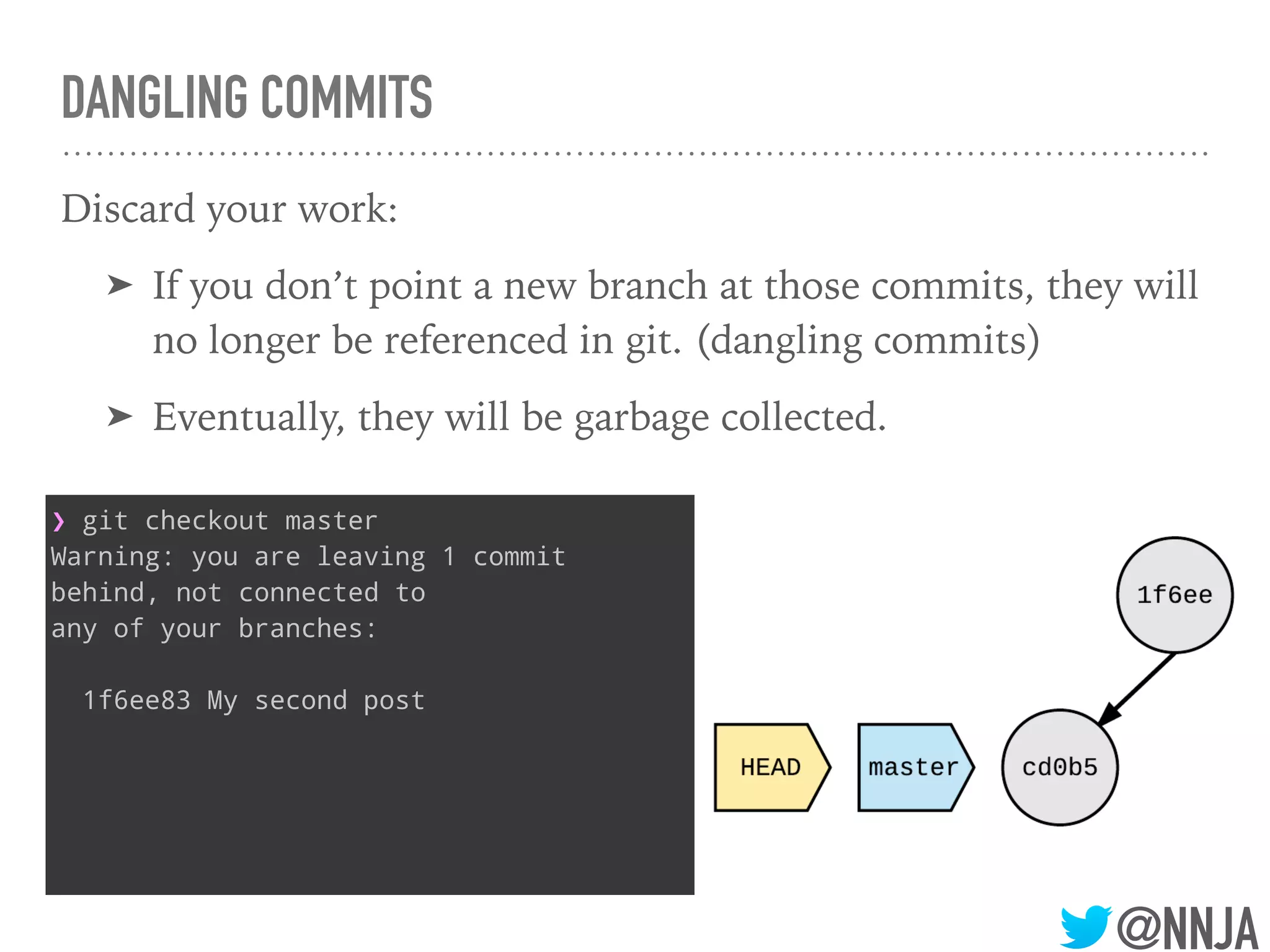
➤ If you don’t point a new branch at those commits, they will
no longer be referenced in git. (dangling commits)
➤ Eventually, they will be garbage collected.
@NNJA
DANGLING COMMITS
Discard your work:
➤ If you don’t point a new branch at those commits, they will
no longer be referenced in git. (dangling commits)
➤ Eventually, they will be garbage collected.
❯ git checkout master
Warning: you are leaving 1 commit
behind, not connected to
any of your branches:
1f6ee83 My second post
@NNJA
DANGLING COMMITS
Discard your work:
➤ If you don’t point a new branch at those commits, they will
no longer be referenced in git. (dangling commits)
➤ Eventually, they will be garbage collected.
❯ git checkout master
Warning: you are leaving 1 commit
behind, not connected to
any of your branches:
1f6ee83 My second post
@NNJA
DANGLING COMMITS
Discard your work:
➤ If you don’t point a new branch at those commits, they will
no longer be referenced in git. (dangling commits)
➤ Eventually, they will be garbage collected.
❯ git checkout master
Warning: you are leaving 1 commit
behind, not connected to
any of your branches:
1f6ee83 My second post
@NNJA
USING GIT REFLOG AND ‘@‘ SYNTAX
➤ By default, git keeps commits around for a short while.
➤ If you need to go back in time, and find a commit that’s no
longer referenced, you can look in the reflog.
➤ The syntax of reflog is different.
➤ HEAD@{2} means “the value of HEAD 2 moves ago”
❯ git reflog
e7cd68b (HEAD -> dont_overwrite_vary_header, origin/dont_overwrite_vary_header)
HEAD@{0}: reset: moving to HEAD~
94c49a4 HEAD@{1}: commit: A
e7cd68b (HEAD -> dont_overwrite_vary_header, origin/dont_overwrite_vary_header)
HEAD@{2}: commit (amend): Don't overwrite Vary header when setting for cookie
access #2317
a54419a HEAD@{3}: rebase finished: returning to refs/heads/
dont_overwrite_vary_header
a54419a HEAD@{4}: rebase: Don't overwrite Vary header when setting for cookie
@NNJA
RESOURCES
@NNJA
RTFM?
➤ Docs for all git commands are available with:

man git-<command>
❯ man git-branch
GIT-BRANCH(1) Git Manual
GIT-BRANCH(1)
NAME
git-branch - List, create, or delete branches
SYNOPSIS
git branch [--color[=<when>] | --no-color] [-r | -a]
[--list] [-v [--abbrev=<length> | --no-abbrev]]
[--column[=<options>] | --no-column] [--
sort=<key>]
@NNJA
FREE BOOK
GIT-SCM.COM
THANKS!
@NNJA
@NNJA
STASHING
(Bonus section)
@NNJA
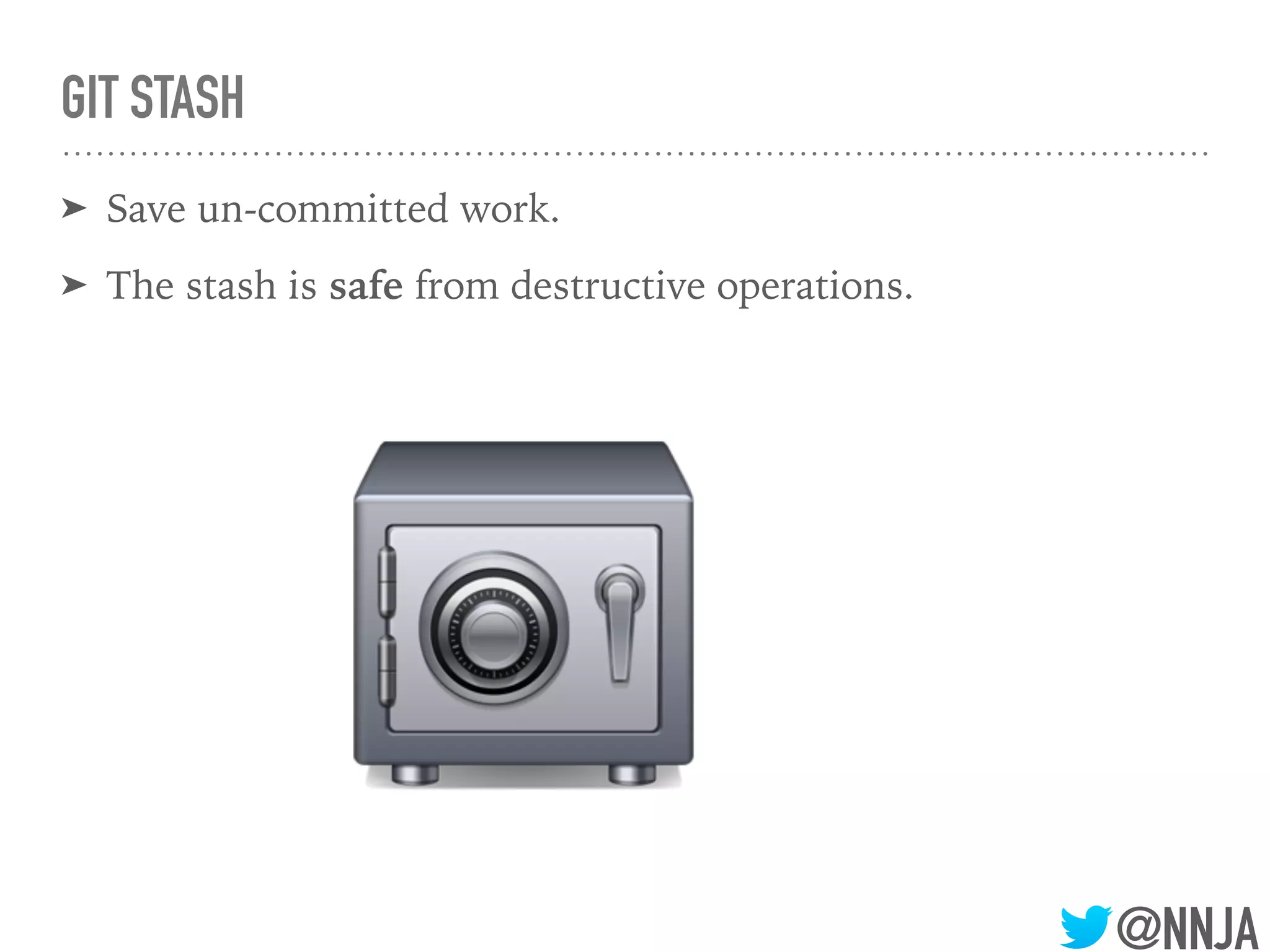
GIT STASH
➤ Save un-committed work.
➤ The stash is safe from destructive operations.
@NNJA
GIT STASH - BASIC USE
➤ stash changes
➤ git stash
➤ list changes
➤ git stash list
➤ show the contents
➤ git stash show stash@{0}
➤ apply the last stash
➤ git stash apply
➤ apply a specific stash
➤ git stash apply stash@{0}
@NNJA
ADVANCED STASHING - KEEPING FILES
➤ Keep untracked files
➤ git stash --include-untracked
➤ Keep all files (even ignored ones!)
➤ git stash --all

Recovering From Git Mistakes - Nina Zakharenko

  • 1.
    @NNJA RECOVERING FROM GIT MISTAKES NINAZAKHARENKO CDA Summit 2018 bit.ly/cda-git-mistakes
  • 2.
  • 3.
    @NNJA OVERVIEW ➤ Understanding commitsand references ➤ Where code lives: Working Area, Staging Area, Repository ➤ Recovering from mistakes ➤ What operations are unrecoverable
  • 4.
  • 5.
    @NNJA COMMIT OBJECT a commitpoints to: ➤ a tree and contains metadata: ➤ author and committer ➤ date ➤ message ➤ parent commit (one or more) the SHA1 of the commit is the hash of all this information
  • 6.
    @NNJA COMMITS POINT TOPARENT COMMITS AND TREES fae12 ab29d
  • 7.
    @NNJA COMMITS POINT TOPARENT COMMITS AND TREES fae12 ab29d Parent commit
  • 8.
    @NNJA COMMITS POINT TOPARENT COMMITS AND TREES fae12 ab29d Parent commit Tree “Snapshot of the repository”. Points at files and directories.
  • 9.
    @NNJA A COMMIT ISA CODE SNAPSHOT
  • 10.
    @NNJA WHY CAN’T WE“CHANGE” COMMITS? ➤ If you change any data about the commit, the commit will have a new SHA1 hash. ➤ Even if the files don’t change, the created date will.
  • 11.
    @NNJA REFERENCES - POINTERSTO COMMITS ➤ Tags ➤ Branches ➤ HEAD - a pointer to the current commit fae12 ab29d
  • 12.
  • 13.
    @NNJA WHAT IS HEAD? ➤HEAD is how git knows what branch you’re currently on, and what the next parent will be.
  • 14.
    @NNJA WHAT IS HEAD? ➤HEAD is how git knows what branch you’re currently on, and what the next parent will be. ➤ It’s a pointer. ➤ It usually points at the name of the current branch. ➤ But, it can point at a commit too (detached HEAD).
  • 15.
    @NNJA WHAT IS HEAD? ➤HEAD is how git knows what branch you’re currently on, and what the next parent will be. ➤ It’s a pointer. ➤ It usually points at the name of the current branch. ➤ But, it can point at a commit too (detached HEAD). ➤ It moves when: ➤ You make a commit in the currently active branch ➤ When you checkout a new branch
  • 16.
    @NNJA WHAT IS HEAD? ➤HEAD is how git knows what branch you’re currently on, and what the next parent will be. ➤ It’s a pointer. ➤ It usually points at the name of the current branch. ➤ But, it can point at a commit too (detached HEAD). ➤ It moves when: ➤ You make a commit in the currently active branch ➤ When you checkout a new branch
  • 17.
    @NNJA REFERENCING COMMITS ➤^ ➤ thefirst parent commit ➤~ ➤ the first commit back, following 1st parent
  • 18.
    @NNJA THREE AREAS WHERE CODELIVES 1. Working Area 2. Staging Area 3. Repository
  • 19.
    @NNJA THE WORKING AREA ➤Unstaged changes to already staged or commited files ➤ The files in your working area that are also not in the staging are are not handled by git. ➤ Called untracked files
  • 20.
    @NNJA THE STAGING AREA(A.K.A INDEX, CACHE) ➤ What files or changes are going to be part of the next commit ➤ The staging area is how git knows what will change between the current commit and the next commit.
  • 21.
    @NNJA THE REPOSITORY ➤ Thefiles git knows about! ➤ Contains all of your commits
  • 22.
  • 23.
    @NNJA THE STAGING AREA ➤The staging area is how git knows what will change between the current commit and the next commit. ➤ Tip: a “clean” staging area isn’t empty! ➤ Consider the baseline staging area as being an exact copy of the latest commit.
  • 24.
    @NNJA THE STAGING AREA ➤The staging area is how git knows what will change between the current commit and the next commit. ➤ Tip: a “clean” staging area isn’t empty! ➤ Consider the baseline staging area as being an exact copy of the latest commit. ❯ git ls-files -s 100644 b8b2583b242add97d513d8d8b85a46b9b5fb29cb 0 index.txt 100644 ed52afd72f64b1f8575e81bb4cb02ef1215739f6 0 posts/ welcome.txt
  • 25.
    @NNJA THE STAGING AREA ➤The staging area is how git knows what will change between the current commit and the next commit. ➤ Tip: a “clean” staging area isn’t empty! ➤ Consider the baseline staging area as being an exact copy of the latest commit. ❯ git ls-files -s 100644 b8b2583b242add97d513d8d8b85a46b9b5fb29cb 0 index.txt 100644 ed52afd72f64b1f8575e81bb4cb02ef1215739f6 0 posts/ welcome.txt The plumbing command ls-files -s will show you what’s in the staging area.
  • 26.
    @NNJA MOVING FILES IN& OUT OF THE STAGING AREA ➤ add a file to the next commit: ➤ git add <file> ➤ delete a file in the next commit: ➤ git rm <file> ➤ rename a file in the next commit: ➤ git mv <file>
  • 27.
    @NNJA “UNSTAGE” FILES FROMTHE STAGING AREA ➤ Not removing the files. ➤ You’re replacing them with a copy that’s currently in the repository.
  • 28.
  • 29.
  • 30.
    AMEND A COMMIT ➤Amend is a quick and easy shortcut that lets you make changes to the previous commit. 22
  • 31.
    AMEND A COMMIT ➤Amend is a quick and easy shortcut that lets you make changes to the previous commit. ❯ git commit -m "Add a blog post about Python" [tech_posts 4080a79] Add a blog post about Python 22
  • 32.
    AMEND A COMMIT ➤Amend is a quick and easy shortcut that lets you make changes to the previous commit. ❯ git commit -m "Add a blog post about Python" [tech_posts 4080a79] Add a blog post about Python oops! I forgot to add the blog post. 22
  • 33.
    AMEND A COMMIT ➤Amend is a quick and easy shortcut that lets you make changes to the previous commit. ❯ git commit -m "Add a blog post about Python" [tech_posts 4080a79] Add a blog post about Python ❯ git add posts/python.txt ❯ git commit --amend [tech_posts de53317] Add a blog post about Python oops! I forgot to add the blog post. 22
  • 34.
    AMEND A COMMIT ➤Amend is a quick and easy shortcut that lets you make changes to the previous commit. ❯ git commit -m "Add a blog post about Python" [tech_posts 4080a79] Add a blog post about Python ❯ git add posts/python.txt ❯ git commit --amend [tech_posts de53317] Add a blog post about Python oops! I forgot to add the blog post. add new changes to the staging area 22
  • 35.
    AMEND A COMMIT ➤Amend is a quick and easy shortcut that lets you make changes to the previous commit. ❯ git commit -m "Add a blog post about Python" [tech_posts 4080a79] Add a blog post about Python ❯ git add posts/python.txt ❯ git commit --amend [tech_posts de53317] Add a blog post about Python oops! I forgot to add the blog post. add new changes to the staging area then, amend the last commit 22
  • 36.
    AMEND A COMMIT ➤Amend is a quick and easy shortcut that lets you make changes to the previous commit. ❯ git commit -m "Add a blog post about Python" [tech_posts 4080a79] Add a blog post about Python ❯ git add posts/python.txt ❯ git commit --amend [tech_posts de53317] Add a blog post about Python oops! I forgot to add the blog post. add new changes to the staging area then, amend the last commit ❓why are the SHAs different? 22
  • 37.
    WARNING: NEVER REWRITEPUBLIC HISTORY! ➤ Rebase / amended / fixed up commits are copies ➤ If other people are working on the same repository they would be working on different commits. ➤ You could cause massive merge conflicts ➤ Even worse, you can cause people to lose their work! 23
  • 38.
    WARNING: NEVER REWRITEPUBLIC HISTORY! ➤ Rebase / amended / fixed up commits are copies ➤ If other people are working on the same repository they would be working on different commits. ➤ You could cause massive merge conflicts ➤ Even worse, you can cause people to lose their work! Warning: If you rewrite history and push to a public repo, you’ll make people upset! 23
  • 39.
    TIP: “AMEND” ANYCOMMIT WITH FIXUP & AUTOSQUASH! What if we want to amend an arbitrary commit? 1. git add new files 2. git commit --fixup <SHA> 1. this creates a new commit, the message starts with ‘fixup!’ 3. git rebase -i --autosquash <SHA>^ 4. git will generate the right todos for you! just save and quit. 24
  • 40.
    REBASING ➤ Commits canbe: ➤ edited ➤ removed ➤ combined ➤ Split ➤ re-ordered ➤ inserted 25
  • 41.
    REBASE PRO TIP ➤Before you rebase / fixup: ➤ Make a copy of your current branch: ➤ git branch my_branch_backup ➤ git branch will make a new branch, without switching to it ➤ If rebase “succeeds” but you messed up… ➤ git reset my_branch_backup --hard ➤ You’re back in business! 26
  • 42.
  • 43.
    @NNJA GIT CHECKOUT ➤ Restoreworking tree files or switch branches
  • 44.
    @NNJA WHAT HAPPENS WHENYOU GIT CHECKOUT A BRANCH?
  • 45.
    @NNJA WHAT HAPPENS WHENYOU GIT CHECKOUT A BRANCH? 1. Change HEAD to point to the new branch
  • 46.
    @NNJA WHAT HAPPENS WHENYOU GIT CHECKOUT A BRANCH? 1. Change HEAD to point to the new branch
  • 47.
    @NNJA WHAT HAPPENS WHENYOU GIT CHECKOUT A BRANCH? 1. Change HEAD to point to the new branch
  • 48.
    @NNJA WHAT HAPPENS WHENYOU GIT CHECKOUT A BRANCH? 1. Change HEAD to point to the new branch
  • 49.
    @NNJA WHAT HAPPENS WHENYOU GIT CHECKOUT A BRANCH? 1. Change HEAD to point to the new branch 2. Copy the commit snapshot to the staging area
  • 50.
    @NNJA WHAT HAPPENS WHENYOU GIT CHECKOUT A BRANCH? 1. Change HEAD to point to the new branch 2. Copy the commit snapshot to the staging area
  • 51.
    @NNJA WHAT HAPPENS WHENYOU GIT CHECKOUT A BRANCH? 1. Change HEAD to point to the new branch 2. Copy the commit snapshot to the staging area
  • 52.
    @NNJA WHAT HAPPENS WHENYOU GIT CHECKOUT A BRANCH? 1. Change HEAD to point to the new branch 2. Copy the commit snapshot to the staging area 3. Update the working area with the branch contents
  • 53.
    @NNJA WHAT HAPPENS WHENYOU GIT CHECKOUT A BRANCH? 1. Change HEAD to point to the new branch 2. Copy the commit snapshot to the staging area 3. Update the working area with the branch contents
  • 54.
    @NNJA WHAT HAPPENS WHENYOU GIT CHECKOUT - - FILE? Overwrite the working area and staging area with the repository version
  • 55.
    @NNJA WHAT HAPPENS WHENYOU GIT CHECKOUT - - FILE? Overwrite the working area and staging area with the repository version
  • 56.
    @NNJA WHAT HAPPENS WHENYOU GIT CHECKOUT - - FILE? Overwrite the working area and staging area with the repository version
  • 57.
    @NNJA WHAT HAPPENS WHENYOU GIT CHECKOUT - - FILE? Overwrite the working area and staging area with the repository version
  • 58.
    @NNJA WHAT HAPPENS WHENYOU GIT CHECKOUT - - FILE? Overwrite the working area and staging area with the repository version Warning: This operation overwrites files in the working directory without warning!
  • 59.
    @NNJA GIT CHECKOUT: FROMA SPECIFIC COMMIT
  • 60.
    @NNJA GIT CHECKOUT: FROMA SPECIFIC COMMIT ➤ Checkout a file from a specific commit ➤ copies to both working area & staging area ➤ git checkout <commit> -- <file_path>
  • 61.
    @NNJA GIT CHECKOUT: FROMA SPECIFIC COMMIT ➤ Checkout a file from a specific commit ➤ copies to both working area & staging area ➤ git checkout <commit> -- <file_path> ➤ Restore a deleted file ➤ git checkout <deleting_commit>^ -- <file_path>
  • 62.
    @NNJA GIT CHECKOUT: FROMA SPECIFIC COMMIT ➤ Checkout a file from a specific commit ➤ copies to both working area & staging area ➤ git checkout <commit> -- <file_path> ➤ Restore a deleted file ➤ git checkout <deleting_commit>^ -- <file_path> Warning: This operation will overwrite files in the working directory and staging area with no warning!
  • 63.
  • 64.
    @NNJA GIT RESET ➤ Resetis another command that performs different actions depending on the arguments. ➤ with a path ➤ without a path ➤ By default, git performs a git reset —mixed
  • 65.
    @NNJA GIT RESET ➤ Resetis another command that performs different actions depending on the arguments. ➤ with a path ➤ without a path ➤ By default, git performs a git reset —mixed ➤ For commits: ➤ Moves the HEAD pointer, optionally modifies files
  • 66.
    @NNJA GIT RESET ➤ Resetis another command that performs different actions depending on the arguments. ➤ with a path ➤ without a path ➤ By default, git performs a git reset —mixed ➤ For commits: ➤ Moves the HEAD pointer, optionally modifies files ➤ For file paths: ➤ Does not move the HEAD pointer, modifies files
  • 67.
    @NNJA RESET --SOFT: MOVEHEAD ❯ git reset --soft HEAD~
  • 68.
    @NNJA RESET --SOFT: MOVEHEAD ❯ git reset --soft HEAD~
  • 69.
    @NNJA RESET --MIXED: MOVEHEAD, COPY FILES TO STAGE ❯ git reset --mixed HEAD~ ❯ git reset HEAD~
  • 70.
    @NNJA RESET --MIXED: MOVEHEAD, COPY FILES TO STAGE ❯ git reset --mixed HEAD~ ❯ git reset HEAD~
  • 71.
    @NNJA RESET --MIXED: MOVEHEAD, COPY FILES TO STAGE ❯ git reset --mixed HEAD~ ❯ git reset HEAD~
  • 72.
    @NNJA RESET --HARD: MOVEHEAD, COPY FILES TO STAGE & WORKING ❯ git reset --hard HEAD~
  • 73.
    @NNJA RESET --HARD: MOVEHEAD, COPY FILES TO STAGE & WORKING ❯ git reset --hard HEAD~
  • 74.
    @NNJA RESET --HARD: MOVEHEAD, COPY FILES TO STAGE & WORKING ❯ git reset --hard HEAD~
  • 75.
    @NNJA RESET --HARD: MOVEHEAD, COPY FILES TO STAGE & WORKING ❯ git reset --hard HEAD~
  • 76.
    @NNJA RESET --HARD: MOVEHEAD, COPY FILES TO STAGE & WORKING ❯ git reset --hard HEAD~
  • 77.
    @NNJA RESET --HARD: MOVEHEAD, COPY FILES TO STAGE & WORKING ❯ git reset --hard HEAD~ Warning: this overwrites files and cannot be undone!
  • 78.
    @NNJA GIT RESET CHEATSHEET 1. Move HEAD and current branch 2. Reset the staging area 3. Reset the working area --soft = (1) --mixed =(1) & (2) (default) --hard = (1) & (2) & (3)
  • 79.
    @NNJA GIT RESET --<FILE> ❯ git reset <file>
  • 80.
    @NNJA GIT RESET --<FILE> ❯ git reset <file>
  • 81.
    @NNJA GIT RESET <COMMIT>-- <FILE> ❯ git reset <commit> -- <file>
  • 82.
    @NNJA GIT RESET <COMMIT>-- <FILE> ❯ git reset <commit> -- <file>
  • 83.
    @NNJA UNDO A GITRESET WITH ORIG_HEAD ➤ In case of an accidental git reset - ➤ Git keeps the previous value of HEAD in a variable called ORIG_HEAD ➤ To go back to the way things were: ➤ git reset ORIG_HEAD
  • 84.
    @NNJA GIT REVERT -THE “SAFE” RESET ➤ Git revert creates a new commit that introduces the opposite changes from the specified commit. ➤ The original commit stays in the repository. ➤ Tip: ➤ Use revert if you’re undoing a commit that has already been shared. ➤ Revert does not change history.
  • 85.
    @NNJA GIT REVERT -PICK A COMMIT TO UNDO ❯ git log --oneline 2b0b3f2 (HEAD -> tech_posts) New blog post about python cd0b57c (tag: v1.0, tag: my-first-commit, master) Initial commit ❯ git show 2b0b3f2 commit 2b0b3f24f3d7e8df809e46eb10c11ba66139acb8 (HEAD -> tech_posts) Author: Nina Zakharenko <nina@nnja.io> Date: Sun Sep 24 14:55:35 2017 -0700 New blog post about python diff --git a/posts/python.txt b/posts/python.txt
  • 86.
    @NNJA GIT REVERT -THE “SAFE” RESET
  • 87.
    @NNJA GIT REVERT -THE “SAFE” RESET ❯ git revert 2b0b3f2 [tech_posts a08a108] Revert "New blog post about python" 1 file changed, 0 insertions(+), 0 deletions(-) delete mode 100644 posts/python.txt
  • 88.
    @NNJA GIT REVERT -THE “SAFE” RESET ❯ git revert 2b0b3f2 [tech_posts a08a108] Revert "New blog post about python" 1 file changed, 0 insertions(+), 0 deletions(-) delete mode 100644 posts/python.txt
  • 89.
    @NNJA GIT REVERT -THE “SAFE” RESET ❯ git revert 2b0b3f2 [tech_posts a08a108] Revert "New blog post about python" 1 file changed, 0 insertions(+), 0 deletions(-) delete mode 100644 posts/python.txt ❯ git log --oneline a08a108 (HEAD -> tech_posts) Revert "New blog post about python" 2b0b3f2 New blog post about python cd0b57c (tag: v1.0, tag: my-first-commit, master) Initial commit
  • 90.
    @NNJA SUMMARY: COMMON WAYSOF UNDOING CHANGES ➤ checkout ➤ reset ➤ revert
  • 91.
  • 92.
    @NNJA LOCAL DESTRUCTIVE OPERATIONS ➤git checkout -- <file> ➤ If the file is present in the staging area, it’ll be overwritten. ➤ git reset --hard ➤ Will overwrite changes that are staged and in the working area. ➤ Unless changes are stashed, there’s no way of getting them back! ➤ Tip: use git stash --include-untracked to include working area changes in your stash
  • 93.
    @NNJA REMOTE DESTRUCTIVE OPERATIONS- REWRITING HISTORY ➤ There are many operations that can rewrite history: ➤ rebase ➤ amend ➤ reset ➤ If your code is hosted or shared: ➤ Never run git push -f
  • 94.
    @NNJA RECOVER LOST WORK ➤Use ORIG_HEAD: ➤ The commit HEAD was pointing to before a: ➤ reset ➤ merge ➤ Check for repository copies: ➤ github ➤ coworker
  • 95.
    @NNJA ORIG_HEAD TO UNDOA MERGE ➤ use ORIG_HEAD to undo merges ➤ git reset --merge ORIG_HEAD ➤ use --merge flag to preserve any uncommitted changes
  • 96.
    @NNJA ORIG_HEAD TO UNDOA MERGE ➤ use ORIG_HEAD to undo merges ➤ git reset --merge ORIG_HEAD ➤ use --merge flag to preserve any uncommitted changes git reset —merge
  • 97.
    @NNJA ORIG_HEAD TO UNDOA MERGE ➤ use ORIG_HEAD to undo merges ➤ git reset --merge ORIG_HEAD ➤ use --merge flag to preserve any uncommitted changes git reset —merge
  • 98.
    @NNJA ORIG_HEAD TO UNDOA MERGE ➤ use ORIG_HEAD to undo merges ➤ git reset --merge ORIG_HEAD ➤ use --merge flag to preserve any uncommitted changes git reset —merge
  • 99.
    @NNJA HEAD-LESS / DETACHEDHEAD ❯ git checkout cd0b57 Note: checking out 'cd0b57'. You are in 'detached HEAD' state. You can look around, make experimental changes and commit them, and you can discard any commits you make in this state without impacting any branches by performing another checkout.
  • 100.
    @NNJA HEAD-LESS / DETACHEDHEAD ❯ git checkout cd0b57 Note: checking out 'cd0b57'. You are in 'detached HEAD' state. You can look around, make experimental changes and commit them, and you can discard any commits you make in this state without impacting any branches by performing another checkout. ❯ git add posts/second-post.txt ❯ git commit -m "My second post" [detached HEAD 1f6ee83] My second post 1 file changed, 1 insertion(+) create mode 100644 posts/second- post.txt
  • 101.
    @NNJA HEAD-LESS / DETACHEDHEAD ➤ Sometimes you need to checkout a specific commit (or tag) instead of a branch. ➤ git moves the HEAD pointer to that commit ➤ as soon as you checkout a different branch or commit, the value of HEAD will point to the new SHA ➤ There is no reference pointing to the commits you made in a detached state.
  • 102.
    @NNJA HEAD-LESS / DETACHEDHEAD Save your work: ➤ Create a new branch that points to the last commit you made in a detached state. ➤ git branch <new-branch-name> <commit> ➤ Why the last commit? ➤ Because the other commits point to their parents.
  • 103.
    @NNJA DANGLING COMMITS Discard yourwork: ➤ If you don’t point a new branch at those commits, they will no longer be referenced in git. (dangling commits) ➤ Eventually, they will be garbage collected.
  • 104.
    @NNJA DANGLING COMMITS Discard yourwork: ➤ If you don’t point a new branch at those commits, they will no longer be referenced in git. (dangling commits) ➤ Eventually, they will be garbage collected. ❯ git checkout master Warning: you are leaving 1 commit behind, not connected to any of your branches: 1f6ee83 My second post
  • 105.
    @NNJA DANGLING COMMITS Discard yourwork: ➤ If you don’t point a new branch at those commits, they will no longer be referenced in git. (dangling commits) ➤ Eventually, they will be garbage collected. ❯ git checkout master Warning: you are leaving 1 commit behind, not connected to any of your branches: 1f6ee83 My second post
  • 106.
    @NNJA DANGLING COMMITS Discard yourwork: ➤ If you don’t point a new branch at those commits, they will no longer be referenced in git. (dangling commits) ➤ Eventually, they will be garbage collected. ❯ git checkout master Warning: you are leaving 1 commit behind, not connected to any of your branches: 1f6ee83 My second post
  • 107.
    @NNJA USING GIT REFLOGAND ‘@‘ SYNTAX ➤ By default, git keeps commits around for a short while. ➤ If you need to go back in time, and find a commit that’s no longer referenced, you can look in the reflog. ➤ The syntax of reflog is different. ➤ HEAD@{2} means “the value of HEAD 2 moves ago” ❯ git reflog e7cd68b (HEAD -> dont_overwrite_vary_header, origin/dont_overwrite_vary_header) HEAD@{0}: reset: moving to HEAD~ 94c49a4 HEAD@{1}: commit: A e7cd68b (HEAD -> dont_overwrite_vary_header, origin/dont_overwrite_vary_header) HEAD@{2}: commit (amend): Don't overwrite Vary header when setting for cookie access #2317 a54419a HEAD@{3}: rebase finished: returning to refs/heads/ dont_overwrite_vary_header a54419a HEAD@{4}: rebase: Don't overwrite Vary header when setting for cookie
  • 108.
  • 109.
    @NNJA RTFM? ➤ Docs forall git commands are available with:
 man git-<command> ❯ man git-branch GIT-BRANCH(1) Git Manual GIT-BRANCH(1) NAME git-branch - List, create, or delete branches SYNOPSIS git branch [--color[=<when>] | --no-color] [-r | -a] [--list] [-v [--abbrev=<length> | --no-abbrev]] [--column[=<options>] | --no-column] [-- sort=<key>]
  • 110.
  • 111.
  • 112.
  • 113.
    @NNJA GIT STASH ➤ Saveun-committed work. ➤ The stash is safe from destructive operations.
  • 114.
    @NNJA GIT STASH -BASIC USE ➤ stash changes ➤ git stash ➤ list changes ➤ git stash list ➤ show the contents ➤ git stash show stash@{0} ➤ apply the last stash ➤ git stash apply ➤ apply a specific stash ➤ git stash apply stash@{0}
  • 115.
    @NNJA ADVANCED STASHING -KEEPING FILES ➤ Keep untracked files ➤ git stash --include-untracked ➤ Keep all files (even ignored ones!) ➤ git stash --all