Download to read offline


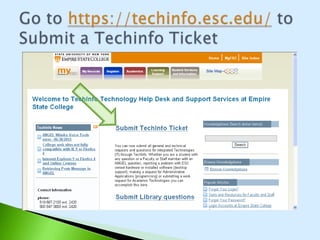
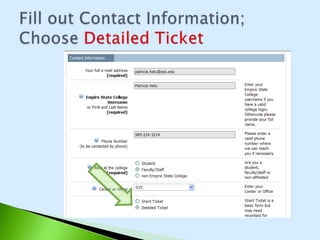
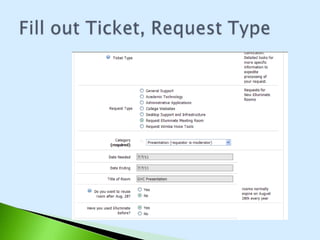
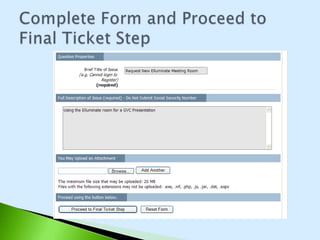
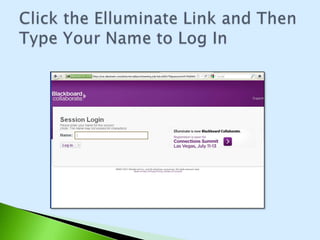
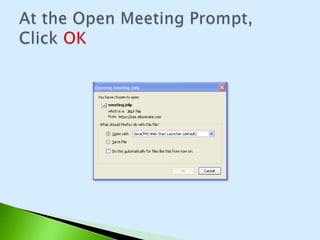
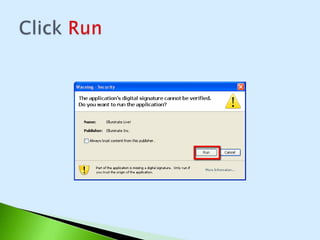
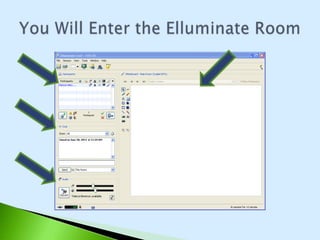

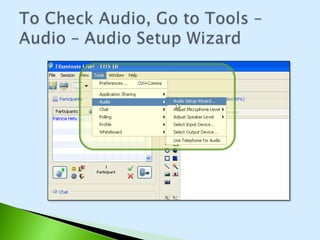
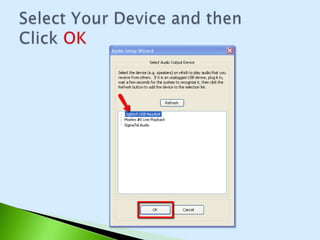
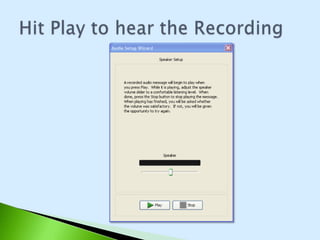
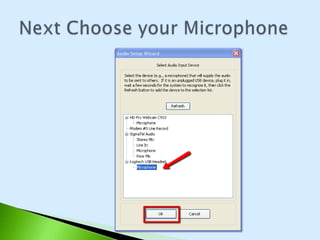
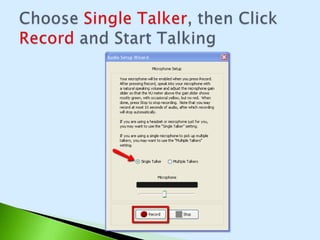
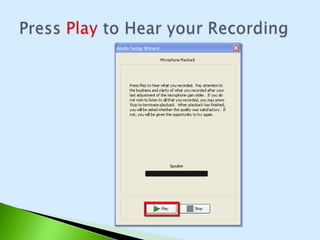
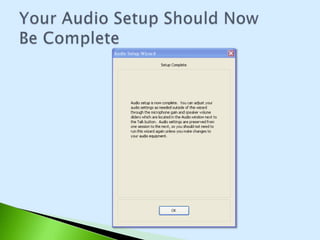
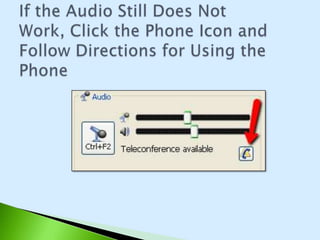
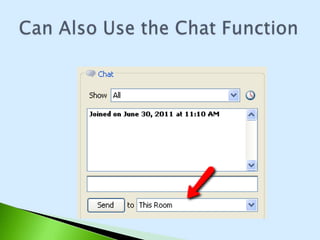

This document provides instructions for getting started using the Elluminate online meeting software, including requesting a session, logging in, setting up audio, and using chat functions. Users are directed to submit a support ticket with their contact and session request details. They then log in to Elluminate by clicking the meeting link and entering their name, and verify their audio setup using the audio wizard to select devices and test recording and playback. Additional phone options are available if audio issues persist.


