Add Text XY Data to ArcMap A Sample Slideshare.com Presentation by:  GeoLectio (Geolectio sample presentation; written in Powerpoint, uploaded to Slideshare.com
Introduction While this process is fairly straightforward, it is easy to get mixed up on a few of the details. Understanding how this process works provides a good platform for transforming data back and forth amongst sources and formats. A brief overview: In this case, we will be using the test case of a bathymetry dataset directly off the NOAA website. In many cases your source data will arrive in a format that requires no translation, but we will run through a quick sample process here to give you a sense   (Geolectio sample presentation; written in Powerpoint, uploaded to Slideshare.com
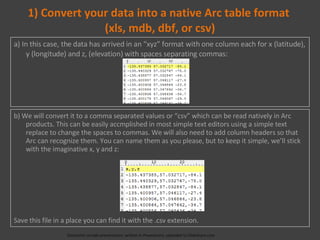
1) Convert your data into a native Arc table format  (xls, mdb, dbf, or csv) a) In this case, the data has arrived in an “xyz” format with one column each for x (latitude), y (longitude) and z, (elevation) with spaces separating commas: (Geolectio sample presentation; written in Powerpoint, uploaded to Slideshare.com b) We will convert it to a comma separated values or “csv” which can be read natively in Arc products. This can be easily accmplished in most simple text editors using a simple text replace to change the spaces to commas. We will also need to add column headers so that Arc can recognize them. You can name them as you please, but to keep it simple, we’ll stick with the imaginative x, y and z: Save this file in a place you can find it with the .csv extension.
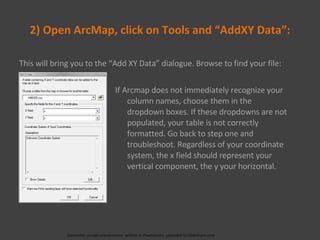
2) Open ArcMap, click on Tools and “AddXY Data”: This will bring you to the “Add XY Data” dialogue. Browse to find your file: (Geolectio sample presentation; written in Powerpoint, uploaded to Slideshare.com If Arcmap does not immediately recognize your column names, choose them in the dropdown boxes. If these dropdowns are not populated, your table is not correctly formatted. Go back to step one and troubleshoot. Regardless of your coordinate system, the x field should represent your vertical component, the y your horizontal.
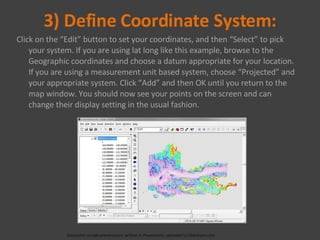
3) Define Coordinate System: Click on the “Edit” button to set your coordinates, and then “Select” to pick your system. If you are using lat long like this example, browse to the Geographic coordinates and choose a datum appropriate for your location. If you are using a measurement unit based system, choose “Projected” and your appropriate system. Click “Add” and then OK until you return to the map window. You should now see your points on the screen and can change their display setting in the usual fashion. (Geolectio sample presentation; written in Powerpoint, uploaded to Slideshare.com

Geolectioxydata

  • 1.
    Add Text XYData to ArcMap A Sample Slideshare.com Presentation by: GeoLectio (Geolectio sample presentation; written in Powerpoint, uploaded to Slideshare.com
  • 2.
    Introduction While thisprocess is fairly straightforward, it is easy to get mixed up on a few of the details. Understanding how this process works provides a good platform for transforming data back and forth amongst sources and formats. A brief overview: In this case, we will be using the test case of a bathymetry dataset directly off the NOAA website. In many cases your source data will arrive in a format that requires no translation, but we will run through a quick sample process here to give you a sense  (Geolectio sample presentation; written in Powerpoint, uploaded to Slideshare.com
  • 3.
    1) Convert yourdata into a native Arc table format (xls, mdb, dbf, or csv) a) In this case, the data has arrived in an “xyz” format with one column each for x (latitude), y (longitude) and z, (elevation) with spaces separating commas: (Geolectio sample presentation; written in Powerpoint, uploaded to Slideshare.com b) We will convert it to a comma separated values or “csv” which can be read natively in Arc products. This can be easily accmplished in most simple text editors using a simple text replace to change the spaces to commas. We will also need to add column headers so that Arc can recognize them. You can name them as you please, but to keep it simple, we’ll stick with the imaginative x, y and z: Save this file in a place you can find it with the .csv extension.
  • 4.
    2) Open ArcMap,click on Tools and “AddXY Data”: This will bring you to the “Add XY Data” dialogue. Browse to find your file: (Geolectio sample presentation; written in Powerpoint, uploaded to Slideshare.com If Arcmap does not immediately recognize your column names, choose them in the dropdown boxes. If these dropdowns are not populated, your table is not correctly formatted. Go back to step one and troubleshoot. Regardless of your coordinate system, the x field should represent your vertical component, the y your horizontal.
  • 5.
    3) Define CoordinateSystem: Click on the “Edit” button to set your coordinates, and then “Select” to pick your system. If you are using lat long like this example, browse to the Geographic coordinates and choose a datum appropriate for your location. If you are using a measurement unit based system, choose “Projected” and your appropriate system. Click “Add” and then OK until you return to the map window. You should now see your points on the screen and can change their display setting in the usual fashion. (Geolectio sample presentation; written in Powerpoint, uploaded to Slideshare.com