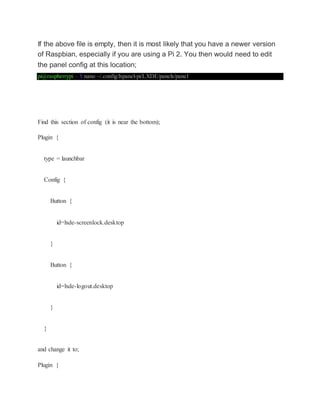
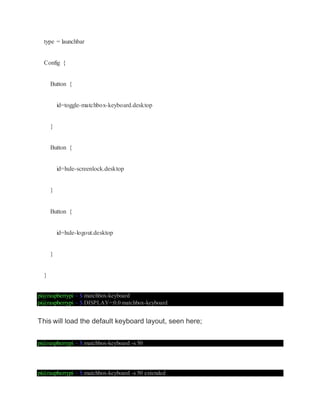
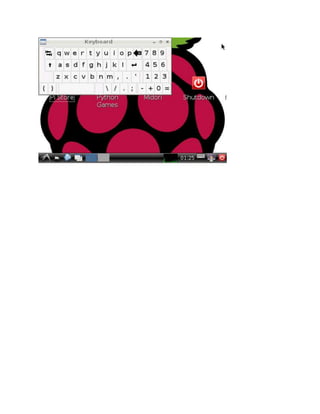
This document provides instructions for installing and configuring a virtual keyboard called matchbox-keyboard on a Raspberry Pi. It involves using apt-get to install prerequisite files, compiling matchbox-keyboard from source, creating a script to toggle the keyboard on and off, adding the script to the start menu, and modifying the panel configuration to add a button to toggle the keyboard from the task bar.
![1. Install prerequisite development files
pi@raspberrypi ~ $ sudo apt-get install libfakekey-dev libpng-dev libxft-dev autoconf libtool -y
2. Install and compile matchbox-keyboard
pi@raspberrypi ~ $ git clone https://github.com/mwilliams03/matchbox-keyboard.git
pi@raspberrypi ~ $ cd matchbox-keyboard
pi@raspberrypi ~ $ ./autogen.sh
pi@raspberrypi ~ $ make
pi@raspberrypi ~ $ sudo make install
Installation of the shared matchbox libraries needs to be done after the
installation of matchbox-keyboard.
pi@raspberrypi ~ $ sudo apt-get install libmatchbox1 -y
3. Create toggle script to start or stop matchbox-keyboard
We will now create a script to toggle the keyboard on and off. And then add a
menu item to access the script as well as add an icon to the task bar for easy
access.
Create a new file;
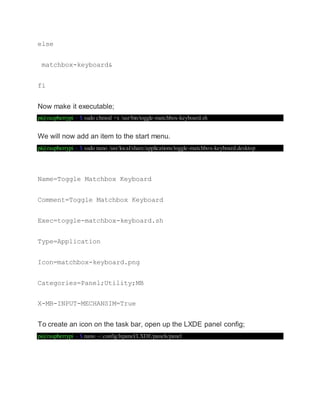
pi@raspberrypi ~ $ sudo nano /usr/bin/toggle-matchbox-keyboard.sh
And copy in the text below;
#!/bin/bash
#This script toggle the virtual keyboard
PID=`pidof matchbox-keyboard`
if [ ! -e $PID ]; then
killall matchbox-keyboard](https://image.slidesharecdn.com/generatingkeyboardinraspberry-pi-150701234300-lva1-app6891/85/Generating-keyboard-in-raspberry-pi-1-320.jpg)
![1. Install prerequisite development files
pi@raspberrypi ~ $ sudo apt-get install libfakekey-dev libpng-dev libxft-dev autoconf libtool -y
2. Install and compile matchbox-keyboard
pi@raspberrypi ~ $ git clone https://github.com/mwilliams03/matchbox-keyboard.git
pi@raspberrypi ~ $ cd matchbox-keyboard
pi@raspberrypi ~ $ ./autogen.sh
pi@raspberrypi ~ $ make
pi@raspberrypi ~ $ sudo make install
Installation of the shared matchbox libraries needs to be done after the
installation of matchbox-keyboard.
pi@raspberrypi ~ $ sudo apt-get install libmatchbox1 -y
3. Create toggle script to start or stop matchbox-keyboard
We will now create a script to toggle the keyboard on and off. And then add a
menu item to access the script as well as add an icon to the task bar for easy
access.
Create a new file;
pi@raspberrypi ~ $ sudo nano /usr/bin/toggle-matchbox-keyboard.sh
And copy in the text below;
#!/bin/bash
#This script toggle the virtual keyboard
PID=`pidof matchbox-keyboard`
if [ ! -e $PID ]; then
killall matchbox-keyboard](https://image.slidesharecdn.com/generatingkeyboardinraspberry-pi-150701234300-lva1-app6891/75/Generating-keyboard-in-raspberry-pi-1-2048.jpg)