1
Network System
administration
Abdullah Roomi:Student Name
Subject: Swap Space
21410051Student No:
How To Add Swap Space on Ubuntu 16.04 ?
Step1: Check the System for Swap Information
We have two method to do that.
First Method is:
$ sudo swapon –show
Output: If you don't get back any output, this means your system does not have swap space
available currently.
Second Method is:
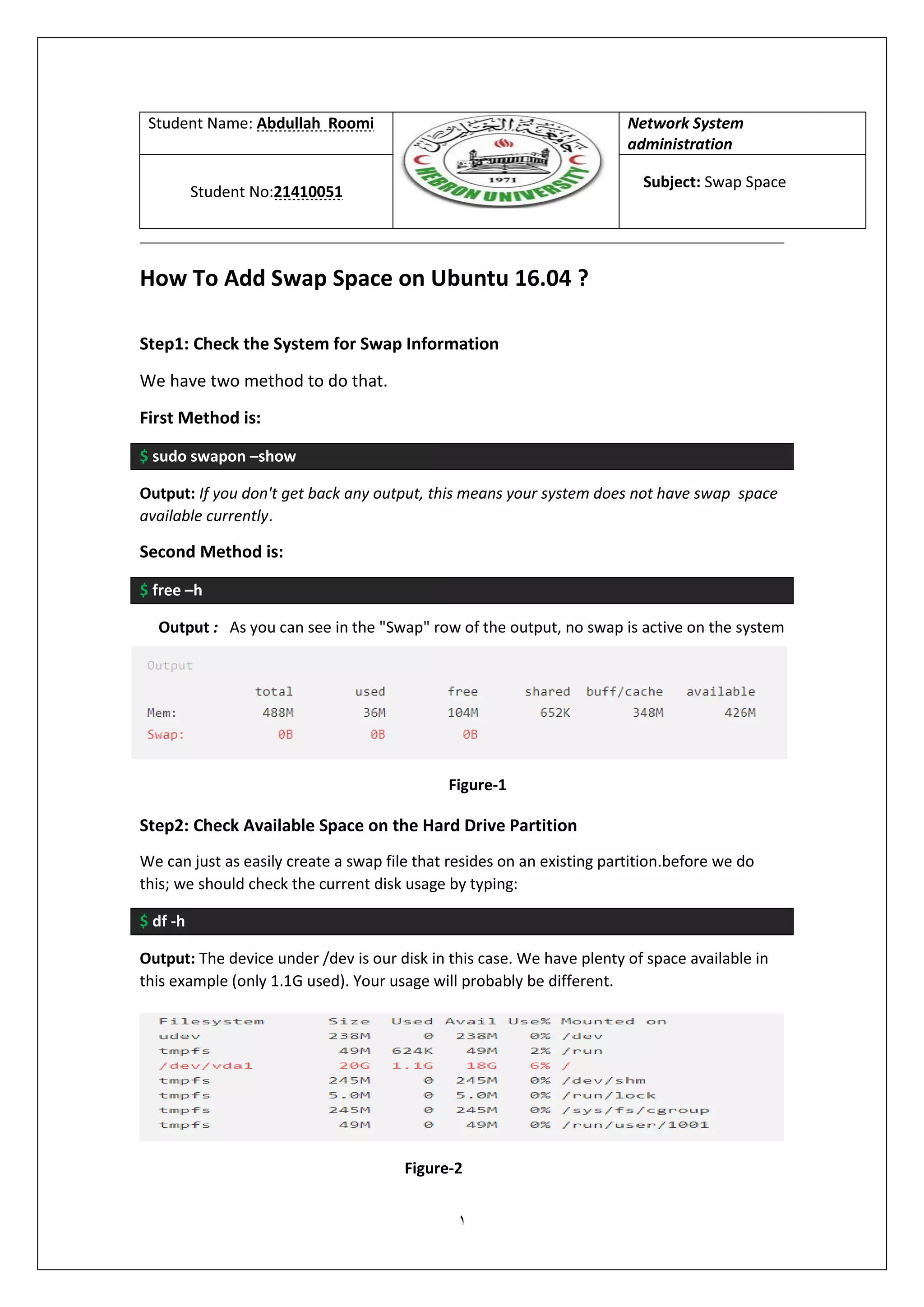
$ free –h
Output : As you can see in the "Swap" row of the output, no swap is active on the system
Step2: Check Available Space on the Hard Drive Partition
We can just as easily create a swap file that resides on an existing partition.before we do
this; we should check the current disk usage by typing:
$ df -h
Output: The device under /dev is our disk in this case. We have plenty of space available in
this example (only 1.1G used). Your usage will probably be different.
Figure-1
Figure-2
2
Step3: Create a Swap File
The best way of creating a swap file is with the fallocate program. This command
creates a file of a preallocated size instantly.
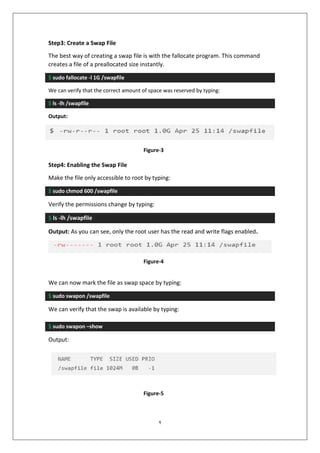
$ sudo fallocate -l 1G /swapfile
We can verify that the correct amount of space was reserved by typing:
$ ls -lh /swapfile
Output:
Step4: Enabling the Swap File
Make the file only accessible to root by typing:
$ sudo chmod 600 /swapfile
Verify the permissions change by typing:
$ ls -lh /swapfile
Output: As you can see, only the root user has the read and write flags enabled.
We can now mark the file as swap space by typing:
$ sudo swapon /swapfile
We can verify that the swap is available by typing:
$ sudo swapon –show
Output:
Figure-3
Figure-4
Figure-5
3
We can check the output of the free utility again to corroborate our findings:
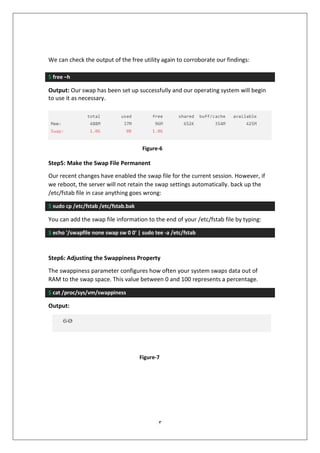
$ free –h
Output: Our swap has been set up successfully and our operating system will begin
to use it as necessary.
Step5: Make the Swap File Permanent
Our recent changes have enabled the swap file for the current session. However, if
we reboot, the server will not retain the swap settings automatically. back up the
/etc/fstab file in case anything goes wrong:
$ sudo cp /etc/fstab /etc/fstab.bak
You can add the swap file information to the end of your /etc/fstab file by typing:
$ echo '/swapfile none swap sw 0 0' | sudo tee -a /etc/fstab
Step6: Adjusting the Swappiness Property
The swappiness parameter configures how often your system swaps data out of
RAM to the swap space. This value between 0 and 100 represents a percentage.
$ cat /proc/sys/vm/swappiness
Output:
Figure-6
Figure-7
4
We can set the swappiness to a different value by using the sysctl command.
For instance, to set the swappiness to 10, we could type:
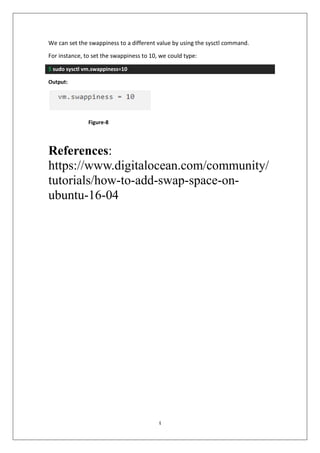
$ sudo sysctl vm.swappiness=10
Output:
References:
https://www.digitalocean.com/community/
tutorials/how-to-add-swap-space-on-
ubuntu-16-04
Figure-8

Swap

  • 1.
    1 Network System administration Abdullah Roomi:StudentName Subject: Swap Space 21410051Student No: How To Add Swap Space on Ubuntu 16.04 ? Step1: Check the System for Swap Information We have two method to do that. First Method is: $ sudo swapon –show Output: If you don't get back any output, this means your system does not have swap space available currently. Second Method is: $ free –h Output : As you can see in the "Swap" row of the output, no swap is active on the system Step2: Check Available Space on the Hard Drive Partition We can just as easily create a swap file that resides on an existing partition.before we do this; we should check the current disk usage by typing: $ df -h Output: The device under /dev is our disk in this case. We have plenty of space available in this example (only 1.1G used). Your usage will probably be different. Figure-1 Figure-2
  • 2.
    2 Step3: Create aSwap File The best way of creating a swap file is with the fallocate program. This command creates a file of a preallocated size instantly. $ sudo fallocate -l 1G /swapfile We can verify that the correct amount of space was reserved by typing: $ ls -lh /swapfile Output: Step4: Enabling the Swap File Make the file only accessible to root by typing: $ sudo chmod 600 /swapfile Verify the permissions change by typing: $ ls -lh /swapfile Output: As you can see, only the root user has the read and write flags enabled. We can now mark the file as swap space by typing: $ sudo swapon /swapfile We can verify that the swap is available by typing: $ sudo swapon –show Output: Figure-3 Figure-4 Figure-5
  • 3.
    3 We can checkthe output of the free utility again to corroborate our findings: $ free –h Output: Our swap has been set up successfully and our operating system will begin to use it as necessary. Step5: Make the Swap File Permanent Our recent changes have enabled the swap file for the current session. However, if we reboot, the server will not retain the swap settings automatically. back up the /etc/fstab file in case anything goes wrong: $ sudo cp /etc/fstab /etc/fstab.bak You can add the swap file information to the end of your /etc/fstab file by typing: $ echo '/swapfile none swap sw 0 0' | sudo tee -a /etc/fstab Step6: Adjusting the Swappiness Property The swappiness parameter configures how often your system swaps data out of RAM to the swap space. This value between 0 and 100 represents a percentage. $ cat /proc/sys/vm/swappiness Output: Figure-6 Figure-7
  • 4.
    4 We can setthe swappiness to a different value by using the sysctl command. For instance, to set the swappiness to 10, we could type: $ sudo sysctl vm.swappiness=10 Output: References: https://www.digitalocean.com/community/ tutorials/how-to-add-swap-space-on- ubuntu-16-04 Figure-8