Ben Moore
TEC 383
Creating a Wireless Access Point with TOR Anonymity Routing
Goal
The goal of this lab is to build a wireless access point on a Raspberry Pi microcomputer that will
automatically route all internet traffic through the TOR Anonymity network. All the resources
will be downloaded, installed, and configured for this lab by the user in an effort to show how
routing solutions can be achieved through proper configuration of software and hardware.
Background Information
The Raspberry Pi is a relatively small, inexpensive, and incredibly versatile computer that is
capable of running many Linux based operating systems. It is widely used in computer and
software education as well as by hobbyists for all sorts of applications. The Pi has an ARM
processor (versus a standard x86 processor found in most computers) and the operating system is
held on an SD Card. The computer also has two or more USB ports for adding addition hardware
or network connections. For more information please visit https://www.raspberrypi.org/.
The TOR Anonymity Network is a world-wide network of volunteer computers that allow the
routing of internet traffic in an effort to conceal an individual’s physical location and browsing
habits from prying eyes. This capability enables users to circumvent government crackdowns on
internet communication as well as provide security from companies and other entities that would
seek to track user’s online habits. For more information please visit https://www.torproject.org/.
Materials
The required materials for this lab are:
 Raspberry PI model B or B+
 One SD Card 8Gb or more
 Wi-Fi USB adapter
 Ethernet cable with internet connection
 5V power supply with micro-USB connector
 A network connected computer with an SSH client (ex. PuTTY)
Task One
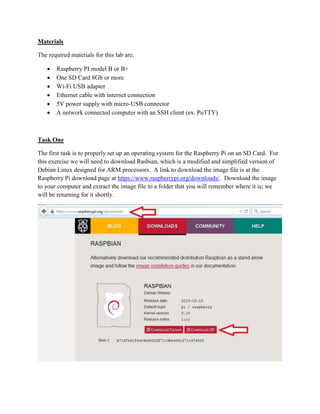
The first task is to properly set up an operating system for the Raspberry Pi on an SD Card. For
this exercise we will need to download Rasbian, which is a modified and simplified version of
Debian Linux designed for ARM processors. A link to download the image file is at the
Raspberry Pi download page at https://www.raspberrypi.org/downloads/. Download the image
to your computer and extract the image file to a folder that you will remember where it is; we
will be returning for it shortly.
For this lab, we will only be covering how to install the operating system using a Windows based
operating system. MAC and Linux users have a different (and somewhat easier) process which
can be found at https://www.raspberrypi.org/documentation/installation/installing-
images/README.md.
Windows operating system users will need a separate tool to enable them to write the image file
to their SD card called Win32 Disc Imager. The tool can be downloaded from the
SourceForge.net website at http://sourceforge.net/projects/win32diskimager/. Download the tool
and run the executable file to begin the installation. At the end of the installation opt to start
Win32 Disc imager.
The Win32 Disc Imager window.
Ensure that the SD card that you will be using is over 8 GB in size (to ensure enough room for
the operating system and any downloaded files) and is formatted in FAT32 or ext4.
Ensure that the drive letter of the SD card is selected in the Win32 Disc Imager selection box,
and select the Raspbian image file we downloaded earlier using the browse button. Once you are
sure you have the right file and the correct drive letter click the “Write” button to begin writing
the image to the SD card. (It is very important you are sure about these settings. You could
accidentally overwrite your primary computer hard drive with this tool!)
Once the image has been written to the SD card you will get a small window saying that the
write was successful; close the window and safely eject the SD card.
Task Two
In this step we will properly configure the main installation of the operating system and update
the Raspberry Pi’s software and hardware. Begin by making sure that the Ethernet cable is
connected to the Pi’s Ethernet port and is connected to the internet (this is so that the Pi can do
final installation and updates) and that the power is not connected. If you are using a monitor
and keyboard for initial setup make sure that these are connected as well. Plug the SD card with
the Raspbian image installed into the Pi and then connect the power. You should see a red LED
light up followed by several green LEDs that show that the network connection is active.
All the following steps can be completed with a monitor and keyboard attached to the Raspberry
Pi or you can use an SSH client to remote into the Pi from a separate workstation or home
computer. The steps in the rest of this lab have been completed using an SSH client (PuTTY in
this case). To connect to the Raspberry Pi with PuTTY you will need to know the IP address of
the Pi on your network. You can find this by logging in to your router and getting the IP from
your attached device list or use a network discovery tool such as Fing to map the devices on your
network. The IP address for the Pi in this example is 192.168.1.102.
If you are using PuTTY, open the main terminal and type the IP address of the Pi in the Host
Name box and click the Open button. You will receive a warning that you have not connected to
this device before and it will ask if you wish to continue. Click the Yes button.
The Raspberry Pi will ask you for the username and password.
The default login name for the Raspberry Pi is pi.
The default password is raspberry.
Once you see the Command Line Interface (CLI) available for commands you will now update
the software and hardware of the Pi, as well as set some user configurations.
Type the following commands into the CLI; the updates will take a few minutes so be patient.
sudo apt-get update
sudo apt-get upgrade
Once the pi has finished updating completely, you will reboot the Pi with the following
command:
sudo reboot
Additional Configurations
The Raspberry Pi has a built-in configuration tool much like a BIOS; with this configuration tool
we can set different settings to maximize our Pi’s potential. Once the Pi has rebooted and you
have logged in again type the following command:
sudo raspi-config
A configuration box will be shown where you can set your preferences for the Pi. You can set
SSH settings, overclock the processor, and expand the file system to the entire size of the SD
card. I highly recommend you expand the file system, ensure SSH is enabled (under Advanced
Options – A4), and change the host password from the default raspberry (this will make it more
difficult for unwanted users to gain entry to your system). Once your settings are completed
click the “Finished” option and the Pi will reboot.
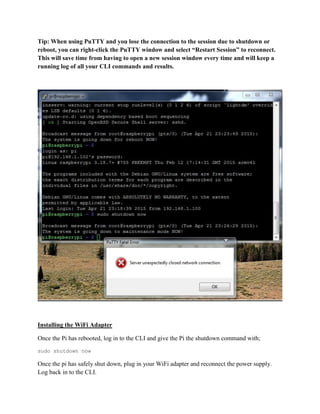
Tip: When using PuTTY and you lose the connection to the session due to shutdown or
reboot, you can right-click the PuTTY window and select “Restart Session” to reconnect.
This will save time from having to open a new session window every time and will keep a
running log of all your CLI commands and results.
Installing the WiFi Adapter
Once the Pi has rebooted, log in to the CLI and give the Pi the shutdown command with;
sudo shutdown now
Once the pi has safely shut down, plug in your WiFi adapter and reconnect the power supply.
Log back in to the CLI.
Task Three
DHCP
In this task we will be setting up the settings and configurations for the WiFi access point. The
first step is to set up a Dynamic Host Configuration Protocol (DHCP) server so that we can
assign IP addresses to any devices we wish to attach to the hotspot. The Raspbian operating
system does not have a DHCP server software pre-packaged in the distribution so we will need
to download and install the software.
Note: Some wireless adapters are not supported by the default installation of hostapd.
Adapters made by or contain chipsets by Realtek require a modified hostapd installation.
Research the details of your particular wireless adapter and if you have a Realtek type
adapter please skip to the alternative hostapd installation guide after this section. A good
indication that you may have a Realtek adapter is if you install the hostapd with the first
option and get a “FAIL” message at the end of the installation. See the next screen capture
for an example.
Non-Realtek Wireless Adapter Hostapd Installation
sudo apt-get install hostapd isc-dhcp-server
Alternative Realtek Wireless Adapter Hostapd Setup
If you do happen to have a Realtek wireless adapter (like I did), then the hostapd download with
Raspbian needs to be replaced with a different build that will work with the wireless adapter
drivers. This can be accomplished easily by performing the following steps:
Uninstall the current version of hostapd (if you already installed it) by typing the following
command into the CLI:
sudo apt-get autoremove hostapd
Download the new version using these CLI commands:
wget https://github.com/jenssegers/RTL8188-hostapd/archive/v2.0.tar.gz
tar -zxvf v2.0.tar.gz
Build the new hostapd from the file you just downloaded in the adapter’s configuration file:
cd RTL8188-hostapd-2.0/hostapd
sudo make
We will then need to change the configurations to ensure that they will do what we need. You
can alter the configuration file for the DHCP server by using a text editor (in this case we will be
using Nano) to change the file directly. Type the following command into the CLI:
sudo nano /etc/default/isc-dhcp-server
Note: The command sudo tells the operating system that you would like to run this individual
command as the administrator or owner of the computer. The nano portion lets the system know
what program you wish to run and the /etc/default/isc-dhcp-server is the directory and location
of the file you want to edit.
We will first change the configuration by “commenting out” the two optional domain name
entries in the file and then “uncommenting” the authoritative option, which will make this the
DHCP server for our new WLAN we are going to create. Add a “#” symbol to the beginning of
the domain name lines and remove the “#” symbol from the authoritative line.
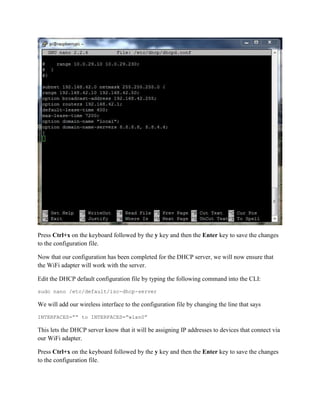
We now need to add our server’s network address, broadcast, subnet mask, and domain name.
We will add this information to the bottom of the configuration file where we can find it easily in
the event we decide to change anything later. Ensure your settings look exactly like the settings
in the provided screen capture.
Press Ctrl+x on the keyboard followed by the y key and then the Enter key to save the changes
to the configuration file.
Now that our configuration has been completed for the DHCP server, we will now ensure that
the WiFi adapter will work with the server.
Edit the DHCP default configuration file by typing the following command into the CLI:
sudo nano /etc/default/isc-dhcp-server
We will add our wireless interface to the configuration file by changing the line that says
INTERFACES=”” to INTERFACES=”wlan0”
This lets the DHCP server know that it will be assigning IP addresses to devices that connect via
our WiFi adapter.
Press Ctrl+x on the keyboard followed by the y key and then the Enter key to save the changes
to the configuration file.
To ensure that our WiFi adapter will be both static and accept incoming wireless connections, we
need to make changes to the WiFi network interface. It also so happens that this is the same
place we will also be conducting our next step.
Set a Static IP
Type the following line into the CLI:
sudo nano /etc/network/interfaces
Add a “#” symbol to the beginning of the last three lines in the configuration. This will ensure
that we only receive incoming signals connections.
Setting a static IP for our access point is important in that it allows us to always find it on our
network, it makes software configurations easier, and we can better tune our network traffic to
the WLAN we are creating. To set the static IP for the Raspberry Pi add or change the following
configuration lines in the /etc/network/interfaces file:
auto lo
iface lo inet loopback
iface eth0 inet dhcp
allow-hotplug wlan0
iface wlan0 inet static
address 192.168.42.1
netmask 255.255.255.0
#iface wlan0 inet manual
#wpa-roam /etc/wpa_supplicant/wpa_supplicant.conf
#iface default inet dhcp
Compare your configuration to the screen capture provided and then save the configuration
changes by typing Ctrl+x, then the y key, and then hit Enter to exit the editor.
After completing the previous step you can then set the wlan0 address by typing the following
into the CLI:
sudo ifconfig wlan0 192.168.42.1
That address will be important for our configuration later and should not be changed.
Creating a WLAN
At the beginning of this tutorial we installed hostapd software that is designed to provide WLAN
hotspot functionality, but just like everything else it needs to be configured for use by our
particular setup. By creating and configuring the hostapd configuration file we can adjust the
settings of our WLAN much like the settings you would make on your home router. We will be
setting the SSID, hardware mode, encryption type, passphrase, and more.
Non-Realtek Wireless Adapter Hostapd Setup
Open the hostapd configuration file for editing by typing the following into the CLI:
sudo nano /etc/hostapd/hostapd.conf
Since this is a new configuration file (it should be a blank document) we will add the following
lines to tell the configuration what kind of settings we want for our WLAN:
interface=wlan0
driver=rtl871xdrv
ssid=TEC383
hw_mode=g
channel=1
macaddr_acl=0
auth_algs=1
ignore_broadcast_ssid=0
wpa=2
wpa_passphrase=classTEC383
wpa_key_mgmt=WPA-PSK
wpa_pairwise=TKIP
rsn_pairwise=CCMP
Finalize the configuration settings by typing Ctrl+x, then the y key and then the Enter key.
Alternative Realtek Wireless Adapter Hostapd Setup
If you used the Realtek hostapd installation instructions at the beginning of the lab then the
configuration of the .conf file is slightly different. The proper setup of the configuration file will
look like this instead:
Open the configuration file with “sudo nano /etc/hostapd/hostapd.conf” and change the
settings to reflect the ones below:
# Basic configuration
interface=wlan0
ssid=TEC383
channel=1
#bridge=br0
# WPA and WPA2 configuration
macaddr_acl=0
auth_algs=1
ignore_broadcast_ssid=0
wpa=3
wpa_passphrase=classTEC383
wpa_key_mgmt=WPA-PSK
wpa_pairwise=TKIP
rsn_pairwise=CCMP
# Hardware configuration
driver=rtl871xdrv
ieee80211n=1
hw_mode=g
device_name=RTL8192CU
manufacturer=Realtek
Save the configuration with Ctrl+x, then the y key followed by the Enter key.
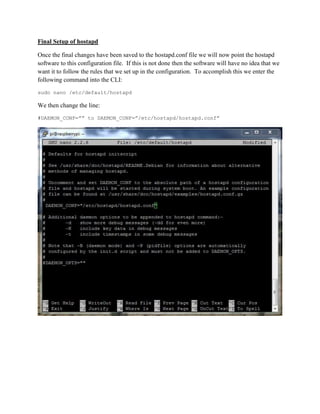
Final Setup of hostapd
Once the final changes have been saved to the hostapd.conf file we will now point the hostapd
software to this configuration file. If this is not done then the software will have no idea that we
want it to follow the rules that we set up in the configuration. To accomplish this we enter the
following command into the CLI:
sudo nano /etc/default/hostapd
We then change the line:
#DAEMON_CONF=”” to DAEMON_CONF=”/etc/hostapd/hostapd.conf”
Setting Up Network Address Translation
Network Address Translation will allow multiple clients to connect to our TOR router without
having to number each one of the hosts, as well as allow all the device’s traffic to be remapped
into our one router address. To accomplish this on the Raspberry Pi type the following
commands into the CLI:
sudo nano /etc/sysctl.conf
Once you have opened the configuration file add this line to the file:
net.ipv4.ip_forward=1
Save the change by typing Ctrl+x, then the y key, and then the Enter key.
Then type the following line into the CLI:
sudo sh –c “echo 1 > /proc/sys/net/ipv4/ip_forward”
To ensure that your internet connection is forwarded properly type the next three lines of code
into the CLI. If everything is set up correctly than there should be no response to your
commands.
sudo iptables -t nat -A POSTROUTING -o eth0 -j MASQUERADE
sudo iptables -A FORWARD -i eth0 -o wlan0 -m state --state
RELATED,ESTABLISHED -j ACCEPT
sudo iptables -A FORWARD -i wlan0 -o eth0 -j ACCEPT
If everything is correct we will want to save this setup so that it will stay the same even if we
reboot the Raspberry Pi. To ensure that we do not lose our configuration, type the following into
the CLI:
sudo sh -c "iptables-save > /etc/iptables.ipv4.nat"
Then open the network interfaces file for editing with:
sudo nano /etc/network/interfaces
And add the following line:
up iptables-restore < /etc/iptables.ipv4.nat
Save and close the file with Ctrl+x, the y key, and the Enter key.
Final WiFi Setup
To set up the WiFi daemon so that all the WiFi, NAT, DHCP, and hostapd configurations and
software run at boot we run the following commands:
sudo service hostapd start
sudo service isc-dhcp-server start
sudo update-rc.d hostapd enable
sudo update-rc.d isc-dhcp-server enable
The first two commands ensure that the services start and are running correctly, and the second
two commands commit those services and configurations to the startup process of the Raspberry
Pi.
Reboot the Raspberry Pi with the following command:
sudo reboot
Task Four
Installing and Configuring TOR
Installing the TOR software from the CLI is incredibly easy; run the following command in the
CLI to download the latest software package and install it:
sudo apt-get install tor
Set up some basic configurations for the TOR software by modifying the configuration file:
sudo nano /etc/tor/torrc
Add the following lines to the bottom of the configuration file. Ensure they match the screen
capture provided:
Log notice file /var/log/tor/notices.log
VirtualAddrNetwork 10.192.0.0/10
AutomapHostsSuffixes .onion,.exit
AutomapHostsOnResolve 1
TransPort 9040
TransListenAddress 192.168.42.1
DNSPort 53
DNSListenAddress 192.168.42.1
Now save the configuration changes with Ctrl+x, press the y key, and then the Enter key.
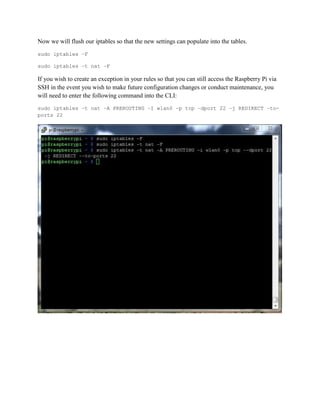
Now we will flush our iptables so that the new settings can populate into the tables.
sudo iptables –F
sudo iptables –t nat –F
If you wish to create an exception in your rules so that you can still access the Raspberry Pi via
SSH in the event you wish to make future configuration changes or conduct maintenance, you
will need to enter the following command into the CLI:
sudo iptables –t nat –A PREROUTING –I wlan0 –p tcp –dport 22 –j REDIRECT –to-
ports 22
Rerouting DNS and TCP Traffic through TOR
Now we will reroute all of our DNS traffic through port 53:
sudo iptables -t nat -A PREROUTING -i wlan0 -p udp --dport 53 -j REDIRECT --
to-ports 53
And finally, we will route any TCP traffic we may have through port 9040:
sudo iptables -t nat -A PREROUTING -i wlan0 -p tcp --syn -j REDIRECT --to-
ports 9040
Do not forget this step as your router will not send any traffic through your network.
Everything will appear to be functioning normally but you will be unable to connect to
anything through the access point.
Task Five
Check Configuration and Success
You can now check to ensure that your tables are set up correctly by running the following
command:
sudo iptables -t nat –L
Compare your output to the provided screenshot, and if everything looks correct save the
configuration to your NAT file with the following command:
sudo sh -c "iptables-save > /etc/iptables.ipv4.nat"
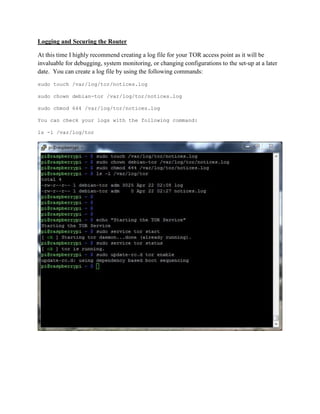
Logging and Securing the Router
At this time I highly recommend creating a log file for your TOR access point as it will be
invaluable for debugging, system monitoring, or changing configurations to the set-up at a later
date. You can create a log file by using the following commands:
sudo touch /var/log/tor/notices.log
sudo chown debian-tor /var/log/tor/notices.log
sudo chmod 644 /var/log/tor/notices.log
You can check your logs with the following command:
ls -l /var/log/tor
Activating Your TOR Router
We can finally activate the TOR router and ensure that all of our outbound internet traffic is
being kept anonymous. Start the TOR service with the following command at the CLI:
sudo service tor start
You can ensure that the service is running by checking the status with this command:
sudo service tor status
Once you are sure the TOR service is running correctly tell the system to start the TOR service
when the Raspberry Pi boots up (this will ensure that if the Pi is restarted or loses power and
reboots that you do not have to start the service again manually):
sudo update-rc.d tor enable
All finished! You should now have a wireless access point router connected to your network that
allows you to route all of your traffic through the TOR Anonymity Network. I will warn you
that staying anonymous on the internet may require you to change some of your internet habits
and to implement other safeguards to ensure that you stay anonymous (like disabling JavaScript
and other add-ons). Please see the TOR website (https://www.torproject.org) for some basic and
advanced information on being truly anonymous on the internet.
Solution Examples
After completing the installation, configuration, and final setup of the Wireless TOR Access
Point, I went ahead and documented what you may see when connecting to the point with an
Android phone. In the previous steps I set up the router with the SSID of TEC383 (p.16 & p.17).
I first connected to my own personal network running without TOR so that I could capture my
external IP address as any website would see it. I took a screen capture from
http://www.whatismyip.com to verify the IP address.
I then connected to the wireless access point running the TOR software and conducted the same
test.
As you can see, my public IP address now reflects an address in Piscataway, New Jersey.
Anonymity achieved! Although, it is a little strange that the website did not detect my TOR
routed traffic.

Raspi_TOR_Access_Point_BenMoore

  • 1.
    Ben Moore TEC 383 Creatinga Wireless Access Point with TOR Anonymity Routing Goal The goal of this lab is to build a wireless access point on a Raspberry Pi microcomputer that will automatically route all internet traffic through the TOR Anonymity network. All the resources will be downloaded, installed, and configured for this lab by the user in an effort to show how routing solutions can be achieved through proper configuration of software and hardware. Background Information The Raspberry Pi is a relatively small, inexpensive, and incredibly versatile computer that is capable of running many Linux based operating systems. It is widely used in computer and software education as well as by hobbyists for all sorts of applications. The Pi has an ARM processor (versus a standard x86 processor found in most computers) and the operating system is held on an SD Card. The computer also has two or more USB ports for adding addition hardware or network connections. For more information please visit https://www.raspberrypi.org/. The TOR Anonymity Network is a world-wide network of volunteer computers that allow the routing of internet traffic in an effort to conceal an individual’s physical location and browsing habits from prying eyes. This capability enables users to circumvent government crackdowns on internet communication as well as provide security from companies and other entities that would seek to track user’s online habits. For more information please visit https://www.torproject.org/.
  • 2.
    Materials The required materialsfor this lab are:  Raspberry PI model B or B+  One SD Card 8Gb or more  Wi-Fi USB adapter  Ethernet cable with internet connection  5V power supply with micro-USB connector  A network connected computer with an SSH client (ex. PuTTY) Task One The first task is to properly set up an operating system for the Raspberry Pi on an SD Card. For this exercise we will need to download Rasbian, which is a modified and simplified version of Debian Linux designed for ARM processors. A link to download the image file is at the Raspberry Pi download page at https://www.raspberrypi.org/downloads/. Download the image to your computer and extract the image file to a folder that you will remember where it is; we will be returning for it shortly.
  • 3.
    For this lab,we will only be covering how to install the operating system using a Windows based operating system. MAC and Linux users have a different (and somewhat easier) process which can be found at https://www.raspberrypi.org/documentation/installation/installing- images/README.md. Windows operating system users will need a separate tool to enable them to write the image file to their SD card called Win32 Disc Imager. The tool can be downloaded from the SourceForge.net website at http://sourceforge.net/projects/win32diskimager/. Download the tool and run the executable file to begin the installation. At the end of the installation opt to start Win32 Disc imager. The Win32 Disc Imager window.
  • 4.
    Ensure that theSD card that you will be using is over 8 GB in size (to ensure enough room for the operating system and any downloaded files) and is formatted in FAT32 or ext4. Ensure that the drive letter of the SD card is selected in the Win32 Disc Imager selection box, and select the Raspbian image file we downloaded earlier using the browse button. Once you are sure you have the right file and the correct drive letter click the “Write” button to begin writing the image to the SD card. (It is very important you are sure about these settings. You could accidentally overwrite your primary computer hard drive with this tool!) Once the image has been written to the SD card you will get a small window saying that the write was successful; close the window and safely eject the SD card. Task Two In this step we will properly configure the main installation of the operating system and update the Raspberry Pi’s software and hardware. Begin by making sure that the Ethernet cable is connected to the Pi’s Ethernet port and is connected to the internet (this is so that the Pi can do final installation and updates) and that the power is not connected. If you are using a monitor and keyboard for initial setup make sure that these are connected as well. Plug the SD card with the Raspbian image installed into the Pi and then connect the power. You should see a red LED light up followed by several green LEDs that show that the network connection is active.
  • 5.
    All the followingsteps can be completed with a monitor and keyboard attached to the Raspberry Pi or you can use an SSH client to remote into the Pi from a separate workstation or home computer. The steps in the rest of this lab have been completed using an SSH client (PuTTY in this case). To connect to the Raspberry Pi with PuTTY you will need to know the IP address of the Pi on your network. You can find this by logging in to your router and getting the IP from your attached device list or use a network discovery tool such as Fing to map the devices on your network. The IP address for the Pi in this example is 192.168.1.102. If you are using PuTTY, open the main terminal and type the IP address of the Pi in the Host Name box and click the Open button. You will receive a warning that you have not connected to this device before and it will ask if you wish to continue. Click the Yes button.
  • 6.
    The Raspberry Piwill ask you for the username and password. The default login name for the Raspberry Pi is pi. The default password is raspberry.
  • 7.
    Once you seethe Command Line Interface (CLI) available for commands you will now update the software and hardware of the Pi, as well as set some user configurations. Type the following commands into the CLI; the updates will take a few minutes so be patient. sudo apt-get update sudo apt-get upgrade Once the pi has finished updating completely, you will reboot the Pi with the following command: sudo reboot Additional Configurations The Raspberry Pi has a built-in configuration tool much like a BIOS; with this configuration tool we can set different settings to maximize our Pi’s potential. Once the Pi has rebooted and you have logged in again type the following command: sudo raspi-config A configuration box will be shown where you can set your preferences for the Pi. You can set SSH settings, overclock the processor, and expand the file system to the entire size of the SD card. I highly recommend you expand the file system, ensure SSH is enabled (under Advanced Options – A4), and change the host password from the default raspberry (this will make it more difficult for unwanted users to gain entry to your system). Once your settings are completed click the “Finished” option and the Pi will reboot.
  • 8.
    Tip: When usingPuTTY and you lose the connection to the session due to shutdown or reboot, you can right-click the PuTTY window and select “Restart Session” to reconnect. This will save time from having to open a new session window every time and will keep a running log of all your CLI commands and results. Installing the WiFi Adapter Once the Pi has rebooted, log in to the CLI and give the Pi the shutdown command with; sudo shutdown now Once the pi has safely shut down, plug in your WiFi adapter and reconnect the power supply. Log back in to the CLI.
  • 9.
    Task Three DHCP In thistask we will be setting up the settings and configurations for the WiFi access point. The first step is to set up a Dynamic Host Configuration Protocol (DHCP) server so that we can assign IP addresses to any devices we wish to attach to the hotspot. The Raspbian operating system does not have a DHCP server software pre-packaged in the distribution so we will need to download and install the software. Note: Some wireless adapters are not supported by the default installation of hostapd. Adapters made by or contain chipsets by Realtek require a modified hostapd installation. Research the details of your particular wireless adapter and if you have a Realtek type adapter please skip to the alternative hostapd installation guide after this section. A good indication that you may have a Realtek adapter is if you install the hostapd with the first option and get a “FAIL” message at the end of the installation. See the next screen capture for an example. Non-Realtek Wireless Adapter Hostapd Installation sudo apt-get install hostapd isc-dhcp-server Alternative Realtek Wireless Adapter Hostapd Setup If you do happen to have a Realtek wireless adapter (like I did), then the hostapd download with Raspbian needs to be replaced with a different build that will work with the wireless adapter drivers. This can be accomplished easily by performing the following steps: Uninstall the current version of hostapd (if you already installed it) by typing the following command into the CLI: sudo apt-get autoremove hostapd Download the new version using these CLI commands: wget https://github.com/jenssegers/RTL8188-hostapd/archive/v2.0.tar.gz tar -zxvf v2.0.tar.gz Build the new hostapd from the file you just downloaded in the adapter’s configuration file: cd RTL8188-hostapd-2.0/hostapd sudo make
  • 10.
    We will thenneed to change the configurations to ensure that they will do what we need. You can alter the configuration file for the DHCP server by using a text editor (in this case we will be using Nano) to change the file directly. Type the following command into the CLI: sudo nano /etc/default/isc-dhcp-server Note: The command sudo tells the operating system that you would like to run this individual command as the administrator or owner of the computer. The nano portion lets the system know what program you wish to run and the /etc/default/isc-dhcp-server is the directory and location of the file you want to edit. We will first change the configuration by “commenting out” the two optional domain name entries in the file and then “uncommenting” the authoritative option, which will make this the DHCP server for our new WLAN we are going to create. Add a “#” symbol to the beginning of the domain name lines and remove the “#” symbol from the authoritative line.
  • 11.
    We now needto add our server’s network address, broadcast, subnet mask, and domain name. We will add this information to the bottom of the configuration file where we can find it easily in the event we decide to change anything later. Ensure your settings look exactly like the settings in the provided screen capture.
  • 12.
    Press Ctrl+x onthe keyboard followed by the y key and then the Enter key to save the changes to the configuration file. Now that our configuration has been completed for the DHCP server, we will now ensure that the WiFi adapter will work with the server. Edit the DHCP default configuration file by typing the following command into the CLI: sudo nano /etc/default/isc-dhcp-server We will add our wireless interface to the configuration file by changing the line that says INTERFACES=”” to INTERFACES=”wlan0” This lets the DHCP server know that it will be assigning IP addresses to devices that connect via our WiFi adapter. Press Ctrl+x on the keyboard followed by the y key and then the Enter key to save the changes to the configuration file.
  • 13.
    To ensure thatour WiFi adapter will be both static and accept incoming wireless connections, we need to make changes to the WiFi network interface. It also so happens that this is the same place we will also be conducting our next step. Set a Static IP Type the following line into the CLI: sudo nano /etc/network/interfaces Add a “#” symbol to the beginning of the last three lines in the configuration. This will ensure that we only receive incoming signals connections. Setting a static IP for our access point is important in that it allows us to always find it on our network, it makes software configurations easier, and we can better tune our network traffic to the WLAN we are creating. To set the static IP for the Raspberry Pi add or change the following configuration lines in the /etc/network/interfaces file: auto lo iface lo inet loopback iface eth0 inet dhcp allow-hotplug wlan0 iface wlan0 inet static address 192.168.42.1 netmask 255.255.255.0 #iface wlan0 inet manual #wpa-roam /etc/wpa_supplicant/wpa_supplicant.conf #iface default inet dhcp Compare your configuration to the screen capture provided and then save the configuration changes by typing Ctrl+x, then the y key, and then hit Enter to exit the editor.
  • 14.
    After completing theprevious step you can then set the wlan0 address by typing the following into the CLI: sudo ifconfig wlan0 192.168.42.1 That address will be important for our configuration later and should not be changed.
  • 15.
    Creating a WLAN Atthe beginning of this tutorial we installed hostapd software that is designed to provide WLAN hotspot functionality, but just like everything else it needs to be configured for use by our particular setup. By creating and configuring the hostapd configuration file we can adjust the settings of our WLAN much like the settings you would make on your home router. We will be setting the SSID, hardware mode, encryption type, passphrase, and more. Non-Realtek Wireless Adapter Hostapd Setup Open the hostapd configuration file for editing by typing the following into the CLI: sudo nano /etc/hostapd/hostapd.conf Since this is a new configuration file (it should be a blank document) we will add the following lines to tell the configuration what kind of settings we want for our WLAN: interface=wlan0 driver=rtl871xdrv ssid=TEC383 hw_mode=g channel=1 macaddr_acl=0 auth_algs=1 ignore_broadcast_ssid=0 wpa=2 wpa_passphrase=classTEC383 wpa_key_mgmt=WPA-PSK wpa_pairwise=TKIP rsn_pairwise=CCMP Finalize the configuration settings by typing Ctrl+x, then the y key and then the Enter key.
  • 16.
    Alternative Realtek WirelessAdapter Hostapd Setup If you used the Realtek hostapd installation instructions at the beginning of the lab then the configuration of the .conf file is slightly different. The proper setup of the configuration file will look like this instead: Open the configuration file with “sudo nano /etc/hostapd/hostapd.conf” and change the settings to reflect the ones below: # Basic configuration interface=wlan0 ssid=TEC383 channel=1 #bridge=br0
  • 17.
    # WPA andWPA2 configuration macaddr_acl=0 auth_algs=1 ignore_broadcast_ssid=0 wpa=3 wpa_passphrase=classTEC383 wpa_key_mgmt=WPA-PSK wpa_pairwise=TKIP rsn_pairwise=CCMP # Hardware configuration driver=rtl871xdrv ieee80211n=1 hw_mode=g device_name=RTL8192CU manufacturer=Realtek Save the configuration with Ctrl+x, then the y key followed by the Enter key.
  • 18.
    Final Setup ofhostapd Once the final changes have been saved to the hostapd.conf file we will now point the hostapd software to this configuration file. If this is not done then the software will have no idea that we want it to follow the rules that we set up in the configuration. To accomplish this we enter the following command into the CLI: sudo nano /etc/default/hostapd We then change the line: #DAEMON_CONF=”” to DAEMON_CONF=”/etc/hostapd/hostapd.conf”
  • 19.
    Setting Up NetworkAddress Translation Network Address Translation will allow multiple clients to connect to our TOR router without having to number each one of the hosts, as well as allow all the device’s traffic to be remapped into our one router address. To accomplish this on the Raspberry Pi type the following commands into the CLI: sudo nano /etc/sysctl.conf Once you have opened the configuration file add this line to the file: net.ipv4.ip_forward=1 Save the change by typing Ctrl+x, then the y key, and then the Enter key. Then type the following line into the CLI: sudo sh –c “echo 1 > /proc/sys/net/ipv4/ip_forward”
  • 20.
    To ensure thatyour internet connection is forwarded properly type the next three lines of code into the CLI. If everything is set up correctly than there should be no response to your commands. sudo iptables -t nat -A POSTROUTING -o eth0 -j MASQUERADE sudo iptables -A FORWARD -i eth0 -o wlan0 -m state --state RELATED,ESTABLISHED -j ACCEPT sudo iptables -A FORWARD -i wlan0 -o eth0 -j ACCEPT
  • 21.
    If everything iscorrect we will want to save this setup so that it will stay the same even if we reboot the Raspberry Pi. To ensure that we do not lose our configuration, type the following into the CLI: sudo sh -c "iptables-save > /etc/iptables.ipv4.nat" Then open the network interfaces file for editing with: sudo nano /etc/network/interfaces And add the following line: up iptables-restore < /etc/iptables.ipv4.nat Save and close the file with Ctrl+x, the y key, and the Enter key.
  • 22.
    Final WiFi Setup Toset up the WiFi daemon so that all the WiFi, NAT, DHCP, and hostapd configurations and software run at boot we run the following commands: sudo service hostapd start sudo service isc-dhcp-server start sudo update-rc.d hostapd enable sudo update-rc.d isc-dhcp-server enable The first two commands ensure that the services start and are running correctly, and the second two commands commit those services and configurations to the startup process of the Raspberry Pi. Reboot the Raspberry Pi with the following command: sudo reboot
  • 23.
    Task Four Installing andConfiguring TOR Installing the TOR software from the CLI is incredibly easy; run the following command in the CLI to download the latest software package and install it: sudo apt-get install tor
  • 24.
    Set up somebasic configurations for the TOR software by modifying the configuration file: sudo nano /etc/tor/torrc Add the following lines to the bottom of the configuration file. Ensure they match the screen capture provided: Log notice file /var/log/tor/notices.log VirtualAddrNetwork 10.192.0.0/10 AutomapHostsSuffixes .onion,.exit AutomapHostsOnResolve 1 TransPort 9040 TransListenAddress 192.168.42.1 DNSPort 53 DNSListenAddress 192.168.42.1 Now save the configuration changes with Ctrl+x, press the y key, and then the Enter key.
  • 25.
    Now we willflush our iptables so that the new settings can populate into the tables. sudo iptables –F sudo iptables –t nat –F If you wish to create an exception in your rules so that you can still access the Raspberry Pi via SSH in the event you wish to make future configuration changes or conduct maintenance, you will need to enter the following command into the CLI: sudo iptables –t nat –A PREROUTING –I wlan0 –p tcp –dport 22 –j REDIRECT –to- ports 22
  • 26.
    Rerouting DNS andTCP Traffic through TOR Now we will reroute all of our DNS traffic through port 53: sudo iptables -t nat -A PREROUTING -i wlan0 -p udp --dport 53 -j REDIRECT -- to-ports 53 And finally, we will route any TCP traffic we may have through port 9040: sudo iptables -t nat -A PREROUTING -i wlan0 -p tcp --syn -j REDIRECT --to- ports 9040 Do not forget this step as your router will not send any traffic through your network. Everything will appear to be functioning normally but you will be unable to connect to anything through the access point.
  • 27.
    Task Five Check Configurationand Success You can now check to ensure that your tables are set up correctly by running the following command: sudo iptables -t nat –L Compare your output to the provided screenshot, and if everything looks correct save the configuration to your NAT file with the following command: sudo sh -c "iptables-save > /etc/iptables.ipv4.nat"
  • 28.
    Logging and Securingthe Router At this time I highly recommend creating a log file for your TOR access point as it will be invaluable for debugging, system monitoring, or changing configurations to the set-up at a later date. You can create a log file by using the following commands: sudo touch /var/log/tor/notices.log sudo chown debian-tor /var/log/tor/notices.log sudo chmod 644 /var/log/tor/notices.log You can check your logs with the following command: ls -l /var/log/tor
  • 29.
    Activating Your TORRouter We can finally activate the TOR router and ensure that all of our outbound internet traffic is being kept anonymous. Start the TOR service with the following command at the CLI: sudo service tor start You can ensure that the service is running by checking the status with this command: sudo service tor status Once you are sure the TOR service is running correctly tell the system to start the TOR service when the Raspberry Pi boots up (this will ensure that if the Pi is restarted or loses power and reboots that you do not have to start the service again manually): sudo update-rc.d tor enable All finished! You should now have a wireless access point router connected to your network that allows you to route all of your traffic through the TOR Anonymity Network. I will warn you that staying anonymous on the internet may require you to change some of your internet habits and to implement other safeguards to ensure that you stay anonymous (like disabling JavaScript and other add-ons). Please see the TOR website (https://www.torproject.org) for some basic and advanced information on being truly anonymous on the internet.
  • 30.
    Solution Examples After completingthe installation, configuration, and final setup of the Wireless TOR Access Point, I went ahead and documented what you may see when connecting to the point with an Android phone. In the previous steps I set up the router with the SSID of TEC383 (p.16 & p.17). I first connected to my own personal network running without TOR so that I could capture my external IP address as any website would see it. I took a screen capture from http://www.whatismyip.com to verify the IP address.
  • 31.
    I then connectedto the wireless access point running the TOR software and conducted the same test. As you can see, my public IP address now reflects an address in Piscataway, New Jersey. Anonymity achieved! Although, it is a little strange that the website did not detect my TOR routed traffic.