Download to read offline
![Containerizing spring boot rest application using docker -
In this post, I will be demonstrating how to containerize a spring boot application using docker.
Before starting please ensure docker is installed on your machine [Docker setup is not scoped
in this post ] . At the end of the post a few docker commands are listed, which will be useful in
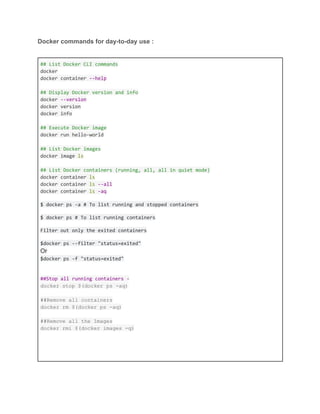
day-to-day activities.
Note :- I have kept The source code of the java application, in memory db queries and
data in github. Please refer to the below github link for downloading the project.
https://github.com/sunil-mohanty/springboot-docker.git
Find below the structure of the project.
In the pom.xml add the packaging directory. For this demonstration I am creating a folder
named docker in the base directory and using that one for output directory and also for docker
build directory. But any local directory can be used for this purpose. Refer the below segment in
the pom.xml
<plugin>
<groupId>org.springframework.boot</groupId>
<artifactId>spring-boot-maven-plugin</artifactId>
<executions>
<execution>
<goals>
<goal>repackage</goal>
</goals>
<configuration>
<mainClass>com.ski.app.Application</mainClass>
<outputDirectory>${project.basedir}/docker</outputDirectory>
</configuration>
</execution>
</executions>
</plugin>](https://image.slidesharecdn.com/containerizespringbootapplicationwithdocker-200508115626/85/Containerize-spring-boot-application-with-docker-1-320.jpg)
![Containerizing spring boot rest application using docker -
In this post, I will be demonstrating how to containerize a spring boot application using docker.
Before starting please ensure docker is installed on your machine [Docker setup is not scoped
in this post ] . At the end of the post a few docker commands are listed, which will be useful in
day-to-day activities.
Note :- I have kept The source code of the java application, in memory db queries and
data in github. Please refer to the below github link for downloading the project.
https://github.com/sunil-mohanty/springboot-docker.git
Find below the structure of the project.
In the pom.xml add the packaging directory. For this demonstration I am creating a folder
named docker in the base directory and using that one for output directory and also for docker
build directory. But any local directory can be used for this purpose. Refer the below segment in
the pom.xml
<plugin>
<groupId>org.springframework.boot</groupId>
<artifactId>spring-boot-maven-plugin</artifactId>
<executions>
<execution>
<goals>
<goal>repackage</goal>
</goals>
<configuration>
<mainClass>com.ski.app.Application</mainClass>
<outputDirectory>${project.basedir}/docker</outputDirectory>
</configuration>
</execution>
</executions>
</plugin>](https://image.slidesharecdn.com/containerizespringbootapplicationwithdocker-200508115626/75/Containerize-spring-boot-application-with-docker-1-2048.jpg)
![The below snippet shows the content of dockerfile to create the docker image and use open jdk
to run that image.
# Alpine Linux with OpenJDK JRE
FROM openjdk:8-jre-alpine
# copy WAR into image
COPY spring-boot-app-0.0.1-SNAPSHOT.war /app.war
# run application with this command line
CMD ["/usr/bin/java", "-jar", "-Dspring.profiles.active=default", "/app.war"]
Build the spring boot application :
$mvn clean install -X
The above command will create spring-boot-app-0.0.1-SNAPSHOT.war in the docker folder present
in our project base directory.
Now build the docker image by running the below command:
$ docker build -f Dockerfile -t spring-boot-app:latest .
-f specifies the Dockerfile..
-t specifies the name of the image. The name is ‘spring-boot-app’, and the ‘latest’ after the
colon, specify the image tag.
NOTE: Do not forget the .(dot) at the end of command; it specifies the context of the build. The
.(dot) at the end of the command specifies the current directory. The files and directories of
current directory will be sent to Docker daemon as build artifacts.
Run the docker image using the below command :
$docker run -d[for detached mode] -p [host]:[docker] image_name
$ docker run -p 9090:8081 spring-boot-app:latest](https://image.slidesharecdn.com/containerizespringbootapplicationwithdocker-200508115626/85/Containerize-spring-boot-application-with-docker-2-320.jpg)
![Now hit the get request in postman or in your favourite browser to access the output :-
http://localhost:9090/studentapp/students
The response will be -
{
"students": [
{
"id": 1,
"name": "Anna",
"address": "New York"
},
{
"id": 2,
"name": "Arnold",
"address": "Australia"
},
{
"id": 3,
"name": "Mike",
"address": "South Africa"
},
{
"id": 4,
"name": "Bob",
"address": "Canada"
}
]
}
Use the post rest endpoint to push some student information to DB.
[post] http://localhost:9090/studentapp/students
Request Body :
[
{
"name": "Kim",
"address": "India"
},
{
"name": "Nilam",
"address": "India"
}
]](https://image.slidesharecdn.com/containerizespringbootapplicationwithdocker-200508115626/85/Containerize-spring-boot-application-with-docker-3-320.jpg)

This document provides a tutorial on how to containerize a Spring Boot application using Docker, including necessary setup steps and required commands. It includes detailed instructions for creating a Dockerfile, building a Spring Boot application, and commands to manage Docker images and containers. Additionally, it offers a GitHub link to the source code and examples of API requests to interact with the application once it is running.


