PowerShell
FSRM Disk Quota Management and File Encryption
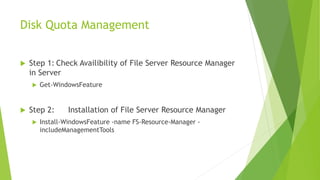
Disk Quota Management
 Step 1: Check Availibility of File Server Resource Manager
in Server
 Get-WindowsFeature
 Step 2: Installation of File Server Resource Manager
 Install-WindowsFeature -name FS-Resource-Manager -
includeManagementTools
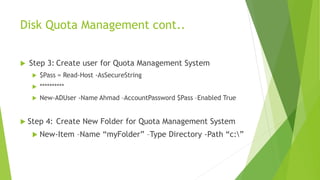
Disk Quota Management cont..
 Step 3: Create user for Quota Management System
 $Pass = Read-Host -AsSecureString
 **********
 New-ADUser -Name Ahmad –AccountPassword $Pass –Enabled True
 Step 4: Create New Folder for Quota Management System
 New-Item –Name “myFolder” –Type Directory -Path “c:”
Disk Quota Management cont..
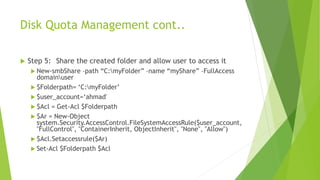
 Step 5: Share the created folder and allow user to access it
 New-smbShare –path “C:myFolder” –name “myShare” –FullAccess
domainuser
 $Folderpath= ‘C:myFolder’
 $user_account=‘ahmad'
 $Acl = Get-Acl $Folderpath
 $Ar = New-Object
system.Security.AccessControl.FileSystemAccessRule($user_account,
"FullControl", "ContainerInherit, ObjectInherit", "None", "Allow")
 $Acl.Setaccessrule($Ar)
 Set-Acl $Folderpath $Acl
Disk Quota Management cont..
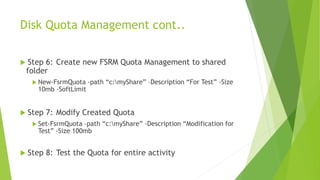
 Step 6: Create new FSRM Quota Management to shared
folder
 New-FsrmQuota -path “c:myShare” –Description “For Test” -Size
10mb -SoftLimit
 Step 7: Modify Created Quota
 Set-FsrmQuota –path “c:myShare” -Description “Modification for
Test” -Size 100mb
 Step 8: Test the Quota for entire activity
File Encryption in PowerShell
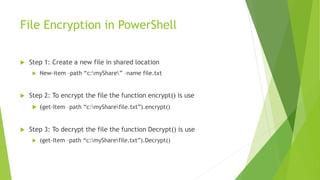
 Step 1: Create a new file in shared location
 New-item –path “c:myShare” –name file.txt
 Step 2: To encrypt the file the function encrypt() is use
 (get-Item –path “c:mySharefile.txt”).encrypt()
 Step 3: To decrypt the file the function Decrypt() is use
 (get-Item –path “c:mySharefile.txt”).Decrypt()

Fsrm disk quota management system and file encryption

  • 1.
    PowerShell FSRM Disk QuotaManagement and File Encryption
  • 2.
    Disk Quota Management Step 1: Check Availibility of File Server Resource Manager in Server  Get-WindowsFeature  Step 2: Installation of File Server Resource Manager  Install-WindowsFeature -name FS-Resource-Manager - includeManagementTools
  • 3.
    Disk Quota Managementcont..  Step 3: Create user for Quota Management System  $Pass = Read-Host -AsSecureString  **********  New-ADUser -Name Ahmad –AccountPassword $Pass –Enabled True  Step 4: Create New Folder for Quota Management System  New-Item –Name “myFolder” –Type Directory -Path “c:”
  • 4.
    Disk Quota Managementcont..  Step 5: Share the created folder and allow user to access it  New-smbShare –path “C:myFolder” –name “myShare” –FullAccess domainuser  $Folderpath= ‘C:myFolder’  $user_account=‘ahmad'  $Acl = Get-Acl $Folderpath  $Ar = New-Object system.Security.AccessControl.FileSystemAccessRule($user_account, "FullControl", "ContainerInherit, ObjectInherit", "None", "Allow")  $Acl.Setaccessrule($Ar)  Set-Acl $Folderpath $Acl
  • 5.
    Disk Quota Managementcont..  Step 6: Create new FSRM Quota Management to shared folder  New-FsrmQuota -path “c:myShare” –Description “For Test” -Size 10mb -SoftLimit  Step 7: Modify Created Quota  Set-FsrmQuota –path “c:myShare” -Description “Modification for Test” -Size 100mb  Step 8: Test the Quota for entire activity
  • 6.
    File Encryption inPowerShell  Step 1: Create a new file in shared location  New-item –path “c:myShare” –name file.txt  Step 2: To encrypt the file the function encrypt() is use  (get-Item –path “c:mySharefile.txt”).encrypt()  Step 3: To decrypt the file the function Decrypt() is use  (get-Item –path “c:mySharefile.txt”).Decrypt()