1
April 2021
Ocean Export Documentation
Every move a success
Objectives
This presentation will guide the learner to
โ€ข Prepare and generate a House BL
โ€ข Submit Shipping Instruction to carrier
โ€ข Generate Job
โ€ข Frescon & Attach Documents
โ€ข Update Tracking information of the shipment
At the end of this module, the learner will be able to:-
โ€ขUnderstand the Ocean Export Documentation process
โ€ขKnow all the steps involved to :-
โ€ข Process a HBL and MBL effectively
โ€ข Create Payment Request and Invoices
โ€ข Prepare Export Manifest and Pre-alerts
โ€ข Create Payment Request
โ€ข Create Invoice / Credit Note (CRN)
โ€ข Prepare Export Manifest
โ€ข Submit Automated Manifest System
(AMS)
โ€ข Send Pre-Alerts
Prerequisite: Completion of Domain Beginner and eFS eOcean Beginner level certification.
Target Audience : Learners who have completed the prerequisites and are new to Ocean Export
Documentation.
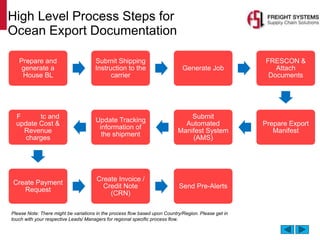
High Level Process Steps for
Ocean Export Documentation
Prepare and
generate a
House BL
Submit Shipping
Instruction to the
carrier
Generate Job
FRESCON &
Attach
Documents
Prepare Export
Manifest
Submit
Automated
Manifest System
(AMS)
Update Tracking
information of
the shipment
F tc and
update Cost &
Revenue
charges
Create Payment
Request
Create Invoice /
Credit Note
(CRN)
Send Pre-Alerts
Please Note: There might be variations in the process flow based upon Country/Region. Please get in
touch with your respective Leads/ Managers for regional specific process flow.
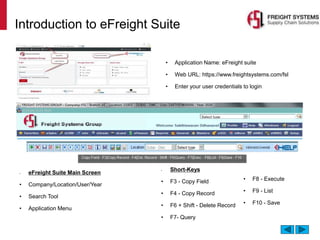
Introduction to eFreight Suite
โ€ข Application Name: eFreight suite
โ€ข Web URL: https://www.freightsystems.com/fsl
โ€ข Enter your user credentials to login
โ€ข eFreight Suite Main Screen
โ€ข Company/Location/User/Year
โ€ข Search Tool
โ€ข Application Menu
โ€ข Short-Keys
โ€ข F3 - Copy Field
โ€ข F4 - Copy Record
โ€ข F6 + Shift - Delete Record
โ€ข F7- Query
โ€ข F8 - Execute
โ€ข F9 - List
โ€ข F10 - Save
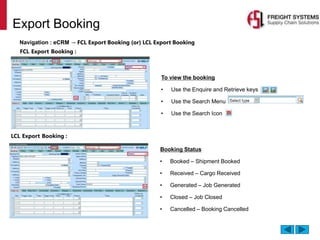
Export Booking
Navigation : eCRM โ†’ FCL Export Booking (or) LCL Export Booking
To view the booking
โ€ข Use the Enquire and Retrieve keys
โ€ข Use the Search Menu
โ€ข Use the Search Icon
FCL Export Booking :
LCL Export Booking :
Booking Status
โ€ข Booked โ€“ Shipment Booked
โ€ข Received โ€“ Cargo Received
โ€ข Generated โ€“ Job Generated
โ€ข Closed โ€“ Job Closed
โ€ข Cancelled โ€“ Booking Cancelled
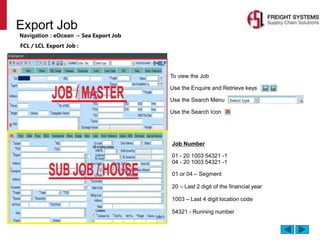
Export Job
Navigation : eOcean โ†’ Sea Export Job
๏ฌ To view the Job
โ€ข Use the Enquire and Retrieve keys
โ€ข Use the Search Menu
โ€ข Use the Search Icon
FCL / LCL Export Job :
Job Number
01 - 20 1003 54321 -1
04 - 20 1003 54321 -1
01 or 04 โ€“ Segment
20 โ€“ Last 2 digit of the financial year
1003 โ€“ Last 4 digit location code
54321 - Running number
How to Prepare a Draft
HBL?
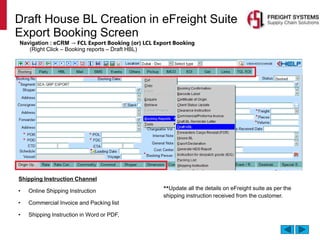
Draft House BL Creation in eFreight Suite
Export Booking Screen
Navigation : eCRM โ†’ FCL Export Booking (or) LCL Export Booking
(Right Click โ€“ Booking reports โ€“ Draft HBL)
Shipping Instruction Channel
โ€ข Online Shipping Instruction
โ€ข Commercial Invoice and Packing list
โ€ข Shipping Instruction in Word or PDF,
**Update all the details on eFreight suite as per the
shipping instruction received from the customer.
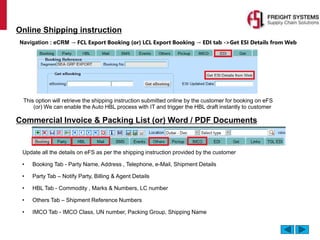
This option will retrieve the shipping instruction submitted online by the customer for booking on eFS
(or) We can enable the Auto HBL process with IT and trigger the HBL draft instantly to customer
Online Shipping instruction
Navigation : eCRM โ†’ FCL Export Booking (or) LCL Export Booking โ†’ EDI tab ->Get ESI Details from Web
Commercial Invoice & Packing List (or) Word / PDF Documents
Update all the details on eFS as per the shipping instruction provided by the customer
โ€ข Booking Tab - Party Name, Address , Telephone, e-Mail, Shipment Details
โ€ข Party Tab โ€“ Notify Party, Billing & Agent Details
โ€ข HBL Tab - Commodity , Marks & Numbers, LC number
โ€ข Others Tab โ€“ Shipment Reference Numbers
โ€ข IMCO Tab - IMCO Class, UN number, Packing Group, Shipping Name
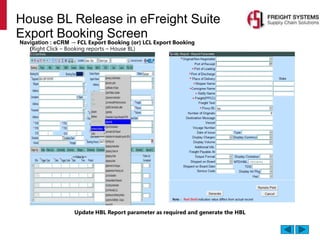
House BL Release in eFreight Suite
Export Booking Screen
Navigation : eCRM โ†’ FCL Export Booking (or) LCL Export Booking
(Right Click โ€“ Booking reports โ€“ House BL)
Update HBL Report parameter as required and generate the HBL
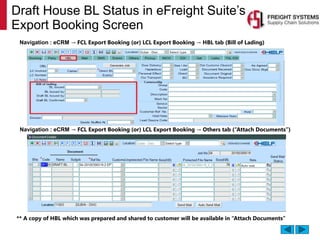
Draft House BL Status in eFreight Suiteโ€™s
Export Booking Screen
Navigation : eCRM โ†’ FCL Export Booking (or) LCL Export Booking โ†’ HBL tab (Bill of Lading)
Navigation : eCRM โ†’ FCL Export Booking (or) LCL Export Booking โ†’ Others tab (โ€œAttach Documentsโ€)
** A copy of HBL which was prepared and shared to customer will be available in โ€œAttach Documentsโ€
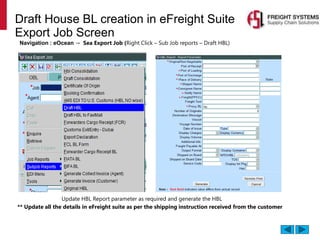
Draft House BL creation in eFreight Suite
Export Job Screen
Navigation : eOcean โ†’ Sea Export Job (Right Click โ€“ Sub Job reports โ€“ Draft HBL)
** Update all the details in eFreight suite as per the shipping instruction received from the customer
Update HBL Report parameter as required and generate the HBL
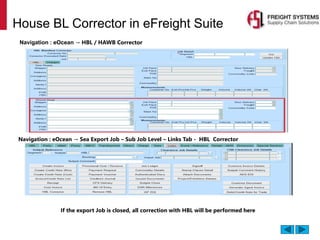
House BL Corrector in eFreight Suite
Navigation : eOcean โ†’ HBL / HAWB Corrector
Navigation : eOcean โ†’ Sea Export Job โ€“ Sub Job Level โ€“ Links Tab - HBL Corrector
If the export Job is closed, all correction with HBL will be performed here
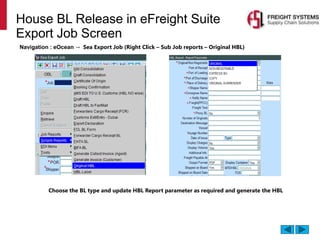
House BL Release in eFreight Suite
Export Job Screen
Navigation : eOcean โ†’ Sea Export Job (Right Click โ€“ Sub Job reports โ€“ Original HBL)
Choose the BL type and update HBL Report parameter as required and generate the HBL
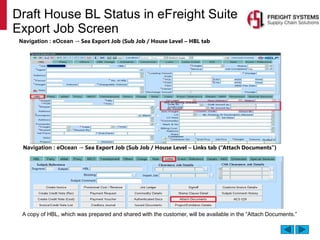
A copy of HBL, which was prepared and shared with the customer, will be available in the โ€œAttach Documents.โ€
Navigation : eOcean โ†’ Sea Export Job (Sub Job / House Level โ€“ Links tab (โ€œAttach Documentsโ€)
Draft House BL Status in eFreight Suite
Export Job Screen
Navigation : eOcean โ†’ Sea Export Job (Sub Job / House Level โ€“ HBL tab
How to Submit a
Shipping Instruction to
the Carrier?
Master BL Shipping Instruction to Carrier in eFS
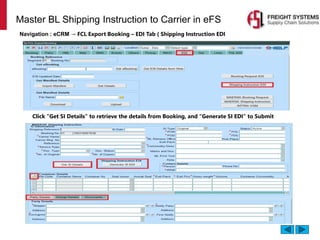
Navigation : eCRM โ†’ FCL Export Booking โ€“ EDI Tab ( Shipping Instruction EDI
Click โ€œGet SI Detailsโ€ to retrieve the details from Booking, and โ€œGenerate SI EDIโ€ to Submit
Master BL Shipping Instruction to Carrier in eFS
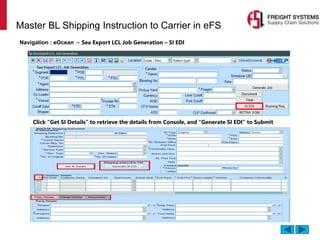
Navigation : eOcean โ†’ Sea Export LCL Job Generation โ€“ SI EDI
Click โ€œGet SI Detailsโ€ to retrieve the details from Console, and โ€œGenerate SI EDIโ€ to Submit
Master BL Shipping Instruction to Carrier in eFS
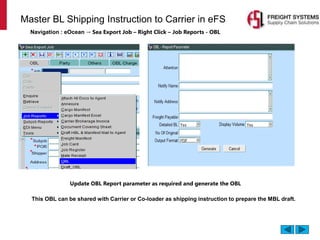
Navigation : eOcean โ†’ Sea Export Job โ€“ Right Click โ€“ Job Reports - OBL
Update OBL Report parameter as required and generate the OBL
This OBL can be shared with Carrier or Co-loader as shipping instruction to prepare the MBL draft.
OBL Corrector in eFreight Suite
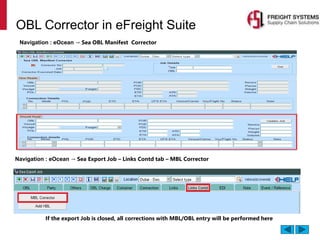
Navigation : eOcean โ†’ Sea OBL Manifest Corrector
Navigation : eOcean โ†’ Sea Export Job โ€“ Links Contd tab โ€“ MBL Corrector
If the export Job is closed, all corrections with MBL/OBL entry will be performed here
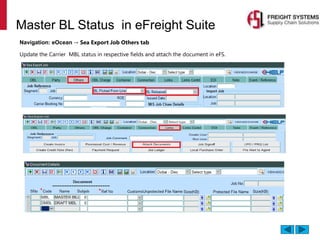
Master BL Status in eFreight Suite
Navigation: eOcean โ†’ Sea Export Job Others tab
Update the Carrier MBL status in respective fields and attach the document in eFS.
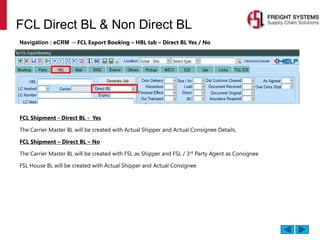
FCL Direct BL & Non Direct BL
Navigation : eCRM โ†’ FCL Export Booking โ€“ HBL tab โ€“ Direct BL Yes / No
FCL Shipment - Direct BL - Yes
The Carrier Master BL will be created with Actual Shipper and Actual Consignee Details,
FCL Shipment โ€“ Direct BL โ€“ No
The Carrier Master BL will be created with FSL as Shipper and FSL / 3rd
Party Agent as Consignee
FSL House BL will be created with Actual Shipper and Actual Consignee
How to Generate a Job?
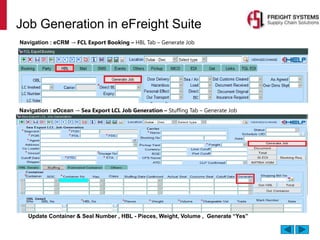
Job Generation in eFreight Suite
Navigation : eCRM โ†’ FCL Export Booking โ€“ HBL Tab โ€“ Generate Job
Navigation : eOcean โ†’ Sea Export LCL Job Generation โ€“ Stuffing Tab โ€“ Generate Job
Update Container & Seal Number , HBL - Pieces, Weight, Volume , Generate โ€œYesโ€
FRESCON &
Attach Documents
FRESCON
FRESCON is a Purchase Order Management System (POMS) developed by Freight Systems. It is
an online web oriented tool that enables our customers to transact with us through a secure
username and password. It has advanced features such as e-Bookings and a wide range of Ready
Reports. By using MY REPORTS, customers can customize and schedule the reports directly to
their emails.
Customers can view all their shipping documents online like Invoices, Packing Lists and Certificate
of Origins using FRESCON.
Additionally, customers can also view our Freight Invoices and Statement of Outstanding.
Customers using our 3PL or logistics services can acquire both freight and warehousing information
at the same place as we have an online integrated warehouse module.
Customers, instead of using the numbers generated by us can use their PO numbers to search all
the essential information. Logistics Managers will be greatly benefited as they will have all the
information required at their fingertips with the click of a button. Our Purchase Order Management
system is designed to seamlessly integrate and retrieve data from any ERP structure providing ease
and convenience to our customers.
Key Benefits of FRESCON:
Secure online tool, Integrated Freight and Warehousing modules, Access to generate e-Bookings
and wide variety of reports,
24x7 access to all shipping documents, Integration can be done with other ERP system, and
Customizable to customer requirements
Attach Document
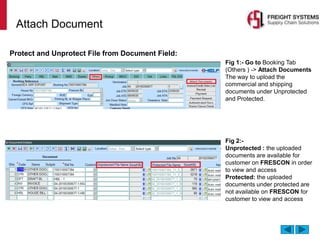
Fig 1:- Go to Booking Tab
(Others ) -> Attach Documents
The way to upload the
commercial and shipping
documents under Unprotected
and Protected.
Fig 2:-
Unprotected : the uploaded
documents are available for
customer on FRESCON in order
to view and access
Protected: the uploaded
documents under protected are
not available on FRESCON for
customer to view and access
Protect and Unprotect File from Document Field:
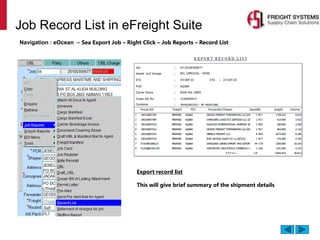
Job Record List in eFreight Suite
Navigation : eOcean โ†’ Sea Export Job โ€“ Right Click โ€“ Job Reports โ€“ Record List
Export record list
This will give brief summary of the shipment details
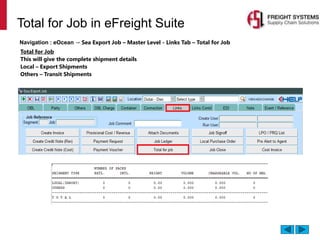
Total for Job in eFreight Suite
Navigation : eOcean โ†’ Sea Export Job โ€“ Master Level - Links Tab โ€“ Total for Job
Total for Job
This will give the complete shipment details
Local โ€“ Export Shipments
Others โ€“ Transit Shipments
How to Prepare Export
Manifest?
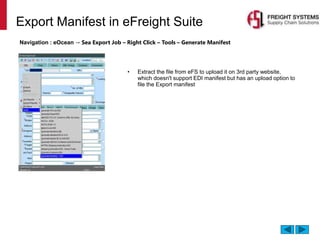
Export Manifest in eFreight Suite
Navigation : eOcean โ†’ Sea Export Job โ€“ Right Click โ€“ Tools โ€“ Generate Manifest
โ€ข Extract the file from eFS to upload it on 3rd party website,
which doesn't support EDI manifest but has an upload option to
file the Export manifest
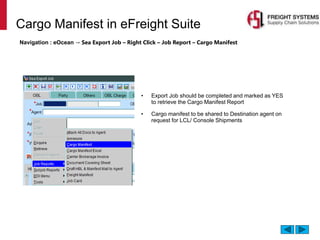
Cargo Manifest in eFreight Suite
Navigation : eOcean โ†’ Sea Export Job โ€“ Right Click โ€“ Job Report โ€“ Cargo Manifest
โ€ข Export Job should be completed and marked as YES
to retrieve the Cargo Manifest Report
โ€ข Cargo manifest to be shared to Destination agent on
request for LCL/ Console Shipments
How to Submit Automated
Manifest System (AMS)?
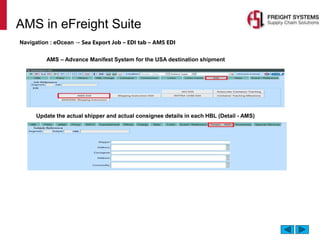
AMS in eFreight Suite
Navigation : eOcean โ†’ Sea Export Job โ€“ EDI tab โ€“ AMS EDI
Update the actual shipper and actual consignee details in each HBL (Detail - AMS)
AMS โ€“ Advance Manifest System for the USA destination shipment
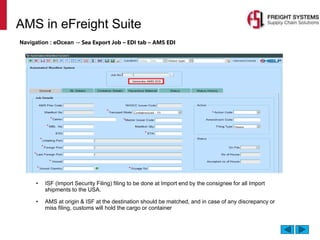
AMS in eFreight Suite
Navigation : eOcean โ†’ Sea Export Job โ€“ EDI tab โ€“ AMS EDI
โ€ข ISF (Import Security Filing) filing to be done at Import end by the consignee for all Import
shipments to the USA.
โ€ข AMS at origin & ISF at the destination should be matched, and in case of any discrepancy or
miss filing, customs will hold the cargo or container
How to Update the
Tracking Information of
the Shipment?
Track & Trace in eFreight Suite
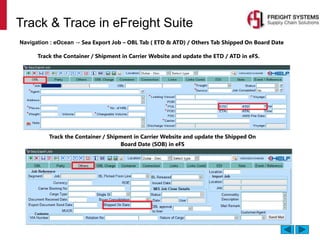
Navigation : eOcean โ†’ Sea Export Job โ€“ OBL Tab ( ETD & ATD) / Others Tab Shipped On Board Date
Track the Container / Shipment in Carrier Website and update the ETD / ATD in eFS.
Track the Container / Shipment in Carrier Website and update the Shipped On
Board Date (SOB) in eFS
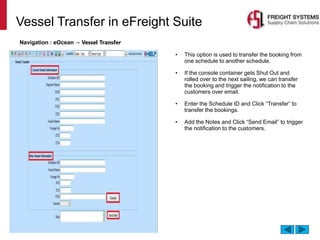
Vessel Transfer in eFreight Suite
Navigation : eOcean โ†’ Vessel Transfer
โ€ข This option is used to transfer the booking from
one schedule to another schedule.
โ€ข If the console container gets Shut Out and
rolled over to the next sailing, we can transfer
the booking and trigger the notification to the
customers over email.
โ€ข Enter the Schedule ID and Click โ€œTransferโ€ to
transfer the bookings.
โ€ข Add the Notes and Click โ€œSend Emailโ€ to trigger
the notification to the customers.
Mail Remarks in eFreight Suite
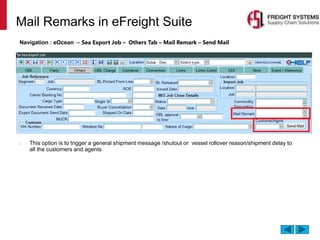
Navigation : eOcean โ†’ Sea Export Job โ€“ Others Tab โ€“ Mail Remark โ€“ Send Mail
โ€ข This option is to trigger a general shipment message /shutout or vessel rollover reason/shipment delay to
all the customers and agents
How to Create a
Payment Request?
Payment Request in eFreight Suite
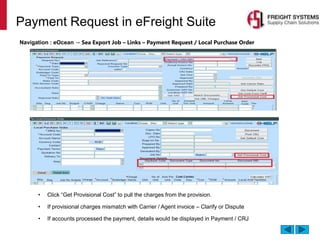
Navigation : eOcean โ†’ Sea Export Job โ€“ Links โ€“ Payment Request / Local Purchase Order
โ€ข Click โ€œGet Provisional Costโ€ to pull the charges from the provision.
โ€ข If provisional charges mismatch with Carrier / Agent invoice โ€“ Clarify or Dispute
โ€ข If accounts processed the payment, details would be displayed in Payment / CRJ
How to Create Invoice /
Credit Note (CRN)?
Invoice / Credit Note in eFreight Suite
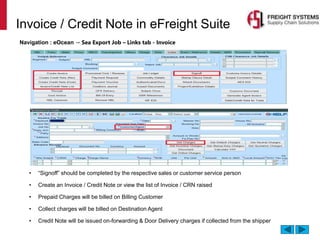
Navigation : eOcean โ†’ Sea Export Job โ€“ Links tab - Invoice
โ€ข โ€œSignoffโ€ should be completed by the respective sales or customer service person
โ€ข Create an Invoice / Credit Note or view the list of Invoice / CRN raised
โ€ข Prepaid Charges will be billed on Billing Customer
โ€ข Collect charges will be billed on Destination Agent
โ€ข Credit Note will be issued on-forwarding & Door Delivery charges if collected from the shipper
How to Send Pre-Alerts?
Pre Alert in eFreight Suite
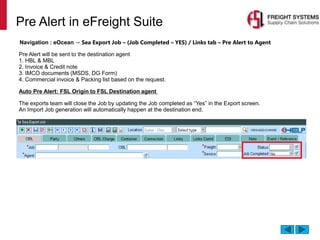
Navigation : eOcean โ†’ Sea Export Job โ€“ (Job Completed โ€“ YES) / Links tab โ€“ Pre Alert to Agent
Pre Alert will be sent to the destination agent
1. HBL & MBL
2. Invoice & Credit note
3. IMCO documents (MSDS, DG Form)
4. Commercial invoice & Packing list based on the request.
Auto Pre Alert: FSL Origin to FSL Destination agent
The exports team will close the Job by updating the Job completed as โ€œYesโ€ in the Export screen.
An Import Job generation will automatically happen at the destination end.
Pre Alert in eFreight Suite
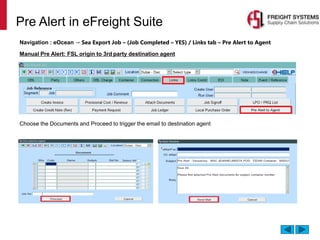
Navigation : eOcean โ†’ Sea Export Job โ€“ (Job Completed โ€“ YES) / Links tab โ€“ Pre Alert to Agent
Manual Pre Alert: FSL origin to 3rd party destination agent
Choose the Documents and Proceed to trigger the email to destination agent
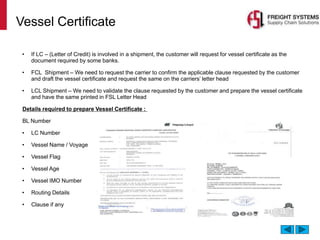
Vessel Certificate
โ€ข If LC โ€“ (Letter of Credit) is involved in a shipment, the customer will request for vessel certificate as the
document required by some banks.
โ€ข FCL Shipment โ€“ We need to request the carrier to confirm the applicable clause requested by the customer
and draft the vessel certificate and request the same on the carriersโ€™ letter head
โ€ข LCL Shipment โ€“ We need to validate the clause requested by the customer and prepare the vessel certificate
and have the same printed in FSL Letter Head
Details required to prepare Vessel Certificate :
BL Number
โ€ข LC Number
โ€ข Vessel Name / Voyage
โ€ข Vessel Flag
โ€ข Vessel Age
โ€ข Vessel IMO Number
โ€ข Routing Details
โ€ข Clause if any
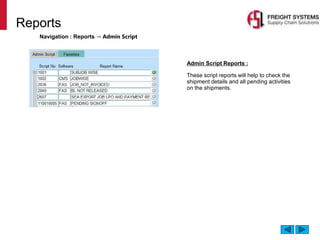
Reports
Navigation : Reports โ†’ Admin Script
Admin Script Reports :
These script reports will help to check the
shipment details and all pending activities
on the shipments.
Thank You

FSL Ocean Export Documentation v2.1

  • 1.
    1 April 2021 Ocean ExportDocumentation Every move a success
  • 2.
    Objectives This presentation willguide the learner to โ€ข Prepare and generate a House BL โ€ข Submit Shipping Instruction to carrier โ€ข Generate Job โ€ข Frescon & Attach Documents โ€ข Update Tracking information of the shipment At the end of this module, the learner will be able to:- โ€ขUnderstand the Ocean Export Documentation process โ€ขKnow all the steps involved to :- โ€ข Process a HBL and MBL effectively โ€ข Create Payment Request and Invoices โ€ข Prepare Export Manifest and Pre-alerts โ€ข Create Payment Request โ€ข Create Invoice / Credit Note (CRN) โ€ข Prepare Export Manifest โ€ข Submit Automated Manifest System (AMS) โ€ข Send Pre-Alerts Prerequisite: Completion of Domain Beginner and eFS eOcean Beginner level certification. Target Audience : Learners who have completed the prerequisites and are new to Ocean Export Documentation.
  • 3.
    High Level ProcessSteps for Ocean Export Documentation Prepare and generate a House BL Submit Shipping Instruction to the carrier Generate Job FRESCON & Attach Documents Prepare Export Manifest Submit Automated Manifest System (AMS) Update Tracking information of the shipment F tc and update Cost & Revenue charges Create Payment Request Create Invoice / Credit Note (CRN) Send Pre-Alerts Please Note: There might be variations in the process flow based upon Country/Region. Please get in touch with your respective Leads/ Managers for regional specific process flow.
  • 4.
    Introduction to eFreightSuite โ€ข Application Name: eFreight suite โ€ข Web URL: https://www.freightsystems.com/fsl โ€ข Enter your user credentials to login โ€ข eFreight Suite Main Screen โ€ข Company/Location/User/Year โ€ข Search Tool โ€ข Application Menu โ€ข Short-Keys โ€ข F3 - Copy Field โ€ข F4 - Copy Record โ€ข F6 + Shift - Delete Record โ€ข F7- Query โ€ข F8 - Execute โ€ข F9 - List โ€ข F10 - Save
  • 5.
    Export Booking Navigation :eCRM โ†’ FCL Export Booking (or) LCL Export Booking To view the booking โ€ข Use the Enquire and Retrieve keys โ€ข Use the Search Menu โ€ข Use the Search Icon FCL Export Booking : LCL Export Booking : Booking Status โ€ข Booked โ€“ Shipment Booked โ€ข Received โ€“ Cargo Received โ€ข Generated โ€“ Job Generated โ€ข Closed โ€“ Job Closed โ€ข Cancelled โ€“ Booking Cancelled
  • 6.
    Export Job Navigation :eOcean โ†’ Sea Export Job ๏ฌ To view the Job โ€ข Use the Enquire and Retrieve keys โ€ข Use the Search Menu โ€ข Use the Search Icon FCL / LCL Export Job : Job Number 01 - 20 1003 54321 -1 04 - 20 1003 54321 -1 01 or 04 โ€“ Segment 20 โ€“ Last 2 digit of the financial year 1003 โ€“ Last 4 digit location code 54321 - Running number
  • 7.
    How to Preparea Draft HBL?
  • 8.
    Draft House BLCreation in eFreight Suite Export Booking Screen Navigation : eCRM โ†’ FCL Export Booking (or) LCL Export Booking (Right Click โ€“ Booking reports โ€“ Draft HBL) Shipping Instruction Channel โ€ข Online Shipping Instruction โ€ข Commercial Invoice and Packing list โ€ข Shipping Instruction in Word or PDF, **Update all the details on eFreight suite as per the shipping instruction received from the customer.
  • 9.
    This option willretrieve the shipping instruction submitted online by the customer for booking on eFS (or) We can enable the Auto HBL process with IT and trigger the HBL draft instantly to customer Online Shipping instruction Navigation : eCRM โ†’ FCL Export Booking (or) LCL Export Booking โ†’ EDI tab ->Get ESI Details from Web Commercial Invoice & Packing List (or) Word / PDF Documents Update all the details on eFS as per the shipping instruction provided by the customer โ€ข Booking Tab - Party Name, Address , Telephone, e-Mail, Shipment Details โ€ข Party Tab โ€“ Notify Party, Billing & Agent Details โ€ข HBL Tab - Commodity , Marks & Numbers, LC number โ€ข Others Tab โ€“ Shipment Reference Numbers โ€ข IMCO Tab - IMCO Class, UN number, Packing Group, Shipping Name
  • 10.
    House BL Releasein eFreight Suite Export Booking Screen Navigation : eCRM โ†’ FCL Export Booking (or) LCL Export Booking (Right Click โ€“ Booking reports โ€“ House BL) Update HBL Report parameter as required and generate the HBL
  • 11.
    Draft House BLStatus in eFreight Suiteโ€™s Export Booking Screen Navigation : eCRM โ†’ FCL Export Booking (or) LCL Export Booking โ†’ HBL tab (Bill of Lading) Navigation : eCRM โ†’ FCL Export Booking (or) LCL Export Booking โ†’ Others tab (โ€œAttach Documentsโ€) ** A copy of HBL which was prepared and shared to customer will be available in โ€œAttach Documentsโ€
  • 12.
    Draft House BLcreation in eFreight Suite Export Job Screen Navigation : eOcean โ†’ Sea Export Job (Right Click โ€“ Sub Job reports โ€“ Draft HBL) ** Update all the details in eFreight suite as per the shipping instruction received from the customer Update HBL Report parameter as required and generate the HBL
  • 13.
    House BL Correctorin eFreight Suite Navigation : eOcean โ†’ HBL / HAWB Corrector Navigation : eOcean โ†’ Sea Export Job โ€“ Sub Job Level โ€“ Links Tab - HBL Corrector If the export Job is closed, all correction with HBL will be performed here
  • 14.
    House BL Releasein eFreight Suite Export Job Screen Navigation : eOcean โ†’ Sea Export Job (Right Click โ€“ Sub Job reports โ€“ Original HBL) Choose the BL type and update HBL Report parameter as required and generate the HBL
  • 15.
    A copy ofHBL, which was prepared and shared with the customer, will be available in the โ€œAttach Documents.โ€ Navigation : eOcean โ†’ Sea Export Job (Sub Job / House Level โ€“ Links tab (โ€œAttach Documentsโ€) Draft House BL Status in eFreight Suite Export Job Screen Navigation : eOcean โ†’ Sea Export Job (Sub Job / House Level โ€“ HBL tab
  • 16.
    How to Submita Shipping Instruction to the Carrier?
  • 17.
    Master BL ShippingInstruction to Carrier in eFS Navigation : eCRM โ†’ FCL Export Booking โ€“ EDI Tab ( Shipping Instruction EDI Click โ€œGet SI Detailsโ€ to retrieve the details from Booking, and โ€œGenerate SI EDIโ€ to Submit
  • 18.
    Master BL ShippingInstruction to Carrier in eFS Navigation : eOcean โ†’ Sea Export LCL Job Generation โ€“ SI EDI Click โ€œGet SI Detailsโ€ to retrieve the details from Console, and โ€œGenerate SI EDIโ€ to Submit
  • 19.
    Master BL ShippingInstruction to Carrier in eFS Navigation : eOcean โ†’ Sea Export Job โ€“ Right Click โ€“ Job Reports - OBL Update OBL Report parameter as required and generate the OBL This OBL can be shared with Carrier or Co-loader as shipping instruction to prepare the MBL draft.
  • 20.
    OBL Corrector ineFreight Suite Navigation : eOcean โ†’ Sea OBL Manifest Corrector Navigation : eOcean โ†’ Sea Export Job โ€“ Links Contd tab โ€“ MBL Corrector If the export Job is closed, all corrections with MBL/OBL entry will be performed here
  • 21.
    Master BL Statusin eFreight Suite Navigation: eOcean โ†’ Sea Export Job Others tab Update the Carrier MBL status in respective fields and attach the document in eFS.
  • 22.
    FCL Direct BL& Non Direct BL Navigation : eCRM โ†’ FCL Export Booking โ€“ HBL tab โ€“ Direct BL Yes / No FCL Shipment - Direct BL - Yes The Carrier Master BL will be created with Actual Shipper and Actual Consignee Details, FCL Shipment โ€“ Direct BL โ€“ No The Carrier Master BL will be created with FSL as Shipper and FSL / 3rd Party Agent as Consignee FSL House BL will be created with Actual Shipper and Actual Consignee
  • 23.
  • 24.
    Job Generation ineFreight Suite Navigation : eCRM โ†’ FCL Export Booking โ€“ HBL Tab โ€“ Generate Job Navigation : eOcean โ†’ Sea Export LCL Job Generation โ€“ Stuffing Tab โ€“ Generate Job Update Container & Seal Number , HBL - Pieces, Weight, Volume , Generate โ€œYesโ€
  • 25.
  • 26.
    FRESCON FRESCON is aPurchase Order Management System (POMS) developed by Freight Systems. It is an online web oriented tool that enables our customers to transact with us through a secure username and password. It has advanced features such as e-Bookings and a wide range of Ready Reports. By using MY REPORTS, customers can customize and schedule the reports directly to their emails. Customers can view all their shipping documents online like Invoices, Packing Lists and Certificate of Origins using FRESCON. Additionally, customers can also view our Freight Invoices and Statement of Outstanding. Customers using our 3PL or logistics services can acquire both freight and warehousing information at the same place as we have an online integrated warehouse module. Customers, instead of using the numbers generated by us can use their PO numbers to search all the essential information. Logistics Managers will be greatly benefited as they will have all the information required at their fingertips with the click of a button. Our Purchase Order Management system is designed to seamlessly integrate and retrieve data from any ERP structure providing ease and convenience to our customers. Key Benefits of FRESCON: Secure online tool, Integrated Freight and Warehousing modules, Access to generate e-Bookings and wide variety of reports, 24x7 access to all shipping documents, Integration can be done with other ERP system, and Customizable to customer requirements
  • 27.
    Attach Document Fig 1:-Go to Booking Tab (Others ) -> Attach Documents The way to upload the commercial and shipping documents under Unprotected and Protected. Fig 2:- Unprotected : the uploaded documents are available for customer on FRESCON in order to view and access Protected: the uploaded documents under protected are not available on FRESCON for customer to view and access Protect and Unprotect File from Document Field:
  • 28.
    Job Record Listin eFreight Suite Navigation : eOcean โ†’ Sea Export Job โ€“ Right Click โ€“ Job Reports โ€“ Record List Export record list This will give brief summary of the shipment details
  • 29.
    Total for Jobin eFreight Suite Navigation : eOcean โ†’ Sea Export Job โ€“ Master Level - Links Tab โ€“ Total for Job Total for Job This will give the complete shipment details Local โ€“ Export Shipments Others โ€“ Transit Shipments
  • 30.
    How to PrepareExport Manifest?
  • 31.
    Export Manifest ineFreight Suite Navigation : eOcean โ†’ Sea Export Job โ€“ Right Click โ€“ Tools โ€“ Generate Manifest โ€ข Extract the file from eFS to upload it on 3rd party website, which doesn't support EDI manifest but has an upload option to file the Export manifest
  • 32.
    Cargo Manifest ineFreight Suite Navigation : eOcean โ†’ Sea Export Job โ€“ Right Click โ€“ Job Report โ€“ Cargo Manifest โ€ข Export Job should be completed and marked as YES to retrieve the Cargo Manifest Report โ€ข Cargo manifest to be shared to Destination agent on request for LCL/ Console Shipments
  • 33.
    How to SubmitAutomated Manifest System (AMS)?
  • 34.
    AMS in eFreightSuite Navigation : eOcean โ†’ Sea Export Job โ€“ EDI tab โ€“ AMS EDI Update the actual shipper and actual consignee details in each HBL (Detail - AMS) AMS โ€“ Advance Manifest System for the USA destination shipment
  • 35.
    AMS in eFreightSuite Navigation : eOcean โ†’ Sea Export Job โ€“ EDI tab โ€“ AMS EDI โ€ข ISF (Import Security Filing) filing to be done at Import end by the consignee for all Import shipments to the USA. โ€ข AMS at origin & ISF at the destination should be matched, and in case of any discrepancy or miss filing, customs will hold the cargo or container
  • 36.
    How to Updatethe Tracking Information of the Shipment?
  • 37.
    Track & Tracein eFreight Suite Navigation : eOcean โ†’ Sea Export Job โ€“ OBL Tab ( ETD & ATD) / Others Tab Shipped On Board Date Track the Container / Shipment in Carrier Website and update the ETD / ATD in eFS. Track the Container / Shipment in Carrier Website and update the Shipped On Board Date (SOB) in eFS
  • 38.
    Vessel Transfer ineFreight Suite Navigation : eOcean โ†’ Vessel Transfer โ€ข This option is used to transfer the booking from one schedule to another schedule. โ€ข If the console container gets Shut Out and rolled over to the next sailing, we can transfer the booking and trigger the notification to the customers over email. โ€ข Enter the Schedule ID and Click โ€œTransferโ€ to transfer the bookings. โ€ข Add the Notes and Click โ€œSend Emailโ€ to trigger the notification to the customers.
  • 39.
    Mail Remarks ineFreight Suite Navigation : eOcean โ†’ Sea Export Job โ€“ Others Tab โ€“ Mail Remark โ€“ Send Mail โ€ข This option is to trigger a general shipment message /shutout or vessel rollover reason/shipment delay to all the customers and agents
  • 40.
    How to Createa Payment Request?
  • 41.
    Payment Request ineFreight Suite Navigation : eOcean โ†’ Sea Export Job โ€“ Links โ€“ Payment Request / Local Purchase Order โ€ข Click โ€œGet Provisional Costโ€ to pull the charges from the provision. โ€ข If provisional charges mismatch with Carrier / Agent invoice โ€“ Clarify or Dispute โ€ข If accounts processed the payment, details would be displayed in Payment / CRJ
  • 42.
    How to CreateInvoice / Credit Note (CRN)?
  • 43.
    Invoice / CreditNote in eFreight Suite Navigation : eOcean โ†’ Sea Export Job โ€“ Links tab - Invoice โ€ข โ€œSignoffโ€ should be completed by the respective sales or customer service person โ€ข Create an Invoice / Credit Note or view the list of Invoice / CRN raised โ€ข Prepaid Charges will be billed on Billing Customer โ€ข Collect charges will be billed on Destination Agent โ€ข Credit Note will be issued on-forwarding & Door Delivery charges if collected from the shipper
  • 44.
    How to SendPre-Alerts?
  • 45.
    Pre Alert ineFreight Suite Navigation : eOcean โ†’ Sea Export Job โ€“ (Job Completed โ€“ YES) / Links tab โ€“ Pre Alert to Agent Pre Alert will be sent to the destination agent 1. HBL & MBL 2. Invoice & Credit note 3. IMCO documents (MSDS, DG Form) 4. Commercial invoice & Packing list based on the request. Auto Pre Alert: FSL Origin to FSL Destination agent The exports team will close the Job by updating the Job completed as โ€œYesโ€ in the Export screen. An Import Job generation will automatically happen at the destination end.
  • 46.
    Pre Alert ineFreight Suite Navigation : eOcean โ†’ Sea Export Job โ€“ (Job Completed โ€“ YES) / Links tab โ€“ Pre Alert to Agent Manual Pre Alert: FSL origin to 3rd party destination agent Choose the Documents and Proceed to trigger the email to destination agent
  • 47.
    Vessel Certificate โ€ข IfLC โ€“ (Letter of Credit) is involved in a shipment, the customer will request for vessel certificate as the document required by some banks. โ€ข FCL Shipment โ€“ We need to request the carrier to confirm the applicable clause requested by the customer and draft the vessel certificate and request the same on the carriersโ€™ letter head โ€ข LCL Shipment โ€“ We need to validate the clause requested by the customer and prepare the vessel certificate and have the same printed in FSL Letter Head Details required to prepare Vessel Certificate : BL Number โ€ข LC Number โ€ข Vessel Name / Voyage โ€ข Vessel Flag โ€ข Vessel Age โ€ข Vessel IMO Number โ€ข Routing Details โ€ข Clause if any
  • 48.
    Reports Navigation : Reportsโ†’ Admin Script Admin Script Reports : These script reports will help to check the shipment details and all pending activities on the shipments.
  • 49.