1
April 2021
1
Every move a success
Objectives
This presentation will guide the learner to
• How to use View Dashboard
• Master AWB Stock Enquiry and Generation
• Generate Hawb/Mawb
• Document required for Airline
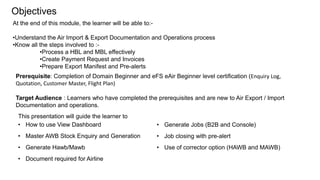
At the end of this module, the learner will be able to:-
•Understand the Air Import & Export Documentation and Operations process
•Know all the steps involved to :-
•Process a HBL and MBL effectively
•Create Payment Request and Invoices
•Prepare Export Manifest and Pre-alerts
• Generate Jobs (B2B and Console)
• Job closing with pre-alert
• Use of corrector option (HAWB and MAWB)
Prerequisite: Completion of Domain Beginner and eFS eAir Beginner level certification (Enquiry Log,
Quotation, Customer Master, Flight Plan)
Target Audience : Learners who have completed the prerequisites and are new to Air Export / Import
Documentation and operations.
3
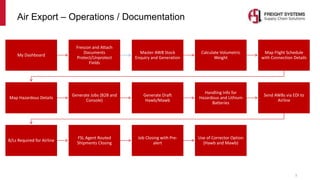
Air Export – Operations / Documentation
My Dashboard
Frescon and Attach
Documents
Protect/Unprotect
Fields
Master AWB Stock
Enquiry and Generation
Calculate Volumetric
Weight
Map Flight Schedule
with Connection Details
Map Hazardous Details
Generate Jobs (B2B and
Console)
Generate Draft
Hawb/Mawb
Handling Info for
Hazardous and Lithium
Batteries
Send AWBs via EDI to
Airline
B/Ls Required for Airline
FSL Agent Routed
Shipments Closing
Job Closing with Pre-
alert
Use of Corrector Option
(Hawb and Mawb)
Fig 1: My Dashboard
Fig 2: Air Export – list of pending Bookings
Step: 1
MY Dashboard:
A data dashboard is an information management tool that visually
tracks, analyses and displays key performance indicators (KPI), and
key data points to monitor the health of a business, department or
specific process. They are customizable to meet the specific needs of
a department and company.
List of Dashboard available for Air Export:
Air Export - Booking personwise pending bookings
Air Export - Invoice not raised
Air Export - Job not completed
Air Export - ATD not updated
Air Export – KPI dashboard with action category
Air Export – Sign off pending
4
View of My Dashboard - Export
STEP: 2
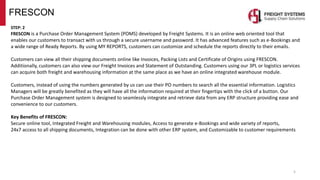
FRESCON is a Purchase Order Management System (POMS) developed by Freight Systems. It is an online web oriented tool that
enables our customers to transact with us through a secure username and password. It has advanced features such as e-Bookings and
a wide range of Ready Reports. By using MY REPORTS, customers can customize and schedule the reports directly to their emails.
Customers can view all their shipping documents online like Invoices, Packing Lists and Certificate of Origins using FRESCON.
Additionally, customers can also view our Freight Invoices and Statement of Outstanding. Customers using our 3PL or logistics services
can acquire both freight and warehousing information at the same place as we have an online integrated warehouse module.
Customers, instead of using the numbers generated by us can use their PO numbers to search all the essential information. Logistics
Managers will be greatly benefited as they will have all the information required at their fingertips with the click of a button. Our
Purchase Order Management system is designed to seamlessly integrate and retrieve data from any ERP structure providing ease and
convenience to our customers.
Key Benefits of FRESCON:
Secure online tool, Integrated Freight and Warehousing modules, Access to generate e-Bookings and wide variety of reports,
24x7 access to all shipping documents, Integration can be done with other ERP system, and Customizable to customer requirements
5
FRESCON
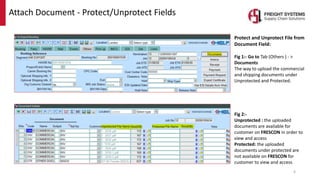
Protect and Unprotect File from
Document Field:
Fig 1:- Go to Tab (Others ) - >
Documents
The way to upload the commercial
and shipping documents under
Unprotected and Protected.
6
Fig 2:-
Unprotected : the uploaded
documents are available for
customer on FRESCON in order to
view and access
Protected: the uploaded
documents under protected are
not available on FRESCON for
customer to view and access
Attach Document - Protect/Unprotect Fields
STEP: 3
Master AWB stock enquiry and Generation
Go to eAIR - > Mawb Stock Enquiry
Mawb stock enquiry - Press F7 for query and update “Carrier” and “POR” then Press F8
to fetch the available data, as per above screen.
The way we can execute “Stock In Hand” report per Airlines
7
Master AWB Stock Enquiry and Generation
MAWB Stock Generation – eAir -> MAWB Stock Generation
How to MAWB stock generate - referring to the above screen, press F7 for query to fill up the Carrier Name, POR, Status
(Available/Generated/Cancelled) and press F8 to execute the complete available list of MAWB no in detail.
In order to update new MAWB stock generation, obtain the MAWB Stock list from Airline based on stock availability, and get
those updated by entering the mandatory details along with carrier ref no.
For Instance: Qatar Airways Cargo AWB starts with airline prefix '157' followed by eight digits. ex, 157-12345675
MAWB stock generate usage:
 Once the stock list have been
generated successfully, the MAWB
number can be pulled out and used
in the appropriate jobs as to make
airline booking instantly.
 More than one user are able to pull
the MAWB number from their
respective bookings simultaneously
based on their requirements.
 It warns users about availability of
MAWB number based on initial set
up on warning level
8
Master AWB Stock Enquiry and Generation Cont.
9
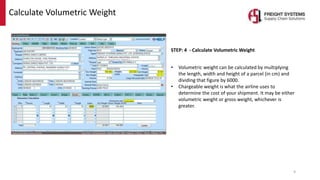
STEP: 4 - Calculate Volumetric Weight
• Volumetric weight can be calculated by multiplying
the length, width and height of a parcel (in cm) and
dividing that figure by 6000.
• Chargeable weight is what the airline uses to
determine the cost of your shipment. It may be either
volumetric weight or gross weight, whichever is
greater.
Calculate Volumetric Weight
10
STEP: 5
Map flight schedule with connection details
 Once the booking is confirmed with Airline
based on cargo details, ensure to put POR,
POL, POD, FDC, ETD, ETA, CARRIER NAME,
FLIGHT NO, CONNECTION DETAILS (if
transhipment shipments) as per above
screen
 The way we can send a trigger flight schedule
to Agent/Customers after mapping
Map Flight Schedule with Connection Details
11
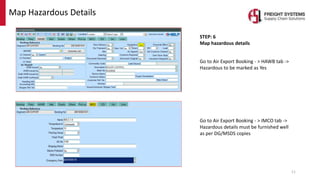
STEP: 6
Map hazardous details
Go to Air Export Booking - > HAWB tab ->
Hazardous to be marked as Yes
Go to Air Export Booking - > IMCO tab ->
Hazardous details must be furnished well
as per DG/MSDS copies
Map Hazardous Details
STEP: 7 - Generate Job (B2B)
 First of all, please ensure to update
appropriate AIRLINE details under
Booking TAB
 To make a booking with specified
Airline, click on MAWB folder
button as highlighted in order to
fetch the available MAWB
reference from stock level based
on mentioned Airline that has
already been generated.
 Once the good received and make
a airline booking, click on
“Generate Job” button for Back to
Back shipments
12
Generate Jobs (B2B and Console)
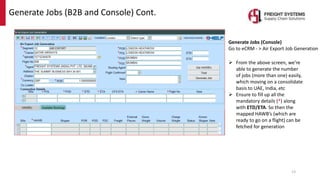
Generate Jobs (Console)
Go to eCRM - > Air Export Job Generation
 From the above screen, we’re
able to generate the number
of jobs (more than one) easily,
which moving on a consolidate
basis to UAE, India, etc
 Ensure to fill up all the
mandatory details (*) along
with ETD/ETA. So then the
mapped HAWB’s (which are
ready to go on a flight) can be
fetched for generation
13
Generate Jobs (B2B and Console) Cont.
Refer to above screen, click on “Get HAWB’s”
Refer to above screen, select the appropriate bookings to go on a console plan and get the list of jobs generated by clicking on “Generate Job”
14
Generate Jobs (B2B and Console) Cont..
15
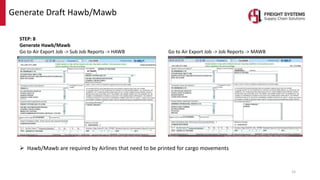
STEP: 8
Generate Hawb/Mawb
Go to Air Export Job -> Sub Job Reports -> HAWB Go to Air Export Job -> Job Reports -> MAWB
 Hawb/Mawb are required by Airlines that need to be printed for cargo movements
Generate Draft Hawb/Mawb
16
STEP: 9
Handling info for Hazardous and Lithium batteries
Go to Air Export Job -> Job Reports -> MAWB
“Accounting Info” that can be used to declare
Spot Reference which related to tariff charges
(either contract or Spot)
“Handling Info” that can be used to declare
“Lithium or Hazardous clause or any special
instructions to warehouse team/Airlines”
Handling Info for Hazardous and Lithium Batteries
17
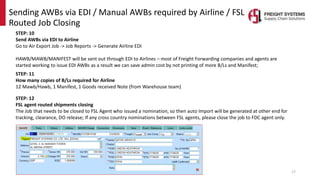
STEP: 10
Send AWBs via EDI to Airline
Go to Air Export Job -> Job Reports -> Generate Airline EDI
HAWB/MAWB/MANIFEST will be sent out through EDI to Airlines – most of Freight Forwarding companies and agents are
started working to issue EDI AWBs as a result we can save admin cost by not printing of more B/Ls and Manifest;
STEP: 12
FSL agent routed shipments closing
The Job that needs to be closed to FSL Agent who issued a nomination, so then auto Import will be generated at other end for
tracking, clearance, DO release; If any cross country nominations between FSL agents, please close the job to FDC agent only.
STEP: 11
How many copies of B/Ls required for Airline
12 Mawb/Hawb, 1 Manifest, 1 Goods received Note (from Warehouse team)
Sending AWBs via EDI / Manual AWBs required by Airline / FSL
Routed Job Closing
18
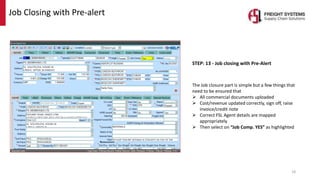
STEP: 13 - Job closing with Pre-Alert
The Job closure part is simple but a few things that
need to be ensured that
 All commercial documents uploaded
 Cost/revenue updated correctly, sign off, raise
invoice/credit note
 Correct FSL Agent details are mapped
appropriately
 Then select on “Job Comp. YES” as highlighted
Job Closing with Pre-alert
19
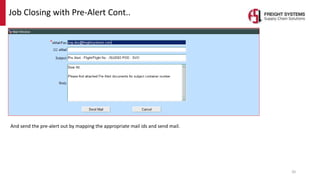
Click on “Pre Alert to Agent” to send pre-alert documents
Select the MAWB, HAWB, Commercial Documents to be sent out to Agents/Customers
Job Closing with Pre-alert Cont.
20
And send the pre-alert out by mapping the appropriate mail ids and send mail.
Job Closing with Pre-Alert Cont..
21
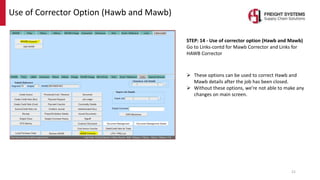
STEP: 14 - Use of corrector option (Hawb and Mawb)
Go to Links-contd for Mawb Corrector and Links for
HAWB Corrector
 These options can be used to correct Hawb and
Mawb details after the job has been closed.
 Without these options, we’re not able to make any
changes on main screen.
Use of Corrector Option (Hawb and Mawb)
22
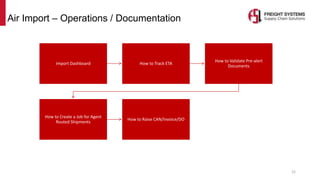
Air Import – Operations / Documentation
Import Dashboard How to Track ETA
How to Validate Pre-alert
Documents
How to Create a Job for Agent
Routed Shipments
How to Raise CAN/Invoice/DO
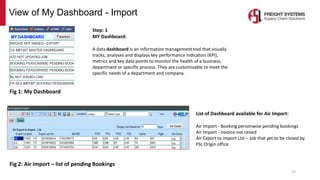
Fig 1: My Dashboard
Fig 2: Air Import – list of pending Bookings
Step: 1
MY Dashboard:
A data dashboard is an information management tool that visually
tracks, analyses and displays key performance indicators (KPI),
metrics and key data points to monitor the health of a business,
department or specific process. They are customizable to meet the
specific needs of a department and company.
List of Dashboard available for Air Import:
Air Import - Booking personwise pending bookings
Air Import - Invoice not raised
Air Export to Import List – Job that yet to be closed by
FSL Origin office
23
View of My Dashboard - Import
24
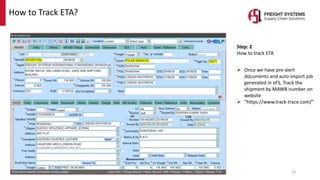
Step: 2
How to track ETA
 Once we have pre-alert
documents and auto import job
generated in eFS, Track the
shipment by MAWB number on
website
 “https://www.track-trace.com/”
How to Track ETA?
25
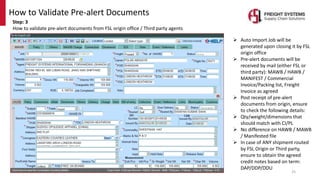
Step: 3
How to validate pre-alert documents from FSL origin office / Third party agents
 Auto Import Job will be
generated upon closing it by FSL
origin office
 Pre-alert documents will be
received by mail (either FSL or
third party): MAWB / HAWB /
MANIFEST / Commercial
Invoice/Packing list, Freight
Invoice as agreed
 Post receipt of pre-alert
documents from origin, ensure
to check the following details:
 Qty/weight/dimensions that
should match with CI/PL
 No difference on HAWB / MAWB
/ Manifested file
 In case of ANY shipment routed
by FSL Origin or Third party,
ensure to obtain the agreed
credit notes based on term:
DAP/DDP/DDU
How to Validate Pre-alert Documents
26
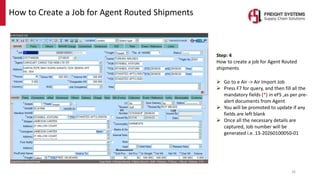
Step: 4
How to create a job for Agent Routed
shipments
 Go to e Air -> Air Import Job
 Press F7 for query, and then fill all the
mandatory fields (*) in eFS ,as per pre-
alert documents from Agent
 You will be promoted to update if any
fields are left blank
 Once all the necessary details are
captured, Job number will be
generated i.e. 13-20260100050-01
How to Create a Job for Agent Routed Shipments
27
Step: 5
How to raise CAN/Invoice/DO
 After tracking the actual
status of shipment, send a
“Cargo Arrival Notice” along
with Invoice to Consignee
 Right click - > Job reports
-> CAN
 Right click - > Sub reports
- > Delivery Advice
 Go to Invoice for Trade - >
Reports - > Invoice with Logo
How to Raise CAN/Invoice/DO?
Air import and export operations and documentations v1.4

Air import and export operations and documentations v1.4

  • 1.
  • 2.
    Objectives This presentation willguide the learner to • How to use View Dashboard • Master AWB Stock Enquiry and Generation • Generate Hawb/Mawb • Document required for Airline At the end of this module, the learner will be able to:- •Understand the Air Import & Export Documentation and Operations process •Know all the steps involved to :- •Process a HBL and MBL effectively •Create Payment Request and Invoices •Prepare Export Manifest and Pre-alerts • Generate Jobs (B2B and Console) • Job closing with pre-alert • Use of corrector option (HAWB and MAWB) Prerequisite: Completion of Domain Beginner and eFS eAir Beginner level certification (Enquiry Log, Quotation, Customer Master, Flight Plan) Target Audience : Learners who have completed the prerequisites and are new to Air Export / Import Documentation and operations.
  • 3.
    3 Air Export –Operations / Documentation My Dashboard Frescon and Attach Documents Protect/Unprotect Fields Master AWB Stock Enquiry and Generation Calculate Volumetric Weight Map Flight Schedule with Connection Details Map Hazardous Details Generate Jobs (B2B and Console) Generate Draft Hawb/Mawb Handling Info for Hazardous and Lithium Batteries Send AWBs via EDI to Airline B/Ls Required for Airline FSL Agent Routed Shipments Closing Job Closing with Pre- alert Use of Corrector Option (Hawb and Mawb)
  • 4.
    Fig 1: MyDashboard Fig 2: Air Export – list of pending Bookings Step: 1 MY Dashboard: A data dashboard is an information management tool that visually tracks, analyses and displays key performance indicators (KPI), and key data points to monitor the health of a business, department or specific process. They are customizable to meet the specific needs of a department and company. List of Dashboard available for Air Export: Air Export - Booking personwise pending bookings Air Export - Invoice not raised Air Export - Job not completed Air Export - ATD not updated Air Export – KPI dashboard with action category Air Export – Sign off pending 4 View of My Dashboard - Export
  • 5.
    STEP: 2 FRESCON isa Purchase Order Management System (POMS) developed by Freight Systems. It is an online web oriented tool that enables our customers to transact with us through a secure username and password. It has advanced features such as e-Bookings and a wide range of Ready Reports. By using MY REPORTS, customers can customize and schedule the reports directly to their emails. Customers can view all their shipping documents online like Invoices, Packing Lists and Certificate of Origins using FRESCON. Additionally, customers can also view our Freight Invoices and Statement of Outstanding. Customers using our 3PL or logistics services can acquire both freight and warehousing information at the same place as we have an online integrated warehouse module. Customers, instead of using the numbers generated by us can use their PO numbers to search all the essential information. Logistics Managers will be greatly benefited as they will have all the information required at their fingertips with the click of a button. Our Purchase Order Management system is designed to seamlessly integrate and retrieve data from any ERP structure providing ease and convenience to our customers. Key Benefits of FRESCON: Secure online tool, Integrated Freight and Warehousing modules, Access to generate e-Bookings and wide variety of reports, 24x7 access to all shipping documents, Integration can be done with other ERP system, and Customizable to customer requirements 5 FRESCON
  • 6.
    Protect and UnprotectFile from Document Field: Fig 1:- Go to Tab (Others ) - > Documents The way to upload the commercial and shipping documents under Unprotected and Protected. 6 Fig 2:- Unprotected : the uploaded documents are available for customer on FRESCON in order to view and access Protected: the uploaded documents under protected are not available on FRESCON for customer to view and access Attach Document - Protect/Unprotect Fields
  • 7.
    STEP: 3 Master AWBstock enquiry and Generation Go to eAIR - > Mawb Stock Enquiry Mawb stock enquiry - Press F7 for query and update “Carrier” and “POR” then Press F8 to fetch the available data, as per above screen. The way we can execute “Stock In Hand” report per Airlines 7 Master AWB Stock Enquiry and Generation
  • 8.
    MAWB Stock Generation– eAir -> MAWB Stock Generation How to MAWB stock generate - referring to the above screen, press F7 for query to fill up the Carrier Name, POR, Status (Available/Generated/Cancelled) and press F8 to execute the complete available list of MAWB no in detail. In order to update new MAWB stock generation, obtain the MAWB Stock list from Airline based on stock availability, and get those updated by entering the mandatory details along with carrier ref no. For Instance: Qatar Airways Cargo AWB starts with airline prefix '157' followed by eight digits. ex, 157-12345675 MAWB stock generate usage:  Once the stock list have been generated successfully, the MAWB number can be pulled out and used in the appropriate jobs as to make airline booking instantly.  More than one user are able to pull the MAWB number from their respective bookings simultaneously based on their requirements.  It warns users about availability of MAWB number based on initial set up on warning level 8 Master AWB Stock Enquiry and Generation Cont.
  • 9.
    9 STEP: 4 -Calculate Volumetric Weight • Volumetric weight can be calculated by multiplying the length, width and height of a parcel (in cm) and dividing that figure by 6000. • Chargeable weight is what the airline uses to determine the cost of your shipment. It may be either volumetric weight or gross weight, whichever is greater. Calculate Volumetric Weight
  • 10.
    10 STEP: 5 Map flightschedule with connection details  Once the booking is confirmed with Airline based on cargo details, ensure to put POR, POL, POD, FDC, ETD, ETA, CARRIER NAME, FLIGHT NO, CONNECTION DETAILS (if transhipment shipments) as per above screen  The way we can send a trigger flight schedule to Agent/Customers after mapping Map Flight Schedule with Connection Details
  • 11.
    11 STEP: 6 Map hazardousdetails Go to Air Export Booking - > HAWB tab -> Hazardous to be marked as Yes Go to Air Export Booking - > IMCO tab -> Hazardous details must be furnished well as per DG/MSDS copies Map Hazardous Details
  • 12.
    STEP: 7 -Generate Job (B2B)  First of all, please ensure to update appropriate AIRLINE details under Booking TAB  To make a booking with specified Airline, click on MAWB folder button as highlighted in order to fetch the available MAWB reference from stock level based on mentioned Airline that has already been generated.  Once the good received and make a airline booking, click on “Generate Job” button for Back to Back shipments 12 Generate Jobs (B2B and Console)
  • 13.
    Generate Jobs (Console) Goto eCRM - > Air Export Job Generation  From the above screen, we’re able to generate the number of jobs (more than one) easily, which moving on a consolidate basis to UAE, India, etc  Ensure to fill up all the mandatory details (*) along with ETD/ETA. So then the mapped HAWB’s (which are ready to go on a flight) can be fetched for generation 13 Generate Jobs (B2B and Console) Cont.
  • 14.
    Refer to abovescreen, click on “Get HAWB’s” Refer to above screen, select the appropriate bookings to go on a console plan and get the list of jobs generated by clicking on “Generate Job” 14 Generate Jobs (B2B and Console) Cont..
  • 15.
    15 STEP: 8 Generate Hawb/Mawb Goto Air Export Job -> Sub Job Reports -> HAWB Go to Air Export Job -> Job Reports -> MAWB  Hawb/Mawb are required by Airlines that need to be printed for cargo movements Generate Draft Hawb/Mawb
  • 16.
    16 STEP: 9 Handling infofor Hazardous and Lithium batteries Go to Air Export Job -> Job Reports -> MAWB “Accounting Info” that can be used to declare Spot Reference which related to tariff charges (either contract or Spot) “Handling Info” that can be used to declare “Lithium or Hazardous clause or any special instructions to warehouse team/Airlines” Handling Info for Hazardous and Lithium Batteries
  • 17.
    17 STEP: 10 Send AWBsvia EDI to Airline Go to Air Export Job -> Job Reports -> Generate Airline EDI HAWB/MAWB/MANIFEST will be sent out through EDI to Airlines – most of Freight Forwarding companies and agents are started working to issue EDI AWBs as a result we can save admin cost by not printing of more B/Ls and Manifest; STEP: 12 FSL agent routed shipments closing The Job that needs to be closed to FSL Agent who issued a nomination, so then auto Import will be generated at other end for tracking, clearance, DO release; If any cross country nominations between FSL agents, please close the job to FDC agent only. STEP: 11 How many copies of B/Ls required for Airline 12 Mawb/Hawb, 1 Manifest, 1 Goods received Note (from Warehouse team) Sending AWBs via EDI / Manual AWBs required by Airline / FSL Routed Job Closing
  • 18.
    18 STEP: 13 -Job closing with Pre-Alert The Job closure part is simple but a few things that need to be ensured that  All commercial documents uploaded  Cost/revenue updated correctly, sign off, raise invoice/credit note  Correct FSL Agent details are mapped appropriately  Then select on “Job Comp. YES” as highlighted Job Closing with Pre-alert
  • 19.
    19 Click on “PreAlert to Agent” to send pre-alert documents Select the MAWB, HAWB, Commercial Documents to be sent out to Agents/Customers Job Closing with Pre-alert Cont.
  • 20.
    20 And send thepre-alert out by mapping the appropriate mail ids and send mail. Job Closing with Pre-Alert Cont..
  • 21.
    21 STEP: 14 -Use of corrector option (Hawb and Mawb) Go to Links-contd for Mawb Corrector and Links for HAWB Corrector  These options can be used to correct Hawb and Mawb details after the job has been closed.  Without these options, we’re not able to make any changes on main screen. Use of Corrector Option (Hawb and Mawb)
  • 22.
    22 Air Import –Operations / Documentation Import Dashboard How to Track ETA How to Validate Pre-alert Documents How to Create a Job for Agent Routed Shipments How to Raise CAN/Invoice/DO
  • 23.
    Fig 1: MyDashboard Fig 2: Air Import – list of pending Bookings Step: 1 MY Dashboard: A data dashboard is an information management tool that visually tracks, analyses and displays key performance indicators (KPI), metrics and key data points to monitor the health of a business, department or specific process. They are customizable to meet the specific needs of a department and company. List of Dashboard available for Air Import: Air Import - Booking personwise pending bookings Air Import - Invoice not raised Air Export to Import List – Job that yet to be closed by FSL Origin office 23 View of My Dashboard - Import
  • 24.
    24 Step: 2 How totrack ETA  Once we have pre-alert documents and auto import job generated in eFS, Track the shipment by MAWB number on website  “https://www.track-trace.com/” How to Track ETA?
  • 25.
    25 Step: 3 How tovalidate pre-alert documents from FSL origin office / Third party agents  Auto Import Job will be generated upon closing it by FSL origin office  Pre-alert documents will be received by mail (either FSL or third party): MAWB / HAWB / MANIFEST / Commercial Invoice/Packing list, Freight Invoice as agreed  Post receipt of pre-alert documents from origin, ensure to check the following details:  Qty/weight/dimensions that should match with CI/PL  No difference on HAWB / MAWB / Manifested file  In case of ANY shipment routed by FSL Origin or Third party, ensure to obtain the agreed credit notes based on term: DAP/DDP/DDU How to Validate Pre-alert Documents
  • 26.
    26 Step: 4 How tocreate a job for Agent Routed shipments  Go to e Air -> Air Import Job  Press F7 for query, and then fill all the mandatory fields (*) in eFS ,as per pre- alert documents from Agent  You will be promoted to update if any fields are left blank  Once all the necessary details are captured, Job number will be generated i.e. 13-20260100050-01 How to Create a Job for Agent Routed Shipments
  • 27.
    27 Step: 5 How toraise CAN/Invoice/DO  After tracking the actual status of shipment, send a “Cargo Arrival Notice” along with Invoice to Consignee  Right click - > Job reports -> CAN  Right click - > Sub reports - > Delivery Advice  Go to Invoice for Trade - > Reports - > Invoice with Logo How to Raise CAN/Invoice/DO?

Editor's Notes