How To Use a Browser A Module of the CYC Course – Computer Basics 1 7-21-10
What is the Internet  and WWW? The Internet (also known as the Net) is a global, interconnected system of networks that connects computers around the world to exchange data.  The World Wide Web (also known as the web or WWW) is a system of linked pages containing documents and multimedia. 9
Why use the Internet? Research  Connect with friends and family Shop  E-mail Download files like music or photos Take online classes Play games What else? 2
What is needed to connect to the Internet? A computer, laptop, or mobile phone Internet Service Provider - A commercial organization that provides access to the Internet for a fee. Or, a  free wireless connection (also called wifi). Web browser (Internet Explorer, Firefox, etc) 2
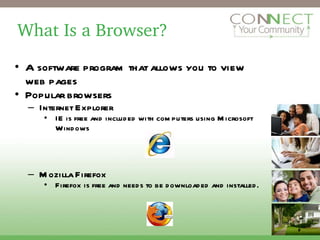
What Is a Browser? A software program that allows you to view web pages Popular browsers Internet Explorer  IE is free and included with computers using Microsoft Windows Mozilla Firefox  Firefox is free and needs to be downloaded and installed. 2
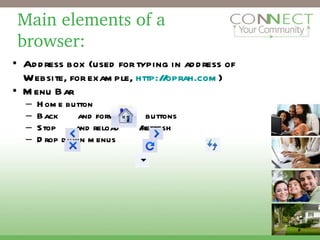
Main elements of a  browser: Address box (used for typing in address of Website, for example,  http://oprah.com ) Menu Bar Home button  Back  and forward  buttons  Stop  and reload  /refresh Drop down menus 2
Home Button Home: The initial web page that is displayed when you open the  Internet browser 2
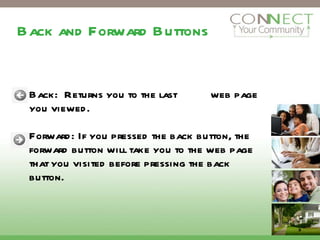
Back and Forward Buttons Back:  Returns you to the last  web page you viewed.  Forward: If you pressed the back button, the forward button will take you to the web page that you visited before pressing the back button.  3
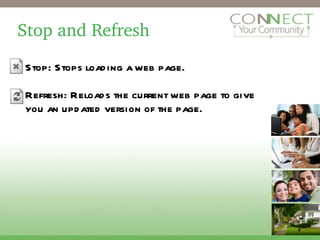
Stop and Refresh Stop: Stops loading a web page. Refresh: Reloads the current web page to give you an updated version of the page. 2
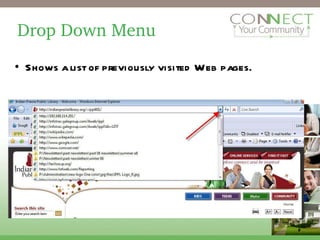
Drop Down Menu Shows a list of previously visited Web pages. 2
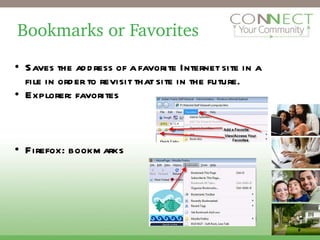
Bookmarks or Favorites Saves the address of a favorite Internet site in a file in order to revisit that site in the future.  Explorer: favorites Firefox: bookmarks 2
Practice finding: Home Stop Refresh Back Forward Address box  Drop down menus Bookmarks/Favorites 2
Elements of a website A website is a collection of text, images, videos, links, and other elements with a unique web address. A web address consists of a name, a period & a top level domain. Most common extensions: .org: mostly non-profits .edu: colleges/universities .mobi: mobile phone sites .com: mostly commercial .gov: U.S. federal government .us or .uk: mostly country websites 2
Ways To Get To a Website Favorites/bookmarks  URL  Links Search engine 2
URL If you know a site’s address, type the URL in the address box and press “Enter” or click “Go.” If you receive an error message, make sure that the URL is correct. Try:  http://espn.com  or  http://allrecipes.com/   2
Links Hyperlinks, also simply called links, are text or graphics on a web page that provide access to other web pages. Text that is hyperlinked is usually underlined and may be a different color than the main text. Jumping from one web page to another by clicking on links is called surfing the Internet. 2
Home Page The home page is the initial Web page that is displayed when you open the Web browser.  It can also be the main or introductory page of a Web site. http://pandora.com 2
Sources This curriculum was partially adapted from a slide presentation entitled “Internet Basics” created by the Indian Prairie Public Library. Additional content created by Connect Your Community, a project of  OneCommunity , funded by the federal  Broadband Technology Opportunities Program . 14
Creative Commons License This work is licensed under the Creative Commons Attribution 3.0 Unported License. To view a copy of this license, visit http://creativecommons.org/licenses/by/3.0 15

6 module how to use a browser 1

  • 1.
    How To Usea Browser A Module of the CYC Course – Computer Basics 1 7-21-10
  • 2.
    What is theInternet and WWW? The Internet (also known as the Net) is a global, interconnected system of networks that connects computers around the world to exchange data. The World Wide Web (also known as the web or WWW) is a system of linked pages containing documents and multimedia. 9
  • 3.
    Why use theInternet? Research Connect with friends and family Shop E-mail Download files like music or photos Take online classes Play games What else? 2
  • 4.
    What is neededto connect to the Internet? A computer, laptop, or mobile phone Internet Service Provider - A commercial organization that provides access to the Internet for a fee. Or, a free wireless connection (also called wifi). Web browser (Internet Explorer, Firefox, etc) 2
  • 5.
    What Is aBrowser? A software program that allows you to view web pages Popular browsers Internet Explorer IE is free and included with computers using Microsoft Windows Mozilla Firefox Firefox is free and needs to be downloaded and installed. 2
  • 6.
    Main elements ofa browser: Address box (used for typing in address of Website, for example, http://oprah.com ) Menu Bar Home button Back and forward buttons Stop and reload /refresh Drop down menus 2
  • 7.
    Home Button Home:The initial web page that is displayed when you open the Internet browser 2
  • 8.
    Back and ForwardButtons Back: Returns you to the last web page you viewed. Forward: If you pressed the back button, the forward button will take you to the web page that you visited before pressing the back button. 3
  • 9.
    Stop and RefreshStop: Stops loading a web page. Refresh: Reloads the current web page to give you an updated version of the page. 2
  • 10.
    Drop Down MenuShows a list of previously visited Web pages. 2
  • 11.
    Bookmarks or FavoritesSaves the address of a favorite Internet site in a file in order to revisit that site in the future. Explorer: favorites Firefox: bookmarks 2
  • 12.
    Practice finding: HomeStop Refresh Back Forward Address box Drop down menus Bookmarks/Favorites 2
  • 13.
    Elements of awebsite A website is a collection of text, images, videos, links, and other elements with a unique web address. A web address consists of a name, a period & a top level domain. Most common extensions: .org: mostly non-profits .edu: colleges/universities .mobi: mobile phone sites .com: mostly commercial .gov: U.S. federal government .us or .uk: mostly country websites 2
  • 14.
    Ways To GetTo a Website Favorites/bookmarks URL Links Search engine 2
  • 15.
    URL If youknow a site’s address, type the URL in the address box and press “Enter” or click “Go.” If you receive an error message, make sure that the URL is correct. Try: http://espn.com or http://allrecipes.com/ 2
  • 16.
    Links Hyperlinks, alsosimply called links, are text or graphics on a web page that provide access to other web pages. Text that is hyperlinked is usually underlined and may be a different color than the main text. Jumping from one web page to another by clicking on links is called surfing the Internet. 2
  • 17.
    Home Page Thehome page is the initial Web page that is displayed when you open the Web browser. It can also be the main or introductory page of a Web site. http://pandora.com 2
  • 18.
    Sources This curriculumwas partially adapted from a slide presentation entitled “Internet Basics” created by the Indian Prairie Public Library. Additional content created by Connect Your Community, a project of OneCommunity , funded by the federal Broadband Technology Opportunities Program . 14
  • 19.
    Creative Commons LicenseThis work is licensed under the Creative Commons Attribution 3.0 Unported License. To view a copy of this license, visit http://creativecommons.org/licenses/by/3.0 15

Editor's Notes

  • #3 The Internet includes the web, instant messaging, and email.
  • #4 Instructor - Ask students to come up with other ways they might use the internet. Research - Medical conditions, recipes, how to fix something, family history/genealogy, etc. Shop - Evaluate and buy products, plan vacations, etc.
  • #5 Talk about your list of public access computers that they could use in the future Talk about an in home ISP versus places they might be able to access free wireless, like the library or a coffee store or McDonalds - are there any places near them that offer wireless?
  • #6 Instructor - Talk about what browsers are installed on the computers you are using for the course and show students how to open the browser.
  • #7 Encourage students to find these buttons on their computers.
  • #8 Ask students to click the home button
  • #9 Ask students to try these buttons
  • #10 Encourage students to try these buttons
  • #11 Ask students to look at the history
  • #12 Ask students to view any favorites on the lab machine they are working on. Try going to one.
  • #13 Have students review these buttons.
  • #16 Point out text, images, videos, and especially LINKS.
  • #17 Encourage students to find and click on links from the espn.com or allrecipes.com home page
  • #18 Visit Pandora. Instructor - Talk about elements of a home page using this example. Menu that links to other areas of the site, title, etc. Explain that Pandora is a website of music that users can listen to for free.