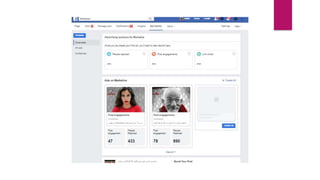
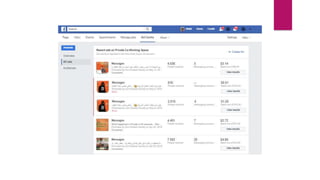
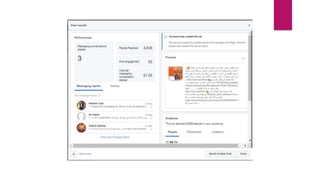

Facebook Advertising
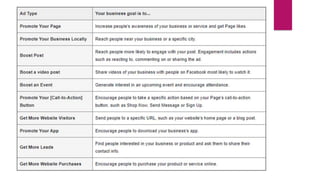
Types of adds
 There are many different ad types and the first step is choosing the ad that
supports your business goal.
 Note: Some ad types may not be available based on your Page. For
example, if you don't have an event on your Page, the boost event ad
type won't be available
Features of ads created from your Page
No matter what type of ad you create, you'll usually determine:
 Ads creative.
 Audience.
 Budget.
 Duration.
 Placements.
ways to promote your business on Facebook
 Boost Post button on your posts
 Promote button on your Page
 Ads Manager
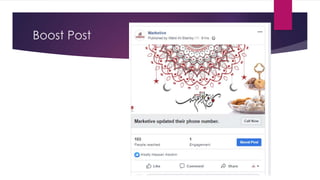
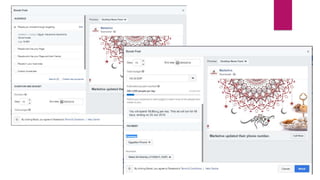
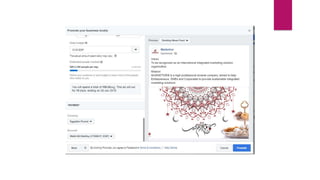
Boost Post
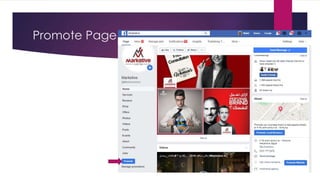
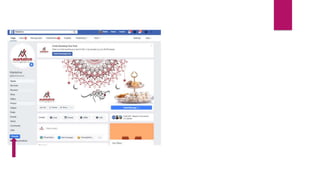
Promote Page
Boost Post and Promote buttons
Use the Boost Post and Promote buttons on your Page if you want:
 A quick and easy ad creation process
 To edit or create ads from your Facebook mobile app
 Recommendations for how to reach your audience
 Recommendations for where to show your ad
Edit boosted posts
 You can't edit text, image(s) and video once your boost has been reviewed
and published.
 If you decide that you want to change your text or creative, you'll need to
create a new post and boost it.
 What can be edited
 Budget
 Duration
 Audience
 Instagram placement
 Pause or resume your boost
 Delete your boost
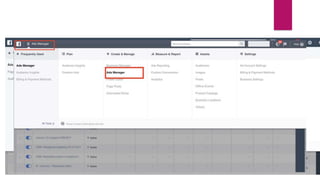
Ads Manager
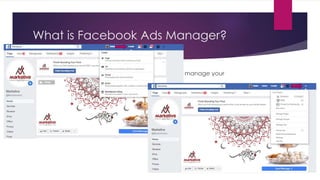
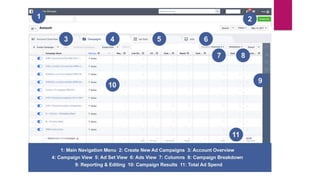
What is Facebook Ads Manager?
 The Ads manager is where you go to create and manage your
campaigns.
What is Facebook Ads Manager?
 You can use the ads manager to:
 Set up Facebook ad campaigns
 Create new ad sets and ads
 Manage Facebook ad bids
 Target many different audiences
 Optimize your ad campaigns
 Keep track of your campaigns’ performance
 A/B test your Facebook ad campaigns.
creating ads with Ads Manager
 Ads Manager is a unified ads creation tool where you can create and publish
ads to Facebook, Instagram, Messenger or Audience Network.
 When creating ads from scratch, you can choose from two workflows to
create and manage your ads:
 Guided creation: This option guides you through the steps to create a campaign to
completion.
 → Choose this workflow if you are new to Facebook ads and want step-by-step
instructions.
 Quick creation: This option allows you to set up the campaign and then create ad
sets and ads later.
 → Choose this workflow if you're an advertiser with more advanced skills and are
already familiar with the creation workflow.
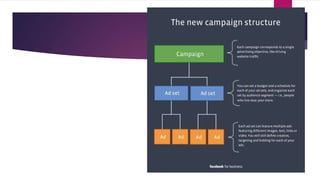
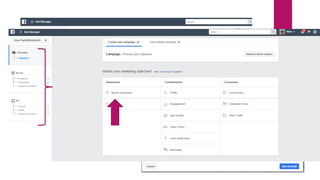
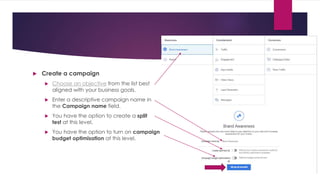
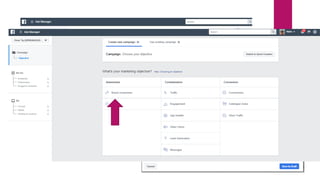
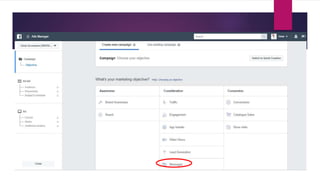
 Create a campaign
 Choose an objective from the list best
aligned with your business goals.
 Enter a descriptive campaign name in
the Campaign name field.
 You have the option to create a split
test at this level.
 You have the option to turn on campaign
budget optimisation at this level.
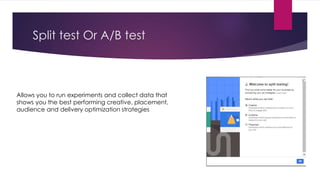
Split test Or A/B test
Allows you to run experiments and collect data that
shows you the best performing creative, placement,
audience and delivery optimization strategies
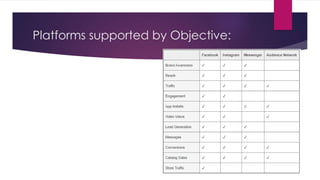
Platforms supported by Objective:
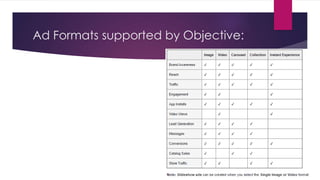
Ad Formats supported by Objective:
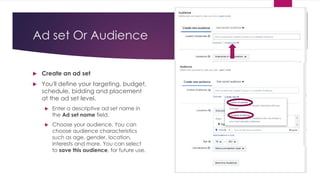
Ad set Or Audience
 Create an ad set
 You'll define your targeting, budget,
schedule, bidding and placement
at the ad set level.
 Enter a descriptive ad set name in
the Ad set name field.
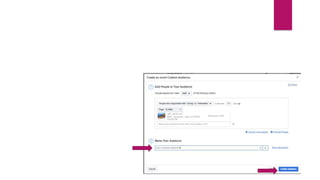
 Choose your audience. You can
choose audience characteristics
such as age, gender, location,
interests and more. You can select
to save this audience, for future use.
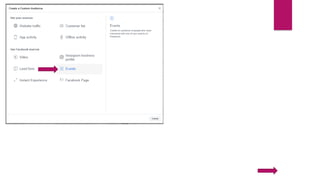
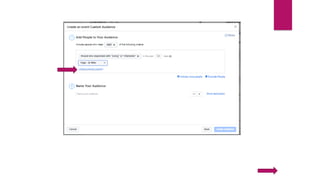
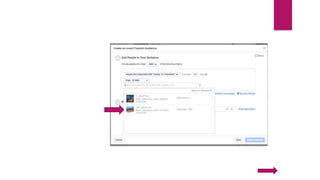
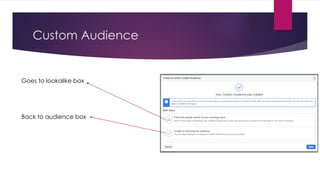
Custom Audience
Goes to lookalike box
Back to audience box
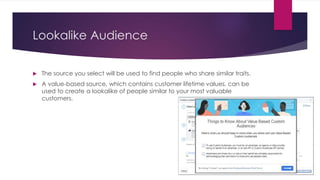
Lookalike Audience
 The source you select will be used to find people who share similar traits.
 A value-based source, which contains customer lifetime values, can be
used to create a lookalike of people similar to your most valuable
customers.
Lookalike Audience
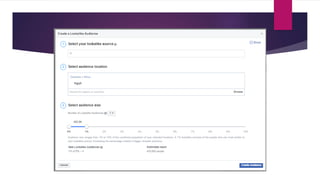
 Audience size ranges from 1% to 10% of the combined population of your
selected locations.
 A 1% lookalike consists of the people who are most similar to your lookalike
source. Increasing the percentage creates a bigger, broader audience.
Ad set Or Audience
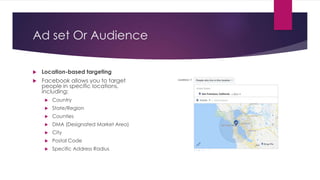
 Location-based targeting
 Facebook allows you to target
people in specific locations,
including:
 Country
 State/Region
 Counties
 DMA (Designated Market Area)
 City
 Postal Code
 Specific Address Radius
Ad set Or Audience
 another layer of location targeting, allowing to be even more specific:
 Everyone in this location (the default targeting option) – The last updated
location of an actual Facebook user
 People who live in this location – Location is set by the location on a user’s
Facebook profile and confirmed by their IP address.
 People recently in this location – Tracked by mobile device usage in the
geographic area you intend to target.
 People traveling to this location – Users who had this geographic area as a
recent location that’s at least 100 miles away from their home location.
Ad set Or Audience
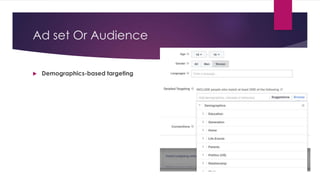
 Demographics-based targeting
Ad set Or Audience
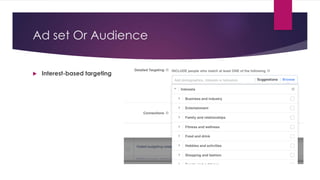
 Interest-based targeting
Ad set Or Audience
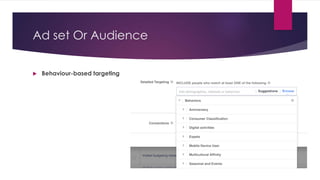
 Behaviour-based targeting
Ad set Or Audience
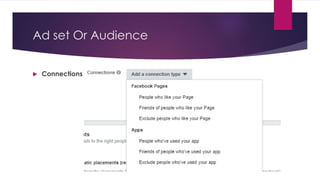
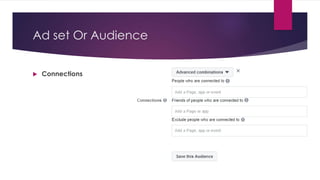
 Connections
Ad set Or Audience
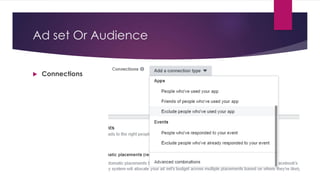
 Connections
Ad set Or Audience
 Connections
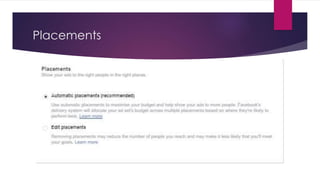
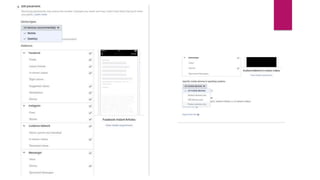
Placements
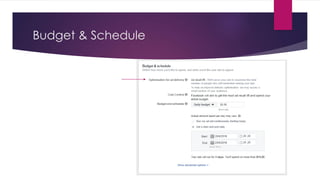
Budget & Schedule
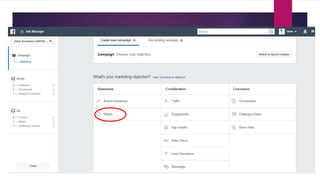
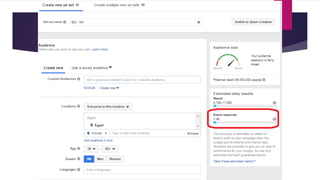
Awareness ads types:
 1- Brand Awareness: Increase awareness of your brand by reaching
people who are more likely to be interested in it.
 2- Reach: Show your ad to the maximum number of people.
About Brand Awareness Ad
 The Brand Awareness objective is for advertisers who want to show ads to people who are
more likely to recall them.
 The Brand Awareness objective gives you the estimated ad recall lift (people) metric,
which shows how many people we estimate would remember seeing your ad if we asked
them within two days.
 A brand-lift study is required for the most accurate measurement of ad recall. However, if
your campaign does not meet the criteria to conduct a full study, the estimated ad recall
lift (people) metric can be an affordable, accessible alternative.
Brand awareness ad is calculating with ad recall.
 Ad recall is:
* The estimated ad recall lift (people) metric shows how many people we estimate
would remember seeing your ad if we asked them within two days.
 Two factors come into play:
* One factor is the ad recall lift rate. This is the percentage of people who were reached by your
campaign who are incremental recallers. A higher rate is better, keeping everything else constant.
* The second factor is reach. This is how many people were reached by your campaign. A higher
reach is better, keeping everything else constant.
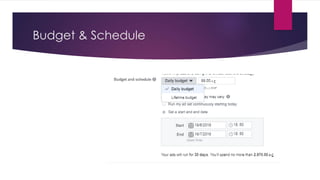
Budget & Schedule
Budget & Schedule
Facebook gives you two budgeting options:
 Daily budget :
1. Facebook will spend this sum on delivering your ads every day during your
campaign.
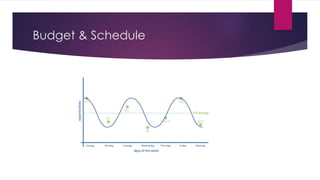
2. Some days, when Facebook spots high-potential opportunities, it may spend up
to 25% more than your daily budget (and then lower the spend on the low-
potential days).
Budget & Schedule
Budget & Schedule
 2. Lifetime budget –
1. Facebook will divide the total campaign budget more or less evenly across the
campaign dates.
2. Facebook will ask you for the campaign dates, so that it can calculate the
average spend for each day.
3. We recommend that you set a daily budget and an unlimited campaign
duration, so that you can later edit the size of your daily budgets and pause the
campaign whenever you see fit.
4. Important! You can’t change an ad set’s budget type after the ad set has been
created. Make sure you make the right selection during the campaign setup.
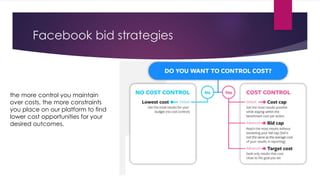
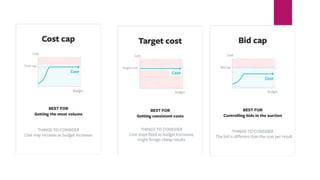
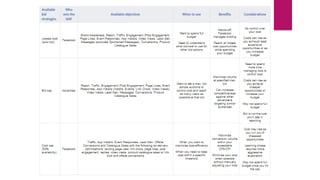
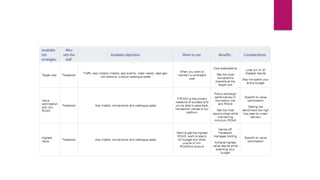
Facebook bid strategies
 to consider the benefits and trade-offs for each bid strategy, and better
understand how bid strategies impact your overall campaign
performance.
Facebook bid strategies
the more control you maintain
over costs, the more constraints
you place on our platform to find
lower cost opportunities for your
desired outcomes.
Rest ads types
Reach . Awareness
Reach Ad
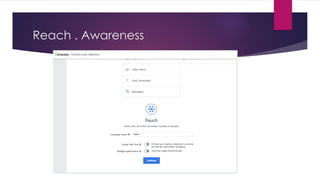
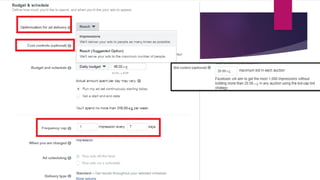
 The Reach objective maximizes the number of people who see your ads and how often
they see them.
 Choose this objective if you want to build brand awareness, change brand perception or
show your ad to as many people in your audience as possible. With this objective, you
can choose to maximise your reach or impressions for the entire duration of your
campaign. You can set frequency controls for how many times a person sees your ad and
the minimum number of days between each time they see it.
 For example, let's say you want your ads to reach a large proportion of your target
audience to help increase sales. You can also tailor your reach with location targeting to
reach people within a certain radius of your business location. You can choose the Reach
objective to show ads to a larger portion of your audience. If you want to make people
more aware of your brand or a new product, you can set frequency controls so that
people see your ads more often.
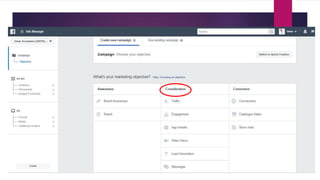
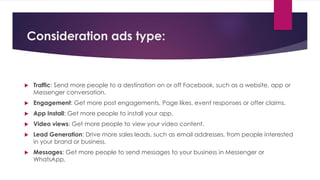
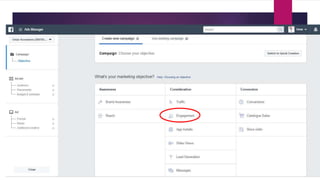
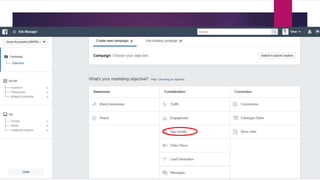
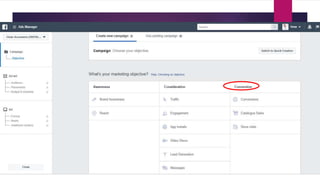
Consideration ads type:
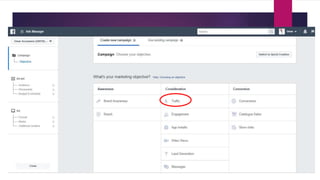
 Traffic: Send more people to a destination on or off Facebook, such as a website, app or
Messenger conversation.
 Engagement: Get more post engagements, Page likes, event responses or offer claims.
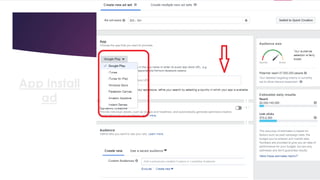
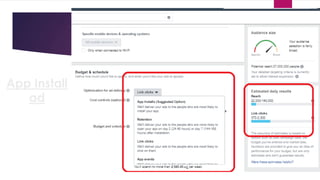
 App Install: Get more people to install your app.
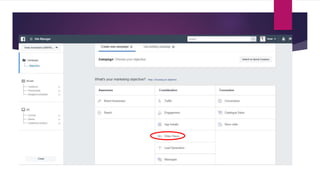
 Video views: Get more people to view your video content.
 Lead Generation: Drive more sales leads, such as email addresses, from people interested
in your brand or business.
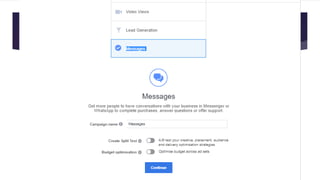
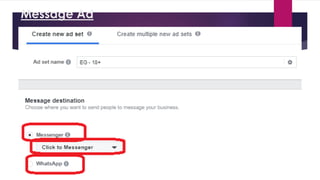
 Messages: Get more people to send messages to your business in Messenger or
WhatsApp.
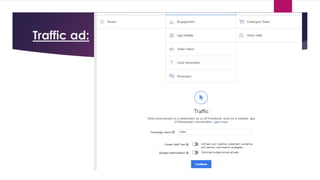
Traffic ad:
Traffic .Consideration
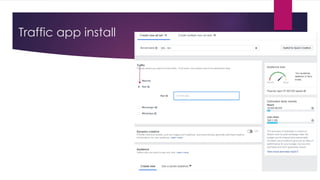
 The Traffic objective is designed to drive people to your website or app. With Traffic as
your objective, you can create ads that:
 Send people to a destination on or off Facebook (Website Clicks)
 Increase the number of people going to your mobile or desktop app (App Engagement)
 When you create an ad with the Traffic objective, you can:
 Select where you want to drive traffic: You can select either Website or App to send people to
your website or app.
 Target people who have previously installed your app: You can target people who have
previously installed your app in the Audience section of ad creation.
Traffic ad:
 What platforms support the Traffic objective?
 Facebook
 Instagram
 Which ad formats can I choose from in the Traffic objective?
 Photo
 Video
 Carousel
 Slideshow
 Collection
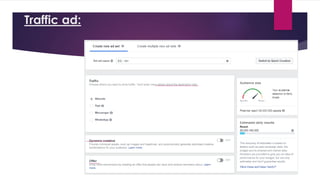
Traffic ad:
Dynamic creative:
 The dynamic creative tool finds optimised ad creative combinations by
taking multiple ad components (such as images, videos, titles, descriptions
and CTAs) and automatically generating combinations of these assets
across audiences.
 The delivery system then optimises for creative components that deliver
efficient results for each impression served.
 Dynamic creative ads will work to serve your audience the highest-
performing creative combinations.
 Dynamic creative is a great tool for advertisers with many assets who want
to learn what creative resonates with different audiences. However, it is
not a substitute for split testing.
Offer:
 Offers are discounts you can share with your customers on Facebook. If you're an admin
or editor of a Facebook Page, you can create an offer ad to encourage people to shop
on your website and at your physical store.
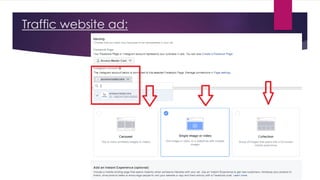
Traffic website ad:
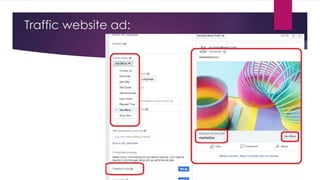
Traffic website ad:
Traffic app install
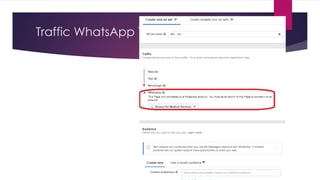
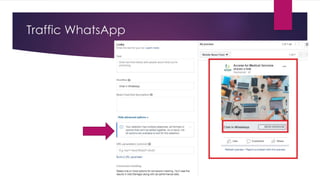
Traffic WhatsApp Tack-Care
Traffic WhatsApp
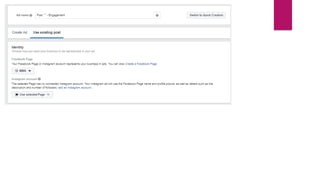
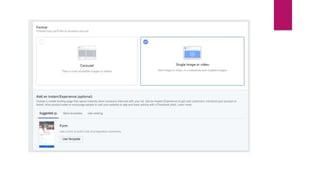
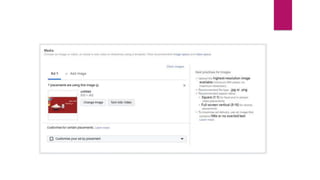
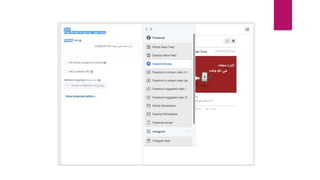
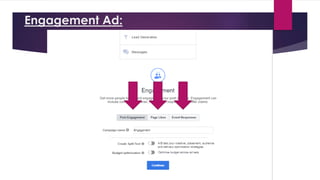
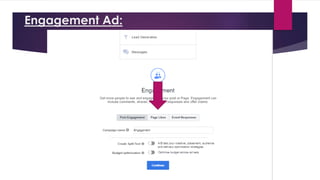
Engagement Ad:
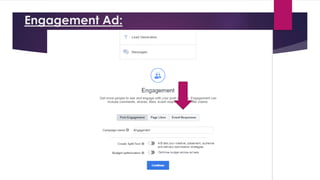
Engagement Ad:
 What's the Engagement objective?
The Engagement objective is designed to get more people to see and engage with your Facebook
post or Page. With Engagement as your objective, you can create ads that:
 Boost your posts (Post Engagement).
 Promote your Page (Page Likes).
 Get people to claim an offer on your Page (Offer Claims).
 Raise attendance at an event on your Page (Event Responses).
Engagement Ad:
 What platforms support the Engagement objective?
 Facebook
 Instagram
 Audience Network
 Which ad formats can I choose from in the Engagement objective?
 Photo
 Video
 Carousel
 Slideshow
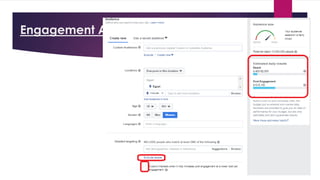
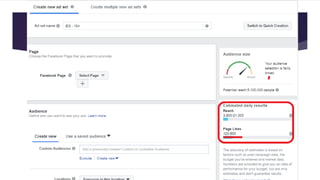
Engagement Audience:
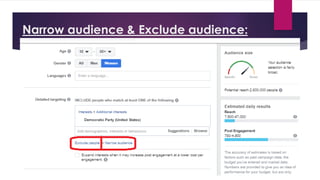
Narrow audience & Exclude audience:
Engagement Ad:
Engagement Ad:
App Install
ad
App Install
ad
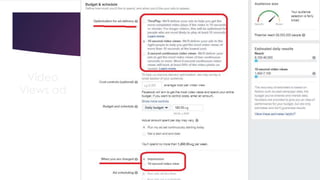
Video
Views ad
Video Views ad
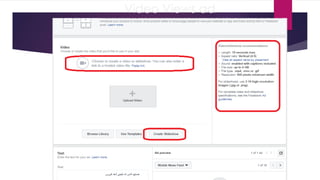
Video
Views ad
Video Views ad
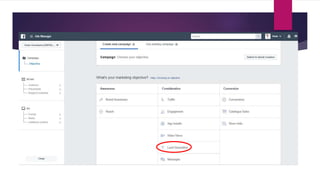
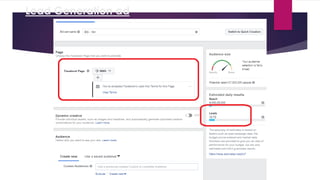
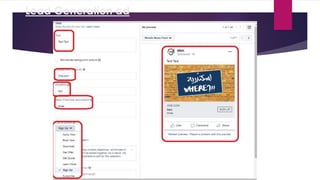
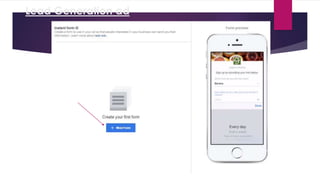
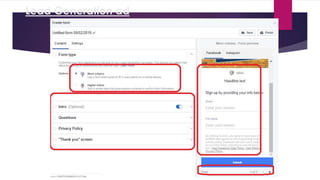
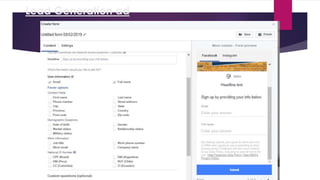
Lead Generation ad
Lead Generation ad
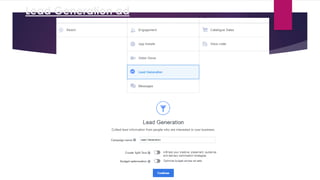
Lead Generation ad
Lead Generation ad
Lead Generation ad
Lead Generation ad
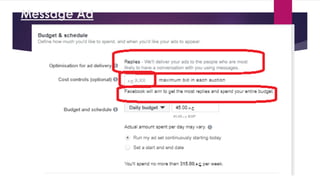
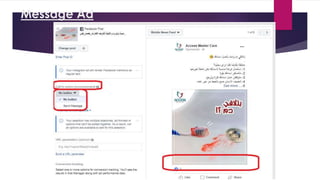
Message Ad
Message Ad
Message Ad
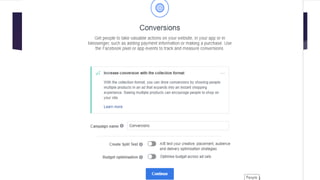
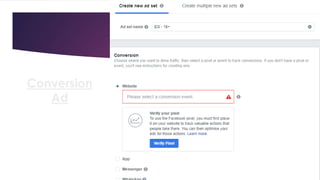
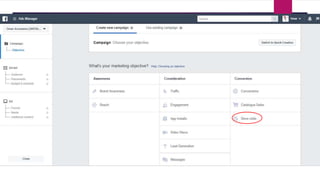
Conversion Ads:
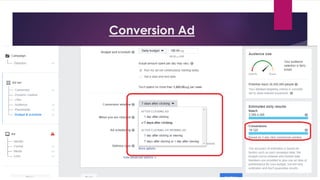
Conversions: Drive valuable actions on your website, in your app or in
Messenger.
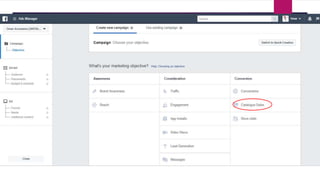
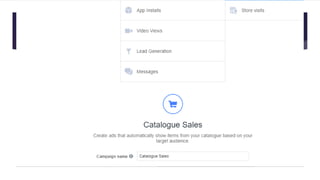
Catalogue Sales: Create ads that automatically show items from your
catalogue based on your target audience.
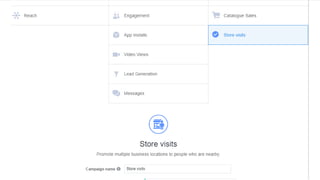
Store-visit: Get more people nearby to visit your brick-and-mortar locations.
Conversion ad
Before Conversion ad:
 You must know “FB Pixel”.
 Before you begin
 You'll need a website for your business.
 You must be able to update your website's code.
 Create a Facebook pixel
 Go to your Pixels tab in Events Manager.
 Click Create a Pixel.
 To finish creating your pixel, click Create in the box that appears.
Before Conversion ad:
 Add the Facebook pixel to your website
 Once you've created your pixel, you're ready to put the Facebook pixel code on your
website. Choose the statement below that best fits how you make updates to your
website's code for instructions:
 I have a developer for my website.
 Do it by myself.
 My site is hosted on a popular website platform.
I have a developer for my website:
 Go to the Pixels tab in Ads Manager.
 Click Set Up Pixel
 Click Email Instructions to a Developer.
 Enter the recipient's email address.
 Click Send at the bottom of the page.
Do it by myself:
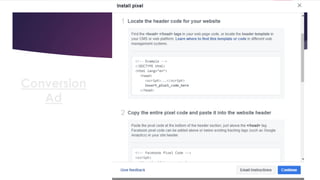
 Locate the header code for your website.
 Copy the entire code for your website.
 Check this code is working correctly.
My site is hosted on a popular website platform.
 Select your platform from this list for an even easier way to set up your
pixel.
 Website platforms:
 WooCommerce
 Wix
 Shopify
 Squarespace
 BigCommerce
 Magento
 Weebly
Track actions that matter to your business
 After you've placed the pixel on your website, add events to track specific actions that
people take on your website.
 About events
 Events are actions that happen on your website (like when someone makes a purchase).
To track an event, you'll need to place a piece of code on your website to help
Facebook understand that someone has taken an action.
Track actions that matter to your business
 Set up events on your website
 Go to the Pixels tab in Events Manager.
 Click Set up pixel.
 Click Manually install the code yourself.
 Click Continue.
 Click Install Events.
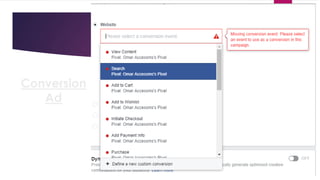
 Click the toggle icon next to an event you'd like to track.
 Select Track Event on Page Load or Track Event on Inline Action.
 Add event parameters, such as Conversion value or Currency, to measure additional information
about your event
 Copy this event code and paste it on the relevant page of your site. Make sure not to modify the
pixel code you've already placed in the header of your website.
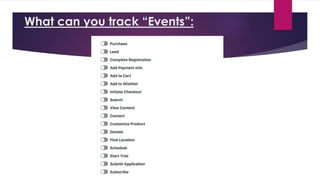
What can you track “Events”:
Make sure that your pixel is working correctly:
 The Facebook Pixel Helper is a troubleshooting tool that helps you find out if your pixel is
working correctly. It's a Chrome plugin you can use to see if there's a Facebook pixel
installed on a website, check for errors and understand the data that's coming from a
pixel.
 Install the Pixel Helper Before you start, you'll need to have the Chrome web browser. If
you don't have it yet, install the Chrome browser then follow these steps:
 Go to the Chrome web store and search for the Facebook Pixel Helper.
 Click + Add to Chrome.
 Click Add extension.
 Once you have successfully installed the extension, you'll see a notification that the plugin
has been added to Chrome and a small icon will show in your address bar.
Check that your pixel is working
 After you've installed the Pixel Helper, click the Pixel Helper icon in the address bar.
 Check the popup to see any pixels found on that page, and whether they've been set up
successfully.
Conversion
Ad
Conversion
Ad
Conversion
Ad
Conversion Ad
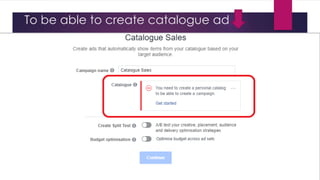
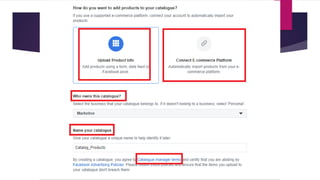
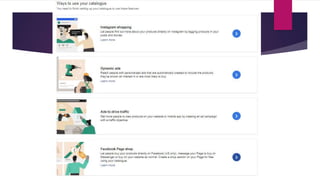
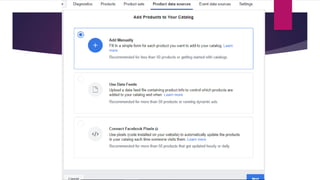
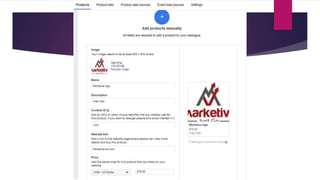
To be able to create catalogue ad
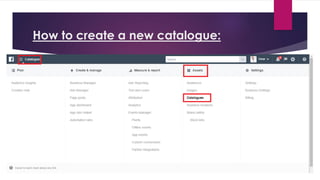
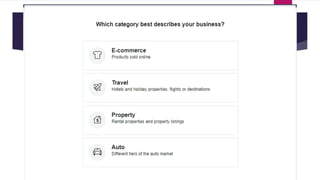
How to create a new catalogue:
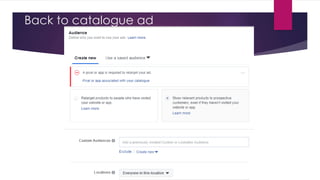
Back to catalogue ad
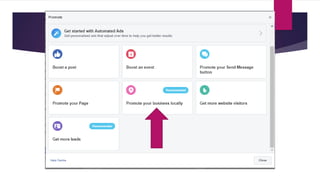
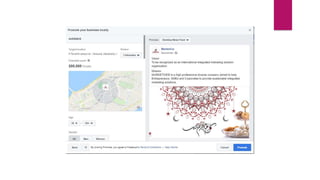
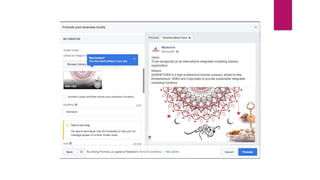
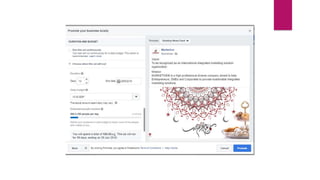
Add and edit business locations in Business Manager:
 If your business or brand operates from multiple shops, dealerships, salons
or restaurants, uploading details of these locations to Business Manager will
help customers find you.
 It will also allow you to run ads tailored to each location. For example, you
can create ads that dynamically show customers offers available at shops
nearby. The data you gather from these localised ads will help you learn
about customers in each location.
To upload your locations:
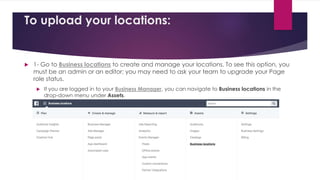
 1- Go to Business locations to create and manage your locations. To see this option, you
must be an admin or an editor; you may need to ask your team to upgrade your Page
role status.
 If you are logged in to your Business Manager, you can navigate to Business locations in the
drop-down menu under Assets.
To upload your locations:
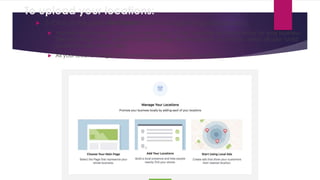
 2- Click on the green Get Started button to begin the guided process.
 You will be prompted to create a main Page to help organize all the locations for your business.
The main Page is the "parent" Facebook Page that represents your brand, which all your "child"
location Pages will link from.
 All your location Pages will be managed through this main Page.
To upload your locations:
 Once the main Page is set up, you can start creating a Page for each business location.
 In doing so, your customers can find information such as opening hours, contact details,
reviews and directions for the shop that's nearest to them. Learn how location Pages are
named.
 There are three ways to add locations:
 Manually adding each address (Recommended for one to ten locations).
 Upload using our CSV template (Recommended for ten or more locations). This lets you upload in
bulk using a spreadsheet. This can be quicker; particularly if you can export your locations into a
spreadsheet from Shopify, Magento or another tool.
 You can migrate a Page into your new location structure; If you already have Facebook Pages
set up for your business locations, choose "Migrate an existing Page" to turn that specific Page
into a location Page.
To upload your locations:
 When complete, you can click on the Download Locations button to get
an Excel spreadsheet of your locations to share with your team. To add or
edit locations, go to Business locations, click the green Add locations icon
and follow the same steps as above.
06 facebook advertising

06 facebook advertising

  • 1.
  • 2.
    Types of adds There are many different ad types and the first step is choosing the ad that supports your business goal.  Note: Some ad types may not be available based on your Page. For example, if you don't have an event on your Page, the boost event ad type won't be available
  • 4.
    Features of adscreated from your Page No matter what type of ad you create, you'll usually determine:  Ads creative.  Audience.  Budget.  Duration.  Placements.
  • 5.
    ways to promoteyour business on Facebook  Boost Post button on your posts  Promote button on your Page  Ads Manager
  • 6.
  • 8.
  • 14.
    Boost Post andPromote buttons Use the Boost Post and Promote buttons on your Page if you want:  A quick and easy ad creation process  To edit or create ads from your Facebook mobile app  Recommendations for how to reach your audience  Recommendations for where to show your ad
  • 15.
    Edit boosted posts You can't edit text, image(s) and video once your boost has been reviewed and published.  If you decide that you want to change your text or creative, you'll need to create a new post and boost it.  What can be edited  Budget  Duration  Audience  Instagram placement  Pause or resume your boost  Delete your boost
  • 20.
  • 21.
    What is FacebookAds Manager?  The Ads manager is where you go to create and manage your campaigns.
  • 22.
    What is FacebookAds Manager?  You can use the ads manager to:  Set up Facebook ad campaigns  Create new ad sets and ads  Manage Facebook ad bids  Target many different audiences  Optimize your ad campaigns  Keep track of your campaigns’ performance  A/B test your Facebook ad campaigns.
  • 26.
    creating ads withAds Manager  Ads Manager is a unified ads creation tool where you can create and publish ads to Facebook, Instagram, Messenger or Audience Network.  When creating ads from scratch, you can choose from two workflows to create and manage your ads:  Guided creation: This option guides you through the steps to create a campaign to completion.  → Choose this workflow if you are new to Facebook ads and want step-by-step instructions.  Quick creation: This option allows you to set up the campaign and then create ad sets and ads later.  → Choose this workflow if you're an advertiser with more advanced skills and are already familiar with the creation workflow.
  • 28.
     Create acampaign  Choose an objective from the list best aligned with your business goals.  Enter a descriptive campaign name in the Campaign name field.  You have the option to create a split test at this level.  You have the option to turn on campaign budget optimisation at this level.
  • 29.
    Split test OrA/B test Allows you to run experiments and collect data that shows you the best performing creative, placement, audience and delivery optimization strategies
  • 31.
  • 32.
    Ad Formats supportedby Objective:
  • 33.
    Ad set OrAudience  Create an ad set  You'll define your targeting, budget, schedule, bidding and placement at the ad set level.  Enter a descriptive ad set name in the Ad set name field.  Choose your audience. You can choose audience characteristics such as age, gender, location, interests and more. You can select to save this audience, for future use.
  • 38.
    Custom Audience Goes tolookalike box Back to audience box
  • 40.
    Lookalike Audience  Thesource you select will be used to find people who share similar traits.  A value-based source, which contains customer lifetime values, can be used to create a lookalike of people similar to your most valuable customers.
  • 41.
    Lookalike Audience  Audiencesize ranges from 1% to 10% of the combined population of your selected locations.  A 1% lookalike consists of the people who are most similar to your lookalike source. Increasing the percentage creates a bigger, broader audience.
  • 42.
    Ad set OrAudience  Location-based targeting  Facebook allows you to target people in specific locations, including:  Country  State/Region  Counties  DMA (Designated Market Area)  City  Postal Code  Specific Address Radius
  • 43.
    Ad set OrAudience  another layer of location targeting, allowing to be even more specific:  Everyone in this location (the default targeting option) – The last updated location of an actual Facebook user  People who live in this location – Location is set by the location on a user’s Facebook profile and confirmed by their IP address.  People recently in this location – Tracked by mobile device usage in the geographic area you intend to target.  People traveling to this location – Users who had this geographic area as a recent location that’s at least 100 miles away from their home location.
  • 44.
    Ad set OrAudience  Demographics-based targeting
  • 45.
    Ad set OrAudience  Interest-based targeting
  • 46.
    Ad set OrAudience  Behaviour-based targeting
  • 47.
    Ad set OrAudience  Connections
  • 48.
    Ad set OrAudience  Connections
  • 49.
    Ad set OrAudience  Connections
  • 50.
  • 52.
  • 53.
    Awareness ads types: 1- Brand Awareness: Increase awareness of your brand by reaching people who are more likely to be interested in it.  2- Reach: Show your ad to the maximum number of people.
  • 54.
    About Brand AwarenessAd  The Brand Awareness objective is for advertisers who want to show ads to people who are more likely to recall them.  The Brand Awareness objective gives you the estimated ad recall lift (people) metric, which shows how many people we estimate would remember seeing your ad if we asked them within two days.  A brand-lift study is required for the most accurate measurement of ad recall. However, if your campaign does not meet the criteria to conduct a full study, the estimated ad recall lift (people) metric can be an affordable, accessible alternative.
  • 55.
    Brand awareness adis calculating with ad recall.  Ad recall is: * The estimated ad recall lift (people) metric shows how many people we estimate would remember seeing your ad if we asked them within two days.  Two factors come into play: * One factor is the ad recall lift rate. This is the percentage of people who were reached by your campaign who are incremental recallers. A higher rate is better, keeping everything else constant. * The second factor is reach. This is how many people were reached by your campaign. A higher reach is better, keeping everything else constant.
  • 56.
  • 57.
    Budget & Schedule Facebookgives you two budgeting options:  Daily budget : 1. Facebook will spend this sum on delivering your ads every day during your campaign. 2. Some days, when Facebook spots high-potential opportunities, it may spend up to 25% more than your daily budget (and then lower the spend on the low- potential days).
  • 58.
  • 59.
    Budget & Schedule 2. Lifetime budget – 1. Facebook will divide the total campaign budget more or less evenly across the campaign dates. 2. Facebook will ask you for the campaign dates, so that it can calculate the average spend for each day. 3. We recommend that you set a daily budget and an unlimited campaign duration, so that you can later edit the size of your daily budgets and pause the campaign whenever you see fit. 4. Important! You can’t change an ad set’s budget type after the ad set has been created. Make sure you make the right selection during the campaign setup.
  • 60.
    Facebook bid strategies to consider the benefits and trade-offs for each bid strategy, and better understand how bid strategies impact your overall campaign performance.
  • 61.
    Facebook bid strategies themore control you maintain over costs, the more constraints you place on our platform to find lower cost opportunities for your desired outcomes.
  • 69.
  • 71.
  • 72.
    Reach Ad  TheReach objective maximizes the number of people who see your ads and how often they see them.  Choose this objective if you want to build brand awareness, change brand perception or show your ad to as many people in your audience as possible. With this objective, you can choose to maximise your reach or impressions for the entire duration of your campaign. You can set frequency controls for how many times a person sees your ad and the minimum number of days between each time they see it.  For example, let's say you want your ads to reach a large proportion of your target audience to help increase sales. You can also tailor your reach with location targeting to reach people within a certain radius of your business location. You can choose the Reach objective to show ads to a larger portion of your audience. If you want to make people more aware of your brand or a new product, you can set frequency controls so that people see your ads more often.
  • 75.
    Consideration ads type: Traffic: Send more people to a destination on or off Facebook, such as a website, app or Messenger conversation.  Engagement: Get more post engagements, Page likes, event responses or offer claims.  App Install: Get more people to install your app.  Video views: Get more people to view your video content.  Lead Generation: Drive more sales leads, such as email addresses, from people interested in your brand or business.  Messages: Get more people to send messages to your business in Messenger or WhatsApp.
  • 77.
  • 78.
    Traffic .Consideration  TheTraffic objective is designed to drive people to your website or app. With Traffic as your objective, you can create ads that:  Send people to a destination on or off Facebook (Website Clicks)  Increase the number of people going to your mobile or desktop app (App Engagement)  When you create an ad with the Traffic objective, you can:  Select where you want to drive traffic: You can select either Website or App to send people to your website or app.  Target people who have previously installed your app: You can target people who have previously installed your app in the Audience section of ad creation.
  • 79.
    Traffic ad:  Whatplatforms support the Traffic objective?  Facebook  Instagram  Which ad formats can I choose from in the Traffic objective?  Photo  Video  Carousel  Slideshow  Collection
  • 80.
  • 81.
    Dynamic creative:  Thedynamic creative tool finds optimised ad creative combinations by taking multiple ad components (such as images, videos, titles, descriptions and CTAs) and automatically generating combinations of these assets across audiences.  The delivery system then optimises for creative components that deliver efficient results for each impression served.  Dynamic creative ads will work to serve your audience the highest- performing creative combinations.  Dynamic creative is a great tool for advertisers with many assets who want to learn what creative resonates with different audiences. However, it is not a substitute for split testing.
  • 82.
    Offer:  Offers arediscounts you can share with your customers on Facebook. If you're an admin or editor of a Facebook Page, you can create an offer ad to encourage people to shop on your website and at your physical store.
  • 83.
  • 84.
  • 85.
  • 86.
  • 87.
  • 89.
  • 90.
    Engagement Ad:  What'sthe Engagement objective? The Engagement objective is designed to get more people to see and engage with your Facebook post or Page. With Engagement as your objective, you can create ads that:  Boost your posts (Post Engagement).  Promote your Page (Page Likes).  Get people to claim an offer on your Page (Offer Claims).  Raise attendance at an event on your Page (Event Responses).
  • 91.
    Engagement Ad:  Whatplatforms support the Engagement objective?  Facebook  Instagram  Audience Network  Which ad formats can I choose from in the Engagement objective?  Photo  Video  Carousel  Slideshow
  • 92.
  • 93.
    Narrow audience &Exclude audience:
  • 94.
  • 96.
  • 99.
  • 100.
  • 103.
  • 104.
  • 105.
  • 106.
  • 108.
  • 109.
  • 110.
  • 111.
  • 112.
  • 113.
  • 116.
  • 117.
  • 118.
  • 120.
    Conversion Ads: Conversions: Drivevaluable actions on your website, in your app or in Messenger. Catalogue Sales: Create ads that automatically show items from your catalogue based on your target audience. Store-visit: Get more people nearby to visit your brick-and-mortar locations.
  • 121.
  • 122.
    Before Conversion ad: You must know “FB Pixel”.  Before you begin  You'll need a website for your business.  You must be able to update your website's code.  Create a Facebook pixel  Go to your Pixels tab in Events Manager.  Click Create a Pixel.  To finish creating your pixel, click Create in the box that appears.
  • 123.
    Before Conversion ad: Add the Facebook pixel to your website  Once you've created your pixel, you're ready to put the Facebook pixel code on your website. Choose the statement below that best fits how you make updates to your website's code for instructions:  I have a developer for my website.  Do it by myself.  My site is hosted on a popular website platform.
  • 124.
    I have adeveloper for my website:  Go to the Pixels tab in Ads Manager.  Click Set Up Pixel  Click Email Instructions to a Developer.  Enter the recipient's email address.  Click Send at the bottom of the page.
  • 125.
    Do it bymyself:  Locate the header code for your website.  Copy the entire code for your website.  Check this code is working correctly.
  • 126.
    My site ishosted on a popular website platform.  Select your platform from this list for an even easier way to set up your pixel.  Website platforms:  WooCommerce  Wix  Shopify  Squarespace  BigCommerce  Magento  Weebly
  • 127.
    Track actions thatmatter to your business  After you've placed the pixel on your website, add events to track specific actions that people take on your website.  About events  Events are actions that happen on your website (like when someone makes a purchase). To track an event, you'll need to place a piece of code on your website to help Facebook understand that someone has taken an action.
  • 128.
    Track actions thatmatter to your business  Set up events on your website  Go to the Pixels tab in Events Manager.  Click Set up pixel.  Click Manually install the code yourself.  Click Continue.  Click Install Events.  Click the toggle icon next to an event you'd like to track.  Select Track Event on Page Load or Track Event on Inline Action.  Add event parameters, such as Conversion value or Currency, to measure additional information about your event  Copy this event code and paste it on the relevant page of your site. Make sure not to modify the pixel code you've already placed in the header of your website.
  • 129.
    What can youtrack “Events”:
  • 130.
    Make sure thatyour pixel is working correctly:  The Facebook Pixel Helper is a troubleshooting tool that helps you find out if your pixel is working correctly. It's a Chrome plugin you can use to see if there's a Facebook pixel installed on a website, check for errors and understand the data that's coming from a pixel.  Install the Pixel Helper Before you start, you'll need to have the Chrome web browser. If you don't have it yet, install the Chrome browser then follow these steps:  Go to the Chrome web store and search for the Facebook Pixel Helper.  Click + Add to Chrome.  Click Add extension.  Once you have successfully installed the extension, you'll see a notification that the plugin has been added to Chrome and a small icon will show in your address bar.
  • 131.
    Check that yourpixel is working  After you've installed the Pixel Helper, click the Pixel Helper icon in the address bar.  Check the popup to see any pixels found on that page, and whether they've been set up successfully.
  • 132.
  • 133.
  • 134.
  • 135.
  • 138.
    To be ableto create catalogue ad
  • 139.
    How to createa new catalogue:
  • 145.
  • 148.
    Add and editbusiness locations in Business Manager:  If your business or brand operates from multiple shops, dealerships, salons or restaurants, uploading details of these locations to Business Manager will help customers find you.  It will also allow you to run ads tailored to each location. For example, you can create ads that dynamically show customers offers available at shops nearby. The data you gather from these localised ads will help you learn about customers in each location.
  • 149.
    To upload yourlocations:  1- Go to Business locations to create and manage your locations. To see this option, you must be an admin or an editor; you may need to ask your team to upgrade your Page role status.  If you are logged in to your Business Manager, you can navigate to Business locations in the drop-down menu under Assets.
  • 150.
    To upload yourlocations:  2- Click on the green Get Started button to begin the guided process.  You will be prompted to create a main Page to help organize all the locations for your business. The main Page is the "parent" Facebook Page that represents your brand, which all your "child" location Pages will link from.  All your location Pages will be managed through this main Page.
  • 151.
    To upload yourlocations:  Once the main Page is set up, you can start creating a Page for each business location.  In doing so, your customers can find information such as opening hours, contact details, reviews and directions for the shop that's nearest to them. Learn how location Pages are named.  There are three ways to add locations:  Manually adding each address (Recommended for one to ten locations).  Upload using our CSV template (Recommended for ten or more locations). This lets you upload in bulk using a spreadsheet. This can be quicker; particularly if you can export your locations into a spreadsheet from Shopify, Magento or another tool.  You can migrate a Page into your new location structure; If you already have Facebook Pages set up for your business locations, choose "Migrate an existing Page" to turn that specific Page into a location Page.
  • 152.
    To upload yourlocations:  When complete, you can click on the Download Locations button to get an Excel spreadsheet of your locations to share with your team. To add or edit locations, go to Business locations, click the green Add locations icon and follow the same steps as above.