Student Workbook Module: Navigating the Requirements Management application: Web client
Lab 2: Creating views at the project level in the web client
© Copyright IBM Corp. 2013 1
Course materials may not be reproduced in whole or in part without the prior written permission of IBM.
Lab 2: Creating views at the project level in the web
client
Objectives
At the end of this lab you will be able to:
► Filter artifacts
► Change the artifact information displayed as columns=
► Create a view at the project level
► Clear filters and views
Given
► The JKE Banking Money That Matters project (JKE)
Description
► In this lab, you log in as Bob, an analyst. You are at the project level. You create a personal custom view
that displays only some artifacts and attributes of interest. You save this view for future reference.
Exercise tasks
In this exercise, you complete these tasks:
 Task 1: Filter artifacts
 Task 2: Display information about artifacts in columns
 Task 3: Save a view
 Task 4: Remove filters and views
Student Workbook Module: Navigating the Requirements Management application: Web client
Lab 2: Creating views at the project level in the web client
2 © Copyright IBM Corp. 2013
Course materials may not be reproduced in whole or in part without the prior written permission of IBM.
Task 1: Filter artifacts
In this task, you filter artifacts to create a project-level view of potentially high-risk feature requirements in the JKE
Business Recovery Matters project. You apply filters to display the feature requirements that have a “Must” business
priority, but that show a high or medium difficulty level.
1. You are in the lab environment All Projects page of the RM application (https://jazz-
server:9443/rm/web). You are logged in as bob with password bob.
2. Navigate to the JKE Banking (Requirements Management) project Artifact page. Hint: In the My Projects
section, find the JKE Banking (Requirements Management) project and click Show Artifacts.
3. From the navigation pane, select Project JKE Banking (Requirements Management) > JKE Business Recovery
Matters Project folder > Features folder. All of the features in this folder are displayed in the content pane as
an Artifacts table. As you select the folder, note how many artifacts are displayed in the table.
4. Click Filter by Attribute.
5. You need to select attribute Business Priority, however, depending on your specific environment the attribute
may be hidden below “More attributes”. If Business Priority is not in the list, follow these steps to select it:
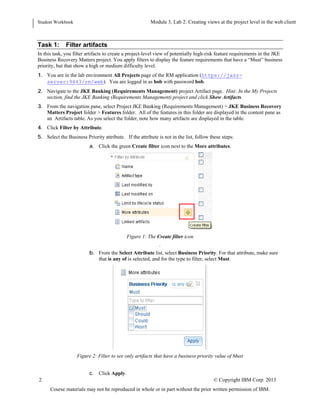
a. Click the green Create filter icon next to the More attributes.
Figure 1: The Create filter icon
.
b. From the Select Attribute list, select Business Priority.
6. For that attribute, make sure that is any of is selected, and for the type to filter, select Must.
Figure 2: Filter to see only artifacts that have a business priority value of Must
Student Workbook Module: Navigating the Requirements Management application: Web client
Lab 2: Creating views at the project level in the web client
© Copyright IBM Corp. 2013 3
Course materials may not be reproduced in whole or in part without the prior written permission of IBM.
7. Click Apply.
Any features that are not assigned the Must business priority are filtered from the table. Note how many
artifacts are displayed now.
8. Similarly, add a filter to display only the features that have a high or medium difficulty attribute.
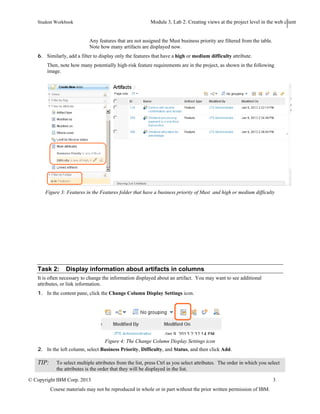
Then, note how many potentially high-risk feature requirements are in the project, as shown in the following
image.
Figure 3: Features in the Features folder that have a business priority of Must and high or medium difficulty
Task 2: Display information about artifacts in columns
It is often necessary to change the information displayed about an artifact. You may want to see additional
attributes, or link information.
1. In the content pane, click the Change Column Display Settings icon.
Figure 4: The Change Column Display Settings icon
2. In the left column, select Business Priority, Difficulty, and Status, and then click Add.
Student Workbook Module: Navigating the Requirements Management application: Web client
Lab 2: Creating views at the project level in the web client
4 © Copyright IBM Corp. 2013
Course materials may not be reproduced in whole or in part without the prior written permission of IBM.
TIP: To select multiple attributes from the list, press Ctrl as you select attributes. The order in which you select
the attributes is the order that they will be displayed in the list.
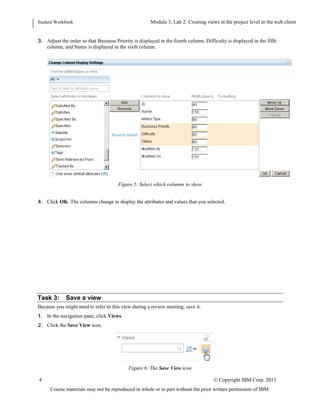
3. Adjust the order so that Business Priority is displayed in the fourth column, Difficulty is displayed in the fifth
column, and Status is displayed in the sixth column.
Figure 5: Select which columns to show
4. Click OK. The columns change to display the attributes and values that you selected.
Task 3: Save a view
Because you might need to refer to this view during a review meeting, save it.
1. In the navigation pane, click Views.
2. Click the Save View icon.
Student Workbook Module: Navigating the Requirements Management application: Web client
Lab 2: Creating views at the project level in the web client
© Copyright IBM Corp. 2013 5
Course materials may not be reproduced in whole or in part without the prior written permission of IBM.
Figure 6: The Save View icon
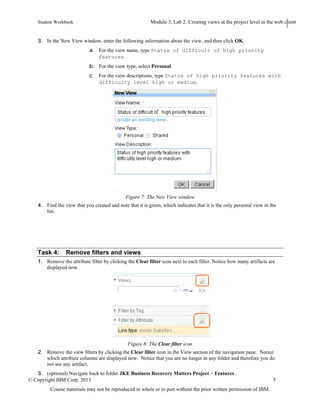
3. In the New View window, enter the following information about the view, and then click OK.
a. For the view name, type Status of difficult of high priority
features.
b. For the view type, select Personal.
c. For the view descriptions, type Status of high priority features with
difficulty level high or medium.
Figure 7: The New View window
4. Find the view that you created and note that it is green, which indicates that it is the only personal view in the
list.
Task 4: Remove filters and views
1. Remove the attribute filter by clicking the Clear filter icon next to each filter. Notice how many artifacts are
displayed now.
Student Workbook Module: Navigating the Requirements Management application: Web client
Lab 2: Creating views at the project level in the web client
6 © Copyright IBM Corp. 2013
Course materials may not be reproduced in whole or in part without the prior written permission of IBM.
Figure 8: The Clear filter icon
2. Remove the view filters by clicking the Clear filter icon in the View section of the navigation pane. Notice
which attribute columns are displayed now. Notice that you are no longer in any folder and therefore you do
not see any artifact.
3. (optional) Navigate back to folder JKE Business Recovery Matters Project > Features .
Student Workbook Module: Navigating the Requirements Management application: Web client
Lab 2: Creating views at the project level in the web client
© Copyright IBM Corp. 2013 7
Course materials may not be reproduced in whole or in part without the prior written permission of IBM.

Lab 2: Creating views at the project level in the web client

  • 1.
    Student Workbook Module:Navigating the Requirements Management application: Web client Lab 2: Creating views at the project level in the web client © Copyright IBM Corp. 2013 1 Course materials may not be reproduced in whole or in part without the prior written permission of IBM. Lab 2: Creating views at the project level in the web client Objectives At the end of this lab you will be able to: ► Filter artifacts ► Change the artifact information displayed as columns= ► Create a view at the project level ► Clear filters and views Given ► The JKE Banking Money That Matters project (JKE) Description ► In this lab, you log in as Bob, an analyst. You are at the project level. You create a personal custom view that displays only some artifacts and attributes of interest. You save this view for future reference. Exercise tasks In this exercise, you complete these tasks:  Task 1: Filter artifacts  Task 2: Display information about artifacts in columns  Task 3: Save a view  Task 4: Remove filters and views
  • 2.
    Student Workbook Module:Navigating the Requirements Management application: Web client Lab 2: Creating views at the project level in the web client 2 © Copyright IBM Corp. 2013 Course materials may not be reproduced in whole or in part without the prior written permission of IBM. Task 1: Filter artifacts In this task, you filter artifacts to create a project-level view of potentially high-risk feature requirements in the JKE Business Recovery Matters project. You apply filters to display the feature requirements that have a “Must” business priority, but that show a high or medium difficulty level. 1. You are in the lab environment All Projects page of the RM application (https://jazz- server:9443/rm/web). You are logged in as bob with password bob. 2. Navigate to the JKE Banking (Requirements Management) project Artifact page. Hint: In the My Projects section, find the JKE Banking (Requirements Management) project and click Show Artifacts. 3. From the navigation pane, select Project JKE Banking (Requirements Management) > JKE Business Recovery Matters Project folder > Features folder. All of the features in this folder are displayed in the content pane as an Artifacts table. As you select the folder, note how many artifacts are displayed in the table. 4. Click Filter by Attribute. 5. You need to select attribute Business Priority, however, depending on your specific environment the attribute may be hidden below “More attributes”. If Business Priority is not in the list, follow these steps to select it: a. Click the green Create filter icon next to the More attributes. Figure 1: The Create filter icon . b. From the Select Attribute list, select Business Priority. 6. For that attribute, make sure that is any of is selected, and for the type to filter, select Must. Figure 2: Filter to see only artifacts that have a business priority value of Must
  • 3.
    Student Workbook Module:Navigating the Requirements Management application: Web client Lab 2: Creating views at the project level in the web client © Copyright IBM Corp. 2013 3 Course materials may not be reproduced in whole or in part without the prior written permission of IBM. 7. Click Apply. Any features that are not assigned the Must business priority are filtered from the table. Note how many artifacts are displayed now. 8. Similarly, add a filter to display only the features that have a high or medium difficulty attribute. Then, note how many potentially high-risk feature requirements are in the project, as shown in the following image. Figure 3: Features in the Features folder that have a business priority of Must and high or medium difficulty Task 2: Display information about artifacts in columns It is often necessary to change the information displayed about an artifact. You may want to see additional attributes, or link information. 1. In the content pane, click the Change Column Display Settings icon. Figure 4: The Change Column Display Settings icon 2. In the left column, select Business Priority, Difficulty, and Status, and then click Add.
  • 4.
    Student Workbook Module:Navigating the Requirements Management application: Web client Lab 2: Creating views at the project level in the web client 4 © Copyright IBM Corp. 2013 Course materials may not be reproduced in whole or in part without the prior written permission of IBM. TIP: To select multiple attributes from the list, press Ctrl as you select attributes. The order in which you select the attributes is the order that they will be displayed in the list. 3. Adjust the order so that Business Priority is displayed in the fourth column, Difficulty is displayed in the fifth column, and Status is displayed in the sixth column. Figure 5: Select which columns to show 4. Click OK. The columns change to display the attributes and values that you selected. Task 3: Save a view Because you might need to refer to this view during a review meeting, save it. 1. In the navigation pane, click Views. 2. Click the Save View icon.
  • 5.
    Student Workbook Module:Navigating the Requirements Management application: Web client Lab 2: Creating views at the project level in the web client © Copyright IBM Corp. 2013 5 Course materials may not be reproduced in whole or in part without the prior written permission of IBM. Figure 6: The Save View icon 3. In the New View window, enter the following information about the view, and then click OK. a. For the view name, type Status of difficult of high priority features. b. For the view type, select Personal. c. For the view descriptions, type Status of high priority features with difficulty level high or medium. Figure 7: The New View window 4. Find the view that you created and note that it is green, which indicates that it is the only personal view in the list. Task 4: Remove filters and views 1. Remove the attribute filter by clicking the Clear filter icon next to each filter. Notice how many artifacts are displayed now.
  • 6.
    Student Workbook Module:Navigating the Requirements Management application: Web client Lab 2: Creating views at the project level in the web client 6 © Copyright IBM Corp. 2013 Course materials may not be reproduced in whole or in part without the prior written permission of IBM. Figure 8: The Clear filter icon 2. Remove the view filters by clicking the Clear filter icon in the View section of the navigation pane. Notice which attribute columns are displayed now. Notice that you are no longer in any folder and therefore you do not see any artifact. 3. (optional) Navigate back to folder JKE Business Recovery Matters Project > Features .
  • 7.
    Student Workbook Module:Navigating the Requirements Management application: Web client Lab 2: Creating views at the project level in the web client © Copyright IBM Corp. 2013 7 Course materials may not be reproduced in whole or in part without the prior written permission of IBM.