


KWizCom Forms
True SharePoint-Native
Forms & Mobile Solution
KWizCom Corporation
• Founded in 2005
• Headquartered in Toronto
• Global vendor of SharePoint Add-Ons
• 5000+ customers worldwide
Implementing forms in SharePoint
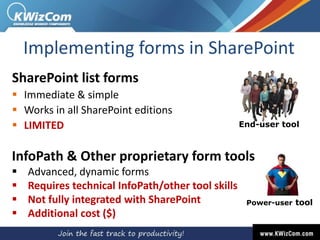
SharePoint list forms
 Immediate & simple
 Works in all SharePoint editions
 LIMITED
Power-user tool
End-user tool
InfoPath & Other proprietary form tools
 Advanced, dynamic forms
 Requires technical InfoPath/other tool skills
 Not fully integrated with SharePoint
 Additional cost ($)
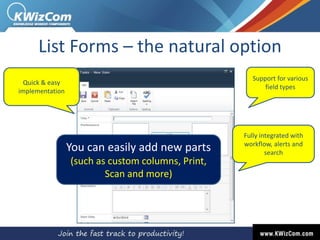
Quick & easy
implementation
Support for various
field types
Fully integrated with
workflow, alerts and
search
You can easily add new parts
(such as custom columns, Print,
Scan and more)
List Forms – the natural option
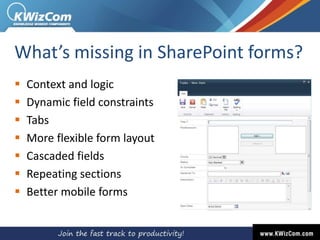
What’s missing in SharePoint forms?
 Context and logic
 Dynamic field constraints
 Tabs
 More flexible form layout
 Cascaded fields
 Repeating sections
 Better mobile forms
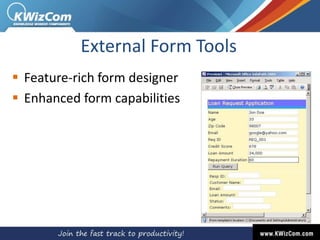
External Form Tools
 Feature-rich form designer
 Enhanced form capabilities
External Form Tools
But…you lose your SharePoint freedom:
 Support for custom columns
 Print
 File upload
 Separate design from SharePoint
 Full integration with SharePoint alerts, workflows,
search
 Requires Power-user skills
KWizCom Forms
Turn your SharePoint list forms into
Smart, Context-Sensitive Forms
KWizCom Forms
Get all advanced form features
End-user tool, no technical skills required
Your forms already exist, just enhance
them!
100% SharePoint-Native
(Custom columns, themes, workflow)
Product Features
Let’s show you the features by
implementing an IT Helpdesk solution,
step-by-step
CustomerHelpdesk engineer
Demo
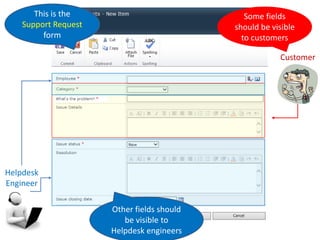
Static Field permissions:
Allowing different users see different fields
Customer
Helpdesk
Engineer
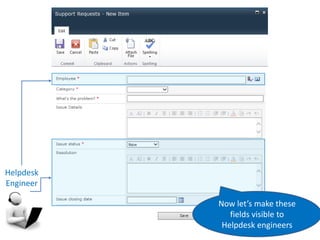
This is the
Support Request
form
Some fields
should be visible
to customers
Other fields should
be visible to
Helpdesk engineers
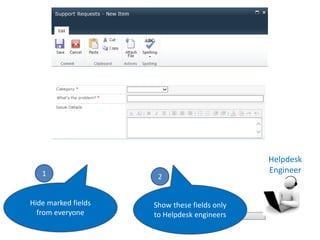
Hide marked fields
from everyone
1
Show these fields only
to Helpdesk engineers
2
Helpdesk
Engineer
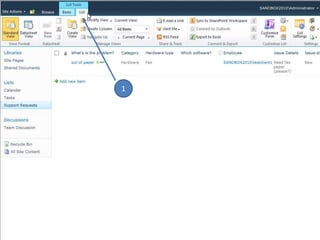
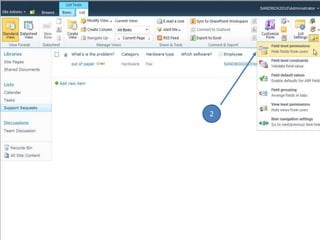
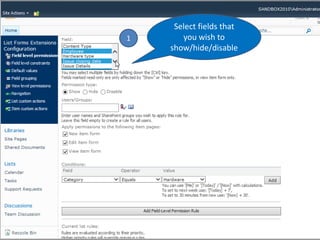
Let’s configure KWizCom Forms to hide
these fields
1
1
2
1
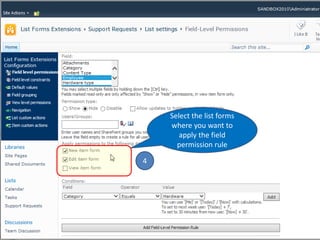
Select fields that
you wish to
show/hide/disable
2
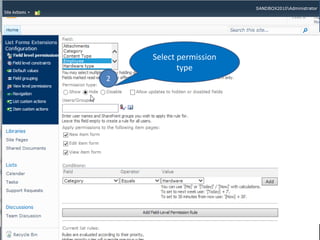
Select permission
type
3
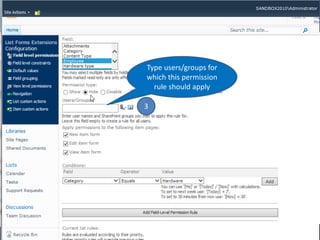
Type users/groups for
which this permission
rule should apply
4
Select the list forms
where you want to
apply the field
permission rule
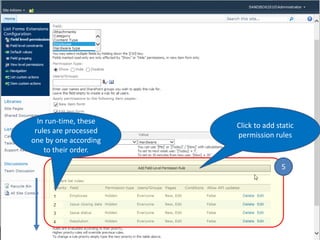
5
Click to add static
permission rules
In run-time, these
rules are processed
one by one according
to their order.
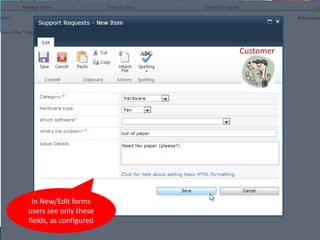
Let’s save the settings and see which fields
users see now when creating a new
Support Ticket.
Customer
In New/Edit forms
users see only these
fields, as configured
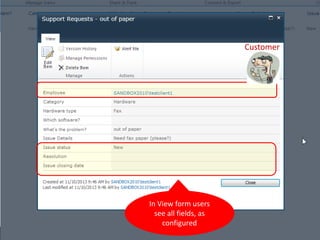
In View form users
see all fields, as
configured
Customer
Helpdesk
Engineer
Now let’s make these
fields visible to
Helpdesk engineers
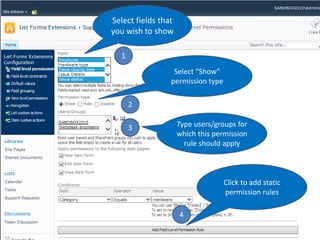
1
Select fields that
you wish to show
2
Select “Show”
permission type
3 Type users/groups for
which this permission
rule should apply
Click to add static
permission rules
4
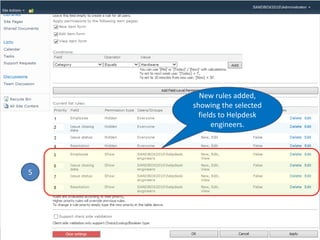
New rules added,
showing the selected
fields to Helpdesk
engineers.
5
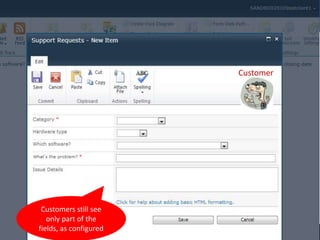
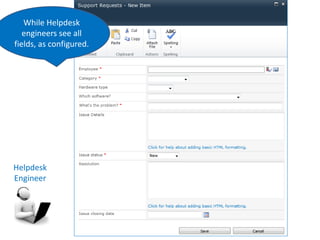
Customer
Customers still see
only part of the
fields, as configured
Helpdesk
Engineer
While Helpdesk
engineers see all
fields, as configured.
Demo
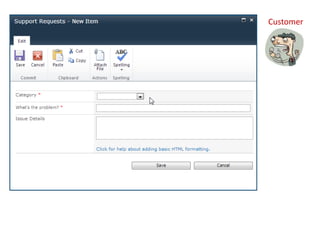
Context-sensitive forms:
Dynamically hiding/disabling fields
according to business logic
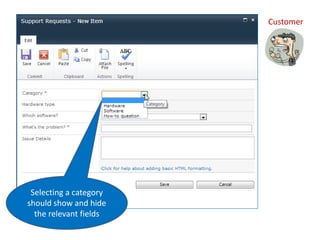
Customer
Selecting a category
should show and hide
the relevant fields
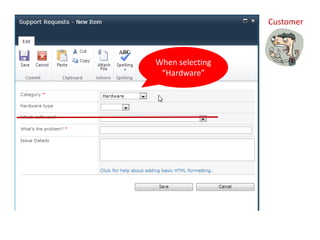
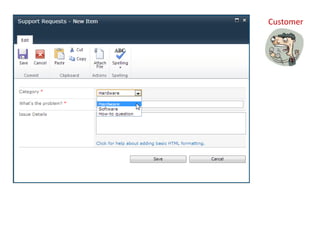
Customer
When selecting
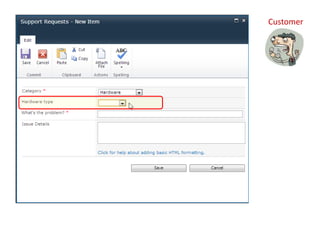
“Hardware”
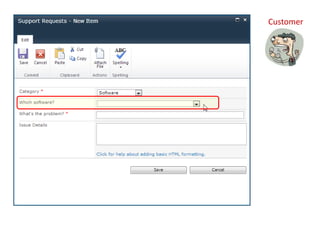
Customer
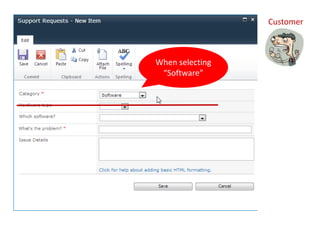
When selecting
“Software”
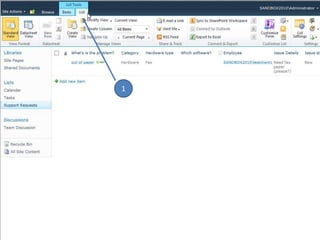
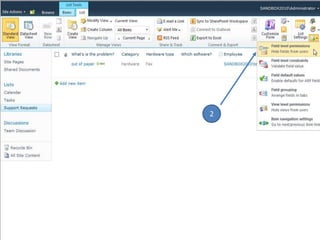
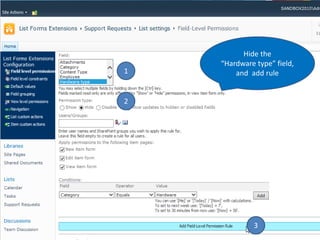
Let’s configure KWizCom Forms to
dynamically show these fields
1
1
2
Hide the
“Hardware type” field,
and add rule1
2
3
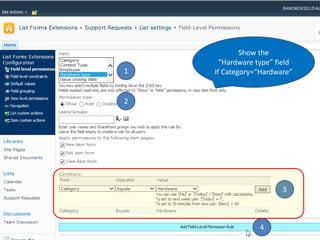
Show the
“Hardware type” field
if Category=“Hardware”1
2
3
4
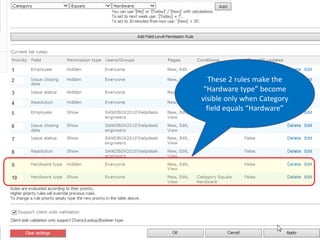
These 2 rules make the
“Hardware type” become
visible only when Category
field equals “Hardware”
These 2 rules make the
“Hardware type” become
visible only when Category
field equals “Hardware”
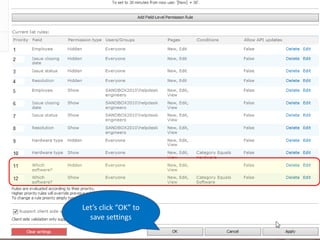
Let’s click “OK” to
save settings
Customer
Customer
Customer
Customer
Helpdesk
Engineer
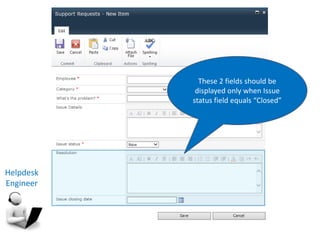
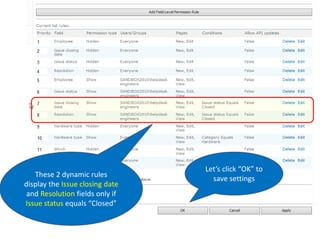
These 2 fields should be
displayed only when Issue
status field equals “Closed”
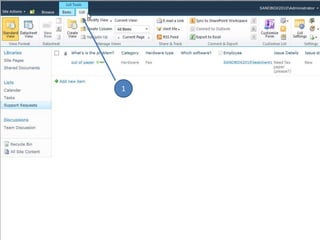
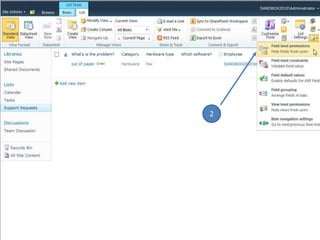
Let’s configure KWizCom Forms to
dynamically show these fields
1
1
2
These 2 dynamic rules
display the Issue closing date
and Resolution fields only if
Issue status equals “Closed”
Let’s click “OK” to
save settings
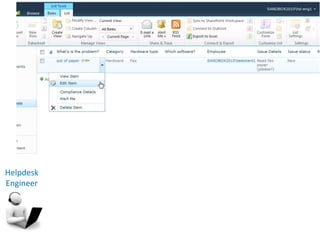
Helpdesk
Engineer
Helpdesk
Engineer
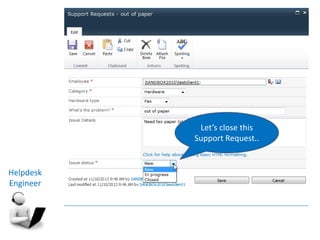
Let’s close this
Support Request..
Helpdesk
Engineer
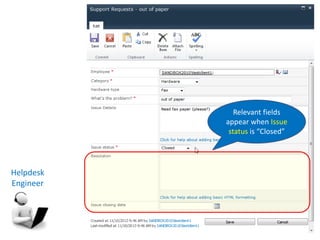
Relevant fields
appear when Issue
status is “Closed”
Demo
Dynamic default values:
1. Different default values for different
people
2. Automatically update document Title to
be equal to the file’s name
Demo
Different default values for different
people
Customer
For a customer,
“Employee” field’s default
value should be equal to [Me]
(Although it’s invisible)
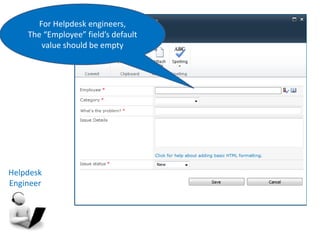
Helpdesk
Engineer
For Helpdesk engineers,
The “Employee” field’s default
value should be empty
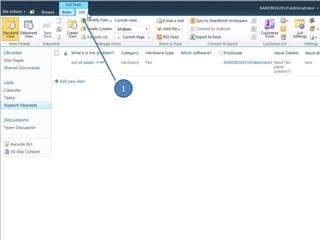
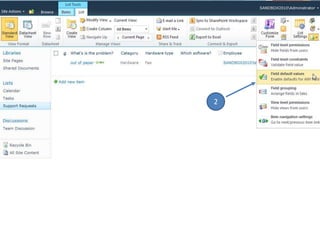
Let’s configure the “Employee” field’s
default value to be equal to [Me] only for
customers.
1
2
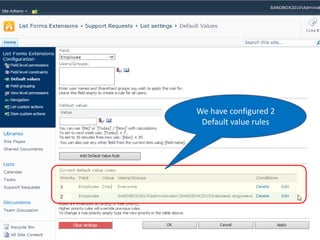
We have configured 2
Default value rules
1st rule: set the default
value to [Me] for
everyone
Customer
2nd rule: set the
“Employee” field’s default
value to be empty only for
Helpdesk engineers
Helpdesk
Engineer
Demo
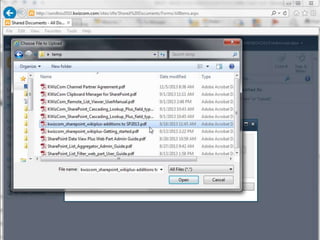
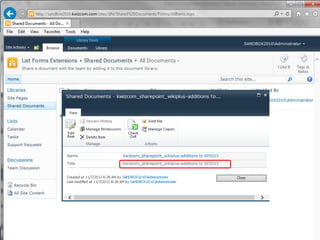
Automatically update a document’s Title
(This has nothing to do with our Helpdesk example,
but still it’s an annoying issue…)
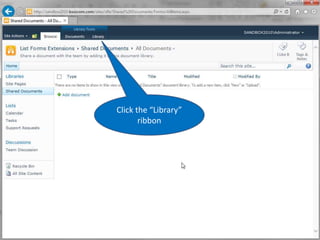
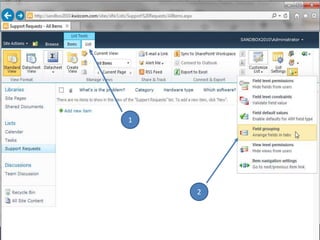
Click the “Library”
ribbon
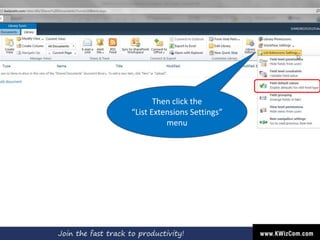
Then click the
“List Extensions Settings”
menu
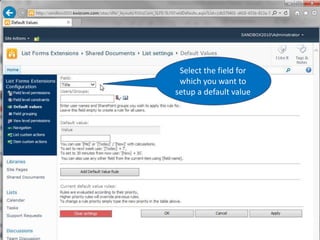
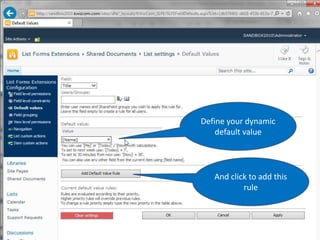
Select the field for
which you want to
setup a default value
Define your dynamic
default value
And click to add this
rule
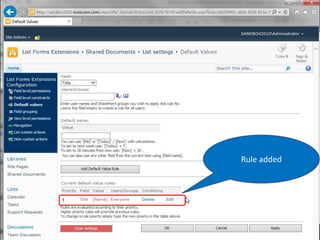
Rule added
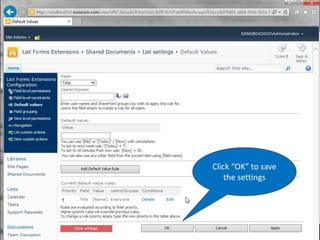
Click “OK” to save
the settings
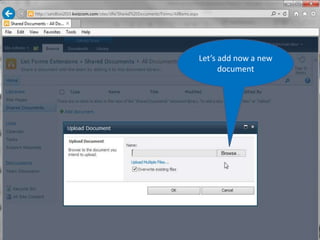
Let’s add now a new
document
Demo
Field Constraints:
1. Dynamic: Conditionally-mandatory fields
2. Custom: Validate custom pattern using
regular expressions
Demo
Field Constraints:
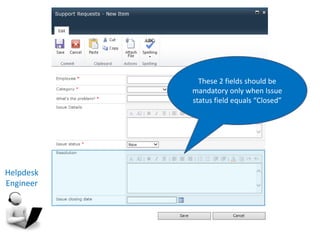
Dynamic: Conditionally-mandatory fields
Helpdesk
Engineer
These 2 fields should be
mandatory only when Issue
status field equals “Closed”
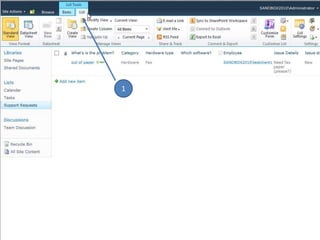
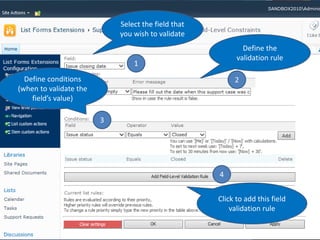
Let’s configure the Resolution and Issue
closing date fields to be mandatory only if
Issue status equals “Closed”.
1
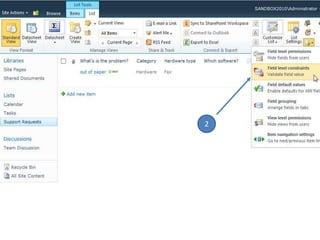
2
1
Select the field that
you wish to validate
3
Define conditions
(when to validate the
field’s value)
4
Click to add this field
validation rule
2
Define the
validation rule
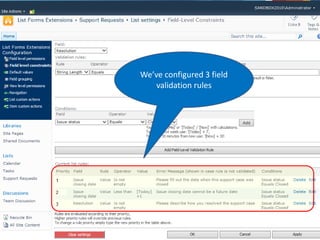
We’ve configured 3 field
validation rules
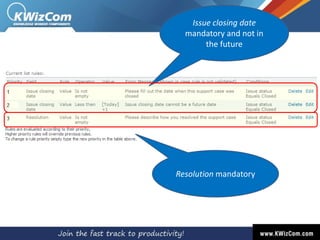
Issue closing date
mandatory and not in
the future
Resolution mandatory
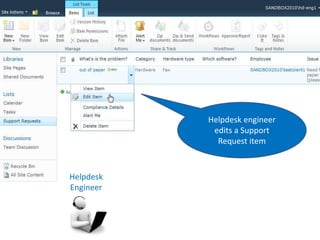
Helpdesk engineer
edits a Support
Request item
Helpdesk
Engineer
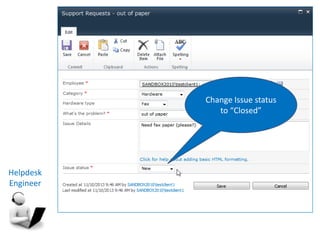
Change Issue status
to “Closed”
Helpdesk
Engineer
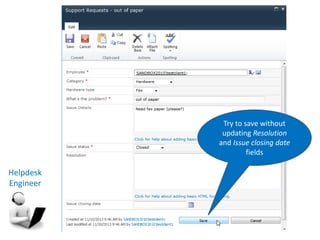
Try to save without
updating Resolution
and Issue closing date
fields
Helpdesk
Engineer
Helpdesk
Engineer
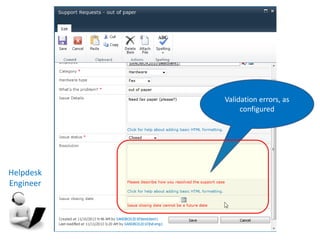
Validation errors, as
configured
Demo
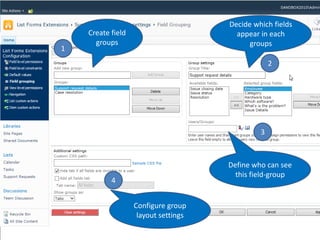
Field Grouping:
Lets divide a long form to multiple tabs, each
visible to relevant audience
1
2
1
Create field
groups
2
Decide which fields
appear in each
groups
3
Define who can see
this field-group
4
Configure group
layout settings
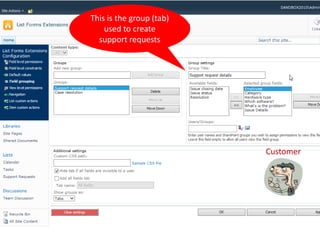
Customer
This is the group (tab)
used to create
support requests
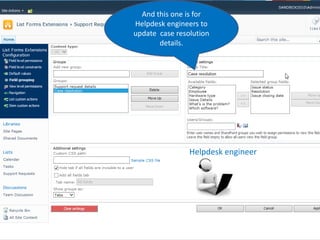
And this one is for
Helpdesk engineers to
update case resolution
details.
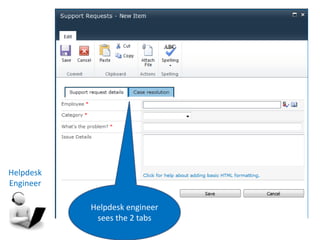
Helpdesk engineer
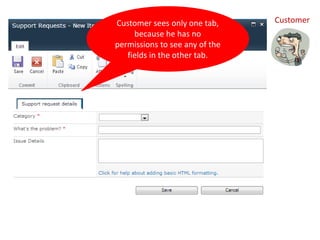
CustomerCustomer sees only one tab,
because he has no
permissions to see any of the
fields in the other tab.
Helpdesk
Engineer
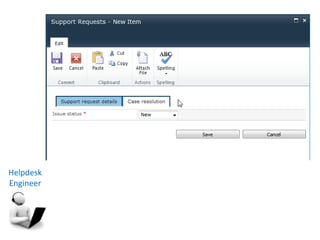
Helpdesk engineer
sees the 2 tabs
Helpdesk
Engineer
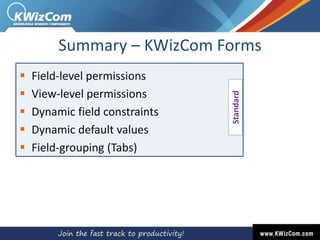
Summary – KWizCom Forms
 Field-level permissions
 View-level permissions
 Dynamic field constraints
 Dynamic default values
 Field-grouping (Tabs)
Standard
Professional
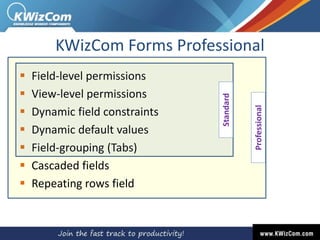
KWizCom Forms Professional
 Field-level permissions
 View-level permissions
 Dynamic field constraints
 Dynamic default values
 Field-grouping (Tabs)
 Cascaded fields
 Repeating rows field
Standard
Demo
Multi-row forms:
Managing employee expense reports
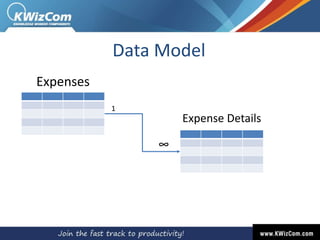
Data Model
Expenses
Expense Details
1
∞
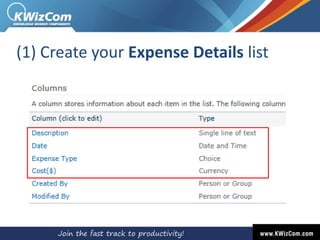
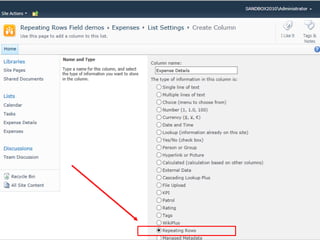
(1) Create your Expense Details list
(2) In your Expenses list create a Repeating
Rows column that connects to the Expense
Details list
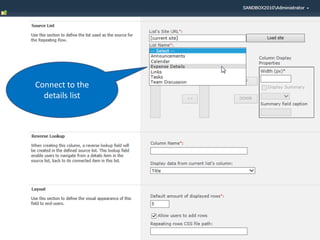
Connect to the
details list
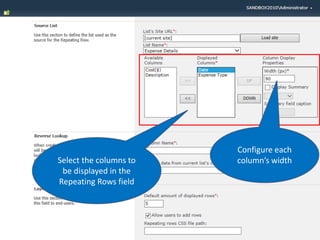
Select the columns to
be displayed in the
Repeating Rows field
Configure each
column’s width
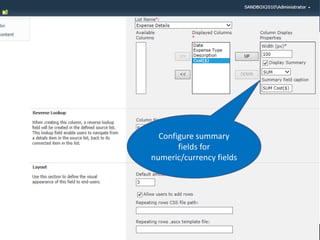
Configure summary
fields for
numeric/currency fields
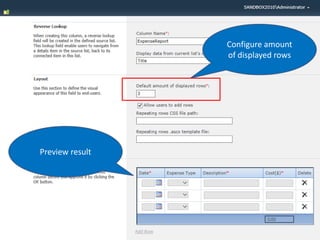
Configure amount
of displayed rows
Preview result
Let’s save the settings and see the result
end-user experience
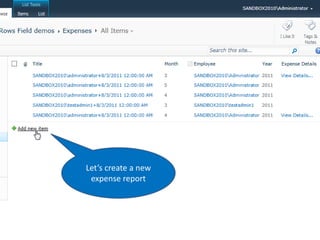
Let’s create a new
expense report
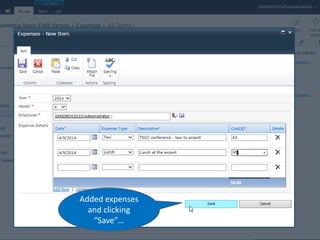
Added expenses
and clicking
“Save”…
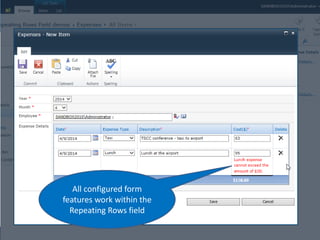
All configured form
features work within the
Repeating Rows field
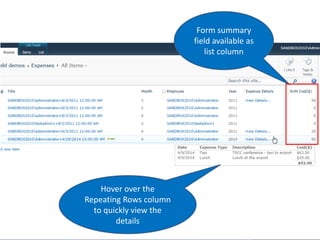
Form summary
field available as
list column
Hover over the
Repeating Rows column
to quickly view the
details
Professional
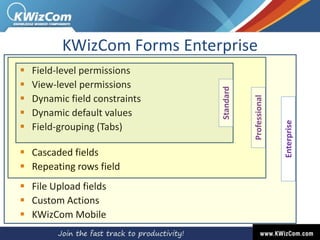
KWizCom Forms Enterprise
 Field-level permissions
 View-level permissions
 Dynamic field constraints
 Dynamic default values
 Field-grouping (Tabs)
 Cascaded fields
 Repeating rows field
 File Upload fields
 Custom Actions
 KWizCom Mobile
Standard
Enterprise
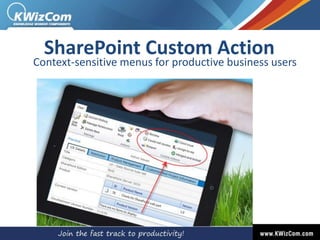
SharePoint Custom Action
Context-sensitive menus for productive business users
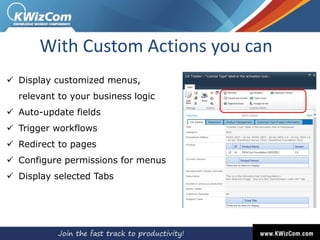
 Display customized menus,
relevant to your business logic
 Auto-update fields
 Trigger workflows
 Redirect to pages
 Configure permissions for menus
 Display selected Tabs
With Custom Actions you can
Demo
Custom menus for a more
convenient IT Helpdesk UX
Demo
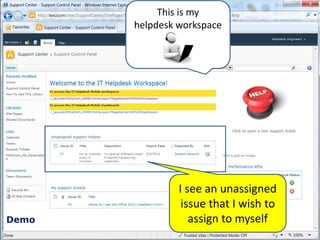
This is my
helpdesk workspace
I see an unassigned
issue that I wish to
assign to myself
Demo
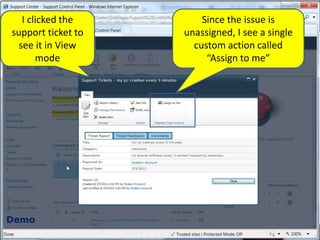
I clicked the
support ticket to
see it in View
mode
Since the issue is
unassigned, I see a single
custom action called
“Assign to me”
Demo
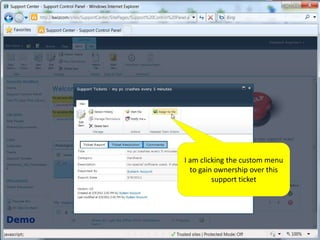
I am clicking the custom menu
to gain ownership over this
support ticket
Demo
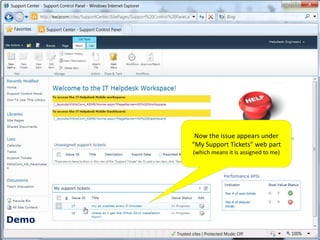
Now the issue appears under
“My Support Tickets” web part
(which means it is assigned to me)
Demo
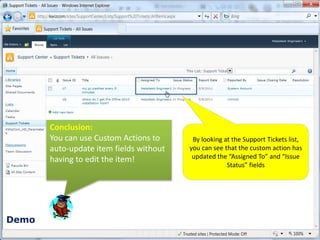
By looking at the Support Tickets list,
you can see that the custom action has
updated the “Assigned To” and “Issue
Status” fields
Conclusion:
You can use Custom Actions to
auto-update item fields without
having to edit the item!
Demo
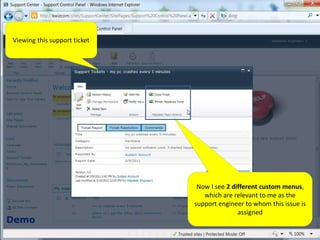
Now I see 2 different custom menus,
which are relevant to me as the
support engineer to whom this issue is
assigned
Viewing this support ticket
Demo
Now I see 2 different custom
menus, which are relevant to me
as the support engineer to whom
this issue is assigned
If I now click this
item
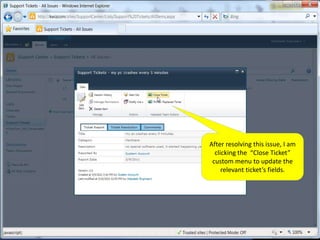
After resolving this issue, I am
clicking the “Close Ticket”
custom menu to update the
relevant ticket’s fields.
Demo
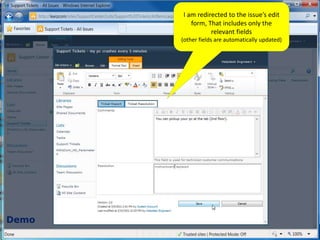
I am redirected to the issue’s edit
form, That includes only the
relevant fields
(other fields are automatically updated)
Demo
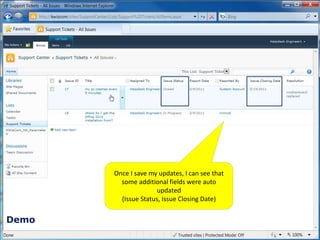
Once I save my updates, I can see that
some additional fields were auto
updated
(Issue Status, Issue Closing Date)
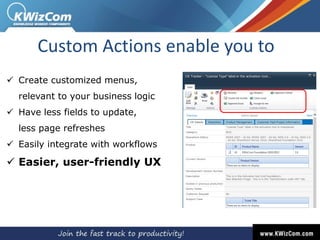
 Create customized menus,
relevant to your business logic
 Have less fields to update,
less page refreshes
 Easily integrate with workflows
 Easier, user-friendly UX
Custom Actions enable you to
KWizCom Mobile
Improving efficiency of the mobile workforce
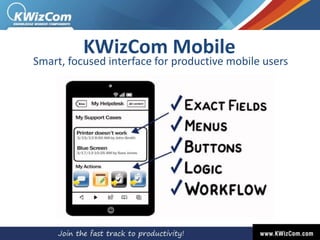
KWizCom Mobile
Smart, focused interface for productive mobile users
KWizCom Mobile
KWizCom Mobile
Smart, focused interface for productive mobile users
Server solution
Demo
Go Mobile:
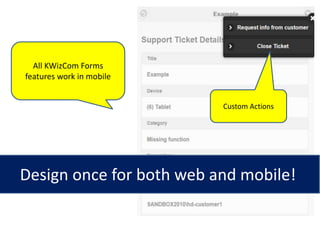
1. All KWizCom Form features work in
mobile devices.
2. Create your custom mobile pages
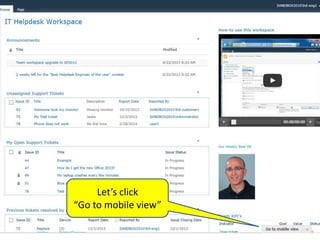
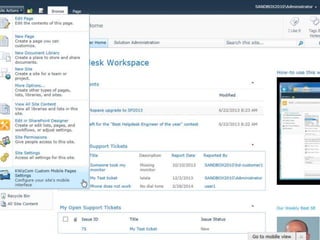
Let’s click
“Go to mobile view”
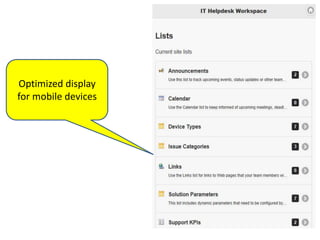
Optimized display
for mobile devices
All KWizCom Forms
features work in mobile
Custom Actions
Design once for both web and mobile!
Demo
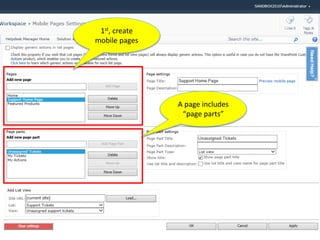
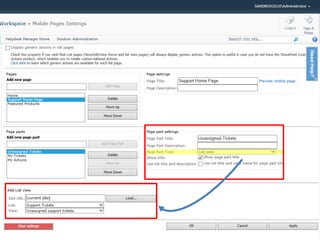
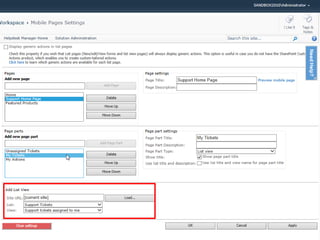
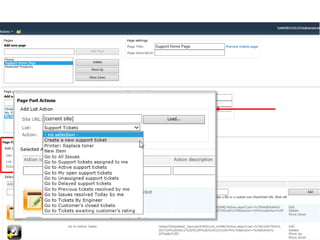
Let’s design a more convenient mobile
workspace for IT Helpdesk engineers
1st, create
mobile pages
A page includes
“page parts”
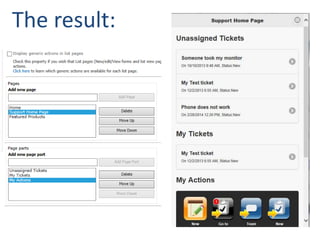
The result:
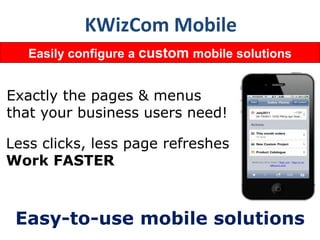
KWizCom Mobile
Easily configure a custom mobile solutions
Easy-to-use mobile solutions
Exactly the pages & menus
that your business users need!
Less clicks, less page refreshes
Work FASTER
KWizCom Forms
True SharePoint-Native
Forms & Mobile Solution
Resources
• Product web page:
http://www.kwizcom.com/sharepoint-add-ons/sharepoint-list-forms-
extensions-feature/overview/
• FREE 30-day evaluation version (SP2007, 2010, 2013):
http://www.kwizcom.com/sharepoint-add-ons/sharepoint-list-forms-
extensions-feature/download/
• Admin guide:
http://catalog.kwizcom.com/sites/pc/Product%20Documentation/KWizCom
_SharePoint_List_Forms_Extensions_Feature_Admin_Guide.pdf
• Training videos:
http://www.kwizcom.com/sharepoint-add-ons/sharepoint-list-forms-
extensions-feature/training-videos/
142
Thank you!
Nimrod Geva
Product Group Manager, KWizCom
nimrod@kwizcom.com

KWizCom forms - introduction