SAP Business Warehouse/Business Intelligence Reporting
BEx Query Designer
Washington State HRMS BusinessWashington State HRMS Business
Warehouse/Business Intelligence (BW/BI)Warehouse/Business Intelligence (BW/BI)Warehouse/Business Intelligence (BW/BI)Warehouse/Business Intelligence (BW/BI)
BW/BI Power User Workshop MaterialsBW/BI Power User Workshop Materials
General TopicsGeneral Topics –– BW/BI Power UsersBW/BI Power Users
Section 7
BEx Query Designer
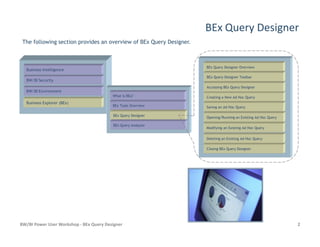
The following section provides an overview of BEx Query Designer.
BEx Query Designer Overview
Creating a New Ad Hoc Query
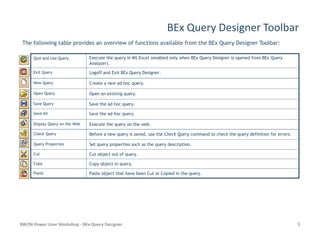
BEx Query Designer Toolbar
Accessing BEx Query Designer
Saving an Ad Hoc Query
Opening/Running an Existing Ad Hoc Query
Business Intelligence
Business Explorer (BEx)
BW/BI Security
BW/BI Environment
What is BEx?
BEx Tools Overview
BEx Query Designer
BEx Query Analyzer
BW/BI Power User Workshop - BEx Query Designer 2
Deleting an Existing Ad Hoc Query
Closing BEx Query Designer
BEx Query Analyzer
Modifying an Existing Ad Hoc Query
BEx Query Designer Overview
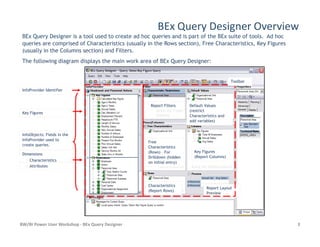
BEx Query Designer is a tool used to create ad hoc queries and is part of the BEx suite of tools. Ad hoc
queries are comprised of Characteristics (usually in the Rows section), Free Characteristics, Key Figures
(usually in the Columns section) and Filters.
The following diagram displays the main work area of BEx Query Designer:
Report FiltersReport Filters
InfoProvider IdentifierInfoProvider Identifier
ToolbarToolbar
Key FiguresKey Figures
Default ValuesDefault Values
(restrict(restrict
Characteristics andCharacteristics and
add variables)add variables)
BW/BI Power User Workshop - BEx Query Designer 3
Report LayoutReport Layout
PreviewPreview
InfoObjects: Fields in theInfoObjects: Fields in the
InfoProvider used toInfoProvider used to
create queries.create queries.
Key FiguresKey Figures
(Report Columns)(Report Columns)
DimensionsDimensions
CharacteristicsCharacteristics
AttributesAttributes
CharacteristicsCharacteristics
(Report Rows)(Report Rows)
FreeFree
CharacteristicsCharacteristics
(Rows)(Rows) –– ForFor
Drilldown (hiddenDrilldown (hidden
on initial entry)on initial entry)
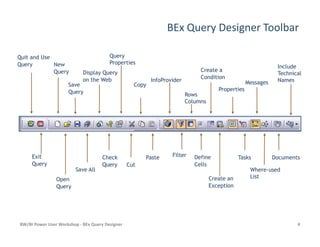
BEx Query Designer Toolbar
Quit and UseQuit and Use
QueryQuery IncludeInclude
TechnicalTechnical
NamesNames
RowsRows
ColumnsColumns
Create aCreate a
ConditionCondition
SaveSave
QueryQuery
NewNew
QueryQuery Display QueryDisplay Query
on the Webon the Web InfoProviderInfoProvider
CopyCopy
QueryQuery
PropertiesProperties
MessagesMessages
BW/BI Power User Workshop - BEx Query Designer 4
OpenOpen
QueryQuery
CutCut
Create anCreate an
ExceptionException
WhereWhere--usedused
ListList
CheckCheck
QueryQuery
ExitExit
QueryQuery
FilterFilter
Save AllSave All
PastePaste DefineDefine
CellsCells
TasksTasks DocumentsDocuments
BEx Query Designer Toolbar
Quit and Use QueryQuit and Use Query Execute the query in MS Excel (enabled only when BEx Query Designer is opened from BEx QueryExecute the query in MS Excel (enabled only when BEx Query Designer is opened from BEx Query
Analyzer).Analyzer).
Exit QueryExit Query Logoff and Exit BEx Query Designer.Logoff and Exit BEx Query Designer.
New QueryNew Query Create a new ad hoc query.Create a new ad hoc query.
Open QueryOpen Query Open an existing query.Open an existing query.
Save QuerySave Query Save the ad hoc query.Save the ad hoc query.
Save AllSave All Save the ad hoc query.Save the ad hoc query.
Display Query on the WebDisplay Query on the Web Execute the query on the web.Execute the query on the web.
The following table provides an overview of functions available from the BEx Query Designer Toolbar:
BW/BI Power User Workshop - BEx Query Designer 5
Display Query on the WebDisplay Query on the Web Execute the query on the web.Execute the query on the web.
Check QueryCheck Query Before a new query is saved, use theBefore a new query is saved, use the Check QueryCheck Query command to check the query definition for errors.command to check the query definition for errors.
Query PropertiesQuery Properties Set query properties such as the query description,Set query properties such as the query description,
CutCut Cut object out of query.Cut object out of query.
CopyCopy Copy object in query.Copy object in query.
PastePaste Paste object that have been Cut or Copied in the query.Paste object that have been Cut or Copied in the query.
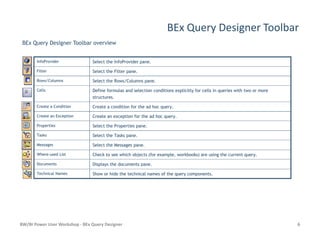
BEx Query Designer Toolbar
InfoProviderInfoProvider Select the InfoProvider pane.Select the InfoProvider pane.
FilterFilter Select the Filter pane.Select the Filter pane.
Rows/ColumnsRows/Columns Select the Rows/Columns pane.Select the Rows/Columns pane.
CellsCells Define formulas and selection conditions explicitly for cells in queries with two or moreDefine formulas and selection conditions explicitly for cells in queries with two or more
structures.structures.
Create a ConditionCreate a Condition Create a condition for the ad hoc query.Create a condition for the ad hoc query.
Create an ExceptionCreate an Exception Create an exception for the ad hoc query.Create an exception for the ad hoc query.
PropertiesProperties Select the Properties pane.Select the Properties pane.
BEx Query Designer Toolbar overview
BW/BI Power User Workshop - BEx Query Designer 6
PropertiesProperties Select the Properties pane.Select the Properties pane.
TasksTasks Select the Tasks pane.Select the Tasks pane.
MessagesMessages Select the Messages pane.Select the Messages pane.
WhereWhere--used Listused List Check to see which objects (for example, workbooks) are using the current query.Check to see which objects (for example, workbooks) are using the current query.
DocumentsDocuments Displays the documents pane.Displays the documents pane.
Technical NamesTechnical Names Show or hide the technical names of the query components.Show or hide the technical names of the query components.
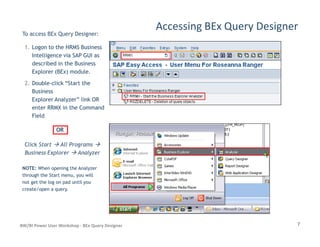
Accessing BEx Query Designer
To access BEx Query Designer:
1.1. Logon to the HRMS BusinessLogon to the HRMS Business
Intelligence via SAP GUI asIntelligence via SAP GUI as
described in the Businessdescribed in the Business
Explorer (BEx) module.Explorer (BEx) module.
2.2. DoubleDouble--click “Start theclick “Start the
BusinessBusiness
Explorer Analyzer” link ORExplorer Analyzer” link OR
enter RRMX in the Commandenter RRMX in the Command
FieldField
7BW/BI Power User Workshop - BEx Query Designer
Click Start All Programs
Business Explorer Analyzer
NOTE:NOTE: When opening the AnalyzerWhen opening the Analyzer
through the Start menu, you willthrough the Start menu, you will
not get the log on pad until younot get the log on pad until you
create/open a query.create/open a query.
OROR
Accessing BEx Query Designer
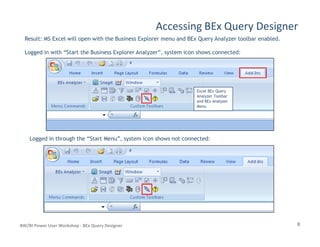
Result: MS Excel will open with the Business Explorer menu and BEx Query Analyzer toolbar enabled.
Logged in with “Start the Business Explorer Analyzer”, system icon shows connected:
Excel BEx Query
Analyzer Toolbar
and BEx Analyzer
Menu
8BW/BI Power User Workshop - BEx Query Designer
Logged in through the “Start Menu”, system icon shows not connected:
Accessing BEx Query Designer
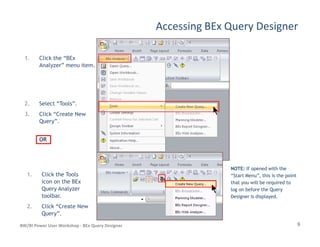
1. Click the “BEx
Analyzer” menu item.
2. Select “Tools”.
3. Click “Create New
Query”.
9BW/BI Power User Workshop - BEx Query Designer
Query”.
OROR
1. Click the Tools
icon on the BEx
Query Analyzer
toolbar.
2. Click “Create New
Query”.
NOTE:NOTE: If opened with theIf opened with the
“Start Menu”, this is the point“Start Menu”, this is the point
that you will be required tothat you will be required to
log on before the Querylog on before the Query
Designer is displayed.Designer is displayed.
Accessing BEx Query Designer
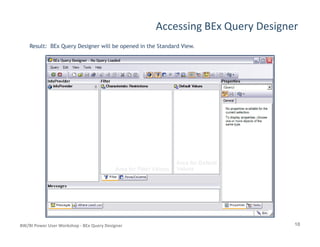
Result: BEx Query Designer will be opened in the Standard View.
10BW/BI Power User Workshop - BEx Query Designer
Accessing BEx Query Designer
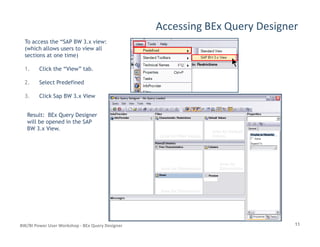
To access the “SAP BW 3.x view:
(which allows users to view all
sections at one time)
1. Click the “View” tab.
2. Select Predefined
3. Click Sap BW 3.x View
Result: BEx Query Designer
will be opened in the SAP
11BW/BI Power User Workshop - BEx Query Designer
will be opened in the SAP
BW 3.x View.
Creating a New Ad Hoc Query
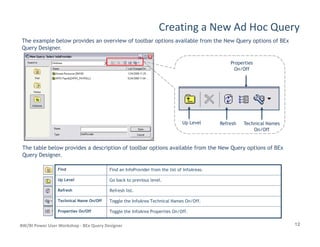
The example below provides an overview of toolbar options available from the New Query options of BEx
Query Designer.
Up LevelUp Level RefreshRefresh
PropertiesProperties
On/OffOn/Off
Technical NamesTechnical Names
12BW/BI Power User Workshop - BEx Query Designer
Up LevelUp Level RefreshRefresh Technical NamesTechnical Names
On/OffOn/Off
The table below provides a description of toolbar options available from the New Query options of BEx
Query Designer.
FindFind Find an InfoProvider from the list of InfoAreas.
Up LevelUp Level Go back to previous level.
RefreshRefresh Refresh list.
Technical Name On/OffTechnical Name On/Off Toggle the InfoArea Technical Names On/Off.
Properties On/OffProperties On/Off Toggle the InfoArea Properties On/Off.
Creating a New Ad Hoc Query
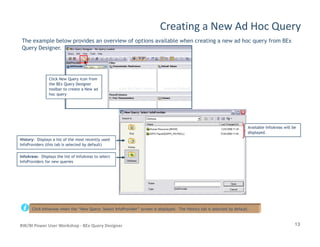
The example below provides an overview of options available when creating a new ad hoc query from BEx
Query Designer.
Click New Query icon fromClick New Query icon from
the BEx Query Designerthe BEx Query Designer
toolbar to create a New adtoolbar to create a New ad
hoc queryhoc query
13BW/BI Power User Workshop - BEx Query Designer
HistoryHistory: Displays a list of the most recently used: Displays a list of the most recently used
InfoProviders (this tab is selected by default)InfoProviders (this tab is selected by default)
InfoAreasInfoAreas: Displays the list of InfoAreas to select: Displays the list of InfoAreas to select
InfoProviders for new queriesInfoProviders for new queries
Available InfoAreas will beAvailable InfoAreas will be
displayed.displayed.
Click InfoAreas when the “New Query: Select InfoProvider” screen is displayed. The History tab is selected by default.
Creating a New Ad Hoc Query
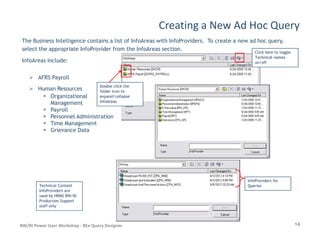
The Business Intelligence contains a list of InfoAreas with InfoProviders. To create a new ad hoc query,
select the appropriate InfoProvider from the InfoAreas section.
InfoAreas include:
AFRS Payroll
Human Resources
Organizational
Management
Payroll
Personnel Administration
Time Management
Click here to toggleClick here to toggle
Technical namesTechnical names
on/offon/off
Double click theDouble click the
folder icon tofolder icon to
expand/collapseexpand/collapse
InfoAreasInfoAreas
14BW/BI Power User Workshop - BEx Query Designer
Time Management
Grievance Data
Technical ContentTechnical Content
InfoProviders areInfoProviders are
used by HRMS BW/BIused by HRMS BW/BI
Production SupportProduction Support
staff onlystaff only
InfoProviders forInfoProviders for
QueriesQueries
Creating a New Ad Hoc Query
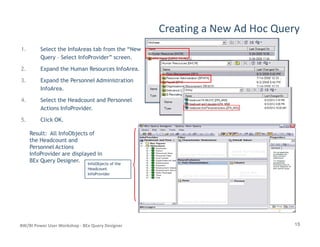
1. Select the InfoAreas tab from the “New
Query – Select InfoProvider” screen.
2. Expand the Human Resources InfoArea.
3. Expand the Personnel Administration
InfoArea.
4. Select the Headcount and Personnel
Actions InfoProvider.
5. Click OK.
15BW/BI Power User Workshop - BEx Query Designer
Result: All InfoObjects of
the Headcount and
Personnel Actions
InfoProvider are displayed in
BEx Query Designer. InfoObjects of theInfoObjects of the
HeadcountHeadcount
InfoProviderInfoProvider
Creating a New Ad Hoc Query
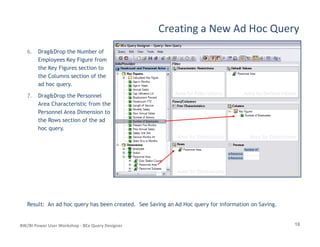
6. Drag&Drop the Number of
Employees Key Figure from
the Key Figures section to
the Columns section of the
ad hoc query.
7. Drag&Drop the Personnel
Area Characteristic from the
Personnel Area Dimension to
the Rows section of the ad
16BW/BI Power User Workshop - BEx Query Designer
the Rows section of the ad
hoc query.
Result: An ad hoc query has been created. See Saving an Ad Hoc query for information on Saving.
Saving an Ad Hoc Query
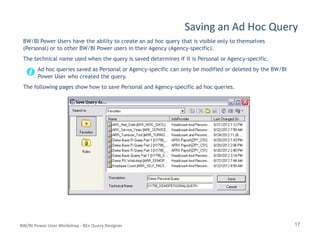
BW/BI Power Users have the ability to create an ad hoc query that is visible only to themselves
(Personal) or to other BW/BI Power users in their Agency (Agency-specific).
The technical name used when the query is saved determines if it is Personal or Agency-specific.
Ad hoc queries saved as Personal or Agency-specific can only be modified or deleted by the BW/BI
Power User who created the query.
The following pages show how to save Personal and Agency-specific ad hoc queries.
17BW/BI Power User Workshop - BEx Query Designer
Saving a Personal Ad Hoc Query
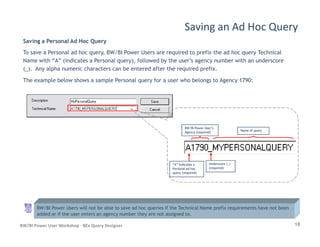
To save a Personal ad hoc query, BW/BI Power Users are required to prefix the ad hoc query Technical
Name with “A” (indicates a Personal query), followed by the user’s agency number with an underscore
(_). Any alpha numeric characters can be entered after the required prefix.
The example below shows a sample Personal query for a user who belongs to Agency 1790:
Saving an Ad Hoc Query
18BW/BI Power User Workshop - BEx Query Designer
“A” Indicates a“A” Indicates a
Personal ad hocPersonal ad hoc
query (required)query (required)
BW/BI Power User’sBW/BI Power User’s
Agency (required)Agency (required)
Name of queryName of query
BW/BI Power Users will not be able to save ad hoc queries if the Technical Name prefix requirements have not been
added or if the user enters an agency number they are not assigned to.
Underscore (_)Underscore (_)
(required)(required)
Saving an Agency-specific Ad Hoc Query
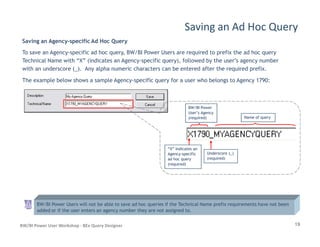
To save an Agency-specific ad hoc query, BW/BI Power Users are required to prefix the ad hoc query
Technical Name with “X” (indicates an Agency-specific query), followed by the user’s agency number
with an underscore (_). Any alpha numeric characters can be entered after the required prefix.
The example below shows a sample Agency-specific query for a user who belongs to Agency 1790:
Saving an Ad Hoc Query
BW/BI PowerBW/BI Power
User’s AgencyUser’s Agency
(required)(required) Name of queryName of query
19BW/BI Power User Workshop - BEx Query Designer
BW/BI Power Users will not be able to save ad hoc queries if the Technical Name prefix requirements have not been
added or if the user enters an agency number they are not assigned to.
Underscore (_)Underscore (_)
(required)(required)
“X” Indicates an“X” Indicates an
AgencyAgency--specificspecific
ad hoc queryad hoc query
(required)(required)
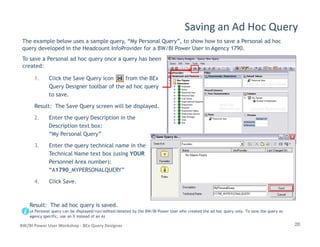
1. Click the Save Query icon from the BEx
Query Designer toolbar of the ad hoc query
to save.
Result: The Save Query screen will be displayed.
2. Enter the query Description in the
Description text box:
Saving an Ad Hoc Query
The example below uses a sample query, “My Personal Query”, to show how to save a Personal ad hoc
query developed in the Headcount InfoProvider for a BW/BI Power User in Agency 1790.
To save a Personal ad hoc query once a query has been
created:
20BW/BI Power User Workshop - BEx Query Designer
Description text box:
“My Personal Query”
3. Enter the query technical name in the
Technical Name text box (using YOUR
Personnel Area number):
“A1790_MYPERSONALQUERY”
4. Click Save.
Result: The ad hoc query is saved.
(A Personal query can be displayed/run/edited/deleted by the BW/BI Power User who created the ad hoc query only. To save the query as
agency specific, use an X instead of an A)
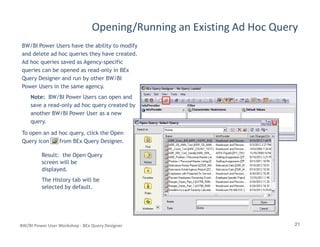
Opening/Running an Existing Ad Hoc Query
BW/BI Power Users have the ability to modify
and delete ad hoc queries they have created.
Ad hoc queries saved as Agency-specific
queries can be opened as read-only in BEx
Query Designer and run by other BW/BI
Power Users in the same agency.
Note: BW/BI Power Users can open and
save a read-only ad hoc query created by
another BW/BI Power User as a new
query.
21BW/BI Power User Workshop - BEx Query Designer
query.
To open an ad hoc query, click the Open
Query icon from BEx Query Designer.
Result: the Open Query
screen will be
displayed.
The History tab will be
selected by default.
Opening/Running an Existing Ad Hoc Query
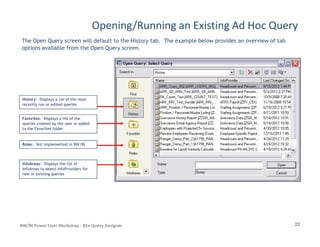
The Open Query screen will default to the History tab. The example below provides an overview of tab
options available from the Open Query screen.
HistoryHistory: Displays a list of the most: Displays a list of the most
recently run or edited queriesrecently run or edited queries
FavoritesFavorites: Displays a list of the: Displays a list of the
queries created by the user or addedqueries created by the user or added
22BW/BI Power User Workshop - BEx Query Designer
queries created by the user or addedqueries created by the user or added
to the Favorites folderto the Favorites folder
RolesRoles: Not implemented in BW/BI: Not implemented in BW/BI
InfoAreasInfoAreas: Displays the list of: Displays the list of
InfoAreas to select InfoProviders forInfoAreas to select InfoProviders for
new or existing queriesnew or existing queries
Opening/Running an Existing Ad Hoc Query
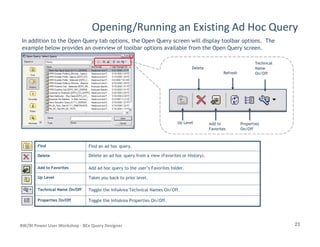
In addition to the Open Query tab options, the Open Query screen will display toolbar options. The
example below provides an overview of toolbar options available from the Open Query screen.
Up LevelUp Level
DeleteDelete
Add toAdd to
RefreshRefresh
TechnicalTechnical
NameName
On/OffOn/Off
PropertiesProperties
23BW/BI Power User Workshop - BEx Query Designer
Up LevelUp Level Add toAdd to
FavoritesFavorites
PropertiesProperties
On/OffOn/Off
FindFind Find an ad hoc query.
DeleteDelete Delete an ad hoc query from a view (Favorites or History).
Add to FavoritesAdd to Favorites Add ad hoc query to the user’s Favorites folder.
Up LevelUp Level Takes you back to prior level.
Technical Name On/OffTechnical Name On/Off Toggle the InfoArea Technical Names On/Off.
Properties On/OffProperties On/Off Toggle the InfoArea Properties On/Off.
Opening/Running an Existing Ad Hoc Query
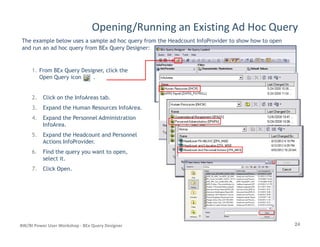
The example below uses a sample ad hoc query from the Headcount InfoProvider to show how to open
and run an ad hoc query from BEx Query Designer:
1. From BEx Query Designer, click the
Open Query icon .
2. Click on the InfoAreas tab.
3. Expand the Human Resources InfoArea.
4. Expand the Personnel Administration
InfoArea.
24BW/BI Power User Workshop - BEx Query Designer
InfoArea.
5. Expand the Headcount and Personnel
Actions InfoProvider.
6. Find the query you want to open,
select it.
7. Click Open.
Opening/Running an Existing Ad Hoc Query
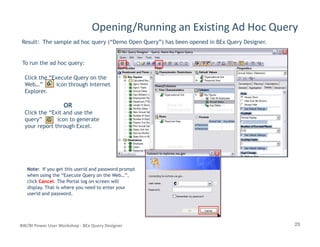
Result: The sample ad hoc query (“Demo Open Query”) has been opened in BEx Query Designer.
To run the ad hoc query:
Click the “Execute Query on the
Web…” icon through Internet
Explorer.
OR
Click the “Exit and use the
query” icon to generate
your report through Excel.
25BW/BI Power User Workshop - BEx Query Designer
your report through Excel.
Note:Note: If you get this userid and password promptIf you get this userid and password prompt
when using the “Execute Query on the Web…”,when using the “Execute Query on the Web…”,
clickclick CancelCancel. The Portal log on screen will. The Portal log on screen will
display. That is where you need to enter yourdisplay. That is where you need to enter your
userid and password.userid and password.
Opening/Running an Existing Ad Hoc Query
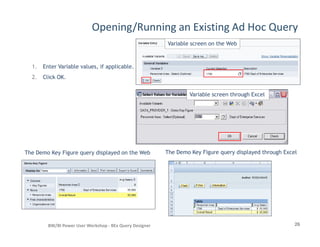
1. Enter Variable values, if applicable.
2. Click OK.
Variable screen on the Web
Variable screen through Excel
26BW/BI Power User Workshop - BEx Query Designer
The Demo Key Figure query displayed on the Web The Demo Key Figure query displayed through Excel
Modifying an Existing Ad Hoc Query
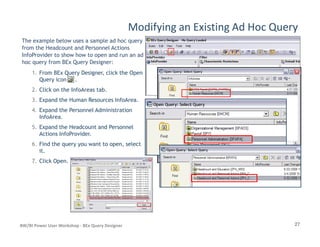
The example below uses a sample ad hoc query
from the Headcount and Personnel Actions
InfoProvider to show how to open and run an ad
hoc query from BEx Query Designer:
1.1. From BEx Query Designer, click the OpenFrom BEx Query Designer, click the Open
Query icon .Query icon .
2.2. Click on the InfoAreas tab.Click on the InfoAreas tab.
3.3. Expand the Human Resources InfoArea.Expand the Human Resources InfoArea.
4.4. Expand the Personnel AdministrationExpand the Personnel Administration
InfoArea.InfoArea.
27BW/BI Power User Workshop - BEx Query Designer
5.5. Expand the Headcount and PersonnelExpand the Headcount and Personnel
Actions InfoProvider.Actions InfoProvider.
6.6. Find the query you want to open, selectFind the query you want to open, select
it.it.
7.7. Click Open.Click Open.
Modifying an Existing Ad Hoc Query
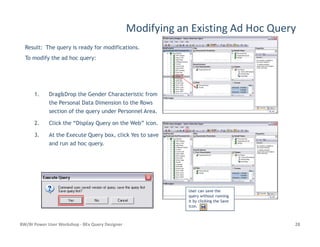
1. Drag&Drop the Gender Characteristic from
the Personal Data Dimension to the Rows
section of the query under Personnel Area.
2. Click the “Display Query on the Web” icon.
Result: The query is ready for modifications.
To modify the ad hoc query:
BW/BI Power User Workshop - BEx Query Designer 28
2. Click the “Display Query on the Web” icon.
3. At the Execute Query box, click Yes to save
and run ad hoc query.
User can save theUser can save the
query without runningquery without running
it by clicking the Saveit by clicking the Save
icon.icon.
Modifying an Existing Ad Hoc Query
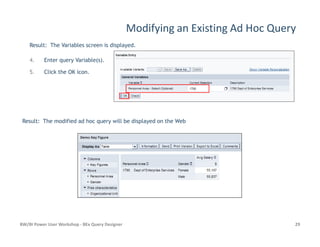
Result: The Variables screen is displayed.
4. Enter query Variable(s).
5. Click the OK icon.
Result: The modified ad hoc query will be displayed on the Web
BW/BI Power User Workshop - BEx Query Designer 29
Result: The modified ad hoc query will be displayed on the Web
Deleting an Existing Ad Hoc Query
It is important BW/BI Power Users manage the number of ad hoc queries they have created. Ad hoc
queries that are no longer being used need to be deleted by the BW/BI Power User who created them.
The example below uses a sample ad hoc query (“Delete Demo”) to show how to delete an ad hoc query.
To delete an ad hoc query that has been opened in
BEx Query Designer:
1. Click the Query options from the BEx
Query Designer toolbar.
30BW/BI Power User Workshop - BEx Query Designer
2. At the prompt, “Query [Query Name]
This deletion process is irreversible. Are you
sure you want to continue? If you are sure,
click Yes.
Deleting an Existing Ad Hoc Query
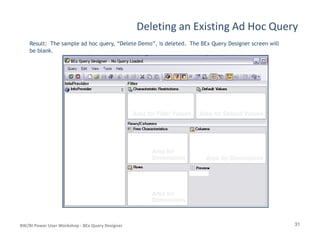
Result: The sample ad hoc query, “Delete Demo”, is deleted. The BEx Query Designer screen will
be blank.
31BW/BI Power User Workshop - BEx Query Designer
Closing BEx Query Designer
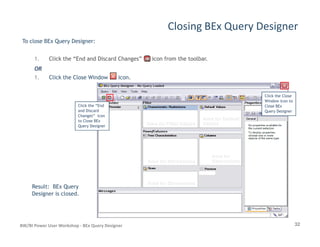
To close BEx Query Designer:
1. Click the “End and Discard Changes” icon from the toolbar.
OR
1. Click the Close Window icon.
Click the “End
and Discard
Changes” icon
to Close BEx
Click the Close
Window icon to
Close BEx
Query Designer
32BW/BI Power User Workshop - BEx Query Designer
Query Designer
Result: BEx Query
Designer is closed.

B ex query designer

  • 1.
    SAP Business Warehouse/BusinessIntelligence Reporting BEx Query Designer Washington State HRMS BusinessWashington State HRMS Business Warehouse/Business Intelligence (BW/BI)Warehouse/Business Intelligence (BW/BI)Warehouse/Business Intelligence (BW/BI)Warehouse/Business Intelligence (BW/BI) BW/BI Power User Workshop MaterialsBW/BI Power User Workshop Materials General TopicsGeneral Topics –– BW/BI Power UsersBW/BI Power Users Section 7
  • 2.
    BEx Query Designer Thefollowing section provides an overview of BEx Query Designer. BEx Query Designer Overview Creating a New Ad Hoc Query BEx Query Designer Toolbar Accessing BEx Query Designer Saving an Ad Hoc Query Opening/Running an Existing Ad Hoc Query Business Intelligence Business Explorer (BEx) BW/BI Security BW/BI Environment What is BEx? BEx Tools Overview BEx Query Designer BEx Query Analyzer BW/BI Power User Workshop - BEx Query Designer 2 Deleting an Existing Ad Hoc Query Closing BEx Query Designer BEx Query Analyzer Modifying an Existing Ad Hoc Query
  • 3.
    BEx Query DesignerOverview BEx Query Designer is a tool used to create ad hoc queries and is part of the BEx suite of tools. Ad hoc queries are comprised of Characteristics (usually in the Rows section), Free Characteristics, Key Figures (usually in the Columns section) and Filters. The following diagram displays the main work area of BEx Query Designer: Report FiltersReport Filters InfoProvider IdentifierInfoProvider Identifier ToolbarToolbar Key FiguresKey Figures Default ValuesDefault Values (restrict(restrict Characteristics andCharacteristics and add variables)add variables) BW/BI Power User Workshop - BEx Query Designer 3 Report LayoutReport Layout PreviewPreview InfoObjects: Fields in theInfoObjects: Fields in the InfoProvider used toInfoProvider used to create queries.create queries. Key FiguresKey Figures (Report Columns)(Report Columns) DimensionsDimensions CharacteristicsCharacteristics AttributesAttributes CharacteristicsCharacteristics (Report Rows)(Report Rows) FreeFree CharacteristicsCharacteristics (Rows)(Rows) –– ForFor Drilldown (hiddenDrilldown (hidden on initial entry)on initial entry)
  • 4.
    BEx Query DesignerToolbar Quit and UseQuit and Use QueryQuery IncludeInclude TechnicalTechnical NamesNames RowsRows ColumnsColumns Create aCreate a ConditionCondition SaveSave QueryQuery NewNew QueryQuery Display QueryDisplay Query on the Webon the Web InfoProviderInfoProvider CopyCopy QueryQuery PropertiesProperties PropertiesProperties MessagesMessages BW/BI Power User Workshop - BEx Query Designer 4 OpenOpen QueryQuery CutCut Create anCreate an ExceptionException WhereWhere--usedused ListList CheckCheck QueryQuery ExitExit QueryQuery FilterFilter Save AllSave All PastePaste DefineDefine CellsCells TasksTasks DocumentsDocuments
  • 5.
    BEx Query DesignerToolbar Quit and Use QueryQuit and Use Query Execute the query in MS Excel (enabled only when BEx Query Designer is opened from BEx QueryExecute the query in MS Excel (enabled only when BEx Query Designer is opened from BEx Query Analyzer).Analyzer). Exit QueryExit Query Logoff and Exit BEx Query Designer.Logoff and Exit BEx Query Designer. New QueryNew Query Create a new ad hoc query.Create a new ad hoc query. Open QueryOpen Query Open an existing query.Open an existing query. Save QuerySave Query Save the ad hoc query.Save the ad hoc query. Save AllSave All Save the ad hoc query.Save the ad hoc query. Display Query on the WebDisplay Query on the Web Execute the query on the web.Execute the query on the web. The following table provides an overview of functions available from the BEx Query Designer Toolbar: BW/BI Power User Workshop - BEx Query Designer 5 Display Query on the WebDisplay Query on the Web Execute the query on the web.Execute the query on the web. Check QueryCheck Query Before a new query is saved, use theBefore a new query is saved, use the Check QueryCheck Query command to check the query definition for errors.command to check the query definition for errors. Query PropertiesQuery Properties Set query properties such as the query description,Set query properties such as the query description, CutCut Cut object out of query.Cut object out of query. CopyCopy Copy object in query.Copy object in query. PastePaste Paste object that have been Cut or Copied in the query.Paste object that have been Cut or Copied in the query.
  • 6.
    BEx Query DesignerToolbar InfoProviderInfoProvider Select the InfoProvider pane.Select the InfoProvider pane. FilterFilter Select the Filter pane.Select the Filter pane. Rows/ColumnsRows/Columns Select the Rows/Columns pane.Select the Rows/Columns pane. CellsCells Define formulas and selection conditions explicitly for cells in queries with two or moreDefine formulas and selection conditions explicitly for cells in queries with two or more structures.structures. Create a ConditionCreate a Condition Create a condition for the ad hoc query.Create a condition for the ad hoc query. Create an ExceptionCreate an Exception Create an exception for the ad hoc query.Create an exception for the ad hoc query. PropertiesProperties Select the Properties pane.Select the Properties pane. BEx Query Designer Toolbar overview BW/BI Power User Workshop - BEx Query Designer 6 PropertiesProperties Select the Properties pane.Select the Properties pane. TasksTasks Select the Tasks pane.Select the Tasks pane. MessagesMessages Select the Messages pane.Select the Messages pane. WhereWhere--used Listused List Check to see which objects (for example, workbooks) are using the current query.Check to see which objects (for example, workbooks) are using the current query. DocumentsDocuments Displays the documents pane.Displays the documents pane. Technical NamesTechnical Names Show or hide the technical names of the query components.Show or hide the technical names of the query components.
  • 7.
    Accessing BEx QueryDesigner To access BEx Query Designer: 1.1. Logon to the HRMS BusinessLogon to the HRMS Business Intelligence via SAP GUI asIntelligence via SAP GUI as described in the Businessdescribed in the Business Explorer (BEx) module.Explorer (BEx) module. 2.2. DoubleDouble--click “Start theclick “Start the BusinessBusiness Explorer Analyzer” link ORExplorer Analyzer” link OR enter RRMX in the Commandenter RRMX in the Command FieldField 7BW/BI Power User Workshop - BEx Query Designer Click Start All Programs Business Explorer Analyzer NOTE:NOTE: When opening the AnalyzerWhen opening the Analyzer through the Start menu, you willthrough the Start menu, you will not get the log on pad until younot get the log on pad until you create/open a query.create/open a query. OROR
  • 8.
    Accessing BEx QueryDesigner Result: MS Excel will open with the Business Explorer menu and BEx Query Analyzer toolbar enabled. Logged in with “Start the Business Explorer Analyzer”, system icon shows connected: Excel BEx Query Analyzer Toolbar and BEx Analyzer Menu 8BW/BI Power User Workshop - BEx Query Designer Logged in through the “Start Menu”, system icon shows not connected:
  • 9.
    Accessing BEx QueryDesigner 1. Click the “BEx Analyzer” menu item. 2. Select “Tools”. 3. Click “Create New Query”. 9BW/BI Power User Workshop - BEx Query Designer Query”. OROR 1. Click the Tools icon on the BEx Query Analyzer toolbar. 2. Click “Create New Query”. NOTE:NOTE: If opened with theIf opened with the “Start Menu”, this is the point“Start Menu”, this is the point that you will be required tothat you will be required to log on before the Querylog on before the Query Designer is displayed.Designer is displayed.
  • 10.
    Accessing BEx QueryDesigner Result: BEx Query Designer will be opened in the Standard View. 10BW/BI Power User Workshop - BEx Query Designer
  • 11.
    Accessing BEx QueryDesigner To access the “SAP BW 3.x view: (which allows users to view all sections at one time) 1. Click the “View” tab. 2. Select Predefined 3. Click Sap BW 3.x View Result: BEx Query Designer will be opened in the SAP 11BW/BI Power User Workshop - BEx Query Designer will be opened in the SAP BW 3.x View.
  • 12.
    Creating a NewAd Hoc Query The example below provides an overview of toolbar options available from the New Query options of BEx Query Designer. Up LevelUp Level RefreshRefresh PropertiesProperties On/OffOn/Off Technical NamesTechnical Names 12BW/BI Power User Workshop - BEx Query Designer Up LevelUp Level RefreshRefresh Technical NamesTechnical Names On/OffOn/Off The table below provides a description of toolbar options available from the New Query options of BEx Query Designer. FindFind Find an InfoProvider from the list of InfoAreas. Up LevelUp Level Go back to previous level. RefreshRefresh Refresh list. Technical Name On/OffTechnical Name On/Off Toggle the InfoArea Technical Names On/Off. Properties On/OffProperties On/Off Toggle the InfoArea Properties On/Off.
  • 13.
    Creating a NewAd Hoc Query The example below provides an overview of options available when creating a new ad hoc query from BEx Query Designer. Click New Query icon fromClick New Query icon from the BEx Query Designerthe BEx Query Designer toolbar to create a New adtoolbar to create a New ad hoc queryhoc query 13BW/BI Power User Workshop - BEx Query Designer HistoryHistory: Displays a list of the most recently used: Displays a list of the most recently used InfoProviders (this tab is selected by default)InfoProviders (this tab is selected by default) InfoAreasInfoAreas: Displays the list of InfoAreas to select: Displays the list of InfoAreas to select InfoProviders for new queriesInfoProviders for new queries Available InfoAreas will beAvailable InfoAreas will be displayed.displayed. Click InfoAreas when the “New Query: Select InfoProvider” screen is displayed. The History tab is selected by default.
  • 14.
    Creating a NewAd Hoc Query The Business Intelligence contains a list of InfoAreas with InfoProviders. To create a new ad hoc query, select the appropriate InfoProvider from the InfoAreas section. InfoAreas include: AFRS Payroll Human Resources Organizational Management Payroll Personnel Administration Time Management Click here to toggleClick here to toggle Technical namesTechnical names on/offon/off Double click theDouble click the folder icon tofolder icon to expand/collapseexpand/collapse InfoAreasInfoAreas 14BW/BI Power User Workshop - BEx Query Designer Time Management Grievance Data Technical ContentTechnical Content InfoProviders areInfoProviders are used by HRMS BW/BIused by HRMS BW/BI Production SupportProduction Support staff onlystaff only InfoProviders forInfoProviders for QueriesQueries
  • 15.
    Creating a NewAd Hoc Query 1. Select the InfoAreas tab from the “New Query – Select InfoProvider” screen. 2. Expand the Human Resources InfoArea. 3. Expand the Personnel Administration InfoArea. 4. Select the Headcount and Personnel Actions InfoProvider. 5. Click OK. 15BW/BI Power User Workshop - BEx Query Designer Result: All InfoObjects of the Headcount and Personnel Actions InfoProvider are displayed in BEx Query Designer. InfoObjects of theInfoObjects of the HeadcountHeadcount InfoProviderInfoProvider
  • 16.
    Creating a NewAd Hoc Query 6. Drag&Drop the Number of Employees Key Figure from the Key Figures section to the Columns section of the ad hoc query. 7. Drag&Drop the Personnel Area Characteristic from the Personnel Area Dimension to the Rows section of the ad 16BW/BI Power User Workshop - BEx Query Designer the Rows section of the ad hoc query. Result: An ad hoc query has been created. See Saving an Ad Hoc query for information on Saving.
  • 17.
    Saving an AdHoc Query BW/BI Power Users have the ability to create an ad hoc query that is visible only to themselves (Personal) or to other BW/BI Power users in their Agency (Agency-specific). The technical name used when the query is saved determines if it is Personal or Agency-specific. Ad hoc queries saved as Personal or Agency-specific can only be modified or deleted by the BW/BI Power User who created the query. The following pages show how to save Personal and Agency-specific ad hoc queries. 17BW/BI Power User Workshop - BEx Query Designer
  • 18.
    Saving a PersonalAd Hoc Query To save a Personal ad hoc query, BW/BI Power Users are required to prefix the ad hoc query Technical Name with “A” (indicates a Personal query), followed by the user’s agency number with an underscore (_). Any alpha numeric characters can be entered after the required prefix. The example below shows a sample Personal query for a user who belongs to Agency 1790: Saving an Ad Hoc Query 18BW/BI Power User Workshop - BEx Query Designer “A” Indicates a“A” Indicates a Personal ad hocPersonal ad hoc query (required)query (required) BW/BI Power User’sBW/BI Power User’s Agency (required)Agency (required) Name of queryName of query BW/BI Power Users will not be able to save ad hoc queries if the Technical Name prefix requirements have not been added or if the user enters an agency number they are not assigned to. Underscore (_)Underscore (_) (required)(required)
  • 19.
    Saving an Agency-specificAd Hoc Query To save an Agency-specific ad hoc query, BW/BI Power Users are required to prefix the ad hoc query Technical Name with “X” (indicates an Agency-specific query), followed by the user’s agency number with an underscore (_). Any alpha numeric characters can be entered after the required prefix. The example below shows a sample Agency-specific query for a user who belongs to Agency 1790: Saving an Ad Hoc Query BW/BI PowerBW/BI Power User’s AgencyUser’s Agency (required)(required) Name of queryName of query 19BW/BI Power User Workshop - BEx Query Designer BW/BI Power Users will not be able to save ad hoc queries if the Technical Name prefix requirements have not been added or if the user enters an agency number they are not assigned to. Underscore (_)Underscore (_) (required)(required) “X” Indicates an“X” Indicates an AgencyAgency--specificspecific ad hoc queryad hoc query (required)(required)
  • 20.
    1. Click theSave Query icon from the BEx Query Designer toolbar of the ad hoc query to save. Result: The Save Query screen will be displayed. 2. Enter the query Description in the Description text box: Saving an Ad Hoc Query The example below uses a sample query, “My Personal Query”, to show how to save a Personal ad hoc query developed in the Headcount InfoProvider for a BW/BI Power User in Agency 1790. To save a Personal ad hoc query once a query has been created: 20BW/BI Power User Workshop - BEx Query Designer Description text box: “My Personal Query” 3. Enter the query technical name in the Technical Name text box (using YOUR Personnel Area number): “A1790_MYPERSONALQUERY” 4. Click Save. Result: The ad hoc query is saved. (A Personal query can be displayed/run/edited/deleted by the BW/BI Power User who created the ad hoc query only. To save the query as agency specific, use an X instead of an A)
  • 21.
    Opening/Running an ExistingAd Hoc Query BW/BI Power Users have the ability to modify and delete ad hoc queries they have created. Ad hoc queries saved as Agency-specific queries can be opened as read-only in BEx Query Designer and run by other BW/BI Power Users in the same agency. Note: BW/BI Power Users can open and save a read-only ad hoc query created by another BW/BI Power User as a new query. 21BW/BI Power User Workshop - BEx Query Designer query. To open an ad hoc query, click the Open Query icon from BEx Query Designer. Result: the Open Query screen will be displayed. The History tab will be selected by default.
  • 22.
    Opening/Running an ExistingAd Hoc Query The Open Query screen will default to the History tab. The example below provides an overview of tab options available from the Open Query screen. HistoryHistory: Displays a list of the most: Displays a list of the most recently run or edited queriesrecently run or edited queries FavoritesFavorites: Displays a list of the: Displays a list of the queries created by the user or addedqueries created by the user or added 22BW/BI Power User Workshop - BEx Query Designer queries created by the user or addedqueries created by the user or added to the Favorites folderto the Favorites folder RolesRoles: Not implemented in BW/BI: Not implemented in BW/BI InfoAreasInfoAreas: Displays the list of: Displays the list of InfoAreas to select InfoProviders forInfoAreas to select InfoProviders for new or existing queriesnew or existing queries
  • 23.
    Opening/Running an ExistingAd Hoc Query In addition to the Open Query tab options, the Open Query screen will display toolbar options. The example below provides an overview of toolbar options available from the Open Query screen. Up LevelUp Level DeleteDelete Add toAdd to RefreshRefresh TechnicalTechnical NameName On/OffOn/Off PropertiesProperties 23BW/BI Power User Workshop - BEx Query Designer Up LevelUp Level Add toAdd to FavoritesFavorites PropertiesProperties On/OffOn/Off FindFind Find an ad hoc query. DeleteDelete Delete an ad hoc query from a view (Favorites or History). Add to FavoritesAdd to Favorites Add ad hoc query to the user’s Favorites folder. Up LevelUp Level Takes you back to prior level. Technical Name On/OffTechnical Name On/Off Toggle the InfoArea Technical Names On/Off. Properties On/OffProperties On/Off Toggle the InfoArea Properties On/Off.
  • 24.
    Opening/Running an ExistingAd Hoc Query The example below uses a sample ad hoc query from the Headcount InfoProvider to show how to open and run an ad hoc query from BEx Query Designer: 1. From BEx Query Designer, click the Open Query icon . 2. Click on the InfoAreas tab. 3. Expand the Human Resources InfoArea. 4. Expand the Personnel Administration InfoArea. 24BW/BI Power User Workshop - BEx Query Designer InfoArea. 5. Expand the Headcount and Personnel Actions InfoProvider. 6. Find the query you want to open, select it. 7. Click Open.
  • 25.
    Opening/Running an ExistingAd Hoc Query Result: The sample ad hoc query (“Demo Open Query”) has been opened in BEx Query Designer. To run the ad hoc query: Click the “Execute Query on the Web…” icon through Internet Explorer. OR Click the “Exit and use the query” icon to generate your report through Excel. 25BW/BI Power User Workshop - BEx Query Designer your report through Excel. Note:Note: If you get this userid and password promptIf you get this userid and password prompt when using the “Execute Query on the Web…”,when using the “Execute Query on the Web…”, clickclick CancelCancel. The Portal log on screen will. The Portal log on screen will display. That is where you need to enter yourdisplay. That is where you need to enter your userid and password.userid and password.
  • 26.
    Opening/Running an ExistingAd Hoc Query 1. Enter Variable values, if applicable. 2. Click OK. Variable screen on the Web Variable screen through Excel 26BW/BI Power User Workshop - BEx Query Designer The Demo Key Figure query displayed on the Web The Demo Key Figure query displayed through Excel
  • 27.
    Modifying an ExistingAd Hoc Query The example below uses a sample ad hoc query from the Headcount and Personnel Actions InfoProvider to show how to open and run an ad hoc query from BEx Query Designer: 1.1. From BEx Query Designer, click the OpenFrom BEx Query Designer, click the Open Query icon .Query icon . 2.2. Click on the InfoAreas tab.Click on the InfoAreas tab. 3.3. Expand the Human Resources InfoArea.Expand the Human Resources InfoArea. 4.4. Expand the Personnel AdministrationExpand the Personnel Administration InfoArea.InfoArea. 27BW/BI Power User Workshop - BEx Query Designer 5.5. Expand the Headcount and PersonnelExpand the Headcount and Personnel Actions InfoProvider.Actions InfoProvider. 6.6. Find the query you want to open, selectFind the query you want to open, select it.it. 7.7. Click Open.Click Open.
  • 28.
    Modifying an ExistingAd Hoc Query 1. Drag&Drop the Gender Characteristic from the Personal Data Dimension to the Rows section of the query under Personnel Area. 2. Click the “Display Query on the Web” icon. Result: The query is ready for modifications. To modify the ad hoc query: BW/BI Power User Workshop - BEx Query Designer 28 2. Click the “Display Query on the Web” icon. 3. At the Execute Query box, click Yes to save and run ad hoc query. User can save theUser can save the query without runningquery without running it by clicking the Saveit by clicking the Save icon.icon.
  • 29.
    Modifying an ExistingAd Hoc Query Result: The Variables screen is displayed. 4. Enter query Variable(s). 5. Click the OK icon. Result: The modified ad hoc query will be displayed on the Web BW/BI Power User Workshop - BEx Query Designer 29 Result: The modified ad hoc query will be displayed on the Web
  • 30.
    Deleting an ExistingAd Hoc Query It is important BW/BI Power Users manage the number of ad hoc queries they have created. Ad hoc queries that are no longer being used need to be deleted by the BW/BI Power User who created them. The example below uses a sample ad hoc query (“Delete Demo”) to show how to delete an ad hoc query. To delete an ad hoc query that has been opened in BEx Query Designer: 1. Click the Query options from the BEx Query Designer toolbar. 30BW/BI Power User Workshop - BEx Query Designer 2. At the prompt, “Query [Query Name] This deletion process is irreversible. Are you sure you want to continue? If you are sure, click Yes.
  • 31.
    Deleting an ExistingAd Hoc Query Result: The sample ad hoc query, “Delete Demo”, is deleted. The BEx Query Designer screen will be blank. 31BW/BI Power User Workshop - BEx Query Designer
  • 32.
    Closing BEx QueryDesigner To close BEx Query Designer: 1. Click the “End and Discard Changes” icon from the toolbar. OR 1. Click the Close Window icon. Click the “End and Discard Changes” icon to Close BEx Click the Close Window icon to Close BEx Query Designer 32BW/BI Power User Workshop - BEx Query Designer Query Designer Result: BEx Query Designer is closed.