ENTERPRISE RESOURCE PLANNING
(ERP)
SYNOPSIS
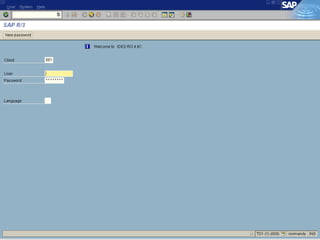
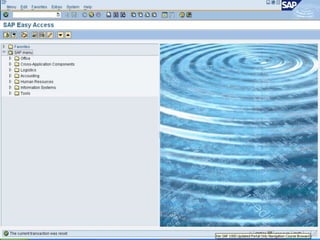
 SAP screen shoots
 Navigation Basic Features
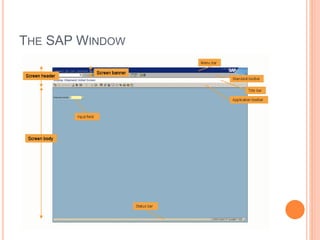
 Identification of elements of typical window
 Navigate in the system User Specific Settings
 Type of User’s
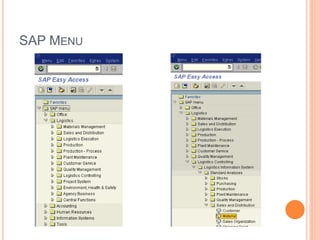
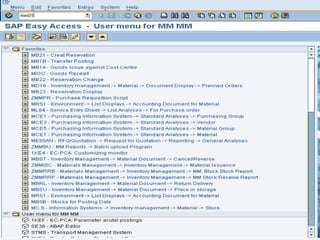
SAP MENU
THE SAP WINDOW
STANDARD TOOLBAR
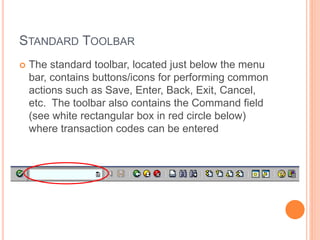
 The standard toolbar, located just below the menu
bar, contains buttons/icons for performing common
actions such as Save, Enter, Back, Exit, Cancel,
etc. The toolbar also contains the Command field
(see white rectangular box in red circle below)
where transaction codes can be entered
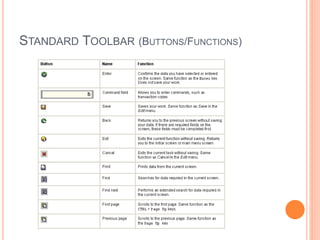
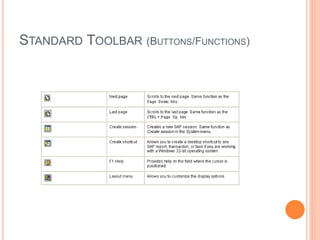
STANDARD TOOLBAR (BUTTONS/FUNCTIONS)
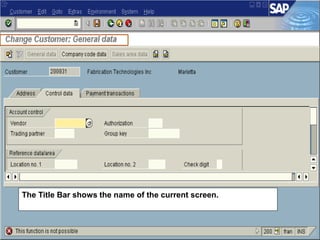
The Title Bar shows the name of the current screen.
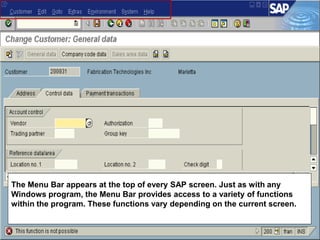
The Menu Bar appears at the top of every SAP screen. Just as with any
Windows program, the Menu Bar provides access to a variety of functions
within the program. These functions vary depending on the current screen.
13
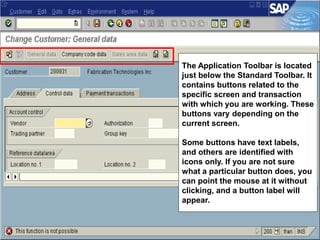
The Application Toolbar is located
just below the Standard Toolbar. It
contains buttons related to the
specific screen and transaction
with which you are working. These
buttons vary depending on the
current screen.
Some buttons have text labels,
and others are identified with
icons only. If you are not sure
what a particular button does, you
can point the mouse at it without
clicking, and a button label will
appear.
14
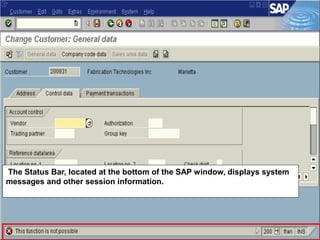
The Status Bar, located at the bottom of the SAP window, displays system
messages and other session information.
15
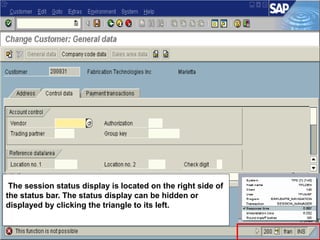
The session status display is located on the right side of
the status bar. The status display can be hidden or
displayed by clicking the triangle to its left.
16
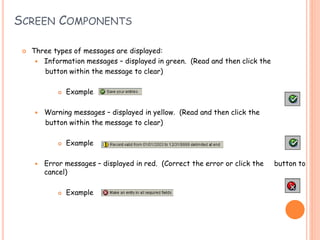
SCREEN COMPONENTS
 Three types of messages are displayed:
 Information messages – displayed in green. (Read and then click the
button within the message to clear)
 Example
 Warning messages – displayed in yellow. (Read and then click the
button within the message to clear)
 Example
 Error messages – displayed in red. (Correct the error or click the button to
cancel)
 Example
TYPES OF USERS
Three types of User’s are in SAP.
1. Key User’s
2. Power User’s
3. End User’s

ERP Lecture 3&4 (practical screen shots)

  • 1.
  • 2.
    SYNOPSIS  SAP screenshoots  Navigation Basic Features  Identification of elements of typical window  Navigate in the system User Specific Settings  Type of User’s
  • 5.
  • 7.
  • 8.
    STANDARD TOOLBAR  Thestandard toolbar, located just below the menu bar, contains buttons/icons for performing common actions such as Save, Enter, Back, Exit, Cancel, etc. The toolbar also contains the Command field (see white rectangular box in red circle below) where transaction codes can be entered
  • 9.
  • 10.
  • 11.
    The Title Barshows the name of the current screen.
  • 12.
    The Menu Barappears at the top of every SAP screen. Just as with any Windows program, the Menu Bar provides access to a variety of functions within the program. These functions vary depending on the current screen.
  • 13.
    13 The Application Toolbaris located just below the Standard Toolbar. It contains buttons related to the specific screen and transaction with which you are working. These buttons vary depending on the current screen. Some buttons have text labels, and others are identified with icons only. If you are not sure what a particular button does, you can point the mouse at it without clicking, and a button label will appear.
  • 14.
    14 The Status Bar,located at the bottom of the SAP window, displays system messages and other session information.
  • 15.
    15 The session statusdisplay is located on the right side of the status bar. The status display can be hidden or displayed by clicking the triangle to its left.
  • 16.
    16 SCREEN COMPONENTS  Threetypes of messages are displayed:  Information messages – displayed in green. (Read and then click the button within the message to clear)  Example  Warning messages – displayed in yellow. (Read and then click the button within the message to clear)  Example  Error messages – displayed in red. (Correct the error or click the button to cancel)  Example
  • 17.
    TYPES OF USERS Threetypes of User’s are in SAP. 1. Key User’s 2. Power User’s 3. End User’s