Parafait – POS Training
Manual
October 16, 2013
AIMS Education
AIMS Education
Index
• Introduction
• Issue a new card
• Recharge the card
• Refund the card
• Transfer card
• Load tickets/bonus
• Consolidate multiple cards
• Redeem tickets
• Reverse transaction
AIMS Education
Point of Sale (Till) Software
• Parafait Point-Of-Sale (POS) software is powerful yet “Simple to Use”
• State-Of-the-Art design helps the cashier to perform operation quickly and efficiently  Typical
transaction does not take more than two to three clicks/touches
• This is used for issue/top-up of cards, sale of items and used for customer registrations
• All setups are controlled from the Management Studio, which can handle any discounts,
promotions, membership & loyalty programs.
AIMS Education
POS – Key Features
• Designed to integrate with Touch Screen POS devices as well as standard PCs
• Seamless integration with Cash Drawers, Receipt Printers, Pole Displays, Card
Readers and Bar-Code Reader
• Very secure operations and can be setup to login before each transaction
• Customizable Products button color, texture and sizes
• Customizable messages can be shown to the cashier  In turn improves
customer experience
• Supports Credit card integration, affect the credit card transactions from the
POS
• Shift based login & HR control, prevents misuse and increases staff efficiency
• Multi-lingual support
AIMS Education
Issuing a new card
AIMS Education
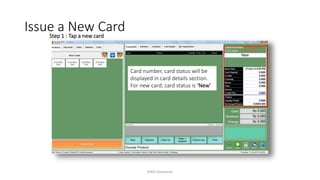
Card number, card status will be
displayed in card details section.
For new card, card status is ‘New’
Step 1 : Tap a new card
Issue a New Card
AIMS Education
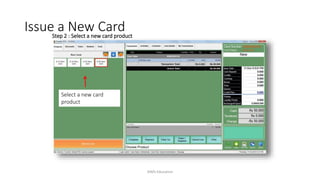
Step 2 : Select a new card product
Select a new card
product
Issue a New Card
AIMS Education
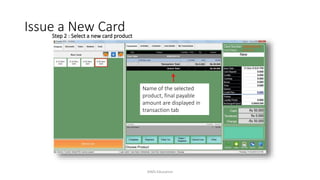
Step 2 : Select a new card product
Issue a New Card
Name of the selected
product, final payable
amount are displayed in
transaction tab
AIMS Education
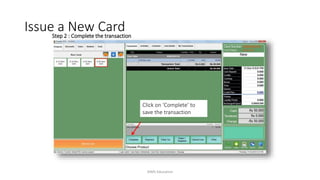
Step 2 : Complete the transaction
Issue a New Card
Click on ‘Complete’ to
save the transaction
AIMS Education
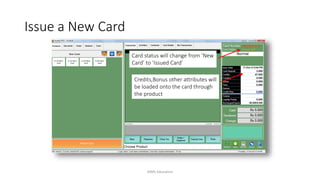
Card status will change from ‘New
Card’ to ‘Issued Card’
Credits,Bonus other attributes will
be loaded onto the card through
the product
Issue a New Card
AIMS Education
Recharging an issued card
AIMS Education
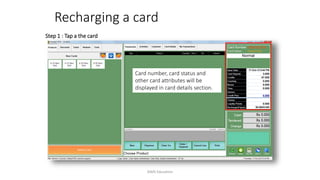
Card number, card status and
other card attributes will be
displayed in card details section.
Step 1 : Tap a the card
Recharging a card
AIMS Education
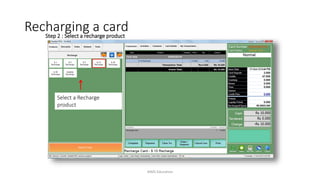
Step 2 : Select a recharge product
Select a Recharge
product
Recharging a card
AIMS Education
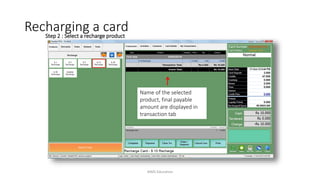
Step 2 : Select a recharge product
Name of the selected
product, final payable
amount are displayed in
transaction tab
Recharging a card
AIMS Education
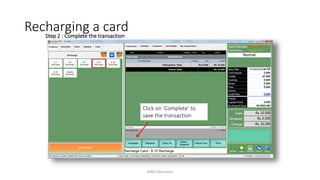
Step 2 : Complete the transaction
Click on ‘Complete’ to
save the transaction
Recharging a card
AIMS Education
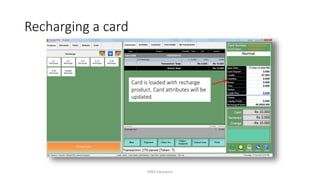
Card is loaded with recharge
product. Card attributes will be
updated.
Recharging a card
AIMS Education
Refunding the card
AIMS Education
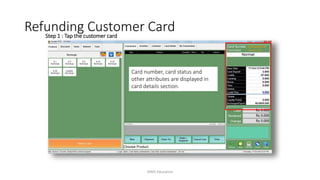
Card number, card status and
other attributes are displayed in
card details section.
Step 1 : Tap the customer card
Refunding Customer Card
AIMS Education
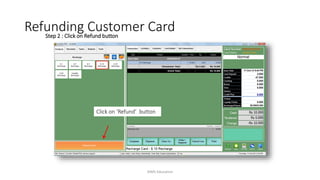
Step 2 : Click on Refund button
Click on ‘Refund’ button
Refunding Customer Card
AIMS Education
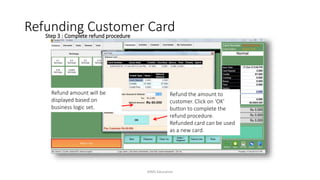
Step 3 : Complete refund procedure
Refund amount will be
displayed based on
business logic set.
Refund the amount to
customer. Click on ‘OK’
button to complete the
refund procedure.
Refunded card can be used
as a new card.
Refunding Customer Card
AIMS Education
Card transfer
AIMS Education
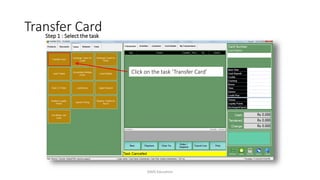
Click on the task ‘Transfer Card’
Step 1 : Select the task
Transfer Card
AIMS Education
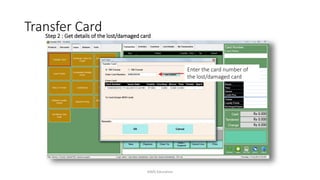
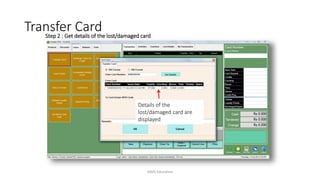
Step 2 : Get details of the lost/damaged card
Enter the card number of
the lost/damaged card
Transfer Card
AIMS Education
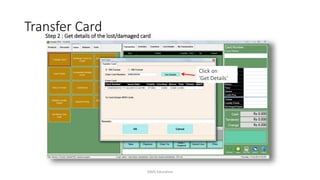
Step 2 : Get details of the lost/damaged card
Click on
‘Get Details’
Transfer Card
AIMS Education
Step 2 : Get details of the lost/damaged card
Details of the
lost/damaged card are
displayed
Transfer Card
AIMS Education
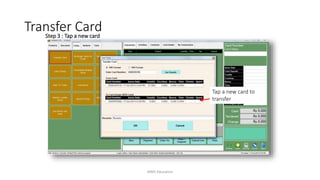
Step 3 : Tap a new card
Tap a new card to
transfer
Transfer Card
AIMS Education
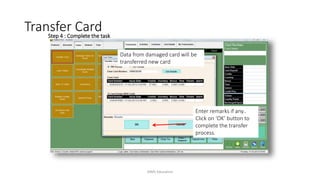
Step 4 : Complete the task
Enter remarks if any..
Click on ‘OK’ button to
complete the transfer
process.
Data from damaged card will be
transferred new card
Transfer Card
AIMS Education
Load tickets/bonus
AIMS Education
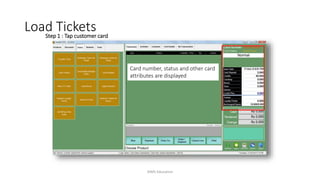
Card number, status and other card
attributes are displayed
Step 1 : Tap customer card
Load Tickets
AIMS Education
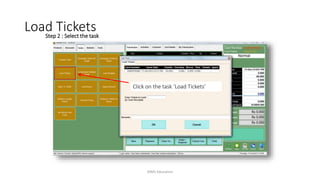
Step 2 : Select the task
Click on the task ‘Load Tickets’
Load Tickets
AIMS Education
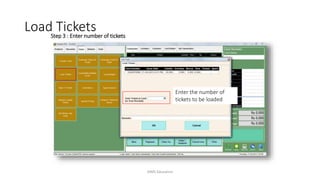
Step 3 : Enter number of tickets
Enter the number of
tickets to be loaded
Load Tickets
AIMS Education
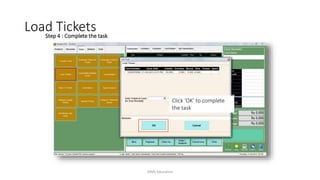
Step 4 : Complete the task
Click ‘OK’ to complete
the task
Load Tickets
AIMS Education
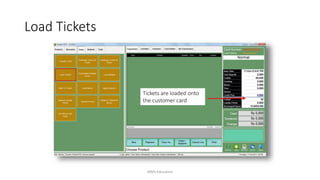
Tickets are loaded onto
the customer card
Load Tickets
AIMS Education
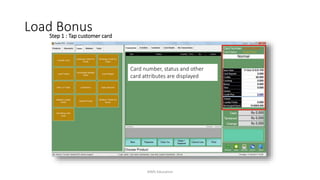
Card number, status and other
card attributes are displayed
Step 1 : Tap customer card
Load Bonus
AIMS Education
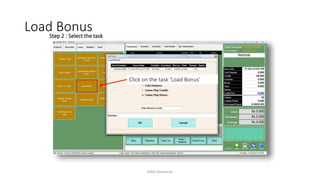
Step 2 : Select the task
Click on the task ‘Load Bonus’
Load Bonus
AIMS Education
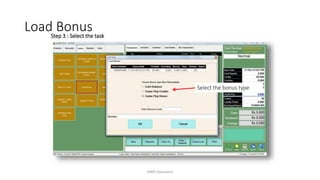
Step 3 : Select the task
Select the bonus type
Load Bonus
AIMS Education
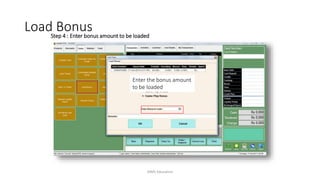
Step 4 : Enter bonus amount to be loaded
Enter the bonus amount
to be loaded
Load Bonus
AIMS Education
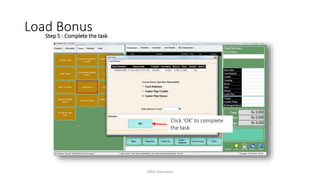
Step 5 : Complete the task
Click ‘OK’ to complete
the task
Load Bonus
AIMS Education
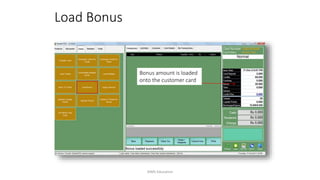
Bonus amount is loaded
onto the customer card
Load Bonus
AIMS Education
Consolidate multiple cards
AIMS Education
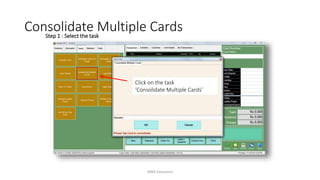
Click on the task
‘Consolidate Multiple Cards’
Step 1 : Select the task
Consolidate Multiple Cards
AIMS Education
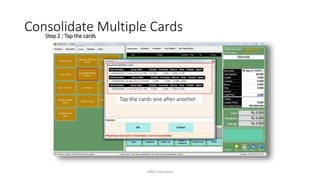
Step 2 : Tap the cards
Tap the cards one after another
Consolidate Multiple Cards
AIMS Education
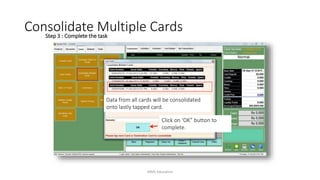
Step 3 : Complete the task
Click on ‘OK” button to
complete.
Data from all cards will be consolidated
onto lastly tapped card.
Consolidate Multiple Cards
AIMS Education
Redeem tickets
AIMS Education
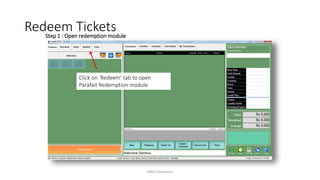
Click on ‘Redeem’ tab to open
Parafait Redemption module
Step 1 : Open redemption module
Redeem Tickets
AIMS Education
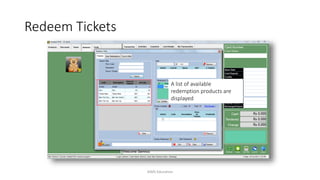
A list of available
redemption products are
displayed
Redeem Tickets
AIMS Education
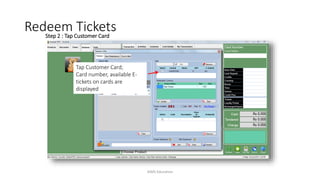
Step 2 : Tap Customer Card
Tap Customer Card;
Card number, available E-
tickets on cards are
displayed
Redeem Tickets
AIMS Education
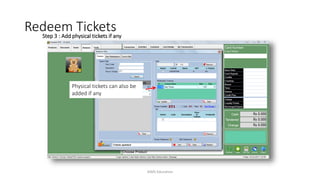
Step 3 : Add physical tickets if any
Physical tickets can also be
added if any
Redeem Tickets
AIMS Education
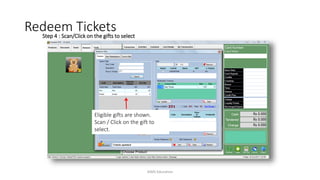
Eligible gifts are shown.
Scan / Click on the gift to
select.
Redeem TicketsStep 4 : Scan/Click on the gifts to select
AIMS Education
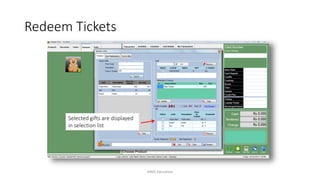
Selected gifts are displayed
in selection list
Redeem Tickets
AIMS Education
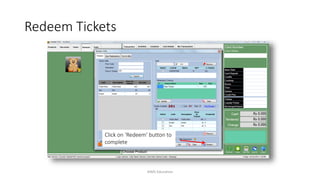
Click on ‘Redeem’ button to
complete
Redeem Tickets
AIMS Education
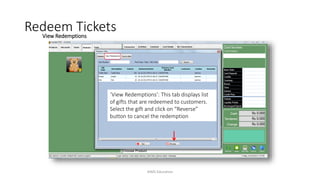
‘View Redemptions’: This tab displays list
of gifts that are redeemed to customers.
Select the gift and click on “Reverse”
button to cancel the redemption
Redeem TicketsView Redemptions
AIMS Education
Reversing transactions
AIMS Education
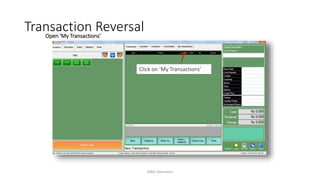
Click on ‘My Transactions’
Open ‘My Transactions’
Transaction Reversal
AIMS Education
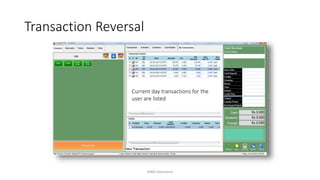
Current day transactions for the
user are listed
Transaction Reversal
AIMS Education
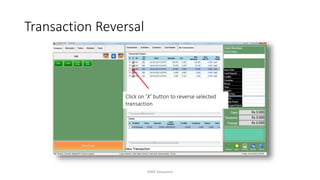
Click on ‘X’ button to reverse selected
transaction
Transaction Reversal
AIMS Education
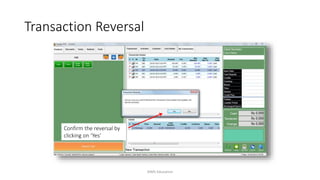
Confirm the reversal by
clicking on ‘Yes’
Transaction Reversal
AIMS Education
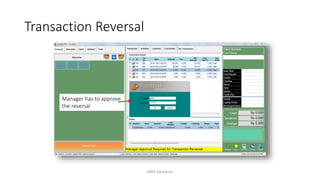
Manager has to approve
the reversal
Transaction Reversal
AIMS Education
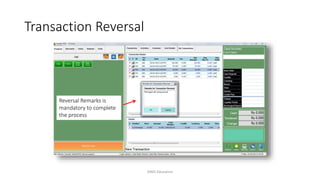
Reversal Remarks is
mandatory to complete
the process
Transaction Reversal
AIMS Education
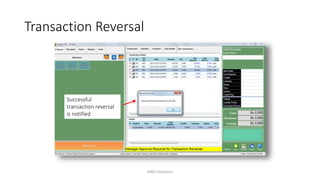
Successful
transaction reversal
is notified
Transaction Reversal
AIMS Education
Thank You
AIMS Education
https://www.youtube.com/channel/UCaaB...
Subscribe my Channel for more learning video and also press the bell button for
updates...!

Parafait – POS Training Manual

  • 1.
    Parafait – POSTraining Manual October 16, 2013 AIMS Education AIMS Education
  • 2.
    Index • Introduction • Issuea new card • Recharge the card • Refund the card • Transfer card • Load tickets/bonus • Consolidate multiple cards • Redeem tickets • Reverse transaction AIMS Education
  • 3.
    Point of Sale(Till) Software • Parafait Point-Of-Sale (POS) software is powerful yet “Simple to Use” • State-Of-the-Art design helps the cashier to perform operation quickly and efficiently  Typical transaction does not take more than two to three clicks/touches • This is used for issue/top-up of cards, sale of items and used for customer registrations • All setups are controlled from the Management Studio, which can handle any discounts, promotions, membership & loyalty programs. AIMS Education
  • 4.
    POS – KeyFeatures • Designed to integrate with Touch Screen POS devices as well as standard PCs • Seamless integration with Cash Drawers, Receipt Printers, Pole Displays, Card Readers and Bar-Code Reader • Very secure operations and can be setup to login before each transaction • Customizable Products button color, texture and sizes • Customizable messages can be shown to the cashier  In turn improves customer experience • Supports Credit card integration, affect the credit card transactions from the POS • Shift based login & HR control, prevents misuse and increases staff efficiency • Multi-lingual support AIMS Education
  • 5.
    Issuing a newcard AIMS Education
  • 6.
    Card number, cardstatus will be displayed in card details section. For new card, card status is ‘New’ Step 1 : Tap a new card Issue a New Card AIMS Education
  • 7.
    Step 2 :Select a new card product Select a new card product Issue a New Card AIMS Education
  • 8.
    Step 2 :Select a new card product Issue a New Card Name of the selected product, final payable amount are displayed in transaction tab AIMS Education
  • 9.
    Step 2 :Complete the transaction Issue a New Card Click on ‘Complete’ to save the transaction AIMS Education
  • 10.
    Card status willchange from ‘New Card’ to ‘Issued Card’ Credits,Bonus other attributes will be loaded onto the card through the product Issue a New Card AIMS Education
  • 11.
    Recharging an issuedcard AIMS Education
  • 12.
    Card number, cardstatus and other card attributes will be displayed in card details section. Step 1 : Tap a the card Recharging a card AIMS Education
  • 13.
    Step 2 :Select a recharge product Select a Recharge product Recharging a card AIMS Education
  • 14.
    Step 2 :Select a recharge product Name of the selected product, final payable amount are displayed in transaction tab Recharging a card AIMS Education
  • 15.
    Step 2 :Complete the transaction Click on ‘Complete’ to save the transaction Recharging a card AIMS Education
  • 16.
    Card is loadedwith recharge product. Card attributes will be updated. Recharging a card AIMS Education
  • 17.
  • 18.
    Card number, cardstatus and other attributes are displayed in card details section. Step 1 : Tap the customer card Refunding Customer Card AIMS Education
  • 19.
    Step 2 :Click on Refund button Click on ‘Refund’ button Refunding Customer Card AIMS Education
  • 20.
    Step 3 :Complete refund procedure Refund amount will be displayed based on business logic set. Refund the amount to customer. Click on ‘OK’ button to complete the refund procedure. Refunded card can be used as a new card. Refunding Customer Card AIMS Education
  • 21.
  • 22.
    Click on thetask ‘Transfer Card’ Step 1 : Select the task Transfer Card AIMS Education
  • 23.
    Step 2 :Get details of the lost/damaged card Enter the card number of the lost/damaged card Transfer Card AIMS Education
  • 24.
    Step 2 :Get details of the lost/damaged card Click on ‘Get Details’ Transfer Card AIMS Education
  • 25.
    Step 2 :Get details of the lost/damaged card Details of the lost/damaged card are displayed Transfer Card AIMS Education
  • 26.
    Step 3 :Tap a new card Tap a new card to transfer Transfer Card AIMS Education
  • 27.
    Step 4 :Complete the task Enter remarks if any.. Click on ‘OK’ button to complete the transfer process. Data from damaged card will be transferred new card Transfer Card AIMS Education
  • 28.
  • 29.
    Card number, statusand other card attributes are displayed Step 1 : Tap customer card Load Tickets AIMS Education
  • 30.
    Step 2 :Select the task Click on the task ‘Load Tickets’ Load Tickets AIMS Education
  • 31.
    Step 3 :Enter number of tickets Enter the number of tickets to be loaded Load Tickets AIMS Education
  • 32.
    Step 4 :Complete the task Click ‘OK’ to complete the task Load Tickets AIMS Education
  • 33.
    Tickets are loadedonto the customer card Load Tickets AIMS Education
  • 34.
    Card number, statusand other card attributes are displayed Step 1 : Tap customer card Load Bonus AIMS Education
  • 35.
    Step 2 :Select the task Click on the task ‘Load Bonus’ Load Bonus AIMS Education
  • 36.
    Step 3 :Select the task Select the bonus type Load Bonus AIMS Education
  • 37.
    Step 4 :Enter bonus amount to be loaded Enter the bonus amount to be loaded Load Bonus AIMS Education
  • 38.
    Step 5 :Complete the task Click ‘OK’ to complete the task Load Bonus AIMS Education
  • 39.
    Bonus amount isloaded onto the customer card Load Bonus AIMS Education
  • 40.
  • 41.
    Click on thetask ‘Consolidate Multiple Cards’ Step 1 : Select the task Consolidate Multiple Cards AIMS Education
  • 42.
    Step 2 :Tap the cards Tap the cards one after another Consolidate Multiple Cards AIMS Education
  • 43.
    Step 3 :Complete the task Click on ‘OK” button to complete. Data from all cards will be consolidated onto lastly tapped card. Consolidate Multiple Cards AIMS Education
  • 44.
  • 45.
    Click on ‘Redeem’tab to open Parafait Redemption module Step 1 : Open redemption module Redeem Tickets AIMS Education
  • 46.
    A list ofavailable redemption products are displayed Redeem Tickets AIMS Education
  • 47.
    Step 2 :Tap Customer Card Tap Customer Card; Card number, available E- tickets on cards are displayed Redeem Tickets AIMS Education
  • 48.
    Step 3 :Add physical tickets if any Physical tickets can also be added if any Redeem Tickets AIMS Education
  • 49.
    Eligible gifts areshown. Scan / Click on the gift to select. Redeem TicketsStep 4 : Scan/Click on the gifts to select AIMS Education
  • 50.
    Selected gifts aredisplayed in selection list Redeem Tickets AIMS Education
  • 51.
    Click on ‘Redeem’button to complete Redeem Tickets AIMS Education
  • 52.
    ‘View Redemptions’: Thistab displays list of gifts that are redeemed to customers. Select the gift and click on “Reverse” button to cancel the redemption Redeem TicketsView Redemptions AIMS Education
  • 53.
  • 54.
    Click on ‘MyTransactions’ Open ‘My Transactions’ Transaction Reversal AIMS Education
  • 55.
    Current day transactionsfor the user are listed Transaction Reversal AIMS Education
  • 56.
    Click on ‘X’button to reverse selected transaction Transaction Reversal AIMS Education
  • 57.
    Confirm the reversalby clicking on ‘Yes’ Transaction Reversal AIMS Education
  • 58.
    Manager has toapprove the reversal Transaction Reversal AIMS Education
  • 59.
    Reversal Remarks is mandatoryto complete the process Transaction Reversal AIMS Education
  • 60.
  • 61.
    Thank You AIMS Education https://www.youtube.com/channel/UCaaB... Subscribemy Channel for more learning video and also press the bell button for updates...!