Epson LCD Projector
   Teacher Instructions
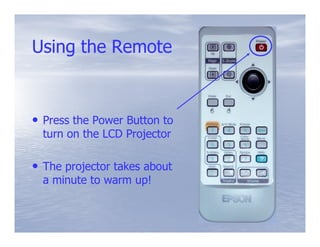
Using the Remote


• Press the Power Button to
  turn on the LCD Projector

• The projector takes about
  a minute to warm up!
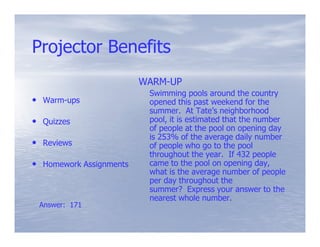
Projector Benefits
                         WARM-
                         WARM-UP
                          Swimming pools around the country
• Warm-ups
  Warm-                   opened this past weekend for the
                          summer. At Tate’s neighborhood
• Quizzes                 pool, it is estimated that the number
                          of people at the pool on opening day
                          is 253% of the average daily number
• Reviews                 of people who go to the pool
                          throughout the year. If 432 people
• Homework Assignments    came to the pool on opening day,
                          what is the average number of people
                          per day throughout the
                          summer? Express your answer to the
                          nearest whole number.
 Answer: 171
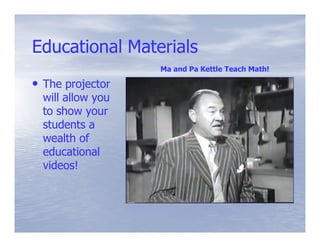
Educational Materials
                   Ma and Pa Kettle Teach Math!

• The projector
  will allow you
  to show your
  students a
  wealth of
  educational
  videos!
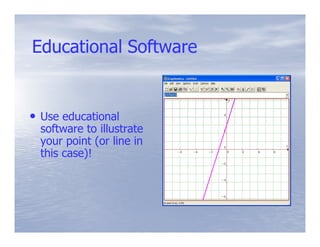
Educational Software


• Use educational
  software to illustrate
  your point (or line in
  this case)!
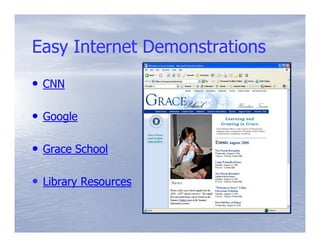
Easy Internet Demonstrations
• CNN

• Google

• Grace School

• Library Resources
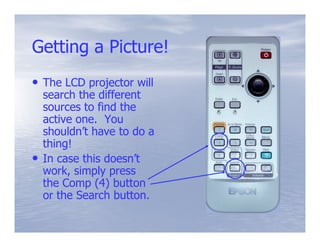
Getting a Picture!
• The LCD projector will
    search the different
    sources to find the
    active one. You
    shouldn’t have to do a
    thing!
•   In case this doesn’t
    work, simply press
    the Comp (4) button
    or the Search button.
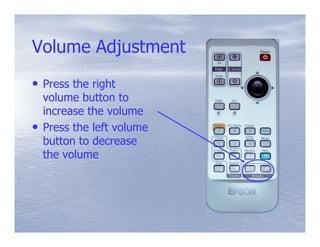
Volume Adjustment
• Press the right
    volume button to
    increase the volume
•   Press the left volume
    button to decrease
    the volume
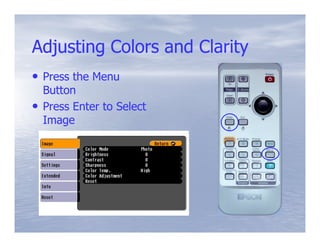
Adjusting Colors and Clarity
• Press the Menu
    Button
•   Press Enter to Select
    Image
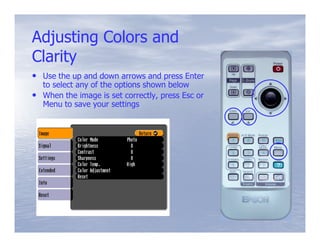
Adjusting Colors and
Clarity
• Use the up and down arrows and press Enter
  to select any of the options shown below
• When the image is set correctly, press Esc or
  Menu to save your settings
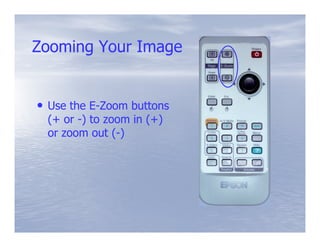
Zooming Your Image


• Use the E-Zoom buttons
          E-
 (+ or -) to zoom in (+)
 or zoom out (-)
               (-
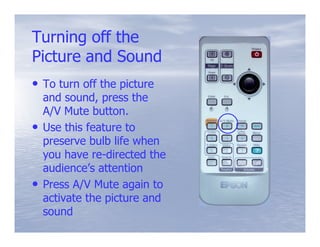
Turning off the
Picture and Sound
• To turn off the picture
    and sound, press the
    A/V Mute button.
•   Use this feature to
    preserve bulb life when
    you have re-directed the
              re-
    audience’s attention
•   Press A/V Mute again to
    activate the picture and
    sound
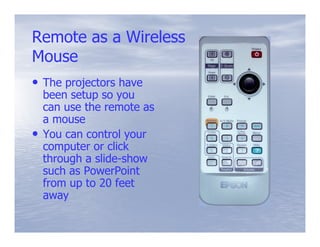
Remote as a Wireless
Mouse
• The projectors have
    been setup so you
    can use the remote as
    a mouse
•   You can control your
    computer or click
    through a slide-show
              slide-
    such as PowerPoint
    from up to 20 feet
    away
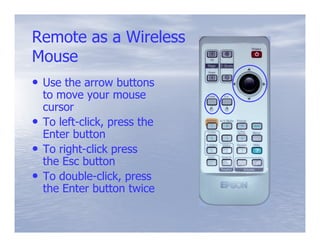
Remote as a Wireless
Mouse
• Use the arrow buttons
    to move your mouse
    cursor
•   To left-click, press the
       left-
    Enter button
•   To right-click press
       right-
    the Esc button
•   To double-click, press
       double-
    the Enter button twice
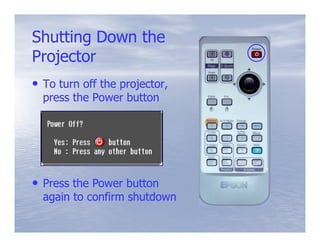
Shutting Down the
Projector
• To turn off the projector,
  press the Power button


• Press the Power button
  again to confirm shutdown

Epson LCD Projector Instructions

  • 1.
    Epson LCD Projector Teacher Instructions
  • 2.
    Using the Remote •Press the Power Button to turn on the LCD Projector • The projector takes about a minute to warm up!
  • 3.
    Projector Benefits WARM- WARM-UP Swimming pools around the country • Warm-ups Warm- opened this past weekend for the summer. At Tate’s neighborhood • Quizzes pool, it is estimated that the number of people at the pool on opening day is 253% of the average daily number • Reviews of people who go to the pool throughout the year. If 432 people • Homework Assignments came to the pool on opening day, what is the average number of people per day throughout the summer? Express your answer to the nearest whole number. Answer: 171
  • 4.
    Educational Materials Ma and Pa Kettle Teach Math! • The projector will allow you to show your students a wealth of educational videos!
  • 5.
    Educational Software • Useeducational software to illustrate your point (or line in this case)!
  • 6.
    Easy Internet Demonstrations •CNN • Google • Grace School • Library Resources
  • 7.
    Getting a Picture! •The LCD projector will search the different sources to find the active one. You shouldn’t have to do a thing! • In case this doesn’t work, simply press the Comp (4) button or the Search button.
  • 8.
    Volume Adjustment • Pressthe right volume button to increase the volume • Press the left volume button to decrease the volume
  • 9.
    Adjusting Colors andClarity • Press the Menu Button • Press Enter to Select Image
  • 10.
    Adjusting Colors and Clarity •Use the up and down arrows and press Enter to select any of the options shown below • When the image is set correctly, press Esc or Menu to save your settings
  • 11.
    Zooming Your Image •Use the E-Zoom buttons E- (+ or -) to zoom in (+) or zoom out (-) (-
  • 12.
    Turning off the Pictureand Sound • To turn off the picture and sound, press the A/V Mute button. • Use this feature to preserve bulb life when you have re-directed the re- audience’s attention • Press A/V Mute again to activate the picture and sound
  • 13.
    Remote as aWireless Mouse • The projectors have been setup so you can use the remote as a mouse • You can control your computer or click through a slide-show slide- such as PowerPoint from up to 20 feet away
  • 14.
    Remote as aWireless Mouse • Use the arrow buttons to move your mouse cursor • To left-click, press the left- Enter button • To right-click press right- the Esc button • To double-click, press double- the Enter button twice
  • 15.
    Shutting Down the Projector •To turn off the projector, press the Power button • Press the Power button again to confirm shutdown