Technology Tip Sheet
                                                 College of Agriculture and Home Economics
                                                                                Technology Help Desk


                                                                                 Overview
Connecting Your Laptop to a Projector
4 Simple Steps                                                          Multimedia projectors function
                                                                        as a modern day replacement
Step 1: Getting to know the laptop and projector                        for a slide projector,
                                                                        transparency adapter, or a
                                                                        whiteboard. Follow this step by
                                                                        step guide for easy setup.
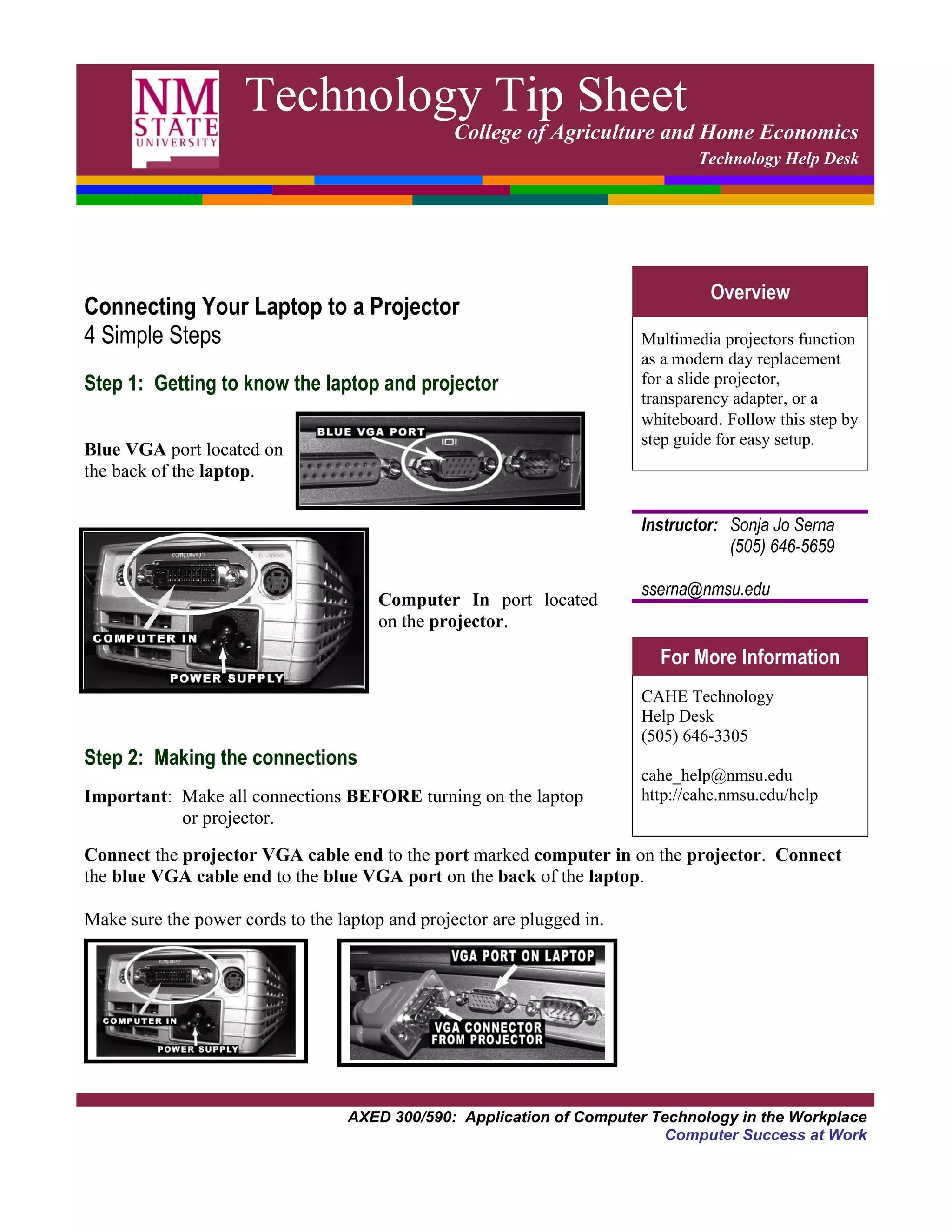
Blue VGA port located on
the back of the laptop.

                                                                        Instructor: Sonja Jo Serna
                                                                                    (505) 646-5659

                                                                        sserna@nmsu.edu
                                       Computer In port located
                                       on the projector.

                                       S                                  For More Information
                                                                        CAHE Technology
                                                                        Help Desk
                                                                        (505) 646-3305
Step 2: Making the connections
                                                                        cahe_help@nmsu.edu
Important: Make all connections BEFORE turning on the laptop            http://cahe.nmsu.edu/help
           or projector.
Connect the projector VGA cable end to the port marked computer in on the projector. Connect
the blue VGA cable end to the blue VGA port on the back of the laptop.

Make sure the power cords to the laptop and projector are plugged in.


                                  AXED 300/590: Application of Computer Technology in the Workplace
                                                                         Computer Success at Work
Connecting Your Laptop to a Projector • page 2


Step 3: Power up sequence
       Once the cables are connected and the power cords are plugged in, turn on the laptop first, then
       the projector.
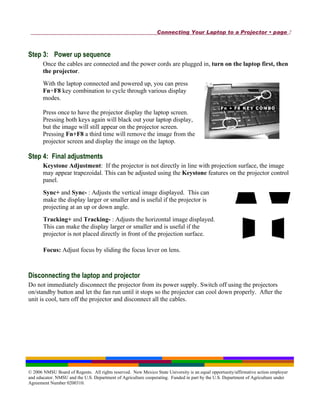
       With the laptop connected and powered up, you can press
       Fn+F8 key combination to cycle through various display
       modes.

       Press once to have the projector display the laptop screen.
       Pressing both keys again will black out your laptop display,
       but the image will still appear on the projector screen.
       Pressing Fn+F8 a third time will remove the image from the
       projector screen and display the image on the laptop.

Step 4: Final adjustments
       Keystone Adjustment: If the projector is not directly in line with projection surface, the image
       may appear trapezoidal. This can be adjusted using the Keystone features on the projector control
       panel.
       Sync+ and Sync- : Adjusts the vertical image displayed. This can
       make the display larger or smaller and is useful if the projector is
       projecting at an up or down angle.
       Tracking+ and Tracking- : Adjusts the horizontal image displayed.
       This can make the display larger or smaller and is useful if the
       projector is not placed directly in front of the projection surface.

       Focus: Adjust focus by sliding the focus lever on lens.


Disconnecting the laptop and projector
Do not immediately disconnect the projector from its power supply. Switch off using the projectors
on/standby button and let the fan run until it stops so the projector can cool down properly. After the
unit is cool, turn off the projector and disconnect all the cables.


© 2006 NMSU Board of Regents. All rights reserved. New Mexico State University is an equal opportunity/affirmative action employer
and educator. NMSU and the U.S. Department of Agriculture cooperating. Funded in part by the U.S. Department of Agriculture under
Agreement Number 0200310.

Projector Axed Rev

  • 1.
    Technology Tip Sheet College of Agriculture and Home Economics Technology Help Desk Overview Connecting Your Laptop to a Projector 4 Simple Steps Multimedia projectors function as a modern day replacement Step 1: Getting to know the laptop and projector for a slide projector, transparency adapter, or a whiteboard. Follow this step by step guide for easy setup. Blue VGA port located on the back of the laptop. Instructor: Sonja Jo Serna (505) 646-5659 sserna@nmsu.edu Computer In port located on the projector. S For More Information CAHE Technology Help Desk (505) 646-3305 Step 2: Making the connections cahe_help@nmsu.edu Important: Make all connections BEFORE turning on the laptop http://cahe.nmsu.edu/help or projector. Connect the projector VGA cable end to the port marked computer in on the projector. Connect the blue VGA cable end to the blue VGA port on the back of the laptop. Make sure the power cords to the laptop and projector are plugged in. AXED 300/590: Application of Computer Technology in the Workplace Computer Success at Work
  • 2.
    Connecting Your Laptopto a Projector • page 2 Step 3: Power up sequence Once the cables are connected and the power cords are plugged in, turn on the laptop first, then the projector. With the laptop connected and powered up, you can press Fn+F8 key combination to cycle through various display modes. Press once to have the projector display the laptop screen. Pressing both keys again will black out your laptop display, but the image will still appear on the projector screen. Pressing Fn+F8 a third time will remove the image from the projector screen and display the image on the laptop. Step 4: Final adjustments Keystone Adjustment: If the projector is not directly in line with projection surface, the image may appear trapezoidal. This can be adjusted using the Keystone features on the projector control panel. Sync+ and Sync- : Adjusts the vertical image displayed. This can make the display larger or smaller and is useful if the projector is projecting at an up or down angle. Tracking+ and Tracking- : Adjusts the horizontal image displayed. This can make the display larger or smaller and is useful if the projector is not placed directly in front of the projection surface. Focus: Adjust focus by sliding the focus lever on lens. Disconnecting the laptop and projector Do not immediately disconnect the projector from its power supply. Switch off using the projectors on/standby button and let the fan run until it stops so the projector can cool down properly. After the unit is cool, turn off the projector and disconnect all the cables. © 2006 NMSU Board of Regents. All rights reserved. New Mexico State University is an equal opportunity/affirmative action employer and educator. NMSU and the U.S. Department of Agriculture cooperating. Funded in part by the U.S. Department of Agriculture under Agreement Number 0200310.