Empowerment
Technology
By: Jonas Palen and Jenelyn Lastra
ICT or Information Communication
Technology
Is an umbrella that includes any
communication device or application,
encompassing: radio,television, computer and
etc.
Is the main method of communication getting
information and education, attaining services
and expressing social advocacies and
awareness.
ICT can be used in diff. fields
ICT in Education
ICT in Comers
ICT in Sports and Recreation
ICT in Health Services
ICT in Engineering and Architecture
ICT in Travel and Hotel Bookings
WWW –World Wide Web
Current state of ICT
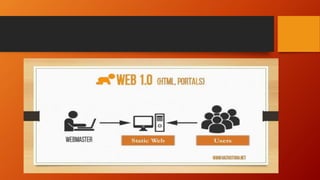
Web 1.0
-there were very few web content creators and many of them were
so called “read-only-web”
-no user interaction
-web pages were static
-feedback mechanism was thru private email
-no direct comment at all
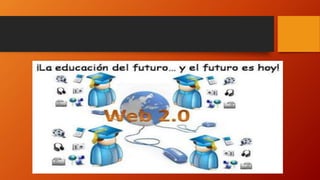
Web 2.0
-was used around 2004
-internet technology became more and more
interactive
-the users can now interact, contribute, and create
their own internet space and content
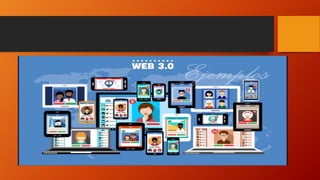
• Web 3.0
-discovered by Tim Berners-Lee (Father of the WWW)
-referred to as the semantic web or data driven web content
and response
-it will not make the web 2.0 absolete
Technology Convergence
-It is an evolution of technological development that merge
into a new system bringing together different types of applications
and media
Example:
SMARTPHONE
-provides functionality of various individual separate and
different devices now available in one year. It can function as a
telephone, camera, radio, TV, and gaming console
Social Media
-is a collection of internet-based communication tools and computer-
assisted channel dedicated to allow users to interact, communicate, and share
information
Facebook
-is a popular free social networking site with more than a billion users
around the globe that allows its users to create profiles, upload photos and videos,
create and join.
Twitter
-more than 300 million users in 2016
-allows users to microblog or broadcast short messages called “tweets”
Instagram
-a social networking app that enables the users to share mobile photo & video
either publicly or privately
Snapchat
-designed for the mobile networking application
-designed for photo sharing, chat and messaging services
-images and videos shared in this app last only for a short time
and they are gone
Assistive Media
-is a non-profit organization founded in 1996 in Ann Arbor, Michigan
USA
-first internet-based reading service for persons with visual and
reading impairments
Dangers in Online
Email Spam
-known as junk email, unsolicited commercial email sent from one source
with identical message to send to multiple recipients
-SPAMMER is the term used to refer to a person who create electronic
spam
Email Spoofing
-a deceitful email practice in which the sender address is change.
-usually used by spammers to hide the origin of the spam.
Phishing
-a practice of trying to get confidential information such as
passwords and usernames , credit card details.
Pharming
-a dangerous hacker attack on a website
-its main objective is to obtain username and password as
well as credit card and financial information
Spyware
-is a computer program that is installed covertly on a
personal computer to collect information.
Computer Worm
-is a dangerous computer program that replicates itself
through a network.
-some worms delete files, others disrupt the network
function and still others send junk mail from infected computer.
Trojan Horse
-a malicious software fronting to perform a good task, but
covertly performs undesirable function.
-can erase data, can allow access of the victims computer, can
corrupt files, and can be used in phishing.
Computer Virus
-a program that duplicates itself and then infects the
computer
-spreads like a real biological virus
-virus can also be transferred by the use of removable
Hacker
- a person who is able to enter and control other
peoples computer without authorization.
Security Center
-is the place where you can set additional protection from
THREAT to your computer, especially when using the internet.
Firewall
-helps in protecting your computer from unauthorized entries,
viruses, or worms from the internet or network.
Automatic Updates
-another feature of windows which when turned on will
automatically download photos.
Virus Protection
-is usually about the current antivirus software installed in your
computer
-ANTIVIRUS software is meant to locate, find and remove virus
threats
-also prevent other malware from gaining entry into your
computer
Unlocking of difficulties
• Contextualized- is to place (something such as a word or activity)
in a context
• Research- the collecting of information about a particular subject
• Strategy- the art of devising or employing plans or strategies
toward a goal
• Compilation- the act or process of compiling
• Citation- an act of qouting; especially: the citing of a previously
settled case at law
CONTEXTUAL SEARCH
-an attempt to be more precise in providing the
list documents according to the words used by the
user to search the internet.
-a good contextual search engine would request
for more information to narrow down the result of
the search.
Steps in making a contextualized online
research
oIdentify or choose a topic
oTopic or task definition
oIdentify methods of search
oIdentify resources of your research
oMake your research strategies
oCompiling the research results
oEvaluate the results of your research
oCreate a list of your references for citation
Research Skills:
Critical thinking
-is the ability to digest, reflect, and conclude from the
information search
Analytical thinking
-the ability to look, verbalize, conceptualize and gather data
attuned to the context of the subject.
-the ability to apply synthesis, focus, and critical thinking to
extract the useful information
Problem Solving Capability
-the ability to present solutions or solve problems by presenting
a decision based on the given information
Organized data mining
-it is the ability to organize and catalogue all collected
materials efficiently despite data size
Research Presentation
-it is the ability to present ideas and draw conclusion from the
research
-able to explain in writing the purpose, steps goals and object
of the research
Creativity and develop imagination
-is the ability to look for alternative solutions to the problems
needed to solve in the research
-thinking beyond the usual approaches to the research
objectives
Computer Literacy
-knowledge of the various computer application and tools
-skills in the use of software to write, design, and present
Steps in making a Contexualized Search
Open the Google Site
On the upper right side of the window, click the Google Apps icon
and search G
On the lower part of the window, click the settings and the google
search settings pop-up list will appear
Click advanced search and the advance search window will appear
Type the keywords that you would like to search
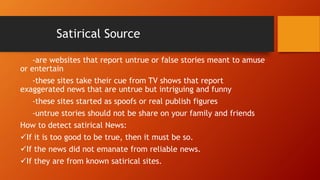
Satirical Source
-are websites that report untrue or false stories meant to amuse
or entertain
-these sites take their cue from TV shows that report
exaggerated news that are untrue but intriguing and funny
-these sites started as spoofs or real publish figures
-untrue stories should not be share on your family and friends
How to detect satirical News:
If it is too good to be true, then it must be so.
If the news did not emanate from reliable news.
If they are from known satirical sites.
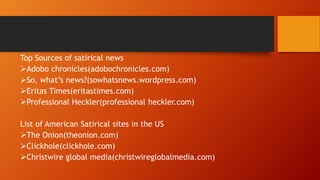
Top Sources of satirical news
Adobo chronicles(adobochronicles.com)
So, what’s news?(sowhatsnews.wordpress.com)
Eritas Times(eritastimes.com)
Professional Heckler(professional heckler.com)
List of American Satirical sites in the US
The Onion(theonion.com)
Clickhole(clickhole.com)
Christwire global media(christwireglobalmedia.com)
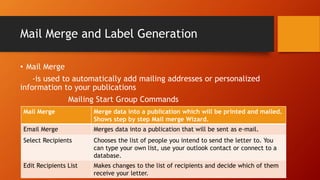
Mail Merge and Label Generation
• Mail Merge
-is used to automatically add mailing addresses or personalized
information to your publications
Mailing Start Group Commands
Mail Merge Merge data into a publication which will be printed and mailed.
Shows step by step Mail merge Wizard.
Email Merge Merges data into a publication that will be sent as e-mail.
Select Recipients Chooses the list of people you intend to send the letter to. You
can type your own list, use your outlook contact or connect to a
database.
Edit Recipients List Makes changes to the list of recipients and decide which of them
receive your letter.
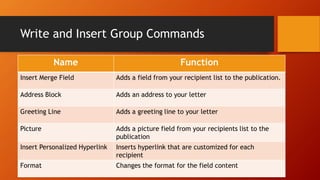
Write and Insert Group Commands
Name Function
Insert Merge Field Adds a field from your recipient list to the publication.
Address Block Adds an address to your letter
Greeting Line Adds a greeting line to your letter
Picture Adds a picture field from your recipients list to the
publication
Insert Personalized Hyperlink Inserts hyperlink that are customized for each
recipient
Format Changes the format for the field content
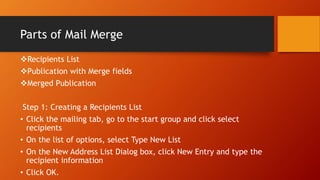
Parts of Mail Merge
Recipients List
Publication with Merge fields
Merged Publication
Step 1: Creating a Recipients List
• Click the mailing tab, go to the start group and click select
recipients
• On the list of options, select Type New List
• On the New Address List Dialog box, click New Entry and type the
recipient information
• Click OK.
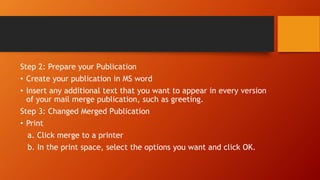
Step 2: Prepare your Publication
• Create your publication in MS word
• Insert any additional text that you want to appear in every version
of your mail merge publication, such as greeting.
Step 3: Changed Merged Publication
• Print
a. Click merge to a printer
b. In the print space, select the options you want and click OK.
• Merge to new publication
a. Click merge to new publication
b. In the new publication click save this publication in the Mail
Merge task pane.
c. Type the name of your new publication and click save.
• Add to existing publication
a. Click add to existing publication
b. On the open publication dialog box, locate the publication
you want to add and click open.
c. Click save this publication in the mail merge task pane
Generating Labels
-labels are used for envelopes that you intend to send out to
persons usually containing the name, address, or telephone.
Steps in Generating Labels
Start a new document in MS word.
Go to the mailings tab, in the create group, click labels and the
envelope and labels dialog box will appear.
In the address box, type the text you want to be placed on the
label.
Click the Insert Address icon if you have an address stored in the
electronic address book.
To change the font or Paragraph formatting, select the text, right
click and select the option from the drop-down menu.
Click options button and the label options dialog box will appear.
Select the settings like the type of printer, the supplier that
produced your label sheets and others.
After you make the settings, click OK.
Under print, select full page of the same label or single label.
Click print.
MICROSOFT POWERPOINT
-is an application intended for creating a slide presentation.
How to create a slide presentation
• Open the MS Powerpoint application.
• Click new and select your preferred design template.
• Click insert tab menu and insert text, word art, or any object in
the slides.
• Click home tab to insert new slide in your presentation.
Microsoft Excel
- is use to compute costs incurred in the
creation of projects, or create tables for finding
the researches and then create reports for
business or research that you are doing.
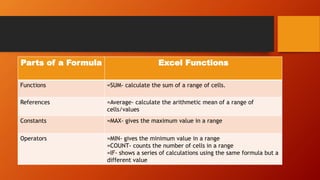
Parts of a Formula Excel Functions
Functions =SUM- calculate the sum of a range of cells.
References =Average- calculate the arithmetic mean of a range of
cells/values
Constants =MAX- gives the maximum value in a range
Operators =MIN- gives the minimum value in a range
=COUNT- counts the number of cells in a range
=IF- shows a series of calculations using the same formula but a
different value
Sources of photos and Graphics
1. Personal and Professional Photos
-are photos taken by amateur or professional photographers
using a digital camera.
2. Scanned Images
-are those that you transfer from printed photos and graphics
using scanning devices which you can transfer to your computer for
further improvement and modification.
3. Stock photo Library
-are several photographs and created images that are available
for sale.
4.Online Stock Photo
-are found in World Wide Web is now the dominant source of
photos and graphics around the globe because of the widely
available choices and reasonable prices.
Online Digital File Formats for images and
text
Proprietary Formats
-are found and controlled by individuals or corporations and the
file format a specification are not available to the public.
Open Formats
-are means and ways for storing digital information that are
free, can be used by the public and are not encumbered by
copyrights or patents. These is also called as free file formats.
File Formats
-uses suffixes that are added to the end of a filename called
filename extensions.
3 Classification of Digital File Formats
1. Uncompressed or raw formats
-is usually used for storing original file format, it is a flexible
form but needs bigger memory to store.
2. Lossless file format
-is a file format that was compressed the original quality but at
a reduced file size.
3. Lossy file formats
-
Image File Formats
-are means of storing and organizing digital image photos and
illustrations.
2 Types of Image file formats
Raster file formats/Bitmap Images
-is a means of representing digital images in a bits of
information for storage, which translates into pixels.
Pixel- is the smallest information of an image.
- usually represented in dots and squares.
- comes from the word pix(picture) and el(element)
- is the common formats you will encounter.
Ex:
.bmp- Bitmap Image file
.gif- Graphical Interchange Format file
.jpg- JPEG(Joint Photographic Experts Group)
.png- Portable Network Graphic
.psd- Photoshop Document
Vector image or Vector graphic files
-are lossless files using mathematical geometric equations to
represent images in digital computer graphics
-preferred format for those who desire quality prints and display
of images.
Ex:
Pdf, encapsulated postscript, scalable vector graphics and windows
metafile
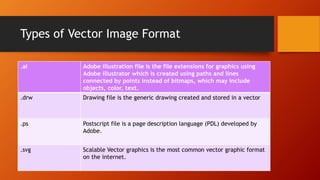
Types of Vector Image Format
.ai Adobe illustration file is the file extensions for graphics using
Adobe illustrator which is created using paths and lines
connected by points instead of bitmaps, which may include
objects, color, text.
.drw Drawing file is the generic drawing created and stored in a vector
.ps Postscript file is a page description language (PDL) developed by
Adobe.
.svg Scalable Vector graphics is the most common vector graphic format
on the internet.
Basic Principles of Graphics and Layout
• Layout
-is the process of planning and arranging graphics or text in a
page or book
• Graphics
-is an image or visual representation of an object
• Symmetrical
-there should be equal weight or elements
• Assymetrical
-it maybe assymetrical when there is an artistic but other side
has different intensity
• Text
-should be legible, appropriate font face, left justified, right
justified and centered, the flow of text should be easy to read
• Image
-should be proportionate, sharp in color, and with high
resolution
• Proximity and harmony
-should be close together and flattered/scattered and arranged
apart from each other
• Consistency of the theme
-should be uniformity of theme on each page
• Color and shape
-use color to create interest by providing variety in the design
• Emphasis
-should be one point of interest in a page
-should have a different size color, shape or background
Principles and Basic Techniques of Image
Manipulation
• Background color
-you can change the background if it does not match the image of
the totally of the presentation. You can add effects to the
background.
• Multiple Image
-you can combine multiple images to make a point or use to
highlight your message.
• Shadow
-using shadow effect will make image realistic
• Proportion
-when combining images, resize the image to make it
proportionate and realistic.
• Blending color
-you can use color to match the background with the other
elements in the page.
• Texture
-adding texture allows you to blend different images. Textures
add to the depth of your art.
• Emphasis
-there should be a focal point to a page that will attract
viewers. The element you want to emphasize should be sharp, big,
and most vibrant in your design.
Combining Text, Graphics and Images
• Transparent shapes
-add simple shapes with a slight transparency behind your text
to clearly see.
• Fonts and shapes
-should complement with each other.
• Text and Background
-should be aligned to have an organized look.
• Clean and clear background
-use clean and clear background for the message to be
readable.
Basic Image Manipulation using online or
open source software
1. Picasa
-is googles free photo manager to edit and organize
your photos. It has tools for photo editing like crop,
straighten, rotate, red-eye removal, contras and filters.
2. Paint.net
-is a windows-based alternative to the MS paint editor.
It is a free and open source available in windows. It can be
used for photo editing like recolor, crop, text, edit,
rotate, multiple layers, and other photo editing.
3.Google Sketch-Up
-is a free 3D modeling program with tools allow you to create 3D
models of houses, home renovation, woodworking projects, and
other with dimensional accuracy.
4. Autodesk Pixlr
-pixlr is a free photo editing tool that is similar to photoshop and
has more than 600 effects, overlays and borders that you can use.
Empowerment technology

Empowerment technology

  • 1.
  • 2.
    ICT or InformationCommunication Technology Is an umbrella that includes any communication device or application, encompassing: radio,television, computer and etc. Is the main method of communication getting information and education, attaining services and expressing social advocacies and awareness.
  • 3.
    ICT can beused in diff. fields ICT in Education ICT in Comers ICT in Sports and Recreation ICT in Health Services ICT in Engineering and Architecture ICT in Travel and Hotel Bookings
  • 4.
    WWW –World WideWeb Current state of ICT Web 1.0 -there were very few web content creators and many of them were so called “read-only-web” -no user interaction -web pages were static -feedback mechanism was thru private email -no direct comment at all
  • 6.
    Web 2.0 -was usedaround 2004 -internet technology became more and more interactive -the users can now interact, contribute, and create their own internet space and content
  • 8.
    • Web 3.0 -discoveredby Tim Berners-Lee (Father of the WWW) -referred to as the semantic web or data driven web content and response -it will not make the web 2.0 absolete
  • 10.
    Technology Convergence -It isan evolution of technological development that merge into a new system bringing together different types of applications and media Example: SMARTPHONE -provides functionality of various individual separate and different devices now available in one year. It can function as a telephone, camera, radio, TV, and gaming console
  • 11.
    Social Media -is acollection of internet-based communication tools and computer- assisted channel dedicated to allow users to interact, communicate, and share information Facebook -is a popular free social networking site with more than a billion users around the globe that allows its users to create profiles, upload photos and videos, create and join.
  • 12.
    Twitter -more than 300million users in 2016 -allows users to microblog or broadcast short messages called “tweets” Instagram -a social networking app that enables the users to share mobile photo & video either publicly or privately
  • 13.
    Snapchat -designed for themobile networking application -designed for photo sharing, chat and messaging services -images and videos shared in this app last only for a short time and they are gone Assistive Media -is a non-profit organization founded in 1996 in Ann Arbor, Michigan USA -first internet-based reading service for persons with visual and reading impairments
  • 14.
    Dangers in Online EmailSpam -known as junk email, unsolicited commercial email sent from one source with identical message to send to multiple recipients -SPAMMER is the term used to refer to a person who create electronic spam Email Spoofing -a deceitful email practice in which the sender address is change. -usually used by spammers to hide the origin of the spam.
  • 15.
    Phishing -a practice oftrying to get confidential information such as passwords and usernames , credit card details. Pharming -a dangerous hacker attack on a website -its main objective is to obtain username and password as well as credit card and financial information
  • 16.
    Spyware -is a computerprogram that is installed covertly on a personal computer to collect information. Computer Worm -is a dangerous computer program that replicates itself through a network. -some worms delete files, others disrupt the network function and still others send junk mail from infected computer.
  • 17.
    Trojan Horse -a malicioussoftware fronting to perform a good task, but covertly performs undesirable function. -can erase data, can allow access of the victims computer, can corrupt files, and can be used in phishing. Computer Virus -a program that duplicates itself and then infects the computer -spreads like a real biological virus -virus can also be transferred by the use of removable
  • 18.
    Hacker - a personwho is able to enter and control other peoples computer without authorization.
  • 19.
    Security Center -is theplace where you can set additional protection from THREAT to your computer, especially when using the internet. Firewall -helps in protecting your computer from unauthorized entries, viruses, or worms from the internet or network. Automatic Updates -another feature of windows which when turned on will automatically download photos.
  • 20.
    Virus Protection -is usuallyabout the current antivirus software installed in your computer -ANTIVIRUS software is meant to locate, find and remove virus threats -also prevent other malware from gaining entry into your computer
  • 21.
    Unlocking of difficulties •Contextualized- is to place (something such as a word or activity) in a context • Research- the collecting of information about a particular subject • Strategy- the art of devising or employing plans or strategies toward a goal • Compilation- the act or process of compiling • Citation- an act of qouting; especially: the citing of a previously settled case at law
  • 22.
    CONTEXTUAL SEARCH -an attemptto be more precise in providing the list documents according to the words used by the user to search the internet. -a good contextual search engine would request for more information to narrow down the result of the search.
  • 23.
    Steps in makinga contextualized online research oIdentify or choose a topic oTopic or task definition oIdentify methods of search oIdentify resources of your research oMake your research strategies oCompiling the research results oEvaluate the results of your research oCreate a list of your references for citation
  • 24.
    Research Skills: Critical thinking -isthe ability to digest, reflect, and conclude from the information search Analytical thinking -the ability to look, verbalize, conceptualize and gather data attuned to the context of the subject. -the ability to apply synthesis, focus, and critical thinking to extract the useful information
  • 25.
    Problem Solving Capability -theability to present solutions or solve problems by presenting a decision based on the given information Organized data mining -it is the ability to organize and catalogue all collected materials efficiently despite data size
  • 26.
    Research Presentation -it isthe ability to present ideas and draw conclusion from the research -able to explain in writing the purpose, steps goals and object of the research Creativity and develop imagination -is the ability to look for alternative solutions to the problems needed to solve in the research -thinking beyond the usual approaches to the research objectives
  • 27.
    Computer Literacy -knowledge ofthe various computer application and tools -skills in the use of software to write, design, and present Steps in making a Contexualized Search Open the Google Site On the upper right side of the window, click the Google Apps icon and search G
  • 28.
    On the lowerpart of the window, click the settings and the google search settings pop-up list will appear Click advanced search and the advance search window will appear Type the keywords that you would like to search
  • 29.
    Satirical Source -are websitesthat report untrue or false stories meant to amuse or entertain -these sites take their cue from TV shows that report exaggerated news that are untrue but intriguing and funny -these sites started as spoofs or real publish figures -untrue stories should not be share on your family and friends How to detect satirical News: If it is too good to be true, then it must be so. If the news did not emanate from reliable news. If they are from known satirical sites.
  • 30.
    Top Sources ofsatirical news Adobo chronicles(adobochronicles.com) So, what’s news?(sowhatsnews.wordpress.com) Eritas Times(eritastimes.com) Professional Heckler(professional heckler.com) List of American Satirical sites in the US The Onion(theonion.com) Clickhole(clickhole.com) Christwire global media(christwireglobalmedia.com)
  • 31.
    Mail Merge andLabel Generation • Mail Merge -is used to automatically add mailing addresses or personalized information to your publications Mailing Start Group Commands Mail Merge Merge data into a publication which will be printed and mailed. Shows step by step Mail merge Wizard. Email Merge Merges data into a publication that will be sent as e-mail. Select Recipients Chooses the list of people you intend to send the letter to. You can type your own list, use your outlook contact or connect to a database. Edit Recipients List Makes changes to the list of recipients and decide which of them receive your letter.
  • 32.
    Write and InsertGroup Commands Name Function Insert Merge Field Adds a field from your recipient list to the publication. Address Block Adds an address to your letter Greeting Line Adds a greeting line to your letter Picture Adds a picture field from your recipients list to the publication Insert Personalized Hyperlink Inserts hyperlink that are customized for each recipient Format Changes the format for the field content
  • 33.
    Parts of MailMerge Recipients List Publication with Merge fields Merged Publication Step 1: Creating a Recipients List • Click the mailing tab, go to the start group and click select recipients • On the list of options, select Type New List • On the New Address List Dialog box, click New Entry and type the recipient information • Click OK.
  • 34.
    Step 2: Prepareyour Publication • Create your publication in MS word • Insert any additional text that you want to appear in every version of your mail merge publication, such as greeting. Step 3: Changed Merged Publication • Print a. Click merge to a printer b. In the print space, select the options you want and click OK.
  • 35.
    • Merge tonew publication a. Click merge to new publication b. In the new publication click save this publication in the Mail Merge task pane. c. Type the name of your new publication and click save. • Add to existing publication a. Click add to existing publication b. On the open publication dialog box, locate the publication you want to add and click open. c. Click save this publication in the mail merge task pane
  • 36.
    Generating Labels -labels areused for envelopes that you intend to send out to persons usually containing the name, address, or telephone. Steps in Generating Labels Start a new document in MS word. Go to the mailings tab, in the create group, click labels and the envelope and labels dialog box will appear. In the address box, type the text you want to be placed on the label. Click the Insert Address icon if you have an address stored in the electronic address book.
  • 37.
    To change thefont or Paragraph formatting, select the text, right click and select the option from the drop-down menu. Click options button and the label options dialog box will appear. Select the settings like the type of printer, the supplier that produced your label sheets and others. After you make the settings, click OK. Under print, select full page of the same label or single label. Click print.
  • 38.
    MICROSOFT POWERPOINT -is anapplication intended for creating a slide presentation. How to create a slide presentation • Open the MS Powerpoint application. • Click new and select your preferred design template. • Click insert tab menu and insert text, word art, or any object in the slides. • Click home tab to insert new slide in your presentation.
  • 39.
    Microsoft Excel - isuse to compute costs incurred in the creation of projects, or create tables for finding the researches and then create reports for business or research that you are doing.
  • 40.
    Parts of aFormula Excel Functions Functions =SUM- calculate the sum of a range of cells. References =Average- calculate the arithmetic mean of a range of cells/values Constants =MAX- gives the maximum value in a range Operators =MIN- gives the minimum value in a range =COUNT- counts the number of cells in a range =IF- shows a series of calculations using the same formula but a different value
  • 41.
    Sources of photosand Graphics 1. Personal and Professional Photos -are photos taken by amateur or professional photographers using a digital camera. 2. Scanned Images -are those that you transfer from printed photos and graphics using scanning devices which you can transfer to your computer for further improvement and modification.
  • 42.
    3. Stock photoLibrary -are several photographs and created images that are available for sale. 4.Online Stock Photo -are found in World Wide Web is now the dominant source of photos and graphics around the globe because of the widely available choices and reasonable prices.
  • 43.
    Online Digital FileFormats for images and text Proprietary Formats -are found and controlled by individuals or corporations and the file format a specification are not available to the public. Open Formats -are means and ways for storing digital information that are free, can be used by the public and are not encumbered by copyrights or patents. These is also called as free file formats. File Formats -uses suffixes that are added to the end of a filename called filename extensions.
  • 44.
    3 Classification ofDigital File Formats 1. Uncompressed or raw formats -is usually used for storing original file format, it is a flexible form but needs bigger memory to store. 2. Lossless file format -is a file format that was compressed the original quality but at a reduced file size. 3. Lossy file formats -
  • 45.
    Image File Formats -aremeans of storing and organizing digital image photos and illustrations. 2 Types of Image file formats Raster file formats/Bitmap Images -is a means of representing digital images in a bits of information for storage, which translates into pixels.
  • 46.
    Pixel- is thesmallest information of an image. - usually represented in dots and squares. - comes from the word pix(picture) and el(element) - is the common formats you will encounter. Ex: .bmp- Bitmap Image file .gif- Graphical Interchange Format file .jpg- JPEG(Joint Photographic Experts Group) .png- Portable Network Graphic .psd- Photoshop Document
  • 47.
    Vector image orVector graphic files -are lossless files using mathematical geometric equations to represent images in digital computer graphics -preferred format for those who desire quality prints and display of images. Ex: Pdf, encapsulated postscript, scalable vector graphics and windows metafile
  • 48.
    Types of VectorImage Format .ai Adobe illustration file is the file extensions for graphics using Adobe illustrator which is created using paths and lines connected by points instead of bitmaps, which may include objects, color, text. .drw Drawing file is the generic drawing created and stored in a vector .ps Postscript file is a page description language (PDL) developed by Adobe. .svg Scalable Vector graphics is the most common vector graphic format on the internet.
  • 49.
    Basic Principles ofGraphics and Layout • Layout -is the process of planning and arranging graphics or text in a page or book • Graphics -is an image or visual representation of an object • Symmetrical -there should be equal weight or elements • Assymetrical -it maybe assymetrical when there is an artistic but other side has different intensity
  • 50.
    • Text -should belegible, appropriate font face, left justified, right justified and centered, the flow of text should be easy to read • Image -should be proportionate, sharp in color, and with high resolution • Proximity and harmony -should be close together and flattered/scattered and arranged apart from each other
  • 51.
    • Consistency ofthe theme -should be uniformity of theme on each page • Color and shape -use color to create interest by providing variety in the design • Emphasis -should be one point of interest in a page -should have a different size color, shape or background
  • 52.
    Principles and BasicTechniques of Image Manipulation • Background color -you can change the background if it does not match the image of the totally of the presentation. You can add effects to the background. • Multiple Image -you can combine multiple images to make a point or use to highlight your message.
  • 53.
    • Shadow -using shadoweffect will make image realistic • Proportion -when combining images, resize the image to make it proportionate and realistic. • Blending color -you can use color to match the background with the other elements in the page.
  • 54.
    • Texture -adding textureallows you to blend different images. Textures add to the depth of your art. • Emphasis -there should be a focal point to a page that will attract viewers. The element you want to emphasize should be sharp, big, and most vibrant in your design.
  • 55.
    Combining Text, Graphicsand Images • Transparent shapes -add simple shapes with a slight transparency behind your text to clearly see. • Fonts and shapes -should complement with each other.
  • 56.
    • Text andBackground -should be aligned to have an organized look. • Clean and clear background -use clean and clear background for the message to be readable.
  • 57.
    Basic Image Manipulationusing online or open source software 1. Picasa -is googles free photo manager to edit and organize your photos. It has tools for photo editing like crop, straighten, rotate, red-eye removal, contras and filters. 2. Paint.net -is a windows-based alternative to the MS paint editor. It is a free and open source available in windows. It can be used for photo editing like recolor, crop, text, edit, rotate, multiple layers, and other photo editing.
  • 58.
    3.Google Sketch-Up -is afree 3D modeling program with tools allow you to create 3D models of houses, home renovation, woodworking projects, and other with dimensional accuracy. 4. Autodesk Pixlr -pixlr is a free photo editing tool that is similar to photoshop and has more than 600 effects, overlays and borders that you can use.