IT-Administration
Digital Communication –Part 1
Deepak John, Assistant Lecturer
Department of Computing,LYIT
Topics To Be Covered
 Introduction to Digital Communication
 E-Mail
 Contacts and Calendar
Certicate in Digital Skills-Letterkenny Institute of Technology
Digital Communication
 Electronic transmission of information
Digital
Device
Digital
Device
Channel
Digital Data
Certicate in Digital Skills-Letterkenny Institute of Technology
 Digital Devices are physical unit of equipment that contains a
computer. Examples are computers, mobile phones etc.
 Digital data is information in the form of a series of 0's and 1's
(Digital).
Sender Receiver
Channel
Email (electronic mail)
 E-mail is a way to send and receive messages across the
Internet.
Internet
Certicate in Digital Skills-Letterkenny Institute of Technology
 Email advantages
i. Productivity tools
ii. Access to web services
iii. Easy mail management
iv. Privacy
Certicate in Digital Skills-Letterkenny Institute ofTechnology
iv. Privacy
v. Communication with multiple people
vi. Accessible anywhere at any time
Understanding email addresses
 Email addresses are always written in a standard format
that has four parts:
i. Username
ii. @ symbol
Certicate in Digital Skills-Letterkenny Institute ofTechnology
ii. @ symbol
iii. Email provider name
iv. Top-level domain
 user name is the name you choose to identify yourself,
The Username may be a maximum of 64 characters long
and consist of:
 Uppercase and lowercase letters in English (A-Z, a-z)
 Digits from 0 to 9
Certicate in Digital Skills-Letterkenny Institute ofTechnology
 Special characters such as ! # $ % & ' * + - / = ? ^ _ ` { |
 A special character cannot appear as the first or last
character in an email address or appear consecutively two
or more times.
 Email provider name is a string of letters and digits that
defines a space on the Internet owned and controlled by a
specific mailbox provider or organization.Top three email
providers are Gmail, Yahoo and Outlook.
 Top-level domains are the highest level of the domain
name system for the Internet and is placed after the
Certicate in Digital Skills-Letterkenny Institute ofTechnology
name system for the Internet and is placed after the
domain name in an email address.
Common top-level domains are:
 .com
 .net
 .org
 Examples of valid email addresses include:
 johndoe@domainsample.com
 john.doe@domainsample.net
 john.doe43@domainsample.co.uk
Certicate in Digital Skills-Letterkenny Institute of Technology
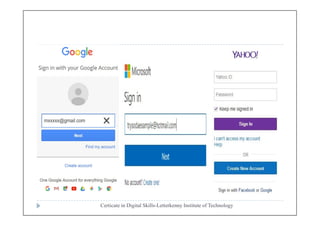
 Getting Started With Email
1. For a new user create an Email Account, if you already
have an account Login into your account.
2. By using proper credentials login into the account
Certicate in Digital Skills-Letterkenny Institute of Technology
 Common Email Features
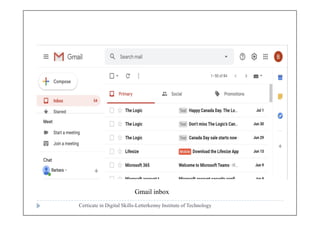
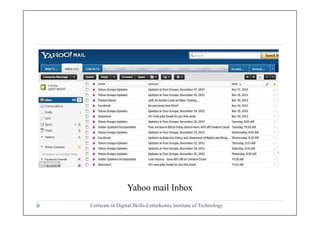
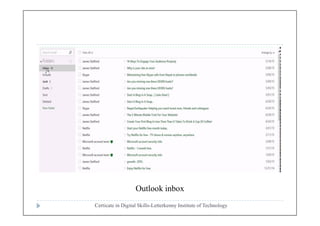
i. Inbox:The inbox is where you'll view and manage
emails you receive. Emails are listed with the name of
the sender, the subject of the message, and the date
received.
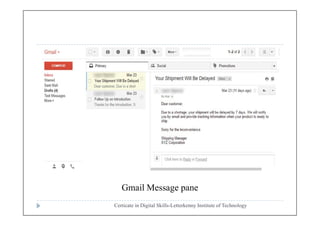
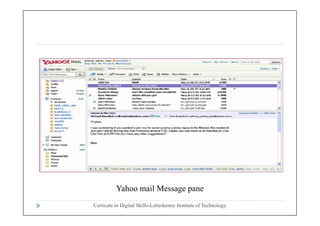
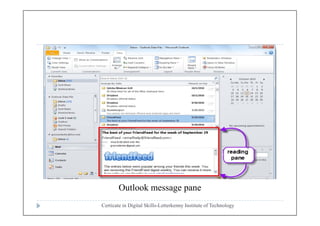
ii. Message pane:From here, you can read the selected mail
Certicate in Digital Skills-Letterkenny Institute of Technology
ii. Message pane:From here, you can read the selected mail
and choose how to respond with a variety of commands.
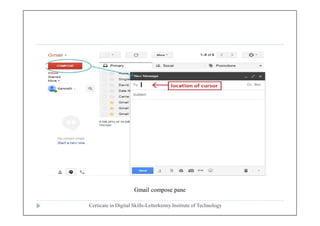
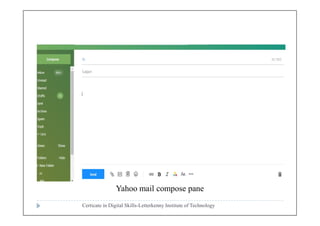
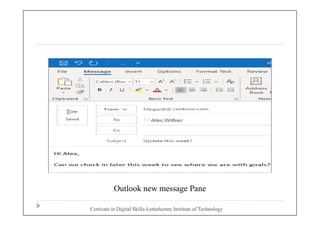
iii. Compose pane:Compose pane to create your own email
message. From here, you'll need to enter the recipient's
email address and a subject. You'll also have the option
to upload files (photos, documents, etc.) as attachments
and add formatting to the message.
Certicate in Digital Skills-Letterkenny Institute of Technology
Gmail inbox
Certicate in Digital Skills-Letterkenny Institute of Technology
Yahoo mail Inbox
Certicate in Digital Skills-Letterkenny Institute of Technology
Outlook inbox
Certicate in Digital Skills-Letterkenny Institute of Technology
Gmail Message pane
Certicate in Digital Skills-Letterkenny Institute of Technology
Yahoo mail Message pane
Certicate in Digital Skills-Letterkenny Institute of Technology
Outlook message pane
Certicate in Digital Skills-Letterkenny Institute of Technology
Gmail compose pane
Certicate in Digital Skills-Letterkenny Institute of Technology
Yahoo mail compose pane
Certicate in Digital Skills-Letterkenny Institute of Technology
Outlook new message Pane
 Cc (Carbon Copy) and Bcc(Blind Carbon copy)
 BCC recipients are hidden from the other recipients and
CC recipients are not.
 CC recipients receive any responses that come in if
“Reply All” is used;Bcc recipients do not.
Certicate in Digital Skills-Letterkenny Institute of Technology
Contacts and Calendars
 most mail providers offer an online calendar and address
book. These features make it easy to stay organized and
access your important information from anywhere.
i. Contacts
 help you organize contact information like an address
Certicate in Digital Skills-Letterkenny Institute of Technology
 help you organize contact information like an address
book.
 Once people are added to your contacts list, it's easy to
access their information anytime and anywhere.
 It's easy to add people to your contacts list. When you
create a new contact, you should (at the very least) enter
a first and last name, as well as an email address.
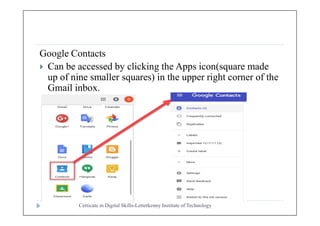
Google Contacts
 Can be accessed by clicking the Apps icon(square made
up of nine smaller squares) in the upper right corner of the
Gmail inbox.
Certicate in Digital Skills-Letterkenny Institute of Technology
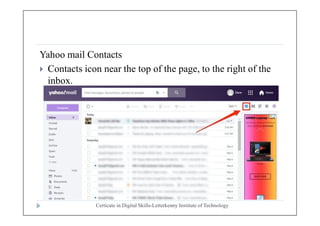
Yahoo mail Contacts
 Contacts icon near the top of the page, to the right of the
inbox.
Certicate in Digital Skills-Letterkenny Institute of Technology
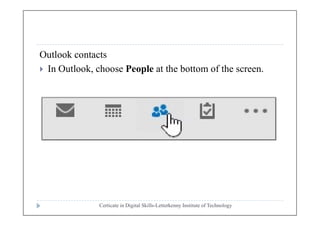
Outlook contacts
 In Outlook, choose People at the bottom of the screen.
Certicate in Digital Skills-Letterkenny Institute of Technology
ii. Calendar
 Online calendars make it easy to schedule
appointments, organize tasks, manage your time and
sync it across multiple devices, like your mobile phone
and personal computer.
Certicate in Digital Skills-Letterkenny Institute ofTechnology
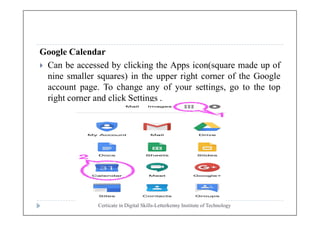
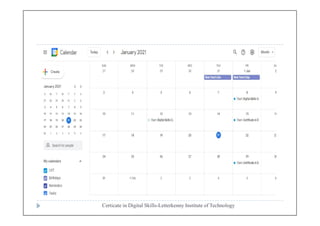
Google Calendar
 Can be accessed by clicking the Apps icon(square made up of
nine smaller squares) in the upper right corner of the Google
account page. To change any of your settings, go to the top
right corner and click Settings .
Certicate in Digital Skills-Letterkenny Institute of Technology
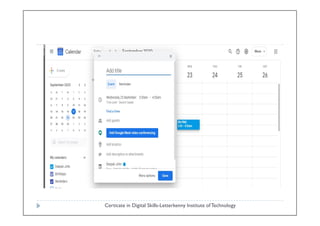
Creating Appointments Or Events
 It's easy to schedule, track, and edit upcoming
appointments or events
 By using + Create button in the upper left corner of the
calendar we can create appointments ,events or task
Certicate in Digital Skills-Letterkenny Institute of Technology
Certicate in Digital Skills-Letterkenny Institute ofTechnology
How To Set Up Your Calendars
 The steps to setting up your calendar are easy:
i. On Google calendar page. On the left, click on the small
arrow beside “Other Calendars”
ii. Click on “Create new calendar”
Certicate in Digital Skills-Letterkenny Institute of Technology
ii. Click on “Create new calendar”
iii. Enter the calendar name and other details.
iv. Click “Create calendar”
v. Click “save”

Email,contacts and calendar

  • 1.
    IT-Administration Digital Communication –Part1 Deepak John, Assistant Lecturer Department of Computing,LYIT
  • 2.
    Topics To BeCovered  Introduction to Digital Communication  E-Mail  Contacts and Calendar Certicate in Digital Skills-Letterkenny Institute of Technology
  • 3.
    Digital Communication  Electronictransmission of information Digital Device Digital Device Channel Digital Data Certicate in Digital Skills-Letterkenny Institute of Technology  Digital Devices are physical unit of equipment that contains a computer. Examples are computers, mobile phones etc.  Digital data is information in the form of a series of 0's and 1's (Digital). Sender Receiver Channel
  • 4.
    Email (electronic mail) E-mail is a way to send and receive messages across the Internet. Internet Certicate in Digital Skills-Letterkenny Institute of Technology
  • 5.
     Email advantages i.Productivity tools ii. Access to web services iii. Easy mail management iv. Privacy Certicate in Digital Skills-Letterkenny Institute ofTechnology iv. Privacy v. Communication with multiple people vi. Accessible anywhere at any time
  • 6.
    Understanding email addresses Email addresses are always written in a standard format that has four parts: i. Username ii. @ symbol Certicate in Digital Skills-Letterkenny Institute ofTechnology ii. @ symbol iii. Email provider name iv. Top-level domain
  • 7.
     user nameis the name you choose to identify yourself, The Username may be a maximum of 64 characters long and consist of:  Uppercase and lowercase letters in English (A-Z, a-z)  Digits from 0 to 9 Certicate in Digital Skills-Letterkenny Institute ofTechnology  Special characters such as ! # $ % & ' * + - / = ? ^ _ ` { |  A special character cannot appear as the first or last character in an email address or appear consecutively two or more times.
  • 8.
     Email providername is a string of letters and digits that defines a space on the Internet owned and controlled by a specific mailbox provider or organization.Top three email providers are Gmail, Yahoo and Outlook.  Top-level domains are the highest level of the domain name system for the Internet and is placed after the Certicate in Digital Skills-Letterkenny Institute ofTechnology name system for the Internet and is placed after the domain name in an email address. Common top-level domains are:  .com  .net  .org
  • 9.
     Examples ofvalid email addresses include:  johndoe@domainsample.com  john.doe@domainsample.net  john.doe43@domainsample.co.uk Certicate in Digital Skills-Letterkenny Institute of Technology
  • 10.
     Getting StartedWith Email 1. For a new user create an Email Account, if you already have an account Login into your account. 2. By using proper credentials login into the account Certicate in Digital Skills-Letterkenny Institute of Technology
  • 11.
    Certicate in DigitalSkills-Letterkenny Institute of Technology
  • 12.
     Common EmailFeatures i. Inbox:The inbox is where you'll view and manage emails you receive. Emails are listed with the name of the sender, the subject of the message, and the date received. ii. Message pane:From here, you can read the selected mail Certicate in Digital Skills-Letterkenny Institute of Technology ii. Message pane:From here, you can read the selected mail and choose how to respond with a variety of commands. iii. Compose pane:Compose pane to create your own email message. From here, you'll need to enter the recipient's email address and a subject. You'll also have the option to upload files (photos, documents, etc.) as attachments and add formatting to the message.
  • 13.
    Certicate in DigitalSkills-Letterkenny Institute of Technology Gmail inbox
  • 14.
    Certicate in DigitalSkills-Letterkenny Institute of Technology Yahoo mail Inbox
  • 15.
    Certicate in DigitalSkills-Letterkenny Institute of Technology Outlook inbox
  • 16.
    Certicate in DigitalSkills-Letterkenny Institute of Technology Gmail Message pane
  • 17.
    Certicate in DigitalSkills-Letterkenny Institute of Technology Yahoo mail Message pane
  • 18.
    Certicate in DigitalSkills-Letterkenny Institute of Technology Outlook message pane
  • 19.
    Certicate in DigitalSkills-Letterkenny Institute of Technology Gmail compose pane
  • 20.
    Certicate in DigitalSkills-Letterkenny Institute of Technology Yahoo mail compose pane
  • 21.
    Certicate in DigitalSkills-Letterkenny Institute of Technology Outlook new message Pane
  • 22.
     Cc (CarbonCopy) and Bcc(Blind Carbon copy)  BCC recipients are hidden from the other recipients and CC recipients are not.  CC recipients receive any responses that come in if “Reply All” is used;Bcc recipients do not. Certicate in Digital Skills-Letterkenny Institute of Technology
  • 23.
    Contacts and Calendars most mail providers offer an online calendar and address book. These features make it easy to stay organized and access your important information from anywhere. i. Contacts  help you organize contact information like an address Certicate in Digital Skills-Letterkenny Institute of Technology  help you organize contact information like an address book.  Once people are added to your contacts list, it's easy to access their information anytime and anywhere.  It's easy to add people to your contacts list. When you create a new contact, you should (at the very least) enter a first and last name, as well as an email address.
  • 24.
    Google Contacts  Canbe accessed by clicking the Apps icon(square made up of nine smaller squares) in the upper right corner of the Gmail inbox. Certicate in Digital Skills-Letterkenny Institute of Technology
  • 25.
    Yahoo mail Contacts Contacts icon near the top of the page, to the right of the inbox. Certicate in Digital Skills-Letterkenny Institute of Technology
  • 26.
    Outlook contacts  InOutlook, choose People at the bottom of the screen. Certicate in Digital Skills-Letterkenny Institute of Technology
  • 27.
    ii. Calendar  Onlinecalendars make it easy to schedule appointments, organize tasks, manage your time and sync it across multiple devices, like your mobile phone and personal computer. Certicate in Digital Skills-Letterkenny Institute ofTechnology
  • 28.
    Google Calendar  Canbe accessed by clicking the Apps icon(square made up of nine smaller squares) in the upper right corner of the Google account page. To change any of your settings, go to the top right corner and click Settings . Certicate in Digital Skills-Letterkenny Institute of Technology
  • 29.
    Certicate in DigitalSkills-Letterkenny Institute of Technology
  • 30.
    Creating Appointments OrEvents  It's easy to schedule, track, and edit upcoming appointments or events  By using + Create button in the upper left corner of the calendar we can create appointments ,events or task Certicate in Digital Skills-Letterkenny Institute of Technology
  • 31.
    Certicate in DigitalSkills-Letterkenny Institute ofTechnology
  • 32.
    How To SetUp Your Calendars  The steps to setting up your calendar are easy: i. On Google calendar page. On the left, click on the small arrow beside “Other Calendars” ii. Click on “Create new calendar” Certicate in Digital Skills-Letterkenny Institute of Technology ii. Click on “Create new calendar” iii. Enter the calendar name and other details. iv. Click “Create calendar” v. Click “save”