This document is a tutorial on configuring a mail server using Cisco Packet Tracer, featuring a setup with one switch, four PCs, and two servers (email and DNS). It provides step-by-step instructions on building the network topology, configuring IP addresses, setting up mail clients, and testing the email service. Finally, it details the configuration of a DNS server to resolve domain names for the email server's functionality.
Mamun Prodhan
ID: 182482553
Departmentof CSE
City University
Bangladesh
Topic: Configuration of mail server on cisco packet tracer
In this tutorial we will learn how to configure an email server in cisco packet tracer
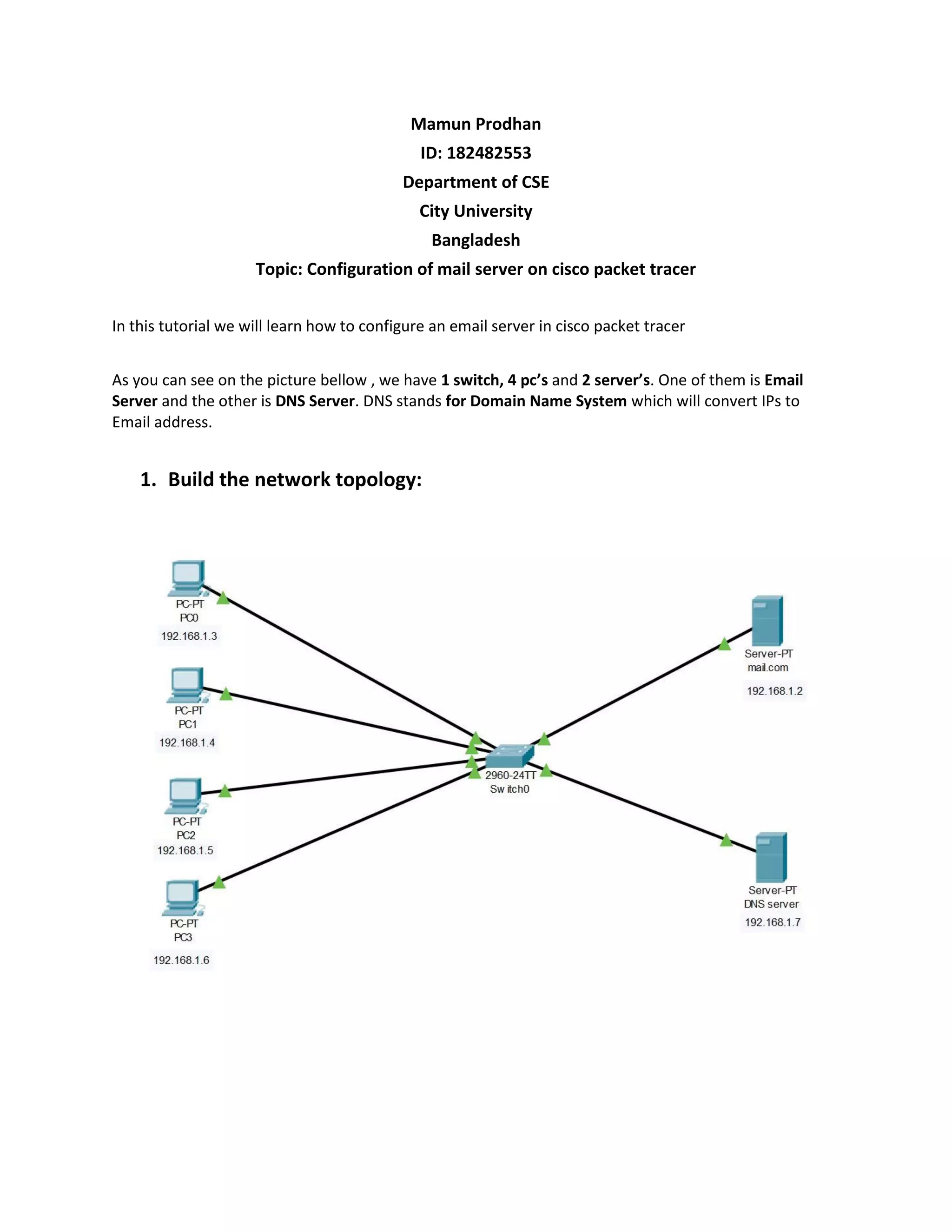
As you can see on the picture bellow , we have 1 switch, 4 pc’s and 2 server’s. One of them is Email
Server and the other is DNS Server. DNS stands for Domain Name System which will convert IPs to
Email address.
1. Build the network topology:
2.
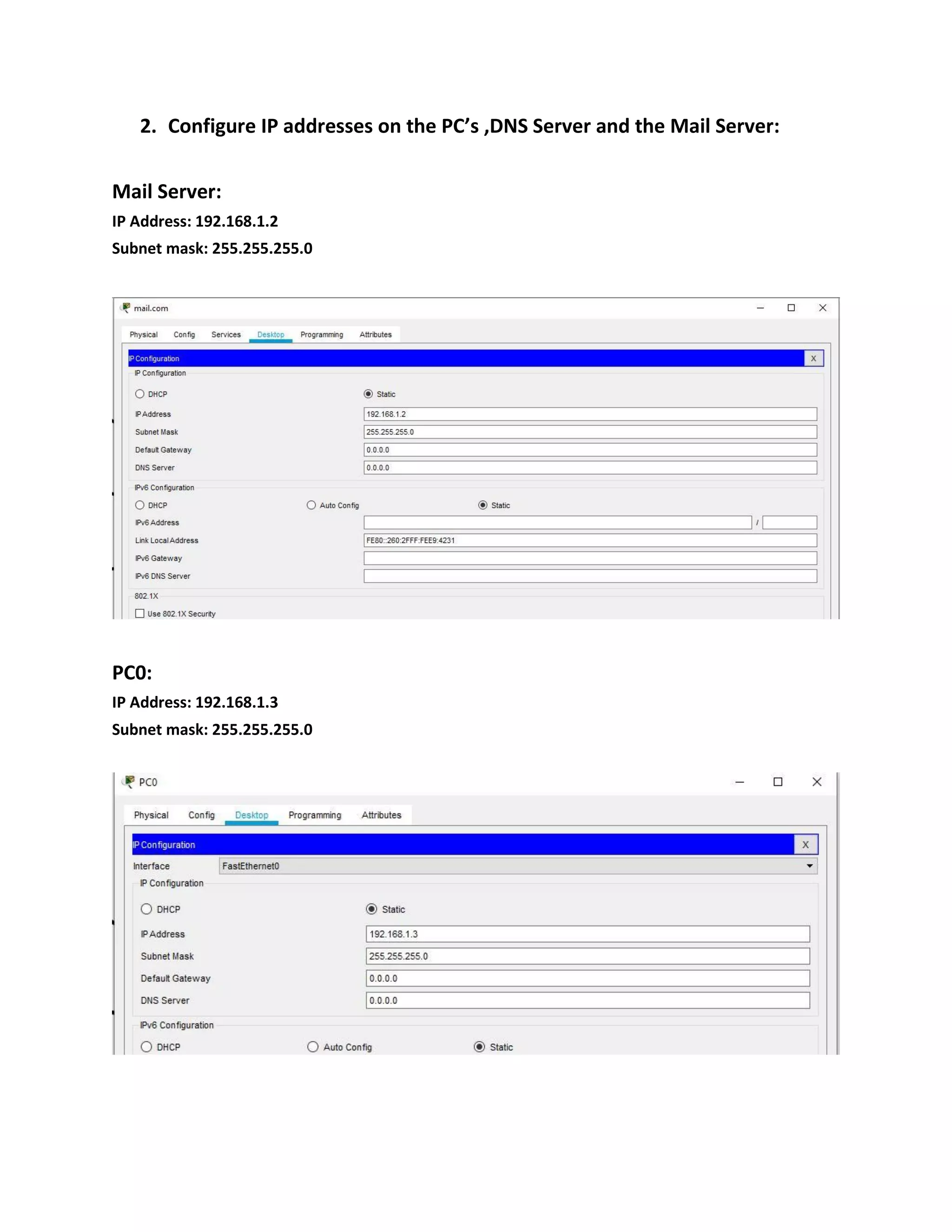
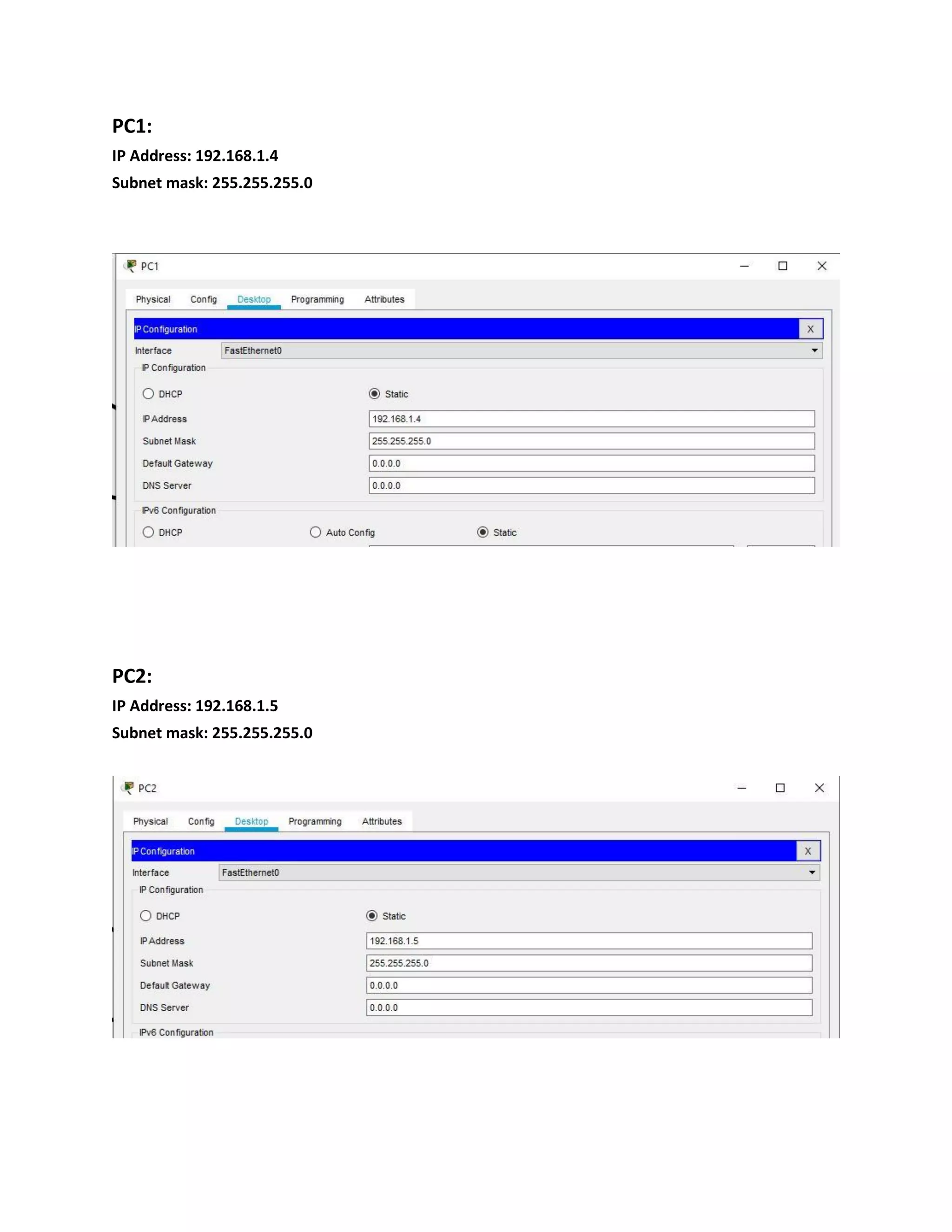
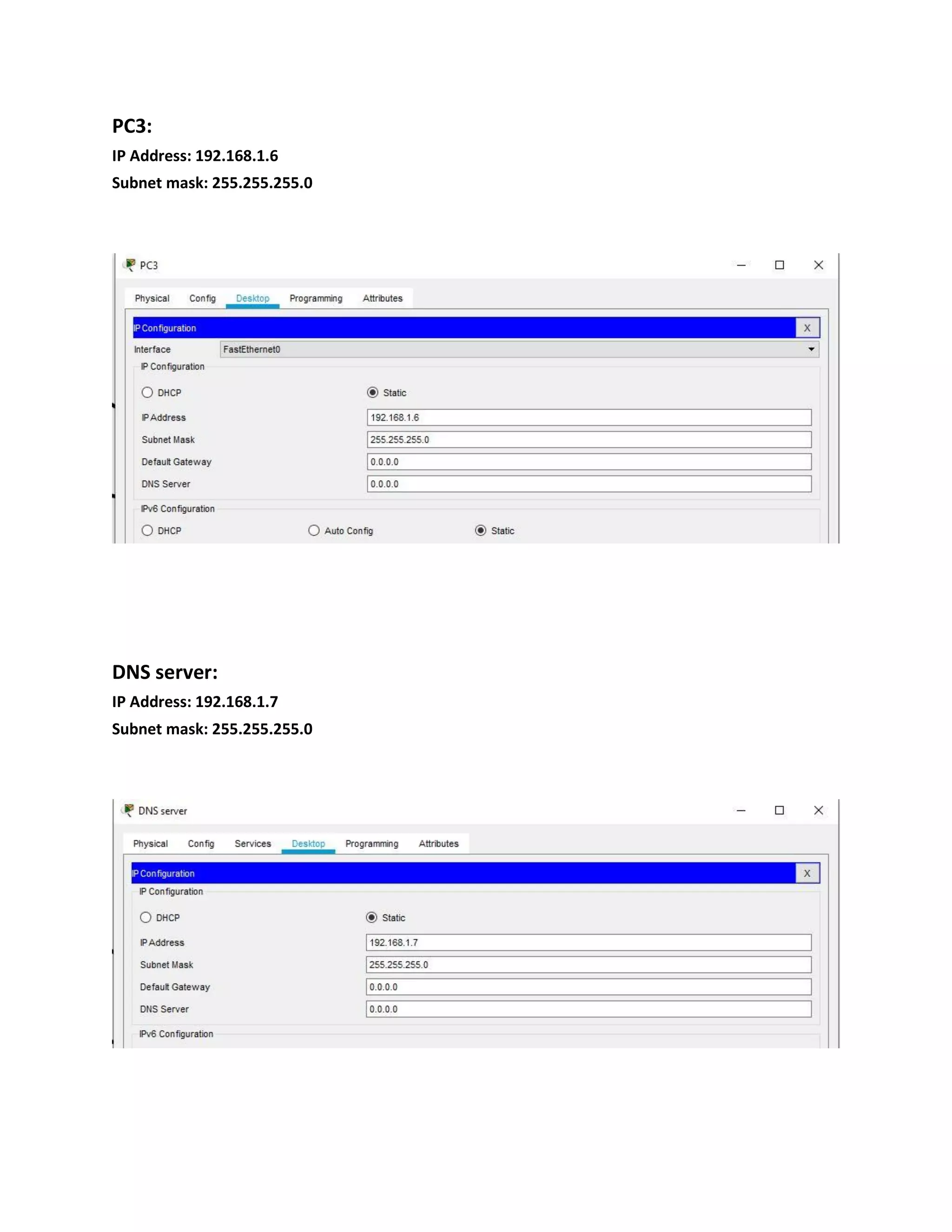
2. Configure IPaddresses on the PC’s ,DNS Server and the Mail Server:
Mail Server:
IP Address: 192.168.1.2
Subnet mask: 255.255.255.0
PC0:
IP Address: 192.168.1.3
Subnet mask: 255.255.255.0
3. Now configuremail clients on the PCs and mail service on the generic
server:
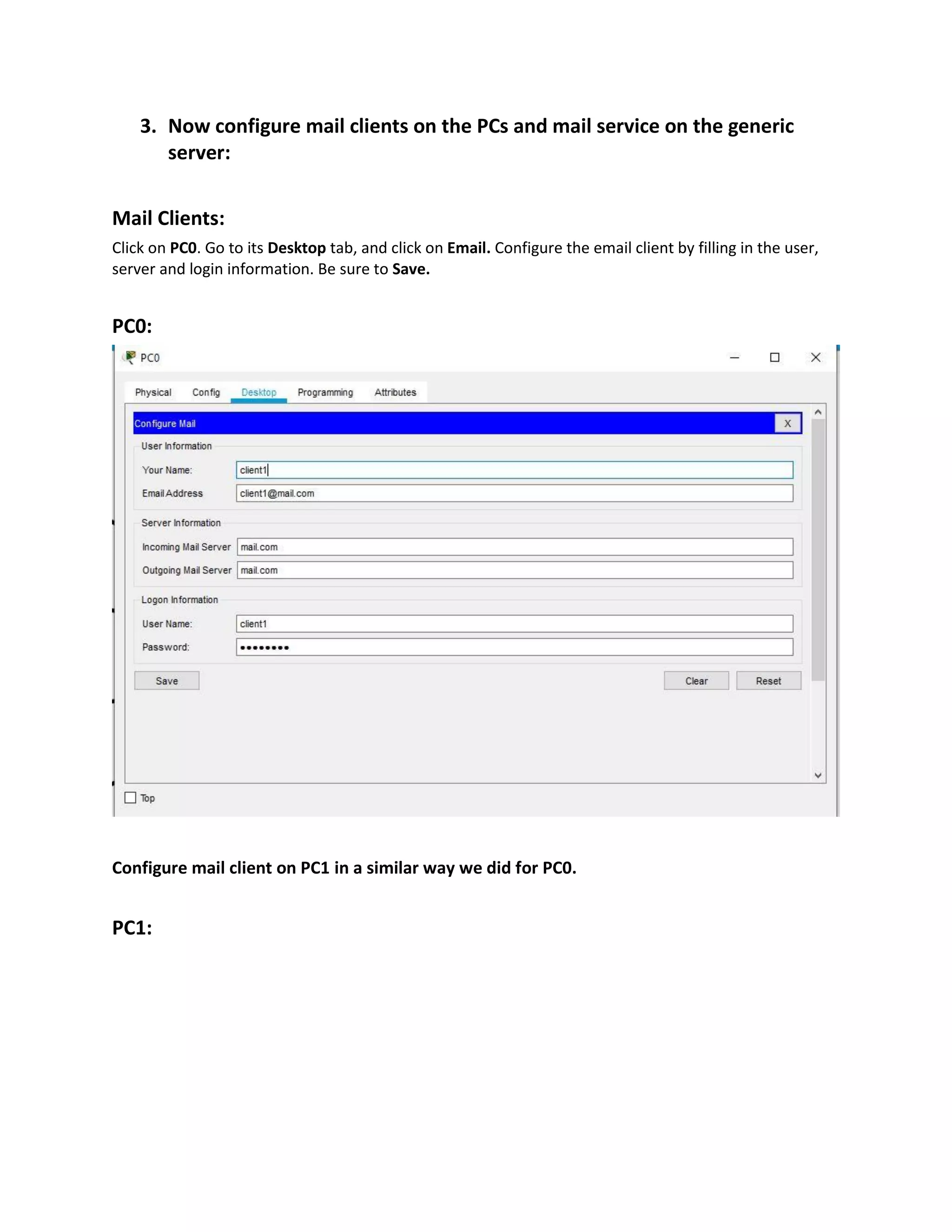
Mail Clients:
Click on PC0. Go to its Desktop tab, and click on Email. Configure the email client by filling in the user,
server and login information. Be sure to Save.
PC0:
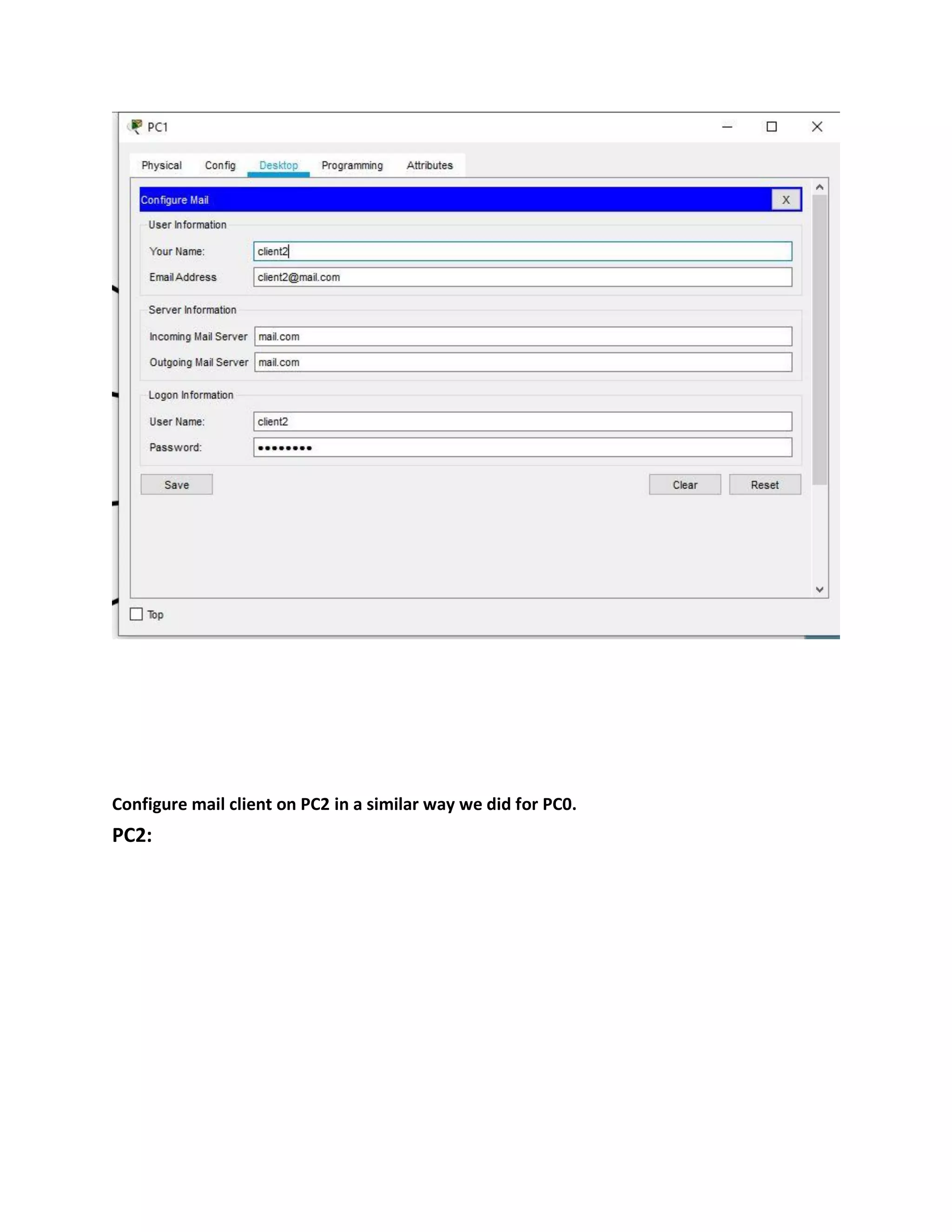
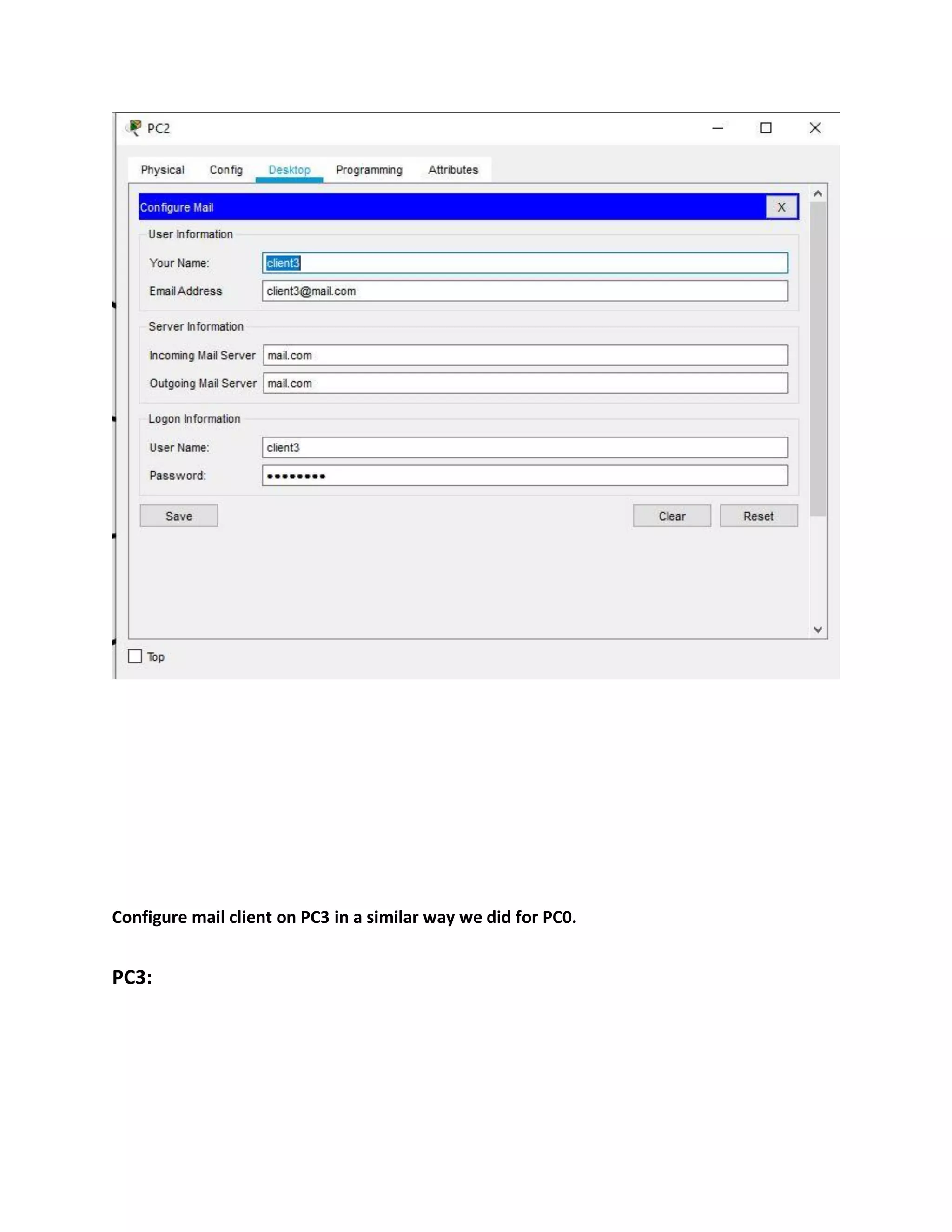
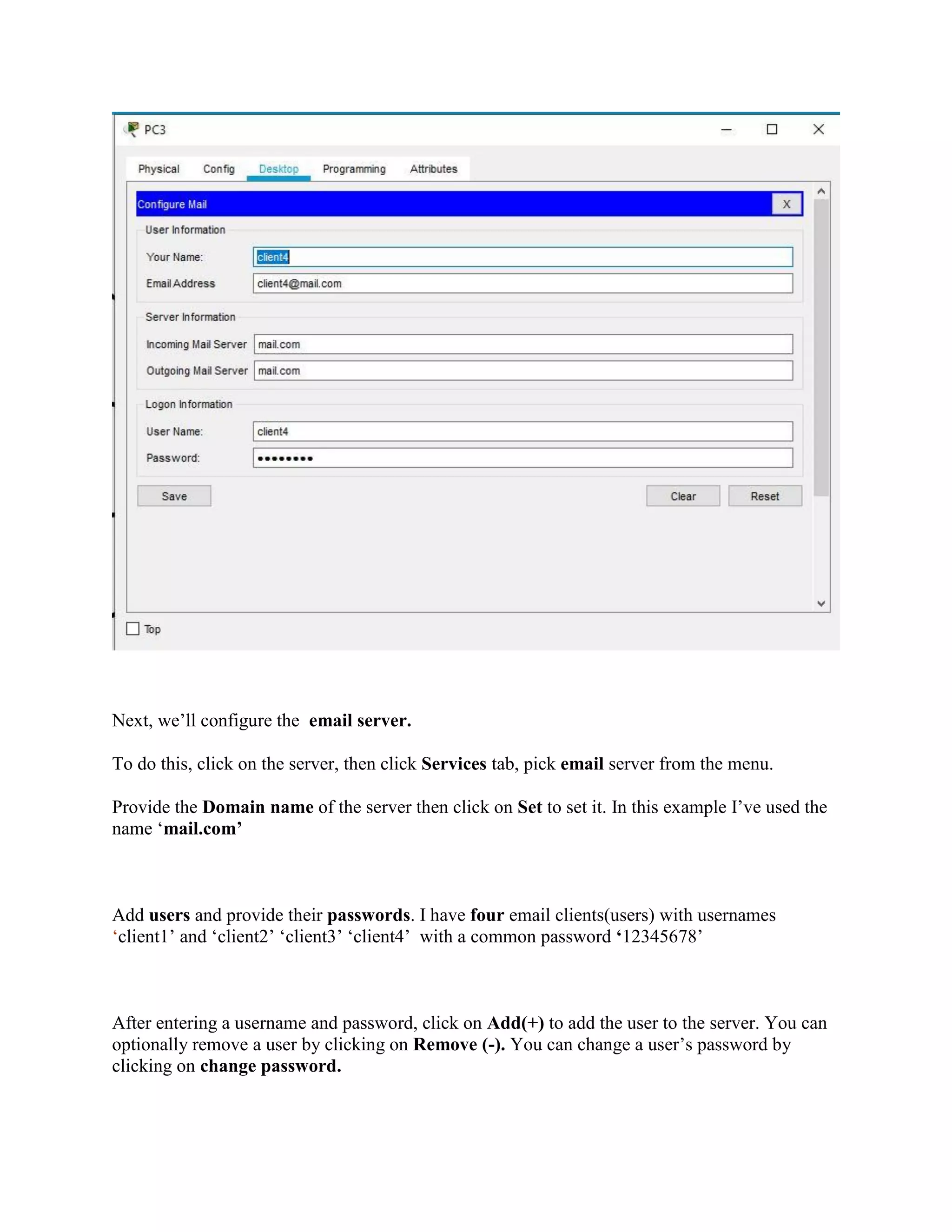
Configure mail client on PC1 in a similar way we did for PC0.
PC1:
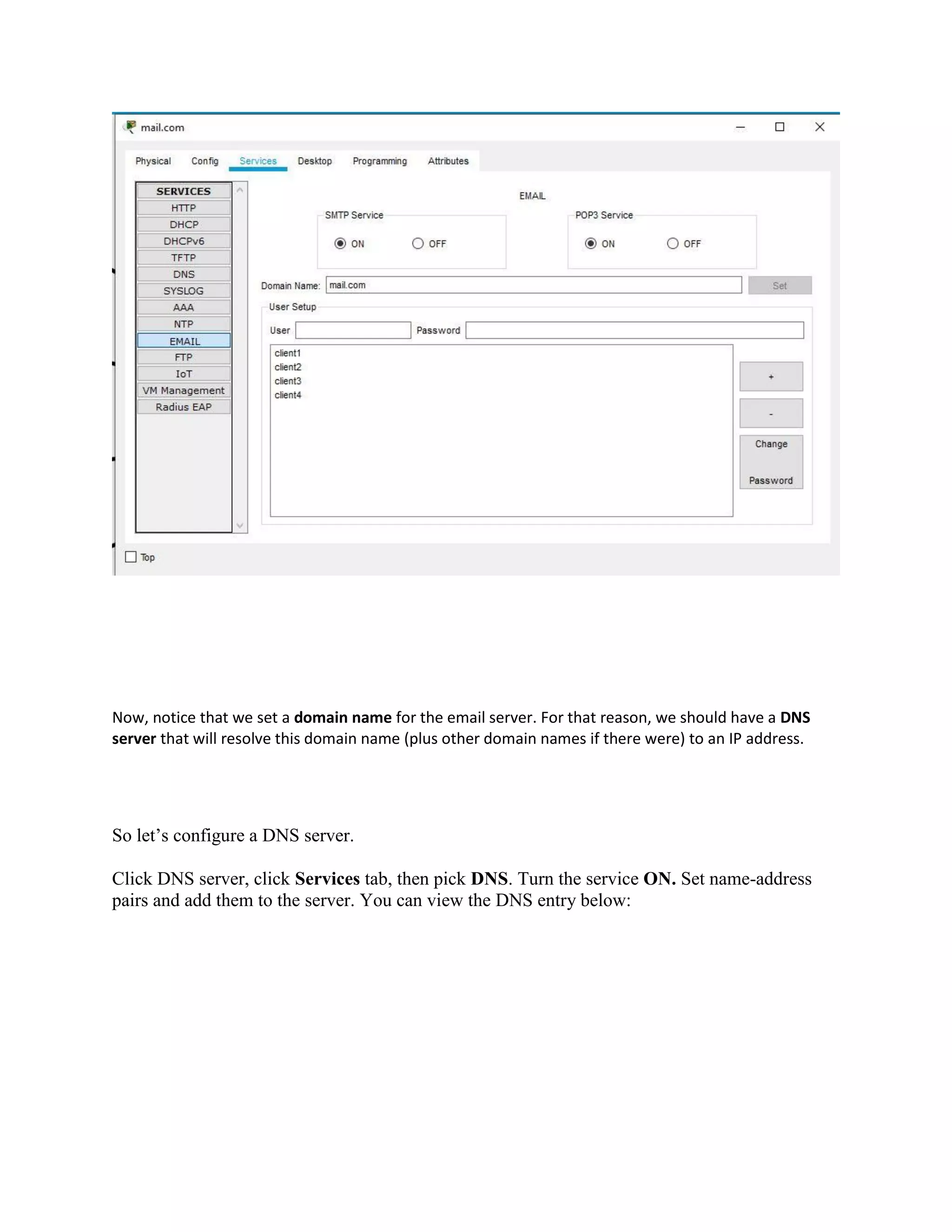
Next, we’ll configurethe email server.
To do this, click on the server, then click Services tab, pick email server from the menu.
Provide the Domain name of the server then click on Set to set it. In this example I’ve used the
name ‘mail.com’
Add users and provide their passwords. I have four email clients(users) with usernames
‘client1’ and ‘client2’ ‘client3’ ‘client4’ with a common password ‘12345678’
After entering a username and password, click on Add(+) to add the user to the server. You can
optionally remove a user by clicking on Remove (-). You can change a user’s password by
clicking on change password.
9.
Now, notice thatwe set a domain name for the email server. For that reason, we should have a DNS
server that will resolve this domain name (plus other domain names if there were) to an IP address.
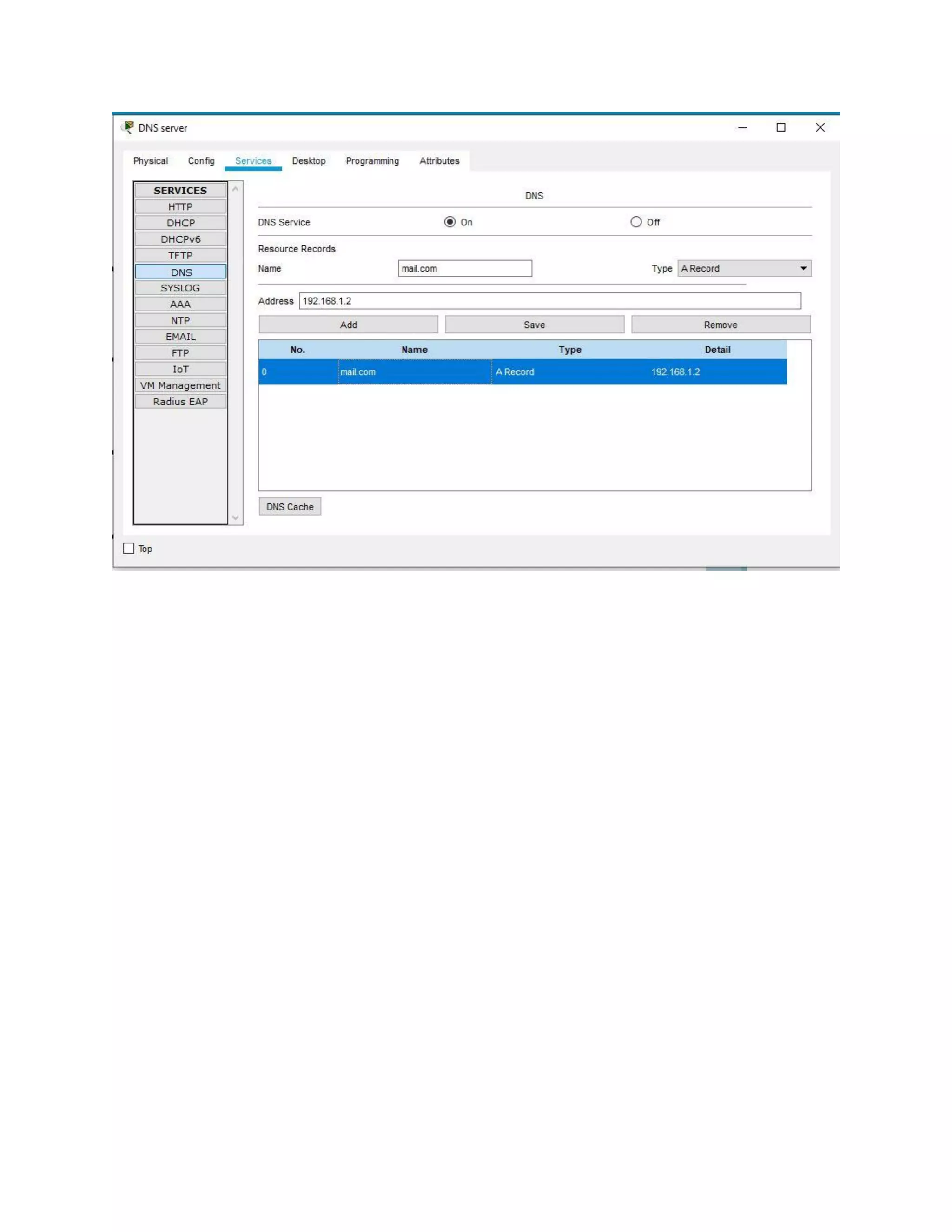
So let’s configure a DNS server.
Click DNS server, click Services tab, then pick DNS. Turn the service ON. Set name-address
pairs and add them to the server. You can view the DNS entry below:
11.
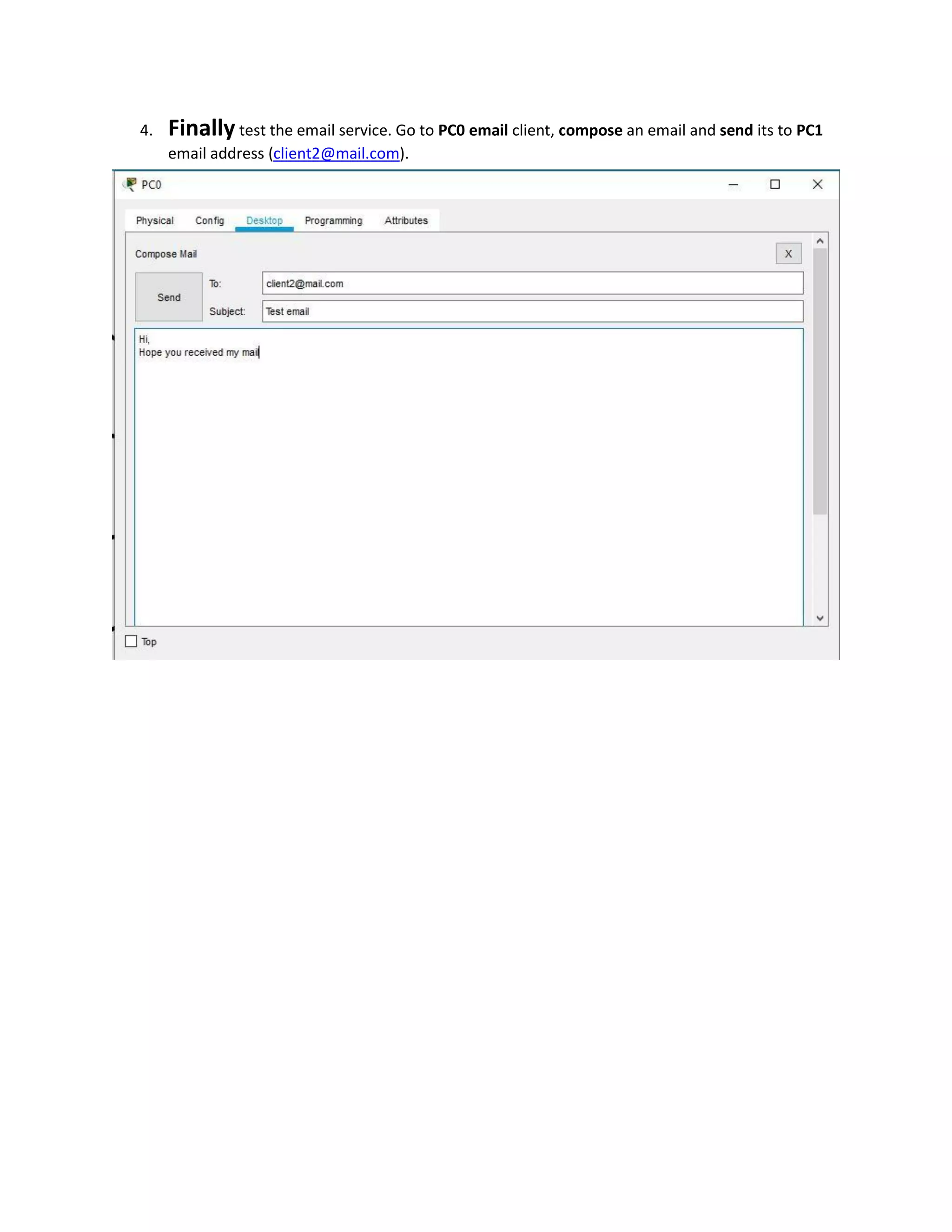
4. Finally testthe email service. Go to PC0 email client, compose an email and send its to PC1
email address (client2@mail.com).
12.
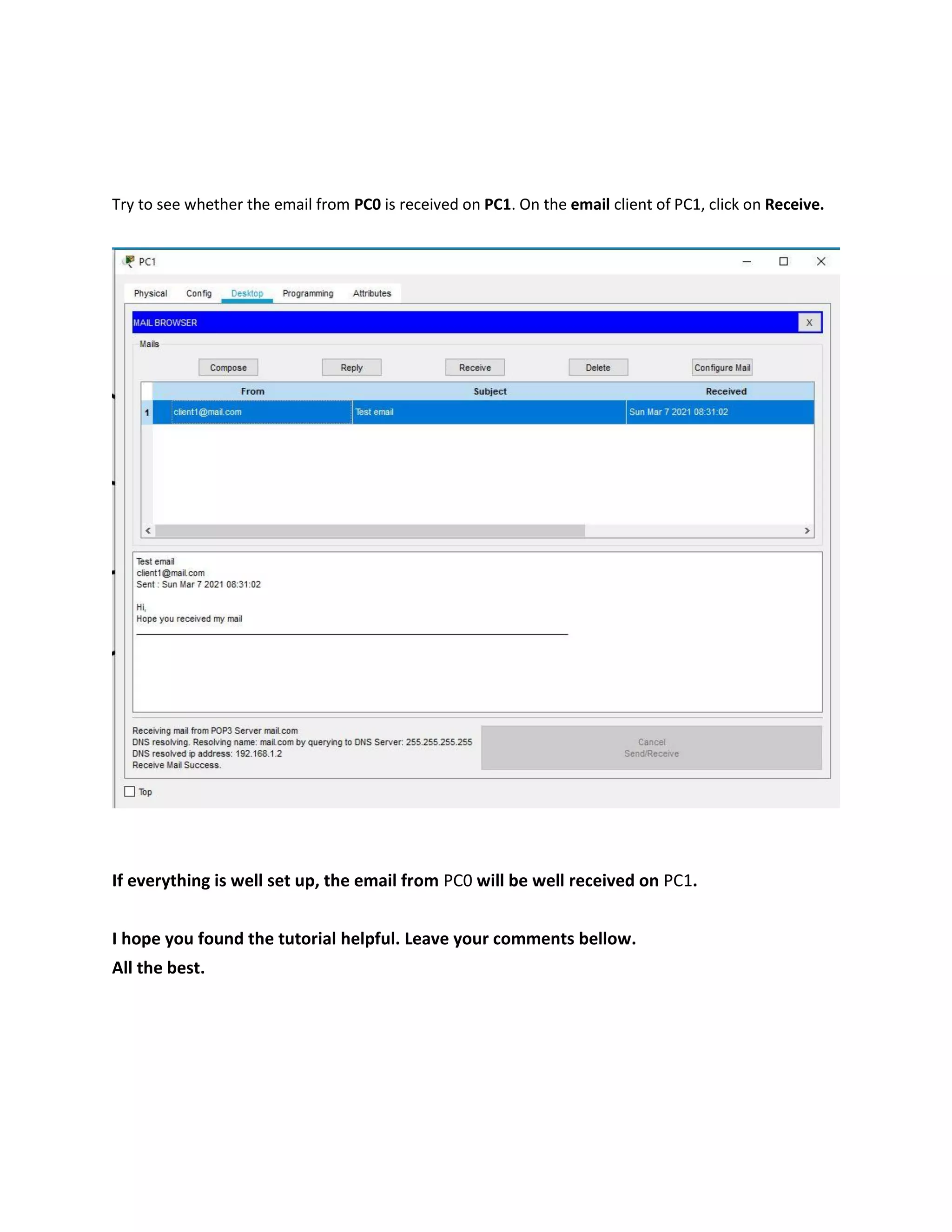
Try to seewhether the email from PC0 is received on PC1. On the email client of PC1, click on Receive.
If everything is well set up, the email from PC0 will be well received on PC1.
I hope you found the tutorial helpful. Leave your comments bellow.
All the best.