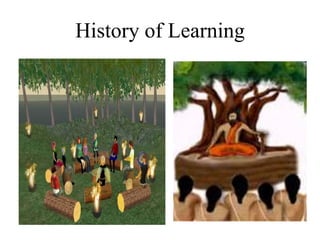




History of Learning
e
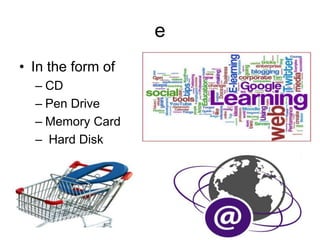
• In the form of
– CD
– Pen Drive
– Memory Card
– Hard Disk
E-learning Another Name
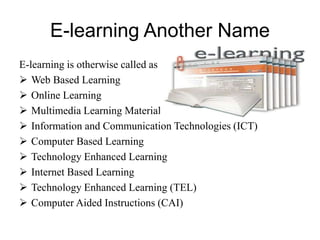
E-learning is otherwise called as
 Web Based Learning
 Online Learning
 Multimedia Learning Material (MLM)
 Information and Communication Technologies (ICT)
 Computer Based Learning
 Technology Enhanced Learning
 Internet Based Learning
 Technology Enhanced Learning (TEL)
 Computer Aided Instructions (CAI)
Definition
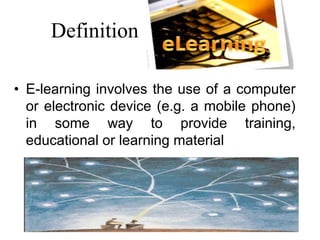
• E-learning involves the use of a computer
or electronic device (e.g. a mobile phone)
in some way to provide training,
educational or learning material
It is Combination of
Audio
Video
Text
Graphics
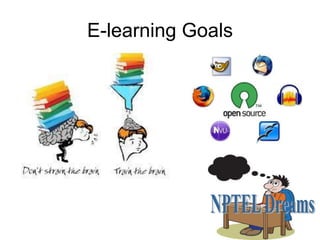
E-learning Goals
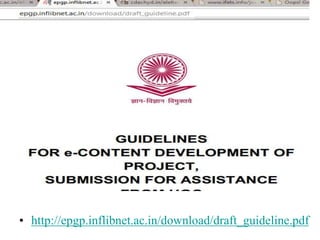
• http://epgp.inflibnet.ac.in/download/draft_guideline.pdf
Self-paced Course
• It involves using the
– Internet
– Intranet
Types of e- learning
• Synchronous
• Asynchronous
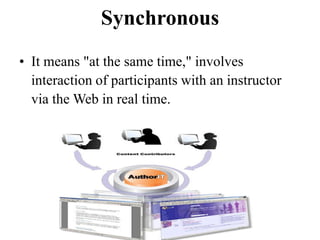
Synchronous
• It means "at the same time," involves
interaction of participants with an instructor
via the Web in real time.
Asynchronous
• Which means "not at the same time,"
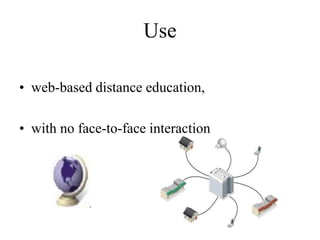
Use
• web-based distance education,
• with no face-to-face interaction
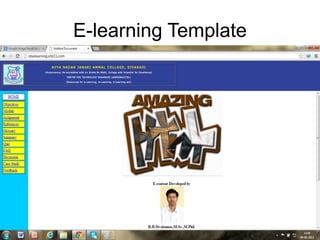
E-learning Template
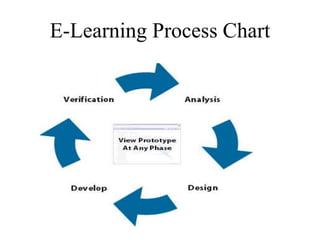
E-Learning Process Chart
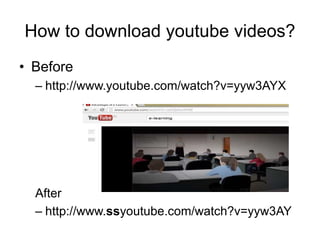
How to download youtube videos?
• Before
– http://www.youtube.com/watch?v=yyw3AYX
After
– http://www.ssyoutube.com/watch?v=yyw3AY
Advantages of E-Learning
• Online learning does not require physical
attendance
• 24 X 7
• Choose from a wide range of courses to
meet your needs
Disadvantages
• Technology issues
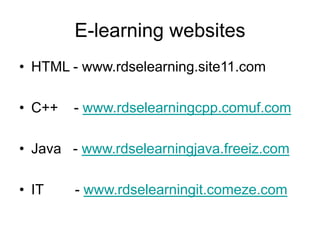
E-learning websites
• HTML - www.rdselearning.site11.com
• C++ - www.rdselearningcpp.comuf.com
• Java - www.rdselearningjava.freeiz.com
• IT - www.rdselearningit.comeze.com
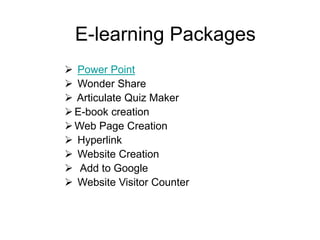
E-learning Packages
 Power Point
 Wonder Share
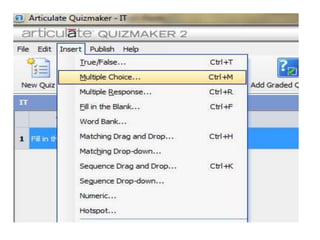
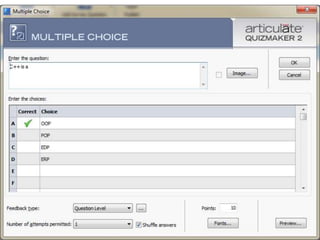
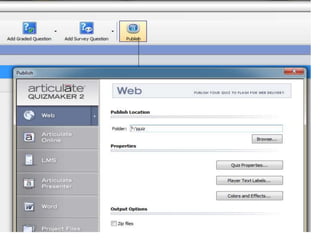
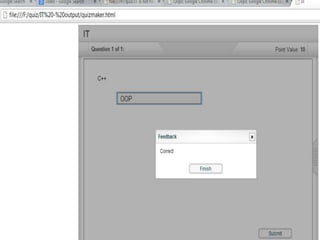
 Articulate Quiz Maker
E-book creation
Web Page Creation
 Hyperlink
 Website Creation
 Add to Google
 Website Visitor Counter
Format of e-content
• Make your one or two web pages an
outline of your e-content
• Follow the order of your outline for the rest
of the e-content
• Use the titles of each web page as main
points
Structure – Good
• Write in point form, not complete
sentences
• Include 4-5 points per Web page
• Avoid wordiness: use key words and
phrases only
Slide Structure - Bad
• This page contains too many words for a
presentation slide. It is not written in point
form, making it difficult both for your
audience to read and for you to present
each point. Although there are exactly the
same number of points on this slide as the
previous slide, it looks much more
complicated. In short, your audience will
spend too much time trying to read this
paragraph instead of listening to you.
Structure – Good
• Show one point at a time:
– Will help learner concentrate on what you are
saying
– Will prevent learner from reading ahead
– Will help you keep your e-content focused
Structure - Bad
• Do not use distracting animation
• Do not go overboard with the animation
• Be consistent with the animation that you
use
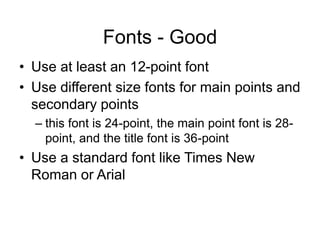
Fonts - Good
• Use at least an 12-point font
• Use different size fonts for main points and
secondary points
– this font is 24-point, the main point font is 28-
point, and the title font is 36-point
• Use a standard font like Times New
Roman or Arial
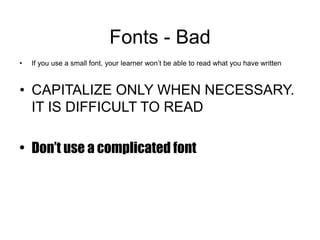
Fonts - Bad
• If you use a small font, your learner won’t be able to read what you have written
• CAPITALIZE ONLY WHEN NECESSARY.
IT IS DIFFICULT TO READ
• Don’t use a complicated font
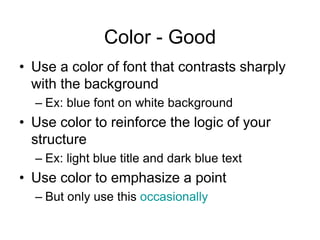
Color - Good
• Use a color of font that contrasts sharply
with the background
– Ex: blue font on white background
• Use color to reinforce the logic of your
structure
– Ex: light blue title and dark blue text
• Use color to emphasize a point
– But only use this occasionally
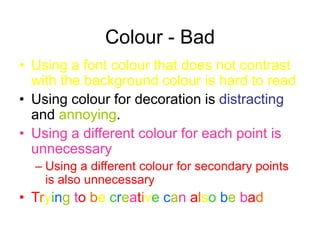
Colour - Bad
• Using a font colour that does not contrast
with the background colour is hard to read
• Using colour for decoration is distracting
and annoying.
• Using a different colour for each point is
unnecessary
– Using a different colour for secondary points
is also unnecessary
• Trying to be creative can also be bad
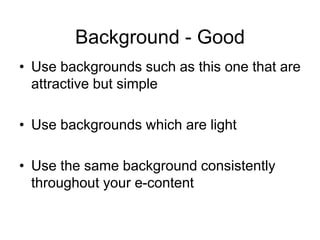
Background - Good
• Use backgrounds such as this one that are
attractive but simple
• Use backgrounds which are light
• Use the same background consistently
throughout your e-content
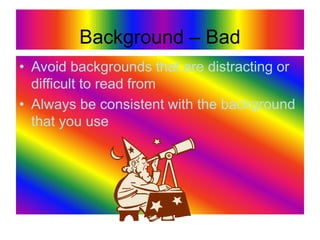
Background – Bad
• Avoid backgrounds that are distracting or
difficult to read from
• Always be consistent with the background
that you use
Graphs - Good
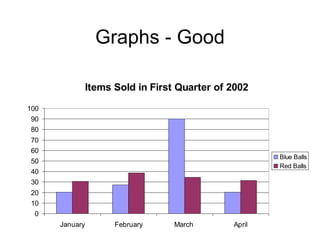
• Use graphs rather than just charts and
words
– Data in graphs is easier to comprehend &
retain than is raw data
– Trends are easier to visualize in graph form
• Always title your graphs
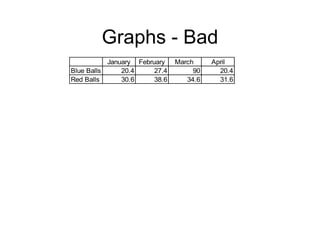
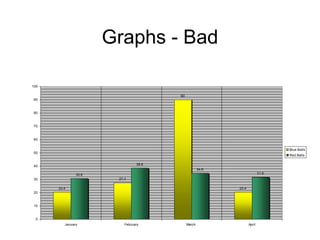
Graphs - Bad
January February March April
Blue Balls 20.4 27.4 90 20.4
Red Balls 30.6 38.6 34.6 31.6
Graphs - Good
Items Sold in First Quarter of 2002
0
10
20
30
40
50
60
70
80
90
100
January February March April
Blue Balls
Red Balls
Graphs - Bad
20.4
27.4
90
20.4
30.6
38.6
34.6
31.6
0
10
20
30
40
50
60
70
80
90
100
January February March April
Blue Balls
Red Balls
Graphs - Bad
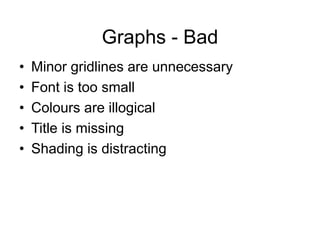
• Minor gridlines are unnecessary
• Font is too small
• Colours are illogical
• Title is missing
• Shading is distracting
Spelling and Grammar
• Proof your e-content for:
– speling mistakes
– the use of of repeated words
– grammatical errors you might have make
• If English is not your first language, please
have someone else check your
presentation!
What is Power Point?
• To Create a Presentation
• Microsoft Product
• Version – 2003, 2007, 2010
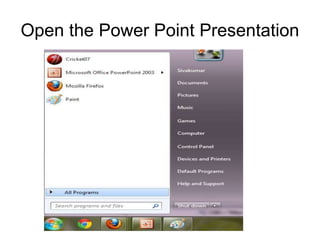
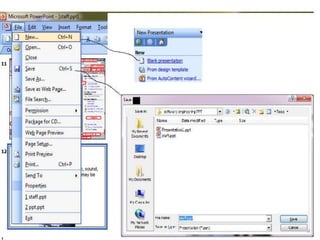
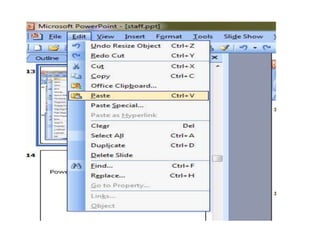
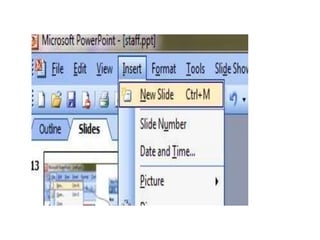
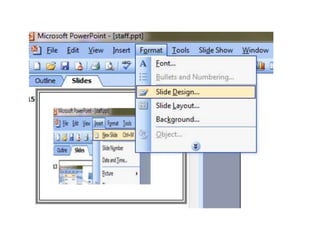
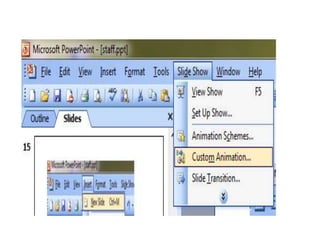
Open the Power Point Presentation
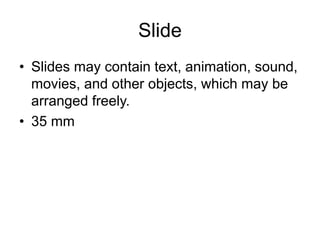
Slide
• Slides may contain text, animation, sound,
movies, and other objects, which may be
arranged freely.
• 35 mm
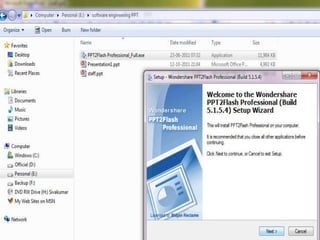
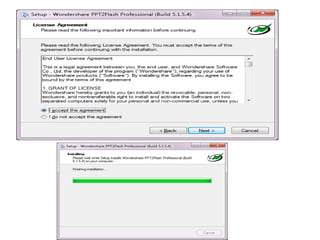
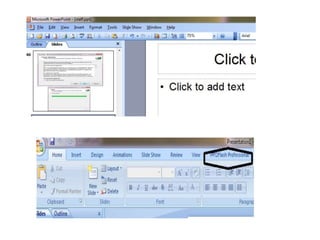
Wonder Share
• To convert from Power Point Presentation
to Flash and Web Pages.
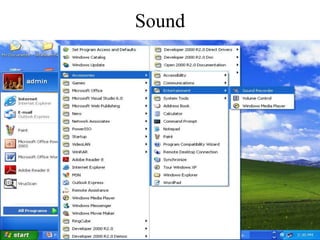
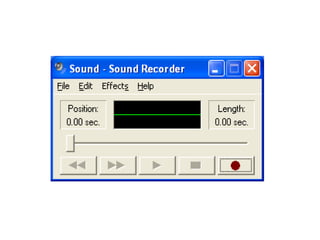
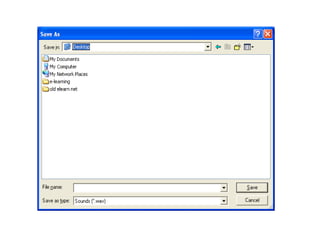
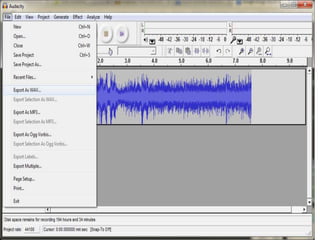
Sound
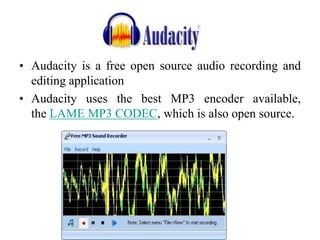
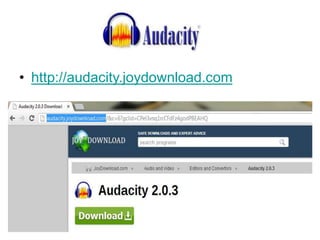
• Audacity is a free open source audio recording and
editing application
• Audacity uses the best MP3 encoder available,
the LAME MP3 CODEC, which is also open source.
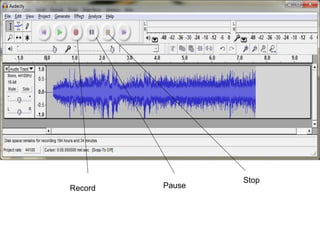
Record Pause
Stop
• http://audacity.joydownload.com
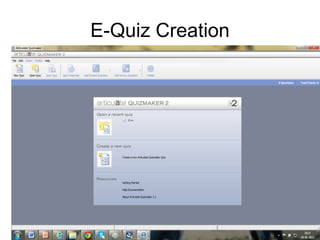
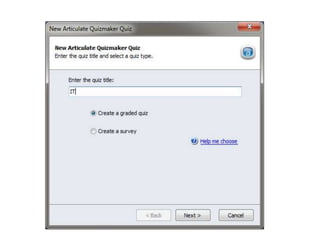
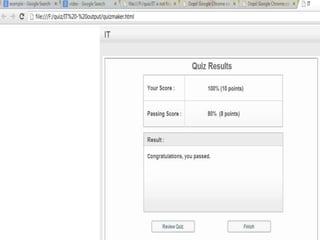
E-Quiz Creation
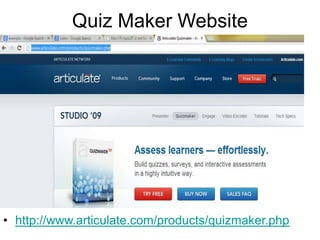
Quiz Maker Website
• http://www.articulate.com/products/quizmaker.php
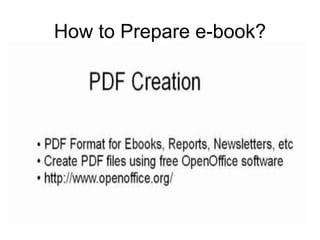
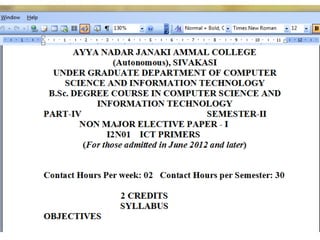
How to Prepare e-book?
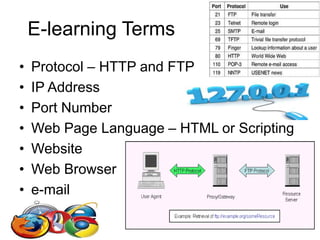
E-learning Terms
• Protocol – HTTP and FTP
• IP Address
• Port Number
• Web Page Language – HTML or Scripting
• Website
• Web Browser
• e-mail
HTML
• HTML – Hypertext Markup Language
• Save Extension – filename.html
• Run – Web Browser
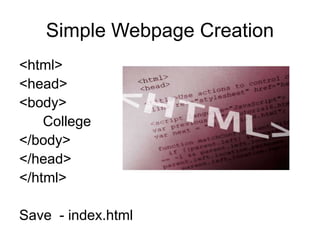
Simple Webpage Creation
<html>
<head>
<body>
College
</body>
</head>
</html>
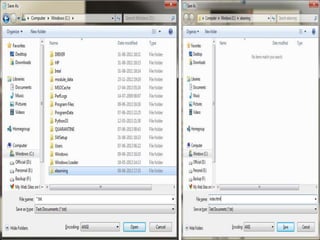
Save - index.html
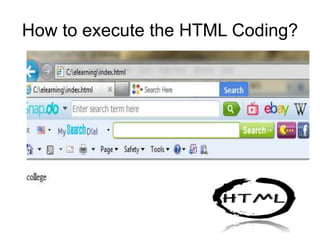
How to execute the HTML Coding?
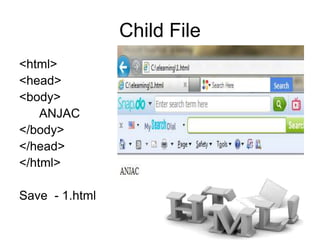
Child File
<html>
<head>
<body>
ANJAC
</body>
</head>
</html>
Save - 1.html
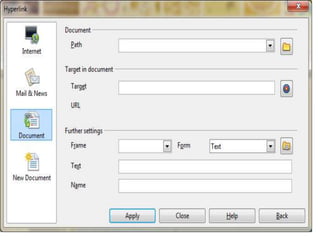
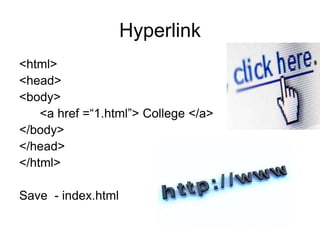
Hyperlink
<html>
<head>
<body>
<a href =“1.html”> College </a>
</body>
</head>
</html>
Save - index.html
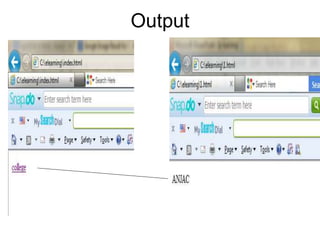
Output
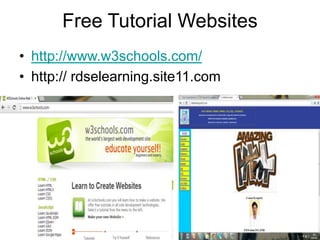
Free Tutorial Websites
• http://www.w3schools.com/
• http:// rdselearning.site11.com
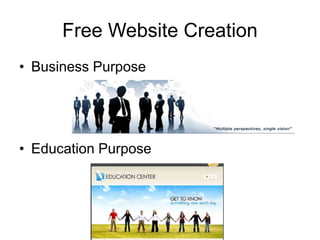
Free Website Creation
• Business Purpose
• Education Purpose
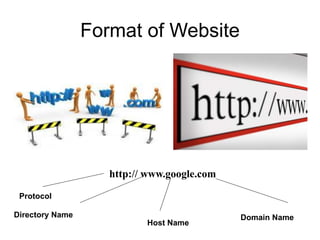
Format of Website
http:// www.google.com
Directory Name
Host Name
Domain Name
Protocol
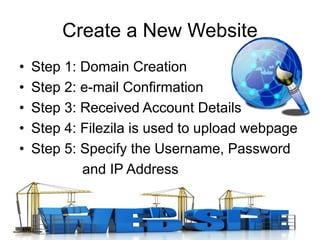
Create a New Website
• Step 1: Domain Creation
• Step 2: e-mail Confirmation
• Step 3: Received Account Details
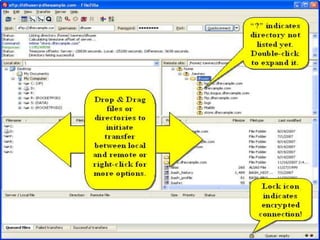
• Step 4: Filezila is used to upload webpage
• Step 5: Specify the Username, Password
and IP Address
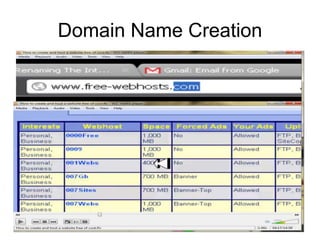
Domain Name Creation
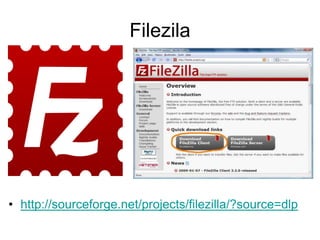
Filezila
• http://sourceforge.net/projects/filezilla/?source=dlp
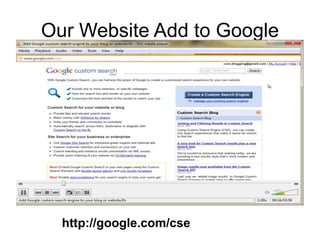
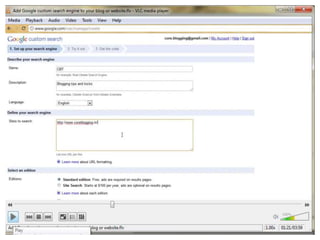
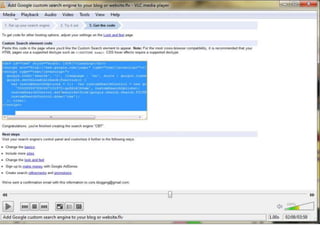
Our Website Add to Google
http://google.com/cse
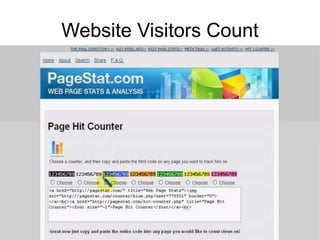
Website Visitors Count
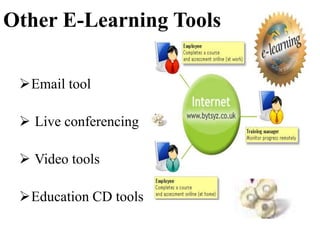
Other E-Learning Tools
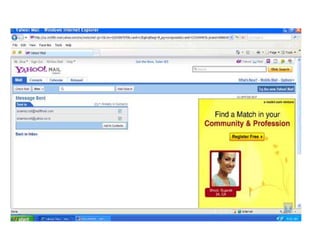
Email tool
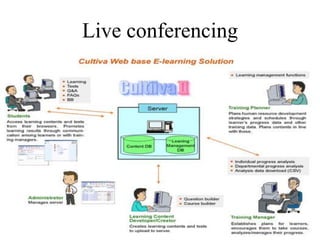
 Live conferencing
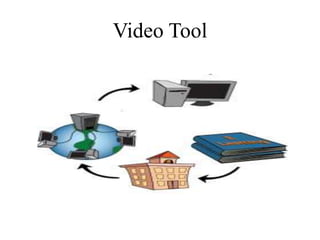
 Video tools
Education CD tools
• E-Chatting
• E – Assignment
• E – Quiz
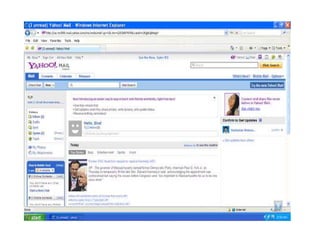
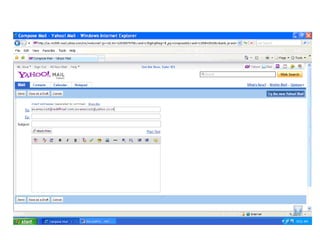
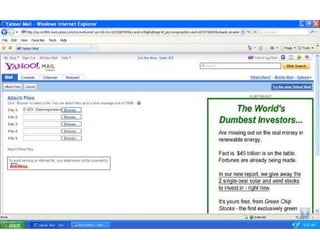
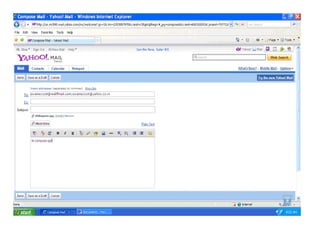
E-Mail Tool
• Used to Send and Receiving a Message
Live conferencing
Video Tool
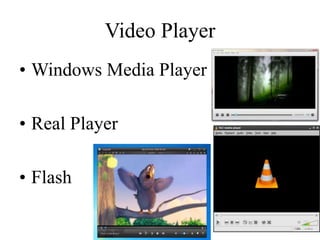
Video Player
• Windows Media Player
• Real Player
• Flash
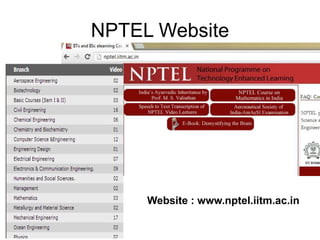
NPTEL Website
Website : www.nptel.iitm.ac.in
Small Tips
Future Plan
E-Content Development - R.D.Sivakumar

E-Content Development - R.D.Sivakumar