
Docker in a JS Developers’ Life
Valerii Radchenko
Senior Software Engineer
18.12.2017
3
Agenda
1. About Docker
2. Work with Dockerfiles
3. Docker CLI commands
4. Javascript and Docker practical tips
Conclusion
4
About Docker
5
What is Docker?
● Docker allows shipping your applications together with an
environment.
● Docker is not a virtual machine, it uses the resource isolation
features of the Linux kernel such as cgroups and kernel
namespaces.
● Docker provides a free public cloud-based registry.
6
When should I use Docker?
● Do you need to run multiple copies of a single application (e.g,
PostgreSQL, MySQL)?
If yes, choose Docker.
● Are you OK with using one OS version for your application?
If yes, choose Docker.
● Do you need to run as many applications as you can on a limited
hardware budget?
If yes, choose Docker.
● Do you need multiple (or obscure) OS’es?
If yes, go with a VM.
7
Images and Containers
8
Images
● An image is a read-only template with instructions for creating a
Docker container.
● Images based on other images.
Containers
● A container is a runnable instance of an image.
● A container is an isolated process.
● You can manage containers using Docker API or CLI and even
create a new image based on its current state.
9
Work with Dockerfiles
10
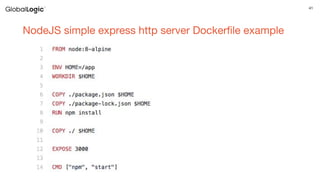
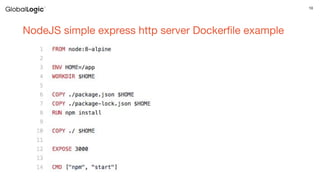
NodeJS simple express http server Dockerfile example
11
FROM instruction
FROM <image>[:<tag>] [AS <name>]
The FROM instruction initializes a new build stage and sets the Base
Image for subsequent instructions. As such, a valid Dockerfile must
start with a FROM instruction.
The image can be any valid image – it is especially easy to start by
pulling an image from the Public Repositories.
12
RUN instruction
RUN ["executable", "param1", "param2"]
RUN <command> && <command>
The RUN instruction will execute any commands in a new layer on
top of the current image and commit the results.
The resulting committed image will be used for the next step in the
Dockerfile.
13
ENTRYPOINT instruction
ENTRYPOINT command param1 param2
ENTRYPOINT ["executable", "param1", "param2"]
An ENTRYPOINT allows you to configure a container that will run as
an executable.
14
CMD instruction
CMD command param1 param2
CMD ["executable","param1","param2"]
The main purpose of a CMD is to provide defaults for an executing
container. These defaults can include an executable, or they can
omit the executable, in which case you must specify an
ENTRYPOINT instruction as well.
15
COPY instruction
COPY ["<src>",... "<dest>"]
COPY <src>... <dest>
The COPY instruction copies new files or directories from <src> and
adds them to the filesystem of the container at the path <dest>.
16
ADD instruction
ADD ["<src>",... "<dest>"]
ADD <src>... <dest>
The ADD instruction copies new files, directories or remote file URLs
from <src> and adds them to the filesystem of the image at the path
<dest>.
17
EXPOSE instruction
EXPOSE <port> [<port>/<protocol>...]
The EXPOSE instruction informs Docker that the container listens on
the specified network ports at runtime.
You can specify whether the port listens on TCP or UDP, and the
default is TCP if the protocol is not specified.
18
VOLUME instruction
VOLUME ["/data"]
VOLUME /data
It creates a mount point with the specified name and marks it as
holding externally mounted volumes from native host or other
containers.
The value can be a JSON array, VOLUME ["/var/log/"], or a plain
string with multiple arguments, such as VOLUME /var/log or
VOLUME /var/log /var/db.
More information/examples — Share Directories via Volumes
documentation.
19
WORKDIR instruction
WORKDIR /path/to/workdir
The WORKDIR instruction sets the working directory for any RUN,
CMD, ENTRYPOINT, COPY and ADD instructions that follow it in the
Dockerfile.
If the WORKDIR doesn’t exist, it will be created even if it’s not used
in any subsequent Dockerfile instruction.
20
Docker CLI commands
21
Build command
● Docker build –t name[:tag] <context path>
- The docker build command builds Docker images from a Dockerfile and a
“context”.
- A build’s context is the set of files located in the specified PATH or URL.
● Flags
- --tag , -t Name and optionally a tag in the ‘name:tag’ format
- --file , -f Name of the Dockerfile (Default is ‘PATH/Dockerfile’)
22
Run command
docker run [OPTIONS] IMAGE[:TAG|@DIGEST] [COMMAND] [ARG...]
● Docker runs processes in isolated containers.
● A container is a process which runs on a host.
● The host may be local or remote.
23
Run command FLAGS
Flags
- --name Container identification.
- -p=[] Publish a container᾿s port or a range of ports to the host.
- -v, --volumeBind mount a volume.
- --rm Automatically clean up the container and remove the file system
when the container exits.
- -it Keep STDIN open even if not attached and Allocate a pseudo-tty
- -d Detached mode (background mode).
24
ps command
docker ps [OPTIONS]
- Show containers list.
Flags
--all , -a Show all containers (default shows just running)
--quiet , -q Only display numeric IDs
25
Images command
docker images [OPTIONS] [REPOSITORY[:TAG]]
- Show images list.
Flags
--all , -a Show all images (default hides intermediate images)
--quiet , -q Only display numeric IDs
26
Exec command
docker exec [OPTIONS] CONTAINER COMMAND [ARG...]
-Run a command in a running container.
Flags
--detach , -d Detached mode: run command in the background.
--env , -e Set environment variables.
-it Keep STDIN open even if not attached and Allocate a pseudo-tty
27
Attach command
docker attach [OPTIONS] CONTAINER
- Attach local standard input, output, and error streams to a running
container.
28
Commit command
docker commit [OPTIONS] CONTAINER [REPOSITORY[:TAG]]
- Create a new image from a container’s changes.
29
Start, Stop, Restart commands
docker (stop | start | restart) [OPTIONS] CONTAINER [CONTAINER...]
30
Login command
docker login [OPTIONS] [SERVER]
- Log in to a Docker registry.
31
Pull command
docker pull [OPTIONS] NAME[:TAG|@DIGEST]
- Pull an image or a repository from a registry.
32
Push command
docker push [OPTIONS] NAME[:TAG]
- Push an image or a repository to a registry.
33
Volume command
docker volume create [OPTIONS] [VOLUME]
- Create a volume.
docker volume ls [OPTIONS]
- Volumes list.
docker volume rm [OPTIONS] VOLUME [VOLUME...]
- Remove one or more volumes.
34
Network command
docker network create [OPTIONS] NETWORK
- Create a network.
docker network ls [OPTIONS]
- Networks list.
docker network rm NETWORK [NETWORK...]
- Remove one or more networks.
35
Javascript and Docker practical tips
36
Always use .dockerignore
• The current working directory where you are located when you issue a
docker build  command is called the build context.
• All of the recursive contents of files and directories in the current directory
are sent to the Docker daemon as the build context.
• Inadvertently including files that are not necessary for building the image
results in a larger build context and larger image size.
• These in turn can increase build time, time to pull and push the image, and
the runtime size of containers.
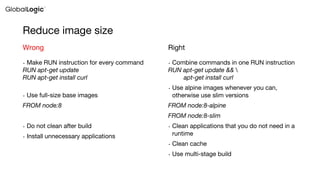
Reduce image size
• Make RUN instruction for every command
RUN apt-get update
RUN apt-get install curl
• Use full-size base images
FROM node:8
• Do not clean after build
• Install unnecessary applications
Wrong
• Combine commands in one RUN instruction
RUN apt-get update && 
apt-get install curl
• Use alpine images whenever you can,
otherwise use slim versions
FROM node:8-alpine
FROM node:8-slim
• Clean applications that you do not need in a
runtime
• Clean cache
• Use multi-stage build
Right
38
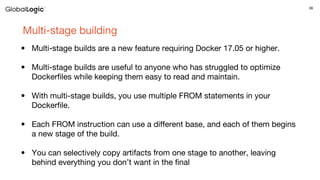
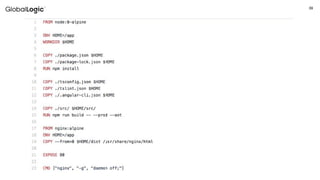
Multi-stage building
• Multi-stage builds are a new feature requiring Docker 17.05 or higher.
• Multi-stage builds are useful to anyone who has struggled to optimize
Dockerfiles while keeping them easy to read and maintain.
• With multi-stage builds, you use multiple FROM statements in your
Dockerfile.
• Each FROM instruction can use a different base, and each of them begins
a new stage of the build.
• You can selectively copy artifacts from one stage to another, leaving
behind everything you don’t want in the final
39
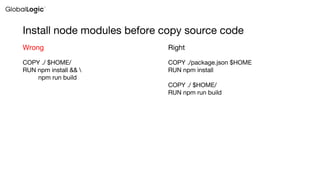
Install node modules before copy source code
COPY ./ $HOME/
RUN npm install && 
npm run build
Wrong
COPY ./package.json $HOME
RUN npm install
COPY ./ $HOME/
RUN npm run build
Right
41
NodeJS simple express http server Dockerfile example
42
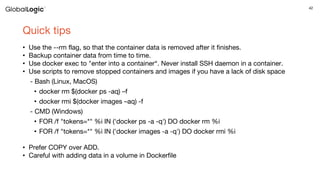
Quick tips
• Use the --rm flag, so that the container data is removed after it finishes.
• Backup container data from time to time.
• Use docker exec to "enter into a container“. Never install SSH daemon in a container.
• Use scripts to remove stopped containers and images if you have a lack of disk space
- Bash (Linux, MacOS)
• docker rm $(docker ps -aq) –f
• docker rmi $(docker images –aq) -f
- CMD (Windows)
• FOR /f "tokens=*" %i IN ('docker ps -a -q') DO docker rm %i
• FOR /f "tokens=*" %i IN ('docker images -a -q') DO docker rmi %i
• Prefer COPY over ADD.
• Careful with adding data in a volume in Dockerfile
43
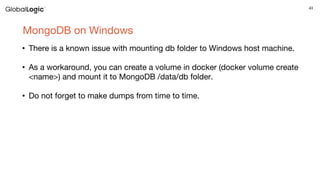
MongoDB on Windows
• There is a known issue with mounting db folder to Windows host machine.
• As a workaround, you can create a volume in docker (docker volume create
<name>) and mount it to MongoDB /data/db folder.
• Do not forget to make dumps from time to time.
44
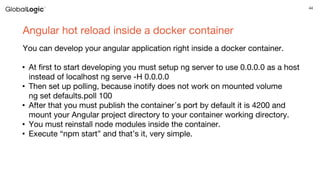
Angular hot reload inside a docker container
You can develop your angular application right inside a docker container.
• At first to start developing you must setup ng server to use 0.0.0.0 as a host
instead of localhost ng serve -H 0.0.0.0
• Then set up polling, because inotify does not work on mounted volume
ng set defaults.poll 100
• After that you must publish the container᾿s port by default it is 4200 and
mount your Angular project directory to your container working directory.
• You must reinstall node modules inside the container.
• Execute “npm start” and that’s it, very simple.
45
Conclusion
46
What next?
• Docker compose
• Docker swarm mode
• Learn GNU Linux
47
Useful links
• JS TechTalk Docker examples
• Official Docker documentation
• Docker Tips and Tricks
• Why use Docker
Thank you
Docker in a JS Developer’s Life

Docker in a JS Developer’s Life

  • 2.
    Docker in aJS Developers’ Life Valerii Radchenko Senior Software Engineer 18.12.2017
  • 3.
    3 Agenda 1. About Docker 2.Work with Dockerfiles 3. Docker CLI commands 4. Javascript and Docker practical tips Conclusion
  • 4.
  • 5.
    5 What is Docker? ●Docker allows shipping your applications together with an environment. ● Docker is not a virtual machine, it uses the resource isolation features of the Linux kernel such as cgroups and kernel namespaces. ● Docker provides a free public cloud-based registry.
  • 6.
    6 When should Iuse Docker? ● Do you need to run multiple copies of a single application (e.g, PostgreSQL, MySQL)? If yes, choose Docker. ● Are you OK with using one OS version for your application? If yes, choose Docker. ● Do you need to run as many applications as you can on a limited hardware budget? If yes, choose Docker. ● Do you need multiple (or obscure) OS’es? If yes, go with a VM.
  • 7.
  • 8.
    8 Images ● An imageis a read-only template with instructions for creating a Docker container. ● Images based on other images. Containers ● A container is a runnable instance of an image. ● A container is an isolated process. ● You can manage containers using Docker API or CLI and even create a new image based on its current state.
  • 9.
  • 10.
    10 NodeJS simple expresshttp server Dockerfile example
  • 11.
    11 FROM instruction FROM <image>[:<tag>][AS <name>] The FROM instruction initializes a new build stage and sets the Base Image for subsequent instructions. As such, a valid Dockerfile must start with a FROM instruction. The image can be any valid image – it is especially easy to start by pulling an image from the Public Repositories.
  • 12.
    12 RUN instruction RUN ["executable","param1", "param2"] RUN <command> && <command> The RUN instruction will execute any commands in a new layer on top of the current image and commit the results. The resulting committed image will be used for the next step in the Dockerfile.
  • 13.
    13 ENTRYPOINT instruction ENTRYPOINT commandparam1 param2 ENTRYPOINT ["executable", "param1", "param2"] An ENTRYPOINT allows you to configure a container that will run as an executable.
  • 14.
    14 CMD instruction CMD commandparam1 param2 CMD ["executable","param1","param2"] The main purpose of a CMD is to provide defaults for an executing container. These defaults can include an executable, or they can omit the executable, in which case you must specify an ENTRYPOINT instruction as well.
  • 15.
    15 COPY instruction COPY ["<src>",..."<dest>"] COPY <src>... <dest> The COPY instruction copies new files or directories from <src> and adds them to the filesystem of the container at the path <dest>.
  • 16.
    16 ADD instruction ADD ["<src>",..."<dest>"] ADD <src>... <dest> The ADD instruction copies new files, directories or remote file URLs from <src> and adds them to the filesystem of the image at the path <dest>.
  • 17.
    17 EXPOSE instruction EXPOSE <port>[<port>/<protocol>...] The EXPOSE instruction informs Docker that the container listens on the specified network ports at runtime. You can specify whether the port listens on TCP or UDP, and the default is TCP if the protocol is not specified.
  • 18.
    18 VOLUME instruction VOLUME ["/data"] VOLUME/data It creates a mount point with the specified name and marks it as holding externally mounted volumes from native host or other containers. The value can be a JSON array, VOLUME ["/var/log/"], or a plain string with multiple arguments, such as VOLUME /var/log or VOLUME /var/log /var/db. More information/examples — Share Directories via Volumes documentation.
  • 19.
    19 WORKDIR instruction WORKDIR /path/to/workdir TheWORKDIR instruction sets the working directory for any RUN, CMD, ENTRYPOINT, COPY and ADD instructions that follow it in the Dockerfile. If the WORKDIR doesn’t exist, it will be created even if it’s not used in any subsequent Dockerfile instruction.
  • 20.
  • 21.
    21 Build command ● Dockerbuild –t name[:tag] <context path> - The docker build command builds Docker images from a Dockerfile and a “context”. - A build’s context is the set of files located in the specified PATH or URL. ● Flags - --tag , -t Name and optionally a tag in the ‘name:tag’ format - --file , -f Name of the Dockerfile (Default is ‘PATH/Dockerfile’)
  • 22.
    22 Run command docker run[OPTIONS] IMAGE[:TAG|@DIGEST] [COMMAND] [ARG...] ● Docker runs processes in isolated containers. ● A container is a process which runs on a host. ● The host may be local or remote.
  • 23.
    23 Run command FLAGS Flags ---name Container identification. - -p=[] Publish a container᾿s port or a range of ports to the host. - -v, --volumeBind mount a volume. - --rm Automatically clean up the container and remove the file system when the container exits. - -it Keep STDIN open even if not attached and Allocate a pseudo-tty - -d Detached mode (background mode).
  • 24.
    24 ps command docker ps[OPTIONS] - Show containers list. Flags --all , -a Show all containers (default shows just running) --quiet , -q Only display numeric IDs
  • 25.
    25 Images command docker images[OPTIONS] [REPOSITORY[:TAG]] - Show images list. Flags --all , -a Show all images (default hides intermediate images) --quiet , -q Only display numeric IDs
  • 26.
    26 Exec command docker exec[OPTIONS] CONTAINER COMMAND [ARG...] -Run a command in a running container. Flags --detach , -d Detached mode: run command in the background. --env , -e Set environment variables. -it Keep STDIN open even if not attached and Allocate a pseudo-tty
  • 27.
    27 Attach command docker attach[OPTIONS] CONTAINER - Attach local standard input, output, and error streams to a running container.
  • 28.
    28 Commit command docker commit[OPTIONS] CONTAINER [REPOSITORY[:TAG]] - Create a new image from a container’s changes.
  • 29.
    29 Start, Stop, Restartcommands docker (stop | start | restart) [OPTIONS] CONTAINER [CONTAINER...]
  • 30.
    30 Login command docker login[OPTIONS] [SERVER] - Log in to a Docker registry.
  • 31.
    31 Pull command docker pull[OPTIONS] NAME[:TAG|@DIGEST] - Pull an image or a repository from a registry.
  • 32.
    32 Push command docker push[OPTIONS] NAME[:TAG] - Push an image or a repository to a registry.
  • 33.
    33 Volume command docker volumecreate [OPTIONS] [VOLUME] - Create a volume. docker volume ls [OPTIONS] - Volumes list. docker volume rm [OPTIONS] VOLUME [VOLUME...] - Remove one or more volumes.
  • 34.
    34 Network command docker networkcreate [OPTIONS] NETWORK - Create a network. docker network ls [OPTIONS] - Networks list. docker network rm NETWORK [NETWORK...] - Remove one or more networks.
  • 35.
  • 36.
    36 Always use .dockerignore •The current working directory where you are located when you issue a docker build  command is called the build context. • All of the recursive contents of files and directories in the current directory are sent to the Docker daemon as the build context. • Inadvertently including files that are not necessary for building the image results in a larger build context and larger image size. • These in turn can increase build time, time to pull and push the image, and the runtime size of containers.
  • 37.
    Reduce image size •Make RUN instruction for every command RUN apt-get update RUN apt-get install curl • Use full-size base images FROM node:8 • Do not clean after build • Install unnecessary applications Wrong • Combine commands in one RUN instruction RUN apt-get update && apt-get install curl • Use alpine images whenever you can, otherwise use slim versions FROM node:8-alpine FROM node:8-slim • Clean applications that you do not need in a runtime • Clean cache • Use multi-stage build Right
  • 38.
    38 Multi-stage building • Multi-stagebuilds are a new feature requiring Docker 17.05 or higher. • Multi-stage builds are useful to anyone who has struggled to optimize Dockerfiles while keeping them easy to read and maintain. • With multi-stage builds, you use multiple FROM statements in your Dockerfile. • Each FROM instruction can use a different base, and each of them begins a new stage of the build. • You can selectively copy artifacts from one stage to another, leaving behind everything you don’t want in the final
  • 39.
  • 40.
    Install node modulesbefore copy source code COPY ./ $HOME/ RUN npm install && npm run build Wrong COPY ./package.json $HOME RUN npm install COPY ./ $HOME/ RUN npm run build Right
  • 41.
    41 NodeJS simple expresshttp server Dockerfile example
  • 42.
    42 Quick tips • Usethe --rm flag, so that the container data is removed after it finishes. • Backup container data from time to time. • Use docker exec to "enter into a container“. Never install SSH daemon in a container. • Use scripts to remove stopped containers and images if you have a lack of disk space - Bash (Linux, MacOS) • docker rm $(docker ps -aq) –f • docker rmi $(docker images –aq) -f - CMD (Windows) • FOR /f "tokens=*" %i IN ('docker ps -a -q') DO docker rm %i • FOR /f "tokens=*" %i IN ('docker images -a -q') DO docker rmi %i • Prefer COPY over ADD. • Careful with adding data in a volume in Dockerfile
  • 43.
    43 MongoDB on Windows •There is a known issue with mounting db folder to Windows host machine. • As a workaround, you can create a volume in docker (docker volume create <name>) and mount it to MongoDB /data/db folder. • Do not forget to make dumps from time to time.
  • 44.
    44 Angular hot reloadinside a docker container You can develop your angular application right inside a docker container. • At first to start developing you must setup ng server to use 0.0.0.0 as a host instead of localhost ng serve -H 0.0.0.0 • Then set up polling, because inotify does not work on mounted volume ng set defaults.poll 100 • After that you must publish the container᾿s port by default it is 4200 and mount your Angular project directory to your container working directory. • You must reinstall node modules inside the container. • Execute “npm start” and that’s it, very simple.
  • 45.
  • 46.
    46 What next? • Dockercompose • Docker swarm mode • Learn GNU Linux
  • 47.
    47 Useful links • JSTechTalk Docker examples • Official Docker documentation • Docker Tips and Tricks • Why use Docker
  • 48.