Designing for people with
cognitive impairments
Andrew Arch
Principal Consultant
amja
Sarah Pulis
Director
sarahtp
November 2020
Understanding user needs
Designing for user needs, such as differences in:
• perception, memory and attention
• learning and orientation
• visual, verbal or numerical thinking
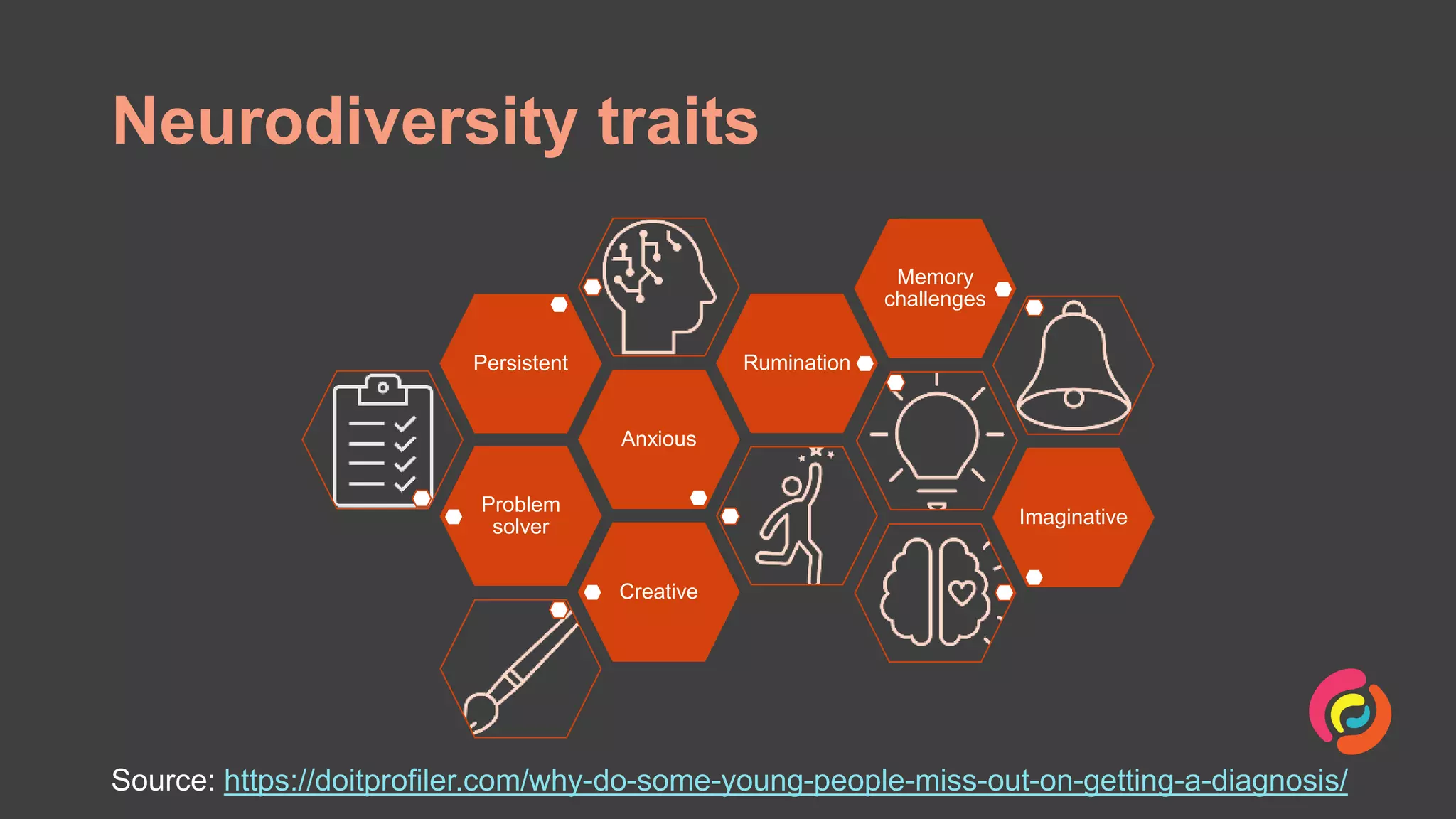
Neurodiversity traits
Problem
solver
Anxious
Persistent Rumination
Memory
challenges
Imaginative
Creative
Source: https://doitprofiler.com/why-do-some-young-people-miss-out-on-getting-a-diagnosis/
Designing for user needs
Use clear and
understandable language
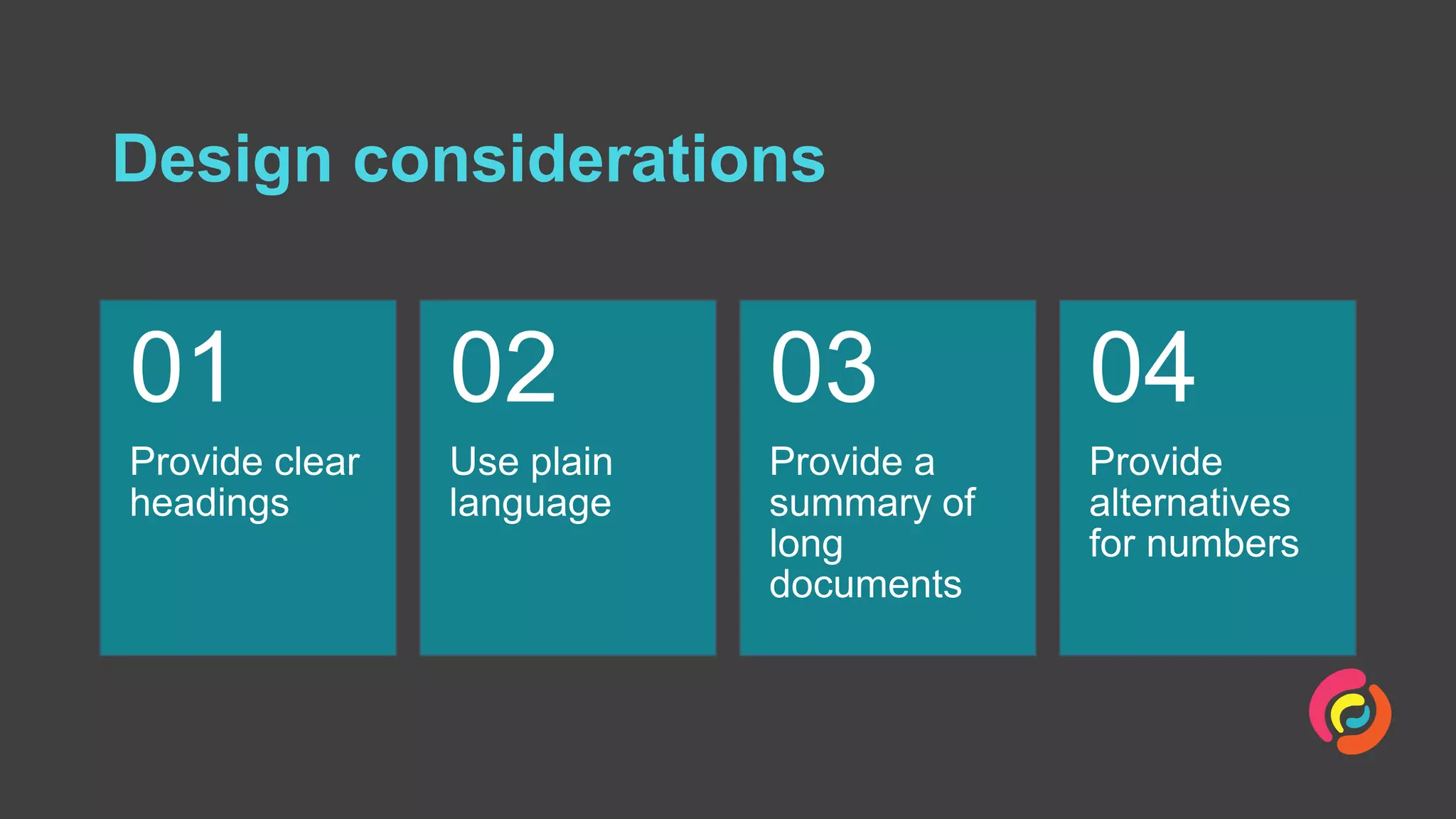
Design considerations
Provide clear
headings
01
Use plain
language
02
Provide a
summary of
long
documents
03
Provide
alternatives
for numbers
04
Help users avoid mistakes
or easily correct them
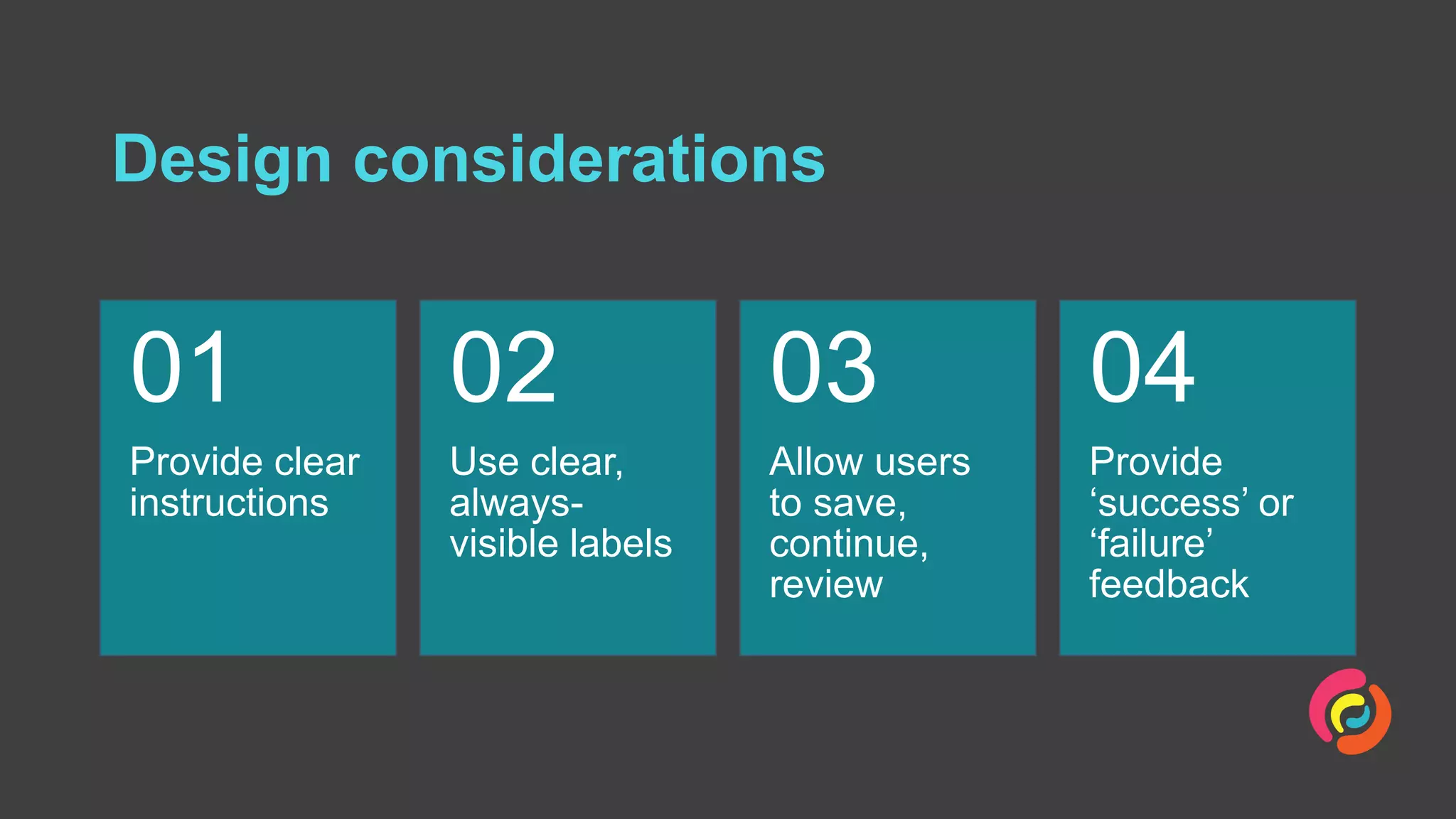
Design considerations
Provide clear
instructions
01
Use clear,
always-
visible labels
02
Allow users
to save,
continue,
review
03
Provide
‘success’ or
‘failure’
feedback
04
Allow users to focus and
concentrate
Design considerations
Limit
distractions
01
Optimise
content
02
Streamline
processes
and
workflows
03
Provide
instructions
at the right
time
04
Reduce reliance on memory
Design considerations
Different
authentication
methods
01
Avoid
CAPTCHA
02
Make
navigation
explicit
03
Provide
different ways
of getting
help
04
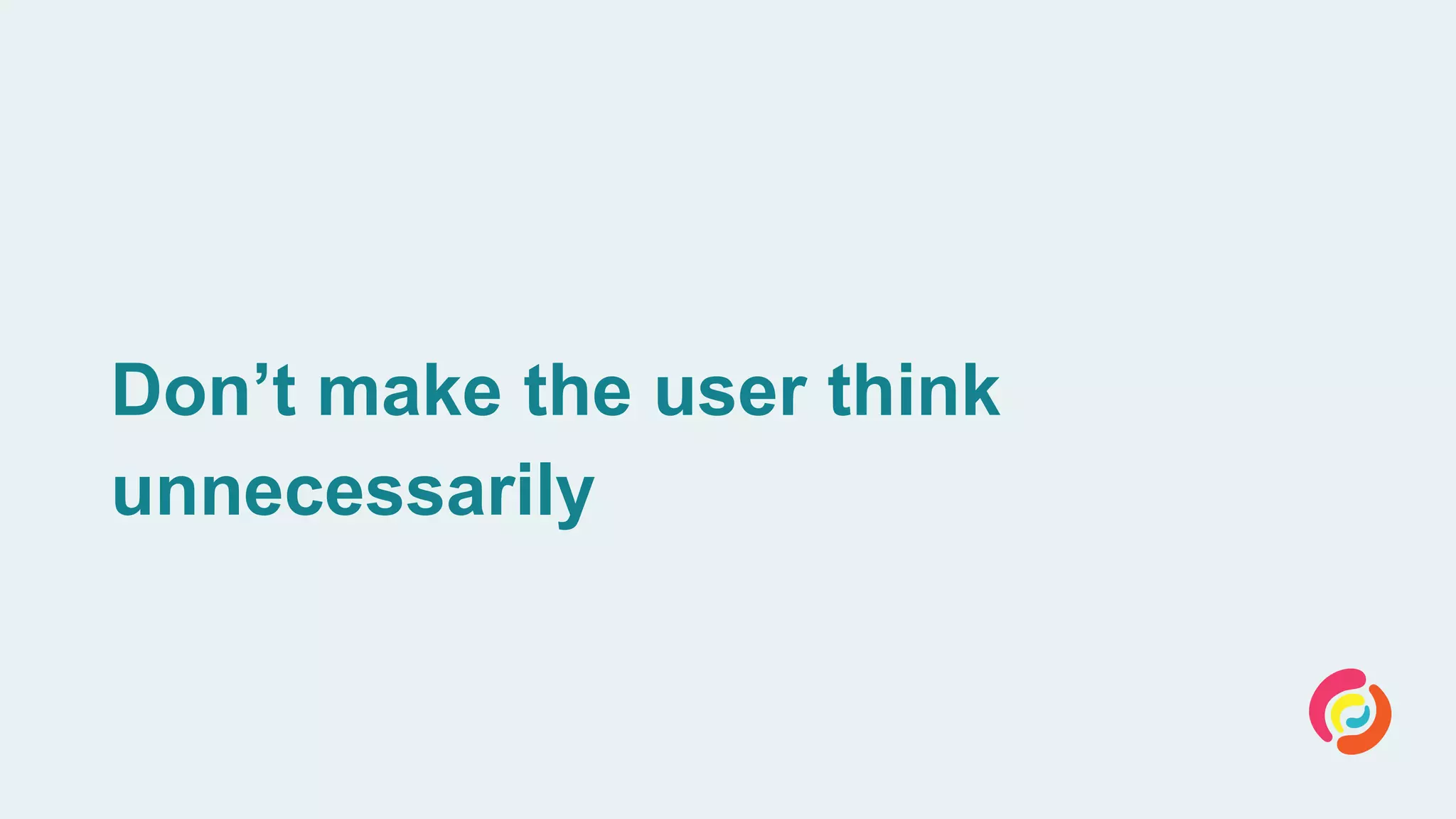
Don’t make the user think
unnecessarily
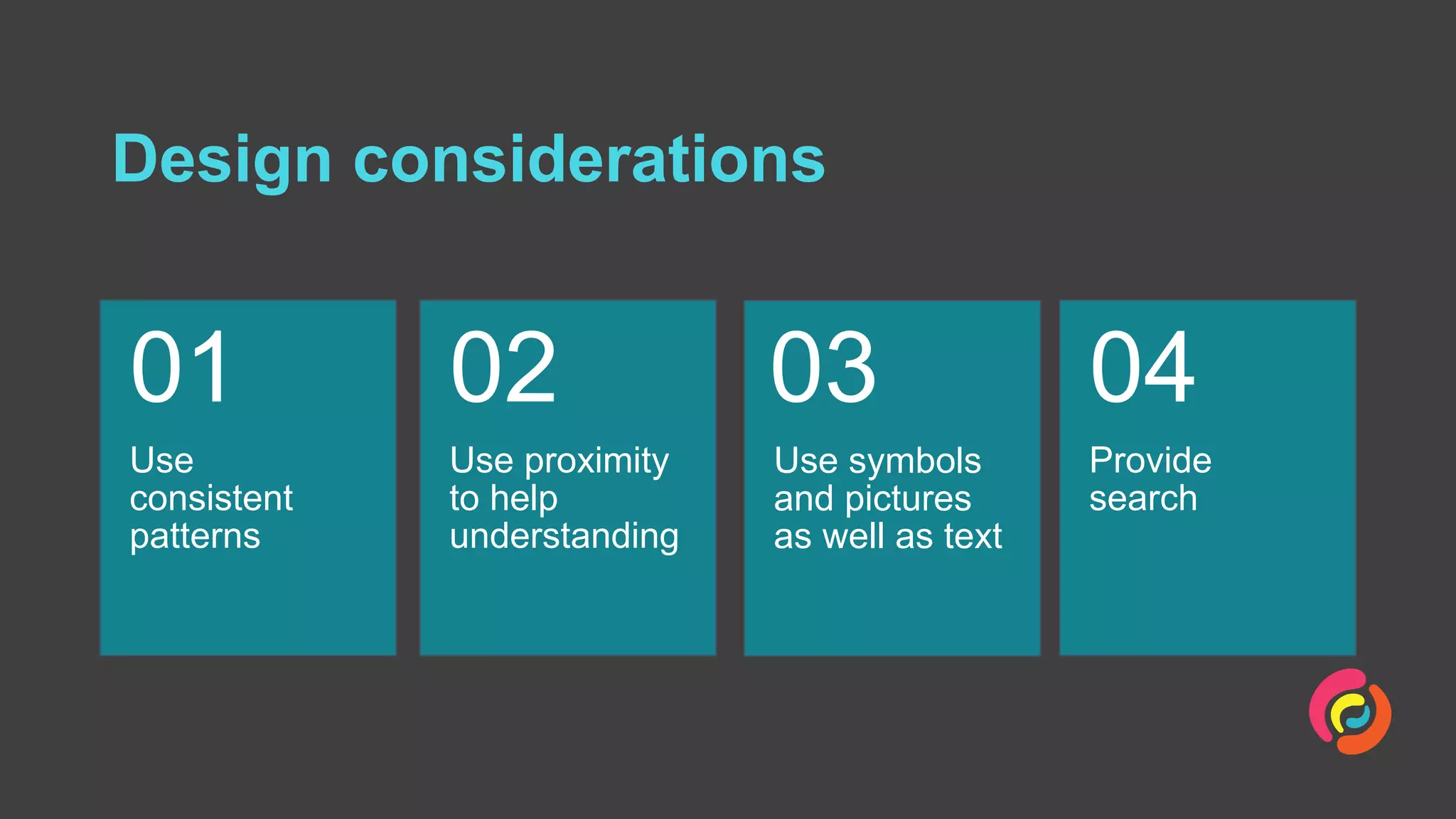
Design considerations
Use
consistent
patterns
01
Use proximity
to help
understanding
02
Use symbols
and pictures
as well as text
03
Provide
search
04
User research
There is no substitute for talking with users
Let’s chat
@Intopia Intopia intopia.digital hello@intopia.digital
Andrew Arch
andrew@intopia.digital
amja
Sarah Pulis
sarah@intopia.digital
sarahtp
Further reading (1/2)
Making Content Usable for People with Cognitive
and Learning Disabilities (working draft)
• www.w3.org/TR/coga-usable
Designing for cognitive accessibility: Where to
begin
• thenextweb.com/growth-
quarters/2020/04/06/designing-for-cognitive-
accessibility-where-to-begin/
Further reading (2/2)
Cognitive Disabilities Design Considerations
• webaim.org/articles/cognitive/design
Designing for Cognitive Differences
• alistapart.com/article/designing-for-cognitive-
differences/
Designing A Dementia-Friendly Website
• www.smashingmagazine.com/2016/05/designing-a-
dementia-friendly-website/

Designing for people with cognitive impairments

Editor's Notes

  • #2 Briefly introduce Intopia and ourselves?? Historically accessible design has concentrated on sensory and physical disabilities, with cognitive needs often being overlooked. Most cognitive disabilities are ‘hidden disability’ vs visible disability like white cane, wheelchair, guide/service dog This was recognised by the W3C Web Accessibility Initiative who publish the Web Content Accessibility Guidelines, who formed the cognitive and learning disability accessibility taskforce. They have published a draft document “Making Content Usable for People with Cognitive and Learning Disabilities” Increased focus on designing for variation in cognition is also being more broadly recognised in society as a must have. This includes focus on mental health and well being, particularly given the impacts on COVID.
  • #3 In understanding users needs we must consider differences in people’s Perception of what they see and hear Long term and short term memory They attention span and ability to concentrate Differences in learning styles and abilities Difference in visual, spatial, verbal or numerical thinking and understanding These could be Permanent Environmental Situational Age related Or a result of a medical condition such as mental health, medication, physical illness Design, structure and language choices can make content inaccessible to people with cognitive and learning disabilities. It is important to frame our design choices in terms of meeting user needs, not ‘addressing diagnosed conditions’
  • #4 As with anything relating to diversity and inclusion, it is important to recognise that individuals have different traits, and that those traits that should not be classified as either good or bad. When we talk about cognitive differences, we need to recognise that there are different traits – some people call them their ‘super powers’ Just like in the past we moved from medical model > social model – so too with certain types of user needs – shift from cog impairment to neurodiversity. Neurodiversity can include, but may not be limited to: Dyslexia Dyscalculia Dyspraxia ADHD Autism spectrum Developmental language disorder Traits associated with neurodiversity include being persistent, imaginative, anxious, creative, a problem solver, ruminating, or having memory challenges.
  • #6 Andrew People with learning and language needs may need simple clear language and instructions People with different readings skills will appreciate shorter text and well-structured text People with social and/or communication difficulties may need clear literal language and may not understand metaphors or non-literal text and symbols
  • #7 Provide clear headings Each section of content should have a heading that clearly describes the content Good use of whitespace (and proximity) and assist visual organisation No marketing speak Use plain language Use clear worlds, simple tense Avoid metaphors and idioms Use literal text (e.g. don’t use ‘if you are experiencing cold feet’, use ‘if you are experiencing anxiety before starting’) Provide a summary of long documents (300 words+) Provide an easy reading summary using common terms and short blocks of text/lists Provide alternatives for numbers Not all people can understand numbers and numerical concepts. Reinforce numbers with non-numerical concepts .e.g. instead of a scale from 1 to 5, use Very Cold, Cold, Mild, Hot, Very Hot
  • #8 Sarah Maps to User Stories Objective 4, Design Guide Objective 4 Avoid mistakes / Mistake recovery Help users avoid mistakes: People who have difficult with organisation (executive function), typing, putting letters and numbers in the right order will benefit from designs that help them avoid making mistakes, complete forms People who make more mistakes or touch the wrong element will benefit from an easy way to undo what they just accidentally did Helping users avoid mistakes or easily correct them is good UX practice for everyone, but has more significant impact for certain users.
  • #9 Provide clear instructions Clear instructions help prevent users from making mistakes Provide instructions needed to enable users to complete the task Design for tolerance, such as accepting different formats for phone or credit card numbers – this also reduces the amount of instructions someone has to read Let a user know how long a task might take, or preferably how many steps are involved (‘how long’ is very individual and subjective) Provide clear, always-visible labels Clear form labels also help prevent users from making mistakes *Call out* Labels should be visible at all times – don’t remove the label when a user starts to enter data Allow users to ‘go back’ Allow users to ‘save and continue’ Provide ‘completed process’ feedback (Provide clear success or failure feedback) Make the result of each action clear for people with a variety of cog disabilities At the end of each user action, provide feedback about success of failures, e.g. notification at the end of a process Notification at the end of each step in a multi-part process (such as a tick next to the step)
  • #10 Andrew People with dementia often find concentration difficult People who have difficulty concentrating could be distracted by lots of content that is not related to their task Excessive or unnecessary movement or animation can also lead to loss of concentration what they’ve done in previous steps of a process
  • #11 Limit distractions Reduce motion & movement No auto-play Optimise content – only provide content that is important or relevant for their task. Make sure a user can easily identify content that is relevant to their task Make sure content that people need to know or is important stands out Max of five or less main choices on each screen Extra choices can also hidden under a “more” link or other clear and descriptive titles. Streamline processes and workflows Only ask what you need to complete a process Provide instructions at the right time Tell users about the task before they start it so they can prepare Tell users what they need to do when they are doing it
  • #12 Sarah Maps to User Story Objective 6, Design Guide Objective 6 People who have difficulty with short-term memory may experience difficulty in recalling where they are on your site and what they’ve done in previous steps of a process Remember instructions on voice menus Also may have difficulty with longer-term memory such as Recalling passwords
  • #13 (2) From https://www.smashingmagazine.com/2016/05/designing-a-dementia-friendly-website/ - LAYOUT, NAVIGATION AND GUI Different authentication methods Simple login processes  login process to be simple, and not multi-step  login process that does not contain puzzles or calculations WCAG 2.2 draft considers authentication – check Make navigation explicit Clear and understandable menu items for navigation Clear link text Breadcrumbs to show related (higher level) pages Provide different ways of getting help People have different preferred comm methods, *risk* of removing human channels Human, Chat
  • #14 Andrew People with difficulties processing information may take a lot longer than needed to find features and content if they are not designed to be clear, visible and obvious. Significant changes to your design may make it difficult for impossible for users to learn a brand new interface. Making incremental changes can reduce the cognitive load and learnability, instead of a whole-of-site refresh for instance.
  • #15 Use consistent patterns Use common controls that do what they say (e.g. don’t use square outlines for radio buttons) Proximity Proximity is about using space to group related content and separate unrelated content. Related information should be close together in visual proximity (also can help people with a narrow field of vision or using a screen mag) Use white space to separate groups of information Use symbols and pictures as well as text Make it easy for people with reading difficulties to identify information through the use of symbols and picture Don’t rely on symbols and icons to be understood on their own use them to enhance understanding & recognition Make sure your symbols and icons have universal meaning (cultural difference can add confusion) Provide search Some people will find it easier to use your site via the search function rather than navigating through your menus Make sure the terms people use to search gives them in relevant results (eg ‘death’ vs ‘passed away’) (3) From 3.3.2 User Story: Visual Presentation
  • #16 Andrew Relates to Digital Service Standard (AA was part of its development) Criteria 1 – Understand User Needs Your user research needs to cover a wide range of users and show that you understand how different user scenarios may impact service design and delivery. Make sure you test your design and language with users Also recognise that some users may not be able to use the online service and will need to use other channels, including walk-in or telephony – most of the same design consideration apply 
  • #17 WCAG 2.2 will include some additional success criteria to assist people with cognitive and learning disabilities – due early 2021
  • #18 Check Confluence page for others to add – see especially bolded refs https://intopia.atlassian.net/wiki/spaces/~276711073/pages/767655941/DTA+Digital+Summit What about Jess’ Camp talk?