Avanade: Virtual Server notes from the field   Bernt Lervik | berntl@avanade.com Infrastructure Architect Avanade
Avanade is the leading technology integrator specialising in the Microsoft platform. Our people help customers around the world maximise their IT investment and create comprehensive solutions that dive business results. Additional information can be found at www.avanade.com
Agenda Why virtualise? Planning for virtualisation Identifying candidates for virtualisation? The process of virtualising “ Gotchas” & hints for virtualisation Case studies
Why virtualise? Increased server utilisation Typically 80% as opposed to 5-15% Reduced data centre costs Beyond server hardware to space, power, network, cooling etc & licensing Increased efficiency/reduced administrative costs : Quicker server provisioning/deployment Backup simplification The next step in server consolidation: Support for multiple operating systems Increased security over traditional consolidation Ideal target for development/testing environments: Patching and upgrade validation Security segregation
Planning for virtualisation Don’t underestimate planning, commitment and upfront investment  Address organisational challenges: internal business customers may envisage losing ownership of servers - benefits communication and buy-in is essential Plan to treat virtual servers the same as physical servers Planning must be completed tightly with networking and storage teams Pay specific attention to security and management Look at testing and administration environments first to gain experience and confidence before considering production systems Plan to control and manage virtual server “sprawl”
Identifying candidates for virtualisation? Understand and measure performance characteristics System Center Virtual Machine Manager Server management tools – MOM (or other) Windows PerfMon Avoid high I/O and CPU intensive systems Consider support on virtual platform of application vendor Balance with standard server consolidation in production  Typically SQL Server better addressed by “farm” consolidation  Exchange & AD servers scale! Evaluate host & guest clustering versus standard server clustering
The process of virtualisation Approach is generic (applicable to physical and virtual):  Establish a baseline Rapid build – virtualisation allows copying VMs (VHD and VMC files)  Configuration and refresh – automate (MSI packages and scripts) “ Safe State” the environment – virtualisation allows differencing disks Test automation (scripted) Consider Physical to Virtual (P2V) tools Microsoft VSMT, Microsoft SCVMM, Platespin, LeoStream Many pre-P2V tasks that must be completed prior to performing any migration – key step in all P2V work is planning In reality, you will have to do some work on a small percentage of your conversions due to the configurations on your source servers Remember the old saying, Junk in – Junk Out applies with P2V Often “new build” and data migration is the best approach
“ Gotchas” & hints for virtualisation Exclude VM files from Antivirus real time scans  .vhd  .vud  .vsv  .vfd  .vmc The faster the disk, the faster the Virtual Environment  Consider dedicated disks per VM Use multiple disks or ideally SAN storage Use NTFS compression for the files It seems writing a big chunk to disk is slower than first compressing the chunk and then write it to disk. Additionally the files are around 30% smaller on the hard disk /3GB should not be used on the host   This setting increases the user memory space at the expense of Kernel space. Virtual machines use more kernel memory than user memory – so enabling this switch on the host will decrease the amount of virtual machines that you can laun ch
“ Gotchas” & hints continued VS 2005 runs smoother when selecting Best performance for “Background Services” and selecting Memory Settings to Optimize for “System Cache” Using Gigabit Ethernet network interface cards can improve overall performance Even though the guest OS emulates a 100Mb connection, when you have multiple VMs running, the performance increase will be noticeable Use  D ifferencing disks Differencing disks offer the ability to create a base .vhd (including just an OS, for example), and then write all differences to a new virtual disk. The differencing disk might contain alternate applications or configurations. By doing this you can safe space
“ Gotchas” & hints continued Always make sure the latest Virtual Machine additions are installed Always have the VMs connected to a network – even if it is the “internal only” Use RDP to connect to your VMs You can copy and paste data into the virtual machine  You can share data between your host and virtual machine directly You can share access to your host's printer The smaller (and less fragmented) the VHD files the faster In the VM run defrag Run the VM precompactor
“ Gotchas” & hints continued Create the VHD as fixed size disk  The space is allocated as one big chunk – more fragments will slow down the system If you have to copy files from the host to the Guest, use the shared folders Copy with drag and drop is 50% slower & copy through network is only 16 % of the performance of shared folders Make sure the VMs have sufficient RAM allocated to them Typically the “working set” from the  measured performance characteristics This avoids the need to swap too much memory as this is HD intensive
Case study: Allstate Problem: Allstate had ~ 3,500 servers The number of servers in its data centres was increasing quickly  Vast majority of its servers were using less than 10% CPU  Time required to acquire a new server was from six to eight weeks Virtual Server 2005 used for test & development environment: Improved h/w efficiency by reducing server growth and associated costs Reduced demand for more data centre floor space Increase server utilization to 35 to 50 percent during the peak shift Eliminated server acquisition time Reduced server operating system deployment times from between 1 to 3 hours, to 5 or 10 minutes Time savings increased administrator productivity http://www.microsoft.com/casestudies/casestudy.aspx?casestudyid=53154
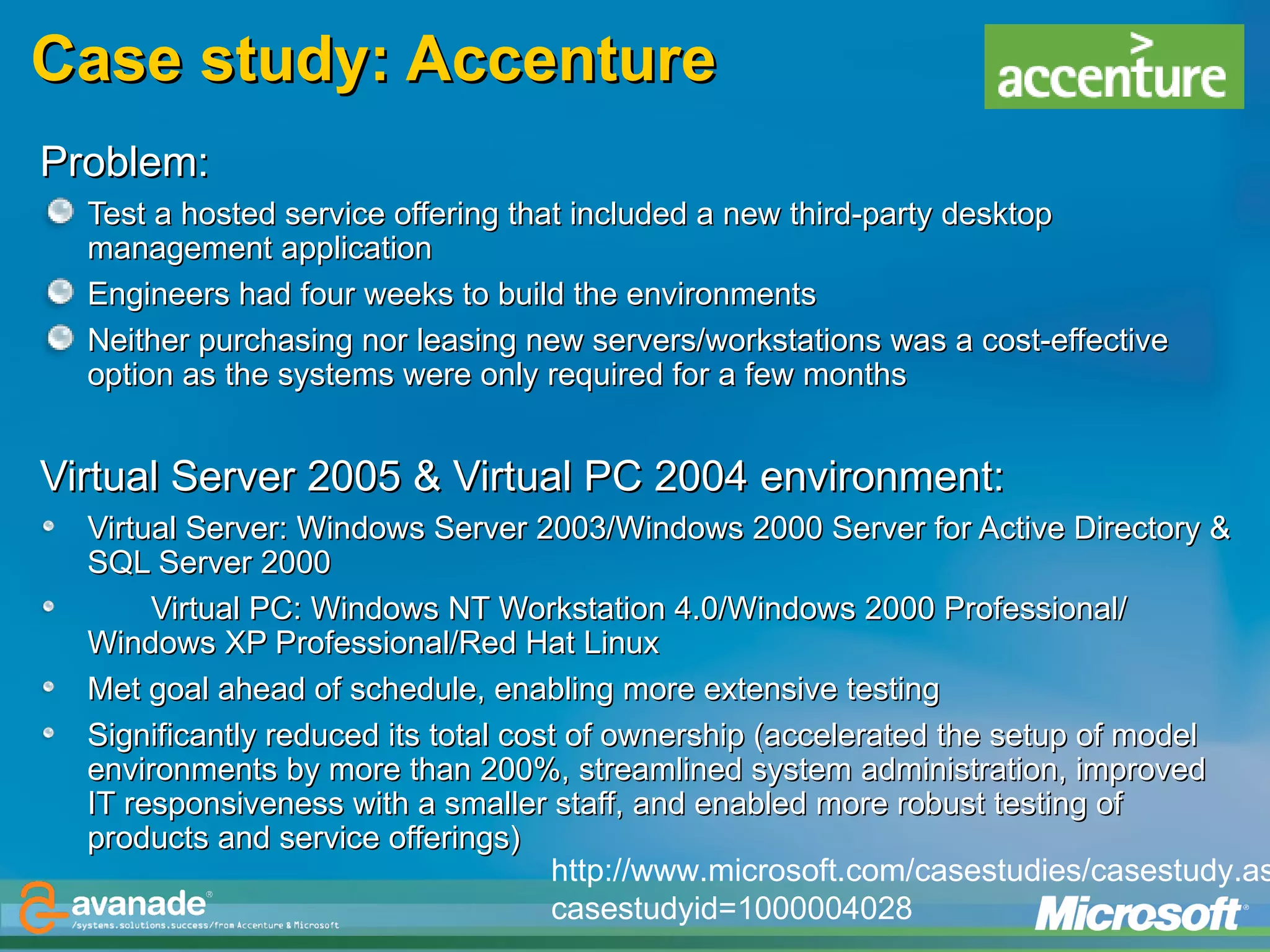
Case study: Accenture Problem: Test a hosted service offering that included a new third-party desktop management application Engineers had four weeks to build the environments Neither purchasing nor leasing new servers/workstations was a cost-effective option as the systems were only required for a few months Virtual Server 2005 & Virtual PC 2004 environment: Virtual Server: Windows Server 2003/Windows 2000 Server for Active Directory & SQL Server 2000  Virtual PC: Windows NT Workstation 4.0/Windows 2000 Professional/ Windows XP Professional/Red Hat Linux Met goal ahead of schedule, enabling more extensive testing Significantly reduced its total cost of ownership (accelerated the setup of model environments by more than 200%, streamlined system administration, improved IT responsiveness with a smaller staff, and enabled more robust testing of products and service offerings) http://www.microsoft.com/casestudies/casestudy.aspx?casestudyid=1000004028
 

Del 1

  • 1.
    Avanade: Virtual Servernotes from the field Bernt Lervik | berntl@avanade.com Infrastructure Architect Avanade
  • 2.
    Avanade is theleading technology integrator specialising in the Microsoft platform. Our people help customers around the world maximise their IT investment and create comprehensive solutions that dive business results. Additional information can be found at www.avanade.com
  • 3.
    Agenda Why virtualise?Planning for virtualisation Identifying candidates for virtualisation? The process of virtualising “ Gotchas” & hints for virtualisation Case studies
  • 4.
    Why virtualise? Increasedserver utilisation Typically 80% as opposed to 5-15% Reduced data centre costs Beyond server hardware to space, power, network, cooling etc & licensing Increased efficiency/reduced administrative costs : Quicker server provisioning/deployment Backup simplification The next step in server consolidation: Support for multiple operating systems Increased security over traditional consolidation Ideal target for development/testing environments: Patching and upgrade validation Security segregation
  • 5.
    Planning for virtualisationDon’t underestimate planning, commitment and upfront investment Address organisational challenges: internal business customers may envisage losing ownership of servers - benefits communication and buy-in is essential Plan to treat virtual servers the same as physical servers Planning must be completed tightly with networking and storage teams Pay specific attention to security and management Look at testing and administration environments first to gain experience and confidence before considering production systems Plan to control and manage virtual server “sprawl”
  • 6.
    Identifying candidates forvirtualisation? Understand and measure performance characteristics System Center Virtual Machine Manager Server management tools – MOM (or other) Windows PerfMon Avoid high I/O and CPU intensive systems Consider support on virtual platform of application vendor Balance with standard server consolidation in production Typically SQL Server better addressed by “farm” consolidation Exchange & AD servers scale! Evaluate host & guest clustering versus standard server clustering
  • 7.
    The process ofvirtualisation Approach is generic (applicable to physical and virtual): Establish a baseline Rapid build – virtualisation allows copying VMs (VHD and VMC files) Configuration and refresh – automate (MSI packages and scripts) “ Safe State” the environment – virtualisation allows differencing disks Test automation (scripted) Consider Physical to Virtual (P2V) tools Microsoft VSMT, Microsoft SCVMM, Platespin, LeoStream Many pre-P2V tasks that must be completed prior to performing any migration – key step in all P2V work is planning In reality, you will have to do some work on a small percentage of your conversions due to the configurations on your source servers Remember the old saying, Junk in – Junk Out applies with P2V Often “new build” and data migration is the best approach
  • 8.
    “ Gotchas” &hints for virtualisation Exclude VM files from Antivirus real time scans .vhd .vud .vsv .vfd .vmc The faster the disk, the faster the Virtual Environment Consider dedicated disks per VM Use multiple disks or ideally SAN storage Use NTFS compression for the files It seems writing a big chunk to disk is slower than first compressing the chunk and then write it to disk. Additionally the files are around 30% smaller on the hard disk /3GB should not be used on the host This setting increases the user memory space at the expense of Kernel space. Virtual machines use more kernel memory than user memory – so enabling this switch on the host will decrease the amount of virtual machines that you can laun ch
  • 9.
    “ Gotchas” &hints continued VS 2005 runs smoother when selecting Best performance for “Background Services” and selecting Memory Settings to Optimize for “System Cache” Using Gigabit Ethernet network interface cards can improve overall performance Even though the guest OS emulates a 100Mb connection, when you have multiple VMs running, the performance increase will be noticeable Use D ifferencing disks Differencing disks offer the ability to create a base .vhd (including just an OS, for example), and then write all differences to a new virtual disk. The differencing disk might contain alternate applications or configurations. By doing this you can safe space
  • 10.
    “ Gotchas” &hints continued Always make sure the latest Virtual Machine additions are installed Always have the VMs connected to a network – even if it is the “internal only” Use RDP to connect to your VMs You can copy and paste data into the virtual machine You can share data between your host and virtual machine directly You can share access to your host's printer The smaller (and less fragmented) the VHD files the faster In the VM run defrag Run the VM precompactor
  • 11.
    “ Gotchas” &hints continued Create the VHD as fixed size disk The space is allocated as one big chunk – more fragments will slow down the system If you have to copy files from the host to the Guest, use the shared folders Copy with drag and drop is 50% slower & copy through network is only 16 % of the performance of shared folders Make sure the VMs have sufficient RAM allocated to them Typically the “working set” from the measured performance characteristics This avoids the need to swap too much memory as this is HD intensive
  • 12.
    Case study: AllstateProblem: Allstate had ~ 3,500 servers The number of servers in its data centres was increasing quickly Vast majority of its servers were using less than 10% CPU Time required to acquire a new server was from six to eight weeks Virtual Server 2005 used for test & development environment: Improved h/w efficiency by reducing server growth and associated costs Reduced demand for more data centre floor space Increase server utilization to 35 to 50 percent during the peak shift Eliminated server acquisition time Reduced server operating system deployment times from between 1 to 3 hours, to 5 or 10 minutes Time savings increased administrator productivity http://www.microsoft.com/casestudies/casestudy.aspx?casestudyid=53154
  • 13.
    Case study: AccentureProblem: Test a hosted service offering that included a new third-party desktop management application Engineers had four weeks to build the environments Neither purchasing nor leasing new servers/workstations was a cost-effective option as the systems were only required for a few months Virtual Server 2005 & Virtual PC 2004 environment: Virtual Server: Windows Server 2003/Windows 2000 Server for Active Directory & SQL Server 2000 Virtual PC: Windows NT Workstation 4.0/Windows 2000 Professional/ Windows XP Professional/Red Hat Linux Met goal ahead of schedule, enabling more extensive testing Significantly reduced its total cost of ownership (accelerated the setup of model environments by more than 200%, streamlined system administration, improved IT responsiveness with a smaller staff, and enabled more robust testing of products and service offerings) http://www.microsoft.com/casestudies/casestudy.aspx?casestudyid=1000004028
  • 14.

Editor's Notes

  • #2 04/02/10 22:49 © 2004 Microsoft Corporation. All rights reserved. This presentation is for informational purposes only. Microsoft makes no warranties, express or implied, in this summary.
  • #3 04/02/10 22:49 © 2004 Microsoft Corporation. All rights reserved. This presentation is for informational purposes only. Microsoft makes no warranties, express or implied, in this summary.
  • #5 Increase server utilisation: move away from “one server, one role” mentality Reduced data centre costs extends beyond server hardware to foot print, power, network, cooling etc & licensing Backup simplification as variables such as operating system, system state, data and application configuration can be reduced to backing up the files on the host that represent the virtual machines and restores can be readily accomplished Increased security over single server/multi-tier workload server consolidation Development/Testing environment: Separation of security contexts; developers work with a different account with elevated rights in the VM and work with a 'standard' low privilege account on the physical workstation. Also the VM's are positioned in a dedicated developer forest/domain separated from the production forest. Separation of support; the developer notebooks can now be provided with a standard image on top which Vmware hosts the VM's. So they can treat the VM's as a standard application with minimal impact on their standard support organization. Support for multiple development environments; the infrastructure is always the same but developers can use multiple VM's. For example 1 VM with Visual Studio 2003 on Win XP and also a VM with Visual Studio 2005 on Windows 2003. Also developers can simulate a server environment by configuring the VM's locally appropriately and using a representative test-client in a VM. Thus providing an early stage test environment. Greater control for support organization; when a VM breaks they can easily provide a new one or on demand Offshore integration by packaging and shipping environments – more cost effective than building and maintaining offshore infrastructures 04/02/10 22:49 © 2004 Microsoft Corporation. All rights reserved. This presentation is for informational purposes only. Microsoft makes no warranties, express or implied, in this summary.
  • #6 Treat virtual the same as physical – it should essentially be invisible. If you don’t have good tools & processes for the physical environment, these problems will re-surface in the virtual environment (likely multiplied as virtual server sprawl will out pace physical sprawl!). Get a grip of machine life cycle management, virtial machines are not a magic wand! 04/02/10 22:49 © 2004 Microsoft Corporation. All rights reserved. This presentation is for informational purposes only. Microsoft makes no warranties, express or implied, in this summary.
  • #7 04/02/10 22:49 © 2004 Microsoft Corporation. All rights reserved. This presentation is for informational purposes only. Microsoft makes no warranties, express or implied, in this summary.
  • #8 By taking a generic approach – server management is holistic. Really just adding tools & process (in addition to those for physical) to manage the environment Introducing virtualisation simplifies and accelerates some parts: rapid build & save state (safe state the environment not really practical in a physical environment). Differencing disks mean you maintain fewer “images” of servers 04/02/10 22:49 © 2004 Microsoft Corporation. All rights reserved. This presentation is for informational purposes only. Microsoft makes no warranties, express or implied, in this summary.
  • #14 In September 2005, a team from Accenture’s Infrastructure Outsourcing organization needed to test a hosted service offering that included a new third-party desktop management application. The solutions consisted of an infrastructure lab to build, and later manage, model client infrastructures that included the following systems: Four application servers running a combination of the Microsoft® Windows Server® 2003 Enterprise Edition operating system and the Microsoft Windows® 2000 Server operating system Microsoft SQL Server™ 2000 A domain controller with the Active Directory® service Additionally, developers required five client environments running different versions of: Microsoft Windows NT® Workstation operating system version 4.0  Microsoft Windows 2000 Professional Windows XP Professional with Service Pack 1 and Service Pack 2 Red Hat Linux Engineers had four weeks to build the environments. Neither purchasing nor leasing five new servers and five workstations was a cost-effective option because the team only needed the systems for a few months. The solution used Virtual Server 2005 R2 for the server environment and Virtual PC 2004 for the client systems. By building virtual machines, the Accenture infrastructure lab met its goal one week ahead of schedule, which enabled more extensive testing. What’s more, compared to building a traditional test environment, building virtual machines requires less physical hardware. However, the benefits of this approach reach far beyond a single project. As a result of using Virtual Server and Operations Manager in the department’s test lab, Accenture has significantly reduced its total cost of ownership, accelerated the setup of model environments by more than 200 percent, streamlined system administration, improved IT responsiveness with a smaller staff, and enabled more robust testing of products and service offerings. 04/02/10 22:49 © 2004 Microsoft Corporation. All rights reserved. This presentation is for informational purposes only. Microsoft makes no warranties, express or implied, in this summary.
  • #15 04/02/10 22:49 © 2004 Microsoft Corporation. All rights reserved. This presentation is for informational purposes only. Microsoft makes no warranties, express or implied, in this summary.