Chapter 5Ms. MontanezThe decision structure allows a program’s logic to have more than one path of execution.
IntroductionChapter 4 – Slide 2This chapter covers the Visual Basic decision statementsIf…ThenIf…Then…ElseIf…Then…ElseIfSelect CaseIt also discusses the use of Radio ButtonsInput Validation
Order of Statement ExecutionChapter 4 – Slide 3Thus far, our code has been executed sequentially in a sequence structureTo write meaningful programs we need multiple paths of executionSome statements should be executed under certain circumstances in a decision structureThis chapter presents the means to execute statements conditionallyNext chapter presents the means to execute the same statements repeatedly
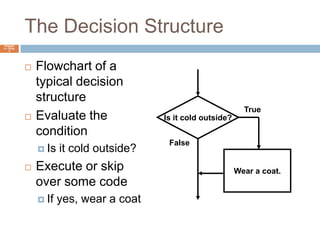
The Decision StructureChapter 4 – Slide 4Flowchart of atypical decisionstructureEvaluate theconditionIs it cold outside?Execute or skipover some codeIf yes, wear a coatIs it cold outside?TrueFalseWear a coat.
The If...Then StatementThe If...Then statement causes other statements to execute onlywhen an expression is true.
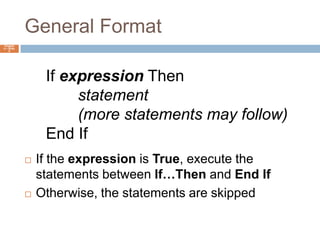
General FormatChapter 4 – Slide 6If the expression is True, execute the statements between If…Then and End IfOtherwise, the statements are skippedIf expressionThenstatement	(more statements may follow)End If
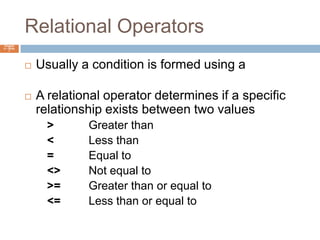
Relational OperatorsChapter 4 – Slide 7Usually a condition is formed using a relational operatorA relational operator determines if a specific relationship exists between two values>		Greater than<		Less than=		Equal to<>	Not equal to>=	Greater than or equal to<=	Less than or equal to
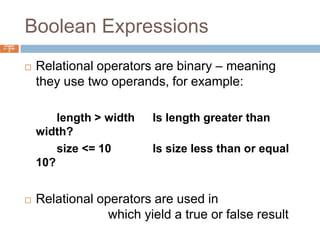
Boolean ExpressionsChapter 4 – Slide 8Relational operators are binary – meaning they use two operands, for example:		length > width	Is length greater than width?		size <= 10		Is size less than or equal 10?Relational operators are used in Boolean expressions which yield a true or false result
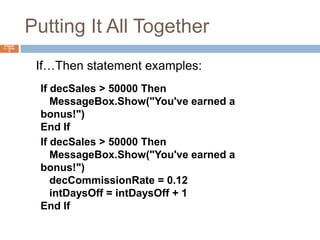
Putting It All TogetherChapter 4 – Slide 9If…Then statement examples:If decSales > 50000 Then   MessageBox.Show("You've earned a bonus!")End IfIf decSales > 50000 Then   MessageBox.Show("You've earned a bonus!")   decCommissionRate = 0.12   intDaysOff = intDaysOff + 1End If
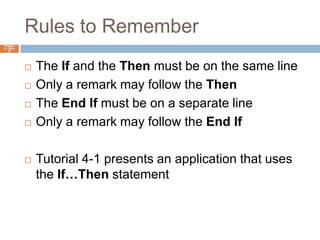
Rules to RememberChapter 4 – Slide 10The If and the Then must be on the same lineOnly a remark may follow the ThenThe End If must be on a separate lineOnly a remark may follow the End IfTutorial 4-1 presents an application that uses the If…Then statement
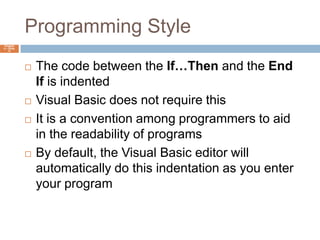
Programming StyleChapter 4 – Slide 11The code between the If…Then and the End If is indentedVisual Basic does not require thisIt is a convention among programmers to aid in the readability of programsBy default, the Visual Basic editor will automatically do this indentation as you enter your program
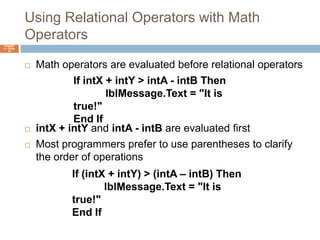
Using Relational Operators with Math OperatorsChapter 4 – Slide 12Math operators are evaluated before relational operatorsintX + intY and intA - intB are evaluated firstMost programmers prefer to use parentheses to clarify the order of operationsIf intX + intY > intA - intB Then	lblMessage.Text = "It is true!"End IfIf (intX + intY) > (intA – intB) Then	lblMessage.Text = "It is true!"End If
The If...Then...Else StatementThe If...Then...Else statement executes one group of statementsif the Boolean expression is true and another group of statements ifthe Boolean expression is false.
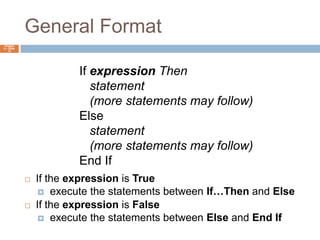
General FormatChapter 4 – Slide 14If the expression is True execute the statements between If…Then and ElseIf the expression is False execute the statements between Else and End IfIf expression Then   statement   (more statements may follow)Else   statement   (more statements may follow)End If
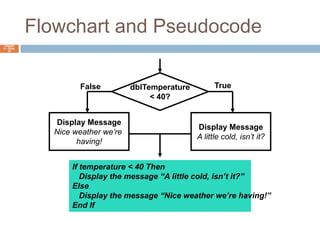
Flowchart and PseudocodeChapter 4 – Slide 15dblTemperature< 40?TrueFalseDisplay MessageA little cold, isn’t it?Display MessageNice weather we’re having!If temperature < 40 Then   Display the message “A little cold, isn’t it?”Else   Display the message “Nice weather we’re having!”End If
Two Mutually Exclusive ChoicesChapter 4 – Slide 16The If…Then…Else has two choicesThe condition will either be True or FalseSo either the Then clause or Else clause will be executedThese are two mutually exclusive choicesTutorial 4-2 contains an example of the If…Then…Else construct
The If...Then...ElseIf StatementThe If...Then...ElseIf statement is like a chain ofIf...Then...Else statements. They perform their tests,one after the other, until one of them is found to be true.
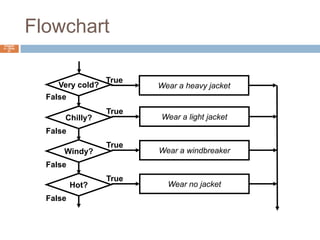
Multiple Possible ChoicesChapter 4 – Slide 18The If…Then…ElseIf statement allows for an entire series of possible choicesIn pseudocode:If it is very cold Then	Wear a coatElseif it is chilly	Wear a light jacketElseif it is windy	Wear a windbreakerElseif it is hot	Wear no jacket
Multiple Possible ChoicesChapter 4 – Slide 19Each of the series of conditions in an If…Then…ElseIf is tested in sequenceWhen a condition is true, the remaining conditions are ignoredThe order of the conditions is vitalWrong order can result in wrong decision - called a logic errorWhat if it’s chilly and windy?If windy is tested before chilly, you’d go out with a windbreaker when you need a jacket
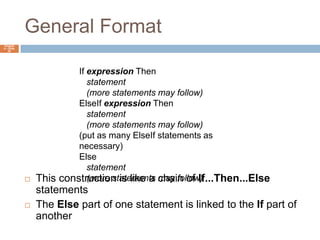
General FormatChapter 4 – Slide 20This construction is like a chain of If...Then...Else statementsThe Else part of one statement is linked to the If part of anotherIf expression Thenstatement   (more statements may follow)ElseIf expression Thenstatement   (more statements may follow)(put as many ElseIf statements as necessary)Elsestatement   (more statements may follow)
FlowchartChapter 4 – Slide 21Very cold?TrueWear a heavy jacketFalseTrueChilly?Wear a light jacketFalseTrueWindy?Wear a windbreakerFalseTrueHot?Wear no jacketFalse
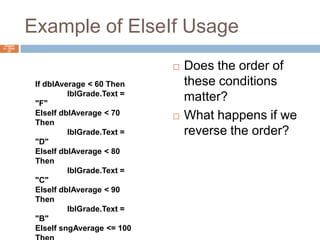
Example of ElseIf UsageDoes the order of these conditions matter?What happens if we reverse the order?Chapter 4 – Slide 22If dblAverage < 60 Then	lblGrade.Text = "F"ElseIf dblAverage < 70 Then	lblGrade.Text = "D"ElseIf dblAverage < 80 Then	lblGrade.Text = "C"ElseIf dblAverage < 90 Then	lblGrade.Text = "B"ElseIf sngAverage <= 100 Then	lblGrade.Text = "A"End If
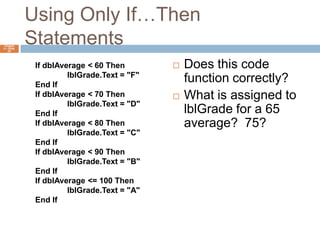
Using Only If…Then StatementsDoes this code function correctly?  What is assigned to lblGrade for a 65 average?  75?Chapter 4 – Slide 23If dblAverage < 60 Then	lblGrade.Text = "F"End IfIf dblAverage < 70 Then	lblGrade.Text = "D"End IfIf dblAverage < 80 Then	lblGrade.Text = "C"End IfIf dblAverage < 90 Then	lblGrade.Text = "B"End IfIf dblAverage <= 100 Then	lblGrade.Text = "A"End If
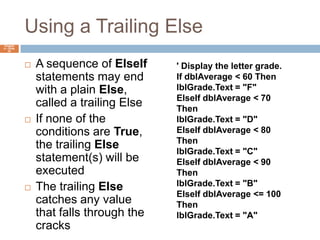
Using a Trailing ElseA sequence of ElseIf statements may end with a plain Else, called a trailing ElseIf none of the conditions are True, the trailing Else statement(s) will be executedThe trailing Else catches any value that falls through the cracksChapter 4 – Slide 24' Display the letter grade.If dblAverage < 60 ThenlblGrade.Text = "F"ElseIf dblAverage < 70 ThenlblGrade.Text = "D"ElseIf dblAverage < 80 ThenlblGrade.Text = "C"ElseIf dblAverage < 90 ThenlblGrade.Text = "B"ElseIf dblAverage <= 100 ThenlblGrade.Text = "A"ElselblGrade.Text = "Invalid Score"End If
Nested If StatementsA nested If statement is an If statement in the conditionallyexecuted code of another If statement. (In this section, we use theterm If statement to refer to an If . . . Then, If...Then...Else,or If...Then...ElseIf statement.)
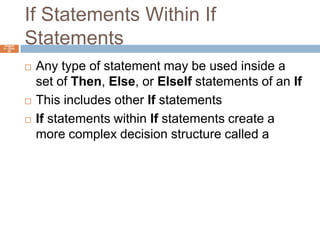
If Statements Within If StatementsChapter 4 – Slide 26Any type of statement may be used inside a set of Then, Else, or ElseIf statements of an IfThis includes other If statementsIf statements within If statements create a more complex decision structure called a    Nested If
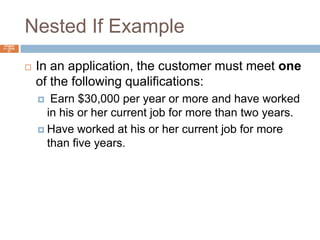
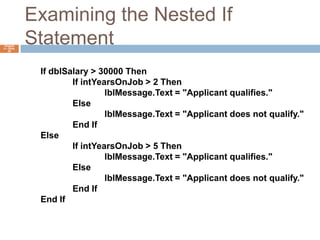
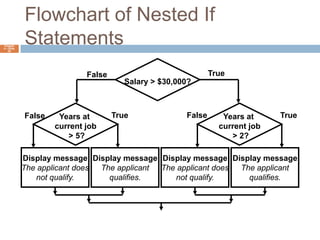
Nested If ExampleChapter 4 – Slide 27In an application, the customer must meet one of the following qualifications: Earn $30,000 per year or more and have worked in his or her current job for more than two years.Have worked at his or her current job for more than five years.
Examining the Nested If StatementChapter 4 – Slide 28If dblSalary > 30000 Then	If intYearsOnJob > 2 Then		lblMessage.Text = "Applicant qualifies."	Else		lblMessage.Text = "Applicant does not qualify."	End IfElse	If intYearsOnJob > 5 Then		lblMessage.Text = "Applicant qualifies."	Else		lblMessage.Text = "Applicant does not qualify."	End IfEnd If
Flowchart of Nested If StatementsChapter 4 – Slide 29Salary > $30,000?TrueFalseYears at current job > 2?Years at current job> 5?FalseTrueTrueFalseDisplay message The applicant qualifies.Display message The applicant does not qualify.Display message The applicant qualifies.Display messageThe applicant does not qualify.
Logical OperatorsLogical operators combine two or more Boolean expressions into asingle expression.
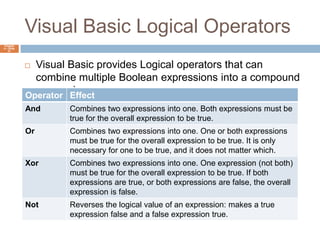
Visual Basic Logical OperatorsChapter 4 – Slide 31Visual Basic provides Logical operators that can combine multiple Boolean expressions into a compound expression
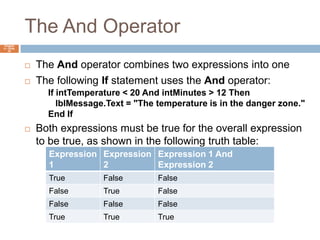
The And OperatorChapter 4 – Slide 32The And operator combines two expressions into oneThe following If statement uses the And operator:Both expressions must be true for the overall expression to be true, as shown in the following truth table:If intTemperature < 20 And intMinutes > 12 Then   lblMessage.Text = "The temperature is in the danger zone."End If
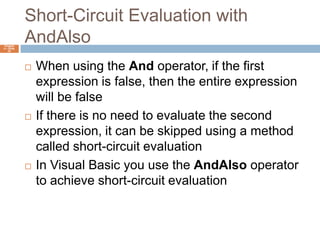
Short-Circuit Evaluation with AndAlsoChapter 4 – Slide 33When using the And operator, if the first expression is false, then the entire expression will be falseIf there is no need to evaluate the second expression, it can be skipped using a method called short-circuit evaluationIn Visual Basic you use the AndAlso operator to achieve short-circuit evaluation
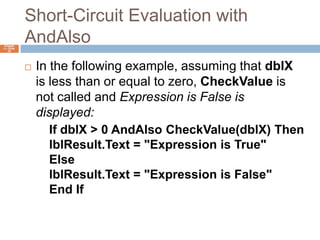
Short-Circuit Evaluation with AndAlsoChapter 4 – Slide 34In the following example, assuming that dblX is less than or equal to zero, CheckValue is not called and Expression is False is displayed:If dblX > 0 AndAlso CheckValue(dblX) ThenlblResult.Text = "Expression is True"ElselblResult.Text = "Expression is False"End If
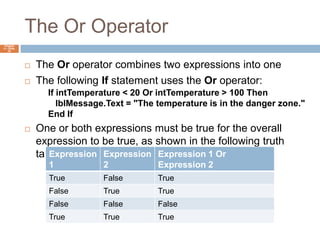
The Or OperatorChapter 4 – Slide 35The Or operator combines two expressions into oneThe following If statement uses the Or operator:One or both expressions must be true for the overall expression to be true, as shown in the following truth table:If intTemperature < 20 Or intTemperature > 100 Then   lblMessage.Text = "The temperature is in the danger zone."End If
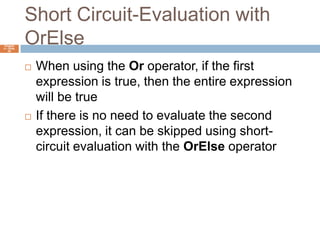
Short Circuit-Evaluation with OrElseChapter 4 – Slide 36When using the Or operator, if the first expression is true, then the entire expression will be trueIf there is no need to evaluate the second expression, it can be skipped using short-circuit evaluation with the OrElse operator
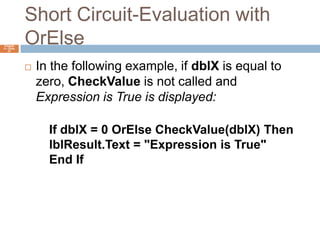
Short Circuit-Evaluation with OrElseChapter 4 – Slide 37In the following example, if dblX is equal to zero, CheckValue is not called and Expression is True is displayed:If dblX = 0 OrElse CheckValue(dblX) ThenlblResult.Text = "Expression is True"End If
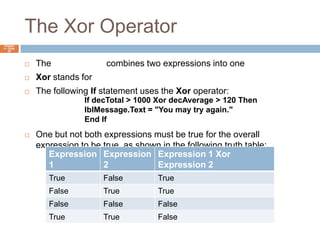
The Xor OperatorChapter 4 – Slide 38The Xor operator combines two expressions into oneXor stands for exclusive orThe following If statement uses the Xor operator:One but not both expressions must be true for the overall expression to be true, as shown in the following truth table:If decTotal > 1000 Xor decAverage > 120 ThenlblMessage.Text = "You may try again."End If
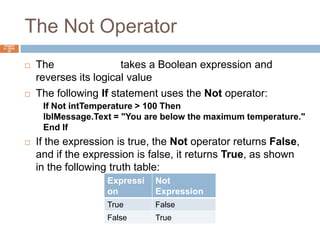
The Not OperatorChapter 4 – Slide 39The Not operator takes a Boolean expression and reverses its logical valueThe following If statement uses the Not operator:If the expression is true, the Not operator returns False, and if the expression is false, it returns True, as shown in the following truth table:If Not intTemperature > 100 ThenlblMessage.Text = "You are below the maximum temperature."End If
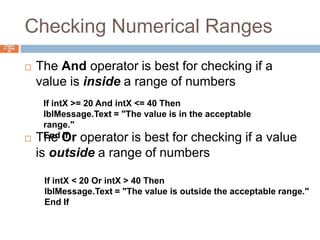
Checking Numerical RangesChapter 4 – Slide 40The And operator is best for checking if a value is inside a range of numbersThe Or operator is best for checking if a value is outside a range of numbersIf intX >= 20 And intX <= 40 ThenlblMessage.Text = "The value is in the acceptable range."End IfIf intX < 20 Or intX > 40 ThenlblMessage.Text = "The value is outside the acceptable range."End If
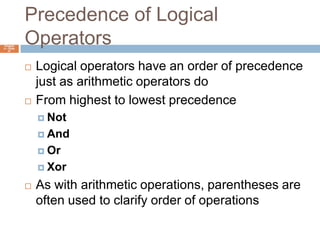
Precedence of Logical OperatorsChapter 4 – Slide 41Logical operators have an order of precedence just as arithmetic operators doFrom highest to lowest precedenceNotAndOrXorAs with arithmetic operations, parentheses are often used to clarify order of operations
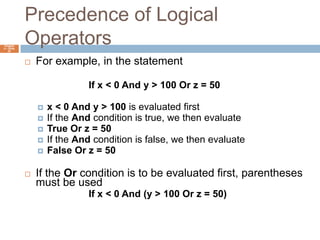
Precedence of Logical OperatorsChapter 4 – Slide 42For example, in the statement			If x < 0 And y > 100 Or z = 50x < 0 And y > 100 is evaluated firstIf the And condition is true, we then evaluateTrue Or z = 50If the And condition is false, we then evaluateFalse Or z = 50If the Or condition is to be evaluated first, parentheses must be used			If x < 0 And (y > 100 Or z = 50)
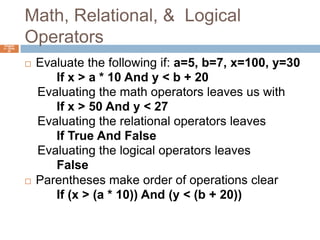
Math, Relational, &  Logical OperatorsChapter 4 – Slide 43Evaluate the following if: a=5, b=7, x=100, y=30		If x > a * 10 And y < b + 20Evaluating the math operators leaves us with		If x > 50 And y < 27Evaluating the relational operators leaves		If True And FalseEvaluating the logical operators leaves		FalseParentheses make order of operations clear		If (x > (a * 10)) And (y < (b + 20))
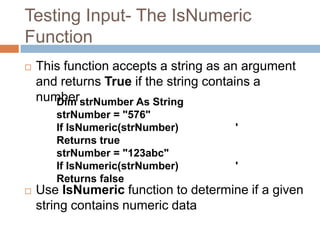
Testing Input- The IsNumeric FunctionThis function accepts a string as an argument and returns True if the string contains a numberUse IsNumeric function to determine if a given string contains numeric dataDim strNumber As StringstrNumber = "576"If IsNumeric(strNumber)		 ' Returns truestrNumber = "123abc"If IsNumeric(strNumber)		 ' Returns falseChapter 4 – Slide 44
More about Message BoxesSometimes you need a convenient way to display a message to theuser. This section discusses the MessageBox.Show method, whichallows you to display a message in a dialog box.
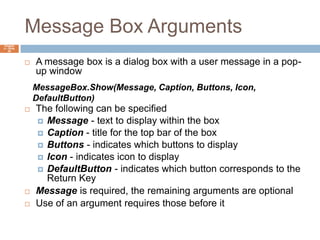
Message Box ArgumentsChapter 4 – Slide 46A message box is a dialog box with a user message in a pop-up windowThe following can be specifiedMessage - text to display within the boxCaption - title for the top bar of the boxButtons - indicates which buttons to displayIcon - indicates icon to displayDefaultButton - indicates which button corresponds to the Return KeyMessage is required, the remaining arguments are optionalUse of an argument requires those before itMessageBox.Show(Message, Caption, Buttons, Icon, DefaultButton)
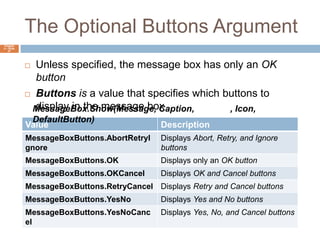
The Optional Buttons ArgumentChapter 4 – Slide 47Unless specified, the message box has only an OK button Buttons is a value that specifies which buttons to display in the message boxMessageBox.Show(Message, Caption, Buttons, Icon, DefaultButton)
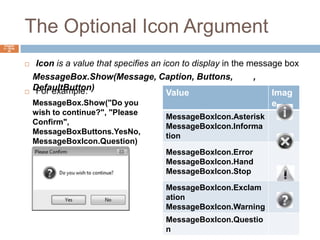
The Optional Icon ArgumentChapter 4 – Slide 48Icon is a value that specifies an icon to display in the message boxFor example:MessageBox.Show(Message, Caption, Buttons, Icon, DefaultButton)MessageBox.Show("Do you wish to continue?", "Please Confirm",MessageBoxButtons.YesNo, MessageBoxIcon.Question)
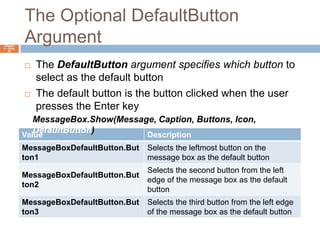
The Optional DefaultButton ArgumentChapter 4 – Slide 49The DefaultButton argument specifies which button to select as the default buttonThe default button is the button clicked when the user presses the Enter keyMessageBox.Show(Message, Caption, Buttons, Icon, DefaultButton)
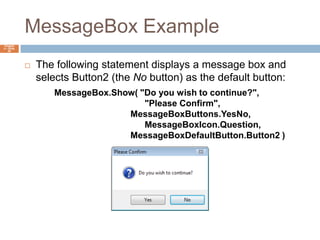
MessageBox ExampleChapter 4 – Slide 50The following statement displays a message box and selects Button2 (the No button) as the default button:MessageBox.Show( "Do you wish to continue?",                                      "Please Confirm",		     MessageBoxButtons.YesNo, MessageBoxIcon.Question,		     MessageBoxDefaultButton.Button2 )
The Select Case StatementIn a Select Case statement, one of several possible actions istaken, depending on the value of an expression.
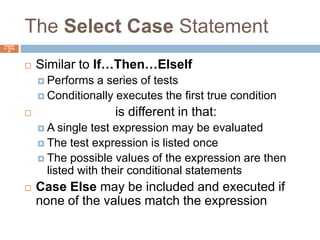
The Select Case StatementChapter 4 – Slide 52Similar to If…Then…ElseIfPerforms a series of testsConditionally executes the first true conditionSelect Case is different in that:A single test expression may be evaluatedThe test expression is listed onceThe possible values of the expression are then listed with their conditional statementsCase Else may be included and executed if none of the values match the expression
Select Case General FormatChapter 4 – Slide 53Select Case TestExpression   [Case ExpressionList      [one or more statements]]   [Case ExpressionList      [one or more statements]]   ' Case statements may be repeated   ' as many times as necessary.   [Case Else      [one or more statements]]End Select
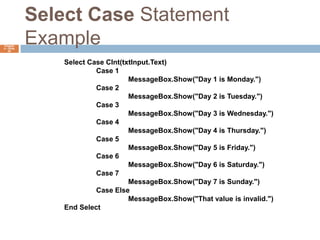
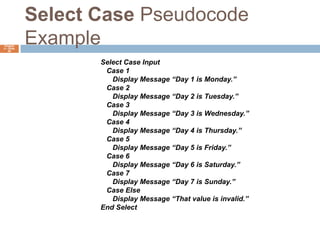
Select Case Statement ExampleChapter 4 – Slide 54Select Case CInt(txtInput.Text)	Case 1		MessageBox.Show("Day 1 is Monday.")	Case 2		MessageBox.Show("Day 2 is Tuesday.")	Case 3		MessageBox.Show("Day 3 is Wednesday.")	Case 4		MessageBox.Show("Day 4 is Thursday.")	Case 5		MessageBox.Show("Day 5 is Friday.")	Case 6		MessageBox.Show("Day 6 is Saturday.")	Case 7		MessageBox.Show("Day 7 is Sunday.")	Case Else		MessageBox.Show("That value is invalid.")End Select
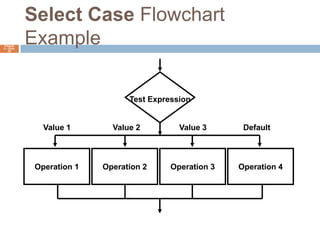
Select Case Flowchart ExampleChapter 4 – Slide 55Test ExpressionValue 1Value 3DefaultValue 2Operation 4Operation 3Operation 2Operation 1
Select Case Pseudocode ExampleChapter 4 – Slide 56Select Case Input   Case 1      Display Message “Day 1 is Monday.”   Case 2      Display Message “Day 2 is Tuesday.”   Case 3      Display Message “Day 3 is Wednesday.”   Case 4      Display Message “Day 4 is Thursday.”   Case 5      Display Message “Day 5 is Friday.”   Case 6      Display Message “Day 6 is Saturday.”   Case 7      Display Message “Day 7 is Sunday.”   Case Else      Display Message “That value is invalid.”End Select
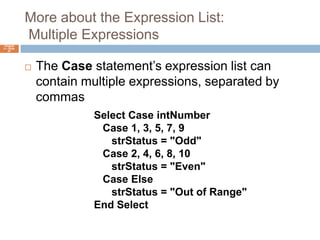
More about the Expression List:  Multiple ExpressionsChapter 4 – Slide 57The Case statement’s expression list can contain multiple expressions, separated by commasSelect Case intNumber   Case 1, 3, 5, 7, 9strStatus = "Odd"   Case 2, 4, 6, 8, 10strStatus = "Even"   Case ElsestrStatus = "Out of Range"End Select
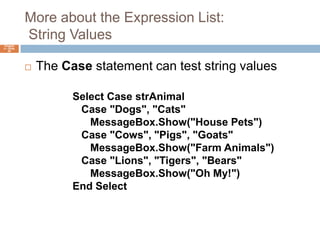
More about the Expression List:  String ValuesChapter 4 – Slide 58The Case statement can test string valuesSelect Case strAnimal   Case "Dogs", "Cats"      MessageBox.Show("House Pets")   Case "Cows", "Pigs", "Goats"      MessageBox.Show("Farm Animals")   Case "Lions", "Tigers", "Bears"      MessageBox.Show("Oh My!")End Select
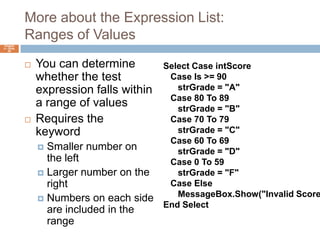
More about the Expression List:Ranges of ValuesYou can determine whether the test expression falls within a range of valuesRequires the To keywordSmaller number on the leftLarger number on the rightNumbers on each side are included in the rangeChapter 4 – Slide 59Select Case intScore   Case Is >= 90strGrade = "A"   Case 80 To 89strGrade = "B"   Case 70 To 79strGrade = "C"   Case 60 To 69strGrade = "D"   Case 0 To 59strGrade = "F"   Case Else      MessageBox.Show("Invalid Score")End Select
Introduction to Input ValidationInput validation is the process of inspecting input values anddetermining whether they are valid.
Validation ExampleChapter 4 – Slide 61Output is only as good as the input“Garbage in, garbage out” Input validation is the process of inspecting user input to see that it meets certain rulesThe TryParse method verifies that an input value is in a valid numeric or date formatDecision structures are often used to validate input
Focus on GUI Design: Radio Buttonsand Check BoxesRadio buttons appear in groups of two or more, allowing theuser to select one of several options. A check box allows the userto select an item by checking a box, or deselect the item byunchecking the box.
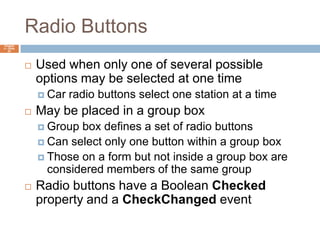
Radio ButtonsChapter 4 – Slide 63Used when only one of several possible options may be selected at one timeCar radio buttons select one station at a timeMay be placed in a group boxGroup box defines a set of radio buttonsCan select only one button within a group boxThose on a form but not inside a group box are considered members of the same groupRadio buttons have a Boolean Checked property and a CheckChanged event
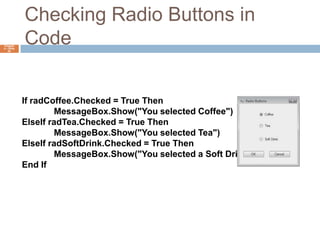
Checking Radio Buttons in CodeChapter 4 – Slide 64If radCoffee.Checked = True Then	MessageBox.Show("You selected Coffee")ElseIf radTea.Checked = True Then	MessageBox.Show("You selected Tea")ElseIf radSoftDrink.Checked = True Then	MessageBox.Show("You selected a Soft Drink")End If
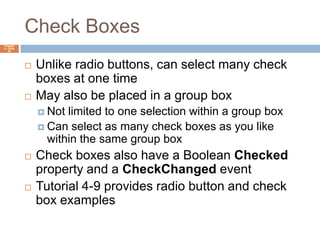
Check BoxesChapter 4 – Slide 65Unlike radio buttons, can select many check boxes at one timeMay also be placed in a group boxNot limited to one selection within a group boxCan select as many check boxes as you like within the same group boxCheck boxes also have a Boolean Checked property and a CheckChanged eventTutorial 4-9 provides radio button and check box examples
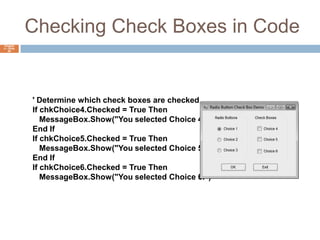
Checking Check Boxes in CodeChapter 4 – Slide 66' Determine which check boxes are checked.If chkChoice4.Checked = True Then   MessageBox.Show("You selected Choice 4.")End IfIf chkChoice5.Checked = True Then   MessageBox.Show("You selected Choice 5.")End IfIf chkChoice6.Checked = True Then   MessageBox.Show("You selected Choice 6.")
Sources used for this presentationChapter 4 – Decision StructuresMicrosoft Visual Basic 2010 Comprehensive. Shelly Cashman. Course Technology.© 2011. 1st edition.

Decision structures chpt_5

  • 1.
    Chapter 5Ms. MontanezThedecision structure allows a program’s logic to have more than one path of execution.
  • 2.
    IntroductionChapter 4 –Slide 2This chapter covers the Visual Basic decision statementsIf…ThenIf…Then…ElseIf…Then…ElseIfSelect CaseIt also discusses the use of Radio ButtonsInput Validation
  • 3.
    Order of StatementExecutionChapter 4 – Slide 3Thus far, our code has been executed sequentially in a sequence structureTo write meaningful programs we need multiple paths of executionSome statements should be executed under certain circumstances in a decision structureThis chapter presents the means to execute statements conditionallyNext chapter presents the means to execute the same statements repeatedly
  • 4.
    The Decision StructureChapter4 – Slide 4Flowchart of atypical decisionstructureEvaluate theconditionIs it cold outside?Execute or skipover some codeIf yes, wear a coatIs it cold outside?TrueFalseWear a coat.
  • 5.
    The If...Then StatementTheIf...Then statement causes other statements to execute onlywhen an expression is true.
  • 6.
    General FormatChapter 4– Slide 6If the expression is True, execute the statements between If…Then and End IfOtherwise, the statements are skippedIf expressionThenstatement (more statements may follow)End If
  • 7.
    Relational OperatorsChapter 4– Slide 7Usually a condition is formed using a relational operatorA relational operator determines if a specific relationship exists between two values> Greater than< Less than= Equal to<> Not equal to>= Greater than or equal to<= Less than or equal to
  • 8.
    Boolean ExpressionsChapter 4– Slide 8Relational operators are binary – meaning they use two operands, for example: length > width Is length greater than width? size <= 10 Is size less than or equal 10?Relational operators are used in Boolean expressions which yield a true or false result
  • 9.
    Putting It AllTogetherChapter 4 – Slide 9If…Then statement examples:If decSales > 50000 Then MessageBox.Show("You've earned a bonus!")End IfIf decSales > 50000 Then MessageBox.Show("You've earned a bonus!") decCommissionRate = 0.12 intDaysOff = intDaysOff + 1End If
  • 10.
    Rules to RememberChapter4 – Slide 10The If and the Then must be on the same lineOnly a remark may follow the ThenThe End If must be on a separate lineOnly a remark may follow the End IfTutorial 4-1 presents an application that uses the If…Then statement
  • 11.
    Programming StyleChapter 4– Slide 11The code between the If…Then and the End If is indentedVisual Basic does not require thisIt is a convention among programmers to aid in the readability of programsBy default, the Visual Basic editor will automatically do this indentation as you enter your program
  • 12.
    Using Relational Operatorswith Math OperatorsChapter 4 – Slide 12Math operators are evaluated before relational operatorsintX + intY and intA - intB are evaluated firstMost programmers prefer to use parentheses to clarify the order of operationsIf intX + intY > intA - intB Then lblMessage.Text = "It is true!"End IfIf (intX + intY) > (intA – intB) Then lblMessage.Text = "It is true!"End If
  • 13.
    The If...Then...Else StatementTheIf...Then...Else statement executes one group of statementsif the Boolean expression is true and another group of statements ifthe Boolean expression is false.
  • 14.
    General FormatChapter 4– Slide 14If the expression is True execute the statements between If…Then and ElseIf the expression is False execute the statements between Else and End IfIf expression Then statement (more statements may follow)Else statement (more statements may follow)End If
  • 15.
    Flowchart and PseudocodeChapter4 – Slide 15dblTemperature< 40?TrueFalseDisplay MessageA little cold, isn’t it?Display MessageNice weather we’re having!If temperature < 40 Then Display the message “A little cold, isn’t it?”Else Display the message “Nice weather we’re having!”End If
  • 16.
    Two Mutually ExclusiveChoicesChapter 4 – Slide 16The If…Then…Else has two choicesThe condition will either be True or FalseSo either the Then clause or Else clause will be executedThese are two mutually exclusive choicesTutorial 4-2 contains an example of the If…Then…Else construct
  • 17.
    The If...Then...ElseIf StatementTheIf...Then...ElseIf statement is like a chain ofIf...Then...Else statements. They perform their tests,one after the other, until one of them is found to be true.
  • 18.
    Multiple Possible ChoicesChapter4 – Slide 18The If…Then…ElseIf statement allows for an entire series of possible choicesIn pseudocode:If it is very cold Then Wear a coatElseif it is chilly Wear a light jacketElseif it is windy Wear a windbreakerElseif it is hot Wear no jacket
  • 19.
    Multiple Possible ChoicesChapter4 – Slide 19Each of the series of conditions in an If…Then…ElseIf is tested in sequenceWhen a condition is true, the remaining conditions are ignoredThe order of the conditions is vitalWrong order can result in wrong decision - called a logic errorWhat if it’s chilly and windy?If windy is tested before chilly, you’d go out with a windbreaker when you need a jacket
  • 20.
    General FormatChapter 4– Slide 20This construction is like a chain of If...Then...Else statementsThe Else part of one statement is linked to the If part of anotherIf expression Thenstatement (more statements may follow)ElseIf expression Thenstatement (more statements may follow)(put as many ElseIf statements as necessary)Elsestatement (more statements may follow)
  • 21.
    FlowchartChapter 4 –Slide 21Very cold?TrueWear a heavy jacketFalseTrueChilly?Wear a light jacketFalseTrueWindy?Wear a windbreakerFalseTrueHot?Wear no jacketFalse
  • 22.
    Example of ElseIfUsageDoes the order of these conditions matter?What happens if we reverse the order?Chapter 4 – Slide 22If dblAverage < 60 Then lblGrade.Text = "F"ElseIf dblAverage < 70 Then lblGrade.Text = "D"ElseIf dblAverage < 80 Then lblGrade.Text = "C"ElseIf dblAverage < 90 Then lblGrade.Text = "B"ElseIf sngAverage <= 100 Then lblGrade.Text = "A"End If
  • 23.
    Using Only If…ThenStatementsDoes this code function correctly? What is assigned to lblGrade for a 65 average? 75?Chapter 4 – Slide 23If dblAverage < 60 Then lblGrade.Text = "F"End IfIf dblAverage < 70 Then lblGrade.Text = "D"End IfIf dblAverage < 80 Then lblGrade.Text = "C"End IfIf dblAverage < 90 Then lblGrade.Text = "B"End IfIf dblAverage <= 100 Then lblGrade.Text = "A"End If
  • 24.
    Using a TrailingElseA sequence of ElseIf statements may end with a plain Else, called a trailing ElseIf none of the conditions are True, the trailing Else statement(s) will be executedThe trailing Else catches any value that falls through the cracksChapter 4 – Slide 24' Display the letter grade.If dblAverage < 60 ThenlblGrade.Text = "F"ElseIf dblAverage < 70 ThenlblGrade.Text = "D"ElseIf dblAverage < 80 ThenlblGrade.Text = "C"ElseIf dblAverage < 90 ThenlblGrade.Text = "B"ElseIf dblAverage <= 100 ThenlblGrade.Text = "A"ElselblGrade.Text = "Invalid Score"End If
  • 25.
    Nested If StatementsAnested If statement is an If statement in the conditionallyexecuted code of another If statement. (In this section, we use theterm If statement to refer to an If . . . Then, If...Then...Else,or If...Then...ElseIf statement.)
  • 26.
    If Statements WithinIf StatementsChapter 4 – Slide 26Any type of statement may be used inside a set of Then, Else, or ElseIf statements of an IfThis includes other If statementsIf statements within If statements create a more complex decision structure called a Nested If
  • 27.
    Nested If ExampleChapter4 – Slide 27In an application, the customer must meet one of the following qualifications: Earn $30,000 per year or more and have worked in his or her current job for more than two years.Have worked at his or her current job for more than five years.
  • 28.
    Examining the NestedIf StatementChapter 4 – Slide 28If dblSalary > 30000 Then If intYearsOnJob > 2 Then lblMessage.Text = "Applicant qualifies." Else lblMessage.Text = "Applicant does not qualify." End IfElse If intYearsOnJob > 5 Then lblMessage.Text = "Applicant qualifies." Else lblMessage.Text = "Applicant does not qualify." End IfEnd If
  • 29.
    Flowchart of NestedIf StatementsChapter 4 – Slide 29Salary > $30,000?TrueFalseYears at current job > 2?Years at current job> 5?FalseTrueTrueFalseDisplay message The applicant qualifies.Display message The applicant does not qualify.Display message The applicant qualifies.Display messageThe applicant does not qualify.
  • 30.
    Logical OperatorsLogical operatorscombine two or more Boolean expressions into asingle expression.
  • 31.
    Visual Basic LogicalOperatorsChapter 4 – Slide 31Visual Basic provides Logical operators that can combine multiple Boolean expressions into a compound expression
  • 32.
    The And OperatorChapter4 – Slide 32The And operator combines two expressions into oneThe following If statement uses the And operator:Both expressions must be true for the overall expression to be true, as shown in the following truth table:If intTemperature < 20 And intMinutes > 12 Then lblMessage.Text = "The temperature is in the danger zone."End If
  • 33.
    Short-Circuit Evaluation withAndAlsoChapter 4 – Slide 33When using the And operator, if the first expression is false, then the entire expression will be falseIf there is no need to evaluate the second expression, it can be skipped using a method called short-circuit evaluationIn Visual Basic you use the AndAlso operator to achieve short-circuit evaluation
  • 34.
    Short-Circuit Evaluation withAndAlsoChapter 4 – Slide 34In the following example, assuming that dblX is less than or equal to zero, CheckValue is not called and Expression is False is displayed:If dblX > 0 AndAlso CheckValue(dblX) ThenlblResult.Text = "Expression is True"ElselblResult.Text = "Expression is False"End If
  • 35.
    The Or OperatorChapter4 – Slide 35The Or operator combines two expressions into oneThe following If statement uses the Or operator:One or both expressions must be true for the overall expression to be true, as shown in the following truth table:If intTemperature < 20 Or intTemperature > 100 Then lblMessage.Text = "The temperature is in the danger zone."End If
  • 36.
    Short Circuit-Evaluation withOrElseChapter 4 – Slide 36When using the Or operator, if the first expression is true, then the entire expression will be trueIf there is no need to evaluate the second expression, it can be skipped using short-circuit evaluation with the OrElse operator
  • 37.
    Short Circuit-Evaluation withOrElseChapter 4 – Slide 37In the following example, if dblX is equal to zero, CheckValue is not called and Expression is True is displayed:If dblX = 0 OrElse CheckValue(dblX) ThenlblResult.Text = "Expression is True"End If
  • 38.
    The Xor OperatorChapter4 – Slide 38The Xor operator combines two expressions into oneXor stands for exclusive orThe following If statement uses the Xor operator:One but not both expressions must be true for the overall expression to be true, as shown in the following truth table:If decTotal > 1000 Xor decAverage > 120 ThenlblMessage.Text = "You may try again."End If
  • 39.
    The Not OperatorChapter4 – Slide 39The Not operator takes a Boolean expression and reverses its logical valueThe following If statement uses the Not operator:If the expression is true, the Not operator returns False, and if the expression is false, it returns True, as shown in the following truth table:If Not intTemperature > 100 ThenlblMessage.Text = "You are below the maximum temperature."End If
  • 40.
    Checking Numerical RangesChapter4 – Slide 40The And operator is best for checking if a value is inside a range of numbersThe Or operator is best for checking if a value is outside a range of numbersIf intX >= 20 And intX <= 40 ThenlblMessage.Text = "The value is in the acceptable range."End IfIf intX < 20 Or intX > 40 ThenlblMessage.Text = "The value is outside the acceptable range."End If
  • 41.
    Precedence of LogicalOperatorsChapter 4 – Slide 41Logical operators have an order of precedence just as arithmetic operators doFrom highest to lowest precedenceNotAndOrXorAs with arithmetic operations, parentheses are often used to clarify order of operations
  • 42.
    Precedence of LogicalOperatorsChapter 4 – Slide 42For example, in the statement If x < 0 And y > 100 Or z = 50x < 0 And y > 100 is evaluated firstIf the And condition is true, we then evaluateTrue Or z = 50If the And condition is false, we then evaluateFalse Or z = 50If the Or condition is to be evaluated first, parentheses must be used If x < 0 And (y > 100 Or z = 50)
  • 43.
    Math, Relational, & Logical OperatorsChapter 4 – Slide 43Evaluate the following if: a=5, b=7, x=100, y=30 If x > a * 10 And y < b + 20Evaluating the math operators leaves us with If x > 50 And y < 27Evaluating the relational operators leaves If True And FalseEvaluating the logical operators leaves FalseParentheses make order of operations clear If (x > (a * 10)) And (y < (b + 20))
  • 44.
    Testing Input- TheIsNumeric FunctionThis function accepts a string as an argument and returns True if the string contains a numberUse IsNumeric function to determine if a given string contains numeric dataDim strNumber As StringstrNumber = "576"If IsNumeric(strNumber) ' Returns truestrNumber = "123abc"If IsNumeric(strNumber) ' Returns falseChapter 4 – Slide 44
  • 45.
    More about MessageBoxesSometimes you need a convenient way to display a message to theuser. This section discusses the MessageBox.Show method, whichallows you to display a message in a dialog box.
  • 46.
    Message Box ArgumentsChapter4 – Slide 46A message box is a dialog box with a user message in a pop-up windowThe following can be specifiedMessage - text to display within the boxCaption - title for the top bar of the boxButtons - indicates which buttons to displayIcon - indicates icon to displayDefaultButton - indicates which button corresponds to the Return KeyMessage is required, the remaining arguments are optionalUse of an argument requires those before itMessageBox.Show(Message, Caption, Buttons, Icon, DefaultButton)
  • 47.
    The Optional ButtonsArgumentChapter 4 – Slide 47Unless specified, the message box has only an OK button Buttons is a value that specifies which buttons to display in the message boxMessageBox.Show(Message, Caption, Buttons, Icon, DefaultButton)
  • 48.
    The Optional IconArgumentChapter 4 – Slide 48Icon is a value that specifies an icon to display in the message boxFor example:MessageBox.Show(Message, Caption, Buttons, Icon, DefaultButton)MessageBox.Show("Do you wish to continue?", "Please Confirm",MessageBoxButtons.YesNo, MessageBoxIcon.Question)
  • 49.
    The Optional DefaultButtonArgumentChapter 4 – Slide 49The DefaultButton argument specifies which button to select as the default buttonThe default button is the button clicked when the user presses the Enter keyMessageBox.Show(Message, Caption, Buttons, Icon, DefaultButton)
  • 50.
    MessageBox ExampleChapter 4– Slide 50The following statement displays a message box and selects Button2 (the No button) as the default button:MessageBox.Show( "Do you wish to continue?", "Please Confirm", MessageBoxButtons.YesNo, MessageBoxIcon.Question, MessageBoxDefaultButton.Button2 )
  • 51.
    The Select CaseStatementIn a Select Case statement, one of several possible actions istaken, depending on the value of an expression.
  • 52.
    The Select CaseStatementChapter 4 – Slide 52Similar to If…Then…ElseIfPerforms a series of testsConditionally executes the first true conditionSelect Case is different in that:A single test expression may be evaluatedThe test expression is listed onceThe possible values of the expression are then listed with their conditional statementsCase Else may be included and executed if none of the values match the expression
  • 53.
    Select Case GeneralFormatChapter 4 – Slide 53Select Case TestExpression [Case ExpressionList [one or more statements]] [Case ExpressionList [one or more statements]] ' Case statements may be repeated ' as many times as necessary. [Case Else [one or more statements]]End Select
  • 54.
    Select Case StatementExampleChapter 4 – Slide 54Select Case CInt(txtInput.Text) Case 1 MessageBox.Show("Day 1 is Monday.") Case 2 MessageBox.Show("Day 2 is Tuesday.") Case 3 MessageBox.Show("Day 3 is Wednesday.") Case 4 MessageBox.Show("Day 4 is Thursday.") Case 5 MessageBox.Show("Day 5 is Friday.") Case 6 MessageBox.Show("Day 6 is Saturday.") Case 7 MessageBox.Show("Day 7 is Sunday.") Case Else MessageBox.Show("That value is invalid.")End Select
  • 55.
    Select Case FlowchartExampleChapter 4 – Slide 55Test ExpressionValue 1Value 3DefaultValue 2Operation 4Operation 3Operation 2Operation 1
  • 56.
    Select Case PseudocodeExampleChapter 4 – Slide 56Select Case Input Case 1 Display Message “Day 1 is Monday.” Case 2 Display Message “Day 2 is Tuesday.” Case 3 Display Message “Day 3 is Wednesday.” Case 4 Display Message “Day 4 is Thursday.” Case 5 Display Message “Day 5 is Friday.” Case 6 Display Message “Day 6 is Saturday.” Case 7 Display Message “Day 7 is Sunday.” Case Else Display Message “That value is invalid.”End Select
  • 57.
    More about theExpression List: Multiple ExpressionsChapter 4 – Slide 57The Case statement’s expression list can contain multiple expressions, separated by commasSelect Case intNumber Case 1, 3, 5, 7, 9strStatus = "Odd" Case 2, 4, 6, 8, 10strStatus = "Even" Case ElsestrStatus = "Out of Range"End Select
  • 58.
    More about theExpression List: String ValuesChapter 4 – Slide 58The Case statement can test string valuesSelect Case strAnimal Case "Dogs", "Cats" MessageBox.Show("House Pets") Case "Cows", "Pigs", "Goats" MessageBox.Show("Farm Animals") Case "Lions", "Tigers", "Bears" MessageBox.Show("Oh My!")End Select
  • 59.
    More about theExpression List:Ranges of ValuesYou can determine whether the test expression falls within a range of valuesRequires the To keywordSmaller number on the leftLarger number on the rightNumbers on each side are included in the rangeChapter 4 – Slide 59Select Case intScore Case Is >= 90strGrade = "A" Case 80 To 89strGrade = "B" Case 70 To 79strGrade = "C" Case 60 To 69strGrade = "D" Case 0 To 59strGrade = "F" Case Else MessageBox.Show("Invalid Score")End Select
  • 60.
    Introduction to InputValidationInput validation is the process of inspecting input values anddetermining whether they are valid.
  • 61.
    Validation ExampleChapter 4– Slide 61Output is only as good as the input“Garbage in, garbage out” Input validation is the process of inspecting user input to see that it meets certain rulesThe TryParse method verifies that an input value is in a valid numeric or date formatDecision structures are often used to validate input
  • 62.
    Focus on GUIDesign: Radio Buttonsand Check BoxesRadio buttons appear in groups of two or more, allowing theuser to select one of several options. A check box allows the userto select an item by checking a box, or deselect the item byunchecking the box.
  • 63.
    Radio ButtonsChapter 4– Slide 63Used when only one of several possible options may be selected at one timeCar radio buttons select one station at a timeMay be placed in a group boxGroup box defines a set of radio buttonsCan select only one button within a group boxThose on a form but not inside a group box are considered members of the same groupRadio buttons have a Boolean Checked property and a CheckChanged event
  • 64.
    Checking Radio Buttonsin CodeChapter 4 – Slide 64If radCoffee.Checked = True Then MessageBox.Show("You selected Coffee")ElseIf radTea.Checked = True Then MessageBox.Show("You selected Tea")ElseIf radSoftDrink.Checked = True Then MessageBox.Show("You selected a Soft Drink")End If
  • 65.
    Check BoxesChapter 4– Slide 65Unlike radio buttons, can select many check boxes at one timeMay also be placed in a group boxNot limited to one selection within a group boxCan select as many check boxes as you like within the same group boxCheck boxes also have a Boolean Checked property and a CheckChanged eventTutorial 4-9 provides radio button and check box examples
  • 66.
    Checking Check Boxesin CodeChapter 4 – Slide 66' Determine which check boxes are checked.If chkChoice4.Checked = True Then MessageBox.Show("You selected Choice 4.")End IfIf chkChoice5.Checked = True Then MessageBox.Show("You selected Choice 5.")End IfIf chkChoice6.Checked = True Then MessageBox.Show("You selected Choice 6.")
  • 67.
    Sources used forthis presentationChapter 4 – Decision StructuresMicrosoft Visual Basic 2010 Comprehensive. Shelly Cashman. Course Technology.© 2011. 1st edition.