
Introducing JavaBeans


Pre-assessment Questions
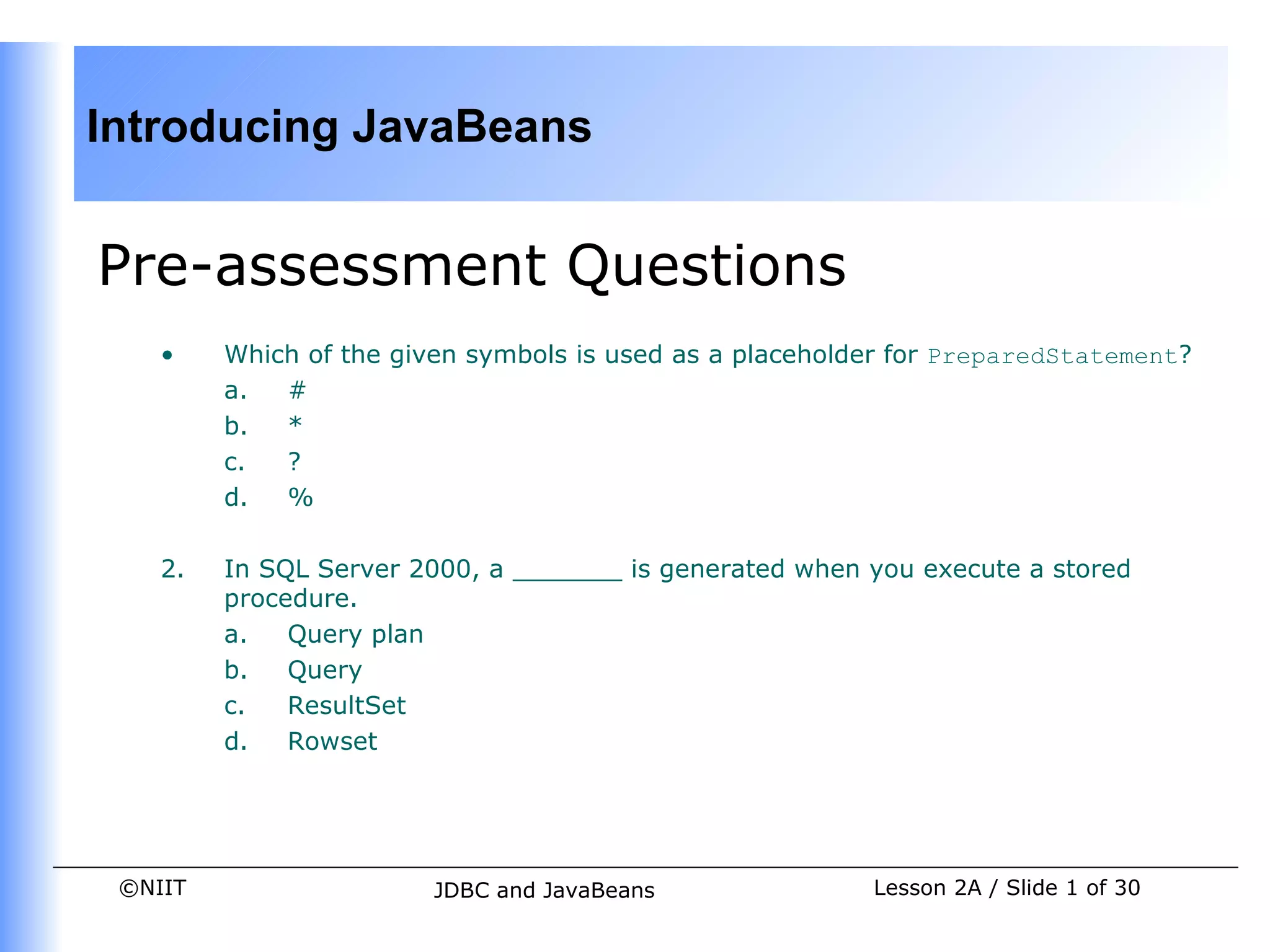
    •    Which of the given symbols is used as a placeholder for PreparedStatement?
         a.  #
         b.  *
         c.  ?
         d.  %

    2.   In SQL Server 2000, a _______ is generated when you execute a stored
         procedure.
         a.   Query plan
         b.   Query
         c.   ResultSet
         d.   Rowset


 ©NIIT                   JDBC and JavaBeans               Lesson 2A / Slide 1 of 30
Introducing JavaBeans


Pre-assessment Questions (Contd.)
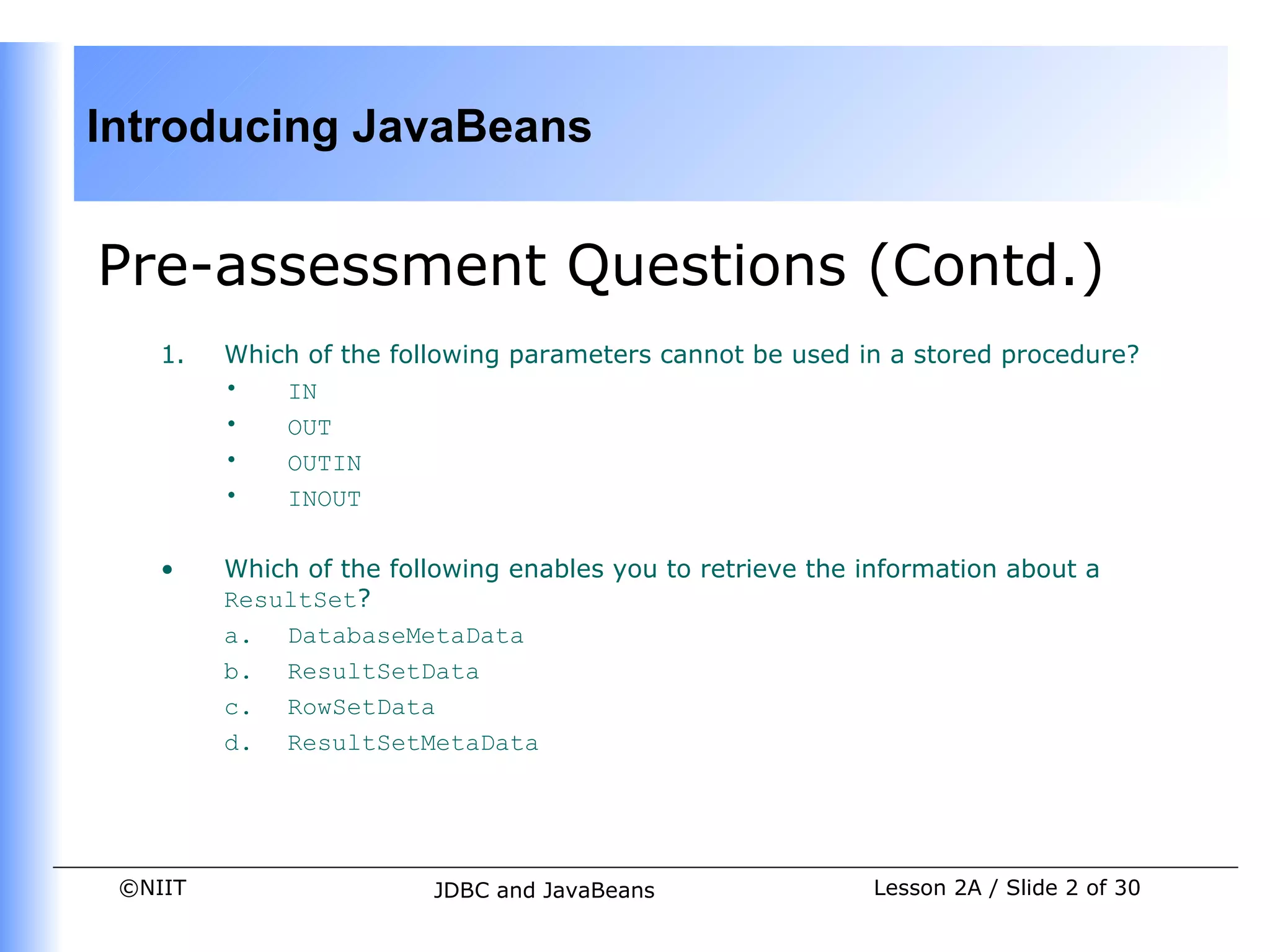
    1.   Which of the following parameters cannot be used in a stored procedure?
         •   IN
         •   OUT
         •   OUTIN
         •   INOUT

    •    Which of the following enables you to retrieve the information about a
         ResultSet?
         a. DatabaseMetaData
         b. ResultSetData
         c. RowSetData
         d. ResultSetMetaData


 ©NIIT                   JDBC and JavaBeans                 Lesson 2A / Slide 2 of 30
Introducing JavaBeans


Pre-assessment Questions (Contd.)
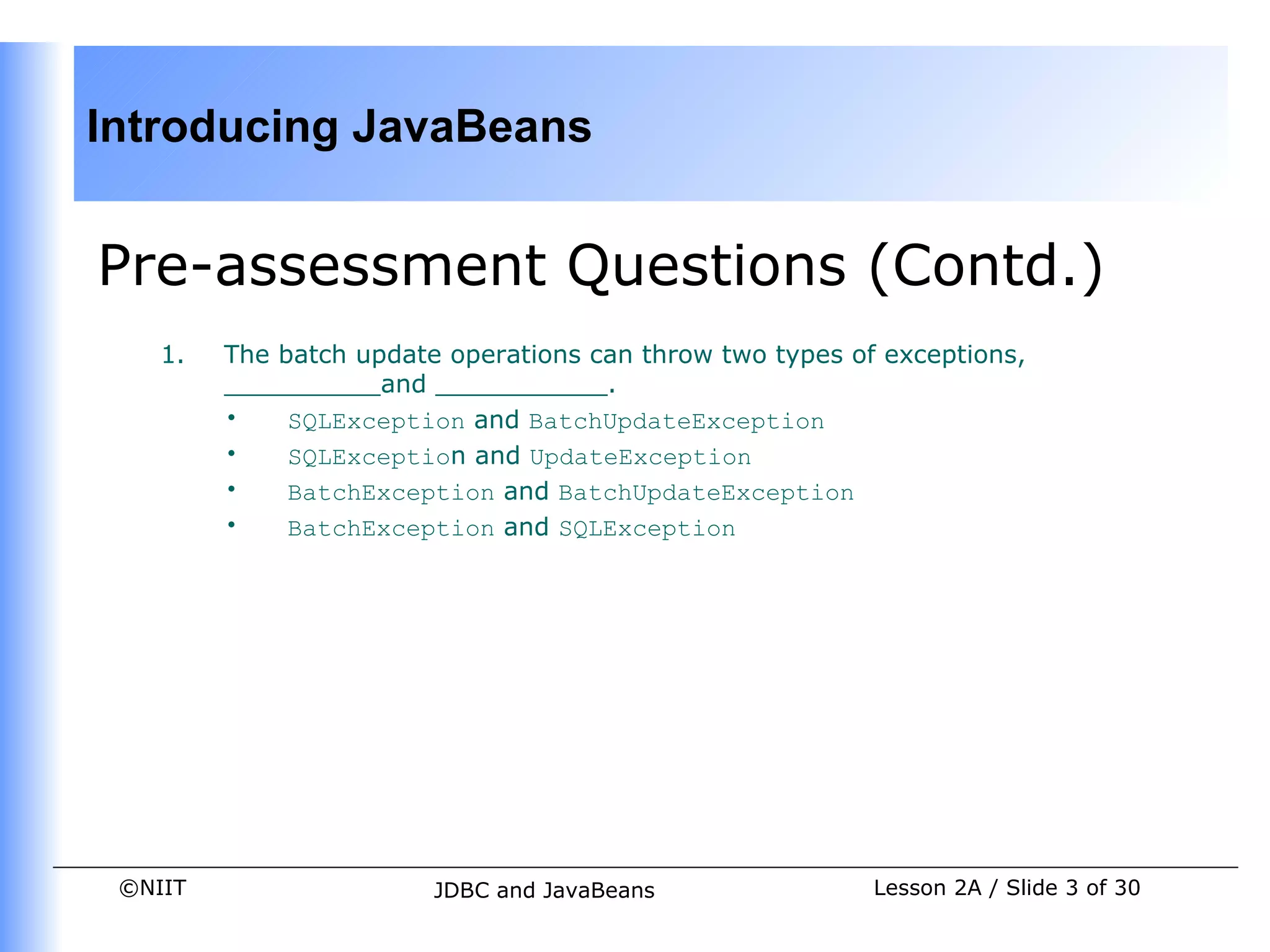
    1.   The batch update operations can throw two types of exceptions,
         __________and ___________.
         •    SQLException and BatchUpdateException
         •    SQLException and UpdateException
         •    BatchException and BatchUpdateException
         •    BatchException and SQLException


 ©NIIT                   JDBC and JavaBeans                Lesson 2A / Slide 3 of 30
Introducing JavaBeans


Solutions to Pre-assessment
Questions
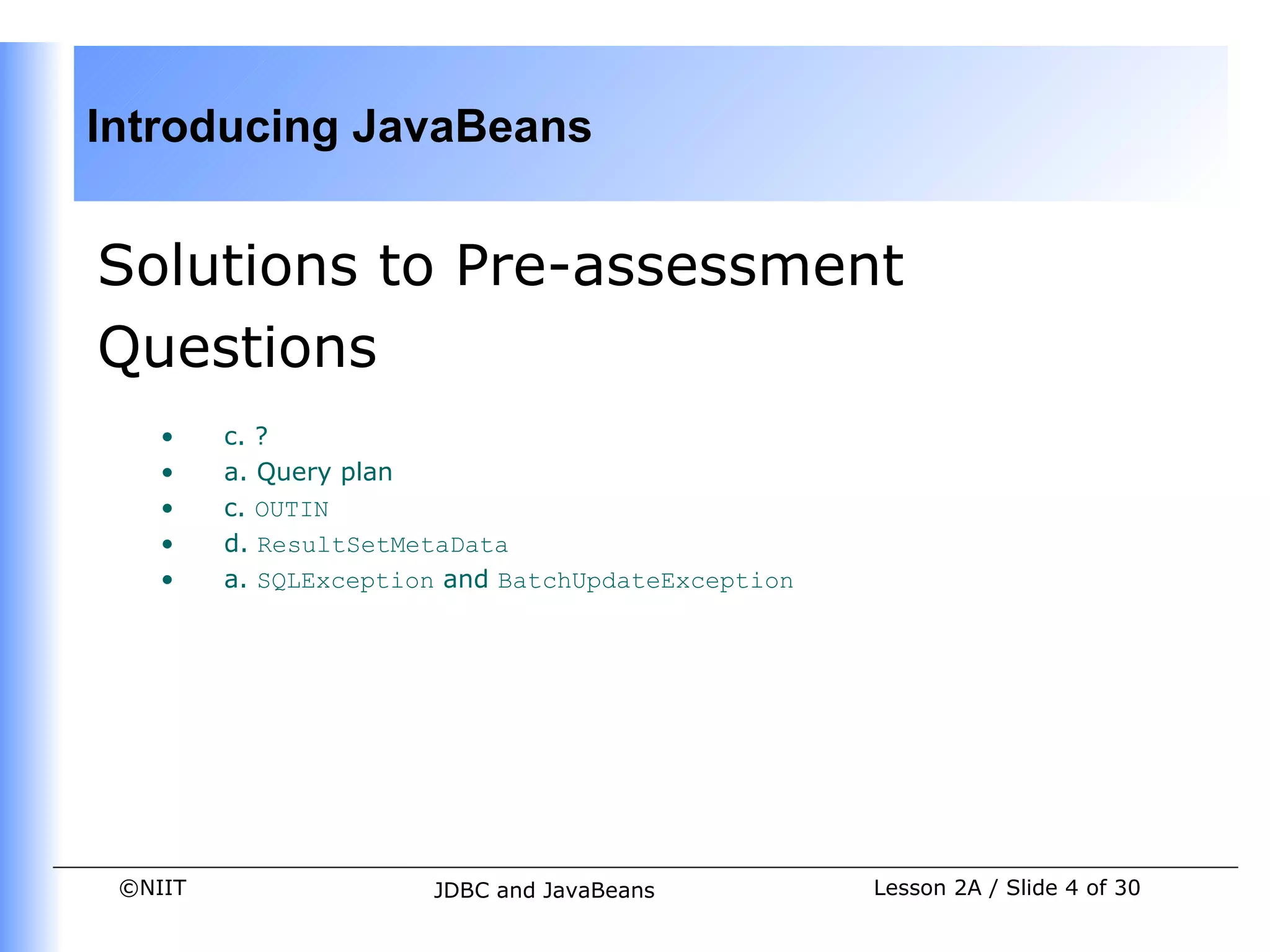
    •    c. ?
    •    a. Query plan
    •    c. OUTIN
    •    d. ResultSetMetaData
    •    a. SQLException and BatchUpdateException


 ©NIIT                 JDBC and JavaBeans           Lesson 2A / Slide 4 of 30
Introducing JavaBeans


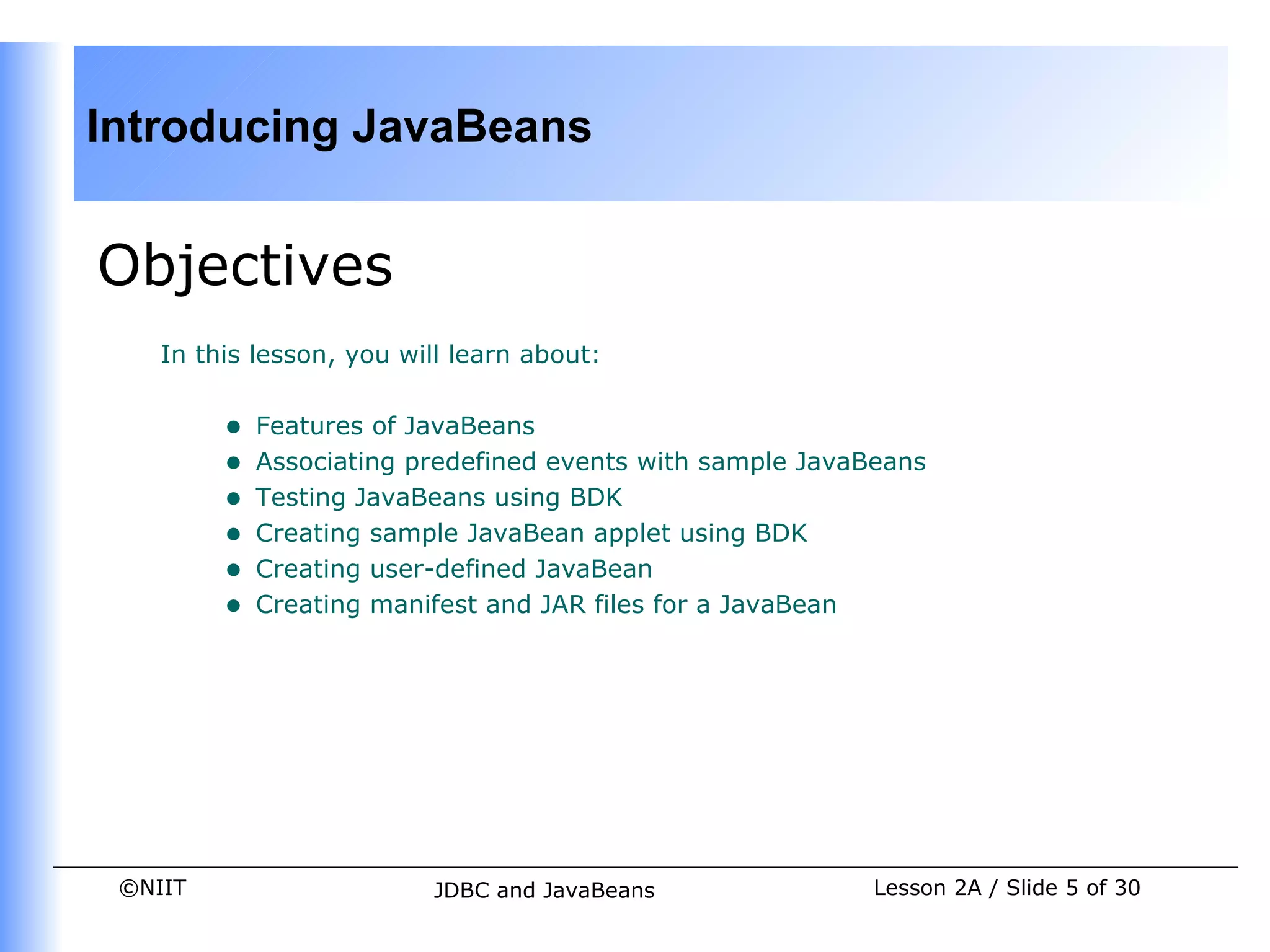
Objectives
    In this lesson, you will learn about:


         •   Features of JavaBeans
         •   Associating predefined events with sample JavaBeans
         •   Testing JavaBeans using BDK
         •   Creating sample JavaBean applet using BDK
         •   Creating user-defined JavaBean
         •   Creating manifest and JAR files for a JavaBean


 ©NIIT                    JDBC and JavaBeans                Lesson 2A / Slide 5 of 30
Introducing JavaBeans


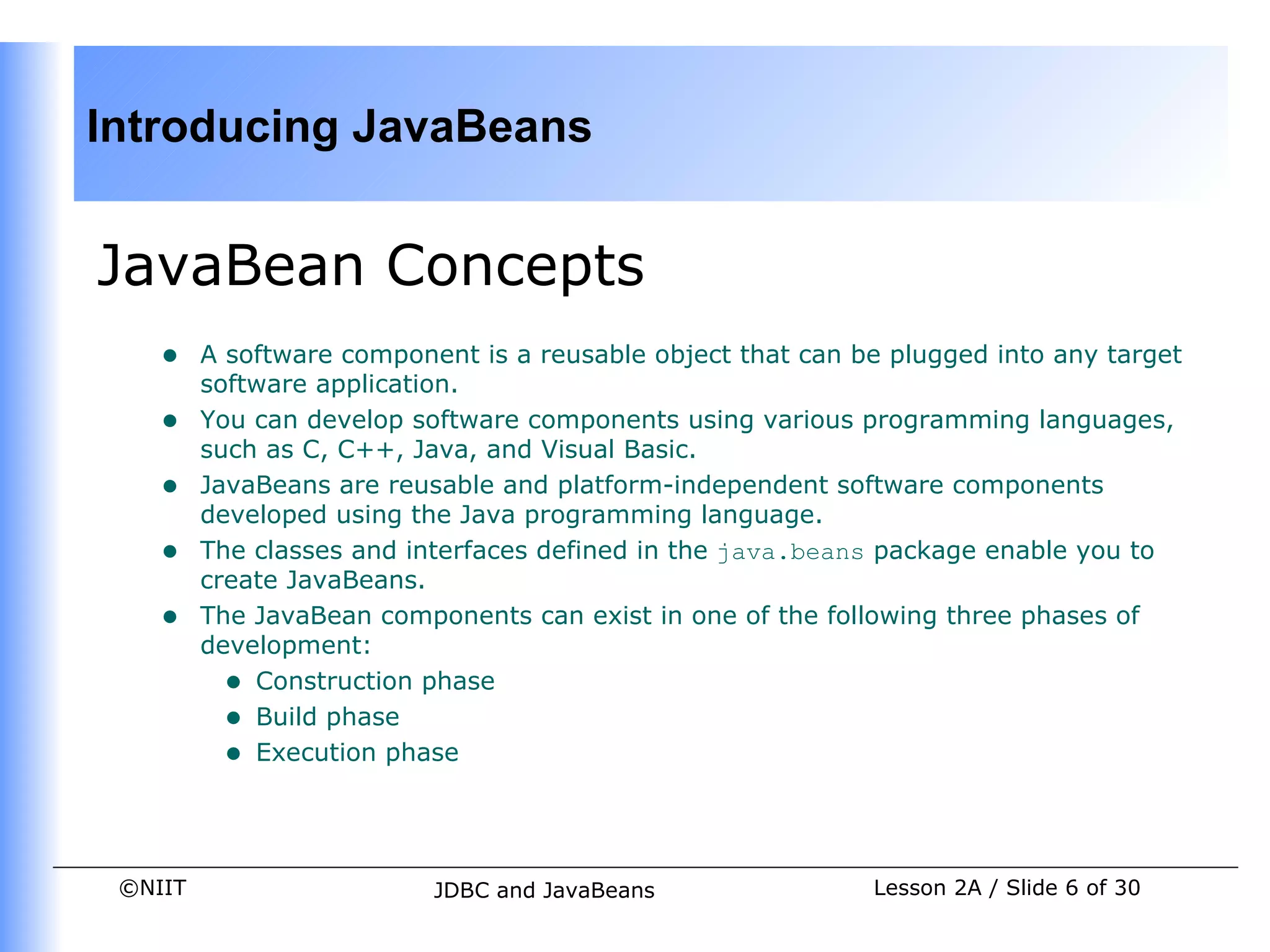
JavaBean Concepts
    •    A software component is a reusable object that can be plugged into any target
         software application.
    •    You can develop software components using various programming languages,
         such as C, C++, Java, and Visual Basic.
    •    JavaBeans are reusable and platform-independent software components
         developed using the Java programming language.
    •    The classes and interfaces defined in the java.beans package enable you to
         create JavaBeans.
    •    The JavaBean components can exist in one of the following three phases of
         development:
           • Construction phase
           • Build phase
           • Execution phase


 ©NIIT                     JDBC and JavaBeans                Lesson 2A / Slide 6 of 30
Introducing JavaBeans


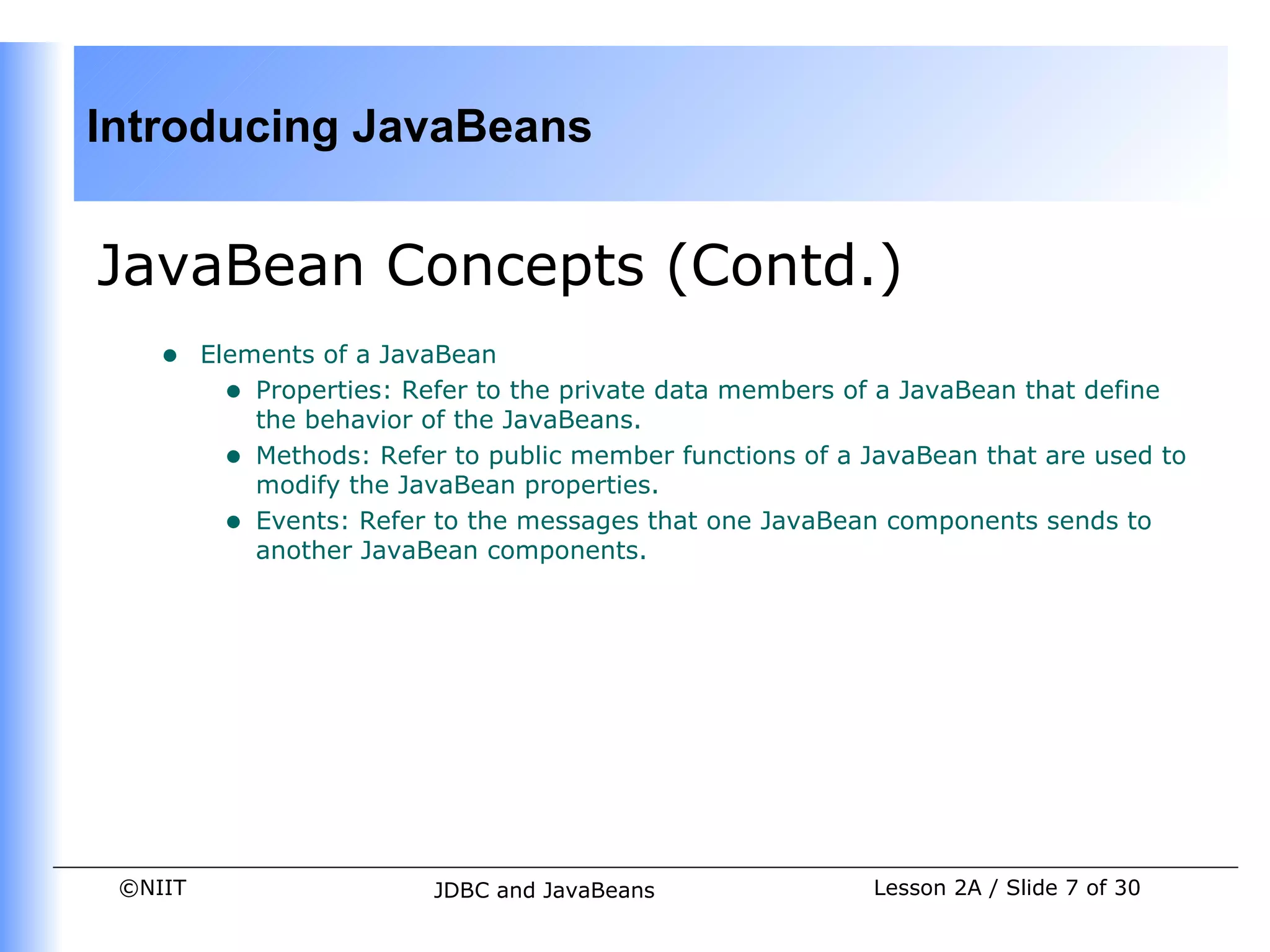
JavaBean Concepts (Contd.)
    •    Elements of a JavaBean
           • Properties: Refer to the private data members of a JavaBean that define
             the behavior of the JavaBeans.
           • Methods: Refer to public member functions of a JavaBean that are used to
             modify the JavaBean properties.
           • Events: Refer to the messages that one JavaBean components sends to
             another JavaBean components.


 ©NIIT                     JDBC and JavaBeans               Lesson 2A / Slide 7 of 30
Introducing JavaBeans


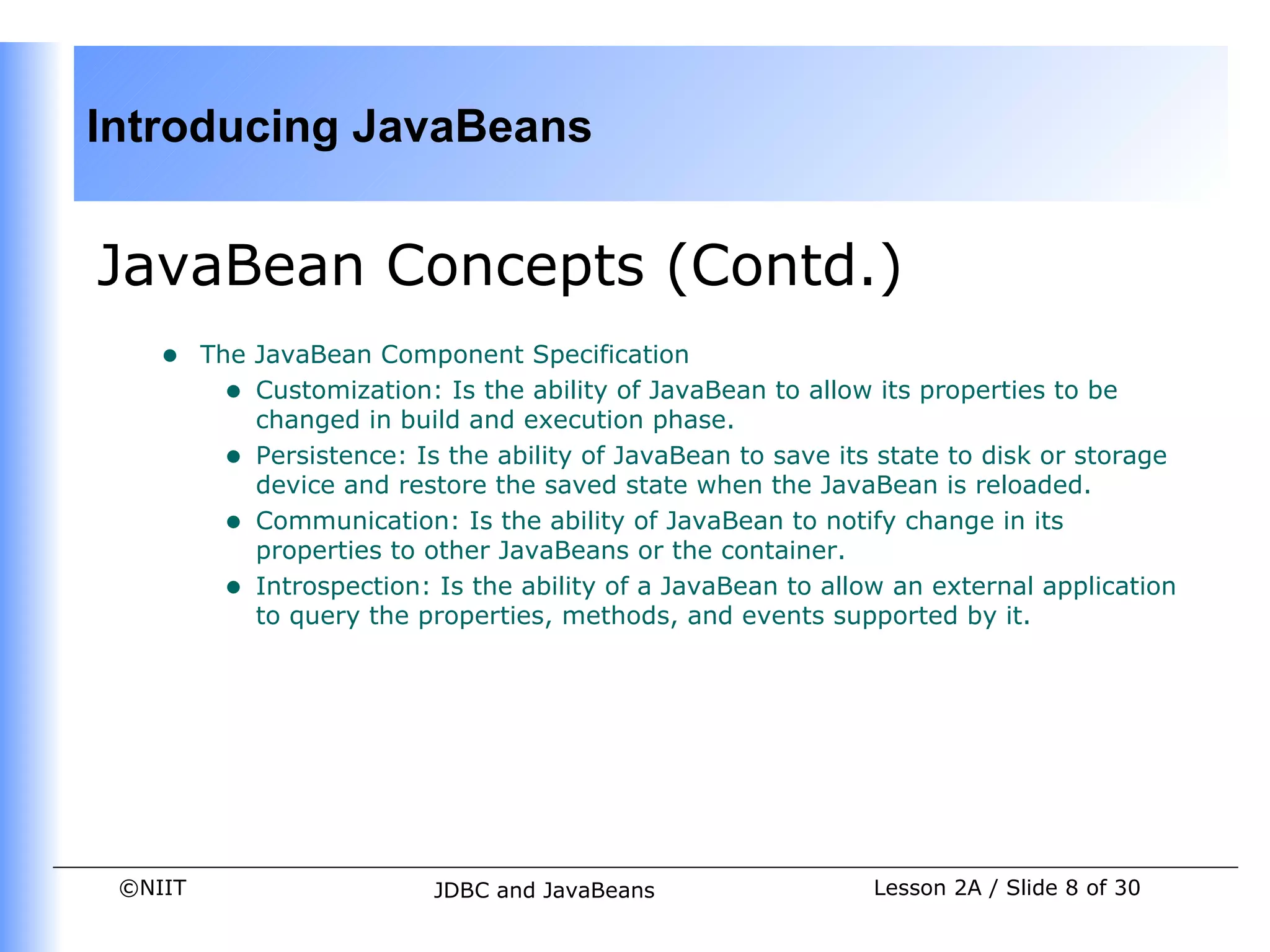
JavaBean Concepts (Contd.)
    •    The JavaBean Component Specification
           • Customization: Is the ability of JavaBean to allow its properties to be
             changed in build and execution phase.
           • Persistence: Is the ability of JavaBean to save its state to disk or storage
             device and restore the saved state when the JavaBean is reloaded.
           • Communication: Is the ability of JavaBean to notify change in its
             properties to other JavaBeans or the container.
           • Introspection: Is the ability of a JavaBean to allow an external application
             to query the properties, methods, and events supported by it.


 ©NIIT                      JDBC and JavaBeans                  Lesson 2A / Slide 8 of 30
Introducing JavaBeans


JavaBean Concepts (Contd.)
    •    Services of JavaBean Components
         • Builder support: Enables you to create and group multiple JavaBeans in
              an application.
         • Layout: Allows multiple JavaBeans to be arranged in a development
              environment.
         • Interface publishing: Enables multiple JavaBeans in an application to
              communicate with each other.
         • Event handling: Refers to firing and handling of events associated with
              a JavaBean.
         • Persistence: Enables you to save the last state of JavaBean.


 ©NIIT                  JDBC and JavaBeans                Lesson 2A / Slide 9 of 30
Introducing JavaBeans


JavaBean Concepts (Contd.)
    •    Types of JavaBeans
          • Control JavaBeans: Are used to create GUI components that can be
               plugged into any application.
          • Container JavaBeans: Are used to hold other JavaBeans.
          • Invisible Runtime JavaBeans: Are used to create components that
               perform a specific task in the background of an application.


 ©NIIT                 JDBC and JavaBeans             Lesson 2A / Slide 10 of 30
Introducing JavaBeans


Beans Development Kit
    •    Is a development environment to create, configure, and test JavaBeans.
    •    The features of BDK environment are:
          • Provides a GUI to create, configure, and test JavaBeans.
          • Enables you to modify JavaBean properties and link multiple
                JavaBeans in an application using BDK.
          • Provides a set of sample JavaBeans.
          • Enables you to associate pre-defined events with sample JavaBeans.


 ©NIIT                  JDBC and JavaBeans             Lesson 2A / Slide 11 of 30
Introducing JavaBeans


Beans Development Kit (Contd.)
    •    Identifying BDK Components
         • Execute the run.bat file of BDK to start the BDK development
              environment.
         • The components of BDK development environment are:
              • ToolBox
              • BeanBox
              • Properties
              • Method Tracer


 ©NIIT                  JDBC and JavaBeans             Lesson 2A / Slide 12 of 30
Introducing JavaBeans


Beans Development Kit (Contd.)
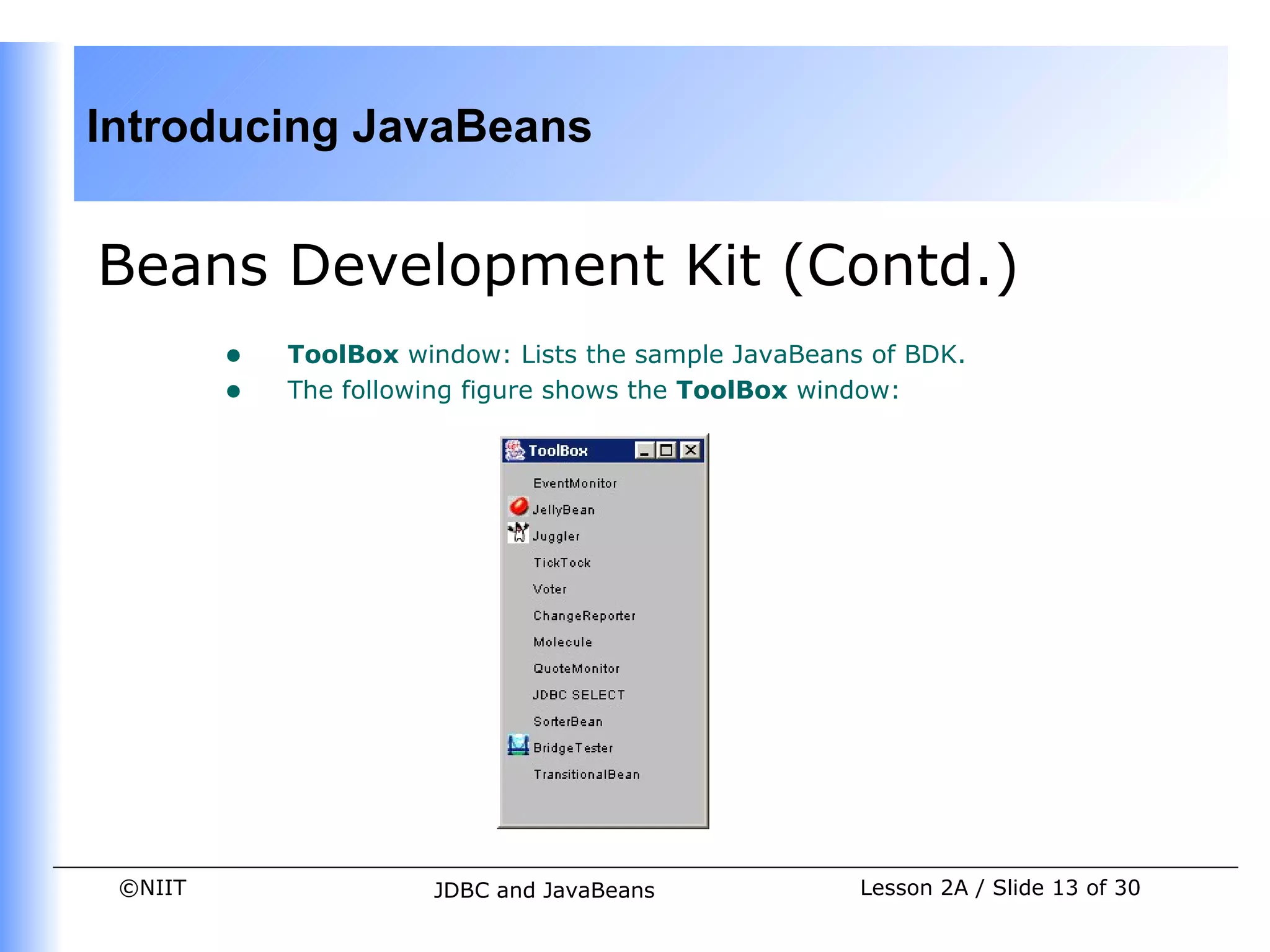
         •   ToolBox window: Lists the sample JavaBeans of BDK.
         •   The following figure shows the ToolBox window:


 ©NIIT                 JDBC and JavaBeans              Lesson 2A / Slide 13 of 30
Introducing JavaBeans


Beans Development Kit (Contd.)
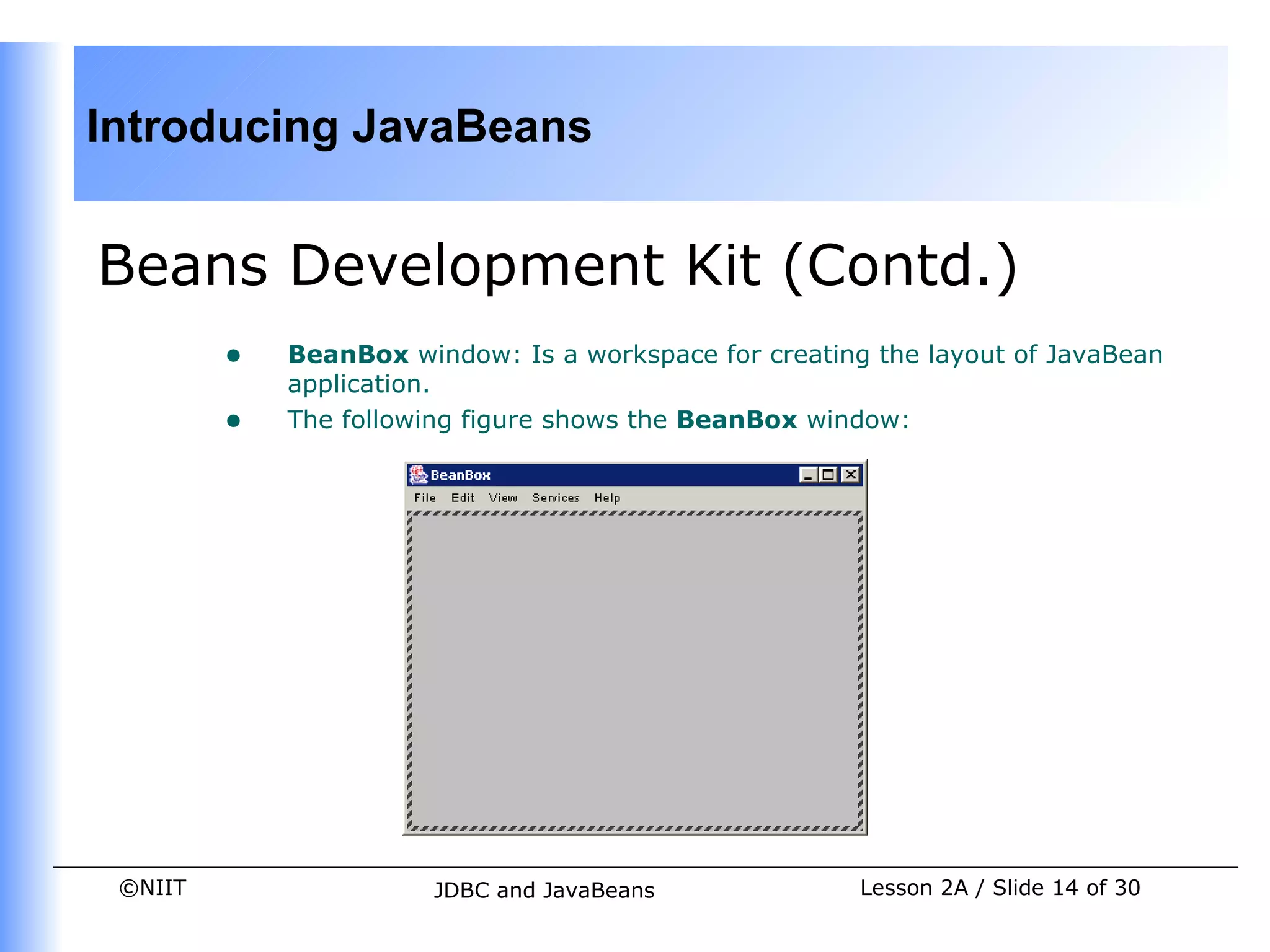
         •   BeanBox window: Is a workspace for creating the layout of JavaBean
             application.
         •   The following figure shows the BeanBox window:


 ©NIIT                  JDBC and JavaBeans              Lesson 2A / Slide 14 of 30
Introducing JavaBeans


Beans Development Kit (Contd.)
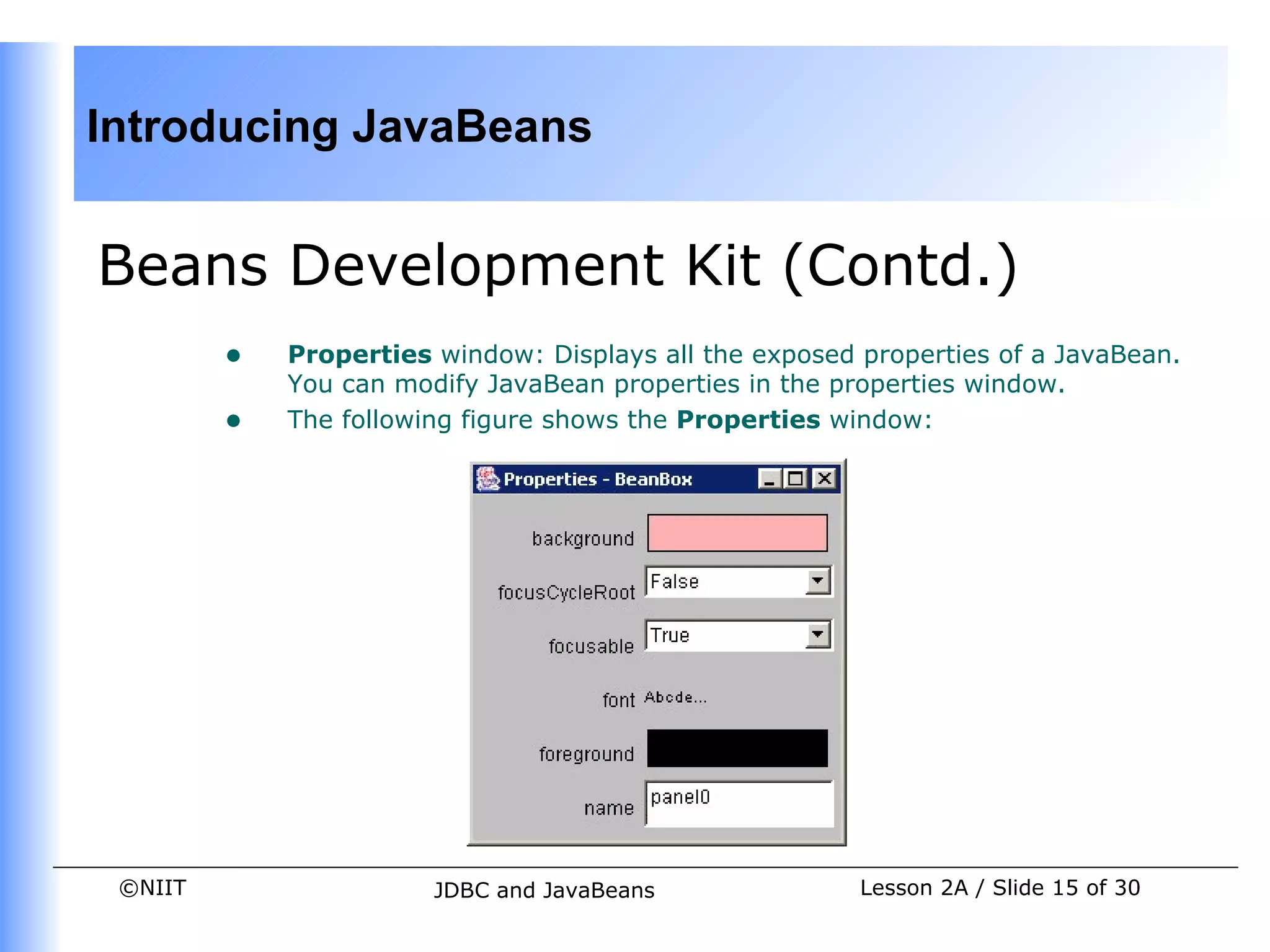
         •   Properties window: Displays all the exposed properties of a JavaBean.
             You can modify JavaBean properties in the properties window.
         •   The following figure shows the Properties window:


 ©NIIT                  JDBC and JavaBeans               Lesson 2A / Slide 15 of 30
Introducing JavaBeans


Beans Development Kit (Contd.)
         •   Method Tracer window: Displays the debugging messages and method
             calls for a JavaBean application.
         •   The following figure shows the Method Tracer window:


 ©NIIT                 JDBC and JavaBeans            Lesson 2A / Slide 16 of 30
Introducing JavaBeans


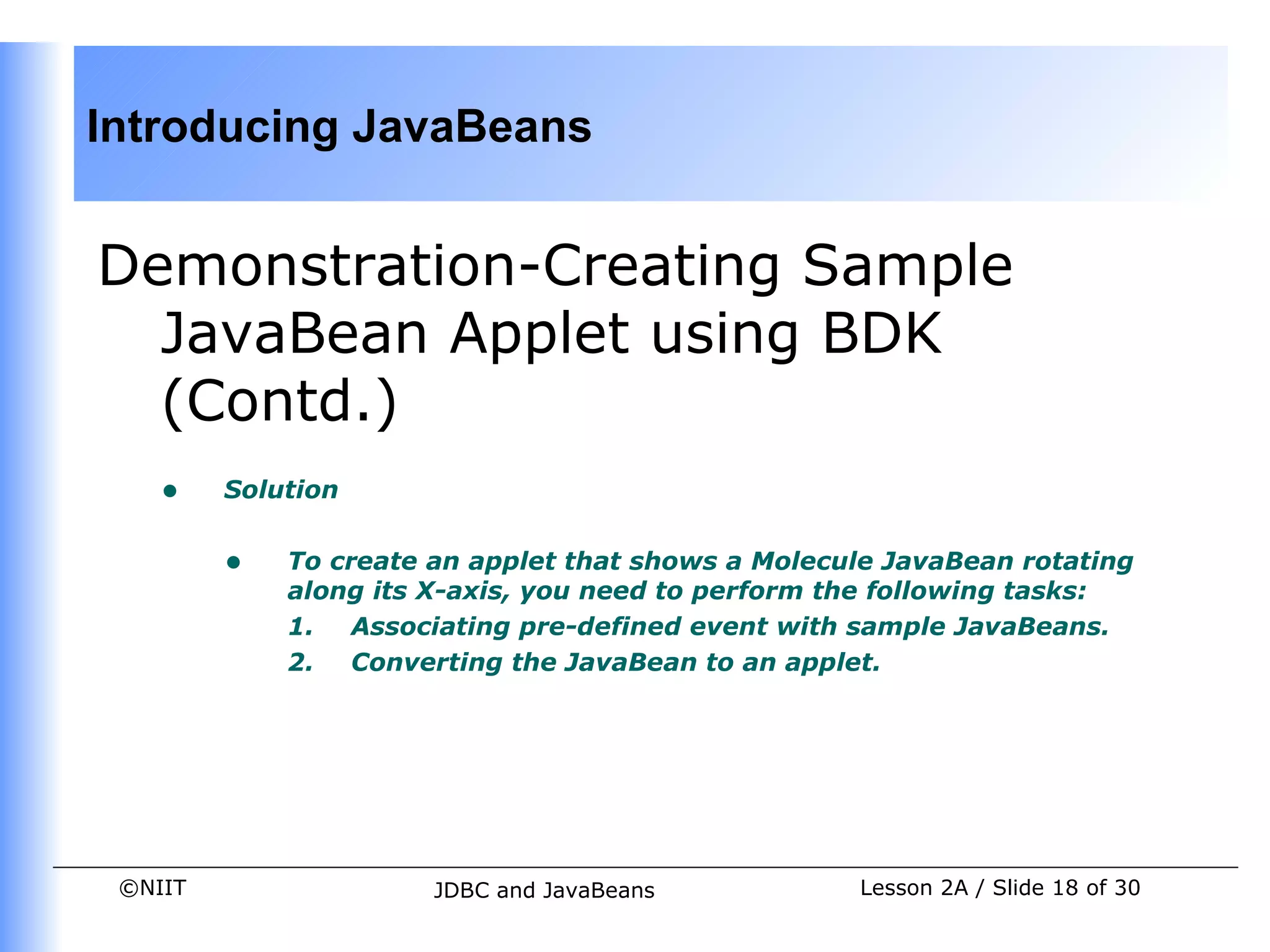
Demonstration-Creating Sample
  JavaBean Applet using BDK
    •    Problem Statement


         •   Create an applet that shows the sample Molecule JavaBean
             rotating along its X-axis.


 ©NIIT                JDBC and JavaBeans           Lesson 2A / Slide 17 of 30
Introducing JavaBeans


Demonstration-Creating Sample
  JavaBean Applet using BDK
  (Contd.)
    •    Solution


         •   To create an applet that shows a Molecule JavaBean rotating
             along its X-axis, you need to perform the following tasks:
             1. Associating pre-defined event with sample JavaBeans.
             2. Converting the JavaBean to an applet.


 ©NIIT                 JDBC and JavaBeans           Lesson 2A / Slide 18 of 30
Introducing JavaBeans


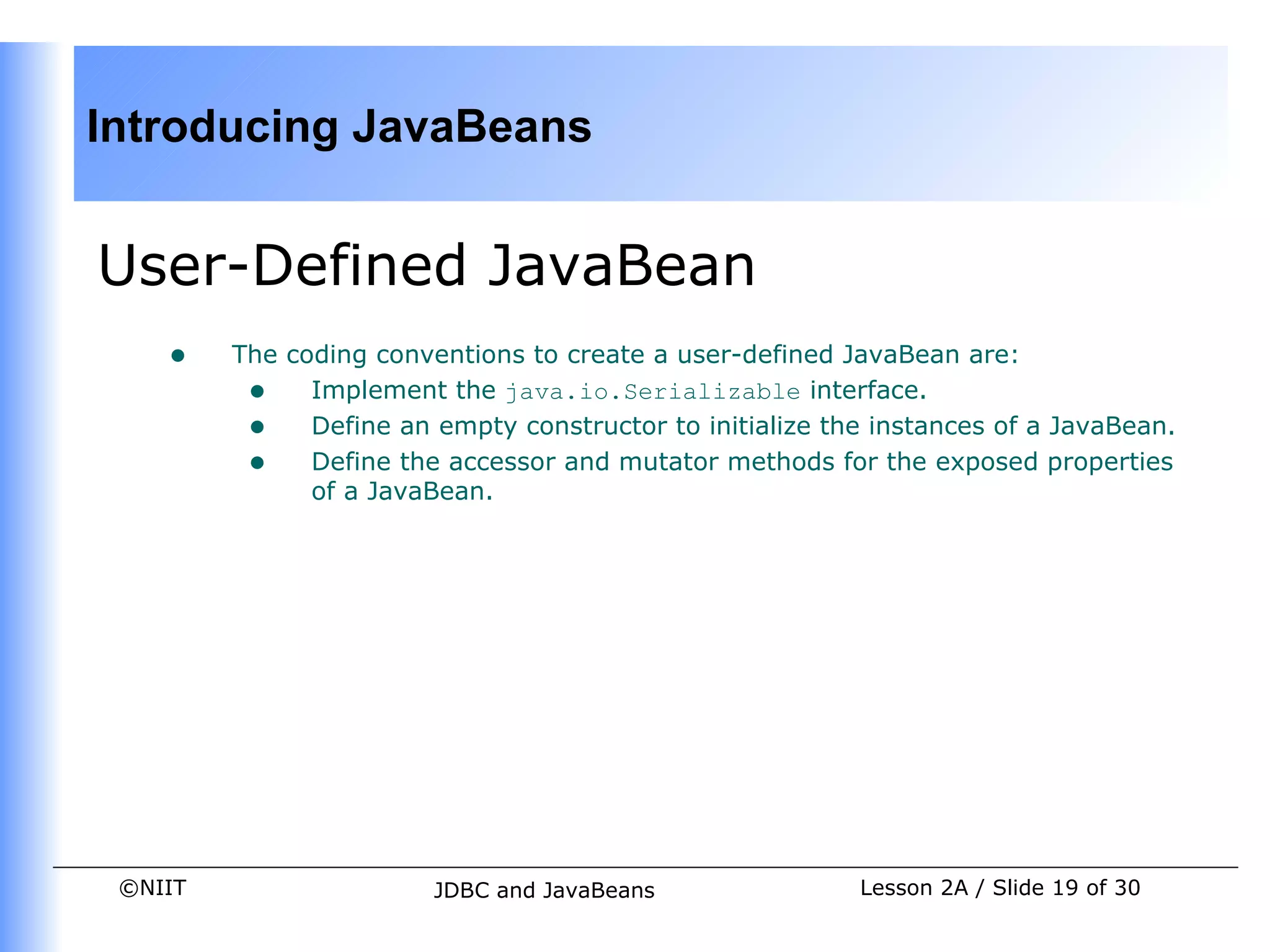
User-Defined JavaBean
    •    The coding conventions to create a user-defined JavaBean are:
          • Implement the java.io.Serializable interface.
          • Define an empty constructor to initialize the instances of a JavaBean.
          • Define the accessor and mutator methods for the exposed properties
               of a JavaBean.


 ©NIIT                  JDBC and JavaBeans               Lesson 2A / Slide 19 of 30
Introducing JavaBeans


User-Defined JavaBean (Contd.)
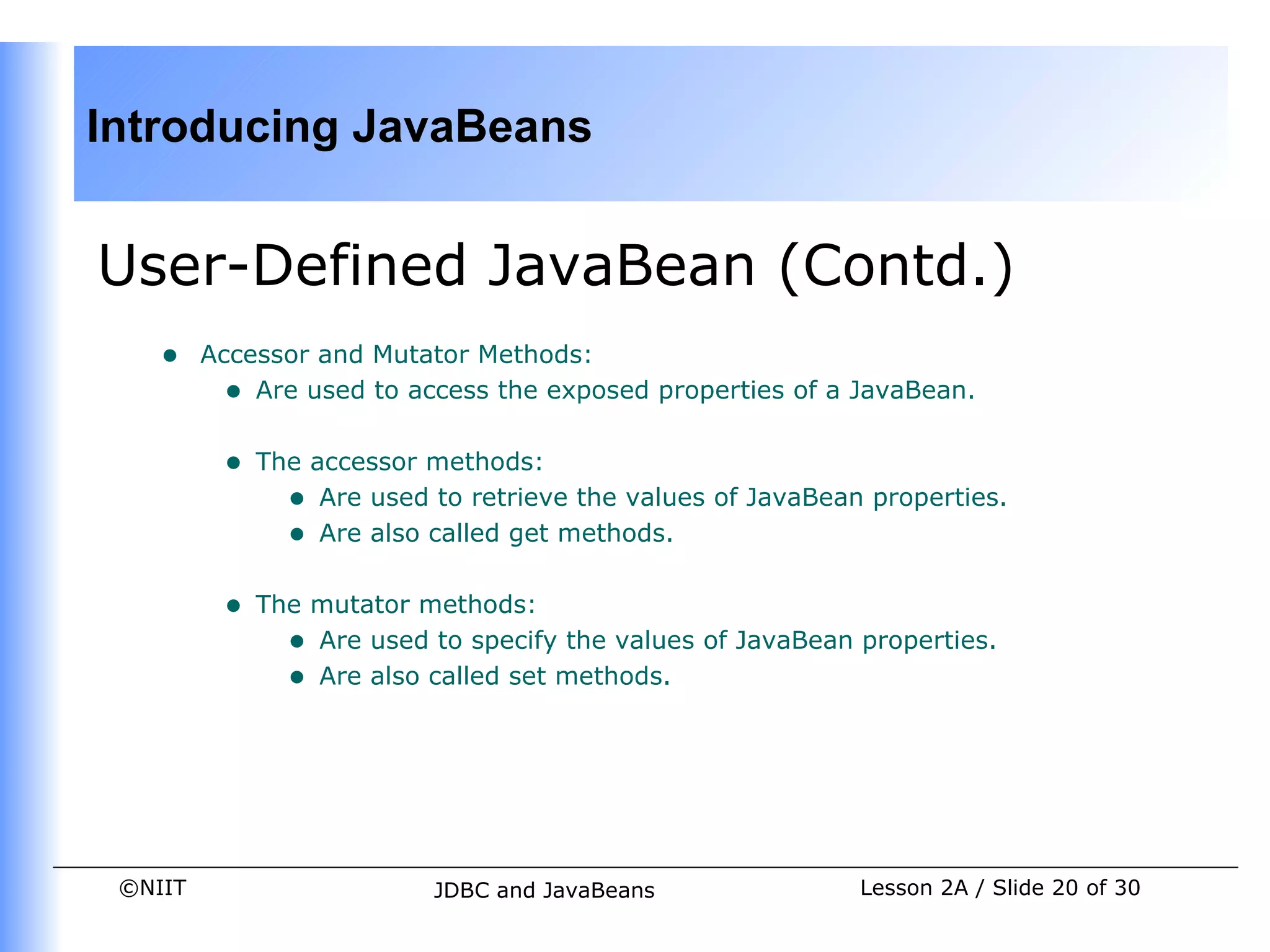
    •    Accessor and Mutator Methods:
           • Are used to access the exposed properties of a JavaBean.

          •   The accessor methods:
                • Are used to retrieve the values of JavaBean properties.
                • Are also called get methods.

          •   The mutator methods:
                • Are used to specify the values of JavaBean properties.
                • Are also called set methods.


 ©NIIT                     JDBC and JavaBeans                Lesson 2A / Slide 20 of 30
Introducing JavaBeans


User-Defined JavaBean (Contd.)
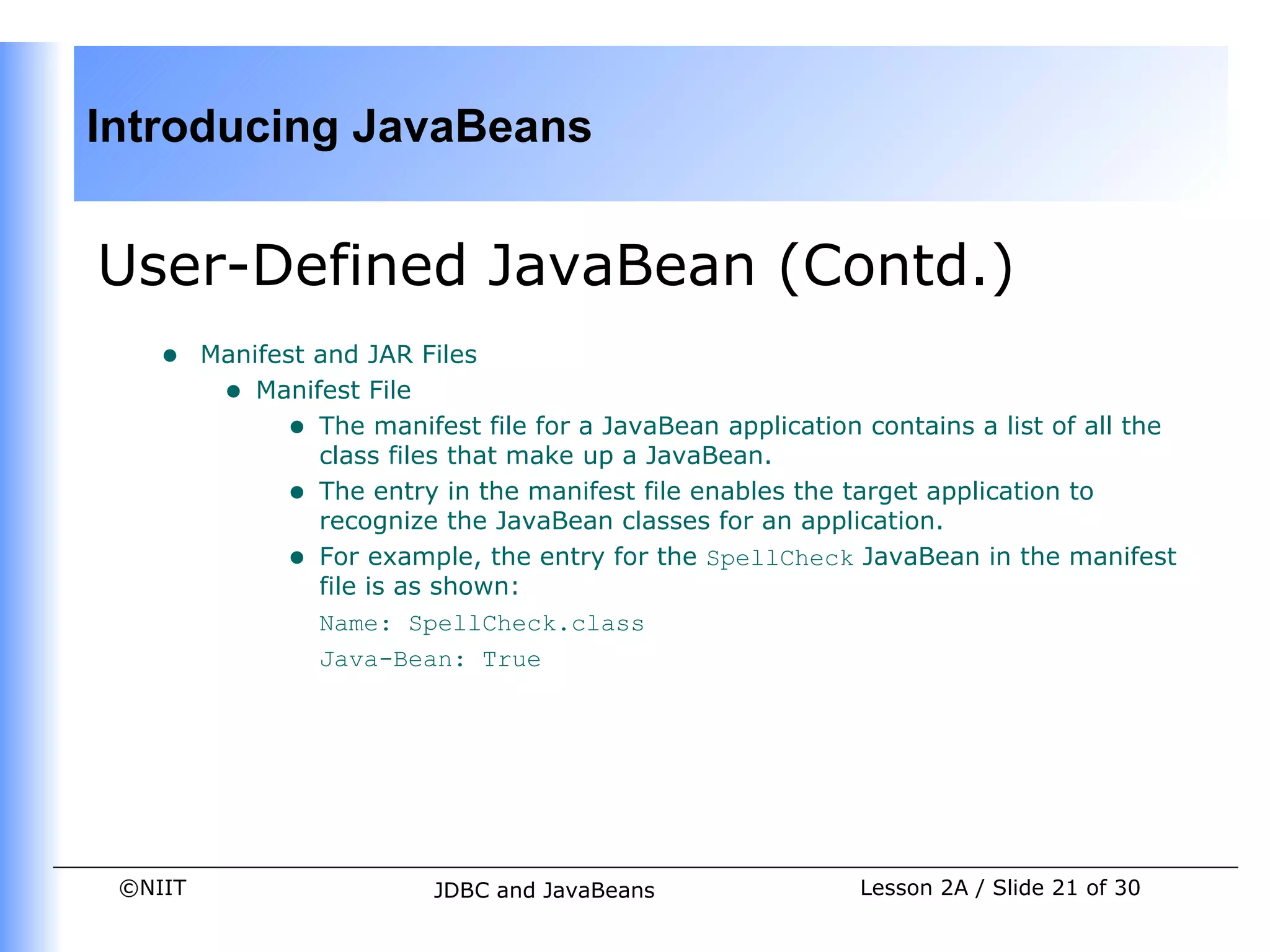
    •    Manifest and JAR Files
          • Manifest File
               • The manifest file for a JavaBean application contains a list of all the
                  class files that make up a JavaBean.
               • The entry in the manifest file enables the target application to
                  recognize the JavaBean classes for an application.
               • For example, the entry for the SpellCheck JavaBean in the manifest
                  file is as shown:
                  Name: SpellCheck.class
                  Java-Bean: True


 ©NIIT                     JDBC and JavaBeans                 Lesson 2A / Slide 21 of 30
Introducing JavaBeans


User-Defined JavaBean (Contd.)
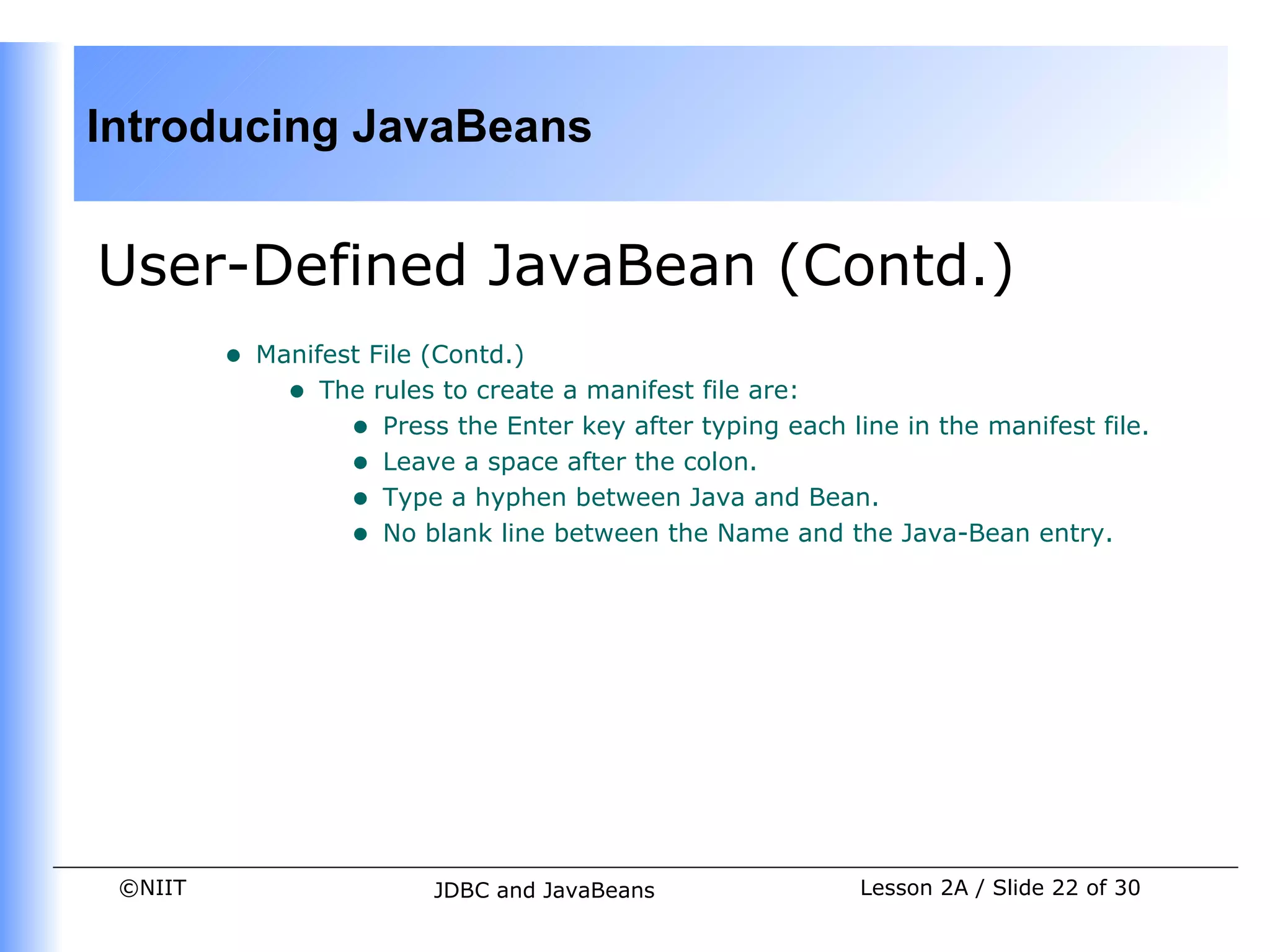
         •   Manifest File (Contd.)
               • The rules to create a manifest file are:
                    • Press the Enter key after typing each line in the manifest file.
                    • Leave a space after the colon.
                    • Type a hyphen between Java and Bean.
                    • No blank line between the Name and the Java-Bean entry.


 ©NIIT                     JDBC and JavaBeans                 Lesson 2A / Slide 22 of 30
Introducing JavaBeans


User-Defined JavaBean (Contd.)
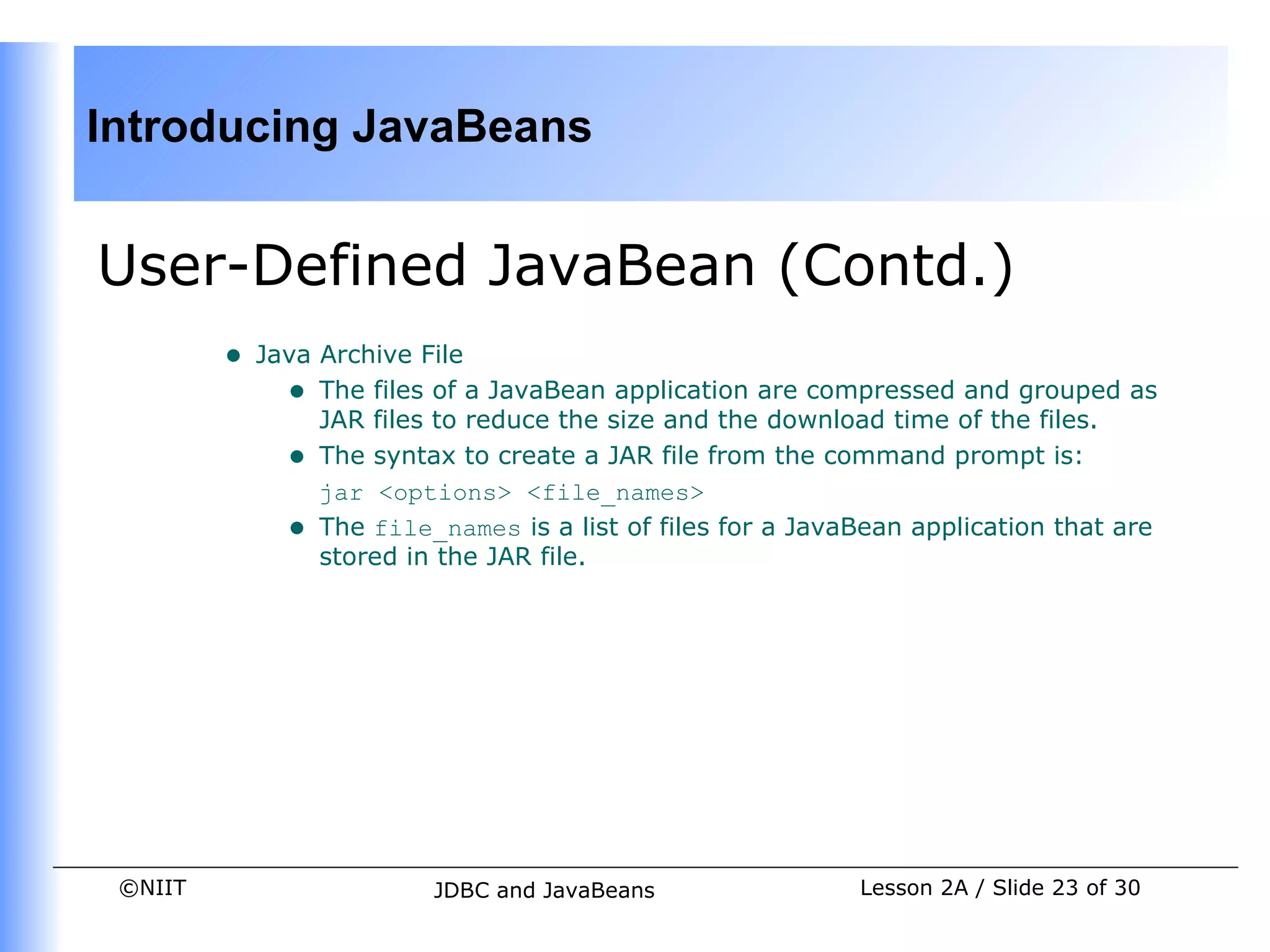
         •   Java Archive File
               • The files of a JavaBean application are compressed and grouped as
                  JAR files to reduce the size and the download time of the files.
               • The syntax to create a JAR file from the command prompt is:
                  jar <options> <file_names>
               • The file_names is a list of files for a JavaBean application that are
                  stored in the JAR file.


 ©NIIT                     JDBC and JavaBeans                Lesson 2A / Slide 23 of 30
Introducing JavaBeans


User-Defined JavaBean (Contd.)
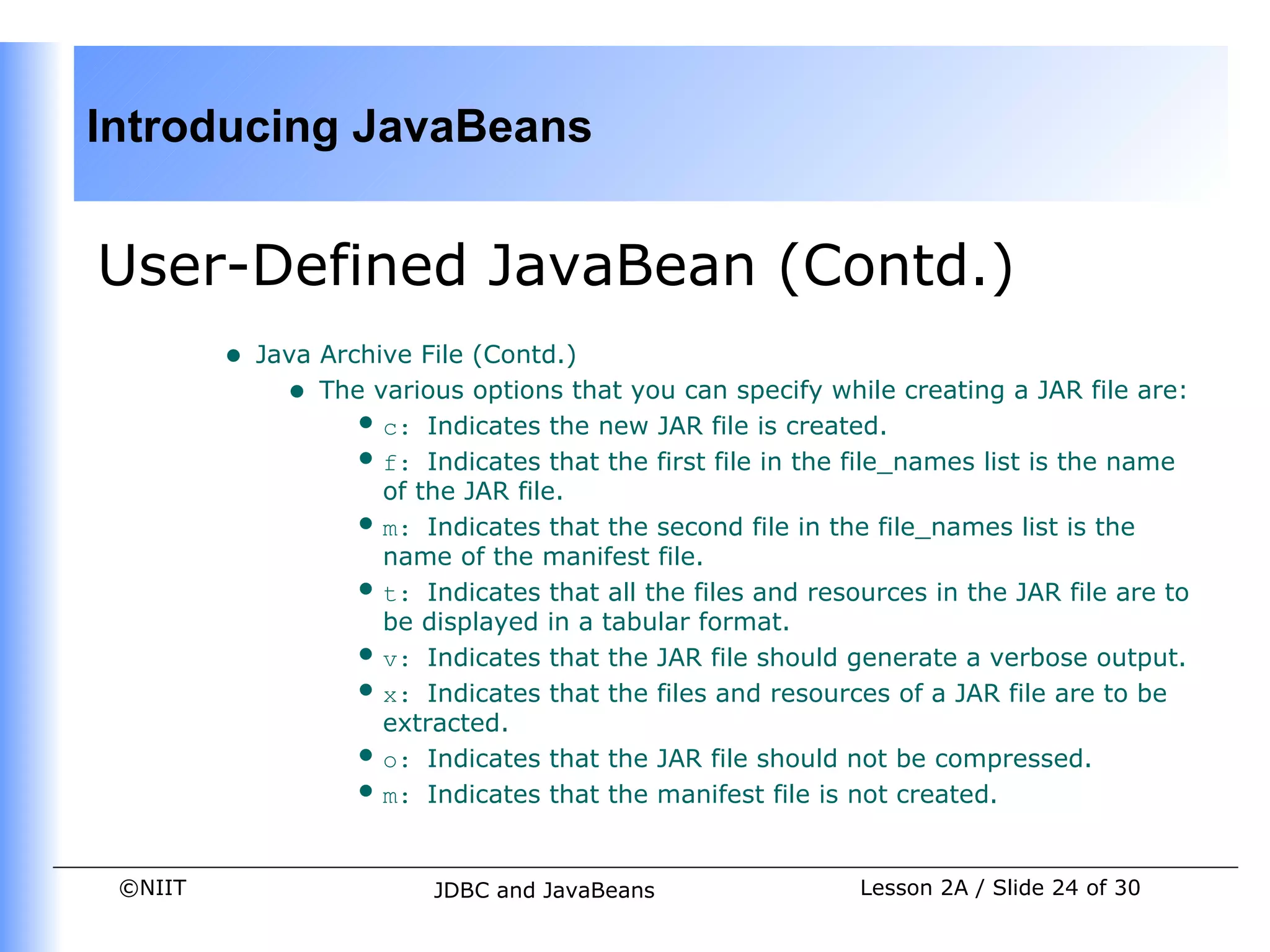
         •   Java Archive File (Contd.)
               • The various options that you can specify while creating a JAR file are:
                    •  c: Indicates the new JAR file is created.
                    •  f: Indicates that the first file in the file_names list is the name
                       of the JAR file.
                    •  m: Indicates that the second file in the file_names list is the
                       name of the manifest file.
                    •  t: Indicates that all the files and resources in the JAR file are to
                       be displayed in a tabular format.
                    •  v: Indicates that the JAR file should generate a verbose output.
                    •  x: Indicates that the files and resources of a JAR file are to be
                       extracted.
                    •  o: Indicates that the JAR file should not be compressed.
                    •  m: Indicates that the manifest file is not created.


 ©NIIT                     JDBC and JavaBeans                  Lesson 2A / Slide 24 of 30
Introducing JavaBeans


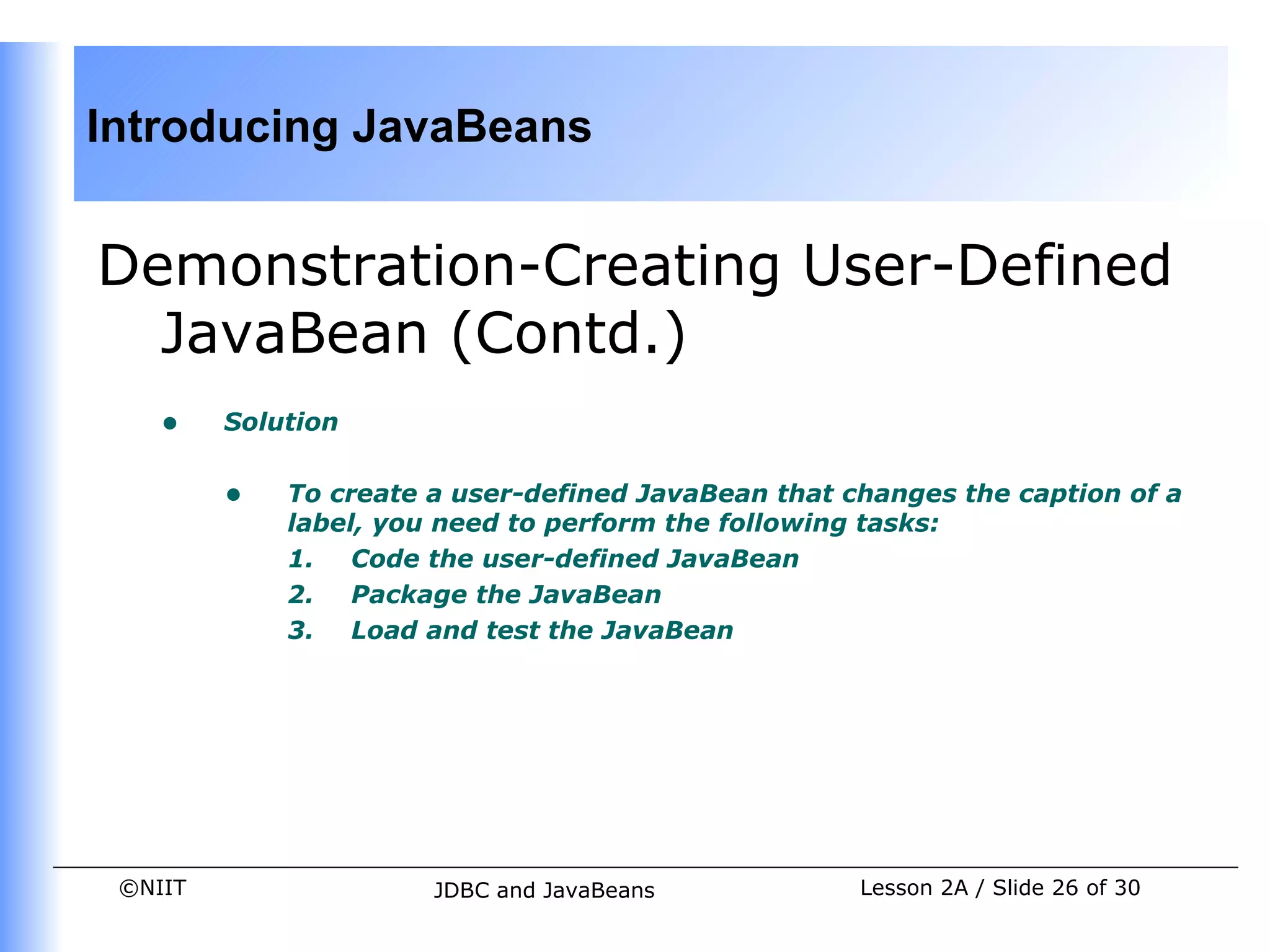
Demonstration-Creating User-Defined
JavaBean
    •    Problem Statement


          •   Create a user-defined JavaBean having a label. Allow the user to
              change the caption of the user-defined JavaBean at runtime.


 ©NIIT                    JDBC and JavaBeans            Lesson 2A / Slide 25 of 30
Introducing JavaBeans


Demonstration-Creating User-Defined
  JavaBean (Contd.)
    •    Solution


         •   To create a user-defined JavaBean that changes the caption of a
             label, you need to perform the following tasks:
             1. Code the user-defined JavaBean
             2. Package the JavaBean
             3. Load and test the JavaBean


 ©NIIT                 JDBC and JavaBeans            Lesson 2A / Slide 26 of 30
Introducing JavaBeans


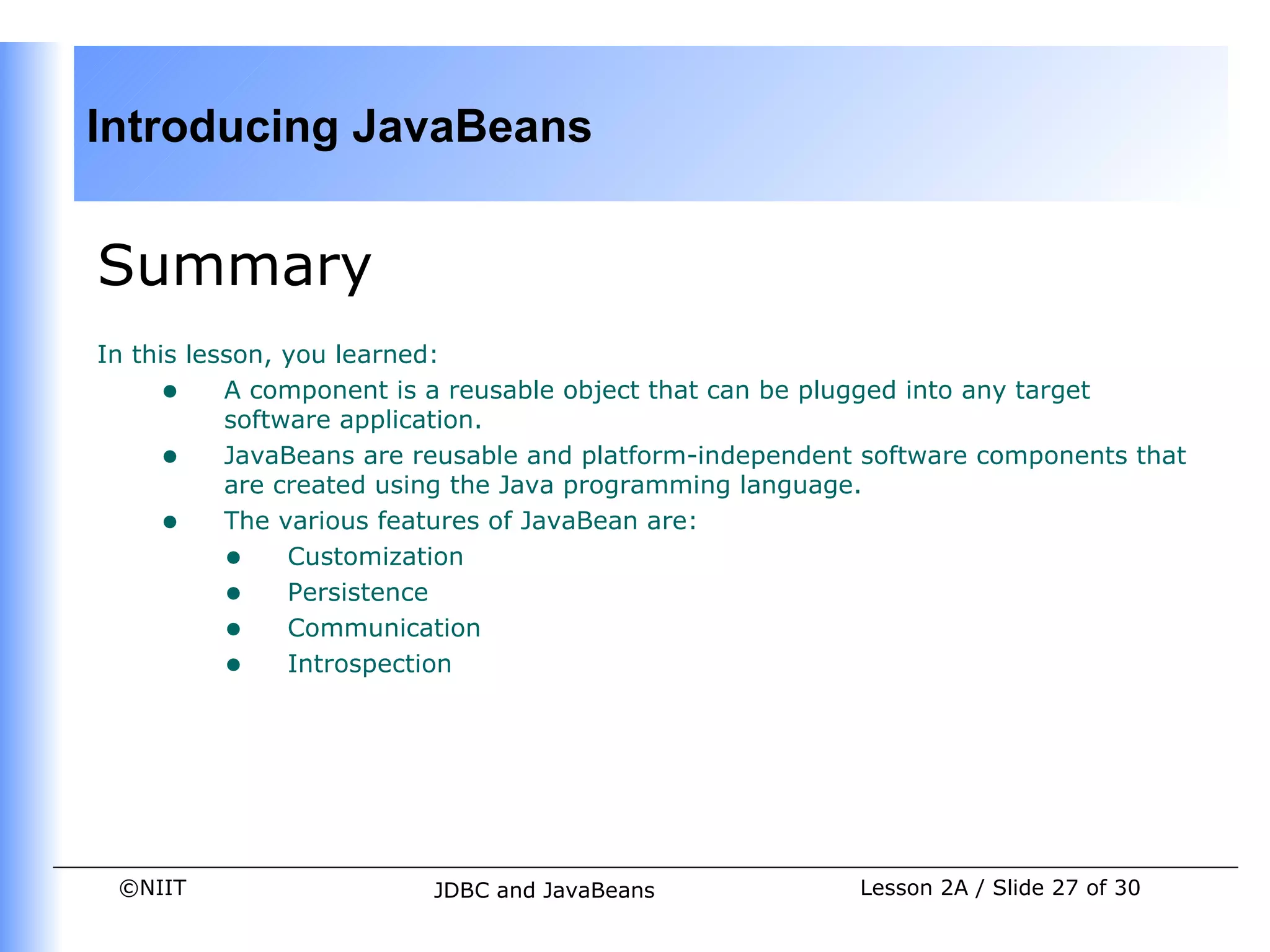
Summary
In this lesson, you learned:
     • A component is a reusable object that can be plugged into any target
           software application.
     • JavaBeans are reusable and platform-independent software components that
           are created using the Java programming language.
     • The various features of JavaBean are:
           • Customization
           • Persistence
           • Communication
           • Introspection


 ©NIIT                  JDBC and JavaBeans             Lesson 2A / Slide 27 of 30
Introducing JavaBeans


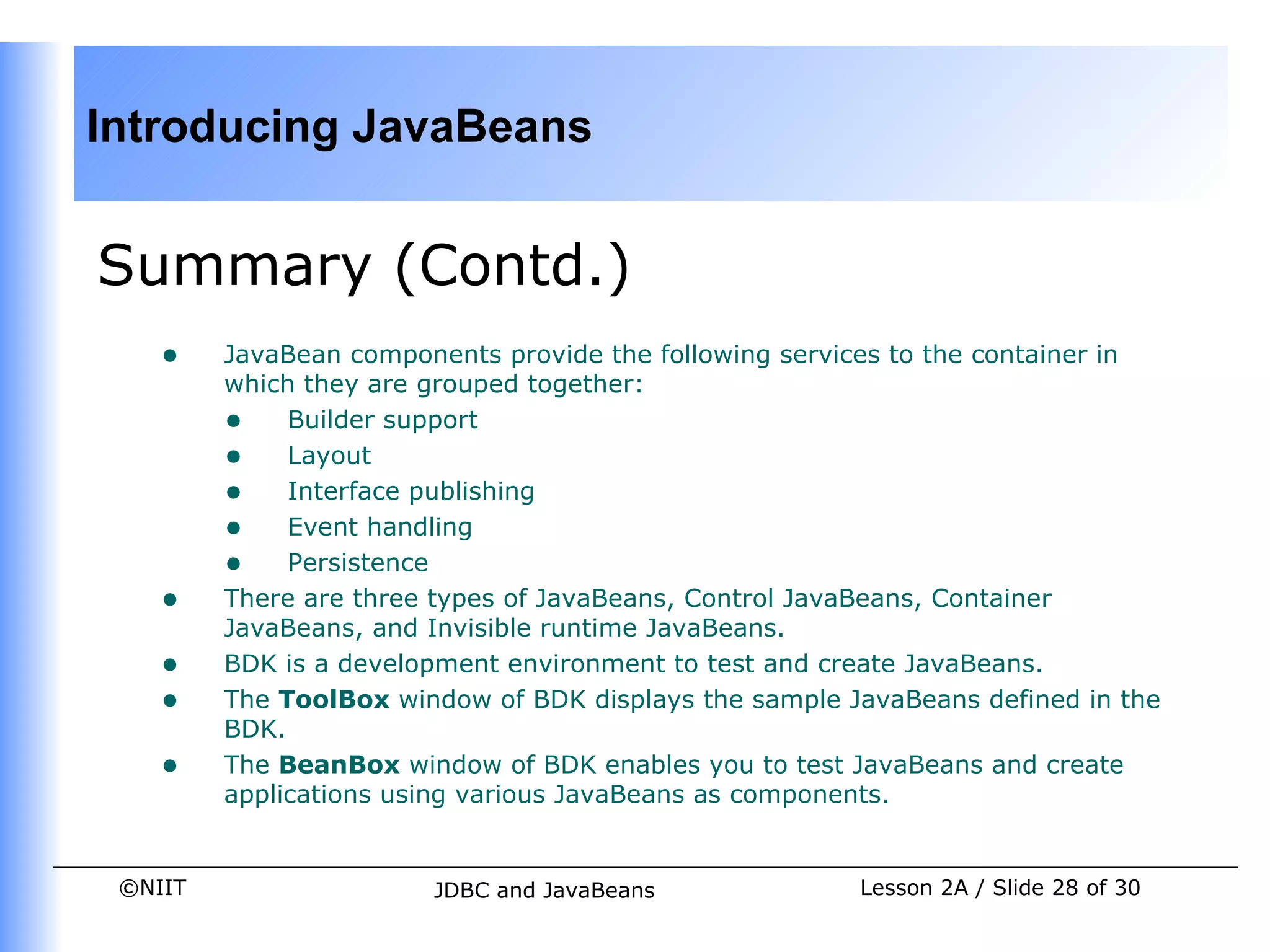
Summary (Contd.)
    •    JavaBean components provide the following services to the container in
         which they are grouped together:
         • Builder support
         • Layout
         • Interface publishing
         • Event handling
         • Persistence
    •    There are three types of JavaBeans, Control JavaBeans, Container
         JavaBeans, and Invisible runtime JavaBeans.
    •    BDK is a development environment to test and create JavaBeans.
    •    The ToolBox window of BDK displays the sample JavaBeans defined in the
         BDK.
    •    The BeanBox window of BDK enables you to test JavaBeans and create
         applications using various JavaBeans as components.


 ©NIIT                  JDBC and JavaBeans              Lesson 2A / Slide 28 of 30
Introducing JavaBeans


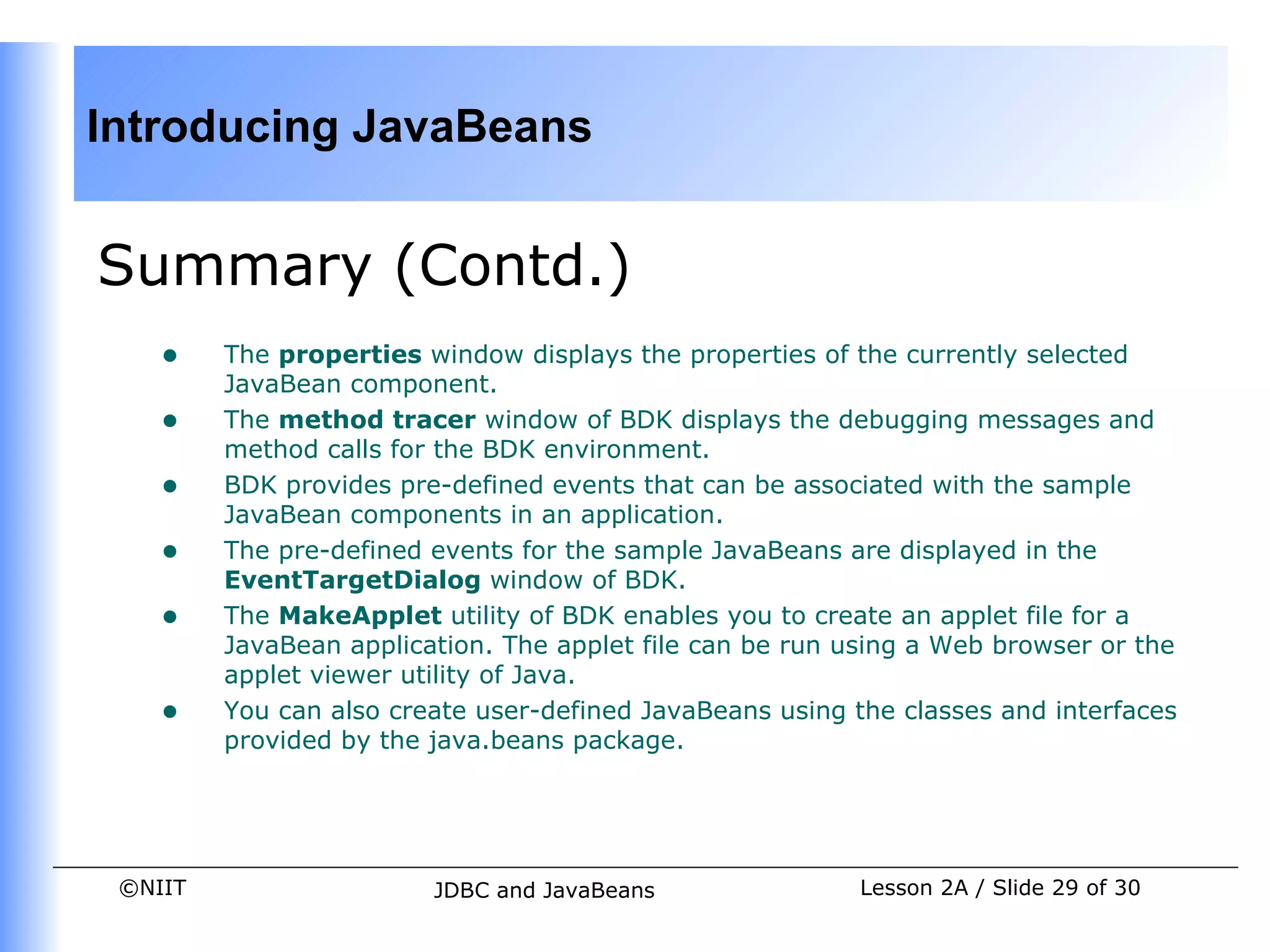
Summary (Contd.)
    •    The properties window displays the properties of the currently selected
         JavaBean component.
    •    The method tracer window of BDK displays the debugging messages and
         method calls for the BDK environment.
    •    BDK provides pre-defined events that can be associated with the sample
         JavaBean components in an application.
    •    The pre-defined events for the sample JavaBeans are displayed in the
         EventTargetDialog window of BDK.
    •    The MakeApplet utility of BDK enables you to create an applet file for a
         JavaBean application. The applet file can be run using a Web browser or the
         applet viewer utility of Java.
    •    You can also create user-defined JavaBeans using the classes and interfaces
         provided by the java.beans package.


 ©NIIT                   JDBC and JavaBeans                Lesson 2A / Slide 29 of 30
Introducing JavaBeans


Summary (Contd.)
    •    The accessor and mutator methods of user-defined JavaBean are used to
         retrieve and specify the value of JavaBean properties.
    •    The user-defined JavaBean implements the java.io.Serializable
         interface.
    •    A manifest file is a text file that provides information about the class files
         that represent a JavaBean.
    •    JAR files are platform-independent files that are used to package all the
         classes and the associated resources for a JavaBean application.
    •    The JAR file for the user-defined JavaBean is loaded in the ToolBox window
         using the FileLoadJar command of the BeanBox window.


 ©NIIT                    JDBC and JavaBeans                 Lesson 2A / Slide 30 of 30

Dacj 4 2-a

  • 1.
    Introducing JavaBeans Pre-assessment Questions • Which of the given symbols is used as a placeholder for PreparedStatement? a. # b. * c. ? d. % 2. In SQL Server 2000, a _______ is generated when you execute a stored procedure. a. Query plan b. Query c. ResultSet d. Rowset ©NIIT JDBC and JavaBeans Lesson 2A / Slide 1 of 30
  • 2.
    Introducing JavaBeans Pre-assessment Questions(Contd.) 1. Which of the following parameters cannot be used in a stored procedure? • IN • OUT • OUTIN • INOUT • Which of the following enables you to retrieve the information about a ResultSet? a. DatabaseMetaData b. ResultSetData c. RowSetData d. ResultSetMetaData ©NIIT JDBC and JavaBeans Lesson 2A / Slide 2 of 30
  • 3.
    Introducing JavaBeans Pre-assessment Questions(Contd.) 1. The batch update operations can throw two types of exceptions, __________and ___________. • SQLException and BatchUpdateException • SQLException and UpdateException • BatchException and BatchUpdateException • BatchException and SQLException ©NIIT JDBC and JavaBeans Lesson 2A / Slide 3 of 30
  • 4.
    Introducing JavaBeans Solutions toPre-assessment Questions • c. ? • a. Query plan • c. OUTIN • d. ResultSetMetaData • a. SQLException and BatchUpdateException ©NIIT JDBC and JavaBeans Lesson 2A / Slide 4 of 30
  • 5.
    Introducing JavaBeans Objectives In this lesson, you will learn about: • Features of JavaBeans • Associating predefined events with sample JavaBeans • Testing JavaBeans using BDK • Creating sample JavaBean applet using BDK • Creating user-defined JavaBean • Creating manifest and JAR files for a JavaBean ©NIIT JDBC and JavaBeans Lesson 2A / Slide 5 of 30
  • 6.
    Introducing JavaBeans JavaBean Concepts • A software component is a reusable object that can be plugged into any target software application. • You can develop software components using various programming languages, such as C, C++, Java, and Visual Basic. • JavaBeans are reusable and platform-independent software components developed using the Java programming language. • The classes and interfaces defined in the java.beans package enable you to create JavaBeans. • The JavaBean components can exist in one of the following three phases of development: • Construction phase • Build phase • Execution phase ©NIIT JDBC and JavaBeans Lesson 2A / Slide 6 of 30
  • 7.
    Introducing JavaBeans JavaBean Concepts(Contd.) • Elements of a JavaBean • Properties: Refer to the private data members of a JavaBean that define the behavior of the JavaBeans. • Methods: Refer to public member functions of a JavaBean that are used to modify the JavaBean properties. • Events: Refer to the messages that one JavaBean components sends to another JavaBean components. ©NIIT JDBC and JavaBeans Lesson 2A / Slide 7 of 30
  • 8.
    Introducing JavaBeans JavaBean Concepts(Contd.) • The JavaBean Component Specification • Customization: Is the ability of JavaBean to allow its properties to be changed in build and execution phase. • Persistence: Is the ability of JavaBean to save its state to disk or storage device and restore the saved state when the JavaBean is reloaded. • Communication: Is the ability of JavaBean to notify change in its properties to other JavaBeans or the container. • Introspection: Is the ability of a JavaBean to allow an external application to query the properties, methods, and events supported by it. ©NIIT JDBC and JavaBeans Lesson 2A / Slide 8 of 30
  • 9.
    Introducing JavaBeans JavaBean Concepts(Contd.) • Services of JavaBean Components • Builder support: Enables you to create and group multiple JavaBeans in an application. • Layout: Allows multiple JavaBeans to be arranged in a development environment. • Interface publishing: Enables multiple JavaBeans in an application to communicate with each other. • Event handling: Refers to firing and handling of events associated with a JavaBean. • Persistence: Enables you to save the last state of JavaBean. ©NIIT JDBC and JavaBeans Lesson 2A / Slide 9 of 30
  • 10.
    Introducing JavaBeans JavaBean Concepts(Contd.) • Types of JavaBeans • Control JavaBeans: Are used to create GUI components that can be plugged into any application. • Container JavaBeans: Are used to hold other JavaBeans. • Invisible Runtime JavaBeans: Are used to create components that perform a specific task in the background of an application. ©NIIT JDBC and JavaBeans Lesson 2A / Slide 10 of 30
  • 11.
    Introducing JavaBeans Beans DevelopmentKit • Is a development environment to create, configure, and test JavaBeans. • The features of BDK environment are: • Provides a GUI to create, configure, and test JavaBeans. • Enables you to modify JavaBean properties and link multiple JavaBeans in an application using BDK. • Provides a set of sample JavaBeans. • Enables you to associate pre-defined events with sample JavaBeans. ©NIIT JDBC and JavaBeans Lesson 2A / Slide 11 of 30
  • 12.
    Introducing JavaBeans Beans DevelopmentKit (Contd.) • Identifying BDK Components • Execute the run.bat file of BDK to start the BDK development environment. • The components of BDK development environment are: • ToolBox • BeanBox • Properties • Method Tracer ©NIIT JDBC and JavaBeans Lesson 2A / Slide 12 of 30
  • 13.
    Introducing JavaBeans Beans DevelopmentKit (Contd.) • ToolBox window: Lists the sample JavaBeans of BDK. • The following figure shows the ToolBox window: ©NIIT JDBC and JavaBeans Lesson 2A / Slide 13 of 30
  • 14.
    Introducing JavaBeans Beans DevelopmentKit (Contd.) • BeanBox window: Is a workspace for creating the layout of JavaBean application. • The following figure shows the BeanBox window: ©NIIT JDBC and JavaBeans Lesson 2A / Slide 14 of 30
  • 15.
    Introducing JavaBeans Beans DevelopmentKit (Contd.) • Properties window: Displays all the exposed properties of a JavaBean. You can modify JavaBean properties in the properties window. • The following figure shows the Properties window: ©NIIT JDBC and JavaBeans Lesson 2A / Slide 15 of 30
  • 16.
    Introducing JavaBeans Beans DevelopmentKit (Contd.) • Method Tracer window: Displays the debugging messages and method calls for a JavaBean application. • The following figure shows the Method Tracer window: ©NIIT JDBC and JavaBeans Lesson 2A / Slide 16 of 30
  • 17.
    Introducing JavaBeans Demonstration-Creating Sample JavaBean Applet using BDK • Problem Statement • Create an applet that shows the sample Molecule JavaBean rotating along its X-axis. ©NIIT JDBC and JavaBeans Lesson 2A / Slide 17 of 30
  • 18.
    Introducing JavaBeans Demonstration-Creating Sample JavaBean Applet using BDK (Contd.) • Solution • To create an applet that shows a Molecule JavaBean rotating along its X-axis, you need to perform the following tasks: 1. Associating pre-defined event with sample JavaBeans. 2. Converting the JavaBean to an applet. ©NIIT JDBC and JavaBeans Lesson 2A / Slide 18 of 30
  • 19.
    Introducing JavaBeans User-Defined JavaBean • The coding conventions to create a user-defined JavaBean are: • Implement the java.io.Serializable interface. • Define an empty constructor to initialize the instances of a JavaBean. • Define the accessor and mutator methods for the exposed properties of a JavaBean. ©NIIT JDBC and JavaBeans Lesson 2A / Slide 19 of 30
  • 20.
    Introducing JavaBeans User-Defined JavaBean(Contd.) • Accessor and Mutator Methods: • Are used to access the exposed properties of a JavaBean. • The accessor methods: • Are used to retrieve the values of JavaBean properties. • Are also called get methods. • The mutator methods: • Are used to specify the values of JavaBean properties. • Are also called set methods. ©NIIT JDBC and JavaBeans Lesson 2A / Slide 20 of 30
  • 21.
    Introducing JavaBeans User-Defined JavaBean(Contd.) • Manifest and JAR Files • Manifest File • The manifest file for a JavaBean application contains a list of all the class files that make up a JavaBean. • The entry in the manifest file enables the target application to recognize the JavaBean classes for an application. • For example, the entry for the SpellCheck JavaBean in the manifest file is as shown: Name: SpellCheck.class Java-Bean: True ©NIIT JDBC and JavaBeans Lesson 2A / Slide 21 of 30
  • 22.
    Introducing JavaBeans User-Defined JavaBean(Contd.) • Manifest File (Contd.) • The rules to create a manifest file are: • Press the Enter key after typing each line in the manifest file. • Leave a space after the colon. • Type a hyphen between Java and Bean. • No blank line between the Name and the Java-Bean entry. ©NIIT JDBC and JavaBeans Lesson 2A / Slide 22 of 30
  • 23.
    Introducing JavaBeans User-Defined JavaBean(Contd.) • Java Archive File • The files of a JavaBean application are compressed and grouped as JAR files to reduce the size and the download time of the files. • The syntax to create a JAR file from the command prompt is: jar <options> <file_names> • The file_names is a list of files for a JavaBean application that are stored in the JAR file. ©NIIT JDBC and JavaBeans Lesson 2A / Slide 23 of 30
  • 24.
    Introducing JavaBeans User-Defined JavaBean(Contd.) • Java Archive File (Contd.) • The various options that you can specify while creating a JAR file are: • c: Indicates the new JAR file is created. • f: Indicates that the first file in the file_names list is the name of the JAR file. • m: Indicates that the second file in the file_names list is the name of the manifest file. • t: Indicates that all the files and resources in the JAR file are to be displayed in a tabular format. • v: Indicates that the JAR file should generate a verbose output. • x: Indicates that the files and resources of a JAR file are to be extracted. • o: Indicates that the JAR file should not be compressed. • m: Indicates that the manifest file is not created. ©NIIT JDBC and JavaBeans Lesson 2A / Slide 24 of 30
  • 25.
    Introducing JavaBeans Demonstration-Creating User-Defined JavaBean • Problem Statement • Create a user-defined JavaBean having a label. Allow the user to change the caption of the user-defined JavaBean at runtime. ©NIIT JDBC and JavaBeans Lesson 2A / Slide 25 of 30
  • 26.
    Introducing JavaBeans Demonstration-Creating User-Defined JavaBean (Contd.) • Solution • To create a user-defined JavaBean that changes the caption of a label, you need to perform the following tasks: 1. Code the user-defined JavaBean 2. Package the JavaBean 3. Load and test the JavaBean ©NIIT JDBC and JavaBeans Lesson 2A / Slide 26 of 30
  • 27.
    Introducing JavaBeans Summary In thislesson, you learned: • A component is a reusable object that can be plugged into any target software application. • JavaBeans are reusable and platform-independent software components that are created using the Java programming language. • The various features of JavaBean are: • Customization • Persistence • Communication • Introspection ©NIIT JDBC and JavaBeans Lesson 2A / Slide 27 of 30
  • 28.
    Introducing JavaBeans Summary (Contd.) • JavaBean components provide the following services to the container in which they are grouped together: • Builder support • Layout • Interface publishing • Event handling • Persistence • There are three types of JavaBeans, Control JavaBeans, Container JavaBeans, and Invisible runtime JavaBeans. • BDK is a development environment to test and create JavaBeans. • The ToolBox window of BDK displays the sample JavaBeans defined in the BDK. • The BeanBox window of BDK enables you to test JavaBeans and create applications using various JavaBeans as components. ©NIIT JDBC and JavaBeans Lesson 2A / Slide 28 of 30
  • 29.
    Introducing JavaBeans Summary (Contd.) • The properties window displays the properties of the currently selected JavaBean component. • The method tracer window of BDK displays the debugging messages and method calls for the BDK environment. • BDK provides pre-defined events that can be associated with the sample JavaBean components in an application. • The pre-defined events for the sample JavaBeans are displayed in the EventTargetDialog window of BDK. • The MakeApplet utility of BDK enables you to create an applet file for a JavaBean application. The applet file can be run using a Web browser or the applet viewer utility of Java. • You can also create user-defined JavaBeans using the classes and interfaces provided by the java.beans package. ©NIIT JDBC and JavaBeans Lesson 2A / Slide 29 of 30
  • 30.
    Introducing JavaBeans Summary (Contd.) • The accessor and mutator methods of user-defined JavaBean are used to retrieve and specify the value of JavaBean properties. • The user-defined JavaBean implements the java.io.Serializable interface. • A manifest file is a text file that provides information about the class files that represent a JavaBean. • JAR files are platform-independent files that are used to package all the classes and the associated resources for a JavaBean application. • The JAR file for the user-defined JavaBean is loaded in the ToolBox window using the FileLoadJar command of the BeanBox window. ©NIIT JDBC and JavaBeans Lesson 2A / Slide 30 of 30