Computer system servicing is the process of installing, maintaining, and repairing computer hardware and software to ensure optimal performance, often involving setting up computer networks and servers as well
At the endof this Lesson, you should be able to:
1. Determine requirements of task in accordance with
required output
2. Select appropriate hardware and software according to
task
3. Plan a task to ensure that OHS guidelines and
procedures are followed
4. Follow client-specific guidelines and procedures
3.
Plan and Preparefor Task to be
Undertaken
• Planning plays the most important role of achieving a successful task. Your ability
to plan properly will enable you to attain your target or purpose goal. Many
successful entrepreneurs have realized their success through proper and careful
planning. Likewise, aside from planning, you should also give importance to
preparation. Good preparation will boost your confidence because it means that
you are ready to do the task because you have sufficient
• knowledge about it.
• As a computer system servicing student, you also need to familiarize with the
materials and tools involve in order to really attain the good result of the task
given in avoidance of lagging when performing the task you are about to be
undertaken.
4.
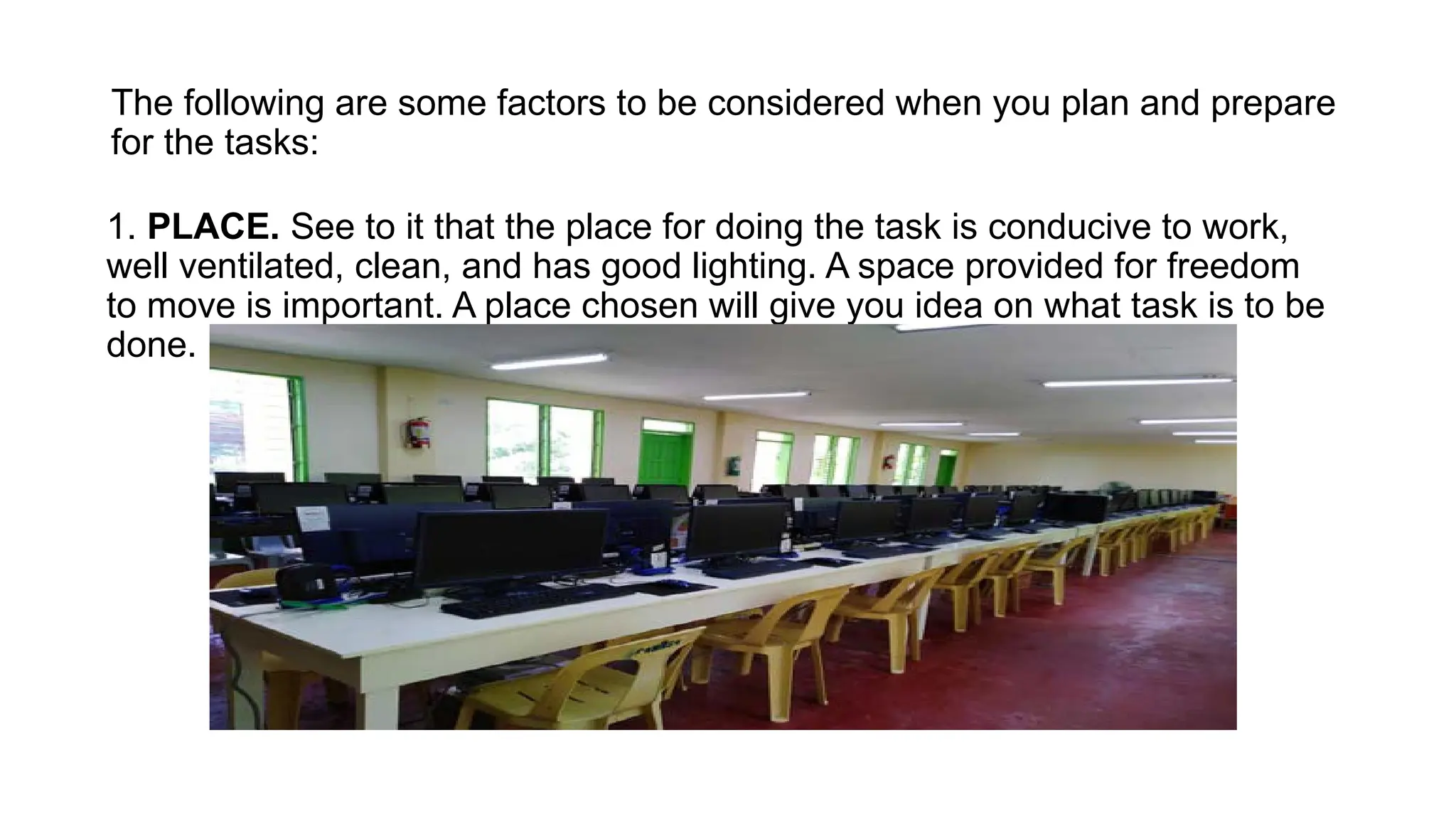
The following aresome factors to be considered when you plan and prepare
for the tasks:
1. PLACE. See to it that the place for doing the task is conducive to work,
well ventilated, clean, and has good lighting. A space provided for freedom
to move is important. A place chosen will give you idea on what task is to be
done.
5.
The following aresome factors to be considered when you plan and prepare
for the tasks
2. WASTE DISPOSAL. Used wire or wire strips or other things that
can’t be used anymore must be disposed in proper storage bin or
container.
6.
The following aresome factors to be considered when you plan and prepare
for the tasks
3. TOOLS/EQUIPMENT. Tools and equipment must match with the
task to be done. You should be careful enough to choose tools and
equipment that are worthy of use. They must be in good condition so
that it can be easily utilized without damaging the parts.
A tool is a handheld device that aids in accomplishing a task.
7.
Tools range froma traditional metal cutting part of a machine to an element of a computer program
that activates and controls a particular function.
Preparing for the task to be undertaken includes proper tool selection.
1. How do you select the best tool for the job? First, know and understand
in detail the scope of work to be accomplished, second, plan for the scope
considering the sequence of tasks.
2. Selecting the best tool for each task requires training in the proper use of
the tools, field experience in their safe use, and following the
manufacturer’s guidance and instructions for that specific tool.
3. When obtaining the tool all the associated tooling and consumable parts,
as recommended by the manufacturer, must be included.
In addition, related consumable parts must also be selected and used
according to their manufacturer’s instructions.
8.
The following aresome factors to be considered when you plan and prepare
for the tasks
4. SAFETY. Always prioritize safety. Remember that accident is
not an excusable incident. It can be avoided. Always remember
the motto “Safety first”.
9.
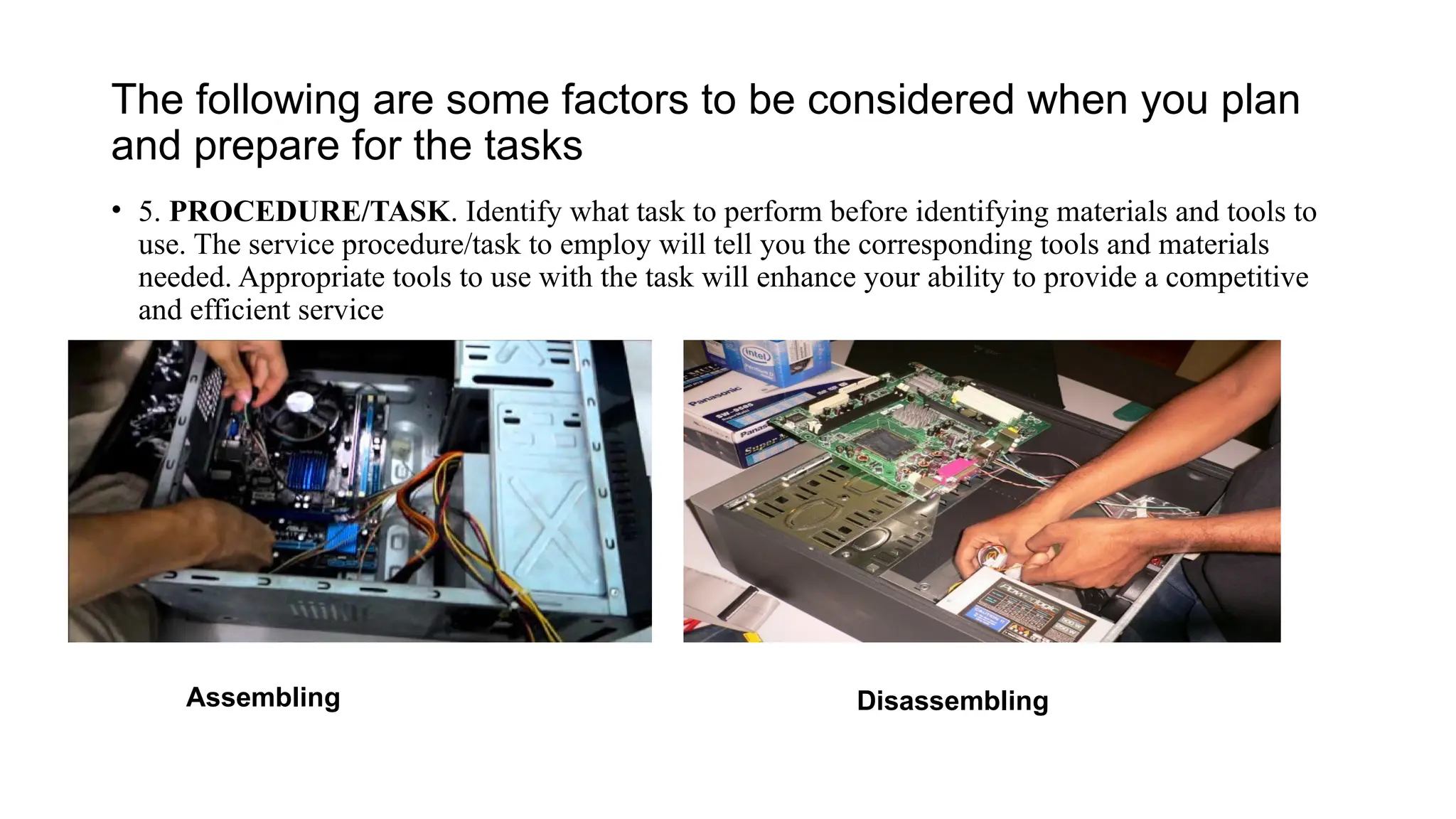
The following aresome factors to be considered when you plan
and prepare for the tasks
• 5. PROCEDURE/TASK. Identify what task to perform before identifying materials and tools to
use. The service procedure/task to employ will tell you the corresponding tools and materials
needed. Appropriate tools to use with the task will enhance your ability to provide a competitive
and efficient service
Assembling Disassembling
10.
The following aresome factors to be considered when you plan
and prepare for the tasks
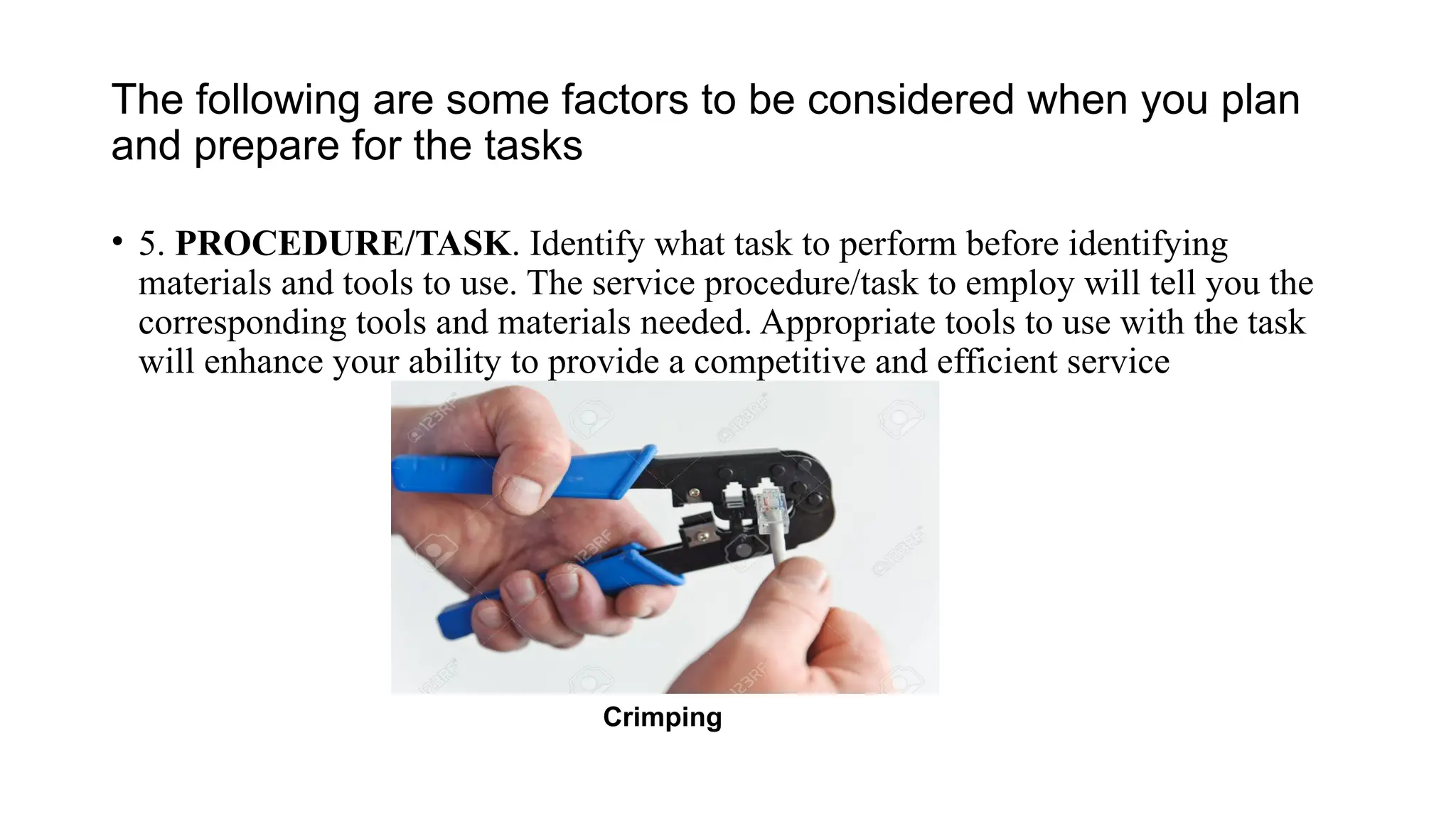
• 5. PROCEDURE/TASK. Identify what task to perform before identifying
materials and tools to use. The service procedure/task to employ will tell you the
corresponding tools and materials needed. Appropriate tools to use with the task
will enhance your ability to provide a competitive and efficient service
Crimping
11.
Before doing thetasks to be undertaken, you must
consider first in learning about operational health
and safety standards
Exercise:
In your workplace or in
the laboratory, do you
apply any operational
health and safety
standards? In what way?
12.
Occupational/ Operational Healthand Safety (OHS) is a cross-disciplinary area concerned with protecting the safety,
health and welfare of people engaged in work or employment. Knowing OHS is essential to minimize the hazards and
risks not only to students, trainers and other people within the training institution but others who will be affected.
Reasons for occupational safety and standards are:
• Moral – an employee should not have to risk injury at work, nor should others have associated with the work
environment.
• Economic – many governments realize that poor occupational safety and health performance results in cost to state
• Legal – OHS requirements maybe reinforced in civil law and/or criminal law
SAFETY PROCEDURES(OHS)
1. To prevent electrical shock hazard, disconnect the power cable from the electrical outlet before relocating the
system
2. When adding and removing devices to or from the system, ensure that the power cables for the devices are
unplugged before the signal cables are connected. If possible, disconnect all power cables from the existing system
before you add a device
3. Make sure that your power supply is set to the correct voltage in your area
4. Before installing the Motherboard and adding a device on it, carefully read the entire manual that came with the
package
13.
SAFETY PROCEDURES(OHS)
5. Toavoid short circuits, keep paper clips, screws, and staples away from
connectors, slots, sockets and circuitry
6. Avoid dust, humidity, and temperature extremes. Do not place the product in any
area where it may become wet
7. Always ground or discharge yourself before touching any part of the computer
8. Do not work alone so that there’s someone who can take care of you in case of
accident or emergency.
9. Be careful with the tools that may cause short circuit
10.Always full the cable connector on the handle and not on the cable itself
11.Use only rubber shoes when standing on the ground or in a concrete floor
12.Make sure that the pins are properly aligned when connecting a cable connector.
13.Always power off and unplug the computer before working on it. 14. Take away any
liquid such as mineral water or soft drinks near your working area or near computers.
15. Contingency measures during workplace accidents, fire and other emergencies
are recognized
14.
SAFETY PRECAUTIONS
1. Donot place any combustible materials near the power outlet.
2. Avoid using power cord with defects such as loose contacts and exposed
conductors.
3. Avoid using connecting wires with exposed conductors.
4. Do all the wiring connection inside the computer system with the power off.
5. Check the proper connections before turning the circuit power on.
6. Remove any jewelry, which is conductive.
7. Check your measuring instruments for proper voltage, current, resistance
setting before making any measurement.
8. Refer to the mother manuals for its proper jumper setting and connection.
15.
Assessment:
Multiple Choice. Answerthe question that follows. Choose the best answer from among the given choices.
1. A successful task can be achieved through _____ planning and preparation.
a. careful and proper b. constant c. courageous d. seldom
2. One of the factors to consider when planning and preparing for the task in order to avoid accident is _____.
a. materials b. place c. safety d. waste disposal
3. When the task calls for the removal of parts, use _____.
a. cleaning tools b. loosening and tightening tools c. marking tools d. measuring tools
4. What is a computer?
a. A programmable electronic device that processes data via instructions to output information for future use.
b. Raw facts and figures that has no meaning processed via a set of instructions.
c. Meaning attached to data letters, pictures, symbols or sounds.
d. All of the above
16.
5. Why dopeople use computers?
a. For their data processing speeds, accuracy, storage capacity and ability to work for long periods.
b. Computers are very fast and not very accurate.
c. Computers work for long periods without the need for maintenance.
d. Computers stores large amounts of data.
6. The primary goal of Occupational Health is about:
a. Protecting the safety, health and welfare of people engaged in work
b. Protecting co-workers, family members employers, suppliers, nearby communities and other members of the
public who are influenced by the workplace environment
c. Protecting the natural environment
d. None of the above
7. In order to maintain good health standards at the workplace the following rules must be adhered to:
a. Cleanliness, adequate sanitary facilities, Protection against dangerous substances
b. Wellness of workers
c. Promoting a positive social climate
d. None of the above
17.
8. One ofthe main reasons why hazardous materials need to be handled and stored correctly are:
a. To prevent production at the work place
b. To promote the well-being of people in the work place
c. To prevent people being exposed to the material and to protect the natural environment
d. None of the above.
9. What is the best way to avoid tripping at the workplace?
a. Make sure the floor is uneven.
b. Have the floor cleaned extra often.
c. Make sure the workplace is tidy.
d. None of the above.
10. Who should you notify right away about an accident?
a. The immediate supervisor.
b. The government’s Health and Safety Inspection Service.
c. The medical department.
d. None of the above
18.
Input Data
into
Computer
At theend of this Lesson, you should be
able to:
1. Identify the types of programs/
applications software
2. Check the accuracy of information and
save the information in accordance with
standard operating procedures
3. Classify the inputted data in storage
media according to requirements
19.
Input Data intoComputer
• Technology has become the integral part of
modernization in our society. It opens door to
information that will be needed by people who seeks
knowledge through the use of computer. Using
computer, people can search and gain information by
simply accessing the internet. Just a click away, the
information is being presented.
• The things that are presented in the computer is
simply coming from people who puts information using
computer. It is through the use of different programs/
applications software that could process the data
being inputted by the person.
20.
How
Computer
Works?
• A computeris an
electronic machine made
up of hardware and
software that work
together to do a task.
• A software refers to a
program or application
installed into a computer to
do a specific task. The
examples are word
processing program and
presentation program.
21.
A hardware iscomputer parts or device that you can see or touch.
Each hardware performs a specific function. It could be as an Input Device or as an Output Device.
What is
Data?
• Datais a collection of facts and figures, such as values or
measurements.
• The data is the raw material to be processed by a computer.
• Data versus Information
• When data are processed, interpreted, organized, structured or
presented so as to make them meaningful or useful, they are
called information
24.
Differences
in Meaning
•The rawinput is data and it has no significance when it
exists in that form. When data is collated or organized into
something meaningful, it gains significance.
•This meaningful organization is information
25.
Types of Data
•Numeric data
• • The data which is represented in the form of numbers
• • This includes 0-9 digits, a decimal point (.) +, /, - sign
and the letters “E” or “D”.
Data Processing Cycle
Dataprocessing is simply the conversion of raw data to meaningful information through a process.
- The data is processed again and again until the accurate result is achieved.
Input
- Input is the task where verified data is
coded or converted into machine
- readable form so that it can be processed
through a computer
A hardware is an input device if it is used
to enter data or give commands to the
computer. Two of the most common input
devices are keyboard and mouse. A
keyboard is an input device because if you
want to enter data to the computer, we
have to press the keys or each letter,
numbers or special keys. A mouse is also
an input device because if you want to
give instruction to the computer, we have
to press its buttons.
• Processing
- Processingis when the data is subjected to various means and methods of
manipulation, the point where a computer program is being executed, and it
contains the program code and its current activity.
• Classifying
• Sorting
• Calculating
• Summarizing
• Comparing
• Output
- Output is presented to users in various report formats like printed report,
audio, video or on monitor.
• Text
• Graphics
• Audio
• Video
31.
is an outputdevice if it gives the results done by the computer. Some
of the common devices are: monitor, which displays the text, graphics
and documents done in the computer; the printer, it prints on the
paper the text and graphics that you have inputted to. Speakers and
headphones are output device because through them you could hear
sounds and music coming from your computer.
• Storage
- Storage is a location which data instruction and in which data,
instruction and information are held for future use
- Every computer uses to hold system software and application
software
- A storage medium, also called secondary storage is the physical
material in the computer that keeps data, instruction and information.
A hardware
32.
Types of Data
Processing
ManualData Processing
The process of data entry
implies many opportunities
for errors, such as:
• Delays in data capture
• A high amount of operator
misprints,
• High labor costs from the
amount of manual labor
required etc.
33.
Electronic data processing
•USE OF COMPUTERS
FOR RECORDING,
MANIPULATING, AND
SUMMARIZING DATA
• COMPUTER CAN HELP • ACCURACY • SPEED • CONSISTENCY • STORAGE CAPACITY
• AUTOMATION
34.
The eleven dataof
processing
operations in a
computer are:
• Recording • Verifying • Duplicating
• Classifying • Sorting • Calculating
• Summarizing and
reporting
• Merging • Storing • Retrieving • Feedback
Computer data processing
35.
The components
involved data
processing
•Central Processing Unit (CPU)
• Computer Memory (RAM and
ROM)
• Data bus
• Ports
• Motherboard
• Hard disk
• Output Devices
• Input Devices
Computer Memory
(RAM andROM)
• When the computer is doing any job, the
data that have to be processed are stored in
the primary memory
• • The following terms related to memory of a
computer are discussed below: o Random
Access Memory (RAM)
• o Read Only Memory (ROM)
• o Programmable read-only memory
(PROM)
• o Cache Memory
• o Registers
38.
Input Devices
- Keyboard:The layout of
keyboard is just like the
traditional typewriter of the type
QWERTY
- Mouse: It rolls on a small ball
and has two or three buttons on
the top
- Scanner: Scanner is an optical
device that can input any
graphical matter and display it
back
39.
Output
Devices
- Visual DisplayUnit: It is
also called the monitor
- Speaker
- Printer: It is an important
output device which can be
used to get a printed copy of
the processed text or result
on paper.
41.
Computer Processing Operations
Acomputer can perform only the following four
operations which enable computers to carry out the
various data processing activities we have just
discussed
- Input/Output Operations
- Calculation and text manipulation operations
- Logic/Comparison Operations
- Storage and Retrieval Operations
Information access isthe freedom or ability to identify,
obtain and make use of database or information effectively.
There are various research efforts in information access for
which the objective is to simplify and make it more effective
for human users to access and further process large and
unwieldy amounts of data and information.
44.
DESKTOP FUNDAMENTALS
THE DESKTOP(Overview)
• The desktop is the main screen area that you see after you
turn on your computer and log on to Windows. Like the top of
an actual desk, it serves as a surface of your work. When you
open programs or folders, they appear on the desktop. You can
also put things on the desktop, such as files and folders, and
arrange them however you want.
• The desktop is sometimes defined more broadly to include the
taskbar and Windows Sidebar. The taskbar sits at the bottom
of your screen. It shows you which programs are running and
allows you to switch between them. It also contains the start
button, which you can use to access programs, folders and
computer settings. On the other side of the screen, Sidebar
contains small programs called gadgets.
45.
Where did mydesktop go?
• Because programs run on top of the desktop, the
desktop itself is often partially or completely hidden.
But it’s still there, underneath everything. To see the
while desktop without closing any of your open
programs or windows, click the Show Desktop button
on the taskbar. The desktop is revealed. Click the icon
again and restore all of your windows to the way they
were.
46.
Working with
desktop icons
•Icons are small pictures
that represents files,
programs and other items.
When you first start
Windows, you’ll see at
least one icon in your
desktop: the Recycle Bin
(more on that later). Your
computer manufacturer
might have added other
icons on the desktop.
Some examples of desktop
icons are shown below.
47.
Adding and removingicons from the desktop
• You can choose which icons appear on the desktop – you can
add or remove an icon anytime. Some people like a clean,
uncluttered desktop with few or no icons. Others place dozens
of icons on their desktop to give them quick access to
frequently used programs, files and folders.
• If you want easy access from the desktop to your favorite files
or programs, create shortcuts to them. A shortcut is an icon
that represents a link to an item, rather than the item itself.
When you double click a shortcut, the item opens. If you
delete a shortcut, only the shortcut is removed, not the
original item. You can identify shortcuts by the arrow on their
icon.
• 1. Locate the item that you want to create a shortcut
for.
• 2. Right click the item, click Send To, and the click
Desktop. The shortcut icon appears on your desktop.
48.
• Moving iconsaround
• Windows stacks icons in columns on
the left side of the desktop. But you’re
not stuck with that arrangement. You
can move icon by dragging it to a new
place on the desktop.
• Selecting multiple icons
• To move or delete a bunch of icons at
once, you must first select all of them.
Click an empty area of the desktop and
drag the mouse. Surround the icons
that you want to select with the
rectangle that appears. Then release
the mouse button. Now you can drag
the icons as a group or delete them.
49.
Hiding desktop icons
•If you want to temporarily hide all of your desktop icons without
actually removing them, right click an empty part of your
desktop, click View and then click Show Desktop Icons to clear
the check mark from that option. Now no icons are displayed on
the desktop. You can get them back by clicking Show Desktop
Icon again.
50.
THE START MENU(Overview)
The start menu is the main gateway to your computer’s programs, folders and
settings. It’s called a menu because it provides a list of choices, just as a
restaurant menu does. And as “Start” implies, it’s often the place that you’ll go to
start or open things.
Use the Start menu to do these common activities:
1. Start programs
2. Open commonly used folders
3. Search for files, folders and programs
4. Adjust computer settings
5. Get help with the Windows operating system
6. Turn off the computer
7. Log off from windows or switch to a different user account
51.
The Start menuis divided into three basic parts:
a. The large pane shows a short list of programs on your computer. Your computer manufacturer can
customize this list, so its exact appearance will vary. Clicking All Programs displays a complete list of
programs.
b. In the lower left corner is the search box, which allows to look for the programs and files on your
computer by typing in search terms.
c. The right pane provides access to commonly used folders, files, settings and features. It’s also
where you go to log off from windows or turn off your computer.
52.
The Search box
•It is one of the most convenient ways to find thins on your
computer. The exact location of the items doesn’t matter – the
Search box will scour your programs and all of the folders in your
personal folder (which includes Documents, Pictures, Music,
desktop, and other common locations). It will also search your e-
mail messages, saved instant messages, appointments and
contacts.
• To use the Search box, open the Start menu and start typing. You
don’t need to click inside the box first. As you type, the search
results appear above the Search box in the left pane of the Start
menu.
53.
A program, fileor folder will appear as a result if:
a. Any word in its title matches or begins with your search terms.
b. Any text in the actual contents of the file – such as the text in a word-processing document –
matches or begins with your search term.
c. Any word in a property of the file, such as the author, matches or begins with your search term.
• The Recycle Bin
When you delete a file or folder, it doesn’t actually get deleted right away – it goes to the Recycle Bin.
That’s a good thing, because if you ever change your mind and decide you need a deleted file, you
can get it back.
The recycle bin when empty (left) and full (right).
If you’re sure that you won’t need the deleted items again, you can empty the Recycle Bin that will
permanently delete the items and reclaim any disk space they were using.
54.
How the keysare organized
• The keys on the keyboard can be divided into several groups based on function:
• a. Typing (alphanumeric) keys. These keys include the same letter, number,
punctuation, and symbol keys found in a traditional typewriter.
• b. Control keys. These keys are used alone or in combination with other keys to
perform certain actions. The most frequently used control keys are CTRL, ALT,
the Windows logo key and ESC.
• c. Function keys. The function keys are used to perform specific tasks. Theys
are labeled as F1, F2, F3 and so on up to F12.the functionality of these keys
differ from program to program.
• d. Navigation keys. These keys are used for moving around in documents or
webpages and editing text. They include the arrow keys, HOME, END, PAGE
UP, PAGE DOWN, DELETE and INSERT.
• e. Numeric keypad. The numeric keypad is handy for entering numbers quickly.
The keys are grouped together in a block like a conventional calculator or adding
machine
56.
Typing Text
• Wheneveryou need to type something in a program, e-mail
message or text box, you’ll see a blinking vertical line (l). That’s
the cursor, also called insertion point. It shows where the text
that you type will begin. You can move the cursor by clicking in
the desired location with the mouse, or by using the navigation
keys.
• In addition to letters, numerals, punctuation marks, and
symbols, the typing keys include SHIFT, CAPS LOCK, the TAB
key, ENTER, the SPACEBAR and BACKSPACE.
58.
Using keyboard shortcuts
•Keyboard shortcuts are ways to perform actions by using the keyboard.
They’re called shortcuts because they help your work faster. In fact, any
action or command you can perform with a mouse can be performed faster
using one or more keys on your keyboard.
• In Help topics, a plus sign (+) between two or more keys indicates that those
keys should be pressed in combination. For example, CTRL+A means to
press and hold CTRL and then press A. CTRL+SHIFT+A means to press
and hold CTRL and SHIFT and then press A.
• Find program shortcuts
• You can do things in most programs by using the keyboard. To see which
commands you have keyboard shortcuts, open a menu. The shortcuts (if
available) are shown next to the menu items
Choose menus, commandsand options
• You can open menus and choose commands and other options using your keyboard. When you press
ALT in a program with menus, one letter in each of the menu names become underlined. Press an
underlined letter to open the corresponding menu. Press the underlined letter in a menu item to choose
that command.
Press ALT+F to open the File menu, then press P to choose the Print command.
This trick works in dialog boxes too. Whenever you see an underlined letter attached to an option in a
dialog box, it means you can press ALT plus that letter to choose that option.
Using navigation keys
Thenavigation keys allow you to move the cursor, move around in documents and webpages and edit
text. The following table lists some common functions of these keys.
63.
Using the numerickeypad
• The numeric keypad arranges the numerals 0 through 9, the arithmetic operators + (addition), -
(subtraction), * (multiplication) and / (division), and the decimal point as they would appear on a
calculator or adding machine. These characters are duplicated elsewhere on the keyboard, of
course, but the keypad arrangement allows you to rapidly enter numerical data or mathematical
operations with one hand.
To use the numeric keypad to enter numbers, press NUM LOCK. Most keyboards have light that
indicates whether NUM LOCK is on or off. When NUM LOCK is off, the numeric keypad functions as a
second navigation keys (these functions are printed on the keys next to the numerals or symbols).
You can use your numeric keypad to perform simple calculations with Calculator.
64.
Tips for usingyour keyboard safely
Using your keyboard properly can help avoid soreness or injury to your wrists, hands
and arms, particularly if you use your computer for long periods of time. Here are
some tips to help you avoid problems:
1. Place your keyboard at elbow level. Your upper arms should be relaxed at your
sides.
2. Center your keyboard in front of you. If your keyboard has a numeric keypad, you
can use the space bar as the centering point.
3. Type with your hands and wrist floating above the keyboard, so that you can use
your whole arm to reach distant keys instead of stretching your fingers.
4. Avoid resting your palms or wrists in any type of surface while typing. If your
keyboard has a palm rest, use it only during breaks from typing.
5. While typing, use a light touch and keep your wrists straight.
6. When you’re not typing, relax your arms and hands.
7. Take short breaks from computer use every 15 to 20minutes.
65.
Cleaning the Keyboard
Adirty keyboard doesn't look nice, and can cause your keyboard to not work
properly. Dust, food, liquid, or other particles can get stuck underneath the keys,
which can cause them not to work. Check your owner's manual to see if the
manufacturer has provided you with instructions for your specific keyboard. If so,
you should follow them. If not, the following steps are basic cleaning tips that
will help you keep your keyboard clean:
1. Unplug the keyboard from the USB or PS/2 port. If the keyboard is plugged
into the PS/2 port, you will need to shut down the computer before unplugging it.
2. Turn the keyboard upside down and gently shake it to remove dirt and dust.
4. Moisten a cotton cloth or paper towel with rubbing alcohol, and use it to clean
the tops of the keys. Do not pour alcohol (or any other liquid) directly onto the
keys.
5. Reconnect the keyboard to the computer once it is dry. If you are connecting it
to a PS/2 port, you will need to connect it before turning the computer on.
66.
Direction: Answer thefollowing questions briefly and
concise.
Questions:
1. In your own observation, does knowing the keyboard shortcuts helps you
in doing your work quickly? Why?
2. Why is there a need to know and practice in using the keyboard properly?









![Performing Computer Operations [Autosaved].pptx](https://cdn.slidesharecdn.com/ss_thumbnails/performingcomputeroperationsautosaved-230213131335-0c4b802d-thumbnail.jpg?width=640&height=640&fit=bounds)


