Creating a Twitter Profile
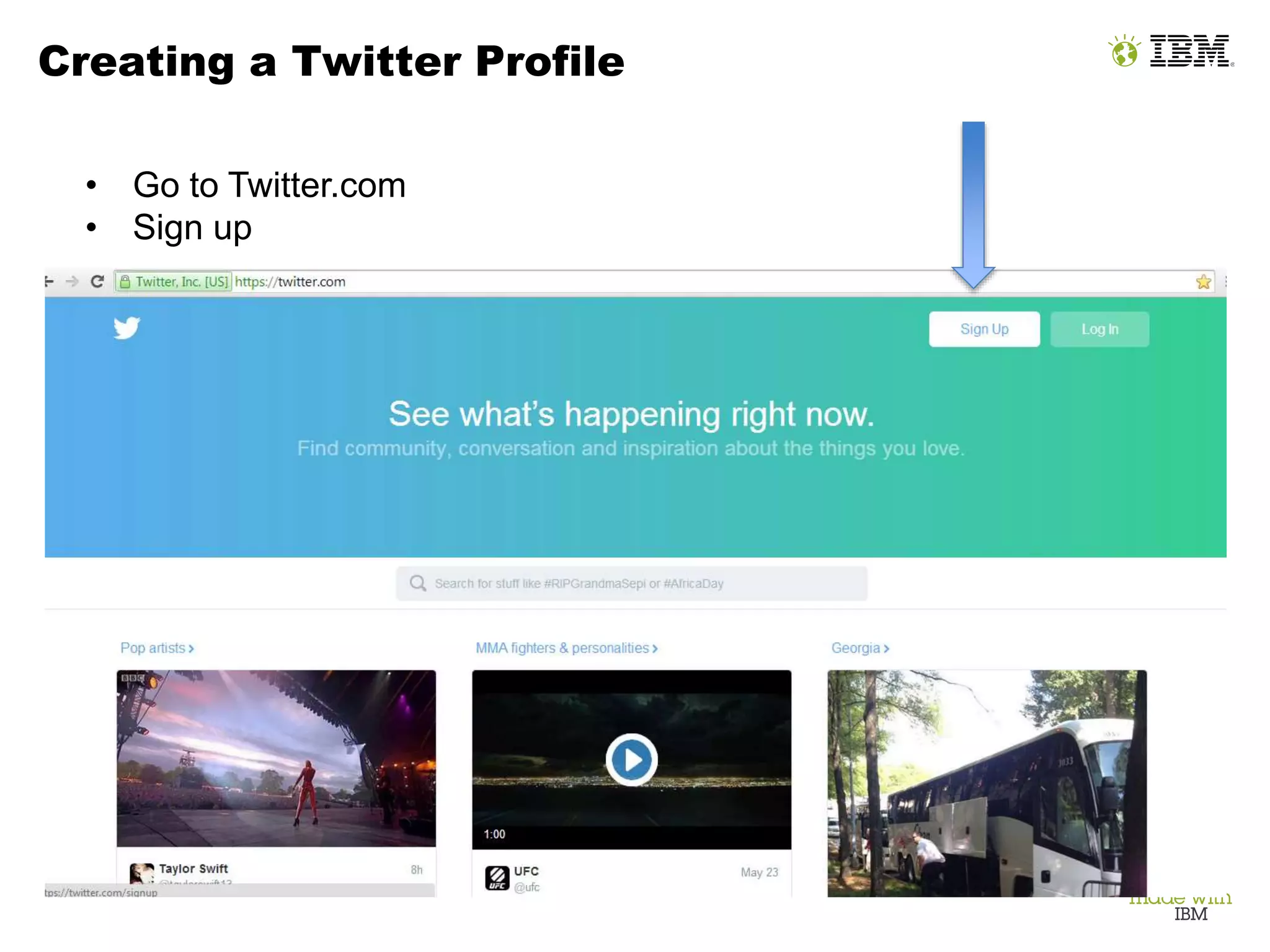
• Go to Twitter.com
• Sign up
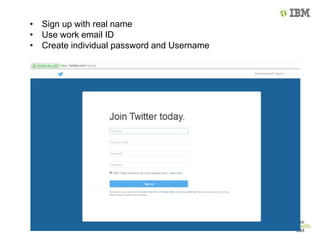
• Sign up with real name
• Use work email ID
• Create individual password and Username
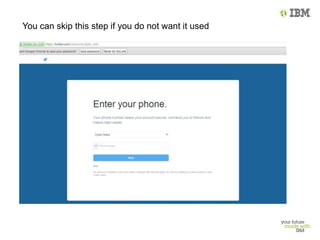
You can skip this step if you do not want it used
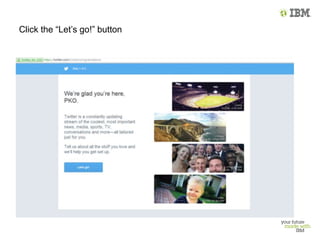
Click the “Let’s go!” button
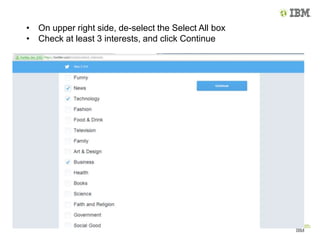
• On upper right side, de-select the Select All box
• Check at least 3 interests, and click Continue
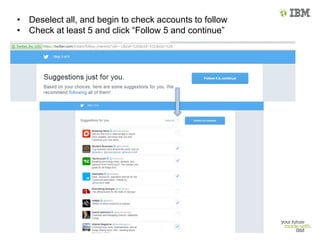
• Deselect all, and begin to check accounts to follow
• Check at least 5 and click “Follow 5 and continue”
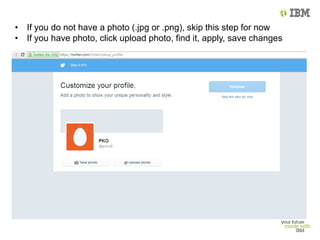
• If you do not have a photo (.jpg or .png), skip this step for now
• If you have photo, click upload photo, find it, apply, save changes
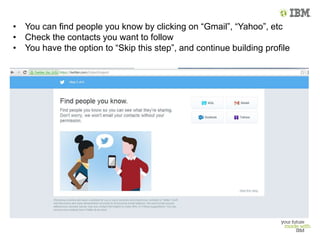
• You can find people you know by clicking on “Gmail”, “Yahoo”, etc
• Check the contacts you want to follow
• You have the option to “Skip this step”, and continue building profile
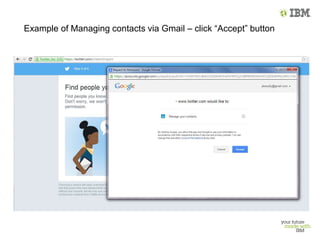
Example of Managing contacts via Gmail – click “Accept” button
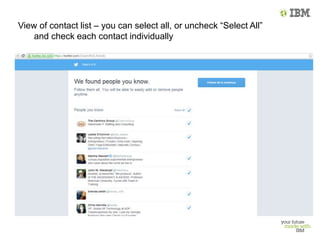
View of contact list – you can select all, or uncheck “Select All”
and check each contact individually
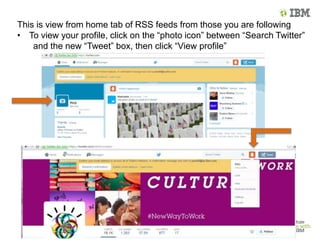
This is view from home tab of RSS feeds from those you are following
• To view your profile, click on the “photo icon” between “Search Twitter”
and the new “Tweet” box, then click “View profile”
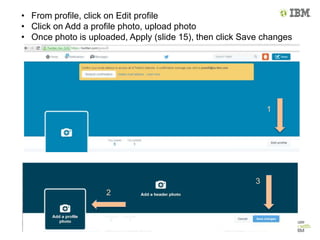
• From profile, click on Edit profile
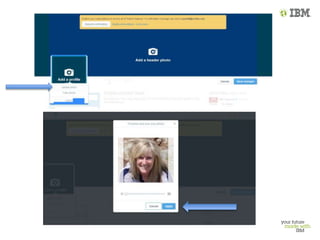
• Click on Add a profile photo, upload photo
• Once photo is uploaded, Apply (slide 15), then click Save changes
1
2
3
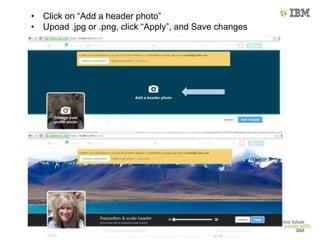
• Click on “Add a header photo”
• Upoad .jpg or .png, click “Apply”, and Save changes
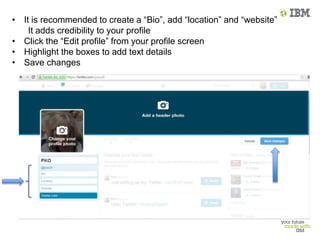
• It is recommended to create a “Bio”, add “location” and “website”
It adds credibility to your profile
• Click the “Edit profile” from your profile screen
• Highlight the boxes to add text details
• Save changes
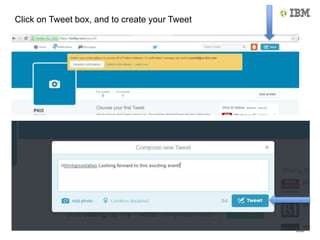
Click on Tweet box, and to create your Tweet
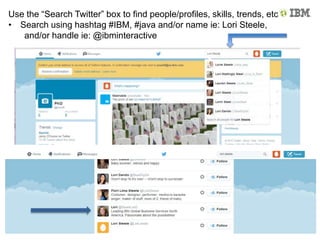
Use the “Search Twitter” box to find people/profiles, skills, trends, etc
• Search using hashtag #IBM, #java and/or name ie: Lori Steele,
and/or handle ie: @ibminteractive
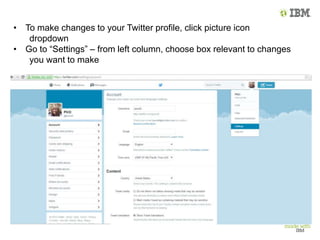
• To make changes to your Twitter profile, click picture icon
dropdown
• Go to “Settings” – from left column, choose box relevant to changes
you want to make

Creating twitter

  • 1.
    Creating a TwitterProfile • Go to Twitter.com • Sign up
  • 2.
    • Sign upwith real name • Use work email ID • Create individual password and Username
  • 3.
    You can skipthis step if you do not want it used
  • 4.
    Click the “Let’sgo!” button
  • 5.
    • On upperright side, de-select the Select All box • Check at least 3 interests, and click Continue
  • 6.
    • Deselect all,and begin to check accounts to follow • Check at least 5 and click “Follow 5 and continue”
  • 7.
    • If youdo not have a photo (.jpg or .png), skip this step for now • If you have photo, click upload photo, find it, apply, save changes
  • 8.
    • You canfind people you know by clicking on “Gmail”, “Yahoo”, etc • Check the contacts you want to follow • You have the option to “Skip this step”, and continue building profile
  • 9.
    Example of Managingcontacts via Gmail – click “Accept” button
  • 10.
    View of contactlist – you can select all, or uncheck “Select All” and check each contact individually
  • 11.
    This is viewfrom home tab of RSS feeds from those you are following • To view your profile, click on the “photo icon” between “Search Twitter” and the new “Tweet” box, then click “View profile”
  • 12.
    • From profile,click on Edit profile • Click on Add a profile photo, upload photo • Once photo is uploaded, Apply (slide 15), then click Save changes 1 2 3
  • 14.
    • Click on“Add a header photo” • Upoad .jpg or .png, click “Apply”, and Save changes
  • 15.
    • It isrecommended to create a “Bio”, add “location” and “website” It adds credibility to your profile • Click the “Edit profile” from your profile screen • Highlight the boxes to add text details • Save changes
  • 16.
    Click on Tweetbox, and to create your Tweet
  • 17.
    Use the “SearchTwitter” box to find people/profiles, skills, trends, etc • Search using hashtag #IBM, #java and/or name ie: Lori Steele, and/or handle ie: @ibminteractive
  • 18.
    • To makechanges to your Twitter profile, click picture icon dropdown • Go to “Settings” – from left column, choose box relevant to changes you want to make