8/1/2014
 Many students are taking online
classes.
 There is a need for online students
to create presentations.
 Students might need to know their
options.
Audio is available on each slide-to
listen just click on the icon located
in the bottom right corner.
This tutorial will cover the following three
inexpensive or free online presentation tools.
 PowerPoint
 Google Apps
 Prezi
What is PowerPoint
 Presentation software using
slides to make the
presentations.
 Part of Microsoft Office 365
Cost and Availability
Microsoft Office 365 is provided for all University of Tennessee’s students
through their Student Tech Fee. PowerPoint is included in Microsoft Office
365.
How do you download the free version of Microsoft Office 365?
1. Login to your University of Tennessee email.
2. Left-Click on settings icon.
3. Scroll down to Office 365 settings and left click.
4. Scroll down and select Software/Install and manage Software.
5. Left-click on the Install button at the bottom of the page.
Click on link below to watch a video on how to download Microsoft Office 365.
http://www.screencast.com/t/JcWu1Kdbw83
More information for students can be found on the following web page.
https://oit.utk.edu/hardware-software/Pages/Student-Advantage.aspx
SlideShare
 Website allowing the user to upload
and share presentations, and view
other presentations that have been
uploaded.
www.slideshare.net
What is Google Apps?
 A set of cloud based
applications created and
provided by Google.
What is Google Slides?
 Part of Google Apps that
allows you to create, edit,
and share slide-based
presentations online.
http://learn.googleapps.com/
Cost and File Size Limit
 Free
 Presentations can be up to 100mb in size
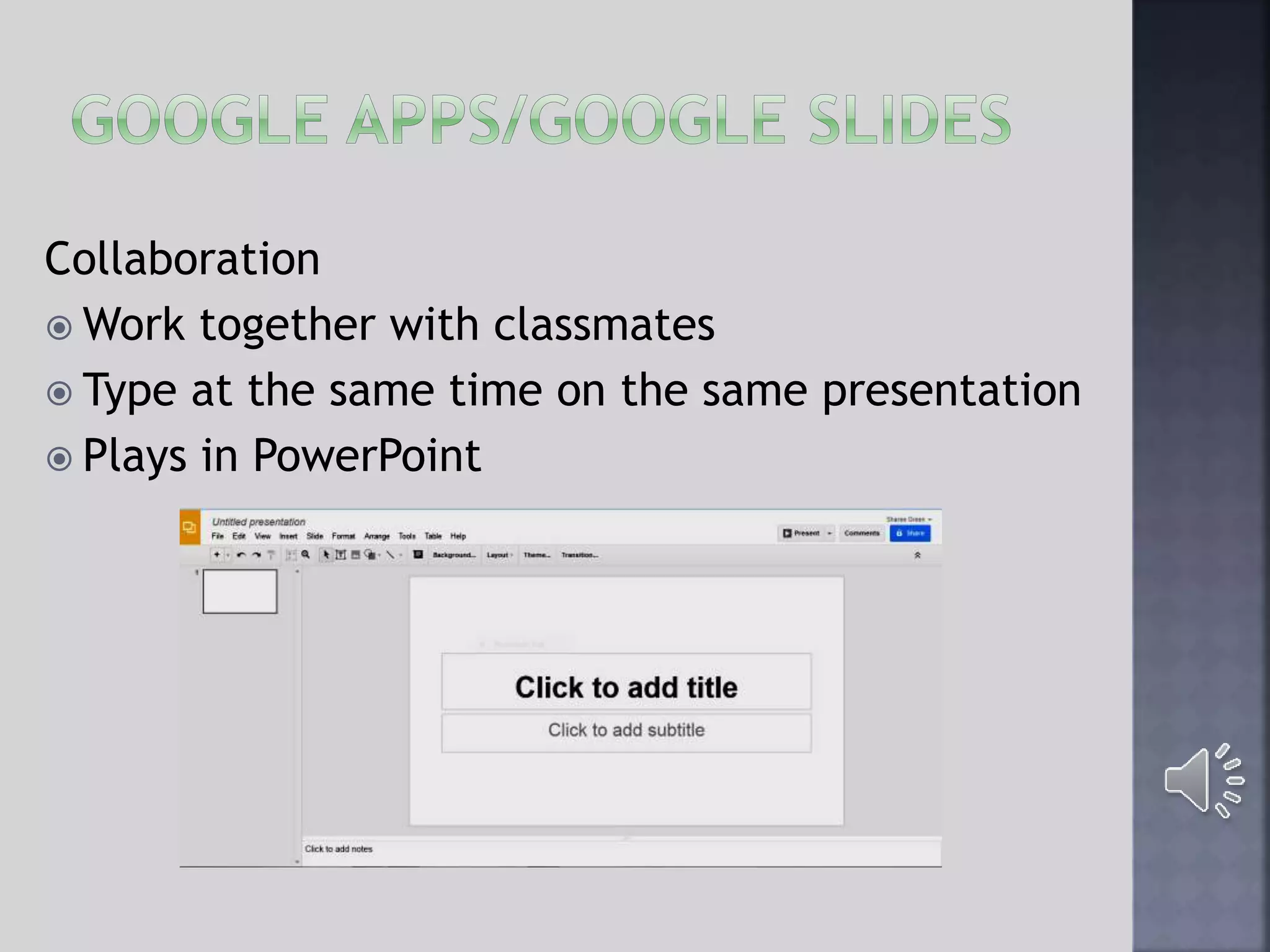
Collaboration
 Work together with classmates
 Type at the same time on the same presentation
 Plays in PowerPoint
Google Apps vs. PowerPoint
Similarities
 They are interchangeable-Google presentations can be
converted to PowerPoint and a PowerPoint presentation
can be imported into Google Slides
 Both save work online automatically.
 Both have a share feature so that students may work
collaboratively with others.
Difference
 Google Slides is only online and PowerPoint may be kept
private.
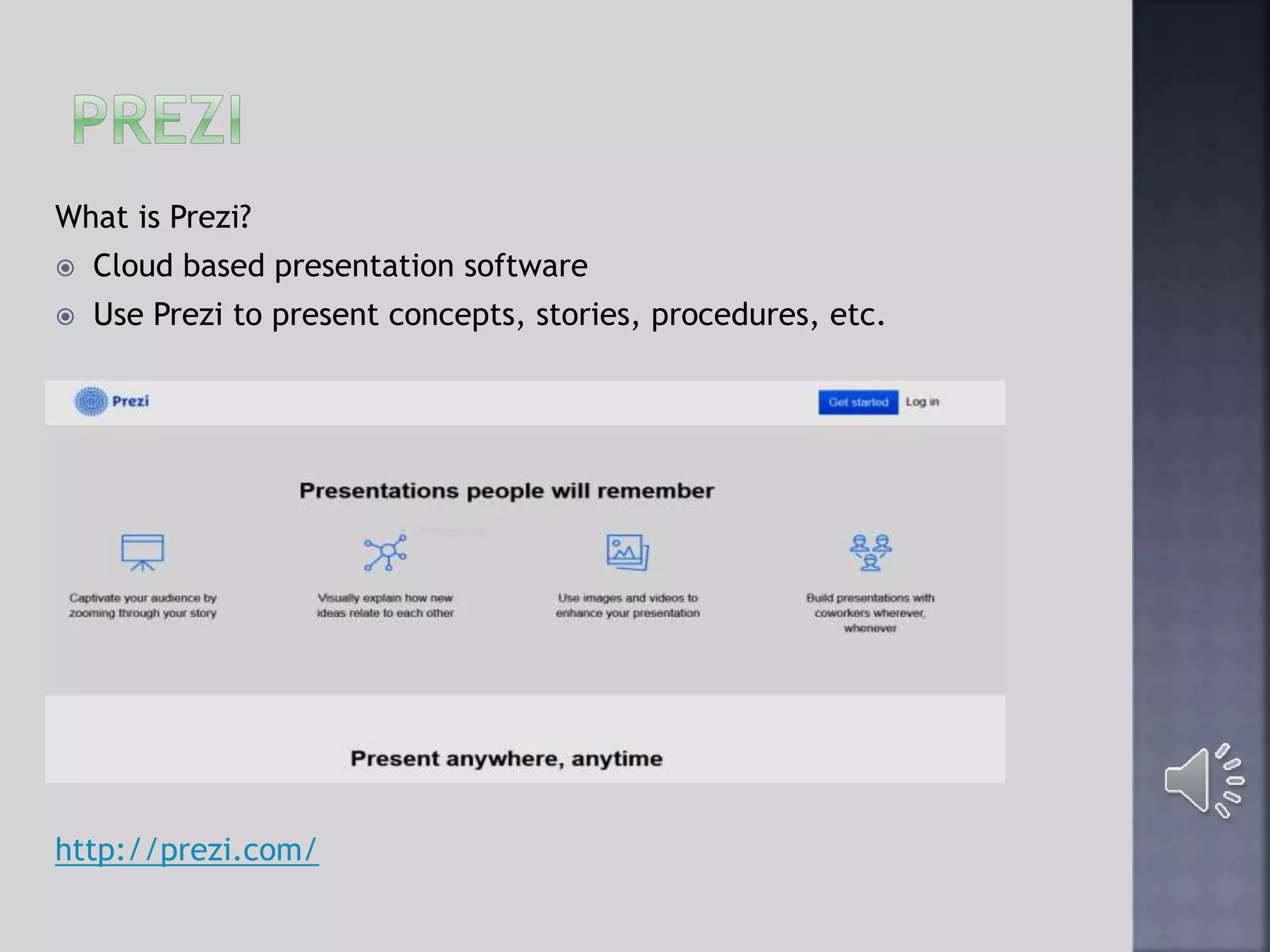
What is Prezi?
 Cloud based presentation software
 Use Prezi to present concepts, stories, procedures, etc.
http://prezi.com/
 Uses a “canvas” that does not limit the
user to usual page or screen size.
 Sequences subject matter in, “paths.”
 May not be for everyone, you should
check out an example before committing
to making a presentation with Prezi.
 The link below is to a video of how to
make a Prezi.
http://www.youtube.com/watch?v=ArGh6F
urR0Q
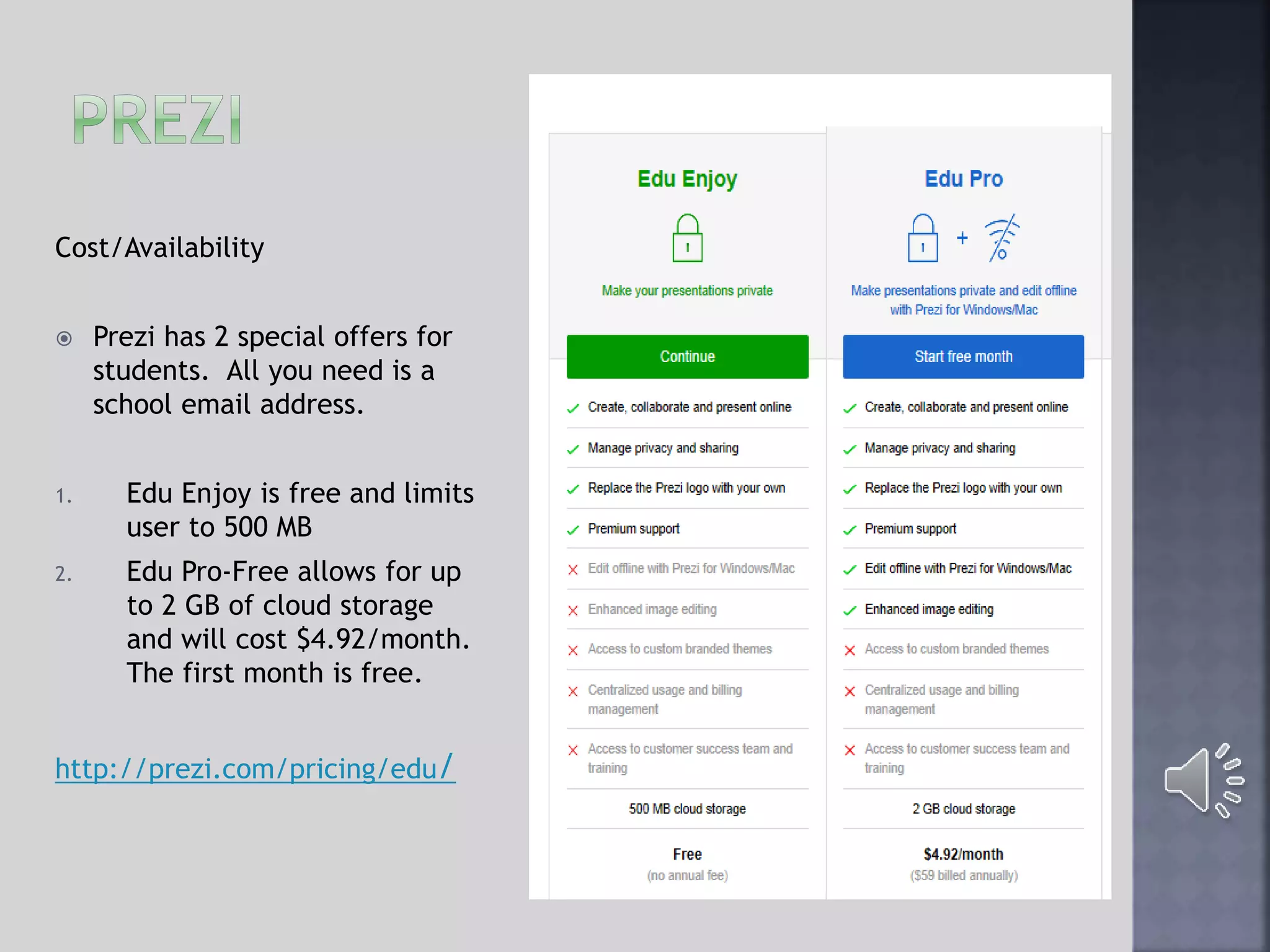
Cost/Availability
 Prezi has 2 special offers for
students. All you need is a
school email address.
1. Edu Enjoy is free and limits
user to 500 MB
2. Edu Pro-Free allows for up
to 2 GB of cloud storage
and will cost $4.92/month.
The first month is free.
http://prezi.com/pricing/edu/
Google Apps and PowerPoint vs. Prezi
Similarities
 They all use slides for the base of their
presentations.
 All three allow students to share and collaborate
online.
Differences
 Prezi’s version of a slide is called a “canvas.” A
canvas is not limited to usual page or screen
size.
 The canvas templates use spatial metaphors to
organize and present ideas.
Asynchronous
 May require an online presentation that is not
given during class.
 Adding voice allows other students in the class to
view your presentation without your being
present.
 Voice makes the presentation more personal.
 Upload presentation to You tube
Synchronous
 Students can upload presentations with or
without voice onto Blackboard Collaborate.
 Students click through slides and give
presentation.
Steps to follow before recording your voiceover
1. Create your PowerPoint
2. Finalize the PowerPoint as much as possible.
3. Create a script for each slide.
4. Read through your script before beginning your
recording.
5. Find a headset to use during recording.
 If you follow the above steps you will save
yourself many hours of time.
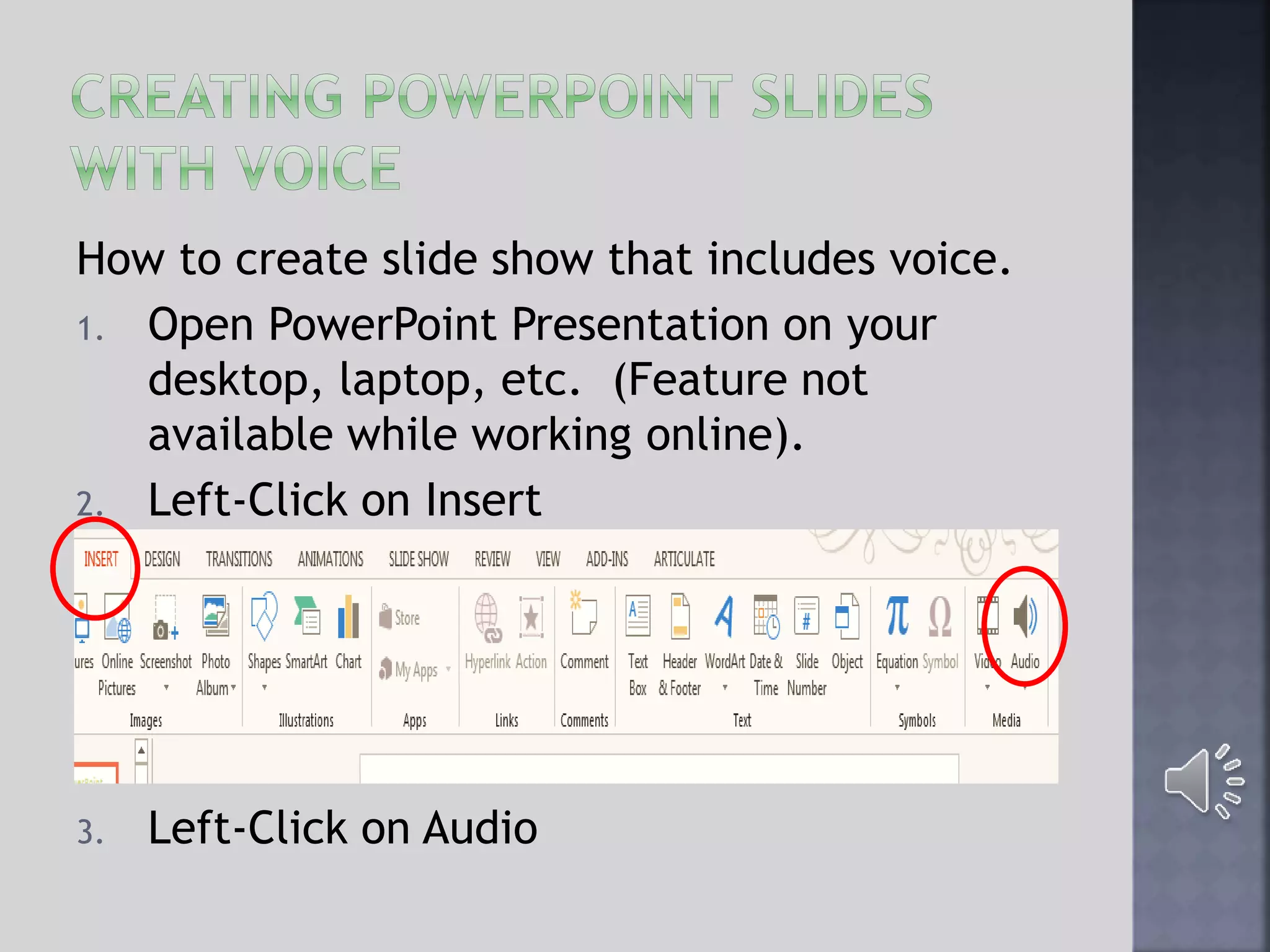
How to create slide show that includes voice.
1. Open PowerPoint Presentation on your
desktop, laptop, etc. (Feature not
available while working online).
2. Left-Click on Insert
3. Left-Click on Audio
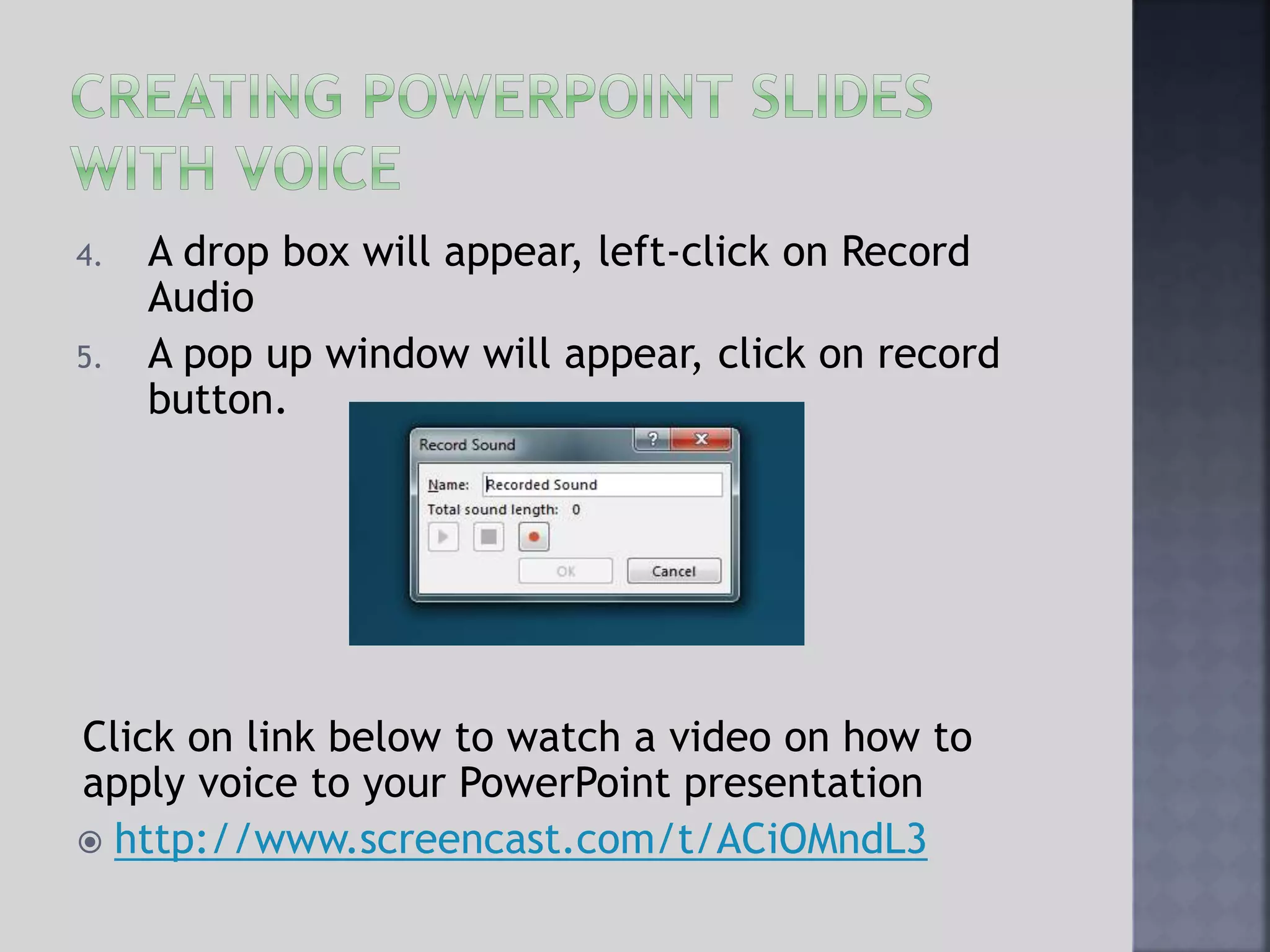
4. A drop box will appear, left-click on Record
Audio
5. A pop up window will appear, click on record
button.
Click on link below to watch a video on how to
apply voice to your PowerPoint presentation
 http://www.screencast.com/t/ACiOMndL3
 Voiceover is not available
 Alternatives to voiceover
 Use a screen capture program such as Camtasia
or Jing to record the presentation.
 Import Google Slides into PowerPoint and then
apply the voiceover.
 Voiceover is available
 Allows you to add sound to the entire
presentation or something different to each
step in a path.
Below is to a video that shows how to add
sound to a Prezi presentation.
http://www.youtube.com/watch?v=FyiDZPR7Y
wA
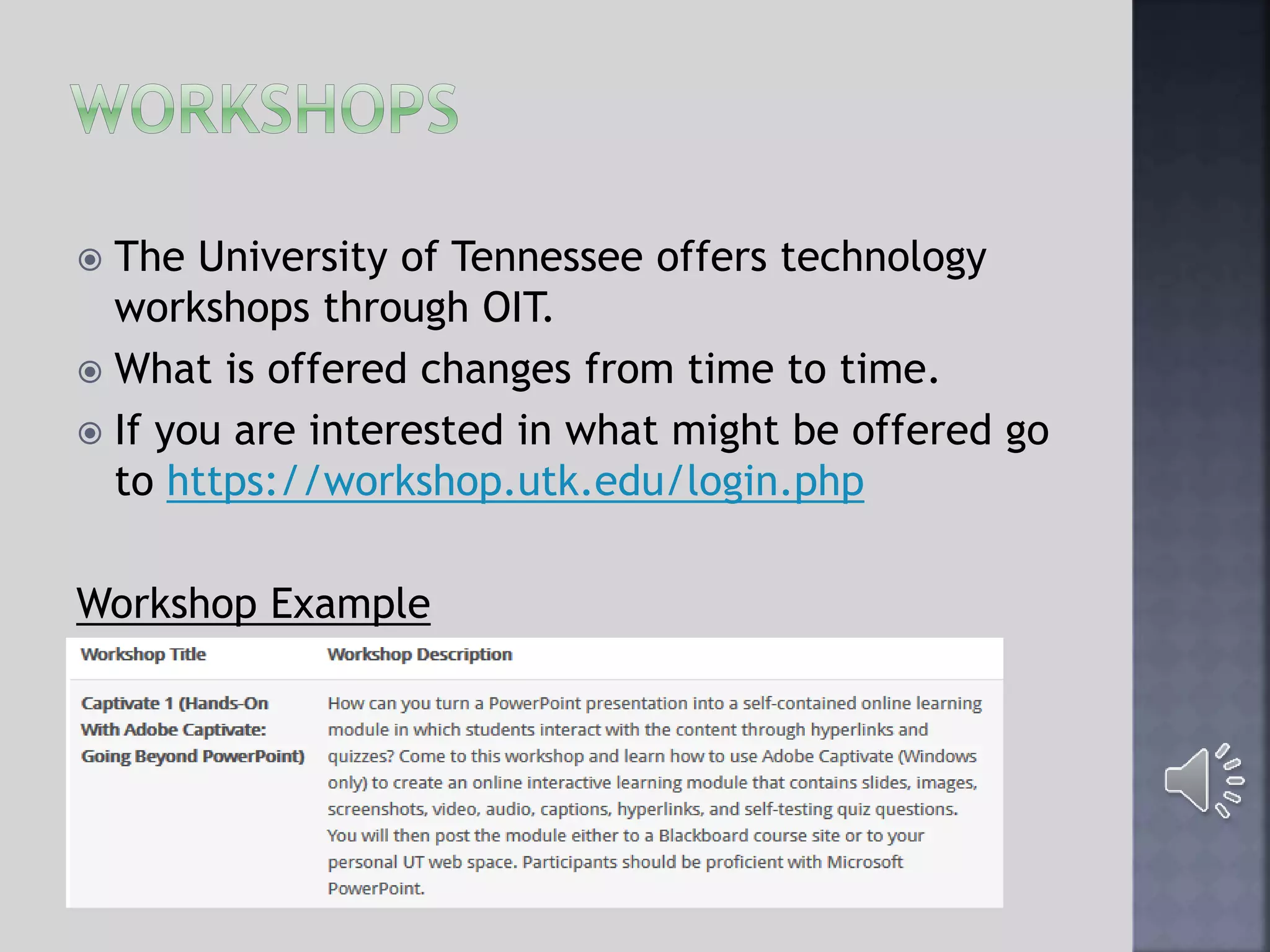
 The University of Tennessee offers technology
workshops through OIT.
 What is offered changes from time to time.
 If you are interested in what might be offered go
to https://workshop.utk.edu/login.php
Workshop Example
 Students taking online courses will need to
know how to make online presentations
 Three main presentation tools are available
to students
 PowerPoint
 Google Apps/Google Slide
 Prezi
 Google. (n.d.). Using Google Apps at Work or School. Retrieved from
Google Apps Website: http://learn.googleapps.com
 OIT: Office of Information Technology. (n.d.). Retrieved from University
of Tennessee website: https://oit.utk.edu/hardware-
software/Pages/Student-Advantage.aspx
 Prezi. (2014). Be a great presenter. Retrieved from Prezi Web site:
http://www.prezi.com
 Prezi. (2014). Licenses for students and teachers. Retrieved from Prezi
Web site: http://www.prezi.com/pricing/edu
 Prezi. (2014, June 29). You Tube. Retrieved from You Tube Website:
http://www.youtube.com/watch?v=ArGh6FurR0Q
 SlideShare. (2014). Discover. Share. Present. Retrieved from SlideShare
Web site: www.slideshare.net
 Smith, T. (n.d.). Screencast. Retrieved from Screencast website:
www.screencast.com
 Tennessee, T. U. (n.d.). UTK Workshop Registration. Retrieved from The
University of Tennessee Web site:
http://workshop.utk.edu/login.php
 Tube, Y. (2014, July 11). You Tube. Retrieved from You Tube Web site:
https://www.youtube.com/watch?v=FyiDZPR7YwA

Creating online presentations tutorial 8 1-14

  • 1.
  • 2.
     Many studentsare taking online classes.  There is a need for online students to create presentations.  Students might need to know their options. Audio is available on each slide-to listen just click on the icon located in the bottom right corner.
  • 3.
    This tutorial willcover the following three inexpensive or free online presentation tools.  PowerPoint  Google Apps  Prezi
  • 4.
    What is PowerPoint Presentation software using slides to make the presentations.  Part of Microsoft Office 365
  • 5.
    Cost and Availability MicrosoftOffice 365 is provided for all University of Tennessee’s students through their Student Tech Fee. PowerPoint is included in Microsoft Office 365. How do you download the free version of Microsoft Office 365? 1. Login to your University of Tennessee email. 2. Left-Click on settings icon. 3. Scroll down to Office 365 settings and left click. 4. Scroll down and select Software/Install and manage Software. 5. Left-click on the Install button at the bottom of the page. Click on link below to watch a video on how to download Microsoft Office 365. http://www.screencast.com/t/JcWu1Kdbw83 More information for students can be found on the following web page. https://oit.utk.edu/hardware-software/Pages/Student-Advantage.aspx
  • 6.
    SlideShare  Website allowingthe user to upload and share presentations, and view other presentations that have been uploaded. www.slideshare.net
  • 7.
    What is GoogleApps?  A set of cloud based applications created and provided by Google. What is Google Slides?  Part of Google Apps that allows you to create, edit, and share slide-based presentations online. http://learn.googleapps.com/
  • 8.
    Cost and FileSize Limit  Free  Presentations can be up to 100mb in size
  • 9.
    Collaboration  Work togetherwith classmates  Type at the same time on the same presentation  Plays in PowerPoint
  • 10.
    Google Apps vs.PowerPoint Similarities  They are interchangeable-Google presentations can be converted to PowerPoint and a PowerPoint presentation can be imported into Google Slides  Both save work online automatically.  Both have a share feature so that students may work collaboratively with others. Difference  Google Slides is only online and PowerPoint may be kept private.
  • 11.
    What is Prezi? Cloud based presentation software  Use Prezi to present concepts, stories, procedures, etc. http://prezi.com/
  • 12.
     Uses a“canvas” that does not limit the user to usual page or screen size.  Sequences subject matter in, “paths.”  May not be for everyone, you should check out an example before committing to making a presentation with Prezi.  The link below is to a video of how to make a Prezi. http://www.youtube.com/watch?v=ArGh6F urR0Q
  • 13.
    Cost/Availability  Prezi has2 special offers for students. All you need is a school email address. 1. Edu Enjoy is free and limits user to 500 MB 2. Edu Pro-Free allows for up to 2 GB of cloud storage and will cost $4.92/month. The first month is free. http://prezi.com/pricing/edu/
  • 14.
    Google Apps andPowerPoint vs. Prezi Similarities  They all use slides for the base of their presentations.  All three allow students to share and collaborate online. Differences  Prezi’s version of a slide is called a “canvas.” A canvas is not limited to usual page or screen size.  The canvas templates use spatial metaphors to organize and present ideas.
  • 15.
    Asynchronous  May requirean online presentation that is not given during class.  Adding voice allows other students in the class to view your presentation without your being present.  Voice makes the presentation more personal.  Upload presentation to You tube Synchronous  Students can upload presentations with or without voice onto Blackboard Collaborate.  Students click through slides and give presentation.
  • 16.
    Steps to followbefore recording your voiceover 1. Create your PowerPoint 2. Finalize the PowerPoint as much as possible. 3. Create a script for each slide. 4. Read through your script before beginning your recording. 5. Find a headset to use during recording.  If you follow the above steps you will save yourself many hours of time.
  • 17.
    How to createslide show that includes voice. 1. Open PowerPoint Presentation on your desktop, laptop, etc. (Feature not available while working online). 2. Left-Click on Insert 3. Left-Click on Audio
  • 18.
    4. A dropbox will appear, left-click on Record Audio 5. A pop up window will appear, click on record button. Click on link below to watch a video on how to apply voice to your PowerPoint presentation  http://www.screencast.com/t/ACiOMndL3
  • 19.
     Voiceover isnot available  Alternatives to voiceover  Use a screen capture program such as Camtasia or Jing to record the presentation.  Import Google Slides into PowerPoint and then apply the voiceover.
  • 20.
     Voiceover isavailable  Allows you to add sound to the entire presentation or something different to each step in a path. Below is to a video that shows how to add sound to a Prezi presentation. http://www.youtube.com/watch?v=FyiDZPR7Y wA
  • 21.
     The Universityof Tennessee offers technology workshops through OIT.  What is offered changes from time to time.  If you are interested in what might be offered go to https://workshop.utk.edu/login.php Workshop Example
  • 22.
     Students takingonline courses will need to know how to make online presentations  Three main presentation tools are available to students  PowerPoint  Google Apps/Google Slide  Prezi
  • 23.
     Google. (n.d.).Using Google Apps at Work or School. Retrieved from Google Apps Website: http://learn.googleapps.com  OIT: Office of Information Technology. (n.d.). Retrieved from University of Tennessee website: https://oit.utk.edu/hardware- software/Pages/Student-Advantage.aspx  Prezi. (2014). Be a great presenter. Retrieved from Prezi Web site: http://www.prezi.com  Prezi. (2014). Licenses for students and teachers. Retrieved from Prezi Web site: http://www.prezi.com/pricing/edu  Prezi. (2014, June 29). You Tube. Retrieved from You Tube Website: http://www.youtube.com/watch?v=ArGh6FurR0Q  SlideShare. (2014). Discover. Share. Present. Retrieved from SlideShare Web site: www.slideshare.net  Smith, T. (n.d.). Screencast. Retrieved from Screencast website: www.screencast.com  Tennessee, T. U. (n.d.). UTK Workshop Registration. Retrieved from The University of Tennessee Web site: http://workshop.utk.edu/login.php  Tube, Y. (2014, July 11). You Tube. Retrieved from You Tube Web site: https://www.youtube.com/watch?v=FyiDZPR7YwA