Multimedia Presentation Tools for
Students
This document provides an overview to several multimedia presentation tools students can use to
create online presentations. Students will need access to a computer with a microphone and speakers to
create and view these presentations. Ecampus recommends headsets that connect via USB port for best
audio quality. Students may also need a webcam, depending on the tool selected and project needs.
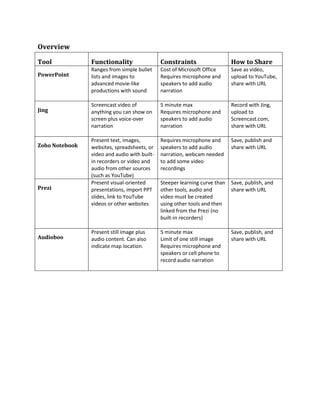
See the table on the last page for an overview of these tools.
PowerPoint (published to YouTube)
This tried and true program can help you create lively, engaging multimedia
presentations when you add music, narration, and use the built-in design features.
 You can save a PPT presentation with audio as a video file and then upload
it to YouTube. Here’s a one-minute tutorial that shows you how:
http://www.youtube.com/watch?v=8_WCAInVLrQ&feature=youtu.be.
 Want to create motion on your PowerPoint slides? Learn to use Custom Animation and Motion
Paths: http://www.youtube.com/watch?v=P9ftw1rHLk8
Jing
Jing is a free program that allows you to create annotated screenshots and narrated screencasts up to
five minutes long (“movies” of anything you can show on your screen, with your voice-over narration).
You can narrate over PowerPoint slides, a spreadsheet, an image, text, a website – anything you can
show on your computer screen.
Jing works in partnership with www.screencast.com, a site that provides free
storage (2GB of storage and 2GB of monthly bandwidth). Record with Jing,
upload to Screencast, and share with the URL Screencast generates.
You can also save Jing images and videos to other locations, such as your hard
drive or anywhere you save files. The benefit of using Screencast is that it’s built
in to Jing and allows you to share the images and videos you create with a
simple URL. You can download and learn to use Jing at www.jingproject.com.
Zoho Notebook
Zoho Notebook is a free multimedia presentation tool that students can use individually or in groups.
Students can create multi-page presentations, so the tool allows for depth. It also contains a built in
audio and video recorder (students would need a webcam or a microphone to use). This video provides
an overview: http://www.youtube.com/watch?v=sfJFBcF_6cE.
You can pull live websites into the presentation,
images, audio and video clips, or just about
anything you can share online. Page organization is
as simple as drag and drop.
Find it here: www.notebook.zoho.com. Here is a Jing video that describes how Zoho Notebook works:
http://oregonstate.edu/instruct/dce/training/shannon/Zoho.mp4
Prezi
Prezi is a zooming presentation tool that allows creators to work
individually or collaboratively. This free tool is available online at
http://prezi.com/. Learn to use Prezi by watching three simple
tutorials: http://prezi.com/learn/. View sample Prezis here:
http://prezi.com/explore/.
Audioboo
To create a simple image + 5-minute audio presentation, consider using www.Audioboo.fm.
Audioboo can be used online, and can even be accessed and used via cell phone. Check out
a demo Audioboo recording here: http://audioboo.fm/boos/688517-audioboo-demo-for-
students
Overview
Tool Functionality Constraints How to Share
PowerPoint
Ranges from simple bullet
lists and images to
advanced movie-like
productions with sound
Cost of Microsoft Office
Requires microphone and
speakers to add audio
narration
Save as video,
upload to YouTube,
share with URL
Jing
Screencast video of
anything you can show on
screen plus voice-over
narration
5 minute max
Requires microphone and
speakers to add audio
narration
Record with Jing,
upload to
Screencast.com,
share with URL
Zoho Notebook
Present text, images,
websites, spreadsheets, or
video and audio with built-
in recorders or video and
audio from other sources
(such as YouTube)
Requires microphone and
speakers to add audio
narration, webcam needed
to add some video
recordings
Save, publish and
share with URL
Prezi
Present visual-oriented
presentations, import PPT
slides, link to YouTube
videos or other websites
Steeper learning curve than
other tools, audio and
video must be created
using other tools and then
linked from the Prezi (no
built-in recorders)
Save, publish, and
share with URL
Audioboo
Present still image plus
audio content. Can also
indicate map location.
5 minute max
Limit of one still image
Requires microphone and
speakers or cell phone to
record audio narration
Save, publish, and
share with URL

Multimedia tools

  • 1.
    Multimedia Presentation Toolsfor Students This document provides an overview to several multimedia presentation tools students can use to create online presentations. Students will need access to a computer with a microphone and speakers to create and view these presentations. Ecampus recommends headsets that connect via USB port for best audio quality. Students may also need a webcam, depending on the tool selected and project needs. See the table on the last page for an overview of these tools. PowerPoint (published to YouTube) This tried and true program can help you create lively, engaging multimedia presentations when you add music, narration, and use the built-in design features.  You can save a PPT presentation with audio as a video file and then upload it to YouTube. Here’s a one-minute tutorial that shows you how: http://www.youtube.com/watch?v=8_WCAInVLrQ&feature=youtu.be.  Want to create motion on your PowerPoint slides? Learn to use Custom Animation and Motion Paths: http://www.youtube.com/watch?v=P9ftw1rHLk8 Jing Jing is a free program that allows you to create annotated screenshots and narrated screencasts up to five minutes long (“movies” of anything you can show on your screen, with your voice-over narration). You can narrate over PowerPoint slides, a spreadsheet, an image, text, a website – anything you can show on your computer screen. Jing works in partnership with www.screencast.com, a site that provides free storage (2GB of storage and 2GB of monthly bandwidth). Record with Jing, upload to Screencast, and share with the URL Screencast generates. You can also save Jing images and videos to other locations, such as your hard drive or anywhere you save files. The benefit of using Screencast is that it’s built in to Jing and allows you to share the images and videos you create with a simple URL. You can download and learn to use Jing at www.jingproject.com.
  • 2.
    Zoho Notebook Zoho Notebookis a free multimedia presentation tool that students can use individually or in groups. Students can create multi-page presentations, so the tool allows for depth. It also contains a built in audio and video recorder (students would need a webcam or a microphone to use). This video provides an overview: http://www.youtube.com/watch?v=sfJFBcF_6cE. You can pull live websites into the presentation, images, audio and video clips, or just about anything you can share online. Page organization is as simple as drag and drop. Find it here: www.notebook.zoho.com. Here is a Jing video that describes how Zoho Notebook works: http://oregonstate.edu/instruct/dce/training/shannon/Zoho.mp4 Prezi Prezi is a zooming presentation tool that allows creators to work individually or collaboratively. This free tool is available online at http://prezi.com/. Learn to use Prezi by watching three simple tutorials: http://prezi.com/learn/. View sample Prezis here: http://prezi.com/explore/. Audioboo To create a simple image + 5-minute audio presentation, consider using www.Audioboo.fm. Audioboo can be used online, and can even be accessed and used via cell phone. Check out a demo Audioboo recording here: http://audioboo.fm/boos/688517-audioboo-demo-for- students
  • 3.
    Overview Tool Functionality ConstraintsHow to Share PowerPoint Ranges from simple bullet lists and images to advanced movie-like productions with sound Cost of Microsoft Office Requires microphone and speakers to add audio narration Save as video, upload to YouTube, share with URL Jing Screencast video of anything you can show on screen plus voice-over narration 5 minute max Requires microphone and speakers to add audio narration Record with Jing, upload to Screencast.com, share with URL Zoho Notebook Present text, images, websites, spreadsheets, or video and audio with built- in recorders or video and audio from other sources (such as YouTube) Requires microphone and speakers to add audio narration, webcam needed to add some video recordings Save, publish and share with URL Prezi Present visual-oriented presentations, import PPT slides, link to YouTube videos or other websites Steeper learning curve than other tools, audio and video must be created using other tools and then linked from the Prezi (no built-in recorders) Save, publish, and share with URL Audioboo Present still image plus audio content. Can also indicate map location. 5 minute max Limit of one still image Requires microphone and speakers or cell phone to record audio narration Save, publish, and share with URL