Video Publishing/Creating a video podcast  Using iPhoto and iMovie to create  a video podcast
What is Video Publishing/Video Podcasting? Creating a movie, a video, or a collection of video clips that can be accessed through a host site or web server.  Sharing a digital story with an unlimited number of people.  Uploading a presentation or video narrative to share with others.
Benefits of Using Video Publishing in the Classroom Students can interact in the classroom with the same technology they access at home.  Teachers can engage students of all learning styles. Teachers can add excitement and interest to an ordinary assignment.
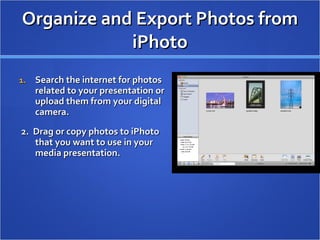
Organize and Export Photos from iPhoto Search the internet for photos related to your presentation or upload them from your digital camera.  2.  Drag or copy photos to iPhoto that you want to use in your media presentation.
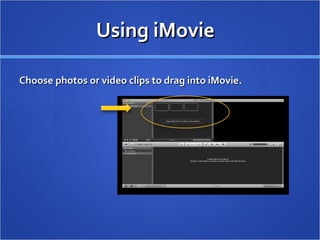
Using iMovie  Choose photos or video clips to drag into iMovie.
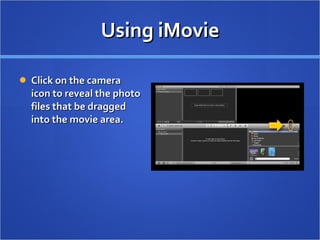
Using iMovie Click on the camera icon to reveal the photo files that be dragged into the movie area.
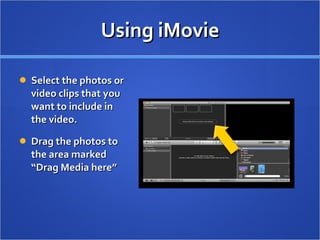
Using iMovie Select the photos or video clips that you want to include in the video.  Drag the photos to the area marked “Drag Media here”
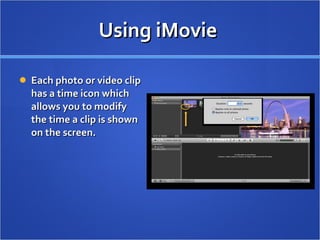
Using iMovie  Each photo or video clip has a time icon which allows you to modify the time a clip is shown on the screen.
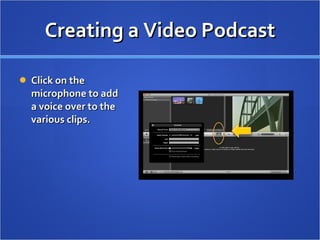
Creating a Video Podcast Click on the microphone to add a voice over to the various clips.
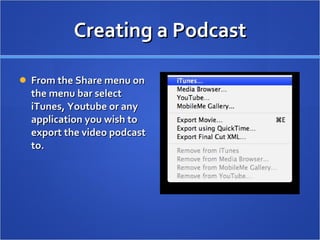
Creating a Podcast From the Share menu on the menu bar select iTunes, Youtube or any application you wish to export the video podcast to.
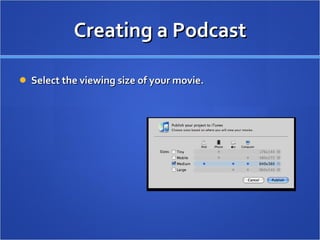
Creating a Podcast Select the viewing size of your movie.
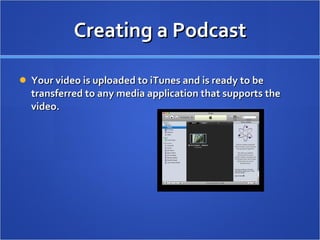
Creating a Podcast Your video is uploaded to iTunes and is ready to be transferred to any media application that supports the video.
Homework Casting Students create a podcast recapping the lesson that they learned that day in class and any questions they had on the lesson. (NJCCCS 8.1.12.A.3) Students can upload this video to a social networking site established by the teacher.
News Reporting  Students create a newscast based on an issue or topic discussed in class. Students can use Photobooth or any video capturing software for use with a webcam. (NJCCCS 8.1.12.A.3)
Vocabulary Podcast Student choose a vocabulary word or term from a content area and present various clips or photos from the internet that can be used to describe the term.  Students should use voiceovers to connect the various clips or photos to the term that is being illustrated. (NJCCCS 8.1.12.B.1)
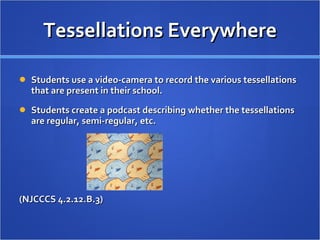
Tessellations Everywhere Students use a video-camera to record the various tessellations that are present in their school.  Students create a podcast describing whether the tessellations are regular, semi-regular, etc.  (NJCCCS 4.2.12.B.3)
Debate Students pair up in groups and debate an issue by creating a podcast. Students upload the video to a social networking site where they can respond to each other’s remarks.  (NJCCCS 8.1.12.C.1)

Productivity Assignment

  • 1.
    Video Publishing/Creating avideo podcast Using iPhoto and iMovie to create a video podcast
  • 2.
    What is VideoPublishing/Video Podcasting? Creating a movie, a video, or a collection of video clips that can be accessed through a host site or web server. Sharing a digital story with an unlimited number of people. Uploading a presentation or video narrative to share with others.
  • 3.
    Benefits of UsingVideo Publishing in the Classroom Students can interact in the classroom with the same technology they access at home. Teachers can engage students of all learning styles. Teachers can add excitement and interest to an ordinary assignment.
  • 4.
    Organize and ExportPhotos from iPhoto Search the internet for photos related to your presentation or upload them from your digital camera. 2. Drag or copy photos to iPhoto that you want to use in your media presentation.
  • 5.
    Using iMovie Choose photos or video clips to drag into iMovie.
  • 6.
    Using iMovie Clickon the camera icon to reveal the photo files that be dragged into the movie area.
  • 7.
    Using iMovie Selectthe photos or video clips that you want to include in the video. Drag the photos to the area marked “Drag Media here”
  • 8.
    Using iMovie Each photo or video clip has a time icon which allows you to modify the time a clip is shown on the screen.
  • 9.
    Creating a VideoPodcast Click on the microphone to add a voice over to the various clips.
  • 10.
    Creating a PodcastFrom the Share menu on the menu bar select iTunes, Youtube or any application you wish to export the video podcast to.
  • 11.
    Creating a PodcastSelect the viewing size of your movie.
  • 12.
    Creating a PodcastYour video is uploaded to iTunes and is ready to be transferred to any media application that supports the video.
  • 13.
    Homework Casting Studentscreate a podcast recapping the lesson that they learned that day in class and any questions they had on the lesson. (NJCCCS 8.1.12.A.3) Students can upload this video to a social networking site established by the teacher.
  • 14.
    News Reporting Students create a newscast based on an issue or topic discussed in class. Students can use Photobooth or any video capturing software for use with a webcam. (NJCCCS 8.1.12.A.3)
  • 15.
    Vocabulary Podcast Studentchoose a vocabulary word or term from a content area and present various clips or photos from the internet that can be used to describe the term. Students should use voiceovers to connect the various clips or photos to the term that is being illustrated. (NJCCCS 8.1.12.B.1)
  • 16.
    Tessellations Everywhere Studentsuse a video-camera to record the various tessellations that are present in their school. Students create a podcast describing whether the tessellations are regular, semi-regular, etc. (NJCCCS 4.2.12.B.3)
  • 17.
    Debate Students pairup in groups and debate an issue by creating a podcast. Students upload the video to a social networking site where they can respond to each other’s remarks. (NJCCCS 8.1.12.C.1)