© 2014 IBM Corporation
Connect to
Bluemix VM with VNC
(Ubuntu Desktop)
Joseph Chang
Senior IT Specialist
IBM Cloud Group
Document number
© 2014 IBM Corporation
Reference:
https://www.digitalocean.com/community/tutorials/how-to-install-and-configure-
vnc-on-ubuntu-14-04
2
Take me to Bluemix
Click Here
© 2014 IBM Corporation
Prerequisite
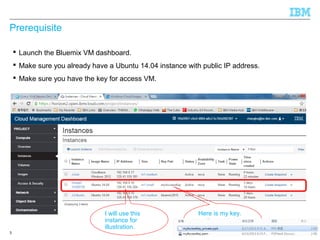
 Launch the Bluemix VM dashboard.
 Make sure you already have a Ubuntu 14.04 instance with public IP address.
 Make sure you have the key for access VM.
3
I will use this
instance for
illustration.
Here is my key.
© 2014 IBM Corporation
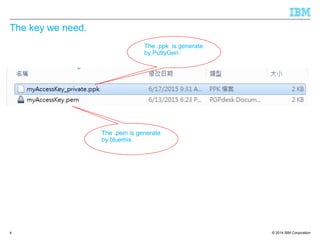
The key we need.
4
The .pem is generate
by bluemix.
The .ppk is generate
by PuttyGen.
© 2014 IBM Corporation
If you don’t know how to get here , learn it from this slide.
 http://www.slideshare.net/JosephChang8
5
© 2014 IBM Corporation
Install VNC Server
6
© 2014 IBM Corporation
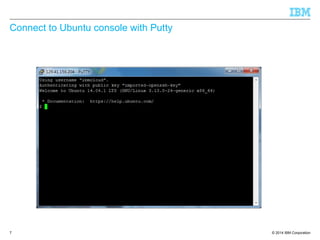
Connect to Ubuntu console with Putty
7
© 2014 IBM Corporation
Install TighVNC
8
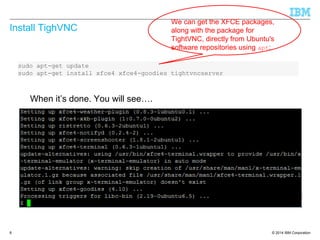
sudo apt-get update
sudo apt-get install xfce4 xfce4-goodies tightvncserver
We can get the XFCE packages,
along with the package for
TightVNC, directly from Ubuntu's
software repositories using apt:
When it’s done. You will see….
© 2014 IBM Corporation
Configure VNC server
9
For the first time you run “vncserver”, your got prompt to set up the password.
Take note for the two
passwords, we will use them
when login from desktop.
© 2014 IBM Corporation
Install xutils
10
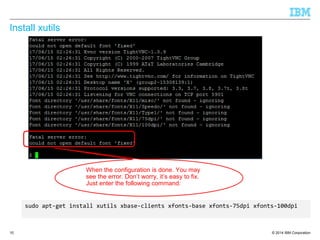
sudo apt-get install xutils xbase-clients xfonts-base xfonts-75dpi xfonts-100dpi
When the configuration is done. You may
see the error. Don’t worry, it’s easy to fix.
Just enter the following command:
© 2014 IBM Corporation
Check point
11
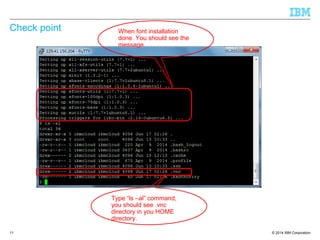
When font installation
done. You should see the
message.
Type “ls –al” command,
you should see .vnc
directory in you HOME
directory.
© 2014 IBM Corporation
Start VNC Server
12
Start the server by
enter “vncserver”
Check if the
vncserver is
running with ps.
© 2014 IBM Corporation
Launch VNC Viewer
13
Now we back from
cloud to the
Desktop
© 2014 IBM Corporation
Create a secure socket
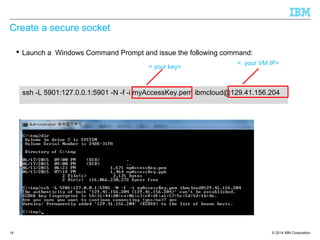
 Launch a Windows Command Prompt and issue the following command:
14
ssh -L 5901:127.0.0.1:5901 -N -f -i myAccessKey.pem ibmcloud@129.41.156.204
< your key>
< your VM IP>
© 2014 IBM Corporation
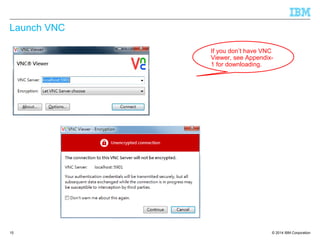
Launch VNC
15
If you don’t have VNC
Viewer, see Appendix-
1 for downloading.
© 2014 IBM Corporation
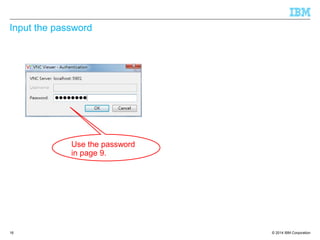
Input the password
16
Use the password
in page 9.
© 2014 IBM Corporation
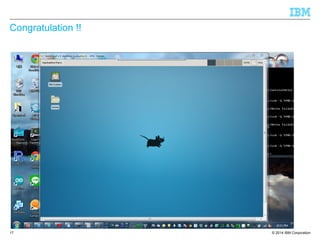
Congratulation !!
17
© 2014 IBM Corporation
Appendix -1 Install Web Browser
18
The default
browser doesn’t
work . Let’s install
by ourself.
© 2014 IBM Corporation
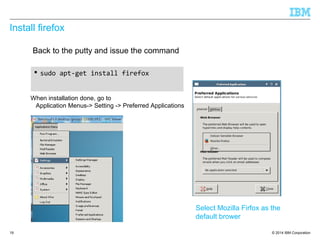
Install firefox
 sudo apt-get install firefox
19
Back to the putty and issue the command
When installation done, go to
Application Menus-> Setting -> Preferred Applications
Select Mozilla Firfox as the
default brower
© 2014 IBM Corporation
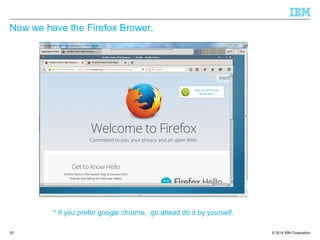
Now we have the Firefox Brower,
20
* If you prefer google chrome, go ahead do it by yourself.
© 2014 IBM Corporation
Appendix -2 Download VNC Viewer
21
© 2014 IBM Corporation
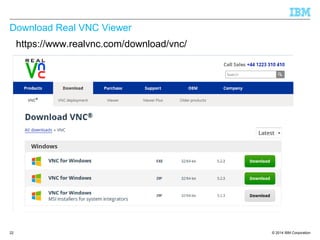
Download Real VNC Viewer
22
https://www.realvnc.com/download/vnc/
© 2014 IBM Corporation
Thank you
23
Take me to Bluemix
Click Here

Connect to blumix vm with vnc

  • 1.
    © 2014 IBMCorporation Connect to Bluemix VM with VNC (Ubuntu Desktop) Joseph Chang Senior IT Specialist IBM Cloud Group Document number
  • 2.
    © 2014 IBMCorporation Reference: https://www.digitalocean.com/community/tutorials/how-to-install-and-configure- vnc-on-ubuntu-14-04 2 Take me to Bluemix Click Here
  • 3.
    © 2014 IBMCorporation Prerequisite  Launch the Bluemix VM dashboard.  Make sure you already have a Ubuntu 14.04 instance with public IP address.  Make sure you have the key for access VM. 3 I will use this instance for illustration. Here is my key.
  • 4.
    © 2014 IBMCorporation The key we need. 4 The .pem is generate by bluemix. The .ppk is generate by PuttyGen.
  • 5.
    © 2014 IBMCorporation If you don’t know how to get here , learn it from this slide.  http://www.slideshare.net/JosephChang8 5
  • 6.
    © 2014 IBMCorporation Install VNC Server 6
  • 7.
    © 2014 IBMCorporation Connect to Ubuntu console with Putty 7
  • 8.
    © 2014 IBMCorporation Install TighVNC 8 sudo apt-get update sudo apt-get install xfce4 xfce4-goodies tightvncserver We can get the XFCE packages, along with the package for TightVNC, directly from Ubuntu's software repositories using apt: When it’s done. You will see….
  • 9.
    © 2014 IBMCorporation Configure VNC server 9 For the first time you run “vncserver”, your got prompt to set up the password. Take note for the two passwords, we will use them when login from desktop.
  • 10.
    © 2014 IBMCorporation Install xutils 10 sudo apt-get install xutils xbase-clients xfonts-base xfonts-75dpi xfonts-100dpi When the configuration is done. You may see the error. Don’t worry, it’s easy to fix. Just enter the following command:
  • 11.
    © 2014 IBMCorporation Check point 11 When font installation done. You should see the message. Type “ls –al” command, you should see .vnc directory in you HOME directory.
  • 12.
    © 2014 IBMCorporation Start VNC Server 12 Start the server by enter “vncserver” Check if the vncserver is running with ps.
  • 13.
    © 2014 IBMCorporation Launch VNC Viewer 13 Now we back from cloud to the Desktop
  • 14.
    © 2014 IBMCorporation Create a secure socket  Launch a Windows Command Prompt and issue the following command: 14 ssh -L 5901:127.0.0.1:5901 -N -f -i myAccessKey.pem ibmcloud@129.41.156.204 < your key> < your VM IP>
  • 15.
    © 2014 IBMCorporation Launch VNC 15 If you don’t have VNC Viewer, see Appendix- 1 for downloading.
  • 16.
    © 2014 IBMCorporation Input the password 16 Use the password in page 9.
  • 17.
    © 2014 IBMCorporation Congratulation !! 17
  • 18.
    © 2014 IBMCorporation Appendix -1 Install Web Browser 18 The default browser doesn’t work . Let’s install by ourself.
  • 19.
    © 2014 IBMCorporation Install firefox  sudo apt-get install firefox 19 Back to the putty and issue the command When installation done, go to Application Menus-> Setting -> Preferred Applications Select Mozilla Firfox as the default brower
  • 20.
    © 2014 IBMCorporation Now we have the Firefox Brower, 20 * If you prefer google chrome, go ahead do it by yourself.
  • 21.
    © 2014 IBMCorporation Appendix -2 Download VNC Viewer 21
  • 22.
    © 2014 IBMCorporation Download Real VNC Viewer 22 https://www.realvnc.com/download/vnc/
  • 23.
    © 2014 IBMCorporation Thank you 23 Take me to Bluemix Click Here