Red Hat Enterprise Linux 8
Configuring basic system settings
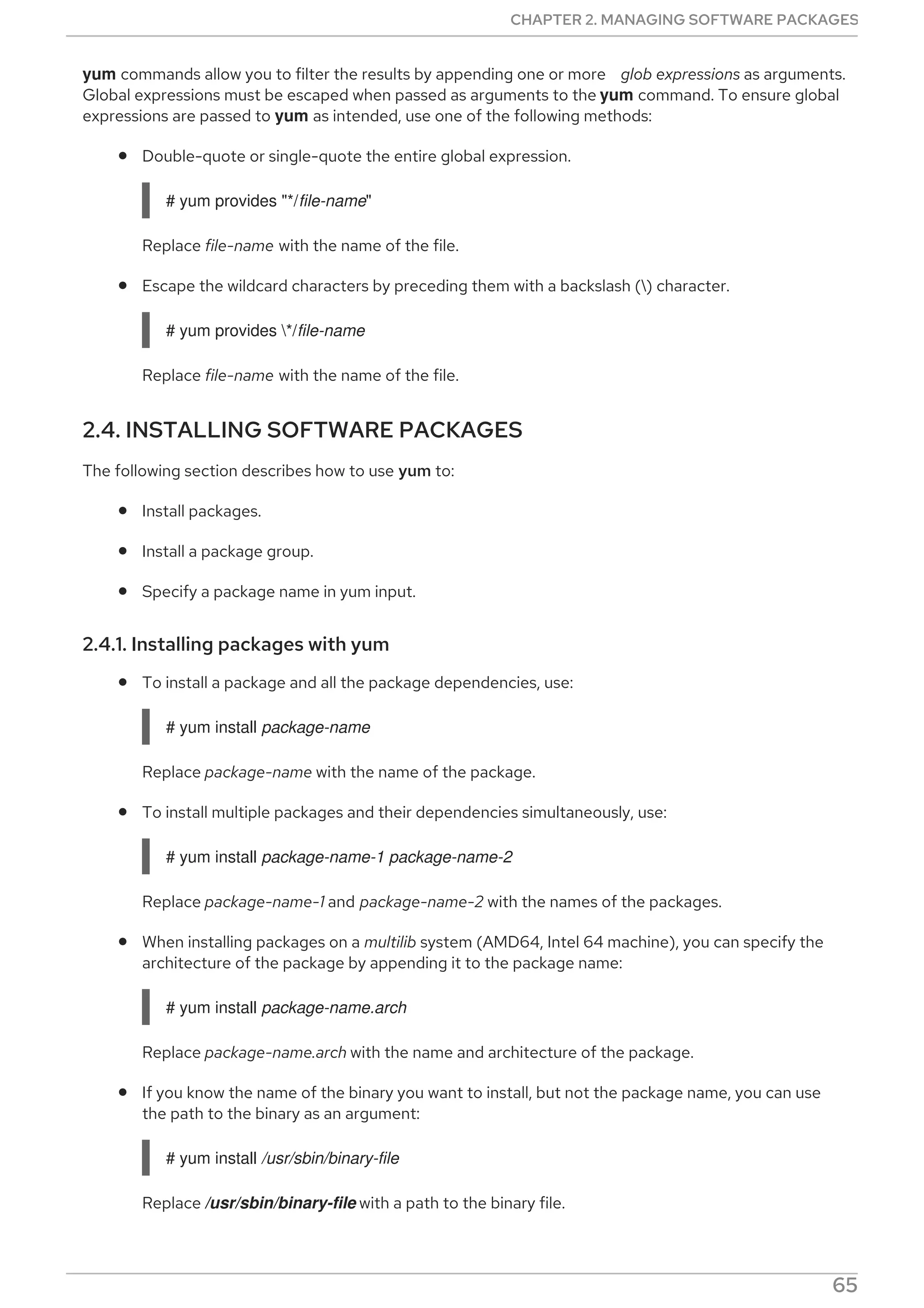
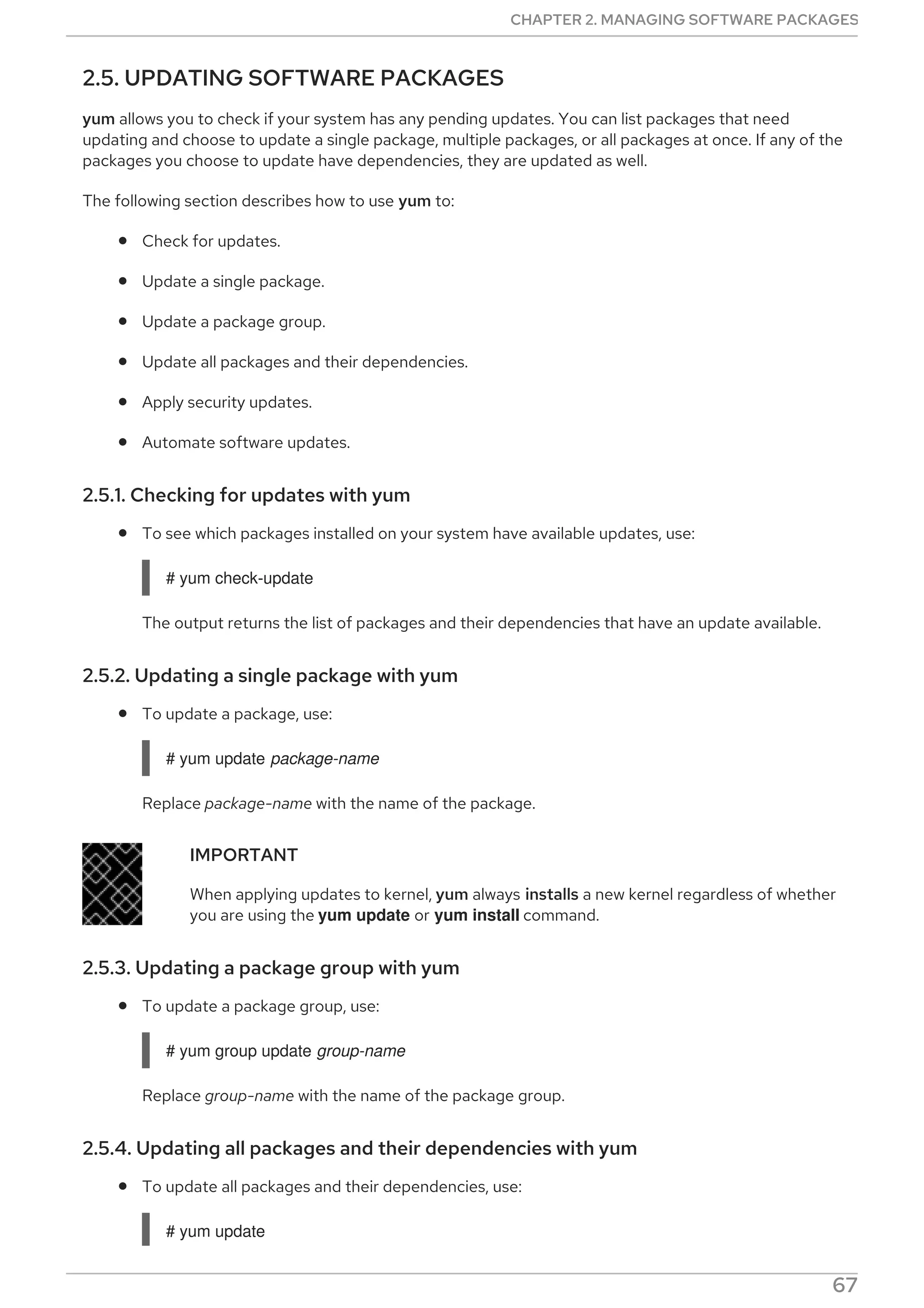
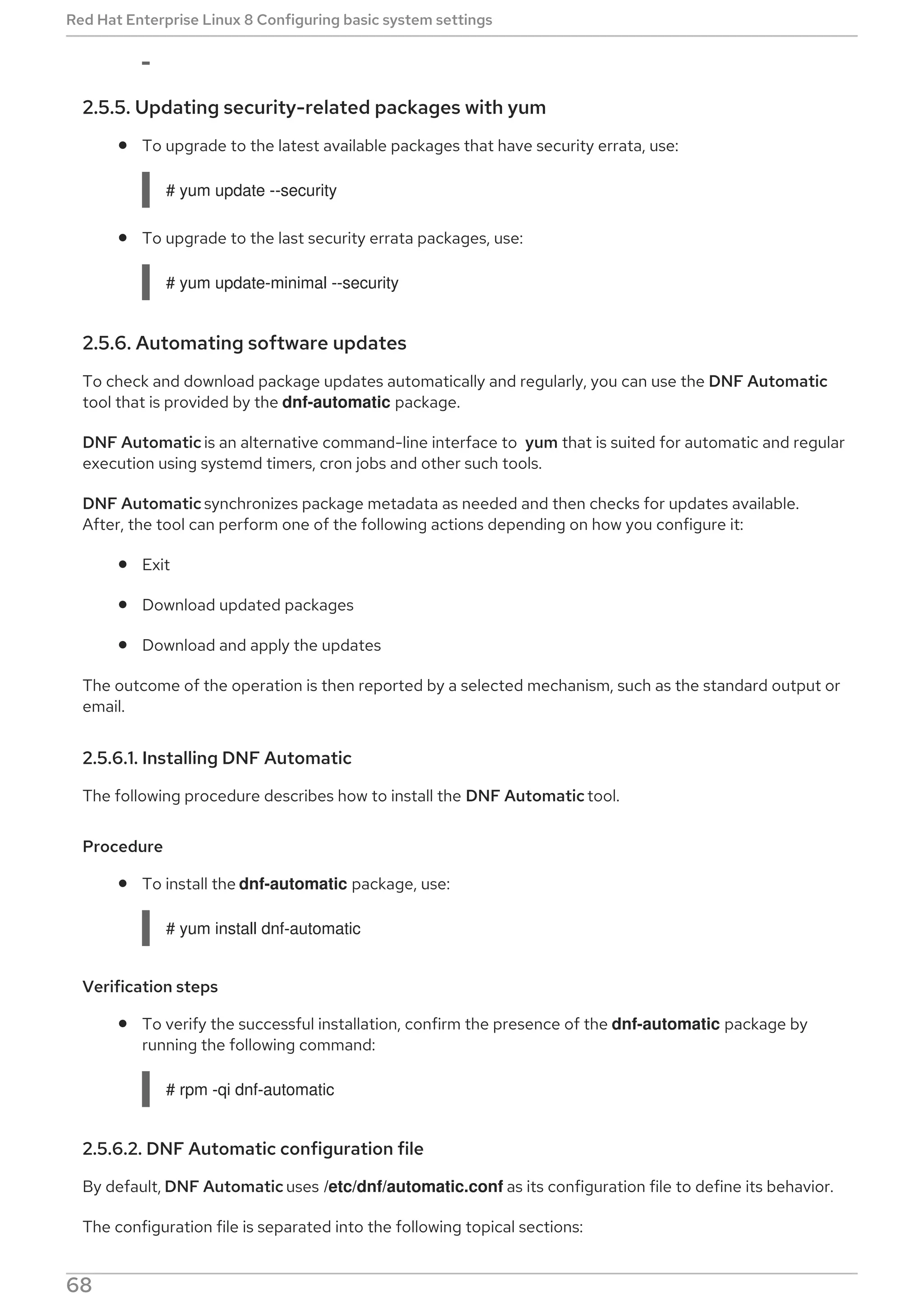
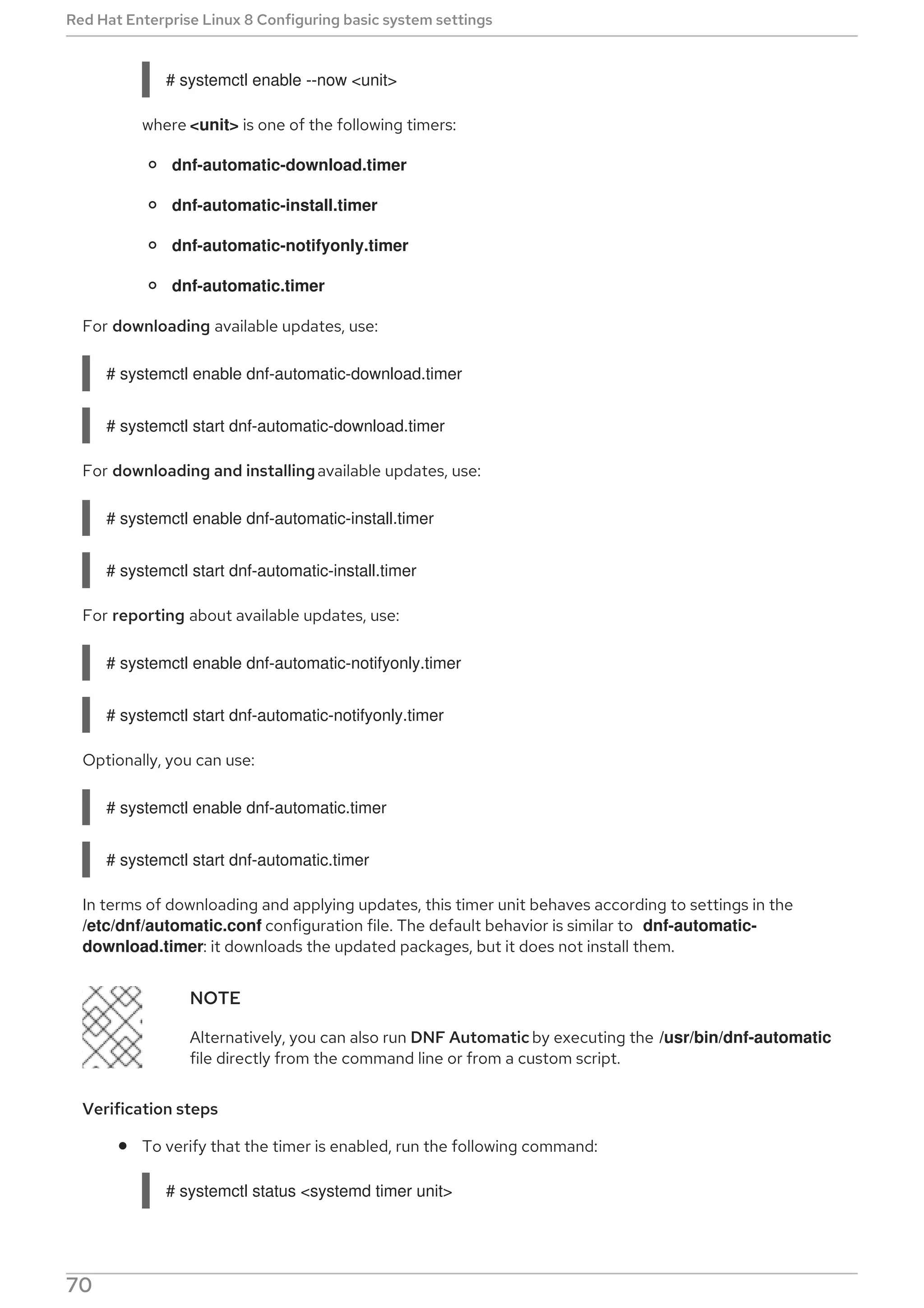
A guide to configuring basic system settings in Red Hat Enterprise Linux 8
Last Updated: 2020-08-11
Red Hat Enterprise Linux 8 Configuring basic system settings
A guide to configuring basic system settings in Red Hat Enterprise Linux 8
Legal Notice
Copyright © 2020 Red Hat, Inc.
The text of and illustrations in this document are licensed by Red Hat under a Creative Commons
Attribution–Share Alike 3.0 Unported license ("CC-BY-SA"). An explanation of CC-BY-SA is
available at
http://creativecommons.org/licenses/by-sa/3.0/
. In accordance with CC-BY-SA, if you distribute this document or an adaptation of it, you must
provide the URL for the original version.
Red Hat, as the licensor of this document, waives the right to enforce, and agrees not to assert,
Section 4d of CC-BY-SA to the fullest extent permitted by applicable law.
Red Hat, Red Hat Enterprise Linux, the Shadowman logo, the Red Hat logo, JBoss, OpenShift,
Fedora, the Infinity logo, and RHCE are trademarks of Red Hat, Inc., registered in the United States
and other countries.
Linux ® is the registered trademark of Linus Torvalds in the United States and other countries.
Java ® is a registered trademark of Oracle and/or its affiliates.
XFS ® is a trademark of Silicon Graphics International Corp. or its subsidiaries in the United States
and/or other countries.
MySQL ® is a registered trademark of MySQL AB in the United States, the European Union and
other countries.
Node.js ® is an official trademark of Joyent. Red Hat is not formally related to or endorsed by the
official Joyent Node.js open source or commercial project.
The OpenStack ® Word Mark and OpenStack logo are either registered trademarks/service marks
or trademarks/service marks of the OpenStack Foundation, in the United States and other
countries and are used with the OpenStack Foundation's permission. We are not affiliated with,
endorsed or sponsored by the OpenStack Foundation, or the OpenStack community.
All other trademarks are the property of their respective owners.
Abstract
This document describes basics of system administration on Red Hat Enterprise Linux 8. The title
focuses on: basic tasks that a system administrator needs to do just after the operating system has
been successfully installed, installing software with yum, using systemd for service management,
managing users, groups and file permissions, using chrony to configure NTP, working with Python 3
and others.
. . . . . . . . . . . . . . . . . . . . . . . . . . . . . . . . . . . . . . . . . . . . . . . . . . . . . . . . . . . . . . . . . . . . . . . . . . . . . . . . . . . . . . . . . . . . . . . . . . . . . . . . . . . . . . . . . . . . . . . . . .
Table of Contents
CHAPTER 1. GETTING STARTED WITH SYSTEM ADMINISTRATION
1.1. PERFORMING BASIC SYSTEM ADMINISTRATION TASKS IN THE WEB CONSOLE
1.1.1. What the RHEL 8 web console is and which tasks it can be used for
1.1.2. Restarting the system using the web console
1.1.3. Shutting down the system using the web console
1.1.4. Configuring the host name in the web console
1.1.4.1. Host name
1.1.4.2. Pretty host name in the web console
1.1.4.3. Setting the host name using the web console
1.1.5. Joining a RHEL 8 system to an IdM domain using the web console
1.1.6. Configuring time settings using the web console
1.1.7. Optimizing the system performance using the web console
1.1.7.1. Performance tuning options in the web console
1.1.7.2. Setting a performance profile in the web console
1.1.8. Disabling SMT to prevent CPU security issues using the web console
1.2. GETTING STARTED WITH RHEL SYSTEM ROLES
1.2.1. Introduction to RHEL System Roles
1.2.2. RHEL System Roles terminology
1.2.3. Applying a role
1.2.4. Additional resources
1.3. CHANGING BASIC ENVIRONMENT SETTINGS
1.3.1. Configuring the date and time
1.3.1.1. Displaying the current date and time
1.3.1.2. Additional resources
1.3.2. Configuring the system locale
1.3.3. Configuring the keyboard layout
1.3.4. Changing the language using desktop GUI
1.3.5. Additional resources
1.4. CONFIGURING AND MANAGING NETWORK ACCESS
1.4.1. Configuring the network and host name in the graphical installation mode
1.4.2. Configuring a static Ethernet connection using nmcli
1.4.3. Adding a connection profile using nmtui
1.4.4. Managing networking in the RHEL 8 web console
1.4.5. Managing networking using RHEL System Roles
1.4.6. Additional resources
1.5. REGISTERING THE SYSTEM AND MANAGING SUBSCRIPTIONS
1.5.1. Registering the system after the installation
1.5.2. Registering subscriptions with credentials in the web console
1.5.3. Registering a system using Red Hat account on GNOME
1.5.4. Registering a system using an activation key on GNOME
1.6. MAKING SYSTEMD SERVICES START AT BOOT TIME
1.6.1. Enabling or disabling the services using the CLI
1.6.2. Managing services in the RHEL 8 web console
1.7. CONFIGURING SYSTEM SECURITY
1.7.1. Enhancing system security with a firewall
1.7.1.1. Enabling the firewalld service
1.7.1.2. Managing firewall in the RHEL 8 web console
1.7.1.3. Additional resources
1.7.2. Managing basic SELinux settings
1.7.2.1. SELinux states and modes
1.7.2.2. Ensuring the required state of SELinux
9
9
9
10
11
12
12
12
12
14
16
17
18
18
19
21
21
21
22
24
24
24
24
25
25
25
26
29
29
29
30
33
35
36
37
37
37
38
41
42
42
42
43
45
45
45
46
46
46
46
47
Table of Contents
1
. . . . . . . . . . . . . . . . . . . . . . . . . . . . . . . . . . . . . . . . . . . . . . . . . . . . . . . . . . . . . . . . . . . . . . . . . . . . . . . . . . . . . . . . . . . . . . . . . . . . . . . . . . . . . . . . . . . . . . . . . .
1.7.2.3. Switching SELinux modes in the RHEL 8 web console
1.7.2.4. Next steps
1.7.3. Next steps
1.8. GETTING STARTED WITH MANAGING USER ACCOUNTS
1.8.1. Overview of user accounts and groups
1.8.2. Managing accounts and groups using command-line tools
1.8.3. System user accounts managed in the web console
1.8.4. Adding new accounts using the web console
1.8.5. Next steps
1.9. DUMPING A CRASHED KERNEL FOR LATER ANALYSIS
1.9.1. What is kdump
1.9.2. Configuring kdump memory usage and target location in web console
1.9.3. Configuring kdump using RHEL System Roles
1.9.4. Additional resources
1.10. RECOVERING AND RESTORING A SYSTEM
1.10.1. Setting up ReaR
1.11. TROUBLESHOOTING PROBLEMS USING LOG FILES
1.11.1. Services handling syslog messages
1.11.2. Subdirectories storing syslog messages
1.11.3. Inspecting log files using the web console
1.11.4. Viewing logs using the command line
1.11.5. Additional resources
1.12. ACCESSING THE RED HAT SUPPORT
1.12.1. Obtaining Red Hat Support through Red Hat Customer Portal
1.12.2. Troubleshooting problems using sosreport
CHAPTER 2. MANAGING SOFTWARE PACKAGES
2.1. SOFTWARE MANAGEMENT TOOLS IN RED HAT ENTERPRISE LINUX 8
2.2. APPLICATION STREAMS
2.3. SEARCHING FOR SOFTWARE PACKAGES
2.3.1. Searching packages with yum
2.3.2. Listing packages with yum
2.3.3. Listing repositories with yum
2.3.4. Displaying package information with yum
2.3.5. Listing package groups with yum
2.3.6. Specifying global expressions in yum input
2.4. INSTALLING SOFTWARE PACKAGES
2.4.1. Installing packages with yum
2.4.2. Installing a package group with yum
2.4.3. Specifying a package name in yum input
2.5. UPDATING SOFTWARE PACKAGES
2.5.1. Checking for updates with yum
2.5.2. Updating a single package with yum
2.5.3. Updating a package group with yum
2.5.4. Updating all packages and their dependencies with yum
2.5.5. Updating security-related packages with yum
2.5.6. Automating software updates
2.5.6.1. Installing DNF Automatic
2.5.6.2. DNF Automatic configuration file
2.5.6.3. Enabling DNF Automatic
2.5.6.4. Overview of the systemd timer units included in the dnf-automatic package
2.6. UNINSTALLING SOFTWARE PACKAGES
2.6.1. Removing packages with yum
48
48
49
49
49
50
50
50
52
52
52
52
54
55
55
55
56
56
57
57
58
59
59
59
60
62
62
62
62
63
63
63
64
64
64
65
65
66
66
67
67
67
67
67
68
68
68
68
69
71
72
72
Red Hat Enterprise Linux 8 Configuring basic system settings
2
. . . . . . . . . . . . . . . . . . . . . . . . . . . . . . . . . . . . . . . . . . . . . . . . . . . . . . . . . . . . . . . . . . . . . . . . . . . . . . . . . . . . . . . . . . . . . . . . . . . . . . . . . . . . . . . . . . . . . . . . . .
2.6.2. Removing a package group with yum
2.6.3. Specifying a package name in yum input
2.7. MANAGING SOFTWARE PACKAGE GROUPS
2.7.1. Listing package groups with yum
2.7.2. Installing a package group with yum
2.7.3. Removing a package group with yum
2.7.4. Specifying global expressions in yum input
2.8. HANDLING PACKAGE MANAGEMENT HISTORY
2.8.1. Listing transactions with yum
2.8.2. Reverting transactions with yum
2.8.3. Repeating transactions with yum
2.8.4. Specifying global expressions in yum input
2.9. MANAGING SOFTWARE REPOSITORIES
2.9.1. Setting yum repository options
2.9.2. Adding a yum repository
2.9.3. Enabling a yum repository
2.9.4. Disabling a yum repository
2.10. CONFIGURING YUM
2.10.1. Viewing the current yum configurations
2.10.2. Setting yum main options
2.10.3. Using yum plug-ins
2.10.3.1. Managing yum plug-ins
2.10.3.2. Enabling yum plug-ins
2.10.3.3. Disabling yum plug-ins
CHAPTER 3. MANAGING SERVICES WITH SYSTEMD
3.1. INTRODUCTION TO SYSTEMD
Overriding the default systemd configuration using system.conf
3.1.1. Main features
3.1.2. Compatibility changes
3.2. MANAGING SYSTEM SERVICES
Specifying service units
Behavior of systemctl in a chroot environment
3.2.1. Listing services
3.2.2. Displaying service status
3.2.3. Starting a service
3.2.4. Stopping a service
3.2.5. Restarting a service
3.2.6. Enabling a service
3.2.7. Disabling a service
3.2.8. Starting a conflicting service
3.3. WORKING WITH SYSTEMD TARGETS
3.3.1. Viewing the default target
3.3.2. Viewing the current target
3.3.3. Changing the default target
3.3.4. Changing the current target
3.3.5. Changing to rescue mode
3.3.6. Changing to emergency mode
3.4. SHUTTING DOWN, SUSPENDING, AND HIBERNATING THE SYSTEM
3.4.1. Shutting down the system
Using systemctl commands
Using the shutdown command
3.4.2. Restarting the system
73
73
73
74
74
74
75
75
75
76
76
76
77
77
77
78
78
78
79
79
79
79
79
79
81
81
82
82
83
84
85
86
86
87
89
89
90
90
91
92
92
93
93
94
95
95
96
96
97
97
97
98
Table of Contents
3
. . . . . . . . . . . . . . . . . . . . . . . . . . . . . . . . . . . . . . . . . . . . . . . . . . . . . . . . . . . . . . . . . . . . . . . . . . . . . . . . . . . . . . . . . . . . . . . . . . . . . . . . . . . . . . . . . . . . . . . . . .
3.4.3. Suspending the system
3.4.4. Hibernating the system
3.5. WORKING WITH SYSTEMD UNIT FILES
3.5.1. Understanding the unit file structure
3.5.2. Creating custom unit files
3.5.3. Converting SysV init scripts to unit files
Finding the service description
Finding service dependencies
Finding default targets of the service
Finding files used by the service
3.5.4. Modifying existing unit files
Extending the default unit configuration
Overriding the default unit configuration
Monitoring overriden units
3.5.5. Working with instantiated units
3.6. OPTIMIZING SYSTEMD TO SHORTEN THE BOOT TIME
3.6.1. Examining system boot performance
Analyzing overall boot time
Analyzing unit initialization time
Identifying critical units
3.6.2. A guide to selecting services that can be safely disabled
3.7. ADDITIONAL RESOURCES
3.7.1. Installed Documentation
3.7.2. Online Documentation
CHAPTER 4. MANAGING USER AND GROUP ACCOUNTS
4.1. INTRODUCTION TO USERS AND GROUPS
4.2. CONFIGURING RESERVED USER AND GROUP IDS
4.3. USER PRIVATE GROUPS
4.4. MANAGING USER ACCOUNTS WITH THE WEB CONSOLE
4.4.1. Getting started using the RHEL web console
4.4.1.1. What is the RHEL web console
4.4.1.2. Installing the web console
4.4.1.3. Logging in to the web console
4.4.1.4. Connecting to the web console from a remote machine
4.4.1.5. Logging in to the web console using a one-time password
4.4.2. Managing user accounts in the web console
4.4.2.1. System user accounts managed in the web console
4.4.2.2. Adding new accounts using the web console
4.4.2.3. Enforcing password expiration in the web console
4.4.2.4. Terminating user sessions in the web console
4.5. MANAGING USERS FROM THE COMMAND LINE
4.5.1. Adding a new user from the command line
4.5.2. Adding a new group from the command line
4.5.3. Adding a user to a groups from the command line
4.5.4. Removing a user from a group from the command line
4.5.4.1. Overriding the primary group of the user
4.5.4.2. Overriding the supplementary groups of the user
4.5.5. Creating a group directory
4.6. MANAGING SUDO ACCESS
4.6.1. Granting sudo access to a user
4.7. CHANGING AND RESETTING THE ROOT PASSWORD
4.7.1. Changing the root password as the root user
98
98
99
99
103
107
107
108
108
109
110
111
112
113
115
116
116
117
117
117
117
121
121
121
122
122
122
123
123
123
124
125
125
126
127
128
128
129
130
131
132
133
133
134
134
135
135
136
137
137
138
138
Red Hat Enterprise Linux 8 Configuring basic system settings
4
. . . . . . . . . . . . . . . . . . . . . . . . . . . . . . . . . . . . . . . . . . . . . . . . . . . . . . . . . . . . . . . . . . . . . . . . . . . . . . . . . . . . . . . . . . . . . . . . . . . . . . . . . . . . . . . . . . . . . . . . . .
. . . . . . . . . . . . . . . . . . . . . . . . . . . . . . . . . . . . . . . . . . . . . . . . . . . . . . . . . . . . . . . . . . . . . . . . . . . . . . . . . . . . . . . . . . . . . . . . . . . . . . . . . . . . . . . . . . . . . . . . . .
4.7.2. Changing or resetting the forgotten root password as a non-root user
4.7.3. Resetting the forgotten root password on boot
CHAPTER 5. MANAGING FILE PERMISSIONS
5.1. INTRODUCTION TO FILE PERMISSIONS
5.1.1. Base permissions
5.1.2. User file-creation mode mask
5.1.3. Default permissions
5.2. DISPLAYING FILE PERMISSIONS
5.3. CHANGING FILE PERMISSIONS
5.3.1. Changing file permissions using symbolic values
5.3.2. Changing file permissions using octal values
5.4. DISPLAYING THE UMASK
5.4.1. Displaying the current octal value of the umask
5.4.2. Displaying the current symbolic value of the umask
5.4.3. Displaying the default bash umask
5.5. SETTING THE UMASK FOR THE CURRENT SHELL SESSION
5.5.1. Setting the umask using symbolic values
5.5.2. Setting the umask using octal values
5.6. CHANGING THE DEFAULT UMASK
5.6.1. Changing the default umask for the non-login shell
5.6.2. Changing the default umask for the login shell
5.6.3. Changing the default umask for a specific user
5.6.4. Setting default UMASK for newly created home directories
5.7. ACCESS CONTROL LIST
5.7.1. Displaying the current ACL
5.7.2. Setting the ACL
CHAPTER 6. USING THE CHRONY SUITE TO CONFIGURE NTP
6.1. INTRODUCTION TO CONFIGURING NTP WITH CHRONY
6.2. INTRODUCTION TO CHRONY SUITE
6.2.1. Using chronyc to control chronyd
6.3. DIFFERENCES BETWEEN CHRONY AND NTP
6.4. MIGRATING TO CHRONY
6.4.1. Migration script
6.4.2. Timesync role
6.5. CONFIGURING CHRONY
6.5.1. Configuring chrony for security
6.6. USING CHRONY
6.6.1. Installing chrony
6.6.2. Checking the status of chronyd
6.6.3. Starting chronyd
6.6.4. Stopping chronyd
6.6.5. Checking if chrony is synchronized
6.6.5.1. Checking chrony tracking
6.6.5.2. Checking chrony sources
6.6.5.3. Checking chrony source statistics
6.6.6. Manually Adjusting the System Clock
6.7. SETTING UP CHRONY FOR DIFFERENT ENVIRONMENTS
6.7.1. Setting up chrony for a system in an isolated network
6.8. CHRONY WITH HW TIMESTAMPING
6.8.1. Understanding hardware timestamping
6.8.2. Verifying support for hardware timestamping
139
139
141
141
141
143
144
146
146
146
148
148
148
148
149
150
150
151
151
151
152
152
152
153
153
153
155
155
155
155
156
156
157
158
158
162
163
163
163
164
164
164
164
166
167
168
168
168
169
169
169
Table of Contents
5
. . . . . . . . . . . . . . . . . . . . . . . . . . . . . . . . . . . . . . . . . . . . . . . . . . . . . . . . . . . . . . . . . . . . . . . . . . . . . . . . . . . . . . . . . . . . . . . . . . . . . . . . . . . . . . . . . . . . . . . . . .
. . . . . . . . . . . . . . . . . . . . . . . . . . . . . . . . . . . . . . . . . . . . . . . . . . . . . . . . . . . . . . . . . . . . . . . . . . . . . . . . . . . . . . . . . . . . . . . . . . . . . . . . . . . . . . . . . . . . . . . . . .
. . . . . . . . . . . . . . . . . . . . . . . . . . . . . . . . . . . . . . . . . . . . . . . . . . . . . . . . . . . . . . . . . . . . . . . . . . . . . . . . . . . . . . . . . . . . . . . . . . . . . . . . . . . . . . . . . . . . . . . . . .
6.8.3. Enabling hardware timestamping
6.8.4. Configuring client polling interval
6.8.5. Enabling interleaved mode
6.8.6. Configuring server for large number of clients
6.8.7. Verifying hardware timestamping
6.8.8. Configuring PTP-NTP bridge
6.9. ACHIEVING SOME SETTINGS PREVIOUSLY SUPPORTED BY NTP IN CHRONY
6.9.1. Monitoring by ntpq and ntpdc
6.9.2. Using authentication mechanism based on public key cryptography
6.9.3. Using ephemeral symmetric associations
6.9.4. multicast/broadcast client
6.10. ADDITIONAL RESOURCES
6.10.1. Installed Documentation
6.10.2. Online Documentation
6.11. MANAGING TIME SYNCHRONIZATION USING RHEL SYSTEM ROLES
CHAPTER 7. USING SECURE COMMUNICATIONS BETWEEN TWO SYSTEMS WITH OPENSSH
7.1. SSH AND OPENSSH
7.2. CONFIGURING AND STARTING AN OPENSSH SERVER
7.3. USING KEY PAIRS INSTEAD OF PASSWORDS FOR SSH AUTHENTICATION
7.3.1. Setting an OpenSSH server for key-based authentication
7.3.2. Generating SSH key pairs
7.4. USING SSH KEYS STORED ON A SMART CARD
7.5. MAKING OPENSSH MORE SECURE
7.6. CONNECTING TO A REMOTE SERVER USING AN SSH JUMP HOST
7.7. ADDITIONAL RESOURCES
CHAPTER 8. CONFIGURING A REMOTE LOGGING SOLUTION
8.1. THE RSYSLOG LOGGING SERVICE
8.2. INSTALLING RSYSLOG DOCUMENTATION
8.3. CONFIGURING REMOTE LOGGING OVER TCP
8.3.1. Configuring a server for remote logging over TCP
8.3.2. Configuring remote logging to a server over TCP
8.4. CONFIGURING REMOTE LOGGING OVER UDP
8.4.1. Configuring a server for receiving remote logging information over UDP
8.4.2. Configuring remote logging to a server over UDP
8.5. CONFIGURING RELIABLE REMOTE LOGGING
8.6. SUPPORTED RSYSLOG MODULES
8.7. ADDITIONAL RESOURCES
CHAPTER 9. USING PYTHON
9.1. INTRODUCTION TO PYTHON
9.1.1. Python versions
9.1.2. The internal platform-python package
9.2. INSTALLING AND USING PYTHON
9.2.1. Installing Python 3
9.2.1.1. Installing additional Python 3 packages for developers
9.2.2. Installing Python 2
9.2.3. Using Python 3
9.2.4. Using Python 2
9.2.5. Configuring the unversioned Python
9.2.5.1. Configuring the unversioned python command directly
9.2.5.2. Configuring the unversioned python command to the required Python version interactively
9.3. MIGRATION FROM PYTHON 2 TO PYTHON 3
170
170
170
171
171
172
172
172
173
173
174
174
174
175
175
177
177
178
179
179
180
181
183
185
186
188
188
188
189
189
191
192
192
194
195
197
197
198
198
198
199
199
199
200
201
201
202
202
202
203
203
Red Hat Enterprise Linux 8 Configuring basic system settings
6
. . . . . . . . . . . . . . . . . . . . . . . . . . . . . . . . . . . . . . . . . . . . . . . . . . . . . . . . . . . . . . . . . . . . . . . . . . . . . . . . . . . . . . . . . . . . . . . . . . . . . . . . . . . . . . . . . . . . . . . . . .
. . . . . . . . . . . . . . . . . . . . . . . . . . . . . . . . . . . . . . . . . . . . . . . . . . . . . . . . . . . . . . . . . . . . . . . . . . . . . . . . . . . . . . . . . . . . . . . . . . . . . . . . . . . . . . . . . . . . . . . . . .
. . . . . . . . . . . . . . . . . . . . . . . . . . . . . . . . . . . . . . . . . . . . . . . . . . . . . . . . . . . . . . . . . . . . . . . . . . . . . . . . . . . . . . . . . . . . . . . . . . . . . . . . . . . . . . . . . . . . . . . . . .
. . . . . . . . . . . . . . . . . . . . . . . . . . . . . . . . . . . . . . . . . . . . . . . . . . . . . . . . . . . . . . . . . . . . . . . . . . . . . . . . . . . . . . . . . . . . . . . . . . . . . . . . . . . . . . . . . . . . . . . . . .
9.4. PACKAGING OF PYTHON 3 RPMS
9.4.1. SPEC file description for a Python package
9.4.2. Common macros for Python 3 RPMs
9.4.3. Automatic provides for Python RPMs
9.4.4. Handling hashbangs in Python scripts
9.4.4.1. Modifying hashbangs in Python scripts
9.4.4.2. Changing /usr/bin/python3 hashbangs in their custom packages
9.4.5. Additional resources
CHAPTER 10. USING THE PHP SCRIPTING LANGUAGE
10.1. INSTALLING THE PHP SCRIPTING LANGUAGE
10.2. USING THE PHP SCRIPTING LANGUAGE WITH A WEB SERVER
10.2.1. Using PHP with the Apache HTTP Server
10.2.2. Using PHP with the nginx web server
10.3. RUNNING A PHP SCRIPT USING THE COMMAND-LINE INTERFACE
10.4. ADDITIONAL RESOURCES
CHAPTER 11. USING LANGPACKS
11.1. CHECKING LANGUAGES THAT PROVIDE LANGPACKS
11.2. WORKING WITH RPM WEAK DEPENDENCY-BASED LANGPACKS
11.2.1. Listing already installed language support
11.2.2. Checking the availability of language support
11.2.3. Listing packages installed for a language
11.2.4. Installing language support
11.2.5. Removing language support
11.3. SAVING DISK SPACE BY USING GLIBC-LANGPACK-<LOCALE_CODE>
CHAPTER 12. GETTING STARTED WITH TCL/TK
12.1. INTRODUCTION TO TCL/TK
12.2. NOTABLE CHANGES IN TCL/TK 8.6
12.3. MIGRATING TO TCL/TK 8.6
12.3.1. Migration path for developers of Tcl extensions
12.3.2. Migration path for users scripting their tasks with Tcl/Tk
CHAPTER 13. USING PREFIXDEVNAME FOR NAMING OF ETHERNET NETWORK INTERFACES
13.1. INTRODUCTION TO PREFIXDEVNAME
13.2. SETTING PREFIXDEVNAME
13.3. LIMITATIONS OF PREFIXDEVNAME
203
203
205
206
206
207
207
207
208
208
209
209
210
212
213
214
214
214
214
214
215
215
215
215
217
217
217
218
218
218
220
220
220
220
Table of Contents
7
Red Hat Enterprise Linux 8 Configuring basic system settings
8
CHAPTER 1. GETTING STARTED WITH SYSTEM
ADMINISTRATION
The following sections provide an overview of basic administration tasks on the installed system.
NOTE
The following basic administration tasks may include items that are usually done already
during the installation process, but they do not have to be done necessarily, such as the
registration of the system. The sections dealing with such tasks provide a summary of
how you can achieve the same goals during the installation.
For information on Red Hat Enterprise Linux installation, see Performing a standard
RHEL installation.
Although you can perform all post-installation tasks through the command line, you can also use the
RHEL 8 web console to perform some of them.
1.1. PERFORMING BASIC SYSTEM ADMINISTRATION TASKS IN THE
WEB CONSOLE
In this chapter, you will learn how to perform basic system administration tasks, such as restart,
shutdown, or basic configuration, using the web console.
1.1.1. What the RHEL 8 web console is and which tasks it can be used for
The RHEL 8 web console is an interactive server administration interface. It interacts directly with the
operating system from a real Linux session in a browser.
The web console enables to perform these tasks:
Monitoring basic system features, such as hardware information, time configuration,
performance profiles, connection to the realm domain
Inspecting system log files
Managing network interfaces and configuring firewall
Handling docker images
Managing virtual machines
Managing user accounts
Monitoring and configuring system services
Creating diagnostic reports
Setting kernel dump configuration
Managing packages
Configuring SELinux
CHAPTER 1. GETTING STARTED WITH SYSTEM ADMINISTRATION
9
Updating software
Managing system subscriptions
Accessing the terminal
For more information on installing and using the RHEL 8 web console, see Managing systems using the
RHEL 8 web console.
1.1.2. Restarting the system using the web console
This procedure uses the web console to restart a RHEL system that the web console is attached to.
Prerequisites
The web console is installed and accessible.
For details, see Installing the web console.
Procedure
1. Log into the RHEL 8 web console.
For details, see Logging in to the web console .
2. Click Overview.
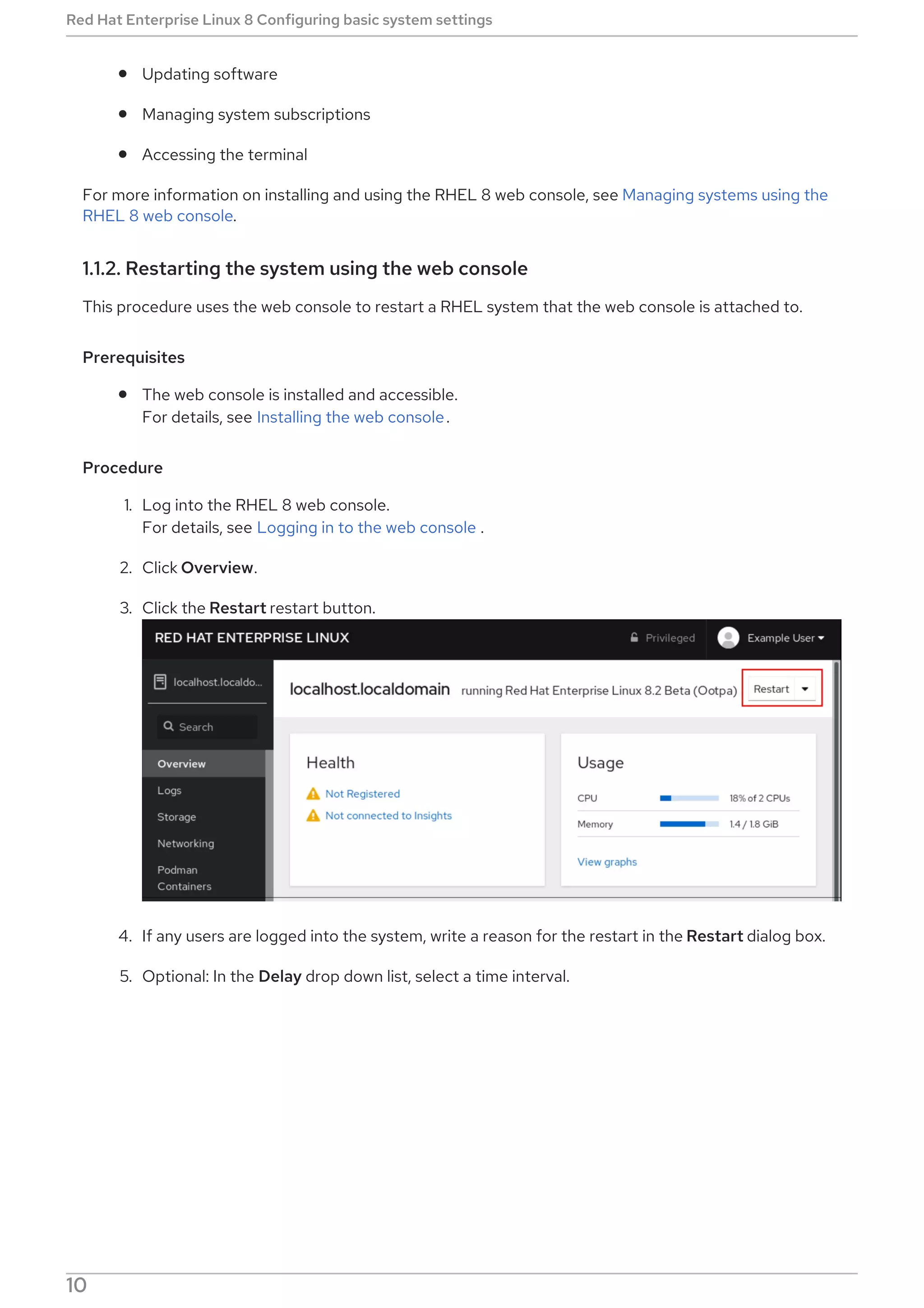
3. Click the Restart restart button.
4. If any users are logged into the system, write a reason for the restart in the Restart dialog box.
5. Optional: In the Delay drop down list, select a time interval.
Red Hat Enterprise Linux 8 Configuring basic system settings
10
6. Click Restart.
1.1.3. Shutting down the system using the web console
This procedure uses the web console to shut down a RHEL system that the web console is attached to.
Prerequisites
The web console is installed and accessible.
For details, see Installing the web console.
Procedure
1. Log into the RHEL 8 web console.
For details, see Logging in to the web console .
2. Click Overview.
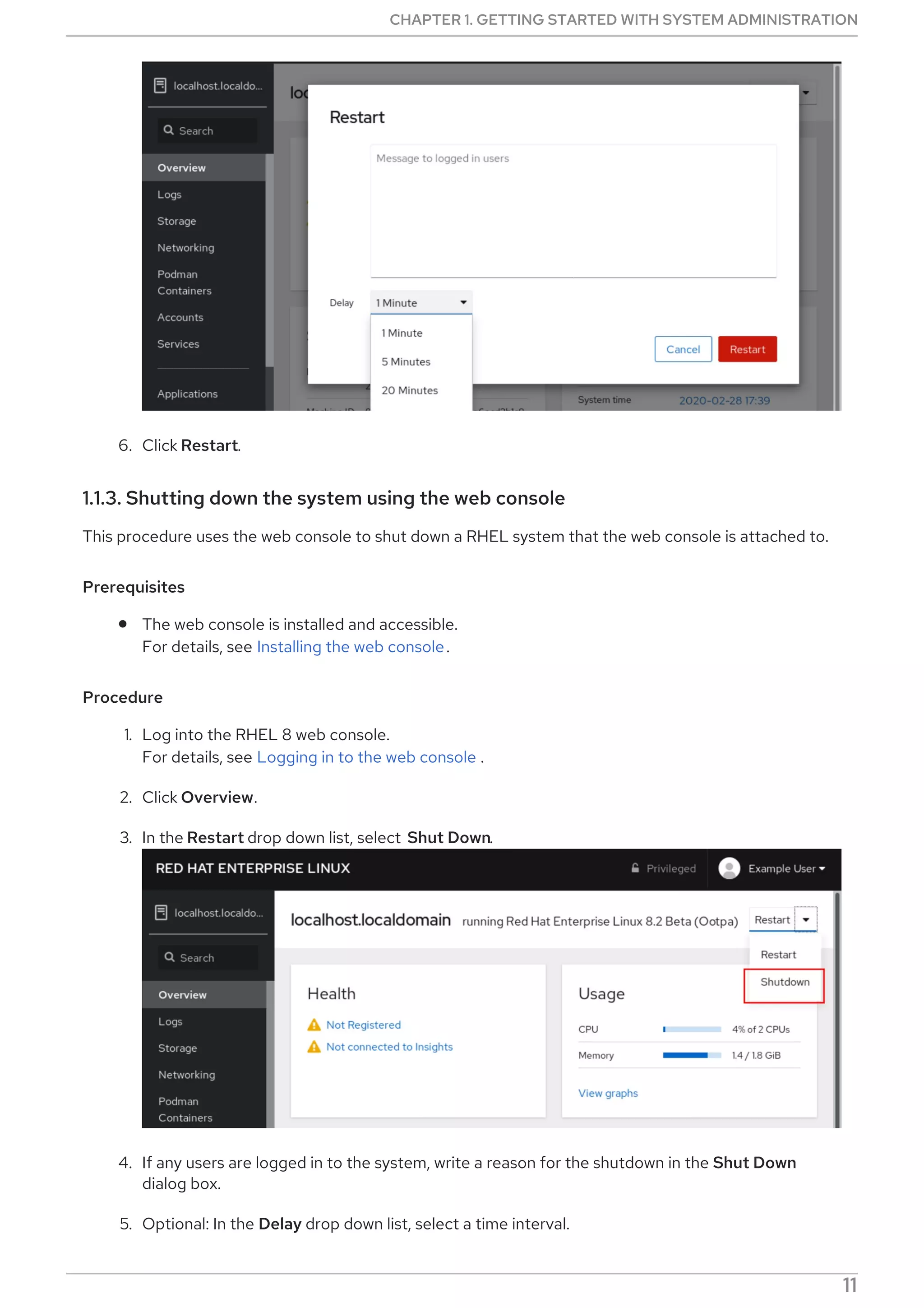
3. In the Restart drop down list, select Shut Down.
4. If any users are logged in to the system, write a reason for the shutdown in the Shut Down
dialog box.
5. Optional: In the Delay drop down list, select a time interval.
CHAPTER 1. GETTING STARTED WITH SYSTEM ADMINISTRATION
11
6. Click Shut Down.
1.1.4. Configuring the host name in the web console
You can use the web console to configure different forms of the host name on the system that the web
console is attached to.
1.1.4.1. Host name
The host name identifies the system. By default, the host name is set to localhost, but you can change
it.
A host name consists of two parts:
Host name
It is a unique name which identifies a system.
Domain
Add the domain as a suffix behind the host name when using a system in a network and when using
names instead of just IP addresses.
A host name with an attached domain name is called a fully qualified domain name (FQDN). For
example: mymachine.example.com.
Host names are stored in the /etc/hostname file.
1.1.4.2. Pretty host name in the web console
You can configure a pretty host name in the RHEL web console. The pretty host name is a host name
with capital letters, spaces, and so on.
The pretty host name displays in the web console, but it does not have to correspond with the host
name.
Example 1.1. Host name formats in the web console
Pretty host name
My Machine
Host name
mymachine
Real host name - fully qualified domain name (FQDN)
mymachine.idm.company.com
1.1.4.3. Setting the host name using the web console
This procedure sets the real host name or the pretty host name in the web console.
Prerequisites
The web console is installed and accessible.
For details, see Installing the web console.
Procedure
Red Hat Enterprise Linux 8 Configuring basic system settings
12
Procedure
1. Log into the RHEL 8 web console.
For details, see Logging in to the web console .
2. Click Overview.
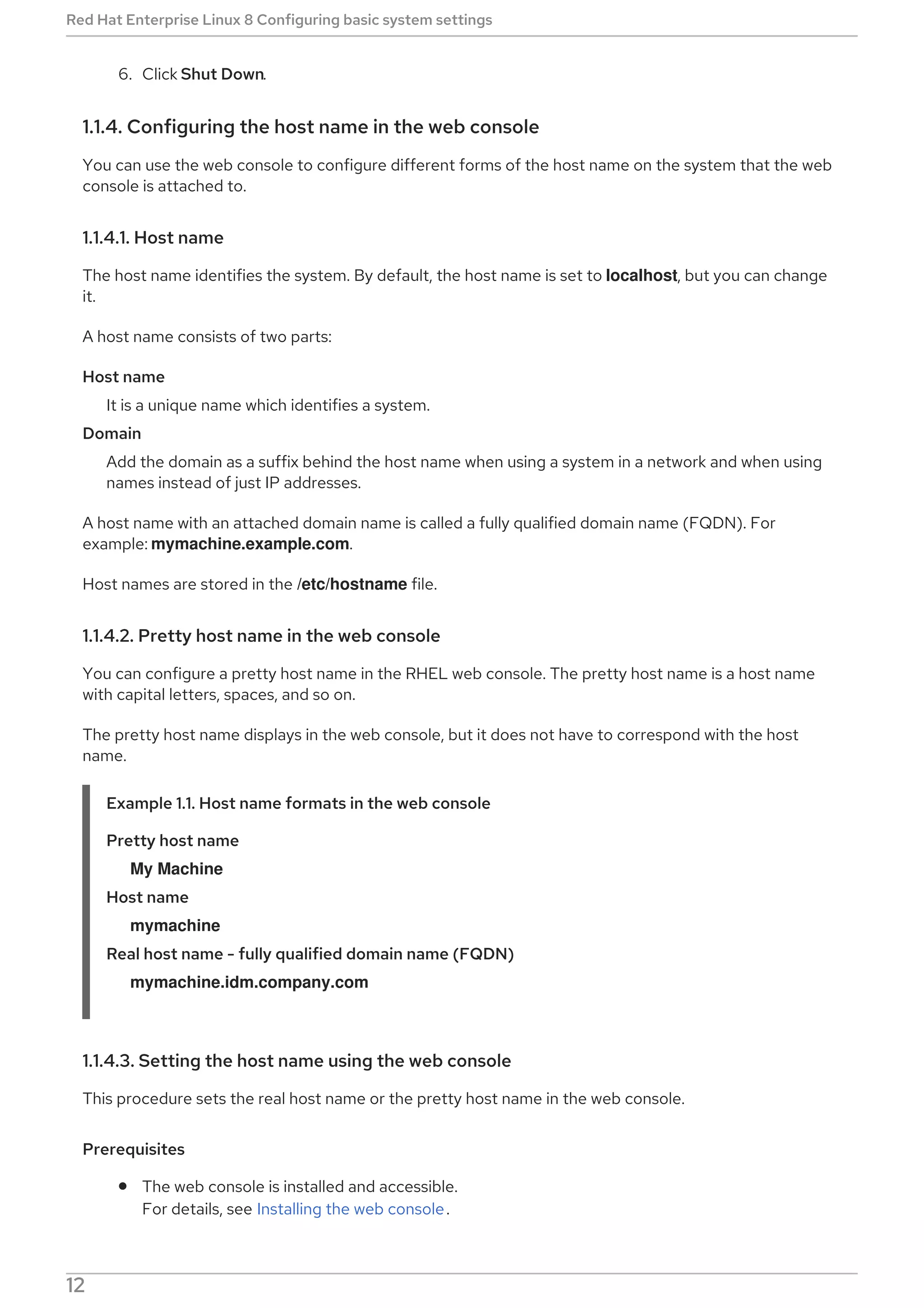
3. Click edit next to the current host name.
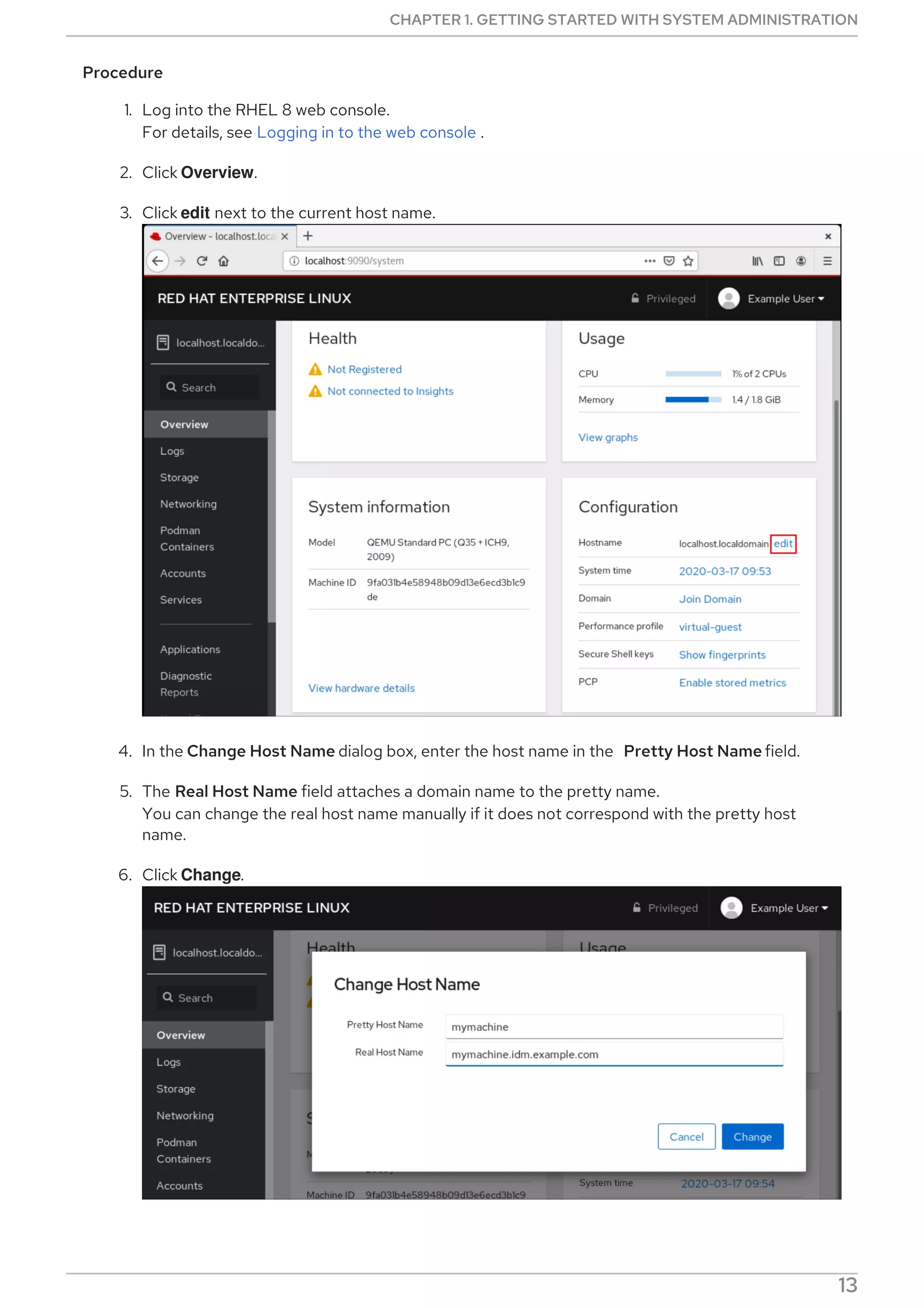
4. In the Change Host Name dialog box, enter the host name in the Pretty Host Name field.
5. The Real Host Name field attaches a domain name to the pretty name.
You can change the real host name manually if it does not correspond with the pretty host
name.
6. Click Change.
CHAPTER 1. GETTING STARTED WITH SYSTEM ADMINISTRATION
13
Verification steps
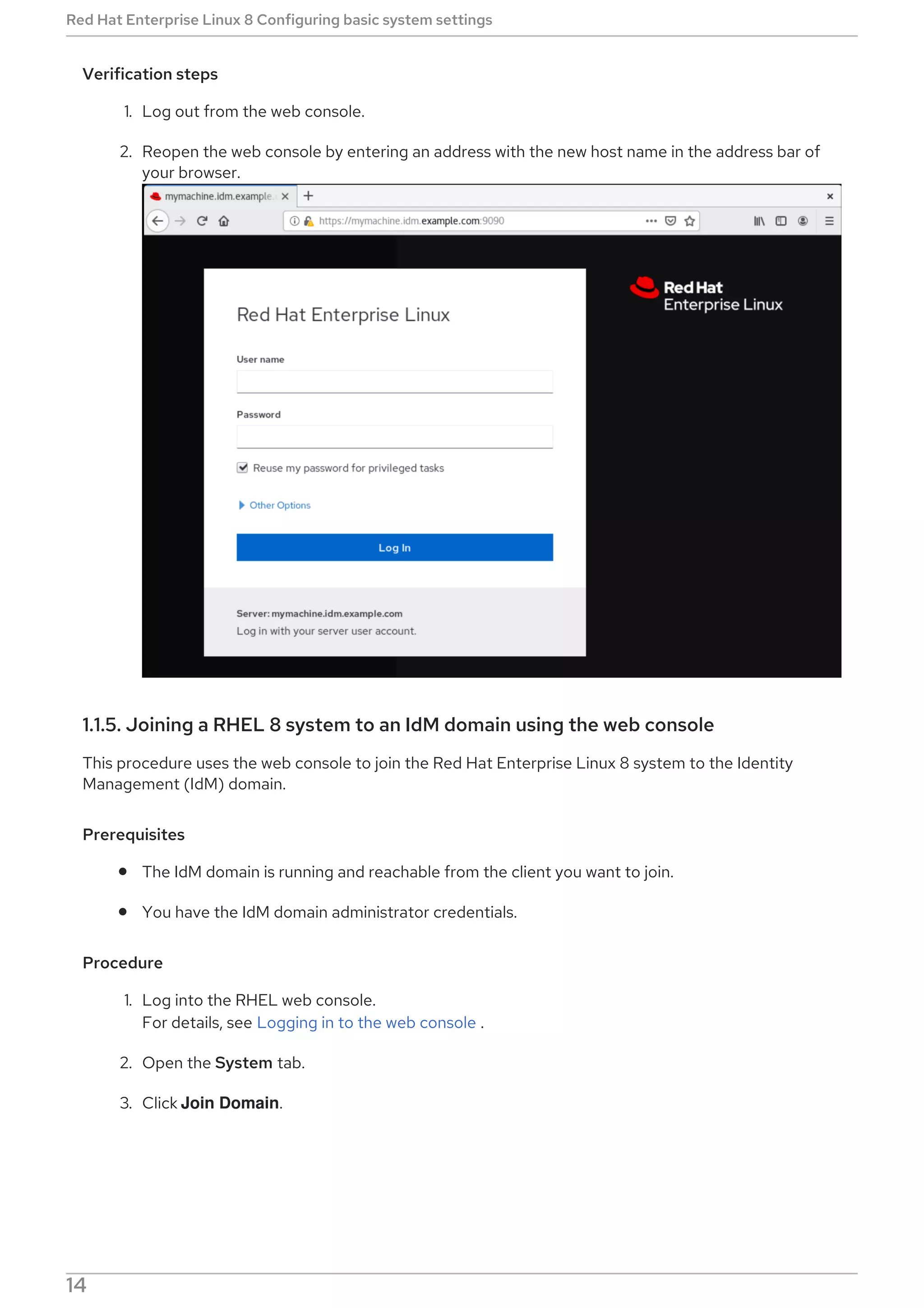
1. Log out from the web console.
2. Reopen the web console by entering an address with the new host name in the address bar of
your browser.
1.1.5. Joining a RHEL 8 system to an IdM domain using the web console
This procedure uses the web console to join the Red Hat Enterprise Linux 8 system to the Identity
Management (IdM) domain.
Prerequisites
The IdM domain is running and reachable from the client you want to join.
You have the IdM domain administrator credentials.
Procedure
1. Log into the RHEL web console.
For details, see Logging in to the web console .
2. Open the System tab.
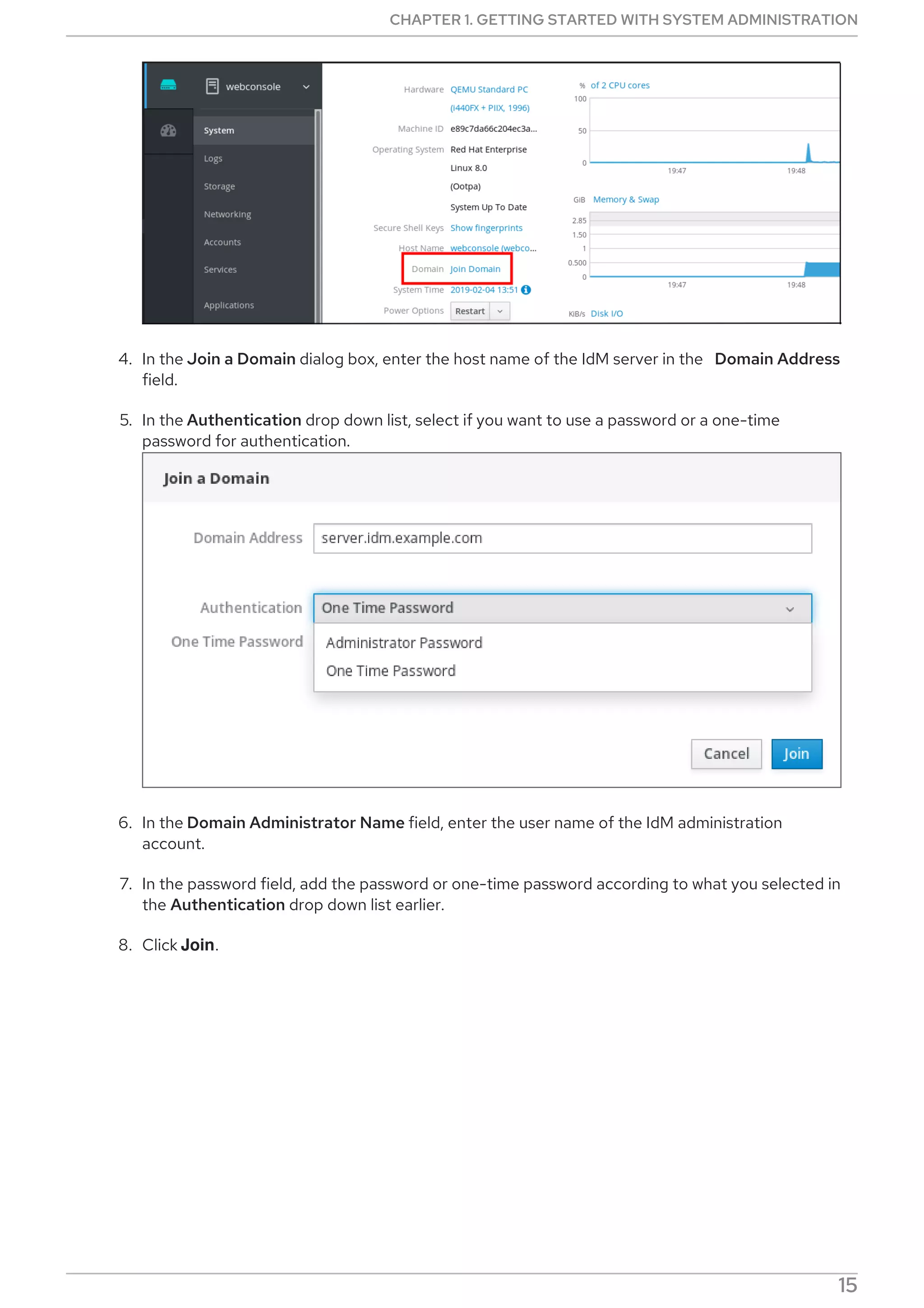
3. Click Join Domain.
Red Hat Enterprise Linux 8 Configuring basic system settings
14
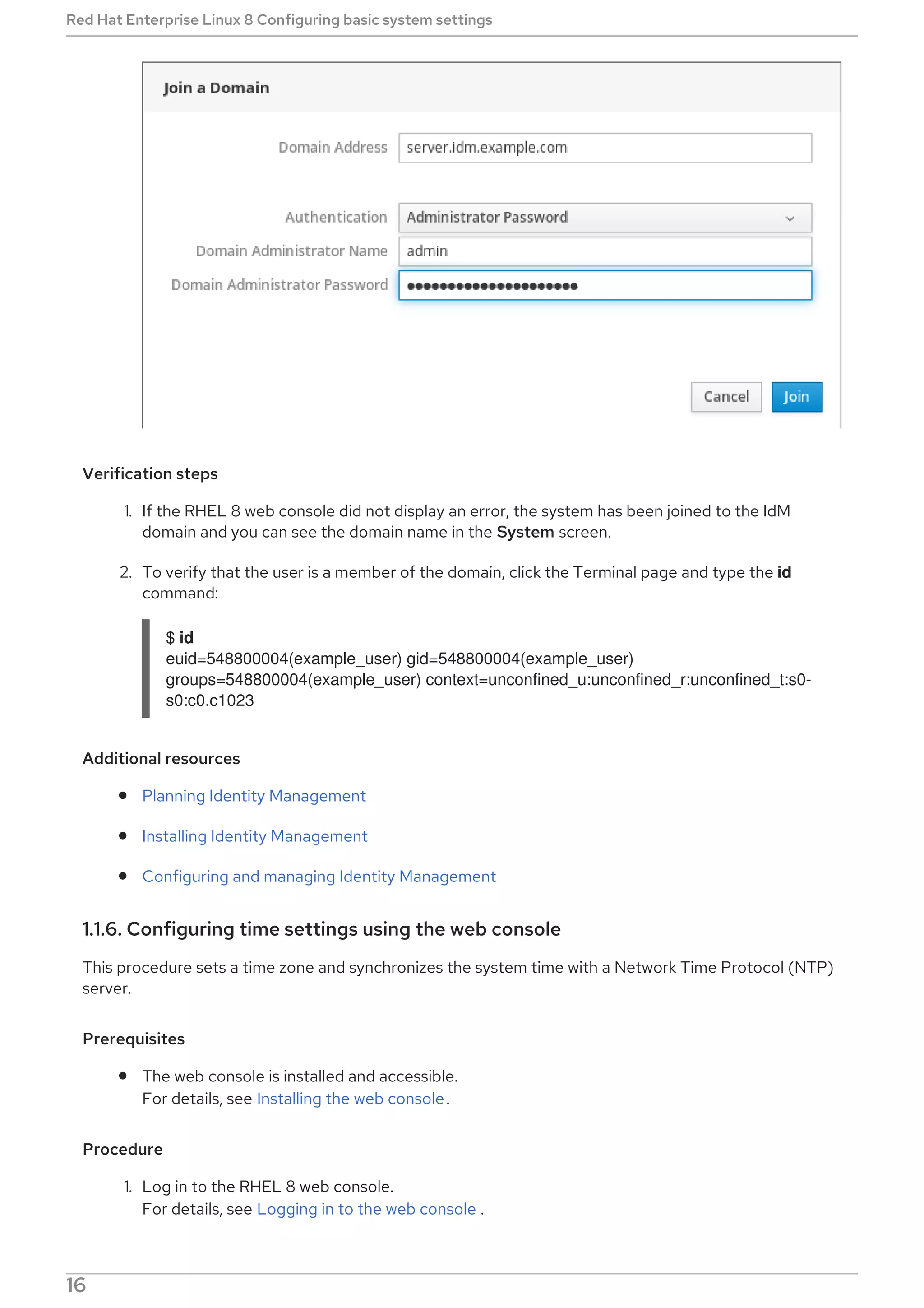
4. In the Join a Domain dialog box, enter the host name of the IdM server in the Domain Address
field.
5. In the Authentication drop down list, select if you want to use a password or a one-time
password for authentication.
6. In the Domain Administrator Name field, enter the user name of the IdM administration
account.
7. In the password field, add the password or one-time password according to what you selected in
the Authentication drop down list earlier.
8. Click Join.
CHAPTER 1. GETTING STARTED WITH SYSTEM ADMINISTRATION
15
Verification steps
1. If the RHEL 8 web console did not display an error, the system has been joined to the IdM
domain and you can see the domain name in the System screen.
2. To verify that the user is a member of the domain, click the Terminal page and type the id
command:
$ id
euid=548800004(example_user) gid=548800004(example_user)
groups=548800004(example_user) context=unconfined_u:unconfined_r:unconfined_t:s0-
s0:c0.c1023
Additional resources
Planning Identity Management
Installing Identity Management
Configuring and managing Identity Management
1.1.6. Configuring time settings using the web console
This procedure sets a time zone and synchronizes the system time with a Network Time Protocol (NTP)
server.
Prerequisites
The web console is installed and accessible.
For details, see Installing the web console.
Procedure
1. Log in to the RHEL 8 web console.
For details, see Logging in to the web console .
Red Hat Enterprise Linux 8 Configuring basic system settings
16
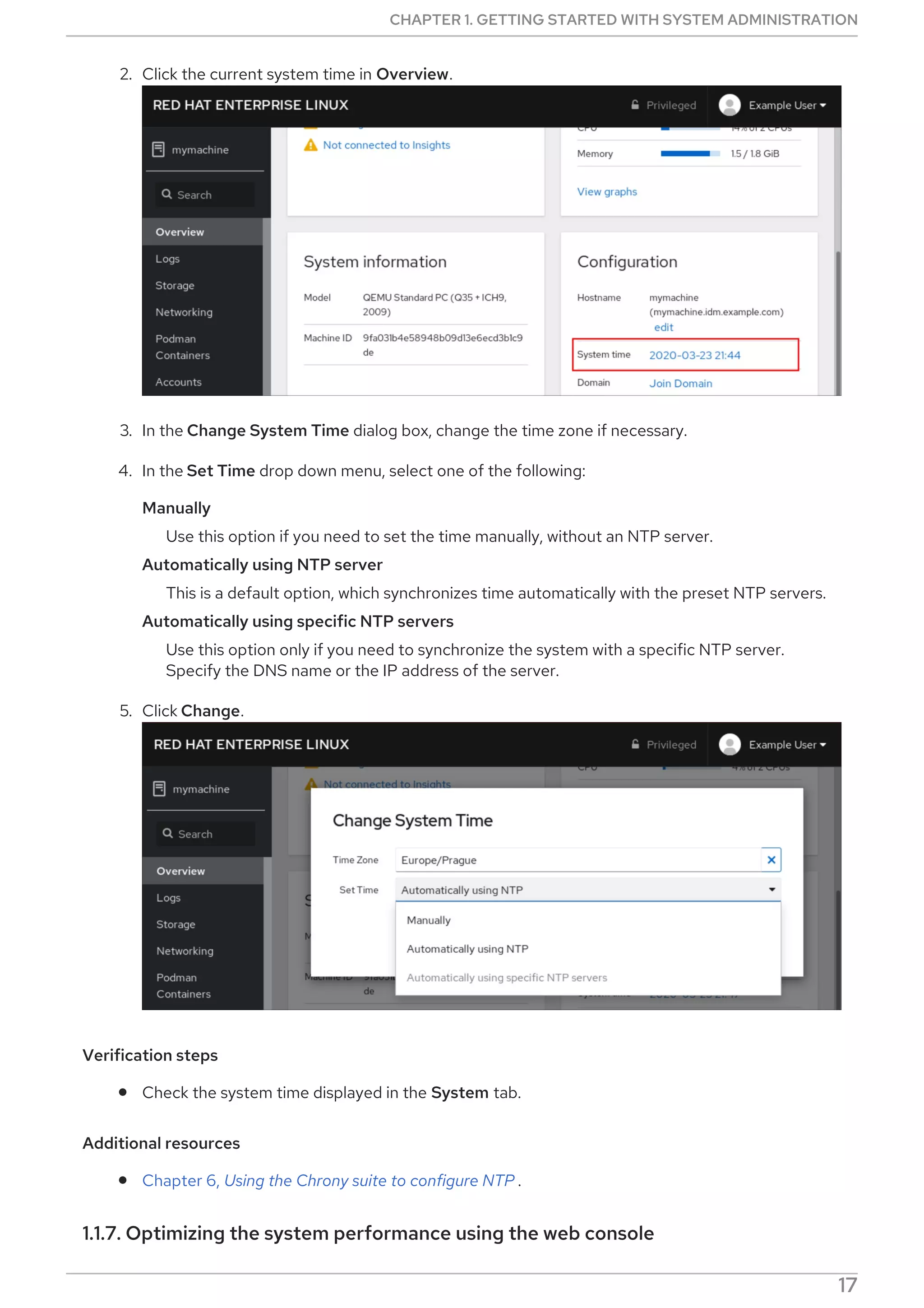
2. Click the current system time in Overview.
3. In the Change System Time dialog box, change the time zone if necessary.
4. In the Set Time drop down menu, select one of the following:
Manually
Use this option if you need to set the time manually, without an NTP server.
Automatically using NTP server
This is a default option, which synchronizes time automatically with the preset NTP servers.
Automatically using specific NTP servers
Use this option only if you need to synchronize the system with a specific NTP server.
Specify the DNS name or the IP address of the server.
5. Click Change.
Verification steps
Check the system time displayed in the System tab.
Additional resources
Chapter 6, Using the Chrony suite to configure NTP .
1.1.7. Optimizing the system performance using the web console
CHAPTER 1. GETTING STARTED WITH SYSTEM ADMINISTRATION
17
In the web console, you can set a performance profile to optimize the performance of the system for a
selected task.
1.1.7.1. Performance tuning options in the web console
Red Hat Enterprise Linux 8 provides several performance profiles that optimize the system for the
following tasks:
Systems using the desktop
Throughput performance
Latency performance
Network performance
Low power consumption
Virtual machines
The tuned service optimizes system options to match the selected profile.
In the web console, you can set which performance profile your system uses.
Additional resources
For details about the tuned service, see Monitoring and managing system status and
performance.
1.1.7.2. Setting a performance profile in the web console
This procedure uses the web console to optimize the system performance for a selected task.
Prerequisites
The web console is installed and accessible.
For details, see Installing the web console.
Procedure
1. Log into the RHEL 8 web console.
For details, see Logging in to the web console .
2. Click Overview.
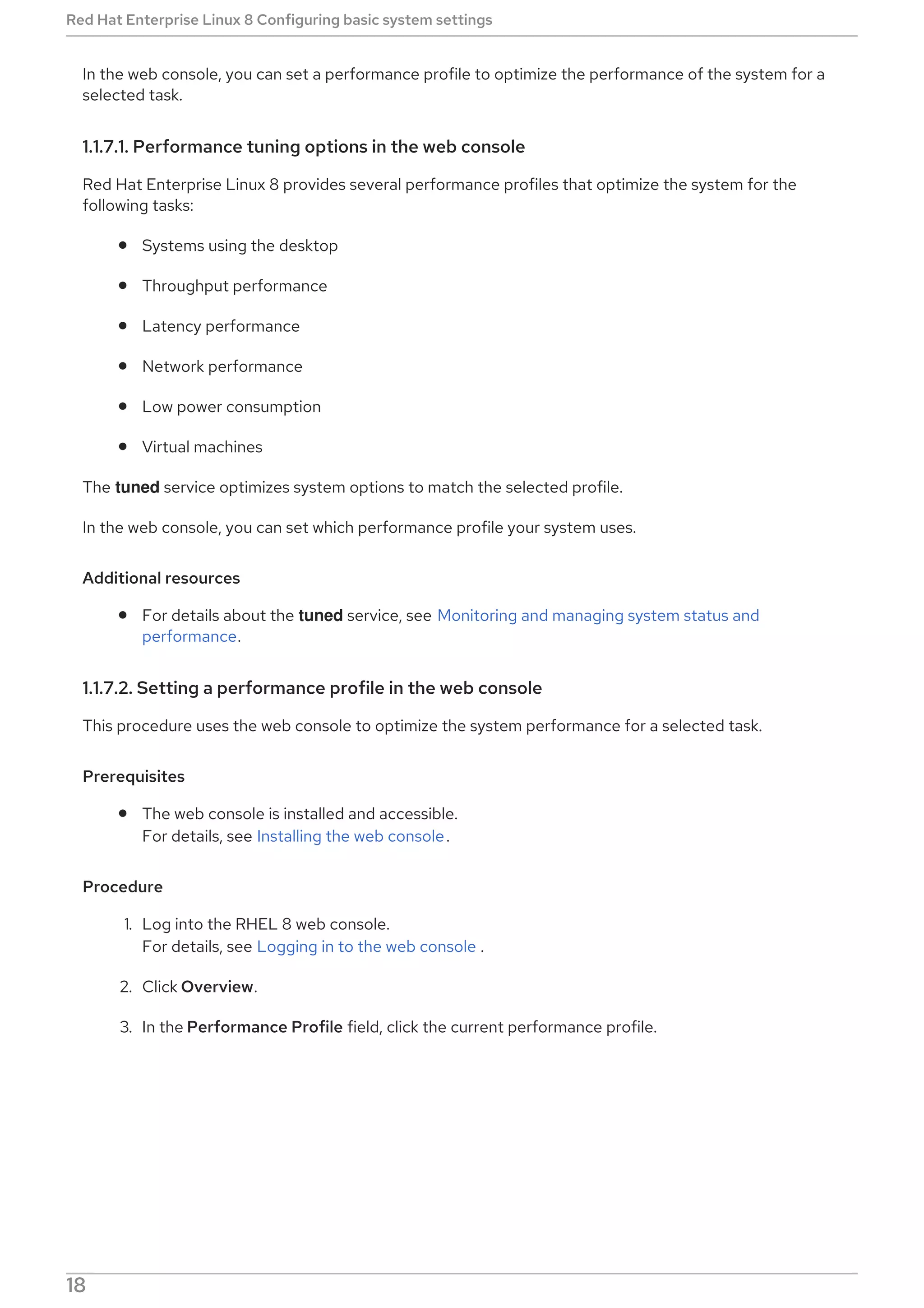
3. In the Performance Profile field, click the current performance profile.
Red Hat Enterprise Linux 8 Configuring basic system settings
18
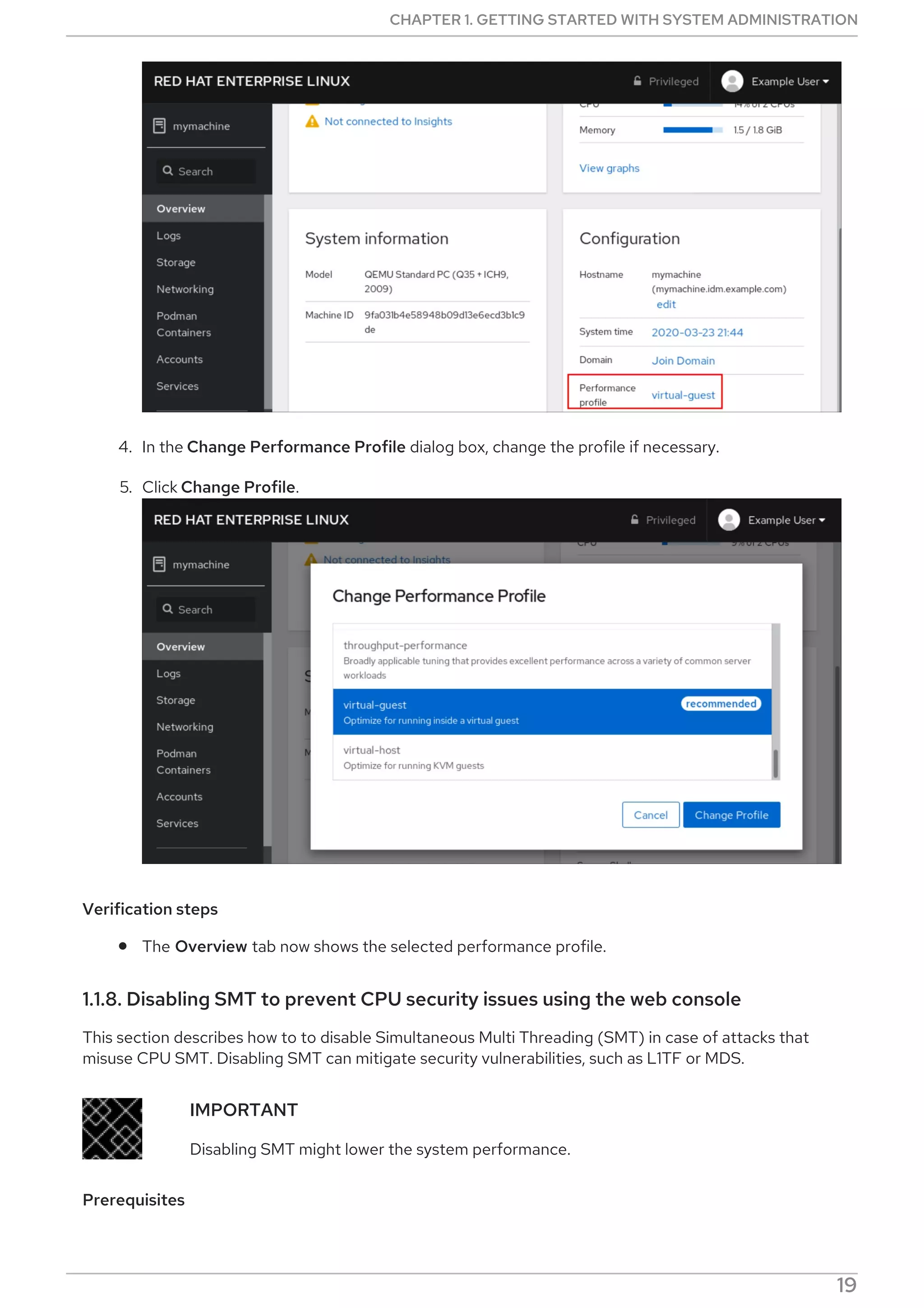
4. In the Change Performance Profile dialog box, change the profile if necessary.
5. Click Change Profile.
Verification steps
The Overview tab now shows the selected performance profile.
1.1.8. Disabling SMT to prevent CPU security issues using the web console
This section describes how to to disable Simultaneous Multi Threading (SMT) in case of attacks that
misuse CPU SMT. Disabling SMT can mitigate security vulnerabilities, such as L1TF or MDS.
IMPORTANT
Disabling SMT might lower the system performance.
Prerequisites
CHAPTER 1. GETTING STARTED WITH SYSTEM ADMINISTRATION
19
The web console must be installed and accessible.
For details, see Installing the web console.
Procedure
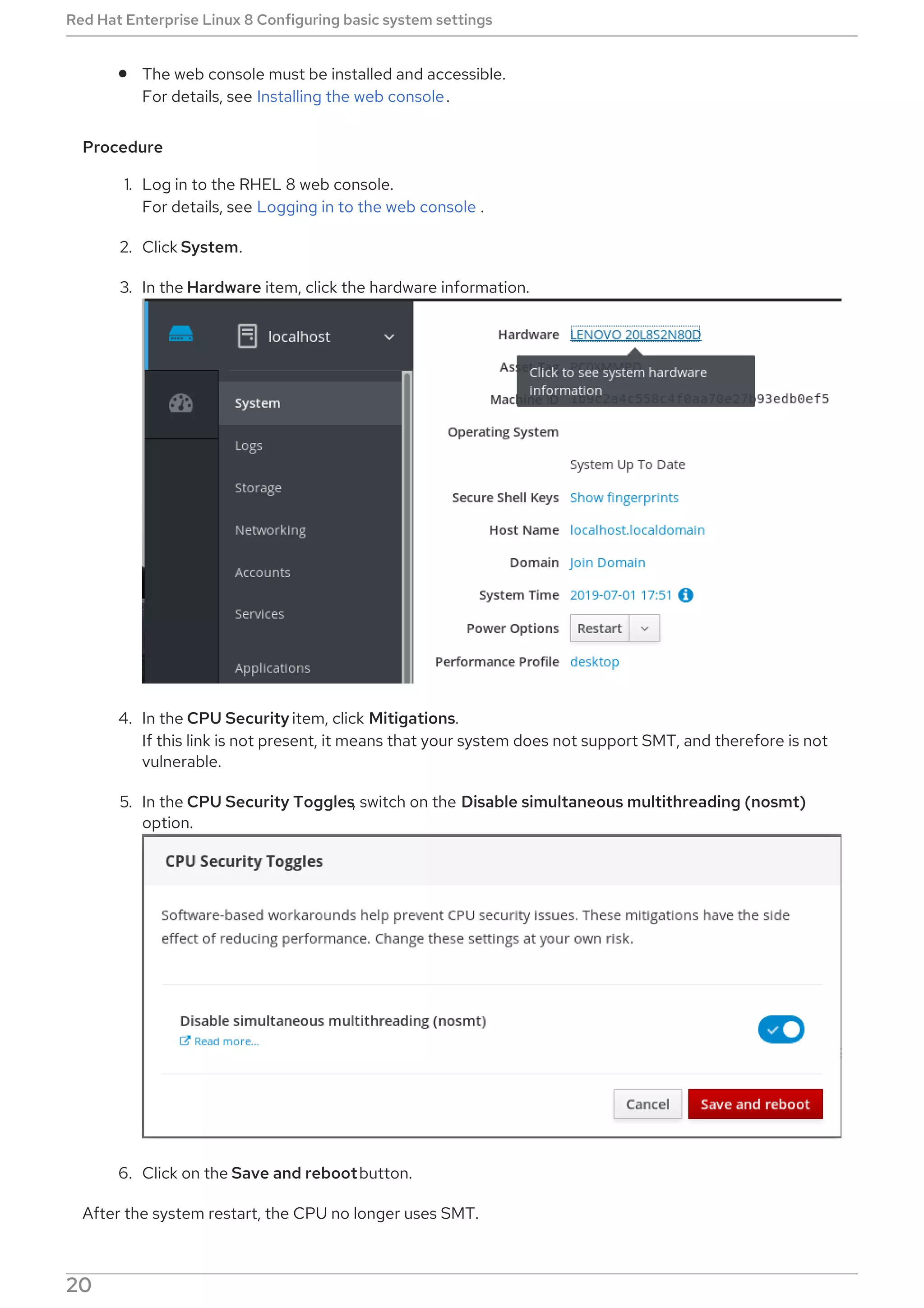
1. Log in to the RHEL 8 web console.
For details, see Logging in to the web console .
2. Click System.
3. In the Hardware item, click the hardware information.
4. In the CPU Security item, click Mitigations.
If this link is not present, it means that your system does not support SMT, and therefore is not
vulnerable.
5. In the CPU Security Toggles, switch on the Disable simultaneous multithreading (nosmt)
option.
6. Click on the Save and rebootbutton.
After the system restart, the CPU no longer uses SMT.
Red Hat Enterprise Linux 8 Configuring basic system settings
20
Additional resources
For more details on security attacks that you can prevent by disabling SMT, see:
L1TF - L1 Terminal Fault Attack - CVE-2018-3620 & CVE-2018-3646
MDS - Microarchitectural Data Sampling - CVE-2018-12130, CVE-2018-12126, CVE-2018-12127,
and CVE-2019-11091
1.2. GETTING STARTED WITH RHEL SYSTEM ROLES
This section explains what RHEL System Roles are. Additionally, it describes how to apply a particular
role through an Ansible playbook to perform various system administration tasks.
1.2.1. Introduction to RHEL System Roles
RHEL System Roles is a collection of Ansible roles and modules. RHEL System Roles provide a
configuration interface to remotely manage multiple RHEL systems. The interface enables managing
system configurations across multiple versions of RHEL, as well as adopting new major releases.
On Red Hat Enterprise Linux 8, the interface currently consists of the following roles:
kdump
network
selinux
storage
timesync
All these roles are provided by the rhel-system-roles package available in the AppStream repository.
Additional resources
For RHEL System Roles overview, see the Red Hat Enterprise Linux (RHEL) System Roles
Red Hat Knowledgebase article.
For information on a particular role, see the documentation under the /usr/share/doc/rhel-
system-roles directory. This documentation is installed automatically with the rhel-system-
roles package.
Introduction to the SELinux system role
Introduction to the storage role
1.2.2. RHEL System Roles terminology
You can find the following terms across this documentation:
System Roles terminology
Ansible playbook
Playbooks are Ansible’s configuration, deployment, and orchestration language. They can describe a
CHAPTER 1. GETTING STARTED WITH SYSTEM ADMINISTRATION
21
Playbooks are Ansible’s configuration, deployment, and orchestration language. They can describe a
policy you want your remote systems to enforce, or a set of steps in a general IT process.
Control node
Any machine with Ansible installed. You can run commands and playbooks, invoking /usr/bin/ansible
or /usr/bin/ansible-playbook, from any control node. You can use any computer that has Python
installed on it as a control node - laptops, shared desktops, and servers can all run Ansible. However,
you cannot use a Windows machine as a control node. You can have multiple control nodes.
Inventory
A list of managed nodes. An inventory file is also sometimes called a “hostfile”. Your inventory can
specify information like IP address for each managed node. An inventory can also organize managed
nodes, creating and nesting groups for easier scaling. To learn more about inventory, see the
Working with Inventory section.
Managed nodes
The network devices (and/or servers) you manage with Ansible. Managed nodes are also sometimes
called “hosts”. Ansible is not installed on managed nodes.
1.2.3. Applying a role
The following procedure describes how to apply a particular role.
Prerequisites
The rhel-system-roles package is installed on the system that you want to use as a control
node:
# yum install rhel-system-roles
The Ansible Engine repository is enabled, and the ansible package is installed on the system
that you want to use as a control node. You need the ansible package to run playbooks that use
RHEL System Roles.
If you do not have a Red Hat Ansible Engine Subscription, you can use a limited supported
version of Red Hat Ansible Engine provided with your Red Hat Enterprise Linux subscription.
In this case, follow these steps:
1. Enable the RHEL Ansible Engine repository:
# subscription-manager refresh
# subscription-manager repos --enable ansible-2-for-rhel-8-x86_64-rpms
2. Install Ansible Engine:
# yum install ansible
If you have a Red Hat Ansible Engine Subscription, follow the procedure described in How
do I Download and Install Red Hat Ansible Engine?.
You are able to create an Ansible playbook.
Playbooks represent Ansible’s configuration, deployment, and orchestration language. By using
playbooks, you can declare and manage configurations of remote machines, deploy multiple
remote machines or orchestrate steps of any manual ordered process.
A playbook is a list of one or more plays. Every play can include Ansible variables, tasks, or roles.
Red Hat Enterprise Linux 8 Configuring basic system settings
22
Playbooks are human-readable, and they are expressed in the YAML format.
For more information about playbooks, see Ansible documentation.
Procedure
1. Create an Ansible playbook including the required role.
The following example shows how to use roles through the roles: option for a given play:
---
- hosts: webservers
roles:
- rhel-system-roles.network
- rhel-system-roles.timesync
For more information on using roles in playbooks, see Ansible documentation.
See Ansible examples for example playbooks.
NOTE
Every role includes a README file, which documents how to use the role and
supported parameter values. You can also find an example playbook for a
particular role under the documentation directory of the role. Such
documentation directory is provided by default with the rhel-system-roles
package, and can be found in the following location:
/usr/share/doc/rhel-system-roles/SUBSYSTEM/
Replace SUBSYSTEM with the name of the required role, such as selinux,
kdump, network, timesync, or storage.
2. Execute the playbook on targeted hosts by running the ansible-playbook command:
# ansible-playbook -i name.of.the.inventory name.of.the.playbook
An inventory is a list of systems against which Ansible works. For more information on how to
create and inventory, and how to work with it, see Ansible documentation.
If you do not have an inventory, you can create it at the time of running ansible-playbook:
If you have only one targeted host against which you want to run the playbook, use:
# ansible-playbook -i host1, name.of.the.playbook
If you have multiple targeted hosts against which you want to run the playbook, use:
# ansible-playbook -i host1,host2,....,hostn name.of.the.playbook
Additional resources
For more detailed information on using the ansible-playbook command, see the ansible-
playbook man page.
CHAPTER 1. GETTING STARTED WITH SYSTEM ADMINISTRATION
23
1.2.4. Additional resources
For RHEL System Roles overview, see the Red Hat Enterprise Linux (RHEL) System Roles
Red Hat Knowledgebase article.
Managing local storage using RHEL System Roles
Deploying the same SELinux configuration on multiple systems using RHEL System Roles
1.3. CHANGING BASIC ENVIRONMENT SETTINGS
Configuration of basic environment settings is a part of the installation process. The following sections
guide you when you change them later. The basic configuration of the environment includes:
Date and time
System locales
Keyboard layout
Language
1.3.1. Configuring the date and time
Accurate timekeeping is important for a number of reasons. In Red Hat Enterprise Linux, timekeeping is
ensured by the NTP protocol, which is implemented by a daemon running in user space. The user-space
daemon updates the system clock running in the kernel. The system clock can keep time by using
various clock sources.
Red Hat Enterprise Linux 8 uses the chronyd daemon to implement NTP. chronyd is available from the
chrony package. For more information, see Using the chrony suite to configure NTP .
1.3.1.1. Displaying the current date and time
To display the current date and time, use either of these steps.
Procedure
1. Enter the date command:
$ date
Mon Mar 30 16:02:59 CEST 2020
2. To see more details, use the timedatectl command:
$ timedatectl
Local time: Mon 2020-03-30 16:04:42 CEST
Universal time: Mon 2020-03-30 14:04:42 UTC
RTC time: Mon 2020-03-30 14:04:41
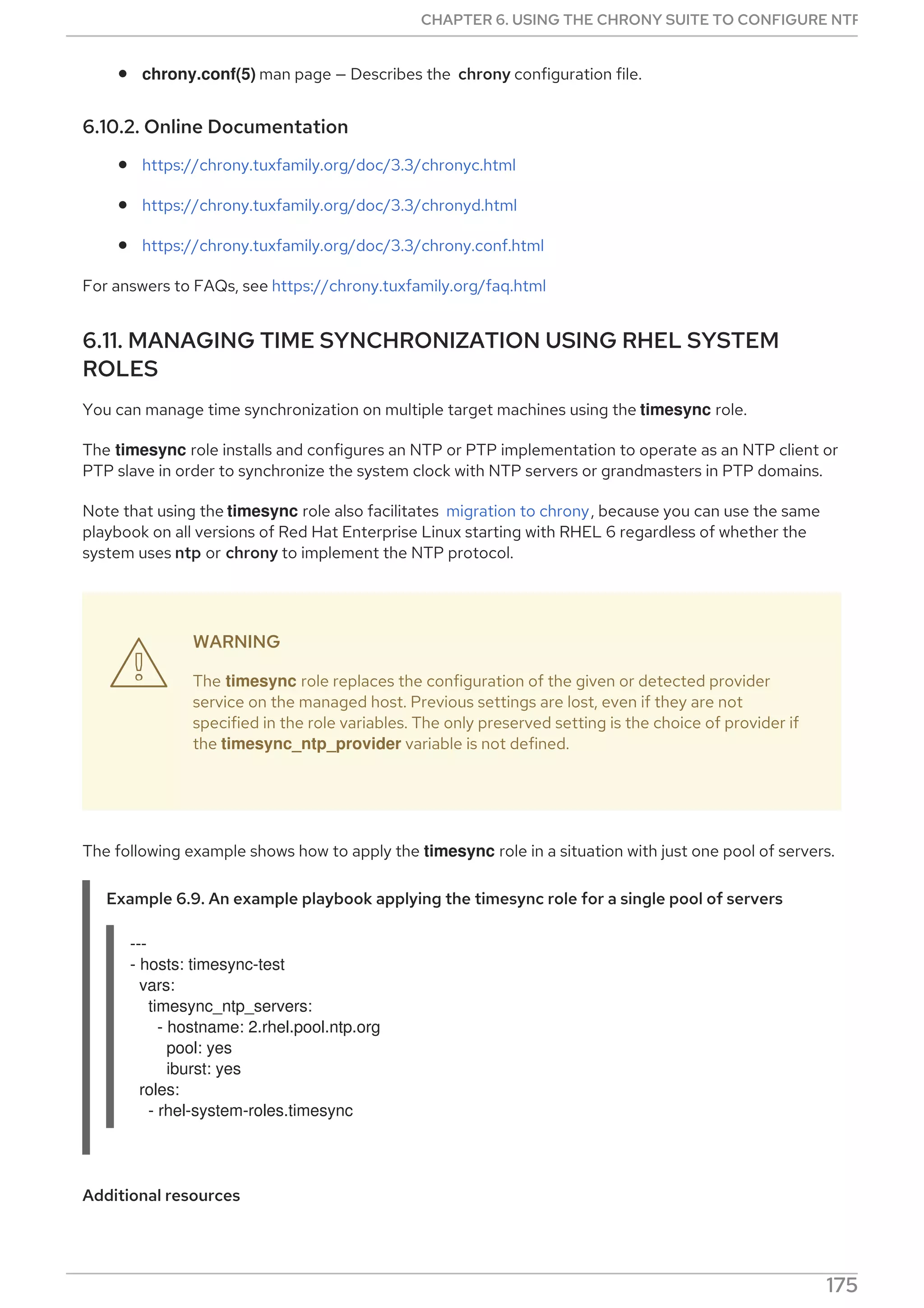
Time zone: Europe/Prague (CEST, +0200)
System clock synchronized: yes
NTP service: active
RTC in local TZ: no
Red Hat Enterprise Linux 8 Configuring basic system settings
24
Additional resources
For more information, see the date(1) and timedatectl(1) man pages.
1.3.1.2. Additional resources
For more information on time settings in the web console, see Using the web console for
configuring time settings.
1.3.2. Configuring the system locale
System-wide locale settings are stored in the /etc/locale.conf file, which is read at early boot by the
systemd daemon. Every service or user inherits the locale settings configured in /etc/locale.conf, unless
individual programs or individual users override them.
This section describes how to manage system locale.
Procedure
1. To list available system locale settings:
$ localectl list-locales
C.utf8
aa_DJ
aa_DJ.iso88591
aa_DJ.utf8
...
2. To display the current status of the system locales settings:
$ localectl status
3. To set or change the default system locale settings, use a localectl set-locale sub-command as
the root user. For example:
# localectl set-locale LANG=en-US
Additional resources
For more information, see the localectl(1), locale(7), and locale.conf(5) man pages.
1.3.3. Configuring the keyboard layout
The keyboard layout settings control the layout used on the text console and graphical user interfaces.
Procedure
1. To list available keymaps:
$ localectl list-keymaps
ANSI-dvorak
al
al-plisi
CHAPTER 1. GETTING STARTED WITH SYSTEM ADMINISTRATION
25
amiga-de
amiga-us
...
2. To display the current status of keymaps settings:
$ localectl status
...
VC Keymap: us
...
3. To set or change the default system keymap, use a localectl set-keymap sub-command as the
root user. For example:
# localectl set-keymap us
Additional resources
For more information, see the localectl(1), locale(7), and locale.conf(5) man pages.
1.3.4. Changing the language using desktop GUI
This section describes how to change the system language using the desktop GUI.
Prerequisites
Required language packages are installed on your system
Procedure
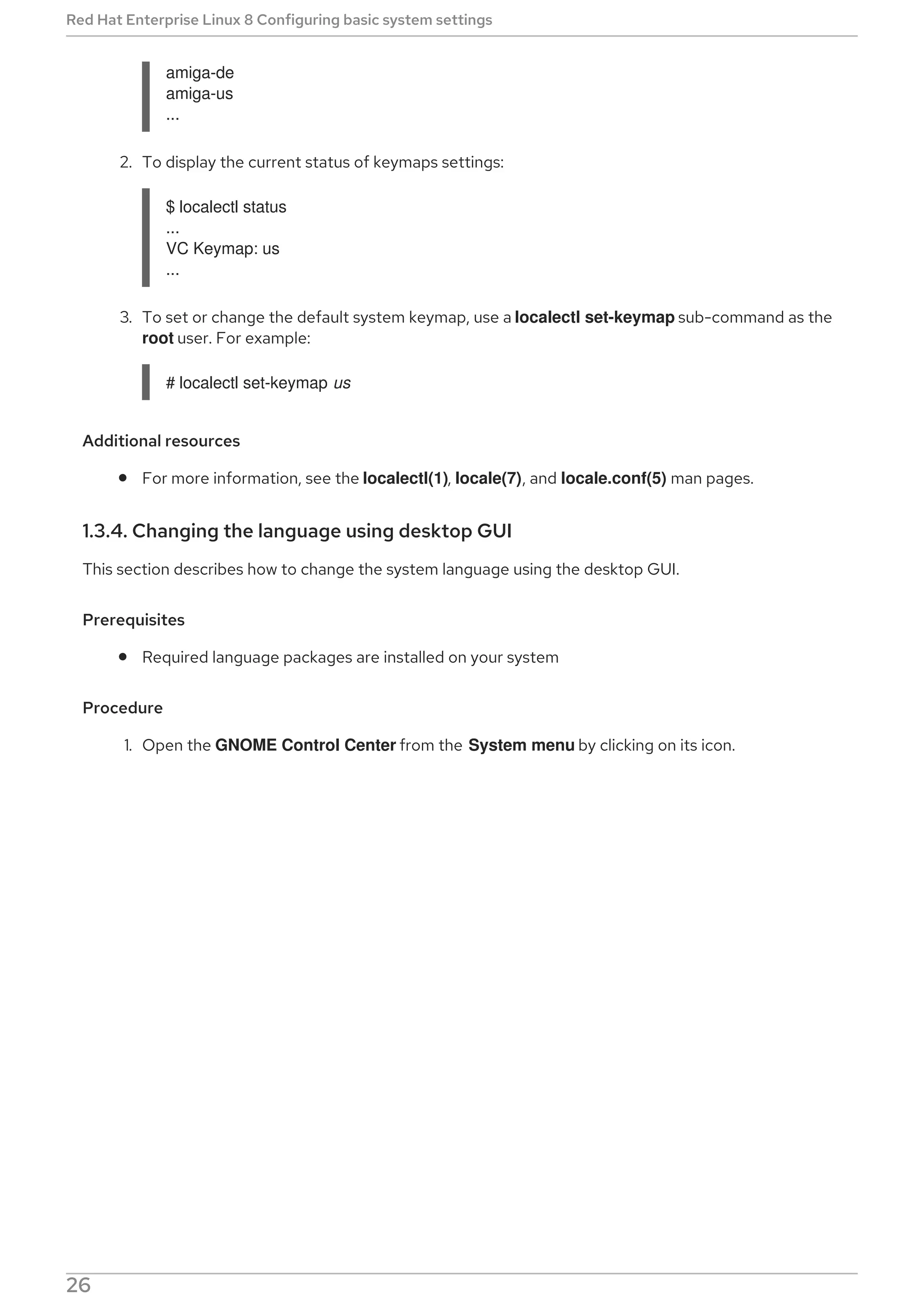
1. Open the GNOME Control Center from the System menu by clicking on its icon.
Red Hat Enterprise Linux 8 Configuring basic system settings
26
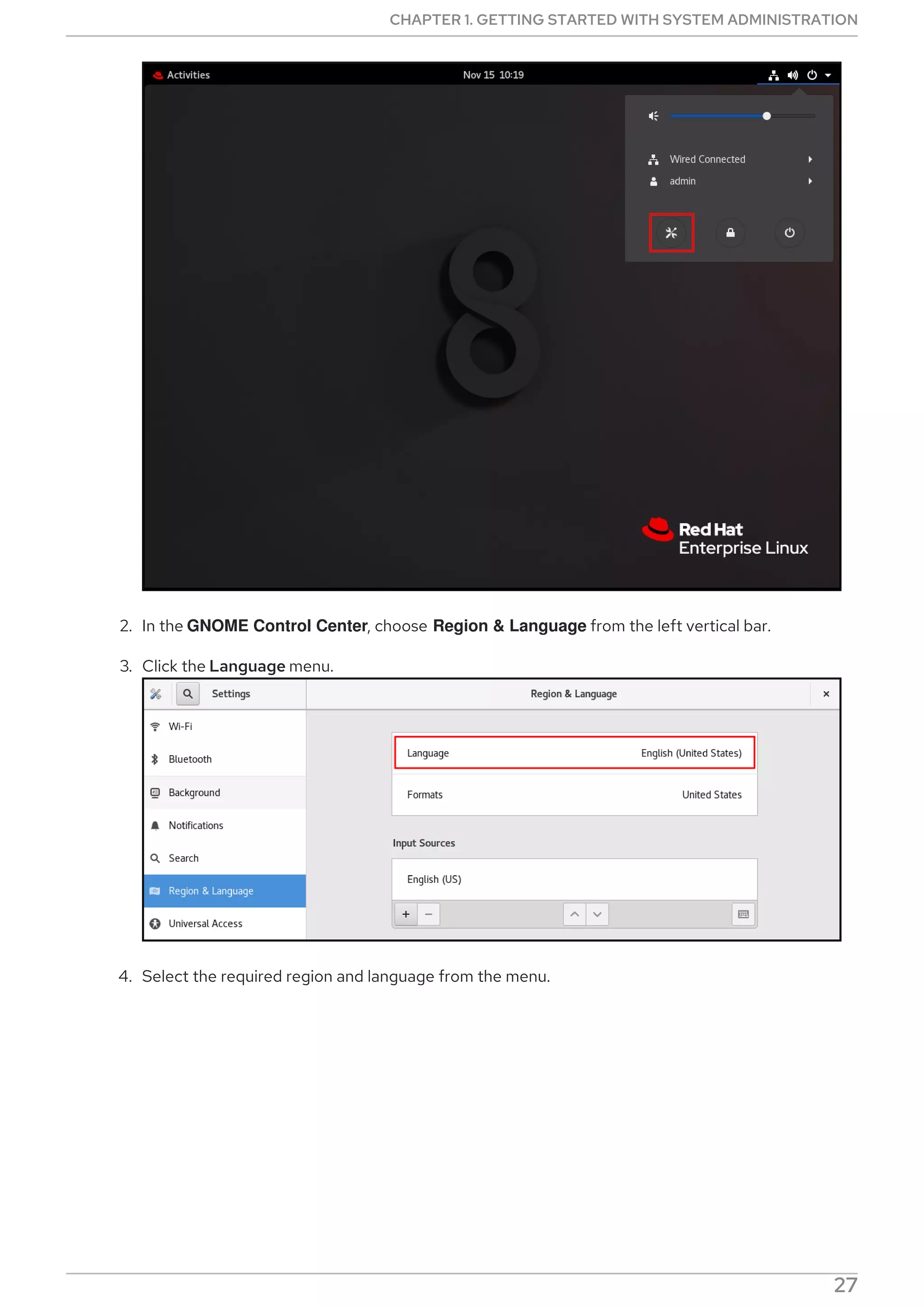
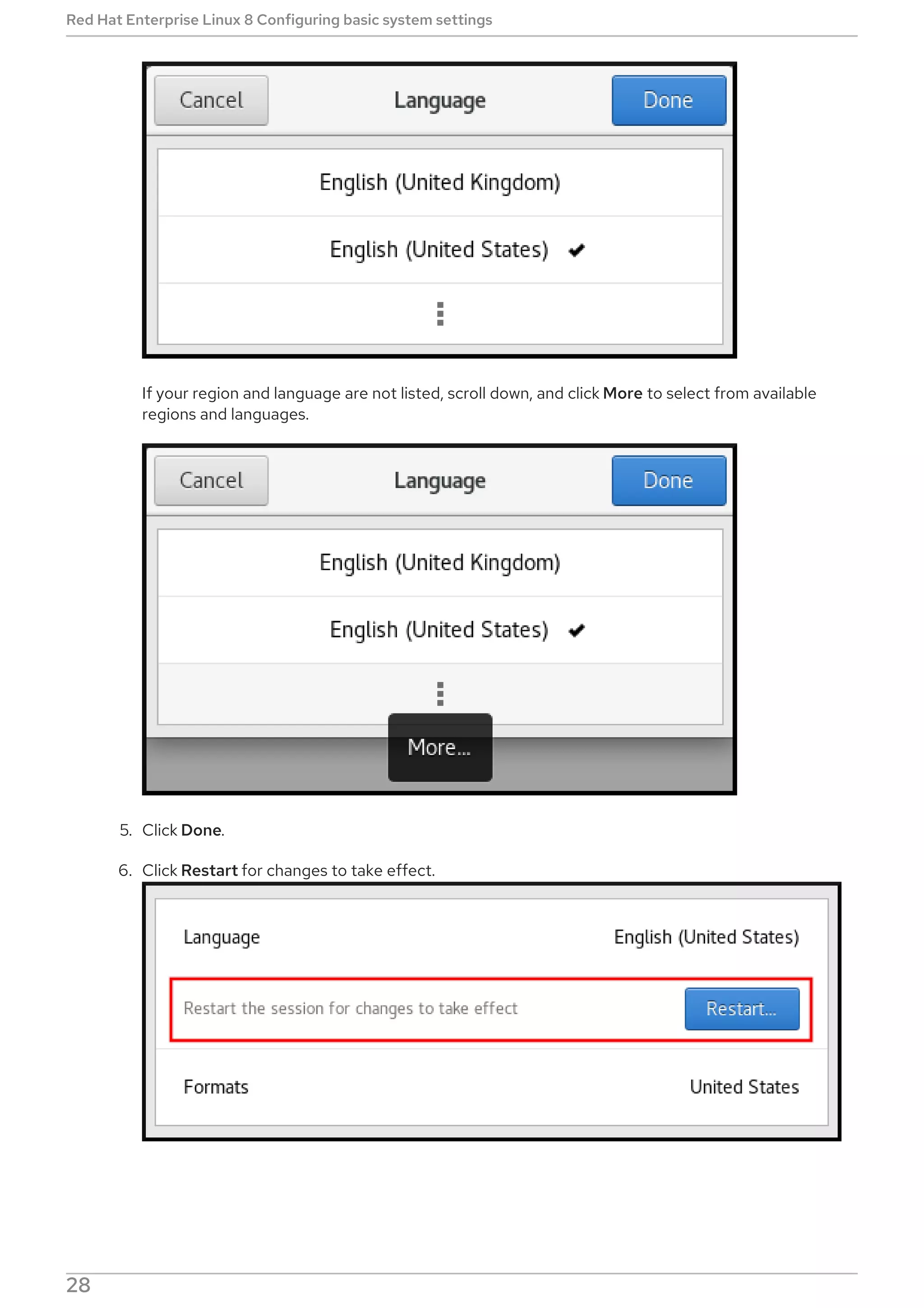
2. In the GNOME Control Center, choose Region & Language from the left vertical bar.
3. Click the Language menu.
4. Select the required region and language from the menu.
CHAPTER 1. GETTING STARTED WITH SYSTEM ADMINISTRATION
27
If your region and language are not listed, scroll down, and click More to select from available
regions and languages.
5. Click Done.
6. Click Restart for changes to take effect.
NOTE
Red Hat Enterprise Linux 8 Configuring basic system settings
28
NOTE
Some applications do not support certain languages. The text of an application that
cannot be translated into the selected language remains in US English.
Additional resources
For more information on how to launch the GNOME Control Center, see approaches described
in Launching applications
1.3.5. Additional resources
For more information about configuring basic environment settings, see Performing a standard
RHEL installation.
1.4. CONFIGURING AND MANAGING NETWORK ACCESS
This section describes different options on how to add Ethernet connections in Red Hat
Enterprise Linux.
1.4.1. Configuring the network and host name in the graphical installation mode
Follow the steps in this procedure to configure your network and host name.
Procedure
1. From the Installation Summary window, click Network and Host Name*.
2. From the list in the left-hand pane, select an interface. The details are displayed in the right-
hand pane.
3. Toggle the ON/OFF switch to enable or disable the selected interface.
NOTE
The installation program automatically detects locally accessible interfaces, and
you cannot add or remove them manually.
4. Click + to add a virtual network interface, which can be either: Team, Bond, Bridge, or VLAN.
5. Click - to remove a virtual interface.
6. Click Configure to change settings such as IP addresses, DNS servers, or routing configuration
for an existing interface (both virtual and physical).
7. Type a host name for your system in the Host Name field.
NOTE
CHAPTER 1. GETTING STARTED WITH SYSTEM ADMINISTRATION
29
NOTE
There are several types of network device naming standards used to identify
network devices with persistent names, for example, em1 and wl3sp0. For
information about these standards, see the Configuring and managing
networking document.
The host name can be either a fully-qualified domain name (FQDN) in the
format hostname.domainname, or a short host name with no domain name.
Many networks have a Dynamic Host Configuration Protocol (DHCP) service
that automatically supplies connected systems with a domain name. To allow
the DHCP service to assign the domain name to this machine, specify only
the short host name. The value localhost.localdomain means that no
specific static host name for the target system is configured, and the actual
host name of the installed system is configured during the processing of the
network configuration, for example, by NetworkManager using DHCP or
DNS.
8. Click Apply to apply the host name to the environment.
Additional resources and information
For details about configuring network settings and the host name when using a Kickstart file, see
the corresponding appendix in Performing an advanced RHEL installation .
If you install Red Hat Enterprise Linux using the text mode of the Anaconda installation
program, use the Network settings option to configure the network.
1.4.2. Configuring a static Ethernet connection using nmcli
This procedure describes adding an Ethernet connection with the following settings using the nmcli
utility:
A static IPv4 address - 192.0.2.1 with a /24 subnet mask
A static IPv6 address - 2001:db8:1::1 with a /64 subnet mask
An IPv4 default gateway - 192.0.2.254
An IPv6 default gateway - 2001:db8:1::fffe
An IPv4 DNS server - 192.0.2.200
An IPv6 DNS server - 2001:db8:1::ffbb
A DNS search domain - example.com
Procedure
1. Add a new NetworkManager connection profile for the Ethernet connection:
# nmcli connection add con-name Example-Connection ifname enp7s0 type ethernet
The further steps modify the Example-Connection connection profile you created.
Red Hat Enterprise Linux 8 Configuring basic system settings
30
2. Set the IPv4 address:
# nmcli connection modify Example-Connection ipv4.addresses 192.0.2.1/24
3. Set the IPv6 address:
# nmcli connection modify Example-Connection ipv6.addresses 2001:db8:1::1/64
4. Set the IPv4 and IPv6 connection method to manual:
# nmcli connection modify Example-Connection ipv4.method manual
# nmcli connection modify Example-Connection ipv6.method manual
5. Set the IPv4 and IPv6 default gateways:
# nmcli connection modify Example-Connection ipv4.gateway 192.0.2.254
# nmcli connection modify Example-Connection ipv6.gateway 2001:db8:1::fffe
6. Set the IPv4 and IPv6 DNS server addresses:
# nmcli connection modify Example-Connection ipv4.dns "192.0.2.200"
# nmcli connection modify Example-Connection ipv6.dns "2001:db8:1::ffbb"
To set multiple DNS servers, specify them space-separated and enclosed in quotes.
7. Set the DNS search domain for the IPv4 and IPv6 connection:
# nmcli connection modify Example-Connection ipv4.dns-search example.com
# nmcli connection modify Example-Connection ipv6.dns-search example.com
8. Active the connection profile:
# nmcli connection up Example-Connection
Connection successfully activated (D-Bus active path:
/org/freedesktop/NetworkManager/ActiveConnection/13)
Verification steps
1. Display the status of the devices and connections:
# nmcli device status
DEVICE TYPE STATE CONNECTION
enp7s0 ethernet connected Example-Connection
2. To display all settings of the connection profile:
# nmcli connection show Example-Connection
connection.id: Example-Connection
connection.uuid: b6cdfa1c-e4ad-46e5-af8b-a75f06b79f76
connection.stable-id: --
CHAPTER 1. GETTING STARTED WITH SYSTEM ADMINISTRATION
31
connection.type: 802-3-ethernet
connection.interface-name: enp7s0
...
3. Use the ping utility to verify that this host can send packets to other hosts.
Ping an IP address in the same subnet.
For IPv4:
# ping 192.0.2.3
For IPv6:
# ping 2001:db8:2::1
If the command fails, verify the IP and subnet settings.
Ping an IP address in a remote subnet.
For IPv4:
# ping 198.162.3.1
For IPv6:
# ping 2001:db8:2::1
If the command fails, ping the default gateway to verify settings.
For IPv4:
# ping 192.0.2.254
For IPv6:
# ping 2001:db8:1::fffe
4. Use the host utility to verify that name resolution works. For example:
# host client.example.com
If the command returns any error, such as connection timed out or no servers could be
reached, verify your DNS settings.
Troubleshooting steps
1. If the connection fails or if the network interface switches between an up and down status:
Make sure that the network cable is plugged-in to the host and a switch.
Check whether the link failure exists only on this host or also on other hosts connected to
the same switch the server is connected to.
Verify that the network cable and the network interface are working as expected. Perform
hardware diagnosis steps and replace defect cables and network interface cards.
Red Hat Enterprise Linux 8 Configuring basic system settings
32
Additional resources
See the nm-settings(5) man page for more information on connection profile properties and
their settings.
For further details about the nmcli utility, see the nmcli(1) man page.
If the configuration on the disk does not match the configuration on the device, starting or
restarting NetworkManager creates an in-memory connection that reflects the configuration of
the device. For further details and how to avoid this problem, see NetworkManager duplicates a
connection after restart of NetworkManager service.
1.4.3. Adding a connection profile using nmtui
The nmtui application provides a text user interface to NetworkManager. This procedure describes how
to add a new connection profile.
Prerequisites
The NetworkManager-tui package is installed.
Procedure
1. Start the NetworkManager text user interface utility:
# nmtui
2. Select the Edit a connection menu entry, and press Enter.
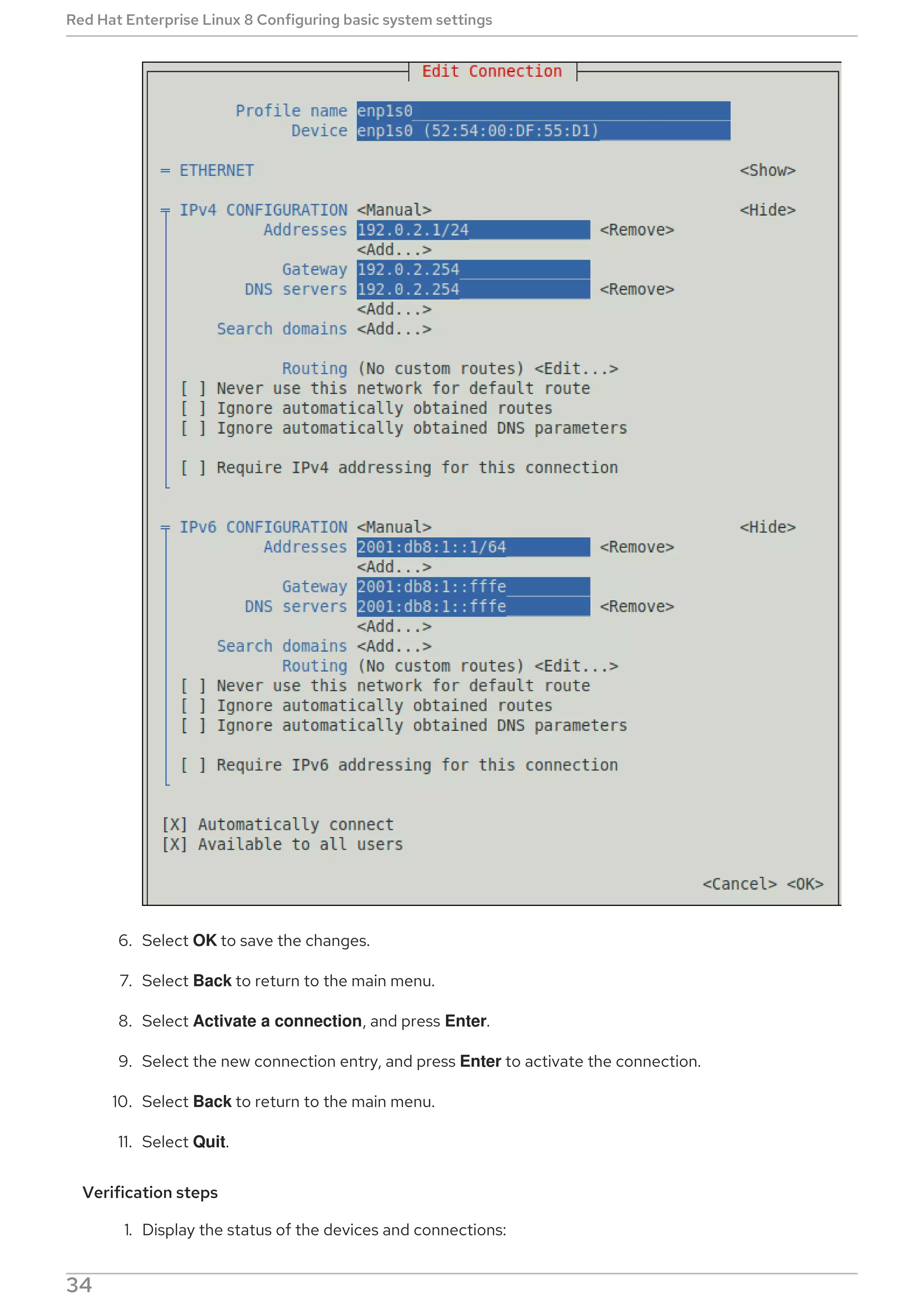
3. Select the Add button, and press Enter.
4. Select Ethernet, and press Enter.
5. Fill the fields with the connection details.
CHAPTER 1. GETTING STARTED WITH SYSTEM ADMINISTRATION
33
6. Select OK to save the changes.
7. Select Back to return to the main menu.
8. Select Activate a connection, and press Enter.
9. Select the new connection entry, and press Enter to activate the connection.
10. Select Back to return to the main menu.
11. Select Quit.
Verification steps
1. Display the status of the devices and connections:
Red Hat Enterprise Linux 8 Configuring basic system settings
34
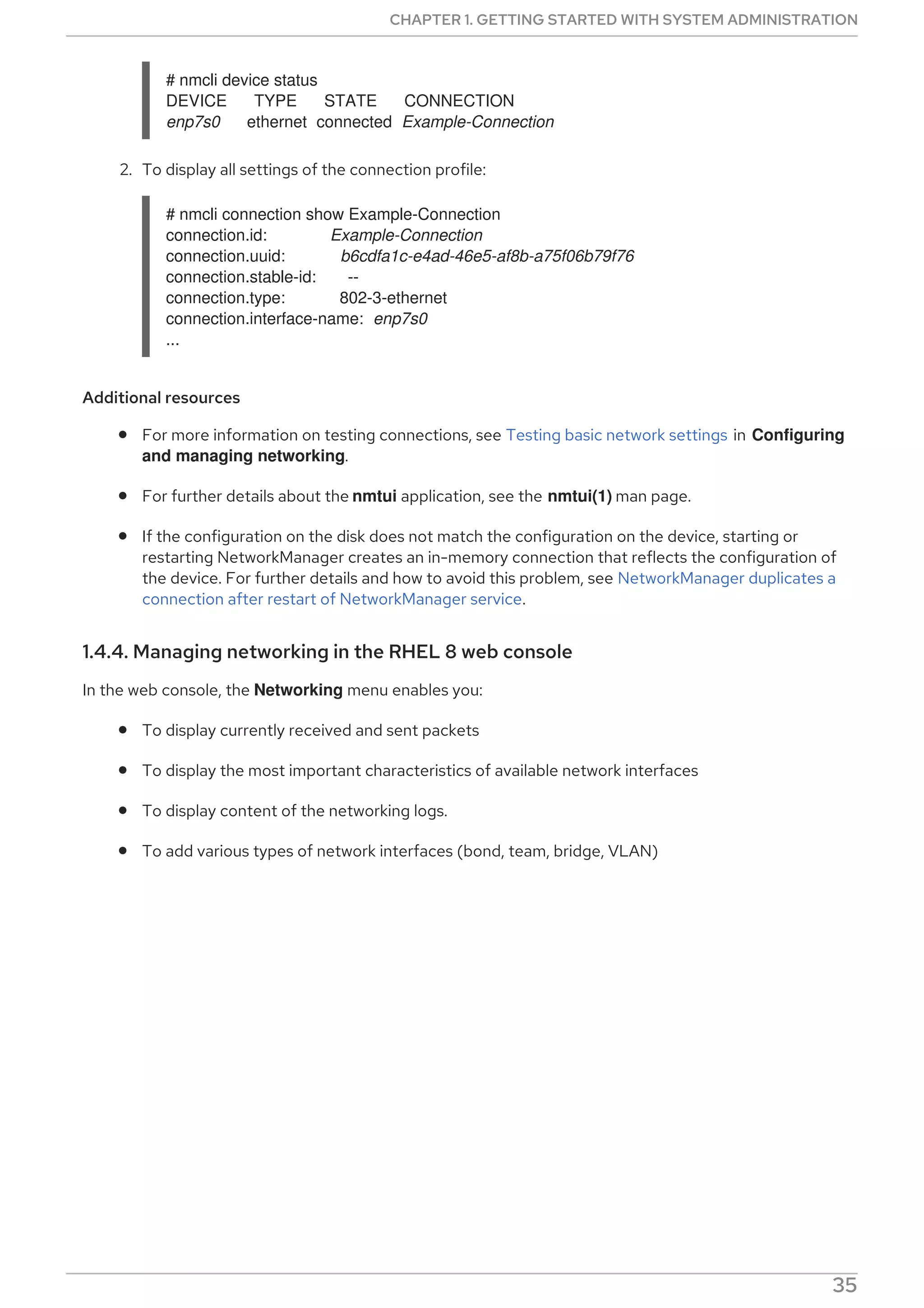
# nmcli device status
DEVICE TYPE STATE CONNECTION
enp7s0 ethernet connected Example-Connection
2. To display all settings of the connection profile:
# nmcli connection show Example-Connection
connection.id: Example-Connection
connection.uuid: b6cdfa1c-e4ad-46e5-af8b-a75f06b79f76
connection.stable-id: --
connection.type: 802-3-ethernet
connection.interface-name: enp7s0
...
Additional resources
For more information on testing connections, see Testing basic network settings in Configuring
and managing networking.
For further details about the nmtui application, see the nmtui(1) man page.
If the configuration on the disk does not match the configuration on the device, starting or
restarting NetworkManager creates an in-memory connection that reflects the configuration of
the device. For further details and how to avoid this problem, see NetworkManager duplicates a
connection after restart of NetworkManager service.
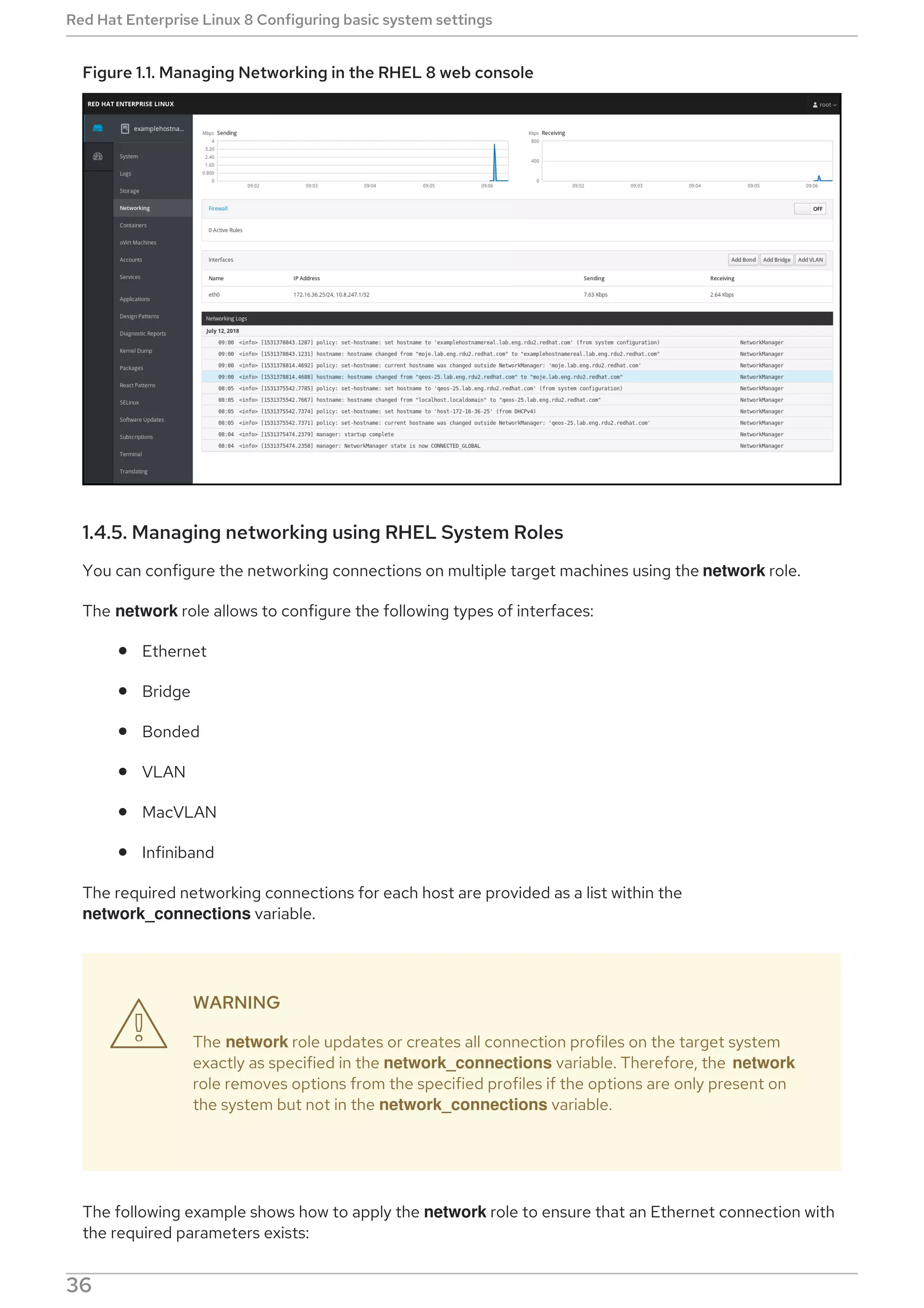
1.4.4. Managing networking in the RHEL 8 web console
In the web console, the Networking menu enables you:
To display currently received and sent packets
To display the most important characteristics of available network interfaces
To display content of the networking logs.
To add various types of network interfaces (bond, team, bridge, VLAN)
Figure 1.1. Managing Networking in the RHEL 8 web console
CHAPTER 1. GETTING STARTED WITH SYSTEM ADMINISTRATION
35
Figure 1.1. Managing Networking in the RHEL 8 web console
1.4.5. Managing networking using RHEL System Roles
You can configure the networking connections on multiple target machines using the network role.
The network role allows to configure the following types of interfaces:
Ethernet
Bridge
Bonded
VLAN
MacVLAN
Infiniband
The required networking connections for each host are provided as a list within the
network_connections variable.
WARNING
The network role updates or creates all connection profiles on the target system
exactly as specified in the network_connections variable. Therefore, the network
role removes options from the specified profiles if the options are only present on
the system but not in the network_connections variable.
The following example shows how to apply the network role to ensure that an Ethernet connection with
the required parameters exists:
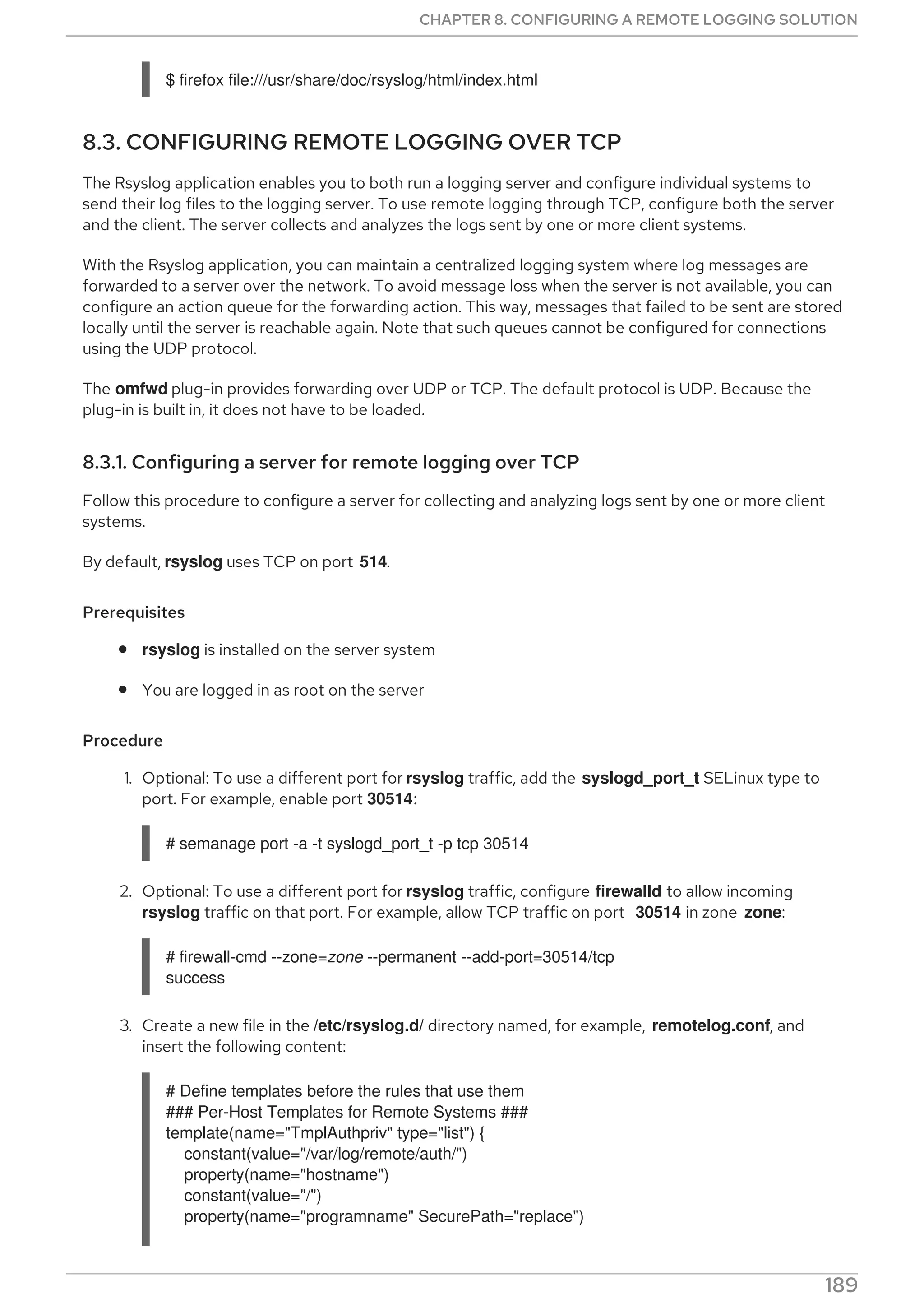

Red Hat Enterprise Linux 8 Configuring basic system settings
36
Example 1.2. An example playbook applying the network role to set up an Ethernet connection
with the required parameters
# SPDX-License-Identifier: BSD-3-Clause
---
- hosts: network-test
vars:
network_connections:
# Create one ethernet profile and activate it.
# The profile uses automatic IP addressing
# and is tied to the interface by MAC address.
- name: prod1
state: up
type: ethernet
autoconnect: yes
mac: "00:00:5e:00:53:00"
mtu: 1450
roles:
- rhel-system-roles.network
For more information on applying a system role, see Introduction to RHEL System Roles .
1.4.6. Additional resources
For further details about network configuration, such as configuring network bonding and
teaming, see the Configuring and managing networking title.
1.5. REGISTERING THE SYSTEM AND MANAGING SUBSCRIPTIONS
Subscriptions cover products installed on Red Hat Enterprise Linux, including the operating system
itself.
You can use a subscription to Red Hat Content Delivery Network to track:
Registered systems
Products installed on your systems
Subscriptions attached to the installed products
1.5.1. Registering the system after the installation
Use the following procedure to register your system if you have not registered it during the installation
process already.
Prerequisites
A valid user account in the Red Hat Customer Portal.
See the Create a Red Hat Login page.
CHAPTER 1. GETTING STARTED WITH SYSTEM ADMINISTRATION
37
An active subscription for the RHEL system.
For more information about the installation process, see Performing a standard RHEL
installation.
Procedure
1. Register and automatically subscribe your system in one step:
# subscription-manager register --username <username> --password <password> --auto-
attach
Registering to: subscription.rhsm.redhat.com:443/subscription
The system has been registered with ID: 37to907c-ece6-49ea-9174-20b87ajk9ee7
The registered system name is: client1.idm.example.com
Installed Product Current Status:
Product Name: Red Hat Enterprise Linux for x86_64
Status: Subscribed
The command prompts you to enter your Red Hat Customer Portal user name and password.
If the registration process fails, you can register your system with a specific pool. For guidance
on how to do it, proceed with the following steps:
a. Determine the pool ID of a subscription that you require:
# subscription-manager list --available
This command displays all available subscriptions for your Red Hat account. For every
subscription, various characteristics are displayed, including the pool ID.
b. Attach the appropriate subscription to your system by replacing pool_id with the pool ID
determined in the previous step:
# subscription-manager attach --pool=pool_id
Additional resources
For more details about registering RHEL systems using the --auto-attach option, see
Understanding autoattaching subscriptions on the Customer Portal section.
For more details about manually registering RHEL systems, see Understanding the manual
registration and subscription on the Customer Portal section.
1.5.2. Registering subscriptions with credentials in the web console
Use the following steps to register a newly installed Red Hat Enterprise Linux using the RHEL 8 web
console.
Prerequisites
A valid user account on the Red Hat Customer Portal.
See the Create a Red Hat Login page.
Active subscription for your RHEL system.
Red Hat Enterprise Linux 8 Configuring basic system settings
38
Procedure
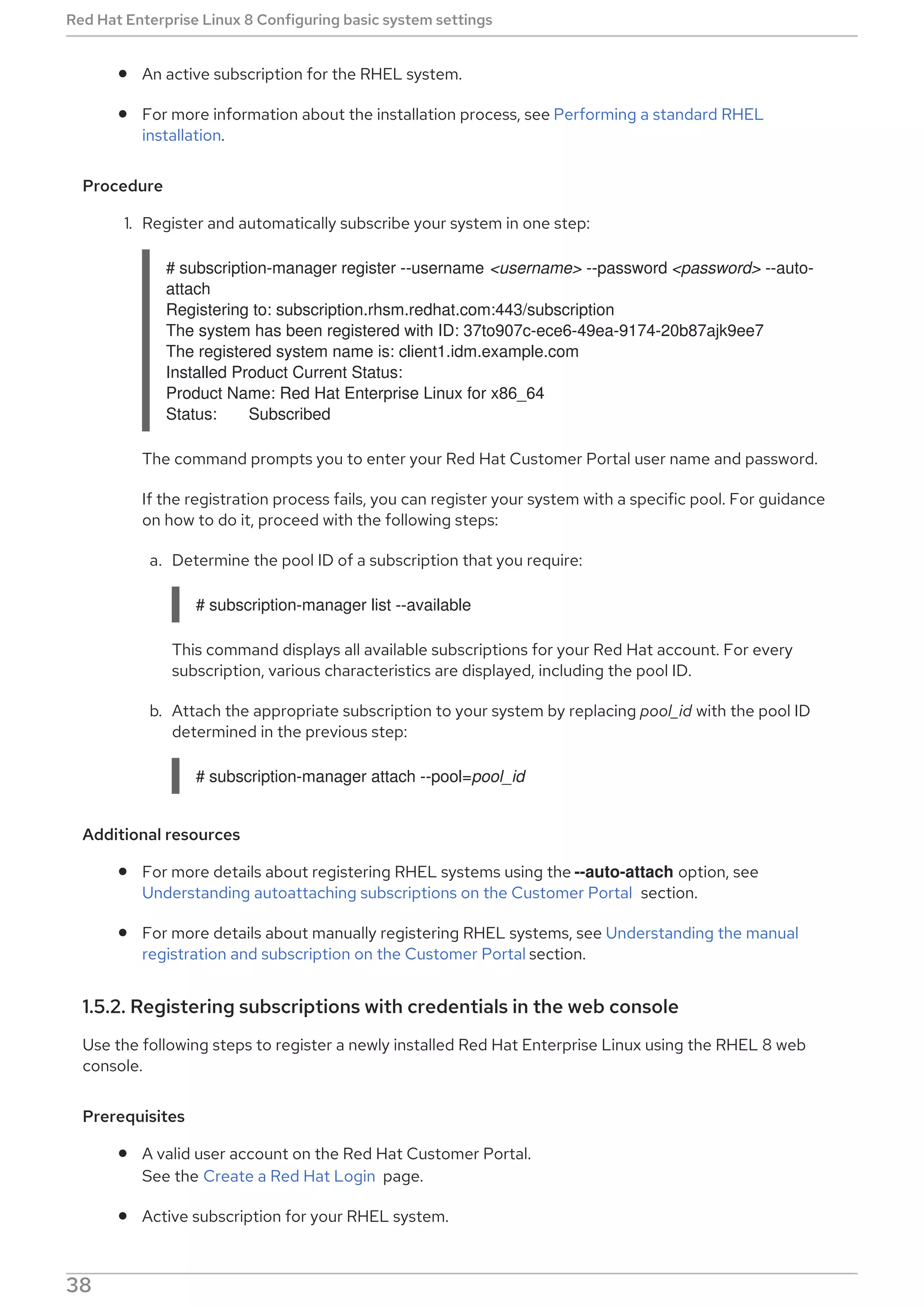
1. Type subscription in the search field and press the Enter key.
Alternatively, you can log in to the RHEL 8 web console. For details, see Logging in to the web
console.
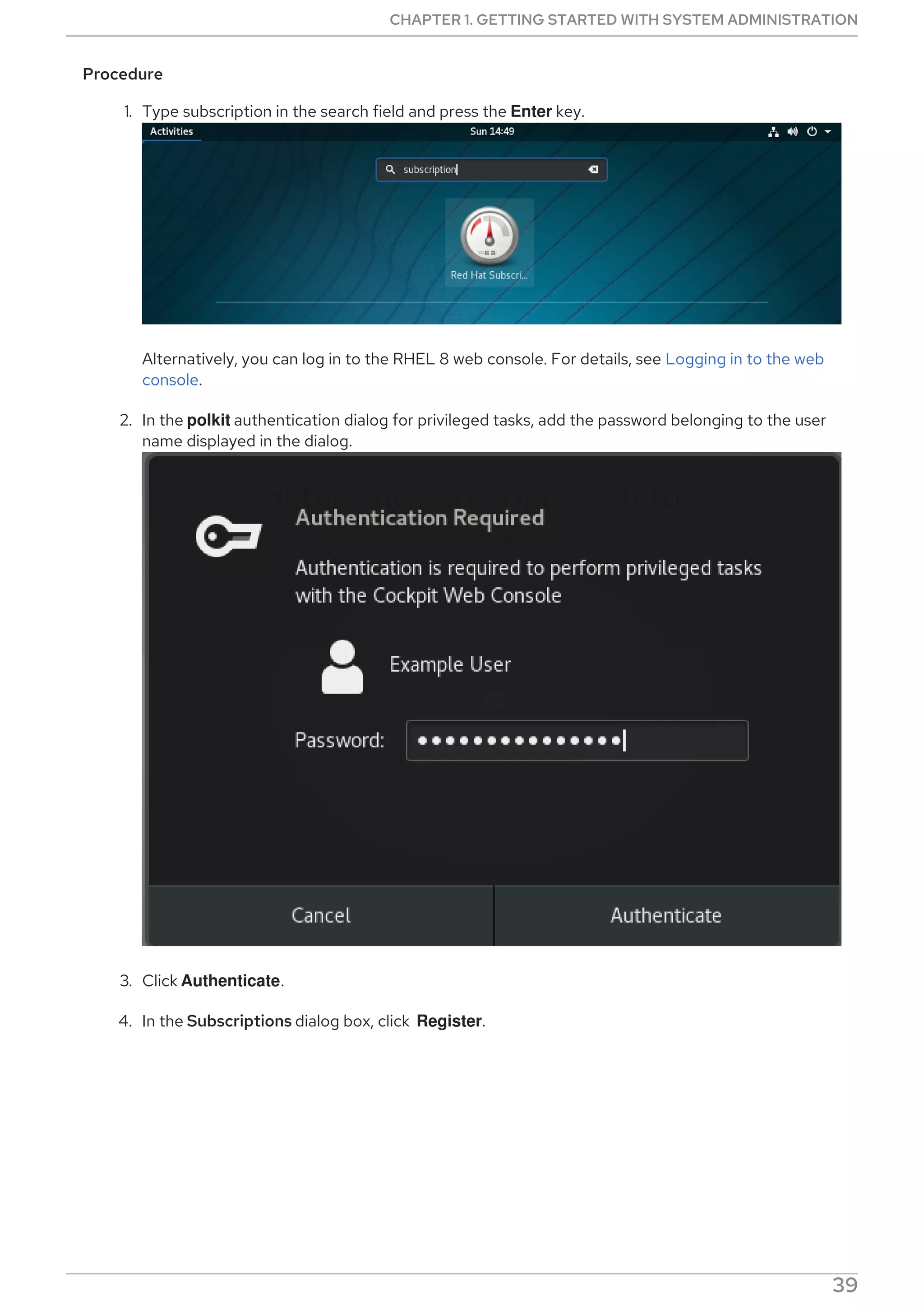
2. In the polkit authentication dialog for privileged tasks, add the password belonging to the user
name displayed in the dialog.
3. Click Authenticate.
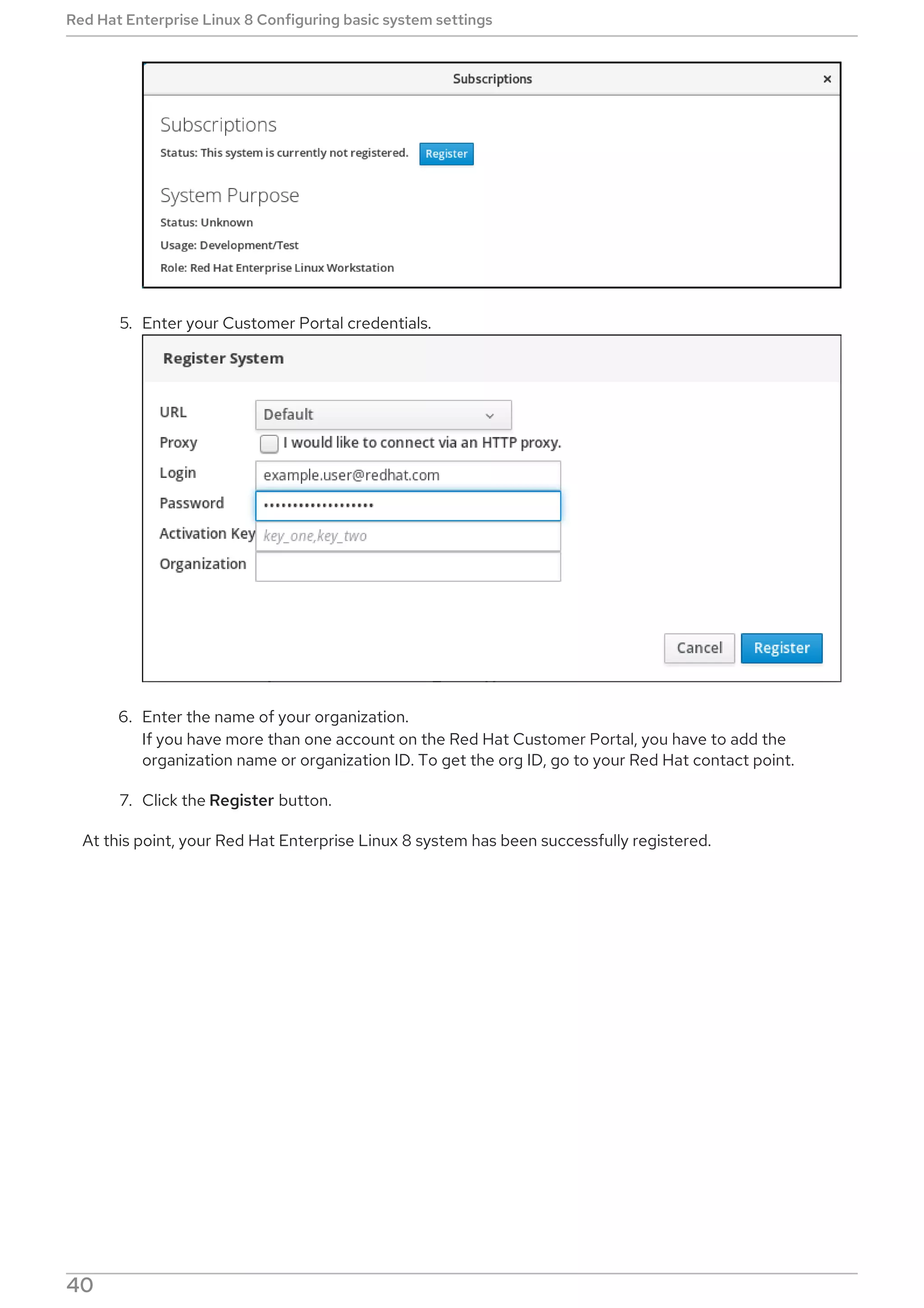
4. In the Subscriptions dialog box, click Register.
CHAPTER 1. GETTING STARTED WITH SYSTEM ADMINISTRATION
39
5. Enter your Customer Portal credentials.
6. Enter the name of your organization.
If you have more than one account on the Red Hat Customer Portal, you have to add the
organization name or organization ID. To get the org ID, go to your Red Hat contact point.
7. Click the Register button.
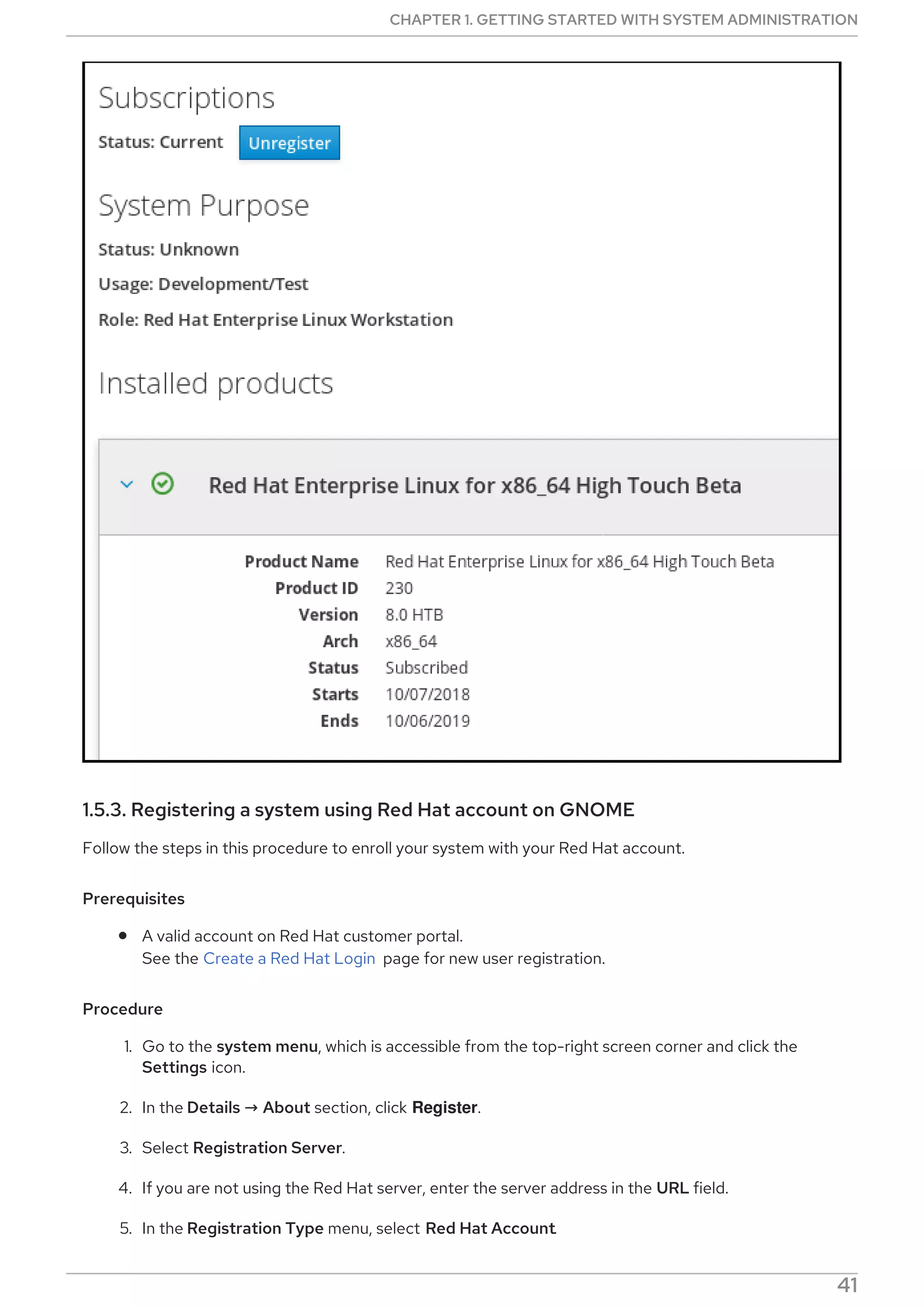
At this point, your Red Hat Enterprise Linux 8 system has been successfully registered.
Red Hat Enterprise Linux 8 Configuring basic system settings
40
1.5.3. Registering a system using Red Hat account on GNOME
Follow the steps in this procedure to enroll your system with your Red Hat account.
Prerequisites
A valid account on Red Hat customer portal.
See the Create a Red Hat Login page for new user registration.
Procedure
1. Go to the system menu, which is accessible from the top-right screen corner and click the
Settings icon.
2. In the Details → About section, click Register.
3. Select Registration Server.
4. If you are not using the Red Hat server, enter the server address in the URL field.
5. In the Registration Type menu, select Red Hat Account.
CHAPTER 1. GETTING STARTED WITH SYSTEM ADMINISTRATION
41
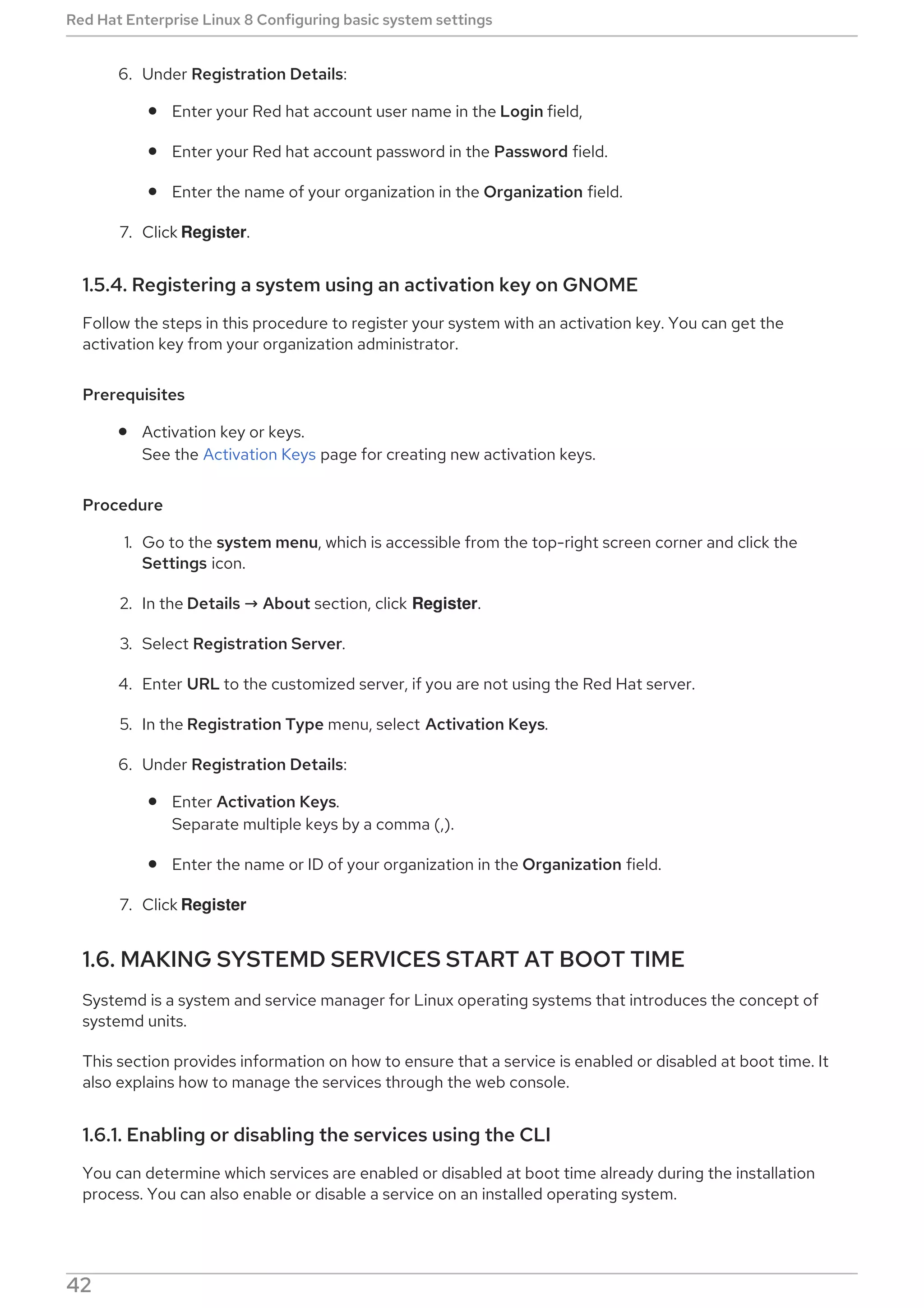
6. Under Registration Details:
Enter your Red hat account user name in the Login field,
Enter your Red hat account password in the Password field.
Enter the name of your organization in the Organization field.
7. Click Register.
1.5.4. Registering a system using an activation key on GNOME
Follow the steps in this procedure to register your system with an activation key. You can get the
activation key from your organization administrator.
Prerequisites
Activation key or keys.
See the Activation Keys page for creating new activation keys.
Procedure
1. Go to the system menu, which is accessible from the top-right screen corner and click the
Settings icon.
2. In the Details → About section, click Register.
3. Select Registration Server.
4. Enter URL to the customized server, if you are not using the Red Hat server.
5. In the Registration Type menu, select Activation Keys.
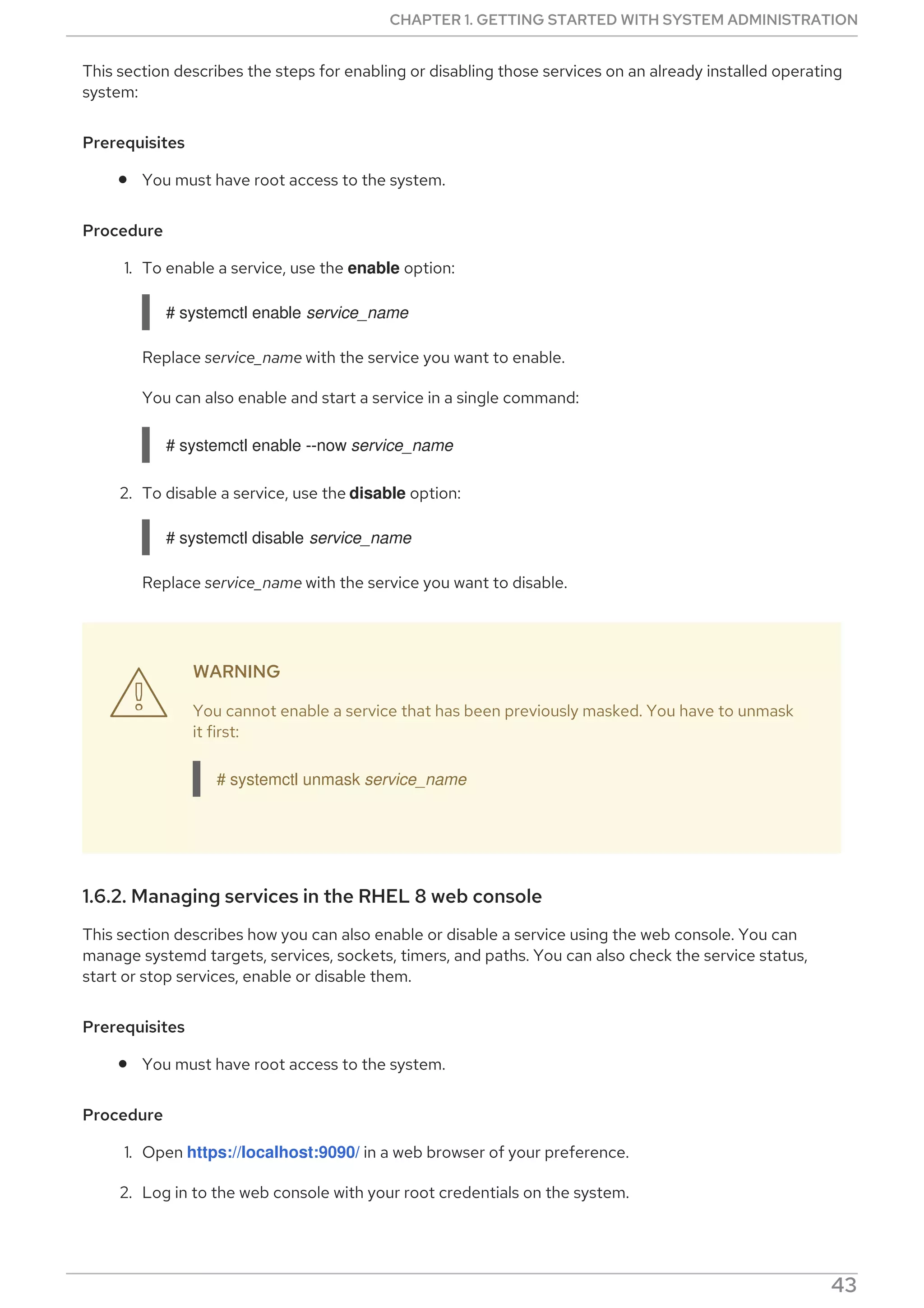
6. Under Registration Details:
Enter Activation Keys.
Separate multiple keys by a comma (,).
Enter the name or ID of your organization in the Organization field.
7. Click Register
1.6. MAKING SYSTEMD SERVICES START AT BOOT TIME
Systemd is a system and service manager for Linux operating systems that introduces the concept of
systemd units.
This section provides information on how to ensure that a service is enabled or disabled at boot time. It
also explains how to manage the services through the web console.
1.6.1. Enabling or disabling the services using the CLI
You can determine which services are enabled or disabled at boot time already during the installation
process. You can also enable or disable a service on an installed operating system.
This section describes the steps for enabling or disabling those services on an already installed operating
Red Hat Enterprise Linux 8 Configuring basic system settings
42
This section describes the steps for enabling or disabling those services on an already installed operating
system:
Prerequisites
You must have root access to the system.
Procedure
1. To enable a service, use the enable option:
# systemctl enable service_name
Replace service_name with the service you want to enable.
You can also enable and start a service in a single command:
# systemctl enable --now service_name
2. To disable a service, use the disable option:
# systemctl disable service_name
Replace service_name with the service you want to disable.
WARNING
You cannot enable a service that has been previously masked. You have to unmask
it first:
# systemctl unmask service_name
1.6.2. Managing services in the RHEL 8 web console
This section describes how you can also enable or disable a service using the web console. You can
manage systemd targets, services, sockets, timers, and paths. You can also check the service status,
start or stop services, enable or disable them.
Prerequisites
You must have root access to the system.
Procedure
1. Open https://localhost:9090/ in a web browser of your preference.
2. Log in to the web console with your root credentials on the system.
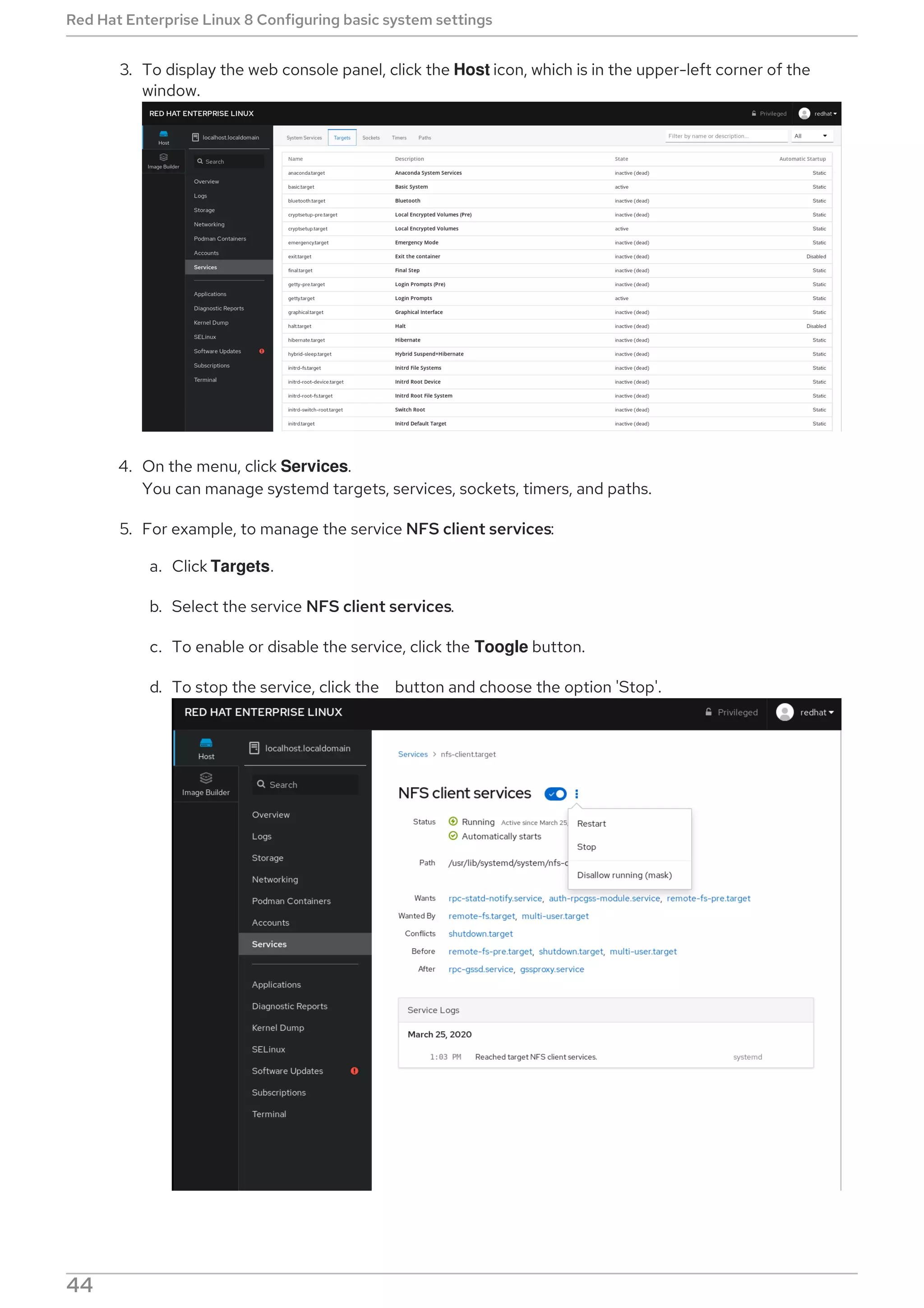
3. To display the web console panel, click the Host icon, which is in the upper-left corner of the

CHAPTER 1. GETTING STARTED WITH SYSTEM ADMINISTRATION
43
3. To display the web console panel, click the Host icon, which is in the upper-left corner of the
window.
4. On the menu, click Services.
You can manage systemd targets, services, sockets, timers, and paths.
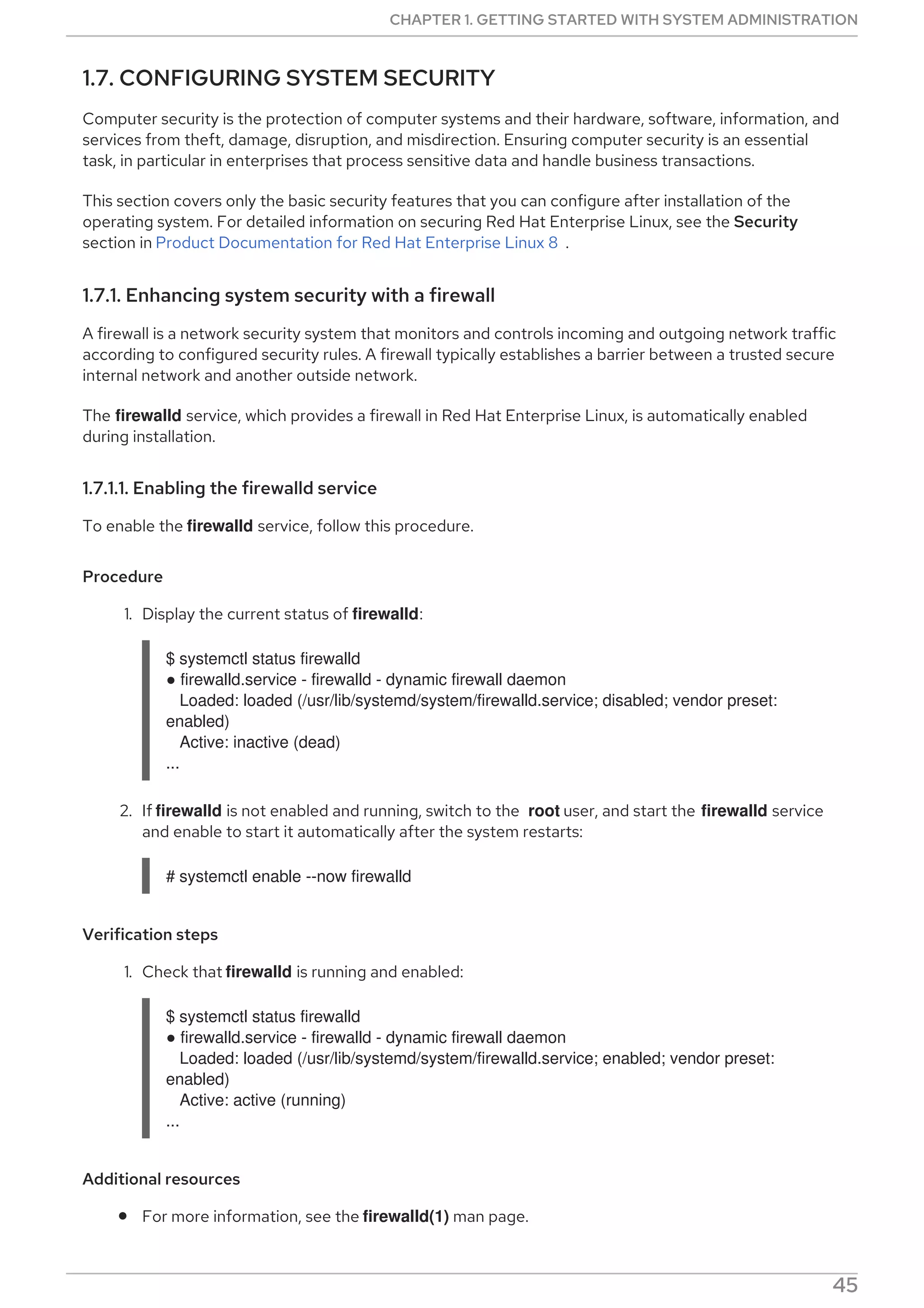
5. For example, to manage the service NFS client services:
a. Click Targets.
b. Select the service NFS client services.
c. To enable or disable the service, click the Toogle button.
d. To stop the service, click the button and choose the option 'Stop'.
Red Hat Enterprise Linux 8 Configuring basic system settings
44
1.7. CONFIGURING SYSTEM SECURITY
Computer security is the protection of computer systems and their hardware, software, information, and
services from theft, damage, disruption, and misdirection. Ensuring computer security is an essential
task, in particular in enterprises that process sensitive data and handle business transactions.
This section covers only the basic security features that you can configure after installation of the
operating system. For detailed information on securing Red Hat Enterprise Linux, see the Security
section in Product Documentation for Red Hat Enterprise Linux 8 .
1.7.1. Enhancing system security with a firewall
A firewall is a network security system that monitors and controls incoming and outgoing network traffic
according to configured security rules. A firewall typically establishes a barrier between a trusted secure
internal network and another outside network.
The firewalld service, which provides a firewall in Red Hat Enterprise Linux, is automatically enabled
during installation.
1.7.1.1. Enabling the firewalld service
To enable the firewalld service, follow this procedure.
Procedure
1. Display the current status of firewalld:
$ systemctl status firewalld
● firewalld.service - firewalld - dynamic firewall daemon
Loaded: loaded (/usr/lib/systemd/system/firewalld.service; disabled; vendor preset:
enabled)
Active: inactive (dead)
...
2. If firewalld is not enabled and running, switch to the root user, and start the firewalld service
and enable to start it automatically after the system restarts:
# systemctl enable --now firewalld
Verification steps
1. Check that firewalld is running and enabled:
$ systemctl status firewalld
● firewalld.service - firewalld - dynamic firewall daemon
Loaded: loaded (/usr/lib/systemd/system/firewalld.service; enabled; vendor preset:
enabled)
Active: active (running)
...
Additional resources
For more information, see the firewalld(1) man page.
CHAPTER 1. GETTING STARTED WITH SYSTEM ADMINISTRATION
45
1.7.1.2. Managing firewall in the RHEL 8 web console
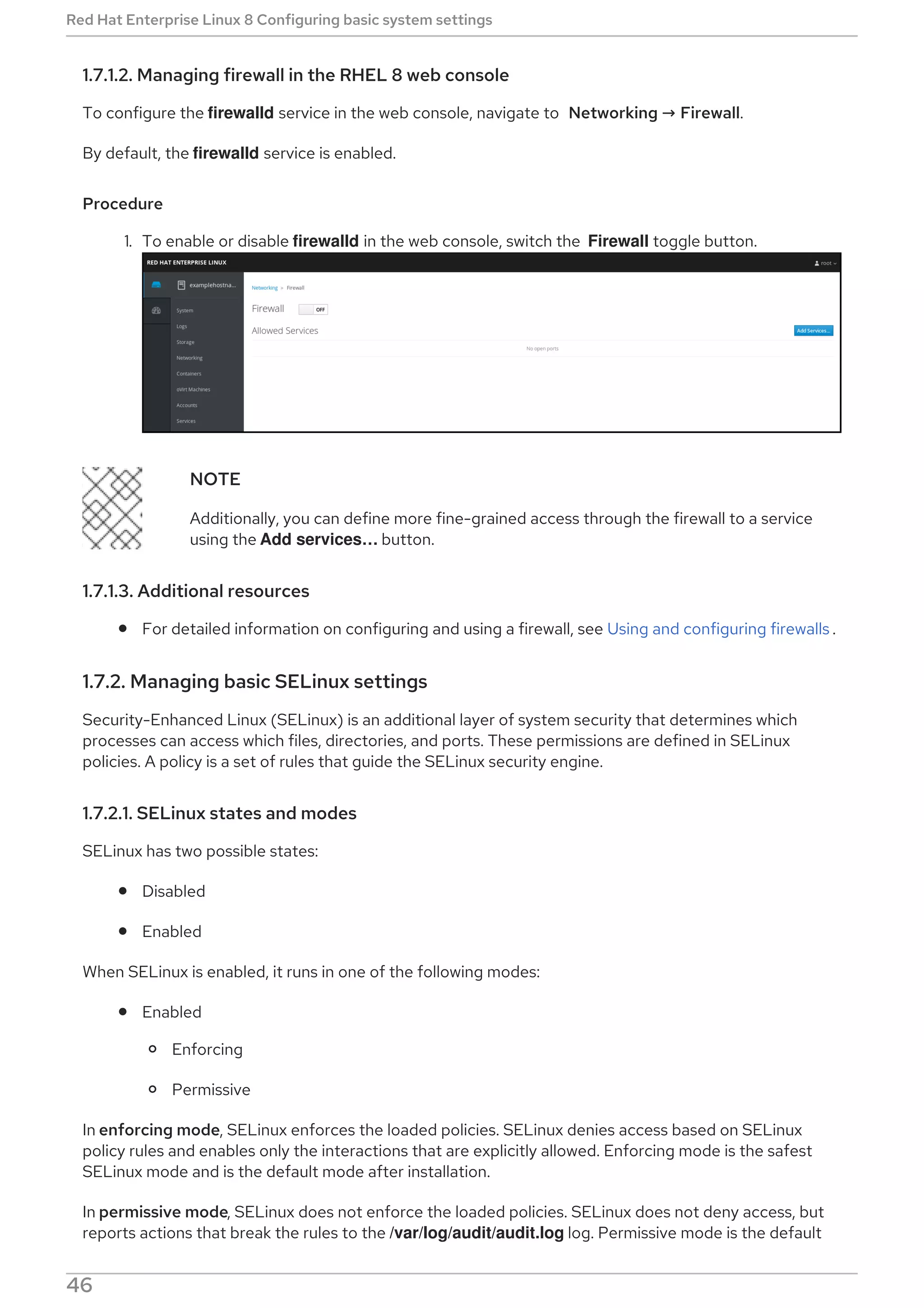
To configure the firewalld service in the web console, navigate to Networking → Firewall.
By default, the firewalld service is enabled.
Procedure
1. To enable or disable firewalld in the web console, switch the Firewall toggle button.
NOTE
Additionally, you can define more fine-grained access through the firewall to a service
using the Add services…​ button.
1.7.1.3. Additional resources
For detailed information on configuring and using a firewall, see Using and configuring firewalls .
1.7.2. Managing basic SELinux settings
Security-Enhanced Linux (SELinux) is an additional layer of system security that determines which
processes can access which files, directories, and ports. These permissions are defined in SELinux
policies. A policy is a set of rules that guide the SELinux security engine.
1.7.2.1. SELinux states and modes
SELinux has two possible states:
Disabled
Enabled
When SELinux is enabled, it runs in one of the following modes:
Enabled
Enforcing
Permissive
In enforcing mode, SELinux enforces the loaded policies. SELinux denies access based on SELinux
policy rules and enables only the interactions that are explicitly allowed. Enforcing mode is the safest
SELinux mode and is the default mode after installation.
In permissive mode, SELinux does not enforce the loaded policies. SELinux does not deny access, but
reports actions that break the rules to the /var/log/audit/audit.log log. Permissive mode is the default
Red Hat Enterprise Linux 8 Configuring basic system settings
46
mode during installation. Permissive mode is also useful in some specific cases, for example when
troubleshooting problems.
Additional resources
For more information on SELinux, see Using SELinux.
1.7.2.2. Ensuring the required state of SELinux
By default, SELinux operates in enforcing mode. However, in specific scenarios, you can set SELinux to
permissive mode or even disable it.
IMPORTANT
Red Hat recommends to keep your system in enforcing mode. For debugging purposes,
you can set SELinux to permissive mode.
Follow this procedure to change the state and mode of SELinux on your system.
Procedure
1. Display the current SELinux mode:
$ getenforce
2. To temporarily set SELinux:
a. To Enforcing mode:
# setenforce Enforcing
b. To Permissive mode:
# setenforce Permissive
NOTE
After reboot, SELinux mode is set to the value specified in the
/etc/selinux/config configuration file.
3. To set SELinux mode to persist across reboots, modify the SELINUX variable in the
/etc/selinux/config configuration file.
For example, to switch SELinux to enforcing mode:
# This file controls the state of SELinux on the system.
# SELINUX= can take one of these three values:
# enforcing - SELinux security policy is enforced.
# permissive - SELinux prints warnings instead of enforcing.
# disabled - No SELinux policy is loaded.
SELINUX=enforcing
...
CHAPTER 1. GETTING STARTED WITH SYSTEM ADMINISTRATION
47
WARNING
Disabling SELinux reduces your system security. Avoid disabling SELinux
using the SELINUX=disabled option in the /etc/selinux/config file
because this can result in memory leaks and race conditions causing kernel
panics. Instead, disable SELinux by adding the selinux=0 parameter to the
kernel command line as described in Changing SELinux modes at boot time
.
Additional resources
For more information on permanent changes of SELinux modes, see Changing SELinux states
and modes.
1.7.2.3. Switching SELinux modes in the RHEL 8 web console
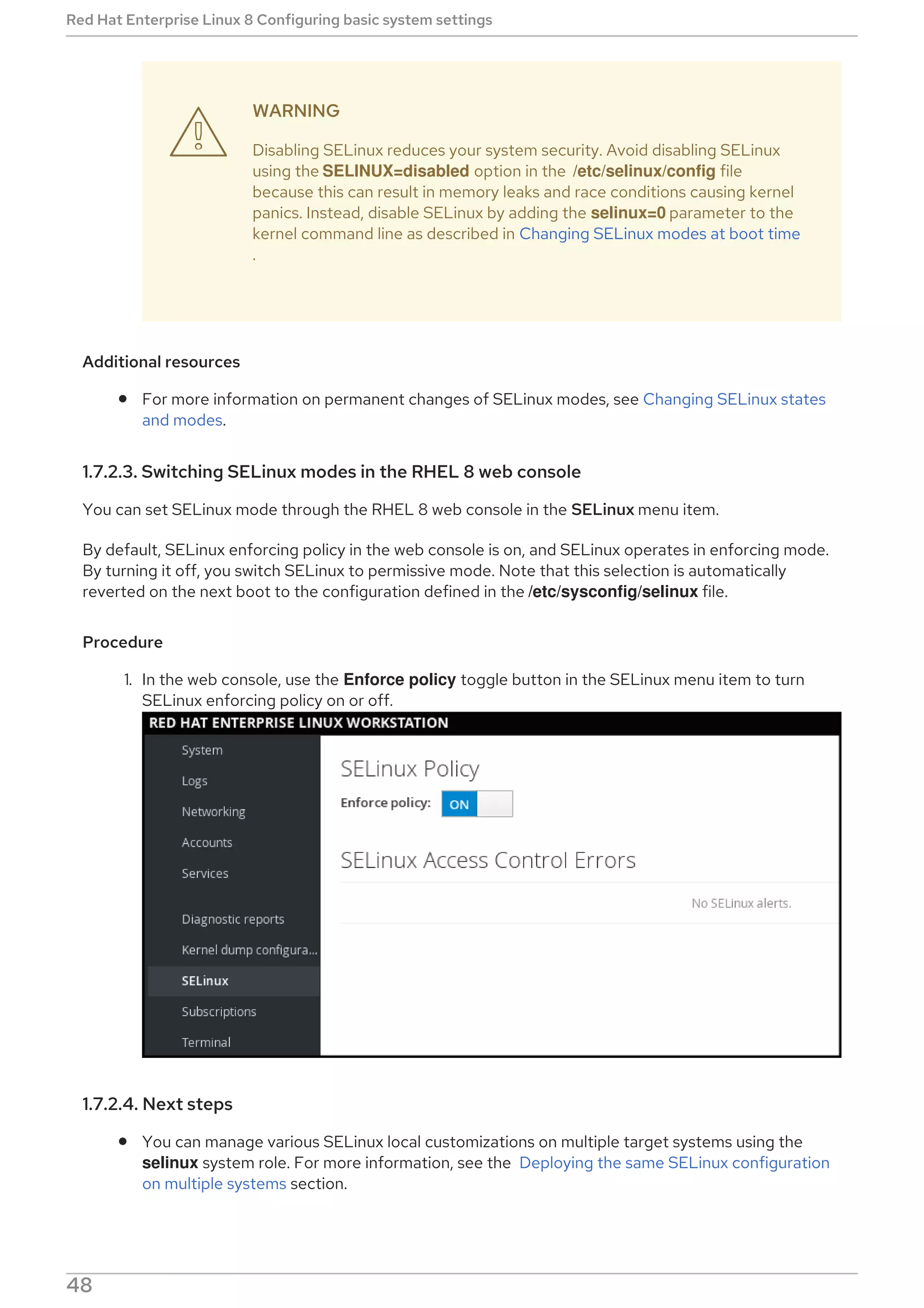
You can set SELinux mode through the RHEL 8 web console in the SELinux menu item.
By default, SELinux enforcing policy in the web console is on, and SELinux operates in enforcing mode.
By turning it off, you switch SELinux to permissive mode. Note that this selection is automatically
reverted on the next boot to the configuration defined in the /etc/sysconfig/selinux file.
Procedure
1. In the web console, use the Enforce policy toggle button in the SELinux menu item to turn
SELinux enforcing policy on or off.
1.7.2.4. Next steps
You can manage various SELinux local customizations on multiple target systems using the
selinux system role. For more information, see the Deploying the same SELinux configuration
on multiple systems section.

Red Hat Enterprise Linux 8 Configuring basic system settings
48
1.7.3. Next steps
Using key pairs instead of passwords for SSH authentication
Security hardening
Using SELinux
Securing networks
1.8. GETTING STARTED WITH MANAGING USER ACCOUNTS
Red Hat Enterprise Linux is a multi-user operating system, which enables multiple users on different
computers to access a single system installed on one machine.
Every user operates under its own account, and managing user accounts thus represents a core element
of Red Hat Enterprise Linux system administration.
1.8.1. Overview of user accounts and groups
This section provides an overview of user accounts and groups. The following are the different types of
user accounts:
Normal user accounts:
Normal accounts are created for users of a particular system. Such accounts can be added,
removed, and modified during normal system administration.
System user accounts
System user accounts represent a particular applications identifier on a system. Such accounts
are generally added or manipulated only at software installation time, and they are not modified
later.
WARNING
System accounts are presumed to be available locally on a system. If these
accounts are configured and provided remotely, such as in the instance of
an LDAP configuration, system breakage and service start failures can
occur.
For system accounts, user IDs below 1000 are reserved. For normal accounts, you can use IDs
starting at 1000. However, the recommended practice is to assign IDs starting at 5000.
Group
A group in an entity which ties together multiple user accounts for a common purpose, such as
granting access to particular files.
Additional resources
For more information, see Configuring reserved user and group IDs .

CHAPTER 1. GETTING STARTED WITH SYSTEM ADMINISTRATION
49
For assigning IDs, see the /etc/login.defs file.
1.8.2. Managing accounts and groups using command-line tools
This section describes basic command-line tools to manage user accounts and groups.
To display user and group IDs:
$ id
uid=1000(example.user) gid=1000(example.user) groups=1000(example.user),10(wheel)
context=unconfined_u:unconfined_r:unconfined_t:s0-s0:c0.c1023
To create a new user account:
# useradd example.user
To assign a new password to a user account belonging to example.user:
# passwd example.user
To add a user to a group:
# usermod -a -G example.group example.user
Additional resources
The useradd(8), passwd(1), and usermod(8) man pages.
1.8.3. System user accounts managed in the web console
With user accounts displayed in the RHEL web console you can:
Authenticate users when accessing the system.
Set them access rights to the system.
The RHEL web console displays all user accounts located in the system. Therefore, you can see at least
one user account just after the first login to the web console.
After logging into the RHEL web console, you can perform the following operations:
Create new users accounts.
Change their parameters.
Lock accounts.
Terminate user sessions.
1.8.4. Adding new accounts using the web console
Use the following steps for adding user accounts to the system and setting administration rights to the
accounts through the RHEL web console.
Red Hat Enterprise Linux 8 Configuring basic system settings
50
Prerequisites
The RHEL web console must be installed and accessible. For details, see Installing the web
console.
Procedure
1. Log in to the RHEL web console.
2. Click Accounts.
3. Click Create New Account.
4. In the Full Name field, enter the full name of the user.
The RHEL web console automatically suggests a user name from the full name and fills it in the
User Name field. If you do not want to use the original naming convention consisting of the first
letter of the first name and the whole surname, update the suggestion.
5. In the Password/Confirm fields, enter the password and retype it for verification that your
password is correct. The color bar placed below the fields shows you security level of the
entered password, which does not allow you to create a user with a weak password.
6. Click Create to save the settings and close the dialog box.
7. Select the newly created account.
8. Select Server Administrator in the Roles item.
CHAPTER 1. GETTING STARTED WITH SYSTEM ADMINISTRATION
51
Now you can see the new account in the Accounts settings and you can use the credentials to connect
to the system.
1.8.5. Next steps
For more information, see Managing user and group accounts
1.9. DUMPING A CRASHED KERNEL FOR LATER ANALYSIS
To analyze why a system crashed, you can use the kdump service to save the contents of the system’s
memory for later analysis.
This section provides a brief introduction to kdump, and information about configuring kdump using the
RHEL web console or using the corresponding RHEL system role.
1.9.1. What is kdump
kdump is a service providing a crash dumping mechanism. The service enables you to save the contents
of the system’s memory for later analysis. kdump uses the kexec system call to boot into the second
kernel (a capture kernel) without rebooting; and then captures the contents of the crashed kernel’s
memory (a crash dump or a vmcore) and saves it. The second kernel resides in a reserved part of the
system memory.
IMPORTANT
A kernel crash dump can be the only information available in the event of a system failure
(a critical bug). Therefore, ensuring that kdump is operational is important in mission-
critical environments. Red Hat advise that system administrators regularly update and
test kexec-tools in your normal kernel update cycle. This is especially important when new
kernel features are implemented.
1.9.2. Configuring kdump memory usage and target location in web console
The procedure below shows you how to use the Kernel Dump tab in the Red Hat Enterprise Linux web
console interface to configure the amount of memory that is reserved for the kdump kernel. The
Red Hat Enterprise Linux 8 Configuring basic system settings
52
procedure also describes how to specify the target location of the vmcore dump file and how to test
your configuration.
Prerequisites
Introduction to operating the web console
Procedure
1. Open the Kernel Dump tab and start the kdump service.
2. Configure the kdump memory usage through the command line.
3. Click the link next to the Crash dump location option.
4. Select the Local Filesystem option from the drop-down and specify the directory you want to
save the dump in.
Alternatively, select the Remote over SSH option from the drop-down to send the vmcore
to a remote machine using the SSH protocol.
Fill the Server, ssh key, and Directory fields with the remote machine address, ssh key
location, and a target directory.
Another choice is to select the Remote over NFS option from the drop-down and fill the
Mount field to send the vmcore to a remote machine using the NFS protocol.
NOTE
CHAPTER 1. GETTING STARTED WITH SYSTEM ADMINISTRATION
53
NOTE
Tick the Compression check box to reduce the size of the vmcore file.
5. Test your configuration by crashing the kernel.
WARNING
This step disrupts execution of the kernel and results in a system crash and
loss of data.
Additional resources
For a complete list of currently supported targets for kdump, see Supported kdump targets .
For information on how to configure an SSH server and set up a key-based authentication, see
Using secure communications between two systems with OpenSSH .
1.9.3. Configuring kdump using RHEL System Roles
RHEL System Roles is a collection of Ansible roles and modules that provide a consistent configuration
interface to remotely manage multiple RHEL systems. The kdump role enables you to set basic kernel
dump parameters on multiple systems.
WARNING
The kdump role replaces the kdump configuration of the managed hosts entirely
by replacing the /etc/kdump.conf file. Additionally, if the kdump role is applied, all
previous kdump settings are also replaced, even if they are not specified by the role
variables, by replacing the /etc/sysconfig/kdump file.
The following example playbook shows how to apply the kdump system role to set the location of the


Red Hat Enterprise Linux 8 Configuring basic system settings
54
The following example playbook shows how to apply the kdump system role to set the location of the
crash dump files:
---
- hosts: kdump-test
vars:
kdump_path: /var/crash
roles:
- rhel-system-roles.kdump
Additional resources
For a detailed reference on kdump role variables, install the rhel-system-roles package, and
see the README.md or README.html files in the /usr/share/doc/rhel-system-roles/kdump
directory.
For more information on RHEL System Roles, see Introduction to RHEL System Roles
1.9.4. Additional resources
For more detailed information about kdump, see Installing and configuring kdump .
1.10. RECOVERING AND RESTORING A SYSTEM
To recover and restore a system using an existing backup, Red Hat Enterprise Linux provides the Relax-
and-Recover (ReaR) utility.
You can use the utility as a disaster recovery solution and also for system migration.
The utility enables you to perform the following tasks:
Produce a bootable image and restore the system from an existing backup, using the image.
Replicate the original storage layout.
Restore user and system files.
Restore the system to a different hardware.
Additionally, for disaster recovery, you can also integrate certain backup software with ReaR.
Setting up ReaR involves the following high-level steps:
1. Install ReaR.
2. Create rescue system.
3. Modify ReaR configuration file, to add backup method details.
4. Generate backup files.
1.10.1. Setting up ReaR
Use the following steps to install the packages for using the Relax-and-Recover (ReaR) utility, create a
rescue system, configure and generate a backup.
CHAPTER 1. GETTING STARTED WITH SYSTEM ADMINISTRATION
55
Prerequisites
Necessary configurations as per the backup restore plan are ready.
Note that you can use the NETFS backup method, a fully-integrated and built-in method with
ReaR.
Procedure
1. Install ReaR, the genisomage pre-mastering program, and the syslinux package providing a
suite of boot loaders:
# yum install rear genisoimage syslinux
2. Create a rescue system:
# rear mkrescue
3. Modify the ReaR configuration file in an editor of your choice, for example:
# vi /etc/rear/local.conf
4. Add the backup setting details to /etc/rear/local.conf. For example, in the case of the NETFS
backup method, add the following lines:
BACKUP=NETFS
BACKUP_URL=backup.location
Replace backup.location by the URL of your backup location.
5. To configure ReaR to keep the previous backup archives when the new ones are created, also
add the following line to the configuration file:
NETFS_KEEP_OLD_BACKUP_COPY=y
6. To make the backups incremental, meaning that only the changed files are backed up on each
run, add the following line:
BACKUP_TYPE=incremental
7. Take a backup as per the restore plan.
1.11. TROUBLESHOOTING PROBLEMS USING LOG FILES
Log files contain messages about the system, including the kernel, services, and applications running on
it. These contain information that helps troubleshoot issues or monitor system functions. The logging
system in Red Hat Enterprise Linux is based on the built-in syslog protocol. Particular programs use
this system to record events and organize them into log files, which are useful when auditing the
operating system and troubleshooting various problems.
1.11.1. Services handling syslog messages
The following two services handle syslog messages:
Red Hat Enterprise Linux 8 Configuring basic system settings
56
The systemd-journald daemon
The Rsyslog service
The systemd-journald daemon collects messages from various sources and forwards them to Rsyslog
for further processing. The systemd-journald daemon collects messages from the following sources:
Kernel
Early stages of the boot process
Standard and error output of daemons as they start up and run
Syslog
The Rsyslog service sorts the syslog messages by type and priority and writes them to the files in the
/var/log directory. The /var/log directory persistently stores the log messages.
1.11.2. Subdirectories storing syslog messages
The following subdirectories under the /var/log directory store syslog messages.
/var/log/messages - all syslog messages except the following
/var/log/secure - security and authentication-related messages and errors
/var/log/maillog - mail server-related messages and errors
/var/log/cron - log files related to periodically executed tasks
/var/log/boot.log - log files related to system startup
1.11.3. Inspecting log files using the web console
Follow the steps in this procedure to inspect the log files using the web console.
Procedure
1. Log into the Red Hat Enterprise Linux 8 web console.
For details, see Logging in to the web console .
2. Click Logs.
Figure 1.2. Inspecting the log files in the RHEL 8 web console
CHAPTER 1. GETTING STARTED WITH SYSTEM ADMINISTRATION
57
Figure 1.2. Inspecting the log files in the RHEL 8 web console
1.11.4. Viewing logs using the command line
The Journal is a component of systemd that helps to view and manage log files. It addresses problems
connected with traditional logging, closely integrated with the rest of the system, and supports various
logging technologies and access management for the log files.
You can use the journalctl command to view messages in the system journal using the command line,
for example:
$ journalctl -b | grep kvm
May 15 11:31:41 localhost.localdomain kernel: kvm-clock: Using msrs 4b564d01 and 4b564d00
May 15 11:31:41 localhost.localdomain kernel: kvm-clock: cpu 0, msr 76401001, primary cpu clock
...
Table 1.1. Viewing system information
Command Description
journalctl Shows all collected journal entries.
journalctl FILEPATH Shows logs related to a specific file. For example, the
journalctl /dev/sda command displays logs related
to the /dev/sda file system.
journalctl -b Shows logs for the current boot.
journalctl -k -b -1 Shows kernel logs for the current boot.
Table 1.2. Viewing information on specific services
Command Description
journalctl -b _SYSTEMD_UNIT=foo Filters log to see ones matching the "foo" systemd
service.
Red Hat Enterprise Linux 8 Configuring basic system settings
58
journalctl -b _SYSTEMD_UNIT=foo
_PID=number
Combines matches. For example, this command
shows logs for systemd-units that matchfoo and
the PID number.
journalctl -b _SYSTEMD_UNIT=foo
_PID=number + _SYSTEMD_UNIT=foo1
The separator “+” combines two expressions in a
logical OR. For example, this command shows all
messages from the foo service process with thePID
plus all messages from the foo1 service (from any of
its processes).
journalctl -b _SYSTEMD_UNIT=foo
_SYSTEMD_UNIT=foo1
This command shows all entries matching either
expression, referring to the same field. Here, this
command shows logs matching a systemd-unit foo
or a systemd-unit foo1.
Command Description
Table 1.3. Viewing logs related to specific boots
Command Description
journalctl --list-boots Shows a tabular list of boot numbers, their IDs, and
the timestamps of the first and last message
pertaining to the boot. You can use the ID in the next
command to view detailed information.
journalctl --boot=ID _SYSTEMD_UNIT=foo Shows information about the specified boot ID.
1.11.5. Additional resources
For details on configuring Rsyslog to record logs, see Chapter 8, Configuring a remote logging
solution.
The journalctl(1) man page.
For more information on systemd, see xref:managing-services-with-systemd_configuring-
basic-system-settings.
1.12. ACCESSING THE RED HAT SUPPORT
This section describes how to effectively troubleshoot your problems using Red Hat support and
sosreport.
To obtain support from Red Hat, use the Red Hat Customer Portal, which provides access to everything
available with your subscription.
1.12.1. Obtaining Red Hat Support through Red Hat Customer Portal
The following section describes how to use the Red Hat Customer Portal to get help.
Prerequisites
CHAPTER 1. GETTING STARTED WITH SYSTEM ADMINISTRATION
59
Prerequisites
A valid user account on the Red Hat Customer Portal. See Create a Red Hat Login .
An active subscription for the RHEL system.
Procedure
1. Access Red Hat support:
a. Open a new support case.
b. Initiate a live chat with a Red Hat expert.
c. Contact a Red Hat expert by making a call or sending an email.
1.12.2. Troubleshooting problems using sosreport
The sosreport command collects configuration details, system information and diagnostic information
from a Red Hat Enterprise Linux system.
The following section describes how to use the sosreport command to produce reports for your support
cases.
Prerequisites
A valid user account on the Red Hat Customer Portal. See Create a Red Hat Login .
An active subscription for the RHEL system.
A support-case number.
Procedure
1. Install the sos package:
# yum install sos
NOTE
The default minimal installation of Red Hat Enterprise Linux does not include the
sos package, which provides the sosreport command.
2. Generate a report:
# sosreport
3. Attach the report to your support case.
See the How can I attach a file to a Red Hat support case? Red Hat Knowledgebase article for
more information.
Note that when attaching the report, you are prompted to enter the number of the relevant
support case.
Red Hat Enterprise Linux 8 Configuring basic system settings
60
Additional resources
For more information on sosreport, see the What is a sosreport and how to create one in
Red Hat Enterprise Linux 4.6 and later? Red Hat Knowledgebase article.
CHAPTER 1. GETTING STARTED WITH SYSTEM ADMINISTRATION
61
CHAPTER 2. MANAGING SOFTWARE PACKAGES
2.1. SOFTWARE MANAGEMENT TOOLS IN RED HAT
ENTERPRISE LINUX 8
In RHEL 8, software installation is enabled by the new version of the YUM tool (YUM v4), which is based
on the DNF technology.
NOTE
Upstream documentation identifies the technology as DNF and the tool is referred to as
DNF in the upstream. As a result, some output returned by the new YUM tool in RHEL 8
mentions DNF.
Although YUM v4 used in RHEL 8 is based on DNF, it is compatible with YUM v3 used in RHEL 7. For
software installation, the yum command and most of its options work the same way in RHEL 8 as they
did in RHEL 7.
Selected yum plug-ins and utilities have been ported to the new DNF back end, and can be installed
under the same names as in RHEL 7. Packages also provide compatibility symlinks, so the binaries,
configuration files, and directories can be found in usual locations.
Note that the legacy Python API provided by YUM v3 is no longer available. You can migrate your plug-
ins and scripts to the new API provided by YUM v4 (DNF Python API), which is stable and fully
supported. See DNF API Reference for more information.
2.2. APPLICATION STREAMS
Red Hat Enterprise Linux 8 introduces the concept of Application Streams. Multiple versions of user
space components are now delivered and updated more frequently than the core operating system
packages. This provides greater flexibility to customize Red Hat Enterprise Linux without impacting the
underlying stability of the platform or specific deployments.
Components made available as Application Streams can be packaged as modules or RPM packages, and
are delivered through the AppStream repository in Red Hat Enterprise Linux 8. Each Application Stream
has a given life cycle, either the same as RHEL 8 or shorter, more suitable to the particular application.
Application Streams with a shorter life cycle are listed in the Red Hat Enterprise Linux 8 Application
Streams Life Cycle page.
Modules are collections of packages representing a logical unit: an application, a language stack, a
database, or a set of tools. These packages are built, tested, and released together.
Module streams represent versions of the Application Stream components. For example, two streams
(versions) of the PostgreSQL database server are available in the postgresql module: PostgreSQL 10
(the default stream) and PostgreSQL 9.6. Only one module stream can be installed on the system.
Different versions can be used in separate containers.
Detailed module commands are described in the Installing, managing, and removing user-space
components document. For a list of modules available in AppStream, see the Package manifest.
2.3. SEARCHING FOR SOFTWARE PACKAGES
yum allows you to perform a complete set of operations with software packages.
Red Hat Enterprise Linux 8 Configuring basic system settings
62
The following section describes how to use yum to:
Search for packages.
List packages.
List repositories.
Display information about the packages.
List package groups.
Specify global expressions in yum input.
2.3.1. Searching packages with yum
To search for a package, use:
# yum search term
Replace term with a term related to the package.
Note that yum search command returns term matches within the name and summary of the
packages. This makes the search faster and enables you to search for packages you do not know
the name of, but for which you know a related term.
To include term matches within package descriptions, use:
# yum search --all term
Replace term with a term you want to search for in a package name, summary, or description.
Note that yum search --all enables a more exhaustive but slower search.
2.3.2. Listing packages with yum
To list information on all installed and available packages, use:
# yum list --all
To list all packages installed on your system, use:
# yum list --installed
To list all packages in all enabled repositories that are available to install, use:
# yum list --available
Note that you can filter the results by appending global expressions as arguments. See Section 2.3.6,
“Specifying global expressions in yum input” for more details.
2.3.3. Listing repositories with yum
To list all enabled repositories on your system, use:
CHAPTER 2. MANAGING SOFTWARE PACKAGES
63
# yum repolist
To list all disabled repositories on your system, use:
# yum repolist --disabled
To list both enabled and disabled repositories, use:
# yum repolist --all
To list additional information about the repositories, use:
# yum repoinfo
Note that you can filter the results by passing the ID or name of repositories as arguments or by
appending global expressions. See Section 2.3.6, “Specifying global expressions in yum input” for more
details.
2.3.4. Displaying package information with yum
To display information about one or more packages, use:
# yum info package-name
Replace package-name with the name of the package.
Note that you can filter the results by appending global expressions as arguments. See Section 2.3.6,
“Specifying global expressions in yum input” for more details.
2.3.5. Listing package groups with yum
To view the number of installed and available groups, use:
# yum group summary
To list all installed and available groups, use:
# yum group list
Note that you can filter the results by appending command line options for the yum group list
command (--hidden, --available). For more available options see the man pages.
To list mandatory and optional packages contained in a particular group, use:
# yum group info group-name
Replace group-name with the name of the group.
Note that you can filter the results by appending global expressions as arguments. See Section 2.7.4,
“Specifying global expressions in yum input” for more details.
2.3.6. Specifying global expressions in yum input
Red Hat Enterprise Linux 8 Configuring basic system settings
64
yum commands allow you to filter the results by appending one or more glob expressions as arguments.
Global expressions must be escaped when passed as arguments to the yum command. To ensure global
expressions are passed to yum as intended, use one of the following methods:
Double-quote or single-quote the entire global expression.
# yum provides "*/file-name"
Replace file-name with the name of the file.
Escape the wildcard characters by preceding them with a backslash () character.
# yum provides */file-name
Replace file-name with the name of the file.
2.4. INSTALLING SOFTWARE PACKAGES
The following section describes how to use yum to:
Install packages.
Install a package group.
Specify a package name in yum input.
2.4.1. Installing packages with yum
To install a package and all the package dependencies, use:
# yum install package-name
Replace package-name with the name of the package.
To install multiple packages and their dependencies simultaneously, use:
# yum install package-name-1 package-name-2
Replace package-name-1 and package-name-2 with the names of the packages.
When installing packages on a multilib system (AMD64, Intel 64 machine), you can specify the
architecture of the package by appending it to the package name:
# yum install package-name.arch
Replace package-name.arch with the name and architecture of the package.
If you know the name of the binary you want to install, but not the package name, you can use
the path to the binary as an argument:
# yum install /usr/sbin/binary-file
Replace /usr/sbin/binary-file with a path to the binary file.
yum searches through the package lists, finds the package which provides /usr/sbin/binary-file,
CHAPTER 2. MANAGING SOFTWARE PACKAGES
65
yum searches through the package lists, finds the package which provides /usr/sbin/binary-file,
and prompts you as to whether you want to install it.
To install a previously-downloaded package from a local directory, use:
# yum install /path/
Replace /path/ with the path to the package.
Note that you can optimize the package search by explicitly defining how to parse the argument. See
Section 2.4.3, “Specifying a package name in yum input” for more details.
2.4.2. Installing a package group with yum
To install a package group by a group name, use:
# yum group install group-name
Or
# yum install @group-name
Replace group-name with the full name of the group or environmental group.
To install a package group by the groupID, use:
# yum group install groupID
Replace groupID with the ID of the group.
2.4.3. Specifying a package name in yum input
To optimize the installation and removal process, you can append -n, -na, or -nerva suffixes to yum
install and yum remove commands to explicitly define how to parse an argument:
To install a package using it’s exact name, use:
# yum install-n name
Replace name with the exact name of the package.
To install a package using it’s exact name and architecture, use:
# yum install-na name.architecture
Replace name and architecture with the exact name and architecture of the package.
To install a package using it’s exact name, epoch, version, release, and architecture, use:
# yum install-nevra name-epoch:version-release.architecture
Replace name, epoch, version, release, and architecture with the exact name, epoch, version,
release, and architecture of the package.
Red Hat Enterprise Linux 8 Configuring basic system settings
66
2.5. UPDATING SOFTWARE PACKAGES
yum allows you to check if your system has any pending updates. You can list packages that need
updating and choose to update a single package, multiple packages, or all packages at once. If any of the
packages you choose to update have dependencies, they are updated as well.
The following section describes how to use yum to:
Check for updates.
Update a single package.
Update a package group.
Update all packages and their dependencies.
Apply security updates.
Automate software updates.
2.5.1. Checking for updates with yum
To see which packages installed on your system have available updates, use:
# yum check-update
The output returns the list of packages and their dependencies that have an update available.
2.5.2. Updating a single package with yum
To update a package, use:
# yum update package-name
Replace package-name with the name of the package.
IMPORTANT
When applying updates to kernel, yum always installs a new kernel regardless of whether
you are using the yum update or yum install command.
2.5.3. Updating a package group with yum
To update a package group, use:
# yum group update group-name
Replace group-name with the name of the package group.
2.5.4. Updating all packages and their dependencies with yum
To update all packages and their dependencies, use:
# yum update
CHAPTER 2. MANAGING SOFTWARE PACKAGES
67
2.5.5. Updating security-related packages with yum
To upgrade to the latest available packages that have security errata, use:
# yum update --security
To upgrade to the last security errata packages, use:
# yum update-minimal --security
2.5.6. Automating software updates
To check and download package updates automatically and regularly, you can use the DNF Automatic
tool that is provided by the dnf-automatic package.
DNF Automatic is an alternative command-line interface to yum that is suited for automatic and regular
execution using systemd timers, cron jobs and other such tools.
DNF Automatic synchronizes package metadata as needed and then checks for updates available.
After, the tool can perform one of the following actions depending on how you configure it:
Exit
Download updated packages
Download and apply the updates
The outcome of the operation is then reported by a selected mechanism, such as the standard output or
email.
2.5.6.1. Installing DNF Automatic
The following procedure describes how to install the DNF Automatic tool.
Procedure
To install the dnf-automatic package, use:
# yum install dnf-automatic
Verification steps
To verify the successful installation, confirm the presence of the dnf-automatic package by
running the following command:
# rpm -qi dnf-automatic
2.5.6.2. DNF Automatic configuration file
By default, DNF Automatic uses /etc/dnf/automatic.conf as its configuration file to define its behavior.
The configuration file is separated into the following topical sections:
Red Hat Enterprise Linux 8 Configuring basic system settings
68
[commands] section
Sets the mode of operation of DNF Automatic.
[emitters] section
Defines how the results of DNF Automatic are reported.
[command_email] section
Provides the email emitter configuration for an external command used to send email.
[email] section
Provides the email emitter configuration.
[base] section
Overrides settings from the main configuration file of yum.
With the default settings of the /etc/dnf/automatic.conf file, DNF Automatic checks for available
updates, downloads them, and reports the results as standard output.
WARNING
Settings of the operation mode from the [commands] section are overridden by
settings used by a systemd timer unit for all timer units except dnf-automatic.timer.
Additional resources
For more details on particular sections, see DNF Automatic documentation.
For more details on systemd timer units, see the man dnf-automatic manual pages.
For the overview of the systemd timer units included in the dnf-automatic package, see
Section 2.5.6.4 Overview of the systemd timer units included in the dnf-automatic package
2.5.6.3. Enabling DNF Automatic
To run DNF Automatic, you always need to enable and start a specific systemd timer unit. You can use
one of the timer units provided in the dnf-automatic package, or you can write your own timer unit
depending on your needs.
The following section describes how to enable DNF Automatic.
Prerequisites
You specified the behavior of DNF Automatic by modifying the /etc/dnf/automatic.conf
configuration file.
For more information on DNF Automatic configuration file, see Section 2.5.6.2, “DNF Automatic
configuration file”.
Procedure
Select, enable and start a systemd timer unit that fits your needs:

CHAPTER 2. MANAGING SOFTWARE PACKAGES
69
# systemctl enable --now <unit>
where <unit> is one of the following timers:
dnf-automatic-download.timer
dnf-automatic-install.timer
dnf-automatic-notifyonly.timer
dnf-automatic.timer
For downloading available updates, use:
# systemctl enable dnf-automatic-download.timer
# systemctl start dnf-automatic-download.timer
For downloading and installingavailable updates, use:
# systemctl enable dnf-automatic-install.timer
# systemctl start dnf-automatic-install.timer
For reporting about available updates, use:
# systemctl enable dnf-automatic-notifyonly.timer
# systemctl start dnf-automatic-notifyonly.timer
Optionally, you can use:
# systemctl enable dnf-automatic.timer
# systemctl start dnf-automatic.timer
In terms of downloading and applying updates, this timer unit behaves according to settings in the
/etc/dnf/automatic.conf configuration file. The default behavior is similar to dnf-automatic-
download.timer: it downloads the updated packages, but it does not install them.
NOTE
Alternatively, you can also run DNF Automatic by executing the /usr/bin/dnf-automatic
file directly from the command line or from a custom script.
Verification steps
To verify that the timer is enabled, run the following command:
# systemctl status <systemd timer unit>
Red Hat Enterprise Linux 8 Configuring basic system settings
70
Additional resources
For more information on the dnf-automatic timers, see the man dnf-automatic manual pages.
For the overview of the systemd timer units included in the dnf-automatic package, see Section
2.5.6.4 Overview of the systemd timer units included in the dnf-automatic package
2.5.6.4. Overview of the systemd timer units included in the dnf-automatic package
The systemd timer units take precedence and override the settings in the /etc/dnf/automatic.conf
configuration file concerning downloading and applying updates.
For example if you set:
download_updates = yes
in the /etc/dnf/automatic.conf configuration file, but you have activated the dnf-automatic-
notifyonly.timer unit, the packages will not be downloaded.
The dnf-automatic package includes the following systemd timer units:
Timer unit Function Overrides settings in the
/etc/dnf/automatic.conf file?
dnf-automatic-
download.timer
Downloads packages to cache
and makes them available for
updating.
Note: This timer unit does not
install the updated packages. To
perform the installation, you have
to execute the dnf update
command.
Yes
dnf-automatic-install.timer Downloads and installs updated
packages.
Yes
dnf-automatic-
notifyonly.timer
Downloads only repository data to
keep repository cache up-to-date
and notifies you about available
updates.
Note: This timer unit does not
download or install the updated
packages
Yes
CHAPTER 2. MANAGING SOFTWARE PACKAGES
71
dnf-automatic.timer The behavior of this timer
concerning downloading and
applying updates is specified by
the settings in the
/etc/dnf/automatic.conf
configuration file.
Default behavior is the same as
for the dnf-automatic-
download.timer unit: it only
downloads packages, but does
not install them.
No
Timer unit Function Overrides settings in the
/etc/dnf/automatic.conf file?
Additional resources
For more information on the dnf-automatic timers, see the man dnf-automatic manual pages.
For more information on the /etc/dnf/automatic.conf configuration file, see Section 2.5.6.2.
DNF Automatic configuration file
2.6. UNINSTALLING SOFTWARE PACKAGES
The following section describes how to use yum to:
Remove packages.
Remove a package group.
Specify a package name in yum input.
2.6.1. Removing packages with yum
To remove a particular package and all dependent packages, use:
# yum remove package-name
Replace package-name with the name of the package.
To remove multiple packages and their dependencies simultaneously, use:
# yum remove package-name-1 package-name-2
Replace package-name-1 and package-name-2 with the names of the packages.
NOTE
yum is not able to remove a package without removing depending packages.
Red Hat Enterprise Linux 8 Configuring basic system settings
72
Note that you can optimize the package search by explicitly defining how to parse the argument. See
Section 2.6.3, “Specifying a package name in yum input” for more details.
2.6.2. Removing a package group with yum
To remove a package group by the group name, use:
# yum group remove group-name
Or
# yum remove @group-name
Replace group-name with the full name of the group.
To remove a package group by the groupID, use:
# yum group remove groupID
Replace groupID with the ID of the group.
2.6.3. Specifying a package name in yum input
To optimize the installation and removal process, you can append -n, -na, or -nerva suffixes to yum
install and yum remove commands to explicitly define how to parse an argument:
To install a package using it’s exact name, use:
# yum install-n name
Replace name with the exact name of the package.
To install a package using it’s exact name and architecture, use:
# yum install-na name.architecture
Replace name and architecture with the exact name and architecture of the package.
To install a package using it’s exact name, epoch, version, release, and architecture, use:
# yum install-nevra name-epoch:version-release.architecture
Replace name, epoch, version, release, and architecture with the exact name, epoch, version,
release, and architecture of the package.
2.7. MANAGING SOFTWARE PACKAGE GROUPS
A package group is a collection of packages that serve a common purpose (System Tools, Sound and
Video). Installing a package group pulls a set of dependent packages, which saves time considerably.
The following section describes how to use yum to:
List package groups.
CHAPTER 2. MANAGING SOFTWARE PACKAGES
73
Install a package group.
Remove a package group.
Specify global expressions in yum input.
2.7.1. Listing package groups with yum
To view the number of installed and available groups, use:
# yum group summary
To list all installed and available groups, use:
# yum group list
Note that you can filter the results by appending command line options for the yum group list
command (--hidden, --available). For more available options see the man pages.
To list mandatory and optional packages contained in a particular group, use:
# yum group info group-name
Replace group-name with the name of the group.
Note that you can filter the results by appending global expressions as arguments. See Section 2.7.4,
“Specifying global expressions in yum input” for more details.
2.7.2. Installing a package group with yum
To install a package group by a group name, use:
# yum group install group-name
Or
# yum install @group-name
Replace group-name with the full name of the group or environmental group.
To install a package group by the groupID, use:
# yum group install groupID
Replace groupID with the ID of the group.
2.7.3. Removing a package group with yum
To remove a package group by the group name, use:
# yum group remove group-name
Or
Red Hat Enterprise Linux 8 Configuring basic system settings
74
# yum remove @group-name
Replace group-name with the full name of the group.
To remove a package group by the groupID, use:
# yum group remove groupID
Replace groupID with the ID of the group.
2.7.4. Specifying global expressions in yum input
yum commands allow you to filter the results by appending one or more glob expressions as arguments.
Global expressions must be escaped when passed as arguments to the yum command. To ensure global
expressions are passed to yum as intended, use one of the following methods:
Double-quote or single-quote the entire global expression.
# yum provides "*/file-name"
Replace file-name with the name of the file.
Escape the wildcard characters by preceding them with a backslash () character.
# yum provides */file-name
Replace file-name with the name of the file.
2.8. HANDLING PACKAGE MANAGEMENT HISTORY
The yum history command allows you to review information about the timeline of yum transactions,
dates and times they occurred, the number of packages affected, whether these transactions
succeeded or were aborted, and if the RPM database was changed between transactions. yum history
command can also be used to undo or redo the transactions.
The following section describes how to use yum to:
List transactions.
Revert transactions.
Repeat transactions.
Specify global expressions in yum input.
2.8.1. Listing transactions with yum
To display a list of all the latest yum transactions, use:
# yum history
To display a list of all the latest operations for a selected package, use:
# yum history list package-name
CHAPTER 2. MANAGING SOFTWARE PACKAGES
75
Replace package-name with the name of the package. You can filter the command output by
appending global expressions. See Section 2.8.4, “Specifying global expressions in yum input”
for more details.
To examine a particular transaction, use:
# yum history info transactionID
Replace transactionID with the ID of the transaction.
2.8.2. Reverting transactions with yum
To revert a particular transaction, use:
# yum history undo transactionID
Replace transactionID with the ID of the transaction.
To revert the last transaction, use:
# yum history undo last
Note that the yum history undo command only reverts the steps that were performed during the
transaction. If the transaction installed a new package, the yum history undo command uninstalls it. If
the transaction uninstalled a package, the yum history undo command reinstalls it. yum history undo
also attempts to downgrade all updated packages to their previous versions, if the older packages are
still available.
2.8.3. Repeating transactions with yum
To repeat a particular transaction, use:
# yum history redo transactionID
Replace transactionID with the ID of the transaction.
To repeat the last transaction, use:
# yum history redo last
Note that the yum history redo command only repeats the steps that were performed during the
transaction.
2.8.4. Specifying global expressions in yum input
yum commands allow you to filter the results by appending one or more glob expressions as arguments.
Global expressions must be escaped when passed as arguments to the yum command. To ensure global
expressions are passed to yum as intended, use one of the following methods:
Double-quote or single-quote the entire global expression.
# yum provides "*/file-name"
Red Hat Enterprise Linux 8 Configuring basic system settings
76
Replace file-name with the name of the file.
Escape the wildcard characters by preceding them with a backslash () character.
# yum provides */file-name
Replace file-name with the name of the file.
2.9. MANAGING SOFTWARE REPOSITORIES
The configuration information for yum and related utilities are stored in the /etc/yum.conf file. This file
contains one or more [repository] sections, which allow you to set repository-specific options.
It is recommended to define individual repositories in new or existing .repo files in the
/etc/yum.repos.d/ directory.
Note that the values you define in individual [repository] sections of the /etc/yum.conf file override
values set in the [main] section.
The following section describes how to:
Set [repository] options.
Add a yum repository.
Enable a yum repository.
Disable a yum repository.
2.9.1. Setting yum repository options
The /etc/yum.conf configuration file contains the [repository] sections, where repository is a unique
repository ID. The [repository] sections allows you to define individual yum repositories.
NOTE
Do not give custom repositories names used by the Red Hat repositories to avoid
conflicts.
For a complete list of available [repository] options, see the [repository] OPTIONS section of the
yum.conf(5) manual page.
2.9.2. Adding a yum repository
To define a new repository, you can:
Add a [repository] section to the /etc/yum.conf file.
Add a [repository] section to a .repo file in the /etc/yum.repos.d/ directory.
yum repositories commonly provide their own .repo file.
NOTE
CHAPTER 2. MANAGING SOFTWARE PACKAGES
77
NOTE
It is recommended to define your repositories in a .repo file instead of /etc/yum.conf as
all files with the .repo file extension in this directory are read by yum.
To add a repository to your system and enable it, use:
# yum-config-manager --add-repo repository_URL
Replace repository_url with URL pointing to the repository.
WARNING
Obtaining and installing software packages from unverified or untrusted sources
other than Red Hat certificate-based Content Delivery Network (CDN)
constitutes a potential security risk, and could lead to security, stability,
compatibility, and maintainability issues.
2.9.3. Enabling a yum repository
To enable a repository, use:
# yum-config-manager --enable repositoryID
Replace repositoryID with the unique repository ID.
To list available repository IDs, see Section 2.3.2, “Listing packages with yum”.
2.9.4. Disabling a yum repository
To disable a yum repository, use:
# yum-config-manager --disable repositoryID
Replace repositoryID with the unique repository ID.
To list available repository IDs, see Section 2.3.2, “Listing packages with yum”.
2.10. CONFIGURING YUM
The configuration information for yum and related utilities are stored in the /etc/yum.conf file. This file
contains one mandatory [main] section, which enables you to set yum options that have global effect.
The following section describes how to:
View the current yum configurations.
Set yum [main] options.

Red Hat Enterprise Linux 8 Configuring basic system settings
78
Use yum plug-ins.
2.10.1. Viewing the current yum configurations
To display the current values of global yum options specified in the [main] section of the
/etc/yum.conf file, use:
# yum config-manager --dump
2.10.2. Setting yum main options
The /etc/yum.conf configuration file contains one [main] section. The key-value pairs in this section
affect how yum operates and treats repositories.
You can add additional options under the [main] section heading in /etc/yum.conf.
For a complete list of available [main] options, see the [main] OPTIONS section of the yum.conf(5)
manual page.
2.10.3. Using yum plug-ins
yum provides plug-ins that extend and enhance its operations. Certain plug-ins are installed by default.
The following section describes how to enable, configure, and disable yum plug-ins.
2.10.3.1. Managing yum plug-ins
The plug-in configuration files always contain a [main] section where the enabled= option controls
whether the plug-in is enabled when you run yum commands. If this option is missing, you can add it
manually to the file.
Every installed plug-in has its own configuration file in the /etc/dnf/plugins/ directory. You can enable or
disable plug-in specific options in these files.
2.10.3.2. Enabling yum plug-ins
To enable all yum plug-ins:
1. Ensure a line beginning with plugins= is present in the [main] section of the /etc/yum.conf
file.
2. Set the value of plugins= to 1.
plugins=1
2.10.3.3. Disabling yum plug-ins
To disable all yum plug-ins:
1. Ensure a line beginning with plugins= is present in the [main] section of the /etc/yum.conf
file.
2. Set the value of plugins= to 0.
CHAPTER 2. MANAGING SOFTWARE PACKAGES
79
plugins=0
IMPORTANT
Disabling all plug-ins is not advised. Certain plug-ins provide important yum
services. In particular, the product-id and subscription-manager plug-ins
provide support for the certificate-based Content Delivery Network (CDN).
Disabling plug-ins globally is provided as a convenience option, and is
advisable only when diagnosing a potential problem with yum.
To disable all yum plug-ins for a particular command, append --noplugins option to the
command.
# yum --noplugins update
To disable certain yum plug-ins for a single command, append --disableplugin=plugin-name
option to the command.
# yum update --disableplugin=plugin-name
Replace plugin-name with the name of the plug-in.
Red Hat Enterprise Linux 8 Configuring basic system settings
80
CHAPTER 3. MANAGING SERVICES WITH SYSTEMD
3.1. INTRODUCTION TO SYSTEMD
Systemd is a system and service manager for Linux operating systems. It is designed to be backwards
compatible with SysV init scripts, and provides a number of features such as parallel startup of system
services at boot time, on-demand activation of daemons, or dependency-based service control logic.
Starting with Red Hat Enterprise Linux 7, systemd replaced Upstart as the default init system.
Systemd introduces the concept of systemd units. These units are represented by unit configuration
files located in one of the directories listed in the following table.
Table 3.1. Systemd unit files locations
Directory Description
/usr/lib/systemd/system/ Systemd unit files distributed with installed RPM
packages.
/run/systemd/system/ Systemd unit files created at run time. This directory
takes precedence over the directory with installed
service unit files.
/etc/systemd/system/ Systemd unit files created by systemctl enable as
well as unit files added for extending a service. This
directory takes precedence over the directory with
runtime unit files.
The units encapsulate information about:
System services
Listening sockets
Other objects that are relevant to the init system
For a complete list of available systemd unit types, see the following table.
Table 3.2. Available systemd unit types
Unit Type File Extension Description
Service unit .service A system service.
Target unit .target A group of systemd units.
Automount unit .automount A file system automount point.
Device unit .device A device file recognized by the
kernel.
CHAPTER 3. MANAGING SERVICES WITH SYSTEMD
81
Mount unit .mount A file system mount point.
Path unit .path A file or directory in a file system.
Scope unit .scope An externally created process.
Slice unit .slice A group of hierarchically
organized units that manage
system processes.
Socket unit .socket An inter-process communication
socket.
Swap unit .swap A swap device or a swap file.
Timer unit .timer A systemd timer.
Unit Type File Extension Description
Overriding the default systemd configuration using system.conf
The default configuration of systemd is defined during the compilation and it can be found in the
systemd configuration file at /etc/systemd/system.conf. Use this file if you want to deviate from those
defaults and override selected default values for systemd units globally.
For example, to override the default value of the timeout limit, which is set to 90 seconds, use the
DefaultTimeoutStartSec parameter to input the required value in seconds.
DefaultTimeoutStartSec=required value
For further information, see Example 3.20, “Changing the timeout limit”.
3.1.1. Main features
The systemd system and service manager provides the following main features:
Socket-based activation— At boot time, systemd creates listening sockets for all system
services that support this type of activation, and passes the sockets to these services as soon as
they are started. This not only allows systemd to start services in parallel, but also makes it
possible to restart a service without losing any message sent to it while it is unavailable: the
corresponding socket remains accessible and all messages are queued.
Systemd uses socket units for socket-based activation.
Bus-based activation— System services that use D-Bus for inter-process communication can
be started on-demand the first time a client application attempts to communicate with them.
Systemd uses D-Bus service files for bus-based activation.
Device-based activation— System services that support device-based activation can be
started on-demand when a particular type of hardware is plugged in or becomes available.
Systemd uses device units for device-based activation.
Path-based activation — System services that support path-based activation can be started
Red Hat Enterprise Linux 8 Configuring basic system settings
82
Path-based activation — System services that support path-based activation can be started
on-demand when a particular file or directory changes its state. Systemd uses path units for
path-based activation.
Mount and automount point management— Systemd monitors and manages mount and
automount points. Systemd uses mount units for mount points and automount units for
automount points.
Aggressive parallelization — Because of the use of socket-based activation, systemd can start
system services in parallel as soon as all listening sockets are in place. In combination with
system services that support on-demand activation, parallel activation significantly reduces the
time required to boot the system.
Transactional unit activation logic— Before activating or deactivating a unit, systemd
calculates its dependencies, creates a temporary transaction, and verifies that this transaction is
consistent. If a transaction is inconsistent, systemd automatically attempts to correct it and
remove non-essential jobs from it before reporting an error.
Backwards compatibility with SysV init— Systemd supports SysV init scripts as described in
the Linux Standard Base Core Specification , which eases the upgrade path to systemd service
units.
3.1.2. Compatibility changes
The systemd system and service manager is designed to be mostly compatible with SysV init and
Upstart. The following are the most notable compatibility changes with regards to Red Hat
Enterprise Linux 6 system that used SysV init:
Systemd has only limited support for runlevels. It provides a number of target units that can be
directly mapped to these runlevels and for compatibility reasons, it is also distributed with the
earlier runlevel command. Not all systemd targets can be directly mapped to runlevels,
however, and as a consequence, this command might return N to indicate an unknown runlevel.
It is recommended that you avoid using the runlevel command if possible.
For more information about systemd targets and their comparison with runlevels, see
Section 3.3, “Working with systemd targets” .
The systemctl utility does not support custom commands. In addition to standard commands
such as start, stop, and status, authors of SysV init scripts could implement support for any
number of arbitrary commands in order to provide additional functionality. For example, the init
script for iptables could be executed with the panic command, which immediately enabled
panic mode and reconfigured the system to start dropping all incoming and outgoing packets.
This is not supported in systemd and the systemctl only accepts documented commands.
For more information about the systemctl utility and its comparison with the earlier service
utility, see Table 3.3, “Comparison of the service utility with systemctl” .
The systemctl utility does not communicate with services that have not been started by
systemd. When systemd starts a system service, it stores the ID of its main process in order to
keep track of it. The systemctl utility then uses this PID to query and manage the service.
Consequently, if a user starts a particular daemon directly on the command line, systemctl is
unable to determine its current status or stop it.
Systemd stops only running services. Previously, when the shutdown sequence was initiated,
Red Hat Enterprise Linux 6 and earlier releases of the system used symbolic links located in the
/etc/rc0.d/ directory to stop all available system services regardless of their status. With
systemd , only running services are stopped on shutdown.
System services are unable to read from the standard input stream. When systemd starts a
CHAPTER 3. MANAGING SERVICES WITH SYSTEMD
83
System services are unable to read from the standard input stream. When systemd starts a
service, it connects its standard input to /dev/null to prevent any interaction with the user.
System services do not inherit any context (such as the HOME and PATH environment
variables) from the invoking user and their session. Each service runs in a clean execution
context.
When loading a SysV init script, systemd reads dependency information encoded in the Linux
Standard Base (LSB) header and interprets it at run time.
All operations on service units are subject to a default timeout of 5 minutes to prevent a
malfunctioning service from freezing the system. This value is hardcoded for services that are
generated from initscripts and cannot be changed. However, individual configuration files can
be used to specify a longer timeout value per service, see Example 3.20, “Changing the timeout
limit”.
For a detailed list of compatibility changes introduced with systemd, see the Migration Planning Guide
for Red Hat Enterprise Linux 7.
3.2. MANAGING SYSTEM SERVICES
Previous versions of Red Hat Enterprise Linux, which were distributed with SysV init or Upstart, used init
scripts located in the /etc/rc.d/init.d/ directory. These init scripts were typically written in Bash, and
allowed the system administrator to control the state of services and daemons in their system. Starting
with Red Hat Enterprise Linux 7, these init scripts have been replaced with service units.
Service units end with the .service file extension and serve a similar purpose as init scripts. To view,
start, stop, restart, enable, or disable system services, use the systemctl command as described in
Comparison of the service utility with systemctl , Comparison of the chkconfig utility with systemctl , and
further in this section. The service and chkconfig commands are still available in the system and work
as expected, but are only included for compatibility reasons and should be avoided.
Table 3.3. Comparison of the service utility with systemctl
service systemctl Description
service name start systemctl start name.service Starts a service.
service name stop systemctl stop name.service Stops a service.
service name restart systemctl restart
name.service
Restarts a service.
service name condrestart systemctl try-restart
name.service
Restarts a service only if it is
running.
service name reload systemctl reload
name.service
Reloads configuration.
Red Hat Enterprise Linux 8 Configuring basic system settings
84
service name status systemctl status
name.service
systemctl is-active
name.service
Checks if a service is running.
service --status-all systemctl list-units --type
service --all
Displays the status of all services.
service systemctl Description
Table 3.4. Comparison of the chkconfig utility with systemctl
chkconfig systemctl Description
chkconfig name on systemctl enable
name.service
Enables a service.
chkconfig name off systemctl disable
name.service
Disables a service.
chkconfig --list name systemctl status
name.service
systemctl is-enabled
name.service
Checks if a service is enabled.
chkconfig --list systemctl list-unit-files --
type service
Lists all services and checks if
they are enabled.
chkconfig --list systemctl list-dependencies
--after
Lists services that are ordered to
start before the specified unit.
chkconfig --list systemctl list-dependencies
--before
Lists services that are ordered to
start after the specified unit.
Specifying service units
For clarity, all command examples in the rest of this section use full unit names with the .service file
extension, for example:
# systemctl stop nfs-server.service
However, the file extension can be omitted, in which case the systemctl utility assumes the argument is
a service unit. The following command is equivalent to the one above:
# systemctl stop nfs-server
Additionally, some units have alias names. Those names can have shorter names than units, which can be
used instead of the actual unit names. To find all aliases that can be used for a particular unit, use:
CHAPTER 3. MANAGING SERVICES WITH SYSTEMD
85
# systemctl show nfs-server.service -p Names
Behavior of systemctl in a chroot environment
If you change the root directory using the chroot command, most systemctl commands refuse to
perform any action. The reason for this is that the systemd process and the user that used the chroot
command do not have the same view of the filesystem. This happens, for example, when systemctl is
invoked from a kickstart file.
The exception to this are unit file commands such as the systemctl enable and systemctl disable
commands. These commands do not need a running system and do not affect running processes, but
they do affect unit files. Therefore, you can run these commands even in chroot environment. For
example, to enable the httpd service on a system under the /srv/website1/ directory:
# chroot /srv/website1
# systemctl enable httpd.service
Created symlink /etc/systemd/system/multi-user.target.wants/httpd.service, pointing to
/usr/lib/systemd/system/httpd.service.
3.2.1. Listing services
To list all currently loaded service units, type the following at a shell prompt:
systemctl list-units --type service
For each service unit file, this command displays its full name (UNIT) followed by a note whether the unit
file has been loaded (LOAD), its high-level ( ACTIVE) and low-level (SUB) unit file activation state, and
a short description (DESCRIPTION).
By default, the systemctl list-units command displays only active units. If you want to list all loaded
units regardless of their state, run this command with the --all or -a command line option:
systemctl list-units --type service --all
You can also list all available service units to see if they are enabled. To do so, type:
systemctl list-unit-files --type service
For each service unit, this command displays its full name (UNIT FILE) followed by information whether
the service unit is enabled or not (STATE). For information on how to determine the status of individual
service units, see Displaying service status.
Example 3.1. Listing services
To list all currently loaded service units, run the following command:
$ systemctl list-units --type service
UNIT LOAD ACTIVE SUB DESCRIPTION
abrt-ccpp.service loaded active exited Install ABRT coredump hook
abrt-oops.service loaded active running ABRT kernel log watcher
abrt-vmcore.service loaded active exited Harvest vmcores for ABRT
abrt-xorg.service loaded active running ABRT Xorg log watcher
abrtd.service loaded active running ABRT Automated Bug Reporting Tool
…​
Red Hat Enterprise Linux 8 Configuring basic system settings
86
systemd-vconsole-setup.service loaded active exited Setup Virtual Console
tog-pegasus.service loaded active running OpenPegasus CIM Server
LOAD = Reflects whether the unit definition was properly loaded.
ACTIVE = The high-level unit activation state, i.e. generalization of SUB.
SUB = The low-level unit activation state, values depend on unit type.
46 loaded units listed. Pass --all to see loaded but inactive units, too.
To show all installed unit files use 'systemctl list-unit-files'
To list all installed service unit files to determine if they are enabled, type:
$ systemctl list-unit-files --type service
UNIT FILE STATE
abrt-ccpp.service enabled
abrt-oops.service enabled
abrt-vmcore.service enabled
abrt-xorg.service enabled
abrtd.service enabled
…​
wpa_supplicant.service disabled
ypbind.service disabled
208 unit files listed.
3.2.2. Displaying service status
To display detailed information about a service unit that corresponds to a system service, type the
following at a shell prompt:
systemctl status name.service
Replace name with the name of the service unit you want to inspect (for example, gdm). This command
displays the name of the selected service unit followed by its short description, one or more fields
described in Table 3.5, “Available service unit information” , and if it is executed by the root user, also the
most recent log entries.
Table 3.5. Available service unit information
Field Description
Loaded Information whether the service unit has been
loaded, the absolute path to the unit file, and a note
whether the unit is enabled.
Active Information whether the service unit is running
followed by a time stamp.
Main PID The PID of the corresponding system service
followed by its name.
CHAPTER 3. MANAGING SERVICES WITH SYSTEMD
87
Status Additional information about the corresponding
system service.
Process Additional information about related processes.
CGroup Additional information about related Control Groups
(cgroups).
Field Description
To only verify that a particular service unit is running, run the following command:
systemctl is-active name.service
Similarly, to determine whether a particular service unit is enabled, type:
systemctl is-enabled name.service
Note that both systemctl is-active and systemctl is-enabled return an exit status of 0 if the specified
service unit is running or enabled. For information on how to list all currently loaded service units, see
Listing services.
Example 3.2. Displaying service status
The service unit for the GNOME Display Manager is named gdm.service. To determine the current
status of this service unit, type the following at a shell prompt:
# systemctl status gdm.service
gdm.service - GNOME Display Manager
Loaded: loaded (/usr/lib/systemd/system/gdm.service; enabled)
Active: active (running) since Thu 2013-10-17 17:31:23 CEST; 5min ago
Main PID: 1029 (gdm)
CGroup: /system.slice/gdm.service
├─1029 /usr/sbin/gdm
├─1037 /usr/libexec/gdm-simple-slave --display-id /org/gno…​
└─1047 /usr/bin/Xorg :0 -background none -verbose -auth /r…​
Oct 17 17:31:23 localhost systemd[1]: Started GNOME Display Manager.
Example 3.3. Displaying services ordered to start before a service
To determine what services are ordered to start before the specified service, type the following at a
shell prompt:
# systemctl list-dependencies --after gdm.service
gdm.service
├─dbus.socket
├─getty@tty1.service
├─livesys.service
├─plymouth-quit.service
Red Hat Enterprise Linux 8 Configuring basic system settings
88
├─system.slice
├─systemd-journald.socket
├─systemd-user-sessions.service
└─basic.target
[output truncated]
Example 3.4. Displaying services ordered to start after a service
To determine what services are ordered to start after the specified service, type the following at a
shell prompt:
# systemctl list-dependencies --before gdm.service
gdm.service
├─dracut-shutdown.service
├─graphical.target
│ ├─systemd-readahead-done.service
│ ├─systemd-readahead-done.timer
│ └─systemd-update-utmp-runlevel.service
└─shutdown.target
├─systemd-reboot.service
└─final.target
└─systemd-reboot.service
3.2.3. Starting a service
To start a service unit that corresponds to a system service, type the following at a shell prompt as root:
systemctl start name.service
Replace name with the name of the service unit you want to start (for example, gdm). This command
starts the selected service unit in the current session. For information on how to enable a service unit to
be started at boot time, see Enabling a service. For information on how to determine the status of a
certain service unit, see Displaying service status.
Example 3.5. Starting a service
The service unit for the Apache HTTP Server is named httpd.service. To activate this service unit
and start the httpd daemon in the current session, run the following command as root:
# systemctl start httpd.service
3.2.4. Stopping a service
To stop a service unit that corresponds to a system service, type the following at a shell prompt as root:
systemctl stop name.service
Replace name with the name of the service unit you want to stop (for example, bluetooth). This
command stops the selected service unit in the current session. For information on how to disable a
CHAPTER 3. MANAGING SERVICES WITH SYSTEMD
89
service unit and prevent it from being started at boot time, see Disabling a service. For information on
how to determine the status of a certain service unit, see Displaying service status.
Example 3.6. Stopping a service
The service unit for the bluetoothd daemon is named bluetooth.service. To deactivate this service
unit and stop the bluetoothd daemon in the current session, run the following command as root:
# systemctl stop bluetooth.service
3.2.5. Restarting a service
To restart a service unit that corresponds to a system service, type the following at a shell prompt as
root:
systemctl restart name.service
Replace name with the name of the service unit you want to restart (for example, httpd). This command
stops the selected service unit in the current session and immediately starts it again. Importantly, if the
selected service unit is not running, this command starts it too. To tell systemd to restart a service unit
only if the corresponding service is already running, run the following command as root:
systemctl try-restart name.service
Certain system services also allow you to reload their configuration without interrupting their execution.
To do so, type as root:
systemctl reload name.service
Note that system services that do not support this feature ignore this command altogether. For
convenience, the systemctl command also supports the reload-or-restart and reload-or-try-restart
commands that restart such services instead. For information on how to determine the status of a
certain service unit, see Displaying service status.
Example 3.7. Restarting a service
In order to prevent users from encountering unnecessary error messages or partially rendered web
pages, the Apache HTTP Server allows you to edit and reload its configuration without the need to
restart it and interrupt actively processed requests. To do so, type the following at a shell prompt as
root:
# systemctl reload httpd.service
3.2.6. Enabling a service
To configure a service unit that corresponds to a system service to be automatically started at boot
time, type the following at a shell prompt as root:
systemctl enable name.service
Red Hat Enterprise Linux 8 Configuring basic system settings
90
Replace name with the name of the service unit you want to enable (for example, httpd). This command
reads the [Install] section of the selected service unit and creates appropriate symbolic links to the
/usr/lib/systemd/system/name.service file in the /etc/systemd/system/ directory and its
subdirectories. This command does not, however, rewrite links that already exist. If you want to ensure
that the symbolic links are re-created, use the following command as root:
systemctl reenable name.service
This command disables the selected service unit and immediately enables it again. For information on
how to determine whether a certain service unit is enabled to start at boot time, see Displaying service
status. For information on how to start a service in the current session, see Starting a service .
Example 3.8. Enabling a service
To configure the Apache HTTP Server to start automatically at boot time, run the following
command as root:
# systemctl enable httpd.service
Created symlink from /etc/systemd/system/multi-user.target.wants/httpd.service to
/usr/lib/systemd/system/httpd.service.
3.2.7. Disabling a service
To prevent a service unit that corresponds to a system service from being automatically started at boot
time, type the following at a shell prompt as root:
systemctl disable name.service
Replace name with the name of the service unit you want to disable (for example, bluetooth). This
command reads the [Install] section of the selected service unit and removes appropriate symbolic links
to the /usr/lib/systemd/system/name.service file from the /etc/systemd/system/ directory and its
subdirectories. In addition, you can mask any service unit to prevent it from being started manually or by
another service. To do so, run the following command as root:
systemctl mask name.service
This command replaces the /etc/systemd/system/name.service file with a symbolic link to /dev/null,
rendering the actual unit file inaccessible to systemd. To revert this action and unmask a service unit,
type as root:
systemctl unmask name.service
For information on how to determine whether a certain service unit is enabled to start at boot time, see
Displaying service status. For information on how to stop a service in the current session, see Stopping a
service.
Example 3.9. Disabling a service
Example 3.6, “Stopping a service” illustrates how to stop the bluetooth.service unit in the current
session. To prevent this service unit from starting at boot time, type the following at a shell prompt
as root:
CHAPTER 3. MANAGING SERVICES WITH SYSTEMD
91
# systemctl disable bluetooth.service
Removed symlink /etc/systemd/system/bluetooth.target.wants/bluetooth.service.
Removed symlink /etc/systemd/system/dbus-org.bluez.service.
3.2.8. Starting a conflicting service
In systemd, positive and negative dependencies between services exist. Starting particular service may
require starting one or more other services (positive dependency) or stopping one or more services
(negative dependency).
When you attempt to start a new service, systemd resolves all dependencies automatically. Note that
this is done without explicit notification to the user. If you are already running a service, and you attempt
to start another service with a negative dependency, the first service is automatically stopped.
For example, if you are running the postfix service, and you try to start the sendmail service, systemd
first automatically stops postfix, because these two services are conflicting and cannot run on the same
port.
3.3. WORKING WITH SYSTEMD TARGETS
Previous versions of Red Hat Enterprise Linux, which were distributed with SysV init or Upstart,
implemented a predefined set of runlevels that represented specific modes of operation. These
runlevels were numbered from 0 to 6 and were defined by a selection of system services to be run when
a particular runlevel was enabled by the system administrator. Starting with Red Hat Enterprise Linux 7,
the concept of runlevels has been replaced with systemd targets.
Systemd targets are represented by target units. Target units end with the .target file extension and
their only purpose is to group together other systemd units through a chain of dependencies. For
example, the graphical.target unit, which is used to start a graphical session, starts system services such
as the GNOME Display Manager (gdm.service) or Accounts Service (accounts-daemon.service) and
also activates the multi-user.target unit. Similarly, the multi-user.target unit starts other essential
system services such as NetworkManager (NetworkManager.service) or D-Bus (dbus.service) and
activates another target unit named basic.target.
Red Hat Enterprise Linux 7 was distributed with a number of predefined targets that are more or less
similar to the standard set of runlevels from the previous releases of this system. For compatibility
reasons, it also provides aliases for these targets that directly map them to SysV runlevels. Table 3.6,
“Comparison of SysV runlevels with systemd targets” provides a complete list of SysV runlevels and
their corresponding systemd targets.
Table 3.6. Comparison of SysV runlevels with systemd targets
Runlevel Target Units Description
0 runlevel0.target,
poweroff.target
Shut down and power off the
system.
1 runlevel1.target,
rescue.target
Set up a rescue shell.
2 runlevel2.target, multi-
user.target
Set up a non-graphical multi-user
system.
Red Hat Enterprise Linux 8 Configuring basic system settings
92
3 runlevel3.target, multi-
user.target
Set up a non-graphical multi-user
system.
4 runlevel4.target, multi-
user.target
Set up a non-graphical multi-user
system.
5 runlevel5.target,
graphical.target
Set up a graphical multi-user
system.
6 runlevel6.target,
reboot.target
Shut down and reboot the system.
Runlevel Target Units Description
To view, change, or configure systemd targets, use the systemctl utility as described in Table 3.7,
“Comparison of SysV init commands with systemctl” and in the sections below. The runlevel and telinit
commands are still available in the system and work as expected, but are only included for compatibility
reasons and should be avoided.
Table 3.7. Comparison of SysV init commands with systemctl
Old Command New Command Description
runlevel systemctl list-units --type
target
Lists currently loaded target units.
telinit runlevel systemctl isolate
name.target
Changes the current target.
3.3.1. Viewing the default target
To determine which target unit is used by default, run the following command:
systemctl get-default
This command resolves the symbolic link located at /etc/systemd/system/default.target and displays
the result.
Example 3.10. Viewing the default target
To display the default target unit, type:
$ systemctl get-default
graphical.target
3.3.2. Viewing the current target
To list all currently loaded target units, type the following command at a shell prompt:
CHAPTER 3. MANAGING SERVICES WITH SYSTEMD
93
systemctl list-units --type target
For each target unit, this commands displays its full name (UNIT) followed by a note whether the unit has
been loaded (LOAD), its high-level ( ACTIVE) and low-level (SUB) unit activation state, and a short
description (DESCRIPTION).
By default, the systemctl list-units command displays only active units. If you want to list all loaded
units regardless of their state, run this command with the --all or -a command line option:
systemctl list-units --type target --all
Example 3.11. Viewing the current target
To list all currently loaded target units, run:
$ systemctl list-units --type target
UNIT LOAD ACTIVE SUB DESCRIPTION
basic.target loaded active active Basic System
cryptsetup.target loaded active active Encrypted Volumes
getty.target loaded active active Login Prompts
graphical.target loaded active active Graphical Interface
local-fs-pre.target loaded active active Local File Systems (Pre)
local-fs.target loaded active active Local File Systems
multi-user.target loaded active active Multi-User System
network.target loaded active active Network
paths.target loaded active active Paths
remote-fs.target loaded active active Remote File Systems
sockets.target loaded active active Sockets
sound.target loaded active active Sound Card
spice-vdagentd.target loaded active active Agent daemon for Spice guests
swap.target loaded active active Swap
sysinit.target loaded active active System Initialization
time-sync.target loaded active active System Time Synchronized
timers.target loaded active active Timers
LOAD = Reflects whether the unit definition was properly loaded.
ACTIVE = The high-level unit activation state, i.e. generalization of SUB.
SUB = The low-level unit activation state, values depend on unit type.
17 loaded units listed. Pass --all to see loaded but inactive units, too.
To show all installed unit files use 'systemctl list-unit-files'.
3.3.3. Changing the default target
To configure the system to use a different target unit by default, type the following at a shell prompt as
root:
systemctl set-default name.target
Replace name with the name of the target unit you want to use by default (for example, multi-user).
This command replaces the /etc/systemd/system/default.target file with a symbolic link to
/usr/lib/systemd/system/name.target, where name is the name of the target unit you want to use.
Red Hat Enterprise Linux 8 Configuring basic system settings
94
Example 3.12. Changing the default target
To configure the system to use the multi-user.target unit by default, run the following command as
root:
# systemctl set-default multi-user.target
rm '/etc/systemd/system/default.target'
ln -s '/usr/lib/systemd/system/multi-user.target' '/etc/systemd/system/default.target'
3.3.4. Changing the current target
To change to a different target unit in the current session, type the following at a shell prompt as root:
systemctl isolate name.target
Replace name with the name of the target unit you want to use (for example, multi-user). This
command starts the target unit named name and all dependent units, and immediately stops all others.
Example 3.13. Changing the current target
To turn off the graphical user interface and change to the multi-user.target unit in the current
session, run the following command as root:
# systemctl isolate multi-user.target
3.3.5. Changing to rescue mode
Rescue mode provides a convenient single-user environment and allows you to repair your system in
situations when it is unable to complete a regular booting process. In rescue mode, the system attempts
to mount all local file systems and start some important system services, but it does not activate
network interfaces or allow more users to be logged into the system at the same time. Rescue mode
requires the root password.
To change the current target and enter rescue mode in the current session, type the following at a shell
prompt as root:
systemctl rescue
This command is similar to systemctl isolate rescue.target, but it also sends an informative message to
all users that are currently logged into the system. To prevent systemd from sending this message, run
this command with the --no-wall command line option:
systemctl --no-wall rescue
For information on how to enter emergency mode, see Section 3.3.6, “Changing to emergency mode”.
Example 3.14. Changing to rescue mode
To enter rescue mode in the current session, run the following command as root:
CHAPTER 3. MANAGING SERVICES WITH SYSTEMD
95
# systemctl rescue
Broadcast message from root@localhost on pts/0 (Fri 2013-10-25 18:23:15 CEST):
The system is going down to rescue mode NOW!
3.3.6. Changing to emergency mode
Emergency mode provides the most minimal environment possible and allows you to repair your system
even in situations when the system is unable to enter rescue mode. In emergency mode, the system
mounts the root file system only for reading, does not attempt to mount any other local file systems,
does not activate network interfaces, and only starts a few essential services. Emergency mode requires
the root password.
To change the current target and enter emergency mode, type the following at a shell prompt as root:
systemctl emergency
This command is similar to systemctl isolate emergency.target, but it also sends an informative
message to all users that are currently logged into the system. To prevent systemd from sending this
message, run this command with the --no-wall command line option:
systemctl --no-wall emergency
For information on how to enter rescue mode, see Section 3.3.5, “Changing to rescue mode” .
Example 3.15. Changing to emergency mode
To enter emergency mode without sending a message to all users that are currently logged into the
system, run the following command as root:
# systemctl --no-wall emergency
3.4. SHUTTING DOWN, SUSPENDING, AND HIBERNATING THE
SYSTEM
In Red Hat Enterprise Linux 7, the systemctl utility replaced a number of power management
commands used in previous versions of Red Hat Enterprise Linux. The commands listed in Table 3.8,
“Comparison of power management commands with systemctl” are still available in the system for
compatibility reasons, but it is advised that you use systemctl when possible.
Table 3.8. Comparison of power management commands with systemctl
Old Command New Command Description
halt systemctl halt Halts the system.
poweroff systemctl poweroff Powers off the system.
Red Hat Enterprise Linux 8 Configuring basic system settings
96
reboot systemctl reboot Restarts the system.
pm-suspend systemctl suspend Suspends the system.
pm-hibernate systemctl hibernate Hibernates the system.
pm-suspend-hybrid systemctl hybrid-sleep Hibernates and suspends the
system.
Old Command New Command Description
3.4.1. Shutting down the system
The systemctl utility provides commands for shutting down the system, however the traditional
shutdown command is also supported. Although the shutdown command will call the systemctl utility
to perform the shutdown, it has an advantage in that it also supports a time argument. This is
particularly useful for scheduled maintenance and to allow more time for users to react to the warning
that a system shutdown has been scheduled. The option to cancel the shutdown can also be an
advantage.
Using systemctl commands
To shut down the system and power off the machine, type the following at a shell prompt as root:
systemctl poweroff
To shut down and halt the system without powering off the machine, run the following command as
root:
systemctl halt
By default, running either of these commands causes systemd to send an informative message to all
users that are currently logged into the system. To prevent systemd from sending this message, run the
selected command with the --no-wall command line option, for example:
systemctl --no-wall poweroff
Using the shutdown command
To shut down the system and power off the machine at a certain time, use a command in the following
format as root:
shutdown --poweroff hh:mm
Where hh:mm is the time in 24 hour clock format. The /run/nologin file is created 5 minutes before
system shutdown to prevent new logins. When a time argument is used, an optional message, the wall
message, can be appended to the command.
To shut down and halt the system after a delay, without powering off the machine, use a command in
the following format as root:
shutdown --halt +m
CHAPTER 3. MANAGING SERVICES WITH SYSTEMD
97
Where +m is the delay time in minutes. The now keyword is an alias for +0.
A pending shutdown can be canceled by the root user as follows:
shutdown -c
See the shutdown(8) manual page for further command options.
3.4.2. Restarting the system
To restart the system, run the following command as root:
systemctl reboot
By default, this command causes systemd to send an informative message to all users that are currently
logged into the system. To prevent systemd from sending this message, run this command with the --
no-wall command line option:
systemctl --no-wall reboot
3.4.3. Suspending the system
To suspend the system, type the following at a shell prompt as root:
systemctl suspend
This command saves the system state in RAM and with the exception of the RAM module, powers off
most of the devices in the machine. When you turn the machine back on, the system then restores its
state from RAM without having to boot again. Because the system state is saved in RAM and not on the
hard disk, restoring the system from suspend mode is significantly faster than restoring it from
hibernation, but as a consequence, a suspended system state is also vulnerable to power outages.
For information on how to hibernate the system, see Section 3.4.4, “Hibernating the system”.
3.4.4. Hibernating the system
To hibernate the system, type the following at a shell prompt as root:
systemctl hibernate
This command saves the system state on the hard disk drive and powers off the machine. When you turn
the machine back on, the system then restores its state from the saved data without having to boot
again. Because the system state is saved on the hard disk and not in RAM, the machine does not have to
maintain electrical power to the RAM module, but as a consequence, restoring the system from
hibernation is significantly slower than restoring it from suspend mode.
To hibernate and suspend the system, run the following command as root:
systemctl hybrid-sleep
For information on how to suspend the system, see Section 3.4.3, “Suspending the system”.
Red Hat Enterprise Linux 8 Configuring basic system settings
98
3.5. WORKING WITH SYSTEMD UNIT FILES
A unit file contains configuration directives that describe the unit and define its behavior. Several
systemctl commands work with unit files in the background. To make finer adjustments, system
administrator must edit or create unit files manually. Table 3.1, “Systemd unit files locations” lists three
main directories where unit files are stored on the system, the /etc/systemd/system/ directory is
reserved for unit files created or customized by the system administrator.
Unit file names take the following form:
unit_name.type_extension
Here, unit_name stands for the name of the unit and type_extension identifies the unit type, see
Table 3.2, “Available systemd unit types” for a complete list of unit types. For example, there usually is
sshd.service as well as sshd.socket unit present on your system.
Unit files can be supplemented with a directory for additional configuration files. For example, to add
custom configuration options to sshd.service, create the sshd.service.d/custom.conf file and insert
additional directives there. For more information on configuration directories, see Section 3.5.4,
“Modifying existing unit files”.
Also, the sshd.service.wants/ and sshd.service.requires/ directories can be created. These
directories contain symbolic links to unit files that are dependencies of the sshd service. The symbolic
links are automatically created either during installation according to [Install] unit file options or at
runtime based on [Unit] options. It is also possible to create these directories and symbolic links
manually. For more details on [Install] and [Unit] options, see the tables below.
Many unit file options can be set using the so called unit specifiers – wildcard strings that are
dynamically replaced with unit parameters when the unit file is loaded. This enables creation of generic
unit files that serve as templates for generating instantiated units. See Section 3.5.5, “Working with
instantiated units” for details.
3.5.1. Understanding the unit file structure
Unit files typically consist of three sections:
The [Unit] section — contains generic options that are not dependent on the type of the unit.
These options provide unit description, specify the unit’s behavior, and set dependencies to
other units. For a list of most frequently used [Unit] options, see Table 3.9, “Important [Unit]
section options”.
The [Unit type] section — if a unit has type-specific directives, these are grouped under a
section named after the unit type. For example, service unit files contain the [Service] section.
The [Install] section — contains information about unit installation used by systemctl enable
and disable commands. For a list of options for the [Install] section, see Table 3.11, “Important
[Install] section options”.
Table 3.9. Important [Unit] section options
Option[a] section, see the systemd.unit(5)
manual page.]
Description
CHAPTER 3. MANAGING SERVICES WITH SYSTEMD
99
Description A meaningful description of the unit. This text is
displayed for example in the output of the
systemctl status command.
Documentation Provides a list of URIs referencing documentation for
the unit.
After[b] Defines the order in which units are started. The unit
starts only after the units specified in After are
active. Unlike Requires, After does not explicitly
activate the specified units. The Before option has
the opposite functionality to After.
Requires Configures dependencies on other units. The units
listed in Requires are activated together with the
unit. If any of the required units fail to start, the unit is
not activated.
Wants Configures weaker dependencies than Requires. If
any of the listed units does not start successfully, it
has no impact on the unit activation. This is the
recommended way to establish custom unit
dependencies.
Conflicts Configures negative dependencies, an opposite to
Requires.
[a] For a complete list of options configurable in the [Unit
[b] In most cases, it is sufficient to set only the ordering dependencies with After and Before unit file options. If you also
set a requirement dependency with Wants (recommended) or Requires, the ordering dependency still needs to be
specified. That is because ordering and requirement dependencies work independently from each other.
Option[a] section, see the systemd.unit(5)
manual page.]
Description
Table 3.10. Important [Service] section options
Option[a] section, see the systemd.service(5)
manual page.]
Description
Red Hat Enterprise Linux 8 Configuring basic system settings
100
Type Configures the unit process startup type that affects
the functionality of ExecStart and related options.
One of:
* simple – The default value. The process started
with ExecStart is the main process of the service.
* forking – The process started withExecStart
spawns a child process that becomes the main
process of the service. The parent process exits
when the startup is complete.
* oneshot – This type is similar tosimple, but the
process exits before starting consequent units.
* dbus – This type is similar tosimple, but
consequent units are started only after the main
process gains a D-Bus name.
* notify – This type is similar tosimple, but
consequent units are started only after a notification
message is sent via the sd_notify() function.
* idle – similar to simple, the actual execution of the
service binary is delayed until all jobs are finished,
which avoids mixing the status output with shell
output of services.
ExecStart Specifies commands or scripts to be executed when
the unit is started. ExecStartPre and
ExecStartPost specify custom commands to be
executed before and after ExecStart.
Type=oneshot enables specifying multiple custom
commands that are then executed sequentially.
ExecStop Specifies commands or scripts to be executed when
the unit is stopped.
ExecReload Specifies commands or scripts to be executed when
the unit is reloaded.
Restart With this option enabled, the service is restarted after
its process exits, with the exception of a clean stop
by the systemctl command.
RemainAfterExit If set to True, the service is considered active even
when all its processes exited. Default value is False.
This option is especially useful if Type=oneshot is
configured.
Option[a] section, see the systemd.service(5)
manual page.]
Description
CHAPTER 3. MANAGING SERVICES WITH SYSTEMD
101
[a] For a complete list of options configurable in the [Service
Option[a] section, see the systemd.service(5)
manual page.]
Description
Table 3.11. Important [Install] section options
Option[a] section, see the systemd.unit(5)
manual page.]
Description
Alias Provides a space-separated list of additional names
for the unit. Most systemctl commands, excluding
systemctl enable, can use aliases instead of the
actual unit name.
RequiredBy A list of units that depend on the unit. When this unit
is enabled, the units listed in RequiredBy gain a
Require dependency on the unit.
WantedBy A list of units that weakly depend on the unit. When
this unit is enabled, the units listed in WantedBy
gain a Want dependency on the unit.
Also Specifies a list of units to be installed or uninstalled
along with the unit.
DefaultInstance Limited to instantiated units, this option specifies the
default instance for which the unit is enabled. See
Section 3.5.5, “Working with instantiated units”
[a] For a complete list of options configurable in the [Install
A whole range of options that can be used to fine tune the unit configuration. The below example shows
a service unit installed on the system. Moreover, unit file options can be defined in a way that enables
dynamic creation of units as described in Working with instantiated units.
Example 3.16. postfix.service unit file
What follows is the content of the /usr/lib/systemd/system/postfix.service unit file as currently
provided by the postfix package:
[Unit]
Description=Postfix Mail Transport Agent
After=syslog.target network.target
Conflicts=sendmail.service exim.service
[Service]
Type=forking
PIDFile=/var/spool/postfix/pid/master.pid
Red Hat Enterprise Linux 8 Configuring basic system settings
102
EnvironmentFile=-/etc/sysconfig/network
ExecStartPre=-/usr/libexec/postfix/aliasesdb
ExecStartPre=-/usr/libexec/postfix/chroot-update
ExecStart=/usr/sbin/postfix start
ExecReload=/usr/sbin/postfix reload
ExecStop=/usr/sbin/postfix stop
[Install]
WantedBy=multi-user.target
The [Unit] section describes the service, specifies the ordering dependencies, as well as conflicting
units. In [Service], a sequence of custom scripts is specified to be executed during unit activation, on
stop, and on reload. EnvironmentFile points to the location where environment variables for the
service are defined, PIDFile specifies a stable PID for the main process of the service. Finally, the
[Install] section lists units that depend on the service.
3.5.2. Creating custom unit files
There are several use cases for creating unit files from scratch: you could run a custom daemon, create a
second instance of some existing service (as in Creating a second instance of the sshd service ), or
import a SysV init script (more in Converting SysV init scripts to unit files ). On the other hand, if you
intend just to modify or extend the behavior of an existing unit, use the instructions from Modifying
existing unit files. The following procedure describes the general process of creating a custom service:
1. Prepare the executable file with the custom service. This can be a custom-created script, or an
executable delivered by a software provider. If required, prepare a PID file to hold a constant
PID for the main process of the custom service. It is also possible to include environment files to
store shell variables for the service. Make sure the source script is executable (by executing the
chmod a+x) and is not interactive.
2. Create a unit file in the /etc/systemd/system/ directory and make sure it has correct file
permissions. Execute as root:
touch /etc/systemd/system/name.service
chmod 664 /etc/systemd/system/name.service
Replace name with a name of the service to be created. Note that file does not need to be
executable.
3. Open the name.service file created in the previous step, and add the service configuration
options. There is a variety of options that can be used depending on the type of service you wish
to create, see Section 3.5.1, “Understanding the unit file structure” . The following is an example
unit configuration for a network-related service:
[Unit]
Description=service_description
After=network.target
[Service]
ExecStart=path_to_executable
Type=forking
PIDFile=path_to_pidfile
CHAPTER 3. MANAGING SERVICES WITH SYSTEMD
103
[Install]
WantedBy=default.target
Where:
service_description is an informative description that is displayed in journal log files and in
the output of the systemctl status command.
the After setting ensures that the service is started only after the network is running. Add a
space-separated list of other relevant services or targets.
path_to_executable stands for the path to the actual service executable.
Type=forking is used for daemons that make the fork system call. The main process of the
service is created with the PID specified in path_to_pidfile. Find other startup types in
Table 3.10, “Important [Service] section options”.
WantedBy states the target or targets that the service should be started under. Think of
these targets as of a replacement of the older concept of runlevels, see Section 3.3,
“Working with systemd targets” for details.
4. Notify systemd that a new name.service file exists by executing the following command as
root:
systemctl daemon-reload
systemctl start name.service
WARNING
Always run the systemctl daemon-reload command after creating new
unit files or modifying existing unit files. Otherwise, the systemctl start or
systemctl enable commands could fail due to a mismatch between states
of systemd and actual service unit files on disk. Note, that on systems with
a large number of units this can take a long time, as the state of each unit
has to be serialized and subsequently deserialized during the reload.
Example 3.17. Creating the emacs.service file
When using the Emacs text editor, it is often faster and more convenient to have it running in the
background instead of starting a new instance of the program whenever editing a file. The following
steps show how to create a unit file for Emacs, so that it can be handled like a service.
1. Create a unit file in the /etc/systemd/system/ directory and make sure it has the correct file
permissions. Execute as root:
# touch /etc/systemd/system/emacs.service
# chmod 664 /etc/systemd/system/emacs.service

Red Hat Enterprise Linux 8 Configuring basic system settings
104
2. Add the following content to the file:
[Unit]
Description=Emacs: the extensible, self-documenting text editor
[Service]
Type=forking
ExecStart=/usr/bin/emacs --daemon
ExecStop=/usr/bin/emacsclient --eval "(kill-emacs)"
Environment=SSH_AUTH_SOCK=%t/keyring/ssh
Restart=always
[Install]
WantedBy=default.target
With the above configuration, the /usr/bin/emacs executable is started in daemon mode on
service start. The SSH_AUTH_SOCK environment variable is set using the "%t" unit specifier
that stands for the runtime directory. The service also restarts the emacs process if it exits
unexpectedly.
3. Execute the following commands to reload the configuration and start the custom service:
# systemctl daemon-reload
# systemctl start emacs.service
As the editor is now registered as a systemd service, you can use all standard systemctl commands.
For example, run systemctl status emacs to display the editor’s status or systemctl enable emacs
to make the editor start automatically on system boot.
Example 3.18. Creating a second instance of the sshd service
System Administrators often need to configure and run multiple instances of a service. This is done
by creating copies of the original service configuration files and modifying certain parameters to
avoid conflicts with the primary instance of the service. The following procedure shows how to
create a second instance of the sshd service:
1. Create a copy of the sshd_config file that will be used by the second daemon:
# cp /etc/ssh/sshd{,-second}_config
2. Edit the sshd-second_config file created in the previous step to assign a different port
number and PID file to the second daemon:
Port 22220
PidFile /var/run/sshd-second.pid
See the sshd_config(5) manual page for more information on Port and PidFile options.
Make sure the port you choose is not in use by any other service. The PID file does not have
to exist before running the service, it is generated automatically on service start.
3. Create a copy of the systemd unit file for the sshd service:
CHAPTER 3. MANAGING SERVICES WITH SYSTEMD
105
# cp /usr/lib/systemd/system/sshd.service /etc/systemd/system/sshd-second.service
4. Alter the sshd-second.service created in the previous step as follows:
a. Modify the Description option:
Description=OpenSSH server second instance daemon
b. Add sshd.service to services specified in the After option, so that the second instance
starts only after the first one has already started:
After=syslog.target network.target auditd.service sshd.service
c. The first instance of sshd includes key generation, therefore remove the
ExecStartPre=/usr/sbin/sshd-keygen line.
d. Add the -f /etc/ssh/sshd-second_config parameter to the sshd command, so that the
alternative configuration file is used:
ExecStart=/usr/sbin/sshd -D -f /etc/ssh/sshd-second_config $OPTIONS
e. After the above modifications, the sshd-second.service should look as follows:
[Unit]
Description=OpenSSH server second instance daemon
After=syslog.target network.target auditd.service sshd.service
[Service]
EnvironmentFile=/etc/sysconfig/sshd
ExecStart=/usr/sbin/sshd -D -f /etc/ssh/sshd-second_config $OPTIONS
ExecReload=/bin/kill -HUP $MAINPID
KillMode=process
Restart=on-failure
RestartSec=42s
[Install]
WantedBy=multi-user.target
5. If using SELinux, add the port for the second instance of sshd to SSH ports, otherwise the
second instance of sshd will be rejected to bind to the port:
# semanage port -a -t ssh_port_t -p tcp 22220
6. Enable sshd-second.service, so that it starts automatically upon boot:
# systemctl enable sshd-second.service
Verify if the sshd-second.service is running by using the systemctl status command. Also,
verify if the port is enabled correctly by connecting to the service:
$ ssh -p 22220 user@server
If the firewall is in use, make sure that it is configured appropriately in order to allow
Red Hat Enterprise Linux 8 Configuring basic system settings
106
If the firewall is in use, make sure that it is configured appropriately in order to allow
connections to the second instance of sshd.
To learn how to properly choose a target for ordering and dependencies of your custom unit files,
see the following articles
How to write a service unit file which enforces that particular services have to be started
How to decide what dependencies a systemd service unit definition should have
Additional information with some real-world examples of cases triggered by the ordering and
dependencies in a unit file is available in Red Hat Knowledgebase article Is there any useful information
about writing unit files?
If you want to set limits for services started by systemd, see the Red Hat Knowledgebase article How to
set limits for services in RHEL 7 and systemd. These limits need to be set in the service’s unit file. Note
that systemd ignores limits set in the /etc/security/limits.conf and /etc/security/limits.d/*.conf
configuration files. The limits defined in these files are set by PAM when starting a login session, but
daemons started by systemd do not use PAM login sessions.
3.5.3. Converting SysV init scripts to unit files
Before taking time to convert a SysV init script to a unit file, make sure that the conversion was not
already done elsewhere. All core services installed on Red Hat Enterprise Linux come with default unit
files, and the same applies for many third-party software packages.
Converting an init script to a unit file requires analyzing the script and extracting the necessary
information from it. Based on this data you can create a unit file. As init scripts can vary greatly
depending on the type of the service, you might need to employ more configuration options for
translation than outlined in this chapter. Note that some levels of customization that were available with
init scripts are no longer supported by systemd units.
The majority of information needed for conversion is provided in the script’s header. The following
example shows the opening section of the init script used to start the postfix service on Red Hat
Enterprise Linux 6:
!/bin/bash # postfix Postfix Mail Transfer Agent # chkconfig: 2345 80 30 # description: Postfix is a Mail
Transport Agent, which is the program that moves mail from one machine to another. # processname:
master # pidfile: /var/spool/postfix/pid/master.pid # config: /etc/postfix/main.cf # config:
/etc/postfix/master.cf BEGIN INIT INFO # Provides: postfix MTA # Required-Start: $local_fs $network
$remote_fs # Required-Stop: $local_fs $network $remote_fs # Default-Start: 2 3 4 5 # Default-Stop: 0
1 6 # Short-Description: start and stop postfix # Description: Postfix is a Mail Transport Agent, which
is the program that moves mail from one machine to another. # END INIT INFO
In the above example, only lines starting with # chkconfig and # description are mandatory, so you
might not find the rest in different init files. The text enclosed between the BEGIN INIT INFOand END
INIT INFO lines is called Linux Standard Base (LSB) header. If specified, LSB headers contain
directives defining the service description, dependencies, and default runlevels. What follows is an
overview of analytic tasks aiming to collect the data needed for a new unit file. The postfix init script is
used as an example, see the resulting postfix unit file in Example 3.16, “postfix.service unit file”.
Finding the service description
Find descriptive information about the script on the line starting with #description. Use this description
CHAPTER 3. MANAGING SERVICES WITH SYSTEMD
107
Find descriptive information about the script on the line starting with #description. Use this description
together with the service name in the Description option in the [Unit] section of the unit file. The LSB
header might contain similar data on the #Short-Description and #Description lines.
Finding service dependencies
The LSB header might contain several directives that form dependencies between services. Most of
them are translatable to systemd unit options, see Table 3.12, “Dependency options from the LSB
header”
Table 3.12. Dependency options from the LSB header
LSB Option Description Unit File Equivalent
Provides Specifies the boot facility name
of the service, that can be
referenced in other init scripts
(with the "$" prefix). This is no
longer needed as unit files refer to
other units by their file names.
–
Required-Start Contains boot facility names of
required services. This is
translated as an ordering
dependency, boot facility names
are replaced with unit file names
of corresponding services or
targets they belong to. For
example, in case of postfix, the
Required-Start dependency on
$network was translated to the
After dependency on
network.target.
After, Before
Should-Start Constitutes weaker dependencies
than Required-Start. Failed
Should-Start dependencies do
not affect the service startup.
After, Before
Required-Stop, Should-Stop Constitute negative
dependencies.
Conflicts
Finding default targets of the service
The line starting with #chkconfig contains three numerical values. The most important is the first
number that represents the default runlevels in which the service is started. Map these runlevels to
equivalent systemd targets. Then list these targets in the WantedBy option in the [Install] section of the
unit file. For example, postfix was previously started in runlevels 2, 3, 4, and 5, which translates to multi-
user.target and graphical.target. Note that the graphical.target depends on multiuser.target, therefore it
is not necessary to specify both, as in Example 3.16, “postfix.service unit file”. You might find information
on default and forbidden runlevels also at #Default-Start and #Default-Stop lines in the LSB header.
The other two values specified on the #chkconfig line represent startup and shutdown priorities of the
init script. These values are interpreted by systemd if it loads the init script, but there is no unit file
equivalent.
Red Hat Enterprise Linux 8 Configuring basic system settings
108
Finding files used by the service
Init scripts require loading a function library from a dedicated directory and allow importing
configuration, environment, and PID files. Environment variables are specified on the line starting with
#config in the init script header, which translates to the EnvironmentFile unit file option. The PID file
specified on the #pidfile init script line is imported to the unit file with the PIDFile option.
The key information that is not included in the init script header is the path to the service executable,
and potentially some other files required by the service. In previous versions of Red Hat Enterprise Linux,
init scripts used a Bash case statement to define the behavior of the service on default actions, such as
start, stop, or restart, as well as custom-defined actions. The following excerpt from the postfix init
script shows the block of code to be executed at service start.
conf_check() {
[ -x /usr/sbin/postfix ] || exit 5
[ -d /etc/postfix ] || exit 6
[ -d /var/spool/postfix ] || exit 5
}
make_aliasesdb() {
if [ "$(/usr/sbin/postconf -h alias_database)" == "hash:/etc/aliases" ]
then
# /etc/aliases.db might be used by other MTA, make sure nothing
# has touched it since our last newaliases call
[ /etc/aliases -nt /etc/aliases.db ] ||
[ "$ALIASESDB_STAMP" -nt /etc/aliases.db ] ||
[ "$ALIASESDB_STAMP" -ot /etc/aliases.db ] || return
/usr/bin/newaliases
touch -r /etc/aliases.db "$ALIASESDB_STAMP"
else
/usr/bin/newaliases
fi
}
start() {
[ "$EUID" != "0" ] && exit 4
# Check that networking is up.
[ ${NETWORKING} = "no" ] && exit 1
conf_check
# Start daemons.
echo -n $"Starting postfix: "
make_aliasesdb >/dev/null 2>&1
[ -x $CHROOT_UPDATE ] && $CHROOT_UPDATE
/usr/sbin/postfix start 2>/dev/null 1>&2 && success || failure $"$prog start"
RETVAL=$?
[ $RETVAL -eq 0 ] && touch $lockfile
echo
return $RETVAL
}
The extensibility of the init script allowed specifying two custom functions, conf_check() and
make_aliasesdb(), that are called from the start() function block. On closer look, several external files
and directories are mentioned in the above code: the main service executable /usr/sbin/postfix, the
/etc/postfix/ and /var/spool/postfix/ configuration directories, as well as the /usr/sbin/postconf/
directory.
Systemd supports only the predefined actions, but enables executing custom executables with
CHAPTER 3. MANAGING SERVICES WITH SYSTEMD
109
ExecStart, ExecStartPre, ExecStartPost, ExecStop, and ExecReload options. The /usr/sbin/postfix
together with supporting scripts are executed on service start. Consult the postfix unit file at
Example 3.16, “postfix.service unit file”.
Converting complex init scripts requires understanding the purpose of every statement in the script.
Some of the statements are specific to the operating system version, therefore you do not need to
translate them. On the other hand, some adjustments might be needed in the new environment, both in
unit file as well as in the service executable and supporting files.
3.5.4. Modifying existing unit files
Services installed on the system come with default unit files that are stored in the
/usr/lib/systemd/system/ directory. System Administrators should not modify these files directly,
therefore any customization must be confined to configuration files in the /etc/systemd/system/
directory. Depending on the extent of the required changes, pick one of the following approaches:
Create a directory for supplementary configuration files at /etc/systemd/system/unit.d/. This
method is recommended for most use cases. It enables extending the default configuration with
additional functionality, while still referring to the original unit file. Changes to the default unit
introduced with a package upgrade are therefore applied automatically. See Extending the
default unit configuration for more information.
Create a copy of the original unit file /usr/lib/systemd/system/ in /etc/systemd/system/ and
make changes there. The copy overrides the original file, therefore changes introduced with the
package update are not applied. This method is useful for making significant unit changes that
should persist regardless of package updates. See Overriding the default unit configuration for
details.
In order to return to the default configuration of the unit, just delete custom-created configuration files
in /etc/systemd/system/. To apply changes to unit files without rebooting the system, execute:
systemctl daemon-reload
The daemon-reload option reloads all unit files and recreates the entire dependency tree, which is
needed to immediately apply any change to a unit file. As an alternative, you can achieve the same result
with the following command, which must be executed under the root user:
init q
Also, if the modified unit file belongs to a running service, this service must be restarted to accept new
settings:
systemctl restart name.service
IMPORTANT
Red Hat Enterprise Linux 8 Configuring basic system settings
110
IMPORTANT
To modify properties, such as dependencies or timeouts, of a service that is handled by a
SysV initscript, do not modify the initscript itself. Instead, create a systemd drop-in
configuration file for the service as described in Extending the default unit configuration
and Overriding the default unit configuration . Then manage this service in the same way
as a normal systemd service.
For example, to extend the configuration of the network service, do not modify the
/etc/rc.d/init.d/network initscript file. Instead, create new directory
/etc/systemd/system/network.service.d/ and a systemd drop-in file
/etc/systemd/system/network.service.d/my_config.conf. Then, put the modified values
into the drop-in file. Note: systemd knows the network service as network.service,
which is why the created directory must be called network.service.d
Extending the default unit configuration
To extend the default unit file with additional configuration options, first create a configuration directory
in /etc/systemd/system/. If extending a service unit, execute the following command as root:
mkdir /etc/systemd/system/name.service.d/
Replace name with the name of the service you want to extend. The above syntax applies to all unit
types.
Create a configuration file in the directory made in the previous step. Note that the file name must end
with the .conf suffix. Type:
touch /etc/systemd/system/name.service.d/config_name.conf
Replace config_name with the name of the configuration file. This file adheres to the normal unit file
structure, therefore all directives must be specified under appropriate sections, see Section 3.5.1,
“Understanding the unit file structure”.
For example, to add a custom dependency, create a configuration file with the following content:
[Unit]
Requires=new_dependency
After=new_dependency
Where new_dependency stands for the unit to be marked as a dependency. Another example is a
configuration file that restarts the service after its main process exited, with a delay of 30 seconds:
[Service]
Restart=always
RestartSec=30
It is recommended to create small configuration files focused only on one task. Such files can be easily
moved or linked to configuration directories of other services.
To apply changes made to the unit, execute as root:
systemctl daemon-reload
systemctl restart name.service
CHAPTER 3. MANAGING SERVICES WITH SYSTEMD
111
Example 3.19. Extending the httpd.service configuration
To modify the httpd.service unit so that a custom shell script is automatically executed when starting
the Apache service, perform the following steps. First, create a directory and a custom configuration
file:
# mkdir /etc/systemd/system/httpd.service.d/
# touch /etc/systemd/system/httpd.service.d/custom_script.conf
Provided that the script you want to start automatically with Apache is located at
/usr/local/bin/custom.sh, insert the following text to the custom_script.conf file:
[Service]
ExecStartPost=/usr/local/bin/custom.sh
To apply the unit changes, execute:
# systemctl daemon-reload
# systemctl restart httpd.service
NOTE
The configuration files from configuration directories in /etc/systemd/system/ take
precedence over unit files in /usr/lib/systemd/system/. Therefore, if the configuration
files contain an option that can be specified only once, such as Description or ExecStart,
the default value of this option is overridden. Note that in the output of the systemd-
delta command, described in Monitoring overriden units , such units are always marked as
[EXTENDED], even though in sum, certain options are actually overridden.
Overriding the default unit configuration
To make changes that will persist after updating the package that provides the unit file, first copy the
file to the /etc/systemd/system/ directory. To do so, execute the following command as root:
cp /usr/lib/systemd/system/name.service /etc/systemd/system/name.service
Where name stands for the name of the service unit you wish to modify. The above syntax applies to all
unit types.
Open the copied file with a text editor, and make the desired changes. To apply the unit changes,
execute as root:
systemctl daemon-reload
systemctl restart name.service
Example 3.20. Changing the timeout limit
You can specify a timeout value per service to prevent a malfunctioning service from freezing the
Red Hat Enterprise Linux 8 Configuring basic system settings
112
You can specify a timeout value per service to prevent a malfunctioning service from freezing the
system. Otherwise, timeout is set by default to 90 seconds for normal services and to 300 seconds
for SysV-compatible services.
For example, to extend timeout limit for the httpd service:
1. Copy the httpd unit file to the /etc/systemd/system/ directory:
cp /usr/lib/systemd/system/httpd.service /etc/systemd/system/httpd.service
2. Open file /etc/systemd/system/httpd.service and specify the TimeoutStartUSec value in
the [Service] section:
…​
[Service]
…​
PrivateTmp=true
TimeoutStartSec=10
[Install]
WantedBy=multi-user.target
…​
3. Reload the systemd daemon:
systemctl daemon-reload
4. Optional. Verify the new timeout value:
systemctl show httpd -p TimeoutStartUSec
NOTE
To change the timeout limit globally, input the DefaultTimeoutStartSec in the
/etc/systemd/system.conf file.
Monitoring overriden units
To display an overview of overridden or modified unit files, use the following command:
systemd-delta
For example, the output of the above command can look as follows:
[EQUIVALENT] /etc/systemd/system/default.target → /usr/lib/systemd/system/default.target
[OVERRIDDEN] /etc/systemd/system/autofs.service → /usr/lib/systemd/system/autofs.service
--- /usr/lib/systemd/system/autofs.service 2014-10-16 21:30:39.000000000 -0400
+ /etc/systemd/system/autofs.service 2014-11-21 10:00:58.513568275 -0500
@@ -8,7 +8,8 @@
EnvironmentFile=-/etc/sysconfig/autofs
ExecStart=/usr/sbin/automount $OPTIONS --pid-file /run/autofs.pid
ExecReload=/usr/bin/kill -HUP $MAINPID
CHAPTER 3. MANAGING SERVICES WITH SYSTEMD
113
-TimeoutSec=180
+TimeoutSec=240
+Restart=Always
[Install]
WantedBy=multi-user.target
[MASKED] /etc/systemd/system/cups.service → /usr/lib/systemd/system/cups.service
[EXTENDED] /usr/lib/systemd/system/sssd.service →
/etc/systemd/system/sssd.service.d/journal.conf
4 overridden configuration files found.
Table 3.13, “systemd-delta difference types” lists override types that can appear in the output of
systemd-delta. Note that if a file is overridden, systemd-delta by default displays a summary of
changes similar to the output of the diff command.
Table 3.13. systemd-delta difference types
Type Description
[MASKED] Masked unit files, see Section 3.2.7, “Disabling a
service” for description of unit masking.
[EQUIVALENT] Unmodified copies that override the original files but
do not differ in content, typically symbolic links.
[REDIRECTED] Files that are redirected to another file.
[OVERRIDEN] Overridden and changed files.
[EXTENDED] Files that are extended with .conf files in the
/etc/systemd/system/unit.d/ directory.
[UNCHANGED] Unmodified files are displayed only when the --
type=unchanged option is used.
It is good practice to run systemd-delta after system update to check if there are any updates to the
default units that are currently overridden by custom configuration. It is also possible to limit the output
only to a certain difference type. For example, to view just the overridden units, execute:
systemd-delta --type=overridden
If you want to edit a unit file and automatically create a drop-in file with the submitted changes, use the
following command:
# systemctl edit unit_name.type_extension
To dump the unit configuration applying all overrides and drop-ins, use this command:
# systemctl cat unit_name.type_extension
Red Hat Enterprise Linux 8 Configuring basic system settings
114
Replace the unit_name.type_extension by the name of the required unit and its type, for example
tuned.service.
3.5.5. Working with instantiated units
It is possible to instantiate multiple units from a single template configuration file at runtime. The "@"
character is used to mark the template and to associate units with it. Instantiated units can be started
from another unit file (using Requires or Wants options), or with the systemctl start command.
Instantiated service units are named the following way:
template_name@instance_name.service
Where template_name stands for the name of the template configuration file. Replace instance_name
with the name for the unit instance. Several instances can point to the same template file with
configuration options common for all instances of the unit. Template unit name has the form of:
unit_name@.service
For example, the following Wants setting in a unit file:
Wants=getty@ttyA.service getty@ttyB.service
first makes systemd search for given service units. If no such units are found, the part between "@" and
the type suffix is ignored and systemd searches for the getty@.service file, reads the configuration
from it, and starts the services.
Wildcard characters, called unit specifiers, can be used in any unit configuration file. Unit specifiers
substitute certain unit parameters and are interpreted at runtime. Table 3.14, “Important unit specifiers”
lists unit specifiers that are particularly useful for template units.
Table 3.14. Important unit specifiers
Unit Specifier Meaning Description
%n Full unit name Stands for the full unit name
including the type suffix. %N has
the same meaning but also
replaces the forbidden characters
with ASCII codes.
%p Prefix name Stands for a unit name with type
suffix removed. For instantiated
units %p stands for the part of the
unit name before the "@"
character.
%i Instance name Is the part of the instantiated unit
name between the "@" character
and the type suffix. %I has the
same meaning but also replaces
the forbidden characters for ASCII
codes.
CHAPTER 3. MANAGING SERVICES WITH SYSTEMD
115
%H Host name Stands for the hostname of the
running system at the point in
time the unit configuration is
loaded.
%t Runtime directory Represents the runtime directory,
which is either /run for the root
user, or the value of the
XDG_RUNTIME_DIR variable for
unprivileged users.
Unit Specifier Meaning Description
For a complete list of unit specifiers, see the systemd.unit(5) manual page.
For example, the getty@.service template contains the following directives:
[Unit]
Description=Getty on %I
…​
[Service]
ExecStart=-/sbin/agetty --noclear %I $TERM
…​
When the getty@ttyA.service and getty@ttyB.service are instantiated from the above template,
Description= is resolved as Getty on ttyA and Getty on ttyB.
3.6. OPTIMIZING SYSTEMD TO SHORTEN THE BOOT TIME
There is a list of systemd unit files that are enabled by default. System services that are defined by these
unit files are automatically run at boot, which influences the boot time.
This section describes:
The tools to examine system boot performance.
The purpose of systemd units enabled by default, and circumstances under which you can safely
disable such systemd units in order to shorten the boot time.
3.6.1. Examining system boot performance
To examine system boot performance, you can use the systemd-analyze command. This command has
many options available. However, this section covers only the selected ones that may be important for
systemd tuning in order to shorten the boot time.
For a complete list and detailed description of all options, see the systemd-analyze man page.
Prerequisites
Before starting to examine systemd in order to tune the boot time, you may want to list all enabled
services:
$ systemctl list-unit-files --state=enabled
Red Hat Enterprise Linux 8 Configuring basic system settings
116
Analyzing overall boot time
Procedure
For the overall information about the time that the last successful boot took, use:
$ systemd-analyze
Analyzing unit initialization time
Procedure
For the information about the initialization time of each systemd unit, use:
$ systemd-analyze blame
The output lists the units in descending order according to the time they took to initialize during the last
successful boot.
Identifying critical units
Procedure
To identify the units that took most time to initialize at the last successful boot, use:
$ systemd-analyze critical-chain
The output highlights the units that critically slow down the boot with the red color.
Figure 3.1. The output of the systemd-analyze critical-chain command
3.6.2. A guide to selecting services that can be safely disabled
If you find the boot time of your system long, you can shorten it by disabling some of the services
enabled on boot by default.
To list such services, run:
CHAPTER 3. MANAGING SERVICES WITH SYSTEMD
117
$ systemctl list-unit-files --state=enabled
To disable a service, run:
# systemctl disable service_name
However, certain services must stay enabled in order that your operating system is safe and functions in
the way you need.
You can use the table below as a guide to selecting the services that you can safely disable. The table
lists all services enabled by default on a minimal installation of Red Hat Enterprise Linux 8, and for each
service it states whether this service can be safely disabled.
The table also provides more information about the circumstances under which the service can be
disabled, or the reason why you should not disable the service.
Table 3.15. Services enabled by default on a minimal installation of RHEL 8
Service
name
Can it be disabled? More information
auditd.servic
e
yes Disable auditd.service only if you do not need audit messages
from the kernel. Be aware that if you disable auditd.service, the
/var/log/audit/audit.log file is not produced. Consequently, you
are not able to retroactively review some commonly-reviewed
actions or events, such as user logins, service starts or password
changes. Also note that auditd has two parts: a kernel part, and a
service itself. By using the systemctl disable auditd command,
you only disable the service, but not the kernel part. To disable
system auditing in its entirety, set audit=0 on kernel command
line.
autovt@.servi
ce
no This service runs only when it is really needed, so it does not need
to be disabled.
crond.service yes Be aware that no items from crontab will run if you disable
crond.service.
dbus-
org.fedorapr
oject.Firewall
D1.service
yes A symlink to firewalld.service
dbus-
org.freedeskt
op.NetworkM
anager.servic
e
yes A symlink to NetworkManager.service
Red Hat Enterprise Linux 8 Configuring basic system settings
118
dbus-
org.freedeskt
op.nm-
dispatcher.se
rvice
yes A symlink to NetworkManager-dispatcher.service
firewalld.servi
ce
yes Disable firewalld.service only if you do not need firewall.
getty@.servic
e
no This service runs only when it is really needed, so it does not need
to be disabled.
import-
state.service
yes Disable import-state.service only if you do not need to boot
from a network storage.
irqbalance.se
rvice
yes Disable irqbalance.service only if you have just one CPU. Do not
disable irqbalance.service on systems with multiple CPUs.
kdump.servic
e
yes Disable kdump.service only if you do not need reports from
kernel crashes.
loadmodules.
service
yes This service is not started unless the /etc/rc.modules or
/etc/sysconfig/modules directory exists, which means that it is
not started on a minimal RHEL 8 installation.
lvm2-
monitor.servi
ce
yes Disable lvm2-monitor.service only if you do not use Logical
Volume Manager (LVM).
microcode.se
rvice
no Do not be disable the service because it provides updates of the
microcode software in CPU.
NetworkMan
ager-
dispatcher.se
rvice
yes Disable NetworkManager-dispatcher.service only if you do
not need notifications on network configuration changes (for
example in static networks).
NetworkMan
ager-wait-
online.service
yes Disable NetworkManager-wait-online.service only if you do
not need working network connection available right after the
boot. If the service is enabled, the system does not finish the boot
before the network connection is working. This may prolong the
boot time significantly.
NetworkMan
ager.service
yes Disable NetworkManager.service only if you do not need
connection to a network.
Service
name
Can it be disabled? More information
CHAPTER 3. MANAGING SERVICES WITH SYSTEMD
119
nis-
domainname.
service
yes Disable nis-domainname.service only if you do not use
Network Information Service (NIS).
rhsmcertd.se
rvice
no
rngd.service yes Disable rngd.service only if you do not need a lot of entropy on
your system, or you do not have any sort of hardware generator.
Note that the service is necessary in environments that require a
lot of good entropy, such as systems used for generation of X.509
certificates (for example the FreeIPA server).
rsyslog.servic
e
yes Disable rsyslog.service only if you do not need persistent logs,
or you set systemd-journald to persistent mode.
selinux-
autorelabel-
mark.service
yes Disable selinux-autorelabel-mark.service only if you do not
use SELinux.
sshd.service yes Disable sshd.service only if you do not need remote logins by
OpenSSH server.
sssd.service yes Disable sssd.service only if there are no users who log in the
system over the network (for example by using LDAP or Kerberos).
Red Hat recommends to disable all sssd-* units if you disable
sssd.service.
syslog.servic
e
yes An alias for rsyslog.service
tuned.service yes Disable tuned.service only if you do need to use performance
tuning.
lvm2-
lvmpolld.sock
et
yes Disable lvm2-lvmpolld.socket only if you do not use Logical
Volume Manager (LVM).
dnf-
makecache.ti
mer
yes Disable dnf-makecache.timer only if you do not need your
package metadata to be updated automatically.
unbound-
anchor.timer
yes Disable unbound-anchor.timer only if you do not need daily
update of the root trust anchor for DNS Security Extensions
(DNSSEC). This root trust anchor is used by Unbound resolver and
resolver library for DNSSEC validation.
Service
name
Can it be disabled? More information
Red Hat Enterprise Linux 8 Configuring basic system settings
120
To find more information about a service, you can run one of the following commands:
$ systemctl cat <service_name>
$ systemctl help <service_name>
The systemctl cat command provides the content of the service file located under
/usr/lib/systemd/system/<service>, as well as all applicable overrides. The applicable overrides include
unit file overrides from the /etc/systemd/system/<service> file or drop-in files from a corresponding
unit.type.d directory.
For more information on drop-in files, see the systemd.unit man page.
The systemctl help command shows the man page of the particular service.
3.7. ADDITIONAL RESOURCES
For more information on systemd and its usage on Red Hat Enterprise Linux, see the resources listed
below.
3.7.1. Installed Documentation
systemctl(1) — The manual page for the systemctl command line utility provides a complete
list of supported options and commands.
systemd(1) — The manual page for the systemd system and service manager provides more
information about its concepts and documents available command line options and
environment variables, supported configuration files and directories, recognized signals, and
available kernel options.
systemd-delta(1) — The manual page for the systemd-delta utility that allows to find extended
and overridden configuration files.
systemd.directives(7) — The manual page named systemd.directives provides detailed
information about systemd directives.
systemd.unit(5) — The manual page named systemd.unit provides detailed information about
systemd unit files and documents all available configuration options.
systemd.service(5) — The manual page named systemd.service documents the format of
service unit files.
systemd.target(5) — The manual page named systemd.target documents the format of target
unit files.
systemd.kill(5) — The manual page named systemd.kill documents the configuration of the
process killing procedure.
3.7.2. Online Documentation
systemd Home Page — The project home page provides more information about systemd.
CHAPTER 3. MANAGING SERVICES WITH SYSTEMD
121
CHAPTER 4. MANAGING USER AND GROUP ACCOUNTS
The control of users and groups is a core element of Red Hat Enterprise Linux (RHEL) system
administration. The following sections describe how to:
Manage user accounts with the web console .
Manage users and groups from the command-line .
Manage sudo access.
Change and reset the root password.
4.1. INTRODUCTION TO USERS AND GROUPS
Each RHEL user has distinct login credentials and can be assigned to various groups to customize their
system privileges.
A user who creates a file is the owner of that file and the group owner of that file. The file is assigned
separate read, write, and execute permissions for the owner, the group, and those outside that group.
The file owner can be changed only by the root user. Access permissions to the file can be changed by
both the root user and the file owner. A regular user can change group ownership of a file they own to a
group of which they are a member of.
Each user is associated with a unique numerical identification number called user ID (UID). Each group is
associated with a group ID (GID). Users within a group share the same permissions to read, write, and
execute files owned by that group.
4.2. CONFIGURING RESERVED USER AND GROUP IDS
RHEL reserves user and group IDs below 1000 for system users and groups. You can find the reserved
user and group IDs in the setup package. To view reserved user and group IDs, use:
cat /usr/share/doc/setup*/uidgid
It is recommended to assign IDs to the new users and groups starting at 5000, as the reserved range
can increase in the future.
To make the IDs assigned to new users start at 5000 by default, modify the UID_MIN and GID_MIN
parameters in the /etc/login.defs file.
Procedure
To modify make the IDs assigned to new users start at 5000 by default, use:
1. Open the /etc/login.defs file in an editor of your choice.
2. Find the lines that define the minimum value for automatic UID selection.
# Min/max values for automatic uid selection in useradd
#
UID_MIN 1000
3. Modify the UID_MIN value to start at 5000.
Red Hat Enterprise Linux 8 Configuring basic system settings
122
# Min/max values for automatic uid selection in useradd
#
UID_MIN 5000
4. Find the lines that define the minimum value for automatic GID selection.
# Min/max values for automatic gid selection in groupadd
#
GID_MIN 1000
Note that for users and groups created before you changed the UID_MIN and GID_MIN values, UIDs
and GIDs still start at the default 1000.
WARNING
Do not raise IDs reserved by the system above 1000 by changing SYS_UID_MAX to
avoid conflict with systems that retain the 1000 limit.
4.3. USER PRIVATE GROUPS
RHEL uses the user private group (UPG) system configuration, which makes UNIX groups easier to
manage. A user private group is created whenever a new user is added to the system. The user private
group has the same name as the user for which it was created and that user is the only member of the
user private group.
UPGs simplify the collaboration on a project between multiple users. In addition, UPG system
configuration makes it safe to set default permissions for a newly created file or directory, as it allows
both the user, and the group this user is a part of, to make modifications to the file or directory.
A list of all groups is stored in the /etc/group configuration file.
4.4. MANAGING USER ACCOUNTS WITH THE WEB CONSOLE
RHEL web console enables you to execute a wide range of administrative tasks without accessing your
terminal directly. The RHEL 8 web console offers a graphical interface for adding, editing, and removing
system user accounts. The following section describes how to:
Get started with the RHEL web console.
Manage user accounts in the web console.
4.4.1. Getting started using the RHEL web console
The following sections aim to help you install the web console in Red Hat Enterprise Linux 8 and open
the web console in your browser. You will also learn how to add remote hosts and monitor them in the
RHEL 8 web console.
Prerequisites

CHAPTER 4. MANAGING USER AND GROUP ACCOUNTS
123
Installed Red Hat Enterprise Linux 8.
Enabled networking.
Registered system with appropriate subscription attached.
To obtain a subscription, see Managing subscriptions in the web console .
4.4.1.1. What is the RHEL web console
The RHEL web console is a Red Hat Enterprise Linux 8 web-based interface designed for managing and
monitoring your local system, as well as Linux servers located in your network environment.
The RHEL web console enables you a wide range of administration tasks, including:
Managing services
Managing user accounts
Managing and monitoring system services
Configuring network interfaces and firewall
Reviewing system logs
Managing virtual machines
Creating diagnostic reports
Setting kernel dump configuration
Configuring SELinux
Red Hat Enterprise Linux 8 Configuring basic system settings
124
Updating software
Managing system subscriptions
The RHEL web console uses the same system APIs as you would in a terminal, and actions performed in
a terminal are immediately reflected in the RHEL web console.
You can monitor the logs of systems in the network environment, as well as their performance, displayed
as graphs. In addition, you can change the settings directly in the web console or through the terminal.
4.4.1.2. Installing the web console
Red Hat Enterprise Linux 8 includes the RHEL 8 web console installed by default in many installation
variants.
If this is not the case on your system, install the cockpit package and set up the cockpit.socket service
to enable the RHEL 8 web console.
Procedure
1. Install the cockpit package:
# yum install cockpit
2. Enable and start the cockpit.socket service, which runs a web server:
# systemctl enable --now cockpit.socket
3. If you are using a custom firewall profile, add the cockpit service to firewalld to open port 9090
in the firewall:
# firewall-cmd --add-service=cockpit --permanent
# firewall-cmd --reload
Verification steps
1. To verify the previous installation and configuration, you open the web console.
4.4.1.3. Logging in to the web console
Use the steps in this procedure for the first login to the RHEL web console using a system user name
and password.
Prerequisites
Use one of the following browsers for opening the web console:
Mozilla Firefox 52 and later
Google Chrome 57 and later
Microsoft Edge 16 and later
System user account credentials
The RHEL web console uses a specific PAM stack located at /etc/pam.d/cockpit. Authentication
CHAPTER 4. MANAGING USER AND GROUP ACCOUNTS
125
The RHEL web console uses a specific PAM stack located at /etc/pam.d/cockpit. Authentication
with PAM allows you to log in with the user name and password of any local account on the
system.
Procedure
1. Open the web console in your web browser:
Locally: https://localhost:9090
Remotely with the server’s hostname: https://example.com:9090
Remotely with the server’s IP address: https://192.0.2.2:9090
If you use a self-signed certificate, the browser issues a warning. Check the certificate and
accept the security exception to proceed with the login.
The console loads a certificate from the /etc/cockpit/ws-certs.d directory and uses the last
file with a .cert extension in alphabetical order. To avoid having to grant security exceptions,
install a certificate signed by a certificate authority (CA).
2. In the login screen, enter your system user name and password.
3. Optionally, click the Reuse my password for privileged tasksoption.
If the user account you are using to log in has sudo privileges, this makes it possible to perform
privileged tasks in the web console, such as installing software or configuring SELinux.
4. Click Log In.
After successful authentication, the RHEL web console interface opens.
4.4.1.4. Connecting to the web console from a remote machine
It is possible to connect to your web console interface from any client operating system and also from
Red Hat Enterprise Linux 8 Configuring basic system settings
126
It is possible to connect to your web console interface from any client operating system and also from
mobile phones or tablets. The following procedure shows how to do it.
Prerequisites
Device with a supported internet browser, such as:
Mozilla Firefox 52 and later
Google Chrome 57 and later
Microsoft Edge 16 and later
RHEL 8 server you want to access with an installed and accessible web console. For more
information about the installation of the web console see Installing the web console.
Procedure
1. Open your web browser.
2. Type the remote server’s address in one of the following formats:
a. With the server’s host name: server.hostname.example.com:port_number
b. With the server’s IP address: server.IP_address:port_number
3. After the login interface opens, log in with your RHEL machine credentials.
4.4.1.5. Logging in to the web console using a one-time password
Complete this procedure to login into the RHEL web console using a one-time password (OTP).
IMPORTANT
It is possible to log in using a one-time password only if your system is part of an Identity
Management (IdM) domain with enabled OTP configuration. For more information about
OTP in IdM, see One-time password in Identity Management .
Prerequisites
The RHEL web console has been installed.
For details, see Installing the web console.
An Identity Management server with enabled OTP configuration.
A configured hardware or software device generating OTP tokens.
Procedure
1. Open the RHEL web console in your browser:
Locally: https://localhost:PORT_NUMBER
Remotely with the server hostname: https://example.com:PORT_NUMBER
Remotely with the server IP address:
CHAPTER 4. MANAGING USER AND GROUP ACCOUNTS
127
Remotely with the server IP address:
https://EXAMPLE.SERVER.IP.ADDR:PORT_NUMBER
If you use a self-signed certificate, the browser issues a warning. Check the certificate and
accept the security exception to proceed with the login.
The console loads a certificate from the /etc/cockpit/ws-certs.d directory and uses the last
file with a .cert extension in alphabetical order. To avoid having to grant security exceptions,
install a certificate signed by a certificate authority (CA).
2. The Login window opens. In the Login window, enter your system user name and password.
3. Generate a one-time password on your device.
4. Enter the one-time password into a new field that appears in the web console interface after
you confirm your password.
5. Click Log in.
6. Succesful login takes you to the Overview page of the web console interface.
4.4.2. Managing user accounts in the web console
The RHEL web console offers an interface for adding, editing, and removing system user accounts.
After reading this section, you will know:
From where the existing accounts come from.
How to add new accounts.
How to set password expiration.
How and when to terminate user sessions.
Prerequisites
Being logged into the RHEL web console with an account that has administrator permissions
assigned. For details, see Logging in to the RHEL web console .
4.4.2.1. System user accounts managed in the web console
With user accounts displayed in the RHEL web console you can:
Authenticate users when accessing the system.
Set them access rights to the system.
The RHEL web console displays all user accounts located in the system. Therefore, you can see at least
one user account just after the first login to the web console.
After logging into the RHEL web console, you can perform the following operations:
Create new users accounts.
Change their parameters.
Lock accounts.
Red Hat Enterprise Linux 8 Configuring basic system settings
128
Terminate user sessions.
4.4.2.2. Adding new accounts using the web console
Use the following steps for adding user accounts to the system and setting administration rights to the
accounts through the RHEL web console.
Prerequisites
The RHEL web console must be installed and accessible. For details, see Installing the web
console.
Procedure
1. Log in to the RHEL web console.
2. Click Accounts.
3. Click Create New Account.
4. In the Full Name field, enter the full name of the user.
The RHEL web console automatically suggests a user name from the full name and fills it in the
User Name field. If you do not want to use the original naming convention consisting of the first
letter of the first name and the whole surname, update the suggestion.
5. In the Password/Confirm fields, enter the password and retype it for verification that your
password is correct. The color bar placed below the fields shows you security level of the
entered password, which does not allow you to create a user with a weak password.
CHAPTER 4. MANAGING USER AND GROUP ACCOUNTS
129
6. Click Create to save the settings and close the dialog box.
7. Select the newly created account.
8. Select Server Administrator in the Roles item.
Now you can see the new account in the Accounts settings and you can use the credentials to connect
to the system.
4.4.2.3. Enforcing password expiration in the web console
By default, user accounts have set passwords to never expire. To enforce password expiration, as
administrator, set system passwords to expire after a defined number of days.
When the password expires, the next login attempt will prompt for a password change.
Red Hat Enterprise Linux 8 Configuring basic system settings
130
Procedure
1. Log in to the RHEL 8 web console interface.
2. Click Accounts.
3. Select the user account for which to enforce password expiration.
4. In the user account settings, click Never expire password.
5. In the Password Expiration dialog box, select Require password change every …​ daysand
enter a positive whole number representing the number of days when the password expires.
6. Click Change.
To verify the settings, open the account settings. The RHEL 8 web console displays a link with the date
of expiration.
4.4.2.4. Terminating user sessions in the web console
A user creates user sessions when logging into the system. Terminating user sessions means to log the
user out from the system.
CHAPTER 4. MANAGING USER AND GROUP ACCOUNTS
131
It can be helpful if you need to perform administrative tasks sensitive to configuration changes, for
example, system upgrades.
In each user account in the RHEL 8 web console, you can terminate all sessions for the account except
for the web console session you are currently using. This prevents you from cutting yourself off the
system.
Procedure
1. Log in to the RHEL 8 web console.
2. Click Accounts.
3. Click the user account for which you want to terminate the session.
4. Click the Terminate Session button.
If the Terminate Session button is inactive, the user is not logged in to the system.
The RHEL web console terminates the sessions.
4.5. MANAGING USERS FROM THE COMMAND LINE
You can manage users and groups using the command-line interface (CLI).
The following sections describe how to use the CLI to:
Add new users.
Add new groups.
Add a user to a group .
Remove a user from a group .
Create group directories.
Prerequisites
Root access.
Red Hat Enterprise Linux 8 Configuring basic system settings
132
4.5.1. Adding a new user from the command line
This section describes how to use the useradd command to add a new user.
Procedure
To add a new user, use:
# useradd options username
Replace options with the command-line options for the useradd command, and replace
username with the name of the user.
Example
To add the user sarah with user ID 5000, use:
# useradd -u 5000 sarah
Verification steps
To verify the new user is added, use the id utility.
# id sarah
The output returns:
uid=5000(sarah) gid=5000(sarah) groups=5000(sarah)
Additional resources
For more information about useradd, see the useradd man page.
4.5.2. Adding a new group from the command line
This section describes how to use the groupadd command to add a new group.
Procedure
To add a new group, use:
# groupadd options group-name
Replace options with the command-line options for the groupadd command, and replace
group-name with the name of the group.
Example
To add the group sysadmins with group ID 5000, use:
# groupadd -g 5000 sysadmins
Verification steps
CHAPTER 4. MANAGING USER AND GROUP ACCOUNTS
133
Verification steps
To verify the new group is added, use the tail utility.
# tail /etc/group
The output returns:
sysadmins:x:5000:
Additional resources
For more information about useradd, see the groupadd man page.
4.5.3. Adding a user to a groups from the command line
This section describes how to use the usermod command to add a group to the supplementary groups
of the user.
Procedure
To add a group to the supplementary groups of the user, use:
# usermod --append -G group-name username
Replace group-name with the name of the group, and replace username with the name of the
user.
Example
To add the user sysadmin to the group system-administrators, use:
# usermod --append -G system-administrators sysadmin
Verification steps
To verify the new groups is added to the supplementary groups of the user sysadmin, use:
# groups sysadmin
The output returns:
sysadmin: sysadmin system-administrators
4.5.4. Removing a user from a group from the command line
You can remove a user from a primary or supplementary group by overriding the groups the user
belongs to with a new set of groups that does not contain the group you want to remove the user from.
The following section describes how to:
Override the primary group of the user.
Red Hat Enterprise Linux 8 Configuring basic system settings
134
Override the supplementary groups of the user.
4.5.4.1. Overriding the primary group of the user
This section describes how to use the usermod command to override the primary group of the user.
Procedure
To override the primary group of the user, use:
# usermod -g group-name username
Replace group-name with the name of the group, and replace username with the name of the
user.
Example
If the user sarah belongs to the primary groups sarah1, and you want to change the primary
group of the user to sarah2, use:
# usermod -g sarah2 sarah
Verification steps
To verify that the primary group of the user is overridden, use:
# groups sarah
The output returns:
sarah : sarah2
4.5.4.2. Overriding the supplementary groups of the user
This section describes how to use the usermod command to override the supplementary groups of the
user.
Procedure
To override the supplementary groups of the user, use:
# usermod -G group-name username
Replace group-name with the name of the group, and replace username with the name of the
user.
Example
If the user sarah belongs to the system-administrator group and to the developer group and
you want to remove the user sarah from the system-administrator group, you can do that by
replacing the old list of groups with a new one. To do that, use:
CHAPTER 4. MANAGING USER AND GROUP ACCOUNTS
135
# usermod -G developer sarah
Verification steps
To verify that the supplementary groups of the user are overridden, use:
# groups sarah
The output returns:
sarah : sarah developer
4.5.5. Creating a group directory
Under the UPG system configuration, you can apply the set-group identification permission (setgid bit)
to a directory. The setgid bit makes managing group projects that share a directory simpler. When you
apply the setgid bit to a directory, files created within that directory are automatically assigned to a
group that owns the directory. Any user that has the permission to write and execute within this group
can now create, modify, and delete files in the directory.
The following section describes how to create group directories.
Procedure
1. Create a directory:
# mkdir directory-name
Replace directory-name with the name of the directory.
2. Create a group:
# groupadd group-name
Replace group-name with the name of the group.
3. Add users to the group:
# usermod --append -G group-name username
Replace group-name with the name of the group, and replace username with the name of the
user.
4. Associate the user and group ownership of the directory with the group-name group:
# chown :group-name directory-name
Replace group-name with the name of the group, and replace directory-name with the name of
the directory.
5. Set the write permissions to allow the users to create and modify files and directories and set
the setgid bit to make this permission be applied within the directory-name directory:
Red Hat Enterprise Linux 8 Configuring basic system settings
136
# chmod g+rwxs directory-name
Replace directory-name with the name of the directory.
Now all members of the group-name group can create and edit files in the directory-name
directory. Newly created files retain the group ownership of group-name group.
Verification steps
To verify the correctness of set permissions, use:
# ls -ld directory-name
Replace directory-name with the name of the directory.
The output returns:
drwxrwsr-x. 2 root group-name 6 Nov 25 08:45 directory-name
4.6. MANAGING SUDO ACCESS
System administrators can grant sudo access to allow non-root users to execute administrative
commands. The sudo command provides users with administrative access without using the password
of the root user.
When users need to perform an administrative command, they can precede that command with sudo.
The command is then executed as if they were the root user.
Be aware of the following limitations:
Only users listed in the /etc/sudoers configuration file can use the sudo command.
The command is executed in the shell of the user, not in the root shell.
The following section describes how to grant sudo access to a user.
4.6.1. Granting sudo access to a user
A non-root user requires sudo access to perform administrative commands. The following section
describes how to grant sudo access to a user.
Prerequisites
Root access.
Procedure
1. Open the /etc/sudoers file.
# visudo
The /etc/sudoers file defines the policies applied by the sudo command.
2. In the /etc/sudoers file find the lines that grant sudo access to users in the administrative
CHAPTER 4. MANAGING USER AND GROUP ACCOUNTS
137
2. In the /etc/sudoers file find the lines that grant sudo access to users in the administrative
wheel group.
## Allows people in group wheel to run all commands
%wheel ALL=(ALL) ALL
3. Make sure the line that starts with %wheel does not have # comment character before it.
4. Save any changes, and exit the editor.
5. Add users you want to grant sudo access to into the administrative wheel group .
# usermod --append -G wheel username
Replace username with the name of the user.
Example
To add the user sarah to the administrative wheel group, use:
# usermod --append -G wheel sarah
Verification steps
To verify the user is added to the administrative wheel group, use the id utility.
# id sarah
The output returns:
uid=5000(sarah) gid=5000(sarah) groups=5000(sarah),10(wheel)
4.7. CHANGING AND RESETTING THE ROOT PASSWORD
If the existing root password is no longer satisfactory or is forgotten, you can change or reset it both as
the root user and a non-root user.
This following sections describe how to:
Change the root password as the root user.
Change or reset the forgotten root password as a non-root user.
Reset the forgotten root password on boot.
4.7.1. Changing the root password as the root user
This section describes how to use the passwd command to change the root password as the root user.
Prerequisites
Root access.
Red Hat Enterprise Linux 8 Configuring basic system settings
138
Procedure
To change the root password, use:
# passwd
You are prompted to enter your current password before you can change it.
4.7.2. Changing or resetting the forgotten root password as a non-root user
This section describes how to use the passwd command to change or reset the forgotten root
password as a non-root user.
Prerequisites
You are able to log in as a non-root user.
You are a member of the administrative wheel group.
Procedure
To change or reset the root password as a non-root user that belongs to the wheel group, use:
$ sudo passwd root
You are prompted to enter your current non-root password before you can change the root
password.
4.7.3. Resetting the forgotten root password on boot
If you are unable to log in as a non-root user or do not belong to the administrative wheel group, you can
reset the root password on boot by switching into a specialized chroot jail environment.
Procedure
1. Reboot the system and, on the GRUB 2 boot screen, press the e key to interrupt the boot
process.
The kernel boot parameters appear.
load_video
set gfx_payload=keep
insmod gzio
linux ($root)/vmlinuz-4.18.0-80.e18.x86_64 root=/dev/mapper/rhel-root ro crash
kernel=auto resume=/dev/mapper/rhel-swap rd.lvm.lv/swap rhab quiet
initrd ($root)/initramfs-4.18.0-80.e18.x86_64.img $tuned_initrd
2. Go to the end of the line that starts with linux.
linux ($root)/vmlinuz-4.18.0-80.e18.x86_64 root=/dev/mapper/rhel-root ro crash
kernel=auto resume=/dev/mapper/rhel-swap rd.lvm.lv/swap rhab quiet
Press Ctrl+e to jump to the end of the line.
3. Add rd.break to the end of the line that starts with linux.
CHAPTER 4. MANAGING USER AND GROUP ACCOUNTS
139
linux ($root)/vmlinuz-4.18.0-80.e18.x86_64 root=/dev/mapper/rhel-root ro crash
kernel=auto resume=/dev/mapper/rhel-swap rd.lvm.lv/swap rhab quiet rd.break
4. Press Ctrl+x to start the system with the changed parameters.
The switch_root prompt appears.
5. Remount the file system as writable:
mount -o remount,rw /sysroot
The file system is mounted as read-only in the /sysroot directory. Remounting the file system
as writable allows you to change the password.
6. Enter the chroot environment:
chroot /sysroot
The sh-4.4# prompt appears.
7. Reset the root password:
passwd
Follow the instructions displayed by the command line to finalize the change of the root
password.
8. Enable the SELinux relabeling process on the next system boot:
touch /.autorelabel
9. Exit the chroot environment:
exit
10. Exit the switch_root prompt:
exit
11. Wait until the SELinux relabeling process is finished. Note that relabeling a large disk might take
a long time. The system reboots automatically when the process is complete.
Red Hat Enterprise Linux 8 Configuring basic system settings
140
CHAPTER 5. MANAGING FILE PERMISSIONS
5.1. INTRODUCTION TO FILE PERMISSIONS
Every file or directory has three levels of ownership:
User owner (u).
Group owner (g).
Others (o).
Each level of ownership can be assigned the following permissions:
Read (r).
Write (w).
Execute (x).
Note that the execute permission for a file allows you to execute that file. The execute permission for a
directory allows you to access the contents of the directory, but not execute it.
When a new file or directory is created, the default set of permission is automatically assigned to it. The
default permission for a file or directory is based on two factors:
Base permission.
The user file-creation mode mask (umask).
5.1.1. Base permissions
Whenever a new file or directory is created, a base permission is automatically assigned to it.
Base permissions for a file or directory can be expressed in symbolic or octal values.
Permission Symbolic value Octal value
No permission --- 0
Execute --x 1
Write -w- 2
Write and execute -wx 3
Read r-- 4
Read and execute r-x 5
Read and write rw- 6
CHAPTER 5. MANAGING FILE PERMISSIONS
141
Read, write, execute rwx 7
The base permission for a directory is 777 (drwxrwxrwx), which grants everyone the permissions to
read, write, and execute. This means that the directory owner, the group, and others can list the
contents of the directory, create, delete, and edit items within the directory, and descend into it.
Note that individual files within a directory can have their own permission that might prevent you from
editing them, despite having unrestricted access to the directory.
The base permission for a file is 666 (-rw-rw-rw-), which grants everyone the permissions to read and
write. This means that the file owner, the group, and others can read and edit the file.
Example 1
If a file has the following permissions:
$ ls -l
-rwxrw----. 1 sysadmins sysadmins 2 Mar 2 08:43 file
- indicates it is a file.
rwx indicates that the file owner has permissions to read, write, and execute the file.
rw- indicates that the group has permissions to read and write, but not execute the file.
--- indicates that other users have no permission to read, write, or execute the file.
. indicates that the SELinux security context is set for the file.
Example 2
If a directory has the following permissions:
$ ls -dl
drwxr-----. 1 sysadmins sysadmins 2 Mar 2 08:43 directory
d indicates it is a directory.
rwx indicates that the directory owner has the permissions to read, write, and access the
contents of the directory.
As a directory owner, you can list the items (files, subdirectories) within the directory, access the
content of those items, and modify them.
r-- indicates that the group has permissions to read, but not write or access the contents of the
directory.
As a member of the group that owns the directory, you can list the items within the directory.
You cannot access information about the items within the directory or modify them.
--- indicates that other users have no permission to read, write, or access the contents of the
directory.
As someone who is not an user owner, or as group owner of the directory, you cannot list the
items within the directory, access information about those items, or modify them.
. indicates that the SELinux security context is set for the directory.
NOTE
Red Hat Enterprise Linux 8 Configuring basic system settings
142
NOTE
The base permission that is automatically assigned to a file or directory is not the default
permission the file or directory ends up with. When you create a file or directory, the base
permission is altered by the umask. The combination of the base permission and the
umask creates the default permission for files and directories.
5.1.2. User file-creation mode mask
The umask is variable that automatically removes permissions from the base permission value whenever
a file or directory is created to increase the overall security of a linux system.
The umask can be expressed in symbolic or octal.
Permission Symbolic value Octal value
Read, write, and execute rwx 0
Read and write rw- 1
Read and execute r-x 2
Read r-- 3
Write and execute -wx 4
Write -w- 5
Execute --x 6
No permissions --- 7
The default umask for a standard user is 0002. The default umask for a root user is 0022.
The first digit of the umask represents special permissions (sticky bit, ). The last three digits of the
umask represent the permissions that are removed from the user owner ( u), group owner (g), and
others (o) respectively.
Example
The following example illustrates how the umask with an octal value of 0137 is applied to the file with the
base permission of 777, to create the file with the default permission of 640.
Figure 5.1. Applying the umask when creating a file
CHAPTER 5. MANAGING FILE PERMISSIONS
143
Figure 5.1. Applying the umask when creating a file
5.1.3. Default permissions
The default permission for a new file or directory is determined by applying the umask to the base
permission.
Example 1
When a standard user creates a new directory, the umask is set to 002 (rwxrwxr-x), and the base
permission for a directory is set to 777 (rwxrwxrwx). This brings the default permission to 775
(drwxrwxr-x).
Symbolic value Octal value
Base permission rwxrwxrwx 777
Umask rwxrwxr-x 002
Default permission rwxrwxr-x 775
This means that the directory owner and the group can list the contents of the directory, create, delete,
and edit items within the directory, and descend into it. Other users can only list the contents of the
directory and descend into it.
Example 2
When a standard user creates a new file, the umask is set to 002 (rwxrwxr-x), and the base permission
for a file is set to 666 (rw-rw-rw-). This brings the default permission to 664 (-rw-rw-r--).
Symbolic value Octal value
Red Hat Enterprise Linux 8 Configuring basic system settings
144
Base permission rw-rw-rw- 666
Umask rwxrwxr-x 002
Default permission rw-rw-r-- 664
This means that the file owner and the group can read and edit the file, while other users can only read
the file.
Example 3
When a root user creates a new directory, the umask is set to 022 (rwxr-xr-x), and the base permission
for a directory is set to 777 (rwxrwxrwx). This brings the default permission to 755 (rwxr-xr-x).
Symbolic value Octal value
Base permission rwxrwxrwx 777
Umask rwxr-xr-x 022
Default permission rwxr-xr-x 755
This means that the directory owner can list the contents of the directory, create, delete, and edit items
within the directory, and descend into it. The group and others can only list the contents of the directory
and descend into it.
Example 4
When a root user creates a new file, the umask is set to 022 (rwxr-xr-x), and the base permission for a
file is set to 666 (rw-rw-rw-). This brings the default permission to 644 (-rw-r—​r--).
Symbolic value Octal value
Base permission rw-rw-rw- 666
Umask rwxr-xr-x 022
Default permission rw-r—​r-- 644
This means that the file owner can read and edit the file, while the group and others can only read the
file.
NOTE
For security reasons, regular files cannot have execute permissions by default, even if the
umask is set to 000 (rwxrwxrwx). However, directories can be created with execute
permissions.
CHAPTER 5. MANAGING FILE PERMISSIONS
145
5.2. DISPLAYING FILE PERMISSIONS
The following section describes how to use the ls command to display the permissions for directories,
files, files within directories.
Procedure
To see the permissions for a particular directory, use:
$ ls -dl directory-name
Replace directory-name with the name of the directory.
To see the permissions for a particular directory and all files within that directory, use:
$ ls -l directory-name
Replace directory-name with the name of the directory.
To see the permissions for a particular file, use:
$ ls -l file-name
Replace file-name with the name of the file.
Additional information
See the ls man page for more details.
5.3. CHANGING FILE PERMISSIONS
The following section describes how to:
Change file permissions using symbolic values.
Change file permissions using octal values.
5.3.1. Changing file permissions using symbolic values
You can assign the following permissions:
Read (r).
Write (w).
Execute (x).
Permissions can be assigned to:
User owner (u).
Group owner (g).
Other (o).
Red Hat Enterprise Linux 8 Configuring basic system settings
146
All (a).
To add or take away the permissions you can use the following signs:
+ to add the permissions on top of the existing permissions.
- to take away the permissions from the existing permission.
= to omit the existing permissions and explicitly define the new ones.
The following section describes how to set and remove file permissions using the symbolic values.
Procedure
To change the file permissions for an existing file or directory, use:
$ chmod u=symbolic_value,g+symbolic_value,o-symbolic_value file-name
Replace file-name with the name of the file or directory, and replace symbolic_value for user,
groups, and others with corresponding symbolic values. See Section 5.1.1, “Base permissions” for
more details.
Example
To change file permissions for my-file.txt from 664 (-rw-rw-r--) to 740 (-rwx-r---), use:
$ chmod u+x,g-w,o= my-file.txt
Note that any permission that is not specified after the equals sign (=) is automatically
prohibited.
To set the same permissions for user, group, and others, use:
$ chmod a=symbolic_value file-name
Replace file-name with the name of the file or directory, and replace symbolic_value with a
symbolic value. See Section 5.1.1, “Base permissions” for more details.
Example
To set the permission for my-file.txt to 777 (-rwxrwxrwx or drwxrwxrwx), use:
$ chmod a=rwx my-file
To change the permissions for a directory and all its sub-directories, add the -R option:
$ chmod -R symbolic_value directory-name
Replace directory-name with the name of the directory, and replace symbolic_value with a
symbolic value. See Section 5.1.1, “Base permissions” for more details.
Example
To change the permissions for /my-directory/ and all its sub-directories from 775 (drwxrwxr-x)
to 740 (drwx-r---), use:
CHAPTER 5. MANAGING FILE PERMISSIONS
147
$ chmod -R g-wx,o= /my-directory
5.3.2. Changing file permissions using octal values
The following section describes how to use the chmod command to change the permissions for a file or
directory.
Procedure
To change the file permissions for an existing file or directory, use:
$ chmod octal_value file-name
Replace file-name with the name of the file or directory, and replace octal_value with an octal
value. See Section 5.1.1, “Base permissions” for more details.
5.4. DISPLAYING THE UMASK
The following section describes how to:
Display the current octal value of the umask.
Display the current symbolic value of the umask.
Display the default bash umask.
5.4.1. Displaying the current octal value of the umask
The following section describes how to use the umask command to display the current umask.
Procedure:
To display the current octal value of the umask for a standard user, use:
$ umask
To display the current octal value of the umask for a root user, use:
$ sudo umask
Or:
# umask
NOTE
When displaying the umask, you may notice it displayed as a four digit number ( 0002 or
0022). The first digit of the umask represents a special bit (sticky bit, SGID bit, or SUID
bit). If the first digit is set to 0, the special bit is not set.
5.4.2. Displaying the current symbolic value of the umask
Red Hat Enterprise Linux 8 Configuring basic system settings
148
The following section describes how to use the umask command to display the current umask.
Procedure
To display the current symbolic value of the umask, use:
$ umask -S
To display the current symbolic value of the umask for a root user, use:
$ sudo umask -S
Or:
# umask -S
5.4.3. Displaying the default bash umask
There are a number of shells you can use, such as bash, ksh, zsh and tcsh.
Those shells can behave as login or non-login shells. The login shell is typically invoked by opening a
native or a GUI terminal.
To determine whether you are executing a command in a login or a non-login shell, use the echo $0
command.
In bash shell, if the output returns bash, you are executing a command in a non-login shell.
$ echo $0
bash
The default umask for the non-login shell is set in /etc/bashrc configuration file.
If the output returns -bash, you are executing a command in a login shell.
# echo $0
-bash
The default umask for the login shell is set in /etc/profile configuration file.
Procedure
To display the default bash umask for the non-login shell, use:
$ grep umask /etc/bashrc
The output returns:
# By default, we want umask to get set. This sets it for non-login shell.
umask 002
umask 022
To display the default bash umask for the login shell, use:
CHAPTER 5. MANAGING FILE PERMISSIONS
149
$ grep umask /etc/profile
The output returns:
# By default, we want umask to get set. This sets it for login shell
umask 002
umask 022
5.5. SETTING THE UMASK FOR THE CURRENT SHELL SESSION
The following section describes how to set the umask for the current shell session:
Using symbolic values.
Using octal values.
Note that the umask is valid only during the current shell session and reverts to the default umask after
the session is complete.
5.5.1. Setting the umask using symbolic values
The following section describes how to set the umask with symbolic values.
Procedure
To set or remove permissions for the current shell session, you can use minus (-), plus (+), and
equals (=) signs in combination with symbolic values.
$ umask -S u=symbolic_value,g+symbolic_value,o-symbolic_value
Replace symbolic_value for user, group, and others with symbolic values. See Section 5.1.2,
“User file-creation mode mask” for more details.
Example
If your current umask is set to 113 (u=rw-,g=rw-,o=r--) and you want to set it to 037 (u=rwx,g=-
r-,o=---), use:
$ umask -S u+x,g-w,o=
Note that any permission that is not specified after the equals sign (=) is automatically
prohibited.
To set the same permissions for user, group, and others, use:
$ umask a=symbolic_value
Replace symbolic_value with a symbolic value. See Section 5.1.2, “User file-creation mode mask”
for more details.
Example
To set the umask to 000 (u=rwx,g=rwx,o=rwx), use:
Red Hat Enterprise Linux 8 Configuring basic system settings
150
$ umask a=rwx
Note that the umask is only valid for the current shell session.
5.5.2. Setting the umask using octal values
The following section describes how to set the umask with octal values.
Procedure
To set the umask for the current shell session using octal values, use:
$ umask octal_value
Replace octal_value with an octal value. See Section 5.1.2, “User file-creation mode mask” for
more details.
Note that the umask is only valid for the current shell session.
5.6. CHANGING THE DEFAULT UMASK
The following section describes how to:
Change the default bash umask for the non-login shell.
Change the default bash umask for the login shell.
Change the default bash umask for a specific user.
Set default permissions for newly created home directories.
Prerequisites
Root access.
5.6.1. Changing the default umask for the non-login shell
The following section describes how to change the default bash umask for standard users.
Procedure
1. As root, open the /etc/bashrc file in an editor of your choice.
2. Modify the following sections to set a new default bash umask:
if [ $UID -gt 199 ] && [ “id -gn” = “id -un” ]; then
umask 002
else
umask 022
fi
Replace the default octal value of the umask (002) with another octal value. See Section 5.1.2,
“User file-creation mode mask” for more details.
CHAPTER 5. MANAGING FILE PERMISSIONS
151
3. Save the changes.
5.6.2. Changing the default umask for the login shell
The following section describes how to change the default bash umask for the root user.
Procedure
1. As root, open the /etc/profile file in an editor of your choice.
2. Modify the following sections to set a new default bash umask:
if [ $UID -gt 199 ] && [ “/usr/bin/id -gn” = “/usr/bin/id -un” ]; then
umask 002
else
umask 022
fi
Replace the default octal value of the umask (022) with another octal value. See Section 5.1.2,
“User file-creation mode mask” for more details.
3. Save the changes.
5.6.3. Changing the default umask for a specific user
The following section describes how to change the default umask for a specific user.
Procedure
Put the line that specifies the octal value of the umask into the .bashrc file for the particular
user.
$ echo 'umask octal_value' >> /home/username/.bashrc
Replace octal_value with an octal value and replace username with the name of the user. See
Section 5.1.2, “User file-creation mode mask” for more details.
5.6.4. Setting default UMASK for newly created home directories
The following section describes how to change the permissions that specify the UMASK for newly
created user home directories.
Procedure
1. As root, open the /etc/login.defs file in an editor of your choice.
2. Modify the following section to set a new default UMASK:
# The permission mask is initialized to this value. If not specified,
# the permission mask will be initialized to 022.
UMASK 077
Replace the default octal value (077) with another octal value. See Section 5.1.2, “User file-
creation mode mask” for more details.
Red Hat Enterprise Linux 8 Configuring basic system settings
152
3. Save the changes.
5.7. ACCESS CONTROL LIST
Traditionally, each file and directory can only have one user owner and one group owner at a time. If you
want to apply a more specific set of permissions to a file or directory (allow certain users outside the
group to gain access to a specific file within a directory but not to other files) without changing the
ownership and permissions of a file or directory, you can use the access control lists (ACL).
The following section describes how to:
Display the current ACL.
Set the ACL.
5.7.1. Displaying the current ACL
The following section describes how to display the current ACL.
Procedure
To display the current ACL for a particular file or directory, use:
$ getfacl file-name
Replace file-name with the name of the file or directory.
5.7.2. Setting the ACL
The following section describes how to set the ACL.
Prerequisites
Root access
Procedure
To set the ACL for a file or directory, use:
# setfacl -m u:username:symbolic_value file-name
Replace username with the name of the user, symbolic_value with a symbolic value, and file-name with
the name of the file or directory. For more information see the setfacl man page.
Example
The following example describes how to modify permissions for the group-project file owned by the
root user that belongs to the root group so that this file is:
Not executable by anyone.
The user andrew has the rw- permission.
The user susan has the --- permission.
CHAPTER 5. MANAGING FILE PERMISSIONS
153
Other users have the r-- permission.
Procedure
# setfacl -m u:andrew:rw- group-project
# setfacl -m u:susan:--- group-project
Verification steps
To verify that the user andrew has the rw- permission, the user susan has the --- permission,
and other users have the r-- permission, use:
$ getfacl group-project
The output returns:
# file: group-project
# owner: root
# group: root
user:andrew:rw-
user:susan:---
group::r--
mask::rw-
other::r--
Red Hat Enterprise Linux 8 Configuring basic system settings
154
CHAPTER 6. USING THE CHRONY SUITE TO CONFIGURE NTP
6.1. INTRODUCTION TO CONFIGURING NTP WITH CHRONY
Accurate timekeeping is important for a number of reasons in IT. In networking for example, accurate
time stamps in packets and logs are required. In Linux systems, the NTP protocol is implemented by a
daemon running in user space.
The user space daemon updates the system clock running in the kernel. The system clock can keep time
by using various clock sources. Usually, the Time Stamp Counter (TSC) is used. The TSC is a CPU
register which counts the number of cycles since it was last reset. It is very fast, has a high resolution,
and there are no interruptions.
In Red Hat Enterprise Linux 8, the NTP protocol is implemented by the chronyd daemon, available from
the repositories in the chrony package.
These sections describe the use of the chrony suite.
6.2. INTRODUCTION TO CHRONY SUITE
chrony is an implementation of the Network Time Protocol (NTP). You can use chrony:
To synchronize the system clock with NTP servers
To synchronize the system clock with a reference clock, for example a GPS receiver
To synchronize the system clock with a manual time input
As an NTPv4(RFC 5905) server or peer to provide a time service to other computers in the
network
chrony performs well in a wide range of conditions, including intermittent network connections, heavily
congested networks, changing temperatures (ordinary computer clocks are sensitive to temperature),
and systems that do not run continuously, or run on a virtual machine.
Typical accuracy between two machines synchronized over the Internet is within a few milliseconds, and
for machines on a LAN within tens of microseconds. Hardware timestamping or a hardware reference
clock may improve accuracy between two machines synchronized to a sub-microsecond level.
chrony consists of chronyd, a daemon that runs in user space, and chronyc, a command line program
which can be used to monitor the performance of chronyd and to change various operating parameters
when it is running.
The chrony daemon, chronyd, can be monitored and controlled by the command line utility chronyc.
This utility provides a command prompt which allows entering a number of commands to query the
current state of chronyd and make changes to its configuration. By default, chronyd accepts only
commands from a local instance of chronyc, but it can be configured to accept monitoring commands
also from remote hosts. The remote access should be restricted.
6.2.1. Using chronyc to control chronyd
To make changes to the local instance of chronyd using the command line utility chronyc in interactive
mode, enter the following command as root:
# chronyc
CHAPTER 6. USING THE CHRONY SUITE TO CONFIGURE NTP
155
chronyc must run as root if some of the restricted commands are to be used.
The chronyc command prompt will be displayed as follows:
chronyc>
You can type help to list all of the commands.
The utility can also be invoked in non-interactive command mode if called together with a command as
follows:
chronyc command
NOTE
Changes made using chronyc are not permanent, they will be lost after a chronyd
restart. For permanent changes, modify /etc/chrony.conf.
6.3. DIFFERENCES BETWEEN CHRONY AND NTP
Network Time Protocol (NTP) has two different implementations with similar basic functionality - ntp
and chrony.
Both ntp and chrony can operate as an NTP client in order to synchronize the system clock with NTP
servers and they can operate as an NTP server for other computers in the network. Each implementation
has some unique features. For comparison of ntp and chrony, see Comparison of NTP
implementations.
Configuration specific to an NTP client is identical in most cases. NTP servers are specified with the
server directive. A pool of servers can be specified with the pool directive.
Configuration specific to an NTP server differs in how the client access is controlled. By default, ntpd
responds to client requests from any address. The access can be restricted with the restrict directive,
but it is not possible to disable the access completely if ntpd uses any servers as a client. chronyd
allows no access by default and operates as an NTP client only. To make chrony operate as an NTP
server, you need to specify some addresses within the allow directive.
ntpd and chronyd differ also in the default behavior with respect to corrections of the system clock.
ntpd corrects the clock by step when the offset is larger than 128 milliseconds. If the offset is larger than
1000 seconds, ntpd exits unless it is the first correction of the clock and ntpd is started with the -g
option. chronyd does not step the clock by default, but the default chrony.conf file provided in the
chrony package allows steps in the first three updates of the clock. After that, all corrections are made
slowly by speeding up or slowing down the clock. The chronyc makestep command can be issued to
force chronyd to step the clock at any time.
6.4. MIGRATING TO CHRONY
In Red Hat Enterprise Linux 7, users could choose between ntp and chrony to ensure accurate
timekeeping. For differences between ntp and chrony, ntpd and chronyd, see Differences between
ntpd and chronyd.
In Red Hat Enterprise Linux 8, ntp is no longer supported. chrony is enabled by default. For this reason,
you might need to migrate from ntp to chrony.
Red Hat Enterprise Linux 8 Configuring basic system settings
156
Migrating from ntp to chrony is straightforward in most cases. The corresponding names of the
programs, configuration files and services are:
Table 6.1. Corresponding names of the programs, configuration files and services when migrating
from ntp to chrony
ntp name chrony name
/etc/ntp.conf /etc/chrony.conf
/etc/ntp/keys /etc/chrony.keys
ntpd chronyd
ntpq chronyc
ntpd.service chronyd.service
ntp-wait.service chrony-wait.service
The ntpdate and sntp utilities, which are included in the ntp distribution, can be replaced with chronyd
using the -q option or the -t option. The configuration can be specified on the command line to avoid
reading /etc/chrony.conf. For example, instead of running ntpdate ntp.example.com, chronyd could
be started as:
# chronyd -q 'server ntp.example.com iburst'
2018-05-18T12:37:43Z chronyd version 3.3 starting (+CMDMON +NTP +REFCLOCK +RTC
+PRIVDROP +SCFILTER +SIGND +ASYNCDNS +SECHASH +IPV6 +DEBUG)
2018-05-18T12:37:43Z Initial frequency -2.630 ppm
2018-05-18T12:37:48Z System clock wrong by 0.003159 seconds (step)
2018-05-18T12:37:48Z chronyd exiting
The ntpstat utility, which was previously included in the ntp package and supported only ntpd, now
supports both ntpd and chronyd. It is available in the ntpstat package.
6.4.1. Migration script
A Python script called ntp2chrony.py is included in the documentation of the chrony package
(/usr/share/doc/chrony). The script automatically converts an existing ntp configuration to chrony. It
supports the most common directives and options in the ntp.conf file. Any lines that are ignored in the
conversion are included as comments in the generated chrony.conf file for review. Keys that are
specified in the ntp key file, but are not marked as trusted keys in ntp.conf are included in the generated
chrony.keys file as comments.
By default, the script does not overwrite any files. If /etc/chrony.conf or /etc/chrony.keys already exist,
the -b option can be used to rename the file as a backup. The script supports other options. The --help
option prints all supported options.
An example of an invocation of the script with the default ntp.conf provided in the ntp package is:
# python3 /usr/share/doc/chrony/ntp2chrony.py -b -v
Reading /etc/ntp.conf
CHAPTER 6. USING THE CHRONY SUITE TO CONFIGURE NTP
157
Reading /etc/ntp/crypto/pw
Reading /etc/ntp/keys
Writing /etc/chrony.conf
Writing /etc/chrony.keys
The only directive ignored in this case is disable monitor, which has a chrony equivalent in the
noclientlog directive, but it was included in the default ntp.conf only to mitigate an amplification attack.
The generated chrony.conf file typically includes a number of allow directives corresponding to the
restrict lines in ntp.conf. If you do not want to run chronyd as an NTP server, remove all allow directives
from chrony.conf.
6.4.2. Timesync role
Note that using the timesync role on your Red Hat Enterprise Linux 7 system facilitates the migration to
chrony, because you can use the same playbook on all versions of RHEL starting with RHEL 6 regardless
of whether the system uses ntp or chrony to implement the NTP protocol.
Additional resources
For a detailed reference on timesync role variables, install the rhel-system-roles package, and
see the README.md or README.html files in the /usr/share/doc/rhel-system-
roles/timesync directory.
For more information on RHEL System Roles, see Introduction to RHEL System Roles .
6.5. CONFIGURING CHRONY
The default configuration file for chronyd is /etc/chrony.conf. The -f option can be used to specify an
alternate configuration file path. See the chrony.conf(5) man page for further options. For a complete
list of the directives that can be used see The chronyd configuration file .
Below is a selection of chronyd configuration options:
Comments
Comments should be preceded by #, %, ; or !
allow
Optionally specify a host, subnet, or network from which to allow NTP connections to a machine
acting as NTP server. The default is not to allow connections.
Examples:
allow 192.0.2.0/24
Use this command to grant access to a specific network.
allow 2001:0db8:85a3::8a2e:0370:7334
Use this this command to grant access to an IPv6.
The UDP port number 123 needs to be open in the firewall in order to allow the client access:
# firewall-cmd --zone=public --add-port=123/udp
Red Hat Enterprise Linux 8 Configuring basic system settings
158
If you want to open port 123 permanently, use the --permanent option:
# firewall-cmd --permanent --zone=public --add-port=123/udp
cmdallow
This is similar to the allow directive (see section allow), except that it allows control access (rather
than NTP client access) to a particular subnet or host. (By "control access" is meant that chronyc
can be run on those hosts and successfully connect to chronyd on this computer.) The syntax is
identical. There is also a cmddeny all directive with similar behavior to the cmdallow all directive.
dumpdir
Path to the directory to save the measurement history across restarts of chronyd (assuming no
changes are made to the system clock behavior whilst it is not running). If this capability is to be used
(via the dumponexit command in the configuration file, or the dump command in chronyc), the
dumpdir command should be used to define the directory where the measurement histories are
saved.
dumponexit
If this command is present, it indicates that chronyd should save the measurement history for each
of its time sources recorded whenever the program exits. (See the dumpdir command above).
hwtimestamp
The hwtimestamp directive enables hardware timestamping for extremely accurate synchronization.
For more details, see the chrony.conf(5) manual page.
local
The local keyword is used to allow chronyd to appear synchronized to real time from the viewpoint
of clients polling it, even if it has no current synchronization source. This option is normally used on
the "master" computer in an isolated network, where several computers are required to synchronize
to one another, and the "master" is kept in line with real time by manual input.
An example of the command is:
local stratum 10
A large value of 10 indicates that the clock is so many hops away from a reference clock that its time
is unreliable. If the computer ever has access to another computer which is ultimately synchronized to
a reference clock, it will almost certainly be at a stratum less than 10. Therefore, the choice of a high
value like 10 for the local command prevents the machine’s own time from ever being confused with
real time, were it ever to leak out to clients that have visibility of real servers.
log
The log command indicates that certain information is to be logged. It accepts the following options:
measurements
This option logs the raw NTP measurements and related information to a file called
measurements.log.
statistics
This option logs information about the regression processing to a file called statistics.log.
tracking
This option logs changes to the estimate of the system’s gain or loss rate, and any slews made, to
a file called tracking.log.
rtc
This option logs information about the system’s real-time clock.
CHAPTER 6. USING THE CHRONY SUITE TO CONFIGURE NTP
159
refclocks
This option logs the raw and filtered reference clock measurements to a file called refclocks.log.
tempcomp
This option logs the temperature measurements and system rate compensations to a file called
tempcomp.log.
The log files are written to the directory specified by the logdir command.
An example of the command is:
log measurements statistics tracking
logdir
This directive allows the directory where log files are written to be specified.
An example of the use of this directive is:
logdir /var/log/chrony
makestep
Normally chronyd will cause the system to gradually correct any time offset, by slowing down or
speeding up the clock as required. In certain situations, the system clock may be so far adrift that this
slewing process would take a very long time to correct the system clock. This directive forces
chronyd to step system clock if the adjustment is larger than a threshold value, but only if there were
no more clock updates since chronyd was started than a specified limit (a negative value can be used
to disable the limit). This is particularly useful when using reference clock, because the initstepslew
directive only works with NTP sources.
An example of the use of this directive is:
makestep 1000 10
This would step the system clock if the adjustment is larger than 1000 seconds, but only in the first
ten clock updates.
maxchange
This directive sets the maximum allowed offset corrected on a clock update. The check is performed
only after the specified number of updates to allow a large initial adjustment of the system clock.
When an offset larger than the specified maximum occurs, it will be ignored for the specified number
of times and then chronyd will give up and exit (a negative value can be used to never exit). In both
cases a message is sent to syslog.
An example of the use of this directive is:
maxchange 1000 1 2
After the first clock update, chronyd will check the offset on every clock update, it will ignore two
adjustments larger than 1000 seconds and exit on another one.
maxupdateskew
One of chronyd's tasks is to work out how fast or slow the computer’s clock runs relative to its
reference sources. In addition, it computes an estimate of the error bounds around the estimated
value.
Red Hat Enterprise Linux 8 Configuring basic system settings
160
If the range of error is too large, it indicates that the measurements have not settled down yet, and
that the estimated gain or loss rate is not very reliable.
The maxupdateskew parameter is the threshold for determining whether an estimate is too
unreliable to be used. By default, the threshold is 1000 ppm.
The format of the syntax is:
maxupdateskew skew-in-ppm
Typical values for skew-in-ppm might be 100 for a dial-up connection to servers over a telephone
line, and 5 or 10 for a computer on a LAN.
It should be noted that this is not the only means of protection against using unreliable estimates. At
all times, chronyd keeps track of both the estimated gain or loss rate, and the error bound on the
estimate. When a new estimate is generated following another measurement from one of the
sources, a weighted combination algorithm is used to update the master estimate. So if chronyd has
an existing highly-reliable master estimate and a new estimate is generated which has large error
bounds, the existing master estimate will dominate in the new master estimate.
minsources
The minsources directive sets the minimum number of sources that need to be considered as
selectable in the source selection algorithm before the local clock is updated.
The format of the syntax is:
minsources number-of-sources
By default, number-of-sources is 1. Setting minsources to a larger number can be used to improve the
reliability, because multiple sources will need to correspond with each other.
noclientlog
This directive, which takes no arguments, specifies that client accesses are not to be logged.
Normally they are logged, allowing statistics to be reported using the clients command in chronyc
and enabling the clients to use interleaved mode with the xleave option in the server directive.
reselectdist
When chronyd selects synchronization source from available sources, it will prefer the one with
minimum synchronization distance. However, to avoid frequent reselecting when there are sources
with similar distance, a fixed distance is added to the distance for sources that are currently not
selected. This can be set with the reselectdist option. By default, the distance is 100 microseconds.
The format of the syntax is:
reselectdist dist-in-seconds
stratumweight
The stratumweight directive sets how much distance should be added per stratum to the
synchronization distance when chronyd selects the synchronization source from available sources.
The format of the syntax is:
stratumweight dist-in-seconds
By default, dist-in-seconds is 1 millisecond. This means that sources with lower stratum are usually
CHAPTER 6. USING THE CHRONY SUITE TO CONFIGURE NTP
161
By default, dist-in-seconds is 1 millisecond. This means that sources with lower stratum are usually
preferred to sources with higher stratum even when their distance is significantly worse. Setting
stratumweight to 0 makes chronyd ignore stratum when selecting the source.
rtcfile
The rtcfile directive defines the name of the file in which chronyd can save parameters associated
with tracking the accuracy of the system’s real-time clock (RTC).
The format of the syntax is:
rtcfile /var/lib/chrony/rtc
chronyd saves information in this file when it exits and when the writertc command is issued in
chronyc. The information saved is the RTC’s error at some epoch, that epoch (in seconds since
January 1 1970), and the rate at which the RTC gains or loses time. Not all real-time clocks are
supported as their code is system-specific. Note that if this directive is used then the real-time clock
should not be manually adjusted as this would interfere with chrony's need to measure the rate at
which the real-time clock drifts if it was adjusted at random intervals.
rtcsync
The rtcsync directive is present in the /etc/chrony.conf file by default. This will inform the kernel the
system clock is kept synchronized and the kernel will update the real-time clock every 11 minutes.
6.5.1. Configuring chrony for security
chronyc can access chronyd in two ways:
Internet Protocol, IPv4 or IPv6.
Unix domain socket, which is accessible locally by the root or chrony user.
By default, chronyc connects to the Unix domain socket. The default path is
/var/run/chrony/chronyd.sock. If this connection fails, which can happen for example when chronyc is
running under a non-root user, chronyc tries to connect to 127.0.0.1 and then ::1.
Only the following monitoring commands, which do not affect the behavior of chronyd, are allowed from
the network:
activity
manual list
rtcdata
smoothing
sources
sourcestats
tracking
waitsync
The set of hosts from which chronyd accepts these commands can be configured with the cmdallow
Red Hat Enterprise Linux 8 Configuring basic system settings
162
The set of hosts from which chronyd accepts these commands can be configured with the cmdallow
directive in the configuration file of chronyd, or the cmdallow command in chronyc. By default, the
commands are accepted only from localhost (127.0.0.1 or ::1).
All other commands are allowed only through the Unix domain socket. When sent over the network,
chronyd responds with a Not authorised error, even if it is from localhost.
Accessing chronyd remotely withchronyc
1. Allow access from both IPv4 and IPv6 addresses by adding the following to the
/etc/chrony.conf file:
bindcmdaddress 0.0.0.0
or
bindcmdaddress :
2. Allow commands from the remote IP address, network, or subnet by using the cmdallow
directive.
Add the following content to the /etc/chrony.conf file:
cmdallow 192.168.1.0/24
3. Open port 323 in the firewall to connect from a remote system.
# firewall-cmd --zone=public --add-port=323/udp
If you want to open port 323 permanently, use the --permanent.
# firewall-cmd --permanent --zone=public --add-port=323/udp
Note that the allow directive is for NTP access whereas the cmdallow directive is to enable receiving of
remote commands. It is possible to make these changes temporarily using chronyc running locally. Edit
the configuration file to make permanent changes.
6.6. USING CHRONY
6.6.1. Installing chrony
The chrony suite is installed by default on Red Hat Enterprise Linux. To ensure that it is, run the
following command as root:
# yum install chrony
The default location for the chrony daemon is /usr/sbin/chronyd. The command line utility will be
installed to /usr/bin/chronyc.
6.6.2. Checking the status of chronyd
To check the status of chronyd, issue the following command:
CHAPTER 6. USING THE CHRONY SUITE TO CONFIGURE NTP
163
$ systemctl status chronyd
chronyd.service - NTP client/server
Loaded: loaded (/usr/lib/systemd/system/chronyd.service; enabled)
Active: active (running) since Wed 2013-06-12 22:23:16 CEST; 11h ago
6.6.3. Starting chronyd
To start chronyd, issue the following command as root:
# systemctl start chronyd
To ensure chronyd starts automatically at system start, issue the following command as root:
# systemctl enable chronyd
6.6.4. Stopping chronyd
To stop chronyd, issue the following command as root:
# systemctl stop chronyd
To prevent chronyd from starting automatically at system start, issue the following command as root:
# systemctl disable chronyd
6.6.5. Checking if chrony is synchronized
To check if chrony is synchronized, make use of the tracking, sources, and sourcestats commands.
6.6.5.1. Checking chrony tracking
To check chrony tracking, issue the following command:
$ chronyc tracking
Reference ID : CB00710F (foo.example.net)
Stratum : 3
Ref time (UTC) : Fri Jan 27 09:49:17 2017
System time : 0.000006523 seconds slow of NTP time
Last offset : -0.000006747 seconds
RMS offset : 0.000035822 seconds
Frequency : 3.225 ppm slow
Residual freq : 0.000 ppm
Skew : 0.129 ppm
Root delay : 0.013639022 seconds
Root dispersion : 0.001100737 seconds
Update interval : 64.2 seconds
Leap status : Normal
The fields are as follows:
Reference ID
This is the reference ID and name (or IP address) if available, of the server to which the computer is
Red Hat Enterprise Linux 8 Configuring basic system settings
164
This is the reference ID and name (or IP address) if available, of the server to which the computer is
currently synchronized. Reference ID is a hexadecimal number to avoid confusion with IPv4
addresses.
Stratum
The stratum indicates how many hops away from a computer with an attached reference clock we
are. Such a computer is a stratum-1 computer, so the computer in the example is two hops away (that
is to say, a.b.c is a stratum-2 and is synchronized from a stratum-1).
Ref time
This is the time (UTC) at which the last measurement from the reference source was processed.
System time
In normal operation, chronyd never steps the system clock, because any jump in the timescale can
have adverse consequences for certain application programs. Instead, any error in the system clock is
corrected by slightly speeding up or slowing down the system clock until the error has been removed,
and then returning to the system clock’s normal speed. A consequence of this is that there will be a
period when the system clock (as read by other programs using the gettimeofday() system call, or by
the date command in the shell) will be different from chronyd's estimate of the current true time
(which it reports to NTP clients when it is operating in server mode). The value reported on this line is
the difference due to this effect.
Last offset
This is the estimated local offset on the last clock update.
RMS offset
This is a long-term average of the offset value.
Frequency
The "frequency" is the rate by which the system’s clock would be wrong if chronyd was not
correcting it. It is expressed in ppm (parts per million). For example, a value of 1 ppm would mean that
when the system’s clock thinks it has advanced 1 second, it has actually advanced by 1.000001
seconds relative to true time.
Residual freq
This shows the "residual frequency" for the currently selected reference source. This reflects any
difference between what the measurements from the reference source indicate the frequency
should be and the frequency currently being used.
The reason this is not always zero is that a smoothing procedure is applied to the frequency. Each
time a measurement from the reference source is obtained and a new residual frequency computed,
the estimated accuracy of this residual is compared with the estimated accuracy (see skew) of the
existing frequency value. A weighted average is computed for the new frequency, with weights
depending on these accuracies. If the measurements from the reference source follow a consistent
trend, the residual will be driven to zero over time.
Skew
This is the estimated error bound on the frequency.
Root delay
This is the total of the network path delays to the stratum-1 computer from which the computer is
ultimately synchronized. Root delay values are printed in nanosecond resolution. In certain extreme
situations, this value can be negative. (This can arise in a symmetric peer arrangement where the
computers’ frequencies are not tracking each other and the network delay is very short relative to the
turn-around time at each computer.)
Root dispersion
This is the total dispersion accumulated through all the computers back to the stratum-1 computer
CHAPTER 6. USING THE CHRONY SUITE TO CONFIGURE NTP
165
This is the total dispersion accumulated through all the computers back to the stratum-1 computer
from which the computer is ultimately synchronized. Dispersion is due to system clock resolution,
statistical measurement variations etc. Root dispersion values are printed in nanosecond resolution.
Leap status
This is the leap status, which can be Normal, Insert second, Delete second or Not synchronized.
6.6.5.2. Checking chrony sources
The sources command displays information about the current time sources that chronyd is accessing.
The optional argument -v can be specified, meaning verbose. In this case, extra caption lines are shown
as a reminder of the meanings of the columns.
$ chronyc sources
210 Number of sources = 3
MS Name/IP address Stratum Poll Reach LastRx Last sample
===============================================================================
#* GPS0 0 4 377 11 -479ns[ -621ns] /- 134ns
^? a.b.c 2 6 377 23 -923us[ -924us] +/- 43ms
^ d.e.f 1 6 377 21 -2629us[-2619us] +/- 86ms
The columns are as follows:
M
This indicates the mode of the source. ^ means a server, = means a peer and # indicates a locally
connected reference clock.
S
This column indicates the state of the sources. "*" indicates the source to which chronyd is currently
synchronized. "+" indicates acceptable sources which are combined with the selected source. "-"
indicates acceptable sources which are excluded by the combining algorithm. "?" indicates sources to
which connectivity has been lost or whose packets do not pass all tests. "x" indicates a clock which
chronyd thinks is a falseticker (its time is inconsistent with a majority of other sources). "~" indicates
a source whose time appears to have too much variability. The "?" condition is also shown at start-
up, until at least 3 samples have been gathered from it.
Name/IP address
This shows the name or the IP address of the source, or reference ID for reference clock.
Stratum
This shows the stratum of the source, as reported in its most recently received sample. Stratum 1
indicates a computer with a locally attached reference clock. A computer that is synchronized to a
stratum 1 computer is at stratum 2. A computer that is synchronized to a stratum 2 computer is at
stratum 3, and so on.
Poll
This shows the rate at which the source is being polled, as a base-2 logarithm of the interval in
seconds. Thus, a value of 6 would indicate that a measurement is being made every 64 seconds.
chronyd automatically varies the polling rate in response to prevailing conditions.
Reach
This shows the source’s reach register printed as an octal number. The register has 8 bits and is
updated on every received or missed packet from the source. A value of 377 indicates that a valid
reply was received for all of the last eight transmissions.
Red Hat Enterprise Linux 8 Configuring basic system settings
166
LastRx
This column shows how long ago the last sample was received from the source. This is normally in
seconds. The letters m, h, d or y indicate minutes, hours, days or years. A value of 10 years indicates
there were no samples received from this source yet.
Last sample
This column shows the offset between the local clock and the source at the last measurement. The
number in the square brackets shows the actual measured offset. This may be suffixed by ns
(indicating nanoseconds), us (indicating microseconds), ms (indicating milliseconds), or s
(indicating seconds). The number to the left of the square brackets shows the original measurement,
adjusted to allow for any slews applied to the local clock since. The number following the +/- indicator
shows the margin of error in the measurement. Positive offsets indicate that the local clock is ahead
of the source.
6.6.5.3. Checking chrony source statistics
The sourcestats command displays information about the drift rate and offset estimation process for
each of the sources currently being examined by chronyd.
The optional argument -v can be specified, meaning verbose. In this case, extra caption lines are shown
as a reminder of the meanings of the columns.
$ chronyc sourcestats
210 Number of sources = 1
Name/IP Address NP NR Span Frequency Freq Skew Offset Std Dev
===============================================================================
abc.def.ghi 11 5 46m -0.001 0.045 1us 25us
The columns are as follows:
Name/IP address
This is the name or IP address of the NTP server (or peer) or reference ID of the reference clock to
which the rest of the line relates.
NP
This is the number of sample points currently being retained for the server. The drift rate and current
offset are estimated by performing a linear regression through these points.
NR
This is the number of runs of residuals having the same sign following the last regression. If this
number starts to become too small relative to the number of samples, it indicates that a straight line
is no longer a good fit to the data. If the number of runs is too low, chronyd discards older samples
and re-runs the regression until the number of runs becomes acceptable.
Span
This is the interval between the oldest and newest samples. If no unit is shown the value is in seconds.
In the example, the interval is 46 minutes.
Frequency
This is the estimated residual frequency for the server, in parts per million. In this case, the
computer’s clock is estimated to be running 1 part in 109 slow relative to the server.
Freq Skew
This is the estimated error bounds on Freq (again in parts per million).
Offset
CHAPTER 6. USING THE CHRONY SUITE TO CONFIGURE NTP
167
This is the estimated offset of the source.
Std Dev
This is the estimated sample standard deviation.
6.6.6. Manually Adjusting the System Clock
To step the system clock immediately, bypassing any adjustments in progress by slewing, issue the
following command as root:
# chronyc makestep
If the rtcfile directive is used, the real-time clock should not be manually adjusted. Random adjustments
would interfere with chrony's need to measure the rate at which the real-time clock drifts.
6.7. SETTING UP CHRONY FOR DIFFERENT ENVIRONMENTS
6.7.1. Setting up chrony for a system in an isolated network
For a network that is never connected to the Internet, one computer is selected to be the master
timeserver. The other computers are either direct clients of the master, or clients of clients. On the
master, the drift file must be manually set with the average rate of drift of the system clock. If the
master is rebooted, it will obtain the time from surrounding systems and calculate an average to set its
system clock. Thereafter it resumes applying adjustments based on the drift file. The drift file will be
updated automatically when the settime command is used.
On the system selected to be the master, using a text editor running as root, edit /etc/chrony.conf as
follows:
driftfile /var/lib/chrony/drift
commandkey 1
keyfile /etc/chrony.keys
initstepslew 10 client1 client3 client6
local stratum 8
manual
allow 192.0.2.0
Where 192.0.2.0 is the network or subnet address from which the clients are allowed to connect.
On the systems selected to be direct clients of the master, using a text editor running as root, edit the
/etc/chrony.conf as follows:
server master
driftfile /var/lib/chrony/drift
logdir /var/log/chrony
log measurements statistics tracking
keyfile /etc/chrony.keys
commandkey 24
local stratum 10
initstepslew 20 master
allow 192.0.2.123
Where 192.0.2.123 is the address of the master, and master is the host name of the master. Clients with
this configuration will resynchronize the master if it restarts.
Red Hat Enterprise Linux 8 Configuring basic system settings
168
On the client systems which are not to be direct clients of the master, the /etc/chrony.conf file should
be the same except that the local and allow directives should be omitted.
In an isolated network, you can also use the local directive that enables a local reference mode, which
allows chronyd operating as an NTP server to appear synchronized to real time, even when it was never
synchronized or the last update of the clock happened a long time ago.
To allow multiple servers in the network to use the same local configuration and to be synchronized to
one another, without confusing clients that poll more than one server, use the orphan option of the
local directive which enables the orphan mode. Each server needs to be configured to poll all other
servers with local. This ensures that only the server with the smallest reference ID has the local
reference active and other servers are synchronized to it. When the server fails, another one will take
over.
6.8. CHRONY WITH HW TIMESTAMPING
6.8.1. Understanding hardware timestamping
Hardware timestamping is a feature supported in some Network Interface Controller (NICs) which
provides accurate timestamping of incoming and outgoing packets. NTP timestamps are usually created
by the kernel and chronyd with the use of the system clock. However, when HW timestamping is
enabled, the NIC uses its own clock to generate the timestamps when packets are entering or leaving
the link layer or the physical layer. When used with NTP, hardware timestamping can significantly
improve the accuracy of synchronization. For best accuracy, both NTP servers and NTP clients need to
use hardware timestamping. Under ideal conditions, a sub-microsecond accuracy may be possible.
Another protocol for time synchronization that uses hardware timestamping is PTP.
Unlike NTP, PTP relies on assistance in network switches and routers. If you want to reach the best
accuracy of synchronization, use PTP on networks that have switches and routers with PTP support, and
prefer NTP on networks that do not have such switches and routers.
6.8.2. Verifying support for hardware timestamping
To verify that hardware timestamping with NTP is supported by an interface, use the ethtool -T
command. An interface can be used for hardware timestamping with NTP if ethtool lists the
SOF_TIMESTAMPING_TX_HARDWARE and SOF_TIMESTAMPING_TX_SOFTWARE capabilities
and also the HWTSTAMP_FILTER_ALL filter mode.
Example 6.1. Verifying support for hardware timestamping on a specific interface
# ethtool -T eth0
Output:
Timestamping parameters for eth0:
Capabilities:
hardware-transmit (SOF_TIMESTAMPING_TX_HARDWARE)
software-transmit (SOF_TIMESTAMPING_TX_SOFTWARE)
hardware-receive (SOF_TIMESTAMPING_RX_HARDWARE)
software-receive (SOF_TIMESTAMPING_RX_SOFTWARE)
software-system-clock (SOF_TIMESTAMPING_SOFTWARE)
hardware-raw-clock (SOF_TIMESTAMPING_RAW_HARDWARE)
PTP Hardware Clock: 0
CHAPTER 6. USING THE CHRONY SUITE TO CONFIGURE NTP
169
Hardware Transmit Timestamp Modes:
off (HWTSTAMP_TX_OFF)
on (HWTSTAMP_TX_ON)
Hardware Receive Filter Modes:
none (HWTSTAMP_FILTER_NONE)
all (HWTSTAMP_FILTER_ALL)
ptpv1-l4-sync (HWTSTAMP_FILTER_PTP_V1_L4_SYNC)
ptpv1-l4-delay-req (HWTSTAMP_FILTER_PTP_V1_L4_DELAY_REQ)
ptpv2-l4-sync (HWTSTAMP_FILTER_PTP_V2_L4_SYNC)
ptpv2-l4-delay-req (HWTSTAMP_FILTER_PTP_V2_L4_DELAY_REQ)
ptpv2-l2-sync (HWTSTAMP_FILTER_PTP_V2_L2_SYNC)
ptpv2-l2-delay-req (HWTSTAMP_FILTER_PTP_V2_L2_DELAY_REQ)
ptpv2-event (HWTSTAMP_FILTER_PTP_V2_EVENT)
ptpv2-sync (HWTSTAMP_FILTER_PTP_V2_SYNC)
ptpv2-delay-req (HWTSTAMP_FILTER_PTP_V2_DELAY_REQ)
6.8.3. Enabling hardware timestamping
To enable hardware timestamping, use the hwtimestamp directive in the /etc/chrony.conf file. The
directive can either specify a single interface, or a wildcard character can be used to enable hardware
timestamping on all interfaces that support it. Use the wildcard specification in case that no other
application, like ptp4l from the linuxptp package, is using hardware timestamping on an interface.
Multiple hwtimestamp directives are allowed in the chrony configuration file.
Example 6.2. Enabling hardware timestamping by using the hwtimestamp directive
hwtimestamp eth0
hwtimestamp eth1
hwtimestamp *
6.8.4. Configuring client polling interval
The default range of a polling interval (64-1024 seconds) is recommended for servers on the Internet.
For local servers and hardware timestamping, a shorter polling interval needs to be configured in order
to minimize offset of the system clock.
The following directive in /etc/chrony.conf specifies a local NTP server using one second polling
interval:
server ntp.local minpoll 0 maxpoll 0
6.8.5. Enabling interleaved mode
NTP servers that are not hardware NTP appliances, but rather general purpose computers running a
software NTP implementation, like chrony, will get a hardware transmit timestamp only after sending a
packet. This behavior prevents the server from saving the timestamp in the packet to which it
corresponds. In order to enable NTP clients receiving transmit timestamps that were generated after
the transmission, configure the clients to use the NTP interleaved mode by adding the xleave option to
the server directive in /etc/chrony.conf:
server ntp.local minpoll 0 maxpoll 0 xleave
Red Hat Enterprise Linux 8 Configuring basic system settings
170
6.8.6. Configuring server for large number of clients
The default server configuration allows a few thousands of clients at most to use the interleaved mode
concurrently. To configure the server for a larger number of clients, increase the clientloglimit directive
in /etc/chrony.conf. This directive specifies the maximum size of memory allocated for logging of
clients' access on the server:
clientloglimit 100000000
6.8.7. Verifying hardware timestamping
To verify that the interface has successfully enabled hardware timestamping, check the system log. The
log should contain a message from chronyd for each interface with successfully enabled hardware
timestamping.
Example 6.3. Log messages for interfaces with enabled hardware timestamping
chronyd[4081]: Enabled HW timestamping on eth0
chronyd[4081]: Enabled HW timestamping on eth1
When chronyd is configured as an NTP client or peer, you can have the transmit and receive
timestamping modes and the interleaved mode reported for each NTP source by the chronyc ntpdata
command:
Example 6.4. Reporting the transmit, receive timestamping and interleaved mode for each NTP
source
# chronyc ntpdata
Output:
Remote address : 203.0.113.15 (CB00710F)
Remote port : 123
Local address : 203.0.113.74 (CB00714A)
Leap status : Normal
Version : 4
Mode : Server
Stratum : 1
Poll interval : 0 (1 seconds)
Precision : -24 (0.000000060 seconds)
Root delay : 0.000015 seconds
Root dispersion : 0.000015 seconds
Reference ID : 47505300 (GPS)
Reference time : Wed May 03 13:47:45 2017
Offset : -0.000000134 seconds
Peer delay : 0.000005396 seconds
Peer dispersion : 0.000002329 seconds
Response time : 0.000152073 seconds
Jitter asymmetry: +0.00
NTP tests : 111 111 1111
Interleaved : Yes
CHAPTER 6. USING THE CHRONY SUITE TO CONFIGURE NTP
171
Authenticated : No
TX timestamping : Hardware
RX timestamping : Hardware
Total TX : 27
Total RX : 27
Total valid RX : 27
Example 6.5. Reporting the stability of NTP measurements
# chronyc sourcestats
With hardware timestamping enabled, stability of NTP measurements should be in tens or hundreds
of nanoseconds, under normal load. This stability is reported in the Std Dev column of the output of
the chronyc sourcestats command:
Output:
210 Number of sources = 1
Name/IP Address NP NR Span Frequency Freq Skew Offset Std Dev
ntp.local 12 7 11 +0.000 0.019 +0ns 49ns
6.8.8. Configuring PTP-NTP bridge
If a highly accurate Precision Time Protocol (PTP) grandmaster is available in a network that does not
have switches or routers with PTP support, a computer may be dedicated to operate as a PTP slave and
a stratum-1 NTP server. Such a computer needs to have two or more network interfaces, and be close to
the grandmaster or have a direct connection to it. This will ensure highly accurate synchronization in the
network.
Configure the ptp4l and phc2sys programs from the linuxptp packages to use one interface to
synchronize the system clock using PTP.
Configure chronyd to provide the system time using the other interface:
Example 6.6. Configuring chronyd to provide the system time using the other interface
bindaddress 203.0.113.74
hwtimestamp eth1
local stratum 1
6.9. ACHIEVING SOME SETTINGS PREVIOUSLY SUPPORTED BY NTP
IN CHRONY
Some settings that were in previous major version of Red Hat Enterprise Linux supported by ntp, are not
supported by chrony. This section lists such settings, and describes ways to achieve them on a system
with chrony.
6.9.1. Monitoring by ntpq and ntpdc
chronyd cannot be monitored by the ntpq and ntpdc utilities from the ntp distribution, because
Red Hat Enterprise Linux 8 Configuring basic system settings
172
chronyd cannot be monitored by the ntpq and ntpdc utilities from the ntp distribution, because
chrony does not support the NTP modes 6 and 7. It supports a different protocol and chronyc is the
client implementation. For more information, see the chronyc(1) man page.
To monitor the status of the system clock sychronized by chronyd, you can:
Use the tracking command
Use the ntpstat utility, which supports chrony and provides a similar output as it used to with
ntpd
Example 6.7. Using the tracking command
$ chronyc -n tracking
Reference ID : 0A051B0A (10.5.27.10)
Stratum : 2
Ref time (UTC) : Thu Mar 08 15:46:20 2018
System time : 0.000000338 seconds slow of NTP time
Last offset : +0.000339408 seconds
RMS offset : 0.000339408 seconds
Frequency : 2.968 ppm slow
Residual freq : +0.001 ppm
Skew : 3.336 ppm
Root delay : 0.157559142 seconds
Root dispersion : 0.001339232 seconds
Update interval : 64.5 seconds
Leap status : Normal
Example 6.8. Using the ntpstat utility
$ ntpstat
synchronised to NTP server (10.5.27.10) at stratum 2
time correct to within 80 ms
polling server every 64 s
6.9.2. Using authentication mechanism based on public key cryptography
In Red Hat Enterprise Linux 7, ntp supported Autokey, which is an authentication mechanism based on
public key cryptography. Autokey is not supported in chronyd.
On a Red Hat Enterprise Linux 8 system, it is recommended to use symmetric keys instead. Generate
the keys with the chronyc keygen command. A client and server need to share a key specified in
/etc/chrony.keys. The client can enable authentication using the key option in the server, pool, or peer
directive.
6.9.3. Using ephemeral symmetric associations
In Red Hat Enterprise Linux 7, ntpd supported ephemeral symmetric associations, which can be
mobilized by packets from peers which are not specified in the ntp.conf configuration file. In Red Hat
Enterprise Linux 8, chronyd needs all peers to be specified in chrony.conf. Ephemeral symmetric
associations are not supported.
CHAPTER 6. USING THE CHRONY SUITE TO CONFIGURE NTP
173
Note that using the client/server mode enabled by the server or pool directive is more secure
compared to the symmetric mode enabled by the peer directive.
6.9.4. multicast/broadcast client
Red Hat Enterprise Linux 7 supported the broadcast/multicast NTP mode, which simplifies
configuration of clients. With this mode, clients can be configured to just listen for packets sent to a
multicast/broadcast address instead of listening for specific names or addresses of individual servers,
which may change over time.
In Red Hat Enterprise Linux 8, chronyd does not support the broadcast/multicast mode. The main
reason is that it is less accurate and less secure than the ordinary client/server and symmetric modes.
There are several options of migration from an NTP broadcast/multicast setup:
Configure DNS to translate a single name, such as ntp.example.com, to multiple addresses of
different servers
Clients can have a static configuration using only a single pool directive to synchronize with
multiple servers. If a server from the pool becomes unreacheable, or otherwise unsuitable for
synchronization, the clients automatically replace it with another server from the pool.
Distribute the list of NTP servers over DHCP
When NetworkManager gets a list of NTP servers from the DHCP server, chronyd is
automatically configured to use them. This feature can be disabled by adding PEERNTP=no to
the /etc/sysconfig/network file.
Use the Precision Time Protocol (PTP)
This option is suitable mainly for environments where servers change frequently, or if a larger
group of clients needs to be able to synchronize to each other without having a designated
server.
PTP was designed for multicast messaging and works similarly to the NTP broadcast mode. A
PTP implementation is available in the linuxptp package.
PTP normally requires hardware timestamping and support in network switches to perform well.
However, PTP is expected to work better than NTP in the broadcast mode even with software
timestamping and no support in network switches.
In networks with very large number of PTP slaves in one communication path, it is recommended
to configure the PTP slaves with the hybrid_e2e option in order to reduce the amount of
network traffic generated by the slaves. You can configure a computer running chronyd as an
NTP client, and possibly NTP server, to operate also as a PTP grandmaster to distribute
synchronized time to a large number of computers using multicast messaging.
6.10. ADDITIONAL RESOURCES
The following sources of information provide additional resources regarding chrony.
6.10.1. Installed Documentation
chronyc(1) man page — Describes the chronyc command-line interface tool including
commands and command options.
chronyd(8) man page — Describes the chronyd daemon including commands and command
options.
Red Hat Enterprise Linux 8 Configuring basic system settings
174
chrony.conf(5) man page — Describes the chrony configuration file.
6.10.2. Online Documentation
https://chrony.tuxfamily.org/doc/3.3/chronyc.html
https://chrony.tuxfamily.org/doc/3.3/chronyd.html
https://chrony.tuxfamily.org/doc/3.3/chrony.conf.html
For answers to FAQs, see https://chrony.tuxfamily.org/faq.html
6.11. MANAGING TIME SYNCHRONIZATION USING RHEL SYSTEM
ROLES
You can manage time synchronization on multiple target machines using the timesync role.
The timesync role installs and configures an NTP or PTP implementation to operate as an NTP client or
PTP slave in order to synchronize the system clock with NTP servers or grandmasters in PTP domains.
Note that using the timesync role also facilitates migration to chrony, because you can use the same
playbook on all versions of Red Hat Enterprise Linux starting with RHEL 6 regardless of whether the
system uses ntp or chrony to implement the NTP protocol.
WARNING
The timesync role replaces the configuration of the given or detected provider
service on the managed host. Previous settings are lost, even if they are not
specified in the role variables. The only preserved setting is the choice of provider if
the timesync_ntp_provider variable is not defined.
The following example shows how to apply the timesync role in a situation with just one pool of servers.
Example 6.9. An example playbook applying the timesync role for a single pool of servers
---
- hosts: timesync-test
vars:
timesync_ntp_servers:
- hostname: 2.rhel.pool.ntp.org
pool: yes
iburst: yes
roles:
- rhel-system-roles.timesync
Additional resources
For a detailed reference on timesync role variables, install the rhel-system-roles package, and

CHAPTER 6. USING THE CHRONY SUITE TO CONFIGURE NTP
175
For a detailed reference on timesync role variables, install the rhel-system-roles package, and
see the README.md or README.html files in the /usr/share/doc/rhel-system-
roles/timesync directory.
For more information on RHEL System Roles, see Introduction to RHEL System Roles .
Red Hat Enterprise Linux 8 Configuring basic system settings
176
CHAPTER 7. USING SECURE COMMUNICATIONS BETWEEN
TWO SYSTEMS WITH OPENSSH
SSH (Secure Shell) is a protocol which provides secure communications between two systems using a
client-server architecture and allows users to log in to server host systems remotely. Unlike other
remote communication protocols, such as FTP or Telnet, SSH encrypts the login session, which prevents
intruders to collect unencrypted passwords from the connection.
Red Hat Enterprise Linux includes the basic OpenSSH packages: the general openssh package, the
openssh-server package and the openssh-clients package. Note that the OpenSSH packages require
the OpenSSL package openssl-libs, which installs several important cryptographic libraries that enable
OpenSSH to provide encrypted communications.
7.1. SSH AND OPENSSH
SSH (Secure Shell) is a program for logging into a remote machine and executing commands on that
machine. The SSH protocol provides secure encrypted communications between two untrusted hosts
over an insecure network. You can also forward X11 connections and arbitrary TCP/IP ports over the
secure channel.
The SSH protocol mitigates security threats, such as interception of communication between two
systems and impersonation of a particular host, when you use it for remote shell login or file copying.
This is because the SSH client and server use digital signatures to verify their identities. Additionally, all
communication between the client and server systems is encrypted.
OpenSSH is an implementation of the SSH protocol supported by a number of Linux, UNIX, and similar
operating systems. It includes the core files necessary for both the OpenSSH client and server. The
OpenSSH suite consists of the following user-space tools:
ssh is a remote login program (SSH client)
sshd is an OpenSSH SSH daemon
scp is a secure remote file copy program
sftp is a secure file transfer program
ssh-agent is an authentication agent for caching private keys
ssh-add adds private key identities to ssh-agent
ssh-keygen generates, manages, and converts authentication keys for ssh
ssh-copy-id is a script that adds local public keys to the authorized_keys file on a remote SSH
server
ssh-keyscan - gathers SSH public host keys
Two versions of SSH currently exist: version 1, and the newer version 2. The OpenSSH suite in Red Hat
Enterprise Linux 8 supports only SSH version 2, which has an enhanced key-exchange algorithm not
vulnerable to known exploits in version 1.
OpenSSH, as one of the RHEL core cryptographic subsystems uses system-wide crypto policies. This
ensures that weak cipher suites and cryptographic algorithms are disabled in the default configuration.
To adjust the policy, the administrator must either use the update-crypto-policies command to make
settings stricter or looser or manually opt-out of the system-wide crypto policies.
CHAPTER 7. USING SECURE COMMUNICATIONS BETWEEN TWO SYSTEMS WITH OPENSSH
177
The OpenSSH suite uses two different sets of configuration files: those for client programs (that is, ssh,
scp, and sftp), and those for the server (the sshd daemon). System-wide SSH configuration
information is stored in the /etc/ssh/ directory. User-specific SSH configuration information is stored in
~/.ssh/ in the user’s home directory. For a detailed list of OpenSSH configuration files, see the FILES
section in the sshd(8) man page.
Additional resources
Man pages for the ssh topic listed by the man -k ssh command.
Using system-wide cryptographic policies .
7.2. CONFIGURING AND STARTING AN OPENSSH SERVER
Use the following procedure for a basic configuration that might be required for your environment and
for starting an OpenSSH server. Note that after the default RHEL installation, the sshd daemon is
already started and server host keys are automatically created.
Prerequisites
The openssh-server package is installed.
Procedure
1. Start the sshd daemon in the current session and set it to start automatically at boot time:
# systemctl start sshd
# systemctl enable sshd
2. To specify different addresses than the default 0.0.0.0 (IPv4) or :: (IPv6) for the
ListenAddress directive in the /etc/ssh/sshd_config configuration file and to use a slower
dynamic network configuration, add the dependency on the network-online.target target unit
to the sshd.service unit file. To achieve this, create the
/etc/systemd/system/sshd.service.d/local.conf file with the following content:
[Unit]
Wants=network-online.target
After=network-online.target
3. Review if OpenSSH server settings in the /etc/ssh/sshd_config configuration file meet the
requirements of your scenario.
4. Optionally, change the welcome message that your OpenSSH server displays before a client
authenticates by editing the /etc/issue file, for example:
Welcome to ssh-server.example.com
Warning: By accessing this server, you agree to the referenced terms and conditions.
Note that to change the message displayed after a successful login you have to edit the
/etc/motd file on the server. See the pam_motd man page for more information.
5. Reload the systemd configuration to apply the changes:
# systemctl daemon-reload
Red Hat Enterprise Linux 8 Configuring basic system settings
178
Verification steps
1. Check that the sshd daemon is running:
# systemctl status sshd
● sshd.service - OpenSSH server daemon
Loaded: loaded (/usr/lib/systemd/system/sshd.service; enabled; vendor preset: enabled)
Active: active (running) since Mon 2019-11-18 14:59:58 CET; 6min ago
Docs: man:sshd(8)
man:sshd_config(5)
Main PID: 1149 (sshd)
Tasks: 1 (limit: 11491)
Memory: 1.9M
CGroup: /system.slice/sshd.service
└─1149 /usr/sbin/sshd -D -oCiphers=aes128-ctr,aes256-ctr,aes128-cbc,aes256-cbc -
oMACs=hmac-sha2-256,>
Nov 18 14:59:58 ssh-server-example.com systemd[1]: Starting OpenSSH server daemon...
Nov 18 14:59:58 ssh-server-example.com sshd[1149]: Server listening on 0.0.0.0 port 22.
Nov 18 14:59:58 ssh-server-example.com sshd[1149]: Server listening on :: port 22.
Nov 18 14:59:58 ssh-server-example.com systemd[1]: Started OpenSSH server daemon.
2. Connect to the SSH server with an SSH client.
# ssh user@ssh-server-example.com
ECDSA key fingerprint is SHA256:dXbaS0RG/UzlTTku8GtXSz0S1++lPegSy31v3L/FAEc.
Are you sure you want to continue connecting (yes/no/[fingerprint])? yes
Warning: Permanently added 'ssh-server-example.com' (ECDSA) to the list of known hosts.
user@ssh-server-example.com's password:
Additional resources
sshd(8) and sshd_config(5) man pages
7.3. USING KEY PAIRS INSTEAD OF PASSWORDS FOR SSH
AUTHENTICATION
To improve system security even further, generate SSH key pairs and then enforce key-based
authentication by disabling password authentication.
7.3.1. Setting an OpenSSH server for key-based authentication
Follow these steps to configure your OpenSSH server for enforcing key-based authentication.
Prerequisites
The openssh-server package is installed.
The sshd daemon is running on the server.
Procedure
1. Open the /etc/ssh/sshd_config configuration in a text editor, for example:
CHAPTER 7. USING SECURE COMMUNICATIONS BETWEEN TWO SYSTEMS WITH OPENSSH
179
# vi /etc/ssh/sshd_config
2. Change the PasswordAuthentication option to no:
PasswordAuthentication no
On a system other than a new default installation, check that PubkeyAuthentication no has not
been set and the ChallengeResponseAuthentication directive is set to no. If you are
connected remotely, not using console or out-of-band access, test the key-based login process
before disabling password authentication.
3. To use key-based authentication with NFS-mounted home directories, enable the
use_nfs_home_dirs SELinux boolean:
# setsebool -P use_nfs_home_dirs 1
4. Reload the sshd daemon to apply the changes:
# systemctl reload sshd
Additional resources
sshd(8), sshd_config(5), and setsebool(8) man pages
7.3.2. Generating SSH key pairs
Use this procedure to generate an SSH key pair on a local system and to copy the generated public key
to an OpenSSH server. If the server is configured accordingly, you can log in to the OpenSSH server
without providing any password.
IMPORTANT
If you complete the following steps as root, only root is able to use the keys.
Procedure
1. To generate an ECDSA key pair for version 2 of the SSH protocol:
$ ssh-keygen -t ecdsa
Generating public/private ecdsa key pair.
Enter file in which to save the key (/home/joesec/.ssh/id_ecdsa):
Enter passphrase (empty for no passphrase):
Enter same passphrase again:
Your identification has been saved in /home/joesec/.ssh/id_ecdsa.
Your public key has been saved in /home/joesec/.ssh/id_ecdsa.pub.
The key fingerprint is:
SHA256:Q/x+qms4j7PCQ0qFd09iZEFHA+SqwBKRNaU72oZfaCI
joesec@localhost.example.com
The key's randomart image is:
+---[ECDSA 256]---+
|.oo..o=++ |
|.. o .oo . |
|. .. o. o |
Red Hat Enterprise Linux 8 Configuring basic system settings
180
|....o.+... |
|o.oo.o +S . |
|.=.+. .o |
|E.*+. . . . |
|.=..+ +.. o |
| . oo*+o. |
+----[SHA256]-----+
You can also generate an RSA key pair by using the -t rsa option with the ssh-keygen
command or an Ed25519 key pair by entering the ssh-keygen -t ed25519 command.
2. To copy the public key to a remote machine:
$ ssh-copy-id joesec@ssh-server-example.com
/usr/bin/ssh-copy-id: INFO: attempting to log in with the new key(s), to filter out any that are
already installed
...
Number of key(s) added: 1
Now try logging into the machine, with: "ssh 'joesec@ssh-server-example.com'" and check to
make sure that only the key(s) you wanted were added.
If you do not use the ssh-agent program in your session, the previous command copies the
most recently modified ~/.ssh/id*.pub public key if it is not yet installed. To specify another
public-key file or to prioritize keys in files over keys cached in memory by ssh-agent, use the
ssh-copy-id command with the -i option.
NOTE
If you reinstall your system and want to keep previously generated key pairs, back up the
~/.ssh/ directory. After reinstalling, copy it back to your home directory. You can do this
for all users on your system, including root.
Verification steps
1. Log in to the OpenSSH server without providing any password:
$ ssh joesec@ssh-server-example.com
Welcome message.
...
Last login: Mon Nov 18 18:28:42 2019 from ::1
Additional resources
ssh-keygen(1) and ssh-copy-id(1) man pages
7.4. USING SSH KEYS STORED ON A SMART CARD
Red Hat Enterprise Linux 8 enables you to use RSA and ECDSA keys stored on a smart card on
OpenSSH clients. Use this procedure to enable authentication using a smart card instead of using a
password.
Prerequisites
CHAPTER 7. USING SECURE COMMUNICATIONS BETWEEN TWO SYSTEMS WITH OPENSSH
181
On the client side, the opensc package is installed and the pcscd service is running.
Procedure
1. List all keys provided by the OpenSC PKCS #11 module including their PKCS #11 URIs and save
the output to the keys.pub file:
$ ssh-keygen -D pkcs11: > keys.pub
$ ssh-keygen -D pkcs11:
ssh-rsa AAAAB3NzaC1yc2E...KKZMzcQZzx
pkcs11:id=%02;object=SIGN%20pubkey;token=SSH%20key;manufacturer=piv_II?module-
path=/usr/lib64/pkcs11/opensc-pkcs11.so
ecdsa-sha2-nistp256 AAA...J0hkYnnsM=
pkcs11:id=%01;object=PIV%20AUTH%20pubkey;token=SSH%20key;manufacturer=piv_II?
module-path=/usr/lib64/pkcs11/opensc-pkcs11.so
2. To enable authentication using a smart card on a remote server (example.com), transfer the
public key to the remote server. Use the ssh-copy-id command with keys.pub created in the
previous step:
$ ssh-copy-id -f -i keys.pub username@example.com
3. To connect to example.com using the ECDSA key from the output of the ssh-keygen -D
command in step 1, you can use just a subset of the URI, which uniquely references your key, for
example:
$ ssh -i "pkcs11:id=%01?module-path=/usr/lib64/pkcs11/opensc-pkcs11.so" example.com
Enter PIN for 'SSH key':
[example.com] $
4. You can use the same URI string in the ~/.ssh/config file to make the configuration permanent:
$ cat ~/.ssh/config
IdentityFile "pkcs11:id=%01?module-path=/usr/lib64/pkcs11/opensc-pkcs11.so"
$ ssh example.com
Enter PIN for 'SSH key':
[example.com] $
Because OpenSSH uses the p11-kit-proxy wrapper and the OpenSC PKCS #11 module is
registered to PKCS#11 Kit, you can simplify the previous commands:
$ ssh -i "pkcs11:id=%01" example.com
Enter PIN for 'SSH key':
[example.com] $
If you skip the id= part of a PKCS #11 URI, OpenSSH loads all keys that are available in the proxy module.
This can reduce the amount of typing required:
$ ssh -i pkcs11: example.com
Enter PIN for 'SSH key':
[example.com] $
Additional resources
Red Hat Enterprise Linux 8 Configuring basic system settings
182
Fedora 28: Better smart card support in OpenSSH
p11-kit(8) man page
ssh(1) man page
ssh-keygen(1) man page
opensc.conf(5) man page
pcscd(8) man page
7.5. MAKING OPENSSH MORE SECURE
The following tips help you to increase security when using OpenSSH. Note that changes in the
/etc/ssh/sshd_config OpenSSH configuration file require reloading the sshd daemon to take effect:
# systemctl reload sshd
IMPORTANT
The majority of security hardening configuration changes reduce compatibility with
clients that do not support up-to-date algorithms or cipher suites.
Disabling insecure connection protocols
To make SSH truly effective, prevent the use of insecure connection protocols that are replaced
by the OpenSSH suite. Otherwise, a user’s password might be protected using SSH for one
session only to be captured later when logging in using Telnet. For this reason, consider
disabling insecure protocols, such as telnet, rsh, rlogin, and ftp.
Enabling key-based authentication and disabling password-based authentication
Disabling passwords for authentication and allowing only key pairs reduces the attack surface
and it also might save users’ time. On clients, generate key pairs using the ssh-keygen tool and
use the ssh-copy-id utility to copy public keys from clients on the OpenSSH server. To disable
password-based authentication on your OpenSSH server, edit /etc/ssh/sshd_config and
change the PasswordAuthentication option to no:
PasswordAuthentication no
Key types
Although the ssh-keygen command generates a pair of RSA keys by default, you can instruct it
to generate ECDSA or Ed25519 keys by using the -t option. The ECDSA (Elliptic Curve Digital
Signature Algorithm) offers better performance than RSA at the equivalent symmetric key
strength. It also generates shorter keys. The Ed25519 public-key algorithm is an implementation
of twisted Edwards curves that is more secure and also faster than RSA, DSA, and ECDSA.
OpenSSH creates RSA, ECDSA, and Ed25519 server host keys automatically if they are missing.
To configure the host key creation in RHEL 8, use the sshd-keygen@.service instantiated
service. For example, to disable the automatic creation of the RSA key type:
# systemctl mask sshd-keygen@rsa.service
CHAPTER 7. USING SECURE COMMUNICATIONS BETWEEN TWO SYSTEMS WITH OPENSSH
183
To exclude particular key types for SSH connections, comment out the relevant lines in
/etc/ssh/sshd_config, and reload the sshd service. For example, to allow only Ed25519 host
keys:
# HostKey /etc/ssh/ssh_host_rsa_key
# HostKey /etc/ssh/ssh_host_ecdsa_key
HostKey /etc/ssh/ssh_host_ed25519_key
Non-default port
By default, the sshd daemon listens on TCP port 22. Changing the port reduces the exposure
of the system to attacks based on automated network scanning and thus increase security
through obscurity. You can specify the port using the Port directive in the
/etc/ssh/sshd_config configuration file.
You also have to update the default SELinux policy to allow the use of a non-default port. To do
so, use the semanage tool from the policycoreutils-python-utils package:
# semanage port -a -t ssh_port_t -p tcp port_number
Furthermore, update firewalld configuration:
# firewall-cmd --add-port port_number/tcp
# firewall-cmd --runtime-to-permanent
In the previous commands, replace port_number with the new port number specified using the
Port directive.
No root login
If your particular use case does not require the possibility of logging in as the root user, you
should consider setting the PermitRootLogin configuration directive to no in the
/etc/ssh/sshd_config file. By disabling the possibility of logging in as the root user, the
administrator can audit which users run what privileged commands after they log in as regular
users and then gain root rights.
Alternatively, set PermitRootLogin to prohibit-password:
PermitRootLogin prohibit-password
This enforces the use of key-based authentication instead of the use of passwords for logging
in as root and reduces risks by preventing brute-force attacks.
Using the ⁠X Security extension
The X server in Red Hat Enterprise Linux clients does not provide the X Security extension.
Therefore, clients cannot request another security layer when connecting to untrusted SSH
servers with X11 forwarding. Most applications are not able to run with this extension enabled
anyway.
By default, the ForwardX11Trusted option in the /etc/ssh/ssh_config.d/05-redhat.conf file is
set to yes, and there is no difference between the ssh -X remote_machine (untrusted host)
and ssh -Y remote_machine (trusted host) command.
If your scenario does not require the X11 forwarding feature at all, set the X11Forwarding
directive in the /etc/ssh/sshd_config configuration file to no.
Red Hat Enterprise Linux 8 Configuring basic system settings
184
Restricting access to specific users, groups, or domains
The AllowUsers and AllowGroups directives in the /etc/ssh/sshd_config configuration file
server enable you to permit only certain users, domains, or groups to connect to your OpenSSH
server. You can combine AllowUsers and AllowGroups to restrict access more precisely, for
example:
AllowUsers *@192.168.1.*,*@10.0.0.*,!*@192.168.1.2
AllowGroups example-group
The previous configuration lines accept connections from all users from systems in 192.168.1.*
and 10.0.0.* subnets except from the system with the 192.168.1.2 address. All users must be in
the example-group group. The OpenSSH server denies all other connections.
Note that using whitelists (directives starting with Allow) is more secure than using blacklists
(options starting with Deny) because whitelists block also new unauthorized users or groups.
Changing system-wide cryptographic policies
OpenSSH uses RHEL system-wide cryptographic policies, and the default system-wide
cryptographic policy level offers secure settings for current threat models. To make your
cryptographic settings more strict, change the current policy level:
# update-crypto-policies --set FUTURE
Setting system policy to FUTURE
To opt-out of the system-wide crypto policies for your OpenSSH server, uncomment the line
with the CRYPTO_POLICY= variable in the /etc/sysconfig/sshd file. After this change, values
that you specify in the Ciphers, MACs, KexAlgoritms, and GSSAPIKexAlgorithms sections in
the /etc/ssh/sshd_config file are not overridden. Note that this task requires deep expertise in
configuring cryptographic options.
See Using system-wide cryptographic policies in the RHEL 8 Security hardening title for more
information.
Additional resources
sshd_config(5), ssh-keygen(1), crypto-policies(7), and update-crypto-policies(8) man pages
7.6. CONNECTING TO A REMOTE SERVER USING AN SSH JUMP HOST
Use this procedure for connecting to a remote server through an intermediary server, also called jump
host.
Prerequisites
A jump host accepts SSH connections from your system.
A remote server accepts SSH connections only from the jump host.
Procedure
1. Define the jump host by editing the ~/.ssh/config file, for example:
CHAPTER 7. USING SECURE COMMUNICATIONS BETWEEN TWO SYSTEMS WITH OPENSSH
185
Host jump-server1
HostName jump1.example.com
2. Add the remote server jump configuration with the ProxyJump directive to ~/.ssh/config, for
example:
Host remote-server
HostName remote1.example.com
ProxyJump jump-server1
3. Connect to the remote server through the jump server:
$ ssh remote-server
The previous command is equivalent to the ssh -J jump-server1 remote-server command if
you omit the configuration steps 1 and 2.
NOTE
You can specify more jump servers and you can also skip adding host definitions to the
configurations file when you provide their complete host names, for example:
$ ssh -J jump1.example.com,jump2.example.com,jump3.example.com
remote1.example.com
Change the host name-only notation in the previous command if the user names or SSH
ports on the jump servers differ from the names and ports on the remote server, for
example:
$ ssh -J
johndoe@jump1.example.com:75,johndoe@jump2.example.com:75,johndoe@jump3.e
xample.com:75 joesec@remote1.example.com:220
Additional resources
ssh_config(5) and ssh(1) man pages
7.7. ADDITIONAL RESOURCES
For more information on configuring and connecting to OpenSSH servers and clients on Red Hat
Enterprise Linux, see the resources listed below.
Installed documentation
sshd(8) man page documents available command-line options and provides a complete list of
supported configuration files and directories.
ssh(1) man page provides a complete list of available command-line options and supported
configuration files and directories.
scp(1) man page provides a more detailed description of the scp utility and its usage.
sftp(1) man page provides a more detailed description of the sftp utility and its usage.
Red Hat Enterprise Linux 8 Configuring basic system settings
186
ssh-keygen(1) man page documents in detail the use of the ssh-keygen utility to generate,
manage, and convert authentication keys used by ssh.
ssh-copy-id(1) man page describes the use of the ssh-copy-id script.
ssh_config(5) man page documents available SSH client configuration options.
sshd_config(5) man page provides a full description of available SSH daemon configuration
options.
update-crypto-policies(8) man page provides guidance on managing system-wide
cryptographic policies
crypto-policies(7) man page provides an overview of system-wide cryptographic policy levels
Online documentation
OpenSSH Home Page - contains further documentation, frequently asked questions, links to
the mailing lists, bug reports, and other useful resources.
Configuring SELinux for applications and services with non-standard configurations - you can
apply analogous procedures for OpenSSH in a non-standard configuration with SELinux in
enforcing mode.
Controlling network traffic using firewalld - provides guidance on updating firewalld settings
after changing an SSH port
CHAPTER 7. USING SECURE COMMUNICATIONS BETWEEN TWO SYSTEMS WITH OPENSSH
187
CHAPTER 8. CONFIGURING A REMOTE LOGGING SOLUTION
To ensure that logs from various machines in your environment are recorded centrally on a logging
server, you can configure the Rsyslog application to record logs that fit specific criteria from the client
system to the server.
8.1. THE RSYSLOG LOGGING SERVICE
The Rsyslog application, in combination with the systemd-journald service, provides local and remote
logging support in Red Hat Enterprise Linux. The rsyslogd daemon continuously reads syslog
messages received by the systemd-journald service from the journal. rsyslogd then filters and
processes these syslog events and records them to rsyslog log files or forwards them to other services
according to its configuration.
The rsyslogd daemon also provides extended filtering, encryption protected relaying of messages,
input and output modules, and support for transportation using the TCP and UDP protocols.
In /etc/rsyslog.conf, which is the main configuration file for rsyslog, you can specify the rules according
to which rsyslogd handles the messages. Generally, you can classify messages by their source and topic
(facility) and urgency (priority), and then assign an action that should be performed when a message fits
these criteria.
In /etc/rsyslog.conf, you can also see a list of log files maintained by rsyslogd. Most log files are
located in the /var/log/ directory. Some applications, such as httpd and samba, store their log files in a
subdirectory within /var/log/.
Additional resources
The rsyslogd(8) and rsyslog.conf(5) man pages
Documentation installed with the rsyslog-doc package at
file:///usr/share/doc/rsyslog/html/index.html
8.2. INSTALLING RSYSLOG DOCUMENTATION
The Rsyslog application has extensive documentation that is available at https://www.rsyslog.com/doc/,
but you can also install the rsyslog-doc documentation package locally by following this procedure.
Prerequisites
You have activated the AppStream repository on your system
You are authorized to install new packages using sudo
Procedure
Install the rsyslog-doc package:
$ sudo yum install rsyslog-doc
Verification
Open the file:///usr/share/doc/rsyslog/html/index.html file in a browser of your choice, for
example:
Red Hat Enterprise Linux 8 Configuring basic system settings
188
$ firefox file:///usr/share/doc/rsyslog/html/index.html
8.3. CONFIGURING REMOTE LOGGING OVER TCP
The Rsyslog application enables you to both run a logging server and configure individual systems to
send their log files to the logging server. To use remote logging through TCP, configure both the server
and the client. The server collects and analyzes the logs sent by one or more client systems.
With the Rsyslog application, you can maintain a centralized logging system where log messages are
forwarded to a server over the network. To avoid message loss when the server is not available, you can
configure an action queue for the forwarding action. This way, messages that failed to be sent are stored
locally until the server is reachable again. Note that such queues cannot be configured for connections
using the UDP protocol.
The omfwd plug-in provides forwarding over UDP or TCP. The default protocol is UDP. Because the
plug-in is built in, it does not have to be loaded.
8.3.1. Configuring a server for remote logging over TCP
Follow this procedure to configure a server for collecting and analyzing logs sent by one or more client
systems.
By default, rsyslog uses TCP on port 514.
Prerequisites
rsyslog is installed on the server system
You are logged in as root on the server
Procedure
1. Optional: To use a different port for rsyslog traffic, add the syslogd_port_t SELinux type to
port. For example, enable port 30514:
# semanage port -a -t syslogd_port_t -p tcp 30514
2. Optional: To use a different port for rsyslog traffic, configure firewalld to allow incoming
rsyslog traffic on that port. For example, allow TCP traffic on port 30514 in zone zone:
# firewall-cmd --zone=zone --permanent --add-port=30514/tcp
success
3. Create a new file in the /etc/rsyslog.d/ directory named, for example, remotelog.conf, and
insert the following content:
# Define templates before the rules that use them
### Per-Host Templates for Remote Systems ###
template(name="TmplAuthpriv" type="list") {
constant(value="/var/log/remote/auth/")
property(name="hostname")
constant(value="/")
property(name="programname" SecurePath="replace")
CHAPTER 8. CONFIGURING A REMOTE LOGGING SOLUTION
189
constant(value=".log")
}
template(name="TmplMsg" type="list") {
constant(value="/var/log/remote/msg/")
property(name="hostname")
constant(value="/")
property(name="programname" SecurePath="replace")
constant(value=".log")
}
# Provides TCP syslog reception
module(load="imtcp")
# Adding this ruleset to process remote messages
ruleset(name="remote1"){
authpriv.* action(type="omfile" DynaFile="TmplAuthpriv")
*.info;mail.none;authpriv.none;cron.none
action(type="omfile" DynaFile="TmplMsg")
}
input(type="imtcp" port="30514" ruleset="remote1")
4. Save the changes to the /etc/rsyslog.d/remotelog.conf file.
5. Make sure the rsyslog service is running and enabled on the logging server:
# systemctl status rsyslog
6. Restart the rsyslog service.
# systemctl restart rsyslog
7. Optional: If rsyslog is not enabled, ensure the rsyslog service starts automatically after reboot:
# systemctl enable rsyslog
Your log server is now configured to receive and store log files from the other systems in your
environment.
Verification
Test the syntax of the /etc/rsyslog.conf file:
# rsyslogd -N 1
rsyslogd: version 8.1911.0-2.el8, config validation run (level 1), master config
/etc/rsyslog.conf
rsyslogd: End of config validation run. Bye.
Additional resources
The rsyslogd(8), rsyslog.conf(5), semanage(8), and firewall-cmd(1) man pages
Documentation installed with the rsyslog-doc package at
file:///usr/share/doc/rsyslog/html/index.html
Red Hat Enterprise Linux 8 Configuring basic system settings
190
8.3.2. Configuring remote logging to a server over TCP
Follow this procedure to configure a system for forwarding log messages to a server over the TCP
protocol. The omfwd plug-in provides forwarding over UDP or TCP. The default protocol is UDP.
Because the plug-in is built in, you do not have to load it.
Prerequisites
The rsyslog package is installed on the client systems that should report to the server.
You have configured the server for remote logging.
The specified port is permitted in SELinux and open in firewall.
Procedure
1. Create a new file in the /etc/rsyslog.d/ directory named, for example, remotelog.conf, and
insert the following content:
*.* action(type="omfwd"
queue.type="linkedlist"
queue.filename="example_fwd"
action.resumeRetryCount="-1"
queue.saveOnShutdown="on"
target="example.com" port="30514" protocol="tcp"
)
Where:
queue.type="linkedlist" enables a LinkedList in-memory queue,
queue.filename defines a disk storage. The backup files are created with the example_fwd
prefix in the working directory specified by the preceding global workDirectory directive,
the action.resumeRetryCount -1 setting prevents rsyslog from dropping messages when
retrying to connect if server is not responding,
enabled queue.saveOnShutdown="on" saves in-memory data if rsyslog shuts down,
the last line forwards all received messages to the logging server, port specification is
optional.
With this configuration, rsyslog sends messages to the server but keeps messages in memory if
the remote server is not reachable. A file on disk is created only if rsyslog runs out of the
configured memory queue space or needs to shut down, which benefits the system
performance.
2. Restart the rsyslog service.
# systemctl restart rsyslog
Verification
To verify that the client system sends messages to the server, follow these steps:
1. On the client system, send a test message:
CHAPTER 8. CONFIGURING A REMOTE LOGGING SOLUTION
191
# logger test
2. On the server system, view the /var/log/messages log, for example:
# cat /var/log/remote/msg/hostname/root.log
Feb 25 03:53:17 hostname root[6064]: test
Where hostname is the host name of the client system. Note that the log contains the user
name of the user that entered the logger command, in this case root.
Additional resources
The rsyslogd(8) and rsyslog.conf(5) man pages
Documentation installed with the rsyslog-doc package at
file:///usr/share/doc/rsyslog/html/index.html
8.4. CONFIGURING REMOTE LOGGING OVER UDP
The Rsyslog application enables you to configure a system to receive logging information from remote
systems. To use remote logging through UDP, configure both the server and the client. The receiving
server collects and analyzes the logs sent by one or more client systems. By default, rsyslog uses UDP
on port 514 to receive log information from remote systems.
8.4.1. Configuring a server for receiving remote logging information over UDP
Follow this procedure to configure a server for collecting and analyzing logs sent by one or more client
systems over the UDP protocol.
Prerequisites
The rsyslog utility is installed.
Procedure
1. Optional: To use a different port for rsyslog traffic than the default port 514:
a. Add the syslogd_port_t SELinux type to the SELinux policy configuration, replacing
portno with the port number you want rsyslog to use:
# semanage port -a -t syslogd_port_t -p udp portno
b. Configure firewalld to allow incoming rsyslog traffic, replacing portno with the port
number and zone with the zone you want rsyslog to use:
# firewall-cmd --zone=zone --permanent --add-port=portno/udp
success
c. Reload the firewall rules:
# firewall-cmd --reload
2. Create a new .conf file in the /etc/rsyslog.d/ directory, for example, remotelogserv.conf, and
Red Hat Enterprise Linux 8 Configuring basic system settings
192
2. Create a new .conf file in the /etc/rsyslog.d/ directory, for example, remotelogserv.conf, and
insert the following content:
# Define templates before the rules that use them
### Per-Host Templates for Remote Systems ###
template(name="TmplAuthpriv" type="list") {
constant(value="/var/log/remote/auth/")
property(name="hostname")
constant(value="/")
property(name="programname" SecurePath="replace")
constant(value=".log")
}
template(name="TmplMsg" type="list") {
constant(value="/var/log/remote/msg/")
property(name="hostname")
constant(value="/")
property(name="programname" SecurePath="replace")
constant(value=".log")
}
# Provides UDP syslog reception
module(load="imudp")
# This ruleset processes remote messages
ruleset(name="remote1"){
authpriv.* action(type="omfile" DynaFile="TmplAuthpriv")
*.info;mail.none;authpriv.none;cron.none
action(type="omfile" DynaFile="TmplMsg")
}
input(type="imudp" port="514" ruleset="remote1")
Where 514 is the port number rsyslog uses by default. You can specify a different port instead.
3. Restart the rsyslog service.
# systemctl restart rsyslog
4. Optional: If rsyslog is not enabled, ensure the rsyslog service starts automatically after reboot:
# systemctl enable rsyslog
Verification
1. Verify the syntax of the /etc/rsyslog.conf file and all .conf files in the /etc/rsyslog.d/ directory:
# rsyslogd -N 1
rsyslogd: version 8.1911.0-2.el8, config validation run (level 1), master config
/etc/rsyslog.conf
rsyslogd: End of config validation run. Bye.
Additional resources
CHAPTER 8. CONFIGURING A REMOTE LOGGING SOLUTION
193
The rsyslogd(8), rsyslog.conf(5), semanage(8), and firewall-cmd(1) man pages
Browser-based documentation, which you can install from the rsyslog-doc package, at
file:///usr/share/doc/rsyslog/html/index.html
8.4.2. Configuring remote logging to a server over UDP
Follow this procedure to configure a system for forwarding log messages to a server over the UDP
protocol. The omfwd plug-in provides forwarding over UDP or TCP. The default protocol is UDP.
Because the plug-in is built in, you do not have to load it.
Prerequisites
The rsyslog package is installed on the client systems that should report to the server.
You have configured the server for remote logging as described in Configuring a server for
receiving remote logging information over UDP.
Procedure
1. Create a new .conf file in the /etc/rsyslog.d/ directory, for example, remotelogcli.conf, and
insert the following content:
*.* action(type="omfwd"
queue.type="linkedlist"
queue.filename="example_fwd"
action.resumeRetryCount="-1"
queue.saveOnShutdown="on"
target="example.com" port="portno" protocol="udp"
)
Where:
queue.type="linkedlist" enables a LinkedList in-memory queue.
queue.filename defines a disk storage. The backup files are created with the example_fwd
prefix in the working directory specified by the preceding global workDirectory directive.
The action.resumeRetryCount -1 setting prevents rsyslog from dropping messages when
retrying to connect if the server is not responding.
enabled queue.saveOnShutdown="on" saves in-memory data if rsyslog shuts down.
portno is the port number you want rsyslog to use. The default value is 514.
The last line forwards all received messages to the logging server, port specification is
optional.
With this configuration, rsyslog sends messages to the server but keeps messages in
memory if the remote server is not reachable. A file on disk is created only if rsyslog runs
out of the configured memory queue space or needs to shut down, which benefits the
system performance.
2. Restart the rsyslog service.
# systemctl restart rsyslog
Red Hat Enterprise Linux 8 Configuring basic system settings
194
3. Optional: If rsyslog is not enabled, ensure the rsyslog service starts automatically after reboot:
# systemctl enable rsyslog
Verification
To verify that the client system sends messages to the server, follow these steps:
1. On the client system, send a test message:
# logger test
2. On the server system, view the /var/log/remote/msg/hostname/root.log log, for example:
# cat /var/log/remote/msg/hostname/root.log
Feb 25 03:53:17 hostname root[6064]: test
Where hostname is the host name of the client system. Note that the log contains the user
name of the user that entered the logger command, in this case root.
Additional resources
The rsyslogd(8) and rsyslog.conf(5) man pages
Browser-based documentation, which you can install from the rsyslog-doc package, at
file:///usr/share/doc/rsyslog/html/index.html
8.5. CONFIGURING RELIABLE REMOTE LOGGING
With the Reliable Event Logging Protocol (RELP), you can send and receive syslog messages over TCP
with a much reduced risk of message loss. RELP provides reliable delivery of event messages, which
makes it useful in environments where message loss is not acceptable. To use RELP, configure the
imrelp input module, which runs on the server and receives the logs, and the omrelp output module,
which runs on the client and sends logs to the logging server.
Prerequisites
You have installed the rsyslog, librelp, and rsyslog-relp packages on the server and the client
systems.
The specified port is permitted in SELinux and open in the firewall.
Procedure
1. Configure the client system for reliable remote logging:
a. On the client system, create a new .conf file in the /etc/rsyslog.d/ directory named, for
example, relpcli.conf, and insert the following content:
module(load="omrelp")
*.* action(type="omrelp" target="target_IP" port="target_port")
Where:
CHAPTER 8. CONFIGURING A REMOTE LOGGING SOLUTION
195
target_IP is the IP address of the logging server.
target_port is the port of the logging server.
b. Save the changes to the /etc/rsyslog.d/relpserv.conf file.
c. Restart the rsyslog service.
# systemctl restart rsyslog
d. Optional: If rsyslog is not enabled, ensure the rsyslog service starts automatically after
reboot:
# systemctl enable rsyslog
2. Configure the server system for reliable remote logging:
a. On the server system, create a new .conf file in the /etc/rsyslog.d/ directory named, for
example, relpserv.conf, and insert the following content:
ruleset(name="relp"){
*.* action(type="omfile" file="log_path")
}
module(load="imrelp")
input(type="imrelp" port="target_port" ruleset="relp")
Where:
log_path specifies the path for storing messages.
target_port is the port of the logging server. Use the same value as in the client
configuration file.
b. Save the changes to the /etc/rsyslog.d/relpserv.conf file.
c. Restart the rsyslog service.
# systemctl restart rsyslog
d. Optional: If rsyslog is not enabled, ensure the rsyslog service starts automatically after
reboot:
# systemctl enable rsyslog
Verification
To verify that the client system sends messages to the server, follow these steps:
1. On the client system, send a test message:
# logger test
2. On the server system, view the log at the specified log_path, for example:
Red Hat Enterprise Linux 8 Configuring basic system settings
196
# cat /var/log/remote/msg/hostname/root.log
Feb 25 03:53:17 hostname root[6064]: test
Where hostname is the host name of the client system. Note that the log contains the user
name of the user that entered the logger command, in this case root.
Additional resources
The rsyslogd(8) and rsyslog.conf(5) man pages
Browser-based documentation, which you can install from the rsyslog-doc package, at
file:///usr/share/doc/rsyslog/html/index.html
8.6. SUPPORTED RSYSLOG MODULES
To expand the functionality of the Rsyslog utility, you can use specific additional modules. Modules
provide additional inputs (Input Modules), outputs (Output Modules), and other specific functionalities.
A module may also provide additional configuration directives that become available after you load that
module.
List the input and output modules installed on your system with the following command:
# ls /usr/lib64/rsyslog/{i,o}m*
To view the list of all available rsyslog modules, open the following page from documentation installed
from the rsyslog-doc package.
$ firefox file:///usr/share/doc/rsyslog/html/configuration/modules/idx_output.html
8.7. ADDITIONAL RESOURCES
Documentation installed with the rsyslog-doc package at
file:///usr/share/doc/rsyslog/html/index.html
The rsyslog.conf(5) and rsyslogd(8) man pages
The Configuring system logging without journald or with minimized journald usage
Knowledgebase article
The Negative effects of the RHEL default logging setup on performance and their mitigations
article
CHAPTER 8. CONFIGURING A REMOTE LOGGING SOLUTION
197
CHAPTER 9. USING PYTHON
9.1. INTRODUCTION TO PYTHON
Python is a high-level programming language that supports multiple programming paradigms, such as
object-oriented, imperative, functional, and procedural. Python has dynamic semantics and can be used
for general-purpose programming.
With Red Hat Enterprise Linux, many packages that are installed on the system, such as packages
providing system tools, tools for data analysis or web applications are written in Python. To be able to
use these packages, you need to have the python packages installed.
9.1.1. Python versions
Two incompatible versions of Python are widely used, Python 2.x and Python 3.x.
RHEL 8 provides the following versions of Python.
Version Package to
install
Command examples Available since Life cycle
Python 3.6 python3 python3, pip3 RHEL 8.0 full RHEL 8
Python 2.7 python2 python2, pip2 RHEL 8.0 shorter
Python 3.8 python38 python3.8, pip3.8 RHEL 8.2 shorter
See Red Hat Enterprise Linux Life Cycle and Red Hat Enterprise Linux 8 Application Streams Life Cycle
for details about the length of support.
Each of the Python versions is distributed in a separate module, and by design, you can install multiple
modules in parallel on the same system.
The python38 module does not include the same bindings to system tools (RPM, DNF, SELinux, and
others) that are provided for the python36 module.
IMPORTANT
Always specify the version of Python when installing it, invoking it, or otherwise
interacting with it. For example, use python3 instead of python in package and
command names. All Python-related commands should also include the version, for
example, pip3, pip2, or pip3.8.
The unversioned python command (/usr/bin/python) is not available by default in RHEL
8. You can configure it using the alternatives command; for instructions, see Configuring
the unversioned Python. Any manual changes to /usr/bin/python, except changes made
using the alternatives command, may be overwritten upon an update.
As a system administrator, you are recommended to use preferably Python 3 for the following reasons:
Python 3 represents the main development direction of the Python project.
Red Hat Enterprise Linux 8 Configuring basic system settings
198
Support for Python 2 in the upstream community ends in 2020.
Popular Python libraries are dropping Python 2 support in upstream.
Python 2 in Red Hat Enterprise Linux 8 will have a shorter life cycle and its aim is to facilitate
smoother transition to Python 3 for customers.
For developers, Python 3 has the following advantages over Python 2:
Python 3 allows writing expressive, maintainable, and correct code more easily.
Code written in Python 3 will have greater longevity.
Python 3 has new features, including asyncio, f-strings, advanced unpacking, keyword only
arguments, chained exceptions and more.
However, existing software tends to require /usr/bin/python to be Python 2. For this reason, no default
python package is distributed with Red Hat Enterprise Linux 8, and you can choose between using
Python 2 and 3 as /usr/bin/python, as described in Section 9.2.5, “Configuring the unversioned Python”.
9.1.2. The internal platform-python package
System tools in Red Hat Enterprise Linux 8 use a Python version 3.6 provided by the internal platform-
python package. Red Hat advises customers to use the python36 package instead.
9.2. INSTALLING AND USING PYTHON
WARNING
Using the unversioned python command to install or run Python does not work by
default due to ambiguity. Always specify the version of Python, or configure the
system default version by using the alternatives command.
9.2.1. Installing Python 3
In Red Hat Enterprise Linux 8, Python 3 is distributed in versions 3.6 and 3.8, provided by the python36
and python38 modules in the AppStream repository.
Procedure
To install Python 3.6 from the python36 module, execute the following command:
# yum install python3
The python36:3.6 module stream is enabled automatically.
To install Python 3.8 from the python38 module, use:
# yum install python38

CHAPTER 9. USING PYTHON
199
The python38:3.8 module stream is enabled automatically.
For details regarding modules in RHEL 8, see Installing, managing, and removing user-space
components.
NOTE
By design, RHEL 8 modules can be installed in parallel, including the python27, python36,
and python38 modules. Note that parallel installation is not supported for multiple
streams within a single module.
Python 3.8 and packages built for it can be installed in parallel with Python 3.6 on the
same system, with the exception of the mod_wsgi module. Due to a limitation of the
Apache HTTP Server, only one of the python3-mod_wsgi and python38-mod_wsgi
packages can be installed on a system.
Packages with add-on modules for Python 3.6 generally use the python3- prefix; packages for Python
3.8 include the python38- prefix. Always include the prefix when installing additional Python packages,
as shown in the examples below.
Procedure
To install the Requests module for Python 3.6, execute this command:
# yum install python3-requests
To install the Cython extension to Python 3.8, use:
# yum install python38-Cython
9.2.1.1. Installing additional Python 3 packages for developers
Additional Python 3.8 packages for developers are distributed through the CodeReady Linux Builder
repository in the python38-devel module. This module contains the python38-pytest package and its
dependencies: the pyparsing, atomicwrites, attrs, packaging, py, more-itertools, pluggy, and
wcwidth packages.
IMPORTANT
The CodeReady Linux Builder repository and its content is unsupported by Red Hat.
To install packages from the python38-devel module, follow the procedure below.
Procedure
Enable the unsupported CodeReady Linux Builder repository:
# subscription-manager repos --enable codeready-builder-for-rhel-8-x86_64-rpms
Enable the python38-devel module:
# yum module enable python38-devel
Red Hat Enterprise Linux 8 Configuring basic system settings
200
Install the python38-pytest package:
# yum install python38-pytest
For more information about the CodeReady Linux Builder repository, see How to enable and make use
of content within CodeReady Linux Builder.
9.2.2. Installing Python 2
Some software has not yet been fully ported to Python 3, and needs Python 2 to operate. Red Hat
Enterprise Linux 8 allows parallel installation of Python 3 and Python 2. If you need the Python 2
functionality, install the python27 module, which is available in the AppStream repository.
WARNING
Note that Python 3 is the main development direction of the Python project. The
support for Python 2 is being phased out. The python27 module has a shorter
support period than Red Hat Enterprise Linux 8.
Procedure
To install Python 2.7 from the python27 module, execute this command:
# yum install python2
The python27:2.7 module stream is enabled automatically.
NOTE
By design, RHEL 8 modules can be installed in parallel, including the python27, python36,
and python38 modules.
For details regarding modules, see Installing, managing, and removing user-space components .
Packages with add-on modules for Python 2 generally use the python2- prefix. Always include the prefix
when installing additional Python packages, as shown in the examples below.
Procedure
To install the Requests module for Python 2, execute this command:
# yum install python2-requests
To install the Cython extension to Python 2, use:
# yum install python2-Cython
9.2.3. Using Python 3

CHAPTER 9. USING PYTHON
201
When running the Python interpreter or Python-related commands, always specify the version.
Procedure
To run the Python 3.6 interpreter or related commands, use, for example:
$ python3
$ python3 -m cython --help
$ pip3 install <package>
To run the Python 3.8 interpreter or related commands, use, for example:
$ python3.8
$ python3.8 -m cython --help
$ pip3.8 install <package>
9.2.4. Using Python 2
When running the Python 2 interpreter or Python2-related commands, always specify the version.
Procedure
To run the Python 2 interpreter or related commands, use, for example:
$ python2
$ python2 -m cython --help
$ pip2 install <package>
9.2.5. Configuring the unversioned Python
System administrators can configure the unversioned python command, located at /usr/bin/python,
using the alternatives command. Note that the required package, python3, python38, or python2,
needs to be installed before configuring the unversioned command to the respective version.
IMPORTANT
The /usr/bin/python executable is controlled by the alternatives system. Any manual
changes may be overwritten upon an update.
Additional Python-related commands, such as pip3, do not have configurable
unversioned variants.
9.2.5.1. Configuring the unversioned python command directly
To configure the unversioned python command directly to a selected version of Python, use this
procedure.
Procedure
To configure the unversioned python command to Python 3.6, execute this command:
# alternatives --set python /usr/bin/python3
Red Hat Enterprise Linux 8 Configuring basic system settings
202
To configure the unversioned python command to Python 3.8, use the following command:
# alternatives --set python /usr/bin/python3.8
To configure the unversioned python command to Python 2, use:
# alternatives --set python /usr/bin/python2
9.2.5.2. Configuring the unversioned python command to the required Python version
interactively
You can also configure the unversioned python command to the required Python version interactively.
To configure the unversioned python command interactively, use this procedure.
Procedure
1. Execute the following command:
# alternatives --config python
2. Select the required version from the provided list.
3. To reset this configuration and remove the unversioned python command, run:
# alternatives --auto python
9.3. MIGRATION FROM PYTHON 2 TO PYTHON 3
As a developer, you may want to migrate your former code that is written in Python 2 to Python 3. For
more information on how to migrate large code bases to Python 3, see The Conservative Python 3
Porting Guide.
Note that after this migration, the original Python 2 code becomes interpretable by the Python 3
interpreter and stays interpretable for the Python 2 interpreter as well.
9.4. PACKAGING OF PYTHON 3 RPMS
Most Python projects use Setuptools for packaging, and define package information in the setup.py
file. For more information on Setuptools packaging, see Setuptools documentation.
You can also package your Python project into an RPM package, which provides the following
advantages compared to Setuptools packaging:
Specification of dependencies of a package on other RPMs (even non-Python)
Cryptographic signing
With cryptographic signing, content of RPM packages can be verified, integrated, and tested
with the rest of the operating system.
9.4.1. SPEC file description for a Python package
A SPEC file contains instructions that the rpmbuild utility uses to build an RPM. The instructions are
CHAPTER 9. USING PYTHON
203
A SPEC file contains instructions that the rpmbuild utility uses to build an RPM. The instructions are
included in a series of sections. A SPEC file has two main parts in which the sections are defined:
Preamble (contains a series of metadata items that are used in the Body)
Body (contains the main part of the instructions)
For further information about SPEC files, see Packaging and distributing software.
An RPM SPEC file for Python projects has some specifics compared to non-Python RPM SPEC files.
Most notably, a name of any RPM package of a Python library must always include the prefix
determining the version, for example, python3 for Python 3.6 or python38 for Python 3.8.
Other specifics are shown in the following SPEC file example for thepython3-detox package. For
description of such specifics, see the notes below the example.
%global modname detox 1
Name: python3-detox 2
Version: 0.12
Release: 4%{?dist}
Summary: Distributing activities of the tox tool
License: MIT
URL: https://pypi.io/project/detox
Source0: https://pypi.io/packages/source/d/%{modname}/%{modname}-%{version}.tar.gz
BuildArch: noarch
BuildRequires: python36-devel 3
BuildRequires: python3-setuptools
BuildRequires: python36-rpm-macros
BuildRequires: python3-six
BuildRequires: python3-tox
BuildRequires: python3-py
BuildRequires: python3-eventlet
%?python_enable_dependency_generator 4
%description
Detox is the distributed version of the tox python testing tool. It makes efficient use of multiple CPUs
by running all possible activities in parallel.
Detox has the same options and configuration that tox has, so after installation you can run it in the
same way and with the same options that you use for tox.
$ detox
%prep
%autosetup -n %{modname}-%{version}
%build
%py3_build 5
%install
%py3_install
Red Hat Enterprise Linux 8 Configuring basic system settings
204
1
2
3
4
5
6
The modname macro contains the name of the Python project. In this example it is detox.
When packaging a Python project into RPM, the python3 prefix always needs to be added to the
original name of the project. The original name here is detox and the name of the RPMis
python3-detox.
BuildRequires specifies what packages are required to build and test this package. In
BuildRequires, always include items providing tools necessary for building Python packages:
python36-devel and python3-setuptools. The python36-rpm-macros package is required so
that files with /usr/bin/python3 shebangs are automatically changed to /usr/bin/python3.6. For
more information, see Section 9.4.4, “Handling hashbangs in Python scripts” .
Every Python package requires some other packages to work correctly. Such packages need to be
specified in the SPEC file as well. To specify the dependencies, you can use the
%python_enable_dependency_generator macro to automatically use dependencies defined in
the setup.py file. If a package has dependencies that are not specified using Setuptools, specify
them within additional Requires directives.
The %py3_build and %py3_install macros run the setup.py build and setup.py install commands,
respectively, with additional arguments to specify installation locations, the interpreter to use, and
other details.
The check section provides a macro that runs the correct version of Python. The %{__python3}
macro contains a path for the Python 3 interpreter, for example /usr/bin/python3. We recommend
to always use the macro rather than a literal path.
9.4.2. Common macros for Python 3 RPMs
In a SPEC file, always use the macros below rather than hardcoding their values.
In macro names, always use python3 or python2 instead of unversioned python. Configure the
particular Python 3 version in the BuildRequires of the SPEC file to either python36-rpm-macros or
python38-rpm-macros.
Macro Normal Definition Description
%{__python3} /usr/bin/python3 Python 3 interpreter
%{python3_version} 3.6 The full version of the Python 3
interpreter.
%check
%{__python3} setup.py test 6
%files -n python3-%{modname}
%doc CHANGELOG
%license LICENSE
%{_bindir}/detox
%{python3_sitelib}/%{modname}/
%{python3_sitelib}/%{modname}-%{version}*
%changelog
...
CHAPTER 9. USING PYTHON
205
%{python3_sitelib} /usr/lib/python3.6/site-packages Where pure-Python modules are
installed.
%{python3_sitearch} /usr/lib64/python3.6/site-
packages
Where modules containing
architecture-specific extensions
are installed.
%py3_build Runs the setup.py build
command with arguments suitable
for a system package.
%py3_install Runs the setup.py install
command with arguments suitable
for a system package.
Macro Normal Definition Description
9.4.3. Automatic provides for Python RPMs
When packaging a Python project, make sure that, if present, the following directories are included in
the resulting RPM:
.dist-info
.egg-info
.egg-link
From these directories, the RPM build process automatically generates virtual pythonX.Ydist provides,
for example, python3.6dist(detox). These virtual provides are used by packages that are specified by
the %python_enable_dependency_generator macro.
9.4.4. Handling hashbangs in Python scripts
In Red Hat Enterprise Linux 8, executable Python scripts are expected to use hashbangs (shebangs)
specifying explicitly at least the major Python version.
The /usr/lib/rpm/redhat/brp-mangle-shebangs buildroot policy (BRP) script is run automatically when
building any RPM package, and attempts to correct hashbangs in all executable files.
NOTE
The BRP script generates errors when encountering a Python script with an ambiguous
hashbang, such as:
#! /usr/bin/python
or
#! /usr/bin/env python
Red Hat Enterprise Linux 8 Configuring basic system settings
206
9.4.4.1. Modifying hashbangs in Python scripts
To modify hashbangs in the Python scripts that cause the build errors at RPM build time, use this
procedure.
Procedure
Apply the pathfix.py script from the platform-python-devel package:
# pathfix.py -pn -i %{__python3} PATH …​
Note that multiple PATHs can be specified. If a PATH is a directory, pathfix.py recursively
scans for any Python scripts matching the pattern ^[a-zA-Z0-9_]+.py$, not only those with an
ambiguous hashbang. Add this command to the %prep section or at the end of the %install
section.
Alternatively, modify the packaged Python scripts so that they conform to the expected format. For this
purpose, pathfix.py can be used outside the RPM build process, too. When running pathfix.py outside a
RPM build, replace __python3 from the example above with a path for the hashbang, such as
/usr/bin/python3.
If the packaged Python scripts require other version than Python 3.6, adjust the commands above to
include the respective version.
9.4.4.2. Changing /usr/bin/python3 hashbangs in their custom packages
Additionally, hashbangs in the form /usr/bin/python3 are by default replaced with hashbangs pointing to
Python from the platform-python package used for system tools with Red Hat Enterprise Linux.
To change the /usr/bin/python3 hashbangs in their custom packages to point to a version of Python
installed from Application Stream, in the form /usr/bin/python3.6, use the following procedure.
Procedure
Add the python36-rpm-macros package into the BuildRequires section of the SPEC file by
including the following line:
BuildRequires: python36-rpm-macros
NOTE
To prevent hashbang check and modification by the BRP script, use the following RPM
directive:
%undefine %brp_mangle_shebangs
If you are using other version than Python 3.6, adjust the commands above to include the respective
version.
9.4.5. Additional resources
For more information on RPM packaging, see Packaging and distributing software.
CHAPTER 9. USING PYTHON
207
CHAPTER 10. USING THE PHP SCRIPTING LANGUAGE
Hypertext Preprocessor (PHP) is a general-purpose scripting language mainly used for server-side
scripting, which enables you to run the PHP code using a web server.
In RHEL 8, the PHP scripting language is provided by the php module, which is available in multiple
streams (versions).
Depending on your use case, you can install a specific profile of the selected module stream:
common - The default profile for server-side scripting using a web server. It includes several
widely used extensions.
minimal - This profile installs only the command-line interface for scripting with PHP without
using a web server.
devel - This profile includes packages from the common profile and additional packages for
development purposes.
10.1. INSTALLING THE PHP SCRIPTING LANGUAGE
This section describes how to install a selected version of the php module.
Procedure
To install a php module stream with the default profile, use:
# yum module install php:stream
Replace stream with the version of PHP you wish to install.
For example, to install PHP 7.3:
# yum module install php:7.3
The default common profile installs also the php-fpm package, and preconfigures PHP for use
with the Apache HTTP Server or nginx.
To install a specific profile of a php module stream, use:
# yum module install php:stream/profile
Replace stream with the desired version and profile with the name of the profile you wish to
install.
For example, to install PHP 7.3 for use without a web server:
# yum module install php:7.3/minimal
Additional resources
If you want to upgrade from an earlier version of PHP available in RHEL 8, see Switching to a
later stream.
For more information on managing RHEL 8 modules and streams, see Installing, managing, and
Red Hat Enterprise Linux 8 Configuring basic system settings
208
For more information on managing RHEL 8 modules and streams, see Installing, managing, and
removing user-space components.
10.2. USING THE PHP SCRIPTING LANGUAGE WITH A WEB SERVER
10.2.1. Using PHP with the Apache HTTP Server
In RHEL 8, the Apache HTTP Server enables you to run PHP as a FastCGI process server. FastCGI
Process Manager (FPM) is an alternative PHP FastCGI daemon that allows a website to manage high
loads. PHP uses FastCGI Process Manager by default in RHEL 8.
This section describes how to run the PHP code using the FastCGI process server.
Prerequisites
The PHP scripting language is installed on your system.
See Section 10.1, “Installing the PHP scripting language”.
Procedure
1. Install the httpd module:
# yum module install httpd:2.4
2. Start the Apache HTTP Server:
# systemctl start httpd
Or, if the Apache HTTP Server is already running on your system, restart the httpd service
after installing PHP:
# systemctl restart httpd
3. Start the php-fpm service:
# systemctl start php-fpm
4. Optional: Enable both services to start at boot time:
# systemctl enable php-fpm httpd
5. To obtain information about your PHP settings, create the index.php file with the following
content in the /var/www/html/ directory:
echo '<?php phpinfo(); ?>' > /var/www/html/index.php
6. To run the index.php file, point the browser to:
http://<hostname>/
7. Optional: Adjust configuration if you have specific requirements:
CHAPTER 10. USING THE PHP SCRIPTING LANGUAGE
209
/etc/httpd/conf/httpd.conf - generic httpd configuration
/etc/httpd/conf.d/php.conf - PHP-specific configuration for httpd
/usr/lib/systemd/system/httpd.service.d/php-fpm.conf - by default, the php-fpm service
is started with httpd
/etc/php-fpm.conf - FPM main configuration
/etc/php-fpm.d/www.conf - default www pool configuration
Example 10.1. Running a "Hello, World!" PHP script using the Apache HTTP Server
1. Create a hello directory for your project in the /var/www/html/ directory:
# mkdir hello
2. Create a hello.php file in the /var/www/html/hello/ directory with the following content:
# <!DOCTYPE html>
<html>
<head>
<title>Hello, World! Page</title>
</head>
<body>
<?php
echo 'Hello, World!';
?>
</body>
</html>
3. Start the Apache HTTP Server:
# systemctl start httpd
4. To run the hello.php file, point the browser to:
http://<hostname>/hello/hello.php
As a result, a web page with the “Hello, World!” text is displayed.
Additional resources
Setting up the Apache HTTP web server
10.2.2. Using PHP with the nginx web server
This section describes how to run PHP code through the nginx web server.
Prerequisites
The PHP scripting language is installed on your system.
See Section 10.1, “Installing the PHP scripting language”.
Red Hat Enterprise Linux 8 Configuring basic system settings
210
Procedure
1. Install an nginx module stream:
# yum module install nginx:stream
Replace stream with the version of nginx you wish to install.
For example, to install nginx version 1.16:
# yum module install nginx:1.16
2. Start the nginx server:
# systemctl start nginx
Or, if the nginx server is already running on your system, restart the nginx service after
installing PHP:
# systemctl restart nginx
3. Start the php-fpm service:
# systemctl start php-fpm
4. Optional: Enable both services to start at boot time:
# systemctl enable php-fpm nginx
5. To obtain information about your PHP settings, create the index.php file with the following
content in the /usr/share/nginx/html/ directory:
echo '<?php phpinfo(); ?>' > /usr/share/nginx/html/index.php
6. To run the index.php file, point the browser to:
http://<hostname>/
7. Optional: Adjust configuration if you have specific requirements:
/etc/nginx/nginx.conf - nginx main configuration
/etc/nginx/conf.d/php-fpm.conf - FPM configuration for nginx
/etc/php-fpm.conf - FPM main configuration
/etc/php-fpm.d/www.conf - default www pool configuration
Example 10.2. Running a "Hello, World!" PHP script using the nginx server
1. Create a hello directory for your project in the /usr/share/nginx/html/ directory:
# mkdir hello
CHAPTER 10. USING THE PHP SCRIPTING LANGUAGE
211
2. Create a hello.php file in the /usr/share/nginx/html/hello/ directory with the following
content:
# <!DOCTYPE html>
<html>
<head>
<title>Hello, World! Page</title>
</head>
<body>
<?php
echo 'Hello, World!';
?>
</body>
</html>
3. Start the nginx server:
# systemctl start nginx
4. To run the hello.php file, point the browser to:
http://<hostname>/hello/hello.php
As a result, a web page with the “Hello, World!” text is displayed.
10.3. RUNNING A PHP SCRIPT USING THE COMMAND-LINE
INTERFACE
A PHP script is usually run using a web server, but also can be run using the command-line interface.
If you want to run php scripts using only command-line, install the minimal profile of a php module
stream.
See Section 10.1, “Installing the PHP scripting language” for details.
Prerequisites
The PHP scripting language is installed on your system.
See Section 10.1, “Installing the PHP scripting language”.
Procedure
1. In a text editor, create a filename.php file
Replace filename with the a name of your file.
2. Execute the created filename.php file from the command line:
# php filename.php
Example 10.3. Running a "Hello, World!" PHP script using the command-line interface
1. Create a hello.php file with the following content using a text editor:
Red Hat Enterprise Linux 8 Configuring basic system settings
212
<?php
echo 'Hello, World!';
?>
2. Execute the hello.php file from the command line:
# php hello.php
As a result, “Hello, World!” is printed.
10.4. ADDITIONAL RESOURCES
httpd(8) — The manual page for the httpd service containing the complete list of its command-
line options.
httpd.conf(5) — The manual page for httpd configuration, describing the structure and location
of the httpd configuration files.
nginx(8) — The manual page for the nginx web server containing the complete list of its
command-line options and list of signals.
php-fpm(8) — The manual page for PHP FPM describing the complete list of its command-line
options and configuration files.
CHAPTER 10. USING THE PHP SCRIPTING LANGUAGE
213
CHAPTER 11. USING LANGPACKS
Langpacks are meta-packages which install extra add-on packages containing translations, dictionaries
and locales for every package installed on the system.
On a Red Hat Enterprise Linux 8 system, langpacks installation is based on the langpacks-<langcode>
language meta-packages and RPM weak dependencies (Supplements tag).
There are two prerequisites to be able to use langpacks for a selected language. If these prerequisites
are fulfilled, the language meta-packages pull their langpack for the selected language automatically in
the transaction set.
Prerequisites
The langpacks-<langcode> language meta-package for the selected language has been
installed on the system.
On Red Hat Enterprise Linux 8, the langpacks meta packages are installed automatically with
the initial installation of the operating system using the Anaconda installer, because these
packages are available in the in Application Stream repository.
For more information, see Section 11.1, “Checking languages that provide langpacks”
The base package, for which you want to search the local packages, has already been installed on
the system.
11.1. CHECKING LANGUAGES THAT PROVIDE LANGPACKS
Folow this procedure to check which languages provide langpacks.
Procedure
Execute the following command:
# yum list langpacks-*
11.2. WORKING WITH RPM WEAK DEPENDENCY-BASED LANGPACKS
This section describes multiple actions that you may want to perform when querying RPM weak
dependency-based langpacks, installing or removing language support.
11.2.1. Listing already installed language support
To list the already installed language support, use this procedure.
Procedure
Execute the following command:
# yum list installed langpacks*
11.2.2. Checking the availability of language support
Red Hat Enterprise Linux 8 Configuring basic system settings
214
To check if language support is available for any language, use the following procedure.
Procedure
Execute the following command:
# yum list available langpacks*
11.2.3. Listing packages installed for a language
To list what packages get installed for any language, use the following procedure:
Procedure
Execute the following command:
# yum repoquery --whatsupplements langpacks-<locale_code>
11.2.4. Installing language support
To add new a language support, use the following procedure.
Procedure
Execute the following command:
# yum install langpacks-<locale_code>
11.2.5. Removing language support
To remove any installed language support, use the following procedure.
Procedure
Execute the following command:
# yum remove langpacks-<locale_code>
11.3. SAVING DISK SPACE BY USING GLIBC-LANGPACK-
<LOCALE_CODE>
Currently, all locales are stored in the /usr/lib/locale/locale-archive file, which requires a lot of disk
space.
On systems where disk space is a critical issue, such as containers and cloud images, or only a few locales
are needed, you can use the glibc locale langpack packages (glibc-langpack-<locale_code>).
To install locales individually, and thus gain a smaller package installation footprint, use the following
procedure.
Procedure
CHAPTER 11. USING LANGPACKS
215
Execute the following command:
# yum install glibc-langpack-<locale_code>
When installing the operating system with Anaconda, glibc-langpack-<locale_code> is installed for the
language you used during the installation and also for the languages you selected as additional
languages. Note that glibc-all-langpacks, which contains all locales, is installed by default, so some
locales are duplicated. If you installed glibc-langpack-<locale_code> for one or more selected
languages, you can delete glibc-all-langpacks after the installation to save the disk space.
Note that installing only selected glibc-langpack-<locale_code> packages instead of glibc-all-
langpacks has impact on run time performance.
NOTE
If disk space is not an issue, keep all locales installed by using the glibc-all-langpacks
package.
Red Hat Enterprise Linux 8 Configuring basic system settings
216
CHAPTER 12. GETTING STARTED WITH TCL/TK
12.1. INTRODUCTION TO TCL/TK
Tool command language (Tcl)is a dynamic programming language. The interpreter for this language,
together with the C library, is provided by the tcl package.
Using Tcl paired with Tk (Tcl/Tk) enables creating cross-platform GUI applications. Tk is provided by
the tk package.
Note that Tk can refer to any of the the following:
A programming toolkit for multiple languages
A Tk C library bindings available for multiple languages, such as C, Ruby, Perl and Python
A wish interpreter that instantiates a Tk console
A Tk extension that adds a number of new commands to a particular Tcl interpreter
For more information about Tcl/Tk, see the Tcl/Tk manual or Tcl/Tk documentation web page.
12.2. NOTABLE CHANGES IN TCL/TK 8.6
Red Hat Enterprise Linux 7 used Tcl/Tk 8.5. With Red Hat Enterprise Linux 8, Tcl/Tk version 8.6 is
provided in the Base OS repository.
Major changes in Tcl/Tk 8.6 compared to Tcl/Tk 8.5 are:
Object-oriented programming support
Stackless evaluation implementation
Enhanced exceptions handling
Collection of third-party packages built and installed with Tcl
Multi-thread operations enabled
SQL database-powered scripts support
IPv6 networking support
Built-in Zlib compression
List processing
Two new commands, lmap and dict map are available, which allow the expression of
transformations over Tcl containers.
Stacked channels by script
Two new commands, chan push and chan pop are available, which allow to add or remove
transformations to or from I/O channels.
Major changes in Tk include:
Built-in PNG image support
CHAPTER 12. GETTING STARTED WITH TCL/TK
217
Busy windows
A new command, tk busy is available, which disables user interaction for a window or a widget
and shows the busy cursor.
New font selection dialog interface
Angled text support
Moving things on a canvas support
For the detailed list of changes between Tcl 8.5 and Tcl 8.6, see Changes in Tcl/Tk 8.6.
12.3. MIGRATING TO TCL/TK 8.6
Red Hat Enterprise Linux 7 used Tcl/Tk 8.5. With Red Hat Enterprise Linux 8, Tcl/Tk version 8.6 is
provided in the Base OS repository.
This section describes migration path to Tcl/Tk 8.6 for:
Developers writing Tcl extensions or embedding Tcl interpreter into their applications
Users scripting tasks with Tcl/Tk
12.3.1. Migration path for developers of Tcl extensions
To make your code compatible with Tcl 8.6, use the following procedure.
Procedure
1. Rewrite the code to use the interp structure. For example, if your code reads
interp→errorLine, rewrite it to use the following function:
Tcl_GetErrorLine(interp)
This is necessary because Tcl 8.6 limits direct access to members of the interp structure.
2. To make your code compatible with both Tcl 8.5 and Tcl 8.6, use the following code snippet in
a header file of your C or C++ application or extension that includes the Tcl library:
# include <tcl.h>
# if !defined(Tcl_GetErrorLine)
# define Tcl_GetErrorLine(interp) (interp→errorLine)
# endif
12.3.2. Migration path for users scripting their tasks with Tcl/Tk
In Tcl 8.6, most scripts work the same way as with the previous version of Tcl.
To migrate you code into Tcl 8.6, use this procedure.
Procedure
When writing a portable code, make sure to not use the commands that are no longer supported
in Tk 8.6:
Red Hat Enterprise Linux 8 Configuring basic system settings
218
tkIconList_Arrange
tkIconList_AutoScan
tkIconList_Btn1
tkIconList_Config
tkIconList_Create
tkIconList_CtrlBtn1
tkIconList_Curselection
tkIconList_DeleteAll
tkIconList_Double1
tkIconList_DrawSelection
tkIconList_FocusIn
tkIconList_FocusOut
tkIconList_Get
tkIconList_Goto
tkIconList_Index
tkIconList_Invoke
tkIconList_KeyPress
tkIconList_Leave1
tkIconList_LeftRight
tkIconList_Motion1
tkIconList_Reset
tkIconList_ReturnKey
tkIconList_See
tkIconList_Select
tkIconList_Selection
tkIconList_ShiftBtn1
tkIconList_UpDown
Note that you can check the list of unsupported commands also in the
/usr/share/tk8.6/unsupported.tcl file.
CHAPTER 12. GETTING STARTED WITH TCL/TK
219
CHAPTER 13. USING PREFIXDEVNAME FOR NAMING OF
ETHERNET NETWORK INTERFACES
This documentation describes how to set the prefixes for consistent naming ot Ethernet network
interfaces in case that you do not want to use the default naming scheme of such interfaces.
However, Red Hat recommends to use the default naming scheme, which is the same as in Red Hat
Enterprise Linux 7.
For more details about this scheme, see Consistent network interface device naming.
13.1. INTRODUCTION TO PREFIXDEVNAME
The prefixdevname tool is a udev helper utility that enables you to define your own prefix used for
naming of the Ethernet network interfaces.
13.2. SETTING PREFIXDEVNAME
The setting of the prefix with prefixdevname is done during system installation.
To set and activate the required prefix for your Ethernet network interfaces, use the following
procedure.
Procedure
Add the following string on the kernel command line:
net.ifnames.prefix=<required prefix>
WARNING
Red Hat does not support the use of prefixdevname on already deployed systems.
After the prefix was once set, and the operating system was rebooted, the prefix is effective every time
when a new network interface appears. The new device is assigned a name in the form of <PREFIX>
<INDEX>. For example, if your selected prefix is net, and the interfaces with net0 and net1 prefixes
already exist on the system, the new interface is named net2. The prefixdevname utility then generates
the new .link file in the /etc/systemd/network directory that applies the name to the interface with the
MAC address that just appeared. The configuration is persistent across reboots.
13.3. LIMITATIONS OF PREFIXDEVNAME
There are certain limitations for prefixes of Ethernet network interfaces.
The prefix that you choose must meet the following requirements:
Be ASCII string

Red Hat Enterprise Linux 8 Configuring basic system settings
220
Be alphanumeric string
Be shorter than 16 characters
WARNING
The prefix cannot conflict with any other well-known prefix used for network
interface naming on Linux. Specifically, you cannot use these prefixes: eth, eno,
ens, em.

CHAPTER 13. USING PREFIXDEVNAME FOR NAMING OF ETHERNET NETWORK INTERFACES
221

Red hat enterprise_linux-8-configuring_basic_system_settings-en-us

  • 1.
    Red Hat EnterpriseLinux 8 Configuring basic system settings A guide to configuring basic system settings in Red Hat Enterprise Linux 8 Last Updated: 2020-08-11
  • 3.
    Red Hat EnterpriseLinux 8 Configuring basic system settings A guide to configuring basic system settings in Red Hat Enterprise Linux 8
  • 4.
    Legal Notice Copyright ©2020 Red Hat, Inc. The text of and illustrations in this document are licensed by Red Hat under a Creative Commons Attribution–Share Alike 3.0 Unported license ("CC-BY-SA"). An explanation of CC-BY-SA is available at http://creativecommons.org/licenses/by-sa/3.0/ . In accordance with CC-BY-SA, if you distribute this document or an adaptation of it, you must provide the URL for the original version. Red Hat, as the licensor of this document, waives the right to enforce, and agrees not to assert, Section 4d of CC-BY-SA to the fullest extent permitted by applicable law. Red Hat, Red Hat Enterprise Linux, the Shadowman logo, the Red Hat logo, JBoss, OpenShift, Fedora, the Infinity logo, and RHCE are trademarks of Red Hat, Inc., registered in the United States and other countries. Linux ® is the registered trademark of Linus Torvalds in the United States and other countries. Java ® is a registered trademark of Oracle and/or its affiliates. XFS ® is a trademark of Silicon Graphics International Corp. or its subsidiaries in the United States and/or other countries. MySQL ® is a registered trademark of MySQL AB in the United States, the European Union and other countries. Node.js ® is an official trademark of Joyent. Red Hat is not formally related to or endorsed by the official Joyent Node.js open source or commercial project. The OpenStack ® Word Mark and OpenStack logo are either registered trademarks/service marks or trademarks/service marks of the OpenStack Foundation, in the United States and other countries and are used with the OpenStack Foundation's permission. We are not affiliated with, endorsed or sponsored by the OpenStack Foundation, or the OpenStack community. All other trademarks are the property of their respective owners. Abstract This document describes basics of system administration on Red Hat Enterprise Linux 8. The title focuses on: basic tasks that a system administrator needs to do just after the operating system has been successfully installed, installing software with yum, using systemd for service management, managing users, groups and file permissions, using chrony to configure NTP, working with Python 3 and others.
  • 5.
    . . .. . . . . . . . . . . . . . . . . . . . . . . . . . . . . . . . . . . . . . . . . . . . . . . . . . . . . . . . . . . . . . . . . . . . . . . . . . . . . . . . . . . . . . . . . . . . . . . . . . . . . . . . . . . . . . . . . . . . . . . Table of Contents CHAPTER 1. GETTING STARTED WITH SYSTEM ADMINISTRATION 1.1. PERFORMING BASIC SYSTEM ADMINISTRATION TASKS IN THE WEB CONSOLE 1.1.1. What the RHEL 8 web console is and which tasks it can be used for 1.1.2. Restarting the system using the web console 1.1.3. Shutting down the system using the web console 1.1.4. Configuring the host name in the web console 1.1.4.1. Host name 1.1.4.2. Pretty host name in the web console 1.1.4.3. Setting the host name using the web console 1.1.5. Joining a RHEL 8 system to an IdM domain using the web console 1.1.6. Configuring time settings using the web console 1.1.7. Optimizing the system performance using the web console 1.1.7.1. Performance tuning options in the web console 1.1.7.2. Setting a performance profile in the web console 1.1.8. Disabling SMT to prevent CPU security issues using the web console 1.2. GETTING STARTED WITH RHEL SYSTEM ROLES 1.2.1. Introduction to RHEL System Roles 1.2.2. RHEL System Roles terminology 1.2.3. Applying a role 1.2.4. Additional resources 1.3. CHANGING BASIC ENVIRONMENT SETTINGS 1.3.1. Configuring the date and time 1.3.1.1. Displaying the current date and time 1.3.1.2. Additional resources 1.3.2. Configuring the system locale 1.3.3. Configuring the keyboard layout 1.3.4. Changing the language using desktop GUI 1.3.5. Additional resources 1.4. CONFIGURING AND MANAGING NETWORK ACCESS 1.4.1. Configuring the network and host name in the graphical installation mode 1.4.2. Configuring a static Ethernet connection using nmcli 1.4.3. Adding a connection profile using nmtui 1.4.4. Managing networking in the RHEL 8 web console 1.4.5. Managing networking using RHEL System Roles 1.4.6. Additional resources 1.5. REGISTERING THE SYSTEM AND MANAGING SUBSCRIPTIONS 1.5.1. Registering the system after the installation 1.5.2. Registering subscriptions with credentials in the web console 1.5.3. Registering a system using Red Hat account on GNOME 1.5.4. Registering a system using an activation key on GNOME 1.6. MAKING SYSTEMD SERVICES START AT BOOT TIME 1.6.1. Enabling or disabling the services using the CLI 1.6.2. Managing services in the RHEL 8 web console 1.7. CONFIGURING SYSTEM SECURITY 1.7.1. Enhancing system security with a firewall 1.7.1.1. Enabling the firewalld service 1.7.1.2. Managing firewall in the RHEL 8 web console 1.7.1.3. Additional resources 1.7.2. Managing basic SELinux settings 1.7.2.1. SELinux states and modes 1.7.2.2. Ensuring the required state of SELinux 9 9 9 10 11 12 12 12 12 14 16 17 18 18 19 21 21 21 22 24 24 24 24 25 25 25 26 29 29 29 30 33 35 36 37 37 37 38 41 42 42 42 43 45 45 45 46 46 46 46 47 Table of Contents 1
  • 6.
    . . .. . . . . . . . . . . . . . . . . . . . . . . . . . . . . . . . . . . . . . . . . . . . . . . . . . . . . . . . . . . . . . . . . . . . . . . . . . . . . . . . . . . . . . . . . . . . . . . . . . . . . . . . . . . . . . . . . . . . . . . 1.7.2.3. Switching SELinux modes in the RHEL 8 web console 1.7.2.4. Next steps 1.7.3. Next steps 1.8. GETTING STARTED WITH MANAGING USER ACCOUNTS 1.8.1. Overview of user accounts and groups 1.8.2. Managing accounts and groups using command-line tools 1.8.3. System user accounts managed in the web console 1.8.4. Adding new accounts using the web console 1.8.5. Next steps 1.9. DUMPING A CRASHED KERNEL FOR LATER ANALYSIS 1.9.1. What is kdump 1.9.2. Configuring kdump memory usage and target location in web console 1.9.3. Configuring kdump using RHEL System Roles 1.9.4. Additional resources 1.10. RECOVERING AND RESTORING A SYSTEM 1.10.1. Setting up ReaR 1.11. TROUBLESHOOTING PROBLEMS USING LOG FILES 1.11.1. Services handling syslog messages 1.11.2. Subdirectories storing syslog messages 1.11.3. Inspecting log files using the web console 1.11.4. Viewing logs using the command line 1.11.5. Additional resources 1.12. ACCESSING THE RED HAT SUPPORT 1.12.1. Obtaining Red Hat Support through Red Hat Customer Portal 1.12.2. Troubleshooting problems using sosreport CHAPTER 2. MANAGING SOFTWARE PACKAGES 2.1. SOFTWARE MANAGEMENT TOOLS IN RED HAT ENTERPRISE LINUX 8 2.2. APPLICATION STREAMS 2.3. SEARCHING FOR SOFTWARE PACKAGES 2.3.1. Searching packages with yum 2.3.2. Listing packages with yum 2.3.3. Listing repositories with yum 2.3.4. Displaying package information with yum 2.3.5. Listing package groups with yum 2.3.6. Specifying global expressions in yum input 2.4. INSTALLING SOFTWARE PACKAGES 2.4.1. Installing packages with yum 2.4.2. Installing a package group with yum 2.4.3. Specifying a package name in yum input 2.5. UPDATING SOFTWARE PACKAGES 2.5.1. Checking for updates with yum 2.5.2. Updating a single package with yum 2.5.3. Updating a package group with yum 2.5.4. Updating all packages and their dependencies with yum 2.5.5. Updating security-related packages with yum 2.5.6. Automating software updates 2.5.6.1. Installing DNF Automatic 2.5.6.2. DNF Automatic configuration file 2.5.6.3. Enabling DNF Automatic 2.5.6.4. Overview of the systemd timer units included in the dnf-automatic package 2.6. UNINSTALLING SOFTWARE PACKAGES 2.6.1. Removing packages with yum 48 48 49 49 49 50 50 50 52 52 52 52 54 55 55 55 56 56 57 57 58 59 59 59 60 62 62 62 62 63 63 63 64 64 64 65 65 66 66 67 67 67 67 67 68 68 68 68 69 71 72 72 Red Hat Enterprise Linux 8 Configuring basic system settings 2
  • 7.
    . . .. . . . . . . . . . . . . . . . . . . . . . . . . . . . . . . . . . . . . . . . . . . . . . . . . . . . . . . . . . . . . . . . . . . . . . . . . . . . . . . . . . . . . . . . . . . . . . . . . . . . . . . . . . . . . . . . . . . . . . . 2.6.2. Removing a package group with yum 2.6.3. Specifying a package name in yum input 2.7. MANAGING SOFTWARE PACKAGE GROUPS 2.7.1. Listing package groups with yum 2.7.2. Installing a package group with yum 2.7.3. Removing a package group with yum 2.7.4. Specifying global expressions in yum input 2.8. HANDLING PACKAGE MANAGEMENT HISTORY 2.8.1. Listing transactions with yum 2.8.2. Reverting transactions with yum 2.8.3. Repeating transactions with yum 2.8.4. Specifying global expressions in yum input 2.9. MANAGING SOFTWARE REPOSITORIES 2.9.1. Setting yum repository options 2.9.2. Adding a yum repository 2.9.3. Enabling a yum repository 2.9.4. Disabling a yum repository 2.10. CONFIGURING YUM 2.10.1. Viewing the current yum configurations 2.10.2. Setting yum main options 2.10.3. Using yum plug-ins 2.10.3.1. Managing yum plug-ins 2.10.3.2. Enabling yum plug-ins 2.10.3.3. Disabling yum plug-ins CHAPTER 3. MANAGING SERVICES WITH SYSTEMD 3.1. INTRODUCTION TO SYSTEMD Overriding the default systemd configuration using system.conf 3.1.1. Main features 3.1.2. Compatibility changes 3.2. MANAGING SYSTEM SERVICES Specifying service units Behavior of systemctl in a chroot environment 3.2.1. Listing services 3.2.2. Displaying service status 3.2.3. Starting a service 3.2.4. Stopping a service 3.2.5. Restarting a service 3.2.6. Enabling a service 3.2.7. Disabling a service 3.2.8. Starting a conflicting service 3.3. WORKING WITH SYSTEMD TARGETS 3.3.1. Viewing the default target 3.3.2. Viewing the current target 3.3.3. Changing the default target 3.3.4. Changing the current target 3.3.5. Changing to rescue mode 3.3.6. Changing to emergency mode 3.4. SHUTTING DOWN, SUSPENDING, AND HIBERNATING THE SYSTEM 3.4.1. Shutting down the system Using systemctl commands Using the shutdown command 3.4.2. Restarting the system 73 73 73 74 74 74 75 75 75 76 76 76 77 77 77 78 78 78 79 79 79 79 79 79 81 81 82 82 83 84 85 86 86 87 89 89 90 90 91 92 92 93 93 94 95 95 96 96 97 97 97 98 Table of Contents 3
  • 8.
    . . .. . . . . . . . . . . . . . . . . . . . . . . . . . . . . . . . . . . . . . . . . . . . . . . . . . . . . . . . . . . . . . . . . . . . . . . . . . . . . . . . . . . . . . . . . . . . . . . . . . . . . . . . . . . . . . . . . . . . . . . 3.4.3. Suspending the system 3.4.4. Hibernating the system 3.5. WORKING WITH SYSTEMD UNIT FILES 3.5.1. Understanding the unit file structure 3.5.2. Creating custom unit files 3.5.3. Converting SysV init scripts to unit files Finding the service description Finding service dependencies Finding default targets of the service Finding files used by the service 3.5.4. Modifying existing unit files Extending the default unit configuration Overriding the default unit configuration Monitoring overriden units 3.5.5. Working with instantiated units 3.6. OPTIMIZING SYSTEMD TO SHORTEN THE BOOT TIME 3.6.1. Examining system boot performance Analyzing overall boot time Analyzing unit initialization time Identifying critical units 3.6.2. A guide to selecting services that can be safely disabled 3.7. ADDITIONAL RESOURCES 3.7.1. Installed Documentation 3.7.2. Online Documentation CHAPTER 4. MANAGING USER AND GROUP ACCOUNTS 4.1. INTRODUCTION TO USERS AND GROUPS 4.2. CONFIGURING RESERVED USER AND GROUP IDS 4.3. USER PRIVATE GROUPS 4.4. MANAGING USER ACCOUNTS WITH THE WEB CONSOLE 4.4.1. Getting started using the RHEL web console 4.4.1.1. What is the RHEL web console 4.4.1.2. Installing the web console 4.4.1.3. Logging in to the web console 4.4.1.4. Connecting to the web console from a remote machine 4.4.1.5. Logging in to the web console using a one-time password 4.4.2. Managing user accounts in the web console 4.4.2.1. System user accounts managed in the web console 4.4.2.2. Adding new accounts using the web console 4.4.2.3. Enforcing password expiration in the web console 4.4.2.4. Terminating user sessions in the web console 4.5. MANAGING USERS FROM THE COMMAND LINE 4.5.1. Adding a new user from the command line 4.5.2. Adding a new group from the command line 4.5.3. Adding a user to a groups from the command line 4.5.4. Removing a user from a group from the command line 4.5.4.1. Overriding the primary group of the user 4.5.4.2. Overriding the supplementary groups of the user 4.5.5. Creating a group directory 4.6. MANAGING SUDO ACCESS 4.6.1. Granting sudo access to a user 4.7. CHANGING AND RESETTING THE ROOT PASSWORD 4.7.1. Changing the root password as the root user 98 98 99 99 103 107 107 108 108 109 110 111 112 113 115 116 116 117 117 117 117 121 121 121 122 122 122 123 123 123 124 125 125 126 127 128 128 129 130 131 132 133 133 134 134 135 135 136 137 137 138 138 Red Hat Enterprise Linux 8 Configuring basic system settings 4
  • 9.
    . . .. . . . . . . . . . . . . . . . . . . . . . . . . . . . . . . . . . . . . . . . . . . . . . . . . . . . . . . . . . . . . . . . . . . . . . . . . . . . . . . . . . . . . . . . . . . . . . . . . . . . . . . . . . . . . . . . . . . . . . . . . . . . . . . . . . . . . . . . . . . . . . . . . . . . . . . . . . . . . . . . . . . . . . . . . . . . . . . . . . . . . . . . . . . . . . . . . . . . . . . . . . . . . . . . . . . . . . . . . . . . . . . . . . . . . . . . . . . . . . . . . 4.7.2. Changing or resetting the forgotten root password as a non-root user 4.7.3. Resetting the forgotten root password on boot CHAPTER 5. MANAGING FILE PERMISSIONS 5.1. INTRODUCTION TO FILE PERMISSIONS 5.1.1. Base permissions 5.1.2. User file-creation mode mask 5.1.3. Default permissions 5.2. DISPLAYING FILE PERMISSIONS 5.3. CHANGING FILE PERMISSIONS 5.3.1. Changing file permissions using symbolic values 5.3.2. Changing file permissions using octal values 5.4. DISPLAYING THE UMASK 5.4.1. Displaying the current octal value of the umask 5.4.2. Displaying the current symbolic value of the umask 5.4.3. Displaying the default bash umask 5.5. SETTING THE UMASK FOR THE CURRENT SHELL SESSION 5.5.1. Setting the umask using symbolic values 5.5.2. Setting the umask using octal values 5.6. CHANGING THE DEFAULT UMASK 5.6.1. Changing the default umask for the non-login shell 5.6.2. Changing the default umask for the login shell 5.6.3. Changing the default umask for a specific user 5.6.4. Setting default UMASK for newly created home directories 5.7. ACCESS CONTROL LIST 5.7.1. Displaying the current ACL 5.7.2. Setting the ACL CHAPTER 6. USING THE CHRONY SUITE TO CONFIGURE NTP 6.1. INTRODUCTION TO CONFIGURING NTP WITH CHRONY 6.2. INTRODUCTION TO CHRONY SUITE 6.2.1. Using chronyc to control chronyd 6.3. DIFFERENCES BETWEEN CHRONY AND NTP 6.4. MIGRATING TO CHRONY 6.4.1. Migration script 6.4.2. Timesync role 6.5. CONFIGURING CHRONY 6.5.1. Configuring chrony for security 6.6. USING CHRONY 6.6.1. Installing chrony 6.6.2. Checking the status of chronyd 6.6.3. Starting chronyd 6.6.4. Stopping chronyd 6.6.5. Checking if chrony is synchronized 6.6.5.1. Checking chrony tracking 6.6.5.2. Checking chrony sources 6.6.5.3. Checking chrony source statistics 6.6.6. Manually Adjusting the System Clock 6.7. SETTING UP CHRONY FOR DIFFERENT ENVIRONMENTS 6.7.1. Setting up chrony for a system in an isolated network 6.8. CHRONY WITH HW TIMESTAMPING 6.8.1. Understanding hardware timestamping 6.8.2. Verifying support for hardware timestamping 139 139 141 141 141 143 144 146 146 146 148 148 148 148 149 150 150 151 151 151 152 152 152 153 153 153 155 155 155 155 156 156 157 158 158 162 163 163 163 164 164 164 164 166 167 168 168 168 169 169 169 Table of Contents 5
  • 10.
    . . .. . . . . . . . . . . . . . . . . . . . . . . . . . . . . . . . . . . . . . . . . . . . . . . . . . . . . . . . . . . . . . . . . . . . . . . . . . . . . . . . . . . . . . . . . . . . . . . . . . . . . . . . . . . . . . . . . . . . . . . . . . . . . . . . . . . . . . . . . . . . . . . . . . . . . . . . . . . . . . . . . . . . . . . . . . . . . . . . . . . . . . . . . . . . . . . . . . . . . . . . . . . . . . . . . . . . . . . . . . . . . . . . . . . . . . . . . . . . . . . . . . . . . . . . . . . . . . . . . . . . . . . . . . . . . . . . . . . . . . . . . . . . . . . . . . . . . . . . . . . . . . . . . . . . . . . . . . . . . . . . . . . . . . . . . . . . . . . . . . . . . . . . . . . . . . . . . . . . . . . . . . . 6.8.3. Enabling hardware timestamping 6.8.4. Configuring client polling interval 6.8.5. Enabling interleaved mode 6.8.6. Configuring server for large number of clients 6.8.7. Verifying hardware timestamping 6.8.8. Configuring PTP-NTP bridge 6.9. ACHIEVING SOME SETTINGS PREVIOUSLY SUPPORTED BY NTP IN CHRONY 6.9.1. Monitoring by ntpq and ntpdc 6.9.2. Using authentication mechanism based on public key cryptography 6.9.3. Using ephemeral symmetric associations 6.9.4. multicast/broadcast client 6.10. ADDITIONAL RESOURCES 6.10.1. Installed Documentation 6.10.2. Online Documentation 6.11. MANAGING TIME SYNCHRONIZATION USING RHEL SYSTEM ROLES CHAPTER 7. USING SECURE COMMUNICATIONS BETWEEN TWO SYSTEMS WITH OPENSSH 7.1. SSH AND OPENSSH 7.2. CONFIGURING AND STARTING AN OPENSSH SERVER 7.3. USING KEY PAIRS INSTEAD OF PASSWORDS FOR SSH AUTHENTICATION 7.3.1. Setting an OpenSSH server for key-based authentication 7.3.2. Generating SSH key pairs 7.4. USING SSH KEYS STORED ON A SMART CARD 7.5. MAKING OPENSSH MORE SECURE 7.6. CONNECTING TO A REMOTE SERVER USING AN SSH JUMP HOST 7.7. ADDITIONAL RESOURCES CHAPTER 8. CONFIGURING A REMOTE LOGGING SOLUTION 8.1. THE RSYSLOG LOGGING SERVICE 8.2. INSTALLING RSYSLOG DOCUMENTATION 8.3. CONFIGURING REMOTE LOGGING OVER TCP 8.3.1. Configuring a server for remote logging over TCP 8.3.2. Configuring remote logging to a server over TCP 8.4. CONFIGURING REMOTE LOGGING OVER UDP 8.4.1. Configuring a server for receiving remote logging information over UDP 8.4.2. Configuring remote logging to a server over UDP 8.5. CONFIGURING RELIABLE REMOTE LOGGING 8.6. SUPPORTED RSYSLOG MODULES 8.7. ADDITIONAL RESOURCES CHAPTER 9. USING PYTHON 9.1. INTRODUCTION TO PYTHON 9.1.1. Python versions 9.1.2. The internal platform-python package 9.2. INSTALLING AND USING PYTHON 9.2.1. Installing Python 3 9.2.1.1. Installing additional Python 3 packages for developers 9.2.2. Installing Python 2 9.2.3. Using Python 3 9.2.4. Using Python 2 9.2.5. Configuring the unversioned Python 9.2.5.1. Configuring the unversioned python command directly 9.2.5.2. Configuring the unversioned python command to the required Python version interactively 9.3. MIGRATION FROM PYTHON 2 TO PYTHON 3 170 170 170 171 171 172 172 172 173 173 174 174 174 175 175 177 177 178 179 179 180 181 183 185 186 188 188 188 189 189 191 192 192 194 195 197 197 198 198 198 199 199 199 200 201 201 202 202 202 203 203 Red Hat Enterprise Linux 8 Configuring basic system settings 6
  • 11.
    . . .. . . . . . . . . . . . . . . . . . . . . . . . . . . . . . . . . . . . . . . . . . . . . . . . . . . . . . . . . . . . . . . . . . . . . . . . . . . . . . . . . . . . . . . . . . . . . . . . . . . . . . . . . . . . . . . . . . . . . . . . . . . . . . . . . . . . . . . . . . . . . . . . . . . . . . . . . . . . . . . . . . . . . . . . . . . . . . . . . . . . . . . . . . . . . . . . . . . . . . . . . . . . . . . . . . . . . . . . . . . . . . . . . . . . . . . . . . . . . . . . . . . . . . . . . . . . . . . . . . . . . . . . . . . . . . . . . . . . . . . . . . . . . . . . . . . . . . . . . . . . . . . . . . . . . . . . . . . . . . . . . . . . . . . . . . . . . . . . . . . . . . . . . . . . . . . . . . . . . . . . . . . . . . . . . . . . . . . . . . . . . . . . . . . . . . . . . . . . . . . . . . . . . . . . . . . . . . . . . . . . . . . . . . . . . . . . . . . . . . . . . . . . . . . . . . . . . . . . . . . . . . . . . . . . . . . . . . . . . . . . . . . . . 9.4. PACKAGING OF PYTHON 3 RPMS 9.4.1. SPEC file description for a Python package 9.4.2. Common macros for Python 3 RPMs 9.4.3. Automatic provides for Python RPMs 9.4.4. Handling hashbangs in Python scripts 9.4.4.1. Modifying hashbangs in Python scripts 9.4.4.2. Changing /usr/bin/python3 hashbangs in their custom packages 9.4.5. Additional resources CHAPTER 10. USING THE PHP SCRIPTING LANGUAGE 10.1. INSTALLING THE PHP SCRIPTING LANGUAGE 10.2. USING THE PHP SCRIPTING LANGUAGE WITH A WEB SERVER 10.2.1. Using PHP with the Apache HTTP Server 10.2.2. Using PHP with the nginx web server 10.3. RUNNING A PHP SCRIPT USING THE COMMAND-LINE INTERFACE 10.4. ADDITIONAL RESOURCES CHAPTER 11. USING LANGPACKS 11.1. CHECKING LANGUAGES THAT PROVIDE LANGPACKS 11.2. WORKING WITH RPM WEAK DEPENDENCY-BASED LANGPACKS 11.2.1. Listing already installed language support 11.2.2. Checking the availability of language support 11.2.3. Listing packages installed for a language 11.2.4. Installing language support 11.2.5. Removing language support 11.3. SAVING DISK SPACE BY USING GLIBC-LANGPACK-<LOCALE_CODE> CHAPTER 12. GETTING STARTED WITH TCL/TK 12.1. INTRODUCTION TO TCL/TK 12.2. NOTABLE CHANGES IN TCL/TK 8.6 12.3. MIGRATING TO TCL/TK 8.6 12.3.1. Migration path for developers of Tcl extensions 12.3.2. Migration path for users scripting their tasks with Tcl/Tk CHAPTER 13. USING PREFIXDEVNAME FOR NAMING OF ETHERNET NETWORK INTERFACES 13.1. INTRODUCTION TO PREFIXDEVNAME 13.2. SETTING PREFIXDEVNAME 13.3. LIMITATIONS OF PREFIXDEVNAME 203 203 205 206 206 207 207 207 208 208 209 209 210 212 213 214 214 214 214 214 215 215 215 215 217 217 217 218 218 218 220 220 220 220 Table of Contents 7
  • 12.
    Red Hat EnterpriseLinux 8 Configuring basic system settings 8
  • 13.
    CHAPTER 1. GETTINGSTARTED WITH SYSTEM ADMINISTRATION The following sections provide an overview of basic administration tasks on the installed system. NOTE The following basic administration tasks may include items that are usually done already during the installation process, but they do not have to be done necessarily, such as the registration of the system. The sections dealing with such tasks provide a summary of how you can achieve the same goals during the installation. For information on Red Hat Enterprise Linux installation, see Performing a standard RHEL installation. Although you can perform all post-installation tasks through the command line, you can also use the RHEL 8 web console to perform some of them. 1.1. PERFORMING BASIC SYSTEM ADMINISTRATION TASKS IN THE WEB CONSOLE In this chapter, you will learn how to perform basic system administration tasks, such as restart, shutdown, or basic configuration, using the web console. 1.1.1. What the RHEL 8 web console is and which tasks it can be used for The RHEL 8 web console is an interactive server administration interface. It interacts directly with the operating system from a real Linux session in a browser. The web console enables to perform these tasks: Monitoring basic system features, such as hardware information, time configuration, performance profiles, connection to the realm domain Inspecting system log files Managing network interfaces and configuring firewall Handling docker images Managing virtual machines Managing user accounts Monitoring and configuring system services Creating diagnostic reports Setting kernel dump configuration Managing packages Configuring SELinux CHAPTER 1. GETTING STARTED WITH SYSTEM ADMINISTRATION 9
  • 14.
    Updating software Managing systemsubscriptions Accessing the terminal For more information on installing and using the RHEL 8 web console, see Managing systems using the RHEL 8 web console. 1.1.2. Restarting the system using the web console This procedure uses the web console to restart a RHEL system that the web console is attached to. Prerequisites The web console is installed and accessible. For details, see Installing the web console. Procedure 1. Log into the RHEL 8 web console. For details, see Logging in to the web console . 2. Click Overview. 3. Click the Restart restart button. 4. If any users are logged into the system, write a reason for the restart in the Restart dialog box. 5. Optional: In the Delay drop down list, select a time interval. Red Hat Enterprise Linux 8 Configuring basic system settings 10
  • 15.
    6. Click Restart. 1.1.3.Shutting down the system using the web console This procedure uses the web console to shut down a RHEL system that the web console is attached to. Prerequisites The web console is installed and accessible. For details, see Installing the web console. Procedure 1. Log into the RHEL 8 web console. For details, see Logging in to the web console . 2. Click Overview. 3. In the Restart drop down list, select Shut Down. 4. If any users are logged in to the system, write a reason for the shutdown in the Shut Down dialog box. 5. Optional: In the Delay drop down list, select a time interval. CHAPTER 1. GETTING STARTED WITH SYSTEM ADMINISTRATION 11
  • 16.
    6. Click ShutDown. 1.1.4. Configuring the host name in the web console You can use the web console to configure different forms of the host name on the system that the web console is attached to. 1.1.4.1. Host name The host name identifies the system. By default, the host name is set to localhost, but you can change it. A host name consists of two parts: Host name It is a unique name which identifies a system. Domain Add the domain as a suffix behind the host name when using a system in a network and when using names instead of just IP addresses. A host name with an attached domain name is called a fully qualified domain name (FQDN). For example: mymachine.example.com. Host names are stored in the /etc/hostname file. 1.1.4.2. Pretty host name in the web console You can configure a pretty host name in the RHEL web console. The pretty host name is a host name with capital letters, spaces, and so on. The pretty host name displays in the web console, but it does not have to correspond with the host name. Example 1.1. Host name formats in the web console Pretty host name My Machine Host name mymachine Real host name - fully qualified domain name (FQDN) mymachine.idm.company.com 1.1.4.3. Setting the host name using the web console This procedure sets the real host name or the pretty host name in the web console. Prerequisites The web console is installed and accessible. For details, see Installing the web console. Procedure Red Hat Enterprise Linux 8 Configuring basic system settings 12
  • 17.
    Procedure 1. Log intothe RHEL 8 web console. For details, see Logging in to the web console . 2. Click Overview. 3. Click edit next to the current host name. 4. In the Change Host Name dialog box, enter the host name in the Pretty Host Name field. 5. The Real Host Name field attaches a domain name to the pretty name. You can change the real host name manually if it does not correspond with the pretty host name. 6. Click Change. CHAPTER 1. GETTING STARTED WITH SYSTEM ADMINISTRATION 13
  • 18.
    Verification steps 1. Logout from the web console. 2. Reopen the web console by entering an address with the new host name in the address bar of your browser. 1.1.5. Joining a RHEL 8 system to an IdM domain using the web console This procedure uses the web console to join the Red Hat Enterprise Linux 8 system to the Identity Management (IdM) domain. Prerequisites The IdM domain is running and reachable from the client you want to join. You have the IdM domain administrator credentials. Procedure 1. Log into the RHEL web console. For details, see Logging in to the web console . 2. Open the System tab. 3. Click Join Domain. Red Hat Enterprise Linux 8 Configuring basic system settings 14
  • 19.
    4. In theJoin a Domain dialog box, enter the host name of the IdM server in the Domain Address field. 5. In the Authentication drop down list, select if you want to use a password or a one-time password for authentication. 6. In the Domain Administrator Name field, enter the user name of the IdM administration account. 7. In the password field, add the password or one-time password according to what you selected in the Authentication drop down list earlier. 8. Click Join. CHAPTER 1. GETTING STARTED WITH SYSTEM ADMINISTRATION 15
  • 20.
    Verification steps 1. Ifthe RHEL 8 web console did not display an error, the system has been joined to the IdM domain and you can see the domain name in the System screen. 2. To verify that the user is a member of the domain, click the Terminal page and type the id command: $ id euid=548800004(example_user) gid=548800004(example_user) groups=548800004(example_user) context=unconfined_u:unconfined_r:unconfined_t:s0- s0:c0.c1023 Additional resources Planning Identity Management Installing Identity Management Configuring and managing Identity Management 1.1.6. Configuring time settings using the web console This procedure sets a time zone and synchronizes the system time with a Network Time Protocol (NTP) server. Prerequisites The web console is installed and accessible. For details, see Installing the web console. Procedure 1. Log in to the RHEL 8 web console. For details, see Logging in to the web console . Red Hat Enterprise Linux 8 Configuring basic system settings 16
  • 21.
    2. Click thecurrent system time in Overview. 3. In the Change System Time dialog box, change the time zone if necessary. 4. In the Set Time drop down menu, select one of the following: Manually Use this option if you need to set the time manually, without an NTP server. Automatically using NTP server This is a default option, which synchronizes time automatically with the preset NTP servers. Automatically using specific NTP servers Use this option only if you need to synchronize the system with a specific NTP server. Specify the DNS name or the IP address of the server. 5. Click Change. Verification steps Check the system time displayed in the System tab. Additional resources Chapter 6, Using the Chrony suite to configure NTP . 1.1.7. Optimizing the system performance using the web console CHAPTER 1. GETTING STARTED WITH SYSTEM ADMINISTRATION 17
  • 22.
    In the webconsole, you can set a performance profile to optimize the performance of the system for a selected task. 1.1.7.1. Performance tuning options in the web console Red Hat Enterprise Linux 8 provides several performance profiles that optimize the system for the following tasks: Systems using the desktop Throughput performance Latency performance Network performance Low power consumption Virtual machines The tuned service optimizes system options to match the selected profile. In the web console, you can set which performance profile your system uses. Additional resources For details about the tuned service, see Monitoring and managing system status and performance. 1.1.7.2. Setting a performance profile in the web console This procedure uses the web console to optimize the system performance for a selected task. Prerequisites The web console is installed and accessible. For details, see Installing the web console. Procedure 1. Log into the RHEL 8 web console. For details, see Logging in to the web console . 2. Click Overview. 3. In the Performance Profile field, click the current performance profile. Red Hat Enterprise Linux 8 Configuring basic system settings 18
  • 23.
    4. In theChange Performance Profile dialog box, change the profile if necessary. 5. Click Change Profile. Verification steps The Overview tab now shows the selected performance profile. 1.1.8. Disabling SMT to prevent CPU security issues using the web console This section describes how to to disable Simultaneous Multi Threading (SMT) in case of attacks that misuse CPU SMT. Disabling SMT can mitigate security vulnerabilities, such as L1TF or MDS. IMPORTANT Disabling SMT might lower the system performance. Prerequisites CHAPTER 1. GETTING STARTED WITH SYSTEM ADMINISTRATION 19
  • 24.
    The web consolemust be installed and accessible. For details, see Installing the web console. Procedure 1. Log in to the RHEL 8 web console. For details, see Logging in to the web console . 2. Click System. 3. In the Hardware item, click the hardware information. 4. In the CPU Security item, click Mitigations. If this link is not present, it means that your system does not support SMT, and therefore is not vulnerable. 5. In the CPU Security Toggles, switch on the Disable simultaneous multithreading (nosmt) option. 6. Click on the Save and rebootbutton. After the system restart, the CPU no longer uses SMT. Red Hat Enterprise Linux 8 Configuring basic system settings 20
  • 25.
    Additional resources For moredetails on security attacks that you can prevent by disabling SMT, see: L1TF - L1 Terminal Fault Attack - CVE-2018-3620 & CVE-2018-3646 MDS - Microarchitectural Data Sampling - CVE-2018-12130, CVE-2018-12126, CVE-2018-12127, and CVE-2019-11091 1.2. GETTING STARTED WITH RHEL SYSTEM ROLES This section explains what RHEL System Roles are. Additionally, it describes how to apply a particular role through an Ansible playbook to perform various system administration tasks. 1.2.1. Introduction to RHEL System Roles RHEL System Roles is a collection of Ansible roles and modules. RHEL System Roles provide a configuration interface to remotely manage multiple RHEL systems. The interface enables managing system configurations across multiple versions of RHEL, as well as adopting new major releases. On Red Hat Enterprise Linux 8, the interface currently consists of the following roles: kdump network selinux storage timesync All these roles are provided by the rhel-system-roles package available in the AppStream repository. Additional resources For RHEL System Roles overview, see the Red Hat Enterprise Linux (RHEL) System Roles Red Hat Knowledgebase article. For information on a particular role, see the documentation under the /usr/share/doc/rhel- system-roles directory. This documentation is installed automatically with the rhel-system- roles package. Introduction to the SELinux system role Introduction to the storage role 1.2.2. RHEL System Roles terminology You can find the following terms across this documentation: System Roles terminology Ansible playbook Playbooks are Ansible’s configuration, deployment, and orchestration language. They can describe a CHAPTER 1. GETTING STARTED WITH SYSTEM ADMINISTRATION 21
  • 26.
    Playbooks are Ansible’sconfiguration, deployment, and orchestration language. They can describe a policy you want your remote systems to enforce, or a set of steps in a general IT process. Control node Any machine with Ansible installed. You can run commands and playbooks, invoking /usr/bin/ansible or /usr/bin/ansible-playbook, from any control node. You can use any computer that has Python installed on it as a control node - laptops, shared desktops, and servers can all run Ansible. However, you cannot use a Windows machine as a control node. You can have multiple control nodes. Inventory A list of managed nodes. An inventory file is also sometimes called a “hostfile”. Your inventory can specify information like IP address for each managed node. An inventory can also organize managed nodes, creating and nesting groups for easier scaling. To learn more about inventory, see the Working with Inventory section. Managed nodes The network devices (and/or servers) you manage with Ansible. Managed nodes are also sometimes called “hosts”. Ansible is not installed on managed nodes. 1.2.3. Applying a role The following procedure describes how to apply a particular role. Prerequisites The rhel-system-roles package is installed on the system that you want to use as a control node: # yum install rhel-system-roles The Ansible Engine repository is enabled, and the ansible package is installed on the system that you want to use as a control node. You need the ansible package to run playbooks that use RHEL System Roles. If you do not have a Red Hat Ansible Engine Subscription, you can use a limited supported version of Red Hat Ansible Engine provided with your Red Hat Enterprise Linux subscription. In this case, follow these steps: 1. Enable the RHEL Ansible Engine repository: # subscription-manager refresh # subscription-manager repos --enable ansible-2-for-rhel-8-x86_64-rpms 2. Install Ansible Engine: # yum install ansible If you have a Red Hat Ansible Engine Subscription, follow the procedure described in How do I Download and Install Red Hat Ansible Engine?. You are able to create an Ansible playbook. Playbooks represent Ansible’s configuration, deployment, and orchestration language. By using playbooks, you can declare and manage configurations of remote machines, deploy multiple remote machines or orchestrate steps of any manual ordered process. A playbook is a list of one or more plays. Every play can include Ansible variables, tasks, or roles. Red Hat Enterprise Linux 8 Configuring basic system settings 22
  • 27.
    Playbooks are human-readable,and they are expressed in the YAML format. For more information about playbooks, see Ansible documentation. Procedure 1. Create an Ansible playbook including the required role. The following example shows how to use roles through the roles: option for a given play: --- - hosts: webservers roles: - rhel-system-roles.network - rhel-system-roles.timesync For more information on using roles in playbooks, see Ansible documentation. See Ansible examples for example playbooks. NOTE Every role includes a README file, which documents how to use the role and supported parameter values. You can also find an example playbook for a particular role under the documentation directory of the role. Such documentation directory is provided by default with the rhel-system-roles package, and can be found in the following location: /usr/share/doc/rhel-system-roles/SUBSYSTEM/ Replace SUBSYSTEM with the name of the required role, such as selinux, kdump, network, timesync, or storage. 2. Execute the playbook on targeted hosts by running the ansible-playbook command: # ansible-playbook -i name.of.the.inventory name.of.the.playbook An inventory is a list of systems against which Ansible works. For more information on how to create and inventory, and how to work with it, see Ansible documentation. If you do not have an inventory, you can create it at the time of running ansible-playbook: If you have only one targeted host against which you want to run the playbook, use: # ansible-playbook -i host1, name.of.the.playbook If you have multiple targeted hosts against which you want to run the playbook, use: # ansible-playbook -i host1,host2,....,hostn name.of.the.playbook Additional resources For more detailed information on using the ansible-playbook command, see the ansible- playbook man page. CHAPTER 1. GETTING STARTED WITH SYSTEM ADMINISTRATION 23
  • 28.
    1.2.4. Additional resources ForRHEL System Roles overview, see the Red Hat Enterprise Linux (RHEL) System Roles Red Hat Knowledgebase article. Managing local storage using RHEL System Roles Deploying the same SELinux configuration on multiple systems using RHEL System Roles 1.3. CHANGING BASIC ENVIRONMENT SETTINGS Configuration of basic environment settings is a part of the installation process. The following sections guide you when you change them later. The basic configuration of the environment includes: Date and time System locales Keyboard layout Language 1.3.1. Configuring the date and time Accurate timekeeping is important for a number of reasons. In Red Hat Enterprise Linux, timekeeping is ensured by the NTP protocol, which is implemented by a daemon running in user space. The user-space daemon updates the system clock running in the kernel. The system clock can keep time by using various clock sources. Red Hat Enterprise Linux 8 uses the chronyd daemon to implement NTP. chronyd is available from the chrony package. For more information, see Using the chrony suite to configure NTP . 1.3.1.1. Displaying the current date and time To display the current date and time, use either of these steps. Procedure 1. Enter the date command: $ date Mon Mar 30 16:02:59 CEST 2020 2. To see more details, use the timedatectl command: $ timedatectl Local time: Mon 2020-03-30 16:04:42 CEST Universal time: Mon 2020-03-30 14:04:42 UTC RTC time: Mon 2020-03-30 14:04:41 Time zone: Europe/Prague (CEST, +0200) System clock synchronized: yes NTP service: active RTC in local TZ: no Red Hat Enterprise Linux 8 Configuring basic system settings 24
  • 29.
    Additional resources For moreinformation, see the date(1) and timedatectl(1) man pages. 1.3.1.2. Additional resources For more information on time settings in the web console, see Using the web console for configuring time settings. 1.3.2. Configuring the system locale System-wide locale settings are stored in the /etc/locale.conf file, which is read at early boot by the systemd daemon. Every service or user inherits the locale settings configured in /etc/locale.conf, unless individual programs or individual users override them. This section describes how to manage system locale. Procedure 1. To list available system locale settings: $ localectl list-locales C.utf8 aa_DJ aa_DJ.iso88591 aa_DJ.utf8 ... 2. To display the current status of the system locales settings: $ localectl status 3. To set or change the default system locale settings, use a localectl set-locale sub-command as the root user. For example: # localectl set-locale LANG=en-US Additional resources For more information, see the localectl(1), locale(7), and locale.conf(5) man pages. 1.3.3. Configuring the keyboard layout The keyboard layout settings control the layout used on the text console and graphical user interfaces. Procedure 1. To list available keymaps: $ localectl list-keymaps ANSI-dvorak al al-plisi CHAPTER 1. GETTING STARTED WITH SYSTEM ADMINISTRATION 25
  • 30.
    amiga-de amiga-us ... 2. To displaythe current status of keymaps settings: $ localectl status ... VC Keymap: us ... 3. To set or change the default system keymap, use a localectl set-keymap sub-command as the root user. For example: # localectl set-keymap us Additional resources For more information, see the localectl(1), locale(7), and locale.conf(5) man pages. 1.3.4. Changing the language using desktop GUI This section describes how to change the system language using the desktop GUI. Prerequisites Required language packages are installed on your system Procedure 1. Open the GNOME Control Center from the System menu by clicking on its icon. Red Hat Enterprise Linux 8 Configuring basic system settings 26
  • 31.
    2. In theGNOME Control Center, choose Region & Language from the left vertical bar. 3. Click the Language menu. 4. Select the required region and language from the menu. CHAPTER 1. GETTING STARTED WITH SYSTEM ADMINISTRATION 27
  • 32.
    If your regionand language are not listed, scroll down, and click More to select from available regions and languages. 5. Click Done. 6. Click Restart for changes to take effect. NOTE Red Hat Enterprise Linux 8 Configuring basic system settings 28
  • 33.
    NOTE Some applications donot support certain languages. The text of an application that cannot be translated into the selected language remains in US English. Additional resources For more information on how to launch the GNOME Control Center, see approaches described in Launching applications 1.3.5. Additional resources For more information about configuring basic environment settings, see Performing a standard RHEL installation. 1.4. CONFIGURING AND MANAGING NETWORK ACCESS This section describes different options on how to add Ethernet connections in Red Hat Enterprise Linux. 1.4.1. Configuring the network and host name in the graphical installation mode Follow the steps in this procedure to configure your network and host name. Procedure 1. From the Installation Summary window, click Network and Host Name*. 2. From the list in the left-hand pane, select an interface. The details are displayed in the right- hand pane. 3. Toggle the ON/OFF switch to enable or disable the selected interface. NOTE The installation program automatically detects locally accessible interfaces, and you cannot add or remove them manually. 4. Click + to add a virtual network interface, which can be either: Team, Bond, Bridge, or VLAN. 5. Click - to remove a virtual interface. 6. Click Configure to change settings such as IP addresses, DNS servers, or routing configuration for an existing interface (both virtual and physical). 7. Type a host name for your system in the Host Name field. NOTE CHAPTER 1. GETTING STARTED WITH SYSTEM ADMINISTRATION 29
  • 34.
    NOTE There are severaltypes of network device naming standards used to identify network devices with persistent names, for example, em1 and wl3sp0. For information about these standards, see the Configuring and managing networking document. The host name can be either a fully-qualified domain name (FQDN) in the format hostname.domainname, or a short host name with no domain name. Many networks have a Dynamic Host Configuration Protocol (DHCP) service that automatically supplies connected systems with a domain name. To allow the DHCP service to assign the domain name to this machine, specify only the short host name. The value localhost.localdomain means that no specific static host name for the target system is configured, and the actual host name of the installed system is configured during the processing of the network configuration, for example, by NetworkManager using DHCP or DNS. 8. Click Apply to apply the host name to the environment. Additional resources and information For details about configuring network settings and the host name when using a Kickstart file, see the corresponding appendix in Performing an advanced RHEL installation . If you install Red Hat Enterprise Linux using the text mode of the Anaconda installation program, use the Network settings option to configure the network. 1.4.2. Configuring a static Ethernet connection using nmcli This procedure describes adding an Ethernet connection with the following settings using the nmcli utility: A static IPv4 address - 192.0.2.1 with a /24 subnet mask A static IPv6 address - 2001:db8:1::1 with a /64 subnet mask An IPv4 default gateway - 192.0.2.254 An IPv6 default gateway - 2001:db8:1::fffe An IPv4 DNS server - 192.0.2.200 An IPv6 DNS server - 2001:db8:1::ffbb A DNS search domain - example.com Procedure 1. Add a new NetworkManager connection profile for the Ethernet connection: # nmcli connection add con-name Example-Connection ifname enp7s0 type ethernet The further steps modify the Example-Connection connection profile you created. Red Hat Enterprise Linux 8 Configuring basic system settings 30
  • 35.
    2. Set theIPv4 address: # nmcli connection modify Example-Connection ipv4.addresses 192.0.2.1/24 3. Set the IPv6 address: # nmcli connection modify Example-Connection ipv6.addresses 2001:db8:1::1/64 4. Set the IPv4 and IPv6 connection method to manual: # nmcli connection modify Example-Connection ipv4.method manual # nmcli connection modify Example-Connection ipv6.method manual 5. Set the IPv4 and IPv6 default gateways: # nmcli connection modify Example-Connection ipv4.gateway 192.0.2.254 # nmcli connection modify Example-Connection ipv6.gateway 2001:db8:1::fffe 6. Set the IPv4 and IPv6 DNS server addresses: # nmcli connection modify Example-Connection ipv4.dns "192.0.2.200" # nmcli connection modify Example-Connection ipv6.dns "2001:db8:1::ffbb" To set multiple DNS servers, specify them space-separated and enclosed in quotes. 7. Set the DNS search domain for the IPv4 and IPv6 connection: # nmcli connection modify Example-Connection ipv4.dns-search example.com # nmcli connection modify Example-Connection ipv6.dns-search example.com 8. Active the connection profile: # nmcli connection up Example-Connection Connection successfully activated (D-Bus active path: /org/freedesktop/NetworkManager/ActiveConnection/13) Verification steps 1. Display the status of the devices and connections: # nmcli device status DEVICE TYPE STATE CONNECTION enp7s0 ethernet connected Example-Connection 2. To display all settings of the connection profile: # nmcli connection show Example-Connection connection.id: Example-Connection connection.uuid: b6cdfa1c-e4ad-46e5-af8b-a75f06b79f76 connection.stable-id: -- CHAPTER 1. GETTING STARTED WITH SYSTEM ADMINISTRATION 31
  • 36.
    connection.type: 802-3-ethernet connection.interface-name: enp7s0 ... 3.Use the ping utility to verify that this host can send packets to other hosts. Ping an IP address in the same subnet. For IPv4: # ping 192.0.2.3 For IPv6: # ping 2001:db8:2::1 If the command fails, verify the IP and subnet settings. Ping an IP address in a remote subnet. For IPv4: # ping 198.162.3.1 For IPv6: # ping 2001:db8:2::1 If the command fails, ping the default gateway to verify settings. For IPv4: # ping 192.0.2.254 For IPv6: # ping 2001:db8:1::fffe 4. Use the host utility to verify that name resolution works. For example: # host client.example.com If the command returns any error, such as connection timed out or no servers could be reached, verify your DNS settings. Troubleshooting steps 1. If the connection fails or if the network interface switches between an up and down status: Make sure that the network cable is plugged-in to the host and a switch. Check whether the link failure exists only on this host or also on other hosts connected to the same switch the server is connected to. Verify that the network cable and the network interface are working as expected. Perform hardware diagnosis steps and replace defect cables and network interface cards. Red Hat Enterprise Linux 8 Configuring basic system settings 32
  • 37.
    Additional resources See thenm-settings(5) man page for more information on connection profile properties and their settings. For further details about the nmcli utility, see the nmcli(1) man page. If the configuration on the disk does not match the configuration on the device, starting or restarting NetworkManager creates an in-memory connection that reflects the configuration of the device. For further details and how to avoid this problem, see NetworkManager duplicates a connection after restart of NetworkManager service. 1.4.3. Adding a connection profile using nmtui The nmtui application provides a text user interface to NetworkManager. This procedure describes how to add a new connection profile. Prerequisites The NetworkManager-tui package is installed. Procedure 1. Start the NetworkManager text user interface utility: # nmtui 2. Select the Edit a connection menu entry, and press Enter. 3. Select the Add button, and press Enter. 4. Select Ethernet, and press Enter. 5. Fill the fields with the connection details. CHAPTER 1. GETTING STARTED WITH SYSTEM ADMINISTRATION 33
  • 38.
    6. Select OKto save the changes. 7. Select Back to return to the main menu. 8. Select Activate a connection, and press Enter. 9. Select the new connection entry, and press Enter to activate the connection. 10. Select Back to return to the main menu. 11. Select Quit. Verification steps 1. Display the status of the devices and connections: Red Hat Enterprise Linux 8 Configuring basic system settings 34
  • 39.
    # nmcli devicestatus DEVICE TYPE STATE CONNECTION enp7s0 ethernet connected Example-Connection 2. To display all settings of the connection profile: # nmcli connection show Example-Connection connection.id: Example-Connection connection.uuid: b6cdfa1c-e4ad-46e5-af8b-a75f06b79f76 connection.stable-id: -- connection.type: 802-3-ethernet connection.interface-name: enp7s0 ... Additional resources For more information on testing connections, see Testing basic network settings in Configuring and managing networking. For further details about the nmtui application, see the nmtui(1) man page. If the configuration on the disk does not match the configuration on the device, starting or restarting NetworkManager creates an in-memory connection that reflects the configuration of the device. For further details and how to avoid this problem, see NetworkManager duplicates a connection after restart of NetworkManager service. 1.4.4. Managing networking in the RHEL 8 web console In the web console, the Networking menu enables you: To display currently received and sent packets To display the most important characteristics of available network interfaces To display content of the networking logs. To add various types of network interfaces (bond, team, bridge, VLAN) Figure 1.1. Managing Networking in the RHEL 8 web console CHAPTER 1. GETTING STARTED WITH SYSTEM ADMINISTRATION 35
  • 40.
    Figure 1.1. ManagingNetworking in the RHEL 8 web console 1.4.5. Managing networking using RHEL System Roles You can configure the networking connections on multiple target machines using the network role. The network role allows to configure the following types of interfaces: Ethernet Bridge Bonded VLAN MacVLAN Infiniband The required networking connections for each host are provided as a list within the network_connections variable. WARNING The network role updates or creates all connection profiles on the target system exactly as specified in the network_connections variable. Therefore, the network role removes options from the specified profiles if the options are only present on the system but not in the network_connections variable. The following example shows how to apply the network role to ensure that an Ethernet connection with the required parameters exists:  Red Hat Enterprise Linux 8 Configuring basic system settings 36
  • 41.
    Example 1.2. Anexample playbook applying the network role to set up an Ethernet connection with the required parameters # SPDX-License-Identifier: BSD-3-Clause --- - hosts: network-test vars: network_connections: # Create one ethernet profile and activate it. # The profile uses automatic IP addressing # and is tied to the interface by MAC address. - name: prod1 state: up type: ethernet autoconnect: yes mac: "00:00:5e:00:53:00" mtu: 1450 roles: - rhel-system-roles.network For more information on applying a system role, see Introduction to RHEL System Roles . 1.4.6. Additional resources For further details about network configuration, such as configuring network bonding and teaming, see the Configuring and managing networking title. 1.5. REGISTERING THE SYSTEM AND MANAGING SUBSCRIPTIONS Subscriptions cover products installed on Red Hat Enterprise Linux, including the operating system itself. You can use a subscription to Red Hat Content Delivery Network to track: Registered systems Products installed on your systems Subscriptions attached to the installed products 1.5.1. Registering the system after the installation Use the following procedure to register your system if you have not registered it during the installation process already. Prerequisites A valid user account in the Red Hat Customer Portal. See the Create a Red Hat Login page. CHAPTER 1. GETTING STARTED WITH SYSTEM ADMINISTRATION 37
  • 42.
    An active subscriptionfor the RHEL system. For more information about the installation process, see Performing a standard RHEL installation. Procedure 1. Register and automatically subscribe your system in one step: # subscription-manager register --username <username> --password <password> --auto- attach Registering to: subscription.rhsm.redhat.com:443/subscription The system has been registered with ID: 37to907c-ece6-49ea-9174-20b87ajk9ee7 The registered system name is: client1.idm.example.com Installed Product Current Status: Product Name: Red Hat Enterprise Linux for x86_64 Status: Subscribed The command prompts you to enter your Red Hat Customer Portal user name and password. If the registration process fails, you can register your system with a specific pool. For guidance on how to do it, proceed with the following steps: a. Determine the pool ID of a subscription that you require: # subscription-manager list --available This command displays all available subscriptions for your Red Hat account. For every subscription, various characteristics are displayed, including the pool ID. b. Attach the appropriate subscription to your system by replacing pool_id with the pool ID determined in the previous step: # subscription-manager attach --pool=pool_id Additional resources For more details about registering RHEL systems using the --auto-attach option, see Understanding autoattaching subscriptions on the Customer Portal section. For more details about manually registering RHEL systems, see Understanding the manual registration and subscription on the Customer Portal section. 1.5.2. Registering subscriptions with credentials in the web console Use the following steps to register a newly installed Red Hat Enterprise Linux using the RHEL 8 web console. Prerequisites A valid user account on the Red Hat Customer Portal. See the Create a Red Hat Login page. Active subscription for your RHEL system. Red Hat Enterprise Linux 8 Configuring basic system settings 38
  • 43.
    Procedure 1. Type subscriptionin the search field and press the Enter key. Alternatively, you can log in to the RHEL 8 web console. For details, see Logging in to the web console. 2. In the polkit authentication dialog for privileged tasks, add the password belonging to the user name displayed in the dialog. 3. Click Authenticate. 4. In the Subscriptions dialog box, click Register. CHAPTER 1. GETTING STARTED WITH SYSTEM ADMINISTRATION 39
  • 44.
    5. Enter yourCustomer Portal credentials. 6. Enter the name of your organization. If you have more than one account on the Red Hat Customer Portal, you have to add the organization name or organization ID. To get the org ID, go to your Red Hat contact point. 7. Click the Register button. At this point, your Red Hat Enterprise Linux 8 system has been successfully registered. Red Hat Enterprise Linux 8 Configuring basic system settings 40
  • 45.
    1.5.3. Registering asystem using Red Hat account on GNOME Follow the steps in this procedure to enroll your system with your Red Hat account. Prerequisites A valid account on Red Hat customer portal. See the Create a Red Hat Login page for new user registration. Procedure 1. Go to the system menu, which is accessible from the top-right screen corner and click the Settings icon. 2. In the Details → About section, click Register. 3. Select Registration Server. 4. If you are not using the Red Hat server, enter the server address in the URL field. 5. In the Registration Type menu, select Red Hat Account. CHAPTER 1. GETTING STARTED WITH SYSTEM ADMINISTRATION 41
  • 46.
    6. Under RegistrationDetails: Enter your Red hat account user name in the Login field, Enter your Red hat account password in the Password field. Enter the name of your organization in the Organization field. 7. Click Register. 1.5.4. Registering a system using an activation key on GNOME Follow the steps in this procedure to register your system with an activation key. You can get the activation key from your organization administrator. Prerequisites Activation key or keys. See the Activation Keys page for creating new activation keys. Procedure 1. Go to the system menu, which is accessible from the top-right screen corner and click the Settings icon. 2. In the Details → About section, click Register. 3. Select Registration Server. 4. Enter URL to the customized server, if you are not using the Red Hat server. 5. In the Registration Type menu, select Activation Keys. 6. Under Registration Details: Enter Activation Keys. Separate multiple keys by a comma (,). Enter the name or ID of your organization in the Organization field. 7. Click Register 1.6. MAKING SYSTEMD SERVICES START AT BOOT TIME Systemd is a system and service manager for Linux operating systems that introduces the concept of systemd units. This section provides information on how to ensure that a service is enabled or disabled at boot time. It also explains how to manage the services through the web console. 1.6.1. Enabling or disabling the services using the CLI You can determine which services are enabled or disabled at boot time already during the installation process. You can also enable or disable a service on an installed operating system. This section describes the steps for enabling or disabling those services on an already installed operating Red Hat Enterprise Linux 8 Configuring basic system settings 42
  • 47.
    This section describesthe steps for enabling or disabling those services on an already installed operating system: Prerequisites You must have root access to the system. Procedure 1. To enable a service, use the enable option: # systemctl enable service_name Replace service_name with the service you want to enable. You can also enable and start a service in a single command: # systemctl enable --now service_name 2. To disable a service, use the disable option: # systemctl disable service_name Replace service_name with the service you want to disable. WARNING You cannot enable a service that has been previously masked. You have to unmask it first: # systemctl unmask service_name 1.6.2. Managing services in the RHEL 8 web console This section describes how you can also enable or disable a service using the web console. You can manage systemd targets, services, sockets, timers, and paths. You can also check the service status, start or stop services, enable or disable them. Prerequisites You must have root access to the system. Procedure 1. Open https://localhost:9090/ in a web browser of your preference. 2. Log in to the web console with your root credentials on the system. 3. To display the web console panel, click the Host icon, which is in the upper-left corner of the  CHAPTER 1. GETTING STARTED WITH SYSTEM ADMINISTRATION 43
  • 48.
    3. To displaythe web console panel, click the Host icon, which is in the upper-left corner of the window. 4. On the menu, click Services. You can manage systemd targets, services, sockets, timers, and paths. 5. For example, to manage the service NFS client services: a. Click Targets. b. Select the service NFS client services. c. To enable or disable the service, click the Toogle button. d. To stop the service, click the button and choose the option 'Stop'. Red Hat Enterprise Linux 8 Configuring basic system settings 44
  • 49.
    1.7. CONFIGURING SYSTEMSECURITY Computer security is the protection of computer systems and their hardware, software, information, and services from theft, damage, disruption, and misdirection. Ensuring computer security is an essential task, in particular in enterprises that process sensitive data and handle business transactions. This section covers only the basic security features that you can configure after installation of the operating system. For detailed information on securing Red Hat Enterprise Linux, see the Security section in Product Documentation for Red Hat Enterprise Linux 8 . 1.7.1. Enhancing system security with a firewall A firewall is a network security system that monitors and controls incoming and outgoing network traffic according to configured security rules. A firewall typically establishes a barrier between a trusted secure internal network and another outside network. The firewalld service, which provides a firewall in Red Hat Enterprise Linux, is automatically enabled during installation. 1.7.1.1. Enabling the firewalld service To enable the firewalld service, follow this procedure. Procedure 1. Display the current status of firewalld: $ systemctl status firewalld ● firewalld.service - firewalld - dynamic firewall daemon Loaded: loaded (/usr/lib/systemd/system/firewalld.service; disabled; vendor preset: enabled) Active: inactive (dead) ... 2. If firewalld is not enabled and running, switch to the root user, and start the firewalld service and enable to start it automatically after the system restarts: # systemctl enable --now firewalld Verification steps 1. Check that firewalld is running and enabled: $ systemctl status firewalld ● firewalld.service - firewalld - dynamic firewall daemon Loaded: loaded (/usr/lib/systemd/system/firewalld.service; enabled; vendor preset: enabled) Active: active (running) ... Additional resources For more information, see the firewalld(1) man page. CHAPTER 1. GETTING STARTED WITH SYSTEM ADMINISTRATION 45
  • 50.
    1.7.1.2. Managing firewallin the RHEL 8 web console To configure the firewalld service in the web console, navigate to Networking → Firewall. By default, the firewalld service is enabled. Procedure 1. To enable or disable firewalld in the web console, switch the Firewall toggle button. NOTE Additionally, you can define more fine-grained access through the firewall to a service using the Add services…​ button. 1.7.1.3. Additional resources For detailed information on configuring and using a firewall, see Using and configuring firewalls . 1.7.2. Managing basic SELinux settings Security-Enhanced Linux (SELinux) is an additional layer of system security that determines which processes can access which files, directories, and ports. These permissions are defined in SELinux policies. A policy is a set of rules that guide the SELinux security engine. 1.7.2.1. SELinux states and modes SELinux has two possible states: Disabled Enabled When SELinux is enabled, it runs in one of the following modes: Enabled Enforcing Permissive In enforcing mode, SELinux enforces the loaded policies. SELinux denies access based on SELinux policy rules and enables only the interactions that are explicitly allowed. Enforcing mode is the safest SELinux mode and is the default mode after installation. In permissive mode, SELinux does not enforce the loaded policies. SELinux does not deny access, but reports actions that break the rules to the /var/log/audit/audit.log log. Permissive mode is the default Red Hat Enterprise Linux 8 Configuring basic system settings 46
  • 51.
    mode during installation.Permissive mode is also useful in some specific cases, for example when troubleshooting problems. Additional resources For more information on SELinux, see Using SELinux. 1.7.2.2. Ensuring the required state of SELinux By default, SELinux operates in enforcing mode. However, in specific scenarios, you can set SELinux to permissive mode or even disable it. IMPORTANT Red Hat recommends to keep your system in enforcing mode. For debugging purposes, you can set SELinux to permissive mode. Follow this procedure to change the state and mode of SELinux on your system. Procedure 1. Display the current SELinux mode: $ getenforce 2. To temporarily set SELinux: a. To Enforcing mode: # setenforce Enforcing b. To Permissive mode: # setenforce Permissive NOTE After reboot, SELinux mode is set to the value specified in the /etc/selinux/config configuration file. 3. To set SELinux mode to persist across reboots, modify the SELINUX variable in the /etc/selinux/config configuration file. For example, to switch SELinux to enforcing mode: # This file controls the state of SELinux on the system. # SELINUX= can take one of these three values: # enforcing - SELinux security policy is enforced. # permissive - SELinux prints warnings instead of enforcing. # disabled - No SELinux policy is loaded. SELINUX=enforcing ... CHAPTER 1. GETTING STARTED WITH SYSTEM ADMINISTRATION 47
  • 52.
    WARNING Disabling SELinux reducesyour system security. Avoid disabling SELinux using the SELINUX=disabled option in the /etc/selinux/config file because this can result in memory leaks and race conditions causing kernel panics. Instead, disable SELinux by adding the selinux=0 parameter to the kernel command line as described in Changing SELinux modes at boot time . Additional resources For more information on permanent changes of SELinux modes, see Changing SELinux states and modes. 1.7.2.3. Switching SELinux modes in the RHEL 8 web console You can set SELinux mode through the RHEL 8 web console in the SELinux menu item. By default, SELinux enforcing policy in the web console is on, and SELinux operates in enforcing mode. By turning it off, you switch SELinux to permissive mode. Note that this selection is automatically reverted on the next boot to the configuration defined in the /etc/sysconfig/selinux file. Procedure 1. In the web console, use the Enforce policy toggle button in the SELinux menu item to turn SELinux enforcing policy on or off. 1.7.2.4. Next steps You can manage various SELinux local customizations on multiple target systems using the selinux system role. For more information, see the Deploying the same SELinux configuration on multiple systems section.  Red Hat Enterprise Linux 8 Configuring basic system settings 48
  • 53.
    1.7.3. Next steps Usingkey pairs instead of passwords for SSH authentication Security hardening Using SELinux Securing networks 1.8. GETTING STARTED WITH MANAGING USER ACCOUNTS Red Hat Enterprise Linux is a multi-user operating system, which enables multiple users on different computers to access a single system installed on one machine. Every user operates under its own account, and managing user accounts thus represents a core element of Red Hat Enterprise Linux system administration. 1.8.1. Overview of user accounts and groups This section provides an overview of user accounts and groups. The following are the different types of user accounts: Normal user accounts: Normal accounts are created for users of a particular system. Such accounts can be added, removed, and modified during normal system administration. System user accounts System user accounts represent a particular applications identifier on a system. Such accounts are generally added or manipulated only at software installation time, and they are not modified later. WARNING System accounts are presumed to be available locally on a system. If these accounts are configured and provided remotely, such as in the instance of an LDAP configuration, system breakage and service start failures can occur. For system accounts, user IDs below 1000 are reserved. For normal accounts, you can use IDs starting at 1000. However, the recommended practice is to assign IDs starting at 5000. Group A group in an entity which ties together multiple user accounts for a common purpose, such as granting access to particular files. Additional resources For more information, see Configuring reserved user and group IDs .  CHAPTER 1. GETTING STARTED WITH SYSTEM ADMINISTRATION 49
  • 54.
    For assigning IDs,see the /etc/login.defs file. 1.8.2. Managing accounts and groups using command-line tools This section describes basic command-line tools to manage user accounts and groups. To display user and group IDs: $ id uid=1000(example.user) gid=1000(example.user) groups=1000(example.user),10(wheel) context=unconfined_u:unconfined_r:unconfined_t:s0-s0:c0.c1023 To create a new user account: # useradd example.user To assign a new password to a user account belonging to example.user: # passwd example.user To add a user to a group: # usermod -a -G example.group example.user Additional resources The useradd(8), passwd(1), and usermod(8) man pages. 1.8.3. System user accounts managed in the web console With user accounts displayed in the RHEL web console you can: Authenticate users when accessing the system. Set them access rights to the system. The RHEL web console displays all user accounts located in the system. Therefore, you can see at least one user account just after the first login to the web console. After logging into the RHEL web console, you can perform the following operations: Create new users accounts. Change their parameters. Lock accounts. Terminate user sessions. 1.8.4. Adding new accounts using the web console Use the following steps for adding user accounts to the system and setting administration rights to the accounts through the RHEL web console. Red Hat Enterprise Linux 8 Configuring basic system settings 50
  • 55.
    Prerequisites The RHEL webconsole must be installed and accessible. For details, see Installing the web console. Procedure 1. Log in to the RHEL web console. 2. Click Accounts. 3. Click Create New Account. 4. In the Full Name field, enter the full name of the user. The RHEL web console automatically suggests a user name from the full name and fills it in the User Name field. If you do not want to use the original naming convention consisting of the first letter of the first name and the whole surname, update the suggestion. 5. In the Password/Confirm fields, enter the password and retype it for verification that your password is correct. The color bar placed below the fields shows you security level of the entered password, which does not allow you to create a user with a weak password. 6. Click Create to save the settings and close the dialog box. 7. Select the newly created account. 8. Select Server Administrator in the Roles item. CHAPTER 1. GETTING STARTED WITH SYSTEM ADMINISTRATION 51
  • 56.
    Now you cansee the new account in the Accounts settings and you can use the credentials to connect to the system. 1.8.5. Next steps For more information, see Managing user and group accounts 1.9. DUMPING A CRASHED KERNEL FOR LATER ANALYSIS To analyze why a system crashed, you can use the kdump service to save the contents of the system’s memory for later analysis. This section provides a brief introduction to kdump, and information about configuring kdump using the RHEL web console or using the corresponding RHEL system role. 1.9.1. What is kdump kdump is a service providing a crash dumping mechanism. The service enables you to save the contents of the system’s memory for later analysis. kdump uses the kexec system call to boot into the second kernel (a capture kernel) without rebooting; and then captures the contents of the crashed kernel’s memory (a crash dump or a vmcore) and saves it. The second kernel resides in a reserved part of the system memory. IMPORTANT A kernel crash dump can be the only information available in the event of a system failure (a critical bug). Therefore, ensuring that kdump is operational is important in mission- critical environments. Red Hat advise that system administrators regularly update and test kexec-tools in your normal kernel update cycle. This is especially important when new kernel features are implemented. 1.9.2. Configuring kdump memory usage and target location in web console The procedure below shows you how to use the Kernel Dump tab in the Red Hat Enterprise Linux web console interface to configure the amount of memory that is reserved for the kdump kernel. The Red Hat Enterprise Linux 8 Configuring basic system settings 52
  • 57.
    procedure also describeshow to specify the target location of the vmcore dump file and how to test your configuration. Prerequisites Introduction to operating the web console Procedure 1. Open the Kernel Dump tab and start the kdump service. 2. Configure the kdump memory usage through the command line. 3. Click the link next to the Crash dump location option. 4. Select the Local Filesystem option from the drop-down and specify the directory you want to save the dump in. Alternatively, select the Remote over SSH option from the drop-down to send the vmcore to a remote machine using the SSH protocol. Fill the Server, ssh key, and Directory fields with the remote machine address, ssh key location, and a target directory. Another choice is to select the Remote over NFS option from the drop-down and fill the Mount field to send the vmcore to a remote machine using the NFS protocol. NOTE CHAPTER 1. GETTING STARTED WITH SYSTEM ADMINISTRATION 53
  • 58.
    NOTE Tick the Compressioncheck box to reduce the size of the vmcore file. 5. Test your configuration by crashing the kernel. WARNING This step disrupts execution of the kernel and results in a system crash and loss of data. Additional resources For a complete list of currently supported targets for kdump, see Supported kdump targets . For information on how to configure an SSH server and set up a key-based authentication, see Using secure communications between two systems with OpenSSH . 1.9.3. Configuring kdump using RHEL System Roles RHEL System Roles is a collection of Ansible roles and modules that provide a consistent configuration interface to remotely manage multiple RHEL systems. The kdump role enables you to set basic kernel dump parameters on multiple systems. WARNING The kdump role replaces the kdump configuration of the managed hosts entirely by replacing the /etc/kdump.conf file. Additionally, if the kdump role is applied, all previous kdump settings are also replaced, even if they are not specified by the role variables, by replacing the /etc/sysconfig/kdump file. The following example playbook shows how to apply the kdump system role to set the location of the   Red Hat Enterprise Linux 8 Configuring basic system settings 54
  • 59.
    The following exampleplaybook shows how to apply the kdump system role to set the location of the crash dump files: --- - hosts: kdump-test vars: kdump_path: /var/crash roles: - rhel-system-roles.kdump Additional resources For a detailed reference on kdump role variables, install the rhel-system-roles package, and see the README.md or README.html files in the /usr/share/doc/rhel-system-roles/kdump directory. For more information on RHEL System Roles, see Introduction to RHEL System Roles 1.9.4. Additional resources For more detailed information about kdump, see Installing and configuring kdump . 1.10. RECOVERING AND RESTORING A SYSTEM To recover and restore a system using an existing backup, Red Hat Enterprise Linux provides the Relax- and-Recover (ReaR) utility. You can use the utility as a disaster recovery solution and also for system migration. The utility enables you to perform the following tasks: Produce a bootable image and restore the system from an existing backup, using the image. Replicate the original storage layout. Restore user and system files. Restore the system to a different hardware. Additionally, for disaster recovery, you can also integrate certain backup software with ReaR. Setting up ReaR involves the following high-level steps: 1. Install ReaR. 2. Create rescue system. 3. Modify ReaR configuration file, to add backup method details. 4. Generate backup files. 1.10.1. Setting up ReaR Use the following steps to install the packages for using the Relax-and-Recover (ReaR) utility, create a rescue system, configure and generate a backup. CHAPTER 1. GETTING STARTED WITH SYSTEM ADMINISTRATION 55
  • 60.
    Prerequisites Necessary configurations asper the backup restore plan are ready. Note that you can use the NETFS backup method, a fully-integrated and built-in method with ReaR. Procedure 1. Install ReaR, the genisomage pre-mastering program, and the syslinux package providing a suite of boot loaders: # yum install rear genisoimage syslinux 2. Create a rescue system: # rear mkrescue 3. Modify the ReaR configuration file in an editor of your choice, for example: # vi /etc/rear/local.conf 4. Add the backup setting details to /etc/rear/local.conf. For example, in the case of the NETFS backup method, add the following lines: BACKUP=NETFS BACKUP_URL=backup.location Replace backup.location by the URL of your backup location. 5. To configure ReaR to keep the previous backup archives when the new ones are created, also add the following line to the configuration file: NETFS_KEEP_OLD_BACKUP_COPY=y 6. To make the backups incremental, meaning that only the changed files are backed up on each run, add the following line: BACKUP_TYPE=incremental 7. Take a backup as per the restore plan. 1.11. TROUBLESHOOTING PROBLEMS USING LOG FILES Log files contain messages about the system, including the kernel, services, and applications running on it. These contain information that helps troubleshoot issues or monitor system functions. The logging system in Red Hat Enterprise Linux is based on the built-in syslog protocol. Particular programs use this system to record events and organize them into log files, which are useful when auditing the operating system and troubleshooting various problems. 1.11.1. Services handling syslog messages The following two services handle syslog messages: Red Hat Enterprise Linux 8 Configuring basic system settings 56
  • 61.
    The systemd-journald daemon TheRsyslog service The systemd-journald daemon collects messages from various sources and forwards them to Rsyslog for further processing. The systemd-journald daemon collects messages from the following sources: Kernel Early stages of the boot process Standard and error output of daemons as they start up and run Syslog The Rsyslog service sorts the syslog messages by type and priority and writes them to the files in the /var/log directory. The /var/log directory persistently stores the log messages. 1.11.2. Subdirectories storing syslog messages The following subdirectories under the /var/log directory store syslog messages. /var/log/messages - all syslog messages except the following /var/log/secure - security and authentication-related messages and errors /var/log/maillog - mail server-related messages and errors /var/log/cron - log files related to periodically executed tasks /var/log/boot.log - log files related to system startup 1.11.3. Inspecting log files using the web console Follow the steps in this procedure to inspect the log files using the web console. Procedure 1. Log into the Red Hat Enterprise Linux 8 web console. For details, see Logging in to the web console . 2. Click Logs. Figure 1.2. Inspecting the log files in the RHEL 8 web console CHAPTER 1. GETTING STARTED WITH SYSTEM ADMINISTRATION 57
  • 62.
    Figure 1.2. Inspectingthe log files in the RHEL 8 web console 1.11.4. Viewing logs using the command line The Journal is a component of systemd that helps to view and manage log files. It addresses problems connected with traditional logging, closely integrated with the rest of the system, and supports various logging technologies and access management for the log files. You can use the journalctl command to view messages in the system journal using the command line, for example: $ journalctl -b | grep kvm May 15 11:31:41 localhost.localdomain kernel: kvm-clock: Using msrs 4b564d01 and 4b564d00 May 15 11:31:41 localhost.localdomain kernel: kvm-clock: cpu 0, msr 76401001, primary cpu clock ... Table 1.1. Viewing system information Command Description journalctl Shows all collected journal entries. journalctl FILEPATH Shows logs related to a specific file. For example, the journalctl /dev/sda command displays logs related to the /dev/sda file system. journalctl -b Shows logs for the current boot. journalctl -k -b -1 Shows kernel logs for the current boot. Table 1.2. Viewing information on specific services Command Description journalctl -b _SYSTEMD_UNIT=foo Filters log to see ones matching the "foo" systemd service. Red Hat Enterprise Linux 8 Configuring basic system settings 58
  • 63.
    journalctl -b _SYSTEMD_UNIT=foo _PID=number Combinesmatches. For example, this command shows logs for systemd-units that matchfoo and the PID number. journalctl -b _SYSTEMD_UNIT=foo _PID=number + _SYSTEMD_UNIT=foo1 The separator “+” combines two expressions in a logical OR. For example, this command shows all messages from the foo service process with thePID plus all messages from the foo1 service (from any of its processes). journalctl -b _SYSTEMD_UNIT=foo _SYSTEMD_UNIT=foo1 This command shows all entries matching either expression, referring to the same field. Here, this command shows logs matching a systemd-unit foo or a systemd-unit foo1. Command Description Table 1.3. Viewing logs related to specific boots Command Description journalctl --list-boots Shows a tabular list of boot numbers, their IDs, and the timestamps of the first and last message pertaining to the boot. You can use the ID in the next command to view detailed information. journalctl --boot=ID _SYSTEMD_UNIT=foo Shows information about the specified boot ID. 1.11.5. Additional resources For details on configuring Rsyslog to record logs, see Chapter 8, Configuring a remote logging solution. The journalctl(1) man page. For more information on systemd, see xref:managing-services-with-systemd_configuring- basic-system-settings. 1.12. ACCESSING THE RED HAT SUPPORT This section describes how to effectively troubleshoot your problems using Red Hat support and sosreport. To obtain support from Red Hat, use the Red Hat Customer Portal, which provides access to everything available with your subscription. 1.12.1. Obtaining Red Hat Support through Red Hat Customer Portal The following section describes how to use the Red Hat Customer Portal to get help. Prerequisites CHAPTER 1. GETTING STARTED WITH SYSTEM ADMINISTRATION 59
  • 64.
    Prerequisites A valid useraccount on the Red Hat Customer Portal. See Create a Red Hat Login . An active subscription for the RHEL system. Procedure 1. Access Red Hat support: a. Open a new support case. b. Initiate a live chat with a Red Hat expert. c. Contact a Red Hat expert by making a call or sending an email. 1.12.2. Troubleshooting problems using sosreport The sosreport command collects configuration details, system information and diagnostic information from a Red Hat Enterprise Linux system. The following section describes how to use the sosreport command to produce reports for your support cases. Prerequisites A valid user account on the Red Hat Customer Portal. See Create a Red Hat Login . An active subscription for the RHEL system. A support-case number. Procedure 1. Install the sos package: # yum install sos NOTE The default minimal installation of Red Hat Enterprise Linux does not include the sos package, which provides the sosreport command. 2. Generate a report: # sosreport 3. Attach the report to your support case. See the How can I attach a file to a Red Hat support case? Red Hat Knowledgebase article for more information. Note that when attaching the report, you are prompted to enter the number of the relevant support case. Red Hat Enterprise Linux 8 Configuring basic system settings 60
  • 65.
    Additional resources For moreinformation on sosreport, see the What is a sosreport and how to create one in Red Hat Enterprise Linux 4.6 and later? Red Hat Knowledgebase article. CHAPTER 1. GETTING STARTED WITH SYSTEM ADMINISTRATION 61
  • 66.
    CHAPTER 2. MANAGINGSOFTWARE PACKAGES 2.1. SOFTWARE MANAGEMENT TOOLS IN RED HAT ENTERPRISE LINUX 8 In RHEL 8, software installation is enabled by the new version of the YUM tool (YUM v4), which is based on the DNF technology. NOTE Upstream documentation identifies the technology as DNF and the tool is referred to as DNF in the upstream. As a result, some output returned by the new YUM tool in RHEL 8 mentions DNF. Although YUM v4 used in RHEL 8 is based on DNF, it is compatible with YUM v3 used in RHEL 7. For software installation, the yum command and most of its options work the same way in RHEL 8 as they did in RHEL 7. Selected yum plug-ins and utilities have been ported to the new DNF back end, and can be installed under the same names as in RHEL 7. Packages also provide compatibility symlinks, so the binaries, configuration files, and directories can be found in usual locations. Note that the legacy Python API provided by YUM v3 is no longer available. You can migrate your plug- ins and scripts to the new API provided by YUM v4 (DNF Python API), which is stable and fully supported. See DNF API Reference for more information. 2.2. APPLICATION STREAMS Red Hat Enterprise Linux 8 introduces the concept of Application Streams. Multiple versions of user space components are now delivered and updated more frequently than the core operating system packages. This provides greater flexibility to customize Red Hat Enterprise Linux without impacting the underlying stability of the platform or specific deployments. Components made available as Application Streams can be packaged as modules or RPM packages, and are delivered through the AppStream repository in Red Hat Enterprise Linux 8. Each Application Stream has a given life cycle, either the same as RHEL 8 or shorter, more suitable to the particular application. Application Streams with a shorter life cycle are listed in the Red Hat Enterprise Linux 8 Application Streams Life Cycle page. Modules are collections of packages representing a logical unit: an application, a language stack, a database, or a set of tools. These packages are built, tested, and released together. Module streams represent versions of the Application Stream components. For example, two streams (versions) of the PostgreSQL database server are available in the postgresql module: PostgreSQL 10 (the default stream) and PostgreSQL 9.6. Only one module stream can be installed on the system. Different versions can be used in separate containers. Detailed module commands are described in the Installing, managing, and removing user-space components document. For a list of modules available in AppStream, see the Package manifest. 2.3. SEARCHING FOR SOFTWARE PACKAGES yum allows you to perform a complete set of operations with software packages. Red Hat Enterprise Linux 8 Configuring basic system settings 62
  • 67.
    The following sectiondescribes how to use yum to: Search for packages. List packages. List repositories. Display information about the packages. List package groups. Specify global expressions in yum input. 2.3.1. Searching packages with yum To search for a package, use: # yum search term Replace term with a term related to the package. Note that yum search command returns term matches within the name and summary of the packages. This makes the search faster and enables you to search for packages you do not know the name of, but for which you know a related term. To include term matches within package descriptions, use: # yum search --all term Replace term with a term you want to search for in a package name, summary, or description. Note that yum search --all enables a more exhaustive but slower search. 2.3.2. Listing packages with yum To list information on all installed and available packages, use: # yum list --all To list all packages installed on your system, use: # yum list --installed To list all packages in all enabled repositories that are available to install, use: # yum list --available Note that you can filter the results by appending global expressions as arguments. See Section 2.3.6, “Specifying global expressions in yum input” for more details. 2.3.3. Listing repositories with yum To list all enabled repositories on your system, use: CHAPTER 2. MANAGING SOFTWARE PACKAGES 63
  • 68.
    # yum repolist Tolist all disabled repositories on your system, use: # yum repolist --disabled To list both enabled and disabled repositories, use: # yum repolist --all To list additional information about the repositories, use: # yum repoinfo Note that you can filter the results by passing the ID or name of repositories as arguments or by appending global expressions. See Section 2.3.6, “Specifying global expressions in yum input” for more details. 2.3.4. Displaying package information with yum To display information about one or more packages, use: # yum info package-name Replace package-name with the name of the package. Note that you can filter the results by appending global expressions as arguments. See Section 2.3.6, “Specifying global expressions in yum input” for more details. 2.3.5. Listing package groups with yum To view the number of installed and available groups, use: # yum group summary To list all installed and available groups, use: # yum group list Note that you can filter the results by appending command line options for the yum group list command (--hidden, --available). For more available options see the man pages. To list mandatory and optional packages contained in a particular group, use: # yum group info group-name Replace group-name with the name of the group. Note that you can filter the results by appending global expressions as arguments. See Section 2.7.4, “Specifying global expressions in yum input” for more details. 2.3.6. Specifying global expressions in yum input Red Hat Enterprise Linux 8 Configuring basic system settings 64
  • 69.
    yum commands allowyou to filter the results by appending one or more glob expressions as arguments. Global expressions must be escaped when passed as arguments to the yum command. To ensure global expressions are passed to yum as intended, use one of the following methods: Double-quote or single-quote the entire global expression. # yum provides "*/file-name" Replace file-name with the name of the file. Escape the wildcard characters by preceding them with a backslash () character. # yum provides */file-name Replace file-name with the name of the file. 2.4. INSTALLING SOFTWARE PACKAGES The following section describes how to use yum to: Install packages. Install a package group. Specify a package name in yum input. 2.4.1. Installing packages with yum To install a package and all the package dependencies, use: # yum install package-name Replace package-name with the name of the package. To install multiple packages and their dependencies simultaneously, use: # yum install package-name-1 package-name-2 Replace package-name-1 and package-name-2 with the names of the packages. When installing packages on a multilib system (AMD64, Intel 64 machine), you can specify the architecture of the package by appending it to the package name: # yum install package-name.arch Replace package-name.arch with the name and architecture of the package. If you know the name of the binary you want to install, but not the package name, you can use the path to the binary as an argument: # yum install /usr/sbin/binary-file Replace /usr/sbin/binary-file with a path to the binary file. yum searches through the package lists, finds the package which provides /usr/sbin/binary-file, CHAPTER 2. MANAGING SOFTWARE PACKAGES 65
  • 70.
    yum searches throughthe package lists, finds the package which provides /usr/sbin/binary-file, and prompts you as to whether you want to install it. To install a previously-downloaded package from a local directory, use: # yum install /path/ Replace /path/ with the path to the package. Note that you can optimize the package search by explicitly defining how to parse the argument. See Section 2.4.3, “Specifying a package name in yum input” for more details. 2.4.2. Installing a package group with yum To install a package group by a group name, use: # yum group install group-name Or # yum install @group-name Replace group-name with the full name of the group or environmental group. To install a package group by the groupID, use: # yum group install groupID Replace groupID with the ID of the group. 2.4.3. Specifying a package name in yum input To optimize the installation and removal process, you can append -n, -na, or -nerva suffixes to yum install and yum remove commands to explicitly define how to parse an argument: To install a package using it’s exact name, use: # yum install-n name Replace name with the exact name of the package. To install a package using it’s exact name and architecture, use: # yum install-na name.architecture Replace name and architecture with the exact name and architecture of the package. To install a package using it’s exact name, epoch, version, release, and architecture, use: # yum install-nevra name-epoch:version-release.architecture Replace name, epoch, version, release, and architecture with the exact name, epoch, version, release, and architecture of the package. Red Hat Enterprise Linux 8 Configuring basic system settings 66
  • 71.
    2.5. UPDATING SOFTWAREPACKAGES yum allows you to check if your system has any pending updates. You can list packages that need updating and choose to update a single package, multiple packages, or all packages at once. If any of the packages you choose to update have dependencies, they are updated as well. The following section describes how to use yum to: Check for updates. Update a single package. Update a package group. Update all packages and their dependencies. Apply security updates. Automate software updates. 2.5.1. Checking for updates with yum To see which packages installed on your system have available updates, use: # yum check-update The output returns the list of packages and their dependencies that have an update available. 2.5.2. Updating a single package with yum To update a package, use: # yum update package-name Replace package-name with the name of the package. IMPORTANT When applying updates to kernel, yum always installs a new kernel regardless of whether you are using the yum update or yum install command. 2.5.3. Updating a package group with yum To update a package group, use: # yum group update group-name Replace group-name with the name of the package group. 2.5.4. Updating all packages and their dependencies with yum To update all packages and their dependencies, use: # yum update CHAPTER 2. MANAGING SOFTWARE PACKAGES 67
  • 72.
    2.5.5. Updating security-relatedpackages with yum To upgrade to the latest available packages that have security errata, use: # yum update --security To upgrade to the last security errata packages, use: # yum update-minimal --security 2.5.6. Automating software updates To check and download package updates automatically and regularly, you can use the DNF Automatic tool that is provided by the dnf-automatic package. DNF Automatic is an alternative command-line interface to yum that is suited for automatic and regular execution using systemd timers, cron jobs and other such tools. DNF Automatic synchronizes package metadata as needed and then checks for updates available. After, the tool can perform one of the following actions depending on how you configure it: Exit Download updated packages Download and apply the updates The outcome of the operation is then reported by a selected mechanism, such as the standard output or email. 2.5.6.1. Installing DNF Automatic The following procedure describes how to install the DNF Automatic tool. Procedure To install the dnf-automatic package, use: # yum install dnf-automatic Verification steps To verify the successful installation, confirm the presence of the dnf-automatic package by running the following command: # rpm -qi dnf-automatic 2.5.6.2. DNF Automatic configuration file By default, DNF Automatic uses /etc/dnf/automatic.conf as its configuration file to define its behavior. The configuration file is separated into the following topical sections: Red Hat Enterprise Linux 8 Configuring basic system settings 68
  • 73.
    [commands] section Sets themode of operation of DNF Automatic. [emitters] section Defines how the results of DNF Automatic are reported. [command_email] section Provides the email emitter configuration for an external command used to send email. [email] section Provides the email emitter configuration. [base] section Overrides settings from the main configuration file of yum. With the default settings of the /etc/dnf/automatic.conf file, DNF Automatic checks for available updates, downloads them, and reports the results as standard output. WARNING Settings of the operation mode from the [commands] section are overridden by settings used by a systemd timer unit for all timer units except dnf-automatic.timer. Additional resources For more details on particular sections, see DNF Automatic documentation. For more details on systemd timer units, see the man dnf-automatic manual pages. For the overview of the systemd timer units included in the dnf-automatic package, see Section 2.5.6.4 Overview of the systemd timer units included in the dnf-automatic package 2.5.6.3. Enabling DNF Automatic To run DNF Automatic, you always need to enable and start a specific systemd timer unit. You can use one of the timer units provided in the dnf-automatic package, or you can write your own timer unit depending on your needs. The following section describes how to enable DNF Automatic. Prerequisites You specified the behavior of DNF Automatic by modifying the /etc/dnf/automatic.conf configuration file. For more information on DNF Automatic configuration file, see Section 2.5.6.2, “DNF Automatic configuration file”. Procedure Select, enable and start a systemd timer unit that fits your needs:  CHAPTER 2. MANAGING SOFTWARE PACKAGES 69
  • 74.
    # systemctl enable--now <unit> where <unit> is one of the following timers: dnf-automatic-download.timer dnf-automatic-install.timer dnf-automatic-notifyonly.timer dnf-automatic.timer For downloading available updates, use: # systemctl enable dnf-automatic-download.timer # systemctl start dnf-automatic-download.timer For downloading and installingavailable updates, use: # systemctl enable dnf-automatic-install.timer # systemctl start dnf-automatic-install.timer For reporting about available updates, use: # systemctl enable dnf-automatic-notifyonly.timer # systemctl start dnf-automatic-notifyonly.timer Optionally, you can use: # systemctl enable dnf-automatic.timer # systemctl start dnf-automatic.timer In terms of downloading and applying updates, this timer unit behaves according to settings in the /etc/dnf/automatic.conf configuration file. The default behavior is similar to dnf-automatic- download.timer: it downloads the updated packages, but it does not install them. NOTE Alternatively, you can also run DNF Automatic by executing the /usr/bin/dnf-automatic file directly from the command line or from a custom script. Verification steps To verify that the timer is enabled, run the following command: # systemctl status <systemd timer unit> Red Hat Enterprise Linux 8 Configuring basic system settings 70
  • 75.
    Additional resources For moreinformation on the dnf-automatic timers, see the man dnf-automatic manual pages. For the overview of the systemd timer units included in the dnf-automatic package, see Section 2.5.6.4 Overview of the systemd timer units included in the dnf-automatic package 2.5.6.4. Overview of the systemd timer units included in the dnf-automatic package The systemd timer units take precedence and override the settings in the /etc/dnf/automatic.conf configuration file concerning downloading and applying updates. For example if you set: download_updates = yes in the /etc/dnf/automatic.conf configuration file, but you have activated the dnf-automatic- notifyonly.timer unit, the packages will not be downloaded. The dnf-automatic package includes the following systemd timer units: Timer unit Function Overrides settings in the /etc/dnf/automatic.conf file? dnf-automatic- download.timer Downloads packages to cache and makes them available for updating. Note: This timer unit does not install the updated packages. To perform the installation, you have to execute the dnf update command. Yes dnf-automatic-install.timer Downloads and installs updated packages. Yes dnf-automatic- notifyonly.timer Downloads only repository data to keep repository cache up-to-date and notifies you about available updates. Note: This timer unit does not download or install the updated packages Yes CHAPTER 2. MANAGING SOFTWARE PACKAGES 71
  • 76.
    dnf-automatic.timer The behaviorof this timer concerning downloading and applying updates is specified by the settings in the /etc/dnf/automatic.conf configuration file. Default behavior is the same as for the dnf-automatic- download.timer unit: it only downloads packages, but does not install them. No Timer unit Function Overrides settings in the /etc/dnf/automatic.conf file? Additional resources For more information on the dnf-automatic timers, see the man dnf-automatic manual pages. For more information on the /etc/dnf/automatic.conf configuration file, see Section 2.5.6.2. DNF Automatic configuration file 2.6. UNINSTALLING SOFTWARE PACKAGES The following section describes how to use yum to: Remove packages. Remove a package group. Specify a package name in yum input. 2.6.1. Removing packages with yum To remove a particular package and all dependent packages, use: # yum remove package-name Replace package-name with the name of the package. To remove multiple packages and their dependencies simultaneously, use: # yum remove package-name-1 package-name-2 Replace package-name-1 and package-name-2 with the names of the packages. NOTE yum is not able to remove a package without removing depending packages. Red Hat Enterprise Linux 8 Configuring basic system settings 72
  • 77.
    Note that youcan optimize the package search by explicitly defining how to parse the argument. See Section 2.6.3, “Specifying a package name in yum input” for more details. 2.6.2. Removing a package group with yum To remove a package group by the group name, use: # yum group remove group-name Or # yum remove @group-name Replace group-name with the full name of the group. To remove a package group by the groupID, use: # yum group remove groupID Replace groupID with the ID of the group. 2.6.3. Specifying a package name in yum input To optimize the installation and removal process, you can append -n, -na, or -nerva suffixes to yum install and yum remove commands to explicitly define how to parse an argument: To install a package using it’s exact name, use: # yum install-n name Replace name with the exact name of the package. To install a package using it’s exact name and architecture, use: # yum install-na name.architecture Replace name and architecture with the exact name and architecture of the package. To install a package using it’s exact name, epoch, version, release, and architecture, use: # yum install-nevra name-epoch:version-release.architecture Replace name, epoch, version, release, and architecture with the exact name, epoch, version, release, and architecture of the package. 2.7. MANAGING SOFTWARE PACKAGE GROUPS A package group is a collection of packages that serve a common purpose (System Tools, Sound and Video). Installing a package group pulls a set of dependent packages, which saves time considerably. The following section describes how to use yum to: List package groups. CHAPTER 2. MANAGING SOFTWARE PACKAGES 73
  • 78.
    Install a packagegroup. Remove a package group. Specify global expressions in yum input. 2.7.1. Listing package groups with yum To view the number of installed and available groups, use: # yum group summary To list all installed and available groups, use: # yum group list Note that you can filter the results by appending command line options for the yum group list command (--hidden, --available). For more available options see the man pages. To list mandatory and optional packages contained in a particular group, use: # yum group info group-name Replace group-name with the name of the group. Note that you can filter the results by appending global expressions as arguments. See Section 2.7.4, “Specifying global expressions in yum input” for more details. 2.7.2. Installing a package group with yum To install a package group by a group name, use: # yum group install group-name Or # yum install @group-name Replace group-name with the full name of the group or environmental group. To install a package group by the groupID, use: # yum group install groupID Replace groupID with the ID of the group. 2.7.3. Removing a package group with yum To remove a package group by the group name, use: # yum group remove group-name Or Red Hat Enterprise Linux 8 Configuring basic system settings 74
  • 79.
    # yum remove@group-name Replace group-name with the full name of the group. To remove a package group by the groupID, use: # yum group remove groupID Replace groupID with the ID of the group. 2.7.4. Specifying global expressions in yum input yum commands allow you to filter the results by appending one or more glob expressions as arguments. Global expressions must be escaped when passed as arguments to the yum command. To ensure global expressions are passed to yum as intended, use one of the following methods: Double-quote or single-quote the entire global expression. # yum provides "*/file-name" Replace file-name with the name of the file. Escape the wildcard characters by preceding them with a backslash () character. # yum provides */file-name Replace file-name with the name of the file. 2.8. HANDLING PACKAGE MANAGEMENT HISTORY The yum history command allows you to review information about the timeline of yum transactions, dates and times they occurred, the number of packages affected, whether these transactions succeeded or were aborted, and if the RPM database was changed between transactions. yum history command can also be used to undo or redo the transactions. The following section describes how to use yum to: List transactions. Revert transactions. Repeat transactions. Specify global expressions in yum input. 2.8.1. Listing transactions with yum To display a list of all the latest yum transactions, use: # yum history To display a list of all the latest operations for a selected package, use: # yum history list package-name CHAPTER 2. MANAGING SOFTWARE PACKAGES 75
  • 80.
    Replace package-name withthe name of the package. You can filter the command output by appending global expressions. See Section 2.8.4, “Specifying global expressions in yum input” for more details. To examine a particular transaction, use: # yum history info transactionID Replace transactionID with the ID of the transaction. 2.8.2. Reverting transactions with yum To revert a particular transaction, use: # yum history undo transactionID Replace transactionID with the ID of the transaction. To revert the last transaction, use: # yum history undo last Note that the yum history undo command only reverts the steps that were performed during the transaction. If the transaction installed a new package, the yum history undo command uninstalls it. If the transaction uninstalled a package, the yum history undo command reinstalls it. yum history undo also attempts to downgrade all updated packages to their previous versions, if the older packages are still available. 2.8.3. Repeating transactions with yum To repeat a particular transaction, use: # yum history redo transactionID Replace transactionID with the ID of the transaction. To repeat the last transaction, use: # yum history redo last Note that the yum history redo command only repeats the steps that were performed during the transaction. 2.8.4. Specifying global expressions in yum input yum commands allow you to filter the results by appending one or more glob expressions as arguments. Global expressions must be escaped when passed as arguments to the yum command. To ensure global expressions are passed to yum as intended, use one of the following methods: Double-quote or single-quote the entire global expression. # yum provides "*/file-name" Red Hat Enterprise Linux 8 Configuring basic system settings 76
  • 81.
    Replace file-name withthe name of the file. Escape the wildcard characters by preceding them with a backslash () character. # yum provides */file-name Replace file-name with the name of the file. 2.9. MANAGING SOFTWARE REPOSITORIES The configuration information for yum and related utilities are stored in the /etc/yum.conf file. This file contains one or more [repository] sections, which allow you to set repository-specific options. It is recommended to define individual repositories in new or existing .repo files in the /etc/yum.repos.d/ directory. Note that the values you define in individual [repository] sections of the /etc/yum.conf file override values set in the [main] section. The following section describes how to: Set [repository] options. Add a yum repository. Enable a yum repository. Disable a yum repository. 2.9.1. Setting yum repository options The /etc/yum.conf configuration file contains the [repository] sections, where repository is a unique repository ID. The [repository] sections allows you to define individual yum repositories. NOTE Do not give custom repositories names used by the Red Hat repositories to avoid conflicts. For a complete list of available [repository] options, see the [repository] OPTIONS section of the yum.conf(5) manual page. 2.9.2. Adding a yum repository To define a new repository, you can: Add a [repository] section to the /etc/yum.conf file. Add a [repository] section to a .repo file in the /etc/yum.repos.d/ directory. yum repositories commonly provide their own .repo file. NOTE CHAPTER 2. MANAGING SOFTWARE PACKAGES 77
  • 82.
    NOTE It is recommendedto define your repositories in a .repo file instead of /etc/yum.conf as all files with the .repo file extension in this directory are read by yum. To add a repository to your system and enable it, use: # yum-config-manager --add-repo repository_URL Replace repository_url with URL pointing to the repository. WARNING Obtaining and installing software packages from unverified or untrusted sources other than Red Hat certificate-based Content Delivery Network (CDN) constitutes a potential security risk, and could lead to security, stability, compatibility, and maintainability issues. 2.9.3. Enabling a yum repository To enable a repository, use: # yum-config-manager --enable repositoryID Replace repositoryID with the unique repository ID. To list available repository IDs, see Section 2.3.2, “Listing packages with yum”. 2.9.4. Disabling a yum repository To disable a yum repository, use: # yum-config-manager --disable repositoryID Replace repositoryID with the unique repository ID. To list available repository IDs, see Section 2.3.2, “Listing packages with yum”. 2.10. CONFIGURING YUM The configuration information for yum and related utilities are stored in the /etc/yum.conf file. This file contains one mandatory [main] section, which enables you to set yum options that have global effect. The following section describes how to: View the current yum configurations. Set yum [main] options.  Red Hat Enterprise Linux 8 Configuring basic system settings 78
  • 83.
    Use yum plug-ins. 2.10.1.Viewing the current yum configurations To display the current values of global yum options specified in the [main] section of the /etc/yum.conf file, use: # yum config-manager --dump 2.10.2. Setting yum main options The /etc/yum.conf configuration file contains one [main] section. The key-value pairs in this section affect how yum operates and treats repositories. You can add additional options under the [main] section heading in /etc/yum.conf. For a complete list of available [main] options, see the [main] OPTIONS section of the yum.conf(5) manual page. 2.10.3. Using yum plug-ins yum provides plug-ins that extend and enhance its operations. Certain plug-ins are installed by default. The following section describes how to enable, configure, and disable yum plug-ins. 2.10.3.1. Managing yum plug-ins The plug-in configuration files always contain a [main] section where the enabled= option controls whether the plug-in is enabled when you run yum commands. If this option is missing, you can add it manually to the file. Every installed plug-in has its own configuration file in the /etc/dnf/plugins/ directory. You can enable or disable plug-in specific options in these files. 2.10.3.2. Enabling yum plug-ins To enable all yum plug-ins: 1. Ensure a line beginning with plugins= is present in the [main] section of the /etc/yum.conf file. 2. Set the value of plugins= to 1. plugins=1 2.10.3.3. Disabling yum plug-ins To disable all yum plug-ins: 1. Ensure a line beginning with plugins= is present in the [main] section of the /etc/yum.conf file. 2. Set the value of plugins= to 0. CHAPTER 2. MANAGING SOFTWARE PACKAGES 79
  • 84.
    plugins=0 IMPORTANT Disabling all plug-insis not advised. Certain plug-ins provide important yum services. In particular, the product-id and subscription-manager plug-ins provide support for the certificate-based Content Delivery Network (CDN). Disabling plug-ins globally is provided as a convenience option, and is advisable only when diagnosing a potential problem with yum. To disable all yum plug-ins for a particular command, append --noplugins option to the command. # yum --noplugins update To disable certain yum plug-ins for a single command, append --disableplugin=plugin-name option to the command. # yum update --disableplugin=plugin-name Replace plugin-name with the name of the plug-in. Red Hat Enterprise Linux 8 Configuring basic system settings 80
  • 85.
    CHAPTER 3. MANAGINGSERVICES WITH SYSTEMD 3.1. INTRODUCTION TO SYSTEMD Systemd is a system and service manager for Linux operating systems. It is designed to be backwards compatible with SysV init scripts, and provides a number of features such as parallel startup of system services at boot time, on-demand activation of daemons, or dependency-based service control logic. Starting with Red Hat Enterprise Linux 7, systemd replaced Upstart as the default init system. Systemd introduces the concept of systemd units. These units are represented by unit configuration files located in one of the directories listed in the following table. Table 3.1. Systemd unit files locations Directory Description /usr/lib/systemd/system/ Systemd unit files distributed with installed RPM packages. /run/systemd/system/ Systemd unit files created at run time. This directory takes precedence over the directory with installed service unit files. /etc/systemd/system/ Systemd unit files created by systemctl enable as well as unit files added for extending a service. This directory takes precedence over the directory with runtime unit files. The units encapsulate information about: System services Listening sockets Other objects that are relevant to the init system For a complete list of available systemd unit types, see the following table. Table 3.2. Available systemd unit types Unit Type File Extension Description Service unit .service A system service. Target unit .target A group of systemd units. Automount unit .automount A file system automount point. Device unit .device A device file recognized by the kernel. CHAPTER 3. MANAGING SERVICES WITH SYSTEMD 81
  • 86.
    Mount unit .mountA file system mount point. Path unit .path A file or directory in a file system. Scope unit .scope An externally created process. Slice unit .slice A group of hierarchically organized units that manage system processes. Socket unit .socket An inter-process communication socket. Swap unit .swap A swap device or a swap file. Timer unit .timer A systemd timer. Unit Type File Extension Description Overriding the default systemd configuration using system.conf The default configuration of systemd is defined during the compilation and it can be found in the systemd configuration file at /etc/systemd/system.conf. Use this file if you want to deviate from those defaults and override selected default values for systemd units globally. For example, to override the default value of the timeout limit, which is set to 90 seconds, use the DefaultTimeoutStartSec parameter to input the required value in seconds. DefaultTimeoutStartSec=required value For further information, see Example 3.20, “Changing the timeout limit”. 3.1.1. Main features The systemd system and service manager provides the following main features: Socket-based activation— At boot time, systemd creates listening sockets for all system services that support this type of activation, and passes the sockets to these services as soon as they are started. This not only allows systemd to start services in parallel, but also makes it possible to restart a service without losing any message sent to it while it is unavailable: the corresponding socket remains accessible and all messages are queued. Systemd uses socket units for socket-based activation. Bus-based activation— System services that use D-Bus for inter-process communication can be started on-demand the first time a client application attempts to communicate with them. Systemd uses D-Bus service files for bus-based activation. Device-based activation— System services that support device-based activation can be started on-demand when a particular type of hardware is plugged in or becomes available. Systemd uses device units for device-based activation. Path-based activation — System services that support path-based activation can be started Red Hat Enterprise Linux 8 Configuring basic system settings 82
  • 87.
    Path-based activation —System services that support path-based activation can be started on-demand when a particular file or directory changes its state. Systemd uses path units for path-based activation. Mount and automount point management— Systemd monitors and manages mount and automount points. Systemd uses mount units for mount points and automount units for automount points. Aggressive parallelization — Because of the use of socket-based activation, systemd can start system services in parallel as soon as all listening sockets are in place. In combination with system services that support on-demand activation, parallel activation significantly reduces the time required to boot the system. Transactional unit activation logic— Before activating or deactivating a unit, systemd calculates its dependencies, creates a temporary transaction, and verifies that this transaction is consistent. If a transaction is inconsistent, systemd automatically attempts to correct it and remove non-essential jobs from it before reporting an error. Backwards compatibility with SysV init— Systemd supports SysV init scripts as described in the Linux Standard Base Core Specification , which eases the upgrade path to systemd service units. 3.1.2. Compatibility changes The systemd system and service manager is designed to be mostly compatible with SysV init and Upstart. The following are the most notable compatibility changes with regards to Red Hat Enterprise Linux 6 system that used SysV init: Systemd has only limited support for runlevels. It provides a number of target units that can be directly mapped to these runlevels and for compatibility reasons, it is also distributed with the earlier runlevel command. Not all systemd targets can be directly mapped to runlevels, however, and as a consequence, this command might return N to indicate an unknown runlevel. It is recommended that you avoid using the runlevel command if possible. For more information about systemd targets and their comparison with runlevels, see Section 3.3, “Working with systemd targets” . The systemctl utility does not support custom commands. In addition to standard commands such as start, stop, and status, authors of SysV init scripts could implement support for any number of arbitrary commands in order to provide additional functionality. For example, the init script for iptables could be executed with the panic command, which immediately enabled panic mode and reconfigured the system to start dropping all incoming and outgoing packets. This is not supported in systemd and the systemctl only accepts documented commands. For more information about the systemctl utility and its comparison with the earlier service utility, see Table 3.3, “Comparison of the service utility with systemctl” . The systemctl utility does not communicate with services that have not been started by systemd. When systemd starts a system service, it stores the ID of its main process in order to keep track of it. The systemctl utility then uses this PID to query and manage the service. Consequently, if a user starts a particular daemon directly on the command line, systemctl is unable to determine its current status or stop it. Systemd stops only running services. Previously, when the shutdown sequence was initiated, Red Hat Enterprise Linux 6 and earlier releases of the system used symbolic links located in the /etc/rc0.d/ directory to stop all available system services regardless of their status. With systemd , only running services are stopped on shutdown. System services are unable to read from the standard input stream. When systemd starts a CHAPTER 3. MANAGING SERVICES WITH SYSTEMD 83
  • 88.
    System services areunable to read from the standard input stream. When systemd starts a service, it connects its standard input to /dev/null to prevent any interaction with the user. System services do not inherit any context (such as the HOME and PATH environment variables) from the invoking user and their session. Each service runs in a clean execution context. When loading a SysV init script, systemd reads dependency information encoded in the Linux Standard Base (LSB) header and interprets it at run time. All operations on service units are subject to a default timeout of 5 minutes to prevent a malfunctioning service from freezing the system. This value is hardcoded for services that are generated from initscripts and cannot be changed. However, individual configuration files can be used to specify a longer timeout value per service, see Example 3.20, “Changing the timeout limit”. For a detailed list of compatibility changes introduced with systemd, see the Migration Planning Guide for Red Hat Enterprise Linux 7. 3.2. MANAGING SYSTEM SERVICES Previous versions of Red Hat Enterprise Linux, which were distributed with SysV init or Upstart, used init scripts located in the /etc/rc.d/init.d/ directory. These init scripts were typically written in Bash, and allowed the system administrator to control the state of services and daemons in their system. Starting with Red Hat Enterprise Linux 7, these init scripts have been replaced with service units. Service units end with the .service file extension and serve a similar purpose as init scripts. To view, start, stop, restart, enable, or disable system services, use the systemctl command as described in Comparison of the service utility with systemctl , Comparison of the chkconfig utility with systemctl , and further in this section. The service and chkconfig commands are still available in the system and work as expected, but are only included for compatibility reasons and should be avoided. Table 3.3. Comparison of the service utility with systemctl service systemctl Description service name start systemctl start name.service Starts a service. service name stop systemctl stop name.service Stops a service. service name restart systemctl restart name.service Restarts a service. service name condrestart systemctl try-restart name.service Restarts a service only if it is running. service name reload systemctl reload name.service Reloads configuration. Red Hat Enterprise Linux 8 Configuring basic system settings 84
  • 89.
    service name statussystemctl status name.service systemctl is-active name.service Checks if a service is running. service --status-all systemctl list-units --type service --all Displays the status of all services. service systemctl Description Table 3.4. Comparison of the chkconfig utility with systemctl chkconfig systemctl Description chkconfig name on systemctl enable name.service Enables a service. chkconfig name off systemctl disable name.service Disables a service. chkconfig --list name systemctl status name.service systemctl is-enabled name.service Checks if a service is enabled. chkconfig --list systemctl list-unit-files -- type service Lists all services and checks if they are enabled. chkconfig --list systemctl list-dependencies --after Lists services that are ordered to start before the specified unit. chkconfig --list systemctl list-dependencies --before Lists services that are ordered to start after the specified unit. Specifying service units For clarity, all command examples in the rest of this section use full unit names with the .service file extension, for example: # systemctl stop nfs-server.service However, the file extension can be omitted, in which case the systemctl utility assumes the argument is a service unit. The following command is equivalent to the one above: # systemctl stop nfs-server Additionally, some units have alias names. Those names can have shorter names than units, which can be used instead of the actual unit names. To find all aliases that can be used for a particular unit, use: CHAPTER 3. MANAGING SERVICES WITH SYSTEMD 85
  • 90.
    # systemctl shownfs-server.service -p Names Behavior of systemctl in a chroot environment If you change the root directory using the chroot command, most systemctl commands refuse to perform any action. The reason for this is that the systemd process and the user that used the chroot command do not have the same view of the filesystem. This happens, for example, when systemctl is invoked from a kickstart file. The exception to this are unit file commands such as the systemctl enable and systemctl disable commands. These commands do not need a running system and do not affect running processes, but they do affect unit files. Therefore, you can run these commands even in chroot environment. For example, to enable the httpd service on a system under the /srv/website1/ directory: # chroot /srv/website1 # systemctl enable httpd.service Created symlink /etc/systemd/system/multi-user.target.wants/httpd.service, pointing to /usr/lib/systemd/system/httpd.service. 3.2.1. Listing services To list all currently loaded service units, type the following at a shell prompt: systemctl list-units --type service For each service unit file, this command displays its full name (UNIT) followed by a note whether the unit file has been loaded (LOAD), its high-level ( ACTIVE) and low-level (SUB) unit file activation state, and a short description (DESCRIPTION). By default, the systemctl list-units command displays only active units. If you want to list all loaded units regardless of their state, run this command with the --all or -a command line option: systemctl list-units --type service --all You can also list all available service units to see if they are enabled. To do so, type: systemctl list-unit-files --type service For each service unit, this command displays its full name (UNIT FILE) followed by information whether the service unit is enabled or not (STATE). For information on how to determine the status of individual service units, see Displaying service status. Example 3.1. Listing services To list all currently loaded service units, run the following command: $ systemctl list-units --type service UNIT LOAD ACTIVE SUB DESCRIPTION abrt-ccpp.service loaded active exited Install ABRT coredump hook abrt-oops.service loaded active running ABRT kernel log watcher abrt-vmcore.service loaded active exited Harvest vmcores for ABRT abrt-xorg.service loaded active running ABRT Xorg log watcher abrtd.service loaded active running ABRT Automated Bug Reporting Tool …​ Red Hat Enterprise Linux 8 Configuring basic system settings 86
  • 91.
    systemd-vconsole-setup.service loaded activeexited Setup Virtual Console tog-pegasus.service loaded active running OpenPegasus CIM Server LOAD = Reflects whether the unit definition was properly loaded. ACTIVE = The high-level unit activation state, i.e. generalization of SUB. SUB = The low-level unit activation state, values depend on unit type. 46 loaded units listed. Pass --all to see loaded but inactive units, too. To show all installed unit files use 'systemctl list-unit-files' To list all installed service unit files to determine if they are enabled, type: $ systemctl list-unit-files --type service UNIT FILE STATE abrt-ccpp.service enabled abrt-oops.service enabled abrt-vmcore.service enabled abrt-xorg.service enabled abrtd.service enabled …​ wpa_supplicant.service disabled ypbind.service disabled 208 unit files listed. 3.2.2. Displaying service status To display detailed information about a service unit that corresponds to a system service, type the following at a shell prompt: systemctl status name.service Replace name with the name of the service unit you want to inspect (for example, gdm). This command displays the name of the selected service unit followed by its short description, one or more fields described in Table 3.5, “Available service unit information” , and if it is executed by the root user, also the most recent log entries. Table 3.5. Available service unit information Field Description Loaded Information whether the service unit has been loaded, the absolute path to the unit file, and a note whether the unit is enabled. Active Information whether the service unit is running followed by a time stamp. Main PID The PID of the corresponding system service followed by its name. CHAPTER 3. MANAGING SERVICES WITH SYSTEMD 87
  • 92.
    Status Additional informationabout the corresponding system service. Process Additional information about related processes. CGroup Additional information about related Control Groups (cgroups). Field Description To only verify that a particular service unit is running, run the following command: systemctl is-active name.service Similarly, to determine whether a particular service unit is enabled, type: systemctl is-enabled name.service Note that both systemctl is-active and systemctl is-enabled return an exit status of 0 if the specified service unit is running or enabled. For information on how to list all currently loaded service units, see Listing services. Example 3.2. Displaying service status The service unit for the GNOME Display Manager is named gdm.service. To determine the current status of this service unit, type the following at a shell prompt: # systemctl status gdm.service gdm.service - GNOME Display Manager Loaded: loaded (/usr/lib/systemd/system/gdm.service; enabled) Active: active (running) since Thu 2013-10-17 17:31:23 CEST; 5min ago Main PID: 1029 (gdm) CGroup: /system.slice/gdm.service ├─1029 /usr/sbin/gdm ├─1037 /usr/libexec/gdm-simple-slave --display-id /org/gno…​ └─1047 /usr/bin/Xorg :0 -background none -verbose -auth /r…​ Oct 17 17:31:23 localhost systemd[1]: Started GNOME Display Manager. Example 3.3. Displaying services ordered to start before a service To determine what services are ordered to start before the specified service, type the following at a shell prompt: # systemctl list-dependencies --after gdm.service gdm.service ├─dbus.socket ├─getty@tty1.service ├─livesys.service ├─plymouth-quit.service Red Hat Enterprise Linux 8 Configuring basic system settings 88
  • 93.
    ├─system.slice ├─systemd-journald.socket ├─systemd-user-sessions.service └─basic.target [output truncated] Example 3.4.Displaying services ordered to start after a service To determine what services are ordered to start after the specified service, type the following at a shell prompt: # systemctl list-dependencies --before gdm.service gdm.service ├─dracut-shutdown.service ├─graphical.target │ ├─systemd-readahead-done.service │ ├─systemd-readahead-done.timer │ └─systemd-update-utmp-runlevel.service └─shutdown.target ├─systemd-reboot.service └─final.target └─systemd-reboot.service 3.2.3. Starting a service To start a service unit that corresponds to a system service, type the following at a shell prompt as root: systemctl start name.service Replace name with the name of the service unit you want to start (for example, gdm). This command starts the selected service unit in the current session. For information on how to enable a service unit to be started at boot time, see Enabling a service. For information on how to determine the status of a certain service unit, see Displaying service status. Example 3.5. Starting a service The service unit for the Apache HTTP Server is named httpd.service. To activate this service unit and start the httpd daemon in the current session, run the following command as root: # systemctl start httpd.service 3.2.4. Stopping a service To stop a service unit that corresponds to a system service, type the following at a shell prompt as root: systemctl stop name.service Replace name with the name of the service unit you want to stop (for example, bluetooth). This command stops the selected service unit in the current session. For information on how to disable a CHAPTER 3. MANAGING SERVICES WITH SYSTEMD 89
  • 94.
    service unit andprevent it from being started at boot time, see Disabling a service. For information on how to determine the status of a certain service unit, see Displaying service status. Example 3.6. Stopping a service The service unit for the bluetoothd daemon is named bluetooth.service. To deactivate this service unit and stop the bluetoothd daemon in the current session, run the following command as root: # systemctl stop bluetooth.service 3.2.5. Restarting a service To restart a service unit that corresponds to a system service, type the following at a shell prompt as root: systemctl restart name.service Replace name with the name of the service unit you want to restart (for example, httpd). This command stops the selected service unit in the current session and immediately starts it again. Importantly, if the selected service unit is not running, this command starts it too. To tell systemd to restart a service unit only if the corresponding service is already running, run the following command as root: systemctl try-restart name.service Certain system services also allow you to reload their configuration without interrupting their execution. To do so, type as root: systemctl reload name.service Note that system services that do not support this feature ignore this command altogether. For convenience, the systemctl command also supports the reload-or-restart and reload-or-try-restart commands that restart such services instead. For information on how to determine the status of a certain service unit, see Displaying service status. Example 3.7. Restarting a service In order to prevent users from encountering unnecessary error messages or partially rendered web pages, the Apache HTTP Server allows you to edit and reload its configuration without the need to restart it and interrupt actively processed requests. To do so, type the following at a shell prompt as root: # systemctl reload httpd.service 3.2.6. Enabling a service To configure a service unit that corresponds to a system service to be automatically started at boot time, type the following at a shell prompt as root: systemctl enable name.service Red Hat Enterprise Linux 8 Configuring basic system settings 90
  • 95.
    Replace name withthe name of the service unit you want to enable (for example, httpd). This command reads the [Install] section of the selected service unit and creates appropriate symbolic links to the /usr/lib/systemd/system/name.service file in the /etc/systemd/system/ directory and its subdirectories. This command does not, however, rewrite links that already exist. If you want to ensure that the symbolic links are re-created, use the following command as root: systemctl reenable name.service This command disables the selected service unit and immediately enables it again. For information on how to determine whether a certain service unit is enabled to start at boot time, see Displaying service status. For information on how to start a service in the current session, see Starting a service . Example 3.8. Enabling a service To configure the Apache HTTP Server to start automatically at boot time, run the following command as root: # systemctl enable httpd.service Created symlink from /etc/systemd/system/multi-user.target.wants/httpd.service to /usr/lib/systemd/system/httpd.service. 3.2.7. Disabling a service To prevent a service unit that corresponds to a system service from being automatically started at boot time, type the following at a shell prompt as root: systemctl disable name.service Replace name with the name of the service unit you want to disable (for example, bluetooth). This command reads the [Install] section of the selected service unit and removes appropriate symbolic links to the /usr/lib/systemd/system/name.service file from the /etc/systemd/system/ directory and its subdirectories. In addition, you can mask any service unit to prevent it from being started manually or by another service. To do so, run the following command as root: systemctl mask name.service This command replaces the /etc/systemd/system/name.service file with a symbolic link to /dev/null, rendering the actual unit file inaccessible to systemd. To revert this action and unmask a service unit, type as root: systemctl unmask name.service For information on how to determine whether a certain service unit is enabled to start at boot time, see Displaying service status. For information on how to stop a service in the current session, see Stopping a service. Example 3.9. Disabling a service Example 3.6, “Stopping a service” illustrates how to stop the bluetooth.service unit in the current session. To prevent this service unit from starting at boot time, type the following at a shell prompt as root: CHAPTER 3. MANAGING SERVICES WITH SYSTEMD 91
  • 96.
    # systemctl disablebluetooth.service Removed symlink /etc/systemd/system/bluetooth.target.wants/bluetooth.service. Removed symlink /etc/systemd/system/dbus-org.bluez.service. 3.2.8. Starting a conflicting service In systemd, positive and negative dependencies between services exist. Starting particular service may require starting one or more other services (positive dependency) or stopping one or more services (negative dependency). When you attempt to start a new service, systemd resolves all dependencies automatically. Note that this is done without explicit notification to the user. If you are already running a service, and you attempt to start another service with a negative dependency, the first service is automatically stopped. For example, if you are running the postfix service, and you try to start the sendmail service, systemd first automatically stops postfix, because these two services are conflicting and cannot run on the same port. 3.3. WORKING WITH SYSTEMD TARGETS Previous versions of Red Hat Enterprise Linux, which were distributed with SysV init or Upstart, implemented a predefined set of runlevels that represented specific modes of operation. These runlevels were numbered from 0 to 6 and were defined by a selection of system services to be run when a particular runlevel was enabled by the system administrator. Starting with Red Hat Enterprise Linux 7, the concept of runlevels has been replaced with systemd targets. Systemd targets are represented by target units. Target units end with the .target file extension and their only purpose is to group together other systemd units through a chain of dependencies. For example, the graphical.target unit, which is used to start a graphical session, starts system services such as the GNOME Display Manager (gdm.service) or Accounts Service (accounts-daemon.service) and also activates the multi-user.target unit. Similarly, the multi-user.target unit starts other essential system services such as NetworkManager (NetworkManager.service) or D-Bus (dbus.service) and activates another target unit named basic.target. Red Hat Enterprise Linux 7 was distributed with a number of predefined targets that are more or less similar to the standard set of runlevels from the previous releases of this system. For compatibility reasons, it also provides aliases for these targets that directly map them to SysV runlevels. Table 3.6, “Comparison of SysV runlevels with systemd targets” provides a complete list of SysV runlevels and their corresponding systemd targets. Table 3.6. Comparison of SysV runlevels with systemd targets Runlevel Target Units Description 0 runlevel0.target, poweroff.target Shut down and power off the system. 1 runlevel1.target, rescue.target Set up a rescue shell. 2 runlevel2.target, multi- user.target Set up a non-graphical multi-user system. Red Hat Enterprise Linux 8 Configuring basic system settings 92
  • 97.
    3 runlevel3.target, multi- user.target Setup a non-graphical multi-user system. 4 runlevel4.target, multi- user.target Set up a non-graphical multi-user system. 5 runlevel5.target, graphical.target Set up a graphical multi-user system. 6 runlevel6.target, reboot.target Shut down and reboot the system. Runlevel Target Units Description To view, change, or configure systemd targets, use the systemctl utility as described in Table 3.7, “Comparison of SysV init commands with systemctl” and in the sections below. The runlevel and telinit commands are still available in the system and work as expected, but are only included for compatibility reasons and should be avoided. Table 3.7. Comparison of SysV init commands with systemctl Old Command New Command Description runlevel systemctl list-units --type target Lists currently loaded target units. telinit runlevel systemctl isolate name.target Changes the current target. 3.3.1. Viewing the default target To determine which target unit is used by default, run the following command: systemctl get-default This command resolves the symbolic link located at /etc/systemd/system/default.target and displays the result. Example 3.10. Viewing the default target To display the default target unit, type: $ systemctl get-default graphical.target 3.3.2. Viewing the current target To list all currently loaded target units, type the following command at a shell prompt: CHAPTER 3. MANAGING SERVICES WITH SYSTEMD 93
  • 98.
    systemctl list-units --typetarget For each target unit, this commands displays its full name (UNIT) followed by a note whether the unit has been loaded (LOAD), its high-level ( ACTIVE) and low-level (SUB) unit activation state, and a short description (DESCRIPTION). By default, the systemctl list-units command displays only active units. If you want to list all loaded units regardless of their state, run this command with the --all or -a command line option: systemctl list-units --type target --all Example 3.11. Viewing the current target To list all currently loaded target units, run: $ systemctl list-units --type target UNIT LOAD ACTIVE SUB DESCRIPTION basic.target loaded active active Basic System cryptsetup.target loaded active active Encrypted Volumes getty.target loaded active active Login Prompts graphical.target loaded active active Graphical Interface local-fs-pre.target loaded active active Local File Systems (Pre) local-fs.target loaded active active Local File Systems multi-user.target loaded active active Multi-User System network.target loaded active active Network paths.target loaded active active Paths remote-fs.target loaded active active Remote File Systems sockets.target loaded active active Sockets sound.target loaded active active Sound Card spice-vdagentd.target loaded active active Agent daemon for Spice guests swap.target loaded active active Swap sysinit.target loaded active active System Initialization time-sync.target loaded active active System Time Synchronized timers.target loaded active active Timers LOAD = Reflects whether the unit definition was properly loaded. ACTIVE = The high-level unit activation state, i.e. generalization of SUB. SUB = The low-level unit activation state, values depend on unit type. 17 loaded units listed. Pass --all to see loaded but inactive units, too. To show all installed unit files use 'systemctl list-unit-files'. 3.3.3. Changing the default target To configure the system to use a different target unit by default, type the following at a shell prompt as root: systemctl set-default name.target Replace name with the name of the target unit you want to use by default (for example, multi-user). This command replaces the /etc/systemd/system/default.target file with a symbolic link to /usr/lib/systemd/system/name.target, where name is the name of the target unit you want to use. Red Hat Enterprise Linux 8 Configuring basic system settings 94
  • 99.
    Example 3.12. Changingthe default target To configure the system to use the multi-user.target unit by default, run the following command as root: # systemctl set-default multi-user.target rm '/etc/systemd/system/default.target' ln -s '/usr/lib/systemd/system/multi-user.target' '/etc/systemd/system/default.target' 3.3.4. Changing the current target To change to a different target unit in the current session, type the following at a shell prompt as root: systemctl isolate name.target Replace name with the name of the target unit you want to use (for example, multi-user). This command starts the target unit named name and all dependent units, and immediately stops all others. Example 3.13. Changing the current target To turn off the graphical user interface and change to the multi-user.target unit in the current session, run the following command as root: # systemctl isolate multi-user.target 3.3.5. Changing to rescue mode Rescue mode provides a convenient single-user environment and allows you to repair your system in situations when it is unable to complete a regular booting process. In rescue mode, the system attempts to mount all local file systems and start some important system services, but it does not activate network interfaces or allow more users to be logged into the system at the same time. Rescue mode requires the root password. To change the current target and enter rescue mode in the current session, type the following at a shell prompt as root: systemctl rescue This command is similar to systemctl isolate rescue.target, but it also sends an informative message to all users that are currently logged into the system. To prevent systemd from sending this message, run this command with the --no-wall command line option: systemctl --no-wall rescue For information on how to enter emergency mode, see Section 3.3.6, “Changing to emergency mode”. Example 3.14. Changing to rescue mode To enter rescue mode in the current session, run the following command as root: CHAPTER 3. MANAGING SERVICES WITH SYSTEMD 95
  • 100.
    # systemctl rescue Broadcastmessage from root@localhost on pts/0 (Fri 2013-10-25 18:23:15 CEST): The system is going down to rescue mode NOW! 3.3.6. Changing to emergency mode Emergency mode provides the most minimal environment possible and allows you to repair your system even in situations when the system is unable to enter rescue mode. In emergency mode, the system mounts the root file system only for reading, does not attempt to mount any other local file systems, does not activate network interfaces, and only starts a few essential services. Emergency mode requires the root password. To change the current target and enter emergency mode, type the following at a shell prompt as root: systemctl emergency This command is similar to systemctl isolate emergency.target, but it also sends an informative message to all users that are currently logged into the system. To prevent systemd from sending this message, run this command with the --no-wall command line option: systemctl --no-wall emergency For information on how to enter rescue mode, see Section 3.3.5, “Changing to rescue mode” . Example 3.15. Changing to emergency mode To enter emergency mode without sending a message to all users that are currently logged into the system, run the following command as root: # systemctl --no-wall emergency 3.4. SHUTTING DOWN, SUSPENDING, AND HIBERNATING THE SYSTEM In Red Hat Enterprise Linux 7, the systemctl utility replaced a number of power management commands used in previous versions of Red Hat Enterprise Linux. The commands listed in Table 3.8, “Comparison of power management commands with systemctl” are still available in the system for compatibility reasons, but it is advised that you use systemctl when possible. Table 3.8. Comparison of power management commands with systemctl Old Command New Command Description halt systemctl halt Halts the system. poweroff systemctl poweroff Powers off the system. Red Hat Enterprise Linux 8 Configuring basic system settings 96
  • 101.
    reboot systemctl rebootRestarts the system. pm-suspend systemctl suspend Suspends the system. pm-hibernate systemctl hibernate Hibernates the system. pm-suspend-hybrid systemctl hybrid-sleep Hibernates and suspends the system. Old Command New Command Description 3.4.1. Shutting down the system The systemctl utility provides commands for shutting down the system, however the traditional shutdown command is also supported. Although the shutdown command will call the systemctl utility to perform the shutdown, it has an advantage in that it also supports a time argument. This is particularly useful for scheduled maintenance and to allow more time for users to react to the warning that a system shutdown has been scheduled. The option to cancel the shutdown can also be an advantage. Using systemctl commands To shut down the system and power off the machine, type the following at a shell prompt as root: systemctl poweroff To shut down and halt the system without powering off the machine, run the following command as root: systemctl halt By default, running either of these commands causes systemd to send an informative message to all users that are currently logged into the system. To prevent systemd from sending this message, run the selected command with the --no-wall command line option, for example: systemctl --no-wall poweroff Using the shutdown command To shut down the system and power off the machine at a certain time, use a command in the following format as root: shutdown --poweroff hh:mm Where hh:mm is the time in 24 hour clock format. The /run/nologin file is created 5 minutes before system shutdown to prevent new logins. When a time argument is used, an optional message, the wall message, can be appended to the command. To shut down and halt the system after a delay, without powering off the machine, use a command in the following format as root: shutdown --halt +m CHAPTER 3. MANAGING SERVICES WITH SYSTEMD 97
  • 102.
    Where +m isthe delay time in minutes. The now keyword is an alias for +0. A pending shutdown can be canceled by the root user as follows: shutdown -c See the shutdown(8) manual page for further command options. 3.4.2. Restarting the system To restart the system, run the following command as root: systemctl reboot By default, this command causes systemd to send an informative message to all users that are currently logged into the system. To prevent systemd from sending this message, run this command with the -- no-wall command line option: systemctl --no-wall reboot 3.4.3. Suspending the system To suspend the system, type the following at a shell prompt as root: systemctl suspend This command saves the system state in RAM and with the exception of the RAM module, powers off most of the devices in the machine. When you turn the machine back on, the system then restores its state from RAM without having to boot again. Because the system state is saved in RAM and not on the hard disk, restoring the system from suspend mode is significantly faster than restoring it from hibernation, but as a consequence, a suspended system state is also vulnerable to power outages. For information on how to hibernate the system, see Section 3.4.4, “Hibernating the system”. 3.4.4. Hibernating the system To hibernate the system, type the following at a shell prompt as root: systemctl hibernate This command saves the system state on the hard disk drive and powers off the machine. When you turn the machine back on, the system then restores its state from the saved data without having to boot again. Because the system state is saved on the hard disk and not in RAM, the machine does not have to maintain electrical power to the RAM module, but as a consequence, restoring the system from hibernation is significantly slower than restoring it from suspend mode. To hibernate and suspend the system, run the following command as root: systemctl hybrid-sleep For information on how to suspend the system, see Section 3.4.3, “Suspending the system”. Red Hat Enterprise Linux 8 Configuring basic system settings 98
  • 103.
    3.5. WORKING WITHSYSTEMD UNIT FILES A unit file contains configuration directives that describe the unit and define its behavior. Several systemctl commands work with unit files in the background. To make finer adjustments, system administrator must edit or create unit files manually. Table 3.1, “Systemd unit files locations” lists three main directories where unit files are stored on the system, the /etc/systemd/system/ directory is reserved for unit files created or customized by the system administrator. Unit file names take the following form: unit_name.type_extension Here, unit_name stands for the name of the unit and type_extension identifies the unit type, see Table 3.2, “Available systemd unit types” for a complete list of unit types. For example, there usually is sshd.service as well as sshd.socket unit present on your system. Unit files can be supplemented with a directory for additional configuration files. For example, to add custom configuration options to sshd.service, create the sshd.service.d/custom.conf file and insert additional directives there. For more information on configuration directories, see Section 3.5.4, “Modifying existing unit files”. Also, the sshd.service.wants/ and sshd.service.requires/ directories can be created. These directories contain symbolic links to unit files that are dependencies of the sshd service. The symbolic links are automatically created either during installation according to [Install] unit file options or at runtime based on [Unit] options. It is also possible to create these directories and symbolic links manually. For more details on [Install] and [Unit] options, see the tables below. Many unit file options can be set using the so called unit specifiers – wildcard strings that are dynamically replaced with unit parameters when the unit file is loaded. This enables creation of generic unit files that serve as templates for generating instantiated units. See Section 3.5.5, “Working with instantiated units” for details. 3.5.1. Understanding the unit file structure Unit files typically consist of three sections: The [Unit] section — contains generic options that are not dependent on the type of the unit. These options provide unit description, specify the unit’s behavior, and set dependencies to other units. For a list of most frequently used [Unit] options, see Table 3.9, “Important [Unit] section options”. The [Unit type] section — if a unit has type-specific directives, these are grouped under a section named after the unit type. For example, service unit files contain the [Service] section. The [Install] section — contains information about unit installation used by systemctl enable and disable commands. For a list of options for the [Install] section, see Table 3.11, “Important [Install] section options”. Table 3.9. Important [Unit] section options Option[a] section, see the systemd.unit(5) manual page.] Description CHAPTER 3. MANAGING SERVICES WITH SYSTEMD 99
  • 104.
    Description A meaningfuldescription of the unit. This text is displayed for example in the output of the systemctl status command. Documentation Provides a list of URIs referencing documentation for the unit. After[b] Defines the order in which units are started. The unit starts only after the units specified in After are active. Unlike Requires, After does not explicitly activate the specified units. The Before option has the opposite functionality to After. Requires Configures dependencies on other units. The units listed in Requires are activated together with the unit. If any of the required units fail to start, the unit is not activated. Wants Configures weaker dependencies than Requires. If any of the listed units does not start successfully, it has no impact on the unit activation. This is the recommended way to establish custom unit dependencies. Conflicts Configures negative dependencies, an opposite to Requires. [a] For a complete list of options configurable in the [Unit [b] In most cases, it is sufficient to set only the ordering dependencies with After and Before unit file options. If you also set a requirement dependency with Wants (recommended) or Requires, the ordering dependency still needs to be specified. That is because ordering and requirement dependencies work independently from each other. Option[a] section, see the systemd.unit(5) manual page.] Description Table 3.10. Important [Service] section options Option[a] section, see the systemd.service(5) manual page.] Description Red Hat Enterprise Linux 8 Configuring basic system settings 100
  • 105.
    Type Configures theunit process startup type that affects the functionality of ExecStart and related options. One of: * simple – The default value. The process started with ExecStart is the main process of the service. * forking – The process started withExecStart spawns a child process that becomes the main process of the service. The parent process exits when the startup is complete. * oneshot – This type is similar tosimple, but the process exits before starting consequent units. * dbus – This type is similar tosimple, but consequent units are started only after the main process gains a D-Bus name. * notify – This type is similar tosimple, but consequent units are started only after a notification message is sent via the sd_notify() function. * idle – similar to simple, the actual execution of the service binary is delayed until all jobs are finished, which avoids mixing the status output with shell output of services. ExecStart Specifies commands or scripts to be executed when the unit is started. ExecStartPre and ExecStartPost specify custom commands to be executed before and after ExecStart. Type=oneshot enables specifying multiple custom commands that are then executed sequentially. ExecStop Specifies commands or scripts to be executed when the unit is stopped. ExecReload Specifies commands or scripts to be executed when the unit is reloaded. Restart With this option enabled, the service is restarted after its process exits, with the exception of a clean stop by the systemctl command. RemainAfterExit If set to True, the service is considered active even when all its processes exited. Default value is False. This option is especially useful if Type=oneshot is configured. Option[a] section, see the systemd.service(5) manual page.] Description CHAPTER 3. MANAGING SERVICES WITH SYSTEMD 101
  • 106.
    [a] For acomplete list of options configurable in the [Service Option[a] section, see the systemd.service(5) manual page.] Description Table 3.11. Important [Install] section options Option[a] section, see the systemd.unit(5) manual page.] Description Alias Provides a space-separated list of additional names for the unit. Most systemctl commands, excluding systemctl enable, can use aliases instead of the actual unit name. RequiredBy A list of units that depend on the unit. When this unit is enabled, the units listed in RequiredBy gain a Require dependency on the unit. WantedBy A list of units that weakly depend on the unit. When this unit is enabled, the units listed in WantedBy gain a Want dependency on the unit. Also Specifies a list of units to be installed or uninstalled along with the unit. DefaultInstance Limited to instantiated units, this option specifies the default instance for which the unit is enabled. See Section 3.5.5, “Working with instantiated units” [a] For a complete list of options configurable in the [Install A whole range of options that can be used to fine tune the unit configuration. The below example shows a service unit installed on the system. Moreover, unit file options can be defined in a way that enables dynamic creation of units as described in Working with instantiated units. Example 3.16. postfix.service unit file What follows is the content of the /usr/lib/systemd/system/postfix.service unit file as currently provided by the postfix package: [Unit] Description=Postfix Mail Transport Agent After=syslog.target network.target Conflicts=sendmail.service exim.service [Service] Type=forking PIDFile=/var/spool/postfix/pid/master.pid Red Hat Enterprise Linux 8 Configuring basic system settings 102
  • 107.
    EnvironmentFile=-/etc/sysconfig/network ExecStartPre=-/usr/libexec/postfix/aliasesdb ExecStartPre=-/usr/libexec/postfix/chroot-update ExecStart=/usr/sbin/postfix start ExecReload=/usr/sbin/postfix reload ExecStop=/usr/sbin/postfixstop [Install] WantedBy=multi-user.target The [Unit] section describes the service, specifies the ordering dependencies, as well as conflicting units. In [Service], a sequence of custom scripts is specified to be executed during unit activation, on stop, and on reload. EnvironmentFile points to the location where environment variables for the service are defined, PIDFile specifies a stable PID for the main process of the service. Finally, the [Install] section lists units that depend on the service. 3.5.2. Creating custom unit files There are several use cases for creating unit files from scratch: you could run a custom daemon, create a second instance of some existing service (as in Creating a second instance of the sshd service ), or import a SysV init script (more in Converting SysV init scripts to unit files ). On the other hand, if you intend just to modify or extend the behavior of an existing unit, use the instructions from Modifying existing unit files. The following procedure describes the general process of creating a custom service: 1. Prepare the executable file with the custom service. This can be a custom-created script, or an executable delivered by a software provider. If required, prepare a PID file to hold a constant PID for the main process of the custom service. It is also possible to include environment files to store shell variables for the service. Make sure the source script is executable (by executing the chmod a+x) and is not interactive. 2. Create a unit file in the /etc/systemd/system/ directory and make sure it has correct file permissions. Execute as root: touch /etc/systemd/system/name.service chmod 664 /etc/systemd/system/name.service Replace name with a name of the service to be created. Note that file does not need to be executable. 3. Open the name.service file created in the previous step, and add the service configuration options. There is a variety of options that can be used depending on the type of service you wish to create, see Section 3.5.1, “Understanding the unit file structure” . The following is an example unit configuration for a network-related service: [Unit] Description=service_description After=network.target [Service] ExecStart=path_to_executable Type=forking PIDFile=path_to_pidfile CHAPTER 3. MANAGING SERVICES WITH SYSTEMD 103
  • 108.
    [Install] WantedBy=default.target Where: service_description is aninformative description that is displayed in journal log files and in the output of the systemctl status command. the After setting ensures that the service is started only after the network is running. Add a space-separated list of other relevant services or targets. path_to_executable stands for the path to the actual service executable. Type=forking is used for daemons that make the fork system call. The main process of the service is created with the PID specified in path_to_pidfile. Find other startup types in Table 3.10, “Important [Service] section options”. WantedBy states the target or targets that the service should be started under. Think of these targets as of a replacement of the older concept of runlevels, see Section 3.3, “Working with systemd targets” for details. 4. Notify systemd that a new name.service file exists by executing the following command as root: systemctl daemon-reload systemctl start name.service WARNING Always run the systemctl daemon-reload command after creating new unit files or modifying existing unit files. Otherwise, the systemctl start or systemctl enable commands could fail due to a mismatch between states of systemd and actual service unit files on disk. Note, that on systems with a large number of units this can take a long time, as the state of each unit has to be serialized and subsequently deserialized during the reload. Example 3.17. Creating the emacs.service file When using the Emacs text editor, it is often faster and more convenient to have it running in the background instead of starting a new instance of the program whenever editing a file. The following steps show how to create a unit file for Emacs, so that it can be handled like a service. 1. Create a unit file in the /etc/systemd/system/ directory and make sure it has the correct file permissions. Execute as root: # touch /etc/systemd/system/emacs.service # chmod 664 /etc/systemd/system/emacs.service  Red Hat Enterprise Linux 8 Configuring basic system settings 104
  • 109.
    2. Add thefollowing content to the file: [Unit] Description=Emacs: the extensible, self-documenting text editor [Service] Type=forking ExecStart=/usr/bin/emacs --daemon ExecStop=/usr/bin/emacsclient --eval "(kill-emacs)" Environment=SSH_AUTH_SOCK=%t/keyring/ssh Restart=always [Install] WantedBy=default.target With the above configuration, the /usr/bin/emacs executable is started in daemon mode on service start. The SSH_AUTH_SOCK environment variable is set using the "%t" unit specifier that stands for the runtime directory. The service also restarts the emacs process if it exits unexpectedly. 3. Execute the following commands to reload the configuration and start the custom service: # systemctl daemon-reload # systemctl start emacs.service As the editor is now registered as a systemd service, you can use all standard systemctl commands. For example, run systemctl status emacs to display the editor’s status or systemctl enable emacs to make the editor start automatically on system boot. Example 3.18. Creating a second instance of the sshd service System Administrators often need to configure and run multiple instances of a service. This is done by creating copies of the original service configuration files and modifying certain parameters to avoid conflicts with the primary instance of the service. The following procedure shows how to create a second instance of the sshd service: 1. Create a copy of the sshd_config file that will be used by the second daemon: # cp /etc/ssh/sshd{,-second}_config 2. Edit the sshd-second_config file created in the previous step to assign a different port number and PID file to the second daemon: Port 22220 PidFile /var/run/sshd-second.pid See the sshd_config(5) manual page for more information on Port and PidFile options. Make sure the port you choose is not in use by any other service. The PID file does not have to exist before running the service, it is generated automatically on service start. 3. Create a copy of the systemd unit file for the sshd service: CHAPTER 3. MANAGING SERVICES WITH SYSTEMD 105
  • 110.
    # cp /usr/lib/systemd/system/sshd.service/etc/systemd/system/sshd-second.service 4. Alter the sshd-second.service created in the previous step as follows: a. Modify the Description option: Description=OpenSSH server second instance daemon b. Add sshd.service to services specified in the After option, so that the second instance starts only after the first one has already started: After=syslog.target network.target auditd.service sshd.service c. The first instance of sshd includes key generation, therefore remove the ExecStartPre=/usr/sbin/sshd-keygen line. d. Add the -f /etc/ssh/sshd-second_config parameter to the sshd command, so that the alternative configuration file is used: ExecStart=/usr/sbin/sshd -D -f /etc/ssh/sshd-second_config $OPTIONS e. After the above modifications, the sshd-second.service should look as follows: [Unit] Description=OpenSSH server second instance daemon After=syslog.target network.target auditd.service sshd.service [Service] EnvironmentFile=/etc/sysconfig/sshd ExecStart=/usr/sbin/sshd -D -f /etc/ssh/sshd-second_config $OPTIONS ExecReload=/bin/kill -HUP $MAINPID KillMode=process Restart=on-failure RestartSec=42s [Install] WantedBy=multi-user.target 5. If using SELinux, add the port for the second instance of sshd to SSH ports, otherwise the second instance of sshd will be rejected to bind to the port: # semanage port -a -t ssh_port_t -p tcp 22220 6. Enable sshd-second.service, so that it starts automatically upon boot: # systemctl enable sshd-second.service Verify if the sshd-second.service is running by using the systemctl status command. Also, verify if the port is enabled correctly by connecting to the service: $ ssh -p 22220 user@server If the firewall is in use, make sure that it is configured appropriately in order to allow Red Hat Enterprise Linux 8 Configuring basic system settings 106
  • 111.
    If the firewallis in use, make sure that it is configured appropriately in order to allow connections to the second instance of sshd. To learn how to properly choose a target for ordering and dependencies of your custom unit files, see the following articles How to write a service unit file which enforces that particular services have to be started How to decide what dependencies a systemd service unit definition should have Additional information with some real-world examples of cases triggered by the ordering and dependencies in a unit file is available in Red Hat Knowledgebase article Is there any useful information about writing unit files? If you want to set limits for services started by systemd, see the Red Hat Knowledgebase article How to set limits for services in RHEL 7 and systemd. These limits need to be set in the service’s unit file. Note that systemd ignores limits set in the /etc/security/limits.conf and /etc/security/limits.d/*.conf configuration files. The limits defined in these files are set by PAM when starting a login session, but daemons started by systemd do not use PAM login sessions. 3.5.3. Converting SysV init scripts to unit files Before taking time to convert a SysV init script to a unit file, make sure that the conversion was not already done elsewhere. All core services installed on Red Hat Enterprise Linux come with default unit files, and the same applies for many third-party software packages. Converting an init script to a unit file requires analyzing the script and extracting the necessary information from it. Based on this data you can create a unit file. As init scripts can vary greatly depending on the type of the service, you might need to employ more configuration options for translation than outlined in this chapter. Note that some levels of customization that were available with init scripts are no longer supported by systemd units. The majority of information needed for conversion is provided in the script’s header. The following example shows the opening section of the init script used to start the postfix service on Red Hat Enterprise Linux 6: !/bin/bash # postfix Postfix Mail Transfer Agent # chkconfig: 2345 80 30 # description: Postfix is a Mail Transport Agent, which is the program that moves mail from one machine to another. # processname: master # pidfile: /var/spool/postfix/pid/master.pid # config: /etc/postfix/main.cf # config: /etc/postfix/master.cf BEGIN INIT INFO # Provides: postfix MTA # Required-Start: $local_fs $network $remote_fs # Required-Stop: $local_fs $network $remote_fs # Default-Start: 2 3 4 5 # Default-Stop: 0 1 6 # Short-Description: start and stop postfix # Description: Postfix is a Mail Transport Agent, which is the program that moves mail from one machine to another. # END INIT INFO In the above example, only lines starting with # chkconfig and # description are mandatory, so you might not find the rest in different init files. The text enclosed between the BEGIN INIT INFOand END INIT INFO lines is called Linux Standard Base (LSB) header. If specified, LSB headers contain directives defining the service description, dependencies, and default runlevels. What follows is an overview of analytic tasks aiming to collect the data needed for a new unit file. The postfix init script is used as an example, see the resulting postfix unit file in Example 3.16, “postfix.service unit file”. Finding the service description Find descriptive information about the script on the line starting with #description. Use this description CHAPTER 3. MANAGING SERVICES WITH SYSTEMD 107
  • 112.
    Find descriptive informationabout the script on the line starting with #description. Use this description together with the service name in the Description option in the [Unit] section of the unit file. The LSB header might contain similar data on the #Short-Description and #Description lines. Finding service dependencies The LSB header might contain several directives that form dependencies between services. Most of them are translatable to systemd unit options, see Table 3.12, “Dependency options from the LSB header” Table 3.12. Dependency options from the LSB header LSB Option Description Unit File Equivalent Provides Specifies the boot facility name of the service, that can be referenced in other init scripts (with the "$" prefix). This is no longer needed as unit files refer to other units by their file names. – Required-Start Contains boot facility names of required services. This is translated as an ordering dependency, boot facility names are replaced with unit file names of corresponding services or targets they belong to. For example, in case of postfix, the Required-Start dependency on $network was translated to the After dependency on network.target. After, Before Should-Start Constitutes weaker dependencies than Required-Start. Failed Should-Start dependencies do not affect the service startup. After, Before Required-Stop, Should-Stop Constitute negative dependencies. Conflicts Finding default targets of the service The line starting with #chkconfig contains three numerical values. The most important is the first number that represents the default runlevels in which the service is started. Map these runlevels to equivalent systemd targets. Then list these targets in the WantedBy option in the [Install] section of the unit file. For example, postfix was previously started in runlevels 2, 3, 4, and 5, which translates to multi- user.target and graphical.target. Note that the graphical.target depends on multiuser.target, therefore it is not necessary to specify both, as in Example 3.16, “postfix.service unit file”. You might find information on default and forbidden runlevels also at #Default-Start and #Default-Stop lines in the LSB header. The other two values specified on the #chkconfig line represent startup and shutdown priorities of the init script. These values are interpreted by systemd if it loads the init script, but there is no unit file equivalent. Red Hat Enterprise Linux 8 Configuring basic system settings 108
  • 113.
    Finding files usedby the service Init scripts require loading a function library from a dedicated directory and allow importing configuration, environment, and PID files. Environment variables are specified on the line starting with #config in the init script header, which translates to the EnvironmentFile unit file option. The PID file specified on the #pidfile init script line is imported to the unit file with the PIDFile option. The key information that is not included in the init script header is the path to the service executable, and potentially some other files required by the service. In previous versions of Red Hat Enterprise Linux, init scripts used a Bash case statement to define the behavior of the service on default actions, such as start, stop, or restart, as well as custom-defined actions. The following excerpt from the postfix init script shows the block of code to be executed at service start. conf_check() { [ -x /usr/sbin/postfix ] || exit 5 [ -d /etc/postfix ] || exit 6 [ -d /var/spool/postfix ] || exit 5 } make_aliasesdb() { if [ "$(/usr/sbin/postconf -h alias_database)" == "hash:/etc/aliases" ] then # /etc/aliases.db might be used by other MTA, make sure nothing # has touched it since our last newaliases call [ /etc/aliases -nt /etc/aliases.db ] || [ "$ALIASESDB_STAMP" -nt /etc/aliases.db ] || [ "$ALIASESDB_STAMP" -ot /etc/aliases.db ] || return /usr/bin/newaliases touch -r /etc/aliases.db "$ALIASESDB_STAMP" else /usr/bin/newaliases fi } start() { [ "$EUID" != "0" ] && exit 4 # Check that networking is up. [ ${NETWORKING} = "no" ] && exit 1 conf_check # Start daemons. echo -n $"Starting postfix: " make_aliasesdb >/dev/null 2>&1 [ -x $CHROOT_UPDATE ] && $CHROOT_UPDATE /usr/sbin/postfix start 2>/dev/null 1>&2 && success || failure $"$prog start" RETVAL=$? [ $RETVAL -eq 0 ] && touch $lockfile echo return $RETVAL } The extensibility of the init script allowed specifying two custom functions, conf_check() and make_aliasesdb(), that are called from the start() function block. On closer look, several external files and directories are mentioned in the above code: the main service executable /usr/sbin/postfix, the /etc/postfix/ and /var/spool/postfix/ configuration directories, as well as the /usr/sbin/postconf/ directory. Systemd supports only the predefined actions, but enables executing custom executables with CHAPTER 3. MANAGING SERVICES WITH SYSTEMD 109
  • 114.
    ExecStart, ExecStartPre, ExecStartPost,ExecStop, and ExecReload options. The /usr/sbin/postfix together with supporting scripts are executed on service start. Consult the postfix unit file at Example 3.16, “postfix.service unit file”. Converting complex init scripts requires understanding the purpose of every statement in the script. Some of the statements are specific to the operating system version, therefore you do not need to translate them. On the other hand, some adjustments might be needed in the new environment, both in unit file as well as in the service executable and supporting files. 3.5.4. Modifying existing unit files Services installed on the system come with default unit files that are stored in the /usr/lib/systemd/system/ directory. System Administrators should not modify these files directly, therefore any customization must be confined to configuration files in the /etc/systemd/system/ directory. Depending on the extent of the required changes, pick one of the following approaches: Create a directory for supplementary configuration files at /etc/systemd/system/unit.d/. This method is recommended for most use cases. It enables extending the default configuration with additional functionality, while still referring to the original unit file. Changes to the default unit introduced with a package upgrade are therefore applied automatically. See Extending the default unit configuration for more information. Create a copy of the original unit file /usr/lib/systemd/system/ in /etc/systemd/system/ and make changes there. The copy overrides the original file, therefore changes introduced with the package update are not applied. This method is useful for making significant unit changes that should persist regardless of package updates. See Overriding the default unit configuration for details. In order to return to the default configuration of the unit, just delete custom-created configuration files in /etc/systemd/system/. To apply changes to unit files without rebooting the system, execute: systemctl daemon-reload The daemon-reload option reloads all unit files and recreates the entire dependency tree, which is needed to immediately apply any change to a unit file. As an alternative, you can achieve the same result with the following command, which must be executed under the root user: init q Also, if the modified unit file belongs to a running service, this service must be restarted to accept new settings: systemctl restart name.service IMPORTANT Red Hat Enterprise Linux 8 Configuring basic system settings 110
  • 115.
    IMPORTANT To modify properties,such as dependencies or timeouts, of a service that is handled by a SysV initscript, do not modify the initscript itself. Instead, create a systemd drop-in configuration file for the service as described in Extending the default unit configuration and Overriding the default unit configuration . Then manage this service in the same way as a normal systemd service. For example, to extend the configuration of the network service, do not modify the /etc/rc.d/init.d/network initscript file. Instead, create new directory /etc/systemd/system/network.service.d/ and a systemd drop-in file /etc/systemd/system/network.service.d/my_config.conf. Then, put the modified values into the drop-in file. Note: systemd knows the network service as network.service, which is why the created directory must be called network.service.d Extending the default unit configuration To extend the default unit file with additional configuration options, first create a configuration directory in /etc/systemd/system/. If extending a service unit, execute the following command as root: mkdir /etc/systemd/system/name.service.d/ Replace name with the name of the service you want to extend. The above syntax applies to all unit types. Create a configuration file in the directory made in the previous step. Note that the file name must end with the .conf suffix. Type: touch /etc/systemd/system/name.service.d/config_name.conf Replace config_name with the name of the configuration file. This file adheres to the normal unit file structure, therefore all directives must be specified under appropriate sections, see Section 3.5.1, “Understanding the unit file structure”. For example, to add a custom dependency, create a configuration file with the following content: [Unit] Requires=new_dependency After=new_dependency Where new_dependency stands for the unit to be marked as a dependency. Another example is a configuration file that restarts the service after its main process exited, with a delay of 30 seconds: [Service] Restart=always RestartSec=30 It is recommended to create small configuration files focused only on one task. Such files can be easily moved or linked to configuration directories of other services. To apply changes made to the unit, execute as root: systemctl daemon-reload systemctl restart name.service CHAPTER 3. MANAGING SERVICES WITH SYSTEMD 111
  • 116.
    Example 3.19. Extendingthe httpd.service configuration To modify the httpd.service unit so that a custom shell script is automatically executed when starting the Apache service, perform the following steps. First, create a directory and a custom configuration file: # mkdir /etc/systemd/system/httpd.service.d/ # touch /etc/systemd/system/httpd.service.d/custom_script.conf Provided that the script you want to start automatically with Apache is located at /usr/local/bin/custom.sh, insert the following text to the custom_script.conf file: [Service] ExecStartPost=/usr/local/bin/custom.sh To apply the unit changes, execute: # systemctl daemon-reload # systemctl restart httpd.service NOTE The configuration files from configuration directories in /etc/systemd/system/ take precedence over unit files in /usr/lib/systemd/system/. Therefore, if the configuration files contain an option that can be specified only once, such as Description or ExecStart, the default value of this option is overridden. Note that in the output of the systemd- delta command, described in Monitoring overriden units , such units are always marked as [EXTENDED], even though in sum, certain options are actually overridden. Overriding the default unit configuration To make changes that will persist after updating the package that provides the unit file, first copy the file to the /etc/systemd/system/ directory. To do so, execute the following command as root: cp /usr/lib/systemd/system/name.service /etc/systemd/system/name.service Where name stands for the name of the service unit you wish to modify. The above syntax applies to all unit types. Open the copied file with a text editor, and make the desired changes. To apply the unit changes, execute as root: systemctl daemon-reload systemctl restart name.service Example 3.20. Changing the timeout limit You can specify a timeout value per service to prevent a malfunctioning service from freezing the Red Hat Enterprise Linux 8 Configuring basic system settings 112
  • 117.
    You can specifya timeout value per service to prevent a malfunctioning service from freezing the system. Otherwise, timeout is set by default to 90 seconds for normal services and to 300 seconds for SysV-compatible services. For example, to extend timeout limit for the httpd service: 1. Copy the httpd unit file to the /etc/systemd/system/ directory: cp /usr/lib/systemd/system/httpd.service /etc/systemd/system/httpd.service 2. Open file /etc/systemd/system/httpd.service and specify the TimeoutStartUSec value in the [Service] section: …​ [Service] …​ PrivateTmp=true TimeoutStartSec=10 [Install] WantedBy=multi-user.target …​ 3. Reload the systemd daemon: systemctl daemon-reload 4. Optional. Verify the new timeout value: systemctl show httpd -p TimeoutStartUSec NOTE To change the timeout limit globally, input the DefaultTimeoutStartSec in the /etc/systemd/system.conf file. Monitoring overriden units To display an overview of overridden or modified unit files, use the following command: systemd-delta For example, the output of the above command can look as follows: [EQUIVALENT] /etc/systemd/system/default.target → /usr/lib/systemd/system/default.target [OVERRIDDEN] /etc/systemd/system/autofs.service → /usr/lib/systemd/system/autofs.service --- /usr/lib/systemd/system/autofs.service 2014-10-16 21:30:39.000000000 -0400 + /etc/systemd/system/autofs.service 2014-11-21 10:00:58.513568275 -0500 @@ -8,7 +8,8 @@ EnvironmentFile=-/etc/sysconfig/autofs ExecStart=/usr/sbin/automount $OPTIONS --pid-file /run/autofs.pid ExecReload=/usr/bin/kill -HUP $MAINPID CHAPTER 3. MANAGING SERVICES WITH SYSTEMD 113
  • 118.
    -TimeoutSec=180 +TimeoutSec=240 +Restart=Always [Install] WantedBy=multi-user.target [MASKED] /etc/systemd/system/cups.service →/usr/lib/systemd/system/cups.service [EXTENDED] /usr/lib/systemd/system/sssd.service → /etc/systemd/system/sssd.service.d/journal.conf 4 overridden configuration files found. Table 3.13, “systemd-delta difference types” lists override types that can appear in the output of systemd-delta. Note that if a file is overridden, systemd-delta by default displays a summary of changes similar to the output of the diff command. Table 3.13. systemd-delta difference types Type Description [MASKED] Masked unit files, see Section 3.2.7, “Disabling a service” for description of unit masking. [EQUIVALENT] Unmodified copies that override the original files but do not differ in content, typically symbolic links. [REDIRECTED] Files that are redirected to another file. [OVERRIDEN] Overridden and changed files. [EXTENDED] Files that are extended with .conf files in the /etc/systemd/system/unit.d/ directory. [UNCHANGED] Unmodified files are displayed only when the -- type=unchanged option is used. It is good practice to run systemd-delta after system update to check if there are any updates to the default units that are currently overridden by custom configuration. It is also possible to limit the output only to a certain difference type. For example, to view just the overridden units, execute: systemd-delta --type=overridden If you want to edit a unit file and automatically create a drop-in file with the submitted changes, use the following command: # systemctl edit unit_name.type_extension To dump the unit configuration applying all overrides and drop-ins, use this command: # systemctl cat unit_name.type_extension Red Hat Enterprise Linux 8 Configuring basic system settings 114
  • 119.
    Replace the unit_name.type_extensionby the name of the required unit and its type, for example tuned.service. 3.5.5. Working with instantiated units It is possible to instantiate multiple units from a single template configuration file at runtime. The "@" character is used to mark the template and to associate units with it. Instantiated units can be started from another unit file (using Requires or Wants options), or with the systemctl start command. Instantiated service units are named the following way: template_name@instance_name.service Where template_name stands for the name of the template configuration file. Replace instance_name with the name for the unit instance. Several instances can point to the same template file with configuration options common for all instances of the unit. Template unit name has the form of: unit_name@.service For example, the following Wants setting in a unit file: Wants=getty@ttyA.service getty@ttyB.service first makes systemd search for given service units. If no such units are found, the part between "@" and the type suffix is ignored and systemd searches for the getty@.service file, reads the configuration from it, and starts the services. Wildcard characters, called unit specifiers, can be used in any unit configuration file. Unit specifiers substitute certain unit parameters and are interpreted at runtime. Table 3.14, “Important unit specifiers” lists unit specifiers that are particularly useful for template units. Table 3.14. Important unit specifiers Unit Specifier Meaning Description %n Full unit name Stands for the full unit name including the type suffix. %N has the same meaning but also replaces the forbidden characters with ASCII codes. %p Prefix name Stands for a unit name with type suffix removed. For instantiated units %p stands for the part of the unit name before the "@" character. %i Instance name Is the part of the instantiated unit name between the "@" character and the type suffix. %I has the same meaning but also replaces the forbidden characters for ASCII codes. CHAPTER 3. MANAGING SERVICES WITH SYSTEMD 115
  • 120.
    %H Host nameStands for the hostname of the running system at the point in time the unit configuration is loaded. %t Runtime directory Represents the runtime directory, which is either /run for the root user, or the value of the XDG_RUNTIME_DIR variable for unprivileged users. Unit Specifier Meaning Description For a complete list of unit specifiers, see the systemd.unit(5) manual page. For example, the getty@.service template contains the following directives: [Unit] Description=Getty on %I …​ [Service] ExecStart=-/sbin/agetty --noclear %I $TERM …​ When the getty@ttyA.service and getty@ttyB.service are instantiated from the above template, Description= is resolved as Getty on ttyA and Getty on ttyB. 3.6. OPTIMIZING SYSTEMD TO SHORTEN THE BOOT TIME There is a list of systemd unit files that are enabled by default. System services that are defined by these unit files are automatically run at boot, which influences the boot time. This section describes: The tools to examine system boot performance. The purpose of systemd units enabled by default, and circumstances under which you can safely disable such systemd units in order to shorten the boot time. 3.6.1. Examining system boot performance To examine system boot performance, you can use the systemd-analyze command. This command has many options available. However, this section covers only the selected ones that may be important for systemd tuning in order to shorten the boot time. For a complete list and detailed description of all options, see the systemd-analyze man page. Prerequisites Before starting to examine systemd in order to tune the boot time, you may want to list all enabled services: $ systemctl list-unit-files --state=enabled Red Hat Enterprise Linux 8 Configuring basic system settings 116
  • 121.
    Analyzing overall boottime Procedure For the overall information about the time that the last successful boot took, use: $ systemd-analyze Analyzing unit initialization time Procedure For the information about the initialization time of each systemd unit, use: $ systemd-analyze blame The output lists the units in descending order according to the time they took to initialize during the last successful boot. Identifying critical units Procedure To identify the units that took most time to initialize at the last successful boot, use: $ systemd-analyze critical-chain The output highlights the units that critically slow down the boot with the red color. Figure 3.1. The output of the systemd-analyze critical-chain command 3.6.2. A guide to selecting services that can be safely disabled If you find the boot time of your system long, you can shorten it by disabling some of the services enabled on boot by default. To list such services, run: CHAPTER 3. MANAGING SERVICES WITH SYSTEMD 117
  • 122.
    $ systemctl list-unit-files--state=enabled To disable a service, run: # systemctl disable service_name However, certain services must stay enabled in order that your operating system is safe and functions in the way you need. You can use the table below as a guide to selecting the services that you can safely disable. The table lists all services enabled by default on a minimal installation of Red Hat Enterprise Linux 8, and for each service it states whether this service can be safely disabled. The table also provides more information about the circumstances under which the service can be disabled, or the reason why you should not disable the service. Table 3.15. Services enabled by default on a minimal installation of RHEL 8 Service name Can it be disabled? More information auditd.servic e yes Disable auditd.service only if you do not need audit messages from the kernel. Be aware that if you disable auditd.service, the /var/log/audit/audit.log file is not produced. Consequently, you are not able to retroactively review some commonly-reviewed actions or events, such as user logins, service starts or password changes. Also note that auditd has two parts: a kernel part, and a service itself. By using the systemctl disable auditd command, you only disable the service, but not the kernel part. To disable system auditing in its entirety, set audit=0 on kernel command line. autovt@.servi ce no This service runs only when it is really needed, so it does not need to be disabled. crond.service yes Be aware that no items from crontab will run if you disable crond.service. dbus- org.fedorapr oject.Firewall D1.service yes A symlink to firewalld.service dbus- org.freedeskt op.NetworkM anager.servic e yes A symlink to NetworkManager.service Red Hat Enterprise Linux 8 Configuring basic system settings 118
  • 123.
    dbus- org.freedeskt op.nm- dispatcher.se rvice yes A symlinkto NetworkManager-dispatcher.service firewalld.servi ce yes Disable firewalld.service only if you do not need firewall. getty@.servic e no This service runs only when it is really needed, so it does not need to be disabled. import- state.service yes Disable import-state.service only if you do not need to boot from a network storage. irqbalance.se rvice yes Disable irqbalance.service only if you have just one CPU. Do not disable irqbalance.service on systems with multiple CPUs. kdump.servic e yes Disable kdump.service only if you do not need reports from kernel crashes. loadmodules. service yes This service is not started unless the /etc/rc.modules or /etc/sysconfig/modules directory exists, which means that it is not started on a minimal RHEL 8 installation. lvm2- monitor.servi ce yes Disable lvm2-monitor.service only if you do not use Logical Volume Manager (LVM). microcode.se rvice no Do not be disable the service because it provides updates of the microcode software in CPU. NetworkMan ager- dispatcher.se rvice yes Disable NetworkManager-dispatcher.service only if you do not need notifications on network configuration changes (for example in static networks). NetworkMan ager-wait- online.service yes Disable NetworkManager-wait-online.service only if you do not need working network connection available right after the boot. If the service is enabled, the system does not finish the boot before the network connection is working. This may prolong the boot time significantly. NetworkMan ager.service yes Disable NetworkManager.service only if you do not need connection to a network. Service name Can it be disabled? More information CHAPTER 3. MANAGING SERVICES WITH SYSTEMD 119
  • 124.
    nis- domainname. service yes Disable nis-domainname.serviceonly if you do not use Network Information Service (NIS). rhsmcertd.se rvice no rngd.service yes Disable rngd.service only if you do not need a lot of entropy on your system, or you do not have any sort of hardware generator. Note that the service is necessary in environments that require a lot of good entropy, such as systems used for generation of X.509 certificates (for example the FreeIPA server). rsyslog.servic e yes Disable rsyslog.service only if you do not need persistent logs, or you set systemd-journald to persistent mode. selinux- autorelabel- mark.service yes Disable selinux-autorelabel-mark.service only if you do not use SELinux. sshd.service yes Disable sshd.service only if you do not need remote logins by OpenSSH server. sssd.service yes Disable sssd.service only if there are no users who log in the system over the network (for example by using LDAP or Kerberos). Red Hat recommends to disable all sssd-* units if you disable sssd.service. syslog.servic e yes An alias for rsyslog.service tuned.service yes Disable tuned.service only if you do need to use performance tuning. lvm2- lvmpolld.sock et yes Disable lvm2-lvmpolld.socket only if you do not use Logical Volume Manager (LVM). dnf- makecache.ti mer yes Disable dnf-makecache.timer only if you do not need your package metadata to be updated automatically. unbound- anchor.timer yes Disable unbound-anchor.timer only if you do not need daily update of the root trust anchor for DNS Security Extensions (DNSSEC). This root trust anchor is used by Unbound resolver and resolver library for DNSSEC validation. Service name Can it be disabled? More information Red Hat Enterprise Linux 8 Configuring basic system settings 120
  • 125.
    To find moreinformation about a service, you can run one of the following commands: $ systemctl cat <service_name> $ systemctl help <service_name> The systemctl cat command provides the content of the service file located under /usr/lib/systemd/system/<service>, as well as all applicable overrides. The applicable overrides include unit file overrides from the /etc/systemd/system/<service> file or drop-in files from a corresponding unit.type.d directory. For more information on drop-in files, see the systemd.unit man page. The systemctl help command shows the man page of the particular service. 3.7. ADDITIONAL RESOURCES For more information on systemd and its usage on Red Hat Enterprise Linux, see the resources listed below. 3.7.1. Installed Documentation systemctl(1) — The manual page for the systemctl command line utility provides a complete list of supported options and commands. systemd(1) — The manual page for the systemd system and service manager provides more information about its concepts and documents available command line options and environment variables, supported configuration files and directories, recognized signals, and available kernel options. systemd-delta(1) — The manual page for the systemd-delta utility that allows to find extended and overridden configuration files. systemd.directives(7) — The manual page named systemd.directives provides detailed information about systemd directives. systemd.unit(5) — The manual page named systemd.unit provides detailed information about systemd unit files and documents all available configuration options. systemd.service(5) — The manual page named systemd.service documents the format of service unit files. systemd.target(5) — The manual page named systemd.target documents the format of target unit files. systemd.kill(5) — The manual page named systemd.kill documents the configuration of the process killing procedure. 3.7.2. Online Documentation systemd Home Page — The project home page provides more information about systemd. CHAPTER 3. MANAGING SERVICES WITH SYSTEMD 121
  • 126.
    CHAPTER 4. MANAGINGUSER AND GROUP ACCOUNTS The control of users and groups is a core element of Red Hat Enterprise Linux (RHEL) system administration. The following sections describe how to: Manage user accounts with the web console . Manage users and groups from the command-line . Manage sudo access. Change and reset the root password. 4.1. INTRODUCTION TO USERS AND GROUPS Each RHEL user has distinct login credentials and can be assigned to various groups to customize their system privileges. A user who creates a file is the owner of that file and the group owner of that file. The file is assigned separate read, write, and execute permissions for the owner, the group, and those outside that group. The file owner can be changed only by the root user. Access permissions to the file can be changed by both the root user and the file owner. A regular user can change group ownership of a file they own to a group of which they are a member of. Each user is associated with a unique numerical identification number called user ID (UID). Each group is associated with a group ID (GID). Users within a group share the same permissions to read, write, and execute files owned by that group. 4.2. CONFIGURING RESERVED USER AND GROUP IDS RHEL reserves user and group IDs below 1000 for system users and groups. You can find the reserved user and group IDs in the setup package. To view reserved user and group IDs, use: cat /usr/share/doc/setup*/uidgid It is recommended to assign IDs to the new users and groups starting at 5000, as the reserved range can increase in the future. To make the IDs assigned to new users start at 5000 by default, modify the UID_MIN and GID_MIN parameters in the /etc/login.defs file. Procedure To modify make the IDs assigned to new users start at 5000 by default, use: 1. Open the /etc/login.defs file in an editor of your choice. 2. Find the lines that define the minimum value for automatic UID selection. # Min/max values for automatic uid selection in useradd # UID_MIN 1000 3. Modify the UID_MIN value to start at 5000. Red Hat Enterprise Linux 8 Configuring basic system settings 122
  • 127.
    # Min/max valuesfor automatic uid selection in useradd # UID_MIN 5000 4. Find the lines that define the minimum value for automatic GID selection. # Min/max values for automatic gid selection in groupadd # GID_MIN 1000 Note that for users and groups created before you changed the UID_MIN and GID_MIN values, UIDs and GIDs still start at the default 1000. WARNING Do not raise IDs reserved by the system above 1000 by changing SYS_UID_MAX to avoid conflict with systems that retain the 1000 limit. 4.3. USER PRIVATE GROUPS RHEL uses the user private group (UPG) system configuration, which makes UNIX groups easier to manage. A user private group is created whenever a new user is added to the system. The user private group has the same name as the user for which it was created and that user is the only member of the user private group. UPGs simplify the collaboration on a project between multiple users. In addition, UPG system configuration makes it safe to set default permissions for a newly created file or directory, as it allows both the user, and the group this user is a part of, to make modifications to the file or directory. A list of all groups is stored in the /etc/group configuration file. 4.4. MANAGING USER ACCOUNTS WITH THE WEB CONSOLE RHEL web console enables you to execute a wide range of administrative tasks without accessing your terminal directly. The RHEL 8 web console offers a graphical interface for adding, editing, and removing system user accounts. The following section describes how to: Get started with the RHEL web console. Manage user accounts in the web console. 4.4.1. Getting started using the RHEL web console The following sections aim to help you install the web console in Red Hat Enterprise Linux 8 and open the web console in your browser. You will also learn how to add remote hosts and monitor them in the RHEL 8 web console. Prerequisites  CHAPTER 4. MANAGING USER AND GROUP ACCOUNTS 123
  • 128.
    Installed Red HatEnterprise Linux 8. Enabled networking. Registered system with appropriate subscription attached. To obtain a subscription, see Managing subscriptions in the web console . 4.4.1.1. What is the RHEL web console The RHEL web console is a Red Hat Enterprise Linux 8 web-based interface designed for managing and monitoring your local system, as well as Linux servers located in your network environment. The RHEL web console enables you a wide range of administration tasks, including: Managing services Managing user accounts Managing and monitoring system services Configuring network interfaces and firewall Reviewing system logs Managing virtual machines Creating diagnostic reports Setting kernel dump configuration Configuring SELinux Red Hat Enterprise Linux 8 Configuring basic system settings 124
  • 129.
    Updating software Managing systemsubscriptions The RHEL web console uses the same system APIs as you would in a terminal, and actions performed in a terminal are immediately reflected in the RHEL web console. You can monitor the logs of systems in the network environment, as well as their performance, displayed as graphs. In addition, you can change the settings directly in the web console or through the terminal. 4.4.1.2. Installing the web console Red Hat Enterprise Linux 8 includes the RHEL 8 web console installed by default in many installation variants. If this is not the case on your system, install the cockpit package and set up the cockpit.socket service to enable the RHEL 8 web console. Procedure 1. Install the cockpit package: # yum install cockpit 2. Enable and start the cockpit.socket service, which runs a web server: # systemctl enable --now cockpit.socket 3. If you are using a custom firewall profile, add the cockpit service to firewalld to open port 9090 in the firewall: # firewall-cmd --add-service=cockpit --permanent # firewall-cmd --reload Verification steps 1. To verify the previous installation and configuration, you open the web console. 4.4.1.3. Logging in to the web console Use the steps in this procedure for the first login to the RHEL web console using a system user name and password. Prerequisites Use one of the following browsers for opening the web console: Mozilla Firefox 52 and later Google Chrome 57 and later Microsoft Edge 16 and later System user account credentials The RHEL web console uses a specific PAM stack located at /etc/pam.d/cockpit. Authentication CHAPTER 4. MANAGING USER AND GROUP ACCOUNTS 125
  • 130.
    The RHEL webconsole uses a specific PAM stack located at /etc/pam.d/cockpit. Authentication with PAM allows you to log in with the user name and password of any local account on the system. Procedure 1. Open the web console in your web browser: Locally: https://localhost:9090 Remotely with the server’s hostname: https://example.com:9090 Remotely with the server’s IP address: https://192.0.2.2:9090 If you use a self-signed certificate, the browser issues a warning. Check the certificate and accept the security exception to proceed with the login. The console loads a certificate from the /etc/cockpit/ws-certs.d directory and uses the last file with a .cert extension in alphabetical order. To avoid having to grant security exceptions, install a certificate signed by a certificate authority (CA). 2. In the login screen, enter your system user name and password. 3. Optionally, click the Reuse my password for privileged tasksoption. If the user account you are using to log in has sudo privileges, this makes it possible to perform privileged tasks in the web console, such as installing software or configuring SELinux. 4. Click Log In. After successful authentication, the RHEL web console interface opens. 4.4.1.4. Connecting to the web console from a remote machine It is possible to connect to your web console interface from any client operating system and also from Red Hat Enterprise Linux 8 Configuring basic system settings 126
  • 131.
    It is possibleto connect to your web console interface from any client operating system and also from mobile phones or tablets. The following procedure shows how to do it. Prerequisites Device with a supported internet browser, such as: Mozilla Firefox 52 and later Google Chrome 57 and later Microsoft Edge 16 and later RHEL 8 server you want to access with an installed and accessible web console. For more information about the installation of the web console see Installing the web console. Procedure 1. Open your web browser. 2. Type the remote server’s address in one of the following formats: a. With the server’s host name: server.hostname.example.com:port_number b. With the server’s IP address: server.IP_address:port_number 3. After the login interface opens, log in with your RHEL machine credentials. 4.4.1.5. Logging in to the web console using a one-time password Complete this procedure to login into the RHEL web console using a one-time password (OTP). IMPORTANT It is possible to log in using a one-time password only if your system is part of an Identity Management (IdM) domain with enabled OTP configuration. For more information about OTP in IdM, see One-time password in Identity Management . Prerequisites The RHEL web console has been installed. For details, see Installing the web console. An Identity Management server with enabled OTP configuration. A configured hardware or software device generating OTP tokens. Procedure 1. Open the RHEL web console in your browser: Locally: https://localhost:PORT_NUMBER Remotely with the server hostname: https://example.com:PORT_NUMBER Remotely with the server IP address: CHAPTER 4. MANAGING USER AND GROUP ACCOUNTS 127
  • 132.
    Remotely with theserver IP address: https://EXAMPLE.SERVER.IP.ADDR:PORT_NUMBER If you use a self-signed certificate, the browser issues a warning. Check the certificate and accept the security exception to proceed with the login. The console loads a certificate from the /etc/cockpit/ws-certs.d directory and uses the last file with a .cert extension in alphabetical order. To avoid having to grant security exceptions, install a certificate signed by a certificate authority (CA). 2. The Login window opens. In the Login window, enter your system user name and password. 3. Generate a one-time password on your device. 4. Enter the one-time password into a new field that appears in the web console interface after you confirm your password. 5. Click Log in. 6. Succesful login takes you to the Overview page of the web console interface. 4.4.2. Managing user accounts in the web console The RHEL web console offers an interface for adding, editing, and removing system user accounts. After reading this section, you will know: From where the existing accounts come from. How to add new accounts. How to set password expiration. How and when to terminate user sessions. Prerequisites Being logged into the RHEL web console with an account that has administrator permissions assigned. For details, see Logging in to the RHEL web console . 4.4.2.1. System user accounts managed in the web console With user accounts displayed in the RHEL web console you can: Authenticate users when accessing the system. Set them access rights to the system. The RHEL web console displays all user accounts located in the system. Therefore, you can see at least one user account just after the first login to the web console. After logging into the RHEL web console, you can perform the following operations: Create new users accounts. Change their parameters. Lock accounts. Red Hat Enterprise Linux 8 Configuring basic system settings 128
  • 133.
    Terminate user sessions. 4.4.2.2.Adding new accounts using the web console Use the following steps for adding user accounts to the system and setting administration rights to the accounts through the RHEL web console. Prerequisites The RHEL web console must be installed and accessible. For details, see Installing the web console. Procedure 1. Log in to the RHEL web console. 2. Click Accounts. 3. Click Create New Account. 4. In the Full Name field, enter the full name of the user. The RHEL web console automatically suggests a user name from the full name and fills it in the User Name field. If you do not want to use the original naming convention consisting of the first letter of the first name and the whole surname, update the suggestion. 5. In the Password/Confirm fields, enter the password and retype it for verification that your password is correct. The color bar placed below the fields shows you security level of the entered password, which does not allow you to create a user with a weak password. CHAPTER 4. MANAGING USER AND GROUP ACCOUNTS 129
  • 134.
    6. Click Createto save the settings and close the dialog box. 7. Select the newly created account. 8. Select Server Administrator in the Roles item. Now you can see the new account in the Accounts settings and you can use the credentials to connect to the system. 4.4.2.3. Enforcing password expiration in the web console By default, user accounts have set passwords to never expire. To enforce password expiration, as administrator, set system passwords to expire after a defined number of days. When the password expires, the next login attempt will prompt for a password change. Red Hat Enterprise Linux 8 Configuring basic system settings 130
  • 135.
    Procedure 1. Log into the RHEL 8 web console interface. 2. Click Accounts. 3. Select the user account for which to enforce password expiration. 4. In the user account settings, click Never expire password. 5. In the Password Expiration dialog box, select Require password change every …​ daysand enter a positive whole number representing the number of days when the password expires. 6. Click Change. To verify the settings, open the account settings. The RHEL 8 web console displays a link with the date of expiration. 4.4.2.4. Terminating user sessions in the web console A user creates user sessions when logging into the system. Terminating user sessions means to log the user out from the system. CHAPTER 4. MANAGING USER AND GROUP ACCOUNTS 131
  • 136.
    It can behelpful if you need to perform administrative tasks sensitive to configuration changes, for example, system upgrades. In each user account in the RHEL 8 web console, you can terminate all sessions for the account except for the web console session you are currently using. This prevents you from cutting yourself off the system. Procedure 1. Log in to the RHEL 8 web console. 2. Click Accounts. 3. Click the user account for which you want to terminate the session. 4. Click the Terminate Session button. If the Terminate Session button is inactive, the user is not logged in to the system. The RHEL web console terminates the sessions. 4.5. MANAGING USERS FROM THE COMMAND LINE You can manage users and groups using the command-line interface (CLI). The following sections describe how to use the CLI to: Add new users. Add new groups. Add a user to a group . Remove a user from a group . Create group directories. Prerequisites Root access. Red Hat Enterprise Linux 8 Configuring basic system settings 132
  • 137.
    4.5.1. Adding anew user from the command line This section describes how to use the useradd command to add a new user. Procedure To add a new user, use: # useradd options username Replace options with the command-line options for the useradd command, and replace username with the name of the user. Example To add the user sarah with user ID 5000, use: # useradd -u 5000 sarah Verification steps To verify the new user is added, use the id utility. # id sarah The output returns: uid=5000(sarah) gid=5000(sarah) groups=5000(sarah) Additional resources For more information about useradd, see the useradd man page. 4.5.2. Adding a new group from the command line This section describes how to use the groupadd command to add a new group. Procedure To add a new group, use: # groupadd options group-name Replace options with the command-line options for the groupadd command, and replace group-name with the name of the group. Example To add the group sysadmins with group ID 5000, use: # groupadd -g 5000 sysadmins Verification steps CHAPTER 4. MANAGING USER AND GROUP ACCOUNTS 133
  • 138.
    Verification steps To verifythe new group is added, use the tail utility. # tail /etc/group The output returns: sysadmins:x:5000: Additional resources For more information about useradd, see the groupadd man page. 4.5.3. Adding a user to a groups from the command line This section describes how to use the usermod command to add a group to the supplementary groups of the user. Procedure To add a group to the supplementary groups of the user, use: # usermod --append -G group-name username Replace group-name with the name of the group, and replace username with the name of the user. Example To add the user sysadmin to the group system-administrators, use: # usermod --append -G system-administrators sysadmin Verification steps To verify the new groups is added to the supplementary groups of the user sysadmin, use: # groups sysadmin The output returns: sysadmin: sysadmin system-administrators 4.5.4. Removing a user from a group from the command line You can remove a user from a primary or supplementary group by overriding the groups the user belongs to with a new set of groups that does not contain the group you want to remove the user from. The following section describes how to: Override the primary group of the user. Red Hat Enterprise Linux 8 Configuring basic system settings 134
  • 139.
    Override the supplementarygroups of the user. 4.5.4.1. Overriding the primary group of the user This section describes how to use the usermod command to override the primary group of the user. Procedure To override the primary group of the user, use: # usermod -g group-name username Replace group-name with the name of the group, and replace username with the name of the user. Example If the user sarah belongs to the primary groups sarah1, and you want to change the primary group of the user to sarah2, use: # usermod -g sarah2 sarah Verification steps To verify that the primary group of the user is overridden, use: # groups sarah The output returns: sarah : sarah2 4.5.4.2. Overriding the supplementary groups of the user This section describes how to use the usermod command to override the supplementary groups of the user. Procedure To override the supplementary groups of the user, use: # usermod -G group-name username Replace group-name with the name of the group, and replace username with the name of the user. Example If the user sarah belongs to the system-administrator group and to the developer group and you want to remove the user sarah from the system-administrator group, you can do that by replacing the old list of groups with a new one. To do that, use: CHAPTER 4. MANAGING USER AND GROUP ACCOUNTS 135
  • 140.
    # usermod -Gdeveloper sarah Verification steps To verify that the supplementary groups of the user are overridden, use: # groups sarah The output returns: sarah : sarah developer 4.5.5. Creating a group directory Under the UPG system configuration, you can apply the set-group identification permission (setgid bit) to a directory. The setgid bit makes managing group projects that share a directory simpler. When you apply the setgid bit to a directory, files created within that directory are automatically assigned to a group that owns the directory. Any user that has the permission to write and execute within this group can now create, modify, and delete files in the directory. The following section describes how to create group directories. Procedure 1. Create a directory: # mkdir directory-name Replace directory-name with the name of the directory. 2. Create a group: # groupadd group-name Replace group-name with the name of the group. 3. Add users to the group: # usermod --append -G group-name username Replace group-name with the name of the group, and replace username with the name of the user. 4. Associate the user and group ownership of the directory with the group-name group: # chown :group-name directory-name Replace group-name with the name of the group, and replace directory-name with the name of the directory. 5. Set the write permissions to allow the users to create and modify files and directories and set the setgid bit to make this permission be applied within the directory-name directory: Red Hat Enterprise Linux 8 Configuring basic system settings 136
  • 141.
    # chmod g+rwxsdirectory-name Replace directory-name with the name of the directory. Now all members of the group-name group can create and edit files in the directory-name directory. Newly created files retain the group ownership of group-name group. Verification steps To verify the correctness of set permissions, use: # ls -ld directory-name Replace directory-name with the name of the directory. The output returns: drwxrwsr-x. 2 root group-name 6 Nov 25 08:45 directory-name 4.6. MANAGING SUDO ACCESS System administrators can grant sudo access to allow non-root users to execute administrative commands. The sudo command provides users with administrative access without using the password of the root user. When users need to perform an administrative command, they can precede that command with sudo. The command is then executed as if they were the root user. Be aware of the following limitations: Only users listed in the /etc/sudoers configuration file can use the sudo command. The command is executed in the shell of the user, not in the root shell. The following section describes how to grant sudo access to a user. 4.6.1. Granting sudo access to a user A non-root user requires sudo access to perform administrative commands. The following section describes how to grant sudo access to a user. Prerequisites Root access. Procedure 1. Open the /etc/sudoers file. # visudo The /etc/sudoers file defines the policies applied by the sudo command. 2. In the /etc/sudoers file find the lines that grant sudo access to users in the administrative CHAPTER 4. MANAGING USER AND GROUP ACCOUNTS 137
  • 142.
    2. In the/etc/sudoers file find the lines that grant sudo access to users in the administrative wheel group. ## Allows people in group wheel to run all commands %wheel ALL=(ALL) ALL 3. Make sure the line that starts with %wheel does not have # comment character before it. 4. Save any changes, and exit the editor. 5. Add users you want to grant sudo access to into the administrative wheel group . # usermod --append -G wheel username Replace username with the name of the user. Example To add the user sarah to the administrative wheel group, use: # usermod --append -G wheel sarah Verification steps To verify the user is added to the administrative wheel group, use the id utility. # id sarah The output returns: uid=5000(sarah) gid=5000(sarah) groups=5000(sarah),10(wheel) 4.7. CHANGING AND RESETTING THE ROOT PASSWORD If the existing root password is no longer satisfactory or is forgotten, you can change or reset it both as the root user and a non-root user. This following sections describe how to: Change the root password as the root user. Change or reset the forgotten root password as a non-root user. Reset the forgotten root password on boot. 4.7.1. Changing the root password as the root user This section describes how to use the passwd command to change the root password as the root user. Prerequisites Root access. Red Hat Enterprise Linux 8 Configuring basic system settings 138
  • 143.
    Procedure To change theroot password, use: # passwd You are prompted to enter your current password before you can change it. 4.7.2. Changing or resetting the forgotten root password as a non-root user This section describes how to use the passwd command to change or reset the forgotten root password as a non-root user. Prerequisites You are able to log in as a non-root user. You are a member of the administrative wheel group. Procedure To change or reset the root password as a non-root user that belongs to the wheel group, use: $ sudo passwd root You are prompted to enter your current non-root password before you can change the root password. 4.7.3. Resetting the forgotten root password on boot If you are unable to log in as a non-root user or do not belong to the administrative wheel group, you can reset the root password on boot by switching into a specialized chroot jail environment. Procedure 1. Reboot the system and, on the GRUB 2 boot screen, press the e key to interrupt the boot process. The kernel boot parameters appear. load_video set gfx_payload=keep insmod gzio linux ($root)/vmlinuz-4.18.0-80.e18.x86_64 root=/dev/mapper/rhel-root ro crash kernel=auto resume=/dev/mapper/rhel-swap rd.lvm.lv/swap rhab quiet initrd ($root)/initramfs-4.18.0-80.e18.x86_64.img $tuned_initrd 2. Go to the end of the line that starts with linux. linux ($root)/vmlinuz-4.18.0-80.e18.x86_64 root=/dev/mapper/rhel-root ro crash kernel=auto resume=/dev/mapper/rhel-swap rd.lvm.lv/swap rhab quiet Press Ctrl+e to jump to the end of the line. 3. Add rd.break to the end of the line that starts with linux. CHAPTER 4. MANAGING USER AND GROUP ACCOUNTS 139
  • 144.
    linux ($root)/vmlinuz-4.18.0-80.e18.x86_64 root=/dev/mapper/rhel-rootro crash kernel=auto resume=/dev/mapper/rhel-swap rd.lvm.lv/swap rhab quiet rd.break 4. Press Ctrl+x to start the system with the changed parameters. The switch_root prompt appears. 5. Remount the file system as writable: mount -o remount,rw /sysroot The file system is mounted as read-only in the /sysroot directory. Remounting the file system as writable allows you to change the password. 6. Enter the chroot environment: chroot /sysroot The sh-4.4# prompt appears. 7. Reset the root password: passwd Follow the instructions displayed by the command line to finalize the change of the root password. 8. Enable the SELinux relabeling process on the next system boot: touch /.autorelabel 9. Exit the chroot environment: exit 10. Exit the switch_root prompt: exit 11. Wait until the SELinux relabeling process is finished. Note that relabeling a large disk might take a long time. The system reboots automatically when the process is complete. Red Hat Enterprise Linux 8 Configuring basic system settings 140
  • 145.
    CHAPTER 5. MANAGINGFILE PERMISSIONS 5.1. INTRODUCTION TO FILE PERMISSIONS Every file or directory has three levels of ownership: User owner (u). Group owner (g). Others (o). Each level of ownership can be assigned the following permissions: Read (r). Write (w). Execute (x). Note that the execute permission for a file allows you to execute that file. The execute permission for a directory allows you to access the contents of the directory, but not execute it. When a new file or directory is created, the default set of permission is automatically assigned to it. The default permission for a file or directory is based on two factors: Base permission. The user file-creation mode mask (umask). 5.1.1. Base permissions Whenever a new file or directory is created, a base permission is automatically assigned to it. Base permissions for a file or directory can be expressed in symbolic or octal values. Permission Symbolic value Octal value No permission --- 0 Execute --x 1 Write -w- 2 Write and execute -wx 3 Read r-- 4 Read and execute r-x 5 Read and write rw- 6 CHAPTER 5. MANAGING FILE PERMISSIONS 141
  • 146.
    Read, write, executerwx 7 The base permission for a directory is 777 (drwxrwxrwx), which grants everyone the permissions to read, write, and execute. This means that the directory owner, the group, and others can list the contents of the directory, create, delete, and edit items within the directory, and descend into it. Note that individual files within a directory can have their own permission that might prevent you from editing them, despite having unrestricted access to the directory. The base permission for a file is 666 (-rw-rw-rw-), which grants everyone the permissions to read and write. This means that the file owner, the group, and others can read and edit the file. Example 1 If a file has the following permissions: $ ls -l -rwxrw----. 1 sysadmins sysadmins 2 Mar 2 08:43 file - indicates it is a file. rwx indicates that the file owner has permissions to read, write, and execute the file. rw- indicates that the group has permissions to read and write, but not execute the file. --- indicates that other users have no permission to read, write, or execute the file. . indicates that the SELinux security context is set for the file. Example 2 If a directory has the following permissions: $ ls -dl drwxr-----. 1 sysadmins sysadmins 2 Mar 2 08:43 directory d indicates it is a directory. rwx indicates that the directory owner has the permissions to read, write, and access the contents of the directory. As a directory owner, you can list the items (files, subdirectories) within the directory, access the content of those items, and modify them. r-- indicates that the group has permissions to read, but not write or access the contents of the directory. As a member of the group that owns the directory, you can list the items within the directory. You cannot access information about the items within the directory or modify them. --- indicates that other users have no permission to read, write, or access the contents of the directory. As someone who is not an user owner, or as group owner of the directory, you cannot list the items within the directory, access information about those items, or modify them. . indicates that the SELinux security context is set for the directory. NOTE Red Hat Enterprise Linux 8 Configuring basic system settings 142
  • 147.
    NOTE The base permissionthat is automatically assigned to a file or directory is not the default permission the file or directory ends up with. When you create a file or directory, the base permission is altered by the umask. The combination of the base permission and the umask creates the default permission for files and directories. 5.1.2. User file-creation mode mask The umask is variable that automatically removes permissions from the base permission value whenever a file or directory is created to increase the overall security of a linux system. The umask can be expressed in symbolic or octal. Permission Symbolic value Octal value Read, write, and execute rwx 0 Read and write rw- 1 Read and execute r-x 2 Read r-- 3 Write and execute -wx 4 Write -w- 5 Execute --x 6 No permissions --- 7 The default umask for a standard user is 0002. The default umask for a root user is 0022. The first digit of the umask represents special permissions (sticky bit, ). The last three digits of the umask represent the permissions that are removed from the user owner ( u), group owner (g), and others (o) respectively. Example The following example illustrates how the umask with an octal value of 0137 is applied to the file with the base permission of 777, to create the file with the default permission of 640. Figure 5.1. Applying the umask when creating a file CHAPTER 5. MANAGING FILE PERMISSIONS 143
  • 148.
    Figure 5.1. Applyingthe umask when creating a file 5.1.3. Default permissions The default permission for a new file or directory is determined by applying the umask to the base permission. Example 1 When a standard user creates a new directory, the umask is set to 002 (rwxrwxr-x), and the base permission for a directory is set to 777 (rwxrwxrwx). This brings the default permission to 775 (drwxrwxr-x). Symbolic value Octal value Base permission rwxrwxrwx 777 Umask rwxrwxr-x 002 Default permission rwxrwxr-x 775 This means that the directory owner and the group can list the contents of the directory, create, delete, and edit items within the directory, and descend into it. Other users can only list the contents of the directory and descend into it. Example 2 When a standard user creates a new file, the umask is set to 002 (rwxrwxr-x), and the base permission for a file is set to 666 (rw-rw-rw-). This brings the default permission to 664 (-rw-rw-r--). Symbolic value Octal value Red Hat Enterprise Linux 8 Configuring basic system settings 144
  • 149.
    Base permission rw-rw-rw-666 Umask rwxrwxr-x 002 Default permission rw-rw-r-- 664 This means that the file owner and the group can read and edit the file, while other users can only read the file. Example 3 When a root user creates a new directory, the umask is set to 022 (rwxr-xr-x), and the base permission for a directory is set to 777 (rwxrwxrwx). This brings the default permission to 755 (rwxr-xr-x). Symbolic value Octal value Base permission rwxrwxrwx 777 Umask rwxr-xr-x 022 Default permission rwxr-xr-x 755 This means that the directory owner can list the contents of the directory, create, delete, and edit items within the directory, and descend into it. The group and others can only list the contents of the directory and descend into it. Example 4 When a root user creates a new file, the umask is set to 022 (rwxr-xr-x), and the base permission for a file is set to 666 (rw-rw-rw-). This brings the default permission to 644 (-rw-r—​r--). Symbolic value Octal value Base permission rw-rw-rw- 666 Umask rwxr-xr-x 022 Default permission rw-r—​r-- 644 This means that the file owner can read and edit the file, while the group and others can only read the file. NOTE For security reasons, regular files cannot have execute permissions by default, even if the umask is set to 000 (rwxrwxrwx). However, directories can be created with execute permissions. CHAPTER 5. MANAGING FILE PERMISSIONS 145
  • 150.
    5.2. DISPLAYING FILEPERMISSIONS The following section describes how to use the ls command to display the permissions for directories, files, files within directories. Procedure To see the permissions for a particular directory, use: $ ls -dl directory-name Replace directory-name with the name of the directory. To see the permissions for a particular directory and all files within that directory, use: $ ls -l directory-name Replace directory-name with the name of the directory. To see the permissions for a particular file, use: $ ls -l file-name Replace file-name with the name of the file. Additional information See the ls man page for more details. 5.3. CHANGING FILE PERMISSIONS The following section describes how to: Change file permissions using symbolic values. Change file permissions using octal values. 5.3.1. Changing file permissions using symbolic values You can assign the following permissions: Read (r). Write (w). Execute (x). Permissions can be assigned to: User owner (u). Group owner (g). Other (o). Red Hat Enterprise Linux 8 Configuring basic system settings 146
  • 151.
    All (a). To addor take away the permissions you can use the following signs: + to add the permissions on top of the existing permissions. - to take away the permissions from the existing permission. = to omit the existing permissions and explicitly define the new ones. The following section describes how to set and remove file permissions using the symbolic values. Procedure To change the file permissions for an existing file or directory, use: $ chmod u=symbolic_value,g+symbolic_value,o-symbolic_value file-name Replace file-name with the name of the file or directory, and replace symbolic_value for user, groups, and others with corresponding symbolic values. See Section 5.1.1, “Base permissions” for more details. Example To change file permissions for my-file.txt from 664 (-rw-rw-r--) to 740 (-rwx-r---), use: $ chmod u+x,g-w,o= my-file.txt Note that any permission that is not specified after the equals sign (=) is automatically prohibited. To set the same permissions for user, group, and others, use: $ chmod a=symbolic_value file-name Replace file-name with the name of the file or directory, and replace symbolic_value with a symbolic value. See Section 5.1.1, “Base permissions” for more details. Example To set the permission for my-file.txt to 777 (-rwxrwxrwx or drwxrwxrwx), use: $ chmod a=rwx my-file To change the permissions for a directory and all its sub-directories, add the -R option: $ chmod -R symbolic_value directory-name Replace directory-name with the name of the directory, and replace symbolic_value with a symbolic value. See Section 5.1.1, “Base permissions” for more details. Example To change the permissions for /my-directory/ and all its sub-directories from 775 (drwxrwxr-x) to 740 (drwx-r---), use: CHAPTER 5. MANAGING FILE PERMISSIONS 147
  • 152.
    $ chmod -Rg-wx,o= /my-directory 5.3.2. Changing file permissions using octal values The following section describes how to use the chmod command to change the permissions for a file or directory. Procedure To change the file permissions for an existing file or directory, use: $ chmod octal_value file-name Replace file-name with the name of the file or directory, and replace octal_value with an octal value. See Section 5.1.1, “Base permissions” for more details. 5.4. DISPLAYING THE UMASK The following section describes how to: Display the current octal value of the umask. Display the current symbolic value of the umask. Display the default bash umask. 5.4.1. Displaying the current octal value of the umask The following section describes how to use the umask command to display the current umask. Procedure: To display the current octal value of the umask for a standard user, use: $ umask To display the current octal value of the umask for a root user, use: $ sudo umask Or: # umask NOTE When displaying the umask, you may notice it displayed as a four digit number ( 0002 or 0022). The first digit of the umask represents a special bit (sticky bit, SGID bit, or SUID bit). If the first digit is set to 0, the special bit is not set. 5.4.2. Displaying the current symbolic value of the umask Red Hat Enterprise Linux 8 Configuring basic system settings 148
  • 153.
    The following sectiondescribes how to use the umask command to display the current umask. Procedure To display the current symbolic value of the umask, use: $ umask -S To display the current symbolic value of the umask for a root user, use: $ sudo umask -S Or: # umask -S 5.4.3. Displaying the default bash umask There are a number of shells you can use, such as bash, ksh, zsh and tcsh. Those shells can behave as login or non-login shells. The login shell is typically invoked by opening a native or a GUI terminal. To determine whether you are executing a command in a login or a non-login shell, use the echo $0 command. In bash shell, if the output returns bash, you are executing a command in a non-login shell. $ echo $0 bash The default umask for the non-login shell is set in /etc/bashrc configuration file. If the output returns -bash, you are executing a command in a login shell. # echo $0 -bash The default umask for the login shell is set in /etc/profile configuration file. Procedure To display the default bash umask for the non-login shell, use: $ grep umask /etc/bashrc The output returns: # By default, we want umask to get set. This sets it for non-login shell. umask 002 umask 022 To display the default bash umask for the login shell, use: CHAPTER 5. MANAGING FILE PERMISSIONS 149
  • 154.
    $ grep umask/etc/profile The output returns: # By default, we want umask to get set. This sets it for login shell umask 002 umask 022 5.5. SETTING THE UMASK FOR THE CURRENT SHELL SESSION The following section describes how to set the umask for the current shell session: Using symbolic values. Using octal values. Note that the umask is valid only during the current shell session and reverts to the default umask after the session is complete. 5.5.1. Setting the umask using symbolic values The following section describes how to set the umask with symbolic values. Procedure To set or remove permissions for the current shell session, you can use minus (-), plus (+), and equals (=) signs in combination with symbolic values. $ umask -S u=symbolic_value,g+symbolic_value,o-symbolic_value Replace symbolic_value for user, group, and others with symbolic values. See Section 5.1.2, “User file-creation mode mask” for more details. Example If your current umask is set to 113 (u=rw-,g=rw-,o=r--) and you want to set it to 037 (u=rwx,g=- r-,o=---), use: $ umask -S u+x,g-w,o= Note that any permission that is not specified after the equals sign (=) is automatically prohibited. To set the same permissions for user, group, and others, use: $ umask a=symbolic_value Replace symbolic_value with a symbolic value. See Section 5.1.2, “User file-creation mode mask” for more details. Example To set the umask to 000 (u=rwx,g=rwx,o=rwx), use: Red Hat Enterprise Linux 8 Configuring basic system settings 150
  • 155.
    $ umask a=rwx Notethat the umask is only valid for the current shell session. 5.5.2. Setting the umask using octal values The following section describes how to set the umask with octal values. Procedure To set the umask for the current shell session using octal values, use: $ umask octal_value Replace octal_value with an octal value. See Section 5.1.2, “User file-creation mode mask” for more details. Note that the umask is only valid for the current shell session. 5.6. CHANGING THE DEFAULT UMASK The following section describes how to: Change the default bash umask for the non-login shell. Change the default bash umask for the login shell. Change the default bash umask for a specific user. Set default permissions for newly created home directories. Prerequisites Root access. 5.6.1. Changing the default umask for the non-login shell The following section describes how to change the default bash umask for standard users. Procedure 1. As root, open the /etc/bashrc file in an editor of your choice. 2. Modify the following sections to set a new default bash umask: if [ $UID -gt 199 ] && [ “id -gn” = “id -un” ]; then umask 002 else umask 022 fi Replace the default octal value of the umask (002) with another octal value. See Section 5.1.2, “User file-creation mode mask” for more details. CHAPTER 5. MANAGING FILE PERMISSIONS 151
  • 156.
    3. Save thechanges. 5.6.2. Changing the default umask for the login shell The following section describes how to change the default bash umask for the root user. Procedure 1. As root, open the /etc/profile file in an editor of your choice. 2. Modify the following sections to set a new default bash umask: if [ $UID -gt 199 ] && [ “/usr/bin/id -gn” = “/usr/bin/id -un” ]; then umask 002 else umask 022 fi Replace the default octal value of the umask (022) with another octal value. See Section 5.1.2, “User file-creation mode mask” for more details. 3. Save the changes. 5.6.3. Changing the default umask for a specific user The following section describes how to change the default umask for a specific user. Procedure Put the line that specifies the octal value of the umask into the .bashrc file for the particular user. $ echo 'umask octal_value' >> /home/username/.bashrc Replace octal_value with an octal value and replace username with the name of the user. See Section 5.1.2, “User file-creation mode mask” for more details. 5.6.4. Setting default UMASK for newly created home directories The following section describes how to change the permissions that specify the UMASK for newly created user home directories. Procedure 1. As root, open the /etc/login.defs file in an editor of your choice. 2. Modify the following section to set a new default UMASK: # The permission mask is initialized to this value. If not specified, # the permission mask will be initialized to 022. UMASK 077 Replace the default octal value (077) with another octal value. See Section 5.1.2, “User file- creation mode mask” for more details. Red Hat Enterprise Linux 8 Configuring basic system settings 152
  • 157.
    3. Save thechanges. 5.7. ACCESS CONTROL LIST Traditionally, each file and directory can only have one user owner and one group owner at a time. If you want to apply a more specific set of permissions to a file or directory (allow certain users outside the group to gain access to a specific file within a directory but not to other files) without changing the ownership and permissions of a file or directory, you can use the access control lists (ACL). The following section describes how to: Display the current ACL. Set the ACL. 5.7.1. Displaying the current ACL The following section describes how to display the current ACL. Procedure To display the current ACL for a particular file or directory, use: $ getfacl file-name Replace file-name with the name of the file or directory. 5.7.2. Setting the ACL The following section describes how to set the ACL. Prerequisites Root access Procedure To set the ACL for a file or directory, use: # setfacl -m u:username:symbolic_value file-name Replace username with the name of the user, symbolic_value with a symbolic value, and file-name with the name of the file or directory. For more information see the setfacl man page. Example The following example describes how to modify permissions for the group-project file owned by the root user that belongs to the root group so that this file is: Not executable by anyone. The user andrew has the rw- permission. The user susan has the --- permission. CHAPTER 5. MANAGING FILE PERMISSIONS 153
  • 158.
    Other users havethe r-- permission. Procedure # setfacl -m u:andrew:rw- group-project # setfacl -m u:susan:--- group-project Verification steps To verify that the user andrew has the rw- permission, the user susan has the --- permission, and other users have the r-- permission, use: $ getfacl group-project The output returns: # file: group-project # owner: root # group: root user:andrew:rw- user:susan:--- group::r-- mask::rw- other::r-- Red Hat Enterprise Linux 8 Configuring basic system settings 154
  • 159.
    CHAPTER 6. USINGTHE CHRONY SUITE TO CONFIGURE NTP 6.1. INTRODUCTION TO CONFIGURING NTP WITH CHRONY Accurate timekeeping is important for a number of reasons in IT. In networking for example, accurate time stamps in packets and logs are required. In Linux systems, the NTP protocol is implemented by a daemon running in user space. The user space daemon updates the system clock running in the kernel. The system clock can keep time by using various clock sources. Usually, the Time Stamp Counter (TSC) is used. The TSC is a CPU register which counts the number of cycles since it was last reset. It is very fast, has a high resolution, and there are no interruptions. In Red Hat Enterprise Linux 8, the NTP protocol is implemented by the chronyd daemon, available from the repositories in the chrony package. These sections describe the use of the chrony suite. 6.2. INTRODUCTION TO CHRONY SUITE chrony is an implementation of the Network Time Protocol (NTP). You can use chrony: To synchronize the system clock with NTP servers To synchronize the system clock with a reference clock, for example a GPS receiver To synchronize the system clock with a manual time input As an NTPv4(RFC 5905) server or peer to provide a time service to other computers in the network chrony performs well in a wide range of conditions, including intermittent network connections, heavily congested networks, changing temperatures (ordinary computer clocks are sensitive to temperature), and systems that do not run continuously, or run on a virtual machine. Typical accuracy between two machines synchronized over the Internet is within a few milliseconds, and for machines on a LAN within tens of microseconds. Hardware timestamping or a hardware reference clock may improve accuracy between two machines synchronized to a sub-microsecond level. chrony consists of chronyd, a daemon that runs in user space, and chronyc, a command line program which can be used to monitor the performance of chronyd and to change various operating parameters when it is running. The chrony daemon, chronyd, can be monitored and controlled by the command line utility chronyc. This utility provides a command prompt which allows entering a number of commands to query the current state of chronyd and make changes to its configuration. By default, chronyd accepts only commands from a local instance of chronyc, but it can be configured to accept monitoring commands also from remote hosts. The remote access should be restricted. 6.2.1. Using chronyc to control chronyd To make changes to the local instance of chronyd using the command line utility chronyc in interactive mode, enter the following command as root: # chronyc CHAPTER 6. USING THE CHRONY SUITE TO CONFIGURE NTP 155
  • 160.
    chronyc must runas root if some of the restricted commands are to be used. The chronyc command prompt will be displayed as follows: chronyc> You can type help to list all of the commands. The utility can also be invoked in non-interactive command mode if called together with a command as follows: chronyc command NOTE Changes made using chronyc are not permanent, they will be lost after a chronyd restart. For permanent changes, modify /etc/chrony.conf. 6.3. DIFFERENCES BETWEEN CHRONY AND NTP Network Time Protocol (NTP) has two different implementations with similar basic functionality - ntp and chrony. Both ntp and chrony can operate as an NTP client in order to synchronize the system clock with NTP servers and they can operate as an NTP server for other computers in the network. Each implementation has some unique features. For comparison of ntp and chrony, see Comparison of NTP implementations. Configuration specific to an NTP client is identical in most cases. NTP servers are specified with the server directive. A pool of servers can be specified with the pool directive. Configuration specific to an NTP server differs in how the client access is controlled. By default, ntpd responds to client requests from any address. The access can be restricted with the restrict directive, but it is not possible to disable the access completely if ntpd uses any servers as a client. chronyd allows no access by default and operates as an NTP client only. To make chrony operate as an NTP server, you need to specify some addresses within the allow directive. ntpd and chronyd differ also in the default behavior with respect to corrections of the system clock. ntpd corrects the clock by step when the offset is larger than 128 milliseconds. If the offset is larger than 1000 seconds, ntpd exits unless it is the first correction of the clock and ntpd is started with the -g option. chronyd does not step the clock by default, but the default chrony.conf file provided in the chrony package allows steps in the first three updates of the clock. After that, all corrections are made slowly by speeding up or slowing down the clock. The chronyc makestep command can be issued to force chronyd to step the clock at any time. 6.4. MIGRATING TO CHRONY In Red Hat Enterprise Linux 7, users could choose between ntp and chrony to ensure accurate timekeeping. For differences between ntp and chrony, ntpd and chronyd, see Differences between ntpd and chronyd. In Red Hat Enterprise Linux 8, ntp is no longer supported. chrony is enabled by default. For this reason, you might need to migrate from ntp to chrony. Red Hat Enterprise Linux 8 Configuring basic system settings 156
  • 161.
    Migrating from ntpto chrony is straightforward in most cases. The corresponding names of the programs, configuration files and services are: Table 6.1. Corresponding names of the programs, configuration files and services when migrating from ntp to chrony ntp name chrony name /etc/ntp.conf /etc/chrony.conf /etc/ntp/keys /etc/chrony.keys ntpd chronyd ntpq chronyc ntpd.service chronyd.service ntp-wait.service chrony-wait.service The ntpdate and sntp utilities, which are included in the ntp distribution, can be replaced with chronyd using the -q option or the -t option. The configuration can be specified on the command line to avoid reading /etc/chrony.conf. For example, instead of running ntpdate ntp.example.com, chronyd could be started as: # chronyd -q 'server ntp.example.com iburst' 2018-05-18T12:37:43Z chronyd version 3.3 starting (+CMDMON +NTP +REFCLOCK +RTC +PRIVDROP +SCFILTER +SIGND +ASYNCDNS +SECHASH +IPV6 +DEBUG) 2018-05-18T12:37:43Z Initial frequency -2.630 ppm 2018-05-18T12:37:48Z System clock wrong by 0.003159 seconds (step) 2018-05-18T12:37:48Z chronyd exiting The ntpstat utility, which was previously included in the ntp package and supported only ntpd, now supports both ntpd and chronyd. It is available in the ntpstat package. 6.4.1. Migration script A Python script called ntp2chrony.py is included in the documentation of the chrony package (/usr/share/doc/chrony). The script automatically converts an existing ntp configuration to chrony. It supports the most common directives and options in the ntp.conf file. Any lines that are ignored in the conversion are included as comments in the generated chrony.conf file for review. Keys that are specified in the ntp key file, but are not marked as trusted keys in ntp.conf are included in the generated chrony.keys file as comments. By default, the script does not overwrite any files. If /etc/chrony.conf or /etc/chrony.keys already exist, the -b option can be used to rename the file as a backup. The script supports other options. The --help option prints all supported options. An example of an invocation of the script with the default ntp.conf provided in the ntp package is: # python3 /usr/share/doc/chrony/ntp2chrony.py -b -v Reading /etc/ntp.conf CHAPTER 6. USING THE CHRONY SUITE TO CONFIGURE NTP 157
  • 162.
    Reading /etc/ntp/crypto/pw Reading /etc/ntp/keys Writing/etc/chrony.conf Writing /etc/chrony.keys The only directive ignored in this case is disable monitor, which has a chrony equivalent in the noclientlog directive, but it was included in the default ntp.conf only to mitigate an amplification attack. The generated chrony.conf file typically includes a number of allow directives corresponding to the restrict lines in ntp.conf. If you do not want to run chronyd as an NTP server, remove all allow directives from chrony.conf. 6.4.2. Timesync role Note that using the timesync role on your Red Hat Enterprise Linux 7 system facilitates the migration to chrony, because you can use the same playbook on all versions of RHEL starting with RHEL 6 regardless of whether the system uses ntp or chrony to implement the NTP protocol. Additional resources For a detailed reference on timesync role variables, install the rhel-system-roles package, and see the README.md or README.html files in the /usr/share/doc/rhel-system- roles/timesync directory. For more information on RHEL System Roles, see Introduction to RHEL System Roles . 6.5. CONFIGURING CHRONY The default configuration file for chronyd is /etc/chrony.conf. The -f option can be used to specify an alternate configuration file path. See the chrony.conf(5) man page for further options. For a complete list of the directives that can be used see The chronyd configuration file . Below is a selection of chronyd configuration options: Comments Comments should be preceded by #, %, ; or ! allow Optionally specify a host, subnet, or network from which to allow NTP connections to a machine acting as NTP server. The default is not to allow connections. Examples: allow 192.0.2.0/24 Use this command to grant access to a specific network. allow 2001:0db8:85a3::8a2e:0370:7334 Use this this command to grant access to an IPv6. The UDP port number 123 needs to be open in the firewall in order to allow the client access: # firewall-cmd --zone=public --add-port=123/udp Red Hat Enterprise Linux 8 Configuring basic system settings 158
  • 163.
    If you wantto open port 123 permanently, use the --permanent option: # firewall-cmd --permanent --zone=public --add-port=123/udp cmdallow This is similar to the allow directive (see section allow), except that it allows control access (rather than NTP client access) to a particular subnet or host. (By "control access" is meant that chronyc can be run on those hosts and successfully connect to chronyd on this computer.) The syntax is identical. There is also a cmddeny all directive with similar behavior to the cmdallow all directive. dumpdir Path to the directory to save the measurement history across restarts of chronyd (assuming no changes are made to the system clock behavior whilst it is not running). If this capability is to be used (via the dumponexit command in the configuration file, or the dump command in chronyc), the dumpdir command should be used to define the directory where the measurement histories are saved. dumponexit If this command is present, it indicates that chronyd should save the measurement history for each of its time sources recorded whenever the program exits. (See the dumpdir command above). hwtimestamp The hwtimestamp directive enables hardware timestamping for extremely accurate synchronization. For more details, see the chrony.conf(5) manual page. local The local keyword is used to allow chronyd to appear synchronized to real time from the viewpoint of clients polling it, even if it has no current synchronization source. This option is normally used on the "master" computer in an isolated network, where several computers are required to synchronize to one another, and the "master" is kept in line with real time by manual input. An example of the command is: local stratum 10 A large value of 10 indicates that the clock is so many hops away from a reference clock that its time is unreliable. If the computer ever has access to another computer which is ultimately synchronized to a reference clock, it will almost certainly be at a stratum less than 10. Therefore, the choice of a high value like 10 for the local command prevents the machine’s own time from ever being confused with real time, were it ever to leak out to clients that have visibility of real servers. log The log command indicates that certain information is to be logged. It accepts the following options: measurements This option logs the raw NTP measurements and related information to a file called measurements.log. statistics This option logs information about the regression processing to a file called statistics.log. tracking This option logs changes to the estimate of the system’s gain or loss rate, and any slews made, to a file called tracking.log. rtc This option logs information about the system’s real-time clock. CHAPTER 6. USING THE CHRONY SUITE TO CONFIGURE NTP 159
  • 164.
    refclocks This option logsthe raw and filtered reference clock measurements to a file called refclocks.log. tempcomp This option logs the temperature measurements and system rate compensations to a file called tempcomp.log. The log files are written to the directory specified by the logdir command. An example of the command is: log measurements statistics tracking logdir This directive allows the directory where log files are written to be specified. An example of the use of this directive is: logdir /var/log/chrony makestep Normally chronyd will cause the system to gradually correct any time offset, by slowing down or speeding up the clock as required. In certain situations, the system clock may be so far adrift that this slewing process would take a very long time to correct the system clock. This directive forces chronyd to step system clock if the adjustment is larger than a threshold value, but only if there were no more clock updates since chronyd was started than a specified limit (a negative value can be used to disable the limit). This is particularly useful when using reference clock, because the initstepslew directive only works with NTP sources. An example of the use of this directive is: makestep 1000 10 This would step the system clock if the adjustment is larger than 1000 seconds, but only in the first ten clock updates. maxchange This directive sets the maximum allowed offset corrected on a clock update. The check is performed only after the specified number of updates to allow a large initial adjustment of the system clock. When an offset larger than the specified maximum occurs, it will be ignored for the specified number of times and then chronyd will give up and exit (a negative value can be used to never exit). In both cases a message is sent to syslog. An example of the use of this directive is: maxchange 1000 1 2 After the first clock update, chronyd will check the offset on every clock update, it will ignore two adjustments larger than 1000 seconds and exit on another one. maxupdateskew One of chronyd's tasks is to work out how fast or slow the computer’s clock runs relative to its reference sources. In addition, it computes an estimate of the error bounds around the estimated value. Red Hat Enterprise Linux 8 Configuring basic system settings 160
  • 165.
    If the rangeof error is too large, it indicates that the measurements have not settled down yet, and that the estimated gain or loss rate is not very reliable. The maxupdateskew parameter is the threshold for determining whether an estimate is too unreliable to be used. By default, the threshold is 1000 ppm. The format of the syntax is: maxupdateskew skew-in-ppm Typical values for skew-in-ppm might be 100 for a dial-up connection to servers over a telephone line, and 5 or 10 for a computer on a LAN. It should be noted that this is not the only means of protection against using unreliable estimates. At all times, chronyd keeps track of both the estimated gain or loss rate, and the error bound on the estimate. When a new estimate is generated following another measurement from one of the sources, a weighted combination algorithm is used to update the master estimate. So if chronyd has an existing highly-reliable master estimate and a new estimate is generated which has large error bounds, the existing master estimate will dominate in the new master estimate. minsources The minsources directive sets the minimum number of sources that need to be considered as selectable in the source selection algorithm before the local clock is updated. The format of the syntax is: minsources number-of-sources By default, number-of-sources is 1. Setting minsources to a larger number can be used to improve the reliability, because multiple sources will need to correspond with each other. noclientlog This directive, which takes no arguments, specifies that client accesses are not to be logged. Normally they are logged, allowing statistics to be reported using the clients command in chronyc and enabling the clients to use interleaved mode with the xleave option in the server directive. reselectdist When chronyd selects synchronization source from available sources, it will prefer the one with minimum synchronization distance. However, to avoid frequent reselecting when there are sources with similar distance, a fixed distance is added to the distance for sources that are currently not selected. This can be set with the reselectdist option. By default, the distance is 100 microseconds. The format of the syntax is: reselectdist dist-in-seconds stratumweight The stratumweight directive sets how much distance should be added per stratum to the synchronization distance when chronyd selects the synchronization source from available sources. The format of the syntax is: stratumweight dist-in-seconds By default, dist-in-seconds is 1 millisecond. This means that sources with lower stratum are usually CHAPTER 6. USING THE CHRONY SUITE TO CONFIGURE NTP 161
  • 166.
    By default, dist-in-secondsis 1 millisecond. This means that sources with lower stratum are usually preferred to sources with higher stratum even when their distance is significantly worse. Setting stratumweight to 0 makes chronyd ignore stratum when selecting the source. rtcfile The rtcfile directive defines the name of the file in which chronyd can save parameters associated with tracking the accuracy of the system’s real-time clock (RTC). The format of the syntax is: rtcfile /var/lib/chrony/rtc chronyd saves information in this file when it exits and when the writertc command is issued in chronyc. The information saved is the RTC’s error at some epoch, that epoch (in seconds since January 1 1970), and the rate at which the RTC gains or loses time. Not all real-time clocks are supported as their code is system-specific. Note that if this directive is used then the real-time clock should not be manually adjusted as this would interfere with chrony's need to measure the rate at which the real-time clock drifts if it was adjusted at random intervals. rtcsync The rtcsync directive is present in the /etc/chrony.conf file by default. This will inform the kernel the system clock is kept synchronized and the kernel will update the real-time clock every 11 minutes. 6.5.1. Configuring chrony for security chronyc can access chronyd in two ways: Internet Protocol, IPv4 or IPv6. Unix domain socket, which is accessible locally by the root or chrony user. By default, chronyc connects to the Unix domain socket. The default path is /var/run/chrony/chronyd.sock. If this connection fails, which can happen for example when chronyc is running under a non-root user, chronyc tries to connect to 127.0.0.1 and then ::1. Only the following monitoring commands, which do not affect the behavior of chronyd, are allowed from the network: activity manual list rtcdata smoothing sources sourcestats tracking waitsync The set of hosts from which chronyd accepts these commands can be configured with the cmdallow Red Hat Enterprise Linux 8 Configuring basic system settings 162
  • 167.
    The set ofhosts from which chronyd accepts these commands can be configured with the cmdallow directive in the configuration file of chronyd, or the cmdallow command in chronyc. By default, the commands are accepted only from localhost (127.0.0.1 or ::1). All other commands are allowed only through the Unix domain socket. When sent over the network, chronyd responds with a Not authorised error, even if it is from localhost. Accessing chronyd remotely withchronyc 1. Allow access from both IPv4 and IPv6 addresses by adding the following to the /etc/chrony.conf file: bindcmdaddress 0.0.0.0 or bindcmdaddress : 2. Allow commands from the remote IP address, network, or subnet by using the cmdallow directive. Add the following content to the /etc/chrony.conf file: cmdallow 192.168.1.0/24 3. Open port 323 in the firewall to connect from a remote system. # firewall-cmd --zone=public --add-port=323/udp If you want to open port 323 permanently, use the --permanent. # firewall-cmd --permanent --zone=public --add-port=323/udp Note that the allow directive is for NTP access whereas the cmdallow directive is to enable receiving of remote commands. It is possible to make these changes temporarily using chronyc running locally. Edit the configuration file to make permanent changes. 6.6. USING CHRONY 6.6.1. Installing chrony The chrony suite is installed by default on Red Hat Enterprise Linux. To ensure that it is, run the following command as root: # yum install chrony The default location for the chrony daemon is /usr/sbin/chronyd. The command line utility will be installed to /usr/bin/chronyc. 6.6.2. Checking the status of chronyd To check the status of chronyd, issue the following command: CHAPTER 6. USING THE CHRONY SUITE TO CONFIGURE NTP 163
  • 168.
    $ systemctl statuschronyd chronyd.service - NTP client/server Loaded: loaded (/usr/lib/systemd/system/chronyd.service; enabled) Active: active (running) since Wed 2013-06-12 22:23:16 CEST; 11h ago 6.6.3. Starting chronyd To start chronyd, issue the following command as root: # systemctl start chronyd To ensure chronyd starts automatically at system start, issue the following command as root: # systemctl enable chronyd 6.6.4. Stopping chronyd To stop chronyd, issue the following command as root: # systemctl stop chronyd To prevent chronyd from starting automatically at system start, issue the following command as root: # systemctl disable chronyd 6.6.5. Checking if chrony is synchronized To check if chrony is synchronized, make use of the tracking, sources, and sourcestats commands. 6.6.5.1. Checking chrony tracking To check chrony tracking, issue the following command: $ chronyc tracking Reference ID : CB00710F (foo.example.net) Stratum : 3 Ref time (UTC) : Fri Jan 27 09:49:17 2017 System time : 0.000006523 seconds slow of NTP time Last offset : -0.000006747 seconds RMS offset : 0.000035822 seconds Frequency : 3.225 ppm slow Residual freq : 0.000 ppm Skew : 0.129 ppm Root delay : 0.013639022 seconds Root dispersion : 0.001100737 seconds Update interval : 64.2 seconds Leap status : Normal The fields are as follows: Reference ID This is the reference ID and name (or IP address) if available, of the server to which the computer is Red Hat Enterprise Linux 8 Configuring basic system settings 164
  • 169.
    This is thereference ID and name (or IP address) if available, of the server to which the computer is currently synchronized. Reference ID is a hexadecimal number to avoid confusion with IPv4 addresses. Stratum The stratum indicates how many hops away from a computer with an attached reference clock we are. Such a computer is a stratum-1 computer, so the computer in the example is two hops away (that is to say, a.b.c is a stratum-2 and is synchronized from a stratum-1). Ref time This is the time (UTC) at which the last measurement from the reference source was processed. System time In normal operation, chronyd never steps the system clock, because any jump in the timescale can have adverse consequences for certain application programs. Instead, any error in the system clock is corrected by slightly speeding up or slowing down the system clock until the error has been removed, and then returning to the system clock’s normal speed. A consequence of this is that there will be a period when the system clock (as read by other programs using the gettimeofday() system call, or by the date command in the shell) will be different from chronyd's estimate of the current true time (which it reports to NTP clients when it is operating in server mode). The value reported on this line is the difference due to this effect. Last offset This is the estimated local offset on the last clock update. RMS offset This is a long-term average of the offset value. Frequency The "frequency" is the rate by which the system’s clock would be wrong if chronyd was not correcting it. It is expressed in ppm (parts per million). For example, a value of 1 ppm would mean that when the system’s clock thinks it has advanced 1 second, it has actually advanced by 1.000001 seconds relative to true time. Residual freq This shows the "residual frequency" for the currently selected reference source. This reflects any difference between what the measurements from the reference source indicate the frequency should be and the frequency currently being used. The reason this is not always zero is that a smoothing procedure is applied to the frequency. Each time a measurement from the reference source is obtained and a new residual frequency computed, the estimated accuracy of this residual is compared with the estimated accuracy (see skew) of the existing frequency value. A weighted average is computed for the new frequency, with weights depending on these accuracies. If the measurements from the reference source follow a consistent trend, the residual will be driven to zero over time. Skew This is the estimated error bound on the frequency. Root delay This is the total of the network path delays to the stratum-1 computer from which the computer is ultimately synchronized. Root delay values are printed in nanosecond resolution. In certain extreme situations, this value can be negative. (This can arise in a symmetric peer arrangement where the computers’ frequencies are not tracking each other and the network delay is very short relative to the turn-around time at each computer.) Root dispersion This is the total dispersion accumulated through all the computers back to the stratum-1 computer CHAPTER 6. USING THE CHRONY SUITE TO CONFIGURE NTP 165
  • 170.
    This is thetotal dispersion accumulated through all the computers back to the stratum-1 computer from which the computer is ultimately synchronized. Dispersion is due to system clock resolution, statistical measurement variations etc. Root dispersion values are printed in nanosecond resolution. Leap status This is the leap status, which can be Normal, Insert second, Delete second or Not synchronized. 6.6.5.2. Checking chrony sources The sources command displays information about the current time sources that chronyd is accessing. The optional argument -v can be specified, meaning verbose. In this case, extra caption lines are shown as a reminder of the meanings of the columns. $ chronyc sources 210 Number of sources = 3 MS Name/IP address Stratum Poll Reach LastRx Last sample =============================================================================== #* GPS0 0 4 377 11 -479ns[ -621ns] /- 134ns ^? a.b.c 2 6 377 23 -923us[ -924us] +/- 43ms ^ d.e.f 1 6 377 21 -2629us[-2619us] +/- 86ms The columns are as follows: M This indicates the mode of the source. ^ means a server, = means a peer and # indicates a locally connected reference clock. S This column indicates the state of the sources. "*" indicates the source to which chronyd is currently synchronized. "+" indicates acceptable sources which are combined with the selected source. "-" indicates acceptable sources which are excluded by the combining algorithm. "?" indicates sources to which connectivity has been lost or whose packets do not pass all tests. "x" indicates a clock which chronyd thinks is a falseticker (its time is inconsistent with a majority of other sources). "~" indicates a source whose time appears to have too much variability. The "?" condition is also shown at start- up, until at least 3 samples have been gathered from it. Name/IP address This shows the name or the IP address of the source, or reference ID for reference clock. Stratum This shows the stratum of the source, as reported in its most recently received sample. Stratum 1 indicates a computer with a locally attached reference clock. A computer that is synchronized to a stratum 1 computer is at stratum 2. A computer that is synchronized to a stratum 2 computer is at stratum 3, and so on. Poll This shows the rate at which the source is being polled, as a base-2 logarithm of the interval in seconds. Thus, a value of 6 would indicate that a measurement is being made every 64 seconds. chronyd automatically varies the polling rate in response to prevailing conditions. Reach This shows the source’s reach register printed as an octal number. The register has 8 bits and is updated on every received or missed packet from the source. A value of 377 indicates that a valid reply was received for all of the last eight transmissions. Red Hat Enterprise Linux 8 Configuring basic system settings 166
  • 171.
    LastRx This column showshow long ago the last sample was received from the source. This is normally in seconds. The letters m, h, d or y indicate minutes, hours, days or years. A value of 10 years indicates there were no samples received from this source yet. Last sample This column shows the offset between the local clock and the source at the last measurement. The number in the square brackets shows the actual measured offset. This may be suffixed by ns (indicating nanoseconds), us (indicating microseconds), ms (indicating milliseconds), or s (indicating seconds). The number to the left of the square brackets shows the original measurement, adjusted to allow for any slews applied to the local clock since. The number following the +/- indicator shows the margin of error in the measurement. Positive offsets indicate that the local clock is ahead of the source. 6.6.5.3. Checking chrony source statistics The sourcestats command displays information about the drift rate and offset estimation process for each of the sources currently being examined by chronyd. The optional argument -v can be specified, meaning verbose. In this case, extra caption lines are shown as a reminder of the meanings of the columns. $ chronyc sourcestats 210 Number of sources = 1 Name/IP Address NP NR Span Frequency Freq Skew Offset Std Dev =============================================================================== abc.def.ghi 11 5 46m -0.001 0.045 1us 25us The columns are as follows: Name/IP address This is the name or IP address of the NTP server (or peer) or reference ID of the reference clock to which the rest of the line relates. NP This is the number of sample points currently being retained for the server. The drift rate and current offset are estimated by performing a linear regression through these points. NR This is the number of runs of residuals having the same sign following the last regression. If this number starts to become too small relative to the number of samples, it indicates that a straight line is no longer a good fit to the data. If the number of runs is too low, chronyd discards older samples and re-runs the regression until the number of runs becomes acceptable. Span This is the interval between the oldest and newest samples. If no unit is shown the value is in seconds. In the example, the interval is 46 minutes. Frequency This is the estimated residual frequency for the server, in parts per million. In this case, the computer’s clock is estimated to be running 1 part in 109 slow relative to the server. Freq Skew This is the estimated error bounds on Freq (again in parts per million). Offset CHAPTER 6. USING THE CHRONY SUITE TO CONFIGURE NTP 167
  • 172.
    This is theestimated offset of the source. Std Dev This is the estimated sample standard deviation. 6.6.6. Manually Adjusting the System Clock To step the system clock immediately, bypassing any adjustments in progress by slewing, issue the following command as root: # chronyc makestep If the rtcfile directive is used, the real-time clock should not be manually adjusted. Random adjustments would interfere with chrony's need to measure the rate at which the real-time clock drifts. 6.7. SETTING UP CHRONY FOR DIFFERENT ENVIRONMENTS 6.7.1. Setting up chrony for a system in an isolated network For a network that is never connected to the Internet, one computer is selected to be the master timeserver. The other computers are either direct clients of the master, or clients of clients. On the master, the drift file must be manually set with the average rate of drift of the system clock. If the master is rebooted, it will obtain the time from surrounding systems and calculate an average to set its system clock. Thereafter it resumes applying adjustments based on the drift file. The drift file will be updated automatically when the settime command is used. On the system selected to be the master, using a text editor running as root, edit /etc/chrony.conf as follows: driftfile /var/lib/chrony/drift commandkey 1 keyfile /etc/chrony.keys initstepslew 10 client1 client3 client6 local stratum 8 manual allow 192.0.2.0 Where 192.0.2.0 is the network or subnet address from which the clients are allowed to connect. On the systems selected to be direct clients of the master, using a text editor running as root, edit the /etc/chrony.conf as follows: server master driftfile /var/lib/chrony/drift logdir /var/log/chrony log measurements statistics tracking keyfile /etc/chrony.keys commandkey 24 local stratum 10 initstepslew 20 master allow 192.0.2.123 Where 192.0.2.123 is the address of the master, and master is the host name of the master. Clients with this configuration will resynchronize the master if it restarts. Red Hat Enterprise Linux 8 Configuring basic system settings 168
  • 173.
    On the clientsystems which are not to be direct clients of the master, the /etc/chrony.conf file should be the same except that the local and allow directives should be omitted. In an isolated network, you can also use the local directive that enables a local reference mode, which allows chronyd operating as an NTP server to appear synchronized to real time, even when it was never synchronized or the last update of the clock happened a long time ago. To allow multiple servers in the network to use the same local configuration and to be synchronized to one another, without confusing clients that poll more than one server, use the orphan option of the local directive which enables the orphan mode. Each server needs to be configured to poll all other servers with local. This ensures that only the server with the smallest reference ID has the local reference active and other servers are synchronized to it. When the server fails, another one will take over. 6.8. CHRONY WITH HW TIMESTAMPING 6.8.1. Understanding hardware timestamping Hardware timestamping is a feature supported in some Network Interface Controller (NICs) which provides accurate timestamping of incoming and outgoing packets. NTP timestamps are usually created by the kernel and chronyd with the use of the system clock. However, when HW timestamping is enabled, the NIC uses its own clock to generate the timestamps when packets are entering or leaving the link layer or the physical layer. When used with NTP, hardware timestamping can significantly improve the accuracy of synchronization. For best accuracy, both NTP servers and NTP clients need to use hardware timestamping. Under ideal conditions, a sub-microsecond accuracy may be possible. Another protocol for time synchronization that uses hardware timestamping is PTP. Unlike NTP, PTP relies on assistance in network switches and routers. If you want to reach the best accuracy of synchronization, use PTP on networks that have switches and routers with PTP support, and prefer NTP on networks that do not have such switches and routers. 6.8.2. Verifying support for hardware timestamping To verify that hardware timestamping with NTP is supported by an interface, use the ethtool -T command. An interface can be used for hardware timestamping with NTP if ethtool lists the SOF_TIMESTAMPING_TX_HARDWARE and SOF_TIMESTAMPING_TX_SOFTWARE capabilities and also the HWTSTAMP_FILTER_ALL filter mode. Example 6.1. Verifying support for hardware timestamping on a specific interface # ethtool -T eth0 Output: Timestamping parameters for eth0: Capabilities: hardware-transmit (SOF_TIMESTAMPING_TX_HARDWARE) software-transmit (SOF_TIMESTAMPING_TX_SOFTWARE) hardware-receive (SOF_TIMESTAMPING_RX_HARDWARE) software-receive (SOF_TIMESTAMPING_RX_SOFTWARE) software-system-clock (SOF_TIMESTAMPING_SOFTWARE) hardware-raw-clock (SOF_TIMESTAMPING_RAW_HARDWARE) PTP Hardware Clock: 0 CHAPTER 6. USING THE CHRONY SUITE TO CONFIGURE NTP 169
  • 174.
    Hardware Transmit TimestampModes: off (HWTSTAMP_TX_OFF) on (HWTSTAMP_TX_ON) Hardware Receive Filter Modes: none (HWTSTAMP_FILTER_NONE) all (HWTSTAMP_FILTER_ALL) ptpv1-l4-sync (HWTSTAMP_FILTER_PTP_V1_L4_SYNC) ptpv1-l4-delay-req (HWTSTAMP_FILTER_PTP_V1_L4_DELAY_REQ) ptpv2-l4-sync (HWTSTAMP_FILTER_PTP_V2_L4_SYNC) ptpv2-l4-delay-req (HWTSTAMP_FILTER_PTP_V2_L4_DELAY_REQ) ptpv2-l2-sync (HWTSTAMP_FILTER_PTP_V2_L2_SYNC) ptpv2-l2-delay-req (HWTSTAMP_FILTER_PTP_V2_L2_DELAY_REQ) ptpv2-event (HWTSTAMP_FILTER_PTP_V2_EVENT) ptpv2-sync (HWTSTAMP_FILTER_PTP_V2_SYNC) ptpv2-delay-req (HWTSTAMP_FILTER_PTP_V2_DELAY_REQ) 6.8.3. Enabling hardware timestamping To enable hardware timestamping, use the hwtimestamp directive in the /etc/chrony.conf file. The directive can either specify a single interface, or a wildcard character can be used to enable hardware timestamping on all interfaces that support it. Use the wildcard specification in case that no other application, like ptp4l from the linuxptp package, is using hardware timestamping on an interface. Multiple hwtimestamp directives are allowed in the chrony configuration file. Example 6.2. Enabling hardware timestamping by using the hwtimestamp directive hwtimestamp eth0 hwtimestamp eth1 hwtimestamp * 6.8.4. Configuring client polling interval The default range of a polling interval (64-1024 seconds) is recommended for servers on the Internet. For local servers and hardware timestamping, a shorter polling interval needs to be configured in order to minimize offset of the system clock. The following directive in /etc/chrony.conf specifies a local NTP server using one second polling interval: server ntp.local minpoll 0 maxpoll 0 6.8.5. Enabling interleaved mode NTP servers that are not hardware NTP appliances, but rather general purpose computers running a software NTP implementation, like chrony, will get a hardware transmit timestamp only after sending a packet. This behavior prevents the server from saving the timestamp in the packet to which it corresponds. In order to enable NTP clients receiving transmit timestamps that were generated after the transmission, configure the clients to use the NTP interleaved mode by adding the xleave option to the server directive in /etc/chrony.conf: server ntp.local minpoll 0 maxpoll 0 xleave Red Hat Enterprise Linux 8 Configuring basic system settings 170
  • 175.
    6.8.6. Configuring serverfor large number of clients The default server configuration allows a few thousands of clients at most to use the interleaved mode concurrently. To configure the server for a larger number of clients, increase the clientloglimit directive in /etc/chrony.conf. This directive specifies the maximum size of memory allocated for logging of clients' access on the server: clientloglimit 100000000 6.8.7. Verifying hardware timestamping To verify that the interface has successfully enabled hardware timestamping, check the system log. The log should contain a message from chronyd for each interface with successfully enabled hardware timestamping. Example 6.3. Log messages for interfaces with enabled hardware timestamping chronyd[4081]: Enabled HW timestamping on eth0 chronyd[4081]: Enabled HW timestamping on eth1 When chronyd is configured as an NTP client or peer, you can have the transmit and receive timestamping modes and the interleaved mode reported for each NTP source by the chronyc ntpdata command: Example 6.4. Reporting the transmit, receive timestamping and interleaved mode for each NTP source # chronyc ntpdata Output: Remote address : 203.0.113.15 (CB00710F) Remote port : 123 Local address : 203.0.113.74 (CB00714A) Leap status : Normal Version : 4 Mode : Server Stratum : 1 Poll interval : 0 (1 seconds) Precision : -24 (0.000000060 seconds) Root delay : 0.000015 seconds Root dispersion : 0.000015 seconds Reference ID : 47505300 (GPS) Reference time : Wed May 03 13:47:45 2017 Offset : -0.000000134 seconds Peer delay : 0.000005396 seconds Peer dispersion : 0.000002329 seconds Response time : 0.000152073 seconds Jitter asymmetry: +0.00 NTP tests : 111 111 1111 Interleaved : Yes CHAPTER 6. USING THE CHRONY SUITE TO CONFIGURE NTP 171
  • 176.
    Authenticated : No TXtimestamping : Hardware RX timestamping : Hardware Total TX : 27 Total RX : 27 Total valid RX : 27 Example 6.5. Reporting the stability of NTP measurements # chronyc sourcestats With hardware timestamping enabled, stability of NTP measurements should be in tens or hundreds of nanoseconds, under normal load. This stability is reported in the Std Dev column of the output of the chronyc sourcestats command: Output: 210 Number of sources = 1 Name/IP Address NP NR Span Frequency Freq Skew Offset Std Dev ntp.local 12 7 11 +0.000 0.019 +0ns 49ns 6.8.8. Configuring PTP-NTP bridge If a highly accurate Precision Time Protocol (PTP) grandmaster is available in a network that does not have switches or routers with PTP support, a computer may be dedicated to operate as a PTP slave and a stratum-1 NTP server. Such a computer needs to have two or more network interfaces, and be close to the grandmaster or have a direct connection to it. This will ensure highly accurate synchronization in the network. Configure the ptp4l and phc2sys programs from the linuxptp packages to use one interface to synchronize the system clock using PTP. Configure chronyd to provide the system time using the other interface: Example 6.6. Configuring chronyd to provide the system time using the other interface bindaddress 203.0.113.74 hwtimestamp eth1 local stratum 1 6.9. ACHIEVING SOME SETTINGS PREVIOUSLY SUPPORTED BY NTP IN CHRONY Some settings that were in previous major version of Red Hat Enterprise Linux supported by ntp, are not supported by chrony. This section lists such settings, and describes ways to achieve them on a system with chrony. 6.9.1. Monitoring by ntpq and ntpdc chronyd cannot be monitored by the ntpq and ntpdc utilities from the ntp distribution, because Red Hat Enterprise Linux 8 Configuring basic system settings 172
  • 177.
    chronyd cannot bemonitored by the ntpq and ntpdc utilities from the ntp distribution, because chrony does not support the NTP modes 6 and 7. It supports a different protocol and chronyc is the client implementation. For more information, see the chronyc(1) man page. To monitor the status of the system clock sychronized by chronyd, you can: Use the tracking command Use the ntpstat utility, which supports chrony and provides a similar output as it used to with ntpd Example 6.7. Using the tracking command $ chronyc -n tracking Reference ID : 0A051B0A (10.5.27.10) Stratum : 2 Ref time (UTC) : Thu Mar 08 15:46:20 2018 System time : 0.000000338 seconds slow of NTP time Last offset : +0.000339408 seconds RMS offset : 0.000339408 seconds Frequency : 2.968 ppm slow Residual freq : +0.001 ppm Skew : 3.336 ppm Root delay : 0.157559142 seconds Root dispersion : 0.001339232 seconds Update interval : 64.5 seconds Leap status : Normal Example 6.8. Using the ntpstat utility $ ntpstat synchronised to NTP server (10.5.27.10) at stratum 2 time correct to within 80 ms polling server every 64 s 6.9.2. Using authentication mechanism based on public key cryptography In Red Hat Enterprise Linux 7, ntp supported Autokey, which is an authentication mechanism based on public key cryptography. Autokey is not supported in chronyd. On a Red Hat Enterprise Linux 8 system, it is recommended to use symmetric keys instead. Generate the keys with the chronyc keygen command. A client and server need to share a key specified in /etc/chrony.keys. The client can enable authentication using the key option in the server, pool, or peer directive. 6.9.3. Using ephemeral symmetric associations In Red Hat Enterprise Linux 7, ntpd supported ephemeral symmetric associations, which can be mobilized by packets from peers which are not specified in the ntp.conf configuration file. In Red Hat Enterprise Linux 8, chronyd needs all peers to be specified in chrony.conf. Ephemeral symmetric associations are not supported. CHAPTER 6. USING THE CHRONY SUITE TO CONFIGURE NTP 173
  • 178.
    Note that usingthe client/server mode enabled by the server or pool directive is more secure compared to the symmetric mode enabled by the peer directive. 6.9.4. multicast/broadcast client Red Hat Enterprise Linux 7 supported the broadcast/multicast NTP mode, which simplifies configuration of clients. With this mode, clients can be configured to just listen for packets sent to a multicast/broadcast address instead of listening for specific names or addresses of individual servers, which may change over time. In Red Hat Enterprise Linux 8, chronyd does not support the broadcast/multicast mode. The main reason is that it is less accurate and less secure than the ordinary client/server and symmetric modes. There are several options of migration from an NTP broadcast/multicast setup: Configure DNS to translate a single name, such as ntp.example.com, to multiple addresses of different servers Clients can have a static configuration using only a single pool directive to synchronize with multiple servers. If a server from the pool becomes unreacheable, or otherwise unsuitable for synchronization, the clients automatically replace it with another server from the pool. Distribute the list of NTP servers over DHCP When NetworkManager gets a list of NTP servers from the DHCP server, chronyd is automatically configured to use them. This feature can be disabled by adding PEERNTP=no to the /etc/sysconfig/network file. Use the Precision Time Protocol (PTP) This option is suitable mainly for environments where servers change frequently, or if a larger group of clients needs to be able to synchronize to each other without having a designated server. PTP was designed for multicast messaging and works similarly to the NTP broadcast mode. A PTP implementation is available in the linuxptp package. PTP normally requires hardware timestamping and support in network switches to perform well. However, PTP is expected to work better than NTP in the broadcast mode even with software timestamping and no support in network switches. In networks with very large number of PTP slaves in one communication path, it is recommended to configure the PTP slaves with the hybrid_e2e option in order to reduce the amount of network traffic generated by the slaves. You can configure a computer running chronyd as an NTP client, and possibly NTP server, to operate also as a PTP grandmaster to distribute synchronized time to a large number of computers using multicast messaging. 6.10. ADDITIONAL RESOURCES The following sources of information provide additional resources regarding chrony. 6.10.1. Installed Documentation chronyc(1) man page — Describes the chronyc command-line interface tool including commands and command options. chronyd(8) man page — Describes the chronyd daemon including commands and command options. Red Hat Enterprise Linux 8 Configuring basic system settings 174
  • 179.
    chrony.conf(5) man page— Describes the chrony configuration file. 6.10.2. Online Documentation https://chrony.tuxfamily.org/doc/3.3/chronyc.html https://chrony.tuxfamily.org/doc/3.3/chronyd.html https://chrony.tuxfamily.org/doc/3.3/chrony.conf.html For answers to FAQs, see https://chrony.tuxfamily.org/faq.html 6.11. MANAGING TIME SYNCHRONIZATION USING RHEL SYSTEM ROLES You can manage time synchronization on multiple target machines using the timesync role. The timesync role installs and configures an NTP or PTP implementation to operate as an NTP client or PTP slave in order to synchronize the system clock with NTP servers or grandmasters in PTP domains. Note that using the timesync role also facilitates migration to chrony, because you can use the same playbook on all versions of Red Hat Enterprise Linux starting with RHEL 6 regardless of whether the system uses ntp or chrony to implement the NTP protocol. WARNING The timesync role replaces the configuration of the given or detected provider service on the managed host. Previous settings are lost, even if they are not specified in the role variables. The only preserved setting is the choice of provider if the timesync_ntp_provider variable is not defined. The following example shows how to apply the timesync role in a situation with just one pool of servers. Example 6.9. An example playbook applying the timesync role for a single pool of servers --- - hosts: timesync-test vars: timesync_ntp_servers: - hostname: 2.rhel.pool.ntp.org pool: yes iburst: yes roles: - rhel-system-roles.timesync Additional resources For a detailed reference on timesync role variables, install the rhel-system-roles package, and  CHAPTER 6. USING THE CHRONY SUITE TO CONFIGURE NTP 175
  • 180.
    For a detailedreference on timesync role variables, install the rhel-system-roles package, and see the README.md or README.html files in the /usr/share/doc/rhel-system- roles/timesync directory. For more information on RHEL System Roles, see Introduction to RHEL System Roles . Red Hat Enterprise Linux 8 Configuring basic system settings 176
  • 181.
    CHAPTER 7. USINGSECURE COMMUNICATIONS BETWEEN TWO SYSTEMS WITH OPENSSH SSH (Secure Shell) is a protocol which provides secure communications between two systems using a client-server architecture and allows users to log in to server host systems remotely. Unlike other remote communication protocols, such as FTP or Telnet, SSH encrypts the login session, which prevents intruders to collect unencrypted passwords from the connection. Red Hat Enterprise Linux includes the basic OpenSSH packages: the general openssh package, the openssh-server package and the openssh-clients package. Note that the OpenSSH packages require the OpenSSL package openssl-libs, which installs several important cryptographic libraries that enable OpenSSH to provide encrypted communications. 7.1. SSH AND OPENSSH SSH (Secure Shell) is a program for logging into a remote machine and executing commands on that machine. The SSH protocol provides secure encrypted communications between two untrusted hosts over an insecure network. You can also forward X11 connections and arbitrary TCP/IP ports over the secure channel. The SSH protocol mitigates security threats, such as interception of communication between two systems and impersonation of a particular host, when you use it for remote shell login or file copying. This is because the SSH client and server use digital signatures to verify their identities. Additionally, all communication between the client and server systems is encrypted. OpenSSH is an implementation of the SSH protocol supported by a number of Linux, UNIX, and similar operating systems. It includes the core files necessary for both the OpenSSH client and server. The OpenSSH suite consists of the following user-space tools: ssh is a remote login program (SSH client) sshd is an OpenSSH SSH daemon scp is a secure remote file copy program sftp is a secure file transfer program ssh-agent is an authentication agent for caching private keys ssh-add adds private key identities to ssh-agent ssh-keygen generates, manages, and converts authentication keys for ssh ssh-copy-id is a script that adds local public keys to the authorized_keys file on a remote SSH server ssh-keyscan - gathers SSH public host keys Two versions of SSH currently exist: version 1, and the newer version 2. The OpenSSH suite in Red Hat Enterprise Linux 8 supports only SSH version 2, which has an enhanced key-exchange algorithm not vulnerable to known exploits in version 1. OpenSSH, as one of the RHEL core cryptographic subsystems uses system-wide crypto policies. This ensures that weak cipher suites and cryptographic algorithms are disabled in the default configuration. To adjust the policy, the administrator must either use the update-crypto-policies command to make settings stricter or looser or manually opt-out of the system-wide crypto policies. CHAPTER 7. USING SECURE COMMUNICATIONS BETWEEN TWO SYSTEMS WITH OPENSSH 177
  • 182.
    The OpenSSH suiteuses two different sets of configuration files: those for client programs (that is, ssh, scp, and sftp), and those for the server (the sshd daemon). System-wide SSH configuration information is stored in the /etc/ssh/ directory. User-specific SSH configuration information is stored in ~/.ssh/ in the user’s home directory. For a detailed list of OpenSSH configuration files, see the FILES section in the sshd(8) man page. Additional resources Man pages for the ssh topic listed by the man -k ssh command. Using system-wide cryptographic policies . 7.2. CONFIGURING AND STARTING AN OPENSSH SERVER Use the following procedure for a basic configuration that might be required for your environment and for starting an OpenSSH server. Note that after the default RHEL installation, the sshd daemon is already started and server host keys are automatically created. Prerequisites The openssh-server package is installed. Procedure 1. Start the sshd daemon in the current session and set it to start automatically at boot time: # systemctl start sshd # systemctl enable sshd 2. To specify different addresses than the default 0.0.0.0 (IPv4) or :: (IPv6) for the ListenAddress directive in the /etc/ssh/sshd_config configuration file and to use a slower dynamic network configuration, add the dependency on the network-online.target target unit to the sshd.service unit file. To achieve this, create the /etc/systemd/system/sshd.service.d/local.conf file with the following content: [Unit] Wants=network-online.target After=network-online.target 3. Review if OpenSSH server settings in the /etc/ssh/sshd_config configuration file meet the requirements of your scenario. 4. Optionally, change the welcome message that your OpenSSH server displays before a client authenticates by editing the /etc/issue file, for example: Welcome to ssh-server.example.com Warning: By accessing this server, you agree to the referenced terms and conditions. Note that to change the message displayed after a successful login you have to edit the /etc/motd file on the server. See the pam_motd man page for more information. 5. Reload the systemd configuration to apply the changes: # systemctl daemon-reload Red Hat Enterprise Linux 8 Configuring basic system settings 178
  • 183.
    Verification steps 1. Checkthat the sshd daemon is running: # systemctl status sshd ● sshd.service - OpenSSH server daemon Loaded: loaded (/usr/lib/systemd/system/sshd.service; enabled; vendor preset: enabled) Active: active (running) since Mon 2019-11-18 14:59:58 CET; 6min ago Docs: man:sshd(8) man:sshd_config(5) Main PID: 1149 (sshd) Tasks: 1 (limit: 11491) Memory: 1.9M CGroup: /system.slice/sshd.service └─1149 /usr/sbin/sshd -D -oCiphers=aes128-ctr,aes256-ctr,aes128-cbc,aes256-cbc - oMACs=hmac-sha2-256,> Nov 18 14:59:58 ssh-server-example.com systemd[1]: Starting OpenSSH server daemon... Nov 18 14:59:58 ssh-server-example.com sshd[1149]: Server listening on 0.0.0.0 port 22. Nov 18 14:59:58 ssh-server-example.com sshd[1149]: Server listening on :: port 22. Nov 18 14:59:58 ssh-server-example.com systemd[1]: Started OpenSSH server daemon. 2. Connect to the SSH server with an SSH client. # ssh user@ssh-server-example.com ECDSA key fingerprint is SHA256:dXbaS0RG/UzlTTku8GtXSz0S1++lPegSy31v3L/FAEc. Are you sure you want to continue connecting (yes/no/[fingerprint])? yes Warning: Permanently added 'ssh-server-example.com' (ECDSA) to the list of known hosts. user@ssh-server-example.com's password: Additional resources sshd(8) and sshd_config(5) man pages 7.3. USING KEY PAIRS INSTEAD OF PASSWORDS FOR SSH AUTHENTICATION To improve system security even further, generate SSH key pairs and then enforce key-based authentication by disabling password authentication. 7.3.1. Setting an OpenSSH server for key-based authentication Follow these steps to configure your OpenSSH server for enforcing key-based authentication. Prerequisites The openssh-server package is installed. The sshd daemon is running on the server. Procedure 1. Open the /etc/ssh/sshd_config configuration in a text editor, for example: CHAPTER 7. USING SECURE COMMUNICATIONS BETWEEN TWO SYSTEMS WITH OPENSSH 179
  • 184.
    # vi /etc/ssh/sshd_config 2.Change the PasswordAuthentication option to no: PasswordAuthentication no On a system other than a new default installation, check that PubkeyAuthentication no has not been set and the ChallengeResponseAuthentication directive is set to no. If you are connected remotely, not using console or out-of-band access, test the key-based login process before disabling password authentication. 3. To use key-based authentication with NFS-mounted home directories, enable the use_nfs_home_dirs SELinux boolean: # setsebool -P use_nfs_home_dirs 1 4. Reload the sshd daemon to apply the changes: # systemctl reload sshd Additional resources sshd(8), sshd_config(5), and setsebool(8) man pages 7.3.2. Generating SSH key pairs Use this procedure to generate an SSH key pair on a local system and to copy the generated public key to an OpenSSH server. If the server is configured accordingly, you can log in to the OpenSSH server without providing any password. IMPORTANT If you complete the following steps as root, only root is able to use the keys. Procedure 1. To generate an ECDSA key pair for version 2 of the SSH protocol: $ ssh-keygen -t ecdsa Generating public/private ecdsa key pair. Enter file in which to save the key (/home/joesec/.ssh/id_ecdsa): Enter passphrase (empty for no passphrase): Enter same passphrase again: Your identification has been saved in /home/joesec/.ssh/id_ecdsa. Your public key has been saved in /home/joesec/.ssh/id_ecdsa.pub. The key fingerprint is: SHA256:Q/x+qms4j7PCQ0qFd09iZEFHA+SqwBKRNaU72oZfaCI joesec@localhost.example.com The key's randomart image is: +---[ECDSA 256]---+ |.oo..o=++ | |.. o .oo . | |. .. o. o | Red Hat Enterprise Linux 8 Configuring basic system settings 180
  • 185.
    |....o.+... | |o.oo.o +S. | |.=.+. .o | |E.*+. . . . | |.=..+ +.. o | | . oo*+o. | +----[SHA256]-----+ You can also generate an RSA key pair by using the -t rsa option with the ssh-keygen command or an Ed25519 key pair by entering the ssh-keygen -t ed25519 command. 2. To copy the public key to a remote machine: $ ssh-copy-id joesec@ssh-server-example.com /usr/bin/ssh-copy-id: INFO: attempting to log in with the new key(s), to filter out any that are already installed ... Number of key(s) added: 1 Now try logging into the machine, with: "ssh 'joesec@ssh-server-example.com'" and check to make sure that only the key(s) you wanted were added. If you do not use the ssh-agent program in your session, the previous command copies the most recently modified ~/.ssh/id*.pub public key if it is not yet installed. To specify another public-key file or to prioritize keys in files over keys cached in memory by ssh-agent, use the ssh-copy-id command with the -i option. NOTE If you reinstall your system and want to keep previously generated key pairs, back up the ~/.ssh/ directory. After reinstalling, copy it back to your home directory. You can do this for all users on your system, including root. Verification steps 1. Log in to the OpenSSH server without providing any password: $ ssh joesec@ssh-server-example.com Welcome message. ... Last login: Mon Nov 18 18:28:42 2019 from ::1 Additional resources ssh-keygen(1) and ssh-copy-id(1) man pages 7.4. USING SSH KEYS STORED ON A SMART CARD Red Hat Enterprise Linux 8 enables you to use RSA and ECDSA keys stored on a smart card on OpenSSH clients. Use this procedure to enable authentication using a smart card instead of using a password. Prerequisites CHAPTER 7. USING SECURE COMMUNICATIONS BETWEEN TWO SYSTEMS WITH OPENSSH 181
  • 186.
    On the clientside, the opensc package is installed and the pcscd service is running. Procedure 1. List all keys provided by the OpenSC PKCS #11 module including their PKCS #11 URIs and save the output to the keys.pub file: $ ssh-keygen -D pkcs11: > keys.pub $ ssh-keygen -D pkcs11: ssh-rsa AAAAB3NzaC1yc2E...KKZMzcQZzx pkcs11:id=%02;object=SIGN%20pubkey;token=SSH%20key;manufacturer=piv_II?module- path=/usr/lib64/pkcs11/opensc-pkcs11.so ecdsa-sha2-nistp256 AAA...J0hkYnnsM= pkcs11:id=%01;object=PIV%20AUTH%20pubkey;token=SSH%20key;manufacturer=piv_II? module-path=/usr/lib64/pkcs11/opensc-pkcs11.so 2. To enable authentication using a smart card on a remote server (example.com), transfer the public key to the remote server. Use the ssh-copy-id command with keys.pub created in the previous step: $ ssh-copy-id -f -i keys.pub username@example.com 3. To connect to example.com using the ECDSA key from the output of the ssh-keygen -D command in step 1, you can use just a subset of the URI, which uniquely references your key, for example: $ ssh -i "pkcs11:id=%01?module-path=/usr/lib64/pkcs11/opensc-pkcs11.so" example.com Enter PIN for 'SSH key': [example.com] $ 4. You can use the same URI string in the ~/.ssh/config file to make the configuration permanent: $ cat ~/.ssh/config IdentityFile "pkcs11:id=%01?module-path=/usr/lib64/pkcs11/opensc-pkcs11.so" $ ssh example.com Enter PIN for 'SSH key': [example.com] $ Because OpenSSH uses the p11-kit-proxy wrapper and the OpenSC PKCS #11 module is registered to PKCS#11 Kit, you can simplify the previous commands: $ ssh -i "pkcs11:id=%01" example.com Enter PIN for 'SSH key': [example.com] $ If you skip the id= part of a PKCS #11 URI, OpenSSH loads all keys that are available in the proxy module. This can reduce the amount of typing required: $ ssh -i pkcs11: example.com Enter PIN for 'SSH key': [example.com] $ Additional resources Red Hat Enterprise Linux 8 Configuring basic system settings 182
  • 187.
    Fedora 28: Bettersmart card support in OpenSSH p11-kit(8) man page ssh(1) man page ssh-keygen(1) man page opensc.conf(5) man page pcscd(8) man page 7.5. MAKING OPENSSH MORE SECURE The following tips help you to increase security when using OpenSSH. Note that changes in the /etc/ssh/sshd_config OpenSSH configuration file require reloading the sshd daemon to take effect: # systemctl reload sshd IMPORTANT The majority of security hardening configuration changes reduce compatibility with clients that do not support up-to-date algorithms or cipher suites. Disabling insecure connection protocols To make SSH truly effective, prevent the use of insecure connection protocols that are replaced by the OpenSSH suite. Otherwise, a user’s password might be protected using SSH for one session only to be captured later when logging in using Telnet. For this reason, consider disabling insecure protocols, such as telnet, rsh, rlogin, and ftp. Enabling key-based authentication and disabling password-based authentication Disabling passwords for authentication and allowing only key pairs reduces the attack surface and it also might save users’ time. On clients, generate key pairs using the ssh-keygen tool and use the ssh-copy-id utility to copy public keys from clients on the OpenSSH server. To disable password-based authentication on your OpenSSH server, edit /etc/ssh/sshd_config and change the PasswordAuthentication option to no: PasswordAuthentication no Key types Although the ssh-keygen command generates a pair of RSA keys by default, you can instruct it to generate ECDSA or Ed25519 keys by using the -t option. The ECDSA (Elliptic Curve Digital Signature Algorithm) offers better performance than RSA at the equivalent symmetric key strength. It also generates shorter keys. The Ed25519 public-key algorithm is an implementation of twisted Edwards curves that is more secure and also faster than RSA, DSA, and ECDSA. OpenSSH creates RSA, ECDSA, and Ed25519 server host keys automatically if they are missing. To configure the host key creation in RHEL 8, use the sshd-keygen@.service instantiated service. For example, to disable the automatic creation of the RSA key type: # systemctl mask sshd-keygen@rsa.service CHAPTER 7. USING SECURE COMMUNICATIONS BETWEEN TWO SYSTEMS WITH OPENSSH 183
  • 188.
    To exclude particularkey types for SSH connections, comment out the relevant lines in /etc/ssh/sshd_config, and reload the sshd service. For example, to allow only Ed25519 host keys: # HostKey /etc/ssh/ssh_host_rsa_key # HostKey /etc/ssh/ssh_host_ecdsa_key HostKey /etc/ssh/ssh_host_ed25519_key Non-default port By default, the sshd daemon listens on TCP port 22. Changing the port reduces the exposure of the system to attacks based on automated network scanning and thus increase security through obscurity. You can specify the port using the Port directive in the /etc/ssh/sshd_config configuration file. You also have to update the default SELinux policy to allow the use of a non-default port. To do so, use the semanage tool from the policycoreutils-python-utils package: # semanage port -a -t ssh_port_t -p tcp port_number Furthermore, update firewalld configuration: # firewall-cmd --add-port port_number/tcp # firewall-cmd --runtime-to-permanent In the previous commands, replace port_number with the new port number specified using the Port directive. No root login If your particular use case does not require the possibility of logging in as the root user, you should consider setting the PermitRootLogin configuration directive to no in the /etc/ssh/sshd_config file. By disabling the possibility of logging in as the root user, the administrator can audit which users run what privileged commands after they log in as regular users and then gain root rights. Alternatively, set PermitRootLogin to prohibit-password: PermitRootLogin prohibit-password This enforces the use of key-based authentication instead of the use of passwords for logging in as root and reduces risks by preventing brute-force attacks. Using the ⁠X Security extension The X server in Red Hat Enterprise Linux clients does not provide the X Security extension. Therefore, clients cannot request another security layer when connecting to untrusted SSH servers with X11 forwarding. Most applications are not able to run with this extension enabled anyway. By default, the ForwardX11Trusted option in the /etc/ssh/ssh_config.d/05-redhat.conf file is set to yes, and there is no difference between the ssh -X remote_machine (untrusted host) and ssh -Y remote_machine (trusted host) command. If your scenario does not require the X11 forwarding feature at all, set the X11Forwarding directive in the /etc/ssh/sshd_config configuration file to no. Red Hat Enterprise Linux 8 Configuring basic system settings 184
  • 189.
    Restricting access tospecific users, groups, or domains The AllowUsers and AllowGroups directives in the /etc/ssh/sshd_config configuration file server enable you to permit only certain users, domains, or groups to connect to your OpenSSH server. You can combine AllowUsers and AllowGroups to restrict access more precisely, for example: AllowUsers *@192.168.1.*,*@10.0.0.*,!*@192.168.1.2 AllowGroups example-group The previous configuration lines accept connections from all users from systems in 192.168.1.* and 10.0.0.* subnets except from the system with the 192.168.1.2 address. All users must be in the example-group group. The OpenSSH server denies all other connections. Note that using whitelists (directives starting with Allow) is more secure than using blacklists (options starting with Deny) because whitelists block also new unauthorized users or groups. Changing system-wide cryptographic policies OpenSSH uses RHEL system-wide cryptographic policies, and the default system-wide cryptographic policy level offers secure settings for current threat models. To make your cryptographic settings more strict, change the current policy level: # update-crypto-policies --set FUTURE Setting system policy to FUTURE To opt-out of the system-wide crypto policies for your OpenSSH server, uncomment the line with the CRYPTO_POLICY= variable in the /etc/sysconfig/sshd file. After this change, values that you specify in the Ciphers, MACs, KexAlgoritms, and GSSAPIKexAlgorithms sections in the /etc/ssh/sshd_config file are not overridden. Note that this task requires deep expertise in configuring cryptographic options. See Using system-wide cryptographic policies in the RHEL 8 Security hardening title for more information. Additional resources sshd_config(5), ssh-keygen(1), crypto-policies(7), and update-crypto-policies(8) man pages 7.6. CONNECTING TO A REMOTE SERVER USING AN SSH JUMP HOST Use this procedure for connecting to a remote server through an intermediary server, also called jump host. Prerequisites A jump host accepts SSH connections from your system. A remote server accepts SSH connections only from the jump host. Procedure 1. Define the jump host by editing the ~/.ssh/config file, for example: CHAPTER 7. USING SECURE COMMUNICATIONS BETWEEN TWO SYSTEMS WITH OPENSSH 185
  • 190.
    Host jump-server1 HostName jump1.example.com 2.Add the remote server jump configuration with the ProxyJump directive to ~/.ssh/config, for example: Host remote-server HostName remote1.example.com ProxyJump jump-server1 3. Connect to the remote server through the jump server: $ ssh remote-server The previous command is equivalent to the ssh -J jump-server1 remote-server command if you omit the configuration steps 1 and 2. NOTE You can specify more jump servers and you can also skip adding host definitions to the configurations file when you provide their complete host names, for example: $ ssh -J jump1.example.com,jump2.example.com,jump3.example.com remote1.example.com Change the host name-only notation in the previous command if the user names or SSH ports on the jump servers differ from the names and ports on the remote server, for example: $ ssh -J johndoe@jump1.example.com:75,johndoe@jump2.example.com:75,johndoe@jump3.e xample.com:75 joesec@remote1.example.com:220 Additional resources ssh_config(5) and ssh(1) man pages 7.7. ADDITIONAL RESOURCES For more information on configuring and connecting to OpenSSH servers and clients on Red Hat Enterprise Linux, see the resources listed below. Installed documentation sshd(8) man page documents available command-line options and provides a complete list of supported configuration files and directories. ssh(1) man page provides a complete list of available command-line options and supported configuration files and directories. scp(1) man page provides a more detailed description of the scp utility and its usage. sftp(1) man page provides a more detailed description of the sftp utility and its usage. Red Hat Enterprise Linux 8 Configuring basic system settings 186
  • 191.
    ssh-keygen(1) man pagedocuments in detail the use of the ssh-keygen utility to generate, manage, and convert authentication keys used by ssh. ssh-copy-id(1) man page describes the use of the ssh-copy-id script. ssh_config(5) man page documents available SSH client configuration options. sshd_config(5) man page provides a full description of available SSH daemon configuration options. update-crypto-policies(8) man page provides guidance on managing system-wide cryptographic policies crypto-policies(7) man page provides an overview of system-wide cryptographic policy levels Online documentation OpenSSH Home Page - contains further documentation, frequently asked questions, links to the mailing lists, bug reports, and other useful resources. Configuring SELinux for applications and services with non-standard configurations - you can apply analogous procedures for OpenSSH in a non-standard configuration with SELinux in enforcing mode. Controlling network traffic using firewalld - provides guidance on updating firewalld settings after changing an SSH port CHAPTER 7. USING SECURE COMMUNICATIONS BETWEEN TWO SYSTEMS WITH OPENSSH 187
  • 192.
    CHAPTER 8. CONFIGURINGA REMOTE LOGGING SOLUTION To ensure that logs from various machines in your environment are recorded centrally on a logging server, you can configure the Rsyslog application to record logs that fit specific criteria from the client system to the server. 8.1. THE RSYSLOG LOGGING SERVICE The Rsyslog application, in combination with the systemd-journald service, provides local and remote logging support in Red Hat Enterprise Linux. The rsyslogd daemon continuously reads syslog messages received by the systemd-journald service from the journal. rsyslogd then filters and processes these syslog events and records them to rsyslog log files or forwards them to other services according to its configuration. The rsyslogd daemon also provides extended filtering, encryption protected relaying of messages, input and output modules, and support for transportation using the TCP and UDP protocols. In /etc/rsyslog.conf, which is the main configuration file for rsyslog, you can specify the rules according to which rsyslogd handles the messages. Generally, you can classify messages by their source and topic (facility) and urgency (priority), and then assign an action that should be performed when a message fits these criteria. In /etc/rsyslog.conf, you can also see a list of log files maintained by rsyslogd. Most log files are located in the /var/log/ directory. Some applications, such as httpd and samba, store their log files in a subdirectory within /var/log/. Additional resources The rsyslogd(8) and rsyslog.conf(5) man pages Documentation installed with the rsyslog-doc package at file:///usr/share/doc/rsyslog/html/index.html 8.2. INSTALLING RSYSLOG DOCUMENTATION The Rsyslog application has extensive documentation that is available at https://www.rsyslog.com/doc/, but you can also install the rsyslog-doc documentation package locally by following this procedure. Prerequisites You have activated the AppStream repository on your system You are authorized to install new packages using sudo Procedure Install the rsyslog-doc package: $ sudo yum install rsyslog-doc Verification Open the file:///usr/share/doc/rsyslog/html/index.html file in a browser of your choice, for example: Red Hat Enterprise Linux 8 Configuring basic system settings 188
  • 193.
    $ firefox file:///usr/share/doc/rsyslog/html/index.html 8.3.CONFIGURING REMOTE LOGGING OVER TCP The Rsyslog application enables you to both run a logging server and configure individual systems to send their log files to the logging server. To use remote logging through TCP, configure both the server and the client. The server collects and analyzes the logs sent by one or more client systems. With the Rsyslog application, you can maintain a centralized logging system where log messages are forwarded to a server over the network. To avoid message loss when the server is not available, you can configure an action queue for the forwarding action. This way, messages that failed to be sent are stored locally until the server is reachable again. Note that such queues cannot be configured for connections using the UDP protocol. The omfwd plug-in provides forwarding over UDP or TCP. The default protocol is UDP. Because the plug-in is built in, it does not have to be loaded. 8.3.1. Configuring a server for remote logging over TCP Follow this procedure to configure a server for collecting and analyzing logs sent by one or more client systems. By default, rsyslog uses TCP on port 514. Prerequisites rsyslog is installed on the server system You are logged in as root on the server Procedure 1. Optional: To use a different port for rsyslog traffic, add the syslogd_port_t SELinux type to port. For example, enable port 30514: # semanage port -a -t syslogd_port_t -p tcp 30514 2. Optional: To use a different port for rsyslog traffic, configure firewalld to allow incoming rsyslog traffic on that port. For example, allow TCP traffic on port 30514 in zone zone: # firewall-cmd --zone=zone --permanent --add-port=30514/tcp success 3. Create a new file in the /etc/rsyslog.d/ directory named, for example, remotelog.conf, and insert the following content: # Define templates before the rules that use them ### Per-Host Templates for Remote Systems ### template(name="TmplAuthpriv" type="list") { constant(value="/var/log/remote/auth/") property(name="hostname") constant(value="/") property(name="programname" SecurePath="replace") CHAPTER 8. CONFIGURING A REMOTE LOGGING SOLUTION 189
  • 194.
    constant(value=".log") } template(name="TmplMsg" type="list") { constant(value="/var/log/remote/msg/") property(name="hostname") constant(value="/") property(name="programname"SecurePath="replace") constant(value=".log") } # Provides TCP syslog reception module(load="imtcp") # Adding this ruleset to process remote messages ruleset(name="remote1"){ authpriv.* action(type="omfile" DynaFile="TmplAuthpriv") *.info;mail.none;authpriv.none;cron.none action(type="omfile" DynaFile="TmplMsg") } input(type="imtcp" port="30514" ruleset="remote1") 4. Save the changes to the /etc/rsyslog.d/remotelog.conf file. 5. Make sure the rsyslog service is running and enabled on the logging server: # systemctl status rsyslog 6. Restart the rsyslog service. # systemctl restart rsyslog 7. Optional: If rsyslog is not enabled, ensure the rsyslog service starts automatically after reboot: # systemctl enable rsyslog Your log server is now configured to receive and store log files from the other systems in your environment. Verification Test the syntax of the /etc/rsyslog.conf file: # rsyslogd -N 1 rsyslogd: version 8.1911.0-2.el8, config validation run (level 1), master config /etc/rsyslog.conf rsyslogd: End of config validation run. Bye. Additional resources The rsyslogd(8), rsyslog.conf(5), semanage(8), and firewall-cmd(1) man pages Documentation installed with the rsyslog-doc package at file:///usr/share/doc/rsyslog/html/index.html Red Hat Enterprise Linux 8 Configuring basic system settings 190
  • 195.
    8.3.2. Configuring remotelogging to a server over TCP Follow this procedure to configure a system for forwarding log messages to a server over the TCP protocol. The omfwd plug-in provides forwarding over UDP or TCP. The default protocol is UDP. Because the plug-in is built in, you do not have to load it. Prerequisites The rsyslog package is installed on the client systems that should report to the server. You have configured the server for remote logging. The specified port is permitted in SELinux and open in firewall. Procedure 1. Create a new file in the /etc/rsyslog.d/ directory named, for example, remotelog.conf, and insert the following content: *.* action(type="omfwd" queue.type="linkedlist" queue.filename="example_fwd" action.resumeRetryCount="-1" queue.saveOnShutdown="on" target="example.com" port="30514" protocol="tcp" ) Where: queue.type="linkedlist" enables a LinkedList in-memory queue, queue.filename defines a disk storage. The backup files are created with the example_fwd prefix in the working directory specified by the preceding global workDirectory directive, the action.resumeRetryCount -1 setting prevents rsyslog from dropping messages when retrying to connect if server is not responding, enabled queue.saveOnShutdown="on" saves in-memory data if rsyslog shuts down, the last line forwards all received messages to the logging server, port specification is optional. With this configuration, rsyslog sends messages to the server but keeps messages in memory if the remote server is not reachable. A file on disk is created only if rsyslog runs out of the configured memory queue space or needs to shut down, which benefits the system performance. 2. Restart the rsyslog service. # systemctl restart rsyslog Verification To verify that the client system sends messages to the server, follow these steps: 1. On the client system, send a test message: CHAPTER 8. CONFIGURING A REMOTE LOGGING SOLUTION 191
  • 196.
    # logger test 2.On the server system, view the /var/log/messages log, for example: # cat /var/log/remote/msg/hostname/root.log Feb 25 03:53:17 hostname root[6064]: test Where hostname is the host name of the client system. Note that the log contains the user name of the user that entered the logger command, in this case root. Additional resources The rsyslogd(8) and rsyslog.conf(5) man pages Documentation installed with the rsyslog-doc package at file:///usr/share/doc/rsyslog/html/index.html 8.4. CONFIGURING REMOTE LOGGING OVER UDP The Rsyslog application enables you to configure a system to receive logging information from remote systems. To use remote logging through UDP, configure both the server and the client. The receiving server collects and analyzes the logs sent by one or more client systems. By default, rsyslog uses UDP on port 514 to receive log information from remote systems. 8.4.1. Configuring a server for receiving remote logging information over UDP Follow this procedure to configure a server for collecting and analyzing logs sent by one or more client systems over the UDP protocol. Prerequisites The rsyslog utility is installed. Procedure 1. Optional: To use a different port for rsyslog traffic than the default port 514: a. Add the syslogd_port_t SELinux type to the SELinux policy configuration, replacing portno with the port number you want rsyslog to use: # semanage port -a -t syslogd_port_t -p udp portno b. Configure firewalld to allow incoming rsyslog traffic, replacing portno with the port number and zone with the zone you want rsyslog to use: # firewall-cmd --zone=zone --permanent --add-port=portno/udp success c. Reload the firewall rules: # firewall-cmd --reload 2. Create a new .conf file in the /etc/rsyslog.d/ directory, for example, remotelogserv.conf, and Red Hat Enterprise Linux 8 Configuring basic system settings 192
  • 197.
    2. Create anew .conf file in the /etc/rsyslog.d/ directory, for example, remotelogserv.conf, and insert the following content: # Define templates before the rules that use them ### Per-Host Templates for Remote Systems ### template(name="TmplAuthpriv" type="list") { constant(value="/var/log/remote/auth/") property(name="hostname") constant(value="/") property(name="programname" SecurePath="replace") constant(value=".log") } template(name="TmplMsg" type="list") { constant(value="/var/log/remote/msg/") property(name="hostname") constant(value="/") property(name="programname" SecurePath="replace") constant(value=".log") } # Provides UDP syslog reception module(load="imudp") # This ruleset processes remote messages ruleset(name="remote1"){ authpriv.* action(type="omfile" DynaFile="TmplAuthpriv") *.info;mail.none;authpriv.none;cron.none action(type="omfile" DynaFile="TmplMsg") } input(type="imudp" port="514" ruleset="remote1") Where 514 is the port number rsyslog uses by default. You can specify a different port instead. 3. Restart the rsyslog service. # systemctl restart rsyslog 4. Optional: If rsyslog is not enabled, ensure the rsyslog service starts automatically after reboot: # systemctl enable rsyslog Verification 1. Verify the syntax of the /etc/rsyslog.conf file and all .conf files in the /etc/rsyslog.d/ directory: # rsyslogd -N 1 rsyslogd: version 8.1911.0-2.el8, config validation run (level 1), master config /etc/rsyslog.conf rsyslogd: End of config validation run. Bye. Additional resources CHAPTER 8. CONFIGURING A REMOTE LOGGING SOLUTION 193
  • 198.
    The rsyslogd(8), rsyslog.conf(5),semanage(8), and firewall-cmd(1) man pages Browser-based documentation, which you can install from the rsyslog-doc package, at file:///usr/share/doc/rsyslog/html/index.html 8.4.2. Configuring remote logging to a server over UDP Follow this procedure to configure a system for forwarding log messages to a server over the UDP protocol. The omfwd plug-in provides forwarding over UDP or TCP. The default protocol is UDP. Because the plug-in is built in, you do not have to load it. Prerequisites The rsyslog package is installed on the client systems that should report to the server. You have configured the server for remote logging as described in Configuring a server for receiving remote logging information over UDP. Procedure 1. Create a new .conf file in the /etc/rsyslog.d/ directory, for example, remotelogcli.conf, and insert the following content: *.* action(type="omfwd" queue.type="linkedlist" queue.filename="example_fwd" action.resumeRetryCount="-1" queue.saveOnShutdown="on" target="example.com" port="portno" protocol="udp" ) Where: queue.type="linkedlist" enables a LinkedList in-memory queue. queue.filename defines a disk storage. The backup files are created with the example_fwd prefix in the working directory specified by the preceding global workDirectory directive. The action.resumeRetryCount -1 setting prevents rsyslog from dropping messages when retrying to connect if the server is not responding. enabled queue.saveOnShutdown="on" saves in-memory data if rsyslog shuts down. portno is the port number you want rsyslog to use. The default value is 514. The last line forwards all received messages to the logging server, port specification is optional. With this configuration, rsyslog sends messages to the server but keeps messages in memory if the remote server is not reachable. A file on disk is created only if rsyslog runs out of the configured memory queue space or needs to shut down, which benefits the system performance. 2. Restart the rsyslog service. # systemctl restart rsyslog Red Hat Enterprise Linux 8 Configuring basic system settings 194
  • 199.
    3. Optional: Ifrsyslog is not enabled, ensure the rsyslog service starts automatically after reboot: # systemctl enable rsyslog Verification To verify that the client system sends messages to the server, follow these steps: 1. On the client system, send a test message: # logger test 2. On the server system, view the /var/log/remote/msg/hostname/root.log log, for example: # cat /var/log/remote/msg/hostname/root.log Feb 25 03:53:17 hostname root[6064]: test Where hostname is the host name of the client system. Note that the log contains the user name of the user that entered the logger command, in this case root. Additional resources The rsyslogd(8) and rsyslog.conf(5) man pages Browser-based documentation, which you can install from the rsyslog-doc package, at file:///usr/share/doc/rsyslog/html/index.html 8.5. CONFIGURING RELIABLE REMOTE LOGGING With the Reliable Event Logging Protocol (RELP), you can send and receive syslog messages over TCP with a much reduced risk of message loss. RELP provides reliable delivery of event messages, which makes it useful in environments where message loss is not acceptable. To use RELP, configure the imrelp input module, which runs on the server and receives the logs, and the omrelp output module, which runs on the client and sends logs to the logging server. Prerequisites You have installed the rsyslog, librelp, and rsyslog-relp packages on the server and the client systems. The specified port is permitted in SELinux and open in the firewall. Procedure 1. Configure the client system for reliable remote logging: a. On the client system, create a new .conf file in the /etc/rsyslog.d/ directory named, for example, relpcli.conf, and insert the following content: module(load="omrelp") *.* action(type="omrelp" target="target_IP" port="target_port") Where: CHAPTER 8. CONFIGURING A REMOTE LOGGING SOLUTION 195
  • 200.
    target_IP is theIP address of the logging server. target_port is the port of the logging server. b. Save the changes to the /etc/rsyslog.d/relpserv.conf file. c. Restart the rsyslog service. # systemctl restart rsyslog d. Optional: If rsyslog is not enabled, ensure the rsyslog service starts automatically after reboot: # systemctl enable rsyslog 2. Configure the server system for reliable remote logging: a. On the server system, create a new .conf file in the /etc/rsyslog.d/ directory named, for example, relpserv.conf, and insert the following content: ruleset(name="relp"){ *.* action(type="omfile" file="log_path") } module(load="imrelp") input(type="imrelp" port="target_port" ruleset="relp") Where: log_path specifies the path for storing messages. target_port is the port of the logging server. Use the same value as in the client configuration file. b. Save the changes to the /etc/rsyslog.d/relpserv.conf file. c. Restart the rsyslog service. # systemctl restart rsyslog d. Optional: If rsyslog is not enabled, ensure the rsyslog service starts automatically after reboot: # systemctl enable rsyslog Verification To verify that the client system sends messages to the server, follow these steps: 1. On the client system, send a test message: # logger test 2. On the server system, view the log at the specified log_path, for example: Red Hat Enterprise Linux 8 Configuring basic system settings 196
  • 201.
    # cat /var/log/remote/msg/hostname/root.log Feb25 03:53:17 hostname root[6064]: test Where hostname is the host name of the client system. Note that the log contains the user name of the user that entered the logger command, in this case root. Additional resources The rsyslogd(8) and rsyslog.conf(5) man pages Browser-based documentation, which you can install from the rsyslog-doc package, at file:///usr/share/doc/rsyslog/html/index.html 8.6. SUPPORTED RSYSLOG MODULES To expand the functionality of the Rsyslog utility, you can use specific additional modules. Modules provide additional inputs (Input Modules), outputs (Output Modules), and other specific functionalities. A module may also provide additional configuration directives that become available after you load that module. List the input and output modules installed on your system with the following command: # ls /usr/lib64/rsyslog/{i,o}m* To view the list of all available rsyslog modules, open the following page from documentation installed from the rsyslog-doc package. $ firefox file:///usr/share/doc/rsyslog/html/configuration/modules/idx_output.html 8.7. ADDITIONAL RESOURCES Documentation installed with the rsyslog-doc package at file:///usr/share/doc/rsyslog/html/index.html The rsyslog.conf(5) and rsyslogd(8) man pages The Configuring system logging without journald or with minimized journald usage Knowledgebase article The Negative effects of the RHEL default logging setup on performance and their mitigations article CHAPTER 8. CONFIGURING A REMOTE LOGGING SOLUTION 197
  • 202.
    CHAPTER 9. USINGPYTHON 9.1. INTRODUCTION TO PYTHON Python is a high-level programming language that supports multiple programming paradigms, such as object-oriented, imperative, functional, and procedural. Python has dynamic semantics and can be used for general-purpose programming. With Red Hat Enterprise Linux, many packages that are installed on the system, such as packages providing system tools, tools for data analysis or web applications are written in Python. To be able to use these packages, you need to have the python packages installed. 9.1.1. Python versions Two incompatible versions of Python are widely used, Python 2.x and Python 3.x. RHEL 8 provides the following versions of Python. Version Package to install Command examples Available since Life cycle Python 3.6 python3 python3, pip3 RHEL 8.0 full RHEL 8 Python 2.7 python2 python2, pip2 RHEL 8.0 shorter Python 3.8 python38 python3.8, pip3.8 RHEL 8.2 shorter See Red Hat Enterprise Linux Life Cycle and Red Hat Enterprise Linux 8 Application Streams Life Cycle for details about the length of support. Each of the Python versions is distributed in a separate module, and by design, you can install multiple modules in parallel on the same system. The python38 module does not include the same bindings to system tools (RPM, DNF, SELinux, and others) that are provided for the python36 module. IMPORTANT Always specify the version of Python when installing it, invoking it, or otherwise interacting with it. For example, use python3 instead of python in package and command names. All Python-related commands should also include the version, for example, pip3, pip2, or pip3.8. The unversioned python command (/usr/bin/python) is not available by default in RHEL 8. You can configure it using the alternatives command; for instructions, see Configuring the unversioned Python. Any manual changes to /usr/bin/python, except changes made using the alternatives command, may be overwritten upon an update. As a system administrator, you are recommended to use preferably Python 3 for the following reasons: Python 3 represents the main development direction of the Python project. Red Hat Enterprise Linux 8 Configuring basic system settings 198
  • 203.
    Support for Python2 in the upstream community ends in 2020. Popular Python libraries are dropping Python 2 support in upstream. Python 2 in Red Hat Enterprise Linux 8 will have a shorter life cycle and its aim is to facilitate smoother transition to Python 3 for customers. For developers, Python 3 has the following advantages over Python 2: Python 3 allows writing expressive, maintainable, and correct code more easily. Code written in Python 3 will have greater longevity. Python 3 has new features, including asyncio, f-strings, advanced unpacking, keyword only arguments, chained exceptions and more. However, existing software tends to require /usr/bin/python to be Python 2. For this reason, no default python package is distributed with Red Hat Enterprise Linux 8, and you can choose between using Python 2 and 3 as /usr/bin/python, as described in Section 9.2.5, “Configuring the unversioned Python”. 9.1.2. The internal platform-python package System tools in Red Hat Enterprise Linux 8 use a Python version 3.6 provided by the internal platform- python package. Red Hat advises customers to use the python36 package instead. 9.2. INSTALLING AND USING PYTHON WARNING Using the unversioned python command to install or run Python does not work by default due to ambiguity. Always specify the version of Python, or configure the system default version by using the alternatives command. 9.2.1. Installing Python 3 In Red Hat Enterprise Linux 8, Python 3 is distributed in versions 3.6 and 3.8, provided by the python36 and python38 modules in the AppStream repository. Procedure To install Python 3.6 from the python36 module, execute the following command: # yum install python3 The python36:3.6 module stream is enabled automatically. To install Python 3.8 from the python38 module, use: # yum install python38  CHAPTER 9. USING PYTHON 199
  • 204.
    The python38:3.8 modulestream is enabled automatically. For details regarding modules in RHEL 8, see Installing, managing, and removing user-space components. NOTE By design, RHEL 8 modules can be installed in parallel, including the python27, python36, and python38 modules. Note that parallel installation is not supported for multiple streams within a single module. Python 3.8 and packages built for it can be installed in parallel with Python 3.6 on the same system, with the exception of the mod_wsgi module. Due to a limitation of the Apache HTTP Server, only one of the python3-mod_wsgi and python38-mod_wsgi packages can be installed on a system. Packages with add-on modules for Python 3.6 generally use the python3- prefix; packages for Python 3.8 include the python38- prefix. Always include the prefix when installing additional Python packages, as shown in the examples below. Procedure To install the Requests module for Python 3.6, execute this command: # yum install python3-requests To install the Cython extension to Python 3.8, use: # yum install python38-Cython 9.2.1.1. Installing additional Python 3 packages for developers Additional Python 3.8 packages for developers are distributed through the CodeReady Linux Builder repository in the python38-devel module. This module contains the python38-pytest package and its dependencies: the pyparsing, atomicwrites, attrs, packaging, py, more-itertools, pluggy, and wcwidth packages. IMPORTANT The CodeReady Linux Builder repository and its content is unsupported by Red Hat. To install packages from the python38-devel module, follow the procedure below. Procedure Enable the unsupported CodeReady Linux Builder repository: # subscription-manager repos --enable codeready-builder-for-rhel-8-x86_64-rpms Enable the python38-devel module: # yum module enable python38-devel Red Hat Enterprise Linux 8 Configuring basic system settings 200
  • 205.
    Install the python38-pytestpackage: # yum install python38-pytest For more information about the CodeReady Linux Builder repository, see How to enable and make use of content within CodeReady Linux Builder. 9.2.2. Installing Python 2 Some software has not yet been fully ported to Python 3, and needs Python 2 to operate. Red Hat Enterprise Linux 8 allows parallel installation of Python 3 and Python 2. If you need the Python 2 functionality, install the python27 module, which is available in the AppStream repository. WARNING Note that Python 3 is the main development direction of the Python project. The support for Python 2 is being phased out. The python27 module has a shorter support period than Red Hat Enterprise Linux 8. Procedure To install Python 2.7 from the python27 module, execute this command: # yum install python2 The python27:2.7 module stream is enabled automatically. NOTE By design, RHEL 8 modules can be installed in parallel, including the python27, python36, and python38 modules. For details regarding modules, see Installing, managing, and removing user-space components . Packages with add-on modules for Python 2 generally use the python2- prefix. Always include the prefix when installing additional Python packages, as shown in the examples below. Procedure To install the Requests module for Python 2, execute this command: # yum install python2-requests To install the Cython extension to Python 2, use: # yum install python2-Cython 9.2.3. Using Python 3  CHAPTER 9. USING PYTHON 201
  • 206.
    When running thePython interpreter or Python-related commands, always specify the version. Procedure To run the Python 3.6 interpreter or related commands, use, for example: $ python3 $ python3 -m cython --help $ pip3 install <package> To run the Python 3.8 interpreter or related commands, use, for example: $ python3.8 $ python3.8 -m cython --help $ pip3.8 install <package> 9.2.4. Using Python 2 When running the Python 2 interpreter or Python2-related commands, always specify the version. Procedure To run the Python 2 interpreter or related commands, use, for example: $ python2 $ python2 -m cython --help $ pip2 install <package> 9.2.5. Configuring the unversioned Python System administrators can configure the unversioned python command, located at /usr/bin/python, using the alternatives command. Note that the required package, python3, python38, or python2, needs to be installed before configuring the unversioned command to the respective version. IMPORTANT The /usr/bin/python executable is controlled by the alternatives system. Any manual changes may be overwritten upon an update. Additional Python-related commands, such as pip3, do not have configurable unversioned variants. 9.2.5.1. Configuring the unversioned python command directly To configure the unversioned python command directly to a selected version of Python, use this procedure. Procedure To configure the unversioned python command to Python 3.6, execute this command: # alternatives --set python /usr/bin/python3 Red Hat Enterprise Linux 8 Configuring basic system settings 202
  • 207.
    To configure theunversioned python command to Python 3.8, use the following command: # alternatives --set python /usr/bin/python3.8 To configure the unversioned python command to Python 2, use: # alternatives --set python /usr/bin/python2 9.2.5.2. Configuring the unversioned python command to the required Python version interactively You can also configure the unversioned python command to the required Python version interactively. To configure the unversioned python command interactively, use this procedure. Procedure 1. Execute the following command: # alternatives --config python 2. Select the required version from the provided list. 3. To reset this configuration and remove the unversioned python command, run: # alternatives --auto python 9.3. MIGRATION FROM PYTHON 2 TO PYTHON 3 As a developer, you may want to migrate your former code that is written in Python 2 to Python 3. For more information on how to migrate large code bases to Python 3, see The Conservative Python 3 Porting Guide. Note that after this migration, the original Python 2 code becomes interpretable by the Python 3 interpreter and stays interpretable for the Python 2 interpreter as well. 9.4. PACKAGING OF PYTHON 3 RPMS Most Python projects use Setuptools for packaging, and define package information in the setup.py file. For more information on Setuptools packaging, see Setuptools documentation. You can also package your Python project into an RPM package, which provides the following advantages compared to Setuptools packaging: Specification of dependencies of a package on other RPMs (even non-Python) Cryptographic signing With cryptographic signing, content of RPM packages can be verified, integrated, and tested with the rest of the operating system. 9.4.1. SPEC file description for a Python package A SPEC file contains instructions that the rpmbuild utility uses to build an RPM. The instructions are CHAPTER 9. USING PYTHON 203
  • 208.
    A SPEC filecontains instructions that the rpmbuild utility uses to build an RPM. The instructions are included in a series of sections. A SPEC file has two main parts in which the sections are defined: Preamble (contains a series of metadata items that are used in the Body) Body (contains the main part of the instructions) For further information about SPEC files, see Packaging and distributing software. An RPM SPEC file for Python projects has some specifics compared to non-Python RPM SPEC files. Most notably, a name of any RPM package of a Python library must always include the prefix determining the version, for example, python3 for Python 3.6 or python38 for Python 3.8. Other specifics are shown in the following SPEC file example for thepython3-detox package. For description of such specifics, see the notes below the example. %global modname detox 1 Name: python3-detox 2 Version: 0.12 Release: 4%{?dist} Summary: Distributing activities of the tox tool License: MIT URL: https://pypi.io/project/detox Source0: https://pypi.io/packages/source/d/%{modname}/%{modname}-%{version}.tar.gz BuildArch: noarch BuildRequires: python36-devel 3 BuildRequires: python3-setuptools BuildRequires: python36-rpm-macros BuildRequires: python3-six BuildRequires: python3-tox BuildRequires: python3-py BuildRequires: python3-eventlet %?python_enable_dependency_generator 4 %description Detox is the distributed version of the tox python testing tool. It makes efficient use of multiple CPUs by running all possible activities in parallel. Detox has the same options and configuration that tox has, so after installation you can run it in the same way and with the same options that you use for tox. $ detox %prep %autosetup -n %{modname}-%{version} %build %py3_build 5 %install %py3_install Red Hat Enterprise Linux 8 Configuring basic system settings 204
  • 209.
    1 2 3 4 5 6 The modname macrocontains the name of the Python project. In this example it is detox. When packaging a Python project into RPM, the python3 prefix always needs to be added to the original name of the project. The original name here is detox and the name of the RPMis python3-detox. BuildRequires specifies what packages are required to build and test this package. In BuildRequires, always include items providing tools necessary for building Python packages: python36-devel and python3-setuptools. The python36-rpm-macros package is required so that files with /usr/bin/python3 shebangs are automatically changed to /usr/bin/python3.6. For more information, see Section 9.4.4, “Handling hashbangs in Python scripts” . Every Python package requires some other packages to work correctly. Such packages need to be specified in the SPEC file as well. To specify the dependencies, you can use the %python_enable_dependency_generator macro to automatically use dependencies defined in the setup.py file. If a package has dependencies that are not specified using Setuptools, specify them within additional Requires directives. The %py3_build and %py3_install macros run the setup.py build and setup.py install commands, respectively, with additional arguments to specify installation locations, the interpreter to use, and other details. The check section provides a macro that runs the correct version of Python. The %{__python3} macro contains a path for the Python 3 interpreter, for example /usr/bin/python3. We recommend to always use the macro rather than a literal path. 9.4.2. Common macros for Python 3 RPMs In a SPEC file, always use the macros below rather than hardcoding their values. In macro names, always use python3 or python2 instead of unversioned python. Configure the particular Python 3 version in the BuildRequires of the SPEC file to either python36-rpm-macros or python38-rpm-macros. Macro Normal Definition Description %{__python3} /usr/bin/python3 Python 3 interpreter %{python3_version} 3.6 The full version of the Python 3 interpreter. %check %{__python3} setup.py test 6 %files -n python3-%{modname} %doc CHANGELOG %license LICENSE %{_bindir}/detox %{python3_sitelib}/%{modname}/ %{python3_sitelib}/%{modname}-%{version}* %changelog ... CHAPTER 9. USING PYTHON 205
  • 210.
    %{python3_sitelib} /usr/lib/python3.6/site-packages Wherepure-Python modules are installed. %{python3_sitearch} /usr/lib64/python3.6/site- packages Where modules containing architecture-specific extensions are installed. %py3_build Runs the setup.py build command with arguments suitable for a system package. %py3_install Runs the setup.py install command with arguments suitable for a system package. Macro Normal Definition Description 9.4.3. Automatic provides for Python RPMs When packaging a Python project, make sure that, if present, the following directories are included in the resulting RPM: .dist-info .egg-info .egg-link From these directories, the RPM build process automatically generates virtual pythonX.Ydist provides, for example, python3.6dist(detox). These virtual provides are used by packages that are specified by the %python_enable_dependency_generator macro. 9.4.4. Handling hashbangs in Python scripts In Red Hat Enterprise Linux 8, executable Python scripts are expected to use hashbangs (shebangs) specifying explicitly at least the major Python version. The /usr/lib/rpm/redhat/brp-mangle-shebangs buildroot policy (BRP) script is run automatically when building any RPM package, and attempts to correct hashbangs in all executable files. NOTE The BRP script generates errors when encountering a Python script with an ambiguous hashbang, such as: #! /usr/bin/python or #! /usr/bin/env python Red Hat Enterprise Linux 8 Configuring basic system settings 206
  • 211.
    9.4.4.1. Modifying hashbangsin Python scripts To modify hashbangs in the Python scripts that cause the build errors at RPM build time, use this procedure. Procedure Apply the pathfix.py script from the platform-python-devel package: # pathfix.py -pn -i %{__python3} PATH …​ Note that multiple PATHs can be specified. If a PATH is a directory, pathfix.py recursively scans for any Python scripts matching the pattern ^[a-zA-Z0-9_]+.py$, not only those with an ambiguous hashbang. Add this command to the %prep section or at the end of the %install section. Alternatively, modify the packaged Python scripts so that they conform to the expected format. For this purpose, pathfix.py can be used outside the RPM build process, too. When running pathfix.py outside a RPM build, replace __python3 from the example above with a path for the hashbang, such as /usr/bin/python3. If the packaged Python scripts require other version than Python 3.6, adjust the commands above to include the respective version. 9.4.4.2. Changing /usr/bin/python3 hashbangs in their custom packages Additionally, hashbangs in the form /usr/bin/python3 are by default replaced with hashbangs pointing to Python from the platform-python package used for system tools with Red Hat Enterprise Linux. To change the /usr/bin/python3 hashbangs in their custom packages to point to a version of Python installed from Application Stream, in the form /usr/bin/python3.6, use the following procedure. Procedure Add the python36-rpm-macros package into the BuildRequires section of the SPEC file by including the following line: BuildRequires: python36-rpm-macros NOTE To prevent hashbang check and modification by the BRP script, use the following RPM directive: %undefine %brp_mangle_shebangs If you are using other version than Python 3.6, adjust the commands above to include the respective version. 9.4.5. Additional resources For more information on RPM packaging, see Packaging and distributing software. CHAPTER 9. USING PYTHON 207
  • 212.
    CHAPTER 10. USINGTHE PHP SCRIPTING LANGUAGE Hypertext Preprocessor (PHP) is a general-purpose scripting language mainly used for server-side scripting, which enables you to run the PHP code using a web server. In RHEL 8, the PHP scripting language is provided by the php module, which is available in multiple streams (versions). Depending on your use case, you can install a specific profile of the selected module stream: common - The default profile for server-side scripting using a web server. It includes several widely used extensions. minimal - This profile installs only the command-line interface for scripting with PHP without using a web server. devel - This profile includes packages from the common profile and additional packages for development purposes. 10.1. INSTALLING THE PHP SCRIPTING LANGUAGE This section describes how to install a selected version of the php module. Procedure To install a php module stream with the default profile, use: # yum module install php:stream Replace stream with the version of PHP you wish to install. For example, to install PHP 7.3: # yum module install php:7.3 The default common profile installs also the php-fpm package, and preconfigures PHP for use with the Apache HTTP Server or nginx. To install a specific profile of a php module stream, use: # yum module install php:stream/profile Replace stream with the desired version and profile with the name of the profile you wish to install. For example, to install PHP 7.3 for use without a web server: # yum module install php:7.3/minimal Additional resources If you want to upgrade from an earlier version of PHP available in RHEL 8, see Switching to a later stream. For more information on managing RHEL 8 modules and streams, see Installing, managing, and Red Hat Enterprise Linux 8 Configuring basic system settings 208
  • 213.
    For more informationon managing RHEL 8 modules and streams, see Installing, managing, and removing user-space components. 10.2. USING THE PHP SCRIPTING LANGUAGE WITH A WEB SERVER 10.2.1. Using PHP with the Apache HTTP Server In RHEL 8, the Apache HTTP Server enables you to run PHP as a FastCGI process server. FastCGI Process Manager (FPM) is an alternative PHP FastCGI daemon that allows a website to manage high loads. PHP uses FastCGI Process Manager by default in RHEL 8. This section describes how to run the PHP code using the FastCGI process server. Prerequisites The PHP scripting language is installed on your system. See Section 10.1, “Installing the PHP scripting language”. Procedure 1. Install the httpd module: # yum module install httpd:2.4 2. Start the Apache HTTP Server: # systemctl start httpd Or, if the Apache HTTP Server is already running on your system, restart the httpd service after installing PHP: # systemctl restart httpd 3. Start the php-fpm service: # systemctl start php-fpm 4. Optional: Enable both services to start at boot time: # systemctl enable php-fpm httpd 5. To obtain information about your PHP settings, create the index.php file with the following content in the /var/www/html/ directory: echo '<?php phpinfo(); ?>' > /var/www/html/index.php 6. To run the index.php file, point the browser to: http://<hostname>/ 7. Optional: Adjust configuration if you have specific requirements: CHAPTER 10. USING THE PHP SCRIPTING LANGUAGE 209
  • 214.
    /etc/httpd/conf/httpd.conf - generichttpd configuration /etc/httpd/conf.d/php.conf - PHP-specific configuration for httpd /usr/lib/systemd/system/httpd.service.d/php-fpm.conf - by default, the php-fpm service is started with httpd /etc/php-fpm.conf - FPM main configuration /etc/php-fpm.d/www.conf - default www pool configuration Example 10.1. Running a "Hello, World!" PHP script using the Apache HTTP Server 1. Create a hello directory for your project in the /var/www/html/ directory: # mkdir hello 2. Create a hello.php file in the /var/www/html/hello/ directory with the following content: # <!DOCTYPE html> <html> <head> <title>Hello, World! Page</title> </head> <body> <?php echo 'Hello, World!'; ?> </body> </html> 3. Start the Apache HTTP Server: # systemctl start httpd 4. To run the hello.php file, point the browser to: http://<hostname>/hello/hello.php As a result, a web page with the “Hello, World!” text is displayed. Additional resources Setting up the Apache HTTP web server 10.2.2. Using PHP with the nginx web server This section describes how to run PHP code through the nginx web server. Prerequisites The PHP scripting language is installed on your system. See Section 10.1, “Installing the PHP scripting language”. Red Hat Enterprise Linux 8 Configuring basic system settings 210
  • 215.
    Procedure 1. Install annginx module stream: # yum module install nginx:stream Replace stream with the version of nginx you wish to install. For example, to install nginx version 1.16: # yum module install nginx:1.16 2. Start the nginx server: # systemctl start nginx Or, if the nginx server is already running on your system, restart the nginx service after installing PHP: # systemctl restart nginx 3. Start the php-fpm service: # systemctl start php-fpm 4. Optional: Enable both services to start at boot time: # systemctl enable php-fpm nginx 5. To obtain information about your PHP settings, create the index.php file with the following content in the /usr/share/nginx/html/ directory: echo '<?php phpinfo(); ?>' > /usr/share/nginx/html/index.php 6. To run the index.php file, point the browser to: http://<hostname>/ 7. Optional: Adjust configuration if you have specific requirements: /etc/nginx/nginx.conf - nginx main configuration /etc/nginx/conf.d/php-fpm.conf - FPM configuration for nginx /etc/php-fpm.conf - FPM main configuration /etc/php-fpm.d/www.conf - default www pool configuration Example 10.2. Running a "Hello, World!" PHP script using the nginx server 1. Create a hello directory for your project in the /usr/share/nginx/html/ directory: # mkdir hello CHAPTER 10. USING THE PHP SCRIPTING LANGUAGE 211
  • 216.
    2. Create ahello.php file in the /usr/share/nginx/html/hello/ directory with the following content: # <!DOCTYPE html> <html> <head> <title>Hello, World! Page</title> </head> <body> <?php echo 'Hello, World!'; ?> </body> </html> 3. Start the nginx server: # systemctl start nginx 4. To run the hello.php file, point the browser to: http://<hostname>/hello/hello.php As a result, a web page with the “Hello, World!” text is displayed. 10.3. RUNNING A PHP SCRIPT USING THE COMMAND-LINE INTERFACE A PHP script is usually run using a web server, but also can be run using the command-line interface. If you want to run php scripts using only command-line, install the minimal profile of a php module stream. See Section 10.1, “Installing the PHP scripting language” for details. Prerequisites The PHP scripting language is installed on your system. See Section 10.1, “Installing the PHP scripting language”. Procedure 1. In a text editor, create a filename.php file Replace filename with the a name of your file. 2. Execute the created filename.php file from the command line: # php filename.php Example 10.3. Running a "Hello, World!" PHP script using the command-line interface 1. Create a hello.php file with the following content using a text editor: Red Hat Enterprise Linux 8 Configuring basic system settings 212
  • 217.
    <?php echo 'Hello, World!'; ?> 2.Execute the hello.php file from the command line: # php hello.php As a result, “Hello, World!” is printed. 10.4. ADDITIONAL RESOURCES httpd(8) — The manual page for the httpd service containing the complete list of its command- line options. httpd.conf(5) — The manual page for httpd configuration, describing the structure and location of the httpd configuration files. nginx(8) — The manual page for the nginx web server containing the complete list of its command-line options and list of signals. php-fpm(8) — The manual page for PHP FPM describing the complete list of its command-line options and configuration files. CHAPTER 10. USING THE PHP SCRIPTING LANGUAGE 213
  • 218.
    CHAPTER 11. USINGLANGPACKS Langpacks are meta-packages which install extra add-on packages containing translations, dictionaries and locales for every package installed on the system. On a Red Hat Enterprise Linux 8 system, langpacks installation is based on the langpacks-<langcode> language meta-packages and RPM weak dependencies (Supplements tag). There are two prerequisites to be able to use langpacks for a selected language. If these prerequisites are fulfilled, the language meta-packages pull their langpack for the selected language automatically in the transaction set. Prerequisites The langpacks-<langcode> language meta-package for the selected language has been installed on the system. On Red Hat Enterprise Linux 8, the langpacks meta packages are installed automatically with the initial installation of the operating system using the Anaconda installer, because these packages are available in the in Application Stream repository. For more information, see Section 11.1, “Checking languages that provide langpacks” The base package, for which you want to search the local packages, has already been installed on the system. 11.1. CHECKING LANGUAGES THAT PROVIDE LANGPACKS Folow this procedure to check which languages provide langpacks. Procedure Execute the following command: # yum list langpacks-* 11.2. WORKING WITH RPM WEAK DEPENDENCY-BASED LANGPACKS This section describes multiple actions that you may want to perform when querying RPM weak dependency-based langpacks, installing or removing language support. 11.2.1. Listing already installed language support To list the already installed language support, use this procedure. Procedure Execute the following command: # yum list installed langpacks* 11.2.2. Checking the availability of language support Red Hat Enterprise Linux 8 Configuring basic system settings 214
  • 219.
    To check iflanguage support is available for any language, use the following procedure. Procedure Execute the following command: # yum list available langpacks* 11.2.3. Listing packages installed for a language To list what packages get installed for any language, use the following procedure: Procedure Execute the following command: # yum repoquery --whatsupplements langpacks-<locale_code> 11.2.4. Installing language support To add new a language support, use the following procedure. Procedure Execute the following command: # yum install langpacks-<locale_code> 11.2.5. Removing language support To remove any installed language support, use the following procedure. Procedure Execute the following command: # yum remove langpacks-<locale_code> 11.3. SAVING DISK SPACE BY USING GLIBC-LANGPACK- <LOCALE_CODE> Currently, all locales are stored in the /usr/lib/locale/locale-archive file, which requires a lot of disk space. On systems where disk space is a critical issue, such as containers and cloud images, or only a few locales are needed, you can use the glibc locale langpack packages (glibc-langpack-<locale_code>). To install locales individually, and thus gain a smaller package installation footprint, use the following procedure. Procedure CHAPTER 11. USING LANGPACKS 215
  • 220.
    Execute the followingcommand: # yum install glibc-langpack-<locale_code> When installing the operating system with Anaconda, glibc-langpack-<locale_code> is installed for the language you used during the installation and also for the languages you selected as additional languages. Note that glibc-all-langpacks, which contains all locales, is installed by default, so some locales are duplicated. If you installed glibc-langpack-<locale_code> for one or more selected languages, you can delete glibc-all-langpacks after the installation to save the disk space. Note that installing only selected glibc-langpack-<locale_code> packages instead of glibc-all- langpacks has impact on run time performance. NOTE If disk space is not an issue, keep all locales installed by using the glibc-all-langpacks package. Red Hat Enterprise Linux 8 Configuring basic system settings 216
  • 221.
    CHAPTER 12. GETTINGSTARTED WITH TCL/TK 12.1. INTRODUCTION TO TCL/TK Tool command language (Tcl)is a dynamic programming language. The interpreter for this language, together with the C library, is provided by the tcl package. Using Tcl paired with Tk (Tcl/Tk) enables creating cross-platform GUI applications. Tk is provided by the tk package. Note that Tk can refer to any of the the following: A programming toolkit for multiple languages A Tk C library bindings available for multiple languages, such as C, Ruby, Perl and Python A wish interpreter that instantiates a Tk console A Tk extension that adds a number of new commands to a particular Tcl interpreter For more information about Tcl/Tk, see the Tcl/Tk manual or Tcl/Tk documentation web page. 12.2. NOTABLE CHANGES IN TCL/TK 8.6 Red Hat Enterprise Linux 7 used Tcl/Tk 8.5. With Red Hat Enterprise Linux 8, Tcl/Tk version 8.6 is provided in the Base OS repository. Major changes in Tcl/Tk 8.6 compared to Tcl/Tk 8.5 are: Object-oriented programming support Stackless evaluation implementation Enhanced exceptions handling Collection of third-party packages built and installed with Tcl Multi-thread operations enabled SQL database-powered scripts support IPv6 networking support Built-in Zlib compression List processing Two new commands, lmap and dict map are available, which allow the expression of transformations over Tcl containers. Stacked channels by script Two new commands, chan push and chan pop are available, which allow to add or remove transformations to or from I/O channels. Major changes in Tk include: Built-in PNG image support CHAPTER 12. GETTING STARTED WITH TCL/TK 217
  • 222.
    Busy windows A newcommand, tk busy is available, which disables user interaction for a window or a widget and shows the busy cursor. New font selection dialog interface Angled text support Moving things on a canvas support For the detailed list of changes between Tcl 8.5 and Tcl 8.6, see Changes in Tcl/Tk 8.6. 12.3. MIGRATING TO TCL/TK 8.6 Red Hat Enterprise Linux 7 used Tcl/Tk 8.5. With Red Hat Enterprise Linux 8, Tcl/Tk version 8.6 is provided in the Base OS repository. This section describes migration path to Tcl/Tk 8.6 for: Developers writing Tcl extensions or embedding Tcl interpreter into their applications Users scripting tasks with Tcl/Tk 12.3.1. Migration path for developers of Tcl extensions To make your code compatible with Tcl 8.6, use the following procedure. Procedure 1. Rewrite the code to use the interp structure. For example, if your code reads interp→errorLine, rewrite it to use the following function: Tcl_GetErrorLine(interp) This is necessary because Tcl 8.6 limits direct access to members of the interp structure. 2. To make your code compatible with both Tcl 8.5 and Tcl 8.6, use the following code snippet in a header file of your C or C++ application or extension that includes the Tcl library: # include <tcl.h> # if !defined(Tcl_GetErrorLine) # define Tcl_GetErrorLine(interp) (interp→errorLine) # endif 12.3.2. Migration path for users scripting their tasks with Tcl/Tk In Tcl 8.6, most scripts work the same way as with the previous version of Tcl. To migrate you code into Tcl 8.6, use this procedure. Procedure When writing a portable code, make sure to not use the commands that are no longer supported in Tk 8.6: Red Hat Enterprise Linux 8 Configuring basic system settings 218
  • 223.
  • 224.
    CHAPTER 13. USINGPREFIXDEVNAME FOR NAMING OF ETHERNET NETWORK INTERFACES This documentation describes how to set the prefixes for consistent naming ot Ethernet network interfaces in case that you do not want to use the default naming scheme of such interfaces. However, Red Hat recommends to use the default naming scheme, which is the same as in Red Hat Enterprise Linux 7. For more details about this scheme, see Consistent network interface device naming. 13.1. INTRODUCTION TO PREFIXDEVNAME The prefixdevname tool is a udev helper utility that enables you to define your own prefix used for naming of the Ethernet network interfaces. 13.2. SETTING PREFIXDEVNAME The setting of the prefix with prefixdevname is done during system installation. To set and activate the required prefix for your Ethernet network interfaces, use the following procedure. Procedure Add the following string on the kernel command line: net.ifnames.prefix=<required prefix> WARNING Red Hat does not support the use of prefixdevname on already deployed systems. After the prefix was once set, and the operating system was rebooted, the prefix is effective every time when a new network interface appears. The new device is assigned a name in the form of <PREFIX> <INDEX>. For example, if your selected prefix is net, and the interfaces with net0 and net1 prefixes already exist on the system, the new interface is named net2. The prefixdevname utility then generates the new .link file in the /etc/systemd/network directory that applies the name to the interface with the MAC address that just appeared. The configuration is persistent across reboots. 13.3. LIMITATIONS OF PREFIXDEVNAME There are certain limitations for prefixes of Ethernet network interfaces. The prefix that you choose must meet the following requirements: Be ASCII string  Red Hat Enterprise Linux 8 Configuring basic system settings 220
  • 225.
    Be alphanumeric string Beshorter than 16 characters WARNING The prefix cannot conflict with any other well-known prefix used for network interface naming on Linux. Specifically, you cannot use these prefixes: eth, eno, ens, em.  CHAPTER 13. USING PREFIXDEVNAME FOR NAMING OF ETHERNET NETWORK INTERFACES 221