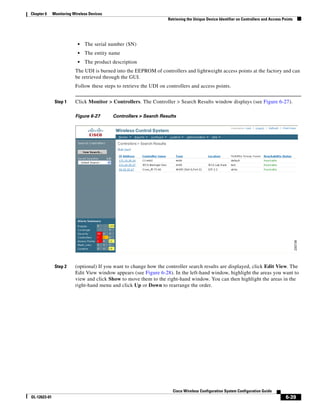
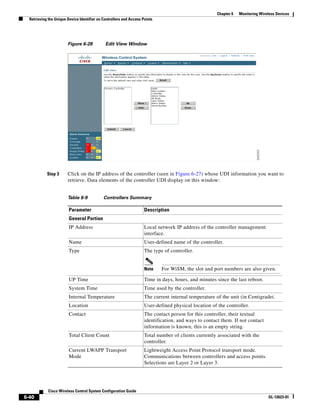
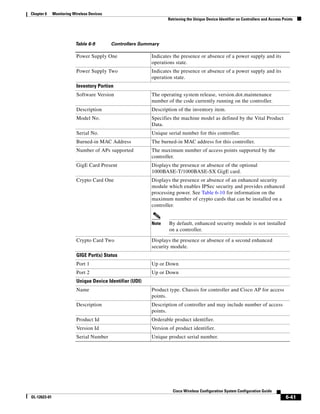
Cisco Wireless Control System
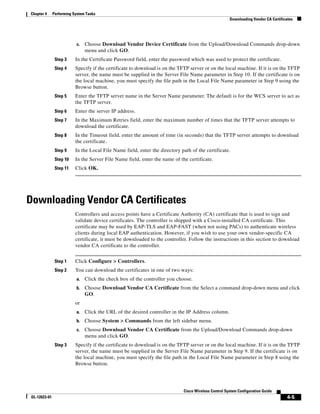
Configuration Guide
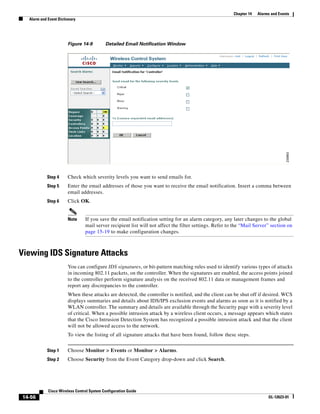
Software Release 4.1
April 2007


Americas Headquarters
Cisco Systems, Inc.
170 West Tasman Drive
San Jose, CA 95134-1706
USA
http://www.cisco.com
Tel: 408 526-4000
       800 553-NETS (6387)
Fax: 408 527-0883


Customer Order Number:
Text Part Number: OL-12623-01
THE SPECIFICATIONS AND INFORMATION REGARDING THE PRODUCTS IN THIS MANUAL ARE SUBJECT TO CHANGE WITHOUT NOTICE. ALL
STATEMENTS, INFORMATION, AND RECOMMENDATIONS IN THIS MANUAL ARE BELIEVED TO BE ACCURATE BUT ARE PRESENTED WITHOUT
WARRANTY OF ANY KIND, EXPRESS OR IMPLIED. USERS MUST TAKE FULL RESPONSIBILITY FOR THEIR APPLICATION OF ANY PRODUCTS.

THE SOFTWARE LICENSE AND LIMITED WARRANTY FOR THE ACCOMPANYING PRODUCT ARE SET FORTH IN THE INFORMATION PACKET THAT
SHIPPED WITH THE PRODUCT AND ARE INCORPORATED HEREIN BY THIS REFERENCE. IF YOU ARE UNABLE TO LOCATE THE SOFTWARE LICENSE
OR LIMITED WARRANTY, CONTACT YOUR CISCO REPRESENTATIVE FOR A COPY.

The Cisco implementation of TCP header compression is an adaptation of a program developed by the University of California, Berkeley (UCB) as part of UCB’s public
domain version of the UNIX operating system. All rights reserved. Copyright © 1981, Regents of the University of California.

NOTWITHSTANDING ANY OTHER WARRANTY HEREIN, ALL DOCUMENT FILES AND SOFTWARE OF THESE SUPPLIERS ARE PROVIDED “AS IS” WITH
ALL FAULTS. CISCO AND THE ABOVE-NAMED SUPPLIERS DISCLAIM ALL WARRANTIES, EXPRESSED OR IMPLIED, INCLUDING, WITHOUT
LIMITATION, THOSE OF MERCHANTABILITY, FITNESS FOR A PARTICULAR PURPOSE AND NONINFRINGEMENT OR ARISING FROM A COURSE OF
DEALING, USAGE, OR TRADE PRACTICE.

IN NO EVENT SHALL CISCO OR ITS SUPPLIERS BE LIABLE FOR ANY INDIRECT, SPECIAL, CONSEQUENTIAL, OR INCIDENTAL DAMAGES, INCLUDING,
WITHOUT LIMITATION, LOST PROFITS OR LOSS OR DAMAGE TO DATA ARISING OUT OF THE USE OR INABILITY TO USE THIS MANUAL, EVEN IF CISCO
OR ITS SUPPLIERS HAVE BEEN ADVISED OF THE POSSIBILITY OF SUCH DAMAGES.

CCVP, the Cisco Logo, and the Cisco Square Bridge logo are trademarks of Cisco Systems, Inc.; Changing the Way We Work, Live, Play, and Learn is a service mark of
Cisco Systems, Inc.; and Access Registrar, Aironet, BPX, Catalyst, CCDA, CCDP, CCIE, CCIP, CCNA, CCNP, CCSP, Cisco, the Cisco Certified Internetwork Expert logo,
Cisco IOS, Cisco Press, Cisco Systems, Cisco Systems Capital, the Cisco Systems logo, Cisco Unity, Enterprise/Solver, EtherChannel, EtherFast, EtherSwitch, Fast Step,
Follow Me Browsing, FormShare, GigaDrive, HomeLink, Internet Quotient, IOS, iPhone, IP/TV, iQ Expertise, the iQ logo, iQ Net Readiness Scorecard, iQuick Study,
LightStream, Linksys, MeetingPlace, MGX, Networking Academy, Network Registrar, Packet, PIX, ProConnect, RateMUX, ScriptShare, SlideCast, SMARTnet, StackWise,
The Fastest Way to Increase Your Internet Quotient, and TransPath are registered trademarks of Cisco Systems, Inc. and/or its affiliates in the United States and certain other
countries.

All other trademarks mentioned in this document or Website are the property of their respective owners. The use of the word partner does not imply a partnership relationship
between Cisco and any other company. (0704R)


Cisco Wireless Control System Configuration Guide
© 2007 Cisco Systems, Inc. All rights reserved.
CONTENTS

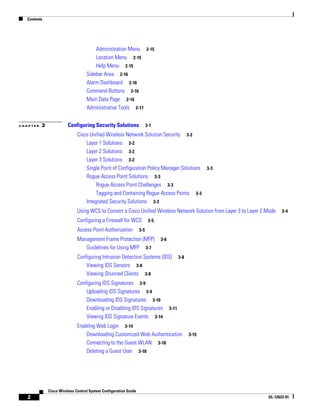
               Preface    1

                   Audience         1-2

                   Purpose      1-2

                   Organization           1-2

                   Conventions            1-3

                   Related Publications           1-3

                   Obtaining Documentation, Obtaining Support, and Security Guidelines                  1-3


CHAPTER   1    Overview       1-1

                   Overview of the Cisco Unified Wireless Network Solution               1-2

                   Overview of WCS              1-3

                   WCS Versions 1-4
                      WCS Base 1-4
                      WCS Base + Location 1-5
                          Relationship with Cisco Location Appliances 1-5
                      Comparison of WCS Base and WCS Location 1-6
                   WCS User Interface             1-7

                   Cisco WCS Navigator                1-7
                          1-7


CHAPTER   2    Getting Started            2-1

                   Prerequisites          2-2

                   System Requirements                2-2

                   Installing WCS for Windows                 2-4

                   Installing WCS for Linux             2-9

                   Starting WCS 2-11
                       Starting WCS on Windows 2-11
                       Starting WCS on Linux 2-12
                   Logging into the WCS User Interface              2-12

                   Using the Cisco WCS User Interface               2-14
                       Menu Bar 2-14
                            Monitor Menu 2-15
                            Configure Menu 2-15

                                                                           Cisco Wireless Control System Configuration Guide
 OL-12623-01                                                                                                                   1
Contents


                                       Administration Menu 2-15
                                       Location Menu 2-15
                                       Help Menu 2-15
                                   Sidebar Area 2-16
                                   Alarm Dashboard 2-16
                                   Command Buttons 2-16
                                   Main Data Page 2-16
                                   Administrative Tools 2-17


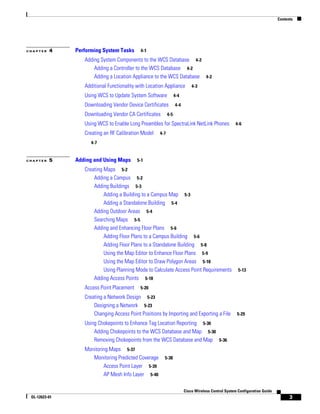
CHAPTER   3             Configuring Security Solutions                  3-1

                              Cisco Unified Wireless Network Solution Security 3-2
                                  Layer 1 Solutions 3-2
                                  Layer 2 Solutions 3-2
                                  Layer 3 Solutions 3-2
                                  Single Point of Configuration Policy Manager Solutions 3-3
                                  Rogue Access Point Solutions 3-3
                                       Rogue Access Point Challenges 3-3
                                       Tagging and Containing Rogue Access Points 3-3
                                  Integrated Security Solutions 3-3
                              Using WCS to Convert a Cisco Unified Wireless Network Solution from Layer 3 to Layer 2 Mode   3-4

                              Configuring a Firewall for WCS             3-5

                              Access Point Authorization          3-5

                              Management Frame Protection (MFP)                3-6
                                 Guidelines for Using MFP 3-7
                              Configuring Intrusion Detection Systems (IDS)                 3-8
                                  Viewing IDS Sensors 3-8
                                  Viewing Shunned Clients 3-8
                              Configuring IDS Signatures 3-9
                                  Uploading IDS Signatures 3-9
                                  Downloading IDS Signatures 3-10
                                  Enabling or Disabling IDS Signatures               3-11
                                  Viewing IDS Signature Events 3-14
                              Enabling Web Login 3-14
                                  Downloading Customized Web Authentication                       3-15
                                  Connecting to the Guest WLAN 3-18
                                  Deleting a Guest User 3-18


              Cisco Wireless Control System Configuration Guide
   2                                                                                                                 OL-12623-01
Contents


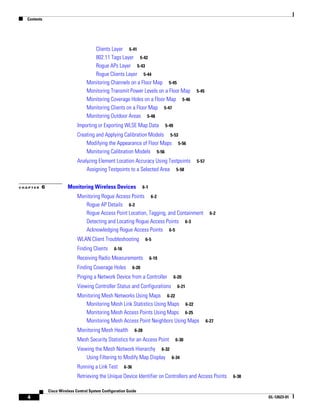
CHAPTER   4    Performing System Tasks      4-1

                  Adding System Components to the WCS Database 4-2
                      Adding a Controller to the WCS Database 4-2
                      Adding a Location Appliance to the WCS Database 4-2
                  Additional Functionality with Location Appliance         4-3

                  Using WCS to Update System Software            4-4

                  Downloading Vendor Device Certificates         4-4

                  Downloading Vendor CA Certificates       4-5

                  Using WCS to Enable Long Preambles for SpectraLink NetLink Phones                4-6

                  Creating an RF Calibration Model   4-7

                     4-7


CHAPTER   5    Adding and Using Maps       5-1

                  Creating Maps 5-2
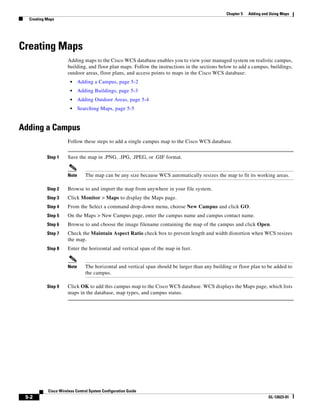
                      Adding a Campus 5-2
                      Adding Buildings 5-3
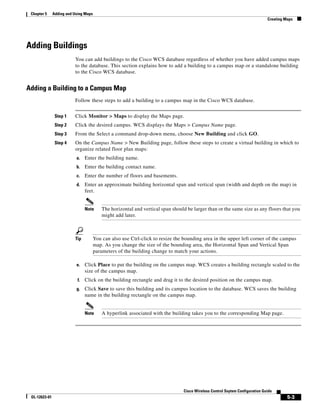
                           Adding a Building to a Campus Map 5-3
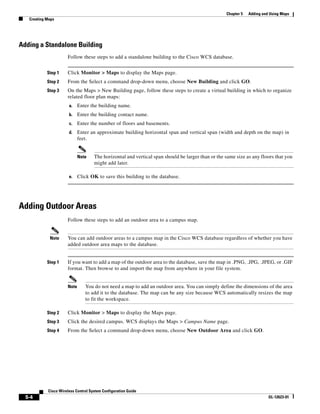
                           Adding a Standalone Building 5-4
                      Adding Outdoor Areas 5-4
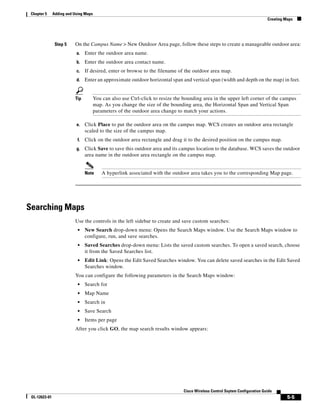
                      Searching Maps 5-5
                      Adding and Enhancing Floor Plans 5-6
                           Adding Floor Plans to a Campus Building 5-6
                           Adding Floor Plans to a Standalone Building 5-8
                           Using the Map Editor to Enhance Floor Plans 5-9
                           Using the Map Editor to Draw Polygon Areas 5-10
                           Using Planning Mode to Calculate Access Point Requirements                5-13
                      Adding Access Points 5-18
                  Access Point Placement    5-20

                  Creating a Network Design 5-23
                      Designing a Network 5-23
                      Changing Access Point Positions by Importing and Exporting a File             5-29

                  Using Chokepoints to Enhance Tag Location Reporting 5-30
                      Adding Chokepoints to the WCS Database and Map 5-30
                      Removing Chokepoints from the WCS Database and Map 5-36
                  Monitoring Maps 5-37
                     Monitoring Predicted Coverage      5-38
                          Access Point Layer 5-39
                          AP Mesh Info Layer 5-40

                                                                       Cisco Wireless Control System Configuration Guide
 OL-12623-01                                                                                                                     3
Contents


                                      Clients Layer 5-41
                                      802.11 Tags Layer 5-42
                                      Rogue APs Layer 5-43
                                      Rogue Clients Layer 5-44
                                   Monitoring Channels on a Floor Map 5-45
                                   Monitoring Transmit Power Levels on a Floor Map                  5-45
                                   Monitoring Coverage Holes on a Floor Map 5-46
                                   Monitoring Clients on a Floor Map 5-47
                                   Monitoring Outdoor Areas 5-48
                              Importing or Exporting WLSE Map Data                   5-49

                              Creating and Applying Calibration Models 5-53
                                  Modifying the Appearance of Floor Maps 5-56
                                  Monitoring Calibration Models 5-56
                              Analyzing Element Location Accuracy Using Testpoints                  5-57
                                  Assigning Testpoints to a Selected Area 5-58


CHAPTER   6             Monitoring Wireless Devices                     6-1

                              Monitoring Rogue Access Points 6-2
                                 Rogue AP Details 6-2
                                 Rogue Access Point Location, Tagging, and Containment                       6-2
                                 Detecting and Locating Rogue Access Points 6-3
                                 Acknowledging Rogue Access Points 6-5
                              WLAN Client Troubleshooting                6-5

                              Finding Clients     6-16

                              Receiving Radio Measurements                    6-19

                              Finding Coverage Holes            6-20

                              Pinging a Network Device from a Controller                    6-20
                              Viewing Controller Status and Configurations                   6-21

                              Monitoring Mesh Networks Using Maps 6-22
                                 Monitoring Mesh Link Statistics Using Maps 6-22
                                 Monitoring Mesh Access Points Using Maps 6-25
                                 Monitoring Mesh Access Point Neighbors Using Maps                         6-27

                              Monitoring Mesh Health             6-28

                              Mesh Security Statistics for an Access Point                  6-30

                              Viewing the Mesh Network Hierarchy 6-32
                                  Using Filtering to Modify Map Display 6-34
                              Running a Link Test        6-36

                              Retrieving the Unique Device Identifier on Controllers and Access Points             6-38


              Cisco Wireless Control System Configuration Guide
   4                                                                                                                      OL-12623-01
Contents


CHAPTER   7    Managing WCS User Accounts               7-1

                  Adding WCS User Accounts 7-2
                      Changing Passwords 7-4
                      Monitoring Active Sessions 7-4
                  Viewing or Editing User Information           7-6

                  Viewing or Editing Group Information              7-6

                  Viewing the Audit Trail 7-8
                      Deleting WCS User Accounts              7-9

                  Creating Guest User Accounts 7-9
                      Creating a Lobby Ambassador Account 7-9
                      Logging in to the WCS User Interface 7-10
                      Managing WCS Guest User Accounts 7-11
                           Adding Guest User Accounts 7-11
                           Viewing and Editing Guest Users 7-12
                           Deleting Guest User Templates 7-13
                           Scheduling WCS Guest User Accounts 7-14
                           Print or Email WCS Guest User Details 7-15
                      Logging the Lobby Ambassador Activities 7-15


CHAPTER   8    Configuring Mobility Groups        8-1

                  Overview of Mobility   8-2

                  Symmetric Tunneling    8-5

                  Overview of Mobility Groups 8-5
                      When to Include Controllers in a Mobility Group             8-7

                  Configuring Mobility Groups      8-7
                      Prerequisites 8-8
                  Mobility Anchors 8-10
                     Configuring Mobility Anchors             8-10

                  Configuring Multiple Country Codes            8-12

                  Creating Config Groups 8-15
                      Adding New Group 8-15
                      Configuring Config Groups 8-16
                      Adding or Removing Controllers from Config Group 8-17
                      Adding or Removing Templates from the Config Group 8-17
                      Applying Config Groups 8-18
                      Auditing Config Groups 8-18
                      Rebooting Config Groups 8-19
                  Downloading Software     8-19


                                                                          Cisco Wireless Control System Configuration Guide
 OL-12623-01                                                                                                                        5
Contents


                                   Downloading IDS Signatures 8-20
                                   Downloading Customized WebAuth                       8-21


CHAPTER   9             Configuring Controllers and Access Points                          9-1

                              Adding Controllers         9-2

                              Setting Multiple Country Codes                9-3

                              Searching Controllers            9-4

                              Managing User Authentication Order                  9-5

                              Configuring Audit Reports              9-5

                              Enabling Load-Based CAC for Controllers                   9-5

                              Enabling High Density 9-7
                                  Requirements 9-7
                                  Optimizing the Controller to Support High Density              9-7

                              Configuring 802.3 Bridging             9-10

                              Configuring Access Points 9-10
                                  Searching Access Points 9-14


CHAPTER   10            Using Templates           10-1

                              Adding Controller Templates 10-1
                                  Configuring an NTP Server Template 10-3
                                  Configuring General Templates 10-3
                                  Configuring QoS Templates 10-6
                                  Configuring a Traffic Stream Metrics QoS Template 10-7
                                  Configuring WLAN Templates 10-9
                                      Security 10-11
                                      QoS 10-16
                                      Advanced 10-17
                                  Configuring a File Encryption Template 10-18
                                  Configuring a RADIUS Authentication Template 10-20
                                  Configuring a RADIUS Accounting Template 10-22
                                  Configuring a LDAP Server Template 10-23
                                  Configuring a TACACS+ Server Template 10-24
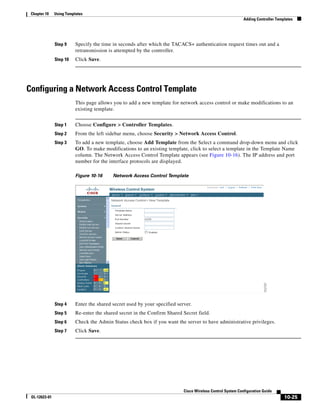
                                  Configuring a Network Access Control Template 10-25
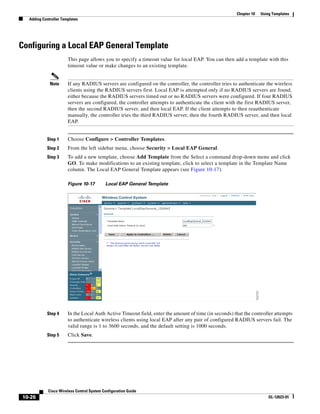
                                  Configuring a Local EAP General Template 10-26
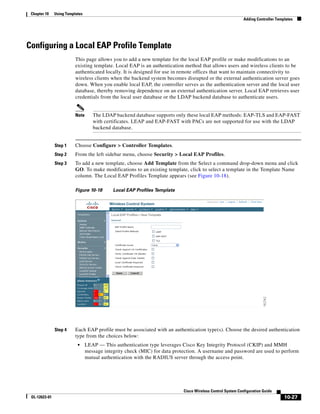
                                  Configuring a Local EAP Profile Template 10-27
                                  Configuring an EAP-FAST Template 10-28
                                  Configuring Network User Credential Retrieval Priority Templates     10-29
                                  Configuring a Local Network Users Template 10-30


              Cisco Wireless Control System Configuration Guide
   6                                                                                                           OL-12623-01
Contents


                      Configuring Guest User Templates 10-32
                      Configuring a User Login Policies Template 10-33
                      Configuring a MAC Filter Template 10-33
                      Configuring an Access Point Authorization 10-34
                      Configuring a Manually Disabled Client Template 10-35
                      Configuring a CPU Access Control List (ACL) Template 10-36
                      Configuring a Rogue Policies Template 10-37
                      Configuring a Trusted AP Policies Template 10-38
                      Configuring a Client Exclusion Policies Template 10-39
                      Configuring an Access Point Authentication and MFP Template 10-41
                      Configuring a Web Authentication Template 10-42
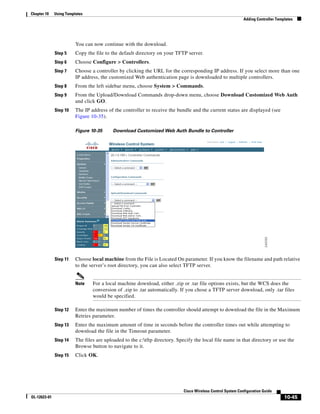
                          Downloading a Customized Web Authentication Page 10-43
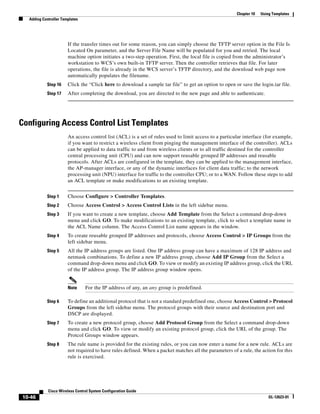
                      Configuring Access Control List Templates 10-46
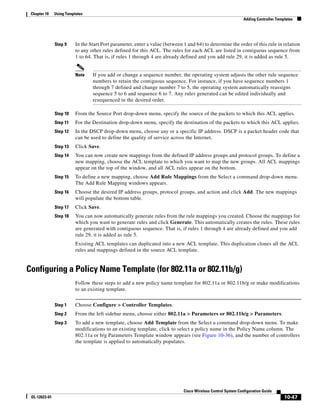
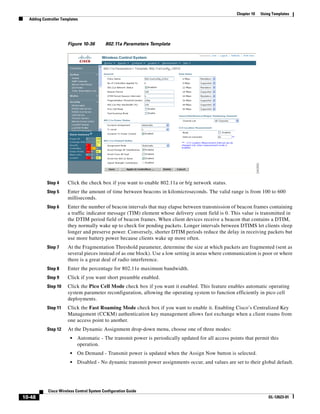
                      Configuring a Policy Name Template (for 802.11a or 802.11b/g) 10-47
                      Configuring High Density Templates 10-50
                      Configuring a Voice Parameter Template (for 802.11a or 802.11b/g) 10-52
                      Configuring a Video Parameter Template (for 802.11a or 802.11b/g) 10-53
                      Configuring a Roaming Parameters Template (for 802.11a or 802.11b/g) 10-54
                      Configuring an RRM Threshold Template (for 802.11a or 802.11b/g) 10-55
                      Configuring an RRM Interval Template (for 802.11a or 802.11b/g) 10-56
                      Configuring an 802.11h Template 10-57
                      Configuring a Mesh Template 10-58
                      Configuring a Known Rogue Access Point Template 10-60
                      Configuring a Trap Receiver Template 10-61
                      Configuring a Trap Control Template 10-61
                      Configuring a Telnet SSH Template 10-63
                      Configuring a Syslog Template 10-64
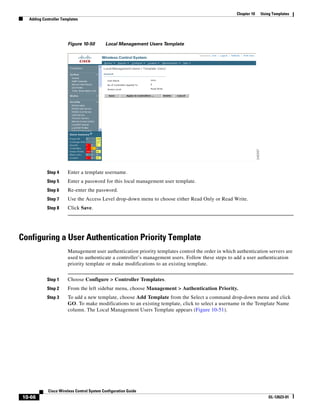
                      Configuring a Local Management User Template 10-65
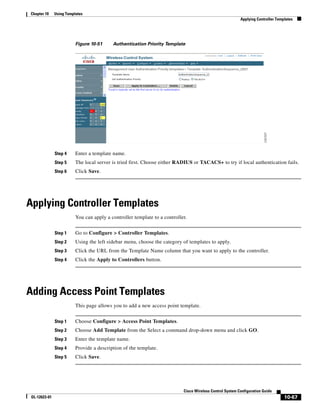
                      Configuring a User Authentication Priority Template 10-66
                  Applying Controller Templates   10-67

                  Adding Access Point Templates 10-67
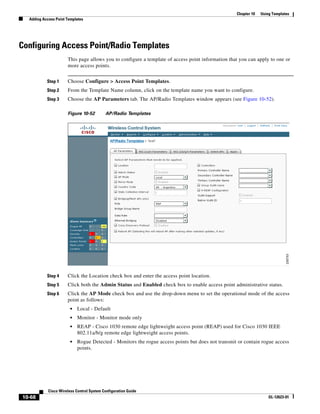
                      Configuring Access Point/Radio Templates     10-68

                    10-71


CHAPTER   11   Maintaining WCS     11-1

                  Checking the Status of WCS 11-2
                      Checking the Status of WCS on Windows 11-2
                      Checking the Status of WCS on Linux 11-2
                  Stopping WCS    11-3


                                                                 Cisco Wireless Control System Configuration Guide
 OL-12623-01                                                                                                               7
Contents


                                  Stopping WCS on Windows 11-3
                                  Stopping WCS on Linux 11-3
                             Backing Up the WCS Database 11-4
                                 Scheduling Automatic Backups 11-4
                                 Performing a Manual Backup 11-5
                                     Backing Up the WCS Database (for Windows) 11-5
                                     Backing Up the WCS Database (for Linux) 11-5
                             Restoring the WCS Database 11-6
                                 Restoring the WCS Database (for Windows) 11-6
                                 Restoring the WCS Database (for Linux) 11-7
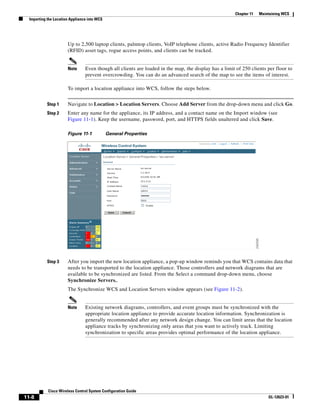
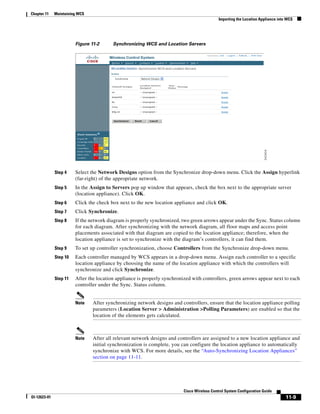
                             Importing the Location Appliance into WCS             11-7
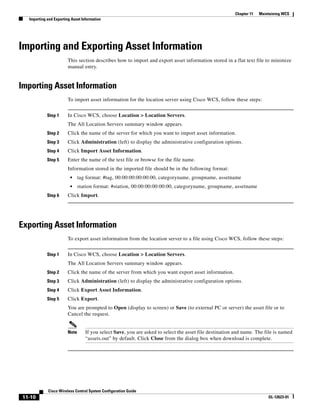
                             Importing and Exporting Asset Information             11-10
                                 Importing Asset Information 11-10
                                 Exporting Asset Information 11-10
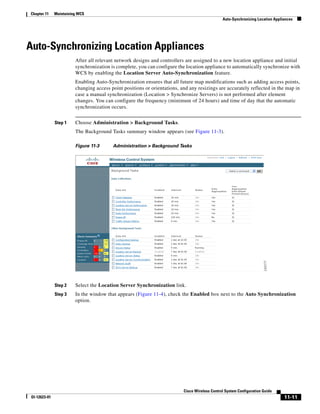
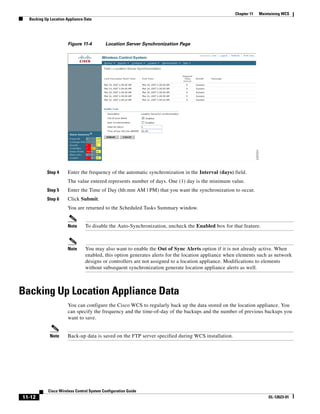
                             Auto-Synchronizing Location Appliances            11-11

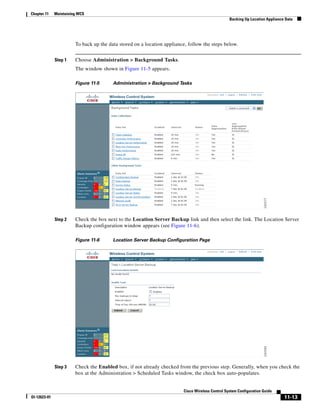
                             Backing Up Location Appliance Data            11-12

                             Uninstalling WCS 11-14
                                 Uninstalling WCS on Windows 11-14
                                 Uninstalling WCS on Linux 11-14
                             Upgrading WCS 11-15
                                 Upgrading WCS on Windows 11-15
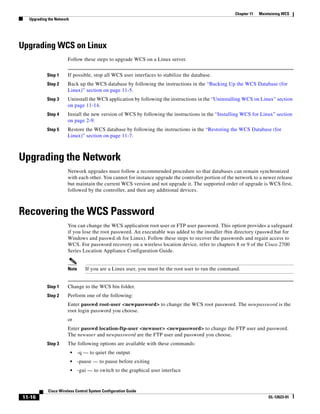
                                 Upgrading WCS on Linux 11-16
                             Upgrading the Network         11-16

                             Recovering the WCS Password           11-16


CHAPTER   12           Configuring Hybrid REAP             12-1
                             Overview of Hybrid REAP 12-2
                                 Hybrid-REAP Authentication Process            12-2
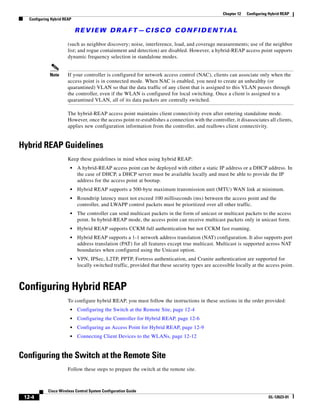
                                 Hybrid REAP Guidelines 12-4
                             Configuring Hybrid REAP 12-4
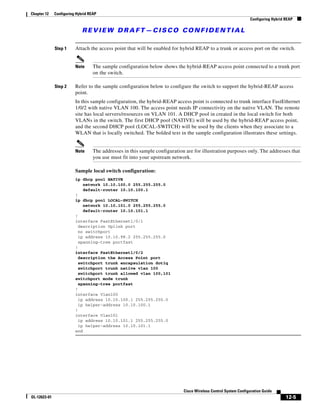
                                 Configuring the Switch at the Remote Site 12-4
                                 Configuring the Controller for Hybrid REAP 12-6
                                 Configuring an Access Point for Hybrid REAP 12-9
                                 Connecting Client Devices to the WLANs 12-12


CHAPTER   13           Running Reports 13-1
                              Choosing a Report 13-1
                              Enabling or Disabling a Schedule              13-2


             Cisco Wireless Control System Configuration Guide
   8                                                                                       OL-12623-01
Contents


                      Deleting a Report 13-3
                      Accessing the Schedule Panel        13-3

                  Access Point Reports 13-4
                      Viewing or Modifying Access Point Reports            13-4
                      Creating a New Access Point Report 13-5
                  Client Reports 13-5
                       Viewing or Modifying Client Reports       13-6
                       Creating a New Client Report 13-6
                  Inventory Reports 13-7
                      Viewing or Modifying Inventory Reports        13-7
                      Creating a New Inventory Report 13-7
                  Mesh Reports 13-8
                     Viewing or Modifying Mesh Reports           13-8
                     Creating a New Mesh Report 13-9
                  Performance Reports 13-9
                      Viewing or Modifying Performance Reports 13-10
                      Creating a New Performance Report 13-10
                  Security Reports 13-11
                      Viewing or Modifying Security Reports 13-11
                      Creating a New Security Report 13-11


CHAPTER   14   Alarms and Events     14-1

                  Alarm Dashboard 14-2
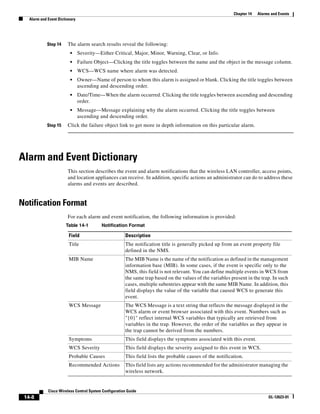
                      Setting Search Filters for Alarms     14-4

                  Alarm and Event Dictionary 14-8
                      Notification Format 14-8
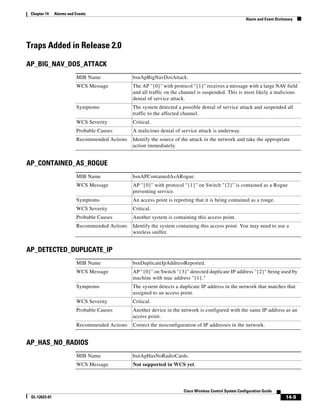
                      Traps Added in Release 2.0 14-9
                          AP_BIG_NAV_DOS_ATTACK 14-9
                          AP_CONTAINED_AS_ROGUE 14-9
                          AP_DETECTED_DUPLICATE_IP        14-9
                          AP_HAS_NO_RADIOS 14-9
                          AP_MAX_ROGUE_COUNT_CLEAR 14-10
                          AP_MAX_ROGUE_COUNT_EXCEEDED 14-10
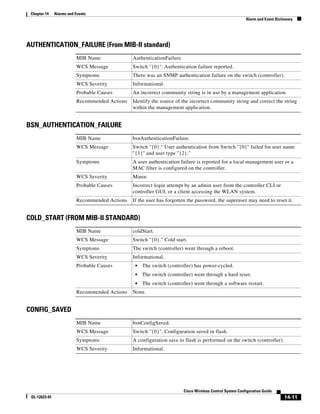
                          AUTHENTICATION_FAILURE (From MIB-II standard)                   14-11
                          BSN_AUTHENTICATION_FAILURE 14-11
                          COLD_START (FROM MIB-II STANDARD) 14-11
                          CONFIG_SAVED 14-11
                          IPSEC_IKE_NEG_FAILURE       14-12
                          IPSEC_INVALID_COOKIE 14-12

                                                                        Cisco Wireless Control System Configuration Guide
 OL-12623-01                                                                                                                      9
Contents


                                     LINK_DOWN (FROM MIB-II STANDARD) 14-12
                                     LINK_UP (FROM MIB-II STANDARD) 14-12
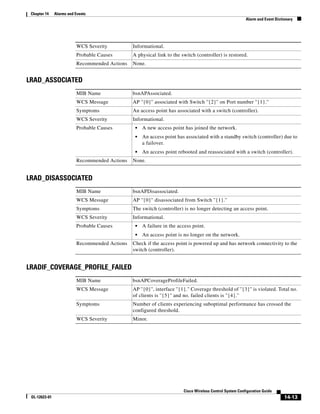
                                     LRAD_ASSOCIATED 14-13
                                     LRAD_DISASSOCIATED 14-13
                                     LRADIF_COVERAGE_PROFILE_FAILED      14-13
                                     LRADIF_COVERAGE_PROFILE_PASSED 14-14
                                     LRADIF_CURRENT_CHANNEL_CHANGED 14-14
                                     LRADIF_CURRENT_TXPOWER_CHANGED 14-14
                                     LRADIF_DOWN      14-15
                                     LRADF_INTERFERENCE_PROFILE_FAILED 14-15
                                     LRADIF_INTERFERENCE_PROFILE_PASSED 14-15
                                     LRADIF_LOAD_PROFILE_FAILED 14-16
                                     LRADIF_LOAD_PROFILE_PASSED 14-16
                                     LRADIF_NOISE_PROFILE_FAILED 14-16
                                     LRADIF_NOISE_PROFILE_PASSED       14-17
                                     LRADIF_UP 14-17
                                     MAX_ROGUE_COUNT_CLEAR 14-17
                                     MAX_ROGUE_COUNT_EXCEEDED 14-18
                                     MULTIPLE_USERS 14-18
                                     NETWORK_DISABLED 14-18
                                     NO_ACTIVITY_FOR_ROGUE_AP 14-18
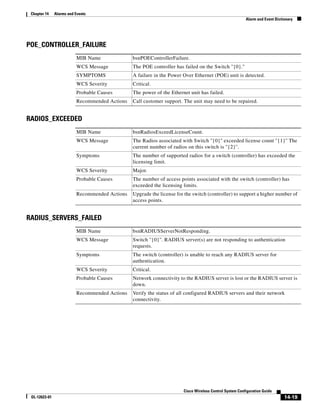
                                     POE_CONTROLLER_FAILURE 14-19
                                     RADIOS_EXCEEDED 14-19
                                     RADIUS_SERVERS_FAILED 14-19
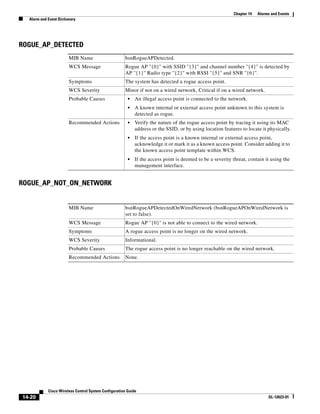
                                     ROGUE_AP_DETECTED 14-20
                                     ROGUE_AP_NOT_ON_NETWORK 14-20
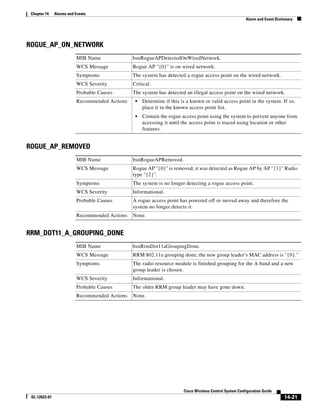
                                     ROGUE_AP_ON_NETWORK 14-21
                                     ROGUE_AP_REMOVED 14-21
                                     RRM_DOT11_A_GROUPING_DONE 14-21
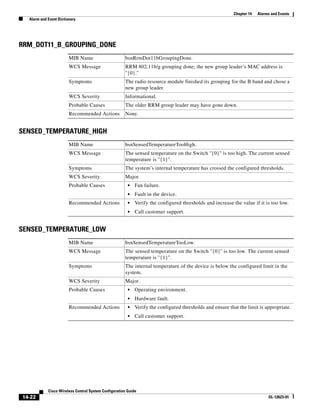
                                     RRM_DOT11_B_GROUPING_DONE 14-22
                                     SENSED_TEMPERATURE_HIGH 14-22
                                     SENSED_TEMPERATURE_LOW 14-22
                                     STATION_ASSOCIATE 14-23
                                     STATION_ASSOCIATE_FAIL 14-23
                                     STATION_AUTHENTICATE 14-23
                                     STATION_AUTHENTICATION_FAIL 14-23
                                     STATION_BLACKLISTED 14-24
                                     STATION_DEAUTHENTICATE 14-24
                                     STATION_DISASSOCIATE 14-24
                                     STATION_WEP_KEY_DECRYPT_ERROR 14-25

           Cisco Wireless Control System Configuration Guide
10                                                                               OL-12623-01
Contents


                  STATION_WPA_MIC_ERROR_COUNTER_ACTIVATED 14-25
                  SWITCH_DETECTED_DUPLICATE_IP 14-25
                  SWITCH_DOWN 14-26
                  SWITCH_UP 14-26
                  TEMPERATURE_SENSOR_CLEAR 14-26
                  TEMPERATURE_SENSOR_FAILURE 14-27
                  TOO_MANY_USER_UNSUCCESSFUL_LOGINS 14-27
              Traps Added in Release 2.1 14-28
                  ADHOC_ROGUE_AUTO_CONTAINED 14-28
                  ADHOC_ROGUE_AUTO_CONTAINED_CLEAR 14-28
                  NETWORK_ENABLED 14-28
                  ROGUE_AP_AUTO_CONTAINED 14-29
                  ROGUE_AP_AUTO_CONTAINED_CLEAR 14-29
                  TRUSTED_AP_INVALID_ENCRYPTION 14-29
                  TRUSTED_AP_INVALID_ENCRYPTION_CLEAR 14-30
                  TRUSTED_AP_INVALID_RADIO_POLICY 14-30
                  TRUSTED_AP_INVALID_RADIO_POLICY_CLEAR 14-30
                  TRUSTED_AP_INVALID_SSID 14-30
                  TRUSTED_AP_INVALID_SSID_CLEAR 14-31
                  TRUSTED_AP_MISSING 14-31
                  TRUSTED_AP_MISSING_CLEAR 14-31
              Traps Added in Release 2.2 14-31
                  AP_IMPERSONATION_DETECTED 14-31
                  AP_RADIO_CARD_RX_FAILURE 14-32
                  AP_RADIO_CARD_RX_FAILURE_CLEAR 14-32
                  AP_RADIO_CARD_TX_FAILURE 14-32
                  AP_RADIO_CARD_TX_FAILURE_CLEAR 14-32
                  SIGNATURE_ATTACK_CLEARED 14-33
                  SIGNATURE_ATTACK_DETECTED 14-33
                  TRUSTED_AP_HAS_INVALID_PREAMBLE 14-33
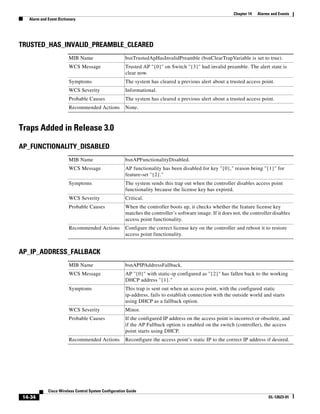
                  TRUSTED_HAS_INVALID_PREAMBLE_CLEARED 14-34
              Traps Added in Release 3.0 14-34
                  AP_FUNCTIONALITY_DISABLED 14-34
                  AP_IP_ADDRESS_FALLBACK 14-34
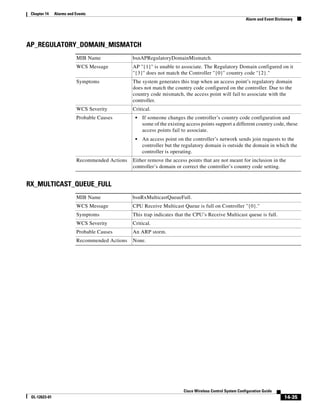
                  AP_REGULATORY_DOMAIN_MISMATCH 14-35
                  RX_MULTICAST_QUEUE_FULL 14-35
              Traps Added in Release 3.1 14-36
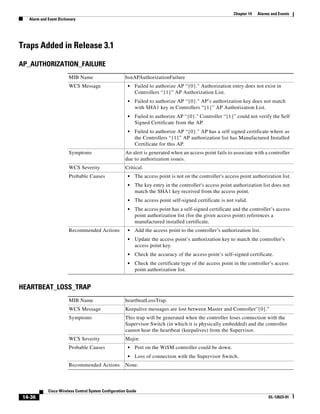
                  AP_AUTHORIZATION_FAILURE 14-36
                  HEARTBEAT_LOSS_TRAP 14-36
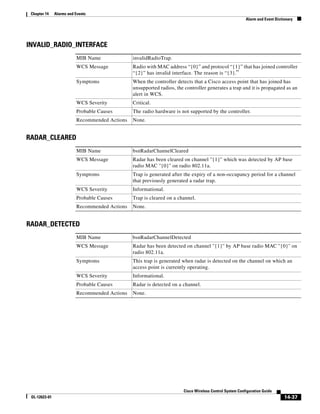
                  INVALID_RADIO_INTERFACE 14-37

                                             Cisco Wireless Control System Configuration Guide
OL-12623-01                                                                                           11
Contents


                                    RADAR_CLEARED 14-37
                                    RADAR_DETECTED 14-37
                                    RADIO_CORE_DUMP 14-38
                                    RADIO_INTERFACE_DOWN 14-38
                                    RADIO_INTERFACE_UP 14-38
                                    UNSUPPORTED_AP 14-39
                                Traps Added in Release 3.2 14-39
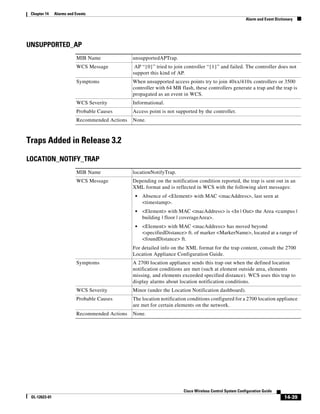
                                    LOCATION_NOTIFY_TRAP 14-39
                                Traps Added In Release 4.0 14-40
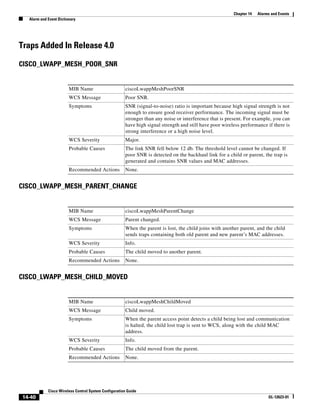
                                    CISCO_LWAPP_MESH_POOR_SNR 14-40
                                    CISCO_LWAPP_MESH_PARENT_CHANGE 14-40
                                    CISCO_LWAPP_MESH_CHILD_MOVED 14-40
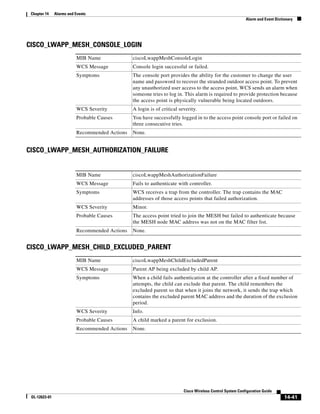
                                    CISCO_LWAPP_MESH_CONSOLE_LOGIN 14-41
                                    CISCO_LWAPP_MESH_AUTHORIZATION_FAILURE 14-41
                                    CISCO_LWAPP_MESH_CHILD_EXCLUDED_PARENT 14-41
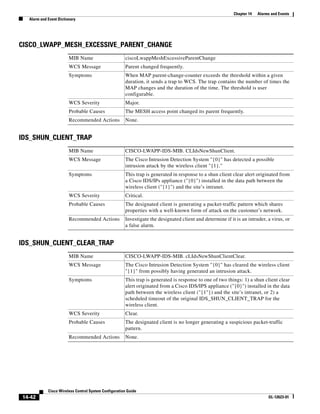
                                    CISCO_LWAPP_MESH_EXCESSIVE_PARENT_CHANGE 14-42
                                    IDS_SHUN_CLIENT_TRAP 14-42
                                    IDS_SHUN_CLIENT_CLEAR_TRAP 14-42
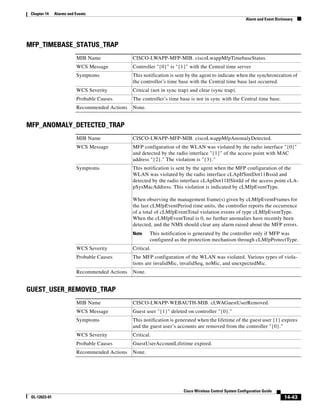
                                    MFP_TIMEBASE_STATUS_TRAP 14-43
                                    MFP_ANOMALY_DETECTED_TRAP 14-43
                                    GUEST_USER_REMOVED_TRAP 14-43
                                Traps Added/Updated in Release 4.0.96.0 14-44
                                    AP_IMPERSONATION_DETECTED 14-44
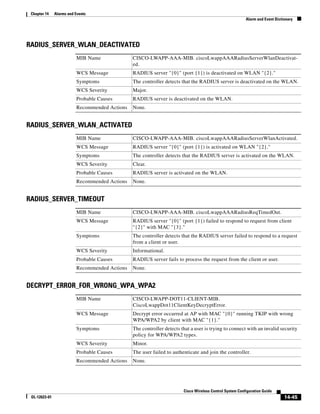
                                    RADIUS_SERVER_DEACTIVATED 14-44
                                    RADIUS_SERVER_ACTIVATED 14-44
                                    RADIUS_SERVER_WLAN_DEACTIVATED 14-45
                                    RADIUS_SERVER_WLAN_ACTIVATED 14-45
                                    RADIUS_SERVER_TIMEOUT 14-45
                                    DECRYPT_ERROR_FOR_WRONG_WPA_WPA2 14-45
                                Traps Added or Updated in Release 4.1 14-46
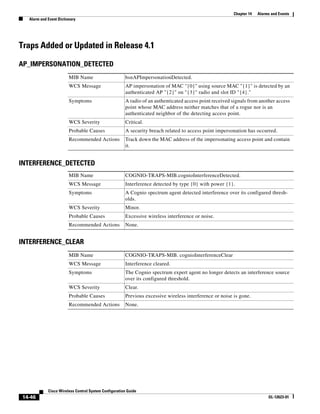
                                    AP_IMPERSONATION_DETECTED 14-46
                                INTERFERENCE_DETECTED 14-46
                                    INTERFERENCE_CLEAR 14-46
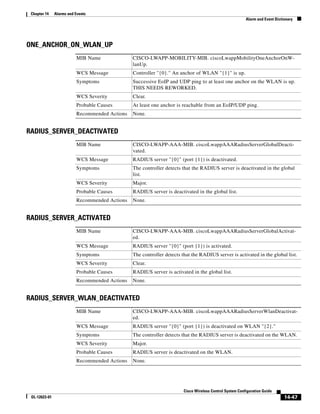
                                    ONE_ANCHOR_ON_WLAN_UP 14-47
                                    RADIUS_SERVER_DEACTIVATED 14-47
                                    RADIUS_SERVER_ACTIVATED 14-47
                                    RADIUS_SERVER_WLAN_DEACTIVATED 14-47
                                    RADIUS_SERVER_WLAN_ACTIVATED 14-48
                                    RADIUS_SERVER_TIMEOUT 14-48
                                    MOBILITY_ANCHOR_CTRL_PATH_DOWN 14-48

           Cisco Wireless Control System Configuration Guide
12                                                                                   OL-12623-01
Contents


                      MOBILITY_ANCHOR_CTRL_PATH_UP 14-48
                      MOBILITY_ANCHOR_DATA_PATH_DOWN 14-49
                      MOBILITY_ANCHOR_DATA_PATH_UP 14-49
                      WLAN_ALL_ANCHORS_TRAP_DOWN 14-49
                          MESH_AUTHORIZATIONFAILURE 14-49
                          MESH_CHILDEXCLUDEDPARENT 14-50
                          MESH_PARENTCHANGE 14-50
                          MESH_CHILDMOVED 14-50
                          MESH_EXCESSIVEPARENTCHANGE 14-51
                          MESH_POORSNR 14-51
                          MESH_POORSNRCLEAR 14-51
                          MESH_CONSOLELOGIN 14-52
                          LRADIF_REGULATORY_DOMAIN 14-52
                          LRAD_CRASH 14-52
                          LRAD_UNSUPPORTED 14-53
                      Unsupported Traps 14-53
                      Configuring Alarm Severity 14-54
                      Viewing MFP Events and Alarms 14-55
                          Alarm Emails 14-55
                      Viewing IDS Signature Attacks 14-56
                          Wireless LAN IDS Event Correlation 14-57


CHAPTER   15   Administrative Tasks    15-1

                  Running Background Tasks       15-2

                  Performing a Task   15-2

                  Importing Tasks Into ACS 15-4
                      Adding WCS to an ACS Server 15-4
                      Adding WCS as a TACACS+ Server 15-5
                      Adding WCS UserGroups into ACS for TACACS+ 15-6
                      Adding WCS to ACS server for use with RADIUS 15-8
                      Adding WCS UserGroups into ACS for RADIUS 15-9
                      Adding WCS to a non-Cisco ACS server for use with RADIUS              15-11

                  Setting AAA Mode     15-12

                  Turning Password Rules On or Off        15-13

                  Configuring TACACS+ Servers       15-14

                  Configuring RADIUS Servers      15-15

                  Establishing Logging Options     15-17

                  Performing Data Management Tasks           15-17
                      Data Management 15-18

                                                                     Cisco Wireless Control System Configuration Guide
 OL-12623-01                                                                                                                  13
Contents


                                       Report 15-18
                                       Mail Server 15-19
                                  Setting User Preferences        15-21


APPENDIX      A                   WCS Licenses A-2
                                          Types of Licenses A-2
                                          Licensing Enforcement A-3
                                          Product Authorization Key Certificate A-3
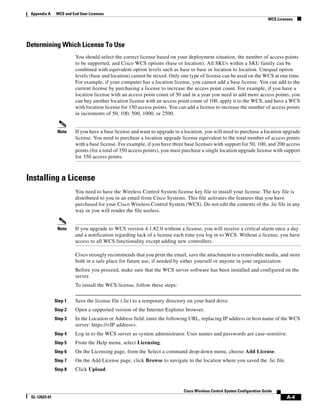
                                          Determining Which License To Use A-4
                                     Installing a License A-4
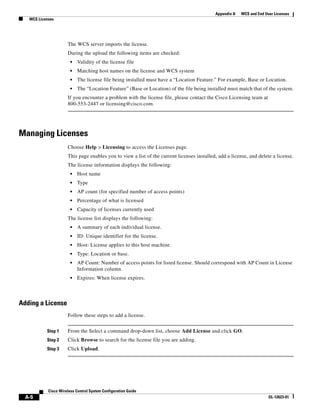
                                     Managing Licenses A-5
                                          Adding a License A-5
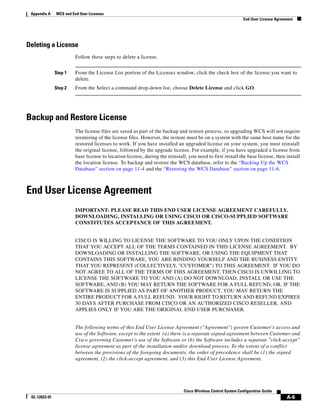
                                          Deleting a License A-6
                                     Backup and Restore License A-6
                                  End User License Agreement          A-6


APPENDIX      B                   Supported Hardware B-2
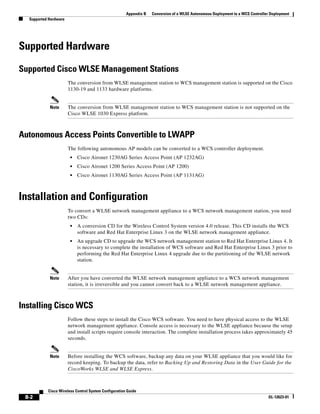
                                      Supported Cisco WLSE Management Stations B-2
                                      Autonomous Access Points Convertible to LWAPP B-2
                                  Installation and Configuration B-2
                                       Installing Cisco WCS B-2
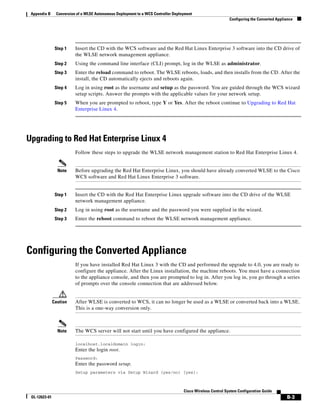
                                       Upgrading to Red Hat Enterprise Linux 4    B-3

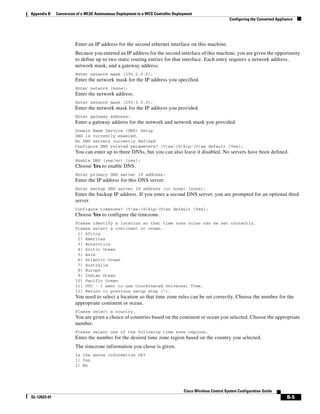
                                  Configuring the Converted Appliance       B-3

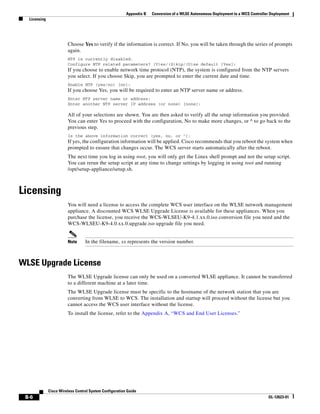
                                  Licensing B-6
                                      WLSE Upgrade License            B-6

INDEX


                  Cisco Wireless Control System Configuration Guide
  14                                                                                      OL-12623-01
Preface

              The preface provides an overview of the Cisco Wireless Control System Configuration Guide, references
              related publications, and explains how to obtain other documentation and technical assistance, if
              necessary. It contains these sections:
               •   Audience, page 2
               •   Purpose, page 2
               •   Organization, page 2
               •   Conventions, page 3
               •   Related Publications, page 3
               •   Obtaining Documentation, Obtaining Support, and Security Guidelines, page 3


                                                                                              Book Title
OL-xxxxx-xx                                                                                                   1
Preface
 Audience


Audience
                      This guide describes the Cisco Wireless Control System (WCS). It is meant for networking professionals
                      who use WCS to manage a Cisco Unified Wireless Network Solution. To use this guide, you should be
                      familiar with the concepts and terminology associated with wireless LANs.


Purpose
                      This guide provides the information you need to manage a Cisco Unified Wireless Network Solution
                      using WCS.

            Note      This document pertains specifically to WCS 4.1. Earlier versions of WCS software may look and operate
                      somewhat differently.


Organization
                      This guide contains the following chapters:
                      Chapter 1, “Overview,” describes the Cisco Unified Wireless Network Solution and the Cisco Wireless
                      Control System (WCS).
                      Chapter 2, “Getting Started,” describes how to prepare WCS for operation.
                      Chapter 3, “Configuring Security Solutions,” describes security solutions for wireless LANs.
                      Chapter 4, “Performing System Tasks,” describes how to use WCS to add a controller and location
                      appliance to the WCS database, update system software, enable long preambles for SpectraLink NetLink
                      phones, and create an RF calibration model.
                      Chapter 5, “Adding and Using Maps,” describes how to add maps to the Cisco WCS database and use
                      them to monitor your wireless LAN.
                      Chapter 6, “Monitoring Wireless Devices,” describes how to use WCS to monitor your wireless LANs.
                      Chapter 7, “Managing WCS User Accounts,” describes how to add, delete, and change the passwords of
                      WCS user accounts. It also describes creating a guest user account on WCS and how to configure it for
                      limited activity.
                      Chapter 8, “Configuring Mobility Groups” provides an overview of mobility and mobility groups and
                      describes how to configure them.
                      Chapter 9, “Configuring Controllers and Access Points,”describes how to configure controllers and
                      access points for specific tasks within the Cisco WCS database.
                      Chapter 10, “Using Templates” describes how to set parameters for multiple devices without having to
                      re-enter the common information.
                      Chapter 11, “Maintaining WCS,” describes how to check the status of, stop, uninstall, and upgrade WCS.
                      It also provides instructions for backing up and restoring the WCS database.
                      Chapter 12, “Configuring Hybrid REAP,”describes hybrid REAP and explains how to configure this
                      feature on controllers and access points.
                      Chapter 13, “Running Reports,”describes the various reports that can be generated to run on an
                      immediate and scheduled basis for use with diagnosing system and network health.


            Cisco Wireless Control System Configuration Guide
 2                                                                                                               OL-12623-01
Preface
                                                                                                                           Conventions


                         Chapter 14, “Alarms and Events” defines alarms and events and what constitutes each.
                         Chapter 15, “Administrative Tasks,” describes certain administrative tasks you can perform with WCS.
                         Appendix A, “WCS and End User Licenses,” provides the end user license and warranty that apply to
                         WCS.
                         Appendix B, “Conversion of a WLSE Autonomous Deployment to a WCS Controller Deployment”
                         describes how to convert a Cisco Wireless LAN Solution Engine (WLSE) network management
                         appliance to a Cisco Wireless Control System (WCS) network management station.


Conventions
                         This publication uses the following conventions to convey instructions and information:
                          •   Commands and keywords are in boldface text.
                          •   Variables are in italicized text.


                 Note    Means reader take note. Notes contain helpful suggestions or references to material not contained in this
                         manual.


               Caution   Means reader be careful. In this situation, you might do something that could result in equipment
                         damage or loss of data.


Related Publications
                         For more information about WCS and related products, refer to the following documents:
                          •   Wireless Control System Online Help
                          •   Release Notes for Cisco Wireless Control System 4.1 for Windows or Linux
                          •   Cisco Location Application Configuration Guide 3.0
                          •   Release Notes for Cisco Location Appliance Software 3.0
                         Click this link to browse to the Cisco Support and Documentation page:
                         http://www.cisco.com/cisco/web/support/index.html


Obtaining Documentation, Obtaining Support, and Security
Guidelines
                         For information on obtaining documentation, obtaining support, providing documentation feedback,
                         security guidelines, and also recommended aliases and general Cisco documents, see the monthly
                         What’s New in Cisco Product Documentation, which also lists all new and revised Cisco technical
                         documentation, at:
                         http://www.cisco.com/en/US/docs/general/whatsnew/whatsnew.html


                                                                           Cisco Wireless Control System Configuration Guide
 OL-12623-01                                                                                                                        3
Preface
Obtaining Documentation, Obtaining Support, and Security Guidelines


           Cisco Wireless Control System Configuration Guide
4                                                                     OL-12623-01
C H A P T E R                  1
              Overview

              This chapter describes the Cisco Unified Wireless Network Solution and the Cisco Wireless Control
              System (WCS). It contains these sections:
               •   Overview of the Cisco Unified Wireless Network Solution, page 1-2
               •   Overview of WCS, page 1-3
               •   WCS Versions, page 1-4
               •   WCS User Interface, page 1-7
               •   Cisco WCS Navigator, page 1-7


                                                              Cisco Wireless Control System Configuration Guide
OL-12623-01                                                                                                       1-1
Chapter 1     Overview
  Overview of the Cisco Unified Wireless Network Solution


Overview of the Cisco Unified Wireless Network Solution
                       The Cisco Unified Wireless Network solution is designed to provide 802.11 wireless networking
                       solutions for enterprises and service providers. It simplifies the deployment and management of
                       large-scale wireless LANs and enables a unique best-in-class security infrastructure. The operating
                       system manages all data client, communications, and system administration functions, performs radio
                       resource management (RRM) functions, manages system-wide mobility policies using the operating
                       system security solution, and coordinates all security functions using the operating system security
                       framework.
                       The Cisco Unified Wireless Network Solution consists of Cisco Unified Wireless Network Controllers
                       (hereafter called controllers) and their associated lightweight access points controlled by the operating
                       system, all concurrently managed by any or all of the operating system user interfaces:
                         •   An HTTPS full-featured web user interface hosted by Cisco controllers can be used to configure and
                             monitor individual controllers.
                         •   A full-featured command line interface (CLI) can be used to configure and monitor individual
                             controllers.
                         •   The Cisco Wireless Control System (WCS) can be used to configure and monitor one or more
                             controllers and associated access points. WCS has tools to facilitate large-system monitoring and
                             control. It runs on Windows 2003 and Red Hat Enterprise Linux ES/AS 4 servers.
                         •   An industry-standard SNMP V1, V2c, and V3 interface can be used with any SNMP-compliant
                             third-party network management system.
                       The Cisco Unified Wireless Network Solution supports client data services, client monitoring and
                       control, and all rogue access point detection, monitoring, and containment functions. It uses lightweight
                       access points, controllers, and the optional WCS to provide wireless services to enterprises and service
                       providers.


             Note      This document refers to controllers throughout. Unless specified otherwise, the descriptions herein apply
                       to all Cisco Unified Wireless Network Controllers, including but not limited to Cisco 2000 and 2100
                       Series Unified Wireless Network Controllers, Cisco 4100 Series Unified Wireless Network Controllers,
                       Cisco 4400 Series Unified Wireless Network Controllers, and controllers within the Cisco Wireless
                       Services Module (WiSM) and Cisco 26/28/37/38xx Series Integrated Services Routers.

                       Figure 1-1 shows the Cisco Unified Wireless Network Solution components, which can be
                       simultaneously deployed across multiple floors and buildings.


            Cisco Wireless Control System Configuration Guide
 1-2                                                                                                                    OL-12623-01
Chapter 1     Overview
                                                                                                                     Overview of WCS


                         Figure 1-1       Cisco Unified Wireless Network Solution


Overview of WCS
                         The Cisco Wireless Control System (WCS) is a Cisco Unified Wireless Network Solution management
                         tool that adds to the capabilities of the web user interface and command line interface (CLI), moving
                         from individual controllers to a network of controllers. WCS includes the same configuration,
                         performance monitoring, security, fault management, and accounting options used at the controller level
                         and adds a graphical view of multiple controllers and managed access points.
                         WCS runs on Windows 2003 and Red Hat Enterprise Linux ES 4.0 and AS 4.0 servers. On both Windows
                         and Linux, WCS can run as a normal application or as a service, which runs continuously and resumes
                         running after a reboot.
                         The WCS user interface enables operators to control all permitted Cisco Unified Wireless Network
                         Solution configuration, monitoring, and control functions through Internet Explorer 6.0 or later.
                         Operator permissions are defined by the administrator using the WCS user interface Administration
                         menu, which enables the administrator to manage user accounts and schedule periodic maintenance
                         tasks.
                         WCS simplifies controller configuration and monitoring while reducing data entry errors with the Cisco
                         Unified Wireless Network Controller autodiscovery algorithm. WCS uses the industry-standard SNMP
                         protocol to communicate with the controllers.


                                                                          Cisco Wireless Control System Configuration Guide
OL-12623-01                                                                                                                      1-3
Chapter 1     Overview
  WCS Versions


WCS Versions
                     You can install WCS with one of two capabilities: WCS Base or WCS Location. Regardless of whether
                     you choose WCS Base or WCS Location, a license is required.


WCS Base
                     The WCS Base supports wireless client data access, rogue access point detection and containment
                     functions (such as on-demand location of rogue access points that are mapped next to the detecting
                     access point), and Cisco Unified Wireless Network Solution monitoring and control.
                     It also includes graphical views of the following:
                       •   Autodiscovery of access points as they associate with controllers
                       •   Autodiscovery and containment or notification of rogue access points
                       •   Map-based organization of access point coverage areas, which is helpful when the enterprise spans
                           more than one geographical area
                       •   User-supplied campus, building, and floor plan graphics, which show the following:
                            – Locations and status of managed access points
                            – Locations of rogue access points based on the signal strength received by the nearest managed
                                Cisco access points
                            – Coverage hole alarm information for access points based on the received signal strength from
                                clients. This information appears in a tabular rather than map format.
                            – RF coverage maps
                     The WCS Base also provides system-wide control of the following:
                            – Streamlined network, controller, and managed access point configuration using
                                customer-defined templates
                            – Network, controller, and managed access point status and alarm monitoring
                            – Automated and manual data client monitoring and control functions
                            – Automated monitoring of rogue access points, coverage holes, security violations, controllers,
                                and access points
                            – Full event logs for data clients, rogue access points, coverage holes, security violations,
                                controllers, and access points
                            – Automatic channel and power level assignment by radio resource management (RRM)
                            – User-defined automatic controller status audits, missed trap polling, configuration backups, and
                                policy cleanups


           Cisco Wireless Control System Configuration Guide
 1-4                                                                                                                    OL-12623-01
Chapter 1     Overview
                                                                                                                             WCS Versions


WCS Base + Location
                          The WCS Location includes all the features of the WCS Base as well as these enhancements:
                           •   On-demand location of rogue access points to within 33 feet (10 meters)
                           •   On-demand location of clients to within 33 feet (10 meters)
                           •   Ability to use location appliances to collect and return historical location data viewable in the WCS
                               Location user interface


Relationship with Cisco Location Appliances
                          When WCS Location is used, end users can also deploy Cisco 2700 Series Location Appliances. The
                          location appliance enhances the high-accuracy built-in WCS Location capabilities by computing,
                          collecting, and storing historical location data, which can be displayed in WCS. In this role, the location
                          appliance acts as a server to a WCS server by collecting, storing, and passing on data from its associated
                          controllers.
                          After a quick command line interface (CLI) configuration, the remaining location appliance
                          configuration can be completed using the WCS user interface. After each location appliance is
                          configured, it communicates directly with its associated controllers to collect operator-defined location
                          data. The associated WCS server operators can then communicate with each location appliance to
                          transfer and display selected data.
                          The location appliance can be backed up to any WCS server into an operator-defined FTP folder, and the
                          location appliance can be restored from that server at any time and at defined intervals. Also, the location
                          appliance database can be synchronized with the WCS server database at any time. Operators can use
                          the location appliance features and download new application code to all associated appliances from any
                          WCS server.
                          When WCS is enhanced with a location appliance, it can display historical location data for up to 2,500
                          laptop clients, palmtop clients, VoIP telephone clients, radio frequency identifier (RFID) asset tags,
                          rogue access points, and rogue clients for each location appliance in the Cisco Unified Wireless Network
                          Solution. Operators can configure location appliances to collect this data and statistics at defined
                          intervals.
                          You can also use WCS to configure location appliance event notification parameters. Event notification
                          is a feature that enables you to define conditions that cause the location appliance to send notifications
                          to the listeners that you have specified in WCS.
                          In this way, WCS acts as a notification listener. It receives notifications from the location appliance in
                          the form of the locationNotifyTrap trap as part of the bsnwras.my MIB file. WCS translates the traps
                          into user interface alerts and displays the alerts in the following format:
                          Absence:
                          - Absence of Tag with MAC 00:0c:cc:5b:e4:1b, last seen at 16:19:45 13 Oct 2005.

                          Containment:
                          - Tag with MAC 00:0c:cc:5b:fa:44 is In the Area 'WNBU > WNBU > 4th Floor > wcsDevArea'

                          Distance:
                          - Tag with MAC 00:0c:cc:5b:fa:47 has moved beyond the distance configured for the marker
                          'marker2'.
                          - Tag with MAC 00:0c:cc:5b:f9:b9 has moved beyond 46.0 ft. of marker 'marker2', located at
                          a range of 136.74526528595058 ft.


                                                                              Cisco Wireless Control System Configuration Guide
 OL-12623-01                                                                                                                          1-5
Chapter 1     Overview
  WCS Versions


            Note     Refer to the Cisco Location Application Configuration Guide for more detailed information about the
                     location appliance and its use with WCS.


Comparison of WCS Base and WCS Location
                     Table 1-1 compares the WCS Base and WCS Location features.

                     Table 1-1           WCS Base and WCS Location Features

                                                                                               WCS          WCS
                      Features                                                                 Base         Location
                      Location and tracking
                           Low-resolution client location                                      Yes          —
                           High-resolution client location                                     —            Yes
                           Integration with location appliance                                 —            Yes
                           Low-resolution rogue access point location                          Yes          —
                           High-resolution rogue access point location                         —            Yes
                      Client data services, security, and monitoring
                           Client access via access points                                     Yes          Yes
                           Multiple wireless LANs (individual SSIDs and policies)              Yes          Yes
                      Rogue access point detection and containment using access points         Yes          Yes
                      802.11a/b/g bands                                                        Yes          Yes
                      Radio resource management
                           Real-time channel assignment and rogue access point detection and Yes            Yes
                           containment
                           Real-time interference detection and avoidance, transmit power       Yes         Yes
                           control, channel assignment, client mobility management, client load
                           distribution, and coverage hole detection
                      Automated software and configuration updates                             Yes          Yes
                      Wireless intrusion protection                                            Yes          Yes
                      Global and individual AP security policies                               Yes          Yes
                      Controls Cisco Unified Wireless Network Controllers                      Yes          Yes
                      Supported workstations
                           Windows 2003                                                        Yes          Yes
                           Red Hat Enterprise Linux ES 4.0 or AS 4.0 server                    Yes          Yes


           Cisco Wireless Control System Configuration Guide
 1-6                                                                                                              OL-12623-01
Chapter 1     Overview
                                                                                                                    WCS User Interface


WCS User Interface
                         The WCS user interface enables the network operator to create and configure Cisco Unified Wireless
                         Network Solution coverage area layouts, configure system operating parameters, monitor real-time
                         Cisco Unified Wireless Network Solution operation, and perform troubleshooting tasks using an HTTPS
                         web browser window. The WCS user interface also enables the WCS administrator to create, modify,
                         and delete user accounts; change passwords; assign permissions; and schedule periodic maintenance
                         tasks. The administrator creates new usernames and passwords and assigns them to predefined
                         permissions groups.


                Note     Cisco recommends Internet Explorer 6.0 or later on a Windows workstation for full access to WCS
                         functionality.


Cisco WCS Navigator
                         The Cisco Wireless Control System Navigator (Cisco WCS Navigator) manages multiple Cisco WCSs
                         and provides a unified view of the network. With WCS Navigator, there is monitoring functionality and
                         reporting capability across all WCSs. In addition, network wide searches are available. In Windows and
                         Linux, Cisco WCS Navigator can run as a normal application, or can be installed as a service, which runs
                         continuously and resumes running after a reboot.
                         In order for the WCS Navigator to detect the regional WCSs, you must manually add them to the system
                         using either the IP address or hostname and specify the login credentials for each of the regional WCSs.
                         After being added, WCS Navigator provides summary information and links to the regional WCS
                         systems.


                                                                           Cisco Wireless Control System Configuration Guide
OL-12623-01                                                                                                                        1-7
Chapter 1     Overview
 Cisco WCS Navigator


          Cisco Wireless Control System Configuration Guide
1-8                                                                       OL-12623-01
C H A P T E R                  2
              Getting Started

              This chapter describes how to prepare WCS for operation. It contains these sections:
               •   Prerequisites, page 2-2
               •   System Requirements, page 2-2
               •   Installing WCS for Windows, page 2-4
               •   Installing WCS for Linux, page 2-9
               •   Starting WCS, page 2-11
               •   Logging into the WCS User Interface, page 2-12
               •   Using the Cisco WCS User Interface, page 2-14


                                                               Cisco Wireless Control System Configuration Guide
OL-12623-01                                                                                                        2-1
Chapter 2   Getting Started
  Prerequisites


Prerequisites
                      Before installing the Cisco WCS, ensure that you have completed the following:
                        •    Met the necessary hardware and software requirements as listed in “System Requirements” section
                             on page 2-2 for Cisco WCS.
                        •    Updated your system with the necessary critical updates and service packs.


                             Note      Refer to the latest release notes for information on the service packs and patches required
                                       for correct operation of Cisco WCS.

                        •    Made a backup of the existing Cisco WCS database. For more information on doing a Windows
                             backup, refer to “Backing Up the WCS Database” section on page 11-4.
                        •    Uninstalled the older version of the Cisco WCS. For more information on uninstalling Cisco WCS,
                             refer to the “Uninstalling WCS” section on page 11-14.


System Requirements
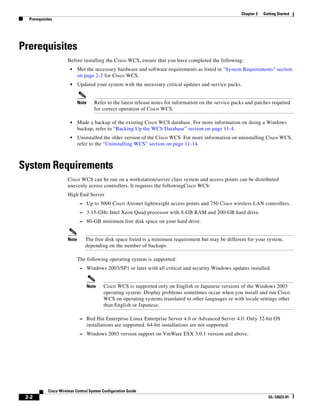
                      Cisco WCS can be run on a workstation/server class system and access points can be distributed
                      unevenly across controllers. It requires the followingCisco WCS:
                      High End Server
                              – Up to 3000 Cisco Aironet lightweight access points and 750 Cisco wireless LAN controllers.
                              – 3.15-GHz Intel Xeon Quad processor with 8-GB RAM and 200-GB hard drive.
                              – 80-GB minimum free disk space on your hard drive.


                      Note      The free disk space listed is a minimum requirement but may be different for your system,
                                depending on the number of backups.

                             The following operating system is supported:
                              – Windows 2003/SP1 or later with all critical and security Windows updates installed.


                                    Note    Cisco WCS is supported only on English or Japanese versions of the Windows 2003
                                            operating system. Display problems sometimes occur when you install and run Cisco
                                            WCS on operating systems translated to other languages or with locale settings other
                                            than English or Japanese.

                              – Red Hat Enterprise Linux Enterprise Server 4.0 or Advanced Server 4.0. Only 32-bit OS
                                    installations are supported. 64-bit installations are not supported.
                              – Windows 2003 version support on VmWare ESX 3.0.1 version and above.


            Cisco Wireless Control System Configuration Guide
 2-2                                                                                                                     OL-12623-01
Chapter 2     Getting Started
                                                                                                                     System Requirements


                                    Note    When running WCS on a dedicated VmWare server, these minimum hardware
                                            requirements are necessary based on WCS high-end server hardware specifications:

                                            — Quad CPU running at 3.15 GHz
                                            — 8 GBs RAM
                                            — 200 GB hard drive


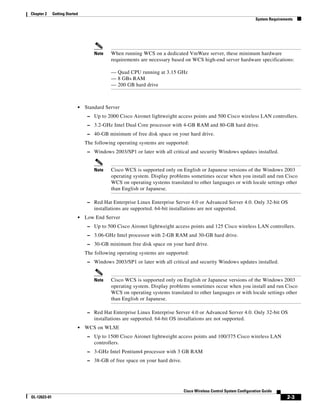
                            •   Standard Server
                                 – Up to 2000 Cisco Aironet lightweight access points and 500 Cisco wireless LAN controllers.
                                 – 3.2-GHz Intel Dual Core processor with 4-GB RAM and 80-GB hard drive.
                                 – 40-GB minimum of free disk space on your hard drive.
                                The following operating systems are supported:
                                 – Windows 2003/SP1 or later with all critical and security Windows updates installed.


                                    Note    Cisco WCS is supported only on English or Japanese versions of the Windows 2003
                                            operating system. Display problems sometimes occur when you install and run Cisco
                                            WCS on operating systems translated to other languages or with locale settings other
                                            than English or Japanese.

                                 – Red Hat Enterprise Linux Enterprise Server 4.0 or Advanced Server 4.0. Only 32-bit OS
                                    installations are supported. 64-bit installations are not supported.
                            •   Low End Server
                                 – Up to 500 Cisco Aironet lightweight access points and 125 Cisco wireless LAN controllers.
                                 – 3.06-GHz Intel processor with 2-GB RAM and 30-GB hard drive.
                                 – 30-GB minimum free disk space on your hard drive.
                                The following operating systems are supported:
                                 – Windows 2003/SP1 or later with all critical and security Windows updates installed.


                                    Note    Cisco WCS is supported only on English or Japanese versions of the Windows 2003
                                            operating system. Display problems sometimes occur when you install and run Cisco
                                            WCS on operating systems translated to other languages or with locale settings other
                                            than English or Japanese.

                                 – Red Hat Enterprise Linux Enterprise Server 4.0 or Advanced Server 4.0. Only 32-bit OS
                                    installations are supported. 64-bit OS installations are not supported.
                            •   WCS on WLSE
                                 – Up to 1500 Cisco Aironet lightweight access points and 100/375 Cisco wireless LAN
                                    controllers.
                                 – 3-GHz Intel Pentium4 processor with 3 GB RAM
                                 – 38-GB of free space on your hard drive.


                                                                              Cisco Wireless Control System Configuration Guide
OL-12623-01                                                                                                                          2-3
Chapter 2   Getting Started
    Installing WCS for Windows


                          •    Requirements for Cisco WCS User Interface—The Cisco WCS user interface requires Internet
                               Explorer 6.0/SP1 or later, with the Flash plug-in. The Cisco WCS user interface has been tested and
                               verified using Internet Explorer 6.0 on a Windows workstation.


                        Note      The screen resolution should be set to 1024 x 76 pixels for both WCS and Navigator.


Installing WCS for Windows
                        This section describes how to install Cisco WCS for Windows operating systems. Before installing Cisco
                        WCS, refer to the “Prerequisites” section on page 2-2 and the “System Requirements” section on
                        page 2-2. These sections give an overview of the system requirements and measures that you should take
                        prior to the installation. You must have administrator privileges on Windows and root on Linux. If
                        installing WCS for Linux, see the “Installing WCS for Linux” section on page 2-9.

Guidelines Before Installing WCS


               Note       •    You cannot install the WCS software if the username used to log into the server contains special
                               characters such as exclamation marks (!). To ensure successful installation, log into the server using
                               a username with no special characters before installing the software.
                          •    Cisco WCS does not support the underscore character (_) in the name of the Windows server running
                               the WCS software. If the server name contains an underscore, you can install the WCS software, but
                               WCS fails to start.
                          •    You must install WCS on a dedicated Windows server with no other services running (including
                               those running as primary or secondary domain controllers) to avoid conflict with WCS.
                        To install Cisco WCS, follow these steps:


             Step 1     Insert the Windows Cisco WCS CD into the CD-ROM drive and double click the
                        WCS-STANDARD-K9-4.0.X.Y.exe file where 4.0.X.Y is the software build. If you received the installer
                        from Cisco.com, double click the WCS-STANDARD-WB-K9-4-0-X-Y.exe file that you downloaded to
                        your local drive.
             Step 2     The Install Anywhere window appears and prepares the system for installation. After a few seconds, the
                        Introduction window appears. Click Next to open the Check Ports window (see Figure 2-1).


              Cisco Wireless Control System Configuration Guide
  2-4                                                                                                                     OL-12623-01
Chapter 2     Getting Started
                                                                                                          Installing WCS for Windows


                           Figure 2-1      Check Ports Window


               Step 3      In the Check Ports window, change the default HTTP and HTTPS ports if necessary and click Next to
                           open the Choose Install Type window (see Figure 2-2). The default ports for HTTP and HTTPS are 80
                           and 443, respectively.


                                                                         Cisco Wireless Control System Configuration Guide
OL-12623-01                                                                                                                      2-5
Chapter 2   Getting Started
 Installing WCS for Windows


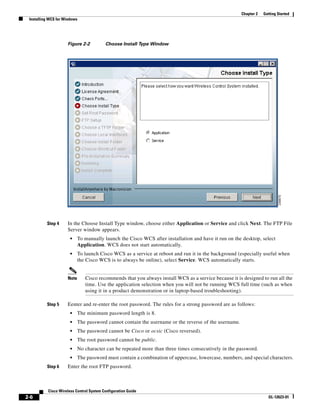
                     Figure 2-2           Choose Install Type Window


          Step 4     In the Choose Install Type window, choose either Application or Service and click Next. The FTP File
                     Server window appears.
                       •    To manually launch the Cisco WCS after installation and have it run on the desktop, select
                            Application. WCS does not start automatically.
                       •    To launch Cisco WCS as a service at reboot and run it in the background (especially useful when
                            the Cisco WCS is to always be online), select Service. WCS automatically starts.


                     Note      Cisco recommends that you always install WCS as a service because it is designed to run all the
                               time. Use the application selection when you will not be running WCS full time (such as when
                               using it in a product demonstration or in laptop-based troubleshooting).

          Step 5     Eenter and re-enter the root password. The rules for a strong password are as follows:
                       •    The minimum password length is 8.
                       •    The password cannot contain the username or the reverse of the username.
                       •    The password cannot be Cisco or ocsic (Cisco reversed).
                       •    The root password cannot be public.
                       •    No character can be repeated more than three times consecutively in the password.
                       •    The password must contain a combination of uppercase, lowercase, numbers, and special characters.
          Step 6     Enter the root FTP password.


           Cisco Wireless Control System Configuration Guide
2-6                                                                                                                  OL-12623-01
Chapter 2     Getting Started
                                                                                                              Installing WCS for Windows


               Step 7      From the FTP Server File window, choose a folder in which to store the FTP server files and click Next
                           to bring up the TFTP File Server window.


                           Note   Store the FTP server files in a folder outside the main installation folder. This ensures that the
                                  FTP server files are not deleted if Cisco WCS is uninstalled.

               Step 8      From the TFTP Server File window, choose a folder in which to store the TFTP server files and click
                           Next.


                           Note   Store the TFTP server files in a folder outside the main installation folder. This ensures that the
                                  TFTP server files are not deleted if Cisco WCS is uninstalled.

                           If you are installing Cisco WCS on a multi-homed server (a server having multiple interfaces), the
                           installer automatically detects the presence of multiple interfaces and opens the Multi-Homed Server
                           Detected window (see Figure 2-3).

                           Figure 2-3       Multi-Homed Server Detected Window


                           Note   The Multi-Homed Server Detected window does not appear if you install Cisco WCS on a server
                                  that has only one interface.


                                                                             Cisco Wireless Control System Configuration Guide
OL-12623-01                                                                                                                          2-7
Chapter 2   Getting Started
 Installing WCS for Windows


          Step 9     Click Yes and then Next to configure specific interfaces on the server for communicating with
                     controllers, location appliances, remote FTP servers, and clients. The Select Local Interfaces window
                     appears (see Figure 2-4). Click No if you do no want to configure specific interfaces.

                     Figure 2-4           Select Local Interfaces Window


          Step 10    From the Select Local Interfaces window, select the interfaces that are used by the server for
                     communicating with controllers, location appliances and remote FTP servers, and clients. Click Next to
                     open the Choose Install Folder window.
          Step 11    Choose a folder in which to install the Cisco WCS and click Next to open the Choose Shortcut Folder
                     window (see Figure 2-5).


           Cisco Wireless Control System Configuration Guide
2-8                                                                                                              OL-12623-01
Chapter 2     Getting Started
                                                                                                                     Installing WCS for Linux


                            Figure 2-5         Choose Shortcut Folder Window


                Step 12     In the Choose Shortcut Folder window, choose a location in which to create product icons and click
                            Next.
                Step 13     Follow the prompts that appear on the screen to complete the installation. After the installation is
                            complete, the Install Complete window appears.
                Step 14     Click Done to complete the installation.


                            Note      The system must be rebooted to complete the Cisco WCS installation.


Installing WCS for Linux
                            This section describes how to install Cisco WCS for Linux operating systems.


                 Note       Before reinstalling or updating Cisco WCS, you may want to back up the Cisco WCS database. After
                            you have a backup, uninstall the old release.


                Step 1      If not already done, log in as root, and open an X terminal session.
                Step 2      Using the command line, perform one of the following:
                             a.    If you are installing from a CD, switch to the /media/cdrom directory.


                                                                                Cisco Wireless Control System Configuration Guide
 OL-12623-01                                                                                                                             2-9
Chapter 2   Getting Started
  Installing WCS for Linux


                         b.    If you are installing from Cisco.com, switch to the directory that the install file was downloaded to.
                               For example, if the install file was placed in /root/Desktop, enter cd /root/Desktop.
            Step 3      Enter ./WCS-STANDARD-K9-4.0.X.Y.bin (for CD users) or
                        ./WCS-STANDARD-LB-K9-4-0-X-Y.bin (for Cisco.com users) to start the install script.
                        The install script prepares the install environment, and several windows of the license agreement display.
                        You will then be asked if you accept the terms of the license agreement.
            Step 4      Finally, a Check HTTP Port prompt appears. Change the default HTTP port if necessary (the default is
                        80).
            Step 5      Change the default HTTPS port if necessary (the default is 443).
            Step 6      At the Get User Input prompt, choose either 1 for Application or 2 for Service. To manually launch the
                        Cisco WCS after installation and have it run on the desktop, select Application. To launch Cisco WCS
                        as a service at reboot and run in the background (especially useful when the Cisco WCS is to always be
                        online), select Service.


                        Note      Cisco recommends that you always install WCS as a service because it is designed to run all the
                                  time.

            Step 7      Enter and re-enter the root password. The rules for a strong password are as follows:
                         •     The minimum password length is 8.
                         •     The password cannot contain the username or the reverse of the username.
                         •     The password cannot be Cisco or ocsic (Cisco reversed).
                         •     The root password cannot be public.
                         •     No character can be repeated more than three times consecutively in the password.
                         •     The password must contain a combination of uppercase, lowercase, numbers, and special characters.
            Step 8      Enter the root FTP password.
            Step 9      Choose a folder to store the FTP server files. It is recommended that the folder is outside of the WCS
                        installation path so that it is not removed during an uninstall. If the folder does not already exist, you
                        must do mkdir and create it.
            Step 10     Choose a folder to store the TFTP server files. It is recommended that the folder is outside of the WCS
                        installation path so that it is not removed during an uninstall. If the folder does not already exist, you
                        must do mkdir and create it.
            Step 11     If you are installing Cisco WCS on a multi-homed server (a server having multiple interfaces), the
                        installer automatically detects the presence of multiple interfaces and prompts with the multi-homed
                        server detected prompt. You need to choose which interface is used for which application functions. To
                        configure specific interfaces on the server for communicating with controllers, location appliances,
                        remote FTP servers, and clients, type 1 for Yes (recommended). Type 2 for No if you do not want to.


                        Note      If you do not select a specific interface, Cisco WCS randomly selects an interface and uses this
                                  interface to communicate with the devices. This might lead to loss of communication between
                                  the interface and the device. Cisco recommends that you always select a specific interface for
                                  each device.

            Step 12     At the Select Local Interfaces prompt, choose the interfaces to be used by the server for communicating
                        with controllers, location appliances, remote FTP servers, and clients. Enter the number for the interface
                        you want to select.


             Cisco Wireless Control System Configuration Guide
2-10                                                                                                                      OL-12623-01
Chapter 2     Getting Started
                                                                                                                               Starting WCS


                Step 13     At the Choose Install Folder prompt, choose a folder in which to install the Cisco WCS. Enter an
                            absolute path or press Enter to accept the default.
                Step 14     At the Choose Link Location prompt, choose a folder in which to put the links for the installed software.
                            This directory houses the StartWCS, StopWCS, Backup, Restore, and UinstallWCS components. The
                            options are to type 1 for the default (opt/WCS4.0), 2 for your home folder, 3 to enter a location, or 4 to
                            not create links.
                Step 15     A pre-installation summary and installing message is displayed to show that the software installation has
                            begun.


                 Note       You must manually start WCS after installation.


Starting WCS
                            This section provides instructions for starting WCS on either a Windows or Linux server.


                 Note       You can check the status of WCS at any time. To do so, follow the instructions in the “Checking the
                            Status of WCS” section on page 11-2.


Starting WCS on Windows
                            Follow these steps to start WCS when it is installed as a Windows application or Windows service.


                 Note       When WCS is installed as a Windows service, WCS runs automatically upon system bootup.


                Step 1      Log into the system as administrator.
                Step 2      Perform one of the following:
                             •     From the Windows Start menu, click Programs > Wireless Control System> StartWCS.
                             •     From the command prompt, navigate to the WCS installation directory (C:Program
                                   FilesWCS32bin) and enter WCS Admin start.
                            The WCS Admin window appears and displays messages indicating that WCS is starting.


                            Note      If WCS is installed as a service, messages also appear to indicate that the Nms_Server service
                                      is starting.


                            Note      If you are starting WCS after a restore from release 4.0.66.0 or earlier, the startup may take
                                      longer than expected. The WCS Admin window may even indicate that starting WCS has failed.
                                      Refer to the task viewer to see whether Java is progressively taking CPU space. If so, WCS is up
                                      and running.

                Step 3      Close the WCSAdmin window when the Close button becomes active.


                                                                                Cisco Wireless Control System Configuration Guide
 OL-12623-01                                                                                                                           2-11
Chapter 2   Getting Started
   Logging into the WCS User Interface


             Step 4     WCS is ready to host WCS user interfaces (clients). Go to the “Logging into the WCS User Interface”
                        section on page 2-12 to use a web browser to connect to the WCS user interface.


Starting WCS on Linux
                        Follow these steps to start WCS when it is installed as a Linux application or Linux service.


              Note      To see the version of WCS you currently have installed, enter nmsadmin.sh version.


              Note      When WCS is installed as a Linux service, WCS runs automatically upon system bootup.


             Step 1     Log into the system as root.
             Step 2     Using the Linux command line interface (CLI), perform one of the following:
                          •    Navigate to the /opt/WCS32 directory (or the directory chosen during installation) and
                               enter ./StartWCS.
                          •    Navigate to the opt/WCS32/bin directory and enter WCSAdmin start.
                        The CLI displays messages indicating that WCS is starting.
             Step 3     WCS is ready to host WCS user interfaces (clients). Go to the “Logging into the WCS User Interface”
                        section on page 2-12 to use a web browser to connect to the WCS user interface.


Logging into the WCS User Interface
                        Follow these steps to log into the WCS user interface through a web browser.


             Step 1     Launch Internet Explorer 6.0 or later on a different computer than the one on which you installed and
                        started WCS.


                        Note      Some WCS features may not function properly if you use a web browser other than Internet
                                  Explorer 6.0 on a Windows workstation.

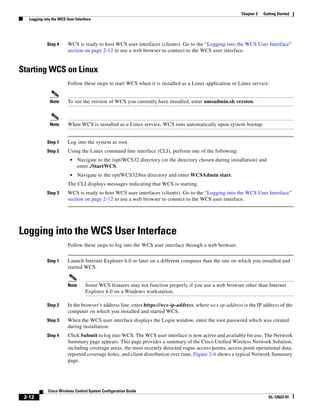
             Step 2     In the browser’s address line, enter https://wcs-ip-address, where wcs-ip-address is the IP address of the
                        computer on which you installed and started WCS.
             Step 3     When the WCS user interface displays the Login window, enter the root password which was created
                        during installation.
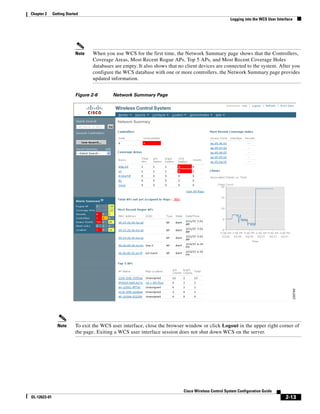
             Step 4     Click Submit to log into WCS. The WCS user interface is now active and available for use. The Network
                        Summary page appears. This page provides a summary of the Cisco Unified Wireless Network Solution,
                        including coverage areas, the most recently detected rogue access points, access point operational data,
                        reported coverage holes, and client distribution over time. Figure 2-6 shows a typical Network Summary
                        page.


             Cisco Wireless Control System Configuration Guide
 2-12                                                                                                                   OL-12623-01
Chapter 2     Getting Started
                                                                                                     Logging into the WCS User Interface


                           Note   When you use WCS for the first time, the Network Summary page shows that the Controllers,
                                  Coverage Areas, Most Recent Rogue APs, Top 5 APs, and Most Recent Coverage Holes
                                  databases are empty. It also shows that no client devices are connected to the system. After you
                                  configure the WCS database with one or more controllers, the Network Summary page provides
                                  updated information.


                           Figure 2-6      Network Summary Page


                Note       To exit the WCS user interface, close the browser window or click Logout in the upper right corner of
                           the page. Exiting a WCS user interface session does not shut down WCS on the server.


                                                                            Cisco Wireless Control System Configuration Guide
OL-12623-01                                                                                                                         2-13
Chapter 2   Getting Started
   Using the Cisco WCS User Interface


              Note      When a system administrator stops the WCS server during your WCS session, your session ends, and
                        the web browser displays this message: “The page cannot be displayed.” Your session does not
                        reassociate to WCS when the server restarts. You must restart the WCS session.


Using the Cisco WCS User Interface
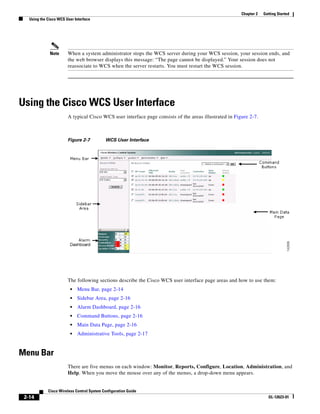
                        A typical Cisco WCS user interface page consists of the areas illustrated in Figure 2-7.


                        Figure 2-7          WCS User Interface


                        The following sections describe the Cisco WCS user interface page areas and how to use them:
                         •   Menu Bar, page 2-14
                         •   Sidebar Area, page 2-16
                         •   Alarm Dashboard, page 2-16
                         •   Command Buttons, page 2-16
                         •   Main Data Page, page 2-16
                         •   Administrative Tools, page 2-17


Menu Bar
                        There are five menus on each window: Monitor, Reports, Configure, Location, Administration, and
                        Help. When you move the mouse over any of the menus, a drop-down menu appears.


             Cisco Wireless Control System Configuration Guide
 2-14                                                                                                                 OL-12623-01
Chapter 2     Getting Started
                                                                                                         Using the Cisco WCS User Interface


                 Note       The Location menu is displayed only in Cisco WCS Location version.


Monitor Menu
                            The Monitor menu provides you with a top level description of the devices on your network. You can
                            monitor your network, maps, various devices, security, alarms, events, or reports.


Configure Menu
                            The Configure menu allows you to configure templates, controllers, and access points on your network.


Administration Menu
                            The Administration menu allows you to schedule tasks like making a backup, checking a device status,
                            auditing your network, synchronizing the location server, and so on. You can also choose Logging to
                            enable various logging modules and specify restart requirements. You can also choose AAA for user
                            administration such as changing passwords, establishing groups, setting application security settings,
                            and so on.


Location Menu
                            The Location menu allows you to configure location appliances. A location appliance is a Cisco server
                            that collects and stores up to 30 days of historical location data for up to 2,500 laptop clients, palmtop
                            clients, VoIP telephone clients, active RFID (Radio Frequency Identifier) asset tags, rogue access points,
                            and rogue access point clients.


                 Note       The Location menu is displayed only in Cisco WCS location version.

                            For more information on location appliances, refer to the Cisco 2700 Series Location Appliance
                            Installation and Configuration Guide.


                 Note       Read/Write permissions are used by the location function of the location appliance. Write permissions
                            allow a client application or location appliance operator to modify location data only (such as asset
                            information), while Read permissions only allow a client to read location data.


                 Note       Full permissions are required for administration. All functions under the Locate menu in Cisco WCS are
                            administrative functions. An administrator must always have full permissions.


Help Menu
                            The Help menu allows you to access online help and check the version of Cisco WCS.
                            To check the version of WCS, click About the Software. The product name, version number, copyright
                            statement, and Apache Software Foundation statement is displayed.


                                                                               Cisco Wireless Control System Configuration Guide
 OL-12623-01                                                                                                                           2-15
Chapter 2   Getting Started
   Using the Cisco WCS User Interface


Sidebar Area
                        The sidebar area allows you to choose a new configuration panel under the currently selected menu area.
                        You may choose to display or configure any of the available data. The selector area options vary based
                        on which menu you have chosen.
                        Some windows contain a group of menus in this area. Click the menu item to reveal a submenu and then
                        click the item to chose it.


Alarm Dashboard
                        When Cisco WCS receives alarm messages from a controller, the Cisco WCS user interface displays an
                        alarm indicator in the lower left corner in an alarm summary panel known as the alarm dashboard. The
                        alarm dashboard only appears when the Macromedia flash is installed.
                        Alarms indicate the current fault or state of an element that needs attention. These are usually generated
                        by one or more events. The alarm can be cleared, but the event remains. An example of an alarm is AP
                        down, which means that the current status of the access point is down.
                        Alarms are color coded as follows:
                         •   Clear = No alarm
                         •   Red = Critical alarm
                         •   Orange = Major alarm
                         •   Yellow = Minor alarm
                        You can click any of the various types of alarms (such as rogues, coverage, security, controllers, and
                        access points) to display details.


Command Buttons
                        The Cisco WCS user interface uses a number of command buttons throughout its windows. The most
                        common of these are as follows:
                         •   Apply to Controllers: Applies the selected information to the controllers
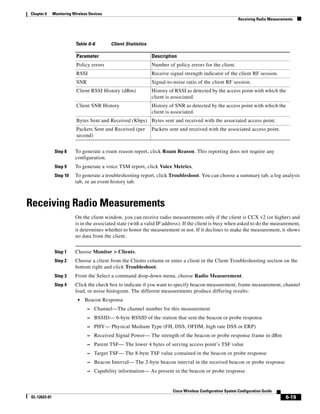
                         •   Delete: Deletes the selected information
                         •   Cancel: Cancels new information entered on the current window and return to the previous window
                         •   Save: Saves the current settings
                         •   Audit: Discovers the present status of this access point
                         •   Place AP: Fixes the position of the selected access point on the graphic map display and updates the
                             display of its coordinates


Main Data Page
                        The main data page is determined by the required parameter information. Active areas on the data pages
                        include the following:
                         •   Text fields into which data may be entered using the keyboard
                         •   Pull-downs from which one of several options may be chosen


             Cisco Wireless Control System Configuration Guide
 2-16                                                                                                                  OL-12623-01
Chapter 2     Getting Started
                                                                                                         Using the Cisco WCS User Interface


                             •   Check boxes in lists allow you to choose one or more items from the displayed list
                             •   Radio buttons allow you to turn a parameter on or off
                             •   Hyperlinks take you to other pages in the Cisco WCS user interface
                            Input fields are black text on a white background. When data is entered or selected, it is not sent to the
                            controller, but it is saved in the field until the Go button is selected.


Administrative Tools
                            This area provides shortcuts to administration functions (such as logged in as, logout, refresh, and help)
                            that are used on a regular basis when configuring a controller through the web user interface.


                                                                               Cisco Wireless Control System Configuration Guide
 OL-12623-01                                                                                                                           2-17
Chapter 2   Getting Started
  Using the Cisco WCS User Interface


            Cisco Wireless Control System Configuration Guide
2-18                                                                          OL-12623-01
C H A P T E R                  3
              Configuring Security Solutions

              This chapter describes security solutions for wireless LANs. It contains these sections:
               •   Cisco Unified Wireless Network Solution Security, page 3-2
               •   Using WCS to Convert a Cisco Unified Wireless Network Solution from Layer 3 to Layer 2 Mode,
                   page 3-4
               •   Configuring a Firewall for WCS, page 3-5
               •   Access Point Authorization, page 3-5
               •   Management Frame Protection (MFP), page 3-6
               •   Configuring Intrusion Detection Systems (IDS), page 3-8
               •   Configuring IDS Signatures, page 3-9
               •   Enabling Web Login, page 3-14


                                                                Cisco Wireless Control System Configuration Guide
OL-12623-01                                                                                                         3-1
Chapter 3   Configuring Security Solutions
  Cisco Unified Wireless Network Solution Security


Cisco Unified Wireless Network Solution Security
                       The Cisco Unified Wireless Network Solution security solution bundles potentially complicated
                       Layer 1, Layer 2, and Layer 3 802.11 access point security components into a simple policy manager
                       that customizes system-wide security policies on a per wireless LAN basis. It provides simple, unified,
                       and systematic security management tools.
                       One of the challenges to wireless LAN deployment in the enterprise is wired equivalent privacy (WEP)
                       encryption, which is a weak standalone encryption method. A more recent problem is the availability of
                       low-cost access points that can be connected to the enterprise network and used to mount
                       man-in-the-middle and denial-of-service attacks. Also, the complexity of add-on security solutions has
                       prevented many IT managers from embracing the benefits of the latest advances in wireless LAN
                       security.


Layer 1 Solutions
                       The Cisco Unified Wireless Network Solution operating system security solution ensures that all clients
                       gain access within an operator-set number of attempts. Should a client fail to gain access within that
                       limit, it is automatically excluded (blocked from access) until the operator-set timer expires. The
                       operating system can also disable SSID broadcasts on a per wireless LAN basis.


Layer 2 Solutions
                       If a higher level of security and encryption is required, the network administrator can also implement
                       industry-standard security solutions such as 802.1X dynamic keys with Extensible Authentication
                       Protocol (EAP) or Wi-Fi Protected Access (WPA) dynamic keys. The Cisco Unified Wireless Network
                       Solution WPA implementation includes Advanced Encryption Standard (AES), Temporal Key Integrity
                       Protocol + message integrity code checksum (TKIP + Michael MIC) dynamic keys, or static WEP keys.
                       Disabling is also used to automatically block Layer 2 access after an operator-set number of failed
                       authentication attempts.
                       Regardless of the wireless security solution selected, all Layer 2 wired communications between
                       controllers and access points are secured by passing data through Lightweight Access Point Protocol
                       (LWAPP) tunnels.


Layer 3 Solutions
                       The WEP problem can be further solved using industry-standard Layer 3 security solutions such as
                       virtual private networks (VPNs).
                       The Cisco Unified Wireless Network Solution supports local and RADIUS media access control (MAC)
                       filtering. This filtering is best suited to smaller client groups with a known list of 802.11 access card
                       MAC addresses. The Cisco Unified Wireless Network Solution also supports local and RADIUS
                       user/password authentication. This authentication is best suited to small to medium client groups.


            Cisco Wirless Control System Configuration Guide
 3-2                                                                                                                     OL-12623-01
Chapter 3     Configuring Security Solutions
                                                                                          Cisco Unified Wireless Network Solution Security


Single Point of Configuration Policy Manager Solutions
                            When the Cisco Unified Wireless Network Solution is equipped with WCS, you can configure
                            system-wide security policies on a per wireless LAN basis. Small-office, home-office (SOHO) access
                            points force you to individually configure security policies on each access point or use a third-party
                            appliance to configure security policies across multiple access points. Because the Cisco Unified
                            Wireless Network Solution security policies can be applied across the whole system from WCS, errors
                            can be eliminated, and the overall effort is greatly reduced.


Rogue Access Point Solutions
                            This section describes security solutions for rogue access points.


Rogue Access Point Challenges
                            Rogue access points can disrupt wireless LAN operations by hijacking legitimate clients and using plain
                            text or other denial-of-service or man-in-the-middle attacks. That is, a hacker can use a rogue access
                            point to capture sensitive information, such as passwords and usernames. The hacker can then transmit
                            a series of clear-to-send (CTS) frames, which mimics an access point informing a particular wireless
                            LAN client adapter to transmit and instructing all others to wait. This scenario results in legitimate
                            clients being unable to access the wireless LAN resources. Thus, wireless LAN service providers have
                            a strong interest in banning rogue access points from the air space.
                            The operating system security solution uses the radio resource management (RRM) function to
                            continuously monitor all nearby access points, automatically discover rogue access points, and locate
                            them as described in the “Tagging and Containing Rogue Access Points” section below.


Tagging and Containing Rogue Access Points
                            When the Cisco Unified Wireless Network Solution is monitored using WCS, WCS generates the flags
                            as rogue access point traps and displays the known rogue access points by MAC address. The operator
                            can then display a map showing the location of the access points closest to each rogue access point. The
                            next step is to mark them as Known or Acknowledged rogue access points (no further action), Alert
                            rogue access points (watch for and notify when active), or Contained rogue access points (have between
                            one and four access points discourage rogue access point clients by sending the clients deauthenticate
                            and disassociate messages whenever they associate with the rogue access point).


Integrated Security Solutions
                            The Cisco Unified Wireless Network Solution also provides these integrated security solutions:
                             •   Cisco Unified Wireless Network Solution operating system security is built around a robust 802.1X
                                 authorization, authentication, and accounting (AAA) engine, which enables operators to rapidly
                                 configure and enforce a variety of security policies across the Cisco Unified Wireless Network
                                 Solution.
                             •   The controllers and access points are equipped with system-wide authentication and authorization
                                 protocols across all ports and interfaces, maximizing system security.


                                                                              Cisco Wireless Control System Configuration Guide
 OL-12623-01                                                                                                                          3-3
Chapter 3   Configuring Security Solutions
  Using WCS to Convert a Cisco Unified Wireless Network Solution from Layer 3 to Layer 2 Mode


                         •    Operating system security policies are assigned to individual wireless LANs, and access points
                              simultaneously broadcast all (up to 16) configured wireless LANs. These policies can eliminate the
                              need for additional access points, which can increase interference and degrade system throughput.
                         •    Operating system security uses the RRM function to continually monitor the air space for
                              interference and security breaches and notify the operator when they are detected.
                         •    Operating system security works with industry-standard AAA servers, making system integration
                              simple and easy.
                         •    The Cisco intrusion detection system/intrusion protection system (CIDS/IPS) instructs controllers
                              to block certain clients from accessing the wireless network when attacks involving these clients are
                              detected.
                         •    The operating system security solution offers comprehensive Layer 2 and Layer 3 encryption
                              algorithms, which typically require a large amount of processing power. Rather than assigning the
                              encryption tasks to yet another server, the controller can be equipped with a VPN/enhanced security
                              module that provides extra hardware required for the most demanding security configurations.


Using WCS to Convert a Cisco Unified Wireless Network
Solution from Layer 3 to Layer 2 Mode
                       Follow these steps to convert a Cisco Unified Wireless Network Solution from Layer 3 to Layer 2
                       LWAPP transport mode using the WCS user interface.


             Note      IOS-based lightweight access points do not support Layer 2 LWAPP mode. These access points can only
                       be run with Layer 3.


             Note      This procedure causes your access points to go offline until the controller reboots and the associated
                       access points reassociate to the controller.


            Step 1     Make sure that all controllers and access points are on the same subnet.


                       Note      You must configure the controllers and associated access points to operate in Layer 2 mode
                                 before completing the conversion.

            Step 2     Log into the WCS user interface. Then follow these steps to change the LWAPP transport mode from
                       Layer 3 to Layer 2:
                        a.    Click Configure > Controllers to navigate to the All Controllers page.
                        b.    Click the desired controller’s IP address to display the IP Address > Controller Properties page.
                        c.    In the sidebar, click System > General to display the IP Address > General page.
                        d.    Change LWAPP transport mode to Layer2 and click Save.
                        e.    If WCS displays the following message, click OK:
                              Please reboot the system for the LWAPP Mode change to take effect.


            Cisco Wirless Control System Configuration Guide
 3-4                                                                                                                          OL-12623-01
Chapter 3      Configuring Security Solutions
                                                                                                              Configuring a Firewall for WCS


                Step 3      Follow these steps to restart your Cisco Unified Wireless Network Solution:
                            a.    Return to the IP Address > Controller Properties page.
                            b.    Click System > Commands to display the IP Address > Controller Commands page.
                            c.    Under Administrative Commands, choose Save Config To Flash and click GO to save the changed
                                  configuration to the controller.
                            d.    Click OK to continue.
                            e.    Under Administrative Commands, choose Reboot and click GO to reboot the controller.
                             f.   Click OK to confirm the save and reboot.
                Step 4      After the controller reboots, follow these steps to verify that the LWAPP transport mode is now Layer 2:
                            a.    Click Monitor > Devices > Controllers to navigate to the Controllers > Search Results page.
                            b.    Click the desired controller’s IP address to display the Controllers > IP Address > Summary page.
                            c.    Under General, verify that the current LWAPP transport mode is Layer2.
                            You have completed the LWAPP transport mode conversion from Layer 3 to Layer 2. The operating
                            system software now controls all communications between controllers and access points on the same
                            subnet.


Configuring a Firewall for WCS
                            When a WCS server and a WCS user interface are on different sides of a firewall, they cannot
                            communicate unless the following ports on the firewall are open to two-way traffic:
                             •    80 (for initial http)
                             •    69 (tftp)
                             •    162 (trap port)
                             •    443 (https)
                            Open these ports to configure your firewall to allow communications between a WCS server and a WCS
                            user interface.


Access Point Authorization
                            You can view a list of authorized access points along with the type of certificate that an access point uses
                            for authorization.


                Step 1      Choose Configure > Controllers.
                Step 2      Click one of the URLs in the IP address column.
                Step 3      From the left sidebar menu, choose Security > AP Authorization.


                                                                                Cisco Wireless Control System Configuration Guide
 OL-12623-01                                                                                                                            3-5
Chapter 3   Configuring Security Solutions
  Management Frame Protection (MFP)


           Step 4     The AP Policies portion of the window indicates whether the authorization of access points is enabled
                      or disabled. It also indicates whether the acceptance of self-signed certificates (SSC APs) is enabled or
                      disabled. Normally, access points can be authorized either by AAA or certificates. (SSC is only available
                      for 4400 and 200 controllers.)
                      To change these values, choose Edit AP Policies from the Select a command drop-down menu and click
                      GO.
           Step 5     The AP Authorization List portion shows the radio MAC address of the access point, certificate type,
                      and key hash. To add a different authorization entry, choose Add AP Auth Entry from the Select a
                      command drop-down menu and click GO.
           Step 6     From the drop-down menu, choose a template to apply to this controller and click Apply. To create a
                      new template for access point authorization, click the click here to get redirected to the template creation
                      page. Refer to the “Configuring an Access Point Authorization” section on page 10-34 for steps on
                      creating a new template.


Management Frame Protection (MFP)
                      Management Frame Protection (MFP) provides security for the otherwise unprotected and unencrypted
                      802.11 management messages passed between access points and clients. MFP provides both
                      infrastructure and client support. WCS software release 4.1 supports both infrastructure and client MFP
                      while WCS software release 4.0 supports only infrastructure MFP.
                       •   Infrastructure MFP—Protects management frames by detecting adversaries who are invoking
                           denial of service attacks, flooding the network with associations and probes, interjecting as rogue
                           access points, and affecting network performance by attacking the QoS and radio measurement
                           frames. it also provides a quick and effective means to detect and report phishing incidents.
                           Specifically, infrastructure MFP protects 802.11 session management functions by adding message
                           integrity check information elements (MIC IEs) to the management frame emitted by access points
                           (and not those emitted by clients), which are then validated by other access points in the network.
                           Infrastructure MFP is passive. It can detect and report intrusions but has no means to stop them.
                       •   Client MFP—Shields authenticated clients from spoofed frames, preventing many of the common
                           attacks against wireless LANs from becoming effective. Most attacks, such as deauthentication
                           attacks, revert to simply degrading performance by contending with valid clients.
                           Specifically, client MFP encrypts management frames sent between access points and CCXv5
                           clients so that both access points and clients can take preventative action by dropping spoofed class
                           3 management frames (that is, management frames passed between an access point and a client that
                           is authenticated and associated). Client MFP leverages the security mechanisms defined by IEEE
                           802.11i to protect the following types of class 3 unicast management frames: disassociation,
                           deauthentication, and QoS (WMM) action. Client MFP is active. It can protect a client-access point
                           session from the most common type of denial-of-service attack. It protects class 3 management
                           frames by using the same encryption method used for the session’s data frames. If a frame received
                           by the access point or client fails decryption, it is dropped, and the event is reported to the controller.
                           To use client MFP, clients must support CCXv5 MFP and must negotiate WPA2 using either TKIP
                           or AES-CCMP. EAP or PSK may be used to obtain the PMK. CCKM and controller mobility
                           management are used to distribute session keys between access points or Layer 2 and Layer 3 fast
                           roaming.


           Cisco Wirless Control System Configuration Guide
 3-6                                                                                                                         OL-12623-01
Chapter 3     Configuring Security Solutions
                                                                                                        Management Frame Protection (MFP)


                                 To prevent attacks against broadcast frames, access points supporting CCXv5 will not emit any
                                 broadcast class 3 management frames (such as disassociation, deauthentication, or action). CCXv5
                                 clients and access points must discard broadcast class 3 management frames.
                                 Client MFP supplements infrastructure MFP rather than replace it because infrastructure MFP
                                 continues to detect and report invalid unicast frames sent to clients that are not client-MFP capable
                                 as well as invalid class 1 and 2 management frames. Infrastructure MFP is applied only to
                                 management frames that are not protected by client MFP.
                            Infrastructure MFP consists of three main components:
                             •   Management frame protection—The access point protects the management frames it transmits by
                                 adding a MIC IE to each frame. Any attempt to copy, alter, or replay the frame invalidates the MIC,
                                 causing any receiving access point configured to detect MFP frames to report the disrepancy.
                             •   Management frame validation—In infrastructure MFP, the access point validates every
                                 management frame it receives from other access points in the network. It ensures that the MC IE is
                                 present (when the originator is configured to transmit MFP frames) and matches the content of the
                                 management frame. If it receives any frame that does not contain a valid MIC IE from a BSSID
                                 belonging to an access point that is configured to transmit MFP frames, it reports the discrepancy to
                                 the network management system. In order for the timestamps to operate properly, all controllers
                                 must be Network Transfer Protocol (NTP) synchronized.
                             •   Event reporting—The access point notifies the controller when it detects an anomaly, and the
                                 controller aggregates the received anomaly events and can report the results through SNMP traps to
                                 the network management system.


                 Note       Client MFP uses the same event reporting mechanisms as infrastructure MFP.

                            Infrastructure MFP is enabled by default and can be disabled globally. When you upgrade from a
                            previous software release, infrastructure MFP is disabled globally if access point authentication is
                            enabled because the two features are mutually exclusive. After infrastructure MFP is enabled globally,
                            signature generation (adding MICs to outbound frames) can be disabled for selected WLANs, and
                            validation can be disabled for selected access points.
                            You set MFP in the WLAN template. Refer to the “Configuring WLAN Templates” section on page 10-9.


Guidelines for Using MFP
                            Follow these guidelines for using MFP:
                             •   MFP is supported for use with Cisco Aironet lightweight acess points, except for the 1500 series
                                 mesh access points.
                             •   Lightweight access points support infrastructure MFP in local and monitor modes and in REAP and
                                 hybrid-REAP modes when the access point is connected to a controller. They support client MFP in
                                 local, hybrid-REAP, and bridge modes.
                             •   Client MFP is supported for use only with CCXv5 clients using WPA2 with TKIP or AES-CCMP.
                             •   Non-CCXv5 clients may associate to a WLAN if client MFP is disabled or optional.


                                                                               Cisco Wireless Control System Configuration Guide
 OL-12623-01                                                                                                                          3-7
Chapter 3   Configuring Security Solutions
  Configuring Intrusion Detection Systems (IDS)


Configuring Intrusion Detection Systems (IDS)
                        The Cisco intrusion detection system/intrusion protection system (CIDS/IPS) instructs controllers to
                        block certain clients from accessing the wireless network when attacks involving these clients are
                        detected. This system offers significant network protection by helping to detect, classify, and stop threats
                        including worms, spyware/adware, network viruses, and application abuse. Two methods are available
                        to detect IDS attacks:
                         •   IDS sensors (for Layer 3)
                         •   IDS signatures (for Layer 2)


Viewing IDS Sensors
                        When the sensors identify an attack, they alert the controller to shun the offending client. When you add
                        a new IDS sensor, you register the controller with that IDS sensor so that the sensor can send shunned
                        client reports to the controller. The controller also polls the sensor periodically.
                        Follow these steps to view IDS sensors.


            Step 1      Choose Configure > Controllers.
            Step 2      Choose a controller by clicking on an IP address.
            Step 3      From the left sidebar menu, choose Security > IDS Sensor Lists. The IDS Sensor window appears. This
                        page lists all of the IDS sensors that have been configured for this controller.


Viewing Shunned Clients
                        When an IDS sensor detects a suspicious client, it alerts the controller to shun this client. If the client to
                        be shunned is currently associated to an access point and controller in a mobility group, the shun entry
                        is distributed to all controllers within the same mobility group, the anchor controller adds this client to
                        the dynamic exclusion list, and the foreign controller removes the client. The next time the client tries
                        to connect to a controller, the anchor controller rejects the handoff and informs the foreign controller
                        that the client is being excluded.
                        Follow these steps to view the list of clients that the IDS sensors have identified to be shunned.


            Step 1      Choose Monitor > Security from the left sidebar menu.
            Step 2      Click Shunned Clients. The Shunned Client window appears. This page shows the IP address of each
                        shunned client, the MAC address of each shunned client, and the IP address of the IDS sensor that
                        suspects the client.


            Cisco Wirless Control System Configuration Guide
 3-8                                                                                                                          OL-12623-01
Chapter 3     Configuring Security Solutions
                                                                                                                   Configuring IDS Signatures


Configuring IDS Signatures
                            You can configure IDS signatures, or bit-pattern matching rules used to identify various types of attacks
                            in incoming 802.11 packets, on the controller. When the signatures are enabled, the access points joined
                            to the controller perform signature analysis on the received 802.11 data or management frames and
                            report any discrepancies to the controller.
                            Follow these instructions to configure signatures:
                             •   Uploading IDS Signatures, page 3-9
                             •   Downloading IDS Signatures, page 3-10
                             •   Enabling or Disabling IDS Signatures, page 3-11
                             •   Viewing IDS Signature Events, page 3-14


Uploading IDS Signatures
                            Follow these steps to upload IDS signatures from the controller.


                Step 1      Obtain a signature file from Cisco (hereafter called a standard signature file). You can also create your
                            own signature file (hereafter called a custom signature file) by following the “Downloading IDS
                            Signatures” section on page 3-10.
                Step 2      Make sure you have a Trivial File Transfer Protocol (TFTP) server available for the signature download.
                            Keep these guidelines in mind when setting up a TFTP server:
                             •   If you are downloading through the service port, the TFTP server must be on the same subnet as the
                                 service port because the service port is not routable.
                             •   If you are downloading through the distribution system network port, the TFTP server can be on the
                                 same or a different subnet because the distribution system port is routable.
                             •   A third-party TFTP server cannot run on the same computer as the Cisco WCS because WCS’s
                                 built-in TFTP server and third-party TFTP server use the same communication port.
                Step 3      Choose Configure > Controllers.
                Step 4      Choose a controller by clicking on an IP address.
                Step 5      From the left sidebar menu, choose Security and then Standard Signatures or Custom Signatures.
                Step 6      From the Select a command drop-down menu, choose Upload Signature Files from Controller.
                            Figure 3-1 shows the window that appears.


                                                                                 Cisco Wireless Control System Configuration Guide
 OL-12623-01                                                                                                                             3-9
Chapter 3   Configuring Security Solutions
   Configuring IDS Signatures


                        Figure 3-1          Uploading Signature File


             Step 7     Specify the TFTP server name being used for the transfer.
             Step 8     If the TFTP server is new, enter the TFTP IP address at the Server IP Address parameter.
             Step 9     Choose Signature Files from the File Type drop-down menu.
             Step 10    The signature files are uploaded to the root directory which was configured for use by the TFTP server.
                        You can change to a different directory at the Upload to File parameter (this parameter only shows if the
                        Server Name is the default server). The controller uses this local file name as a base name and then adds
                        _std.sig as a suffix for standard signature files and _custom.sig as a suffix for custom signature files.
             Step 11    Click OK.


Downloading IDS Signatures
                        If the standard signature file is already on the controller but you want to download customized signatures
                        to it, follow these steps.


             Step 1     Choose Configure > Controllers.
             Step 2     Choose a controller by clicking on an IP address.
             Step 3     Choose System > Commands.
             Step 4     From the Upload/Download Commands drop-down menu, choose Download IDS Signatures and click
                        GO.
             Step 5     Copy the signature file (*.sig) to the default directory on your TFTP server.
             Step 6     Choose local machine from the File is Located On parameter. If you know the filename and path relative
                        to the server’s root directory, you can also choose TFTP server.


             Cisco Wirless Control System Configuration Guide
 3-10                                                                                                                      OL-12623-01
Chapter 3     Configuring Security Solutions
                                                                                                                  Configuring IDS Signatures


                Step 7      Enter the maximum number of times the controller should attempt to download the signature file in the
                            Maximum Retries parameter.
                Step 8      Enter the maximum amount of time in seconds before the controller times out while attempting to
                            download the signature file in the Timeout parameter.
                Step 9      The signature files are uploaded to the c:tftp directory. Specify the local file name in that directory or
                            use the Browse button to navigate to it. A “revision” line in the signature file specifies whether the file
                            is a Cisco-provided standard signature file or a site-tailored custom signature file (custom signature files
                            must always have revision=custom).
                Step 10     If the transfer times out for some reason, you can simply choose the TFTP server option in the File Is
                            Located On parameter, and the Server File Name will be populated for you and retried. The local
                            machine option initiates a two-step operation. First, the local file is copied from the administrator’s
                            workstation to WCS’s own built-in TFTP server. Then the controller retrieves that file. For later
                            operations, the file is already in the WCS server’s TFTP directory, and the download web page now
                            automatically populates the filename.
                Step 11     Click OK.


Enabling or Disabling IDS Signatures
                            Follow these steps to enable or disable IDS signature.


                Step 1      Choose Configure > Controllers.
                Step 2      Choose a controller by clicking on an IP address.
                Step 3      From the left sidebar menu, choose Security and then Standard Signatures or Custom Signatures.
                            Figure 3-2 shows a sample of the screen that appears.


                                                                                Cisco Wireless Control System Configuration Guide
 OL-12623-01                                                                                                                            3-11
Chapter 3   Configuring Security Solutions
  Configuring IDS Signatures


                       Figure 3-2           Checking for Standard Signatures


            Step 4     To enable or disable an individual signature, click in the Name column for the type of attack you want
                       to enable or disable. Figure 3-3 shows a sample of a detailed signature screen.
                       The Standard Signature Parameters window shows the list of Cisco-supplied signatures that are currently
                       on the controller. The Custom Signatures window shows the list of customer-supplied signatures that are
                       currently on the controller. The following information is displayed either on the signature window or the
                       detailed signature window:
                         •     Precedence - The order, or precedence, in which the controller performs the signature checks.
                         •     Name - The type of attack the signature is trying to detect.
                         •     Description - A more detailed description of the type of attack that the signature is trying to detect.
                         •     Frame Type - Management or data frame type on which the signature is looking for a security attack.
                         •     Action - What the controller is directed to do when the signature detects an attack. One possibility
                               is None, where no action is taken, and another is Report, to report the detection.
                         •     Frequency - The signature frequency, or the number of matching packets per second that must be
                               identified at the detecting access point level before an attack is detected.
                         •     Quiet Time - The length of time (in seconds) after which no attacks have been detected and the alarm
                               can stop. This time displays only if the MAC information is all or both.
                         •     MAC Information - Whether the signature is to be tracked per network or per MAC address or both
                               at the detecting access point level.
                         •     MAC Frequency - The signature MAC frequency, or the number of matching packets per second that
                               must be identified at the controller level before an attack is detected.
                         •     Signature Patterns - The pattern that is being used to detect a security attack.


            Cisco Wirless Control System Configuration Guide
3-12                                                                                                                          OL-12623-01
Chapter 3     Configuring Security Solutions
                                                                                                               Configuring IDS Signatures


                           Figure 3-3          Standard Signature


               Step 5      In the Enable yes or no drop-down menu, choose yes. Because you are downloading a customized
                           signature, you should enable the files named with the _custom.sgi and disable the standard signature
                           with the same name but differing suffix. (For example, if you are customizing broadcast probe flood, you
                           want to disable broadcast probe flood in the standard signatures but enable it in custom signatures.)
               Step 6      To enable all standard and custom signatures currently on the controller, choose Edit Signature
                           Parameters (from the screen in Figure 3-2) from the Select a command drop-down list and click GO.
                           The Global Settings for Standard and Custom Signature window appears (see Figure 3-4).


                                                                             Cisco Wireless Control System Configuration Guide
OL-12623-01                                                                                                                          3-13
Chapter 3   Configuring Security Solutions
   Enabling Web Login


                        Figure 3-4          Global Setting for Standard and Custom Signature


            Step 7      Check the Enable Check for All Standard and Custom Signatures check box. This enables all
                        signatures that were individually selected as enabled in Step 5. If this box remains unchecked, all files
                        will be disabled, even those that were previously enabled in Step 5. When the signatures are enabled, the
                        access points joined to the controller perform signature analysis on the received 802.11 data or
                        management frames and report any discrepancies to the controller.
            Step 8      Click Save.


Viewing IDS Signature Events
                        Follow these steps to see the number of attacks detected by the enabled signatures.


            Step 1      Choose Monitor > Events or Monitor > Alarms.
            Step 2      From the Event Category drop-down menu on the left sidebar menu, choose Security and click Search.


Enabling Web Login
                        With web authentication, guests are automatically redirected to web authentication page when they
                        launch their browsers. Guests gain access to the WLAN through this web portal. Wireless LAN
                        administrators using this authentication mechanism should have the option of providing unencrypted or
                        encrypted guest access. Guest users can then log into the wireless network using a valid username and
                        password, which is encrypted with SSL. Web authentication accounts may be created locally or managed
                        by a RADIUS server. The Cisco Wireless LAN controllers can be configured to support a web
                        authentication client. See the “Configuring a Web Authentication Template” section on page 10-42 to
                        create a template that replaces the Web authentication page provided on the controller.


             Cisco Wirless Control System Configuration Guide
 3-14                                                                                                                     OL-12623-01
Chapter 3     Configuring Security Solutions
                                                                                                                        Enabling Web Login


                Step 1      Choose Configure > Controller.
                Step 2      Choose the controller on which to enable web authentication by clicking an IP address URL in the IP
                            Address column.
                Step 3      From the left sidebar menu, choose Security > Web Auth Configuration.
                Step 4      Choose the appropriate web authentication type from the drop-down menu. The choices are default
                            internal, customized web authentication, or external.
                             •   If you choose default internal, you can still alter the page title, message, and redirect URL, as well
                                 as choose whether the logo displays. Continue to Step 5.
                             •   If you choose customized web authentication, skip tothe “Downloading Customized Web
                                 Authentication” section on page 3-15.
                             •   If you choose external, you need to enter the URL you want to redirect to after a successful
                                 authentication. For example, if the value entered for this field is http://www.company.com, the user
                                 would be directed to the company home page.
                Step 5      Click the Logo Display check box if you want your company logo to display.
                Step 6      Enter the title you want displayed on the Web authentication page.
                Step 7      Enter the message you want displayed on the Web authentication page.
                Step 8      Provide the URL where the user is redirected after a successful authentication. For example, if the value
                            entered for this field is http://www.company.com, the user would be directed to the company home page.
                Step 9      Click Save.


Downloading Customized Web Authentication
                            Follow these steps if you chose the customized web authentication option in Step 4 of the previous
                            section. You can download a customized Web authentication page to the controller. A customized web
                            page is created to establish a username and password for user web access.
                            When downloading customized web authentication, these strict guidelines must be followed:
                             •   A username must be provided.
                             •   A password must be provided.
                             •   A redirect URL must be retained as a hidden input item after extracting from the original URL.
                             •   The action URL must be extracted and set from the original URL.
                             •   Scripts to decode the return status code must be included.
                             •   All paths used in the main page should be of relative type.
                            Before downloading, the following steps are required:


                Step 1      Click on the preview image to download the sample login.html bundle file from the server. See
                            Figure 3-5 for an example of the login.html file. The downloaded bundle will be a .TAR file.


                                                                               Cisco Wireless Control System Configuration Guide
 OL-12623-01                                                                                                                          3-15
Chapter 3   Configuring Security Solutions
  Enabling Web Login


                       Figure 3-5          Login.html


           Step 2      Open and edit the login.html file and save it as a .tar or .zip file.


                       Note      You can edit the text of the Submit button with any text or HTML editor to read “Accept terms
                                 and conditions and Submit.”

           Step 3      Make sure you have a Trivial File Transfer Protocol (TFTP) server available for the download. Keep
                       these guidelines in mind when setting up a TFTP server:
                        •     If you are downloading through the service port, the TFTP server must be on the same subnet as the
                              service port because the service port is not routable.
                        •     If you are downloading through the distribution system network port, the TFTP server can be on the
                              same or a different subnet because the distribution system port is routable.
                        •     A third-party TFTP server cannot run on the same computer as the Cisco WCS because WCS’s
                              built-in TFTP server and third-party TFTP server use the same communication port.
           Step 4      Click here in the “After editing the HTML you may click here to redirect to the Download Web Auth
                       Page” link to download the .tar or .zip file to the controller(s). The Download Customized Web Auth
                       Bundle to Controller window appears (see Figure 3-6).


            Cisco Wirless Control System Configuration Guide
3-16                                                                                                                         OL-12623-01
Chapter 3     Configuring Security Solutions
                                                                                                                        Enabling Web Login


                           Figure 3-6          Download Customized Web Auth Bundle to Controller


                           Note      The IP address of the controller to receive the bundle and the current status are displayed.

               Step 5      Choose local machine from the File is Located On parameter. If you know the filename and path relative
                           to the server’s root directory, you can also choose TFTP server.


                           Note      For a local machine download, either .zip or .tar file options exists, but the WCS does the
                                     conversion of .zip to .tar automatically. If you chose a TFTP server download, only .tar files
                                     would be specified.

               Step 6      Enter the maximum amount of time in seconds before the controller times out while attempting to
                           download the file in the Timeout parameter.
               Step 7      The WCS Server Files In parameter specifies where the WCS server files are located. Specify the local
                           file name in that directory or use the Browse button to navigate to it. A “revision” line in the signature
                           file specifies whether the file is a Cisco-provided standard signature file or a site-tailored custom
                           signature file (custom signature files must always have revision=custom).
               Step 8      If the transfer times out for some reason, you can simply choose the TFTP server option in the File Is
                           Located On parameter, and the Server File Name will be populated for you and retried. The local
                           machine option initiates a two-step operation. First, the local file is copied from the administrator’s
                           workstation to the WCS’s own built-in TFTP server. Then the controller retrieves that file. For later
                           operations, the file is already in the WCS server’s TFTP directory, and the download web page now
                           automatically populates the filename.
               Step 9      Click OK.
                           If the transfer times out for some reason, you can simply choose the TFTP server option in the File Is
                           Located On parameter, and the Server File Name will be populated for you and retried.


                                                                               Cisco Wireless Control System Configuration Guide
OL-12623-01                                                                                                                           3-17
Chapter 3   Configuring Security Solutions
   Enabling Web Login


            Step 10     After completing the download, you are directed to the new page and able to authenticate.


Connecting to the Guest WLAN
                        Follow these steps to connect to the guest central WLAN to complete the web authentication process.
                        See the “Creating Guest User Accounts” section on page 7-9 for more explanation of a guest user
                        account.


            Step 1      When you are set for open authentication and are connected, browse to the virtual interface IP address
                        (such as /1.1.1.1/login.html).
            Step 2      When the WCS user interface displays the Login window, enter your username and password.


                        Note     All entries are case sensitive.

                        The lobby ambassador has access to the templates only to add guest users.
            Step 3      Click Submit to log into WCS. The WCS user interface is now active and available for use. The Guest
                        Users Templates page is displayed. This page provides a summary of all created Guest User templates.


                        Note     To exit the WCS user interface, close the browser window or click Logout in the upper right
                                 corner of the page. Exiting a WCS user interface session does not shut down WCS on the server.


                        Note     When a system administrator stops the WCS server during your WCS session, your session ends,
                                 and the web browser displays this message: “The page cannot be displayed.” Your session does
                                 not reassociate to WCS when the server restarts. You must restart the WCS session.


Deleting a Guest User
                        Follow these steps to delete all clients stations that are logged in and using the guest WLAN and its
                        account’s username.


            Step 1      Choose Configure > Controller Templates.
            Step 2      Choose a template from the Template Name column.
            Step 3      From the left sidebar menu, choose Security > Guest Users.
            Step 4      Click the check box before the username you want to delete. WCS gives you a warning message before
                        deletion.
            Step 5      From the Select a command drop-down menu, choose Delete Templates. The window displays remove
                        results if the deletion was successful.


             Cisco Wirless Control System Configuration Guide
 3-18                                                                                                                     OL-12623-01
Chapter 3     Configuring Security Solutions
                                                                                                                       Enabling Web Login


                           Note      The controller can also send notification when a guest account has expired by invoking a trap.
                                     WCS processes this trap and deletes the guest user account from the configuration of that
                                     controller.


                                                                              Cisco Wireless Control System Configuration Guide
OL-12623-01                                                                                                                          3-19
Chapter 3   Configuring Security Solutions
  Enabling Web Login


            Cisco Wirless Control System Configuration Guide
3-20                                                                                         OL-12623-01
C H A P T E R                  4
              Performing System Tasks

              This chapter describes how to use WCS to perform system-level tasks. It contains these sections:
               •   Adding System Components to the WCS Database, page 4-2
               •   Additional Functionality with Location Appliance, page 4-3
               •   Using WCS to Update System Software, page 4-4
               •   Downloading Vendor Device Certificates, page 4-4
               •   Downloading Vendor CA Certificates, page 4-5
               •   Using WCS to Enable Long Preambles for SpectraLink NetLink Phones, page 4-6
               •   Creating an RF Calibration Model, page 4-7


                                                                Cisco Wireless Control System Configuration Guide
OL-12623-01                                                                                                         4-1
Chapter 4   Performing System Tasks
  Adding System Components to the WCS Database


Adding System Components to the WCS Database
                      This section describes how to add a controller and a location appliance to the WCS database.


Adding a Controller to the WCS Database
                      Follow these steps to add a controller to the WCS database.


            Note      Cisco recommends that you manage controllers through the controller dedicated service port for
                      improved security. However, when you manage controllers that do not have a service port (such as 2000
                      series controllers) or for which the service port is disable or the controllers on a WiSM, you must manage
                      those controllers through the controller management interface.


           Step 1     Log into the WCS user interface.
           Step 2     Click Configure > Controllers to display the All Controllers page.
           Step 3     From the Select a command drop-down menu, choose Add Controller and click GO.
           Step 4     On the Add Controller page, enter the controller IP address, network mask, and required SNMP settings.
           Step 5     Click OK. WCS displays a Please Wait dialog box while it contacts the controller and adds the current
                      controller configuration to the WCS database. It then returns you to the Add Controller page.
           Step 6     If WCS does not find a controller at the IP address that you entered for the controller, the Discovery
                      Status dialog displays this message:
                      No response from device, check SNMP.

                      Check these settings to correct the problem:
                       •   The controller service port IP address might be set incorrectly. Check the service port setting on the
                           controller.
                       •   WCS might not have been able to contact the controller. Make sure that you can ping the controller
                           from the WCS server.
                       •   The SNMP settings on the controller might not match the SNMP settings that you entered in WCS.
                           Make sure that the SNMP settings configured on the controller match the settings that you entered
                           in WCS.
           Step 7     Add additional controllers if desired.


Adding a Location Appliance to the WCS Database
                      To add a location appliance to the WCS database, follow the instructions in Chapter 2 of the Cisco
                      Location Appliance Configuration Guide. WCS without the use of the location appliance supports
                      on-demand or query-based location. This version visually displays a single device's location at a time,
                      placing each single device on the floor map associated with the floor it is on. Location determination
                      using this version of WCS with location is captured in Figure 4-1 where the blue icon is the only visual
                      presented of a Wi-Fi client device.


           Cisco Wireless Control System Configuration Guide
 4-2                                                                                                                    OL-12623-01
Chapter 4     Performing System Tasks
                                                                                            Additional Functionality with Location Appliance


                           Figure 4-1        Location Determination


Additional Functionality with Location Appliance
                           Cisco 2700 series location appliances operate within the Cisco Wireless LAN Solution infrastructure.
                           Location appliances compute, collect, and store historical location data using Cisco wireless LAN
                           controllers and access points to track the physical location of wireless devices.
                           Up to 2,500 laptop clients, palmtop clients, VoIP telephone clients, active Radio Frequency Identifier
                           (RFID) asset tags, rogue access points, and clients can be tracked.


                           Note     Even though all clients are loaded in the map, the display has a limit of 250 clients per floor to
                                    prevent overcrowding. You can do an advanced search of the map to see the items of interest.

                           Selectable filters enable you to search collected data and display specific elements on a map. For
                           example, a biomedical user may want to display only active RFID tags that are tracking key medical
                           equipment rather than access points or clients for a given floor.


                                                                               Cisco Wireless Control System Configuration Guide
 OL-12623-01                                                                                                                            4-3
Chapter 4   Performing System Tasks
  Using WCS to Update System Software


Using WCS to Update System Software
                      Follow these steps to update controller (and access point) software using WCS.


           Step 1     Enter ping ip-address to be sure that the WCS server can contact the controller. If you use an external
                      TFTP server, enter ping ip-address to be sure that the WCS server can contact the TFTP server.


                      Note      When you are downloading through a controller distribution system (DS) network port, the
                                TFTP server can be on the same or a different subnet because the DS port is routable.

           Step 2     Click the Configure > Controllers to navigate to the All Controllers page.
           Step 3     Check the check box of the desired controller, choose Download Software from the Select a Command
                      drop-down menu, and click GO. WCS displays the Download Software to Controller page.
           Step 4     If you use the built-in WCS TFTP server, check the TFTP Server on WCS System check box. If you
                      use an external TFTP server, uncheck this check box and add the external TFTP server IP address.
           Step 5     Click Browse and navigate to the software update file (for example, AS_2000_release.aes for 2000
                      series controllers). The files are uploaded to the root directory which was configured for use by the TFTP
                      server. You can change to a different directory.


                      Note      Be sure that you have the correct software file for your controller.

           Step 6     Click Download. WCS downloads the software to the controller, and the controller writes the code to
                      flash RAM. As WCS performs this function, it displays its progress in the Status field.


Downloading Vendor Device Certificates
                      Each wireless device (controller, access point, and client) has its own device certificates. For example,
                      the controller is shipped with a Cisco-installed device certificate. This certificate is used by EAP-TLS
                      and EAP-FAST (when not using PACs) to authenticate wireless clients during local EAP authentication.
                      However, if you wish to use your own vendor-specific device certificate, it must be downloaded to the
                      controller.
                      Follow the instructions below to download a vendor-specific device certificate to the controller.


           Step 1     Choose Configure > Controller.
           Step 2     You can download the certificates in one of two ways:
                       a.    Click the check box of the controller you choose.
                       b.    Choose Download Vendor Device Certificate from the Select a command drop-down menu and
                             click GO.
                      or
                       a.    Click the URL of the desired controller in the IP Address column.
                       b.    Choose System > Commands from the left sidebar menu.


            Cisco Wireless Control System Configuration Guide
 4-4                                                                                                                     OL-12623-01
Chapter 4      Performing System Tasks
                                                                                                       Downloading Vendor CA Certificates


                           c.   Choose Download Vendor Device Certificate from the Upload/Download Commands drop-down
                                menu and click GO.
                Step 3     In the Certificate Password field, enter the password which was used to protect the certificate.
                Step 4     Specify if the certificate to download is on the TFTP server or on the local machine. If it is on the TFTP
                           server, the name must be supplied in the Server File Name parameter in Step 10. If the certificate is on
                           the local machine, you must specify the file path in the Local File Name parameter in Step 9 using the
                           Browse button.
                Step 5     Enter the TFTP server name in the Server Name parameter. The default is for the WCS server to act as
                           the TFTP server.
                Step 6     Enter the server IP address.
                Step 7     In the Maximum Retries field, enter the maximum number of times that the TFTP server attempts to
                           download the certificate.
                Step 8     In the Timeout field, enter the amount of time (in seconds) that the TFTP server attempts to download
                           the certificate.
                Step 9     In the Local File Name field, enter the directory path of the certificate.
                Step 10    In the Server File Name field, enter the name of the certificate.
                Step 11    Click OK.


Downloading Vendor CA Certificates
                           Controllers and access points have a Certificate Authority (CA) certificate that is used to sign and
                           validate device certificates. The controller is shipped with a Cisco-installed CA certificate. This
                           certificate may be used by EAP-TLS and EAP-FAST (when not using PACs) to authenticate wireless
                           clients during local EAP authentication. However, if you wish to use your own vendor-specific CA
                           certificate, it must be downloaded to the controller. Follow the instructions in this section to download
                           vendor CA certificate to the controller.


                Step 1     Click Configure > Controllers.
                Step 2     You can download the certificates in one of two ways:
                           a.   Click the check box of the controller you choose.
                           b.   Choose Download Vendor CA Certificate from the Select a command drop-down menu and click
                                GO.
                           or
                           a.   Click the URL of the desired controller in the IP Address column.
                           b.   Choose System > Commands from the left sidebar menu.
                           c.   Choose Download Vendor CA Certificate from the Upload/Download Commands drop-down
                                menu and click GO.
                Step 3     Specify if the certificate to download is on the TFTP server or on the local machine. If it is on the TFTP
                           server, the name must be supplied in the Server File Name parameter in Step 9. If the certificate is on
                           the local machine, you must specify the file path in the Local File Name parameter in Step 8 using the
                           Browse button.


                                                                              Cisco Wireless Control System Configuration Guide
 OL-12623-01                                                                                                                          4-5
Chapter 4   Performing System Tasks
  Using WCS to Enable Long Preambles for SpectraLink NetLink Phones


           Step 4      Enter the TFTP server name in the Server Name parameter. The default is for the WCS server to act as
                       the TFTP server.
           Step 5      Enter the server IP address.
           Step 6      In the Maximum Retries field, enter the maximum number of times that the TFTP server attempts to
                       download the certificate.
           Step 7      In the Timeout field, enter the amount of time (in seconds) that the TFTP server attempts to download
                       the certificate.
           Step 8      In the Local File Name field, enter the directory path of the certificate.
           Step 9      In the Server File Name field, enter the name of the certificate.
           Step 10     Click OK.


Using WCS to Enable Long Preambles for SpectraLink NetLink
Phones
                       A radio preamble (sometimes called a header) is a section of data at the head of a packet. It contains
                       information that wireless devices need when sending and receiving packets. Short preambles improve
                       throughput performance, so they are enabled by default. However, some wireless devices, such as
                       SpectraLink NetLink phones, require long preambles.
                       To optimize the operation of SpectraLink NetLink phones on your wireless LAN, follow these steps to
                       use WCS to enable long preambles.


           Step 1      Log into the WCS user interface.
           Step 2      Click Configure > Controllers to navigate to the All Controllers page.
           Step 3      Click the IP address of the desired controller.
           Step 4      In the sidebar, click 802.11b/g > Parameters.
           Step 5      If the IP Address > 802.11b/g Parameters page shows that short preambles are enabled, continue to the
                       next step. However, if short preambles are disabled, which means that long preambles are enabled, the
                       controller is already optimized for SpectraLink NetLink phones, and you do not need to continue this
                       procedure.
           Step 6      Enable long preambles by unchecking the Short Preamble check box.
           Step 7      Click Save to update the controller configuration.
           Step 8      To save the controller configuration, click System > Commands in the sidebar, Save Config To Flash
                       from the Administrative Commands drop-down menu, and GO.
           Step 9      To reboot the controller, click Reboot from the Administrative Commands drop-down menu and GO.
           Step 10     Click OK when the following message appears:
                       Please save configuration by clicking “Save Config to flash”. Do you want to continue
                       rebooting anyways?

                       The controller reboots. This process may take some time, during which WCS loses its connection to the
                       controller.


            Cisco Wireless Control System Configuration Guide
 4-6                                                                                                                        OL-12623-01
Chapter 4      Performing System Tasks
                                                                                                          Creating an RF Calibration Model


                           Note     You can use a CLI session to view the controller reboot process.


Creating an RF Calibration Model
                           If you would like to further refine WCS Location tracking of client and rogue access points across one
                           or more floors of a building, you have the option of creating an RF calibration model that uses physically
                           collected RF measurements to fine-tune the location algorithm. When you have multiple floors in a
                           building with the same physical layout as the calibrated floor, you can save time calibrating the
                           remaining floors by using the same RF calibration model for the remaining floors.
                           The calibration models are used as RF overlays with measured RF signal characteristics that can be
                           applied to different floor areas. This allows the Cisco Unified Wireless Network Solution installation
                           team to lay out one floor in a multi-floor area, use the RF calibration tool to measure and save the RF
                           characteristics of that floor as a new calibration model, and apply that calibration model to all the other
                           floors with the same physical layout. See Chapter 5 for calibration instructions.


                                                                              Cisco Wireless Control System Configuration Guide
 OL-12623-01                                                                                                                          4-7
Chapter 4   Performing System Tasks


      Cisco Wireless Control System Configuration Guide
4-8                                                                               OL-12623-01
C H A P T E R                  5
              Adding and Using Maps

              This chapter describes how to add maps to the Cisco WCS database and use them to monitor your
              wireless LAN. It contains these sections:
               •   Creating Maps, page 5-2
               •   Access Point Placement, page 5-20
               •   Creating a Network Design, page 5-23
               •   Adding Chokepoints to the WCS Database and Map, page 5-30
               •   Using Chokepoints to Enhance Tag Location Reporting, page 5-30
               •   Monitoring Maps, page 5-37
               •   Importing or Exporting WLSE Map Data, page 5-49
               •   Analyzing Element Location Accuracy Using Testpoints, page 5-57
               •   Creating and Applying Calibration Models, page 5-53


                                                             Cisco Wireless Control System Configuration Guide
OL-12623-01                                                                                                      5-1
Chapter 5   Adding and Using Maps
  Creating Maps


Creating Maps
                     Adding maps to the Cisco WCS database enables you to view your managed system on realistic campus,
                     building, and floor plan maps. Follow the instructions in the sections below to add a campus, buildings,
                     outdoor areas, floor plans, and access points to maps in the Cisco WCS database:
                       •    Adding a Campus, page 5-2
                       •    Adding Buildings, page 5-3
                       •    Adding Outdoor Areas, page 5-4
                       •    Searching Maps, page 5-5


Adding a Campus
                     Follow these steps to add a single campus map to the Cisco WCS database.


           Step 1    Save the map in .PNG, .JPG, .JPEG, or .GIF format.


                     Note      The map can be any size because WCS automatically resizes the map to fit its working areas.

           Step 2    Browse to and import the map from anywhere in your file system.
           Step 3    Click Monitor > Maps to display the Maps page.
           Step 4    From the Select a command drop-down menu, choose New Campus and click GO.
           Step 5    On the Maps > New Campus page, enter the campus name and campus contact name.
           Step 6    Browse to and choose the image filename containing the map of the campus and click Open.
           Step 7    Check the Maintain Aspect Ratio check box to prevent length and width distortion when WCS resizes
                     the map.
           Step 8    Enter the horizontal and vertical span of the map in feet.


                     Note      The horizontal and vertical span should be larger than any building or floor plan to be added to
                               the campus.

           Step 9    Click OK to add this campus map to the Cisco WCS database. WCS displays the Maps page, which lists
                     maps in the database, map types, and campus status.


           Cisco Wireless Control System Configuration Guide
 5-2                                                                                                                  OL-12623-01
Chapter 5     Adding and Using Maps
                                                                                                                               Creating Maps


Adding Buildings
                          You can add buildings to the Cisco WCS database regardless of whether you have added campus maps
                          to the database. This section explains how to add a building to a campus map or a standalone building
                          to the Cisco WCS database.


Adding a Building to a Campus Map
                          Follow these steps to add a building to a campus map in the Cisco WCS database.


                Step 1    Click Monitor > Maps to display the Maps page.
                Step 2    Click the desired campus. WCS displays the Maps > Campus Name page.
                Step 3    From the Select a command drop-down menu, choose New Building and click GO.
                Step 4    On the Campus Name > New Building page, follow these steps to create a virtual building in which to
                          organize related floor plan maps:
                           a.    Enter the building name.
                           b.    Enter the building contact name.
                           c.    Enter the number of floors and basements.
                           d.    Enter an approximate building horizontal span and vertical span (width and depth on the map) in
                                 feet.


                                 Note      The horizontal and vertical span should be larger than or the same size as any floors that you
                                           might add later.


                          Tip          You can also use Ctrl-click to resize the bounding area in the upper left corner of the campus
                                       map. As you change the size of the bounding area, the Horizontal Span and Vertical Span
                                       parameters of the building change to match your actions.

                           e.    Click Place to put the building on the campus map. WCS creates a building rectangle scaled to the
                                 size of the campus map.
                            f.   Click on the building rectangle and drag it to the desired position on the campus map.
                           g.    Click Save to save this building and its campus location to the database. WCS saves the building
                                 name in the building rectangle on the campus map.


                                 Note      A hyperlink associated with the building takes you to the corresponding Map page.


                                                                                 Cisco Wireless Control Ssytem Configuration Guide
 OL-12623-01                                                                                                                             5-3
Chapter 5   Adding and Using Maps
   Creating Maps


Adding a Standalone Building
                      Follow these steps to add a standalone building to the Cisco WCS database.


            Step 1    Click Monitor > Maps to display the Maps page.
            Step 2    From the Select a command drop-down menu, choose New Building and click GO.
            Step 3    On the Maps > New Building page, follow these steps to create a virtual building in which to organize
                      related floor plan maps:
                       a.    Enter the building name.
                       b.    Enter the building contact name.
                       c.    Enter the number of floors and basements.
                       d.    Enter an approximate building horizontal span and vertical span (width and depth on the map) in
                             feet.


                             Note    The horizontal and vertical span should be larger than or the same size as any floors that you
                                     might add later.

                       e.    Click OK to save this building to the database.


Adding Outdoor Areas
                      Follow these steps to add an outdoor area to a campus map.


             Note     You can add outdoor areas to a campus map in the Cisco WCS database regardless of whether you have
                      added outdoor area maps to the database.


            Step 1    If you want to add a map of the outdoor area to the database, save the map in .PNG, .JPG, .JPEG, or .GIF
                      format. Then browse to and import the map from anywhere in your file system.


                      Note      You do not need a map to add an outdoor area. You can simply define the dimensions of the area
                                to add it to the database. The map can be any size because WCS automatically resizes the map
                                to fit the workspace.

            Step 2    Click Monitor > Maps to display the Maps page.
            Step 3    Click the desired campus. WCS displays the Maps > Campus Name page.
            Step 4    From the Select a command drop-down menu, choose New Outdoor Area and click GO.


            Cisco Wireless Control System Configuration Guide
  5-4                                                                                                                    OL-12623-01
Chapter 5     Adding and Using Maps
                                                                                                                              Creating Maps


                Step 5    On the Campus Name > New Outdoor Area page, follow these steps to create a manageable outdoor area:
                           a.    Enter the outdoor area name.
                           b.    Enter the outdoor area contact name.
                           c.    If desired, enter or browse to the filename of the outdoor area map.
                           d.    Enter an approximate outdoor horizontal span and vertical span (width and depth on the map) in feet.


                          Tip          You can also use Ctrl-click to resize the bounding area in the upper left corner of the campus
                                       map. As you change the size of the bounding area, the Horizontal Span and Vertical Span
                                       parameters of the outdoor area change to match your actions.

                           e.    Click Place to put the outdoor area on the campus map. WCS creates an outdoor area rectangle
                                 scaled to the size of the campus map.
                            f.   Click on the outdoor area rectangle and drag it to the desired position on the campus map.
                           g.    Click Save to save this outdoor area and its campus location to the database. WCS saves the outdoor
                                 area name in the outdoor area rectangle on the campus map.


                                 Note      A hyperlink associated with the outdoor area takes you to the corresponding Map page.


Searching Maps
                          Use the controls in the left sidebar to create and save custom searches:
                            •    New Search drop-down menu: Opens the Search Maps window. Use the Search Maps window to
                                 configure, run, and save searches.
                            •    Saved Searches drop-down menu: Lists the saved custom searches. To open a saved search, choose
                                 it from the Saved Searches list.
                            •    Edit Link: Opens the Edit Saved Searches window. You can delete saved searches in the Edit Saved
                                 Searches window.
                          You can configure the following parameters in the Search Maps window:
                            •    Search for
                            •    Map Name
                            •    Search in
                            •    Save Search
                            •    Items per page
                          After you click GO, the map search results window appears:


                                                                                Cisco Wireless Control Ssytem Configuration Guide
 OL-12623-01                                                                                                                            5-5
Chapter 5   Adding and Using Maps
   Creating Maps


                      Table 5-1           Map Search Results

                       Parameter                                Options
                       Name                                     Clicking an item in the Name list gives a map of an existing
                                                                building with individual floor area maps for each floor.
                       Type                                     Campus, building, or floor area.
                       WCS                                      WCS name.
                       Total APs                                Displays the total number of Cisco radios detected.
                       a Radios                                 Displays the number of 802.11a Cisco radios.
                       b/g Radios                               Displays the number of 802.11b/g Cisco radios.
                       OOS Radios                               Displays the number of Out of Service access points
                                                                associated with this controller.
                       Clients                                  Displays the number of clients currently associated with
                                                                the controller.
                       Status                                   A colored icon indicating the campus or building status
                                                                (green for Up, yellow for Warning, or red for Down).


Adding and Enhancing Floor Plans
                      This section explains how to add floor plans to either a campus building or a standalone building in the
                      Cisco WCS database. It also provides instructions on using the WCS map editor to enhance floor plans
                      that you have created and the WCS planning mode to calculate the number of access points required to
                      cover an area.


Adding Floor Plans to a Campus Building
                      After you add a building to a campus map, you can add individual floor plan and basement maps to the
                      building. Follow these steps to add floor plans to a campus building.


            Step 1    Save your floor plan maps in .PNG, .JPG, or .GIF format.


                      Note       The maps can be any size because WCS automatically resizes the maps to fit the workspace.

            Step 2    Browse to and import the floor plan maps from anywhere in your file system.
            Step 3    Click Monitor > Maps to display the Maps page.
            Step 4    Click the desired campus. WCS displays the Maps > Campus Name page.


            Cisco Wireless Control System Configuration Guide
  5-6                                                                                                                       OL-12623-01
Chapter 5     Adding and Using Maps
                                                                                                                              Creating Maps


               Step 5    Move your cursor over the name within an existing building rectangle to highlight it.


                         Note         When you highlight the name within a building rectangle, the building description appears in the
                                      sidebar.

               Step 6    Click on the building name to display the Maps > Campus Name > Building Name page.
               Step 7    From the Select a command drop-down menu, choose New Floor Area and click GO.
               Step 8    On the Building Name > New Floor Area page, follow these steps to add floors to a building in which to
                         organize related floor plan maps:
                          a.    Enter the floor or basement name.
                          b.    Enter the floor or basement contact name.
                          c.    Choose the floor or basement number.
                          d.    Choose the floor or basement type.
                          e.    Enter the floor-to-floor height in feet.
                           f.   Check the Image File check box; then browse to and choose the desired floor or basement image
                                filename and click Open.


                                Note      When you choose the floor or basement image filename, WCS displays the image in the
                                          building-sized grid.

                          g.    Click Next.
                          h.    Either leave the Maintain Aspect Ratio check box checked to preserve the original image aspect
                                ratio or uncheck the check box to change the image aspect ratio.
                           i.   Enter an approximate floor or basement horizontal span and vertical span (width and depth on the
                                map) in feet.


                                Note      The horizontal and vertical span should be smaller than or the same size as the building
                                          horizontal span and vertical span in the Cisco WCS database.

                           j.   If desired, click Place to locate the floor or basement image on the building grid.


                         Tip          You can use Ctrl-click to resize the image within the building-sized grid.

                          k.    Click OK to save this floor plan to the database. WCS displays the floor plan image on the Maps >
                                Campus Name > Building Name page.


                                Note      Use different floor names in each building. If you are adding more than one building to the
                                          campus map, do not use a floor name that exists in another building. This overlap causes
                                          incorrect mapping information between a floor and a building.

               Step 9    Click any of the floor or basement images to view the floor plan or basement map.


                                                                                Cisco Wireless Control Ssytem Configuration Guide
OL-12623-01                                                                                                                             5-7
Chapter 5   Adding and Using Maps
   Creating Maps


                      Note      You can zoom in and out to view the map at different sizes, and you can add access points. See
                                the “Adding Access Points” section on page 5-18 for instructions.


Adding Floor Plans to a Standalone Building
                      After you have added a standalone building to the Cisco WCS database, you can add individual floor
                      plan maps to the building. Follow these steps to add floor plans to a standalone building.


            Step 1    Save your floor plan maps in .PNG, .JPG, or .GIF format.


                      Note      The maps can be any size because WCS automatically resizes the maps to fit the workspace.

            Step 2    Browse to and import the floor plan maps from anywhere in your file system.
            Step 3    Click Monitor > Maps to display the Maps page.
            Step 4    Click the desired building. WCS displays the Maps > Building Name page.
            Step 5    From the Select a command drop-down menu, choose New Floor Area and click GO.
            Step 6    On the Building Name > New Floor Area page, follow these steps to add floors to a building in which to
                      organize related floor plan maps:
                       a.    Enter the floor or basement name.
                       b.    Enter the floor or basement contact name.
                       c.    Choose the floor or basement number.
                       d.    Choose the floor or basement type.
                       e.    Enter the floor-to-floor height in feet.
                        f.   Check the Image File check box; then browse to and choose the desired floor or basement image
                             filename and click Open.


                             Note    When you choose the floor or basement image filename, WCS displays the image in the
                                     building-sized grid.

                       g.    Click Next.
                       h.    Either leave the Maintain Aspect Ratio check box checked to preserve the original image aspect
                             ratio or uncheck the check box to change the image aspect ratio.
                        i.   Enter an approximate floor or basement horizontal span and vertical span (width and depth on the
                             map) in feet.


                             Note    The horizontal and vertical span should be smaller than or the same size as the building
                                     horizontal span and vertical span in the Cisco WCS database.

                        j.   If desired, click Place to locate the floor or basement image on the building grid.


            Cisco Wireless Control System Configuration Guide
  5-8                                                                                                                   OL-12623-01
Chapter 5      Adding and Using Maps
                                                                                                                                Creating Maps


                           Tip          You can use Ctrl-click to resize the image within the building-sized grid.

                            k.    Click OK to save this floor plan to the database. WCS displays the floor plan image on the Maps >
                                  Building Name page.
                 Step 7    Click any of the floor or basement images to view the floor plan or basement map.


                           Note         You can zoom in and out to view the map at different sizes, and you can add access points. See
                                        the “Adding Access Points” section on page 5-18 for instructions.


Using the Map Editor to Enhance Floor Plans
                           You can use the WCS map editor to define, draw, and enhance floor plan information. The map editor
                           enables you to create obstacles so that they can be taken into consideration when computing RF
                           prediction heat maps for access points. You can also add coverage areas for location appliances that
                           locate clients and tags in that particular area. Follow these general guidelines to use the map editor.

General Notes and Guidelines for Using the Map Editor

                           Consider the following when modifying a building or floor map using the map editor.
                             •    Cisco recommends that you use the map editor to draw walls and other obstacles rather than
                                  importing an .FPE file from the legacy floor plan editor.
                                   – If necessary, you can still import .FPE files. To do so, navigate to the desired floor area, choose
                                        Edit Floor Area from the Select a command drop-down menu, click GO, check the FPE File
                                        check box, and browse to and choose the .FPE file.
                             •    There is no limit to the number of walls that can be added to a floor plan with the map editor;
                                  however, the processing power and memory of a client workstation may limit the refresh and
                                  rendering aspects of WCS.
                                   – Cisco recommends a practical limit of 400 walls per floor for machines with 1 GB RAM or less.
                             •    All walls are used by WCS when generating RF coverage heatmaps.
                                   – However, the location appliance uses no more than 50 heavy walls in its calculations, and the
                                        location appliance does not use light walls in its calculations because those attenuations are
                                        already accounted for during the calibration process.
                             •    A maximum of 250 clients and tags combined are displayed on a map to enhance readability of the
                                  WCS map and to provide a faster rendering of the map.
                                   – Additionally, when multiple tags are within close proximity of another, a summary tag icon is
                                        used to represent their location on a WCS map. The summary tag is labeled with the number of
                                        tags at that location.
                             •    If you have a high resolution image (near 12 megapixels), you may need to scale down the image
                                  resolution with an image editing software prior to using map editor.
                           Follow these steps to use the map editor.


                 Step 1    Click Monitor > Maps to display the Maps page.


                                                                                  Cisco Wireless Control Ssytem Configuration Guide
  OL-12623-01                                                                                                                             5-9
Chapter 5   Adding and Using Maps
   Creating Maps


            Step 2    Click the desired campus. WCS displays the Maps > Campus Name page.
            Step 3    Click on a campus building.
            Step 4    Click on the desired floor area. WCS displays the Maps > Campus Name > Building Name > Floor
                      Area Name page.
            Step 5    From the Select a command drop-down menu, choose Map Editor and click GO. WCS displays the Map
                      Editor page.
            Step 6    Make sure that the floor plan images are properly scaled so that all white space outside of the external
                      walls is removed. To make sure that floor dimensions are accurate, choose the compass tool from the
                      toolbar.
            Step 7    Position the reference length. When you do, the Scale menu appears with the line length supplied. Enter
                      the dimensions (width and height) of the reference length and click OK.
            Step 8    Choose the desired 802.11 standard from the Radio Type drop-down menu.
            Step 9    Choose the antenna model from the Antenna drop-down menu.
            Step 10   Determine the propogation pattern at the Antenna Mode drop-down menu.
            Step 11   Make antenna adjustments by sliding the antenna orientation bar to the desired degree of direction.
            Step 12   Choose the desired access point.
            Step 13   Click Save.


Using the Map Editor to Draw Polygon Areas
                      If you have a building that is non-rectangular or you want to mark a non-rectangular area within a floor,
                      you can use the map editor to draw a polygon-shaped area.


            Step 1    In Cisco WCS, add the floor plan if it is not already represented in WCS (refer to the “Adding and
                      Enhancing Floor Plans” section on page 5-6).
            Step 2    Choose Monitor > Maps.
            Step 3    Click on the Map Name that corresponds to the outdoor area, campus, building, or floor you want to edit.
            Step 4    From the Select a command drop-down menu, choose Map Editor and click GO.
            Step 5    At the Map Editor screen, click the Add Perimeter icon on the tool bar (see Figure 5-1).
                      A pop-up window appears.


                      Note      An example of a polygon-shaped area is seen in Figure 5-1.


            Cisco Wireless Control System Configuration Guide
 5-10                                                                                                                 OL-12623-01
Chapter 5     Adding and Using Maps
                                                                                                                          Creating Maps


                         Figure 5-1        Map Editor Page


               Step 6    Enter the name of the area that you are defining. Click OK.
                         A drawing tool appears.
               Step 7    Move the drawing tool to the area you want to outline.
                           •   Click the left mouse button to begin and end drawing a line.
                           •   When you have completely outlined the area, double click the left mouse button and the area is
                               highlighted on the screen (see Figure 5-2).
                           •   The outlined area must be a closed object to highlight on the map.


                                                                            Cisco Wireless Control Ssytem Configuration Guide
OL-12623-01                                                                                                                        5-11
Chapter 5   Adding and Using Maps
  Creating Maps


                     Figure 5-2           Polygon Area


           Step 8    Click the disk icon in the tool bar to save the newly drawn area.
           Step 9    Choose Command > Exit to close the window. You are returned to the original floor plan.


                     Note      When you return to the original floor plan view, after exiting the map editor, the newly drawn
                               area is not seen; however, it will appear in the Planning Model window when you add elements.

           Step 10   Select Planning Model from the Select a command drop-down menu to begin adding elements to the
                     newly defined polygon-shaped area.


           Cisco Wireless Control System Configuration Guide
5-12                                                                                                                OL-12623-01
Chapter 5     Adding and Using Maps
                                                                                                                             Creating Maps


Using Planning Mode to Calculate Access Point Requirements
                          The WCS planning mode enables you to calculate the number of access points required to cover an area
                          by placing fictitious access points on a map and allowing you to view the coverage area. Based on the
                          throughput specified for each protocol (802.11a or 802.11b/g), planning mode calculates the total
                          number of access points required to provide optimum coverage in your network. You can calculate the
                          recommended number and location of access points based on the following criteria:
                            •   traffic type active on the network: data or voice traffic or both
                            •   location accuracy requirements
                            •   number of active users
                            •   number of users per square footage
                          To calculate the recommended number and placement of access points for a given deployment, follow
                          these steps:


                Step 1    Choose Monitor > Maps.
                          The window appears (see Figure 5-3).

                          Figure 5-3         Monitor > Maps Page


                Step 2    Click the appropriate location link from the list that appears.
                          A color-coded map appears showing placement of all installed elements (access points, clients, tags) and
                          their relative signal strength (see Figure 5-4).


                                                                               Cisco Wireless Control Ssytem Configuration Guide
 OL-12623-01                                                                                                                          5-13
Chapter 5   Adding and Using Maps
  Creating Maps


                     Figure 5-4           Selected Floor Area Showing Current Access Point Assignments


           Step 3    Choose Planning Mode from the Select a command drop-down menu (top-right) and click GO. A blank
                     floor map appears.
           Step 4    Click Add APs.
           Step 5    In the page that appears, drag the dashed-line rectangle over the map location for which you want to
                     calculate the recommended access points (see Figure 5-5).


                     Note      Adjust the size or placement of the rectangle by selecting the edge of the rectangle and holding
                               down the Ctrl key. Move the mouse as necessary to outline the targeted location.


           Cisco Wireless Control System Configuration Guide
5-14                                                                                                                  OL-12623-01
Chapter 5     Adding and Using Maps
                                                                                                                              Creating Maps


                         Figure 5-5            Add APs Page


               Step 6    Select Automatic from the Add APs drop-down menu.
               Step 7    Select the AP Type and the appropriate antenna and protocol for that access point.
               Step 8    Select the target throughput for the access point.
               Step 9    Check the box(es) next to the service(s) that will be used on the floor. Options are Data/Coverage
                         (default), Voice, and Location (Table 5-2).


                         Note         You must select at least one service or an error occurs.


                         Note         If you check the Advanced Options box, two additional access point planning options appear:
                                      Demand and Override Coverage per AP. Additionally, a Safety Margin parameter appears for the
                                      Data/Coverage and Voice service options (Table 5-3).


                                                                                Cisco Wireless Control Ssytem Configuration Guide
OL-12623-01                                                                                                                            5-15
Chapter 5   Adding and Using Maps
  Creating Maps


                     Table 5-2           Definition of Service Options


                      Service Options        Description
                      Data/Coverage          Select if data traffic is transmitted on the wireless LAN. The following densities are
                                             used depending on the band and data rates:
                                             Band                    Path Loss Model        Date Rate (Mbps)        Area (Sq. ft.)
                                                                     (dBm)
                                             802.11a                 –3.3                   10-12                   6000
                                             802.11a                 –3.3                   15-18                   4500
                                             802.11a                 –3.5                   10-12                   5000
                                             802.11a                 –3.5                   15-18                   3250
                                             802.11bg                –3.3                   5                       6500
                                             802.11bg                –3.3                   6                       4500
                                             802.11bg                –3.5                   5                       5500
                                             802.11bg                –3.5                   6                       3500
                                             If you enable Advanced Options (click check box), you can select the desired safety
                                             margin (aggressive, safe, or very safe) of the signal strength threshold for data.
                                              •     Aggressive = Minimum (–3 dBm)
                                              •     Safe = Medium (0 dBm)
                                              •     Very Safe = Maximum (+3 dBm)
                      Voice                  Select if voice traffic is transmitted on the wireless LAN.
                                             If you enable Advanced Options (click check box), you can select the desired safety
                                             margin (aggressive, safe, very safe or 7920-enabled) of the signal strength threshold
                                             for voice.
                                              •     Aggressive = Minimum [–78 dBm (802.11a/b/g)]
                                              •     Safe = Medium [–75 dBm (802.11a/b/g)]
                                              •     Very Safe = Maximum [(–72 dBm (802.11a/b/g)]
                                              •     7920_enabled = [(–72 dBm (802.11a); –67 dBm (802.11b/g)]
                      Location               Select to ensure that the recommended access point calculation provides the true
                                             location of an element within 10 meters at least 90% of the time.
                                             To meet the criteria, access points are collocated within 70 feet of each other in a
                                             hexagonal pattern employing staggered and perimeter placement.
                                             Note      Each service option includes all services that are listed above it. For example,
                                                       if you check the Location box, the calculation considers data/coverage, voice,
                                                       and location in determining the optimum number of access points required.


           Cisco Wireless Control System Configuration Guide
5-16                                                                                                                          OL-12623-01
Chapter 5     Adding and Using Maps
                                                                                                                        Creating Maps


                         Table 5-3    Definition of Advanced Options


                          Advanced Options                 Description
                          Demand                           Select if you want to use the total number of users or user ratio per
                                                           access point as a basis for the access point calculation.
                          Override Coverage per AP         Select if you want to specify square foot coverage as the basis for
                                                           access point coverage.
                          Safety Margin                    Select option to qualify relative signal strength requirements for
                                                           data and voice service in the access point calculation. Options are:
                                                           Aggressive, Safe, Very Safe, and 7920-enabled (voice only). Select
                                                           Aggressive to require minimal signal strength requirements in the
                                                           calculation and Very Safe to request the highest signal strength.


               Step 10   Click Calculate.
                         The recommended number of access points given the selected services appears (see Figure 5-6).

                         Figure 5-6         Recommended Number of Access Points Given Selected Services and Parameters


                                                                          Cisco Wireless Control Ssytem Configuration Guide
OL-12623-01                                                                                                                      5-17
Chapter 5   Adding and Using Maps
   Creating Maps


                      Note      Recommended calculations assume the need for consistently strong signals unless adjusted
                                downward by the safety margin advanced option. In some cases, fewer access points may be
                                required than recommended.


                      Note      Walls are not used or accounted for in planning mode calculations.

            Step 11   Click Apply to generate a map that shows proposed deployment of the recommended access points in
                      the selected area based on the selected services and parameters.

                      Figure 5-7           Recommended Access Point Deployment Given Selected Services and Parameters


            Step 12   Choose Generate Proposal to display a textual and graphical report of the recommended access point
                      number and deployment based on the given input.


Adding Access Points
                      After you add the .PNG, .JPG, .JPEG, or .GIF format floor plan and outdoor area maps to the Cisco
                      WCS database, you can position lightweight access point icons on the maps to show where they are
                      installed in the buildings. Follow these steps to add access points to floor plan and outdoor area maps.


            Step 1    Click Monitor > Network Summary to display the Network Summary page.
            Step 2    Under Coverage Areas, click the desired floor plan or outdoor area map. WCS displays the associated
                      coverage area map.
            Step 3    From the Select a command drop-down menu, choose Add Access Points and click GO.
            Step 4    On the Add Access Points page, choose the access points to add to the map.


            Cisco Wireless Control System Configuration Guide
 5-18                                                                                                                OL-12623-01
Chapter 5     Adding and Using Maps
                                                                                                                              Creating Maps


               Step 5    Click OK to add the access points to the map and display the Position Access Points map.


                         Note         The access point icons appear in the upper left area of the map.

               Step 6    Click and drag the icons to indicate their physical locations.
               Step 7    Click each icon and choose the antenna orientation in the sidebar (see Figure 5-8).

                         Figure 5-8            Antenna Sidebar


                Note       •    The antenna angle is relative to the map’s X axis. Because the origin of the X (horizontal) and Y
                                (vertical) axes is in the upper left corner of the map, 0 degrees points side A of the access point to
                                the right, 90 degrees points side A down, 180 degrees points side A to the left, and so on.
                           •    The antenna elevation is used to move the antenna vertically, up or down, to a maximum of 90
                                degrees.
                           •    Make sure each access point is in the correct location on the map and has the correct antenna
                                orientation. Accurate access point positioning is critical when you use the maps to find coverage
                                holes and rogue access points.
               Step 8    Click Save to store the access point locations and orientations. WCS computes the RF prediction for the
                         coverage area. These RF predictions are popularly known as heat maps because they show the relative
                         intensity of the RF signals on the coverage area map. Figure 5-9 shows an RF prediction heat map.


                         Note         This display is only an approximation of the actual RF signal intensity because it does not take
                                      into account the attenuation of various building materials, such as drywall or metal objects, nor
                                      does it display the effects of RF signals bouncing off obstructions.


                                                                                Cisco Wireless Control Ssytem Configuration Guide
OL-12623-01                                                                                                                            5-19
Chapter 5   Adding and Using Maps
    Access Point Placement


Figure 5-9        RF Prediction Heat Map


Access Point Placement
                        To determine the optimum location of all devices in the wireless LAN coverage areas, you need to
                        consider the access point density and location.
                        Ensure that no fewer than 3 access points, and preferably 4 or 5, provide coverage to every area where
                        device location is required. The more access points that detect a device, the better. This high level
                        guideline translates into the following best practices, ordered by priority:
                         1.   Most importantly, access points should surround the desired location.
                         2.   One access point should be placed roughly every 50 to 70 linear feet ( about 17 to 20 meters). This
                              translates into one access point every 2,500 to 5000 square feet (about 230 to 450 square meters).


              Note      The access point must be mounted so that it is under 20 feet high. For best performance, a mounting at
                        10 feet would be ideal.

                        Following these guidelines makes it more likely that access points will detect tracked devices. Rarely do
                        two physical environments have the same RF characteristics. Users may need to adjust those parameters
                        to their specific environment and requirements.


              Note      Devices must be detected at signals greater than -75 dBm for the controllers to forward information to
                        the location appliance. No fewer than three access points should be able to detect any device at signals
                        below -75 dBm.


              Cisco Wireless Control System Configuration Guide
  5-20                                                                                                                  OL-12623-01
Chapter 5      Adding and Using Maps
                                                                                                                    Access Point Placement


Guidelines for Placing Access Points

                           Follow these rules for placing access points accurately:
                            1.   Place access points along the periphery of coverage areas in order to keep devices close to the
                                 exterior of rooms and buildings (see Figure 5-10). Access points placed in the center of these
                                 coverage areas provide good data on devices that would otherwise appear equidistant from all other
                                 access points.

                           Figure 5-10        Access Points Clustered Together


                            2.   By increasing overall access point density and moving access points towards the perimeter of the
                                 coverage area, location accuracy is greatly improved (see Figure 5-11).

                           Figure 5-11        Improved Location Accuracy by Increasing Density


                            3.   In long and narrow coverage areas, avoid placing access points in a straight line (see Figure 5-12).
                                 Stagger them so that each access point is more likely to provide a unique snapshot of a device’s
                                 location.


                                                                               Cisco Wireless Control Ssytem Configuration Guide
  OL-12623-01                                                                                                                         5-21
Chapter 5   Adding and Using Maps
  Access Point Placement


                      Figure 5-12          Refrain From Straight Line Placement


                            Although the design in Figure 5-12 may provide enough access point density for high bandwidth
                            applications, location suffers because each access point’s view of a single device is not varied
                            enough; therefore, location is difficult to determine.
                       4.   Move the access points to the perimeter of the coverage area and stagger them. Each has a greater
                            likelihood of offering a distinctly different view of the device, resulting in higher location accuracy
                            (see Figure 5-13).

                      Figure 5-13          Improved Location Accuracy by Staggering Around Perimeter


                       5.   Designing a location-aware wireless LAN, while planning for voice as well, is better done with a
                            few things in mind. Most current wireless handsets support only 802.11b, which offers only three
                            non-overlapping channels. Therefore, wireless LANs designed for telephony tend to be less dense
                            than those planned to carry data. Also, when traffic is queued in the Platinum QoS bucket (typically
                            reserved for voice and other latency-sensitive traffic), lightweight access points postpone their
                            scanning functions that allow them to peak at other channels and collect, among other things, device
                            location information. The user has the option to supplement the wireless LAN deployment with
                            access points set to monitor-only mode. Access points that perform only monitoring functions do
                            not provide service to clients and do not create any interference. They simply scan the airwaves for
                            device information.
                            Less dense wireless LAN installations, such as voice networks, find their location accuracy greatly
                            increased by the addition and proper placement of monitor access points (see Figure 5-14).

                      Figure 5-14          Less Dense Wireless LAN Installations


            Cisco Wireless Control System Configuration Guide
5-22                                                                                                                     OL-12623-01
Chapter 5     Adding and Using Maps
                                                                                                                 Creating a Network Design


                           6.    Verify coverage using a wireless laptop, handheld, or phone to ensure that no fewer than three access
                                 points are detected by the device. To verify client and asset tag location, ensure that WCS reports
                                 client devices and tags within the specified accuracy range (10 m, 90%).


Creating a Network Design
                          After access points have been installed and have joined a controller, and WCS has been configured to
                          manage the controllers, set up a network design. A network design is a representation within WCS of the
                          physical placement of access points throughout facilities. A hierarchy of a single campus, the buildings
                          that comprise that campus, and the floors of each building constitute a single network design. These
                          steps assume that the location appliance is set to poll the controllers in that network, as well as be
                          configured to synchronize with that specific network design, in order to track devices in that
                          environment. The concept and steps to perform synchronization between WCS and the location
                          appliance are explained in the “Importing the Location Appliance into WCS” section on page 11-7.


Designing a Network
                          Follow these steps to design a network.


                Step 1    Open the WCS web interface and log in.


                          Note         To create or edit a network design, you must log into WCS and have SuperUser, Admin, or
                                       ConfigManager access privileges.

                Step 2    Click the Monitor tab and choose the Maps subtab (see Figure 5-15).
                Step 3    From the drop-down menu on the right-hand side, choose either New Campus or New Building,
                          depending on the size of the network design and the organization of maps. If you chose New Campus,
                          continue to Step 4. To create a building without a campus, skip to Step 13.


                                                                               Cisco Wireless Control Ssytem Configuration Guide
 OL-12623-01                                                                                                                          5-23
Chapter 5   Adding and Using Maps
  Creating a Network Design


                      Figure 5-15          Creating a New Network Design


           Step 4     Click Go.
           Step 5     Enter a name for the campus network design, a contact name, and the file path to the campus image file.
                      .bmps and .jgps are importable. AutoCAD and non-supported images first need to be converted into
                      these formats.
           Step 6     Check the Maintain Aspect Ratio check box. Enabling this check box causes the horizontal span of the
                      campus to be 5000 feet and adjusts the vertical span according to the image file’s aspect ratio. Adjusting
                      either the horizontal or vertical span changes the other field in accordance with the image ratio.

                      You should uncheck the Maintain Aspect Ratio check box if you want to override this automatic
                      adjustment. You could then adjust both span values to match the real world campus dimensions.
           Step 7     Click OK.
           Step 8     On the Monitor > Maps subtab, click the hyperlink associated with the above-made campus map. A
                      window showing the new campus image is displayed.
           Step 9     From the drop-down menu on the upper right of the window, select New Building and click Go (see
                      Figure 5-16).


            Cisco Wireless Control System Configuration Guide
5-24                                                                                                                  OL-12623-01
Chapter 5     Adding and Using Maps
                                                                                                              Creating a Network Design


                         Figure 5-16      New Building


               Step 10   Enter the name of the building, the contact person, and the number of floors and basements in the
                         building.
               Step 11   Indicate which building on the campus map is the correct building by clicking the blue box in the upper
                         left of the campus image and dragging it to the intended location (see Figure 5-17). To resize the blue
                         box, hold down the Ctrl key and click and drag to adjust its horizontal size. You can also enter
                         dimensions of the building by entering numerical values in the Horizontal Span and Vertical Span fields
                         and click Place. After resizing, reposition the blue box if necessary by clicking on it and dragging it to
                         the desired location. Click Save.


                                                                            Cisco Wireless Control Ssytem Configuration Guide
OL-12623-01                                                                                                                        5-25
Chapter 5   Adding and Using Maps
  Creating a Network Design


                      Figure 5-17          Repositioning Building Highlighted in Blue


           Step 12    WCS is then returned to the campus image with the newly created building highlighted in a green box.
                      Click the green box (see Figure 5-18).

                      Figure 5-18          Newly Created Building Highlighted in Green


           Step 13    To create a building without a campus, choose New Building and click Go.


            Cisco Wireless Control System Configuration Guide
5-26                                                                                                              OL-12623-01
Chapter 5     Adding and Using Maps
                                                                                                                  Creating a Network Design


               Step 14   Enter the building’s name, contact information, number of floors and basements, and dimension
                         information. Click Save. WCS is returned to the Monitor > Maps window.
               Step 15   Click the hyperlink associated with the newly created building.
               Step 16   On the Monitor > Maps > [Campus Name] > [Building Name] window, go to the drop-down menu and
                         choose New Floor Area. Click Go.
               Step 17   Enter a name for the floor, a contact, a floor number, floor type, and height at which the access points
                         are installed and the path of the floor image. Click Next.


                         Note         The Floor Type (RF Model) field specifies the type of environment on that specific floor. This
                                      RF Model indicates the amount of RF signal attenuation likely to be present on that floor. If the
                                      available models do not properly characterize a floor's makeup, details on how to create RF
                                      models specific to a floor's attenuation characteristics are available in the “Creating and
                                      Applying Calibration Models” section on page 5-53.

               Step 18   If the floor area is a different dimension than the building, adjust floor dimensions by either making
                         numerical changes to the text fields under the Dimensions heading or by holding the Ctrl key and
                         clicking and dragging the blue box around the floor image. If the floor's location is offset from the upper
                         left corner of the building, change the placement of the floor within the building by either clicking and
                         dragging the blue box to the desired location or by altering the numerical values under the Coordinates
                         of top left corner heading (see Figure 5-19). After making changes to any numerical values, click Place.


                                                                                Cisco Wireless Control Ssytem Configuration Guide
OL-12623-01                                                                                                                            5-27
Chapter 5   Adding and Using Maps
  Creating a Network Design


                      Figure 5-19          Repositioning Using Numerical Value Fields


           Step 19    Adjust the floor’s characteristics with the WCS map editor by choosing the check box next to Launch
                      Map Editor. For an explanation of the map editor feature, see the “Using the Map Editor to Enhance
                      Floor Plans” section on page 5-9.
           Step 20    At the new floor’s image window (Monitor > Maps > [CampusName] > [BuildingName] >
                      [FloorName]), go to the drop-down menu on the upper right and choose Add Access Points. Click Go.
           Step 21    All access points that are connected to controllers are displayed. Even controllers that WCS is
                      configured to manage but which have not yet been added to another floor map are displayed. Select the
                      access points to be placed on the specific floor map by checking the boxes to the left of the access point
                      entries. Check the box to the left of the Name column to select all access points. Click OK.
           Step 22    Each access point you have chosen to add to the floor map is represented by a gray circle (differentiated
                      by access point name or MAC address) and is lined up in the upper left part of the floor map. Drag each
                      access point to the appropriate location. (Access points turn blue when you click on them to relocate


            Cisco Wireless Control System Configuration Guide
5-28                                                                                                                  OL-12623-01
Chapter 5     Adding and Using Maps
                                                                                                                    Creating a Network Design


                          them.) The small black arrow at the side of each access point represents Side A of each access point, and
                          each access point’s arrow must correspond with the direction in which the access points were installed.
                          (Side A is clearly noted on each 1000 series access point and has no relevance to the 802.11a radio.)
                Step 23   To adjust the directional arrow, choose the appropriate orientation in the Antenna Angle drop-down
                          menu. Click Save when you are finished placing and adjusting each access point’s direction.


                          Note         Access point placement and direction must directly reflect the actual access point deployment
                                       or the system cannot pinpoint the device location.

                Step 24   Repeat the above processes to create campuses, buildings, and floors until each device location is
                          properly detailed in a network design.


Changing Access Point Positions by Importing and Exporting a File
                          You can change an access point position by importing or exporting a file. The file contains only the lines
                          describing which access point you want to move. This option is a timesaver over manually changing
                          multiple access point positions. Follow these steps to change access point positions using the importing
                          or exporting of a file.


                Step 1    Choose Monitor > Maps.
                Step 2    From the Select a command drop-down menu, choose Properties.
                Step 3    At the Unit of Dimenion drop-down menu, choose feet or meters.
                Step 4    The Advanced Debug option must be enabled on both the location appliance and WCS so the location
                          accuracy testpoint is correct.
                Step 5    In the Import/Export AP Placement portion of the window, click Browse to find the file you want to
                          import. The file in the [BuildingName], [FloorName], [APName], (aAngle), (bAngle), [X], [Y],
                          ([aAngleElevation, bAngleElevation, Z]))) format must have already been created and added to WCS.


                          Note         The parameters in square brackets are mandatory, and those in parentheses are optional.


                          Note         Angles must be entered in radians (X,Y) , and the height is entered in feet. The aAngle and
                                       bAngle range is from -2Pi (-6.28...) to 2Pi (6.28...), and the elevation ranges from -Pi (-3.14..)
                                       to Pi (3.14..).

                Step 6    Click Import. The RF calculation takes approximately two seconds per access point.


                                                                                  Cisco Wireless Control Ssytem Configuration Guide
 OL-12623-01                                                                                                                             5-29
Chapter 5   Adding and Using Maps
   Using Chokepoints to Enhance Tag Location Reporting


Using Chokepoints to Enhance Tag Location Reporting
                        Installation of chokepoints provides enhanced location information for RFID tags. When an active CCX
                        version 1 compliant RFID tag enters the range of a chokepoint, it is stimulated by the chokepoint. The
                        MAC address of this chokepoint is then included in the next beacon sent by the stimulated tag. All access
                        points that detect this tag beacon then forward the information to the controller and location appliance.
                        Using chokepoints in conjunction with active CCX compliant tags provides immediate location
                        information on a tag and its asset. When a CCX tag moves out of the range of a chokepoint, its
                        subsequent beacon frames do not contain any identifying chokepoint information. Location
                        determination of the tag defaults to the standard calculation methods based on RSSIs reported by the
                        access point associated with the tag.


Adding Chokepoints to the WCS Database and Map
                        Chokepoints are installed and configured as recommended by the Chokepoint vendor. After the
                        chokepoint installation is complete and operational, the chokepoint can be entered into the location
                        database and plotted on a Cisco WCS map.
                        Follow these steps to add a chokepoint to the WCS database and appropriate map:


            Step 1      Choose Configure > Chokepoints from the main menu.
                        The All Chokepoints summary window appears (see Figure 5-20).

                        Figure 5-20          Configure > Chokepoints


            Step 2      Select Add Chokepoints from the Select a command menu (Figure 5-20). Click GO.
                        The Add Chokepoint entry window appears (see Figure 5-21).


             Cisco Wireless Control System Configuration Guide
 5-30                                                                                                                  OL-12623-01
Chapter 5     Adding and Using Maps
                                                                                       Using Chokepoints to Enhance Tag Location Reporting


                         Figure 5-21           Add Chokepoint Configuration Page


               Step 3    Enter the MAC address, name, and coverage range for the chokepoint.


                         Note         The chokepoint range is product-specific and is supplied by the chokepoint vendor.

               Step 4    Click OK to save the chokepoint entry to the database.
                         The All Chokepoints summary page appears with the new chokepoint entry listed (Figure 5-22).

                         Figure 5-22           All Chokepoints Summary Page


                         Note         After the chokepoint is added to the database, place it on the appropriate WCS floor map.

               Step 5    To add the chokepoint to a map, choose Monitor > Maps (Figure 5-23).


                                                                               Cisco Wireless Control Ssytem Configuration Guide
OL-12623-01                                                                                                                           5-31
Chapter 5   Adding and Using Maps
  Using Chokepoints to Enhance Tag Location Reporting


                       Figure 5-23          Monitor > Maps


           Step 6      On the Maps page, choose the link that corresponds to the floor location of the chokepoint. The floor
                       map appears (Figure 5-24).

                       Figure 5-24          Selected Floor Map


           Step 7      Select Add Chokepoints from the Select a command menu. Click GO.
                       The Add Chokepoints summary page appears (see Figure 5-25).


                       Note      The Add Chokepoints summary page lists all recently-added chokepoints that are in the database
                                 but not yet mapped.


            Cisco Wireless Control System Configuration Guide
5-32                                                                                                                   OL-12623-01
Chapter 5     Adding and Using Maps
                                                                                 Using Chokepoints to Enhance Tag Location Reporting


                         Figure 5-25     Add Chokepoints Summary Page


               Step 8    Check the box next to the chokepoint to be added to the map. Click OK.
                         A map appears with a chokepoint icon located in the top-left hand corner (Figure 5-26). You are now
                         ready to place the chokepoint on the map.

                         Figure 5-26     Map for Positioning Chokepoint


                                                                         Cisco Wireless Control Ssytem Configuration Guide
OL-12623-01                                                                                                                     5-33
Chapter 5   Adding and Using Maps
  Using Chokepoints to Enhance Tag Location Reporting


           Step 9      Left click on the chokepoint icon and drag and place it in the proper location (see Figure 5-27).

                       Figure 5-27          Chokepoint Icon Positioned on the Floor Map


                       Note      The MAC address, name, and coverage range of the chokepoint appear in the left panel when
                                 you click on the chokepoint icon for placement.

           Step 10     Click Save when icon is correctly placed on the map.
                       You are returned to the floor map and the added chokepoint appears on the map.


                       Note      The newly created chokepoint icon may or may not appear on the map depending on the display
                                 settings for that floor. If the icon did not appear, proceed with Step 11.


            Cisco Wireless Control System Configuration Guide
5-34                                                                                                                  OL-12623-01
Chapter 5     Adding and Using Maps
                                                                                       Using Chokepoints to Enhance Tag Location Reporting


                         Figure 5-28           New Chokepoint Displays on Floor Map


                         Note         The rings around the chokepoint icon indicate the coverage area. When a CCX tag and its asset
                                      passes within the coverage area, location details are broadcast, and the tag is automatically
                                      mapped on the chokepoint coverage circle. The chokepoint range is given as a visual only, but
                                      chokepoint vendor software is required to actually configure the range. When the tag moves out
                                      of the chokepoint range, its location is calculated as before and is no longer mapped on the
                                      chokepoint rings. In Figure 5-28, the tag is currently out of range of the chokepoint.


                         Note         MAC address, name, and range of a chokepoint display when you pass a mouse over its map
                                      icon.

               Step 11   If the chokepoint does not appear on the map, click Layers to collapse a selection menu of possible
                         elements to display on the map. Click Chokepoints box.
                         The chokepoint appears on the map (Figure 5-29).


                                                                               Cisco Wireless Control Ssytem Configuration Guide
OL-12623-01                                                                                                                           5-35
Chapter 5   Adding and Using Maps
   Using Chokepoints to Enhance Tag Location Reporting


                        Figure 5-29          Display Chokepoints on Map


            Step 12     Click X to close the Layers window.


                        Note      Do not select Save Settings unless you want to save this display criteria for all maps.


Removing Chokepoints from the WCS Database and Map
                        You can remove one or multiple chokepoints at a time.
                        Follow these steps to delete a chokepoint.


            Step 1      Choose Configure > Chokepoints. The All Chokepoints page appears.
            Step 2      Check the box(es) next to the chokepoint(s) to be deleted.
            Step 3      Select Remove Chokepoints from the Select a command drop-down menu. Click GO (Figure 5-30).


             Cisco Wireless Control System Configuration Guide
 5-36                                                                                                                    OL-12623-01
Chapter 5     Adding and Using Maps
                                                                                                                         Monitoring Maps


                         Figure 5-30        Remove Checkpoint


               Step 4    To confirm chokepoint deletion, click OK in the pop-up window that appears.
                         You are returned to the All Chokepoints page. A message confirming deletion of the chokepoint appears.
                         The deleted chokepoint(s) is no longer listed on the page.


Monitoring Maps
                         This section describes how to use maps to monitor your wireless LANs and predict coverage. You can
                         use maps to do the following:
                           •   Monitoring Predicted Coverage, page 5-38
                           •   Clients Layer, page 5-41
                           •   Monitoring Transmit Power Levels on a Floor Map, page 5-45
                           •   Monitoring Coverage Holes on a Floor Map, page 5-46
                           •   Monitoring Clients on a Floor Map, page 5-47
                           •   Monitoring Outdoor Areas, page 5-48
                         In preparation for monitoring your wireless LANs, familiar yourself with the various refresh options for
                         a map.
                           •   Refresh from network—By clicking Refresh Heatmap in the left sidebar menu (see callout 1 in
                               Figure 5-31), you can refresh the map status and statistics directly from the controller through an
                               SNMP fetch rather than polled data from the WCS database that is five to fifteen minutes older.


                               Note    If you have monitor mode access points on the floor plan, you have a choice between IDS
                                       or coverage heatmap types. A coverage heatmap excludes monitor mode access points, and
                                       an IDS heatmap includes them.


                                                                             Cisco Wireless Control Ssytem Configuration Guide
OL-12623-01                                                                                                                         5-37
Chapter 5   Adding and Using Maps
   Monitoring Maps


                        •   Refresh browser—Above the map next to the Logout and Print option is another refresh option (see
                            callout 3 in Figure 5-31). Clicking this refreshes the complete page or the map and its status and
                            statistics if you are on a map page.
                        •   Load—The Load option in the left sidebar menu refreshes map data from the WCS database on
                            demand (see callout 2 in Figure 5-31). Otherwise, the Refresh option (by the Zoom option on the
                            upper right of the map) provides an interval drop-down menu to set how often to refresh the map
                            data from the database.

                      Figure 5-31          Monitoring Maps


             Note     All three options refresh the data based on the layer selection.


Monitoring Predicted Coverage
                      Follow these steps to monitor the predicted wireless LAN coverage on a map.


            Step 1    Click Monitor > Maps to display the Maps page.
            Step 2    Click an item in the Name column.
            Step 3    Click >Layers to see a check list of the available layers to view. Choosing some layers results in a popup
                      window to further choose what content gets shown in the map. Those layers with popups are described
                      in the next sections. The layer options are as follows:
                        •   Access Points
                        •   AP Heatmaps
                        •   AP Mesh Info —Displays only if mesh access points are present in outdoor areas.


            Cisco Wireless Control System Configuration Guide
 5-38                                                                                                                 OL-12623-01
Chapter 5     Adding and Using Maps
                                                                                                                              Monitoring Maps


                            •    Clients —Displays data only if a location server was added in WCS.
                            •    802.11 Tags
                            •    Rogue APs —Displays data only if a location server was added in WCS.
                            •    Rogue Adhocs —Displays data only if a location server was added in WCS.
                            •    Rogue Clients —Displays only if a location server was added in WCS.
                            •    Grid
                            •    Coverage Areas
                            •    Markers
                            •    Chokepoints — Displays only if chokepoints are added in WCS.


                          Note         If you click the > arrow to the right of these layers, more filter options are provided.

                          The enabled layers are checked, and the disabled ones are grayed out.


                          Note         When you mouse over the various locations, a popup with general access point information,
                                       802.11a/n, and 802.11b/g/n data appears. It provides the channel, transmit power level, user
                                       count, utilization count, antenna name, antenna angle, and elevation angle (for the 802.11a/n and
                                       802.11b/g/n windows), and access point MAC address, model, location, and height in the
                                       General tab.


Access Point Layer
                          If you enable the Access Point layer and then click on the > arrow to the right of these layers, an AP
                          Filter window appears with further menu options (see Figure 5-32).

                          Figure 5-32           AP Filter Window


                                                                                  Cisco Wireless Control Ssytem Configuration Guide
 OL-12623-01                                                                                                                             5-39
Chapter 5   Adding and Using Maps
   Monitoring Maps


            Step 1    From the Protocol drop-down menu, choose one of the following 802.11 protocols to display on the
                      coverage map:
                        •   802.11a & b/g—Displays all the access points in the area.
                        •   802.11a—Displays a colored overlay depicting the coverage patterns for the 802.11a radios. The
                            colors show the received signal strength from red (-35 dBm) through dark blue (-85 dBm).
                        •   802.11b/g—Displays a colored overlay depicting the coverage patterns for the 802.11b/g radios.
                            The colors show the received signal strength from red (-35 dBm) through dark blue (-85 dBm). This
                            is the default value.
            Step 2    From the Display drop-down menu, choose one of the following options to specify the information that
                      appears in the flag next to each access point on the map:
                        •   Channels—Shows the Cisco Radio channel number as Ch#nn, where nn is the channel number, or
                            shows Unavailable for unconnected access points.
                        •   TX Power Level—Shows the current Cisco Radio transmit power level as Tx Power n, where n is
                            power level 1 (high) through 5 (low) or shows Unavailable for unconnected access points.
                        •   Coverage Holes—Shows the percentage of clients whose signal has become weaker until the client
                            lost its connection, shows Unavailable for unconnected access points, or shows MonitorOnly for
                            access points in Monitor-Only mode.
                        •   MAC Addresses—Displays the MAC address of the access point, regardless of whether the access
                            point is associated to a controller.
                        •   Names—Displays the access point name. This is the default value.
                        •   Controller IP—Displays the IP address of the controller to which the access point is associated or
                            “Not Associated” for disassociated access points.
                        •   Utilization—Displays the percentage of bandwidth used by the associated client devices,
                            “Unavailable” for disassociated access points, or “MonitorOnly” for access points in monitor-only
                            mode.
                        •   Profiles—Shows the Load, Noise, Interference and Coverage components of the corresponding
                            operator-defined thresholds: Okay for thresholds not exceeded, Issue for exceeded thresholds, or
                            Unavailable for unconnected access points. You must also then specify the profile type as load,
                            noise, interference, or coverage.
                        •   Users—Shows the number of Cisco Wireless LAN Solution clients, shows Unavailable for
                            unconnected access points, or shows MonitorOnly for access points in Monitor-Only mode.
            Step 3    Click OK.


AP Mesh Info Layer
                      If you enable the AP Mesh Info layer and then click on the > arrow to the right of these layers, a Mesh
                      Parent-Child Hierarchical View window appears with further menu options (see Figure 5-33).


            Cisco Wireless Control System Configuration Guide
 5-40                                                                                                                 OL-12623-01
Chapter 5     Adding and Using Maps
                                                                                                                              Monitoring Maps


                          Figure 5-33           Mesh Parent-Child Hierarchical View Window


                          You can update the map view by choosing which access points you want to see on the map. From the
                          Quick Selections drop-down menu, choose to select only root access point, various hops between the
                          first and the fourth, or select all access points.


                          Note         For a child access point to be visible, its parent must also be selected.


Clients Layer
                          If you enable the Clients layer and then click on the > arrow to the right of these layers, a Client Filter
                          window appears with further menu options (see Figure 5-34).


                                                                                  Cisco Wireless Control Ssytem Configuration Guide
 OL-12623-01                                                                                                                             5-41
Chapter 5   Adding and Using Maps
   Monitoring Maps


                      Figure 5-34          Client Filter Window


                      If you click the Show All Clients check box and the Small Icons check box, all other drop-down menu
                      options are grayed out.
                      If you uncheck the Small Icons check box, you can choose if the want the label to display MAC address,
                      IP address, user name, asset name, asset group, or asset category.
                      If you uncheck the Show All Clients check box, you can specify how you want the clients filtered and
                      enter a particular SSID.
                      The Protocol drop-down menu options are as follows:
                        •   All—Displays all the access points in the area.
                        •   802.11a—Displays a colored overlay depicting the coverage patterns for the clients with 802.11a
                            radios. The colors show the received signal strength from red (-35 dBm) through dark blue
                            (-85 dBm).
                        •   802.11b/g—Displays a colored overlay depicting the coverage patterns for the clients with
                            802.11b/g radios. The colors show the received signal strength from red (-35 dBm) through dark
                            blue (-85 dBm). This is the default value.
                      You can further choose to show clients in all states or specifically idle, authenticated, probing, or
                      associated clients.


802.11 Tags Layer
                      If you enable the 802.11 Tags layer and then click on the > arrow to the right of these layers, a Tag Filter
                      window appears with further menu options (see Figure 5-35).


            Cisco Wireless Control System Configuration Guide
 5-42                                                                                                                   OL-12623-01
Chapter 5     Adding and Using Maps
                                                                                                                        Monitoring Maps


                          Figure 5-35      Tag Filter Window


                          If you click the Show All Tags check box and the Small Icons check box, all other drop-down menu
                          options are grayed out.
                          If you uncheck the Small Icons check box, you can choose if the want the label to display MAC address,
                          asset name, asset group, or asset category.
                          If you uncheck the Show All Clients check box, you can specify how you want the clients filtered.


Rogue APs Layer
                          If you enable the Rogue APs layer and then click on the > arrow to the right of these layers, a Rogue AP
                          Filter window appears with further menu options (see Figure 5-36).

                          Figure 5-36      Rogue AP Filter Window


                                                                            Cisco Wireless Control Ssytem Configuration Guide
 OL-12623-01                                                                                                                       5-43
Chapter 5   Adding and Using Maps
   Monitoring Maps


                      If you click the Show All Rogue APs check box and the Small Icons check box, all other drop-down
                      menu options are grayed out.
                      If you uncheck the Show All Rogue APs check box, you can specify how you want the rogue access
                      points filtered. Follow these steps to define the filter.


            Step 1    If you want to view a particular MAC address, enter it in the MAC Address field.
            Step 2    From the State drop-down menu, choose if you want to display rogues in the alert, known,
                      acknowledged, contained, threat, or known contained state.
            Step 3    Specify if you want to display all rogues, access point rogues, or ad hoc rogues.
            Step 4    Specify whether or not you want to display rogue access points on the network.
            Step 5    Click OK.


Rogue Clients Layer
                      If you enable the Rogue Clients layer and then click on the > arrow to the right of these layers, a Rogue
                      Client Filter window appears with further menu options (see Figure 5-37).

                      Figure 5-37          Rogue Client Filter Window


                      If you click the Show All Rogue Clients check box and the Small Icons check box, all other drop-down
                      menu options are grayed out.
                      If you uncheck the Show All Rogue Clients check box, you can specify how you want the rogue clients
                      filtered. Follow these steps to define the filter.


            Step 1    Provide the MAC address of an associated rogue access point.


            Cisco Wireless Control System Configuration Guide
 5-44                                                                                                                 OL-12623-01
Chapter 5     Adding and Using Maps
                                                                                                                              Monitoring Maps


                Step 2    Specify if you want to display all rogue clients or those in the alert, contained, or threat state.


Monitoring Channels on a Floor Map
                          Follow these steps to monitor channels on a floor map.


                Step 1    Click Monitor > Maps to display the Maps page.
                Step 2    Click an item in the Name column.
                Step 3    Click >Layers.


                          Note         When you mouse over the various locations, a popup with general, 802.11a/n, and 802.11b/g/n
                                       data appears. It provides the channel, transmit power level, user count, utilization count, antenna
                                       name, antenna angle, and elevation angle (for the 802.11a/n and 802.11b/g/n windows), and
                                       access point MAC address, model, controller IP address, location, and height in the General tab.

                Step 4    Click the Access Point check box.
                Step 5    Click the > arrow beside Access Point.
                Step 6    From the Display drop-down menu, choose Channels.
                          The number of the channel being used by each radio appears in the flag next to each access point.
                          “Unavailable” appears for disassociated access points.


                          Note         The available channels are defined by the country code setting and are regulated on a country by
                                       country basis. Refer to
                                       http://www.cisco.com/application/pdf/en/us/guest/products/ps5861/c1650/cdccont_0900aecd8
                                       0537b6a.pdf or http:///www.ciscofax.com.


Monitoring Transmit Power Levels on a Floor Map
                          Follow these steps to monitor transmit power levels on a floor map.


                Step 1    Click Monitor > Maps to display the Maps page.
                Step 2    Click an item in the Name column.
                Step 3    Click >Layers.


                          Note         When you mouse over the various locations, a popup with general, 802.11a/n, and 802.11b/g/n
                                       data appears. It provides the channel, transmit power level, user count, utilization count, antenna
                                       name, antenna angle, and elevation angle (for the 802.11a/n and 802.11b/g/n windows), and
                                       access point MAC address, model, controller IP address, location, and height in the General tab.

                Step 4    Click the Access Point check box.
                Step 5    Click the > arrow beside Access Point.


                                                                                  Cisco Wireless Control Ssytem Configuration Guide
 OL-12623-01                                                                                                                             5-45
Chapter 5   Adding and Using Maps
   Monitoring Maps


            Step 6    Choose Tx Power Level from the Display drop-down menu.
            Step 7    The number of the transmit power level being used by each radio appears in the flag next to each access
                      point. “Unavailable” appears for disassociated access points.
                      Table 5-4 lists the transmit power level numbers and their corresponding power settings:

                      Table 5-4            Transmit Power Level Values

                          Transmit Power
                           Level Number          Power Setting
                                  1              Maximum power allowed per country code setting
                                  2              50% power
                                  3              25% power
                                  4              12.5 to 6.25% power
                                  5              6.25 to 0.195% power


                      Note      The power levels are defined by the country code setting and are regulated on a country by
                                country basis. Go to
                                http://www.cisco.com/en/US/prod/collateral/wireless/ps5679/ps5861/product_data_sheet0900a
                                ecd80537b6a_ps430_Products_Data_Sheet.html.


Monitoring Coverage Holes on a Floor Map
                      Coverage holes are areas where clients cannot receive a signal from the wireless network. When you
                      deploy a wireless network, there is a trade-off between the cost of the initial network deployment and
                      the percentage of coverage hole areas. A reasonable coverage hole criterion for launch is between 2 and
                      10 percent. This means that between two and ten test locations out of 100 random test locations might
                      receive marginal service. After launch, Cisco Unified Wireless Network Solution radio resource
                      management (RRM) identifies these coverage hole areas and reports them to the IT manager, who can
                      fill holes based on user demand.
                      Follow these steps to monitor coverage holes on a floor map.


            Step 1    Click Monitor > Maps to display the Maps page.
            Step 2    Click an item in the Name column.
            Step 3    Click >Layers.


                      Note      When you mouse over the various locations, a popup with general, 802.11a/n, and 802.11b/g/n
                                data appears. It provides the channel, transmit power level, user count, utilization count, antenna
                                name, antenna angle, and elevation angle (for the 802.11a/n and 802.11b/g/n windows), and
                                access point MAC address, model, controller IP address, location, and height in the General tab.

            Step 4    Click the Access Point check box.


            Cisco Wireless Control System Configuration Guide
 5-46                                                                                                                    OL-12623-01
Chapter 5     Adding and Using Maps
                                                                                                                              Monitoring Maps


                Step 5    Click the > arrow beside Access Point.
                Step 6    Choose Coverage Holes from the Display drop-down menu.
                          The percentage of clients that have lost their connection to the wireless network appears in the flag next
                          to each access point. “Unavailable” appears for disassociated access points, and “MonitorOnly” appears
                          for access points in monitor-only mode.


Monitoring Clients on a Floor Map
                          Follow these steps to monitor client devices on a floor map.


                Step 1    Click Monitor > Maps to display the Maps page.
                Step 2    Click an item in the Name column.
                Step 3    Click >Layers.


                          Note         When you mouse over the various locations, a popup with general, 802.11a/n, and 802.11b/g/n
                                       data appears. It provides the channel, transmit power level, user count, utilization count, antenna
                                       name, antenna angle, and elevation angle (for the 802.11a/n and 802.11b/g/n windows), and
                                       access point MAC address, model, controller IP address, location, and height in the General tab.

                Step 4    Click the Access Point check box.
                Step 5    Click the > arrow beside Access Point.
                Step 6    Choose Users from the Display drop-down menu.
                          The number of client devices associated to each radio appears in the flag next to each access point.
                          “Unavailable” appears for disassociated access points, and “MonitorOnly” appears for access points in
                          monitor-only mode.
                Step 7    Click the number of clients to display a list of specific client devices and parameters. Table 5-5 lists the
                          parameters that appear.


                                                                                  Cisco Wireless Control Ssytem Configuration Guide
 OL-12623-01                                                                                                                             5-47
Chapter 5   Adding and Using Maps
   Monitoring Maps


                      Table 5-5           Client Parameters

                       Parameter                Description
                       User                     The username of the client
                       Vendor                   The manufacturer of the client
                       IP Address               The IP address of the client
                       MAC Address              The MAC address of the client
                       Access Point             The name of the access point to which the client is associated
                       Controller               The IP address of the controller to which the access point is connected
                       Port                     The port number of the controller to which the access point is
                                                connected
                       802.11 State             Indicates whether the client is associated or disassociated
                       SSID                     The service set identifier (SSID) being broadcast by the access point
                       Authenticated            Indicates whether authentication is enabled or disabled
                       Protocol                 Indicates whether the 802.11a or 802.11b/g protocol is being used


Monitoring Outdoor Areas
                      Follow these steps to add outdoor areas to a campus.


            Step 1    Choose Monitor > Maps.
            Step 2    Click a campus name in the Name column. Verify in the Type column that it is a campus and not a
                      building, floor area, or outdoor area.
            Step 3    From the Select a command drop-down menu, choose New Outdoor Area and click GO.
            Step 4    Enter the user-defined name of the new outdoor area.
            Step 5    Provide a contact name.
            Step 6    Use the drop-down menu to choose what type of structures exist in this area. You can choose cubes and
                      walled offices, drywall office only, or outdoor open space.
            Step 7    Enter the height in feet where the access point is mounted.
            Step 8    Enter the name of the file containing the outdoor area map or use the Browse button to locate the file.
                      Click Next to continue with the new outdoor area process.
            Step 9    A blue rectangle appears in the upper right-hand corner, superimposed on the map of the campus. Using
                      the mouse, drag this rectangle to the desired outdoor location. To resize the blue rectangle, use
                      Ctrl+Left+Click.
            Step 10   The name and contact information carries over to this window. Use the zoom to get a different view of
                      the map.
            Step 11   Click the Maintain Image Aspect Ratio check box if you want to maintain the ratio of horizontal and
                      vertical pixels of the map image. Maintaining the aspect ratio prevents visual distortion of the map.


            Cisco Wireless Control System Configuration Guide
 5-48                                                                                                                     OL-12623-01
Chapter 5      Adding and Using Maps
                                                                                                     Importing or Exporting WLSE Map Data


                Step 12   Enter the horizontal distance from the corner of the outdoor area rectangle to the left edge of the campus
                          map in feet or meters.
                Step 13   Enter the vertical distance from the corner of the outdoor area rectangle to the top edge of the campus
                          map in feet or meters.
                Step 14   Enter the left to right horizontal span of the outdoor area rectangle in feet or meters.
                Step 15   Enter the up and down vertical span of the outdoor area rectangle in feet or meters.


                 Note     To change the unit of measurement (feet or meters), choose Monitor > Maps and then choose
                          Properties from the Select a command drop-down menu and click GO. The first drop-down menu on
                          the Maps > Properties window allows you to choose between feet or meters as a unit of dimension.

                Step 16   Choose Place to fix the changes on the display or Save to add them to the database.


Importing or Exporting WLSE Map Data
                          When converting from autonomous to LWAPP and from WLSE to WCS, one of the conversion steps is
                          to manually re-enter the access point-related information into WCS. This can be a time-consuming step.
                          To speed up the process, you can export the information about access points from WLSE and import it
                          into WCS.


                 Note     WCS expects a .tar file and checks for a .tar extension before importing the file. If the file you are trying
                          to import is not a .tar file, WCS displays an error message and prompts you to import a different file.

                          To map properties and import a tar file containing WLSE data using the WCS web interface, follow these
                          steps. For more information on the WLSE data export functionality (WLSE version 2.15), go to
                          http://<WLSE_IP_ADDRESS>:1741/debug/export/exportSite.jsp.


                Step 1    Choose Monitor > Maps.
                Step 2    Choose Properties from the Select a command drop-down menu and click GO.
                Step 3    In the Import Map and AP Location Data section, click Browse to select the file to import.
                Step 4    Find and select the .tar file to import and click Open.
                          WCS displays the name of the file in the Import From field (see Figure 5-38).


                                                                              Cisco Wireless Control Ssytem Configuration Guide
 OL-12623-01                                                                                                                         5-49
Chapter 5   Adding and Using Maps
  Importing or Exporting WLSE Map Data


                      Figure 5-38          Maps > Properties Window


           Step 5     Click Import.
                      WCS uploads the file and temporarily saves it into a local directory while it is being processed. If the
                      file contains data that cannot be processed, WCS prompts you to correct the problem and retry. After the
                      file has been loaded, WCS displays a report of what will be added to WCS (see Figure 5-39). The report
                      also specifies what cannot be added and why.


            Cisco Wireless Control System Configuration Guide
5-50                                                                                                                 OL-12623-01
Chapter 5     Adding and Using Maps
                                                                                                   Importing or Exporting WLSE Map Data


                         Figure 5-39      Pre Execute Import Report


                         If some of the data to be imported already exists, WCS either uses the existing data in the case of
                         campuses or overwrites the existing data using the imported data in the cases of buildings and floors (see
                         Figure 5-40).

                         Figure 5-40      Pre Execute Import Report — Duplicate Data Handling


                                                                            Cisco Wireless Control Ssytem Configuration Guide
OL-12623-01                                                                                                                        5-51
Chapter 5   Adding and Using Maps
  Importing or Exporting WLSE Map Data


             Note     If there are duplicate names between a WLSE site and building combination and a WCS campus (or
                      top-level building) and building combination, WCS displays a message in the Pre Execute Import Report
                      indicating that it will delete the existing building.

           Step 6     Click Import to import the WLSE data.
                      WCS displays a report indicating what was imported (see Figure 5-41).

                      Figure 5-41          Post Execute Import Report


           Step 7     Click Monitor > Maps to view the imported data (see Figure 5-42).


            Cisco Wireless Control System Configuration Guide
5-52                                                                                                                OL-12623-01
Chapter 5      Adding and Using Maps
                                                                                                   Creating and Applying Calibration Models


                          Figure 5-42       Maps Page


Creating and Applying Calibration Models
                          If the provided RF models do not sufficiently characterize the floor layout, you can create a calibration
                          model that is applied to the floor and better represents the attenuation characteristics of that floor. In
                          environments in which many floors share common attenuation characteristics (such as in a library), one
                          calibration model can be created and then applied to floors with the same physical layout and same
                          deployment.
                          The calibration models are used as RF overlays with measured RF signal characteristics that can be
                          applied to different floor areas. This enables the Cisco WLAN solution installation team to lay out one
                          floor in a multi-floor area, use the RF calibration tool to measure, save the RF characteristics of that floor
                          as a new calibration model, and apply that calibration model to all the other floors with the same physical
                          layout.
                          Use a laptop or other wireless device to open a browser to the WCS server and perform the calibration
                          process.


                Step 1    Navigate to Monitor > Maps and choose RF Calibration Models from the drop-down menu in the
                          upper right. Click Go.


                                                                               Cisco Wireless Control Ssytem Configuration Guide
 OL-12623-01                                                                                                                           5-53
Chapter 5   Adding and Using Maps
  Creating and Applying Calibration Models


            Step 2     Choose Create New Model from the drop-down menu in the upper right. Click Go.
            Step 3     Assign a name to the model and click OK.
            Step 4     The new model appears along with the other RF calibration models, but its status is listed as Not Yet
                       Calibrated. To start the calibration process, click on the hyperlink associated with the new model name.
                       A new window appears which indicates the details of the new model. In the upper right-hand corner,
                       choose Add Data Points from the drop-down menu and click Go.
            Step 5     If this process is being performed from a mobile device connected to WCS through the Cisco Centralized
                       architecture, the MAC address field is automatically populated with the device’s address. Otherwise, you
                       can manually enter the MAC address of the device being used to perform the calibration. MAC addresses
                       that are manually entered must be delimited with colons (such as FF:FF:FF:FF:FF:FF).
            Step 6     Choose the appropriate campus, building, and floor where the calibration is performed (see Figure 5-43).
                       Click Next.

                       Figure 5-43           Starting to Calibrate


            Step 7     When the chosen floor map and access point locations are presented, a grid of dots indicates the locations
                       where data collection for calibration is performed. Using these locations as guidelines, position a
                       wireless device in a known location on the floor. Click on the map to position the red crosshairs, indicate
                       where the device should be located, and click Save (see Figure 5-44).


            Cisco Wireless Control System Configuration Guide
5-54                                                                                                                    OL-12623-01
Chapter 5     Adding and Using Maps
                                                                                                Creating and Applying Calibration Models


                         Figure 5-44      Positioning the Crosshairs


                Note     Use a client device that supports both 802.11a and 802.11b/g to expedite the calibration process for both
                         spectrums.

               Step 8    Using the suggested location coordinates as a guideline, continue moving the mobile device throughout
                         the floor, ensuring that the red cross hair exactly correlate with the actual location of the device. Click
                         Save to store each location measurement.
                         Perform this process for each spectrum in which locationing is required until the calibration wizard
                         shows that the process is complete. The calibration wizard shows a complete calibration after roughly
                         50 distinct locations and 150 measurements have been gathered. For every location point saved in the
                         calibration process, more than one data point is gathered. Information on calibration status is provided
                         in a legend on the left-hand side of the window. As data points are collected and areas of the map are
                         properly calibrated, coverage is indicated by colored areas that correspond with the specific wireless
                         LAN standard used to collect that data. The progress of the calibration process is indicated by two status
                         bars above the legend, one for 802.11b/g and one for 802.11a progress.
               Step 9    When the calibration is complete for each spectrum in which locationing is required, click on the name
                         of the calibration model at the top of the window to return to the main screen for that model.
               Step 10   After all the raw data collection is performed, compile the model, and then WCS and the location
                         appliance use the data to understand RF attenuation characteristics. To compute the collected data points,
                         choose Calibrate from the drop-down menu and click Go.
               Step 11   To use the newly created calibration model, you must apply the model to the floor on which it was
                         created (and on any other floors with similar attenuation characteristics as well). Navigate to Monitor
                         > Maps and find the specific floor to which the model is applied. At the floor map interface, choose Edit
                         Floor Area from the drop-down menu and click Go.
               Step 12   From the Floor Type (RF Model) drop-down menu, choose the newly created calibration model. Click
                         OK to apply the model to the floor.


                                                                            Cisco Wireless Control Ssytem Configuration Guide
OL-12623-01                                                                                                                         5-55
Chapter 5   Adding and Using Maps
   Creating and Applying Calibration Models


                        Note      This process can be repeated for as many models and floors as needed. After a model is applied
                                  to a floor, all location determination performed on that floor is done using the specific collected
                                  attenuation data from the calibration model.


Modifying the Appearance of Floor Maps
                        You can modify the appearance of the floor map by selecting an option from the View drop-down list.
                        From the drop-down list, you can choose the following options:
                          •    Show/Hide APs
                          •    Show/Hide AP Heatmaps
                          •    Show AP Mesh Info (displayed only when bridging access points are added to the floor): When this
                               option is chosen, Cisco WCS initiates a contact with the controllers and displays information about
                               bridging access points. The following information is displayed:
                                – Link between the child and the parent access point.
                                – An arrow that indicates the direction from child to parent access point.
                                – A color coded link that indicates the signal-to-noise radio (SNR). A green link represents a high
                                   SNR (above 25 dB), an amber link represents an acceptable SNR (20-25 dB), and a red link
                                   represents a very low SNR (below 20 dB).
                          •    Show/Hide Clients
                          •    Show/Hide 802.11 tags
                          •    Show/Hide Rogue APs
                          •    Show/Hide Rogue Clients
                          •    Show/Hide Grid
                          •    Show/Hide 802.11 coverage areas
                          •    Full screen
                          •    Set as default


Monitoring Calibration Models
                        Follow the steps below to adjust the properties of the RF calibration model.


             Step 1     Choose Monitor > Maps.
             Step 2     From the Select a command drop-down list, choose RF Calibration Models and click GO.
             Step 3     Click an RF calibrated model name.
             Step 4     From the Select a command drop-down list, choose Properties and click GO.
             Step 5     Click the Sweep Client Power for Location check box if you want to enable. You may want to enable
                        this if a high density of access points exists, and transmit power is reduced or unknown. The sweeping
                        range of client transmit powers may improve accuracy, but scalability is negatively affected.


             Cisco Wireless Control System Configuration Guide
 5-56                                                                                                                      OL-12623-01
Chapter 5      Adding and Using Maps
                                                                                    Analyzing Element Location Accuracy Using Testpoints


                Step 6    Choose the binsize (4, 8, 16, 32) from the HeatMap Binsize drop-down menu.
                Step 7    Determine the heatmap cutoff. A low heatmap cutoff is recommended, particularly if the access point
                          density is high, and RF propagation conditions are favorable. A higher cutoff value increases scalability
                          yet may cause difficulty when locating clients.


Analyzing Element Location Accuracy Using Testpoints
                          You can analyze the location accuracy of rogue and non-rogue clients and asset tags by entering
                          testpoints on an area or floor map. You can use this feature to validate location information generated
                          either automatically by access points or manually by calibration.


                 Note     By checking for location accuracy, you are checking the ability of the existing access point deployment
                          to estimate the true location of an element within 10 meters at least 90% of the time.


                 Note     Before starting this process, be sure to have the MAC addresses and locations for all elements within the
                          area or floor to be analyzed. You need this information when placing the testpoints on the map. If
                          analyzing location after calibration, you should analyze the location accuracy of at least as many
                          elements entered during calibration.


                 Note     The Advanced Debug option must be enabled on both the location appliance and WCS to allow use of
                          the location accuracy testpoint feature.

                          Follow these steps to enable the advanced debug option and assign testpoints to a floor map to check
                          location accuracy.


                Step 1    Choose Location > Location Servers.
                Step 2    Select a server from the All Location Servers page that appears.
                Step 3    Select Advanced Parameters from the Administration menu of the Location Server General Properties
                          page (see Figure 5-45).


                                                                            Cisco Wireless Control Ssytem Configuration Guide
 OL-12623-01                                                                                                                        5-57
Chapter 5   Adding and Using Maps
   Analyzing Element Location Accuracy Using Testpoints


                        Figure 5-45          Location Server General Properties Page


            Step 4      On the page that appears, scroll down to the Advanced Parameters section. Check the Advanced Debug
                        box to enable the feature. Click Save.


                        Note      If the Advanced Debug check box is already checked, you do not need to do anything further.
                                  Click Cancel.


Assigning Testpoints to a Selected Area
                        You are now ready to assign testpoints to a selected area or map.


            Step 1      Choose Monitor > Maps.
            Step 2      Select Properties from the Select a command drop-down menu.


             Cisco Wireless Control System Configuration Guide
 5-58                                                                                                                 OL-12623-01
Chapter 5     Adding and Using Maps
                                                                               Analyzing Element Location Accuracy Using Testpoints


               Step 3    On the Maps > Properties page (see Figure 5-46), select Enable from the Advanced Debug drop-down
                         menu. Click OK.

                         Figure 5-46     Map > Properties Page


               Step 4    Choose Monitor > Maps. Select the area or floor you want to analyze from the map summary that
                         appears.
                         The page seen in Figure 5-47 appears.


                                                                       Cisco Wireless Control Ssytem Configuration Guide
OL-12623-01                                                                                                                    5-59
Chapter 5   Adding and Using Maps
  Analyzing Element Location Accuracy Using Testpoints


                       Figure 5-47          Selected Area or Floor Map Chosen At Monitor > Maps Page


           Step 5      Select Position TestPoint from the Select a command drop-down menu (top-right). Click GO.
                       A blank map of the selected area or floor appears for testpoint assignment (see Figure 5-48).

                       Figure 5-48          Position TestPoint Assignment Page


           Step 6      Move the red cross-hair cursor (top-left) to the map location that corresponds to the element.


            Cisco Wireless Control System Configuration Guide
5-60                                                                                                                  OL-12623-01
Chapter 5     Adding and Using Maps
                                                                                        Analyzing Element Location Accuracy Using Testpoints


                         Note         Instead of using the cursor, you can enter the horizontal (Horz) and vertical (Vert) coordinates
                                      of the asset tag or client to mark its location.

               Step 7    Select the MAC Address (MAC Addr) associated with that element. Click Save.


                         Note         If you entered horizontal and vertical coordinates, click Place TP instead of Save.

                         A pop up box will appear noting successful addition of the testpoint for the element and its MAC address.
               Step 8    Repeat Steps 11 and 12 for each client or asset tag you want to add to the map.
               Step 9    Click Analyze (far-right) to determine location accuracy of the entered testpoints.
                         A pop up window appears providing accuracy information.


                                                                                Cisco Wireless Control Ssytem Configuration Guide
OL-12623-01                                                                                                                             5-61
Chapter 5   Adding and Using Maps
  Analyzing Element Location Accuracy Using Testpoints


            Cisco Wireless Control System Configuration Guide
5-62                                                                                  OL-12623-01
C H A P T E R                  6
              Monitoring Wireless Devices

              This chapter describes how to use WCS to monitor your wireless LANs. It contains these sections:
               •   Monitoring Rogue Access Points, page 6-2
               •   WLAN Client Troubleshooting, page 6-5
               •   Finding Clients, page 6-16
               •   Receiving Radio Measurements, page 6-19
               •   Finding Coverage Holes, page 6-20
               •   Pinging a Network Device from a Controller, page 6-20
               •   Viewing Controller Status and Configurations, page 6-21
               •   Monitoring Mesh Networks Using Maps, page 6-22
               •   Monitoring Mesh Health, page 6-28
               •   Mesh Security Statistics for an Access Point, page 6-30
               •   Viewing the Mesh Network Hierarchy, page 6-32
               •   Running a Link Test, page 6-36
               •   Retrieving the Unique Device Identifier on Controllers and Access Points, page 6-38


                                                               Cisco Wireless Control System Configuration Guide
OL-12623-01                                                                                                        6-1
Chapter 6   Monitoring Wireless Devices
  Monitoring Rogue Access Points


Monitoring Rogue Access Points
                      Because unauthorized rogue access points are inexpensive and readily available, employees sometimes
                      plug them into existing LANs and build ad hoc wireless networks without IT department knowledge or
                      consent. These rogue access points can be a serious breach of network security because they can be
                      plugged into a network port behind the corporate firewall. Because employees generally do not enable
                      any security settings on the rogue access point, it is easy for unauthorized users to use the access point
                      to intercept network traffic and hijack client sessions. Even more alarming, wireless users frequently
                      publish unsecure access point locations, increasing the odds of having the enterprise security breached.
                      Rather than having a person with a scanner manually detect rogue access points, the Cisco Unified
                      Wireless Network Solution automatically collects information on rogue access points detected by its
                      managed access points (by MAC and IP address) and allows the system operator to locate, tag, and
                      contain them. It can also be used to discourage rogue access point clients by sending them deauthenticate
                      and disassociate messages from one to four access points.


Rogue AP Details
                      This section provides information on rogue access points.


           Step 1     Choose Monitor > Security to navigate to the Security Summary page.
           Step 2     The following values are displayed:
                        •   Alert—Number of rogues in alert state. Rogue access point radios appear as “Alert” when first
                            scanned by the controller, or as “Pending” when operating system identification is underway.
                        •   Contained—Number of contained rogues.
                        •   Threat—Number of threat rogues.
                        •   Contained Pending—Number of contained rogues pending.
                        •   Known Contained—Number of known contained rogues.
                        •   Trusted Missing—Number of trusted missing rogues.
                        •   Removed—Number of removed rogues.
                        •   Known—Number of known rogues.
                        •   Acknowledged—Number of acknowledged rogues.
                        •   802.11a—Number of rogue access points broadcasting on 802.11a.
                        •   802.11b—Number of rogue access points broadcasting on 802.11b and/or 802.11g.
                        •   On Network—Number of rogue access point on the same subnet as the detecting port.
                        •   Off Network—Number of rogue access point NOT on the same subnet as the detecting port.
                        •   Adhoc—Number of adhoc rogues.


Rogue Access Point Location, Tagging, and Containment
                      This built-in detection, tagging, monitoring, and containment capability enables system administrators
                      to take appropriate action:
                        •   Locate rogue access points


            Cisco Wireless Control System Configuration Guide
 6-2                                                                                                                   OL-12623-01
Chapter 6     Monitoring Wireless Devices
                                                                                                             Monitoring Rogue Access Points


                            •   Receive new rogue access point notifications, eliminating hallway scans
                            •   Monitor unknown rogue access points until they are eliminated or acknowledged
                            •   Determine the closest authorized access point, making directed scans faster and more effective
                            •   Contain rogue access points by sending their clients deauthenticate and disassociate messages from
                                one to four access points. This containment can be done for individual rogue access points by MAC
                                address or can be mandated for all rogue access points connected to the enterprise subnet.
                            •   Tag rogue access points:
                                 – Acknowledge rogue access points when they are outside of the LAN and do not compromise the
                                     LAN or wireless LAN security
                                 – Accept rogue access points when they do not compromise the LAN or wireless LAN security
                                 – Tag rogue access points as unknown until they are eliminated or acknowledged
                                 – Tag rogue access points as contained and discourage clients from associating with the rogue
                                     access points by having between one and four access points transmit deauthenticate and
                                     disassociate messages to all rogue access point clients. This function applies to all active
                                     channels on the same rogue access point.


Detecting and Locating Rogue Access Points
                           When the access points on your wireless LAN are powered up and associated with controllers, WCS
                           immediately starts listening for rogue access points. When a controller detects a rogue access point, it
                           immediately notifies WCS, which creates a rogue access point alarm.
                           When WCS receives a rogue access point message from a controller, an alarm monitor appears in the
                           lower left corner of all WCS user interface pages. The alarm monitor in Figure 6-1 shows 93 rogue
                           access point alarms.

                           Figure 6-1        Alarm Monitor for Rogue Access Points


                           Follow these steps to detect and locate rogue access points.


                Step 1     Click the Rogues indicator to display the Rogue AP Alarms page. This page lists the severity of the
                           alarms, the rogue access point MAC addresses, the rogue access point types, the date and time when the
                           rogue access points were first detected, and their SSIDs.
                Step 2     Click any Rogue MAC Address link to display the associated Alarms > Rogue - AP MAC Address page.
                           This page shows detailed information about the rogue access point alarm.
                Step 3     To modify the alarm, choose one of these commands from the Select a Command drop-down menu and
                           click GO.


                                                                          Cisco Wireless Configuration System Configuration Guide
 OL-12623-01                                                                                                                            6-3
Chapter 6   Monitoring Wireless Devices
 Monitoring Rogue Access Points


                       •   Assign to me—Assigns the selected alarm to the current user.
                       •   Unassign—Unassigns the selected alarm.
                       •   Delete—Deletes the selected alarm.
                       •   Clear—Clears the selected alarm.
                       •   Event History—Enables you to view events for rogue alarms.
                       •   Detecting APs (with radio band, location, SSID, channel number, WEP state, short or long
                           preamble, RSSI, and SNR)—Enables you to view the access points that are currently detecting the
                           rogue access point.
                       •   Rogue Clients—Enables you to view the clients associated with this rogue access point.
                       •   Set State to ‘Unknown - Alert’—Tags the rogue access point as the lowest threat, continues to
                           monitor the rogue access point, and turns off containment.
                           Set State to ‘Known - Internal’—Tags the rogue access point as internal, adds it to the known
                           rogue access points list, and turns off containment.
                           Set State to ‘Known - External’—Tags the rogue access point as external, adds it to the known
                           rogue access points list, and turns off containment.
                       •   1 AP Containment through 4 AP Containment—When you select level 1 containment, one access
                           point in the vicinity of the rogue unit sends deauthenticate and disassociate messages to the client
                           devices that are associated to the rogue unit. When you select level 2 containment, two access points
                           in the vicinity of the rogue unit send deauthenticate and disassociate messages to the rogue’s clients
                           and so on up to level 4.
          Step 4     From the Select a Command drop-down menu, choose Map (High Resolution) and click GO to display
                     the current calculated rogue access point location on the Maps > Building Name > Floor Name page.
                     If you are using WCS Location, WCS compares RSSI signal strength from two or more access points to
                     find the most probable location of the rogue access point and places a small skull-and-crossbones
                     indicator at its most likely location. In the case of an underdeployed network for location with only one
                     access point and an omni antenna, the most likely location is somewhere on a ring around the access
                     point, but the center of likelihood is at the access point. If you are using WCS Base, WCS relies on RSSI
                     signal strength from the rogue access point and places a small skull-and-crossbones indicator next to the
                     access point receiving the strongest RSSI signal from the rogue unit. Figure 6-2 shows a map that
                     indicates that location of a rogue unit.


           Cisco Wireless Control System Configuration Guide
6-4                                                                                                                     OL-12623-01
Chapter 6     Monitoring Wireless Devices
                                                                                                               WLAN Client Troubleshooting


Figure 6-2            Map Indicating Location of Rogue Unit


Acknowledging Rogue Access Points
                            Follow these steps to acknowledge rogue access points.


                 Step 1     Navigate to the Rogue AP Alarms page.
                 Step 2     Check the check box of the rogue access point to be acknowledged.
                 Step 3     From the Select a Command drop-down menu, choose Set State to ‘Known - Internal’ or Set State to
                            ‘Known - External’. In either case, WCS removes the rogue access point entry from the Rogue AP
                            Alarms page.


WLAN Client Troubleshooting
                            Follow these steps to run diagnostic tests and reports and to view available logs:


                 Step 1     Choose Monitor > Clients.


                                                                         Cisco Wireless Configuration System Configuration Guide
  OL-12623-01                                                                                                                          6-5
Chapter 6   Monitoring Wireless Devices
 WLAN Client Troubleshooting


          Step 2     To troubleshoot a client, enter the MAC address of the client in the Client field and click Troubleshoot.
                     The troubleshooting client options appear (see Figure 6-3). If the MAC address is unknown, enter search
                     criteria of the client (such as user name, floor, and so on) in the Quick Search of the left-hand menu.

                     Figure 6-3           Troubleshooting Client Tab


                     The summary page displays a brief description of the problem and recommends a course of action to
                     resolve the issue.
          Step 3     To view log messages logged against the client, click the Log Analysis tab (see Figure 6-4).
          Step 4     To begin capturing log messages about the client from the controller, click Start. To stop log message
                     capture, click Stop. To clear all log messages, click Clear.


                     Note      Log messages are captured for ten minutes and then stopped automatically. A user must click
                               Start to continue.

          Step 5     To select which log messages to display, click one of the links under Select Log Messages (the number
                     between parentheses indicates the number of messages). The messages appear in the box. It includes the
                     following information:
                       •    A status message
                       •    The controller time


           Cisco Wireless Control System Configuration Guide
6-6                                                                                                                  OL-12623-01
Chapter 6     Monitoring Wireless Devices
                                                                                                               WLAN Client Troubleshooting


                           •   A severity level of info or error (errors are displayed in red)
                           •   The controller to which the client is connected

                          Figure 6-4        Log Analysis Tab


               Step 6     To display a summary of the client’s events history, click the Event History tab (see Figure 6-5).
                          This page displays client and access point events that occurred within the last 24 hours.


                                                                         Cisco Wireless Configuration System Configuration Guide
OL-12623-01                                                                                                                            6-7
Chapter 6   Monitoring Wireless Devices
 WLAN Client Troubleshooting


                     Figure 6-5           Event History Tab


          Step 7     Close the Troubleshooting Client window. The General tab displays the client details and properties of
                     the access point with which the client is associated (see Figure 6-6). Table 6-1, Table 6-2, and Table 6-3
                     describe the fields displayed on this General tab.


           Cisco Wireless Control System Configuration Guide
6-8                                                                                                                   OL-12623-01
Chapter 6     Monitoring Wireless Devices
                                                                                                              WLAN Client Troubleshooting


                          Figure 6-6        Client Details Window


                          Table 6-1         General Tab / Client Properties

                           Parameter                                  Description
                           Client User Name                           The username the client used for authentication.
                           Client IP Address                          The IP address of the client.
                           Client MAC Address                         The MAC address of the client.
                           Client Vendor                              The client’s vendor information.
                           Controller                                 The IP address of the controller to which the client is
                                                                      registered. Clicking the controller’s IP address displays
                                                                      information about the controller.
                           Port                                       The port on the controller to which the client is connected.


                                                                        Cisco Wireless Configuration System Configuration Guide
OL-12623-01                                                                                                                           6-9
Chapter 6   Monitoring Wireless Devices
  WLAN Client Troubleshooting


                      Table 6-1           General Tab / Client Properties

                       Parameter                                    Description
                       802.11 State                                  802.11 state may be one of the following:
                                                                      •     Idle (0)— normal operation: no rejections of client
                                                                            association requests
                                                                      •     AAA Pending (1)— completing an AAA transaction
                                                                      •     Authenticated (2)— 802.11 authentication completed
                                                                      •     Associated (3)— 802.11 association completed
                                                                      •     Power Save (4)— client in power save mode
                                                                      •     Disassociated (5)— 802.11 disassociation completed
                                                                      •     To Be Deleted (6)— to be deleted after disassociation
                                                                      •     Probing (7)— client not associated or authorized yet
                       Interface                                    The name of the interface to which the client is connected.
                       VLAN ID                                      The client has successfully joined an access point for the
                                                                    given SSID. VLAN ID is the reverse lookup of the
                                                                    interface used by the WLAN on the controller side.
                       802.11 State                                 The client’s state:
                                                                      •     Idle— Normal operation; no rejections of client
                                                                            association requests
                                                                      •     AAA Pending— Completing an AAA transaction
                                                                      •     Authenticated— 802.11 association completed
                                                                      •     Associated— 802.11 association completed
                                                                      •     Power Save— Client in power save mode
                                                                      •     Disassociated— Disassociation completed
                                                                      •     To Be Deleted—To be deleted after disassociated
                                                                      •     Probing—Client not associated or authorized yet
                                                                      •     Blacklisted—Automatically disabled by the system
                                                                            due to perceived security threats
                       Mobility Role                                Associated or Unassociated.
                       Policy Manager State                         Internal state of the client’s WLAN. Client is working
                                                                    properly when the state is RUN.
                       Anchor Address                               N/A when the client is Local (has not roamed from its
                                                                    original subnet).
                                                                    Anchor IP Address (the IP Address of the original
                                                                    controller) when the client is Foreign (has roamed to
                                                                    another controller on a different subnet).
                                                                    Foreign IP Address (the IP Address of the original
                                                                    controller) when the client is Anchor (has roamed back to
                                                                    another controller on a different subnet).
                       Mirror Mode                                  Disable or enable.
                       CCX                                          Indicates if CCX is supported


            Cisco Wireless Control System Configuration Guide
6-10                                                                                                                       OL-12623-01
Chapter 6     Monitoring Wireless Devices
                                                                                                               WLAN Client Troubleshooting


                          Table 6-1          General Tab / Client Properties

                           Parameter                                   Description
                           E2E                                         Indicates if E2E is supported.
                           WGB Status                                  Indicates the workgroup bridge status as regular client,
                                                                       WGB client, or WGB. If a client is a regular client, the
                                                                       WGB MAC address is not shown. If a client is a workgroup
                                                                       bridge, the state is WGB, and the MAC address is shown.
                                                                       A WGB is a mode that can be configured on an autonomous
                                                                       IOS access point to provide wireless connectivity to a
                                                                       lightweight access point on behalf of clients that are
                                                                       connected by Ethernet to the WGB access point. A WGB
                                                                       connects a wired network over a single wireless segment
                                                                       by learning the MAC addresses of its wired clients on the
                                                                       Ethernet interface and reporting them to the lightweight
                                                                       access point using Internet Access Point Protocol (IAPP)
                                                                       messaging.


                          Table 6-2          General Tab / RF Properties (read only)

                           Parameter                                   Description
                           AP Name                                     The name of the access point to which the client is
                                                                       associated. Clicking the link displays information about the
                                                                       access point.
                           AP Type                                     The type of the access point..
                           AP Base Radio MAC                           The MAC address of the access point’s base radio.
                           Protocol                                    The protocol used by the radio (802.11a or 802.11b/g).
                           AP Mode                                     The access point mode.
                           Profile Name                                The profile name of the WLAN that the client is associated
                                                                       to or is trying to associate to.
                           SSID                                        The SSID assigned to this WLAN. The access points
                                                                       broadcast the SSID on this WLAN. Different WLANs can
                                                                       use the same SSID as long as the Layer 2 security is
                                                                       different.
                           Security Policy                             The WLAN security policy that is used.
                           Association Id                              Client’s access point association identification number.


                                                                         Cisco Wireless Configuration System Configuration Guide
OL-12623-01                                                                                                                           6-11
Chapter 6   Monitoring Wireless Devices
  WLAN Client Troubleshooting


                      Table 6-2           General Tab / RF Properties (read only)

                       Parameter                                        Description
                       Reason Code                                      The client reason code may be one of the following:
                                                                         •    Normal (0) — Normal operation.
                                                                         •    Unspecified reason (1) — Client associated but no
                                                                              longer authorized.
                                                                         •    PreviousAuthNotValid(2) — Client associated but not
                                                                              authorized.
                                                                         •    DeauthenticationLeaving (3) — The access point went
                                                                              offline, deauthenticating the client.
                                                                         •    DisassociationDueToInactivity (4) — Client session
                                                                              timeout exceeded.
                                                                         •    DisassociationAPBusy(5) — The access point is busy,
                                                                              performing load balancing, for example.
                                                                         •    Class2FrameFromNonAuthStation (6) —Client
                                                                              attempted to transfer data before it was authenticated.
                                                                         •    Class2FrameFromNonAssStation (7) — Client
                                                                              attempted to transfer data before it was associated.
                                                                         •    DisassociationStnHasLeft (8) — Controller moved the
                                                                              client to another access point using non-aggressive
                                                                              load balancing.
                                                                         •    StaReqAssociationWithoutAuth (9) — Client not
                                                                              authorized yet, still attempting to associate with a
                                                                              Cisco WLAN Solution.
                                                                         •    Missing Reason Code (99) — Client momentarily in an
                                                                              unknown state.
                       802.11 Authentication                            Which 802.11 authentication algorithm is in force.


                      Table 6-3           General Tab / Security

                       Parameter                                Description
                       Authenticated                            Indicates whether the client has been authenticated.
                       Policy Type                              The type of security policy used by the client.
                       Encryption Cypher                        Encryption settings.
                       EAP Type                                 Type of Extensible Authentication Protocol (EAP) used.


           Step 8     To obtain additional troubleshooting information and perform additional diagnostics tests, choose a
                      command from the drop-down menu and click GO.
                       a.   To test the link between the client and the access point to which it is associated, choose Link Test
                            from the drop-down menu and click GO.
                       b.   To disable XYZ, choose Disable from the drop-down menu and click GO.
                       c.   To remove XYZ, choose Remove from the drop-down menu and click GO.


            Cisco Wireless Control System Configuration Guide
6-12                                                                                                                          OL-12623-01
Chapter 6     Monitoring Wireless Devices
                                                                                                               WLAN Client Troubleshooting


                           d.   To enable the Mirror mode, choose Enable Mirror Mode from the drop-down menu and click GO.
                           e.   To display a high-resolution map of the client’s recent location, choose Recent Map (High
                                Resolution) from the drop-down menu and click GO.
                           f.   To display a high-resolution map of the client’s present location, choose Present Map (High
                                Resolution) from the drop-down menu and click GO.
                           g.   To display a graph showing a history of the client-to-access point associations, choose AP
                                Association History Graph from the drop-down menu and click GO.
                           h.   To display a table showing a history of the client-to-access-point associations, choose AP
                                Association History Table from the drop-down menu and click GO.
                           i.   To display information about the reasons for client roaming, choose Roam Reason from the
                                drop-down menu and click GO.
                           j.   To display details of access points that can hear the client, including at which signal strength/SNR,
                                choose Detecting APs from the drop-down menu and click GO.
                           k.   To display the history of the client location based on RF fingerprinting, choose Location History
                                from the drop-down menu and click GO.
                           l.   To display client voice matrix, choose Voice Metrics from the drop-down menu and click GO.
               Step 9     To display client statistics, click the Statistics tab (see Figure 6-7).
                          This page displays four graphs:
                           •    Client RSSI History (dBm)— History of RSSI as detected by the access point to which the client is
                                associated
                           •    Client SNR History— History of SNR as detected by the access point to which the client is
                                associated
                           •    Bytes Sent and Received (Kbps)— The bytes sent and received by the client from the access point
                                to which it is associated
                           •    Packets Sent and Received (per sec.)—The packets sent and received by the client from the access
                                point to which it is associated
                          Table 6-4 describes the fields displayed on this Statistics tab.


                                                                         Cisco Wireless Configuration System Configuration Guide
OL-12623-01                                                                                                                           6-13
Chapter 6   Monitoring Wireless Devices
  WLAN Client Troubleshooting


                      Figure 6-7           Statistics Tab


                      Table 6-4           Statistics Tab / Client Statistics

                       Parameter                                Description
                       RSSI                                     Receive signal strength indicator of the client RF session.
                       SNR                                      Signal to noise ratio of the client RF session.
                       Bytes Sent and Received                  Total number of bytes sent to the client and received by the
                                                                controller from the client.
                       Packets Sent and Received                Total number of packets sent to the client and received by the
                                                                controller from the client.


            Cisco Wireless Control System Configuration Guide
6-14                                                                                                                         OL-12623-01
Chapter 6     Monitoring Wireless Devices
                                                                                                                 WLAN Client Troubleshooting


                          Table 6-4          Statistics Tab / Client Statistics

                           Parameter                            Description
                           Client RSSI History (dBm)            History of RSSI as detected by the access point with which the
                                                                client is associated.
                           Client SNR History                   History of SNR as detected by the access point with which the
                                                                client is associated.


               Step 10    To display the client’s location information, click the Location tab (see Figure 6-8). Table 6-5 describes
                          the fields display on this Location tab.

                          Figure 6-8         Location Tab


                          Table 6-5          Location Tab

                           Parameter                            Description
                           Client Location                      Describes the location of the client in the map based on RF
                                                                fingerprinting.
                           Asset Information                    Describes the asset file destination and name.??
                           Location Notifications               Displays the number of location notifications logged against
                                                                the client. Clicking a link displays the notifications.
                           Absence                              The location server generates absence events when the
                                                                monitored assets go missing. In other words, the location
                                                                server cannot see the asset in the WLAN for the specified time.


                                                                           Cisco Wireless Configuration System Configuration Guide
OL-12623-01                                                                                                                             6-15
Chapter 6   Monitoring Wireless Devices
   Finding Clients


                        Table 6-5           Location Tab

                         Parameter                                Description
                         Containment                              The location server generates containment events when an
                                                                  asset is moved inside or outside of a designated area.


                                                                                Tip     You define a containment area (campus,
                                                                                        building, or floor) here. You can define
                                                                                        a coverage area using the Map Editor.

                         Distance                                 The location server generates movement events when an asset
                                                                  is moved beyond a specified distance from a designated
                                                                  marker you define on a map.
                         All                                      The total of absence, containment, and distance notifications.


Finding Clients
                        Follow these steps to use WCS to find clients on your wireless LAN.


             Step 1     Click Monitor > Clients to navigate to the Clients Summary page.
             Step 2     The sidebar area enables you to select a new configuration panel under the menu area that you have
                        selected. You can make only one choice. The selector area options vary based on the menu that you
                        select.
                          •    New Search drop-down menu: Opens the Search Clients window. Use the Search Clients window
                               to configure, run, and save searches.
                          •    Saved Searches drop-down menu: Lists the saved custom searches. To open a saved search, choose
                               it from the Saved Searches list.
                          •    Edit link: Opens the Edit Saved Searches window. You can delete saved searches in the Edit Saved
                               Searches window.
             Step 3     In the sidebar, click New Search. The Search Clients window appears (see Figure 6-9).


              Cisco Wireless Control System Configuration Guide
 6-16                                                                                                                         OL-12623-01
Chapter 6     Monitoring Wireless Devices
                                                                                                                               Finding Clients


                          Figure 6-9          Search Clients


                          You can configure the following parameters in the Search clients window:
                           •     Search By
                           •     Clients Detected By — Choose WCS for clients stored in WCS that were detected through polling
                                 of the controllers from WCS. Choose Location Servers for clients stored on the location server that
                                 were detected by the location server through controller polling.
                           •     Last detected within — A time increment from 5 minutes to 24 hours.
                           •     Client States —Specify if you want to view clients only in a specific state such as idle, authenticated,
                                 associated, probing, or excluded.
                           •     Include Disassociated — To include clients that are no longer on the network but for which WCS
                                 has historical records.
                           •     Restrict By Protocol — To restrict the search by protocol. Then from the drop-down menu choose
                                 802.11a, 802.11b, and 802.11g.
                           •     Restrict by SSID — To restrict the search by SSID. Then enter the SSID in the text field.
                           •     CCX Compatible — To search for CCX compatible clients.
                           •     E2E Compatible — To search for E2E compatible clients.
                           •     Save Search — To save the search in the Saved Searches drop-down menu.
                           •     Items per page — The number of found items to display on the search results page.
               Step 4     Choose All Clients in the Search By drop-down menu and click GO. The related search results window
                          appears. The search results are listed.


                          Note      You can search for clients under WCS Controllers or Location Servers.

               Step 5     Click the username of the client that you want to locate. WCS displays the corresponding Clients Client
                          Name page.
               Step 6     To find the client, choose one of these options from the Select a Command drop-down menu and click
                          GO:
                           •     Recent Map (High Resolution)—Finds the client without disassociating it.


                                                                           Cisco Wireless Configuration System Configuration Guide
OL-12623-01                                                                                                                              6-17
Chapter 6   Monitoring Wireless Devices
    Finding Clients


                           •   Present Map (High Resolution)—Disassociates the client and then finds it after reassociation.
                               When you choose this method, WCS displays a warning message and asks you to confirm that you
                               want to continue.
                          If you are using WCS Location, WCS compares the RSSI signal strength from two or more access points
                          to find the most probable location of the client and places a small laptop icon at its most likely location.
                          If you are using WCS Base, WCS relies on the RSSI signal strength from the client and places a small
                          laptop icon next to the access point that receives the strongest RSSI signal from the client. Figure 6-10
                          shows a heat map that includes a client location.

Figure 6-10           Map with Client Location


              Step 7      To view statistics for the selected client, click the Statistics tab.


                          Table 6-6          Client Statistics

                           Parameter                               Description
                           Bytes received                          Total number of bytes received by the controller from the
                                                                   client.
                           Bytes sent                              Total number of bytes sent to the client from the controller.
                           Packets received                        Total number of packets received by the controller from the
                                                                   client.
                           Packets sent                            Total number of packets sent to the client from the controller.


               Cisco Wireless Control System Configuration Guide
  6-18                                                                                                                          OL-12623-01
Chapter 6     Monitoring Wireless Devices
                                                                                                              Receiving Radio Measurements


                          Table 6-6         Client Statistics

                           Parameter                            Description
                           Policy errors                        Number of policy errors for the client.
                           RSSI                                 Receive signal strength indicator of the client RF session.
                           SNR                                  Signal-to-noise ratio of the client RF session.
                           Client RSSI History (dBm)            History of RSSI as detected by the access point with which the
                                                                client is associated.
                           Client SNR History                   History of SNR as detected by the access point with which the
                                                                client is associated.
                           Bytes Sent and Received (Kbps) Bytes sent and received with the associated access point.
                           Packets Sent and Received (per       Packets sent and received with the associated access point.
                           second)


               Step 8     To generate a roam reason report, click Roam Reason. This reporting does not require any
                          configuration.
               Step 9     To generate a voice TSM report, click Voice Metrics.
               Step 10    To generate a troubleshooting report, click Troubleshoot. You can choose a summary tab, a log analysis
                          tab, or an event history tab.


Receiving Radio Measurements
                          On the client window, you can receive radio measurements only if the client is CCX v2 (or higher) and
                          is in the associated state (with a valid IP address). If the client is busy when asked to do the measurement,
                          it determines whether to honor the measurement or not. If it declines to make the measurement, it shows
                          no data from the client.


               Step 1     Choose Monitor > Clients.
               Step 2     Choose a client from the Clients column or enter a client in the Client Troubleshooting section on the
                          bottom right and click Troubleshoot.
               Step 3     From the Select a command drop-down menu, choose Radio Measurement.
               Step 4     Click the check box to indicate if you want to specify beacon measurement, frame measurement, channel
                          load, or noise histogram. The different measurements produce differing results:
                           •   Beacon Response
                                 – Channel—The channel number for this measurement
                                 – BSSID— 6-byte BSSID of the station that sent the beacon or probe response
                                 – PHY— Physical Medium Type (FH, DSS, OFDM, high rate DSS or ERP)
                                 – Received Signal Power— The strength of the beacon or probe response frame in dBm
                                 – Parent TSF— The lower 4 bytes of serving access point’s TSF value
                                 – Target TSF— The 8-byte TSF value contained in the beacon or probe response
                                 – Beacon Interval— The 2-byte beacon interval in the received beacon or probe response
                                 – Capability information— As present in the beacon or probe response


                                                                          Cisco Wireless Configuration System Configuration Guide
OL-12623-01                                                                                                                           6-19
Chapter 6   Monitoring Wireless Devices
   Finding Coverage Holes


                            •   Frame Measurement
                                 – Channel— Channel number for this measurement
                                 – BSSID— BSSID contained in the MAC header of the data frames received
                                 – Number of frames— Number of frames received from the transmit address
                                 – Received Signal Power— The signal strength of 802.11 frames in dBm
                            •   Channel Load
                                 – Channel—The channel number for this measurement
                                 – CCA busy fraction— The fractional duration over which CCA indicated the channel was busy
                                    during the measurement duration defined as ceiling (255 times the duration the CCA indicated
                                    channel was busy divided by measurement duration)
                            •   Noise Histogram
                                 – Channel— The channel number for this measurement
                                 – RPI density in each of the eight power ranges
            Step 5      Click Perform Measurement to initiate the measurement.
                        The measurements take about 5 msec to perform. A message from WCS indicates the progress. If the
                        client chooses not to perform the measurement, that will also be communicated.


Finding Coverage Holes
                        Coverage holes are areas where clients cannot receive a signal from the wireless network. The Cisco
                        Unified Wireless Network Solution radio resource management (RRM) identifies these coverage hole
                        areas and reports them to WCS, enabling the IT manager to fill holes based on user demand. Follow these
                        steps to find coverage holes on your wireless LAN.


            Step 1      Click the Coverage indicator on the bottom left of the WCS user interface page (or click Monitor >
                        Alarms and search for Coverage under Alarm Category) to display the Coverage Hole Alarms page.
            Step 2      Click Monitor > Maps and search for access points by name (this search tool is case sensitive). WCS
                        displays the Maps > Search Results page, which lists the floor or outdoor area where the access point is
                        located.
            Step 3      Click the floor or outdoor area link to display the related Maps > Building Name > Floor Name page.
            Step 4      Look for areas of low signal strength near the access point that reported the coverage hole. These areas
                        are the most likely locations of coverage holes. If there does not appear to be any areas of weak signal
                        strength, make sure that the floor plan map is accurate.


Pinging a Network Device from a Controller
                        Follow these steps to ping network devices from a controller.


            Step 1      Click Configure > Controllers to navigate to the All Controllers page.


             Cisco Wireless Control System Configuration Guide
 6-20                                                                                                                    OL-12623-01
Chapter 6      Monitoring Wireless Devices
                                                                                               Viewing Controller Status and Configurations


                Step 2     Click the desired IP address to display the IP Address > Controller Properties page.
                Step 3     In the sidebar, choose System > Commands to display the IP Address > Controller Commands page.
                Step 4     Choose Ping From Controller from the Administrative Commands drop-down menu and click GO.
                Step 5     In the Enter an IP Address (x.x.x.x) to Ping window, enter the IP address of the network device that you
                           want the controller to ping and click OK.
                           WCS displays the Ping Results window, which shows the packets that have been sent and received. Click
                           Restart to ping the network device again or click Close to stop pinging the network device and exit the
                           Ping Results window.


Viewing Controller Status and Configurations
                           After you add controllers and access points to the WCS database, you can view the status of the Cisco
                           Unified Wireless Network Solution. To view the system status, click Monitor > Network Summary to
                           display the Network Summary page (see Figure 6-11).


                                                                        Cisco Wireless Configuration System Configuration Guide
 OL-12623-01                                                                                                                           6-21
Chapter 6   Monitoring Wireless Devices
    Monitoring Mesh Networks Using Maps


Figure 6-11       Network Summary Page


Monitoring Mesh Networks Using Maps
                        You can access and view details for the following elements from a mesh network map in Cisco WCS:
                          •   Mesh Link Statistics
                          •   Mesh Access Points
                          •   Mesh Access Point Neighbors
                        Details on how this information is accessed and the information displayed for each of these items is
                        detailed in the following sections.


Monitoring Mesh Link Statistics Using Maps
                        You can view the SNR for a specific mesh network link, view the number of packets transmitted and
                        received on that link, and initiate a link test from the Monitor > Maps display.


              Cisco Wireless Control System Configuration Guide
  6-22                                                                                                                 OL-12623-01
Chapter 6     Monitoring Wireless Devices
                                                                                                    Monitoring Mesh Networks Using Maps


                          To view details on a specific mesh link between two mesh access points or a mesh access point and a
                          root access point, do the following:


               Step 1     In Cisco WCS, choose Monitor > Maps.
               Step 2     Click on the Map Name that corresponds to the outdoor area, campus, building, or floor you want to
                          monitor.
               Step 3     Move the cursor over the link arrow for the target link (see Figure 6-12). A Mesh Link window appears.


                          Note     The AP Mesh Info check box under the Layers drop-down menu must be checked for links to
                                   appear on the map.


                          Figure 6-12       Mesh Link Details Window


               Step 4     Click either Link Test, Child to Parent or Link Test, or Parent to Child. After the link test is complete,
                          a results page appears (see Figure 6-13).


                          Note     A link test runs for 30 seconds.


                          Note     You cannot run link tests for both links (child-to-parent and parent-to-child) at the same time.


                                                                        Cisco Wireless Configuration System Configuration Guide
OL-12623-01                                                                                                                        6-23
Chapter 6   Monitoring Wireless Devices
  Monitoring Mesh Networks Using Maps


                     Figure 6-13          Link Test Results


           Step 5    To view a graphical representation of SNR statitistics over a period of time, click on the arrow on the
                     link. A window with multiple SNR graphs appears (see Figure 6-14).
                     The following graphs are displayed for the link:
                       •   SNR Up—Plots the RSSI values of the neighbor from the perspective of the access point.
                       •   SNR Down—Plots the RSSI values that the neighbor reports to the access point.
                       •   Link SNR—Plots a weighed and filtered measurement based on the SNR Up value.
                       •   The Adjusted Link Metric —Plots the value used to determine the least cost path to the root access point.
                           This value is the ease to get to the rooftop access point and accounts for the number of hops. The lower
                           the ease value, the less likely the path is used.
                       •   The Unadjusted Link Metric —Plots the least cost path to get to the root access point unadjusted by the
                           number of hops. The higher the value for the unadjusted link, the better the path is.


           Cisco Wireless Control System Configuration Guide
6-24                                                                                                                      OL-12623-01
Chapter 6     Monitoring Wireless Devices
                                                                                                     Monitoring Mesh Networks Using Maps


                           Figure 6-14         Mesh SNR Graphs Page (Top)


Monitoring Mesh Access Points Using Maps
                           You can view the following information for a mesh access point from a mesh network map:
                            •     Parent
                            •     Number of children
                            •     Role
                            •     Group name
                            •     Backhaul interface
                            •     Data Rate
                            •     Channel


                           Note      This information is in addition to the information shown for all access points (MAC address,
                                     access point model, location, and height of access point).


                           Note      You can also view detailed configuration details and access alarm and event information from
                                     the map. For detailed information on the Alarms and Events displayed, refer to the“Alarm and
                                     Event Dictionary” section on page 14-8.


                                                                         Cisco Wireless Configuration System Configuration Guide
 OL-12623-01                                                                                                                        6-25
Chapter 6   Monitoring Wireless Devices
  Monitoring Mesh Networks Using Maps


                     To view summary and detailed configuration information for a mesh access point from a mesh network
                     map, do the following:


           Step 1    In Cisco WCS, choose Monitor > Maps.
           Step 2    Click on the Map Name that corresponds to the outdoor area, campus, building, or floor location of the
                     access point that you want to monitor.
           Step 3    To view summary configuration information for an access point, move the cursor over the access point
                     that you want to monitor. A window with configuration information for the selected access point appears
                     (see Figure 6-15).

                     Figure 6-15          Mesh AP Configuration Summary Window


           Step 4    To view detailed configuration information for an access point, click on the arrow portion of the mesh
                     access point label. The configuration details for the access point appears (see Figure 6-16).


                     Note      For more details on the View Mesh Neighbors link in the access point panel above, see the
                               “Monitoring Mesh Access Point Neighbors Using Maps” section on page 6-27. If the access
                               point has an IP address, a Run Ping Test link is also visible in the access point panel.


           Cisco Wireless Control System Configuration Guide
6-26                                                                                                                OL-12623-01
Chapter 6     Monitoring Wireless Devices
                                                                                                  Monitoring Mesh Networks Using Maps


                           Figure 6-16       Mesh AP Configuration Detail Window


Monitoring Mesh Access Point Neighbors Using Maps
                           To view details on neighbors of a mesh access point from a mesh network map, do the following:


                Step 1     In Cisco WCS, choose Monitor > Maps.
                Step 2     Click on the Map Name that corresponds to the outdoor area, campus, building, or floor you want to
                           monitor.
                Step 3     Move the cursor over the access point for which you want to display neighbor info. A window with
                           configuration information for the selected access point appears.
                Step 4     Click on the View Mesh Neighbors link. A panel appears with summary information of the neighbors
                           for the selected access point (see Figure 6-17).


                                                                      Cisco Wireless Configuration System Configuration Guide
 OL-12623-01                                                                                                                     6-27
Chapter 6   Monitoring Wireless Devices
   Monitoring Mesh Health


                       Figure 6-17          View Mesh Neighbor Page


                       Note      In addition to listing the current and past neighbors in the panel that displays, labels are added
                                 to the mesh access points map icons to identify the selected access point, the neighbor access
                                 point, and the child access point. Select the clear link of the selected access point to remove the
                                 relationship labels from the map.


                       Note      The drop-down menus at the top of the mesh neighbors window indicate the resolution of the
                                 map (100%) displayed and how often the information displayed is updated (5 mins). You can
                                 monitor these default values.


Monitoring Mesh Health
                       Mesh Health monitors the temperature and heater status for Cisco Aironet 1510 access points. Tracking
                       this environmental information is particularly critical for access points that are deployed outdoors.
                         •    Temperature is displayed in Fahrenheit and Celsius.
                         •    Heater status is displayed as on or off.
                       Mesh Health information is displayed in the General Properties page for access points.
                       To view the mesh health details for a specific mesh access point, follow these steps.


            Step 1     Choose Monitor > Access Points. A listing of access points appears (see Figure 6-18).


             Cisco Wireless Control System Configuration Guide
 6-28                                                                                                                      OL-12623-01
Chapter 6     Monitoring Wireless Devices
                                                                                                                 Monitoring Mesh Health


                          Note     You can also use the New Search button to display the access point summary shown below. With
                                   the New Search option, you can further define the criteria of the access points that display.
                                   Search criteria include AP Name, IP address, MAC address, Controller IP or Name, Radio type,
                                   and Outdoor area.


                          Figure 6-18       Monitor > Access Points


               Step 2     Click on the AP Name link to display details for that access point. The General Properties summary for
                          that access point appears (see Figure 6-19).
                          AP Temperature and Heater Status are displayed at the bottom of the General summary (left-side).


                                                                      Cisco Wireless Configuration System Configuration Guide
OL-12623-01                                                                                                                        6-29
Chapter 6   Monitoring Wireless Devices
   Mesh Security Statistics for an Access Point


                         Figure 6-19              AP Name > General Properties Page


Mesh Security Statistics for an Access Point
                         Mesh Statistics are reported when a child mesh access point authenticates or associates with a parent
                         mesh access point.
                         Security statistic entries are removed and no longer displayed when the child mesh access point
                         disassociates from the controller.
                         The following mesh security statistics are displayed for mesh access points:
                          •   Association Request Failures: Summarizes the total number of association request failures that
                              occur between the selected mesh access point and its parent.
                          •   Association Request Success: Summarizes the total number of successful association requests that
                              occur between the selected mesh access point and its parent.
                          •   Association Request Timeouts: Summarizes the total number of association request time outs that
                              occur between the selected mesh access point and its parent.
                          •   Authentication Request Failures: Summarizes the total number of failed authentication requests that
                              occur between the selected mesh access point and its parent.
                          •   Authentication Request Success: Summarizes the total number of successful authentication requests
                              between the selected mesh access point and its parent mesh node.
                          •   Authentication Request Timeouts: Summarizes the total number of authentication request timeouts
                              that occur between the selected mesh access point and its parent.


              Cisco Wireless Control System Configuration Guide
 6-30                                                                                                                    OL-12623-01
Chapter 6     Monitoring Wireless Devices
                                                                                                   Mesh Security Statistics for an Access Point


                           •     Invalid Association Request: Summarizes the total number of invalid association requests received
                                 by the parent mesh access point from the selected child mesh access point. This state might occur
                                 when the selected child is a valid neighbor but is not in a state that allows association.
                           •     Invalid Reassociation Request: Summarizes the total number of invalid reassociation requests
                                 received by the parent mesh access point from a child. This might happen when a child is a valid
                                 neighbor but is not in a proper state for reassociation.
                           •     Invalid Reauthentication Request: Summarizes the total number of invalid reauthentication requests
                                 received by the parent mesh access point from a child. This may happen when a child is a valid
                                 neighbor but is not in a proper state for reauthentication.
                           •     Packets Received: Summarizes the total number of packets received during security negotiations by
                                 the selected mesh access point.
                           •     Packets Transmitted: Summarizes the total number of packets transmitted during security
                                 negotiations by the selected mesh access point.
                           •     Reassociation Request Failures: Summarizes the total number of failed reassociation requests
                                 between the selected mesh access point and its parent.
                           •     Reassociation Request Success: Summarizes the total number of successful reassociation requests
                                 between the selected mesh access point and its parent.
                           •     Reassociation Request Timeouts: Summarizes the total number of reassociation request timeouts
                                 between the selected mesh access point and its parent.
                           •     Re authentication Request Failures: Summarizes the total number of failed reauthentication requests
                                 between the selected mesh access point and its parent.
                           •     Reauthentication Request Success: Summarizes the total number of successful reauthentication
                                 requests that occurred between the selected mesh access point and its parent.
                           •     Reauthentication Request Timeouts: Summarizes the total number of reauthentication request
                                 timeouts that occurred between the selected mesh access point and its parent.
                           •     Unknown Association Requests: Summarizes the total number of unknown association requests
                                 received by the parent mesh access point from its child. The unknown association requests often
                                 occur when a child is an unknown neighbor mesh access point.
                           •     Unknown Reassociation Request: Summarizes the total number of unknown reassociation requests
                                 received by the parent mesh access point from a child. This might happen when a child mesh access
                                 point is an unknown neighbor.
                           •     Unknown Reauthentication Request: Summarizes the total number of unknown reauthentication
                                 requests received by the parent mesh access point node from its child. This might occur when a child
                                 mesh access point is an unknown neighbor.
                          To view the mesh security statistics for a specific mesh access point, follow these steps.


               Step 1     In Cisco WCS, choose Monitor > Access Points. A listing of access points appears (see Figure 6-20).


                          Note      You can also use the New Search button to display the access point summary. With the New
                                    Search option, you can further define the criteria of the access points that display. Search criteria
                                    include AP Name, IP address, MAC address, Controller IP or Name, Radio type, and Outdoor
                                    area.

               Step 2     Click on the AP Name link of the target mesh access point.
                          A tabbed panel appears and displays the General Properties page for the selected access point.


                                                                           Cisco Wireless Configuration System Configuration Guide
OL-12623-01                                                                                                                                6-31
Chapter 6   Monitoring Wireless Devices
   Viewing the Mesh Network Hierarchy


            Step 3     Click on the Mesh Statistics tab (see Figure 6-20).
                       Mesh Statistics are listed on the left side of the page that appears.


                       Note     The Mesh Statistics tab only appears for mesh access points.


                       Figure 6-20         Monitor > Access Points > AP Name > Mesh Statistics


Viewing the Mesh Network Hierarchy
                       You can view the parent-child relationship of mesh access points within a mesh network in an easily
                       navigable display. You can also filter which access points display on the Map view, by selecting only
                       access points of interest.
                       To view the mesh network hierarchy for a selected network, do the following:


            Step 1     In Cisco WCS, choose Monitor > Maps.
            Step 2     Select the map you want to display.
            Step 3     Click the Layers arrow to expand that menu (see Figure 6-21).


            Cisco Wireless Control System Configuration Guide
 6-32                                                                                                                     OL-12623-01
Chapter 6     Monitoring Wireless Devices
                                                                                                        Viewing the Mesh Network Hierarchy


                          Figure 6-21         Monitor > Maps > Selected Map


               Step 4     Check the AP Mesh Info check box if it is not already checked.


                          Note      The AP Mesh Info check box is only selectable if mesh access points are present on the map. It
                                    must be checked to view the mesh hierarchy.

               Step 5     Click the AP Mesh Info arrow to display the mesh parent-child hierarchy.
               Step 6     Click the plus (+) sign next to a mesh access point to display its children.
                          All subordinate mesh access points are displayed when a negative (-) sign displays next to the parent
                          mesh access point entry. For example, in Figure 6-21, the access point, indoor-mesh-44-map1, has only
                          one child, indoor-mesh-44-map2.
               Step 7     Move the cursor over the colored dot next to each mesh access point to view its signal-to-noise ratio
                          (SNR).
                          A window displays with the exact SNR for that mesh access point (see Figure 6-22).
                          The color of the dot also provides a quick reference point of the SNR strength.
                           •     A green dot represents a high SNR (above 25 dB).
                           •     An amber dot represents an acceptable SNR (20-25 dB).
                           •     A red dot represents a low SNR (below 20 dB).
                           •     A black dot indicates a root access point.


                                                                          Cisco Wireless Configuration System Configuration Guide
OL-12623-01                                                                                                                           6-33
Chapter 6   Monitoring Wireless Devices
   Viewing the Mesh Network Hierarchy


                       Figure 6-22         Mesh Access Point SNR


Using Filtering to Modify Map Display
                       In the mesh hierarchal window, you can also define filters to determine which mesh access points display
                       on the map. Mesh access points are filtered by the number of hops between them and their root access
                       point.
                       To modify the mesh access points that displays on the map, do the following:


            Step 1     In the Mesh Parent-Child Hierarchal View, click on the Quick Selections drop-down menu (see
                       Figure 6-23).
            Step 2     Select the appropriate option from the menu. A description of the options is provided in Table 6-7.


            Cisco Wireless Control System Configuration Guide
 6-34                                                                                                                  OL-12623-01
Chapter 6     Monitoring Wireless Devices
                                                                                                   Viewing the Mesh Network Hierarchy


                          Figure 6-23       Quick Selections Page


                          Table 6-7         Filtering Options

                           Parameter                                         Description
                           Select only Root APs                              Choose this setting if you want the map view to
                                                                             display root access points only.
                           Select up to 1st hops                             Choose this setting if you want the map view to
                                                                             display 1st hops only.
                           Select up to 2nd hops                             Choose this setting if you want the map view to
                                                                             display 2nd hops only.
                           Select up to 3rd hops                             Choose this setting if you want the map view to
                                                                             display 3rd hops only.
                           Select up to 4th hops                             Choose this setting if you want the map view to
                                                                             display 4th hops only.
                           Select All                                        Select this setting if you want the map view to
                                                                             display all access points.


               Step 3     Click Update Map View to refresh the screen and redisplay the map view with the selected options.


                          Note     Map view information is retrieved from the WCS database and is updated every 15 minutes.


                                                                     Cisco Wireless Configuration System Configuration Guide
OL-12623-01                                                                                                                      6-35
Chapter 6   Monitoring Wireless Devices
   Running a Link Test


                         Note    You can also check or uncheck the check boxes of access points in the mesh hierarchal view. For
                                 a child access point to be visible, the parent access point to root access point must be selected.

                         Move your cursor over the icon to display the bridging link information.


                         Table 6-8         Bridging Link Information

                         Parameter                                               Description
                         Information fetched on                                  Date and time that information was compiled.
                         Link SNR                                                Link signal-to-noise ratio (SNR).
                         Link Type                                               Hierarchical link relationship.
                         SNR Up                                                  Signal-to-noise radio for the uplink (dB).
                         SNR Down                                                Signal-to-noise radio for the downlink (dB).
                         Tx Parent Packets                                       The TX packets to a node while acting as a parent.
                         Rx Parent Packets                                       The RX packets to a node while acting as a parent.
                         PER                                                     The packet error rate for the link.
                         Time of Last Hello                                      Date and time of last hello.


Running a Link Test
                         A link test uses a ping from parent-to-child to child-to-parent to test the link quality. The RF parameters
                         of the ping reply packets received by the access point are polled by the controller to find the link quality.
                         Because radio link quality can differ depending on the direction (client to access point versus access
                         point to client), it is critical to have CCX linktest support so that link quality is tested in both directions.
                         It polls the controller every so many seconds until the row status indicates success or failure. During the
                         link test, the table is populated. If the link test fails, the controller reverts to a ping test.
                         You can access the link test in one of two ways. The first option is described below.


             Step 1      Choose Monitor > Clients.
             Step 2      From the left sidebar menu, choose All Clients in the Search for Clients By drop-down menu.
             Step 3      In the Client States drop-down menu, choose All States. The client list page appears.
             Step 4      Click the Link Test link in the last column. The link test begins. Figure 6-25 shows a sample link test
                         result. The results show on the same page if the client is associated. Unsuccessful link tests show a
                         failure message.


                         Another method for accessing the link test is as follows:


             Step 1      Choose Monitor > Clients. The Clients Summary window appears (see Figure 6-24).


             Cisco Wireless Control System Configuration Guide
 6-36                                                                                                                         OL-12623-01
Chapter 6     Monitoring Wireless Devices
                                                                                                                      Running a Link Test


                          Figure 6-24       Clients Summary


               Step 2     Click the URL under the Total Clients column of the Clients Detected by Location Servers portion of the
                          window.
               Step 3     Click a link in the User column to advance to the detail page.
               Step 4     From the Select a command drop-down menu, choose Link Test.
                          Figure 6-25 shows a sample CCX link test result and Figure 6-26 shows a sample ping test result.


                                                                       Cisco Wireless Configuration System Configuration Guide
OL-12623-01                                                                                                                          6-37
Chapter 6   Monitoring Wireless Devices
   Retrieving the Unique Device Identifier on Controllers and Access Points


                         Figure 6-25           CCX Link Test Result


                         Figure 6-26           Ping Test Result


Retrieving the Unique Device Identifier on Controllers and
Access Points
                         The unique device identifier (UDI) standard uniquely identifies products across all Cisco hardware
                         product families, enabling customers to identify and track Cisco products throughout their business and
                         network operations and to automate their asset management systems. The standard is consistent across
                         all electronic, physical, and standard business communications. The UDI consists of five data elements:
                          •    The orderable product identifier (PID)
                          •    The version of the product identifier (VID)


              Cisco Wireless Control System Configuration Guide
 6-38                                                                                                                   OL-12623-01
Chapter 6     Monitoring Wireless Devices
                                                                    Retrieving the Unique Device Identifier on Controllers and Access Points


                           •   The serial number (SN)
                           •   The entity name
                           •   The product description
                          The UDI is burned into the EEPROM of controllers and lightweight access points at the factory and can
                          be retrieved through the GUI.
                          Follow these steps to retrieve the UDI on controllers and access points.


               Step 1     Click Monitor > Controllers. The Controller > Search Results window displays (see Figure 6-27).

                          Figure 6-27       Controllers > Search Results


               Step 2     (optional) If you want to change how the controller search results are displayed, click Edit View. The
                          Edit View window appears (see Figure 6-28). In the left-hand window, highlight the areas you want to
                          view and click Show to move them to the right-hand window. You can then highlight the areas in the
                          right-hand menu and click Up or Down to rearrange the order.


                                                                       Cisco Wireless Configuration System Configuration Guide
OL-12623-01                                                                                                                             6-39
Chapter 6   Monitoring Wireless Devices
  Retrieving the Unique Device Identifier on Controllers and Access Points


                        Figure 6-28           Edit View Window


            Step 3      Click on the IP address of the controller (seen in Figure 6-27) whose UDI information you want to
                        retrieve. Data elements of the controller UDI display on this window:


                        Table 6-9            Controllers Summary

                         Parameter                                   Description
                         General Portion
                         IP Address                                  Local network IP address of the controller management
                                                                     interface.
                         Name                                        User-defined name of the controller.
                         Type                                        The type of controller.


                                                                     Note    For WiSM, the slot and port numbers are also given.

                         UP Time                                     Time in days, hours, and minutes since the last reboot.
                         System Time                                 Time used by the controller.
                         Internal Temperature                        The current internal temperature of the unit (in Centigrade(.
                         Location                                    User-defined physical location of the controller.
                         Contact                                     The contact person for this controller, their textual
                                                                     identification, and ways to contact them. If not contact
                                                                     information is known, this is an empty string.
                         Total Client Count                          Total number of clients currently associated with the
                                                                     controller.
                         Current LWAPP Transport                     Lightweight Access Point Protocol transport mode.
                         Mode                                        Communications between controllers and access points.
                                                                     Selections are Layer 2 or Layer 3.


             Cisco Wireless Control System Configuration Guide
6-40                                                                                                                              OL-12623-01
Chapter 6     Monitoring Wireless Devices
                                                                   Retrieving the Unique Device Identifier on Controllers and Access Points


                          Table 6-9         Controllers Summary

                           Power Supply One                 Indicates the presence or absence of a power supply and its
                                                            operations state.
                           Power Supply Two                 Indicates the presence or absence of a power supply and its
                                                            operation state.
                           Inventory Portion
                           Software Version                 The operating system release, version.dot.maintenance
                                                            number of the code currently running on the controller.
                           Description                      Description of the inventory item.
                           Model No.                        Specifies the machine model as defined by the Vital Product
                                                            Data.
                           Serial No.                       Unique serial number for this controller.
                           Burned-in MAC Address            The burned-in MAC address for this controller.
                           Number of APs supported          The maximum number of access points supported by the
                                                            controller.
                           GigE Card Present                Displays the presence or absence of the optional
                                                            1000BASE-T/1000BASE-SX GigE card.
                           Crypto Card One                  Displays the presence or absence of an enhanced security
                                                            module which enables IPSec security and provides enhanced
                                                            processing power. See Table 6-10 for information on the
                                                            maximum number of crypto cards that can be installed on a
                                                            controller.


                                                            Note    By default, enhanced security module is not installed
                                                                    on a controller.

                           Crypto Card Two                  Displays the presence or absence of a second enhanced
                                                            security module.
                           GIGE Port(s) Status
                           Port 1                           Up or Down
                           Port 2                           Up or Down
                           Unique Device Identifier (UDI)
                           Name                             Product type. Chassis for controller and Cisco AP for access
                                                            points.
                           Description                      Description of controller and may include number of access
                                                            points.
                           Product Id                       Orderable product identifier.
                           Version Id                       Version of product identifier.
                           Serial Number                    Unique product serial number.


                                                                      Cisco Wireless Configuration System Configuration Guide
OL-12623-01                                                                                                                            6-41
Chapter 6   Monitoring Wireless Devices
  Retrieving the Unique Device Identifier on Controllers and Access Points


                        Table 6-10           Maximum Number of Crypto Cards that can be installed on a Cisco Wireless LAN
                                             Controller

                         Type of Controller                                  Maximum Number of Crypto Cards
                         Cisco 2000 Series                                   None
                         Cisco 4100 Series                                   One
                         Cisco 4400 Series                                   Two


             Cisco Wireless Control System Configuration Guide
6-42                                                                                                                   OL-12623-01
C H A P T E R               7
              Managing WCS User Accounts

              This chapter describes how to configure global email parameters and manage WCS user accounts. It
              contains these sections:
               •   Adding WCS User Accounts, page 7-2
               •   Viewing or Editing User Information, page 7-6
               •   Viewing or Editing Group Information, page 7-6
               •   Creating Guest User Accounts, page 7-9


                                                              Cisco Wireless Control System Configuration Guide
OL-12623-01                                                                                                       7-1
Chapter 7   Managing WCS User Accounts
  Adding WCS User Accounts


Adding WCS User Accounts
                     This section describes how to configure a WCS user. The accounting portion of the AAA framework is
                     not implemented at this time. Besides complete access, you can give administrative access with
                     differentiated privileges to certain user groups. WCS supports external user authentication using these
                     access restrictions and authenticates the users against the TACACS+ and RADIUS servers.
                     The username and password supplied by you at install time are always authenticated, but the steps you
                     take here create additional superusers. If the password is lost or forgotten, the user must run a utility to
                     reset the password to another user-defined password.
                     Follow these steps to add a new user account to WCS.


           Step 1    Start WCS by following the instructions in the “Starting WCS” section on page 2-11.
           Step 2    Log into the WCS user interface as Super1.


                     Note      Cisco recommends that you create a new superuser assigned to the SuperUsers group and delete
                               Super1 to prevent unauthorized access to the system.

           Step 3    Click Administration > AAA and the Change Password window appears (see Figure 7-1).

                     Figure 7-1           Change Password Window


           Step 4    From the Select a Command drop-down menu, choose Add User and click GO to display the User
                     administration page.
           Step 5    In the Old Password field, enter the current password that you want to change.
           Step 6    Enter the username and password for the new WCS user account. You must enter the password twice.


                     Note      These entries are case sensitive.


           Cisco Wireless Control System Configuration Guide
 7-2                                                                                                                  OL-12623-01
Chapter 7     Managing WCS User Accounts
                                                                                                               Adding WCS User Accounts


               Step 7    Under Groups Assigned to this User, check the appropriate check box to assign the new user account to
                         one of the user groups supported by WCS:


                         Note      Some usergroups cannot be combined with other usergroups. For instance, you cannot choose
                                   both lobby ambassador and monitor lite.

                          •     System Monitoring—Allows users to monitor WCS operations.
                          •     ConfigManagers—Allows users to monitor and configure WCS operations.
                          •     Admin—Allows users to monitor and configure WCS operations and perform all system
                                administration tasks except administering WCS user accounts and passwords.


                                Note   If you choose admin account and log in as such on the controller, you can also see the guest
                                       users under Local Net Admin.

                          •     SuperUsers—Allows users to monitor and configure WCS operations and perform all system
                                administration tasks including administering WCS user accounts and passwords. Superusers tasks
                                can be changed.
                          •     North bound API—A user group used only with WCS Navigator.
                          •     Users Assistant—Allows only local net user administration.
                          •     Lobby Ambassador—Allows guest access for only configuration and managing of user accounts.
                          •     Monitor lite—Allows monitoring of assets location.
                          •     Root—Allows users to monitor and configure WCS operations and perform all system
                                administration tasks including changing any passwords. Only one user can be assigned to this group
                                and is determined upon installation. It cannot be removed from the system, and no task changes can
                                be made for this user.
               Step 8    Click Submit. The name of the new user account appears on the All Users page and can be used
                         immediately.
               Step 9    In the sidebar, click Groups to display the All Groups page (see Figure 7-2).

                         Figure 7-2         All Groups Window


                                                                             Cisco Wireless Control System Configuration Guide
OL-12623-01                                                                                                                         7-3
Chapter 7   Managing WCS User Accounts
  Adding WCS User Accounts


           Step 10   Click the name of the user group to which you assigned the new user account. The Group > User Group
                     page shows a list of this group’s permitted operations.
           Step 11   Make any desired changes by checking or unchecking the appropriate check boxes.


                     Note      Any changes you make will affect all members of this user group.

           Step 12   Click Submit to save your changes or Cancel to leave the settings unchanged.


Changing Passwords
                     Follow these steps to change the password for a WCS user account.


           Step 1    Start WCS by following the instructions in the “Starting WCS” section on page 2-11.
           Step 2    Log into the WCS user interface as a user assigned to the SuperUsers group.
           Step 3    Click Administration > Accounts to display the Change Password page.
           Step 4    Click the name of the user account for which you want to change the password. You can change the
                     password here or through the User > Edit window.
           Step 5    Enter your old password, unless you are the root user. (A root user can change any password without
                     entering the old password.)
           Step 6    On the User > Username page, enter the new password in both the New Password and Confirm New
                     Password fields.
           Step 7    Click Submit to save your changes. The password for this user account has been changed and can be
                     used immediately.


Monitoring Active Sessions
                     Follow the steps below to view a list of active users.


           Step 1    Choose Administration > AAA.
           Step 2    From the left sidebar menu, choose Active Sessions. The Active Sessions window appears (see
                     Figure 7-3).


           Cisco Wireless Control System Configuration Guide
 7-4                                                                                                               OL-12623-01
Chapter 7     Managing WCS User Accounts
                                                                                                              Adding WCS User Accounts


                         Figure 7-3          Active Sessions Window


                         The user highlighted in red represents your current login. If a column heading is a hyperlink, click the
                         heading to sort the list of active sessions in descending or ascending order along that column. The sort
                         direction is toggled each time the hyperlink is clicked.
                         The Active sessions window has the following columns:
                          •   IP/Host Name: The IP address or the hostname of the machine on which the browser is running. If
                              the hostname of the user machine is not in DNS, the IP address is displayed.
                          •   Login Time: The time at which the user logged in to WCS. All times are based on the WCS server
                              machine time.
                          •   Last Access Time: The time at which the user’s browser accessed WCS. All times are based on the
                              WCS server machine time.


                              Note      The time displayed in this column is usually a few seconds behind the current system time
                                        because Last Access Time is updated frequently by the updates to the alarm status panel.
                                        However, if a user navigates to a non-WCS Navigator web page in the same browser, the
                                        disparity in time will be greater upon returning to WCS Navigator. This disparity results
                                        because alarm counts are not updated while the browser is visiting non-WCS Navigator web
                                        pages.

                          •   Login Method:
                               – Web Service: Internal session needed by Navigator to manage WCS.
                               – Regular: Sessions created for users who log into WCS directly through a browser.
                               – Navigator Redirect: Sessions created for Navigator uses who are redirected to WCS from
                                     Navigator.
                          •   User Groups: The list of groups the user belongs to. (North bound API is a user group used only
                              with WCS Navigator.)


                                                                            Cisco Wireless Control System Configuration Guide
OL-12623-01                                                                                                                        7-5
Chapter 7   Managing WCS User Accounts
  Viewing or Editing User Information


                         •   Audit trail icon: Link to window that displays the audit trail (previous login times) for that user.


Viewing or Editing User Information
                        Click in the User Name column of the Users window to see the group the user is assigned to or to adjust
                        a password or group assignment. The detailed users window appears (see Figure 7-4).

                        Figure 7-4         Detailed Users Window


Viewing or Editing Group Information
                        Click in the Member Of column of the User window to see specific tasks the user is permitted to do
                        within the defined group or to make changes and submit them. The detailed group window displays (see
                        Figure 7-5).


            Cisco Wireless Control System Configuration Guide
 7-6                                                                                                                     OL-12623-01
Chapter 7     Managing WCS User Accounts
                                                                                            Viewing or Editing Group Information


                         Figure 7-5        Detailed Group Window


                                                                   Cisco Wireless Control System Configuration Guide
OL-12623-01                                                                                                                 7-7
Chapter 7   Managing WCS User Accounts
  Viewing the Audit Trail


Viewing the Audit Trail
                        Click the Audit Trail icon in the Users window to view a log of authentication attempts. The Audit Trail
                        window appears (see Figure 7-6).

                        Figure 7-6          Audit Trail


             Cisco Wireless Control System Configuration Guide
 7-8                                                                                                                  OL-12623-01
Chapter 7     Managing WCS User Accounts
                                                                                                             Creating Guest User Accounts


Deleting WCS User Accounts
                          Follow these steps to delete a WCS user account.


                Step 1    Start WCS by following the instructions in the “Starting WCS” section on page 2-11.
                Step 2    Log into the WCS user interface as a user assigned to the SuperUsers group.
                Step 3    Click Administration > Accounts to display the All Users page.
                Step 4    Check the check box to the left of the user account(s) to be deleted.
                Step 5    From the Select a Command drop-down menu, choose Delete User(s) and click GO.
                Step 6    When prompted, click OK to confirm your decision. The user account is deleted and can no longer be
                          used.


Creating Guest User Accounts
                          You can use the Cisco Lobby Ambassador feature to create guest user accounts in WCS. A guest network
                          provided by an enterprise allows access to the internet for a guest without compromising the host. The
                          web authentication is provided with or without a supplicant or client, so a guest needs to initiate a VPN
                          tunnel to their desired destinations.
                          The system administrator must first set up a lobby administrator account. A lobby ambassador account
                          has limited configuration privileges and only allows access to the screens used to configure and manage
                          guest user accounts. The lobby administrator has no access to online help.
                          This account allows a non-administrator to create and manage guest user accounts on WCS. The purpose
                          of a guest user account is to provide a user account for a limited amount of time. The lobby ambassador
                          is able to configure a specific time frame for the guest user account to be active. After the specified time
                          period, the guest user account automatically expires. This section describes how a lobby ambassador can
                          create and manage guest user accounts on WCS.
                          This section describes how to perform the following procedures:
                           •   Creating a Lobby Ambassador Account, page 7-9
                           •   Logging in to the WCS User Interface, page 7-10
                           •   Managing WCS Guest User Accounts, page 7-11
                           •   Logging the Lobby Ambassador Activities, page 7-15


Creating a Lobby Ambassador Account
                          The lobby ambassador is able to create the following types of guest user accounts:
                           •   A guest user account with a limited lifetime. The lobby ambassador is able to configure a specific
                               end time for the guests user account to be active. After the specified time period, the guest user
                               account automatically expires.
                           •   A guest user account with an unlimited lifetime. This account never expires.
                           •   A guest user account that is activated at a predefined time in the future. The lobby ambassador
                               defines the start and end time of the valid time period.


                                                                              Cisco Wireless Control System Configuration Guide
 OL-12623-01                                                                                                                          7-9
Chapter 7   Managing WCS User Accounts
   Creating Guest User Accounts


                        Follow these steps to create a lobby ambassador account in WCS.


              Note      User should have SuperUser privilege (by default) to create a lobby ambassador account and not
                        administration privileges.


              Note      A root group, which is created during installation, has only one assigned user, and no additional users
                        can be assigned after installation. This root user cannot be changed. Also, unlike a super user, no task
                        changes are allowed.


            Step 1      Log into the WCS user interface as an administrator.
            Step 2      Click Administration > AAA, then choose Users in the left sidebar menu.
            Step 3      From the Select a Command drop-down menu, choose Add User and click GO. The Users window
                        appears.
            Step 4      On the Users window, follow these steps to add a new Lobby Ambassador account.
                        a.     Enter the username.
                        b.     Enter the password. The minimum is 6 characters. Reenter and confirm the password.
                        c.     In the section Groups Assigned to this User, check the LobbyAmbassador check box.
                        d.     Click Submit. When the lobby ambassador is added, it is part of the lobby ambassador group. The
                               name of the new lobby ambassador account is listed and can be used immediately.


Logging in to the WCS User Interface
                        When you log in as a lobby ambassador, you have access to the guest user template page in the WCS.
                        You can then configure guest user accounts (through templates).
                        Follow these steps to log into the WCS user interface through a web browser.


            Step 1      Launch Internet Explorer 6.0 or later on your computer.


                        Note      Some WCS features may not function properly if you use a web browser other than Internet
                                  Explorer 6.0 on a Windows workstation.

            Step 2      In the browser’s address line, enter https://wcs-ip-address (such as https://1.1.1.1/login.html), where
                        wcs-ip-address is the IP address of the computer on which WCS is installed. Your administrator can
                        provide this IP address.
            Step 3      When the WCS user interface displays the Login window, enter your username and password.


                        Note      All entries are case sensitive.


             Cisco Wireless Control System Configuration Guide
 7-10                                                                                                                  OL-12623-01
Chapter 7     Managing WCS User Accounts
                                                                                                             Creating Guest User Accounts


                          Note      The lobby administrator can only define guest users templates.

                Step 4    Click Submit to log into WCS. The WCS user interface is now active and available for use. The Guest
                          Users window is displayed. This window provides a summary of all created Guest User.


                 Note     To exit the WCS user interface, close the browser window or click Logout in the upper right corner of
                          the window. Exiting a WCS user interface session does not shut down WCS on the server.


                 Note     When a system administrator stops the WCS server during your WCS session, your session ends, and
                          the web browser displays this message: “The page cannot be displayed.” Your session does not
                          reassociate to WCS when the server restarts. You must restart the WCS session.


Managing WCS Guest User Accounts
                          WCS guest user accounts are managed with the use of templates. This section describes how to manage
                          WCS user accounts. It includes the following:
                           •     Adding Guest User Accounts, page 7-11
                           •     Viewing and Editing Guest Users, page 7-12
                           •     Deleting Guest User Templates, page 7-13
                           •     Scheduling WCS Guest User Accounts, page 7-14
                           •     Print or Email WCS Guest User Details, page 7-15


Adding Guest User Accounts
                          Templates are used to create guest user accounts in WCS. After the template is created, it is applied to
                          all controllers that the guest users are allowed access. Follow these steps to add a new guest user account
                          to WCS.


                Step 1    Log into the WCS user interface as lobby ambassador.
                Step 2    On the Guest User page, choose Add Template from the elect a Command drop-down menu and click
                          GO.
                Step 3    On the Guest User > New User window, enter the guest user name. The maximum is 24 characters.
                Step 4    The lobby ambassador can either manually enter the username/password or will have an option to auto
                          generate a password. If you choose to auto generate, the password field will get populated. If you enter
                          a password, enter it twice to confirm.


                          Note      Passwords are case sensitive.


                                                                              Cisco Wireless Control System Configuration Guide
 OL-12623-01                                                                                                                         7-11
Chapter 7   Managing WCS User Accounts
   Creating Guest User Accounts


                        Note      The lobby administrator can only define guest user templates.

            Step 5      Select a Profile ID from the drop-down menu. This is the SSID to which this guest user applies and must
                        be a WLAN that has Layer 3 web authentication policy configured. Your administrator can advise which
                        Profile ID to use.
            Step 6      Enter a description of the guest user account.
            Step 7      Choose limited or unlimited.
                         •     Limited —From the drop-down menus, choose days, hours, or minutes for the lifetime of this guest
                               user account. The maximum is 35 weeks.
                         •     Unlimited —This user account never expires.
            Step 8      Click Apply To to restrict a guest user to a confined area by selecting a campus, building, or floor so
                        that when applied, only those controllers and associated access points are available. You can also restrict
                        the guest user to a specific listed controller or a configuration group, which is a group of controllers that
                        has been preconfigured by the administrator.
                        From the drop-down menus, choose one of the following:
                         •     Controller List: Check the check box for the controller(s) that the guest user account applies to
                         •     Indoor Area: Choose the applicable campus, building, and floor
                         •     Outdoor Area: Choose the applicable campus and outdoor area
                         •     Config Group: Choose the config group that the guest user account applies to
            Step 9      Review the disclaimer information. Use the scroll bar to move up and down.


                        Note      The Account Expiry displays the controller(s) to which the guest user account was applied to
                                  and the seconds remaining before the guest user account expires. If you need to update the
                                  lifetime parameter for this account, see the “Viewing and Editing Guest Users” section on
                                  page 7-12.

            Step 10     Click the check box if you want to set new default disclaimer text for all future guest user accounts.
            Step 11     Click Save to save your changes or Cancel to leave the settings unchanged. The Guest User Credentials
                        window appears.


Viewing and Editing Guest Users
                        Follow these steps to view the current WCS guest users.


            Step 1      Log into the WCS user interface as described in the “Logging into the WCS User Interface” section on
                        page 2-12.
            Step 2      On the Guest User window, click an item number under the User Name column that you would like to
                        view or edit.
            Step 3      On the Guest Users > Users window, you can edit the following items:


             Cisco Wireless Control System Configuration Guide
 7-12                                                                                                                     OL-12623-01
Chapter 7     Managing WCS User Accounts
                                                                                                                Creating Guest User Accounts


                           •     Profile ID: Select an Profile ID from the drop-down menu. This is the SSID to which this guest user
                                 applies and must be a WLAN that has Layer 3 web authentication policy configured. Your
                                 administrator can advise which Profile ID to use.
                           •     Description: Enter a description of the guest user account.
                           •     Limited or Unlimited:
                                  – Limited: From the drop-down menus, choose days, hours, or minutes for the lifetime of this
                                     guest user account. The maximum is 30 days.
                                  – Unlimited: This user account never expires.
                           •     Choose Apply To to restrict a guest user to a confined area by selecting a campus, building, or floor
                                 so that when applied, only those controllers and associated access points are available. You can also
                                 restrict the guest user to specific listed controllers or a config group, which is a group of controllers
                                 that has been preconfigured by the administrator. From the drop-down menus, choose one of the
                                 following:
                                  – Controller List: Check the check box for the controller(s) that the guest user account applies to.
                                  – Indoor Area: Choose the applicable campus, building, and floor.
                                  – Outdoor Area: Choose the applicable campus and outdoor area.
                                  – Config Group: Choose the Config Group that the guest user account applies to.
                Step 4    Click Save to save your changes or Cancel to leave the settings unchanged. When you click Save, the
                          screen refreshes.


                          Note      The account expiry displays the controller(s) to which the guest user account was applied to and
                                    the seconds remaining before the guest user account expires.


Deleting Guest User Templates
                          During deletion of the guest account, all client stations logged in and using the guest WLAN username
                          will be deleted. Follow these steps to delete a WCS guest user template.


                Step 1    Log into the WCS user interface as described in the “Logging into the WCS User Interface” section on
                          page 2-12.
                Step 2    On the Guest Users window, check the check box to the left of the guest user account(s) to be deleted.
                Step 3    From the Select a Command drop-down menu, choose Delete Guest User and click GO.
                Step 4    When prompted, click OK to confirm your decision.


                          Note      The IP address and controller name to which the guest user account was applied to displays, and
                                    you are prompted to confirm the removal of the template from the controller.

                          The controller sends a notification of a guest account expiry and deletion by invoking a trap. WCS
                          processes the trap and deletes the user account expired from the configuration of that controller. If that
                          guest account is not applied to other controllers, it can be deleted from the templates as well. A notice
                          appears in the event logs also.


                                                                                 Cisco Wireless Control System Configuration Guide
 OL-12623-01                                                                                                                            7-13
Chapter 7   Managing WCS User Accounts
   Creating Guest User Accounts


            Step 5      Click OK to delete the guest user template from the controller or Cancel to leave the settings unchanged.
                        When you delete the guest user template from the controller, you delete the specified guest user account.


Scheduling WCS Guest User Accounts
                        A lobby ambassador is able to schedule automatic creation of a guest user account. The validity and
                        recurrence of the account can be defined. The generation of a new username on every schedule is
                        optional and is enabled using a check box. For scheduled users, the password is automatically generated
                        and is automatically sent by email to the host of the guest. The email address for the host is configured
                        on the New User window. After clicking Save, the Guest User Details window displays the password.
                        From this window, you can email or printer the account credentials.
                        Follow these steps to schedule a recurring guest user account in WCS.


            Step 1      Log in to the WCS user interface as lobby ambassador.
            Step 2      On the Guest User window, choose Schedule Guest User and click GO from the Select a command
                        drop-down menu.
            Step 3      On the Guest Users > Scheduling window, enter the guest user name. The maximum is 24 characters.
            Step 4      Check the check box to generate a username and password on every schedule. The generation of a new
                        username and password on every schedule is optional.
            Step 5      Select a Profile ID from the drop-down menu. This is the SSID to which this guest user applies and must
                        be a WLAN that has Layer 3 authentication policy configured. Your administrator can advise which
                        Profile ID to use.
            Step 6      Enter a description of the guest user account.
            Step 7      Choose limited or unlimited.
                         •   Limited: From the drop-down menu, choose days, hours, or minutes for the lifetime of this guest
                             user account. The maximum is 30 days.
                              – Start time: Date and time when the guest user account begins.
                              – End time: Date and time when the guest user account expires.
                         •   Unlimited: This user account never expires.
                         •   Days of the week: Check the check box for the days of the week that apply to this guest user account.
            Step 8      Choose Apply To to restrict a guest user to a confined area by selecting a campus, building, or floor so
                        that when applied, only those controllers and associated access points are available. You can also restrict
                        the guest user to specific listed controllers or a configuration group, which is a group of controllers that
                        has been preconfigured by the administrator.
                        From the drop-down menus, choose one of the following:
                         •   Controller List: check the check box for the controller(s) that the guest user account applies to
                         •   Indoor Area: choose the applicable campus, building, and floor
                         •   Outdoor Area: choose the applicable campus and outdoor area
                         •   Config group: choose the configuration group that the guest user account applies to
            Step 9      Enter the email address to send the guest user account credentials. Each time the scheduled time comes
                        up, the guest user account credentials are emailed to the specified email address.
            Step 10     Review the disclaimer information. Use the scroll bar to move up and down.


             Cisco Wireless Control System Configuration Guide
 7-14                                                                                                                    OL-12623-01
Chapter 7     Managing WCS User Accounts
                                                                                                             Creating Guest User Accounts


                Step 11   Click Save to save your changes or Cancel to leave the settings unchanged.


Print or Email WCS Guest User Details
                          The lobby ambassador can print or email the guest user account details to the host or person who will be
                          welcoming the guest.
                          The email and print copy shows the following details:
                           •   Username: Guest user account name.
                           •   Password: Password for the guest user account.
                           •   Start time: Data and time when the guest user account begins.
                           •   End time: Date and time when the guest user account expires.
                           •   Profile ID: Profile ID to which this guest user applies. Your administrator can advise which Profile
                               ID to use.
                           •   Disclaimer: Disclaimer information for the guest user.
                          When creating the guest user account and applying the account to a list of controllers, area, or
                          configuration group, a link is provided to email or print the guest user account details. You can also print
                          guest user account details from the Guest Users List window.
                          Follow these steps to print guest user details from the Guest Users List window.


                Step 1    Log into the WCS user interface as lobby ambassador.
                Step 2    On the Guest User window, check the check box next to User Name and choose Print/Email User
                          Details from the Select a command drop-down menu and click GO.
                           •   If printing, click Print button and from the print window, select a printer and click Print or Cancel.
                           •   If emailing, click Email button and from the email window, enter the subject text and the recipient’s
                               email address. Click Send or Cancel.


Logging the Lobby Ambassador Activities
                          The following activities will be logged for each lobby ambassador account:
                           •   Lobby ambassador login: WCS logs the authentication operation results for all users.
                           •   Guest user creation: When a lobby ambassador creates a guest user account, WCS logs the guest
                               user name.
                           •   Guest user deletion: When a lobby ambassador deletes the guest user account, WCS logs the deleted
                               guest user name.
                           •   Account updates: WCS logs the details of any updates made to the guest user account. For example,
                               increasing the life time.
                          Follow these steps to view the lobby ambassador activities.


                 Note     You must have superuser status to open this window.


                                                                              Cisco Wireless Control System Configuration Guide
 OL-12623-01                                                                                                                         7-15
Chapter 7   Managing WCS User Accounts
  Creating Guest User Accounts


           Step 1      Log into the Navigator or WCS user interface as an administrator.
           Step 2      Click Administration > AAA, then click Groups in the left sidebar menu to display the All Groups
                       window.
           Step 3      On the All Groups windows, click the Audit Trail icon for the lobby ambassador account you want to
                       view. The Audit Trail window for the lobby ambassador displays.
                       This window enables you to view a list of lobby ambassador activities over time.
                        •   User: User login name
                        •   Operation: Type of operation audited
                        •   Time: Time operation was audited
                        •   Status: Success or failure
           Step 4      To clear the audit trail, choose Clear Audit Trail from the Select a command drop-down menu and click
                       GO.


            Cisco Wireless Control System Configuration Guide
7-16                                                                                                                  OL-12623-01
C H A P T E R                  8
              Configuring Mobility Groups

              This chapter describes mobility groups and explains how to configure them on WCS. It contains these
              sections:
               •   Overview of Mobility, page 8-2
               •   Symmetric Tunneling, page 8-5
               •   Configuring Mobility Groups, page 8-7
               •   Mobility Anchors, page 8-10
               •   Configuring Multiple Country Codes, page 8-12
               •   Creating Config Groups, page 8-15
               •   Downloading Software, page 8-19


                                                              Cisco Wireless Control System Configuration Guide
OL-12623-01                                                                                                       8-1
Chapter 8   Configuring Mobility Groups
  Overview of Mobility


Overview of Mobility
                         Mobility, or roaming, is a wireless LAN client’s ability to maintain its association seamlessly from one
                         access point to another securely and with as little latency as possible. This section explains how mobility
                         works when controllers are included in a wireless network.
                         When a wireless client associates and authenticates to an access point, the access point’s controller
                         places an entry for that client in its client database. This entry includes the client’s MAC and IP
                         addresses, security context and associations, quality of service (QoS) contexts, the WLAN, and the
                         associated access point. The controller uses this information to forward frames and manage traffic to and
                         from the wireless client. Figure 8-1 illustrates a wireless client roaming from one access point to another
                         when both access points are joined to the same controller.

                         Figure 8-1        Intra-Controller Roaming


                         When the wireless client moves its association from one access point to another, the controller simply
                         updates the client database with the newly associated access point. If necessary, new security context
                         and associations are established as well.


            Cisco Wireless Control System Configuration Guide
 8-2                                                                                                                       OL-12623-01
Chapter 8     Configuring Mobility Groups
                                                                                                                      Overview of Mobility


                          The process becomes more complicated, however, when a client roams from an access point joined to
                          one controller to an access point joined to a different controller. The process also varies based on whether
                          the controllers are operating on the same subnet. Figure 8-2 illustrates inter-controller roaming, which
                          occurs when the controllers’ wireless LAN interfaces are on the same IP subnet.

                          Figure 8-2        Inter-Controller Roaming


                          When the client associates to an access point joined to a new controller, the new controller exchanges
                          mobility messages with the original controller, and the client database entry is moved to the new
                          controller. New security context and associations are established if necessary, and the client database
                          entry is updated for the new access point. This process remains invisible to the user.


                Note      All clients configured with 802.1x/Wi-Fi Protected Access (WPA) security complete a full
                          authentication in order to comply with the IEEE standard.

                          Figure 8-3 illustrates inter-subnet roaming, which occurs when the controllers’ wireless LAN interfaces
                          are on different IP subnets.


                                                                              Cisco Wireless Control System Configuration Guide
OL-12623-01                                                                                                                           8-3
Chapter 8   Configuring Mobility Groups
 Overview of Mobility


                        Figure 8-3        Inter-Subnet Roaming


                        Inter-subnet roaming is similar to inter-controller roaming in that the controllers exchange mobility
                        messages on how the client roams. However, instead of moving the client database entry to the new
                        controller, the original controller marks the client with an “Anchor” entry in its own client database. The
                        database entry is copied to the new controller client database and marked with a “Foreign” entry in the
                        new controller. The roam remains invisible to the wireless client, and the client maintains its original IP
                        address.
                        After an inter-subnet roam, data flows in an asymmetric traffic path to and from the wireless client.
                        Traffic from the client to the network is forwarded directly into the network by the foreign controller.
                        Traffic to the client arrives at the anchor controller, which forwards the traffic to the foreign controller
                        in an EtherIP tunnel. The foreign controller then forwards the data to the client. If a wireless client roams
                        to a new foreign controller, the client database entry is moved from the original foreign controller to the
                        new foreign controller, but the original anchor controller is always maintained. If the client moves back
                        to the original controller, it becomes local again.
                        In inter-subnet roaming, WLANs on both anchor and foreign controllers need to have the same network
                        access privileges and no source-based routing or source-based firewalls in place. Otherwise, the clients
                        may have network connectivity problems after the handoff.


            Note        Currently, multicast traffic cannot be passed during inter-subnet roaming. In other words, avoid
                        designing an inter-subnet network for Spectralink phones that need to send multicast traffic while using
                        push to talk.


           Cisco Wireless Control System Configuration Guide
8-4                                                                                                                         OL-12623-01
Chapter 8      Configuring Mobility Groups
                                                                                                                       Symmetric Tunneling


                 Note      Both inter-controller roaming and inter-subnet roaming require the controllers to be in the same mobility
                           group. See the next two sections for a description of mobility groups and instructions for configuring
                           them.


Symmetric Tunneling
                           With symmetric mobility tunneling, the controller provides inter-subnet mobility for clients roaming
                           from one access point to another within a wireless LAN. The client traffic on the wired network is
                           directly routed by the foreign controller. If a router has reverse path filtering (RPF) enabled (which
                           provides additional checks on incoming packets), the communication is blocked. Symmetric mobility
                           tunneling allows the client traffic to reach the controller designated as the anchor, even with RPF
                           enabled. You enable or disable symmetric tunneling by choosing Configure > Controller and then
                           System > General from the left sidebar menu.


                           Note      All controllers in a mobility group should have the same symmetric tunneling mode.


                           Note      For symmetric tunneling to take effect, a reboot is required.

                           With this guest tunneling N+1 redundancy feature, the time it takes for a client to join another access
                           point following a controller failure is decreased because a failure is quickly identified, the clients are
                           moved away from the problem controller, and the clients are anchored to another controller.
                           Refer to the “Configuring General Templates” section on page 10-3 for instructions on configuring this
                           feature within a template.


Overview of Mobility Groups
                           A set of controllers can be configured as a mobility group to allow seamless client roaming within a
                           group of controllers. By creating a mobility group, you can enable multiple controllers in a network to
                           dynamically share information and forward data traffic when inter-controller or inter-subnet roaming
                           occurs. Controllers can share the context and state of client devices and controller loading information.
                           With this information, the network can support inter-controller wireless LAN roaming and controller
                           redundancy.


                 Note      Clients do not roam across mobility groups.

                           Figure 8-4 shows an example of a mobility group.


                                                                               Cisco Wireless Control System Configuration Guide
 OL-12623-01                                                                                                                           8-5
Chapter 8   Configuring Mobility Groups
 Overview of Mobility Groups


                      Figure 8-4          A Single Mobility Group


                      As shown above, each controller is configured with a list of the other members of the mobility group.
                      Whenever a new client joins a controller, the controller sends out a unicast message to all of the
                      controllers in the mobility group. The controller to which the client was previously connected passes on
                      the status of the client. All mobility exchange traffic between controllers is carried over an LWAPP
                      tunnel.
                      Examples:
                       1.   A 4404-100 controller supports up to 100 access points. Therefore, a mobility group consisting of
                            24 4404-100 controllers supports up to 2400 access points (24 * 100 = 2400 access points).
                       2.   A 4402-25 controller supports up to 25 access points, and a 4402-50 controller supports up to 50
                            access points. Therefore, a mobility group consisting of 12 4402-25 controllers and 12 4402-50
                            controllers supports up to 900 access points (12 * 25 + 12 * 50 = 300 + 600 = 900 access points).
                      Mobility groups enable you to limit roaming between different floors, buildings, or campuses in the same
                      enterprise by assigning different mobility group names to different controllers within the same wireless
                      network. Figure 8-5 shows the results of creating distinct mobility group names for two groups of
                      controllers.


           Cisco Wireless Control System Configuration Guide
8-6                                                                                                                    OL-12623-01
Chapter 8     Configuring Mobility Groups
                                                                                                                Configuring Mobility Groups


                           Figure 8-5        Two Mobility Groups


                           The controllers in the ABC mobility group recognize and communicate with each other through their
                           access points and through their shared subnets. The controllers in the ABC mobility group do not
                           recognize or communicate with the XYZ controllers, which are in a different mobility group. Likewise,
                           the controllers in the XYZ mobility group do not recognize or communicate with the controllers in the
                           ABC mobility group. This feature ensures mobility group isolation across the network.


                 Note      Clients may roam between access points in different mobility groups, provided they can detect them.
                           However, their session information is not carried between controllers in different mobility groups.


When to Include Controllers in a Mobility Group
                           If it is possible for a wireless client in your network to roam from an access point joined to one controller
                           to an access point joined to another controller, both controllers should be in the same mobility group.


Configuring Mobility Groups
                           This section provides instructions for configuring mobility groups.


                                                                               Cisco Wireless Control System Configuration Guide
 OL-12623-01                                                                                                                           8-7
Chapter 8   Configuring Mobility Groups
  Configuring Mobility Groups


             Note      You can also configure mobility groups using the controller. Refer to the Cisco Wireless LAN Controller
                       Configuration Guide for instructions.


Prerequisites
                       Before you add controllers to a mobility group, you must verify that the following requirements have
                       been met for all controllers that are to be included in the group:
                         •      All controllers must be configured for the same LWAPP transport mode (Layer 2 or Layer 3).


                                Note   You can verify and, if necessary, change the LWAPP transport mode on the System >
                                       General page.

                         •      IP connectivity must exist between the management interfaces of all devices.


                                Note   You can verify IP connectivity by pinging the controllers.

                         •      All controllers must be configured with the same mobility group name.


                                Note   For the Cisco WiSM, both controllers should be configured with the same mobility group
                                       name for seamless routing among 300 access points.

                         •      All devices must be configured with the same virtual interface IP address.


                                Note   If all the controllers within a mobility group are not using the same virtual interface,
                                       inter-controller roaming may appear to work, but the hand-off does not complete, and the
                                       client loses connectivity for a period of time.

                         •      You must have gathered the MAC address and IP address of every controller that is to be included
                                in the mobility group. This information is necessary because you will be configuring all controllers
                                with the MAC address and IP address of all the other mobility group members.


                                Note   You can find the MAC and IP addresses of the other controllers to be included in the mobility
                                       group on the Configure > Controllers page.

                       Follow these steps to add each WLC controller into mobility groups and configure them.


            Step 1     Navigate to Configure > Controllers (see Figure 8-6).


            Cisco Wireless Control System Configuration Guide
 8-8                                                                                                                        OL-12623-01
Chapter 8     Configuring Mobility Groups
                                                                                                             Configuring Mobility Groups


                          Figure 8-6        Configure > Controllers


                          This page shows the list of all the controllers you added in Step 1. The mobility group names and the IP
                          address of each controller that is currently a member of the mobility group is listed.
               Step 2     Choose the first controller by clicking on the WLC IP address. You will then access the controller
                          templates interface for the controller you are managing.
               Step 3     Select System > Mobility Groups on the left-hand side. The existing Mobility Group members are listed
                          in the window (see Figure 8-7).

                          Figure 8-7        Existing Mobility Groups


               Step 4     From the Select a command drop-down menu in the upper right-hand corner, choose Add Group
                          Members and then click Go.
               Step 5     You will see a list of available controllers. Choose the desired WLCs and then click Save.


                                                                            Cisco Wireless Control System Configuration Guide
OL-12623-01                                                                                                                         8-9
Chapter 8   Configuring Mobility Groups
   Mobility Anchors


            Step 6     Repeat Steps 2 through 6 for the remaining WLC devices.


Mobility Anchors
                       Mobility anchors are a subset of a mobility group specified as the anchor controllers for a WLAN. This
                       feature can be used to restrict a WLAN to a single subnet, regardless of the client’s entry point into the
                       network. In this way, users can access a public or guest WLAN throughout an enterprise but still be
                       restricted to a specific subnet. Guest WLAN can also be used to provide geographic load balancing
                       because WLANs can represent a particular section of a building (such as, a lobby, a restaurant, and so
                       on).
                       When a client first associates to a controller of a mobility group that has been preconfigured as a mobility
                       anchor for a WLAN, the client associates to the controller locally, and a local session is created for the
                       client. Clients can be anchored only to preconfigured anchor controllers of the WLAN. For a given
                       WLAN, you should configure the same set of anchor controllers on all controllers in the mobility group.
                       When a client first associates to a controller of a mobility group that has not been configured as a
                       mobility anchor for a WLAN, the client associates to the controller locally, a local session is created for
                       the client, and the controller is announced to the other controllers in the same mobility group. If the
                       announcement is not answered, the controller contacts one of the anchor controllers configured for the
                       WLAN and creates a foreign session for the client on the local switch. Packets from the client are
                       encapsulated through a mobility tunnel using EtherIP and sent to the anchor controller, where they are
                       decapsulated and delivered to the wired network. Packets to the client are received by the anchor
                       controller and forwarded to the foreign controller through a mobility tunnel using EtherIP. The foreign
                       controller decapsulates the packets and forwards them to the client.


              Note     A 2000 series controller cannot be designated as an anchor for a WLAN. However, a WLAN created on
                       a 2000 series controller can have a 4100 series controller or a 4400 series controller as its anchor.


              Note     The L2TP Layer 3 security policies are unavailable for WLANs configured with a mobility anchor.


Configuring Mobility Anchors
                       Follow these steps to create a new mobility anchor for a WLAN.


            Step 1     Click Configure > Controllers .
            Step 2     Choose a controller by clicking an IP address.
            Step 3     Choose WLANs > WLANs from the left sidebar menu.
            Step 4     Click the desired WLAN ID URL (see Figure 8-8).


             Cisco Wireless Control System Configuration Guide
 8-10                                                                                                                     OL-12623-01
Chapter 8     Configuring Mobility Groups
                                                                                                                     Mobility Anchors


                          Figure 8-8        WLAN Window


               Step 5     After choosing a WLAN ID, a tabbed window appears (see Figure 8-9). Click the Advanced tab.

                          Figure 8-9        Mobility Tabbed Window


               Step 6     Click the Mobility Anchors link at the bottom of the page. The Mobility Anchors window appears (see
                          Figure 8-10).


                                                                         Cisco Wireless Control System Configuration Guide
OL-12623-01                                                                                                                      8-11
Chapter 8   Configuring Mobility Groups
   Configuring Multiple Country Codes


                        Figure 8-10         Mobility Anchors


             Step 7     Check the IP address checkbox of the controller to be designated a mobility anchor and click Save.
             Step 8     Repeat Step 7 and Step 8 to set any other controllers as anchors for this WLAN.
             Step 9     Configure the same set of anchor controllers on every controller in the mobility group.


Configuring Multiple Country Codes
                        You can configure one or more countries on a controller. After countries are configured on a controller,
                        the corresponding 802.11a DCA channels are available for selection. At least one DCA channel must be
                        selected for the 802.11a network. When the country codes are changed, the DCA channels are
                        automatically changed in coordination.


                        Note      802.11a and 802.11b networks for controllers and access points must be disabled before
                                  configuring a country on a controller. To disable 802.11a or 802.11b networks, 1) choose
                                  Configure > Controllers, 2) select the desired controller you want to disable, 3) choose 802.11a/n
                                  or 802.11b/g/n from the left sidebar menu, and then 4) choose Parameters. The Network Status
                                  is the first check box.

                        Follow these steps to add multiple controllers that are defined in a configuration group and then set the
                        DCA channels. To configure multiple country codes outside of a mobility group, refer to the “Setting
                        Multiple Country Codes” section on page 9-3.


             Step 1     Choose Configure > Config Groups.
             Step 2     Choose Add Config Groups from the Select a command drop-down menu.
             Step 3     Create a config group by entering the group name and mobility group name.
             Step 4     Click Save. The Config Groups window appears (see Figure 8-11).


             Cisco Wireless Control System Configuration Guide
 8-12                                                                                                                       OL-12623-01
Chapter 8     Configuring Mobility Groups
                                                                                                    Configuring Multiple Country Codes


                          Figure 8-11       Config Groups Window


               Step 5     Click the Controllers tab. The Controllers window appears (see Figure 8-12).

                          Figure 8-12       Controller Tab


                                                                          Cisco Wireless Control System Configuration Guide
OL-12623-01                                                                                                                       8-13
Chapter 8   Configuring Mobility Groups
  Configuring Multiple Country Codes


            Step 6     Highlight the controllers you want to add and click the >> Add button. The controller is added to the
                       Group Controllers window.
            Step 7     Click the Country/DCA tab. The Country/DCA window appears (see Figure 8-13). Dynamic Channel
                       Allocation (DCA) automatically selects a reasonably good channel allocation amongst a set of managed
                       devices connected to the controller.

                       Figure 8-13         Country/DCA Tab


            Step 8     Check the Update Countries check box to display a list of countries from which to choose.
            Step 9     Those DCA channels that are currently configured on the controller for the same mobility group are
                       displayed in the Select Country Codes window. The corresponding 802.11a and 802.11b allowable
                       channels for the chosen country is displayed as well. You can add or delete any channels in the list by
                       selecting or deselecting the channel and clicking Save Selection.


                       Note      A minimum of 1 and a maximum of 20 countries can be configured for a controller.


            Cisco Wireless Control System Configuration Guide
8-14                                                                                                                   OL-12623-01
Chapter 8     Configuring Mobility Groups
                                                                                                                      Creating Config Groups


Creating Config Groups
                           By creating a config group, you can group controllers that should have the same mobility group name
                           and similar configuration. You can assign templates to the group and push templates to all the controllers
                           in a group. You can add, delete, or remove config groups, and download software, IDS signatures, or a
                           customized web authentication page to controllers in the selected config groups. You can also save the
                           current configuration to nonvolatile (Flash) memory to controllers in selected config groups.
                           For information about applying templates to either individual controllers or controllers in selected
                           Config Groups, refer to Chapter 10, “Using Templates.”
                           By choosing Configure > Config Groups, you can view a summary of all config groups in the Cisco
                           WCS database. When you choose Add Config Groups from the Select a command drop-down menu,
                           the page displays a table with the following columns:
                             •   Check box: Check to select the config group.
                             •   Group Name: Name of the config group.
                             •   Mobility Group Name: Name of Mobility or WPS Group.
                             •   Controllers: Number of controllers added to Config Group.
                             •   Templates: Number of templates applied to config group.
                             •   Last Modified: Date and time config group was last modified.
                             •   Last Applied: Date and time last changes were applied.


Adding New Group
                           Follow these steps to add a config group.


                Step 1     Choose Configure > Config Groups.
                Step 2     From the Select a command drop-down list, choose Add Config Group and click GO. The Add New
                           Group window appears (see Figure 8-14).


                                                                                Cisco Wireless Control System Configuration Guide
 OL-12623-01                                                                                                                            8-15
Chapter 8   Configuring Mobility Groups
   Creating Config Groups


                        Figure 8-14          Add New Config Group


            Step 3      Enter the new config group name. It must be unique across all groups.
            Step 4      Enter the mobility group name. Group controllers should have the same mobility group name and similar
                        configuration. This name gets populated to all controllers in the group. Two different config groups can
                        have the same mobility group.
            Step 5      Other templates created in WCS can be assigned to a config group. The same WLAN template can be
                        assigned to more than one config group. Choose from the following:
                            •   Select and add later: Click to add template at a later time.
                            •   Copy templates from a controller: Click to copy templates from another controller. Choose a
                                controller from a list of current controllers to copy its applied template to the new config group.
                                Only the templates are copied.
                            •   Check the check box to add the selected controller to the new config group, if you want to add the
                                controller.
            Step 6      Click Save.


Configuring Config Groups
                        Follow these steps to configure a config group.


            Step 1      Choose Configure > Config Groups, and click a group name under the Group Name column.
            Step 2      Click the General tab. The following options for the config group appear:
                            •   Group Name: Name of the config group
                            •   Mobility Group Name: Mobility Group Name that is pushed to all controllers in the group. The
                                Mobility Group Name can also be modified here.


             Cisco Wireless Control System Configuration Guide
 8-16                                                                                                                        OL-12623-01
Chapter 8     Configuring Mobility Groups
                                                                                                                    Creating Config Groups


                             •    Last Modified On: Date and time config group was last modified.
                             •    Last Applied On: Date and time last changes were applied.
                Step 3     You must choose the Apply tab to distribute the specified mobility group name to the group controllers
                           and to create mobility group members on each of the group controllers.
                Step 4     Click Save.


Adding or Removing Controllers from Config Group
                           Follow these steps to add or remove controllers from a config group.


                Step 1     Choose Configure > Config Groups, and click a group name under the Group Name column.
                Step 2     Click the Controllers tab. The columns in the table display the IP address of the controller, the config
                           group name the controller belongs to, and the controller’s mobility group name.
                Step 3     Click to highlight the row of the controller you want to add to the group.
                Step 4     Click the >>Add button.


                           Note      If you want to remove a controller from the group, highlight the controller in the Group
                                     Controllers box and click the << Remove button.

                Step 5     You must choose the Apply tab and click the Apply button to add or remove the controllers to the config
                           groups.
                Step 6     Click the Save Selection button.


Adding or Removing Templates from the Config Group
                           Follow these steps to add or remove templates from the config group.


                Step 1     Choose Configure > Config Groups, and click a group name under the Group Name column.
                Step 2     Click the Templates tab. The Remaining Templates table displays the item number of all available
                           templates, the template name, and the type and use of the template.
                Step 3     Click to highlight the row of the template you want to add to the group.
                Step 4     Click the >> Add button.


                           Note      If you want to remove a template from the group, highlight the template in the Remaining
                                     Templates box and click the << Remove button.

                Step 5     You must choose the Apply tab and click the Apply button to add or remove the templates to the config
                           groups.


                                                                              Cisco Wireless Control System Configuration Guide
 OL-12623-01                                                                                                                          8-17
Chapter 8   Configuring Mobility Groups
   Creating Config Groups


            Step 6      Click the Save Selection button.


Applying Config Groups
                        Follow these steps to apply the mobility groups, mobility members, and templates to all the controllers
                        in a config group.


            Step 1      Choose Configure > Config Groups, and click a group name under the Group Name column.
            Step 2      Click the Apply tab to access this page.
            Step 3      Click Apply to start the provisioning of mobility groups, mobility members, and templates to all the
                        controllers in the config group. After you apply, you can leave this window or log out of Cisco WCS.
                        The process continues, and you can return later to this page and view a report.


                        Note     Do not perform any other config group functions during the apply provisioning.

                        A report is generated and displays in the Recent Apply Report window. It shows which mobility group,
                        mobility member, or template were successfully applied to each of the controllers.


                        Note     If you want to print the report as shown on the window, you must choose landscape page
                                 orientation.


Auditing Config Groups
                        Follow these steps to verify if the controller’s configuration complies with the group templates and
                        mobility group.


            Step 1      Choose Configure > Config Groups, and click a group name under the Group Name column.
            Step 2      Click the Audit tab to access this page.
            Step 3      Click Audit to verify if the controller’s configuration complies with the group templates and the mobility
                        group. During the audit, you can leave this window or logout of Cisco WCS. The process will continue
                        and you can return later to this page and view a report.


                        Note     Do not perform any other config group functions during the audit verification.

                        A report is generated and the current configuration on each controller is compared with that in the config
                        group templates. An audit report for each controller is displayed and includes an option to correct each
                        controller configuration, if needed.


             Cisco Wireless Control System Configuration Guide
 8-18                                                                                                                     OL-12623-01
Chapter 8     Configuring Mobility Groups
                                                                                                                   Downloading Software


                           Note      If you want to print the report as shown on the window, you must choose landscape page
                                     orientation.


Rebooting Config Groups
                           Follow these steps to reboot a config group.


                Step 1     Choose Configure > Config Groups, and click a group name under the Group Name column.
                Step 2     Click the Reboot tab.
                Step 3     Click the Cascade Reboot check box if you want to reboot one controller at a time, waiting for that
                           controller to come up before rebooting the next controller.
                Step 4     Click Reboot to reboot all controllers in the config group at the same time. During the reboot, you can
                           leave this window or logout of Cisco WCS. The process will continue and you can return later to this
                           page and view a report.
                           The Recent Reboot Report window shows when each controller was rebooted and what the controller
                           status is after the reboot. If WCS is unable to reboot the controller, a failure is shown.


                 Note      If you want to print the report as shown on the window, you must choose landscape page orientation.


Downloading Software
                           Follow these steps to download software to all controllers in the selected groups after you have a config
                           group established.


                Step 1     From Configure > Config Groups, click the check box to choose one or more config groups names on
                           the Config Groups window.
                Step 2     Choose Download Software from the Select a command drop-down menu and click GO (see
                           Figure 8-15).


                                                                             Cisco Wireless Control System Configuration Guide
 OL-12623-01                                                                                                                       8-19
Chapter 8   Configuring Mobility Groups
   Downloading Software


                      Figure 8-15          Download Software Option


            Step 3    The Download Software to Controller window appears. The IP address of the controller to receive the
                      bundle and the current status are displayed. Choose local machine from the File is Located On
                      parameter.
            Step 4    Enter the maximum number of times the controller should attempt to download the signature file in the
                      Maximum Retries parameter.
            Step 5    Enter the maximum amount of time in seconds before the controller times out while attempting to
                      download the signature file in the Timeout parameter.
            Step 6    The signature files are uploaded to the c:tftp directory. Specify the local file name in that directory or
                      use the Browse button to navigate to it. The controller uses this local file name as a base name and then
                      adds _custom.sgi as a suffix.
                      If the transfer times out for some reason, you can simply choose the TFTP server option in the File Is
                      Located On parameter, and the Server File Name will be populated for you and retried.
            Step 7    Click OK.


Downloading IDS Signatures
                      Follow these steps to download intrusion detection system (IDS) signature files from your config group
                      to a local TFTP server.


            Step 1    From Configure > Config Groups, click the check box to choose one or more config groups on the e
                      Config Groups window.
            Step 2    Choose Download IDS Signatures from the Select a command drop-down menu and click GO (see
                      Figure 8-16).


            Cisco Wireless Control System Configuration Guide
 8-20                                                                                                                    OL-12623-01
Chapter 8     Configuring Mobility Groups
                                                                                                                    Downloading Software


                           Figure 8-16       Downloading IDS Signatures Option


                Step 3     The Download IDS Signatures to Controller window appears. The IP address of the controller to receive
                           the bundle and the current status are displayed. Choose local machine from the File is Located On
                           parameter.
                Step 4     Enter the maximum number of times the controller should attempt to download the signature file in the
                           Maximum Retries parameter.
                Step 5     Enter the maximum amount of time in seconds before the controller times out while attempting to
                           download the signature file in the Timeout parameter.
                Step 6     The signature files are uploaded to the c:tftp directory. Specify the local file name in that directory or
                           use the Browse button to navigate to it. The controller uses this local file name as a base name and then
                           adds _custom.sgi as a suffix.
                           If the transfer times out for some reason, you can simply choose the TFTP server option in the File Is
                           Located On parameter, and the Server File Name will be populated for you and retried.
                Step 7     Click OK.


Downloading Customized WebAuth
                           Follow these steps to download customized web authentication.


                Step 1     From Configure > Config Groups, click the check box to choose one or more config groups on the Config
                           Groups window.
                Step 2     Choose Download Customized WebAuth from the Select command drop-down menu and click GO
                           (see Figure 8-17).


                                                                              Cisco Wireless Control System Configuration Guide
 OL-12623-01                                                                                                                        8-21
Chapter 8   Configuring Mobility Groups
  Downloading Software


                     Figure 8-17          Download Customized Web Auth


           Step 3    The Download Customized Web Auth Bundle to Controller window appears. The IP address of the
                     controller to receive the bundle and the current status are displayed (see Figure 8-18).

                     Figure 8-18          Download Customized Web Auth Bundle to Controller


           Step 4    Choose local machine from the File is Located On parameter.
           Step 5    Enter the amount of times the controller should attempt to download the file in the Maximum Retries
                     field.


           Cisco Wireless Control System Configuration Guide
8-22                                                                                                               OL-12623-01
Chapter 8     Configuring Mobility Groups
                                                                                                                 Downloading Software


               Step 6     Enter the amount of time in seconds before the controller times out while attempting to download the
                          file in the Timeout field.
               Step 7     The WCS Server Files In parameter specifies where the WCS server files are located. Specify the local
                          file name in that directory or use the Browse button to navigate to it.
               Step 8     Click OK.
                          If the transfer times out for some reason, you can simply choose the TFTP server option in the File Is
                          Located On parameter, and the Server File Name will be populated for you and retried.


                                                                           Cisco Wireless Control System Configuration Guide
OL-12623-01                                                                                                                      8-23
Chapter 8   Configuring Mobility Groups
  Downloading Software


           Cisco Wireless Control System Configuration Guide
8-24                                                                                      OL-12623-01
C H A P T E R                9
              Configuring Controllers and Access Points

              This chapter describes how to configure controllers and access points in the Cisco WCS database. This
              chapter contains the following sections:
               •   Adding Controllers, page 9-2
               •   Setting Multiple Country Codes, page 9-3
               •   Searching Controllers, page 9-4
               •   Managing User Authentication Order, page 9-5
               •   Configuring Audit Reports, page 9-5
               •   Enabling Load-Based CAC for Controllers, page 9-5
               •   Enabling High Density, page 9-7
               •   Configuring 802.3 Bridging, page 9-10
               •   Configuring Access Points, page 9-10


                                                              Cisco Wireless Control System Configuration Guide
OL-12623-01                                                                                                       9-1
Chapter 9   Configuring Controllers and Access Points
  Adding Controllers


Adding Controllers
                       You can add controllers one at a time or in batches. Follow these steps to add controllers.


            Step 1     Choose Configure > Controllers.
            Step 2     From the Select a command drop-down menu choose Add Controllers and click GO. The Add
                       Controller window appears (see Figure 9-1).

                       Figure 9-1          Add Controller Window


            Step 3     Choose one of the following:
                       If you want to add one controller or use commas to separate multiple controllers, leave the Add Format
                       Type drop-down menu at Device Info.
                       If you want to add multiple controllers by importing a CSV file, choose File from the Add Format Type
                       drop-down menu. The CSV file allows you to generate your own import file and add the devices you
                       want.


                       Note     If you are adding a controller into WCS across a GRE link using IPsec or a lower MTU link with
                                multiple fragments, you may need to adjust the MaxVar Binds PerPDU. If it is set too high, the
                                controller may fail to be added into WCS. To adjust the MaxVarBindsPerPDU setting, do the
                                following: 1) Stop WCS. 2) Go to the location of the the Open SnmpParameters.properties file
                                on the server that is running WCS. 3) Edit MaxVarBindsPerPDU to 50 or lower. 4) Restart WCS.

            Step 4     If you chose Device Info, enter the IP address of the controller you want to add. If you want to add
                       multiple controllers, use a comma between the string of IP addresses.
                       If you chose File, click Browse... to find the location of the CSV file you want to import.


            Cisco Wireless Control System Configuration Guide
 9-2                                                                                                                       OL-12623-01
Chapter 9      Configuring Controllers and Access Points
                                                                                                              Setting Multiple Country Codes


                Step 5      Click OK.


Setting Multiple Country Codes
                            To set multiple country support for a single controller(s) that is not part of a mobility group, follow the
                            steps below.


                Step 1      Choose Configure > Controllers.
                Step 2      Choose the controller for which you are adding countries.
                Step 3      Select 802.11 > General from the left sidebar menu. The Controller 802.11 window appears (see
                            Figure 9-2).

                            Figure 9-2           Controller 802.11


                Step 4      Click the check box to choose which country you want to add. Access points are designed for use in
                            many countries with varying regulatory requirements. You can configure a country code to ensure that
                            it complies with your country’s regulations.


                                 Note      Access points may not operate properly if they are not designed for use in your country of
                                           operation. For example, an access point with part number AIR-AP1030-A-K9 (which is
                                           included in the Americas regulatory domain) cannot be used in Australia. Always be sure to
                                           purchase access points that match your country’s regulatory domain. For a complete list of
                                           country codes supported per product, refer to
                                           http://www.cisco.com/warp/public/779/smbiz/wireless/approvals.html.


                                                                                Cisco Wireless Control System Configuration Guide
 OL-12623-01                                                                                                                            9-3
Chapter 9   Configuring Controllers and Access Points
  Searching Controllers


            Step 5        Enter the time (in seconds) after which the authentication response will timeout.
            Step 6        Click Save.


Searching Controllers
                          Use the controls in the left sidebar to create and save custom searches:
                           •   New Search drop-down menu: Opens the Search Controllers window. Use the Search Controllers
                               window to configure, run, and save searches.
                           •   Saved Searches drop-down menu: Lists the saved custom searches. To open a saved search, choose
                               it from the Saved Searches list.
                           •   Edit Link: Opens the Edit Saved Searches window. You can delete saved searches in the Edit Saved
                               Searches window.
                          You can configure the following parameters in the Search Controllers window:
                           •   Search for controller by
                           •   Search in
                           •   Save Search
                           •   Items per page
                          After you click GO, the controller search results appear:


                          Table 9-1        Search Results

                          Parameter                             Options
                          IP Address                            Local network IP address of the controller management
                                                                interface. Clicking the title toggles from ascending to
                                                                descending order. Clicking an IP address in the list displays
                                                                a summary of the controller details.
                          WCS                                   User-defined WCS name.
                          Controller Name                       Clicking the title toggles from ascending to descending
                                                                order.
                          Type                                  Type of controller. For example, Cisco 2000 Series, Cisco
                                                                4100 Series, or Cisco 4400 Series.
                          Location                              The geographical location (such as campus or building).
                                                                Clicking the title toggles from ascending to descending
                                                                order.
                          Mobility Group Name                   Name of the controller or WPS group.
                          Reachability Status                   Reachable or Unreachable. Clicking the title toggles from
                                                                ascending to descending order.


            Cisco Wireless Control System Configuration Guide
 9-4                                                                                                                             OL-12623-01
Chapter 9      Configuring Controllers and Access Points
                                                                                                         Managing User Authentication Order


Managing User Authentication Order
                            You can control the order in which authentication servers are used to authenticate a controller’s
                            management users.


                Step 1      Choose Configure > Controllers.
                Step 2      Click an IP address.
                Step 3      From the left sidebar menu, choose Management > Authentication Priority.
                Step 4      The local database is searched first. Choose either RADIUS or TACACS+ for the next search. If
                            authentication using the local database fails, the controller uses the next type of server.
                Step 5      Click Save.


Configuring Audit Reports
                            You can display an audit report for the selected controllers. The report displays the time of the audit, the
                            IP address of the selected controller, and the synchronization status.


                Step 1      Choose Configure > Controllers.
                Step 2      Check the check boxes of the controllers for which you want audit reports.
                Step 3      Choose View Audit Reports from the Select a command drop-down list and click GO.


Enabling Load-Based CAC for Controllers
                            Load-based CAC incorporates a measurement scheme that takes into account the bandwidth consumed
                            by all traffic types from itself, from co-channel access points, and by co-located channel interference.
                            Load-based CAC also covers the additional bandwidth consumption resulting from PHY and channel
                            impairment.
                            In load-based CAC, the access point periodically measures and updates the utilization of the RF channel,
                            channel interference, and the additional calls that the access point can admit. The access point admits a
                            new call only if the channel has enough unused bandwidth to support that call. By doing so, load-based
                            CAC prevents over-subscription of the channel and maintains QoS under all conditions of WLAN
                            loading and interference.
                            To enable load-based CAC for a controller template, refer to the “Configuring a Voice Parameter
                            Template (for 802.11a or 802.11b/g)” section on page 10-52.
                            To enable load-based CAC for a controller using the WCS web interface, follow these steps.


                Step 1      Click Configure > Controllers.
                Step 2      Click the IP address link of the controller.
                Step 3      Click Voice Parameters under 802.11a or 802.11b/g.
                            The 802.11a (or 802.11b/g) Voice Parameters page appears (see Figure 9-3).


                                                                                Cisco Wireless Control System Configuration Guide
 OL-12623-01                                                                                                                            9-5
Chapter 9   Configuring Controllers and Access Points
 Enabling Load-Based CAC for Controllers


                      Figure 9-3           802.11a Voice Parameters Page


           Step 4     Click the check box to enable bandwidth CAC. For end users to experience acceptable audio quality
                      during a VoIP phone call, packets must be delivered from one endpoint to another with low latency and
                      low packet loss. To maintain QoS under differing network loads, call admission control (CAC) is
                      required. CAC on an access point allows it to maintain controlled QoS when the network is experiencing
                      congestion and keep the maximum allowed number of calls to an acceptable quantity.
           Step 5     Determine if you want to enable load-based CAC for this radio band. Doing so incorporates a
                      measurement scheme that considers the bandwidth consumed by all traffic types from itself, from
                      co-channel access points, and by co-located channel interference.
           Step 6     Enter the percentage of maximum bandwidth allowed.
           Step 7     Enter the percentage of reserved roaming bandwidth.
           Step 8     Click the check box if you want to enable expedited bandwidth as an extension of CAC for emergency
                      calls. You must have an expedited bandwidth IE that is CCXv5 compliant so that a TSPEC request is
                      given higher priority.
           Step 9     Click the check box if you want to enable metric collection. Traffic stream metrics are a series of
                      statistics about VoIP over your wireless LAN, and they inform you of the QoS of the wireless LAN. For
                      the access point to collect measurement values, traffic stream metrics must be enabled. When this is
                      enabled, the controller begins collecting statistical data every 90 seconds for the 802.11b/g interfaces
                      from all associated access points. If you are using VoIP or video, this feature should be enabled.
           Step 10    Click Save.


           Cisco Wireless Control System Configuration Guide
9-6                                                                                                                      OL-12623-01
Chapter 9     Configuring Controllers and Access Points
                                                                                                                      Enabling High Density


Enabling High Density
                            The high density deployments are enabled with Cisco Unified Wireless Network software release 4.1 in
                            conjunction with the Cisco and Intel Business Class Suite Version 2 initiative.
                            The high density networking feature is designed for large, multi-cell high density wireless networks in
                            which it can be challenging to populate a site with a large number of lightweight access points to manage
                            the cumulative bandwidth load while dimishing the contention between access points and still
                            maintaining quality of service. To optimize RF channel capacity and improve network performance, the
                            high density (or pico cell) mode parameters are introduced.
                            With this feature you can manually configure the transmit power, receiver sensitivity thresholds, and
                            clear channel assessment sensitivity threshold of Intel client devices and Cisco Aironet lightweight
                            access points in order to create optimal high-density deployments. When a client that supports high
                            density associates to an access point with high-density enabled, they exchange specific 802.11
                            information element s (IEs) that instruct the client to adhere to the access point’s advertised received
                            sensitivity threshold, CCA sensitivity threshold, and transmit power levels. These three parameters
                            reduce the effective cell size by adjusting the received signal strength before an access point and client
                            consider the channel accessible for the transfer of packets. When all access points and clients raise the
                            signal standard in this way throughout a high density area, access points can be deployed closer together,
                            minimizing interference with each other and managing environmental and distant rogue signals.


                 Note       High density is off by default. There are deployment risks involved if you change from the predetermined
                            values. Do not attempt to configure pico cell functionality within your wireless LAN without the advice
                            of Cisco technical support. Non-standard installation is not supported.

                            Along with these configuration changes, you can further optimize the pico cell deployment as follows:


Requirements
                            High density has the following restrictions:
                             •     Only Cisco lightweight access points (except the AP1030 and 1500 series mesh access points) and
                                   the Intel PRO/Wireless 3945ABG and Intel Wireless WiFi Link 4965AGN clients are supported.
                             •     Only 802.11a networks with high density deployments are supported.


                            Note      Cisco recommends the use of high density only in new WLAN deployments in which all clients
                                      and lightweight access points support the high-density feature.


Optimizing the Controller to Support High Density
                            To optimize a controller to support high density, you need to enable pico cell mode v2. A method to
                            mitigate the inter-cell contention problem in high-density networks is to adjust the access point and
                            client receiver sensitivity, CCA sensitivity, and transmit power parameters in a relatively cooperative
                            manner. By adjusting these variables, the effective cell size can be reduced, not by lowering the transmit
                            power but by increasing the necessary received power before an access point and client consider the
                            channel sufficiently clear for packet transfer. These similar values can be set in the Controller Templates
                            portion of the GUI. Refer to Adding Controller Templates, page 10-1. Follow these steps to configure
                            high density.


                                                                               Cisco Wireless Control System Configuration Guide
 OL-12623-01                                                                                                                           9-7
Chapter 9   Configuring Controllers and Access Points
 Enabling High Density


                         Note    If you enable pico cell, the default values for auto RF change according to the values suggested
                                 for Intel 3945ABG clients. The transmit power is set to 10 dBm, CCA sensitivity threshold to
                                 -65 dBm, and receiver sensitivity threshold to -65 dBm.


           Step 1        Choose Configure > Controllers.
           Step 2        Go to 802.11a/n > Parameters and ensure that the 802.11a Network Status check box is not enabled.
           Step 3        From the left sidebar menu, choose 802.11a/n > Parameters. The window as shown in Figure 9-4
                         appears.

                         Figure 9-4       Pico Cell Parameter


           Step 4        In the General portion of this window, you see a Pico Cell Mode parameter. If you click the link next to
                         this parameter, the window shown in Figure 9-5 appears. You can also get to this window by directly
                         choosing 802.11a/n > Pico Cell from the left sidebar menu.


           Cisco Wireless Control System Configuration Guide
9-8                                                                                                                         OL-12623-01
Chapter 9     Configuring Controllers and Access Points
                                                                                                                      Enabling High Density


                           Figure 9-5           Pico Cell Parameters Window


                           Note      If the Pico Cell Mode parameter is set to Disabled or V1, the Pico Cell V2 parameters are grayed
                                     out.

               Step 5      From the Pico Cell Mode drop-down menu, choose V2. By choosing V2, the high-density parameters
                           for the access point and clients share the same values and make communication symmetrical. This
                           selection also allows you to enter values for Rx sensitivity, CCA sensitivity, and transmit power,
                           although the defaulted minimum and maximum values represent the Cisco recommended values for most
                           networks.


                           Note      Choose V1 only if you are using a legacy Airespace branded product acquired prior to their
                                     acquisition by Cisco. Cisco recommends that you choose V2 if you want to enable pico cell
                                     mode.

               Step 6      Set the Rx sensitivity threshold based on the desired receiver sensitivity for 802.11a radios. The Current
                           column shows what is currently set on the access point and clients, and the Min and Max columns show
                           the range to which the access points and clients should adapt. The valid ranges for Current, Min, and
                           Max columns are -127 to 127 dBm. The defaults are -65 dBm (current), -127 dBm (Min), and 127 dBm
                           (Max). Receiver signal strength values outside of this range are blocked.
               Step 7      Set the CCA sensitivity threshold based on when the access point or client considers the channel clear
                           enough for activity. The Current column shows what is currently set on the access point and clients, and
                           the Min and Max columns show the range to which the access points and clients should adapt. The valid
                           ranges for Current, Min, and Max columns are -127 to 127 dBm. The defaults are -65 dBm (current),
                           -127 dBm (Min), and 127 dBm (Max). CCA values outside of this range are blocked.
               Step 8      The transmit power of the radio that will be used by the client. The valid ranges for Current, Min, and
                           Max columns are -127 to 127 dBm. The defaults are 10 dBm (current), 0 dBm (Min), and 17 dBm (Max).


                                                                               Cisco Wireless Control System Configuration Guide
OL-12623-01                                                                                                                            9-9
Chapter 9   Configuring Controllers and Access Points
   Configuring 802.3 Bridging


             Step 9      Click Save to save these values. Click Audit to see a comparison of how WCS configuration matches up
                         with controller configurations. Before choosing Reset to Defaults, you must turn off the 802.11a
                         network.
             Step 10     Return to 802.11a > Parameters and check the 802.11a Network Status check box to turn the network
                         back on.


Configuring 802.3 Bridging
                         The controller supports 802.3 frames and applications that use them, such as those typically used for
                         cash registers and cash register servers. However, to make these applications work with the controller,
                         the 802.3 frames must be bridged on the controller.
                         Support for raw 802.3 frames allows the controller to bridge non-IP frames for applications not running
                         over IP. Only this raw 802.3 frame format is currently supported.
                         You can configure 802.3 bridging using WCS release 4.1 or later. Follow these steps.


             Step 1      Click Configure > Controllers.
             Step 2      Click System > General to access s the General page.
             Step 3      From the 802.3 Bridging drop-down menu, choose Enable to enable 802.3 bridging on your controller
                         or Disable to disable this feature. The default value is Disable.
             Step 4      Click Save to commit your changes.


Configuring Access Points
                         Choose Configure > Access Points to see a summary of all access points in the Cisco WCS database.
                         Click the link under AP Name to see detailed information about that access point name. The following
                         window appears (see Figure 9-6).


              Cisco Wireless Control System Configuration Guide
 9-10                                                                                                                       OL-12623-01
Chapter 9     Configuring Controllers and Access Points
                                                                                                                   Configuring Access Points


                           Figure 9-6           Detailed Access Point Information
                           .


                Note       There is no need to add access points to the Cisco WCS database. The operating system software
                           automatically detects and adds an access point to the Cisco WCS database as it associates with existing
                           controllers in the Cisco WCS database.

                           Some of the parameters on the window are supplied.
                               •   The General portion displays the Ethernet MAC, the Base Radio MAC, and the IP Address.
                               •   The Versions portion of the window displays the software and boot version.
                               •   The Inventory Information portion displays the model, IOS version, and serial number of the access
                                   point, provides which certificate type is required, and determines whether H-REAP mode is
                                   supported or not.
                               •   The Radio Interfaces portion provides the current status of the 802.11a and 802.11b/g radios such
                                   as admin status, channel number, power level, antenna mode, antenna diversity, and antenna type.
                           Follow the steps below to set the configurable parameters.


               Step 1      Enter the name assigned to the access point.
               Step 2      Use the drop-down menu to choose a country code to establish multiple country support. Access points
                           are designed for use in many countries with varying regulatory requirements. You can configure a
                           country code to ensure that the access point complies with your country’s regulations. Consider the
                           following when setting the country code:
                               •   You can configure up to 20 countries per controller.


                                                                                Cisco Wireless Control System Configuration Guide
OL-12623-01                                                                                                                             9-11
Chapter 9   Configuring Controllers and Access Points
  Configuring Access Points


                        •     Because only one auto-RF engine and one list of available channels exist, configuring multiple
                              countries will limit the channels available to auto-RF in the common channels. A common channel
                              is one that is legal in each and every configured country.
                        •     When you configure access points for multiple countries, the auto-RF channels are limited to the
                              highest power level available in every configured country. A particular access point may be set to
                              exceed these limitations (or you may manually set the levels in excess of these limitations), but
                              auto-RF won’t automatically choose a non-common channel or raise the power level beyond that
                              available in all countries.


                              Note   Access points may not operate properly if they are not designed for use in your country of
                                     operation. For example, an (-A) access point with part number AIR-AP1030-A-K9 (which
                                     is included in the Americas regulatory domain) cannot be used in Europe (-E). Always be
                                     sure to purchase access points that match your country’s regulatory domain. For a complete
                                     list of country codes supported per product, refer to
                                     http://www.cisco.com/warp/public/779/smbiz/wireless/approvals.html.

           Step 3      If you want to enable the access point for administrative purposes, check the Enabled check box.
           Step 4      If you click Enabled at the AP Static IP check box, a static IP address is always assigned to the access
                       point rather than getting an IP address dynamically upon reboot.
           Step 5      Choose the role of the access point from the AP Mode drop-down menu. A reboot is not required after
                       the mode is changed. The available modes are as follows:
                        •     Local — This is the normal operation of the access point and the default AP Mode choice. With this
                              mode, data clients are serviced while configured channels are scanned for noise and rogues. The
                              access point goes off-channel for 50 ms and listens for rogues. It cycles through each channel for
                              the period specified under the Auto RF configuration.
                        •     Monitor — This is radio receive only mode and allows the access point to scan all configured
                              channels every 12 seconds. Only deauthentication packets are sent in the air with an access point
                              configured this way. A monitor mode access point detects rogues, but it cannot connect to a
                              suspicious rogue as a client to prepare for the sending of RLDP packets.
                        •     Rogue Detector — In this mode, the access point radio is turned off, and the access point listens to
                              wired traffic only. The controllers that operate in this mode monitor the rogue access points. The
                              controller sends all the rogue access point and client MAC address lists to the rogue detector, and
                              the rogue detector forwards this information to the WLC. The MAC address list is compared to what
                              the WLC access points heard over the network. If the MAC addresses match, you can determine
                              which rogue access points are connected on the wired network.
                        •     Sniffer Mode — Operating in sniffer mode, the access point captures and forwards all the packets
                              on a particular channel to a remote machine that runs Airopeek. These packets contain information
                              such as timestamp, signal strength, packet size, and so on. This feature can only be enabled if you
                              run Airopeek, which is a third-party network analyzer software that supports the decoding of data
                              packets. For more information on Airopeek, see http://www.wildpackets.com/products.
                        •     HREAP —Choose HREAP from the AP Mode drop-down menu to enable hybrid REAP for up to
                              six access points. The HREAP access points can switch client data traffic locally and perform client
                              authentication locally when their connection to the controller is lost.
           Step 6      In the Primary, Secondary, and Tertiary Controller fields, you can define the order in which controllers
                       are accessed.
           Step 7      The AP Group Name drop-down shows all access point group names that have been defined using
                       WLANS > AP Group VLANs, and you can specify whether this access point is tied to any group.


            Cisco Wireless Control System Configuration Guide
9-12                                                                                                                         OL-12623-01
Chapter 9     Configuring Controllers and Access Points
                                                                                                                   Configuring Access Points


               Step 8      Enter a description of the physical location where the access point was placed.
               Step 9      In the Stats Collection Period parameter, enter the time in which the access point sends .11 statistics to
                           the controller. The valid range is 0 to 65535 seconds. A value of 0 means statistics should not be sent.
               Step 10     Choose Enable for Mirror Mode if you want to duplicate (to another port) all of the traffic originating
                           from or terminating at a single client device or access point. Mirror mode is useful in diagnosing specific
                           network problems but should only be enabled on an unused port since any connections to this port
                           become unresponsive.
               Step 11     You can globally configure MFP on a controller. When you do, management frame protection and
                           validation are enabled by default for each joined access point, and access point authentication is
                           automatically disabled. After MFP is globally enabled on a controller, you can disable and re-enable it
                           for individual WLANs and access points.
                           If you click to enable MFP Frame Validation, three main functions are performed:
                            •     Management frame protection — When management frame protection is enabled, the access point
                                  protects the management frames it transmits by adding a message integrity check information
                                  element (MIC IE) to each frame. Any attempt to copy, alter, or replay the frame invalidates the MIC,
                                  causing those receiving access points which were configured to detect MFP frames to report the
                                  discrepancy.
                            •     Management frame validation — When management frame validation is enabled, the access point
                                  validates every management frame it receives from other access points in the network. When the
                                  originator is configured to transmit MFP frames, the access point ensures that the MIC IE is present
                                  and matches the content of the management frame. If it receives any frame that does not contain a
                                  valid MIC IE, it reports the discrepancy to the network management system. In order to report this
                                  discrepancy, the access point must have been configured to transmit MFP frames. Likewise, for the
                                  timestamps to operate properly, all controllers must be Network Transfer Protocol (NTP)
                                  synchronized.
                            •     Event reporting — The access point notifies the controller when it detects an anomaly, and the
                                  controller aggregates the received anomaly events and reports the results through SNMP traps to
                                  alert the network manager.
               Step 12     Click the Cisco Discovery Protocol check box if you want to enable it. CDP is a device discovery
                           protocol that runs on all Cisco-manufactured equipment, such as routers, bridges, and communication
                           servers. Each device sends periodic messages to a multicast address and listens to the messages that
                           others send in order to learn about neighboring devices. When the device boots, it sends a CDP packet
                           specifying whether the device is inline power enabled so that the requested power can be supplied.


                           Note      Changing access point parameters temporarily disables an access point and might result in loss
                                     of connectivity to some clients.

               Step 13     Select the role of the mesh access point from the AP Role drop-down menu. The default setting is MAP.


                           Note      An access point in a mesh network functions as either a root access point (RAP) or mesh access
                                     point (MAP).

               Step 14     Enter the name of the bridge group to which the access point belongs. The name can have up to 10
                           characters.


                                                                                Cisco Wireless Control System Configuration Guide
OL-12623-01                                                                                                                             9-13
Chapter 9   Configuring Controllers and Access Points
   Configuring Access Points


                        Note      Bridge groups are used to logically group the mesh access points to avoid two networks on the
                                  same channel from communicating with each other.


                        Note      For mesh access points to communicate, they must have the same bridge group name.


                        Note      For configurations with multiple RAPs, make sure that all RAPs have the same bridge group
                                  name to allow failover from one RAP to another.


                        Note      For configurations where separate sectors are required, make sure that each RAP and its
                                  associated MAPs have separate bridge group names.

                        The Type parameter displays whether the mesh access point is an indoor or outdoor access point, and the
                        Backhaul Interface parameter displays the access point radio that is being used as the backhaul for the
                        access point.
            Step 15     Select the data rate for the backhaul interface from the drop-down menu. Data rates available are dictated
                        by the backhaul interface. The default rate is 18 Mbps.


                        Note      This data rate is shared between the mesh access points and is fixed for the whole mesh network.


                        Note      Do NOT change the data rate for a deployed mesh networking solution.

            Step 16     Choose the Enable option from the Ethernet Briding drop-down menu to enable Ethernet bridging for
                        the mesh access point.
            Step 17     If you need to perform a hardware reset on this access point, click the Reset AP Now button.
            Step 18     If you need to clear the access point configuration and reset all values to the factory default, click the
                        Clear Config button.


Searching Access Points
                        Use the controls in the left sidebar to create and save custom searches:
                         •     New Search drop-down menu: Opens the Search Access Points window. Use the Search Access
                               Points window to configure, run, and save searches.
                         •     Saved Searches drop-down menu: Lists the saved custom searches. To open a saved search, choose
                               it from the Saved Searches list.
                         •     Edit Link: Opens the Edit Saved Searches window. You can delete saved searches in the Edit Saved
                               Searches window.
                        You can configure the following parameters in the Search Access Points window:
                         •     Search By
                         •     Radio Type


             Cisco Wireless Control System Configuration Guide
 9-14                                                                                                                        OL-12623-01
Chapter 9     Configuring Controllers and Access Points
                                                                                                                  Configuring Access Points


                            •   Search in
                            •   Save Search
                            •   Items per page
                           After you click GO, the access point search results appear:


                           Table 9-2           Search Results

                           Parameter                            Options
                           AP Name                              Name assigned to the access point. Click the access point
                                                                name item to display details.
                           WCS                                  WCS name where access point was detected.
                           Ethernet MAC                         MAC address of the access point.
                           IP Address                           IP address of the access point.
                           Radio                                Protocol of the access point is either 802.11a or 802.11b/g.
                           Map Location                         Campus, building, and floor location.
                           Controller                           IP address of the controller.
                           Admin Status                         Administration site of the access point (Enabled or
                                                                Disabled).
                           AP Type                              Access point radio frequency type.
                           Operational Status                   Displays the operational status of the Cisco radios (Up or
                                                                Down).
                           Alarm Status                         Alarms are color coded as follows:
                                                                 •   Clear = No Alarm
                                                                 •   Red = Critical Alarm
                                                                 •   Orange = Major Alarm
                                                                 •   Yellow = Minor Alarm


                                                                               Cisco Wireless Control System Configuration Guide
OL-12623-01                                                                                                                            9-15
Chapter 9   Configuring Controllers and Access Points
  Configuring Access Points


            Cisco Wireless Control System Configuration Guide
9-16                                                                                                     OL-12623-01
C H A P T E R                  10
                        Using Templates

                        This chapter describes how to add and apply controller templates. Information on creating (adding)
                        access point templates is also provided.
                        Templates allow you to set parameters that you can then apply to multiple devices without having to
                        re-enter the common information.


                Note    Template information can be overridden on individual devices.

                        This chapter contains these sections:
                         •   Adding Controller Templates, page 10-1
                         •   Applying Controller Templates, page 10-67
                         •   Adding Access Point Templates, page 10-67


Adding Controller Templates
                        Follow these steps to add a new controller template.


               Step 1   Choose Configure > Controller Templates.
               Step 2   Choose Add Template from the Select a command drop-down menu and click GO.
               Step 3   Enter the template name.
               Step 4   Provide a description of the template.
               Step 5   Click Save.


                        A summary of the templates that can be added is highlighted below:
                         •   Configuring an NTP Server Template, page 10-3
                         •   Configuring General Templates, page 10-3
                         •   Configuring QoS Templates, page 10-6
                         •   Configuring a Traffic Stream Metrics QoS Template, page 10-7
                         •   Configuring WLAN Templates, page 10-9
                         •   Configuring a File Encryption Template, page 10-18


                                                                         Cisco Wireless Control System Configuration Guide
 OL-12623-01                                                                                                                 10-1
Chapter 10   Using Templates
  Adding Controller Templates


                        •   Configuring a RADIUS Authentication Template, page 10-20
                        •   Configuring a RADIUS Accounting Template, page 10-22
                        •   Configuring a LDAP Server Template, page 10-23
                        •   Configuring a TACACS+ Server Template, page 10-24
                        •   Configuring a Network Access Control Template, page 10-25
                        •   Configuring a Local EAP General Template, page 10-26
                        •   Configuring a Local EAP Profile Template, page 10-27
                        •   Configuring an EAP-FAST Template, page 10-28
                        •   Configuring Network User Credential Retrieval Priority Templates, page 10-29
                        •   Configuring a Local Network Users Template, page 10-30
                        •   Configuring Guest User Templates, page 10-32
                        •   Configuring a User Login Policies Template, page 10-33
                        •   Configuring a MAC Filter Template, page 10-33
                        •   Configuring an Access Point Authorization, page 10-34
                        •   Configuring a Manually Disabled Client Template, page 10-35
                        •   Configuring a CPU Access Control List (ACL) Template, page 10-36
                        •   Configuring a Rogue Policies Template, page 10-37
                        •   Configuring a Trusted AP Policies Template, page 10-38
                        •   Configuring a Client Exclusion Policies Template, page 10-39
                        •   Configuring an Access Point Authentication and MFP Template, page 10-41
                        •   Configuring a Web Authentication Template, page 10-42
                        •   Configuring Access Control List Templates, page 10-46
                        •   Configuring a Policy Name Template (for 802.11a or 802.11b/g), page 10-47
                        •   Configuring High Density Templates, page 10-50
                        •   Configuring a Voice Parameter Template (for 802.11a or 802.11b/g), page 10-52
                        •   Configuring a Video Parameter Template (for 802.11a or 802.11b/g), page 10-53
                        •   Configuring a Roaming Parameters Template (for 802.11a or 802.11b/g), page 10-54
                        •   Configuring an RRM Threshold Template (for 802.11a or 802.11b/g), page 10-55
                        •   Configuring an RRM Interval Template (for 802.11a or 802.11b/g), page 10-56
                        •   Configuring an 802.11h Template, page 10-57
                        •   Configuring a Mesh Template, page 10-58
                        •   Configuring a Known Rogue Access Point Template, page 10-60
                        •   Configuring a Trap Receiver Template, page 10-61
                        •   Configuring a Trap Control Template, page 10-61
                        •   Configuring a Telnet SSH Template, page 10-63
                        •   Configuring a Syslog Template, page 10-64
                        •   Configuring a Local Management User Template, page 10-65
                        •   Configuring a User Authentication Priority Template, page 10-66


            Cisco Wireless Control System Configuration Guide
10-2                                                                                                               OL-12623-01
Chapter 10    Using Templates
                                                                                                            Adding Controller Templates


                           •     Configuring Access Point/Radio Templates, page 10-68


Configuring an NTP Server Template
                          Follow these steps to add a new network time protocol (NTP) server template to the controller
                          configuration or make modifications to an existing NTP template. NTP is used to synchronize computer
                          clocks on the internet.


               Step 1     Choose Configure > Controller Templates.
               Step 2     To add a new template, choose Add Template from the Select a command drop-down menu and click
                          GO. To modify an existing template, click to select a template in the Template Name column. The NTP
                          Server Template window appears (see Figure 10-1), and the number of controllers the template is applied
                          to automatically populates.

                          Figure 10-1        NTP Servers Template


               Step 3     Enter the NTP server IP address.
               Step 4     Click Save.


Configuring General Templates
                          Follow these steps to add a new template with general information for a controller or make a change to
                          an existing template.


               Step 1     Choose Configure > Controller Templates.
               Step 2     From the left sidebar menu, choose System > General.


                                                                           Cisco Wireless Control System Configuration Guide
 OL-12623-01                                                                                                                       10-3
Chapter 10   Using Templates
  Adding Controller Templates


           Step 3      To add a new template, choose Add Template from the Select a command drop-down menu and click
                       GO. To modify an existing template, click to select a template in the Template Name column. The
                       General Template window appears (see Figure 10-2).

                       Figure 10-2         General Template


           Step 4      Use the drop-down menu to enable or disable flow control mode.
           Step 5      Use the drop-down menu to enable or disable 802.3 bridging.
           Step 6      Specify Layer 2 or Layer 3 transport mode. When set to Layer 3, the LWAPP uses IP addresses to
                       communicate with the access points; these IP addresses are collected from a mandatory DHCP server.
                       When set to Layer 2, the LWAPP uses proprietary code to communicate with the access points.
           Step 7      At the Ethernet Multicast Support drop-drop menu, choose Disable to disable multicast support on the
                       controller or Multicast to enable multicast support on the controller. Choose Unicast if the controller,
                       upon receiving a multicast packet, forwards the packets to all the associated access points. H-REAP
                       supports only unicast mode.
           Step 8      Choose if you want to enable or disable aggressive load balancing.
           Step 9      Choose to enable or disable peer-to-peer blocking mode. If you choose Disable, any same-subnet clients
                       communicate through the controller. If you choose Enable, any same-subnet clients communicate
                       through a higher-level router.
           Step 10     At the Over Air AP Provision Mode drop-down menu, choose enable or disable.
           Step 11     At the AP Fallback drop-down menu, choose enable or disable. Enabling fallback causes an access point
                       which lost a primary controller connection to automatically return to service when the primary controller
                       returns.


            Cisco Wireless Control System Configuration Guide
10-4                                                                                                                  OL-12623-01
Chapter 10    Using Templates
                                                                                                               Adding Controller Templates


              Step 12    Choose to enable or disable Apple talk bridging.
              Step 13    Choose to enable or disable the fast SSID option. If enabled, the client connects instantly to the
                         controller between SSIDs without having appreciable loss of connectivity. Normally, each client is
                         connected to a particular WLAN identified by the SSID. If the client moves out of reach of the connected
                         access point, the client has to reconnect to the controller using a different access point. This normal
                         process consumes some time as the DHCP (Dynamic Host Configuration Protocol) server has to assign
                         an IP address to the client.
              Step 14    Because the master controller is normally not used in a deployed network, the master controller setting
                         is automatically disabled upon reboot or OS code upgrade. You may enable the controller to be
                         configured as the master controller from the Master Controller Mode drop-down menu.
              Step 15    Choose to enable or disable access to the controller management interface from wireless clients. Because
                         of IPSec operation, management via wireless is only available to operators logging in across WPA, Static
                         WEP, or VPN Pass Through WLANs. Wireless management is not available to clients attempting to log
                         in via an IPSec WLAN.
              Step 16    Choose to enable or disable link aggregation. Link aggregation allows you to reduce the number of IP
                         addresses needed to configure the ports on your controller by grouping all the physical ports and creating
                         a link aggregation group (LAG). In a 4402 model, two ports are combined to form a LAG whereas in a
                         4404 model, all four ports are combined to form a LAG.
                         If LAG is enabled on a controller, the following configuration changes occur:
                          •     Any dynamic interfaces that you have created will be deleted. This is done to prevent configuration
                                inconsistencies in the interface database.
                          •     Interfaces cannot be created with the “Dynamic AP Manager” flag set.


                         Note      You cannot create more than one LAG on a controller.

                         The advantages of creating a LAG are as follows:
                          •     It ensures that if one of the links goes down, the traffic is moved to the other links in the LAG.
                                Hence, as long as one of the physical ports is working, the system remains functional.
                          •     It eliminates the need to configure separate backup ports for each interface.
                          •     Multiple AP-manager interfaces are not required since only one logical port is visible to the
                                application.


                         Note      When you make changes to the LAG configuration, the controller has to be rebooted for the
                                   changes to take effect.

              Step 17    Choose to enable or disable symmetric mobility tunneling. With symmetric mobility tunneling, the
                         controller provides inter-subnet mobility for clients roaming from one access point to another within a
                         wireless LAN. The client traffic on the wired network is directly routed by the foreign controller. If a
                         router has reverse path filtering (RPF) enabled (which provides additional checks on incoming packets),
                         the communication is blocked. Symmetric mobility tunneling allows the client traffic to reach the
                         controller designated as the anchor, even with RPF enabled.


                         Note      All controllers in a mobility group should have the same symmetric tunneling mode.


                                                                              Cisco Wireless Control System Configuration Guide
OL-12623-01                                                                                                                           10-5
Chapter 10   Using Templates
   Adding Controller Templates


                        Note     For symmetric tunneling to take effect, you must reboot.

            Step 18     Enter the operator-defined RF mobility group name in the Default Mobility Domain Name field.
            Step 19     At the Mobility Anchor Group Keep Alive Interval, determine the delay between tries for clients
                        attempting to join another access point. With this guest tunneling N+1 redundancy feature, the time it
                        takes for a client to join another access point following a controller failure is decreased because a failure
                        is quickly identified, the clients are moved away from the problem controller, and the clients are
                        anchored to another controller.


                        Note     When you hover over the parameter field with the mouse, the valid range for that field appears.

            Step 20     At the Mobility Anchor Group Keep Alive Retries, specify the number of queries to anchor before the
                        client declares it unreachable.


                        Note     When you hover over the parameter field with the mouse, the valid range for that field appears.

            Step 21     Enter the RF network group name between 8 and 19 characters. Radio Resource Management (RRM)
                        neighbor packets are distributed among access points within an RF network group. The Cisco access
                        points only accept RRM neighbor packets sent with this RF network name. The RRM neighbor packets
                        sent with different RF network names will be dropped.
            Step 22     Specify the time out for idle clients. The factory default is 300 seconds. When the timeout expires, the
                        client loses authentication, briefly disassociates from the access point, reassociates, and
                        re-authenticates.
            Step 23     Specify the timeout in seconds for the address resolution protocol. The factory default is 300 seconds.
            Step 24     At the CDP on controller drop-down menu, choose if you want to enable CDP on the controller. CDP is
                        a device discovery protocol that runs on all Cisco manufactured equipment (such as routers, bridges,
                        communication servers, and so on).
            Step 25     At the Global CDP on APs drop-down menu, choose if you want to enable CDP on the access point.
            Step 26     At the Refresh Time Interval parameter, enter the interval at which CDP messages are generated. With
                        the regeneration, the neighbor entries are refreshed.
            Step 27     At the Holdtime parameter, enter the time in seconds before the CDP neighbor entry expires.
            Step 28     At the CDP Advertisement Version parameter, enter which version of the CDP protocol to use.
            Step 29     Click Save.


Configuring QoS Templates
                        Follow these steps to make modifications to the quality of service profiles.


            Step 1      Choose Configure > Controller Templates.
            Step 2      On the left sidebar menu, choose System > QoS Profiles. The QoS Template window appears (see
                        Figure 10-3), and the number of controllers the template is applied to automatically populates.


             Cisco Wireless Control System Configuration Guide
 10-6                                                                                                                     OL-12623-01
Chapter 10    Using Templates
                                                                                                               Adding Controller Templates


                          Figure 10-3        QoS Profile Template


               Step 3     Set the following values in the Per-User Bandwidth Contracts portion of the window. All have a default
                          of 0 or Off.
                           •     Average Data Rate - The average data rate for non-UDP traffic.
                           •     Burst Data Rate - The peak data rate for non-UDP traffic.
                           •     Average Real-time Rate - The average data rate for UDP traffic.
                           •     Burst Real-time Rate - The peak data rate for UDP traffic.
               Step 4     Set the following values for the Over-the-Air QoS portion of the window.
                           •     Maximum QoS RF Usage per AP - The maximum air bandwidth available to clients. The default is
                                 100%.
                           •     QoS Queue Depth - The depth of queue for a class of client. The packets with a greater value are
                                 dropped at the access point.
               Step 5     Set the following values in the Wired QoS Protocol portion of the window.
                           •     Wired QoS Protocol - Choose 802.1P to activate 802. 1P priority tags or None to deactivate 802.1P
                                 priority flags.
                           •     802.1P Tag - Choose 802.1P priority tag for a wired connection from 0 to 7. This tag is used for
                                 traffic and LWAPP packets.
               Step 6     Click Save.


Configuring a Traffic Stream Metrics QoS Template
                          Traffic stream metrics are a series of statistics about VoIP over your wireless LAN and informs you of
                          the QoS of the wireless LAN. These statistics are different than the end-to-end statistics provided by
                          VoIP systems. End-to-end statistics provide information on packet loss and latency covering all the links
                          comprising the call path. However, traffic stream metrics are statistics for only the WLAN segment of
                          the call. Because of this, system administrators can quickly determine whether audio problems are being
                          caused by the WLAN or by other network elements participating in a call. By observing which access


                                                                              Cisco Wireless Control System Configuration Guide
 OL-12623-01                                                                                                                          10-7
Chapter 10   Using Templates
  Adding Controller Templates


                       points have impaired QoS, system administrators can quickly determine the physical area where the
                       problem is occurring. This is important when lack of radio coverage or excessive interference is the root
                       problem.
                       Four QoS values (packet latency, packet jitter, packet loss, and roaming time), which can affect the audio
                       quality of voice calls, are monitored. All the wireless LAN components participate in this process.
                       Access points and clients measure the metrics, access points collect the measurements and then send
                       them to the controller. The access points update the controller with traffic stream metric information
                       every 90 seconds, and 10 minutes of data is stored at one time. Cisco Wireless Control System queries
                       the controller for the metrics and displays them in the Traffic Stream Metrics QoS Status. These metrics
                       are compared to threshold values to determine their status level and if any of the statistics are displaying
                       a status level of fair (yellow) or degraded (red), the administrator should investigate the QoS of the
                       wireless LAN.
                       For the access points to collect measurement values, traffic stream metrics must be enabled on the
                       controller.


           Step 1      Choose Configure > Controller Templates.
           Step 2      On the left sidebar menu, choose System > Traffic Stream Metrics QoS. The Traffic Stream Metrics
                       QoS Status Configuration window appears (see Figure 10-4).

                       Figure 10-4         Traffic Stream Metrics QoS Status Template


                       The Traffic Stream Metrics QoS Status Configuration window shows several QoS values. An
                       administrator can monitor voice and video quality of the following:
                        •   Upstream delay
                        •   Upstream packet loss rate
                        •   Roaming time
                        •   Downstream packet loss rate
                        •   Downstream delay
                       Packet Loss Rate (PLR) affects the intelligibility of voice. Packet delay can affect both the intelligibility
                       and conversational quality of the connection. Excessive roaming time produces undesired gaps in audio.


            Cisco Wireless Control System Configuration Guide
10-8                                                                                                                      OL-12623-01
Chapter 10    Using Templates
                                                                                                               Adding Controller Templates


                          There are three levels of measurement:
                           •     Normal: Normal QoS (green)
                           •     Fair: Fair QoS (yellow)
                           •     Degraded: Degraded QoS (red)
                          System administrators should employ some judgement when setting the green, yellow, and red alarm
                          levels. Some factors to consider are:
                           •     Environmental factors including interference and radio coverage which can affect PLR.
                           •     End-user expectations and system administrator requirements for audio quality on mobile devices
                                 (lower audio quality can permit greater PLR).
                           •     Different codec types used by the phones have different tolerance for packet loss.
                           •     Not all calls will be mobile-to-mobile; therefore, some will have less stringent PLR requirements
                                 for the wireless LAN.


Configuring WLAN Templates
                          WLAN templates allow you to define various WLAN profiles for application to different controllers.
                          In WCS software release 4.0.96.0 and later releases, you can configure multiple WLANs with the same
                          SSID. This feature enables you to assign different Layer 2 security policies within the same wireless
                          LAN. To distinguish among WLANs with the same SSID, you need to create a unique profile name for
                          each WLAN.
                          These restrictions apply when configuring multiple WLANs with the same SSID:
                           •     WLANs with the same SSID must have unique Layer 2 security policies so that clients can make a
                                 WLAN selection based on information advertised in the beacons and probes. These are the available
                                 Layer 2 security policies:
                                  – None (open WLAN)
                                  – Static WEP or 802.1
                                  – CKIP
                                  – WPA/WPA2
                           •     Broadcast SSID must be enabled on the WLANs that share an SSID so that the access points can
                                 generate probe responses for these WLANs.
                           •     Hybrid-REAP access points do not support multiple SSIDs.
                           •     The WLAN override feature is not supported for use with multiple SSIDs.
                          Follow these steps to add a new WLAN template or make modifications to an existing WLAN template.


               Step 1     Choose Configure > Controller Templates.
               Step 2     Choose WLANs > WLAN from the left sidebar menu.
                          The WLAN Template window appears with a summary of all existing defined WLANs. The following
                          information headings are used to define the WLANs listed on the WLAN Template General window (see
                          Figure 10-5).


                                                                              Cisco Wireless Control System Configuration Guide
 OL-12623-01                                                                                                                          10-9
Chapter 10   Using Templates
  Adding Controller Templates


                        •     Template Name - The user-defined name of the template. Clicking the name displays parameters for
                              this template.
                        •     Profile Name - User-defined profile name used to distinguish WLANs with the same SSID.


                       Note      This heading is not present in software release prior to 4.0.96.0.

                        •     SSID - Displays the name of the WLAN.
                        •     WLAN Status - Sets the status of the WLAN to enabled when checked.
                        •     Security Policies - Determines whether 802.1X is enabled. None indicates no 802.1X.
           Step 3      To add a new template, choose Add Template from the Select a command drop-down menu and click
                       GO. To make modifications to an existing template, click a URL in the Template Name column. The
                       WLAN Template window appears (see Figure 10-5).

                       Figure 10-5         WLAN Template


           Step 4      Use the Radio Policy drop-down menu to set the WLAN policy to apply to All (802.11a/b/g), 802.11a
                       only, 802.11g only, 802.11b/g only, or 802.11a/g only.
           Step 5      Use the Interface drop-down menu to choose the available names of interfaces created by the Controller
                       > Interfaces module.
           Step 6      Click the Broadcast SSID to activate SSID broadcasts for this WLAN.
           Step 7      Click Save.
           Step 8      To further configure the WLAN template, choose from the following:
                        •     Click the Security tab to establish which AAA can override the default servers on this WLAN and
                              to establish the security mode for Layer 2 and 3. Continue to the “Security” section on page 10-11.


            Cisco Wireless Control System Configuration Guide
10-10                                                                                                                   OL-12623-01
Chapter 10     Using Templates
                                                                                                               Adding Controller Templates


                            •     Click the QoS tab to establish which quality of service will be expected for this WLAN. Continue
                                  to the “QoS” section on page 10-16.
                            •     Click the Advanced tab to configure any other details about the WLAN, such as DHCP assignments
                                  and management frame protection. Continue to the “Advanced” section on page 10-17.


Security
                           After choosing Security, you have an additional three tabs: Layer 2, Layer 3, and AAA Servers.

Layer 2

                           When you choose the Layer 2 tab, the window as shown in Figure 10-6 appears.

                           Figure 10-6        Layer 2 Window


                Step 1     Use the Layer 2 Security drop-down menu to choose between None, WPA, WPA-2, Static WEP, 802.1X,
                           Cranite, Fortress, Static WEP-802.1x, CKIP, and WPA1 + WPA2 as described in the table below.


                                                                              Cisco Wireless Control System Configuration Guide
  OL-12623-01                                                                                                                        10-11
Chapter 10   Using Templates
    Adding Controller Templates


Table 10-1         Layer 2 Security Options


                          Parameter                        Description
                          None                             No Layer 2 security selected.
                          802.1X                           WEP 802.1X data encryption type (Note 1):
                                                           40/64 bit key.
                                                           104/128 bit key.
                                                           128/152 bit key.
                          WPA                              This is a 3.2 controller code option and is not supported in 4.0 or later
                                                           versions.
                          WPA-2                            This is a 3.2 controller code option and is not supported in 4.0 or later
                                                           versions.
                          Static WEP                       Static WEP encryption parameters:
                                                           Key sizes: 40/64, 104/128 and 128/152 bit key sizes.
                                                           Key Index: 1 to 4 (Note 2).
                                                           Encryption key required.
                                                           Select encryption key format in ASCII or HEX.
                          Cranite                          Configure the WLAN to use the FIPS140-2 compliant Cranite WirelessWall
                                                           Software Suite, which uses AES encryption and VPN tunnels to encrypt and
                                                           verify all data frames carried by the Cisco Wireless LAN Solution.
                          Fortress                         FIPS 40-2 compliant Layer 2 security feature.
                          Static WEP-802.1X                Use this setting to enable both Static WEP and 802.1x policies. If this
                                                           option is selected, static WEP and 802.1x parameters are displayed at the
                                                           bottom of the page.
                                                           Static WEP encryption parameters:
                                                           Key sizes: 40/64, 104/128 and 128/152 bit key sizes.
                                                           Key Index: 1 to 4 (Note 2).
                                                           Enter encryption key.
                                                           Select encryption key format in ASCII or HEX.
                                                           WEP 802.1X data encryption type (Note 1):
                                                           40/64 bit key.
                                                           104/128 bit key.
                                                           128/152 bit key.


              Cisco Wireless Control System Configuration Guide
 10-12                                                                                                                        OL-12623-01
Chapter 10     Using Templates
                                                                                                           Adding Controller Templates


                           Parameter                  Description
                           WPA1+WPA2                  Use this setting to enable WPA1, WPA2 or both. See the WPA1 and WPA2
                                                      parameters displayed on the window when WPA1+WPA2 is selected.
                                                      WPA1 enables Wi-Fi Protected Access with TKIP-MIC Data Encryption.
                                                      When WPA1+WPA2 is selected, you can use Cisco’s Centralized Key
                                                      Management (CCKM) authentication key management, which allows fast
                                                      exchange when a client roams from one access point to another.
                                                      When WPA1+WPA2 is selected as the Layer 2 security policy, and
                                                      Pre-Shared Key is enabled, than neither CCKM or 802.1X can be enabled.
                                                      Although, both CCKM and 802.1X can be enabled at the same time.
                           CKIP                       Cisco Key Integrity Protocol (CKIP). A Cisco access point advertises
                                                      support for CKIP in beacon and probe response packets. CKIP can be
                                                      configured only when Aironet IE is enabled on the WAN.
                                                      When selected, these CKIP parameters are displayed.
                                                      Key length: Specify key length.
                                                      Key (ASCII or HEX): Specify encryption key.
                                                      MMH Mode: Enable or disable (check box).
                                                      KP: Enable or disable (check box).


                Step 2     Check the MAC Filtering check box if you want to filter clients by MAC address.
                Step 3     If you selected either WPA1 or WPA2 in Step 1, you must specify the type of WPA encryption: either
                           TKIP or AES.
                Step 4     Choose the desired type of authentication key management. The choices are 802.1x, CCKM, PSK, or
                           CCKM+802.1x.


                           Note   If you choose PSK, you must enter the password and type (ASCII or hexadecimal).

                Step 5     Click Save.

Layer 3

                           When you choose the Layer 3 tab, the window shown in Figure 10-7 appears.


                                                                          Cisco Wireless Control System Configuration Guide
  OL-12623-01                                                                                                                    10-13
Chapter 10   Using Templates
    Adding Controller Templates


                         Figure 10-7         Layer 3 Window


              Step 1     Use the Layer 3 security drop-down menu to choose between None and VPN Pass Through. The window
                         parameters change according to the selection you make. If you choose VPN pass through, you must enter
                         the VPN gateway address.
              Step 2     Check the Web Policy check box if you want to select policies like authentication, passthrough, or
                         conditional web redirect.
              Step 3     Click Save.

AAA Servers

                         When you choose the AAA Servers tab, the window shown in Figure 10-8 appears.


              Cisco Wireless Control System Configuration Guide
 10-14                                                                                                                OL-12623-01
Chapter 10    Using Templates
                                                                                                            Adding Controller Templates


                         Figure 10-8      AAA Servers Window


              Step 4     Use the drop-down menus in the RADIUS and LDAP servers section to choose authentication and
                         accounting servers. This selects the default RADIUS server for the specified WLAN and overrides the
                         RADIUS server that is configured for the network. If all three RADIUS servers are configured for a
                         particular WLAN, server 1 has the highest priority and so on. If no LDAP servers are chosen here, WCS
                         uses the default LDAP server order from the database.
              Step 5     Click the Local EAP Authentication check box if you have an EAP profile already configured that you
                         want to enable. Local EAP is an authentication method that allows users and wireless clients to be
                         authenticated locally. It is designed for use in remote offices that want to maintain connectivity to
                         wireless clients when the backend system becomes disrupted or the external authentication server goes
                         down.
              Step 6     When AAA Override is enabled, and a client has conflicting AAA and controller WLAN authentication
                         parameters, client authentication is performed by the AAA server. As part of this authentication, the
                         operating system moves clients from the default Cisco WLAN Solution to a VLAN returned by the AAA
                         server and predefined in the controller interface configuration (only when configured for MAC filtering,
                         802.1X, and/or WPA operation). In all cases, the operating system also uses QoS, DSCP, 802.1p priority
                         tag values, and ACL provided by the AAA server, as long as they are predefined in the controller
                         interface configuration. (This VLAN switching by AAA override is also referred to as identity
                         networking.)
                         For instance, if the corporate WLAN primarily uses a management interface assigned to VLAN 2, and
                         if AAA override returns a redirect to VLAN 100, the operating system redirects all client transmissions
                         to VLAN 100, regardless of the physical port to which VLAN 100 is assigned.
                         When AAA override is disabled, all client authentication defaults to the controller authentication
                         parameter settings, and authentication is only performed by the AAA server if the controller WLANs do
                         not contain any client-specific authentication parameters.


                                                                           Cisco Wireless Control System Configuration Guide
OL-12623-01                                                                                                                       10-15
Chapter 10   Using Templates
  Adding Controller Templates


                       The AAA override values may come from a RADIUS server, for example.
           Step 7      Click Save.


QoS
                       When you select the QoS tab from the WLAN Template window, the window as shown in Figure 10-9
                       appears.

                       Figure 10-9         QoS Window


           Step 1      Use the QoS drop-down menu to choose Platinum (voice), Gold (video), Silver (best effort), or Bronze
                       (background). Services such as VoIP should be set to gold while non-discriminating services such as text
                       messaging can be set to bronze.
           Step 2      Use the WMM Policy drop-down menu to choose Disabled, Allowed (so clients can communicate with
                       the WLAN), or Required to make it mandatory for clients to have WMM enabled for communication.
           Step 3      Click the 7920 AP CAC check box if you want to enable support on Cisco 7920 phones.
           Step 4      If you want WLAN to support older versions of the software on 7920 phones, click to enable the 7920
                       Client CAC check box. The CAC limit is set on the access point for newer versions of software.
           Step 5      Click Save.


            Cisco Wireless Control System Configuration Guide
10-16                                                                                                                 OL-12623-01
Chapter 10    Using Templates
                                                                                                            Adding Controller Templates


Advanced
                          When you click the Advanced tab on the WLAN Template window, the window shown in Figure 10-10
                          appears.

                          Figure 10-10     Advanced Window


               Step 1     Click the check box if you want to enable Hybrid REAP local switching. For more information on
                          Hybrid REAP, see “Configuring Hybrid REAP” section on page 12-4. If you enable it, the hybrid-REAP
                          access point handles client authentication and switches client data packets locally.

                          H-REAP local switching is only applicable to the Cisco 1130/1240/1250 series access points. It is not
                          supported with L2TP, PPTP, CRANITE, and FORTRESS authentications, and it is not applicable to
                          WLAN IDs 9-16.
               Step 2     At the Session Timeout parameter, set the maximum time a client session can continue before requiring
                          reauthorization.
               Step 3     Check the Aironet IE check box if you want to enable support for Aironet information elements (IEs)
                          for this WLAN. If Aironet IE support is enabled, the access point sends an Aironet IE 0x85 (which
                          contains the access point name, load, number of associated clients, and so on) in the beacon and probe
                          responses of this WLAN, and the controller sends Aironet IEs 0x85 and 0x95 (which contains the
                          management IP address of the controller and the IP address of the access point) in the reassociation
                          response if it receives Aironet IE 0x85 in the reassociation request.
               Step 4     Click if you want to enable IPv6.


                                                                           Cisco Wireless Control System Configuration Guide
 OL-12623-01                                                                                                                      10-17
Chapter 10   Using Templates
   Adding Controller Templates


                        Note      Layer 3 security must be set to None for this to be enabled.

            Step 5      A list of defined access control lists (ACLs) is provided at the Override Interface ACL drop-down menu.
                        (Refer to the “Configuring Access Control List Templates” section on page 10-46 for steps on defining
                        ACLs.) Upon choosing an ACL from the list, the WLAN associates the ACL to the WLAN. Selecting an
                        ACL is optional, and the default for this parameter is None.
            Step 6      Click the check box if you want to enable automatic client exclusion. If you enable client exclusion, you
                        must also set the Timeout Value in seconds for disabled client machines. Client machines are excluded
                        by MAC address and their status can be observed. A timeout setting of 0 indicates that administrative
                        control is required to re-enable the client.


                        Note      When session timeout is not set, it implies that an excluded client remains and won’t timeout
                                  from the excluded state. It does not imply that the exclusion feature is disabled.

            Step 7      When you click the check box to override DHCP server, another parameter appears where you can enter
                        the IP address of your DHCP server. For some WLAN configurations, this is required. Three valid
                        configurations are as follows:
                         •     DHCP Required and a valid DHCP server IP address - All WLAN clients obtain an IP address from
                               the DHCP server.
                         •     DHCP is not required and a valid DHCP server IP address - All WLAN clients obtain an IP address
                               from the DHCP server or use a static IP address.
                         •     DHCP not required and DHCP server IP address 0.0.0.0 - All WLAN clients are forced to use a static
                               IP address. All DHCP requests are dropped.
                        An invalid combination is clicking to require DHCP address assignment and entering a DHCP server IP
                        address.
            Step 8      If the MFP Signature Generation check box is checked, it enables signature generation for the 802.11
                        management frames transmitted by an access point associated with this WLAN. Signature generation
                        makes sure that changes to the transmitted management frames by an intruder are detected and reported.
            Step 9      At the MFP Client Protection drop-down menu, choose Optional, Disabled, or Required for
                        configuration of individual WLANs of a controller. If infrastructure MFP is not enabled, this drop-down
                        menu is unavailable.


                        Note      Client-side MFP is only available for those WLANs configured to support CCXv5 (or later)
                                  clients, and WPA2 must first be configured.

            Step 10     Click Save.


Configuring a File Encryption Template
                        This page enables you to add a new file encryption template or make modifications to an existing file
                        encryption template.


            Step 1      Choose Configure > Controller Templates.


             Cisco Wireless Control System Configuration Guide
 10-18                                                                                                                  OL-12623-01
Chapter 10    Using Templates
                                                                                                           Adding Controller Templates


              Step 2     From the left sidebar menu, choose Security > File Encryption.
              Step 3     To add a new template, choose Add Template from the Select a command drop-down menu and click
                         GO. To make modifications to an existing template, click to select a template in the Template Name
                         column. The File Encryption Template appears (see Figure 10-11).

                         Figure 10-11     File Encryption Template


              Step 4     Check if you want to enable file encryption.
              Step 5     Enter an encryption key text string of exactly 16 ASCII characters.
              Step 6     Retype the encryption key.
              Step 7     Click Save.


                                                                          Cisco Wireless Control System Configuration Guide
OL-12623-01                                                                                                                      10-19
Chapter 10   Using Templates
  Adding Controller Templates


Configuring a RADIUS Authentication Template
                       This page allows you to add a template for RADIUS authentication server information or make
                       modifications to an existing template. After these server templates are configured, controller users who
                       log into the controller through the CLI or GUI are authenticated.


           Step 1      Choose Configure > Controller Templates.
           Step 2      On the left sidebar menu, choose Security > RADIUS Authentication Servers.
           Step 3      To add a new template, choose Add Template from the Select a command drop-down menu and click
                       GO. To make modifications to an existing template, click to select the template in the Template Name
                       column. The RADIUS Authentication Server Template window appears (see Figure 10-12), and the
                       number of controllers the template is applied to automatically populates.
                       The IP address of the RADIUS server and the port number for the interface protocol is also displayed.

                       Figure 10-12        RADIUS Authentication Server Template


           Step 4      Use the drop-down menu to choose either ASCII or hex shared secret format.
           Step 5      Enter the RADIUS shared secret used by your specified server.
           Step 6      Click if you want to enable key wrap. If this option is enabled, the authentication request is sent to
                       RADIUS servers that have key encryption key (KEK) and message authenticator code keys (MACK)
                       configured. Also, when enabled, the parameters below appear:
                        •   Shared Secret Format: Determine whether ASCII or hexadecimal.
                        •   KEK Shared Secret: Enter KEK shared secret.
                        •   MACK Shared Secret: Enter MACK shared secret.
                        •   Each time the controller is notified with the shared secret, the existing shared secret is overwritten
                            with the new shared secret.


            Cisco Wireless Control System Configuration Guide
10-20                                                                                                                   OL-12623-01
Chapter 10    Using Templates
                                                                                                               Adding Controller Templates


                         Note      Each time the controller is notified with the shared secret, the existing shared secret is
                                   overwritten with the new shared secret.

              Step 7     Click if you want to enable administration privileges.
              Step 8     Click if you want to enable support for RFC 3576. RFC 3576 is an extension to the Remote
                         Authentication Dial In User Service (RADIUS) protocol. It allows dynamic changes to a user session
                         and includes support for disconnecting users and changing authorizations applicable to a user session.
                         With these authorizations, support is provided for Disconnect and Change-of-Authorization (CoA)
                         messages. Disconnect messages cause a user session to be terminated immediately, whereas CoA
                         messages modify session authorization attributes such as data filters.
              Step 9     Click if you want to enable network user authentication. If this option is enabled, this entry is considered
                         as the RADIUS authenticating server for the network user.
              Step 10    Click if you want to enable management authentication. If this option is enabled, this entry is considered
                         as the RADIUS authenticating server for the management user.
              Step 11    Specify the time in seconds after which the RADIUS authentication request times out and a
                         retransmission is attempted by the controller. You can specify a value between 2 and 30 seconds.
              Step 12    If you click to enable the IP security mechanism, additional IP security parameters are added to the
                         window, and the additional steps in 13 to 19 are required. If you disable it, click Save and skip Steps 13
                         to 19.
              Step 13    Use the drop-down menu to choose which IP security authentication protocol to use. The options are
                         HMAC-SHA1, HMAC-MD5, and None.
                         Message Authentication Codes (MAC) are used between two parties that share a secret key to validate
                         information transmitted between them. HMAC (Hash MAC) is a mechanism based on cryptographic
                         hash functions and can be used in combination with any iterated cryptographic hash function.
                         HMAC-MD5 and HMAC-SHA1 are two constructs of the HMAC using the MD5 hash function and the
                         SHA1 hash function. HMAC also uses a secret key for calculation and verification of the message
                         authentication values.
              Step 14    Set the IP security encryption mechanism to use. Options are as follows:
                          •     DES—Data Encryption Standard is a method of data encryption using a private (secret) key. DES
                                applies a 56-bit key to each 64-bit block of data.
                          •     Triple DES—Data Encryption Standard that applies three keys in succession.
                          •     AES 128 CBC—Advanced Encryption Standard uses keys with a length of 128, 192, or 256 bits to
                                encrypt blocks with a length of 128, 192, or 256 bits. AES 128 CBC uses a 128-bit data path in
                                Cipher Clock Chaining (CBC) mode.
                          •     None—No IP security encryption mechanism.
              Step 15    The IKE authentication is not an editable field. Internet Key Exchange protocol (IKE) is used as a
                         method of distributing the session keys (encryption and authentication), as well as providing a way for
                         the VPN endpoints to agree on how data should be protected. IKE keeps track of connections by
                         assigning a bundle of security associations (SAs) to each connection.
              Step 16    Use the IKE phase 1 drop-down menu to choose either agressive or main. This sets the internet key
                         exchange protocol (IKE). IKE phase 1 is used to negotiate how IKE should be protected. Aggressive
                         mode passes more information in fewer packets, with the benefit of a slightly faster connection, at the
                         cost of transmitting the identities of the security gateways in the clear.
              Step 17    At the Lifetime parameter, set the timeout interval (in seconds) when the session expires.


                                                                              Cisco Wireless Control System Configuration Guide
OL-12623-01                                                                                                                          10-21
Chapter 10   Using Templates
  Adding Controller Templates


           Step 18     Set the IKE Diffie Hellman group. The options are group 1 (768 bits), group 2 (1024 bits), or group 5
                       (1536 bits). Diffie-Hellman techniques are used by two devices to generate a symmetric key where you
                       can publicly exchange values and generate the same symmetric key.
                       Although all three groups provide security from conventional attacks, Group 5 is considered more secure
                       because of its larger key size. However, computations involving Group 1 and Group 2 based keys might
                       occur slightly faster because of their smaller prime number size.
           Step 19     Click Save.


Configuring a RADIUS Accounting Template
                       This page allows you to add a new template for RADIUS accounting server information or make
                       modifications to an existing template.


           Step 1      Choose Configure > Controller Templates.
           Step 2      From the left sidebar menu, choose Security > RADIUS Acct Servers.
           Step 3      To add a new template, choose Add Template from the Select a command drop-down menu and click
                       GO. To make modifications to an existing template, click to select a template in the Template Name
                       column. The RADIUS Accounting Template appears (see Figure 10-13), and the number of controllers
                       the template is applied to automatically populates. The IP address of the RADIUS server and the port
                       number for the interface protocols are also displayed.

                       Figure 10-13        RADIUS Accounting Server Templates


           Step 4      Use the Shared Secret Format drop-down menu to choose either ASCII or hexadecimal.
           Step 5      Enter the RADIUS shared secret used by your specified server.
           Step 6      Retype the shared secret.
           Step 7      Click if you want to establish administrative privileges for the server.


            Cisco Wireless Control System Configuration Guide
10-22                                                                                                                OL-12623-01
Chapter 10    Using Templates
                                                                                                              Adding Controller Templates


               Step 8     Click if you want to enable the network user authentication. If this option is enabled, this entry is
                          considered as the RADIUS authenticating server for the network user.
               Step 9     Specify the time in seconds after which the RADIUS authentication request will timeout and a
                          retransmission by the controller will occur. You can specify a value between 2 and 30 seconds.
               Step 10    Click Save.


Configuring a LDAP Server Template
                          This section explains how to configure a Lightweight Directory Access Protocol (LDAP) server as a
                          backend database, similar to a RADIUS or local user database. An LDAP backend database allows the
                          controller to query an LDAP server for the credentials (username and password) of a particular user.
                          These credentials are then used to authenticate the user. For example, local EAP may use an LDAP server
                          as its backend database to retrieve user credentials. This page allows you to add a new template for an
                          LDAP server or make modifications to an existing template.


               Step 1     Choose Configure > Controller Templates.
               Step 2     From the left sidebar menu, choose Security > LDAP Servers.
               Step 3     To add a new template, choose Add Template from the Select a command drop-down menu and click
                          GO. To make modifications to an existing template, click to select a template in the Template Name
                          column. The LDAP Server Template appears (see Figure 10-14). The IP address of the LDAP server and
                          the port number for the interface protocols are displayed.

                          Figure 10-14     LDAP Server Template


               Step 4     In the Server User Base DN field, enter the distinguished name of the subtree in the LDAP server that
                          contains a list of all the users.
               Step 5     In the Server User Attribute field, enter the attribute that contains the username in the LDAP server.
               Step 6     In the Server User Type field, enter the ObjectType attribute that identifies the user.


                                                                             Cisco Wireless Control System Configuration Guide
 OL-12623-01                                                                                                                        10-23
Chapter 10   Using Templates
  Adding Controller Templates


           Step 7      If you are adding a new server, choose Secure from the Use TLS for Sessions to Server drop-down menu
                       if you want all LDAP transaction to use a secure TLS tunnel. Otherwise, choose none.
           Step 8      In the Retransmit Timeout field, enter the number of seconds between retransmissions. The valid range
                       is 2 to 30 seconds, and the default value is 2 seconds.
           Step 9      Check the Admin Status check box if you want the LDAP server to have administrative privileges.
           Step 10     Click Save.


Configuring a TACACS+ Server Template
                       This page allows you to add a new TACACS+ server template or make modifications to an existing
                       template. After these server templates are configured, controller users who log into the controller
                       through the CLI or GUI are authenticated.


           Step 1      Choose Configure > Controller Templates.
           Step 2      On the left sidebar menu, choose Security > TACACS+ Server.
           Step 3      To add a new template, choose Add Template from the Select a command drop-down menu and click
                       GO. To make modifications to an existing template, click to select a user in the Template Name column.
                       The TACACS+ Server Template appears (see Figure 10-15). The IP address and the port number of the
                       TACACS+ template are displayed.

                       Figure 10-15        TACACS+ Server Template


           Step 4      Select the server type. The choices are authentication, authorization, or accounting.
           Step 5      Use the drop-down menu to choose either ASCII or hex shared secret format.
           Step 6      Enter the TACACS+ shared secret used by your specified server.
           Step 7      Re-enter the shared secret in the Confirm Shared Secret field.
           Step 8      Check the Admin Status check box if you want the TACACS+ server to have administrative privileges.


            Cisco Wireless Control System Configuration Guide
10-24                                                                                                                 OL-12623-01
Chapter 10    Using Templates
                                                                                                             Adding Controller Templates


               Step 9     Specify the time in seconds after which the TACACS+ authentication request times out and a
                          retransmission is attempted by the controller.
               Step 10    Click Save.


Configuring a Network Access Control Template
                          This page allows you to add a new template for network access control or make modifications to an
                          existing template.


               Step 1     Choose Configure > Controller Templates.
               Step 2     From the left sidebar menu, choose Security > Network Access Control.
               Step 3     To add a new template, choose Add Template from the Select a command drop-down menu and click
                          GO. To make modifications to an existing template, click to select a template in the Template Name
                          column. The Network Access Control Template appears (see Figure 10-16). The IP address and port
                          number for the interface protocols are displayed.

                          Figure 10-16     Network Access Control Template


               Step 4     Enter the shared secret used by your specified server.
               Step 5     Re-enter the shared secret in the Confirm Shared Secret field.
               Step 6     Check the Admin Status check box if you want the server to have administrative privileges.
               Step 7     Click Save.


                                                                            Cisco Wireless Control System Configuration Guide
 OL-12623-01                                                                                                                       10-25
Chapter 10   Using Templates
  Adding Controller Templates


Configuring a Local EAP General Template
                       This page allows you to specify a timeout value for local EAP. You can then add a template with this
                       timeout value or make changes to an existing template.


             Note      If any RADIUS servers are configured on the controller, the controller tries to authenticate the wireless
                       clients using the RADIUS servers first. Local EAP is attempted only if no RADIUS servers are found,
                       either because the RADIUS servers timed out or no RADIUS servers were configured. If four RADIUS
                       servers are configured, the controller attempts to authenticate the client with the first RADIUS server,
                       then the second RADIUS server, and then local EAP. If the client attempts to then reauthenticate
                       manually, the controller tries the third RADIUS server, then the fourth RADIUS server, and then local
                       EAP.


           Step 1      Choose Configure > Controller Templates.
           Step 2      From the left sidebar menu, choose Security > Local EAP General.
           Step 3      To add a new template, choose Add Template from the Select a command drop-down menu and click
                       GO. To make modifications to an existing template, click to select a template in the Template Name
                       column. The Local EAP General Template appears (see Figure 10-17).

                       Figure 10-17        Local EAP General Template


           Step 4      In the Local Auth Active Timeout field, enter the amount of time (in seconds) that the controller attempts
                       to authenticate wireless clients using local EAP after any pair of configured RADIUS servers fail. The
                       valid range is 1 to 3600 seconds, and the default setting is 1000 seconds.
           Step 5      Click Save.


            Cisco Wireless Control System Configuration Guide
10-26                                                                                                                  OL-12623-01
Chapter 10    Using Templates
                                                                                                             Adding Controller Templates


Configuring a Local EAP Profile Template
                          This page allows you to add a new template for the local EAP profile or make modifications to an
                          existing template. Local EAP is an authentication method that allows users and wireless clients to be
                          authenticated locally. It is designed for use in remote offices that want to maintain connectivity to
                          wireless clients when the backend system becomes disrupted or the external authentication server goes
                          down. When you enable local EAP, the controller serves as the authentication server and the local user
                          database, thereby removing dependence on an external authentication server. Local EAP retrieves user
                          credentials from the local user database or the LDAP backend database to authenticate users.


                          Note      The LDAP backend database supports only these local EAP methods: EAP-TLS and EAP-FAST
                                    with certificates. LEAP and EAP-FAST with PACs are not supported for use with the LDAP
                                    backend database.


               Step 1     Choose Configure > Controller Templates.
               Step 2     From the left sidebar menu, choose Security > Local EAP Profiles.
               Step 3     To add a new template, choose Add Template from the Select a command drop-down menu and click
                          GO. To make modifications to an existing template, click to select a template in the Template Name
                          column. The Local EAP Profiles Template appears (see Figure 10-18).

                          Figure 10-18       Local EAP Profiles Template


               Step 4     Each EAP profile must be associated with an authentication type(s). Choose the desired authentication
                          type from the choices below:
                           •     LEAP — This authentication type leverages Cisco Key Integrity Protocol (CKIP) and MMH
                                 message integrity check (MIC) for data protection. A username and password are used to perform
                                 mutual authentication with the RADIUS server through the access point.


                                                                            Cisco Wireless Control System Configuration Guide
 OL-12623-01                                                                                                                       10-27
Chapter 10   Using Templates
  Adding Controller Templates


                        •    EAP-FAST — This authentication type (Flexile Authentication via Secure Tunneling) uses a
                             three-phased tunnel authentication process to provide advanced 802.1x EAP mutual authentication.
                             A username, password, and PAC (protected access credential) are used to perform mutual
                             authentication with the RADIUS server through the access point.
                        •    TLS — This authentication type uses a dynamic session-based WEP key derived from the client
                             adapter and RADIUS server to encrypt data. It requires a client certificate for authentication.
           Step 5      Use the Certificate Issues drop-down menu to determine whether Cisco or another vendor issued the
                       certificate for authentication. Only EAP-FAST and TLS require a certificate.
           Step 6      If you want the incoming certificate from the client to be validated against the certificate authority (CA)
                       certificates on the controller, check the Check Against CA Certificates check box.
           Step 7      If you want the common name (CN) in the incoming certificate to be validated against the CA
                       certificates’ CN on the controller, check the Verify Certificate CN Identity check box.
           Step 8      If you want the controller to verify that the incoming device certificate is still valid and has not expired,
                       check the Check Against Date Validity check box.
           Step 9      If you want the device certificate on the controller to be used for authentication, check the Local
                       Certificate Required check box. This certification is applicable only to EAP-FAST.
           Step 10     If you want the wireless clients to send their device certificates to the controller in order to authenticate,
                       check the Client Certificate Required check box. This certification is only applicable to EAP-FAST.
           Step 11     Click Save.
           Step 12     Follow these steps to enable local EAP on a WLAN:
                        a.   Choose WLAN > WLANs from the left sidebar menu.
                        b.   Click the profile name of the desired WLAN.
                        c.   Click the Security > AAA Servers tab to access the AAA Servers page.
                        d.   Check the Local EAP Authentication check box to enable local EAP for this WLAN.
           Step 13     Click Save.


Configuring an EAP-FAST Template
                       This authentication type (Flexible Authentication via Secure Tunneling) uses a three-phased tunnel
                       authentication process to provide advanced 802.1x EAP mutual authentication. A username, password,
                       and PAC are used to perform mutual authentication with the RADIUS server through the access point.
                       This page allows you to add a new template for the EAP-FAST profile or make modifications to an
                       existing template.


           Step 1      Choose Configure > Controller Templates.
           Step 2      From the left sidebar menu, choose Security > EAP-FAST Parameters.
           Step 3      To add a new template, choose Add Template from the Select a command drop-down menu and click
                       GO. To make modifications to an existing template, click to select a template in the Template Name
                       column. The EAP-FAST Parameters Template appears (see Figure 10-18).


            Cisco Wireless Control System Configuration Guide
10-28                                                                                                                     OL-12623-01
Chapter 10    Using Templates
                                                                                                                Adding Controller Templates


                          Figure 10-19      EAP-FAST Parameters Template


               Step 4     In the Time to Live for the PAC field, enter the number of days for the PAC to remain viable. The valid
                          range is 1 to 1000 days, and the default setting is 10 days.
               Step 5     In the Authority ID field, enter the authority identifier of the local EAP-FAST server in hexadecimal
                          characters. You can enter up to 32 hexadecimal characters, but you must enter an even number of
                          characters.
               Step 6     In the Authority ID field, enter the ID for the authority identifier of the local EAP-FAST server.
               Step 7     In the Authority Info field, enter the authority identifier of the local EAP-FAST server in text format.
               Step 8     In the Server Key and Confirm Server Key fields, enter the key (in hexadecimal characters) used to
                          encrypt and decrypt PACs.
               Step 9     If a local certificate is required, click the check box.
               Step 10    If a client certificate is required, click the check box.
               Step 11    If an anonymous provision is required, click the check box.
               Step 12    If you want to enable anonymous provisioning, check the Client Authentication Provision check box.
                          This feature allows PACs to be sent automatically to clients that do not have one during PAC
                          provisioning. If you disable this feature, PACs must be manually provisioned.
               Step 13    Click Save.


Configuring Network User Credential Retrieval Priority Templates
                          You can specify the order that LDAP and local databases use to retrieve user credential information. This
                          page allows you to add a new template for the network user credential retrieval priority or make
                          modifications to an existing template.


               Step 1     Choose Configure > Controller Templates.
               Step 2     From the left sidebar menu, choose Security > Network Users Priority.


                                                                               Cisco Wireless Control System Configuration Guide
 OL-12623-01                                                                                                                          10-29
Chapter 10   Using Templates
  Adding Controller Templates


                       To add a new template, choose Add Template from the Select a command drop-down menu and click
                       GO. To make modifications to an existing template, click to select a template in the Template Name
                       column. The Network User Credential Retrieval Priority Template appears (see Figure 10-20).

                       Figure 10-20        Network User Credential Retrieval Priority Order Template


           Step 3      Use the left and right pointing arrows to include or disclude network user credentials in the right-most
                       window.
           Step 4      Use the up and down buttons to determine the order credentials are tried.
           Step 5      Click Save.


Configuring a Local Network Users Template
                       With this template, you can store the credentials (username and password) of all the local network users.
                       These credentials are then used to authenticate the users. For example, local EAP may use the local user
                       database as its backend database to retrieve user credentials. This page allows you to add a new local
                       authentication template or make modifications to an existing template. You must create a local net user
                       and define a password when logging in as a web authentication client.


           Step 1      Choose Configure > Controller Templates.
           Step 2      On the left sidebar menu, choose Security > Local Net Users.
           Step 3      To add a new template, choose Add Template from the Select a command drop-down menu and click
                       GO. To make modifications to an existing template, click to select a user in the User Name column. The
                       Local Net Users Template appears (see Figure 10-21).


            Cisco Wireless Control System Configuration Guide
10-30                                                                                                                   OL-12623-01
Chapter 10    Using Templates
                                                                                                                 Adding Controller Templates


                         Figure 10-21     Local Net Users Template


              Step 4     If you keep Import from File enabled, you need to enter a file path or click the Browse button to navigate
                         to the file path. Then continue to Step 8. If you disable the import, continue to Step 5.


                         Note    You can only import a .csv file. Any other file formats are not supported. See Figure
                                 Figure 10-22 for CSV file format examples.

                         The first row in the file is the header. The data in the header is not read by the Cisco WCS. The header
                         can either be blank or filled. The Cisco WCS reads data from the second row onwards. It is mandatory
                         to fill the Username and Password fields in all the rows.

                         Figure 10-22     CSV File Format

                                            Username          Password         Description            Header
                         Username
                                          Terry             123               Testing
                              field
                                          Robin             phantom           Engineering
                                          Lynn              54639             Sales
                                                                                                            135603


                                                            Password field


              Step 5     Enter a username and password.
              Step 6     Use the drop-down menu to choose the SSID which this local user is applied to or choose the any SSID
                         option.
              Step 7     Enter a user-defined description of this interface. Skip to Step 9.
              Step 8     If you want to override the existing template parameter, click to enable this parameter.
              Step 9     Click Save.


                                                                             Cisco Wireless Control System Configuration Guide
OL-12623-01                                                                                                                            10-31
Chapter 10   Using Templates
  Adding Controller Templates


Configuring Guest User Templates
                       This page allows you to create a new template for guest user information or make modifications to an
                       existing template. The purpose of a guest user account is to provide a user account for a limited amount
                       of time. A Lobby Ambassador is able to configure a specific time frame for the guest user account to be
                       active. After the specified time period, the guest user account automatically expires. Refer to the
                       “Creating Guest User Accounts” section on page 7-9 for further information on guest access.


           Step 1      Choose Configure > Controller Templates.
           Step 2      From the left sidebar menu, choose Security > Guest Users.
           Step 3      To add a new template, choose Add Template from the Select a command drop-down menu and click
                       GO. To make modifications to an existing template, click to select a user in the User Name column. The
                       Guest User Template window appears (see Figure 10-23).

                       Figure 10-23        Guest User Template


           Step 4      Enter a guest name. Maximum size is 24 characters.
           Step 5      Click the Generate Password check box if you want a password automatically generated. The Password
                       and Confirm Password parameters are automatically populated. If automatic generation is not enabled,
                       you must supply a password twice.
           Step 6      From the SSID drop-down list, choose which SSID this guest user applies to. Only those WLANs for
                       which web security is enabled are listed. The SSID must be a WLAN that has Layer 3 web authentication
                       policy configured.
           Step 7      Enter a description of the guest user account.
           Step 8      If you are adding a new user, enter the amount of time (in seconds) that the guest user account is to
                       remain active in the Lifetime field.
           Step 9      Click Save.


            Cisco Wireless Control System Configuration Guide
10-32                                                                                                                 OL-12623-01
Chapter 10    Using Templates
                                                                                                            Adding Controller Templates


Configuring a User Login Policies Template
                          This page allows you to add a new user login policies template or make modifications to an existing
                          template. On this template you set the maximum number of concurrent logins that each single user can
                          have.


               Step 1     Choose Configure > Controller Templates.
               Step 2     From the left sidebar menu, choose Security > User Login Policies.
               Step 3     To add a new template, choose Add Template from the Select a command drop-down menu and click
                          GO. To make modifications to an existing template, click to select a user login policy in the Template
                          Name column. The User Login Policies Template window appears (see Figure 10-24).

                          Figure 10-24     User Login Policies Template


               Step 4     You can adjust the maximum number of concurrent logins each single user can have.
               Step 5     Click Save to keep this template.


Configuring a MAC Filter Template
                          This page allows you to add a new MAC filter template or make modifications to an existing template.


               Step 1     Choose Configure > Controller Templates.
               Step 2     From the left sidebar menu, choose Security > MAC Filtering.
               Step 3     To add a new template, choose Add Template from the Select a command drop-down menu and click
                          GO. To make modifications to an existing template, click to select a MAC address in the MAC Address
                          column. The MAC Filter Templates window appears (see Figure 10-25).


                                                                           Cisco Wireless Control System Configuration Guide
 OL-12623-01                                                                                                                      10-33
Chapter 10   Using Templates
  Adding Controller Templates


                       Figure 10-25        MAC Filter Templates


           Step 4      If you keep Import From File enabled, you need to enter a file path or click the Browse button to navigate
                       to the file path. Skip to Step 9. If you disable Import from File, continue to Step 5.
                       The client MAC address appears.
           Step 5      Choose the SSID which this MAC filter is applied to or choose the any SSID option.
           Step 6      Use the drop-down menu to choose from the available interface names.
           Step 7      Enter a user-defined description of this interface. Skip to Step 9.
           Step 8      If you want to override the existing template parameter, click to enable this parameter.
           Step 9      Click Save.


Configuring an Access Point Authorization
                       Follow these steps to add an access point authorization template or make changes to an existing template.
                       These templates are devised for Cisco 11xx/12xx series access points converted from IOS to LWAPP or
                       for 1030 access points connecting in bridge mode.


           Step 1      Choose Configure > Controller Templates.
           Step 2      From the Security selections in the left sidebar menu, choose AP authorization.
           Step 3      To add a new template, choose Add Template from the Select a command drop-down menu and click
                       GO. To make modifications to an existing template, click a MAC address in the AP Base Radio MAC
                       column. The AP Authorization Template appears (see Figure 10-26), and the number of controllers the
                       template is applied to automatically populates.


            Cisco Wireless Control System Configuration Guide
10-34                                                                                                                  OL-12623-01
Chapter 10    Using Templates
                                                                                                             Adding Controller Templates


                          Figure 10-26     AP Authorization Templates


               Step 4     Select the Import from File check box if you want to import a file containing access point MAC
                          addresses.


                          Note    You can only import a .csv file. Any other file formats are not supported.

               Step 5     Enter the file path from where you want to import the file.
               Step 6     Click Save.


Configuring a Manually Disabled Client Template
                          This page allows you to add a new manually disabled client template or make modifications to an
                          existing template.


               Step 1     Choose Configure > Controller Templates.
               Step 2     From the left sidebar menu, choose Security > Disabled Clients.
                          To add a new template, choose Add Template from the Select a command drop-down menu and click
                          GO. To make modifications to an existing template, click to select a disabled client in the Template
                          Name column. The Manually Disabled Clients Template window appears (see Figure 10-27).


                                                                            Cisco Wireless Control System Configuration Guide
 OL-12623-01                                                                                                                       10-35
Chapter 10   Using Templates
  Adding Controller Templates


                       Figure 10-27        Manually Disabled Clients Template


           Step 3      Enter the MAC address of the client you want to disable.
           Step 4      Enter a description of the client you are setting to disabled.
           Step 5      Click Save.


Configuring a CPU Access Control List (ACL) Template
                       The existing ACLs established in the “Configuring Access Control List Templates” section on
                       page 10-46 is used to set traffic controls between the central processing unit (CPU) and network
                       processing unit (NPU). Follow these steps to add a CPU ACL template or make modifications to an
                       existing template.


           Step 1      Choose Configure > Controller Templates.
           Step 2      Choose Security > CPU Access Control List in the left sidebar menu.
           Step 3      If you want to create a new template, choose Add Template from the Select a command drop-down
                       menu and click GO. To make modifications to an existing template, click to select a template name in
                       the ACL Name column. The CPU Access Control List Template appears (see Figure 10-28).


            Cisco Wireless Control System Configuration Guide
10-36                                                                                                              OL-12623-01
Chapter 10    Using Templates
                                                                                                               Adding Controller Templates


                          Figure 10-28      CPU Access Control List Template


               Step 4     If you click the check box to enable CPU ACL, two more parameters appear. When CPU ACL is enabled
                          and applied on the controller, WCS displays the details of the CPU ACL against that controller.
               Step 5     From the ACL Name drop-down menu, choose a name from the list of defined names.
               Step 6     From the CPU ACL Mode drop-down menu, choose which data traffic direction this CPU ACL list
                          controls. The choices are the wired side of the data traffic, the wireless side of the data traffic, or both
                          wired and wireless.
               Step 7     Click Save.


Configuring a Rogue Policies Template
                          This window enables you to configure the rogue policy (for access points and clients) applied to the
                          controller. Follow these steps to add a rogue policy template or modify an existing template.


               Step 1     Choose Configure > Controller Templates.
               Step 2     From the left sidebar menu, choose Security > Rogue Policies.
               Step 3     If you want to create a new template, choose Add Template from the Select a command drop-down
                          menu and click GO. To make modifications to an existing template, click to select a template name in
                          the Template Name column. The Rogue Policy Setup Template appears (see Figure 10-29).


                                                                              Cisco Wireless Control System Configuration Guide
 OL-12623-01                                                                                                                         10-37
Chapter 10   Using Templates
  Adding Controller Templates


                       Figure 10-29        Rogue Policy Setup Template


           Step 4      Check the Rogue Location Discovery Protocol to enable the discovery of rogue access points.
           Step 5      Set the timeout (in seconds) for rogue access point entries.
           Step 6      Check the Validate rogue clients against AAA check box to enable the AAA validation of rogue clients.
           Step 7      Check the Detect and report Adhoc networks check box to enable detection and reporting of rogue
                       clients participating in adhoc networking.
           Step 8      Click Save.


Configuring a Trusted AP Policies Template
                       Follow these steps to add a trusted AP policy template or modify an existing template.


           Step 1      Choose Configure > Controller Templates.
           Step 2      From the left sidebar menu, choose Security > Trusted AP Policies.
           Step 3      If you want to create a new template, choose Add Template from the Select a command drop-down
                       menu and click GO. To make modifications to an existing template, click to select a template name in
                       the Template Name column. The Trusted AP Policies Template appears (see Figure 10-30).


            Cisco Wireless Control System Configuration Guide
10-38                                                                                                               OL-12623-01
Chapter 10    Using Templates
                                                                                                             Adding Controller Templates


                          Figure 10-30     Trusted AP Policies Template


               Step 4     Use the drop-down menu to choose which action to take with misconfigured access points. The choices
                          are alarm only or contain.
               Step 5     At the Enforced Encryption Policy drop-down menu, choose between none, open, WEP, and
                          WPA.802.11i.
               Step 6     At the Rogue Enforced Preamble Policy, choose none, short, or long.
               Step 7     Check the Validate SSID checkbox to enable.
               Step 8     Check if you want alerted when the trusted access point is missing.
               Step 9     Determine an expiration timeout for trusted access point entries. The range is from 120 to 3600 seconds.
               Step 10    Click Save.


Configuring a Client Exclusion Policies Template
                          Follow these steps to add a client exclusion policies template or modify an existing template.


               Step 1     Choose Configure > Controller Templates.
               Step 2     Choose Security > Client Exclusion Policies in the left sidebar menu.
                          If you want to create a new template, choose Add Template from the Select a command drop-down
                          menu and click GO. To make modifications to an existing template, click to select a template name in
                          the Template Name column. The Client Exclusion Policies Template appears (see Figure 10-31).


                                                                            Cisco Wireless Control System Configuration Guide
 OL-12623-01                                                                                                                       10-39
Chapter 10    Using Templates
  Adding Controller Templates


                       Figure 10-31        Client Exclusion Policies Template


           Step 3      To edit an existing client exclusion policies template, click its name in the Template Name column to go
                       the Client Exclusion Policies Template window. Create or edit a client exclusion policies template by
                       configuring its parameters.


                       Table 10-2         Client Exclusion Policies Template Parameters

                        Parameter                                   Description
                        Template Name                               Enter a name for the client exclusion policy.
                        Excessive 802.11 Association Failures       Enable to exclude clients with excessive 802.11 association
                                                                    failures.
                        Excessive 802.11 Authentication Failures Enable to exclude clients with excessive 802.11
                                                                 authentication failures.
                        Excessive 802.1X Authentication             Enable to exclude clients with excessive 802.1X
                        Failures                                    authentication failures.
                        External Policy Server Failures             Enable to exclude clients with excessive external policy
                                                                    server failures.
                        Excessive 802.11 Web Authentication         Enable to exclude clients with excessive 802.11 web
                        Failures                                    authentication failures.
                        IP Theft or Reuse                           Enable to exclude clients exhibiting IP theft or reuse
                                                                    symptoms.


           Step 4      Click Save.


            Cisco Wireless Control System Configuration Guide
10-40                                                                                                                   OL-12623-01
Chapter 10    Using Templates
                                                                                                            Adding Controller Templates


Configuring an Access Point Authentication and MFP Template
                          Management frame protection (MFP) provides for the authentication of 802.11 management frames by
                          the wireless network infrastructure. Management frames can be protected in order to detect adversaries
                          who are invoking denial of service attacks, flooding the network with associations and probes,
                          interjecting as rogue access points, and affecting the network performance by attacking the QoS and
                          radio measurement frames.
                          When enabled, the access point protects the management frames it transmits by adding a message
                          integrity check information element (MIC IE) to each frame. Any attempt to copy, alter, or replay the
                          frame invalidates the MIC, causing any receiving access point configured to detect MFP frames to report
                          the discrepancy. An access point must be a member of a WDS to transmit MFP frames.
                          When MFP detection is enabled, the access point validates every management frame that it receives from
                          other access points in the network. It ensures that the MIC IE is present (when the originator is
                          configured to transmit MFP frames) and matches the content of the management frame. If it receives any
                          frame that does not contain a valid MIC IE from a BSSID belonging to an access point that is configured
                          to transmit MFP frames, it reports the discrepancy to the network management system.
                          Follow these steps to add a new template for the access point authentication and management frame
                          protection (MFP) or make modifications to an existing template.


               Step 1     Choose Configure > Controller Templates.
               Step 2     From the left sidebar menu, select Security > AP Authentication and MFP.
               Step 3     To add a new template, choose Add Template from the Select a command drop-down menu and click
                          GO. To make modifications to an existing template, click to select a MAC address in the AP Base Radio
                          MAC column. The AP Authentication Policy Template appears (see Figure 10-32), and the number of
                          controllers the template is applied to automatically populates.

                          Figure 10-32     AP Authentication Policy Template


               Step 4     From the Protection Type drop-down menu, choose one of the following authentication policies:


                                                                           Cisco Wireless Control System Configuration Guide
 OL-12623-01                                                                                                                      10-41
Chapter 10   Using Templates
  Adding Controller Templates


                        •   None: No access point authentication policy.
                        •   AP Authentication: Apply authentication policy.
                        •   MFP: Apply management frame protection.
           Step 5      Check to enable AP neighbor authentication. With this feature enabled, the access points sending RRM
                       neighbor packets with different RF network names are reported as rogues.
           Step 6      Alarm trigger threshold appears only when AP authentication is selected as a protection type. Set the
                       number of hits to be ignored from an alien access point before raising an alarm.
                       The valid range is from 1 to 255. The default value is 255.
           Step 7      Click Save.


Configuring a Web Authentication Template
                       With web authentication, guests are automatically redirected to a web authentication page when they
                       launch their browsers. Guests gain access to the WLAN through this web portal. Wireless LAN
                       administrators using this authentication mechanism should have the option of providing unencrypted or
                       encrypted guest access. Guest users can then log into the wireless network using a valid username and
                       password, which is encrypted with SSL. Web authentication accounts may be created locally or managed
                       by a RADIUS server. The Cisco Wireless LAN controllers can be configured to support a web
                       authentication client. You can use this template to replace the Web authentication page provided on the
                       controller.
                       Follow these steps to add a web authentication template or make modifications to an existing template.


           Step 1      Choose Configure > Controller Templates.
           Step 2      From the left sidebar menu, choose Security > Web Auth Configuration.
           Step 3      To add a new template, choose Add Template from the Select a command drop-down menu and click
                       GO. To make modifications to an existing template, click to select a template in the Template Name
                       column. The Web Authentication Configuration Template window appears (see Figure 10-33), and the
                       number of controllers the template is applied to automatically populates.


            Cisco Wireless Control System Configuration Guide
10-42                                                                                                                OL-12623-01
Chapter 10    Using Templates
                                                                                                                Adding Controller Templates


                          Figure 10-33        Web Authentication Configuration Template


               Step 4     Choose the appropriate web authentication type from the drop-down menu. The choices are default
                          internal, customized web authentication, or external.
                           •     If you choose default internal, you can still alter the page title, message, and redirect URL, as well
                                 as whether the logo displays. Continue to Step 5.
                           •     If you choose customized web authentication, click Save and apply this template to the controller.
                                 You are prompted to download the web authentication bundle.


                          Note      Before you can choose customized web authentication, you must first download the bundle by
                                    going to Config > Controller and choose Download Customized Web Authentication from
                                    the Select a command drop-down menu and click GO.

                           •     If you choose external, you need to enter the URL you want to redirect to after a successful
                                 authentication. For example, if the value entered for this field is http://www.company.com, the user
                                 would be directed to the company home page.
               Step 5     Click to enable Logo Display if you want your company logo displayed.
               Step 6     Enter the title you want displayed on the Web authentication page.
               Step 7     Enter the message you want displayed on the Web authentication page.
               Step 8     Provide the URL where the user is redirected after a successful authentication. For example, if the value
                          entered for this field is http://www.company.com, the user would be directed to the company home page.
               Step 9     Click Save.


Downloading a Customized Web Authentication Page
                          You can download a customized Web authentication page to the controller. A customized web page is
                          created to establish a username and password for user web access.
                          When downloading customized web authentication, these strict guidelines must be followed:


                                                                               Cisco Wireless Control System Configuration Guide
 OL-12623-01                                                                                                                          10-43
Chapter 10   Using Templates
  Adding Controller Templates


                        •     A username must be provided.
                        •     A password must be provided.
                        •     A redirect URL must be retained as a hidden input item after extracting from the original URL.
                        •     The action URL must be extracted and set from the original URL.
                        •     Scripts to decode the return status code must be included.
                        •     All paths used in the main page should be of relative type.
                       Before downloading, the following steps are required:


           Step 1      Download the sample login.html bundle file from the server. The .html file is shown in Figure 10-34.
                       The login page is presented to web users the first time they access the WLAN if web authentication is
                       turned on.

                       Figure 10-34        Login.html


           Step 2      Edit the login.html file and save it as a .tar or .zip file.


                       Note      You can change the text of the Submit button to read Accept terms and conditions and Submit.

           Step 3      Make sure you have a Trivial File Transfer Protocol (TFTP) server available for the download. Keep
                       these guidelines in mind when setting up a TFTP server:
                        •     If you are downloading through the service port, the TFTP server must be on the same subnet as the
                              service port because the service port is not routable. However, if you want to put the TFTP server
                              on a different network while the management port is down, add a static route if the subnet where the
                              service port resides has a gateway (config route add IP address of TFTP server).
                        •     If you are downloading through the distribution system network port, the TFTP server can be on the
                              same or a different subnet because the distribution system port is routable.
                        •     A third-party TFTP server cannot run on the same computer as the Cisco WCS because WCS’s
                              built-in TFTP server and third-party TFTP server use the same communication port.
           Step 4      Download the .tar or .zip file to the controller(s).


                       Note      The controller allows you to download up to 1 MB of a tar file containing the pages and image
                                 files required for the Web authentication display. The 1 MB limit includes the total size of
                                 uncompressed files in the bundle.


            Cisco Wireless Control System Configuration Guide
10-44                                                                                                                    OL-12623-01
Chapter 10    Using Templates
                                                                                                              Adding Controller Templates


                         You can now continue with the download.
              Step 5     Copy the file to the default directory on your TFTP server.
              Step 6     Choose Configure > Controllers.
              Step 7     Choose a controller by clicking the URL for the corresponding IP address. If you select more than one
                         IP address, the customized Web authentication page is downloaded to multiple controllers.
              Step 8     From the left sidebar menu, choose System > Commands.
              Step 9     From the Upload/Download Commands drop-down menu, choose Download Customized Web Auth
                         and click GO.
              Step 10    The IP address of the controller to receive the bundle and the current status are displayed (see
                         Figure 10-35).

                         Figure 10-35      Download Customized Web Auth Bundle to Controller


              Step 11    Choose local machine from the File is Located On parameter. If you know the filename and path relative
                         to the server’s root directory, you can also select TFTP server.


                         Note    For a local machine download, either .zip or .tar file options exists, but the WCS does the
                                 conversion of .zip to .tar automatically. If you chose a TFTP server download, only .tar files
                                 would be specified.

              Step 12    Enter the maximum number of times the controller should attempt to download the file in the Maximum
                         Retries parameter.
              Step 13    Enter the maximum amount of time in seconds before the controller times out while attempting to
                         download the file in the Timeout parameter.
              Step 14    The files are uploaded to the c:tftp directory. Specify the local file name in that directory or use the
                         Browse button to navigate to it.
              Step 15    Click OK.


                                                                             Cisco Wireless Control System Configuration Guide
OL-12623-01                                                                                                                         10-45
Chapter 10   Using Templates
  Adding Controller Templates


                       If the transfer times out for some reason, you can simply choose the TFTP server option in the File Is
                       Located On parameter, and the Server File Name will be populated for you and retried. The local
                       machine option initiates a two-step operation. First, the local file is copied from the administrator’s
                       workstation to WCS’s own built-in TFTP server. Then the controller retrieves that file. For later
                       operations, the file is already in the WCS server’s TFTP directory, and the download web page now
                       automatically populates the filename.
           Step 16     Click the “Click here to download a sample tar file” to get an option to open or save the login.tar file.
           Step 17     After completing the download, you are directed to the new page and able to authenticate.


Configuring Access Control List Templates
                       An access control list (ACL) is a set of rules used to limit access to a particular interface (for example,
                       if you want to restrict a wireless client from pinging the management interface of the controller). ACLs
                       can be applied to data traffic to and from wireless clients or to all traffic destined for the controller
                       central processing unit (CPU) and can now support reusable grouped IP addresses and reusable
                       protocols. After ACLs are configured in the template, they can be applied to the management interface,
                       the AP-manager interface, or any of the dynamic interfaces for client data traffic; to the network
                       processing unit (NPU) interface for traffic to the controller CPU; or to a WAN. Follow these steps to add
                       an ACL template or make modifications to an existing template.


           Step 1      Choose Configure > Controller Templates.
           Step 2      Choose Access Control > Access Control Lists in the left sidebar menu.
           Step 3      If you want to create a new template, choose Add Template from the Select a command drop-down
                       menu and click GO. To make modifications to an existing template, click to select a template name in
                       the ACL Name column. The Access Control List name appears in the window.
           Step 4      To create reusable grouped IP addresses and protocols, choose Access Control > IP Groups from the
                       left sidebar menu.
           Step 5      All the IP address groups are listed. One IP address group can have a maximum of 128 IP address and
                       netmask combinations. To define a new IP address group, choose Add IP Group from the Select a
                       command drop-down menu and click GO. To view or modify an existing IP address group, click the URL
                       of the IP address group. The IP address group window opens.


                       Note     For the IP address of any, an any group is predefined.

           Step 6      To define an additional protocol that is not a standard predefined one, choose Access Control > Protocol
                       Groups from the left sidebar menu. The protocol groups with their source and destination port and
                       DSCP are displayed.
           Step 7      To create a new protocol group, choose Add Protocol Group from the Select a command drop-down
                       menu and click GO. To view or modify an existing protocol group, click the URL of the group. The
                       Protcol Groups window appears.
           Step 8      The rule name is provided for the existing rules, or you can now enter a name for a new rule. ACLs are
                       not required to have rules defined. When a packet matches all the parameters of a rule, the action for this
                       rule is exercised.


            Cisco Wireless Control System Configuration Guide
10-46                                                                                                                   OL-12623-01
Chapter 10    Using Templates
                                                                                                               Adding Controller Templates


               Step 9     In the Start Port parameter, enter a value (between 1 and 64) to determine the order of this rule in relation
                          to any other rules defined for this ACL. The rules for each ACL are listed in contiguous sequence from
                          1 to 64. That is, if rules 1 through 4 are already defined and you add rule 29, it is added as rule 5.


                          Note    If you add or change a sequence number, the operating system adjusts the other rule sequence
                                  numbers to retain the contiguous sequence. For instance, if you have sequence numbers 1
                                  through 7 defined and change number 7 to 5, the operating system automatically reassigns
                                  sequence 5 to 6 and sequence 6 to 7. Any rules generated can be edited individually and
                                  resequenced in the desired order.

               Step 10    From the Source Port drop-down menu, specify the source of the packets to which this ACL applies.
               Step 11    For the Destination drop-down menu, specify the destination of the packets to which this ACL applies.
               Step 12    In the DSCP drop-down menu, choose any or a specific IP address. DSCP is a packet header code that
                          can be used to define the quality of service across the Internet.
               Step 13    Click Save.
               Step 14    You can now create new mappings from the defined IP address groups and protocol groups. To define a
                          new mapping, choose the ACL template to which you want to map the new groups. All ACL mappings
                          appear on the top of the window, and all ACL rules appear on the bottom.
               Step 15    To define a new mapping, choose Add Rule Mappings from the Select a command drop-down menu.
                          The Add Rule Mapping windows appears.
               Step 16    Choose the desired IP address groups, protocol groups, and action and click Add. The new mappings
                          will populate the bottom table.
               Step 17    Click Save.
               Step 18    You can now automatically generate rules from the rule mappings you created. Choose the mappings for
                          which you want to generate rules and click Generate. This automatically creates the rules. These rules
                          are generated with contiguous sequence. That is, if rules 1 through 4 are already defined and you add
                          rule 29, it is added as rule 5.
                          Existing ACL templates can duplicated into a new ACL template. This duplication clones all the ACL
                          rules and mappings defined in the source ACL template.


Configuring a Policy Name Template (for 802.11a or 802.11b/g)
                          Follow these steps to add a new policy name template for 802.11a or 802.11b/g or make modifications
                          to an existing template.


               Step 1     Choose Configure > Controller Templates.
               Step 2     From the left sidebar menu, choose either 802.11a > Parameters or 802.11b/g > Parameters.
               Step 3     To add a new template, choose Add Template from the Select a command drop-down menu. To make
                          modifications to an existing template, click to select a policy name in the Policy Name column. The
                          802.11a or b/g Parameters Template window appears (see Figure 10-36), and the number of controllers
                          the template is applied to automatically populates.


                                                                              Cisco Wireless Control System Configuration Guide
 OL-12623-01                                                                                                                         10-47
Chapter 10   Using Templates
  Adding Controller Templates


                       Figure 10-36        802.11a Parameters Template


           Step 4      Click the check box if you want to enable 802.11a or b/g network status.
           Step 5      Enter the amount of time between beacons in kilomicroseconds. The valid range is from 100 to 600
                       milliseconds.
           Step 6      Enter the number of beacon intervals that may elapse between transmission of beacon frames containing
                       a traffic indicator message (TIM) element whose delivery count field is 0. This value is transmitted in
                       the DTIM period field of beacon frames. When client devices receive a beacon that contains a DTIM,
                       they normally wake up to check for pending packets. Longer intervals between DTIMS let clients sleep
                       longer and preserve power. Conversely, shorter DTIM periods reduce the delay in receiving packets but
                       use more battery power because clients wake up more often.
           Step 7      At the Fragmentation Threshold parameter, determine the size at which packets are fragmented (sent as
                       several pieces instead of as one block). Use a low setting in areas where communication is poor or where
                       there is a great deal of radio interference.
           Step 8      Enter the percentage for 802.11e maximum bandwidth.
           Step 9      Click if you want short preamble enabled.
           Step 10     Click the Pico Cell Mode check box if you want it enabled. This feature enables automatic operating
                       system parameter reconfiguration, allowing the operating system to function efficiently in pico cell
                       deployments.
           Step 11     Click the Fast Roaming Mode check box if you want to enable it. Enabling Cisco’s Centralized Key
                       Management (CCKM) authentication key management allows fast exchange when a client roams from
                       one access point to another.
           Step 12     At the Dynamic Assignment drop-down menu, choose one of three modes:
                        •   Automatic - The transmit power is periodically updated for all access points that permit this
                            operation.
                        •   On Demand - Transmit power is updated when the Assign Now button is selected.
                        •   Disabled - No dynamic transmit power assignments occur, and values are set to their global default.


            Cisco Wireless Control System Configuration Guide
10-48                                                                                                                 OL-12623-01
Chapter 10    Using Templates
                                                                                                              Adding Controller Templates


              Step 13    Use the Tx Level drop-down menu to determine the access point’s transmit power level. The available
                         options are as follows:
                          •     1 - Maximum power allowed per country code setting
                          •     2 - 50% power
                          •     3 - 25% power
                          •     4 - 6.25 to 12.5% power
                          •     5 - 0.195 to 6.25% power


                         Note      The power levels and available channels are defined by the country code setting and are
                                   regulated on a country by country basis.

              Step 14    The Assignment Mode drop-down menu has three dynamic channel modes:
                          •     Automatic - The channel assignment is periodically updated for all access points that permit this
                                operation. This is also the default mode.
                          •     On Demand - Channel assignments are updated when desired.
                          •     OFF - No dynamic channel assignments occur, and values are set to their global default.
              Step 15    At the Avoid Foreign AP Interference check box, click if you want to enable it. Enable this parameter to
                         have RRM consider interference from foreign Cisco access points (those non-Cisco access points outside
                         RF/mobility domain) when assigning channels. This radio resource management (RRM) parameter
                         monitors foreign 802.11 interference. Disable this parameter to have RRM ignore this interference.
                         In certain circumstances with significant interference energy (dB) and load (utilization) from foreign
                         access points, RRM may adjust the channel assignment to avoid these channels (and sometimes adjacent
                         channels) in access points close to the foreign access points. This increases capacity and reduces
                         variability for the Cisco Wireless LAN Solution.
              Step 16    Click the Avoid Cisco AP Load check box if you want it enabled. Enable this RRM bandwidth-sensing
                         parameter to have controllers consider the traffic bandwidth used by each access point when assigning
                         channels to access points. Disable this parameter to have RRM ignore this value.
                         In certain circumstances and with denser deployments, there may not be enough channels to properly
                         create perfect channel re-use. In these circumstances, RRM can assign better re-use patterns to those
                         access points that carry more traffic load.
              Step 17    Click the Avoid non 802.11 Noise check box if you want to enable it. Enable this RRM noise-monitoring
                         parameter to have access points avoid channels that have interference from non-access point sources,
                         such as microwave ovens or Bluetooth devices. Disable this parameter to have RRM ignore this
                         interference.
                         In certain circumstances with significant interference energy (dB) from non-802.11 noise sources, RRM
                         may adjust the channel assignment to avoid these channels (and sometimes adjacent channels) in access
                         points close to the noise sources. This increases capacity and reduces variability for the Cisco Wireless
                         LAN Solution.
              Step 18    The Signal Strength Contribution check box is always enabled (not configurable). RRM constantly
                         monitors the relative location of all access points within the RF/mobility domain to ensure near-optimal
                         channel re-use. The net effect is an increase in Cisco Wireless LAN Solution capacity and a reduction
                         in co-channel and adjacent channel interference.
              Step 19    Data rates are negotiated between the client and the controller. If the data rate is set to Mandatory, the
                         client must support it in order to use the network. If a data rate is set as Supported by the controller, any
                         associated client that also supports that same rate may communicate with the access point using that rate.


                                                                             Cisco Wireless Control System Configuration Guide
OL-12623-01                                                                                                                         10-49
Chapter 10   Using Templates
  Adding Controller Templates


                       However, it is not required that a client be able to use all the rates marked supported in order to associate.
                       For each rate, a pull-down selection of Mandatory or Supported is available. Each data rate can also be
                       set to Disabled to match client settings.
           Step 20     At the Channel List drop-down menu in the Noise/Interference/Rogue Monitoring Channels section,
                       choose between all channels, country channels, or DCA channels based on the level of monitoring you
                       want. Dynamic Channel Allocation (DCA) automatically selects a reasonably good channel allocation
                       amongst a set of managed devices connected to the controller.
           Step 21     The CCX location measurement interval can only be changed when measurement mode is enabled to
                       broadcast radio measurement requests. When enabled, this enhances the location accuracy of clients.
           Step 22     Click Save.


Configuring High Density Templates
                       A method to mitigate the inter-cell contention problem in high-density networks is to adjust the access
                       point and client station receiver sensitivity, CCA sensitivity, and transmit power parameters in a
                       relatively cooperative manner. By adjusting these variables, the effective cell size can be reduced, not by
                       lowering the transmit power but by increasing the necessary received power before an access point and
                       client consider the channel sufficiently clear for packet transfer. Follow these steps to add a enable high
                       density on a template or make modifications to an existing template.


           Step 1      Choose Configure > Controller Templates.
           Step 2      From the left sidebar menu, choose either 802.11a > Parameters.
           Step 3      In the General portion of this window, you see a Pico Cell Mode parameter. Click the check box to enable
                       pico cell.


                       Note     In order for this check box to have validity, you must have software version 4.1 or later. If you
                                have an earlier version, this check box value is ignored.

           Step 4      Choose 802.11a > Pico Cell from the left sidebar menu. Click which template in the Template Name
                       column you want to modify or choose Add Template from the Select a command drop-down menu and
                       click GO. The window as shown in Figure 10-37 appears.


            Cisco Wireless Control System Configuration Guide
10-50                                                                                                                     OL-12623-01
Chapter 10    Using Templates
                                                                                                           Adding Controller Templates


                         Figure 10-37 Pico Cell Parameters Window


               Note      If the Pico Cell Mode parameter is set to Disabled or V1, the Pico Cell V2 parameters are grayed out.


               Note      For pico cell V2 to work with Intel 3945 clients, the QBSS feature also has to be enabled (i.e., WMM
                         clients must be set to allowed), and fast roaming cannot be enabled.

              Step 5     Go to 802.11a > Parameters and ensure that the 802.11a Network Status check box is not enabled.
              Step 6     From the Pico Cell Mode drop-down menu, choose V2. By choosing V2, the parameters for access point
                         and clients share the same values and make communication symmetrical. This selection also allows you
                         to put in values for Rx sensitivity, CCA sensitivity, and transmit power although the defaulted minimum
                         and maximum values represent the Cisco recommended values for most networks.


                         Note    You can only choose V2 if you have software version 4.1 or later.

              Step 7     Set the Rx sensitivity based on the desired receiver sensitivity for 802.11a radios. The Current column
                         shows what is currently set on the access point and clients, and the Min and Max columns show the range
                         to which the access points and clients should adapt. Receiver signal strength values falling outside of
                         this range are normally disregarded.
              Step 8     Set the CCA sensitivity based on when the access point or client considers the channel clear enough for
                         activity. The current column shows what is currently set on the access point and clients, and Min and
                         Max columns show the range to which the access points and clients should adapt. CCA values falling
                         outside of this range are normally disregarded.


                                                                          Cisco Wireless Control System Configuration Guide
OL-12623-01                                                                                                                      10-51
Chapter 10   Using Templates
   Adding Controller Templates


            Step 9      Click Save to save these values. Before choosing Reset to Defaults you must turn off the 802.11
                        network.


Configuring a Voice Parameter Template (for 802.11a or 802.11b/g)
                        Follow these steps to add a template for either 802.11a or 802.11b/g voice parameters, such as call
                        admission control and traffic stream metrics, or make modifications to an existing template.


            Step 1      Choose Configure > Controller Templates.
            Step 2      From the left sidebar menu, choose either 802.11a > Voice Parameters or 802.11b/g > Voice
                        Parameters.
            Step 3      To add a new template, choose Add Template from the Select a command drop-down menu and click
                        GO. To make modifications to an existing template, click to select a template in the Template Name
                        column. The 802.11a or 802.11b/g Voice Parameters window appears (see Figure 10-38), and the
                        number of controllers the template is applied to automatically populates.

                        Figure 10-38        802.11b/g Voice Parameters Template


            Step 4      For end users to experience acceptable audio quality during a VoIP phone call, packets must be delivered
                        from one endpoint to another with low latency and low packet loss. To maintain QoS under differing
                        network loads, call admission control (CAC) is required. CAC on an access point allows it to maintain
                        controlled QoS when the network is experiencing congestion and keep the maximum allowed number of
                        calls to an acceptable quantity. Click the check box to enable CAC.


             Cisco Wireless Control System Configuration Guide
 10-52                                                                                                                 OL-12623-01
Chapter 10    Using Templates
                                                                                                             Adding Controller Templates


               Step 5     Load-based CAC incorporates a measurement scheme that takes into account the bandwidth consumed
                          by all traffic types from itself, from co-channel access points, and by co-located channel interference.
                          Load-based CAC also covers the additional bandwidth consumption resulting from PHY and channel
                          impairment. To enable load-based CAC for this radio band, check the Use Load-based AC check box.
               Step 6     Enter the percentage of maximum bandwidth allowed.
               Step 7     Enter the percentage of reserved roaming bandwidth.
               Step 8     Click if you want to enable expedited bandwidth as an extension of CAC for emergency calls. You must
                          have an expedited bandwidth IE that is CCXv5 compliant so that a TSPEC request is given higher
                          priority.
               Step 9     Click the check box if you want to enable metric collection. Traffic stream metrics are a series of
                          statistics about VoIP over your wireless LAN and informs you of the QoS of the wireless LAN. For the
                          access point to collect measurement values, traffic stream metrics must be enabled. When this is enabled,
                          the controller begins collecting statistical data every 90 seconds for the 802.11b/g interfaces from all
                          associated access points. If you are using VoIP or video, this feature should be enabled.
               Step 10    Click Save.


Configuring a Video Parameter Template (for 802.11a or 802.11b/g)
                          Follow these steps to add a template for either 802.11a or 802.11b/g video parameters or make
                          modifications to an existing template.


               Step 1     Choose Configure > Controller Templates.
               Step 2     From the left sidebar menu, choose either 802.11a > Video Parameters or 802.11b/g > Video
                          Parameters.
               Step 3     To add a new template, choose Add Template from the Select a command drop-down menu and click
                          GO. To make modifications to an existing template, click to select a template in the Template Name
                          column. The 802.11a or 802.11b/g Video Parameters window appears (see Figure 10-39), and the
                          number of controllers the template is applied to automatically populates.

                          Figure 10-39     802.11a Video Parameters Template


                                                                            Cisco Wireless Control System Configuration Guide
 OL-12623-01                                                                                                                       10-53
Chapter 10   Using Templates
   Adding Controller Templates


            Step 4      For end users to experience acceptable audio quality during a VoIP phone call, packets must be delivered
                        from one endpoint to another with low latency and low packet loss. To maintain QoS under differing
                        network loads, call admission control (CAC) is required. CAC on an access point allows it to maintain
                        controlled QoS when the network is experiencing congestion and keep the maximum allowed number of
                        calls to an acceptable quantity. Click the check box to enable CAC.
            Step 5      Enter the percentage of maximum bandwidth allowed.
            Step 6      Enter the percentage of reserved roaming bandwidth.
            Step 7      Click Save.


Configuring a Roaming Parameters Template (for 802.11a or 802.11b/g)
                        Follow these steps to add a roaming parameters template or make modifications to an existing template.


            Step 1      Choose Configure > Controller Templates.
            Step 2      From the left sidebar menu, choose 802.11a > RRM Thresholds or 802.11b/g > RRM Thresholds.
            Step 3      To add a new template, choose Add Template from the Select a command drop-down menu and click
                        GO. To make modifications to an existing template, click to select a template name in the Template
                        Name column. The Roaming Parameters Template appears (see Figure 10-40), and the number of
                        controllers the template is applied to automatically populates.

                        Figure 10-40        802.11 Roaming Parameters Template


            Step 4      Use the Mode drop-down menu to choose one of the configurable modes: default values and custom
                        values. When the default values option is chosen, the roaming parameters are unavailable with the
                        default values displayed in the text boxes. When the custom values option is selected, the roaming
                        parameters can be edited in the text boxes. To edit the parameters, continue to Step 5.


             Cisco Wireless Control System Configuration Guide
 10-54                                                                                                                 OL-12623-01
Chapter 10    Using Templates
                                                                                                              Adding Controller Templates


               Step 5     In the Minimum RSSI field, enter a value for the minimum received signal strength indicator (RSSI)
                          required for the client to associate to an access point. If the client’s average received signal power dips
                          below this threshold, reliable communication is usually impossible. Therefore, clients must already have
                          found and roamed to another access point with a stronger signal before the minimum RSSI value is
                          reached.
                          Range: -80 to -90 dBm
                          Default: -85 dBm
               Step 6     In the Hysteresis field, enter a value to indicate how strong the signal strength of a neighboring access
                          point must be in order for the client to roam to it. This parameter is intended to reduce the amount of
                          “ping ponging” between access points if the client is physically located on or near the border between
                          two access points.
                          Range: 2 to 4 dB
                          Default: 2 dB
               Step 7     In the Adaptive Scan Threshold field, enter the RSSI value, from a client’s associated access point, below
                          which the client must be able to roam to a neighboring access point within the specified transition time.
                          This parameter also provides a power-save method to minimize the time that the client spends in active
                          or passive scanning. For example, the client can scan slowly when the RSSI is above the threshold and
                          scan more rapidly when below the threshold.
                          Range: -70 to -77 dB
                          Default: -72 dB
               Step 8     In the Transition Time field, enter the maximum time allowed for the client to detect a suitable
                          neighboring access point to roam to and to complete the roam, whenever the RSSI from the client’s
                          associated access point is below the scan threshold.
                          The Scan Threshold and Transition Time parameters guarantee a minimum level of client roaming
                          performance. Together with the highest expected client speed and roaming hysteresis, these parameters
                          make it possible to design a wireless LAN network that supports roaming simply by ensuring a certain
                          minimum overlap distance between access points.
                          Range: 1 to 10 seconds
                          Default: 5 seconds
               Step 9     Click Save.


Configuring an RRM Threshold Template (for 802.11a or 802.11b/g)

                          Follow these steps to add a new 802.11a or 802.11b/g RRM threshold template or make modifications
                          to an existing template.


               Step 1     Choose Configure > Controller Templates.
               Step 2     From the left sidebar menu, choose 802.11a > RRM Thresholds or 802.11b/g > RRM Thresholds.
               Step 3     To add a new template, choose Add Template from the Select a command drop-down menu and click
                          GO. To make modifications to an existing template, click to select a template name in the Template
                          Name column. The 802.11a or 802.11b/g RRM Thresholds Template appears (see Figure 10-41), and the
                          number of controllers the template is applied to automatically populates.


                                                                             Cisco Wireless Control System Configuration Guide
 OL-12623-01                                                                                                                        10-55
Chapter 10   Using Templates
   Adding Controller Templates


                        Figure 10-41        802.11b/g RRM Thresholds Template


            Step 4      Enter the minimum percentage of failed clients that are currently associated with the controller.
            Step 5      Enter the minimum number of failed clients that are currently associated with the controller.
            Step 6      At the Min SNR Level parameter, enter the minimum signal-to-noise ratio of the client RF session.
            Step 7      Enter the maximum number of clients currently associated with the controller.
            Step 8      At the RF Utilization parameter, enter the percentage of threshold for either 802.11a or 802.11b/g.
            Step 9      Enter an interference threshold.
            Step 10     Enter a noise threshold between -127 and 0 dBm. When outside of this threshold, the controller sends
                        an alarm to WCS.
            Step 11     At the Channel List drop-down menu in the Noise/Interference/Rogue Monitoring Channels section,
                        choose between all channels, country channels, or DCA channels based on the level of monitoring you
                        want. Dynamic Channel Allocation (DCA) automatically selects a reasonably good channel allocation
                        amongst a set of managed devices connected to the controller.
            Step 12     Click Save.


Configuring an RRM Interval Template (for 802.11a or 802.11b/g)
                        Follow these steps to add an 802.11a or 802.11b/g RRM interval template or make modifications to an
                        existing template.


            Step 1      Choose Configure > Controller Templates.
            Step 2      From the left sidebar menu, choose 802.11a > RRM Intervals or 802.11b/g > RRM Intervals.
            Step 3      To add a new template, choose Add Template from the Select a command drop-down menu and click
                        GO. To make modifications to an existing template, click to select a template name from the Template
                        Name column. The 802.11a or 802.11b/g RRM Threshold Template appears (see Figure 10-42), and the
                        number of controllers the template is applied to automatically populates.


             Cisco Wireless Control System Configuration Guide
 10-56                                                                                                                 OL-12623-01
Chapter 10    Using Templates
                                                                                                             Adding Controller Templates


                          Figure 10-42     802.11a RRM Intervals Template


               Step 4     Enter at which interval you want strength measurements taken for each access point. The default is 300
                          seconds.
               Step 5     Enter at which interval you want noise and interference measurements taken for each access point. The
                          default is 300 seconds.
               Step 6     Enter at which interval you want load measurements taken for each access point. The default is 300
                          seconds.
               Step 7     Enter at which interval you want coverage measurements taken for each access point. The default is 300
                          seconds.
               Step 8     Click Save.


Configuring an 802.11h Template
                          Follow these steps to add an 802.11h template or make modifications to an existing template.


               Step 1     Choose Configure > Controller Templates.
               Step 2     From the left sidebar menu, choose 802.11a > 802.11h.
               Step 3     To add a new template, choose Add Template from the Select a command drop-down menu and click
                          GO. To make modifications to an existing template, click to select a template name from the Template
                          Name column. The 802.11h Template appears (see Figure 10-43), and the number of controllers the
                          template is applied to automatically populates.


                                                                            Cisco Wireless Control System Configuration Guide
 OL-12623-01                                                                                                                       10-57
Chapter 10   Using Templates
  Adding Controller Templates


                       Figure 10-43        802.11h Template


           Step 4      Check the power constraint check box to enable TPC.
           Step 5      Check the channel announcement check box to enable channel announcement. Channel announcement
                       is a method in which the access point announces when it is switching to a new channel and the new
                       channel number.
           Step 6      Click Save.


Configuring a Mesh Template
                       This section provides a template for configuring the access point to establish a connection with the
                       controller. Follow these steps to add a mesh template or make modifications to an existing template.


           Step 1      Choose Configure > Controller Templates.
           Step 2      From the left sidebar menu, choose Mesh.
           Step 3      To add a new template, choose Add Template from the Select a command drop-down menu and click
                       GO. To make modifications to an existing template, click a specific template name. The Mesh
                       Configuration Template window appears (see Figure 10-44).


            Cisco Wireless Control System Configuration Guide
10-58                                                                                                                OL-12623-01
Chapter 10    Using Templates
                                                                                                              Adding Controller Templates


                         Figure 10-44      Mesh Configuration Template


              Step 4     The Root AP to Mesh AP Range is 12,000 feet by default. Enter the optimum distance (in feet) that
                         should exist between the root access point and the mesh access point. This global parameter applies to
                         all access points when they join the controller and all existing access points in the network.
              Step 5     The Mesh Mac Filter is enabled by default. When enabled, this feature secures your network against any
                         rogue access points by not allowing access point that are not defined in the MAC Filter List to attach.
                         However, if you disable this feature, mesh access points can join the controller.


                         Note    The ability to join a controller without specification within a MAC filter list is only supported
                                 on mesh access points.


                         Note    For releases prior to 4.1.82.0, mesh access points do not join the controller unless they are
                                 defined in the MAC filter list.

                         You may want to disable the MAC filter list to allow newly added access points to join the controller.
                         Before enabling the MAC filter list again, you should enter the MAC addresses of the new access points.
                         After you check the Enable Mesh MAC Filter check box, the access points reboot and then rejoin the
                         controller if defined in the MAC filter list. Access points that are not defined in the MAC list cannot join
                         the controller.
              Step 6     The Enable Client Access on Backhaul Link check box is not checked by default. When this option is
                         enabled, mesh access points are able to associate with 802.11a wireless clients over the 802.11a
                         backhaul. This client association is in addition to the existing communication on the 802.11a backhaul
                         between the root and mesh access points.


                         Note    This feature is only applicable to access points with two radios.


                                                                             Cisco Wireless Control System Configuration Guide
OL-12623-01                                                                                                                         10-59
Chapter 10   Using Templates
  Adding Controller Templates


           Step 7      Click Save.


Configuring a Known Rogue Access Point Template
                       If you have an established list of known rogue devices, you can configure a template to pass these rogue
                       details to multiple controllers. Follow these steps to add a known rogue template or make modifications
                       to an existing template.


           Step 1      Choose Configure > Controller Templates.
           Step 2      From the left sidebar menu, choose Known Rogues.
           Step 3      To add a new template, choose Add Known Rogue from the Select a command drop-down menu and
                       click GO. To make modifications to an existing template, click a specific MAC address in the MAC
                       Address column. The Known Rogues Template window appears (see Figure 10-45).

                       Figure 10-45        Known Rogues Template


           Step 4      The Import from File check box is enabled. This enables you to import a .csv file which contains the
                       MAC addresses of access points into the Cisco WCS. If you click to disable the check box, you are
                       required to enter the MAC address of the access point manually (enter this and skip to Step 6). If you are
                       importing a .csv file, continue to Step 5.
           Step 5      Enter the file path where the .csv file exists or use the Browse button to navigate there. Skip to Step 9.
           Step 6      Use the Status drop-down menu to specify whether the rogue is known or acknowledged.
           Step 7      Enter a comment that may be useful to you later.
           Step 8      Click the Suppress Alarms check box if you do not want an alarm sent to WCS.


            Cisco Wireless Control System Configuration Guide
10-60                                                                                                                   OL-12623-01
Chapter 10    Using Templates
                                                                                                             Adding Controller Templates


               Step 9     Click Save.


Configuring a Trap Receiver Template
                          Follow these steps to add a new trap receiver template or make modifications to an existing template. If
                          you have monitoring devices on your network that receive SNMP traps, you may want to add a trap
                          receiver template.


               Step 1     Choose Configure > Controller Templates.
               Step 2     From the left sidebar menu, choose Management > Trap Receivers.
               Step 3     To add a new template, choose Add Template from the Select a command drop-down menu and click
                          GO. To make modifications to an existing template, click a specific template in the Template Name
                          column. The Trap Receiver Template window appears (see Figure 10-46), and the number of controllers
                          the template is applied to automatically populates.

                          Figure 10-46     Trap Receiver Template


               Step 4     Enter the IP address of the server.
               Step 5     Click to enable the admin status if you want SNMP traps to be sent to the receiver.
               Step 6     Click Save.


Configuring a Trap Control Template
                          Follow these steps to add a trap control template or make modifications to an existing template.


               Step 1     Choose Configure > Controller Templates.


                                                                            Cisco Wireless Control System Configuration Guide
 OL-12623-01                                                                                                                       10-61
Chapter 10   Using Templates
  Adding Controller Templates


           Step 2      From the left sidebar menu, choose Management > Trap Control.
           Step 3      To add a new template, choose Add Template from the Select a command drop-down menu and click
                       GO. To make modifications to an existing template, click to select a template in the Template Name
                       column. The Trap Controls Template window appears (see Figure 10-47), and the number of controllers
                       the template is applied to automatically populates.

                       Figure 10-47        Trap Controls Template


           Step 4      Check the appropriate check box to enable any of the following miscellaneous traps:
                        •   SNMP Authentication - The SNMPv2 entity has received a protocol message that is not properly
                            authenticated. When a user who is configured in SNMP V3 mode tries to access the controller with
                            an incorrect password, the authentication fails and a failure message is displayed. However, no trap
                            logs are generated for the authentication failure.
                        •   Link (Port) Up/Down - Link changes states from up or down.
                        •   Multiple Users - Two users log in with the same login ID.
                        •   Spanning Tree - Spanning Tree traps. Refer to the STP specification for descriptions of individual
                            parameters.
                        •   Rogue AP - Whenever a rogue access point is detected or when a rogue access point was detected
                            earlier and no longer exists, this trap is sent with its MAC address.
                        •   Controller Config Save - Notification sent when the configuration is modified.
           Step 5      Check the appropriate check box to enable any of the following client-related traps:
                        •   802.11 Disassociation - The disassociate notification is sent when the client sends a disassociation
                            frame.
                        •   802.11 Deauthentication - The deauthenticate notification is sent when the client sends a
                            deauthentication frame.
                        •   802.11 Failed Authentication - The authenticate failure notification is sent when the client sends an
                            authentication frame with a status code other than successful.


            Cisco Wireless Control System Configuration Guide
10-62                                                                                                                  OL-12623-01
Chapter 10    Using Templates
                                                                                                                Adding Controller Templates


                           •     802.11 Failed Association - The associate failure notification is sent when the client sends an
                                 association frame with a status code other than successful.
                           •     Excluded - The associate failure notification is sent when a client is excluded.
               Step 6     Check the appropriate check box to enable any of the following access point traps:
                           •     AP Register - Notification sent when an access point associates or disassociates with the controller.
                           •     AP Interface Up/Down - Notification sent when access point interface (802.11a or 802.11b/) status
                                 goes up or down.
               Step 7     Check the appropriate check box to enable any of the following auto RF profile traps:
                           •     Load Profile - Notification sent when Load Profile state changes between PASS and FAIL.
                           •     Noise Profile - Notification sent when Noise Profile state changes between PASS and FAIL.
                           •     Interference Profile - Notification sent when Interference Profile state changes between PASS and
                                 FAIL.
                           •     Coverage Profile - Notification sent when Coverage Profile state changes between PASS and FAIL.
               Step 8     Check the appropriate check box to enable any of the following auto RF update traps:
                           •     Channel Update - Notification sent when access point’s dynamic channel algorithm is updated.
                           •     Tx Power Update - Notification sent when access point’s dynamic transmit power algorithm is
                                 updated.
                           •     Antenna Update - Notification sent when access point’s dynamic antenna algorithm is updated.
               Step 9     Check the appropriate check box to enable any of the following AAA traps:
                           •     User Auth Failure - This trap is to inform you that a client RADIUS authentication failure has
                                 occurred.
                           •     RADIUS Server No Response - This trap is to indicate that no RADIUS server(s) are responding to
                                 authentication requests sent by the RADIUS client.
               Step 10    Check the appropriate check box to enable the following 802.11 security trap:
                           •     WEP Decrypt Error - Notification sent when the controller detects a WEP decrypting error.
               Step 11    Check the appropriate check box to enable the following WPS trap:
                           •     Rogue Auto Containment - Notification sent when a rogue access point is auto-contained.
               Step 12    Click Save.


Configuring a Telnet SSH Template
                          Follow these steps to add a Telnet SSH configuration template or make changes to an existing template.


               Step 1     Choose Configure > Controller Templates.
               Step 2     From the left sidebar menu, choose Management > Telnet SSH.
               Step 3     To add a new template, choose Add Template from the Select a command drop-down menu and click
                          GO. To make modifications to an existing template, click to select a template in the Template Name
                          column. The Telnet SSH Configuration Template window appears (see Figure 10-48), and the number
                          of controllers the template is applied to automatically populates.


                                                                               Cisco Wireless Control System Configuration Guide
 OL-12623-01                                                                                                                          10-63
Chapter 10   Using Templates
  Adding Controller Templates


                       Figure 10-48        Telnet SSH Configuration Template


           Step 4      Enter the number of minutes a Telnet session is allowed to remain inactive before being logged off. A
                       zero means there is no timeout. The valid range is 0 to 160, and the default is 5.
           Step 5      At the Maximum Sessions parameter, enter the number of simultaneous Telnet sessions allowed. The
                       valid range is 0 to 5, and the default is 5. New Telnet sessions can be allowed or disallowed on the DS
                       (network) port. New Telnet sessions are always allowed on the service port.
           Step 6      Use the Allow New Telnet Session drop-down menu to determine if you want new Telnet sessions
                       allowed on the DS port. New Telnet sessions can be allowed or disallowed on the DS (network) port.
                       New Telnet sessions are always allowed on the service port. The default is no.
           Step 7      Use the Allow New SSH Session drop-down menu to determine if you want Secure Shell Telnet sessions
                       allowed. The default is yes.
           Step 8      Click Save.


Configuring a Syslog Template
                       Follow these steps to add a syslog configuration template or make modifications to an existing template.


           Step 1      Choose Configure > Controller Templates.
           Step 2      From the left sidebar menu, choose Management > Syslog.
           Step 3      To add a new template, choose Add Template from the Select a command drop-down menu and click
                       GO. To make modifications to an existing template, click to select a template in the Template Name
                       column. The Syslog Configuration Template window appears (see Figure 10-49), and the number of
                       controllers the template is applied to automatically populates.


            Cisco Wireless Control System Configuration Guide
10-64                                                                                                                OL-12623-01
Chapter 10    Using Templates
                                                                                                            Adding Controller Templates


                          Figure 10-49     Syslog Configuration Template


               Step 4     Enter a template name. The number of controllers to which this template is applied is displayed.
               Step 5     Click to enable syslog.
               Step 6     Click Save.


Configuring a Local Management User Template
                          Follow these steps to add a local management user template or make modifications to an existing
                          template.


               Step 1     Choose Configure > Controller Templates.
               Step 2     From the left sidebar menu, choose Management > Local Management Users.
               Step 3     To add a new template, choose Add Template from the Select a command drop-down menu and click
                          GO. To make modifications to an existing template, click to select a username in the User Name column.
                          The Local Management Users Template appears (see Figure 10-50).


                                                                           Cisco Wireless Control System Configuration Guide
 OL-12623-01                                                                                                                      10-65
Chapter 10   Using Templates
   Adding Controller Templates


                        Figure 10-50        Local Management Users Template


            Step 4      Enter a template username.
            Step 5      Enter a password for this local management user template.
            Step 6      Re-enter the password.
            Step 7      Use the Access Level drop-down menu to choose either Read Only or Read Write.
            Step 8      Click Save.


Configuring a User Authentication Priority Template
                        Management user authentication priority templates control the order in which authentication servers are
                        used to authenticate a controller’s management users. Follow these steps to add a user authentication
                        priority template or make modifications to an existing template.


            Step 1      Choose Configure > Controller Templates.
            Step 2      From the left sidebar menu, choose Management > Authentication Priority.
            Step 3      To add a new template, choose Add Template from the Select a command drop-down menu and click
                        GO. To make modifications to an existing template, click to select a username in the Template Name
                        column. The Local Management Users Template appears (Figure 10-51).


             Cisco Wireless Control System Configuration Guide
 10-66                                                                                                                OL-12623-01
Chapter 10     Using Templates
                                                                                                           Applying Controller Templates


                          Figure 10-51     Authentication Priority Template


               Step 4     Enter a template name.
               Step 5     The local server is tried first. Choose either RADIUS or TACACS+ to try if local authentication fails.
               Step 6     Click Save.


Applying Controller Templates
                          You can apply a controller template to a controller.


               Step 1     Go to Configure > Controller Templates.
               Step 2     Using the left sidebar menu, choose the category of templates to apply.
               Step 3     Click the URL from the Template Name column that you want to apply to the controller.
               Step 4     Click the Apply to Controllers button.


Adding Access Point Templates
                          This page allows you to add a new access point template.


               Step 1     Choose Configure > Access Point Templates.
               Step 2     Choose Add Template from the Select a command drop-down menu and click GO.
               Step 3     Enter the template name.
               Step 4     Provide a description of the template.
               Step 5     Click Save.


                                                                            Cisco Wireless Control System Configuration Guide
 OL-12623-01                                                                                                                       10-67
Chapter 10   Using Templates
  Adding Access Point Templates


Configuring Access Point/Radio Templates
                      This page allows you to configure a template of access point information that you can apply to one or
                      more access points.


           Step 1     Choose Configure > Access Point Templates.
           Step 2     From the Template Name column, click on the template name you want to configure.
           Step 3     Choose the AP Parameters tab. The AP/Radio Templates window appears (see Figure 10-52).

                      Figure 10-52         AP/Radio Templates


           Step 4     Click the Location check box and enter the access point location.
           Step 5     Click both the Admin Status and Enabled check box to enable access point administrative status.
           Step 6     Click the AP Mode check box and use the drop-down menu to set the operational mode of the access
                      point as follows:
                        •   Local - Default
                        •   Monitor - Monitor mode only
                        •   REAP - Cisco 1030 remote edge lightweight access point (REAP) used for Cisco 1030 IEEE
                            802.11a/b/g remote edge lightweight access points.
                        •   Rogue Detected - Monitors the rogue access points but does not transmit or contain rogue access
                            points.


            Cisco Wireless Control System Configuration Guide
10-68                                                                                                               OL-12623-01
Chapter 10    Using Templates
                                                                                                             Adding Access Point Templates


                          •     Sniffer - The access point “sniffs” the air on a given channel. It captures and forwards all the packets
                                from the client on that channel to a remote machine that runs airopeek (a packet analyzer for IEEE
                                802.11 wireless LANs). It includes information on timestamp, signal strength, packet size, and so
                                on. If you choose Sniffer as an operation mode, you are required to enter a channel and server IP
                                address on the AP/Radio Templates 802.11b/g or 802.11a parameters tab.


                                Note    The sniffer feature can be enabled only if you are running Airopeek, which is a third-party
                                        network analyzer software that supports decoding of data packets. For more information on
                                        Airopeek, see http://www.wildpackets.com/products.

              Step 7     You must click both the Mirror Mode and Enabled check box to enable access point mirroring mode.
              Step 8     Click the check box to enable the country code drop-down menu. A list of country codes is returned. For
                         this access point, choose which country code selection to allow. Access points are designed for use in
                         many countries with varying regulatory requirements. You can configure a country code to ensure that
                         it complies with your country’s regulations.


                                Note    Access points may not operate properly if they are not designed for use in your country of
                                        operation. For example, an access point with part number AIR-AP1030-A-K9 (which is
                                        included in the Americas regulatory domain) cannot be used in Australia. Always be sure to
                                        purchase access points that match your country’s regulatory domain. For a complete list of
                                        country codes supported per product, refer to
                                        http://www.cisco.com/warp/public/779/smbiz/wireless/approvals.html.

              Step 9     Click to enable Stats Collection Interval and then enter the collection period (in seconds) for access
                         point statistics.
              Step 10    Choose the bridging option if you want the access point to act as a bridging access point. This feature
                         applies only to Mesh access points.
              Step 11    Use the Data Rate drop-down menu to choose a data rate of 6, 9, 12, 18, 24, 36, 48, or 54 Mbps.
              Step 12    Use the Ethernet Bridging drop-down menu to choose to enabled or disabled.
              Step 13    Click the Cisco Discovery Protocol check box and click Enabled to allow CDP on a single access point
                         or all access points. CDP is a device discovery protocol that runs on all Cisco manufactured equipment
                         (such as routers, bridges, communication servers, and so on).
              Step 14    Click the Controllers check box, and then you will be required to enter the Primary, Secondary, and
                         Tertiary Controller names.
              Step 15    Click the Group VLAN Name check box and then use the drop-down menu to select an established
                         Group VLAN name.
              Step 16    Enable local switching by checking the H-REAP Configuration check box. When you enable local
                         switching, any remote access point that advertises this WLAN is able to locally switch data packets
                         (instead of tunneling to the controller).
              Step 17    Check the VLAN Support check box to enable it and enter the number of the native VLAN on the
                         remote network (such as 100) in the Native VLAN ID field. This value cannot be zero.


                                                                               Cisco Wireless Control System Configuration Guide
OL-12623-01                                                                                                                          10-69
Chapter 10   Using Templates
  Adding Access Point Templates


                      Note        By default, a VLAN is not enabled on the hybrid-REAP access point. Once hybrid REAP is
                                  enabled, the access point inherits the VLAN name (interface name) and the VLAN ID associated
                                  to the WLAN. This configuration is saved in the access point and received after the successful
                                  join response. By default, the native VLAN is 1. One native VLAN must be configured per
                                  hybrid-REAP access point in a VLAN-enabled domain. Otherwise, the access point cannot send
                                  and receive packets to and from the controller. When the client is assigned a VLAN from the
                                  RADIUS server, that VLAN is associated to the locally switched WLAN.

           Step 18    The SSID-VLAN Mappings section lists all the SSIDs of the controllers which are currently enabled for
                      HREAP local switching. You can edit the number of VLANs from which the clients will get an IP
                      address by clicking the check box and adjusting the value.
           Step 19    Save the template.
           Step 20    If the updates require a reboot to be reflected, click to check the Reboot AP check box.
           Step 21    Choose the Select APs tab. Use the drop-down menu to apply the parameters by controller, floor area,
                      outdoor area, or all. Click Apply.


             Note     When you apply the template to the access point, WCS checks to see if the access point supports REAP
                      mode and displays the application status accordingly.


            Cisco Wireless Control System Configuration Guide
10-70                                                                                                                  OL-12623-01
Chapter 10    Using Templates


                                Cisco Wireless Control System Configuration Guide
OL-12623-01                                                                         10-71
Chapter 10   Using Templates


        Cisco Wireless Control System Configuration Guide
10-72                                                                        OL-12623-01
C H A P T E R                  11
              Maintaining WCS

              This chapter provides routine procedures for maintaining WCS. It contains these sections:
               •   Checking the Status of WCS, page 11-2
               •   Stopping WCS, page 11-3
               •   Backing Up the WCS Database, page 11-4
               •   Restoring the WCS Database, page 11-6
               •   Importing the Location Appliance into WCS, page 11-7
               •   Importing and Exporting Asset Information, page 11-10
               •   Auto-Synchronizing Location Appliances, page 11-11
               •   Backing Up Location Appliance Data, page 11-12
               •   Auto-Synchronizing Location Appliances, page 11-11
               •   Upgrading WCS, page 11-15
               •   Upgrading the Network, page 11-16
               •   Recovering the WCS Password, page 11-16


                                                              Cisco Wireless Control System Configuration Guide
OL-12623-01                                                                                                       11-1
Chapter 11   Maintaining WCS
   Checking the Status of WCS


Checking the Status of WCS
                        This section provides instructions for checking the status of WCS on either a Windows or Linux server.


Checking the Status of WCS on Windows
                        Follow these steps to check the status of WCS when it is installed as a Windows application or Windows
                        service. You can check the status at any time.


            Step 1      Log into the system as administrator.
            Step 2      Perform one of the following:
                         •      From the Windows Start menu, click Programs > Wireless Control System> WCSStatus.
                         •      From the command prompt, navigate to the WCS installation directory (C:Program
                                FilesWCS32bin) and enter WCSAdmin status.
                        The WCSAdmin window appears and displays messages indicating the status of WCS.
            Step 3      Close the WCSAdmin window when the Close button becomes active.


Checking the Status of WCS on Linux
                        Follow these steps to check the status of WCS when it is installed as a Linux application or Linux
                        service. You can check the status at any time.


            Step 1      Log into the system as root.
            Step 2      Using the Linux CLI, perform one of the following:
                         •      Navigate to the /opt/WCS32 directory (or the directory chosen during installation) and enter
                                ./WCSStatus.
                         •      Navigate to the /opt/WCS32/bin directory and enter WCSAdmin status.
                        The CLI displays messages indicating the status of WCS.


             Cisco Wireless Control System Configuration Guide
 11-2                                                                                                                    OL-12623-01
Chapter 11    Maintaining WCS
                                                                                                                            Stopping WCS


Stopping WCS
                         This section provides instructions for stopping WCS on either a Windows or Linux server.


Stopping WCS on Windows
                         Follow these steps to stop WCS when it is installed as a Windows application or Windows service. You
                         can stop WCS at any time.


                Note     If any users are logged in when you stop WCS, their WCS sessions stop functioning.


               Step 1    Log into the system as administrator.
               Step 2    Perform one of the following:
                          •      From the Windows Start menu, click Programs > Wireless Control System > StopWCS.
                          •      From the command prompt, navigate to the WCS installation directory (C:Program
                                 FilesWCS32bin) and enter WCSAdmin stop.
                         The WCSAdmin window appears and displays messages indicating that WCS is stopping.


                         Note       If WCS is installed as a service, messages also appear to indicate that the Nms_Server service
                                    is stopping.

               Step 3    Close the WCSAdmin window when the Close button becomes active.


Stopping WCS on Linux
                         Follow these steps to stop WCS when it is installed as a Linux application or Linux service. You can stop
                         WCS at any time.


                Note     If any users are logged in when you stop WCS, their WCS sessions stop functioning.


               Step 1    Log into the system as root.


                Note     To see which version of WCS you currently have installed, enter nmsadmin.sh version.

               Step 2    Using the Linux CLI, perform one of the following:
                          •      Navigate to the /opt/WCS4.0 directory (or the directory chosen during installation) and
                                 enter ./StopWCS.
                          •      Navigate to the /opt/WCS4.0/bin directory and enter WCSAdmin stop.


                                                                              Cisco Wireless Control System Configuration Guide
 Ol-12623-01                                                                                                                        11-3
Chapter 11   Maintaining WCS
   Backing Up the WCS Database


                      The CLI displays messages indicating that WCS is stopping.


Backing Up the WCS Database
                      This section provides instructions for backing up the WCS database. You can schedule regular backups
                      through the WCS user interface or manually initiate a backup on either a Windows or Linux server.


Scheduling Automatic Backups
                      Follow these steps to schedule automatic backups of the WCS database.


            Step 1    Log into the WCS user interface.
            Step 2    Click Administration > Scheduled Tasks to display the Scheduled Tasks page.
            Step 3    Click WCS Server Backup to display the Task > WCS Server Backup page.
            Step 4    Check the Admin Status: Enabled check box.
            Step 5    In the Max Backups to Keep field, enter the maximum number of backup files to be saved on the server.
                      Range: 7 to 50
                      Default: 7


                      Note       To prevent the WCS platform from running out of disk space, the server automatically deletes
                                 old backup files when the number of files exceeds the value entered for this field.

            Step 6    In the Interval (Days) field, enter a number representing the number of days between each backup. For
                      example, 1 = a daily backup, 2 = a backup every other day, 7 = a weekly backup, and so on.
                      Range: 1 to 360
                      Default: 7
            Step 7    In the Time of Day field, enter the time when you want the backup to start. It must be in this format:
                      hh:mm AM/PM (for example: 03:00 AM).


                      Note       Backing up a large database affects the performance of the WCS server. Therefore, Cisco
                                 recommends that you schedule backups to run when the WCS server is idle (for example, in the
                                 middle of the night).

            Step 8    Click Submit to save your settings. The backup file is saved as a .zip file in the
                      ftp-install-dir/ftp-server/root/WCSBackup directory using this format: dd-mmm-yy_ hh-mm-ss.zip
                      (for example, 11-Nov-05_10-30-00.zip).


            Cisco Wireless Control System Configuration Guide
 11-4                                                                                                                OL-12623-01
Chapter 11    Maintaining WCS
                                                                                                             Backing Up the WCS Database


Performing a Manual Backup
                         This section provides instructions for backing up the WCS database on either a Windows or Linux server.


Backing Up the WCS Database (for Windows)
                         Follow these steps to back up the WCS database on a Windows server.


               Step 1    Log into the system as administrator.
               Step 2    Create a backup directory for the WCS database with no spaces in the name, such as C:WCS32 _Backup.


                         Note       Make sure that the directory name does not contain spaces. Spaces can generate errors.

               Step 3    Perform one of the following:
                          •      Follow these steps from the Windows Start menu:
                                 a.Click Programs > Wireless Control System> Backup. The Enter Information window appears.
                                 b.Browse to the backup directory that you created and choose the filename or enter the full path of
                                    the backup directory that you created and a name for the backup file (such as
                                    C:WCS32_BackupNov11) and click OK.
                          •      Follow these steps from the command prompt:
                                 a.Navigate to the WCS installation directory (C:Program FilesWCS32bin).
                                 b.Enter DBAdmin backup backup-filename, where backup-filename is the full path of the backup
                                    directory that you created plus a name for the backup file (such as C:WCS32_BackupNov11).
                         The DBAdmin window appears and displays messages indicating the status of the backup.
               Step 4    Close the DBAdmin window when the Close button becomes active.


                         Note       In the example above, the backup file would appear in the C:WCS32_Backup directory as
                                    Nov11.nmsbackup.


Backing Up the WCS Database (for Linux)
                         Follow these steps to back up the WCS database on a Linux server.


               Step 1    Log into the system as root.
               Step 2    Using the Linux CLI, navigate to the /opt/WCS4.0 directory (or any other directory).
               Step 3    Create a backup directory for the WCS database with no spaces in the name (for example, mkdir
                         WCS4.0_Backup).


                         Note       Make sure that the directory name does not contain spaces. Spaces can generate errors.


                                                                              Cisco Wireless Control System Configuration Guide
 Ol-12623-01                                                                                                                        11-5
Chapter 11   Maintaining WCS
   Restoring the WCS Database


            Step 4     Perform one of the following:
                         •    Navigate to the /opt/WCS4.0 directory (or the directory chosen during installation) and
                              enter ./Backup. Enter a name for the backup file when prompted (such as WCS4.0_Backup/Nov11).
                         •    Navigate to the /opt/WCS4.0/bin directory and enter DBAdmin backup backup-filename, where
                              backup-filename is the full path of the backup directory that you created plus a name for the backup
                              file (such as WCS4.0_Backup/Nov11).
                         •    Using KDE or X-Windows, enter DBAdmin - gui backup, browse to the backup directory, and
                              choose the file.
                       The CLI displays messages indicating the status of the backup.


                       Note      In the example above, the backup file would appear in the WCS4.0_Backup directory as
                                 Nov11.nmsbackup.


Restoring the WCS Database
                       This section provides instructions for restoring the WCS database on either a Windows or Linux server.


Restoring the WCS Database (for Windows)
                       Follow these steps to restore the WCS database from a backup file on a Windows server.


            Step 1     Log into the system as administrator.
            Step 2     Perform one of the following:
                         •    Follow these steps from the Windows Start menu:
                              a.Click Start > Programs > Wireless Control System> Restore. The DBAdmin and Enter
                                 Information window appears.
                              b.Browse to the backup directory that you created and choose the filename or enter the full path and
                                 filename of the backup file (such as C:WCS4.0_BackupNov11.nmsbackup) and click OK.
                         •    Follow these steps from the command prompt:
                              a.Navigate to the WCS installation directory (C:Program FilesWCS4.0bin).
                              b.Enter DBAdmin restore backup-filename, where backup-filename is the full path and filename of
                                 the backup file (for example, C:WCS4.0_BackupNov11.nmsbackup).


                              Note    If you are restoring from a WCS version prior to 3.2, you must enter a directory rather than
                                      a backup file because tar/gzip did not exist prior to 3.2. Enter DBAdmin restore directory,
                                      where directory is the backup directory that you created.


                              Note    If you are restoring from WCS version 4.0.96.0, some previous client data may not be
                                      collected.


             Cisco Wireless Control System Configuration Guide
 11-6                                                                                                                   OL-12623-01
Chapter 11    Maintaining WCS
                                                                                                 Importing the Location Appliance into WCS


               Step 3    Click Yes if a message appears indicating that WCS is running and needs to be shut down.
               Step 4    The DBAdmin window appears and displays messages indicating that WCS is shutting down (if
                         applicable) and the WCS database is being restored. Close the DBAdmin window when the Close button
                         becomes active.


                Note     If the restore process shuts down WCS, a restart is attempted after a successful restore.


Restoring the WCS Database (for Linux)
                         Follow these steps to restore the WCS database from a backup file on a Linux server.


               Step 1    If possible, stop all WCS user interfaces to stabilize the database.
               Step 2    Log into the system as root.
               Step 3    Using the Linux CLI, perform one of the following:
                          •      Navigate to the /opt/WCS4.0 directory (or the directory chosen during installation) and enter
                                 ./Restore to start the restoration process. Enter the backup filename when prompted (such as
                                 WCS4.0_Backup/Nov11.nmsbackup).
                          •      Navigate to the /opt/WCS4.0/bin directory and enter DBAdmin restore backup-filename,
                                 where backup-filename is the full path and filename of the backup file (such as
                                 WCS4.0_Backup/Nov11.nmsbackup).


                                 Note   If you are restoring from a WCS version prior to 3.2, you must enter a directory rather than
                                        a backup file because tar/gzip did not exist prior to 3.2. Enter DBAdmin restore directory,
                                        where directory is the backup directory that you created.

               Step 4    Click Yes if a message appears indicating that WCS is running and needs to be shut down.
               Step 5    The DBAdmin window appears and displays messages indicating that WCS is shutting down (if
                         applicable) and the WCS database is being restored. Close the DBAdmin window when the Close button
                         becomes active.


                Note     If the restore process shuts down WCS, a restart is attempted after a successful restore.

                         The CLI displays messages indicating that the WCS database is being restored.


Importing the Location Appliance into WCS
                         Cisco 2700 series location appliances operate within the Cisco Wireless LAN Solution infrastructure.
                         Location appliances compute, collect, and store historical location data using Cisco wireless LAN
                         controllers and access points to track the physical location of wireless devices.


                                                                              Cisco Wireless Control System Configuration Guide
 Ol-12623-01                                                                                                                          11-7
Chapter 11   Maintaining WCS
  Importing the Location Appliance into WCS


                       Up to 2,500 laptop clients, palmtop clients, VoIP telephone clients, active Radio Frequency Identifier
                       (RFID) asset tags, rogue access points, and clients can be tracked.


                       Note      Even though all clients are loaded in the map, the display has a limit of 250 clients per floor to
                                 prevent overcrowding. You can do an advanced search of the map to see the items of interest.

                       To import a location appliance into WCS, follow the steps below.


           Step 1      Navigate to Location > Location Servers. Choose Add Server from the drop-down menu and click Go.
           Step 2      Enter any name for the appliance, its IP address, and a contact name on the Import window (see
                       Figure 11-1). Keep the username, password, port, and HTTPS fields unaltered and click Save.

                       Figure 11-1            General Properties


           Step 3      After you import the new location appliance, a pop-up window reminds you that WCS contains data that
                       needs to be transported to the location appliance. Those controllers and network diagrams that are
                       available to be synchronized are listed. From the Select a command drop-down menu, choose
                       Synchronize Servers..
                       The Synchronize WCS and Location Servers window appears (see Figure 11-2).


                       Note      Existing network diagrams, controllers, and event groups must be synchronized with the
                                 appropriate location appliance to provide accurate location information. Synchronization is
                                 generally recommended after any network design change. You can limit areas that the location
                                 appliance tracks by synchronizing only areas that you want to actively track. Limiting
                                 synchronization to specific areas provides optimal performance of the location appliance.


            Cisco Wireless Control System Configuration Guide
11-8                                                                                                                    OL-12623-01
Chapter 11    Maintaining WCS
                                                                                             Importing the Location Appliance into WCS


                        Figure 11-2      Synchronizing WCS and Location Servers


              Step 4    Select the Network Designs option from the Synchronize drop-down menu. Click the Assign hyperlink
                        (far-right) of the appropriate network.
              Step 5    In the Assign to Servers pop up window that appears, check the box next to the appropriate server
                        (location appliance). Click OK.
              Step 6    Click the check box next to the new location appliance and click OK.
              Step 7    Click Synchronize.
              Step 8    If the network diagram is properly synchronized, two green arrows appear under the Sync. Status column
                        for each diagram. After synchronizing with the network diagram, all floor maps and access point
                        placements associated with that diagram are copied to the location appliance; therefore, when the
                        location appliance is set to synchronize with the diagram’s controllers, it can find them.
              Step 9    To set up controller synchronization, choose Controllers from the Synchronize drop-down menu.
              Step 10   Each controller managed by WCS appears in a drop-down menu. Assign each controller to a specific
                        location appliance by choosing the name of the location appliance with which the controllers will
                        synchronize and click Synchronize.
              Step 11   After the location appliance is properly synchronized with controllers, green arrows appear next to each
                        controller under the Sync. Status column.


                        Note    After synchronizing network designs and controllers, ensure that the location appliance polling
                                parameters (Location Server > Administration >Polling Parameters) are enabled so that the
                                location of the elements gets calculated.


                        Note    After all relevant network designs and controllers are assigned to a new location appliance and
                                initial synchronization is complete, you can configure the location appliance to automatically
                                synchronize with WCS. For more details, see the “Auto-Synchronizing Location Appliances”
                                section on page 11-11.


                                                                          Cisco Wireless Control System Configuration Guide
Ol-12623-01                                                                                                                       11-9
Chapter 11   Maintaining WCS
  Importing and Exporting Asset Information


Importing and Exporting Asset Information
                        This section describes how to import and export asset information stored in a flat text file to minimize
                        manual entry.


Importing Asset Information
                        To import asset information for the location server using Cisco WCS, follow these steps:


            Step 1      In Cisco WCS, choose Location > Location Servers.
                        The All Location Servers summary window appears.
            Step 2      Click the name of the server for which you want to import asset information.
            Step 3      Click Administration (left) to display the administrative configuration options.
            Step 4      Click Import Asset Information.
            Step 5      Enter the name of the text file or browse for the file name.
                        Information stored in the imported file should be in the following format:
                         •     tag format: #tag, 00:00:00:00:00:00, categoryname, groupname, assetname
                         •     station format: #station, 00:00:00:00:00:00, categoryname, groupname, assetname
            Step 6      Click Import.


Exporting Asset Information
                        To export asset information from the location server to a file using Cisco WCS, follow these steps:


            Step 1      In Cisco WCS, choose Location > Location Servers.
                        The All Location Servers summary window appears.
            Step 2      Click the name of the server from which you want export asset information.
            Step 3      Click Administration (left) to display the administrative configuration options.
            Step 4      Click Export Asset Information.
            Step 5      Click Export.
                        You are prompted to Open (display to screen) or Save (to external PC or server) the asset file or to
                        Cancel the request.


                        Note      If you select Save, you are asked to select the asset file destination and name. The file is named
                                  “assets.out” by default. Click Close from the dialog box when download is complete.


            Cisco Wireless Control System Configuration Guide
11-10                                                                                                                    OL-12623-01
Chapter 11     Maintaining WCS
                                                                                                Auto-Synchronizing Location Appliances


Auto-Synchronizing Location Appliances
                         After all relevant network designs and controllers are assigned to a new location appliance and initial
                         synchronization is complete, you can configure the location appliance to automatically synchronize with
                         WCS by enabling the Location Server Auto-Synchronization feature.
                         Enabling Auto-Synchronization ensures that all future map modifications such as adding access points,
                         changing access point positions or orientations, and any resizings are accurately reflected in the map in
                         case a manual synchronization (Location > Synchronize Servers) is not performed after element
                         changes. You can configure the frequency (minimum of 24 hours) and time of day that the automatic
                         synchronization occurs.


               Step 1    Choose Administration > Background Tasks.
                         The Background Tasks summary window appears (see Figure 11-3).

                         Figure 11-3      Administration > Background Tasks


               Step 2    Select the Location Server Synchronization link.
               Step 3    In the window that appears (Figure 11-4), check the Enabled box next to the Auto Synchronization
                         option.


                                                                           Cisco Wireless Control System Configuration Guide
 Ol-12623-01                                                                                                                     11-11
Chapter 11   Maintaining WCS
  Backing Up Location Appliance Data


                      Figure 11-4          Location Server Synchronization Page


           Step 4     Enter the frequency of the automatic synchronization in the Interval (days) field.
                      The value entered represents number of days. One (1) day is the minimum value.
           Step 5     Enter the Time of Day (hh:mm AM | PM) that you want the synchronization to occur.
           Step 6     Click Submit.
                      You are returned to the Scheduled Tasks Summary window.


                      Note      To disable the Auto-Synchronization, uncheck the Enabled box for that feature.


                      Note      You may also want to enable the Out of Sync Alerts option if it is not already active. When
                                enabled, this option generates alerts for the location appliance when elements such as network
                                designs or controllers are not assigned to a location appliance. Modifications to elements
                                without subsequent synchronization generate location appliance alerts as well.


Backing Up Location Appliance Data
                      You can configure the Cisco WCS to regularly back up the data stored on the location appliance. You
                      can specify the frequency and the time-of-day of the backups and the number of previous backups you
                      want to save.


             Note     Back-up data is saved on the FTP server specified during WCS installation.


            Cisco Wireless Control System Configuration Guide
11-12                                                                                                                OL-12623-01
Chapter 11    Maintaining WCS
                                                                                                  Backing Up Location Appliance Data


                        To back up the data stored on a location appliance, follow the steps below.


              Step 1    Choose Administration > Background Tasks.
                        The window shown in Figure 11-5 appears.

                        Figure 11-5      Administration > Background Tasks


              Step 2    Check the box next to the Location Server Backup link and then select the link. The Location Server
                        Backup configuration window appears (see Figure 11-6).

                        Figure 11-6      Location Server Backup Configuration Page


              Step 3    Check the Enabled box, if not already checked from the previous step. Generally, when you check the
                        box at the Administration > Scheduled Tasks window, the check box auto-populates.


                                                                         Cisco Wireless Control System Configuration Guide
Ol-12623-01                                                                                                                    11-13
Chapter 11   Maintaining WCS
  Uninstalling WCS


           Step 4     Enter the number of Maximum Backups to Keep.
           Step 5     Enter the Interval (in days) between backups.
           Step 6     Enter the Time of Day (hh:mm AM | PM) to run the backups.
           Step 7     Click Submit.
                      The Scheduled Tasks window reappears noting the location server backup as enabled along with the
                      interval and time-of-day settings.


Uninstalling WCS
                      This section provides instructions for uninstalling WCS on either a Windows or Linux server. You can
                      uninstall WCS at any time, even while WCS is running.


Uninstalling WCS on Windows
                      Follow these steps to uninstall WCS on a Windows server.


           Step 1     Log into the system as administrator.
           Step 2     From the Windows Start menu, click Programs > Wireless Control System> Uninstall WCS.
           Step 3     When the Uninstall Wireless Control System window appears, click Uninstall.
           Step 4     Follow the instructions on the window to continue the uninstall process.
           Step 5     When the WCS Uninstaller window indicates that the program is uninstalled, click Finish to close the
                      window.


                      Note      If any part of the C:Program FilesWCS32 folder remains on the hard drive, manually delete the
                                folder and all of its contents. If you fail to delete the previous WCS installation, this error
                                message appears when you attempt to reinstall WCS: “Cisco WCS already installed. Please
                                uninstall the older version before installing this version.”


Uninstalling WCS on Linux
                      Follow these steps to uninstall WCS on a Linux server.


           Step 1     Stop WCS.
           Step 2     Log into the system as root through an X terminal session.
           Step 3     Using the Linux CLI, navigate to the /opt/WCS4.0 directory (or the directory chosen during installation).
           Step 4     Enter ./UninstallWCS.
           Step 5     Click Yes to continue the uninstall process.


            Cisco Wireless Control System Configuration Guide
11-14                                                                                                                OL-12623-01
Chapter 11    Maintaining WCS
                                                                                                                         Upgrading WCS


               Step 6    Click Finish when the uninstall process is complete.


                         Note    If any part of the /opt/WCS4.0 directory remains on the hard drive, manually delete the directory
                                 and all of its contents. If you fail to delete the previous WCS installation, this error message
                                 appears when you attempt to reinstall WCS: “Cisco WCS already installed. Please uninstall the
                                 older version before installing this version.”


Upgrading WCS
                         This section provides instructions for upgrading WCS on either a Windows or Linux server.


                Note     Scheduled task settings are not preserved when you upgrade from WCS 4.0 or earlier releases. Make sure
                         to record your settings manually if you wish to retain them or go to Administration > Background Tasks
                         after starting WCS to check or change the settings as necessary.


                Note     If you upgrade to a WCS software release later than 4.0.87.0 from a release prior to 4.0.87.0, the users,
                         user groups, tasks, and user passwords do not migrate. Upgrading to 4.0.87.0 before upgrading to a later
                         release migrates the users, user groups, tasks, and user passwords.


Upgrading WCS on Windows
                         Follow these steps to upgrade WCS on a Windows server.


                         Note    When upgrading from software release 4.096.0 to 4.1.82.0, only one “from” email address is
                                 restored for the alarm email filters. If you have multiple “from” email addresses defined in the
                                 alarm email filters, they will be lost. The single “from” email address is configured in
                                 Administration > Settings > Mail Server (refer to the “Mail Server” section on page 15-19).


               Step 1    If possible, stop all WCS user interfaces to stabilize the database.
               Step 2    Back up the WCS database by following the instructions in the “Backing Up the WCS Database (for
                         Windows)” section on page 11-5.
               Step 3    Uninstall the WCS application by following the instructions in the “Uninstalling WCS on Windows”
                         section on page 11-14.
               Step 4    Install the new version of WCS by following the instructions in the “Installing WCS for Windows”
                         section on page 2-4.
               Step 5    Restore the WCS database by following the instructions in the “Restoring the WCS Database (for
                         Windows)” section on page 11-6.


                                                                            Cisco Wireless Control System Configuration Guide
 Ol-12623-01                                                                                                                      11-15
Chapter 11   Maintaining WCS
  Upgrading the Network


Upgrading WCS on Linux
                      Follow these steps to upgrade WCS on a Linux server.


           Step 1     If possible, stop all WCS user interfaces to stabilize the database.
           Step 2     Back up the WCS database by following the instructions in the “Backing Up the WCS Database (for
                      Linux)” section on page 11-5.
           Step 3     Uninstall the WCS application by following the instructions in the “Uninstalling WCS on Linux” section
                      on page 11-14.
           Step 4     Install the new version of WCS by following the instructions in the “Installing WCS for Linux” section
                      on page 2-9.
           Step 5     Restore the WCS database by following the instructions in the “Restoring the WCS Database (for
                      Linux)” section on page 11-7.


Upgrading the Network
                      Network upgrades must follow a recommended procedure so that databases can remain synchronized
                      with each other. You cannot for instance upgrade the controller portion of the network to a newer release
                      but maintain the current WCS version and not upgrade it. The supported order of upgrade is WCS first,
                      followed by the controller, and then any additional devices.


Recovering the WCS Password
                      You can change the WCS application root user or FTP user password. This option provides a safeguard
                      if you lose the root password. An executable was added to the installer /bin directory (passwd.bat for
                      Windows and passwd.sh for Linux). Follow these steps to recover the passwords and regain access to
                      WCS. For password recovery on a wireless location device, refer to chapters 8 or 9 of the Cisco 2700
                      Series Location Appliance Configuration Guide.


                      Note       If you are a Linux user, you must be the root user to run the command.


           Step 1     Change to the WCS bin folder.
           Step 2     Perform one of the following:
                      Enter passwd root-user <newpassword> to change the WCS root password. The newpassword is the
                      root login password you choose.
                      or
                      Enter passwd location-ftp-user <newuser> <newpassword> to change the FTP user and password.
                      The newuser and newpassword are the FTP user and password you choose.
           Step 3     The following options are available with these commands:
                          •   -q — to quiet the output
                          •   -pause — to pause before exiting
                          •   -gui — to switch to the graphical user interface


           Cisco Wireless Control System Configuration Guide
11-16                                                                                                                OL-12623-01
Chapter 11    Maintaining WCS
                                                                                                             Recovering the WCS Password


                         •      -force — to skip prompting for configuration
              Step 4    Start WCS.


                                                                               Cisco Wireless Control System Configuration Guide
Ol-12623-01                                                                                                                        11-17
Chapter 11   Maintaining WCS
  Recovering the WCS Password


           Cisco Wireless Control System Configuration Guide
11-18                                                                           OL-12623-01
CH A P T E R                   12
              Configuring Hybrid REAP

              This chapter describes hybrid REAP and explains how to configure this feature on controllers and access
              points. It contains these sections:
               •   Overview of Hybrid REAP, page 12-2
               •   Configuring Hybrid REAP, page 12-4


                                                               Cisco Wireless Control System Configuration Guide
OL-12623-01                                                                                                        12-1
Chapter 12   Configuring Hybrid REAP
   Overview of Hybrid REAP

                             REVIEW DRAFT—CISCO CONFIDENTIAL

Overview of Hybrid REAP
                       Hybrid REAP is a solution for branch office and remote office deployments. It enables customers to
                       configure and control access points in a branch or remote office from the corporate office through a wide
                       area network (WAN) link without deploying a controller in each office. There is no deployment
                       restriction on the number of hybrid-REAP access points per location. The hybrid-REAP access points
                       can switch client data traffic locally and perform client authentication locally when their connection to
                       the controller is lost. When they are connected to the controller, they can also send traffic back to the
                       controller.
                       Hybrid REAP is supported only on the 1130AG and 1240AG access points and on the 2000 and 4400
                       series controllers, the Catalyst 3750G Integrated Wireless LAN Controller Switch, the Cisco WiSM, and
                       the Controller Network Module for Integrated Services Routers, and the controller within the Catalyst
                       3750G Integrated Wireless LAN Controller Switch. Figure 12-1 illustrates a typical hybrid-REAP
                       deployment.

                       Figure 12-1          Hybrid REAP Deployment

                                                     Headquarters
                                     WCS
                                                                                                         DHCP server


                                                                               WAN link                               VLAN 101
                                  Controller
                                                                                                                     Local VLAN
                                                                                            802.1x                  Local switch

                        Management 10.10.99.2 AAA
                        AP-Manager 10.10.99.3 server
                             WLAN 99                                             Branch                 Trunk port
                                                                                                     native VLAN 100


                                                                                                                                     155859
                                                                                                     Hybrid-REAP Access Points


Hybrid-REAP Authentication Process
                       When a hybrid-REAP access point boots up, it looks for a controller. If it finds one, it joins the controller,
                       downloads the latest software image from the controller and configuration information, and initializes
                       the radio. It saves the downloaded configuration in non-volatile memory for use in standalone mode.
                       A hybrid-REAP access point can learn the controller IP address in one of these ways:
                         •   If the access point has been assigned an IP address fro m a DHCP server, it can discover a controller
                             through the regular LWAPP discovery process [Layer 3 broadcast, over-the-air provisioning
                             (OTAP), DNS, or DHCP option 43.]


              Note     OTAP does not work on the first boot out of the box.


             Cisco Wireless Control System Configuration Guide
 12-2                                                                                                                     OL-12623-01
Chapter 12    Configuring Hybrid REAP
                                                                                                                  Overview of Hybrid REAP

                              REVIEW DRAFT—CISCO CONFIDENTIAL

                          •   If the access point has been assigned a static IP address, it can discover a controller through any of
                              the LWAPP discovery process methods except DHCP option 43. If the access point cannot discover
                              a controller through Layer 3 broadcast or OTAP, Cisco recommends DNS resolution. With DNS, any
                              access point with a static IP address that knows of a DNS server can find at least one controller.
                          •   If you want the access point to discover a controller from a remote network where LWAPP discovery
                              mechanisms are not available, you can use priming. This method enables you to specify (through
                              the access point CLI) the controller to which the access point is to connect.
                         When a hybrid-REAP access point can reach the controller (referred to as connected mode), the
                         controller assists in client authentication. When a hybrid-REAP access point cannot access the
                         controller, the access point enters standalone mode and authenticates clients by itself.


               Note      The LEDs on the access point change as the device enters different hybrid-REAP modes. Refer to the
                         Hardware Installation Guide for your access point for information on LED patterns.

                         When a client associates to a hybrid-REAP access point, the access point sends all authentication
                         messages to the controller and either switches the client data packets locally (locally switched) or sends
                         them to the controller (centrally switched), depending on the WLAN configuration. With respect to
                         client authentication (open, shared, EAP, web authentication, and NAC) and data packets, the WLAN
                         can be in any one of the following states depending on the configuration and state of controller
                         connectivity:
                          •   central authentication, central switching—In this state, the controller handles client
                              authentication, and all client data tunnels back to the controller. This state is valid only in connected
                              mode.
                          •   central authentication, local switching—In this state, the controller handles client authentication,
                              and the hybrid-REAP access point switches data packets locally. After the client authenticates
                              successfully, the controller sends a configuration command with a new payload to instruct the
                              hybrid-REAP access point to start switching data packets locally. This message is sent per client.
                              This state is applicable only in connected mode.
                          •   local authentication, local switching—In this state, the hybrid-REAP access point handles client
                              authentication and switches client data packets locally. This state is valid only in standalone mode.
                          •   authentication down, switching down—In this state, the WLAN disassociates existing clients and
                              stops sending beacon and probe responses. This state is valid only in standalone mode.
                          •   authentication down, local switching—In this state, the WLAN rejects any new clients trying to
                              authenticate, but it continues sending beacon and probe responses to keep existing clients alive. This
                              state is valid only in standalone mode.
                         When a hybrid-REAP access point enters standalone mode, WLANs that are configured for open,
                         shared, WPA-PSK, or WPA2-PSK authentication enter the “local authentication, local switching” state
                         and continue new client authentications. Other WLANs enter either the “authentication down, switching
                         down” state (if the WLAN was configured to central switching) or the “authentication down, local
                         switching” state (if the WLAN was configured to local-switch).
                         When a hybrid-REAP access point enters standalone mode, it disassociates all clients that are on
                         centrally switched WLANs. For 802.1x or web-authentication WLANs, existing clients are not
                         disassociated, but the hybrid-REAP access point stops sending beacons when the number of associated
                         clients reaches zero (0). It also sends disassociation messages to new clients associating to 802.1x or
                         web-authentication WLANs. Controller-dependent activities such as 802.1x authentication, NAC, and
                         web authentication (guest access) are disabled, and the access point does not send any intrusion detection
                         system (IDS) reports to the controller. Furthermore, most radio resource management (RRM) features


                                                                              Cisco Wireless Control System Configuration Guide
OL-12623-01                                                                                                                          12-3
Chapter 12   Configuring Hybrid REAP
   Configuring Hybrid REAP

                             REVIEW DRAFT—CISCO CONFIDENTIAL

                        (such as neighbor discovery; noise, interference, load, and coverage measurements; use of the neighbor
                        list; and rogue containment and detection) are disabled. However, a hybrid-REAP access point supports
                        dynamic frequency selection in standalone modes.


              Note      If your controller is configured for network access control (NAC), clients can associate only when the
                        access point is in connected mode. When NAC is enabled, you need to create an unhealthy (or
                        quarantined) VLAN so that the data traffic of any client that is assigned to this VLAN passes through
                        the controller, even if the WLAN is configured for local switching. Once a client is assigned to a
                        quarantined VLAN, all of its data packets are centrally switched.

                        The hybrid-REAP access point maintains client connectivity even after entering standalone mode.
                        However, once the access point re-establishes a connection with the controller, it disassociates all clients,
                        applies new configuration information from the controller, and reallows client connectivity.


Hybrid REAP Guidelines
                        Keep these guidelines in mind when using hybrid REAP:
                         •   A hybrid-REAP access point can be deployed with either a static IP address or a DHCP address. In
                             the case of DHCP, a DHCP server must be available locally and must be able to provide the IP
                             address for the access point at bootup.
                         •   Hybrid REAP supports a 500-byte maximum transmission unit (MTU) WAN link at minimum.
                         •   Roundtrip latency must not exceed 100 milliseconds (ms) between the access point and the
                             controller, and LWAPP control packets must be prioritized over all other traffic.
                         •   The controller can send multicast packets in the form of unicast or multicast packets to the access
                             point. In hybrid-REAP mode, the access point can receive multicast packets only in unicast form.
                         •   Hybrid REAP supports CCKM full authentication but not CCKM fast roaming.
                         •   Hybrid REAP supports a 1-1 network address translation (NAT) configuration. It also supports port
                             address translation (PAT) for all features except true multicast. Multicast is supported across NAT
                             boundaries when configured using the Unicast option.
                         •   VPN, IPSec, L2TP, PPTP, Fortress authentication, and Cranite authentication are supported for
                             locally switched traffic, provided that these security types are accessible locally at the access point.


Configuring Hybrid REAP
                        To configure hybrid REAP, you must follow the instructions in these sections in the order provided:
                         •   Configuring the Switch at the Remote Site, page 12-4
                         •   Configuring the Controller for Hybrid REAP, page 12-6
                         •   Configuring an Access Point for Hybrid REAP, page 12-9
                         •   Connecting Client Devices to the WLANs, page 12-12


Configuring the Switch at the Remote Site
                        Follow these steps to prepare the switch at the remote site.


             Cisco Wireless Control System Configuration Guide
 12-4                                                                                                                      OL-12623-01
Chapter 12    Configuring Hybrid REAP
                                                                                                                 Configuring Hybrid REAP

                             REVIEW DRAFT—CISCO CONFIDENTIAL

              Step 1     Attach the access point that will be enabled for hybrid REAP to a trunk or access port on the switch.


                         Note      The sample configuration below shows the hybrid-REAP access point connected to a trunk port
                                   on the switch.

              Step 2     Refer to the sample configuration below to configure the switch to support the hybrid-REAP access
                         point.
                         In this sample configuration, the hybrid-REAP access point is connected to trunk interface FastEthernet
                         1/0/2 with native VLAN 100. The access point needs IP connectivity on the native VLAN. The remote
                         site has local servers/resources on VLAN 101. A DHCP pool in created in the local switch for both
                         VLANs in the switch. The first DHCP pool (NATIVE) will be used by the hybrid-REAP access point,
                         and the second DHCP pool (LOCAL-SWITCH) will be used by the clients when they associate to a
                         WLAN that is locally switched. The bolded text in the sample configuration illustrates these settings.


                         Note      The addresses in this sample configuration are for illustration purposes only. The addresses that
                                   you use must fit into your upstream network.

                         Sample local switch configuration:
                         ip dhcp pool NATIVE
                             network 10.10.100.0 255.255.255.0
                             default-router 10.10.100.1
                         !
                         ip dhcp pool LOCAL-SWITCH
                             network 10.10.101.0 255.255.255.0
                             default-router 10.10.101.1
                         !
                         interface FastEthernet1/0/1
                           description Uplink port
                           no switchport
                           ip address 10.10.98.2 255.255.255.0
                           spanning-tree portfast
                         !
                         interface FastEthernet1/0/2
                           description the Access Point port
                           switchport trunk encapsulation dot1q
                           switchport trunk native vlan 100
                           switchport trunk allowed vlan 100,101
                         switchport mode trunk
                           spanning-tree portfast
                         !
                         interface Vlan100
                           ip address 10.10.100.1 255.255.255.0
                           ip helper-address 10.10.100.1
                         !
                         interface Vlan101
                           ip address 10.10.101.1 255.255.255.0
                           ip helper-address 10.10.101.1
                         end


                                                                             Cisco Wireless Control System Configuration Guide
OL-12623-01                                                                                                                         12-5
Chapter 12   Configuring Hybrid REAP
   Configuring Hybrid REAP

                             REVIEW DRAFT—CISCO CONFIDENTIAL

Configuring the Controller for Hybrid REAP
                        This section provides instructions for configuring the controller for hybrid REAP. The controller
                        configuration for hybrid REAP consists of creating centrally switched and locally switched WLANs.
                        This procedure uses these three WLANs as examples:


                        WLAN                        Security              Switching           Interface Mapping (VLAN)
                        employee                    WPA1+WPA2             Central             management (centrally switched
                                                                                              VLAN)
                        employee-local              WPA1+WPA2 (PSK) Local                     101 (local switched VLAN)
                        guest-central               Web authentication    Central             management (centrally switched
                                                                                              VLAN)


            Step 1      Follow these steps to create a centrally switched WLAN. In our example, this is the first WLAN
                        (employee).
                        a.     Choose Configure > Controllers.
                        b.     Click in the IP Address column for a particular controller.
                        c.     Click WLANs > WLANs to access the WLANs page.
                        d.     Choose Add WLAN from the Select a command drop-down menu and click GO (see Figure 12-2).


                        Note      Cisco access points can support up to 16 WLANs per controller. However, some Cisco access
                                  points to not support WLANs that have a WLAN ID greater than 8. In such cases, when you
                                  attempt to create a WLAN, you get a message that says “Not all types of AP support WLAN ID
                                  greater than 8, do you wish to continue?”. Clicking OK creates a WLAN with the next available
                                  WLAN ID. However, if you delete a WLAN that has a WLAN ID less than 8, then the WLAN
                                  ID of the deleted WLAN is applied to the next created WLAN.


             Cisco Wireless Control System Configuration Guide
 12-6                                                                                                                  OL-12623-01
Chapter 12    Configuring Hybrid REAP
                                                                                                                 Configuring Hybrid REAP

                               REVIEW DRAFT—CISCO CONFIDENTIAL

                         Figure 12-2         WLANs > New Page


                          e.   If you want to apply a template to this controller, choose a template name from the drop-down menu.
                               The parameters will populate according to how the template is set. If you want to create a new
                               WLAN template, use the click here link to be redirected to the template creation page (see the
                               “Configuring WLAN Templates” section on page 10-9).
                          f.   Modify the configuration parameters for this WLAN. In our employee WLAN example, you would
                               need to choose WPA1+WPA2 from the Layer 2 Security drop-down box.
                          g.   Be sure to enable this WLAN by checking the Admin Status check box under General Policies.


                               Note     If NAC is enabled and you created a quarantined VLAN and want to use it for this WLAN,
                                        make sure to select it from the Interface drop-down box under General Policies. Also, check
                                        the Allow AAA Override check box to ensure that the controller checks for a quarantine
                                        VLAN assignment.

                          h.   Click Apply to commit your changes.
              Step 2     Follow these steps to create a locally switched WLAN. In our example, this is the second WLAN
                         (employee-local).
                          a.   Follow the substeps in Step 1 to create a new WLAN. In our example, this WLAN is named
                               “employee-local.”
                          b.   Click a WLAN ID from the original WLAN window to move to a WLANs edit page. Modify the
                               configuration parameters for this WLAN. In our employee WLAN example, you would need to
                               choose WPA1+WPA2 from the Layer 2 Security drop-down box. Make sure to choose PSK
                               authentication key management and enter a pre-shared key.


                                                                             Cisco Wireless Control System Configuration Guide
OL-12623-01                                                                                                                         12-7
Chapter 12   Configuring Hybrid REAP
  Configuring Hybrid REAP

                             REVIEW DRAFT—CISCO CONFIDENTIAL


                       Note      Make sure to enable this WLAN by checking the Admin Status check box under General
                                 Policies. Also, make sure to enable local switching by checking the H-REAP Local Switching
                                 check box. When you enable local switching, any hybird-REAP access point that advertises this
                                 WLAN is able to locally switch data packets (instead of tunneling them to the controller).


                       Note      For hybrid-REAP access points, the interface mapping at the controller for WLANs configured
                                 for H-REAP Local Switching is inherited at the access point as the default VLAN tagging. This
                                 can be easily changed per SSID, per hybrid-REAP access point. Non-hybrid-REAP access
                                 points tunnel all traffic back to the controller, and VLAN tagging is dictated by each WLAN’s
                                 interface mapping.

                       c.     Click Apply to commit your changes.
           Step 3      Follow these steps if you also want to create a centrally switched WLAN that is used for guest access.
                       In our example, this is the third WLAN (guest-central). You might want to tunnel guest traffic to the
                       controller so you can exercise your corporate data policies for unprotected guest traffic from a central
                       site.
                       a.     Follow the substeps in Step 1 to create a new WLAN. In our example, this WLAN is named
                              “guest-central.”
                       b.     In the WLANs Edit page, modify the configuration parameters for this WLAN. In our employee
                              WLAN example, you would need to choose None from both the Layer 2 Security and Layer 3
                              Security drop-down boxes, check the Web Policy check box, and make sure Authentication is
                              selected.


                       Note      If you are using an external web server, you must configure a preauthentication access control
                                 list (ACL) on the WLAN for the server and then choose this ACL as the WLAN
                                 preauthentication ACL.

                       c.     Make sure to enable this WLAN by checking the Admin Status check box under General Policies.
                       d.     Click Apply to commit your changes.
                       e.     If you want to customize the content and appearance of the login page that guest users will see the
                              first time they access this WLAN, follow the instructions in the “Configuring a Web Authentication
                              Template” section on page 10-42.
                        f.    To add a local user to this WLAN, click Security and then click Local Net Users.
                       g.     When the Local Net Users page appears, choose Add Local Net User from the Select a command
                              drop-down menu.
                       h.     In the User Name and Password fields, enter a username and password for the local user. Click the
                              Generate Password check box if you want a password automatically generated. The Password and
                              Confirm Password parameters will be automatically populated. If automatic generation is not
                              enabled, you must supply a password twice.
                        i.    From the SSID drop-down list, choose which SSID this guest user applies to. Only those WLANs
                              for which web security is enabled are listed The SSID must be a WLAN that has Layer 3 web
                              authentication policy configured.
                        j.    Enter a description of the guest user account.


            Cisco Wireless Control System Configuration Guide
12-8                                                                                                                     OL-12623-01
Chapter 12    Configuring Hybrid REAP
                                                                                                                 Configuring Hybrid REAP

                                REVIEW DRAFT—CISCO CONFIDENTIAL

                           k.   From the Lifetime drop-down list, choose the number of days, hours, or minutes for this user account
                                to remain active.
                           l.   Click Save .
               Step 4     Go to the “Configuring an Access Point for Hybrid REAP” section on page 12-9 to configure two or
                          three access points for hybrid REAP.


Configuring an Access Point for Hybrid REAP
                          This section provides instructions for configuring an access point for hybrid REAP.
                          Follow these steps to configure an access point for hybrid REAP.


               Step 1     Make sure that the access point has been physically added to your network.
               Step 2     Choose Configure > Access Points.

               Step 3     Choose which access point you want to configure for hybrid REAP by clicking one from the AP Name
                          list. The detailed access point window appears (see Figure 12-3).


                                                                             Cisco Wireless Control System Configuration Guide
 OL-12623-01                                                                                                                        12-9
Chapter 12   Configuring Hybrid REAP
  Configuring Hybrid REAP

                            REVIEW DRAFT—CISCO CONFIDENTIAL

                       Figure 12-3         Detailed Access Point Window


                       The last parameter under Inventory Information indicates whether this access point can be configured
                       for hybrid REAP. Only the 1130AG and 1240AG access points support hybrid REAP.
           Step 4      Verify that the H-REAP Mode Supported parameter displays Yes. If it does not, continue to Step 5. If
                       H-REAP is showing as supported, skip to Step 7.
           Step 5      Choose Configure > Access Point Templates.
           Step 6      Choose which access point you want to configure for hybrid REAP by clicking one from the AP Name
                       list. The AP/Radio Templates window appears (see Figure 12-4).


            Cisco Wireless Control System Configuration Guide
12-10                                                                                                               OL-12623-01
Chapter 12    Configuring Hybrid REAP
                                                                                                                 Configuring Hybrid REAP

                             REVIEW DRAFT—CISCO CONFIDENTIAL

                         Figure 12-4        AP/Radio Template Window


              Step 7     Check the Enable VLAN check box and enter the number of the native VLAN on the remote network
                         (such as 100) in the Native VLAN Identifier field.


                         Note      By default, a VLAN is not enabled on the hybrid-REAP access point. Once hybrid REAP is
                                   enabled, the access point inherits the VLAN ID associated to the WLAN. This configuration is
                                   saved in the access point and received after the successful join response. By default, the native
                                   VLAN is 1. One native VLAN must be configured per hybrid-REAP access point in a
                                   VLAN-enabled domain. Otherwise, the access point cannot send and receive packets to and from
                                   the controller. When the client is assigned a VLAN from the RADIUS server, that VLAN is
                                   associated to the locally switched WLAN.

              Step 8     Click Save to save your changes.
              Step 9     The Locally Switched VLANs section allows you to view which WLANs are locally switched and their
                         VLAN identifier. You can edit the number of VLANs from which the clients will get an IP address by
                         clicking the Edit link. You are then redirected to a page where you can save the VLAN identifier
                         changes.
              Step 10    Click Save to save your changes.
              Step 11    Repeat this procedure for any additional access points that need to be configured for hybrid REAP at the
                         remote site.


                                                                             Cisco Wireless Control System Configuration Guide
OL-12623-01                                                                                                                        12-11
Chapter 12   Configuring Hybrid REAP
  Configuring Hybrid REAP

                            REVIEW DRAFT—CISCO CONFIDENTIAL

Connecting Client Devices to the WLANs
                       Follow the instructions for your client device to create profiles to connect to the WLANs you created in
                       the “Configuring the Controller for Hybrid REAP” section on page 12-6.
                       In our example, you would create three profiles on the client:
                       1.   To connect to the “employee” WLAN, you would create a client profile that uses WPA/WPA2 with
                            PEAP-MSCHAPV2 authentication. When the client becomes authenticated, it should get an IP
                            address from the management VLAN of the controller.
                       2.   To connect to the “local-employee” WLAN, you would create a client profile that uses
                            WPA/WPA2-PSK authentication. When the client becomes authenticated, it should get an IP address
                            from VLAN 101 on the local switch.
                       3.   To connect to the “guest-central” WLAN, you would create a profile that uses open authentication.
                            Once the client becomes authenticated, it should get an IP address from VLAN 101 on the network
                            local to the access point. Once the client connects, the local user can type any http address in the
                            web browser. The user is automatically directed to the controller to complete the web-authentication
                            process. When the web login page appears, the user enters his or her username and password.
                       To see if a client’s data traffic is being locally or centrally switched, click Monitor > Devices > Clients.


            Cisco Wireless Control System Configuration Guide
12-12                                                                                                                    OL-12623-01
C H A P T E R                  13
                      Running Reports

                      WCS reporting is necessary to monitor the system and network health as well as troubleshoot problems.
                      A number of reports can be generated to run on an immediate and scheduled basis. Each report type has
                      a number of user-defined criteria to aid in the defining of the reports. The reports are formatted as a
                      summary, tabular, or graphical layout. Once defined, the reports can be saved for future diagnostic use
                      or scheduled to run and report on a regular basis.
                      Reports are saved in either CSV or PDF format and are either saved to a file for later download or
                      emailed to a specific email address. Reports are saved on the WCS server.
                      The reporting types include the following:
                       •   Current, which provides a snap shot of the data from the last polling cycle without continuously
                           polling
                       •   Historical, which retrieves data from the device periodically and stores it in the WCS database
                       •   Trend, which generates a report using aggregated data. Data can be periodically collected based
                           from devices on user-defined intervals, and a schedule can be established for report generation.
                      With WCS, you also have the ability to export any report that you can view, sort reports into logical
                      groups, and archive for long-term storage.


               Note   If you want the report to print as it appears on the window display, you must choose landscape mode.

                      From the Reports menu, you can access any of the following types:
                       •   Client Reports, page 13-5
                       •   Access Point Reports, page 13-4
                       •   Inventory Reports, page 13-7
                       •   Mesh Reports, page 13-8
                       •   Performance Reports, page 13-9
                       •   Security Reports, page 13-11


Choosing a Report
                      If you choose one of the above options from the Reports menu, a window with a list of created report
                      tasks displays. Perform one of the following operations:


                                                                        Cisco Wireless Control System Configuration Guide
 OL-12623-01                                                                                                                13-1
Chapter 13   Running Reports


                    •   If you want to enable or disable a report schedule, refer to the “Enabling or Disabling a Schedule”
                        section on page 13-2.
                    •   If you want to delete a report, refer to the “Deleting a Report” section on page 13-3.
                    •   If no reports are defined, you can create a report by selecting New from the Select a command menu.
                        After clicking GO, two new panels appear: General and Schedule. The General panel allows you to
                        configure data gathering parameters. The Schedule panel allows you to control when and how often
                        the report runs, based on what you specify. Refer to the “Accessing the Schedule Panel” section on
                        page 13-3.
                        After running the report, a Results tab shows the report data (see Figure 13-1).

                  Figure 13-1          Results Tab


                  A History Tab appears after there has been some scheduled executions.


Enabling or Disabling a Schedule
                  To enable a defined report, check the check box next to the report and select Enable Schedule from the
                  Select a command menu. Click GO. If the scheduled time period for the report has passed, then Expired
                  appears in the Schedule column. To remedy, click the report title and enter new time parameters in the
                  window that appears.
                  To disable a defined report, check the check box next to the report and select Disable Schedule from the
                  Select a command menu. Click GO. The disabled state appears in the Schedule column.


        Cisco Wireless Control System Configuration Guide
 13-2                                                                                                             OL-12623-01
Chapter 13    Running Reports


Deleting a Report
                          To delete a defined report, check the check box next to the report and select Delete from the Select a
                          command menu and click GO. The report is deleted from the listing.


Accessing the Schedule Panel
                          The schedule panel is the same for any report. After choosing the Schedule tab, the Schedule window
                          appears (see Figure 13-2).

                          Figure 13-2        Schedule Tab


                          Follow these steps after choosing the Schedule tab within any report type.


               Step 1     Check the Enable Schedule check box.
               Step 2     Specify if you want the export format to be .csv (a file containing the MAC addresses of access points)
                          or .pdf from the Export Format drop-down menu.
               Step 3     Choose either the Save to File or Email To option as the destination type.
                                 – If you select the Save to File option, a destination path must first be defined at the
                                    Administration > Settings > Report page. Enter the destination path for the files in the
                                    Repository Path field.
                                 – If you select the Email to option, an SMTP Mail Server must be defined prior to entry of the
                                    target email address. Choose Administrator > Settings > Mail Server to enter the appropriate
                                    information.
               Step 4     Enter a start date (MM:DD:YYYY format) in the provided field or click the calendar icon to select a
                          date. The report will begin running on this date.
               Step 5     Specify a start time using the hour and minute drop-down menus.
               Step 6     Click on one of the recurrence buttons to select how often the report is run.


                                                                              Cisco Wireless Control System Configuration Guide
 OL-12623-01                                                                                                                      13-3
Chapter 13   Running Reports
   Access Point Reports


            Step 7        When entry is complete, do one of the following:
                           •     Click Save to save the entry.
                           •     Click Save and Run to save the changes and run the report now. The report is run, and the results
                                 are either emailed or saved to a designated file as defined in the Schedule tab. The report runs again
                                 at the scheduled time.
                           •     Click Run Now if you want to run the report immediately and review the results in the WCS
                                 window. The report runs regardless of any scheduled time associated with the report.


                          Note      You can use the Run command to check a report scenario before saving it or to run ad hoc reports
                                    as necessary.


Access Point Reports
                          In the left sidebar menu, all of the access point report options are listed. The choices are as follows:
                           •     AP List by SSID and Location Report—Displays information on access points located in specific
                                 physical areas and specific SSIDs.
                           •     AP Profile Status Report—Displays information on access points located in specific physical areas
                                 and with specific SSIDs.
                           •     Busiest APs Report—Allows you to view information on the busiest access points in terms of total
                                 utilization. The total utilization is the sum of transmitting, receiving, and channel utilization.
                           •     Traffic Stream Metrics Report—Shows voice traffic stream metrics and high density related reports.
                                 The controller keeps multiple records of the voice metrics data for each client. The access points
                                 update the controller with traffic stream metric information every 90 seconds, and 10 minutes of data
                                 is stored at one time to generate an on-demand report. WCS polls the data from the controllers and
                                 aggregates it as hourly, daily, and weekly. The generated data that is returned includes but is not
                                 limited to the following: the level of QoS, the percentage of packet loss ratio on the downlink and
                                 uplink, and any queuing delays.
                           •     Graphical Traffic Stream Metrics Report—The Traffic Streams Metrics (Graphs) report is
                                 equivalent to the Traffic Streams Report, but the information is displayed in graph form.


Viewing or Modifying Access Point Reports
                          Follow these steps to view or modify existing access point reports.


            Step 1        Choose Reports > Access Point Reports. The Access Point Report page appears.
            Step 2        Choose the Access Point Report type from the left panel.
            Step 3        Define (or modify) the conditions for the report in the General panel.
            Step 4        Refer to the “Accessing the Schedule Panel” section on page 13-3 to complete the scheduling process.
            Step 5        Click the History tab if you want to review details of the current and past runs of the report.


             Cisco Wireless Control System Configuration Guide
 13-4                                                                                                                       OL-12623-01
Chapter 13    Running Reports
                                                                                                                             Client Reports


Creating a New Access Point Report
                          Follow these steps to create a new access point report.


                          Note      Some of these steps or options are not required for every report.


               Step 1     Choose Reports > Access Point Reports. The Access Point Reports page appears.
               Step 2     Click on one of the report types summarized under Access Points Reports (left-side).
               Step 3     Choose New from the Select a command drop-down menu and click GO.
               Step 4     Specify a report title.
               Step 5     Use the Report By drop-down menu to choose the physical area to report on. The following options are
                          available:
                           •     AP By Outdoor Area—Generates the report of the outdoor area on a per-access point basis.
                           •     AP by Floor Area—Generates the report of the floor area on a per-access point basis.
               Step 6     Perform one of the following:

                          If you chose outdoor, you need to specify in which campus and outdoor area it is located.
                          If you chose floor area, you need to choose in which campus, building, and floor the area is located.
               Step 7     Determine which access points you want to include in the report.
               Step 8     Specify if you want to include 802.11a/n or 802.11b/g/n radios in the report.
               Step 9     Click the Schedule tab to complete the scheduling process. Refer to the “Accessing the Schedule Panel”
                          section on page 13-3.


Client Reports
                          You can run reports of all unique clients that have accessed the network for a specified duration. For
                          example, you may want to show all clients that were on a certain floor in the last three days and see
                          detailed information network activity. The client report options are as follows:
                           •     Busiest Clients Report—Displays information on the busiest clients in terms of total throughput of
                                 clients during a given period of time.
                           •     Client Association Report—Shows a detailed association history of the clients as collected from the
                                 controller. The generated data that is returned includes but is not limited to the following: the
                                 username and MAC address of the client, which access point it is associated with, and a status.
                           •     Client Count Report—Displays data on the numbers of clients that connected to the network through
                                 a specific device, in a specific geographical region, or through a specific SSID.
                           •     Traffic Stream Metrics Report—Shows voice traffic stream metrics and high density related reports
                                 for clients. The controller keeps multiple records of the voice metrics data for each client. The
                                 generated data that is returned includes but is not limited to the following: the level of QoS, the
                                 percentage of packet loss ratio on the downlink and uplink, and any queuing delays.


                                                                              Cisco Wireless Control System Configuration Guide
 OL-12623-01                                                                                                                           13-5
Chapter 13   Running Reports
   Client Reports


                          •    Unique Client Report—Shows which unique clients have accessed the network within a specified
                               duration. For example, you could show all clients on a particular floor in the last three days and view
                               detailed information about their network activity. The generated data that is returned includes but is
                               not limited to the following: the vendor and MAC address of the client, which access point it is
                               associated to, and the CCX version supported by the client.


Viewing or Modifying Client Reports
                        Follow these steps to view or modify existing client reports.


             Step 1     Choose Reports > Client Reports. The Client Report page appears.
             Step 2     Choose the Client Report type from the left panel.
             Step 3     Define (or modify) the conditions for the report in the General panel.
             Step 4     Refer to the “Accessing the Schedule Panel” section on page 13-3 to complete the scheduling process.
             Step 5     Click the History tab if you want to review details of the current and past runs of the report.


Creating a New Client Report
                        Follow these steps to create a new client report.


                        Note      Some of these steps or options are not required for every report.


             Step 1     Choose Reports > Client Reports. The Client Reports page appears.
             Step 2     Click on one of the report types summarized under Client Reports (left-side).
             Step 3     Choose New from the Select a command drop-down menu and click GO. The two-tabbed entry panel
                        appears.
             Step 4     Specify a report title.
             Step 5     Enter the number of clients you want displayed in the report.
             Step 6     Choose ALL SSIDs or choose a specific SSID to restrict the report to access points using that SSID.
             Step 7     Enter a specific client MAC address. If no MAC address is specified, then all the clients per specified
                        SSID would be reviewed.
             Step 8     Specify if you want the report listed by controller, floor area, outdoor area, AP by floor, AP by outdoor
                        area, or SSID. The floor area and outdoor area report generates the report on an area basis while the AP
                        by floor or AP by outdoor area generates the report on a per-access point basis.
             Step 9     If you chose controller, you need to enter a controller IP address.
                        If you chose floor area or AP by floor area, you need to enter the campus, building, and floor location.
                        If you chose outdoor area or AP by outdoor area, you need to enter the campus and outdoor area.
             Step 10    Determine which access points you want to include in the report.
             Step 11    Specify if you want to include 802.11a/n or 802.11b/g/n radios in the report.


              Cisco Wireless Control System Configuration Guide
 13-6                                                                                                                      OL-12623-01
Chapter 13    Running Reports
                                                                                                                         Inventory Reports


               Step 12    In the Reporting Period section, choose Last to determine the timeframe the report should encompass
                          or choose Between and use the calendar icon to choose a date and set the hour and minutes.
               Step 13    Click the Schedule tab to complete the scheduling process. Refer to the “Accessing the Schedule Panel”
                          section on page 13-3.


Inventory Reports
                          In the left sidebar menu, all of the inventory report options are listed. These reports are generated based
                          on the data already stored in the WCS database. Because inventory reports are not on-demand reports,
                          some configuration changes may have occurred since the storage and may not duplicate the attributes of
                          the controller that are reflected in the stored data. The choices are as follows:
                           •     Access Point Inventory Report—Provides data on deployed access points. The data that is returned
                                 includes but is not limited to the following: the access points’ MAC address, model, location, and
                                 radio status.
                           •     Combined Inventory Report—Provides data on all deployed controllers, access points, and location
                                 appliances.
                           •     Controller Inventory Report—Provides data on deployed controllers. The data that is returned
                                 includes but is not limited to the following: the model, IP address, and serial number of the
                                 controller, what software version it is running, and where it is located.
                           •     Location Server Inventory Report—Provides data on deployed location appliances. The data that is
                                 returned includes but is not limited to the following: the IP address and version of the location
                                 appliance, which port is being used, and the time the appliance starts up.


Viewing or Modifying Inventory Reports
                          Follow these steps to view or modify existing inventory reports.


               Step 1     Choose Reports > Inventory Reports. The Inventory Reports page appears.
               Step 2     Choose the Inventory Report type from the left panel.
               Step 3     Define (or modify) the conditions for the report in the General panel.
               Step 4     Refer to the “Accessing the Schedule Panel” section on page 13-3 to complete the scheduling process.
               Step 5     Click the History tab if you want to review details of the current and past runs of the report.


Creating a New Inventory Report
                          Follow these steps to create a new inventory report.


                          Note      Some of these steps or options are not required for every report.


                                                                              Cisco Wireless Control System Configuration Guide
 OL-12623-01                                                                                                                          13-7
Chapter 13   Running Reports
   Mesh Reports


            Step 1    Choose Reports > Inventory Reports. The Inventory Reports page appears.
            Step 2    Click on one of the report types summarized under Inventory Reports (left-side).
            Step 3    Choose New from the Select a command drop-down menu and click GO. The two-tabbed entry panel
                      appears.
            Step 4    Specify a report title.
            Step 5    Click the Schedule tab to complete the scheduling process. Refer to the “Accessing the Schedule Panel”
                      section on page 13-3.


Mesh Reports
                      Mesh reports are used to analyze and diagnose mesh networks. In the left sidebar menu, all of the mesh
                      report options are listed. The following reports can be generated for 1510 mesh access points.
                        •   Mesh Alternate Parent–Lists the number of alternate parents available for a mesh access point. A
                            value of zero (0) indicates the mesh access point has no alternate parents.
                        •   Mesh Link Stats–Lists link statistics for a mesh access point such as packets transmitted, packet
                            error rate, parent changes, SNR, and hops from the root access point.
                        •   Mesh Node Hops–Lists the number of hops between a mesh access point and its root access point.
                        •   Mesh Packet Error Statistics–Notes the percentage of packet errors for packets transmitted by the
                            neighbor mesh access point. Packet error rate percentage = 1- (number of successfully transmitted
                            packets/number of total packets transmitted).
                        •   Mesh Packet Statistics–Generates a graph of the total number of packets transmitted and the total
                            number of packets successfully transmitted by the neighbor mesh access point.
                        •   Mesh Worst Node Hops–Lists mesh access points by name and MAC address and notes those that
                            are 10 hops (default) away from the root access point. Number of hops can be modified.
                        •   Mesh Worst SNR Links–Lists the10 (default) mesh access point-to-neighbor links that exhibit the
                            worst signal-to-noise ratio (SNR). The number of links displayed can be changed.


Viewing or Modifying Mesh Reports
                      Follow these steps to view or modify existing inventory reports.


            Step 1    Choose Reports > Mesh Reports. The Mesh Reports page appears.
            Step 2    Choose the Mesh Report type from the left panel.
            Step 3    Define (or modify) the conditions for the report in the General panel.
            Step 4    Refer to the “Accessing the Schedule Panel” section on page 13-3 to complete the scheduling process.


            Cisco Wireless Control System Configuration Guide
 13-8                                                                                                                OL-12623-01
Chapter 13    Running Reports
                                                                                                                      Performance Reports


Creating a New Mesh Report
                          Follow these steps to create a new mesh report.


                          Note      Some of these steps or options are not required for every report.


               Step 1     Choose Reports > Mesh Reports. The Mesh Reports page appears.
               Step 2     Click on one of the report types summarized under Mesh Reports (left-side).
               Step 3     Select New from the Select a command menu. Click GO. The two-tabbed entry panel appears.
               Step 4     Specify a report title.
               Step 5     If you want to report more items than the default setting, enter a new value. For example, you could enter
                          a new value at the Mesh Worst SNR Links field which is currently configured by default to report the 10
                          worst links.
               Step 6     Specify if you want the report listed by controller, floor area, outdoor area, AP by floor, AP by outdoor
                          area, or SSID. The floor area and outdoor area report generates the report on an area basis while the AP
                          by floor or AP by outdoor area generates the report on a per-access point basis.
               Step 7     If you chose controller, you need to enter a controller IP address.
                          If you chose floor area or AP by floor area, you need to enter the campus, building, and floor location.
                          If you chose outdoor area or AP by outdoor area, you need to enter the campus and outdoor area.
               Step 8     If necessary, enter which access points to include in the report.
               Step 9     Select the neighbor type and display option (table or graph).
               Step 10    At the Graph Type parameter, choose either packet count or packets per minute.
               Step 11    Enter the reporting period for the report. You can define the report to collect data for an hourly or weekly
                          period or select a specific date and time range for reporting.


                          Note      Hours are defined on a 24-hour basis rather than a 12-hour basis with AM and PM. For example,
                                    select hour 13 for 1 PM.

               Step 12    Click the Schedule tab to complete the scheduling process. Refer to the “Accessing the Schedule Panel”
                          section on page 13-3.


Performance Reports
                          In the left sidebar menu, all of the performance report options are listed. The choices are as follows:
                           •     802.11 Counters Report—Shows a graph of data transmission and reception information for access
                                 point 802.11 interfaces based on the parameters you selected for the 802.11 counters.
                           •     Controller Utilization Report— Shows a report of all controller memory and CPU utilization at
                                 configurable intervals.


                                                                              Cisco Wireless Control System Configuration Guide
 OL-12623-01                                                                                                                         13-9
Chapter 13   Running Reports
  Performance Reports


                         •     Coverage Hole Summary Report—Provides a summary of all coverage hole alarms by access point,
                               floor, etc. This report helps troubleshoot where coverage issues occurred with the client. The data
                               that is returned includes but is not limited to the following: the base radio MAC address of the
                               alarming access point, the radio type, and the coverage threshold.
                         •     Location Server Utilization—Provides all location appliance memory and CPU utilization at
                               configurable intervals. The data that is returned includes but is not limited to the following: the radio
                               type, channel number, and average RSSI value.
                         •     RF Interference Summary Report—Shows all past interference, power, and channel changes seen on
                               certain access points, floors, etc. This is a trend report that shows the RSSI for different channels on
                               a per access point basis over a given period of time. It allows you to troubleshoot RRM from WCS.
                               The data that is returned includes but is not limited to the following: the radio type, the channel
                               where RSSI was measured, and the average RSSI value.
                         •     Radio Utilization Report—Shows all utilization of the radio at configurable times.
                         •     Tx Power Level and Channel Report—Shows all transmit power level and channel number changes
                               seen by access points, by a given floor, etc. The data that is returned includes but is not limited to
                               the following: the transmit power level for 802.11a and 802.11b/g interfaces, the channel number
                               used for 802.11a and 802.11b/g interfaces, and the grouping types.
                         •     Voice Statistics Report—Shows radio utilization of voice traffic for selected access points.


Viewing or Modifying Performance Reports
                        Follow these steps to view or modify existing performance reports.


           Step 1       Choose Reports > Performance Reports. The Performance Reports page appears.
           Step 2       Choose the Performance Report type from the left panel.
           Step 3       Define (or modify) the conditions for the report in the General panel.
           Step 4       Refer to the “Accessing the Schedule Panel” section on page 13-3 to complete the scheduling process.
           Step 5       Click the History tab if you want to review details of the current and past runs of the report.


Creating a New Performance Report
                        Follow these steps to create a new performance report.


                        Note      Some of these steps or options are not required for every report.


           Step 1       Choose Reports > Performance Reports. The Performance Reports page appears.
           Step 2       Click on one of the report types summarized under Performance Reports (left-side).
           Step 3       Choose New from the Select a command drop-down menu and click GO. The two-tabbed entry panel
                        appears.
           Step 4       Specify a report title.


            Cisco Wireless Control System Configuration Guide
13-10                                                                                                                        OL-12623-01
Chapter 13    Running Reports
                                                                                                                          Security Reports


               Step 5     Specify if you want the report listed by controller, floor area, outdoor area, AP by floor, AP by outdoor
                          area, or SSID. The floor area and outdoor area report generates the report on an area basis while the AP
                          by floor or AP by outdoor area generates the report on a per-access point basis.
               Step 6     If you chose controller, you need to enter a controller IP address.
                          If you chose floor area or AP by floor area, you need to enter the campus, building, and floor location.
                          If you chose outdoor area or AP by outdoor area, you need to enter the campus and outdoor area.
               Step 7     If necessary, enter which access points or location server to include in the report.
               Step 8     Specify if you want to include 802.11a/n or 802.11b/g/n radios.
               Step 9     Enter the reporting period for the report. You can define the report to collect data for an hourly or weekly
                          period or select a specific date and time range for reporting.
               Step 10    Click the Schedule tab to complete the scheduling process. Refer to the “Accessing the Schedule Panel”
                          section on page 13-3.


Security Reports
                          In the left sidebar menu, all of the security report options are listed. The security reports display
                          information about the security of the wireless network. The choices are as follows:
                           •     Rogues Detected by APs Report—Displays information about specific rogue access points detected
                                 on the network, rather than having to look into each rogue alarm and manually assemble a list. The
                                 data that is returned includes but is not limited to the following: the name of the detecting access
                                 point, the MAC address of the rogue, and the location of the rogue.
                           •     Security Summary Report— Shows the number of association failures, rogues access points, ad
                                 hocs, and access point connections or disconnections over one month.


Viewing or Modifying Security Reports
                          Follow these steps to view or modify existing security reports.


               Step 1     Choose Reports > Security Reports. The Security Reports page appears.
               Step 2     Choose the Security Report type from the left panel.
               Step 3     Define (or modify) the conditions for the report in the General panel.
               Step 4     Refer to the “Accessing the Schedule Panel” section on page 13-3 to complete the scheduling process.
               Step 5     Click the History tab if you want to review details of the current and past runs of the report.


Creating a New Security Report
                          Follow these steps to create a new security report.


                          Note      Some of these steps or options are not required for every report.


                                                                              Cisco Wireless Control System Configuration Guide
 OL-12623-01                                                                                                                         13-11
Chapter 13   Running Reports
  Security Reports


            Step 1    Choose Reports > Security Reports. The Security Reports page appears.
            Step 2    Click on one of the report types summarized under Security Reports (left-side).
            Step 3    Choose New from the Select a command drop-down menu and click GO. The two-tabbed entry panel
                      appears.
            Step 4    Specify a report title.
            Step 5    Specify if you want the report listed by controller, floor area, outdoor area, AP by floor, AP by outdoor
                      area, or SSID. The floor area and outdoor area report generates the report on an area basis while the AP
                      by floor or AP by outdoor area generates the report on a per-access point basis.
            Step 6    If you chose controller, you need to enter a controller IP address.
                      If you chose floor area or AP by floor area, you need to enter the campus, building, and floor location.
                      If you chose outdoor area or AP by outdoor area, you need to enter the campus and outdoor area.
            Step 7    If necessary, enter which access points or location server to include in the report.
            Step 8    Enter the reporting period for the report. You can define the report to collect data for an hourly or weekly
                      period or select a specific date and time range for reporting.
            Step 9    Click the Schedule tab to complete the scheduling process. Refer to the “Accessing the Schedule Panel”
                      section on page 13-3.


            Cisco Wireless Control System Configuration Guide
13-12                                                                                                                  OL-12623-01
CH A P T E R                   14
              Alarms and Events

              This chapter describes the type of events and alarms reported, how to view alarms and events by product
              or entity and severity, and how to view IDS signature attacks. It contains these sections:
               •   Alarm Dashboard, page 14-2
               •   Setting Search Filters for Alarms, page 14-4
               •   Alarm and Event Dictionary, page 14-8
               •   Configuring Alarm Severity, page 14-54
               •   Viewing MFP Events and Alarms, page 14-55
               •   Viewing IDS Signature Attacks, page 14-56
              An event is an occurrence or detection of some condition in and around the network. For example, it can
              be a report about radio interference crossing a threshold, the detection of a new rogue access point, a
              controller rebooting.
              Events are not generated by a controller for each and every occurrence of a pattern match. Some pattern
              matches must occur a certain number of times per reporting interval before they are considered a
              potential attack. The threshold of these pattern matches is set in the signature file. Events can then
              generate alarms which further can generate email notifications if configured as such.
              An alarm is a WCS response to one or more related events. If an event is considered of high enough
              severity (critical, major, minor, or warning), the WCS raises an alarm until the condition which resulted
              is judged to be no longer occurring. For example, an alarm may be raised while a rogue access point is
              detected, but the alarm will terminate after the rogue has not been detected for several hours.
              One or more events can result in a single alarm being raised. The mapping of events to alarms is their
              correlation function. For example, some IDS events are considered to be network wide so all events of
              that type (regardless of which access point the event is reported from) maps to a single alarm. On the
              other hand, other IDS events are client-specific. For these, all events of that type for a specific client
              MAC address will map to an alarm which is also specific for that client MAC address, regardless of
              whether multiple access points report the same IDS violation. If the same kind of IDS violation takes
              place for a different client, then a different alarm is raised.
              A WCS administrator currently has no control over which events generate alarms or when they time out.
              On the controller, individual types of events can be enabled or disabled (such as management, SNMP,
              trap controls, etc.).


                                                                  Cisco Wireless Control System Configuration Guide
OL-12623-01                                                                                                           14-1
Chapter 14   Alarms and Events
   Alarm Dashboard


Alarm Dashboard
                      The number of active alarms for controllers, access points, location, and rogue elements as well as
                      alarms associated with entities such as coverage, mesh, and severity are actively displayed on the
                      left-side of most WCS windows (see Figure 14-1).
                      Critical (red), Major (orange) and Minor (yellow) alarms are shown in the alarm dashboard, left -to-right.

                      Figure 14-1          Alarm Summary Block


                      To view a listing of a specific type of alarm (critical, major, or minor) for a specific product or entity
                      (such as coverage), click on the appropriate box within the alarm dashboard and a window displaying
                      details for that alarm type and product or entity appears (see Figure 14-2).


             Note     You can also view alarm details for a specific product or entity by choosing Monitor > Alarms and then
                      selecting the desired alarm level from the Severity drop-down menu and the product or entity type from
                      the Alarm Category drop-down menu.


             Note     To search for additional alarms, click New Search... on the left panel of the page. For more details on
                      conducting a search, refer to the “Setting Search Filters for Alarms” section on page 14-4.


             Note     Configuring a username and password login for access points from the controller is a new capability.


            Cisco Wireless Control System Configuration Guide
 14-2                                                                                                                  OL-12623-01
Chapter 14    Alarms and Events
                                                                                                                        Alarm Dashboard


                         Figure 14-2      Alarm Summary Page for WCS


               Note      You can click a box in the alarm dashboard to display alarm events for the entity and alarm type selected.
                         For example, if you click on the minor alarms box for location, the Alarms page for that specific item
                         appears (see Figure 14-2). For more details on a specific alarm listed on the Alarms page, click on the
                         Failure Object link (see Figure 14-3).


                                                                            Cisco Wireless Control System Configuration Guide
OL-12623-01                                                                                                                        14-3
Chapter 14   Alarms and Events
   Alarm Dashboard


                      Figure 14-3          Details for a Specific Failure Object (Alarm)


                      The most recent 802.11 channel where a rogue access point was observed is provided by clicking the
                      Rogue Clients link on the bottom right or choosing Rogue Clients from the Select a command
                      drop-down menu.


             Note     You can use the drop-down menu at the upper-right of the Alarms page to assign, unassign, delete or
                      clear the alarm. The event history of the alarm is also accessible from this menu.


Setting Search Filters for Alarms
                      From the Monitor > Alarms page you can search for filters based on severity, category, and date range.


            Step 1    Choose Monitor > Alarms. The Alarms window appears (see Figure 14-2). In the left-hand column, the
                      saved searches that have been performed are listed.
            Step 2    Use the controls in the left sidebar to create and save custom searches:
                        •   New Search drop-down menu: Opens the Search Alarms window. Use the Search Alarms window
                            to configure, run, and save searches.
                        •   Saved Searches drop-down menu: Lists the saved custom searches. To open a saved search, choose
                            it from the Saved Searches list.
                        •   Edit link: Opens the Edit Saved Searches window. You can delete saved searches in the Edit Saved
                            Searches window.
            Step 3    (optional) If you want to change how the alarm search results are displayed, click Edit View. The Edit
                      View window appears (see Figure 14-4). In the left-hand window, highlight which areas you want to
                      view and click Show to move them to the right-hand window. You can then highlight the areas in the
                      right-hand menu and click Up or Down to rearrange the order.


            Cisco Wireless Control System Configuration Guide
 14-4                                                                                                              OL-12623-01
Chapter 14    Alarms and Events
                                                                                                                    Alarm Dashboard


                         Figure 14-4     Edit View


              Step 4     If you want to run a new search, click the New Search link. A Search Alarms menu appears (see
                         Figure 14-5.

                         Figure 14-5     Search Alarms Window


                                                                        Cisco Wireless Control System Configuration Guide
OL-12623-01                                                                                                                    14-5
Chapter 14   Alarms and Events
  Alarm Dashboard


           Step 5    Use the Severity drop-down menu to choose which level of severity to search for.


            Note     A user can modify the severities assigned to various system conditions, but the following definitions are
                     general guidelines that will be used as the default.

                       •   All Severities: Selects severities of every type.
                       •   Critical: The system requires immediate attention and correction.
                       •   Major: An error occurred and will require attention.
                       •   Minor: A condition is noted and recorded, but it may not be an error.
                       •   Warning: A warning message indicates a potential error condition. Warnings are not displayed in the
                           alarm summary dashboard.
                       •   Informational: An information message provides routine information on normal events, but an alarm
                           is not generated.
                       •   Clear: The existing alarm is cleared.
           Step 6    Use the Alarm Category drop-down menu to choose which devices you want to limit in the search. The
                     choices are all, access point, controller, WCS, severity, coverage, rogue access point, mesh links,
                     location servers, and location notifications.
           Step 7    In the Rogue AP State drop-down menu, determine which rogue access point states you want to search.
                     The choices are all, alert, known, acknowledged, contained, threat, contained pending, trusted missing,
                     and removed.
           Step 8    In the Rogue Type drop-down menu, specify which type of rogue to search for. The choices are all,
                     access point, ad hoc, infrastructure rogues, IBSS rogues, or all rogues.
           Step 9    Specify how you want the rogue access point search displayed. From the Search for Rogue APs by
                     drop-down menu, you can choose all access points, access point name, access point MAC address, rogue
                     MAC address, floor area, or outdoor area.
           Step 10   Specify the amount of time you want the search to cover. The choices in the Time Period drop-down
                     menu are any, last 5 minutes, last 15 minutes, last 30 minutes, last hour, last 8 hours, last 24 hours, or
                     last 7 days.
           Step 11   Click the Save Search check box if you want to save this search. You can then assign a name to this
                     search.
           Step 12   Choose how many failure objects should display per page. The choices are 10, 20, 30, 50, or 100.
           Step 13   Click GO. The search begins and the list of failed objects display (see Figure 14-6). The date and time
                     of the failure and a brief message about the failure is provided.


           Cisco Wireless Control System Configuration Guide
14-6                                                                                                                  OL-12623-01
Chapter 14    Alarms and Events
                                                                                                                    Alarm Dashboard


                         Figure 14-6   Alarms Displaying After Search


                                                                        Cisco Wireless Control System Configuration Guide
OL-12623-01                                                                                                                    14-7
Chapter 14   Alarms and Events
   Alarm and Event Dictionary


             Step 14    The alarm search results reveal the following:
                          •     Severity—Either Critical, Major, Minor, Warning, Clear, or Info.
                          •     Failure Object—Clicking the title toggles between the name and the object in the message column.
                          •     WCS—WCS name where alarm was detected.
                          •     Owner—Name of person to whom this alarm is assigned or blank. Clicking the title toggles between
                                ascending and descending order.
                          •     Date/Time—When the alarm occurred. Clicking the title toggles between ascending and descending
                                order.
                          •     Message—Message explaining why the alarm occurred. Clicking the title toggles between
                                ascending and descending order.
             Step 15    Click the failure object link to get more in depth information on this particular alarm.


Alarm and Event Dictionary
                        This section describes the event and alarm notifications that the wireless LAN controller, access points,
                        and location appliances can receive. In addition, specific actions an administrator can do to address these
                        alarms and events are described.


Notification Format
                        For each alarm and event notification, the following information is provided:
                       Table 14-1          Notification Format

                         Field                         Description
                         Title                         The notification title is generally picked up from an event property file
                                                       defined in the NMS.
                         MIB Name                      The MIB Name is the name of the notification as defined in the management
                                                       information base (MIB). In some cases, if the event is specific only to the
                                                       NMS, this field is not relevant. You can define multiple events in WCS from
                                                       the same trap based on the values of the variables present in the trap. In such
                                                       cases, multiple subentries appear with the same MIB Name. In addition, this
                                                       field displays the value of the variable that caused WCS to generate this
                                                       event.
                         WCS Message                   The WCS Message is a text string that reflects the message displayed in the
                                                       WCS alarm or event browser associated with this event. Numbers such as
                                                       "{0}" reflect internal WCS variables that typically are retrieved from
                                                       variables in the trap. However, the order of the variables as they appear in
                                                       the trap cannot be derived from the numbers.
                         Symptoms                      This field displays the symptoms associated with this event.
                         WCS Severity                  This field displays the severity assigned to this event in WCS.
                         Probable Causes               This field lists the probable causes of the notification.
                         Recommended Actions           This field lists any actions recommended for the administrator managing the
                                                       wireless network.


             Cisco Wireless Control System Configuration Guide
 14-8                                                                                                                        OL-12623-01
Chapter 14    Alarms and Events
                                                                                                          Alarm and Event Dictionary


Traps Added in Release 2.0

AP_BIG_NAV_DOS_ATTACK
                          MIB Name              bsnApBigNavDosAttack.
                          WCS Message           The AP ''{0}'' with protocol ''{1}'' receives a message with a large NAV field
                                                and all traffic on the channel is suspended. This is most likely a malicious
                                                denial of service attack.
                          Symptoms              The system detected a possible denial of service attack and suspended all
                                                traffic to the affected channel.
                          WCS Severity          Critical.
                          Probable Causes       A malicious denial of service attack is underway.
                          Recommended Actions   Identify the source of the attack in the network and take the appropriate
                                                action immediately.


AP_CONTAINED_AS_ROGUE
                          MIB Name              bsnAPContainedAsARogue.
                          WCS Message           AP ''{0}'' with protocol ''{1}'' on Switch ''{2}'' is contained as a Rogue
                                                preventing service.
                          Symptoms              An access point is reporting that it is being contained as a rouge.
                          WCS Severity          Critical.
                          Probable Causes       Another system is containing this access point.
                          Recommended Actions   Identify the system containing this access point. You may need to use a
                                                wireless sniffer.


AP_DETECTED_DUPLICATE_IP
                          MIB Name              bsnDuplicateIpAddressReported.
                          WCS Message           AP ''{0}'' on Switch ''{3}'' detected duplicate IP address ''{2}'' being used by
                                                machine with mac address ''{1}."
                          Symptoms              The system detects a duplicate IP address in the network that matches that
                                                assigned to an access point.
                          WCS Severity          Critical.
                          Probable Causes       Another device in the network is configured with the same IP address as an
                                                access point.
                          Recommended Actions   Correct the misconfiguration of IP addresses in the network.


AP_HAS_NO_RADIOS
                          MIB Name              bsnApHasNoRadioCards.
                          WCS Message           Not supported in WCS yet.


                                                                        Cisco Wireless Control System Configuration Guide
 OL-12623-01                                                                                                                    14-9
Chapter 14   Alarms and Events
  Alarm and Event Dictionary


                        Symptoms                      An access point is reporting that it has no radio cards.
                        WCS Severity                  N/A.
                        Probable Causes               Manufacturing fault or damage to the system during shipping.
                        Recommended Actions           Call customer support.


AP_MAX_ROGUE_COUNT_CLEAR
                        MIB Name                      bsnApMaxRogueCountClear.
                        WCS Message                   Fake AP or other attack on AP with MAC address ''{0}'' associated with
                                                      Switch ''{2}'' is cleared now. Rogue AP count is within the threshold of
                                                      ''{1}'."
                        Symptoms                      The number of rogues detected by a switch (controller) is within acceptable
                                                      limits.
                        WCS Severity                  Informational.
                        Probable Causes               N/A.
                        Recommended Actions           None.


AP_MAX_ROGUE_COUNT_EXCEEDED
                        MIB Name                      bsnApMaxRogueCountExceeded.
                        WCS Message                   Fake AP or other attack may be in progress. Rogue AP count on AP with
                                                      MAC address ''{0}'' associated with Switch ''{2}'' has exceeded the severity
                                                      warning threshold of ''{1}."
                        Symptoms                      The number of rogues detected by a switch (controller) exceeds the internal
                                                      threshold.
                        WCS Severity                  Critical.
                        Probable Causes                 •   There may be too many rogue access points in the network.
                                                        •   A fake access point attack may be in progress.
                        Recommended Actions           Identify the source of the rogue access points.


            Cisco Wireless Control System Configuration Guide
14-10                                                                                                                      OL-12623-01
Chapter 14    Alarms and Events
                                                                                                           Alarm and Event Dictionary


AUTHENTICATION_FAILURE (From MIB-II standard)
                          MIB Name              AuthenticationFailure.
                          WCS Message           Switch ''{0}''. Authentication failure reported.
                          Symptoms              There was an SNMP authentication failure on the switch (controller).
                          WCS Severity          Informational.
                          Probable Causes       An incorrect community string is in use by a management application.
                          Recommended Actions   Identify the source of the incorrect community string and correct the string
                                                within the management application.


BSN_AUTHENTICATION_FAILURE
                          MIB Name              bsnAuthenticationFailure.
                          WCS Message           Switch ''{0}." User authentication from Switch ''{0}'' failed for user name
                                                ''{1}'' and user type ''{2}."
                          Symptoms              A user authentication failure is reported for a local management user or a
                                                MAC filter is configured on the controller.
                          WCS Severity          Minor.
                          Probable Causes       Incorrect login attempt by an admin user from the controller CLI or
                                                controller GUI, or a client accessing the WLAN system.
                          Recommended Actions   If the user has forgotten the password, the superuser may need to reset it.


COLD_START (FROM MIB-II STANDARD)
                          MIB Name              coldStart.
                          WCS Message           Switch ''{0}." Cold start.
                          Symptoms              The switch (controller) went through a reboot.
                          WCS Severity          Informational.
                          Probable Causes        •   The switch (controller) has power-cycled.
                                                 •   The switch (controller) went through a hard reset.
                                                 •   The switch (controller) went through a software restart.
                          Recommended Actions   None.


CONFIG_SAVED
                          MIB Name              bsnConfigSaved.
                          WCS Message           Switch ''{0}''. Configuration saved in flash.
                          Symptoms              A configuration save to flash is performed on the switch (controller).
                          WCS Severity          Informational.


                                                                         Cisco Wireless Control System Configuration Guide
 OL-12623-01                                                                                                                    14-11
Chapter 14   Alarms and Events
   Alarm and Event Dictionary


                         Probable Causes               The switch (controller) saves the configuration to the flash via a CLI
                                                       command or entry via the controller GUI or WCS.
                         Recommended Actions           If you change the configuration using the controller CLI or controller GUI,
                                                       you may need to refresh the configuration.


IPSEC_IKE_NEG_FAILURE
                         MIB Name                      bsnIpsecIkeNegFailure.
                         WCS Message                   IPsec IKE Negotiation failure from remote IP address ''{0}."
                         Symptoms                      Unable to establish an IPsec tunnel between a client and a WLAN appliance.
                         WCS Severity                  Minor.
                         Probable Causes               Configuration mismatch.
                         Recommended Actions           Validate configuration, verify that authentication credentials match
                                                       (preshared keys or certificates); and verify that encryption algorithms and
                                                       strengths match.


IPSEC_INVALID_COOKIE
                         MIB Name                      bsnIpsecInvalidCookieTrap.
                         WCS Message                   IPsec Invalid cookie from remote IP address ''{0}."
                         Symptoms                      Cannot successfully negotiate an IPsec session.
                         WCS Severity                  Minor.
                         Probable Causes               Synchronization problem. The client believes a tunnel exists while the
                                                       WLAN appliance does not. This problem often happens when the IPsec
                                                       client does not detect a disassociation event.
                         Recommended Actions           Reset the IPsec client, then restart tunnel establishment.


LINK_DOWN (FROM MIB-II STANDARD)
                         MIB Name                      linkDown.
                         WCS Message                   Port ''{0}'' is down on Switch ''{1}."
                         Symptoms                      The physical link on one of the switch (controller) ports is down.
                         WCS Severity                  Critical.
                         Probable Causes                 •   An access point or a port was manually disconnected from the network.
                                                         •   A port failure.
                         Recommended Actions           Troubleshoot physical network connectivity to the affected port.


LINK_UP (FROM MIB-II STANDARD)
                         MIB Name                      linkUp.
                         WCS Message                   Port ''{0}'' is up on Switch ''{1}."
                         Symptoms                      The physical link is up on a switch (controller) port.


             Cisco Wireless Control System Configuration Guide
 14-12                                                                                                                      OL-12623-01
Chapter 14    Alarms and Events
                                                                                                           Alarm and Event Dictionary


                          WCS Severity          Informational.
                          Probable Causes       A physical link to the switch (controller) is restored.
                          Recommended Actions   None.


LRAD_ASSOCIATED
                          MIB Name              bsnAPAssociated.
                          WCS Message           AP ''{0}'' associated with Switch ''{2}'' on Port number ''{1}.''
                          Symptoms              An access point has associated with a switch (controller).
                          WCS Severity          Informational.
                          Probable Causes        •   A new access point has joined the network.
                                                 •   An access point has associated with a standby switch (controller) due to
                                                     a failover.
                                                 •   An access point rebooted and reassociated with a switch (controller).
                          Recommended Actions   None.


LRAD_DISASSOCIATED
                          MIB Name              bsnAPDisassociated.
                          WCS Message           AP ''{0}'' disassociated from Switch ''{1}.''
                          Symptoms              The switch (controller) is no longer detecting an access point.
                          WCS Severity          Informational.
                          Probable Causes        •   A failure in the access point.
                                                 •   An access point is no longer on the network.
                          Recommended Actions   Check if the access point is powered up and has network connectivity to the
                                                switch (controller).


LRADIF_COVERAGE_PROFILE_FAILED
                          MIB Name              bsnAPCoverageProfileFailed.
                          WCS Message           AP ''{0}'', interface ''{1}." Coverage threshold of ''{3}'' is violated. Total no.
                                                of clients is ''{5}'' and no. failed clients is ''{4}.''
                          Symptoms              Number of clients experiencing suboptimal performance has crossed the
                                                configured threshold.
                          WCS Severity          Minor.


                                                                         Cisco Wireless Control System Configuration Guide
 OL-12623-01                                                                                                                    14-13
Chapter 14   Alarms and Events
  Alarm and Event Dictionary


                        Probable Causes               Many clients are wandering to the remote parts of the coverage area of this
                                                      radio interface with no handoff alternative.
                        Recommended Actions             •   If the configured threshold is too low, you may need to readjust it to a
                                                            more optimal value.
                                                        •   If the coverage profile occurs on a more frequent basis, you may need to
                                                            provide additional radio coverage.
                                                        •   If the power level of this radio can be manually controlled, you may need
                                                            to boost it to increase the coverage area.


LRADIF_COVERAGE_PROFILE_PASSED
                        MIB Name                      bsnAPCoverageProfileUpdatedToPass.
                        WCS Message                   AP ''{0}'', interface ''{1}." Coverage changed to acceptable.
                        Symptoms                      A radio interface that was reporting coverage profile failure has reverted to
                                                      an acceptable level.
                        WCS Severity                  Informational.
                        Probable Causes               The number of clients on this radio interface with suboptimal performance
                                                      has dropped below the configured threshold.
                        Recommended Actions           None.


LRADIF_CURRENT_CHANNEL_CHANGED
                        MIB Name                      bsnAPCurrentChannelChanged.
                        WCS Message                   AP ''{0}'', interface ''{1}." Channel changed to ''{2}." Interference Energy
                                                      before update was ''{3}'' and after update is ''{4}.''
                        Symptoms                      The current channel assigned to a radio interface has automatically changed.
                        WCS Severity                  Informational.
                        Probable Causes               Possible interference on a channel has caused the radio management
                                                      software on the controller to change the channel.
                        Recommended Actions           None.


LRADIF_CURRENT_TXPOWER_CHANGED
                        MIB Name                      bsnAPCurrentTxPowerChanged.
                        WCS Message                   AP ''{0}'', interface ''{1}." Transmit Power Level changed to ''{2}.''
                        Symptoms                      The power level has automatically changed on a radio interface.
                        WCS Severity                  Informational.
                        Probable Causes               The radio management software on the controller has modified the power
                                                      level for optimal performance.
                        Recommended Actions           None.


            Cisco Wireless Control System Configuration Guide
14-14                                                                                                                       OL-12623-01
Chapter 14    Alarms and Events
                                                                                                           Alarm and Event Dictionary


LRADIF_DOWN
                          MIB Name              bsnAPIfDown.
                          WCS Message           AP ''{0}'', interface ''{1}'' is down.
                          Symptoms              A radio interface is out of service.
                          WCS Severity          Critical if not disabled, otherwise Informational.
                          Probable Causes        •   A radio interface has failed.
                                                 •   An administrator has disabled a radio interface.
                                                 •   An access point has failed and is no longer detected by the controller.
                          Recommended Actions   If the access point is not administratively disabled, call customer support.


LRADF_INTERFERENCE_PROFILE_FAILED
                          MIB Name              bsnAPInterferenceProfileFailed.
                          WCS Message           AP ''{0}'', interface ''{1}''. Interference threshold violated.
                          Symptoms              The interference detected on one or more channels is violated.
                          WCS Severity          Minor.
                          Probable Causes       There are other 802.11 devices in the same band that are causing interference
                                                on channels used by this system.
                          Recommended Actions    •   If the interference threshold is configured to be too low, you may need
                                                     to readjust it to a more optimum value.
                                                 •   Investigate interference sources such as other 802.11 devices in the
                                                     vicinity of this radio interface.
                                                A possible workaround is adding one or more access points to distribute the
                                                current load or slightly increasing the threshold of the access point which is
                                                displaying this message. To perform this workaround, follow the steps
                                                below:
                                                1.   Choose Configure > Controllers.
                                                2.   Click on any IP address in that column of the All Controllers page.
                                                3.   From the left sidebar menu, choose 802.11a or 802.11b/g and then RRM
                                                     Thresholds.
                                                4.   Adjust the Interference Threshold (%) in the Other Thresholds section.


LRADIF_INTERFERENCE_PROFILE_PASSED
                          MIB Name              bsnAPInterferenceProfileUpdatedToPass.
                          WCS Message           AP ''{0}'', interface ''{1}." Interference changed to acceptable.
                          Symptoms              A radio interface reporting interference profile failure has reverted to an
                                                acceptable level.
                          WCS Severity          Informational.


                                                                         Cisco Wireless Control System Configuration Guide
 OL-12623-01                                                                                                                    14-15
Chapter 14   Alarms and Events
   Alarm and Event Dictionary


                         Probable Causes               The interference on this radio interface has dropped below the configured
                                                       threshold.
                         Recommended Actions           None.


LRADIF_LOAD_PROFILE_FAILED
                         MIB Name                      bsnAPLoadProfileFailed.
                         WCS Message                   AP ''{0}'', interface ''{1}." Load threshold violated.
                         Symptoms                      A radio interface of an access point is reporting that the client load has
                                                       crossed a configured threshold.
                         WCS Severity                  Minor.
                         Probable Causes               There are too many clients associated with this radio interface.
                         Recommended Actions             •   Verify the client count on this radio interface. If the threshold for this
                                                             trap is too low, you may need to readjust it.
                                                         •   Add new capacity to the physical location if the client count is a frequent
                                                             issue on this radio.


LRADIF_LOAD_PROFILE_PASSED
                         MIB Name                      bsnAPLoadProfileUpdatedToPass.
                         WCS Message                   AP ''{0}'', interface ''{1}." Load changed to acceptable.
                         Symptoms                      A radio interface that was reporting load profile failure has reverted to an
                                                       acceptable level.
                         WCS Severity                  Informational.
                         Probable Causes               The load on this radio interface has dropped below the configured threshold.
                         Recommended Actions           None.


LRADIF_NOISE_PROFILE_FAILED
                         MIB Name                      bsnAPNoiseProfileFailed.
                         WCS Message                   AP ''{0}'', interface ''{1}''. Noise threshold violated.
                         Symptoms                      The monitored noise level on this radio has crossed the configured threshold.
                         WCS Severity                  Minor.
                         Probable Causes               Noise sources that adversely affect the frequencies on which the radio
                                                       interface operates.
                         Recommended Actions             •   If the noise threshold is too low, you may need to readjust it to a more
                                                             optimal value.
                                                         •   Investigate noise sources in the vicinity of the radio interface (for
                                                             example, microwave oven).


             Cisco Wireless Control System Configuration Guide
 14-16                                                                                                                         OL-12623-01
Chapter 14    Alarms and Events
                                                                                                            Alarm and Event Dictionary


LRADIF_NOISE_PROFILE_PASSED
                          MIB Name              bsnAPNoiseProfileUpdatedToPass.
                          WCS Message           AP ''{0}'', interface ''{1}." Noise changed to acceptable.
                          Symptoms              A radio interface that was reporting noise profile failure has reverted to an
                                                acceptable level.
                          WCS Severity          Informational.
                          Probable Causes       The noise on this radio interface has dropped below the configured
                                                threshold.
                          Recommended Actions   None.


LRADIF_UP
                          MIB Name              bsnAPIfUp.
                          WCS Message           AP ''{0}'', interface ''{1}'' is up.
                          Symptoms              A radio interface is back up.
                          WCS Severity          Informational.
                          Probable Causes        •   An administrator has enabled a radio interface.
                                                 •   An access point has turned on.
                                                 •   A new access point has joined the network.
                          Recommended Actions   None.


MAX_ROGUE_COUNT_CLEAR
                          MIB Name              bsnMaxRogueCountClear.
                          WCS Message           Fake AP or other attack is cleared now. Rogue AP count on system ''{0}'' is
                                                within the threshold of ''{1}''.
                          Symptoms              The number of rogues detected by a controller is within acceptable limits.
                          WCS Severity          Informational.
                          Probable Causes       N/A.
                          Recommended Actions   None.


                                                                          Cisco Wireless Control System Configuration Guide
 OL-12623-01                                                                                                                     14-17
Chapter 14   Alarms and Events
  Alarm and Event Dictionary


MAX_ROGUE_COUNT_EXCEEDED
                        MIB Name                      bsnMaxRogueCountExceeded.
                        WCS Message                   Fake AP or other attack may be in progress. Rogue AP count on system ''{0}''
                                                      has exceeded the severity warning threshold of ''{1}''.
                        Symptoms                      The number of rogues detected by a controller exceeds the internal threshold.
                        WCS Severity                  Critical.
                        Probable Causes                 •   There are too many rogue access points in the network.
                                                        •   A fake access point attack is in progress.
                        Recommended Actions           Identify the source of the rogue access points.


MULTIPLE_USERS
                        MIB Name                      multipleUsersTrap.
                        WCS Message                   Switch ''{0}''. Multiple users logged in.
                        Symptoms                      Multiple users with the same login ID are logged in through the CLI.
                        WCS Severity                  Informational.
                        Probable Causes               The same user has logged in multiple times through the CLI interface.
                        Recommended Actions           Verify that the expected login sessions for the same user are valid.


NETWORK_DISABLED
                        MIB Name                      bsnNetworkStateChanged (bsnNetworkState set to disabled).
                        WCS Message                   Global ''{1}'' network status disabled on Switch with IP Address ''{0}."
                        Symptoms                      An administrator has disabled the global network for 802.11a and 802.11b/g.
                        WCS Severity                  Informational.
                        Probable Causes               Administrative command.
                        Recommended Actions           None.


NO_ACTIVITY_FOR_ROGUE_AP
                        MIB Name                      This is a WCS-only event generated when no rogue activity is seen for a
                                                      specific duration.
                        WCS Message                   Rogue AP ''{0}'' is cleared explicitly. It is not detected anymore.
                        Symptoms                      A rogue access point is cleared from the management system due to
                                                      inactivity.
                        WCS Severity                  Informational.
                        Probable Causes               A rogue access point is not located on any managed controller for a specified
                                                      duration.
                        Recommended Actions           None.


            Cisco Wireless Control System Configuration Guide
14-18                                                                                                                       OL-12623-01
Chapter 14    Alarms and Events
                                                                                                         Alarm and Event Dictionary


POE_CONTROLLER_FAILURE
                          MIB Name              bsnPOEControllerFailure.
                          WCS Message           The POE controller has failed on the Switch ''{0}.''
                          SYMPTOMS              A failure in the Power Over Ethernet (POE) unit is detected.
                          WCS Severity          Critical.
                          Probable Causes       The power of the Ethernet unit has failed.
                          Recommended Actions   Call customer support. The unit may need to be repaired.


RADIOS_EXCEEDED
                          MIB Name              bsnRadiosExceedLicenseCount.
                          WCS Message           The Radios associated with Switch ''{0}'' exceeded license count ''{1}'' The
                                                current number of radios on this switch is ''{2}''.
                          Symptoms              The number of supported radios for a switch (controller) has exceeded the
                                                licensing limit.
                          WCS Severity          Major.
                          Probable Causes       The number of access points associated with the switch (controller) has
                                                exceeded the licensing limits.
                          Recommended Actions   Upgrade the license for the switch (controller) to support a higher number of
                                                access points.


RADIUS_SERVERS_FAILED
                          MIB Name              bsnRADIUSServerNotResponding.
                          WCS Message           Switch ''{0}''. RADIUS server(s) are not responding to authentication
                                                requests.
                          Symptoms              The switch (controller) is unable to reach any RADIUS server for
                                                authentication.
                          WCS Severity          Critical.
                          Probable Causes       Network connectivity to the RADIUS server is lost or the RADIUS server is
                                                down.
                          Recommended Actions   Verify the status of all configured RADIUS servers and their network
                                                connectivity.


                                                                       Cisco Wireless Control System Configuration Guide
 OL-12623-01                                                                                                                  14-19
Chapter 14   Alarms and Events
  Alarm and Event Dictionary


ROGUE_AP_DETECTED
                        MIB Name                      bsnRogueAPDetected.
                        WCS Message                   Rogue AP ''{0}'' with SSID ''{3}'' and channel number ''{4}'' is detected by
                                                      AP ''{1}'' Radio type ''{2}'' with RSSI ''{5}'' and SNR ''{6}''.
                        Symptoms                      The system has detected a rogue access point.
                        WCS Severity                  Minor if not on a wired network, Critical if on a wired network.
                        Probable Causes                 •   An illegal access point is connected to the network.
                                                        •   A known internal or external access point unknown to this system is
                                                            detected as rogue.
                        Recommended Actions             •   Verify the nature of the rogue access point by tracing it using its MAC
                                                            address or the SSID, or by using location features to locate it physically.
                                                        •   If the access point is a known internal or external access point,
                                                            acknowledge it or mark it as a known access point. Consider adding it to
                                                            the known access point template within WCS.
                                                        •   If the access point is deemed to be a severity threat, contain it using the
                                                            management interface.


ROGUE_AP_NOT_ON_NETWORK


                        MIB Name                      bsnRogueAPDetectedOnWiredNetwork (bsnRogueAPOnWiredNetwork is
                                                      set to false).
                        WCS Message                   Rogue AP ''{0}'' is not able to connect to the wired network.
                        Symptoms                      A rogue access point is no longer on the wired network.
                        WCS Severity                  Informational.
                        Probable Causes               The rogue access point is no longer reachable on the wired network.
                        Recommended Actions           None.


            Cisco Wireless Control System Configuration Guide
14-20                                                                                                                        OL-12623-01
Chapter 14    Alarms and Events
                                                                                                          Alarm and Event Dictionary


ROGUE_AP_ON_NETWORK
                          MIB Name              bsnRogueAPDetectedOnWiredNetwork.
                          WCS Message           Rogue AP ''{0}'' is on wired network.
                          Symptoms              The system has detected a rogue access point on the wired network.
                          WCS Severity          Critical.
                          Probable Causes       The system has detected an illegal access point on the wired network.
                          Recommended Actions    •   Determine if this is a known or valid access point in the system. If so,
                                                     place it in the known access point list.
                                                 •   Contain the rogue access point using the system to prevent anyone from
                                                     accessing it until the access point is traced using location or other
                                                     features.


ROGUE_AP_REMOVED
                          MIB Name              bsnRogueAPRemoved.
                          WCS Message           Rogue AP ''{0}'' is removed; it was detected as Rogue AP by AP ''{1}'' Radio
                                                type ''{2}''.
                          Symptoms              The system is no longer detecting a rogue access point.
                          WCS Severity          Informational.
                          Probable Causes       A rogue access point has powered off or moved away and therefore the
                                                system no longer detects it.
                          Recommended Actions   None.


RRM_DOT11_A_GROUPING_DONE
                          MIB Name              bsnRrmDot11aGroupingDone.
                          WCS Message           RRM 802.11a grouping done; the new group leader’s MAC address is ''{0}.''
                          Symptoms              The radio resource module is finished grouping for the A band and a new
                                                group leader is chosen.
                          WCS Severity          Informational.
                          Probable Causes       The older RRM group leader may have gone down.
                          Recommended Actions   None.


                                                                        Cisco Wireless Control System Configuration Guide
 OL-12623-01                                                                                                                   14-21
Chapter 14   Alarms and Events
  Alarm and Event Dictionary


RRM_DOT11_B_GROUPING_DONE
                        MIB Name                      bsnRrmDot11bGroupingDone.
                        WCS Message                   RRM 802.11b/g grouping done; the new group leader’s MAC address is
                                                      ''{0}.''
                        Symptoms                      The radio resource module finished its grouping for the B band and chose a
                                                      new group leader.
                        WCS Severity                  Informational.
                        Probable Causes               The older RRM group leader may have gone down.
                        Recommended Actions           None.


SENSED_TEMPERATURE_HIGH
                        MIB Name                      bsnSensedTemperatureTooHigh.
                        WCS Message                   The sensed temperature on the Switch ''{0}'' is too high. The current sensed
                                                      temperature is ''{1}''.
                        Symptoms                      The system’s internal temperature has crossed the configured thresholds.
                        WCS Severity                  Major.
                        Probable Causes                 •   Fan failure.
                                                        •   Fault in the device.
                        Recommended Actions             •   Verify the configured thresholds and increase the value if it is too low.
                                                        •   Call customer support.


SENSED_TEMPERATURE_LOW
                        MIB Name                      bsnSensedTemperatureTooLow.
                        WCS Message                   The sensed temperature on the Switch ''{0}'' is too low. The current sensed
                                                      temperature is ''{1}''.
                        Symptoms                      The internal temperature of the device is below the configured limit in the
                                                      system.
                        WCS Severity                  Major.
                        Probable Causes                 •   Operating environment.
                                                        •   Hardware fault.
                        Recommended Actions             •   Verify the configured thresholds and ensure that the limit is appropriate.
                                                        •   Call customer support.


            Cisco Wireless Control System Configuration Guide
14-22                                                                                                                       OL-12623-01
Chapter 14    Alarms and Events
                                                                                                           Alarm and Event Dictionary


STATION_ASSOCIATE
                          MIB Name              bsnDot11StationAssociate.
                          WCS Message           Client ''{0}'' is associated with AP ''{1}'', interface ''{2}''.
                          Symptoms              A client has associated with an access point.
                          WCS Severity          Informational.
                          Probable Causes       A client has associated with an access point.
                          Recommended Actions   None.


STATION_ASSOCIATE_FAIL
                          MIB Name              bsnDot11StationAssociateFail.
                          WCS Message           Client ''{0}'' failed to associate with AP ''{1}'', interface ''{2}''. The reason
                                                code is ''{3}''.
                          Symptoms              A client station failed to associate with the system.
                          WCS Severity          Informational.
                          Probable Causes       The access point was busy.
                          Recommended Actions   Check whether the access point is busy and reporting load profile failures.


STATION_AUTHENTICATE
                          MIB Name              bsnDot11StationAssociate (bsnStationUserName is set).
                          WCS Message           Client ''{0}'' with user name ''{3}'' is authenticated with AP ''{1}'', interface
                                                ''{2}''.
                          Symptoms              A client has successfully authenticated with the system.
                          WCS Severity          Informational.
                          Probable Causes       A client has successfully authenticated with the system.
                          Recommended Actions   None.


STATION_AUTHENTICATION_FAIL
                          MIB Name              bsnDot11StationAuthenticateFail.
                          WCS Message           Client ''{0}'' has failed authenticating with AP ''{1}'', interface ''{2}''. The
                                                reason code is ''{3}''.
                          Symptoms              The system failed to authenticate a client.
                          WCS Severity          Informational.
                          Probable Causes       Failed client authentication.
                          Recommended Actions   Check client configuration and configured keys or passwords in the system.


                                                                         Cisco Wireless Control System Configuration Guide
 OL-12623-01                                                                                                                    14-23
Chapter 14   Alarms and Events
   Alarm and Event Dictionary


STATION_BLACKLISTED
                         MIB Name                      bsnDot11StationBlacklisted.
                         WCS Message                   Client ''{0}'' which was associated with AP ''{1}'', interface ''{2}'' is
                                                       excluded. The reason code is ''{3}''.
                         Symptoms                      A client is in the exclusion list and is not allowed to authenticate for a
                                                       configured interval.
                         WCS Severity                  Minor.
                         Probable Causes                 •   Repeated authentication or association failures from the client station.
                                                         •   A client is attempting to use an IP address assigned to another device.
                         Recommended Actions             •   Verify the configuration or the client along with its credentials.
                                                         •   Remove the client from the exclusion list by using the management
                                                             interface if the client needs to be allowed back into the network.


STATION_DEAUTHENTICATE
                         MIB Name                      bsnDot11StationDeauthenticate.
                         WCS Message                   Client ''{0}'' is deauthenticated from AP ''{1}'', interface ''{2}'' with reason
                                                       code ''{3}''.
                         Symptoms                      A client is no longer authenticated by the system.
                         WCS Severity                  Informational.
                         Probable Causes               A client is no longer authenticated by the system.
                         Recommended Actions           None.


STATION_DISASSOCIATE
                         MIB Name                      bsnDot11StationDisassociate.
                         WCS Message                   Client ''{0}'' is disassociated from AP ''{1}'', interface ''{2}'' with reason
                                                       code ''{3}''.
                         Symptoms                      A client has disassociated with an access point in the system.
                         WCS Severity                  Informational.
                         Probable Causes               A station may disassociate due to various reasons such as inactivity timeout,
                                                       or a forced action from the management interface.
                         Recommended Actions           None.


             Cisco Wireless Control System Configuration Guide
 14-24                                                                                                                        OL-12623-01
Chapter 14    Alarms and Events
                                                                                                           Alarm and Event Dictionary


STATION_WEP_KEY_DECRYPT_ERROR
                          MIB Name              bsnWepKeyDecryptError.
                          WCS Message           The WEP Key configured at the station may be wrong. Station MAC Address
                                                is ''{0}'', AP MAC is ''{1}'' and Slot ID is ''{2}''.
                          Symptoms              A client station seems to have the wrong WEP key.
                          WCS Severity          Minor.
                          Probable Causes       A client has an incorrectly configured WEP key.
                          Recommended Actions   Identify the client and correct the WEP key configuration.


STATION_WPA_MIC_ERROR_COUNTER_ACTIVATED
                          MIB Name              bsnWpaMicErrorCounterActivated.
                          WCS Message           The AP ''{1}'' received a WPA MIC error on protocol ''{2}'' from Station
                                                ''{0}." Counter measures have been activated and traffic has been suspended
                                                for 60 seconds.
                          Symptoms              A client station has detected a WPA MIC error.
                          WCS Severity          Critical.
                          Probable Causes       A possible hacking attempt is underway.
                          Recommended Actions   Identify the station that is the source of this threat.


SWITCH_DETECTED_DUPLICATE_IP
                          MIB Name              bsnDuplicateIpAddressReported.
                          WCS Message           Switch ''{0}'' detected duplicate IP address ''{0}'' being used by machine
                                                with mac address ''{1}''.
                          Symptoms              The system has detected a duplicate IP address in the network that is
                                                assigned to the switch (controller).
                          WCS Severity          Critical.
                          Probable Causes       Another device in the network is configured with the same IP address as that
                                                of the switch (controller).
                          Recommended Actions   Correct the misconfiguration of IP addresses in the network.


                                                                         Cisco Wireless Control System Configuration Guide
 OL-12623-01                                                                                                                    14-25
Chapter 14   Alarms and Events
  Alarm and Event Dictionary


SWITCH_DOWN
                        MIB Name                      This is a WCS-only event.
                        WCS Message                   Switch ''{0}'' is unreachable.
                        Symptoms                      A switch (controller) is unreachable from the management system.
                        WCS Severity                  Critical.
                        Probable Causes                 •   The switch (controller) has encountered hardware or software failure.
                                                        •   There are network connectivity issues between the management station
                                                            and the switch (controller).
                                                        •   The configured SNMP community strings on the management station or
                                                            the switch (controller) are incorrect.
                        Recommended Actions             •   Check if the switch (controller) is powered up and reachable through the
                                                            web interface.
                                                        •   Ping the switch (controller) from the management station to verify if
                                                            there is IP connectivity.
                                                        •   Check the community strings configured on the management station.


SWITCH_UP
                        MIB Name                      This is a WCS-only event.
                        WCS Message                   Switch ''{0}'' is reachable.
                        Symptoms                      A switch (controller) is now reachable from the management station.
                        WCS Severity                  Informational.
                        Probable Causes               A switch (controller) is reachable from the management station.
                        Recommended Actions           None.


TEMPERATURE_SENSOR_CLEAR
                        MIB Name                      bsnTemperatureSensorClear.
                        WCS Message                   The temperature sensor is working now on the switch "{0}". The sensed
                                                      temperature is "{1}".
                        Symptoms                      The temperature sensor is operational.
                        WCS Severity                  Informational.
                        Probable Causes               The system is detecting the temperature sensor to be operational now.
                        Recommended Actions           None.


            Cisco Wireless Control System Configuration Guide
14-26                                                                                                                      OL-12623-01
Chapter 14    Alarms and Events
                                                                                                           Alarm and Event Dictionary


TEMPERATURE_SENSOR_FAILURE
                          MIB Name              bsnTemperatureSensorFailure.
                          WCS Message           The temperature sensor failed on the Switch ''{0}''. Temperature is unknown.
                          Symptoms              The system is reporting that a temperature sensor has failed and the system
                                                is unable to report accurate temperature.
                          WCS Severity          Major.
                          Probable Causes       The temperature sensor has failed due to hardware failure.
                          Recommended Actions   Call customer support.


TOO_MANY_USER_UNSUCCESSFUL_LOGINS
                          MIB Name              bsnTooManyUnsuccessLoginAttempts.
                          WCS Message           User ''{1}'' with IP Address ''{0}'' has made too many unsuccessful login
                                                attempts.
                          Symptoms              A management user has made too many login attempts.
                          WCS Severity          Critical.
                          Probable Causes        •   An admin user has made too many login attempts.
                                                 •   An attempt to break into the administration account of the management
                                                     system.
                          Recommended Actions    •   Identify the source of the login attempts and take the appropriate action.
                                                 •   Increase the value of the login attempt threshold if it is too low.


                                                                         Cisco Wireless Control System Configuration Guide
 OL-12623-01                                                                                                                    14-27
Chapter 14   Alarms and Events
  Alarm and Event Dictionary


Traps Added in Release 2.1

ADHOC_ROGUE_AUTO_CONTAINED
                        MIB Name                      bsnAdhocRogueAutoContained.
                        WCS Message                   Adhoc Rogue ''{0}'' was found and is auto contained as per WPS policy.
                        Symptoms                      The system detected an adhoc rogue and automatically contained it.
                        WCS Severity                  Major.
                        Probable Causes               The system detected an adhoc rogue and automatically contained it as
                                                      configured in the system’s wireless prevention policy.
                        Recommended Actions           Identify the adhoc rogue through the location application and take the
                                                      appropriate action.


ADHOC_ROGUE_AUTO_CONTAINED_CLEAR
                        MIB Name                      bsnAdhocRogueAutoContained (bsnClearTrapVariable set to true).
                        WCS Message                   Adhoc Rogue ''{0}'' was found and was auto contained. The alert state is
                                                      clear now.
                        Symptoms                      An adhoc rogue that the system has detected earlier is now clear.
                        WCS Severity                  Informational.
                        Probable Causes               The system no longer detects an adhoc rogue.
                        Recommended Actions           None.


NETWORK_ENABLED
                        MIB Name                      bsnNetworkStateChanged (bsnNetworkState set to enabled).
                        WCS Message                   Global ''{1}'' network status enabled on Switch with IP Address ''{0}."
                        Symptoms                      An administrator has enabled the global network for 802.11a or 802.11b/g.
                        WCS Severity                  Informational.
                        Probable Causes               Administrative command.
                        Recommended Actions           None.


            Cisco Wireless Control System Configuration Guide
14-28                                                                                                                     OL-12623-01
Chapter 14    Alarms and Events
                                                                                                           Alarm and Event Dictionary


ROGUE_AP_AUTO_CONTAINED
                          MIB Name              bsnRogueApAutoContained.
                          WCS Message           Rogue AP ''{0}'' is advertising our SSID and is auto contained as per WPS
                                                policy.
                          Symptoms              The system has automatically contained a rogue access point.
                          WCS Severity          Major.
                          Probable Causes       The system detected an adhoc rogue and automatically contained it as
                                                configured in the system’s wireless prevention policy.
                          Recommended Actions    •   Track the location of the rogue and take the appropriate action.
                                                 •   If this is a known valid access point, clear the rogue from containment.


ROGUE_AP_AUTO_CONTAINED_CLEAR
                          MIB Name              bsnRogueApAutoContained (bsnClearTrapVariable set to true).
                          Message               Rogue AP ''{0}'' was advertising our SSID and was auto contained. The alert
                                                state is clear now.
                          Symptoms              The system has cleared a previously contained rogue.
                          WCS Severity          Informational.
                          Probable Causes       The system has cleared a previously contained rogue.
                          Recommended Actions   None.


TRUSTED_AP_INVALID_ENCRYPTION
                          MIB Name              bsnTrustedApHasInvalidEncryption.
                          WCS Message           Trusted AP ''{0}'' is invalid encryption. It is using ''{1}'' instead of ''{2}." It
                                                is auto contained as per WPS policy.
                          Symptoms              The system automatically contained a trusted access point that has invalid
                                                encryption.
                          WCS Severity          Major.
                          Probable Causes       The system automatically contained a trusted access point that violated the
                                                configured encryption policy.
                          Recommended Actions   Identify the trusted access point and take the appropriate action.


                                                                         Cisco Wireless Control System Configuration Guide
 OL-12623-01                                                                                                                    14-29
Chapter 14   Alarms and Events
   Alarm and Event Dictionary


TRUSTED_AP_INVALID_ENCRYPTION_CLEAR
                         MIB Name                      bsnTrustedApHasInvalidEncryption (bsnClearTrapVariable set to true).
                         WCS Message                   Trusted AP ''{0}'' had invalid encryption. The alert state is clear now.
                         Symptoms                      The system has cleared a previous alert about a trusted access point.
                         WCS Severity                  Informational.
                         Probable Causes               The trusted access point has now conformed to the configured encryption
                                                       policy.
                         Recommended Actions           None.


TRUSTED_AP_INVALID_RADIO_POLICY
                         MIB Name                      bsnTrustedApHasInvalidRadioPolicy.
                         WCS Message                   Trusted AP ''{0}'' has invalid radio policy. It is using ''{1}'' instead of ''{2}."
                                                       It has been auto contained as per WPS policy.
                         Symptoms                      The system has contained a trusted access point with an invalid radio policy.
                         WCS Severity                  Major.
                         Probable Causes               The system has contained a trusted access point connected to the wireless
                                                       system for violating the configured radio policy.
                         Recommended Actions           Identify the trusted access point and take the appropriate action.


TRUSTED_AP_INVALID_RADIO_POLICY_CLEAR
                         MIB Name                      bsnTrustedApHasInvalidRadioPolicy (bsnClearTrapVariable set to true).
                         WCS Message                   Trusted AP ''{0}'' had invalid radio policy. The alert state is clear now.
                         Symptoms                      The system has cleared a previous alert about a trusted access point.
                         WCS Severity                  Informational.
                         Probable Causes               The trusted access point has now conformed to the configured encryption
                                                       policy.
                         Recommended Actions           None.


TRUSTED_AP_INVALID_SSID
                         MIB Name                      bsnTrustedApHasInvalidSsid.
                         WCS Message                   Trusted AP ''{0}'' has invalid SSID. It was auto contained as per WPS policy.
                         Symptoms                      The system has automatically contained a trusted access point for
                                                       advertising an invalid SSID.
                         WCS Severity                  Major.
                         Probable Causes               The system has automatically contained a trusted access point for violating
                                                       the configured SSID policy.
                         Recommended Actions           Identify the trusted access point and take the appropriate action.


             Cisco Wireless Control System Configuration Guide
 14-30                                                                                                                         OL-12623-01
Chapter 14    Alarms and Events
                                                                                                          Alarm and Event Dictionary


TRUSTED_AP_INVALID_SSID_CLEAR
                          MIB Name              bsnTrustedApHasInvalidSsid (bsnClearTrapVariable set to true).
                          WCS Message           Trusted AP ''{0}'' had invalid SSID. The alert state is clear now.
                          Symptoms              The system has cleared a previous alert about a trusted access point.
                          WCS Severity          Informational.
                          Probable Causes       The trusted access point has now conformed to the configured policy.
                          Recommended Actions   None.


TRUSTED_AP_MISSING
                          MIB Name              bsnTrustedApIsMissing.
                          WCS Message           Trusted AP ''{0}'' is missing or has failed.
                          Symptoms              The wireless system no longer detects a trusted access point.
                          WCS Severity          Major.
                          Probable Causes       A trusted access point has left the network or has failed.
                          Recommended Actions   Track down the trusted access point and take the appropriate action.


TRUSTED_AP_MISSING_CLEAR
                          MIB Name              bsnTrustedApIsMissing (bsnClearTrapVariable set to true).
                          WCS Message           Trusted AP ''{0}'' is missing or has failed. The alert state is clear now.
                          Symptoms              The system has found a trusted access point again.
                          WCS Severity          Informational.
                          Probable Causes       The system has detected a previously missing trusted access point.
                          Recommended Actions   None.


Traps Added in Release 2.2

AP_IMPERSONATION_DETECTED
                          MIB Name              bsnAPImpersonationDetected.
                          WCS Message           AP Impersonation with MAC ''{0}'' is detected by authenticated AP ''{1}'' on
                                                ''{2}'' radio and Slot ID ''{3}''.
                          Symptoms              A radio of an authenticated access point has heard from another access point
                                                whose MAC Address neither matches that of a rogue nor is it an
                                                authenticated neighbor of the detecting access point.
                          WCS Severity          Critical.
                          Probable Causes       A severity breach related to access point impersonation may be under way.
                          Recommended Actions   Track down the MAC address of the impersonating access point in the
                                                network and contain it.


                                                                        Cisco Wireless Control System Configuration Guide
 OL-12623-01                                                                                                                   14-31
Chapter 14   Alarms and Events
  Alarm and Event Dictionary


AP_RADIO_CARD_RX_FAILURE
                        MIB Name                      bsnAPRadioCardRxFailure.
                        WCS Message                   Receiver failure detected on the ''{0}'' radio of AP ''{1}'' on Switch ''{2}."
                        Symptoms                      A radio card is unable to receive data.
                        WCS Severity                  Critical.
                        Probable Causes                 •   A radio card is experiencing reception failure.
                                                        •   The antenna of the radio may be disconnected.
                        Recommended Actions             •   Check the access point’s antenna connection.
                                                        •   Call customer support.


AP_RADIO_CARD_RX_FAILURE_CLEAR
                        MIB Name                      bsnAPRadioCardRxFailureClear.
                        WCS Message                   Receiver failure cleared on the ''{0}'' radio of AP ''{1}'' on Switch ''{2}."
                        Symptoms                      A radio is no longer experiencing reception failure.
                        WCS Severity                  Informational.
                        Probable Causes               A malfunction in the access point has been corrected.
                        Recommended Actions           None.


AP_RADIO_CARD_TX_FAILURE
                        MIB Name                      bsnAPRadioCardTxFailure.
                        WCS Message                   Transmitter failure detected on the ''{0}'' radio of AP ''{1}'' on Switch ''{2}."
                        Symptoms                      A radio card is unable to transmit.
                        WCS Severity                  Critical.
                        Probable Causes                 •   A radio card is experiencing transmission failure.
                                                        •   The antenna of the radio may be disconnected.
                        Recommended Actions             •   Check the antenna of the access point.
                                                        •   Call customer support.


AP_RADIO_CARD_TX_FAILURE_CLEAR
                        MIB Name                      bsnAPRadioCardTxFailureClear.
                        WCS Message                   Transmitter failure cleared on the ''{0}'' radio of AP ''{1}'' on Switch ''{2}."
                        Symptoms                      A radio is no longer experiencing transmission failure.
                        WCS Severity                  Informational.
                        Probable Causes               A malfunction in the access point has been corrected.
                        Recommended Actions           None.


            Cisco Wireless Control System Configuration Guide
14-32                                                                                                                        OL-12623-01
Chapter 14    Alarms and Events
                                                                                                          Alarm and Event Dictionary


SIGNATURE_ATTACK_CLEARED
                          MIB Name              bsnSignatureAttackDetected (bsnClearTrapVariable is set to True).
                          WCS Message           Switch ''{0}'' is cleared from IDS signature attack. The wireless system is no
                                                longer detecting the intrusion.
                          Symptoms              The switch (controller) no longer detects a signature attack.
                          WCS Severity          Informational.
                          Probable Causes       The signature attack that the system previously detected has stopped.
                          Recommended Actions   None.


SIGNATURE_ATTACK_DETECTED
                          MIB Name              bsnSignatureAttackDetected
                          WCS Message           IDS Signature attack detected on Switch ''{0}." The Signature Type is ''{1},"
                                                Signature Name is ''{2},'' and Signature description is ''{3}."
                          Symptoms              The switch (controller) is detecting a signature attack. The switch
                                                (controller) has a list of signatures that it monitors. When it detects a
                                                signature, it provides the name of the signature attack in the alert it
                                                generates.
                          WCS Severity          Critical.
                          Probable Causes       Someone is mounting a malevolent signature attack.
                          Recommended Actions   Track down the source of the signature attack in the wireless network and
                                                take the appropriate action.


TRUSTED_AP_HAS_INVALID_PREAMBLE
                          MIB Name              bsnTrustedApHasInvalidPreamble.
                          WCS Message           Trusted AP ''{0}'' on Switch ''{3}'' has invalid preamble. It is using ''{1}''
                                                instead of ''{2}." It has been auto contained as per WPS policy.
                          Symptoms              The system has contained a trusted rogue access point for using an invalid
                                                preamble.
                          WCS Severity          Major.
                          Probable Causes       The system has detected a possible severity breach because a rogue is
                                                transmitting an invalid preamble.
                          Recommended Actions   Locate the rogue access point using location features or the access point
                                                detecting it and take the appropriate actions.


                                                                        Cisco Wireless Control System Configuration Guide
 OL-12623-01                                                                                                                   14-33
Chapter 14   Alarms and Events
  Alarm and Event Dictionary


TRUSTED_HAS_INVALID_PREAMBLE_CLEARED
                        MIB Name                      bsnTrustedApHasInvalidPreamble (bsnClearTrapVariable is set to true).
                        WCS Message                   Trusted AP ''{0}'' on Switch ''{3}'' had invalid preamble. The alert state is
                                                      clear now.
                        Symptoms                      The system has cleared a previous alert about a trusted access point.
                        WCS Severity                  Informational.
                        Probable Causes               The system has cleared a previous alert about a trusted access point.
                        Recommended Actions           None.


Traps Added in Release 3.0

AP_FUNCTIONALITY_DISABLED
                        MIB Name                      bsnAPFunctionalityDisabled.
                        WCS Message                   AP functionality has been disabled for key ''{0}," reason being ''{1}'' for
                                                      feature-set ''{2}."
                        Symptoms                      The system sends this trap out when the controller disables access point
                                                      functionality because the license key has expired.
                        WCS Severity                  Critical.
                        Probable Causes               When the controller boots up, it checks whether the feature license key
                                                      matches the controller’s software image. If it does not, the controller disables
                                                      access point functionality.
                        Recommended Actions           Configure the correct license key on the controller and reboot it to restore
                                                      access point functionality.


AP_IP_ADDRESS_FALLBACK
                        MIB Name                      bsnAPIPAddressFallback.
                        WCS Message                   AP ''{0}'' with static-ip configured as ''{2}'' has fallen back to the working
                                                      DHCP address ''{1}."
                        Symptoms                      This trap is sent out when an access point, with the configured static
                                                      ip-address, fails to establish connection with the outside world and starts
                                                      using DHCP as a fallback option.
                        WCS Severity                  Minor.
                        Probable Causes               If the configured IP address on the access point is incorrect or obsolete, and
                                                      if the AP Fallback option is enabled on the switch (controller), the access
                                                      point starts using DHCP.
                        Recommended Actions           Reconfigure the access point’s static IP to the correct IP address if desired.


            Cisco Wireless Control System Configuration Guide
14-34                                                                                                                       OL-12623-01
Chapter 14    Alarms and Events
                                                                                                          Alarm and Event Dictionary


AP_REGULATORY_DOMAIN_MISMATCH
                          MIB Name              bsnAPRegulatoryDomainMismatch.
                          WCS Message           AP ''{1}'' is unable to associate. The Regulatory Domain configured on it
                                                ''{3}'' does not match the Controller ''{0}'' country code ''{2}."
                          Symptoms              The system generates this trap when an access point’s regulatory domain
                                                does not match the country code configured on the controller. Due to the
                                                country code mismatch, the access point will fail to associate with the
                                                controller.
                          WCS Severity          Critical.
                          Probable Causes        •   If someone changes the controller’s country code configuration and
                                                     some of the existing access points support a different country code, these
                                                     access points fail to associate.
                                                 •   An access point on the controller’s network sends join requests to the
                                                     controller but the regulatory domain is outside the domain in which the
                                                     controller is operating.
                          Recommended Actions   Either remove the access points that are not meant for inclusion in the
                                                controller’s domain or correct the controller’s country code setting.


RX_MULTICAST_QUEUE_FULL
                          MIB Name              bsnRxMulticastQueueFull.
                          WCS Message           CPU Receive Multicast Queue is full on Controller ''{0}."
                          Symptoms              This trap indicates that the CPU’s Receive Multicast queue is full.
                          WCS Severity          Critical.
                          Probable Causes       An ARP storm.
                          Recommended Actions   None.


                                                                        Cisco Wireless Control System Configuration Guide
 OL-12623-01                                                                                                                   14-35
Chapter 14   Alarms and Events
  Alarm and Event Dictionary


Traps Added in Release 3.1

AP_AUTHORIZATION_FAILURE
                        MIB Name                      bsnAPAuthorizationFailure
                        WCS Message                     •   Failed to authorize AP “{0}." Authorization entry does not exist in
                                                            Controllers “{1}” AP Authorization List.
                                                        •   Failed to authorize AP “{0}." AP’s authorization key does not match
                                                            with SHA1 key in Controllers “{1}” AP Authorization List.
                                                        •   Failed to authorize AP “{0}." Controller “{1}” could not verify the Self
                                                            Signed Certificate from the AP.
                                                        •   Failed to authorize AP “{0}." AP has a self signed certificate where as
                                                            the Controllers “{1}” AP authorization list has Manufactured Installed
                                                            Certificate for this AP.
                        Symptoms                      An alert is generated when an access point fails to associate with a controller
                                                      due to authorization issues.
                        WCS Severity                  Critical.
                        Probable Causes                 •   The access point is not on the controller's access point authorization list.
                                                        •   The key entry in the controller's access point authorization list does not
                                                            match the SHA1 key received from the access point.
                                                        •   The access point self-signed certificate is not valid.
                                                        •   The access point has a self-signed certificate and the controller’s access
                                                            point authorization list (for the given access point) references a
                                                            manufactured installed certificate.
                        Recommended Actions             •   Add the access point to the controller’s authorization list.
                                                        •   Update the access point’s authorization key to match the controller’s
                                                            access point key.
                                                        •   Check the accuracy of the access point’s self-signed certificate.
                                                        •   Check the certificate type of the access point in the controller’s access
                                                            point authorization list.


HEARTBEAT_LOSS_TRAP
                        MIB Name                      heartbeatLossTrap.
                        WCS Message                   Keepalive messages are lost between Master and Controller''{0}.”
                        Symptoms                      This trap will be generated when the controller loses connection with the
                                                      Supervisor Switch (in which it is physically embedded) and the controller
                                                      cannot hear the heartbeat (keepalives) from the Supervisor.
                        WCS Severity                  Major.
                        Probable Causes                 •   Port on the WiSM controller could be down.
                                                        •   Loss of connection with the Supervisor Switch.
                        Recommended Actions           None.


            Cisco Wireless Control System Configuration Guide
14-36                                                                                                                         OL-12623-01
Chapter 14    Alarms and Events
                                                                                                          Alarm and Event Dictionary


INVALID_RADIO_INTERFACE
                          MIB Name              invalidRadioTrap.
                          WCS Message           Radio with MAC address “{0}” and protocol “{1}” that has joined controller
                                                “{2}” has invalid interface. The reason is “{3}.”
                          Symptoms              When the controller detects that a Cisco access point that has joined has
                                                unsupported radios, the controller generates a trap and it is propagated as an
                                                alert in WCS.
                          WCS Severity          Critical.
                          Probable Causes       The radio hardware is not supported by the controller.
                          Recommended Actions   None.


RADAR_CLEARED
                          MIB Name              bsnRadarChannelCleared
                          WCS Message           Radar has been cleared on channel ''{1}'' which was detected by AP base
                                                radio MAC ''{0}'' on radio 802.11a.
                          Symptoms              Trap is generated after the expiry of a non-occupancy period for a channel
                                                that previously generated a radar trap.
                          WCS Severity          Informational.
                          Probable Causes       Trap is cleared on a channel.
                          Recommended Actions   None.


RADAR_DETECTED
                          MIB Name              bsnRadarChannelDetected
                          WCS Message           Radar has been detected on channel ''{1}'' by AP base radio MAC ''{0}'' on
                                                radio 802.11a.
                          Symptoms              This trap is generated when radar is detected on the channel on which an
                                                access point is currently operating.
                          WCS Severity          Informational.
                          Probable Causes       Radar is detected on a channel.
                          Recommended Actions   None.


                                                                        Cisco Wireless Control System Configuration Guide
 OL-12623-01                                                                                                                   14-37
Chapter 14   Alarms and Events
   Alarm and Event Dictionary


RADIO_CORE_DUMP

                         MIB Name                      radioCoreDumpTrap
                         WCS Message                   Radio with MAC address “{0}” and protocol “{1}” has core dump on
                                                       controller “{2}."
                         Symptoms                      When a Cisco radio fails and a core dump occurs, the controller generates a
                                                       trap and WCS generates an event for this trap.
                         WCS Severity                  Informational.
                         Probable Causes               Radio failure.
                         Recommended Actions           Capture the core dump file using the controller’s command line interface and
                                                       send to TAC support.


RADIO_INTERFACE_DOWN
                         MIB Name                      bsnAPIfDown.
                         WCS Message                   Radio with MAC address “{0}” and protocol “{1}” is down. The reason is
                                                       “{2}.”
                         Symptoms                      When a radio interface is down, WCS generates an alert. Reason for the radio
                                                       outage is also noted.
                         WCS Severity                  Critical if not manually disabled. Informational if radio interface was
                                                       manually disabled.
                         Probable Causes                 •   The radio interface has failed.
                                                         •   The access point is not able to draw enough power.
                                                         •   The maximum number of transmissions for the access point is reached.
                                                         •   The access point has lost connection with the controller heart beat.
                                                         •   The admin status of the access point admin is disabled.
                                                         •   The admin status of the radio is disabled.
                         Recommended Actions           None.


RADIO_INTERFACE_UP
                         MIB Name                      bsnAPIfUp.
                         WCS Message                   Radio with MAC address “{0}” and protocol “{1}” is up. The reason is
                                                       “{2}.”
                         Symptoms                      When a radio interface is operational again, WCS clears the previous alert.
                                                       Reason for the radio being up again is also noted.
                         WCS Severity                  Informational.
                         Probable Causes                 •   Admin status of access point is enabled.
                                                         •   Admin status of radio is enabled.
                                                         •   Global network admin status is enabled.
                         Recommended Actions           None.


             Cisco Wireless Control System Configuration Guide
 14-38                                                                                                                       OL-12623-01
Chapter 14    Alarms and Events
                                                                                                          Alarm and Event Dictionary


UNSUPPORTED_AP
                          MIB Name              unsupportedAPTrap.
                          WCS Message            AP “{0}” tried to join controller “{1}” and failed. The controller does not
                                                support this kind of AP.
                          Symptoms              When unsupported access points try to join 40xx/410x controllers or 3500
                                                controller with 64 MB flash, these controllers generate a trap and the trap is
                                                propagated as an event in WCS.
                          WCS Severity          Informational.
                          Probable Causes       Access point is not supported by the controller.
                          Recommended Actions   None.


Traps Added in Release 3.2

LOCATION_NOTIFY_TRAP
                          MIB Name              locationNotifyTrap.
                          WCS Message           Depending on the notification condition reported, the trap is sent out in an
                                                XML format and is reflected in WCS with the following alert messages:
                                                 •   Absence of <Element> with MAC <macAddress>, last seen at
                                                     <timestamp>.
                                                 •   <Element> with MAC <macAddress> is <In | Out> the Area <campus |
                                                     building | floor | coverageArea>.
                                                 •   <Element> with MAC <macAddress> has moved beyond
                                                     <specifiedDistance> ft. of marker <MarkerName>, located at a range of
                                                     <foundDistance> ft.
                                                For detailed info on the XML format for the trap content, consult the 2700
                                                Location Appliance Configuration Guide.
                          Symptoms              A 2700 location appliance sends this trap out when the defined location
                                                notification conditions are met (such at element outside area, elements
                                                missing, and elements exceeded specified distance). WCS uses this trap to
                                                display alarms about location notification conditions.
                          WCS Severity          Minor (under the Location Notification dashboard).
                          Probable Causes       The location notification conditions configured for a 2700 location appliance
                                                are met for certain elements on the network.
                          Recommended Actions   None.


                                                                        Cisco Wireless Control System Configuration Guide
 OL-12623-01                                                                                                                   14-39
Chapter 14   Alarms and Events
  Alarm and Event Dictionary


Traps Added In Release 4.0

CISCO_LWAPP_MESH_POOR_SNR


                        MIB Name                      ciscoLwappMeshPoorSNR
                        WCS Message                   Poor SNR.
                        Symptoms                      SNR (signal-to-noise) ratio is important because high signal strength is not
                                                      enough to ensure good receiver performance. The incoming signal must be
                                                      stronger than any noise or interference that is present. For example, you can
                                                      have high signal strength and still have poor wireless performance if there is
                                                      strong interference or a high noise level.
                        WCS Severity                  Major.
                        Probable Causes               The link SNR fell below 12 db. The threshold level cannot be changed. If
                                                      poor SNR is detected on the backhaul link for a child or parent, the trap is
                                                      generated and contains SNR values and MAC addresses.
                        Recommended Actions           None.


CISCO_LWAPP_MESH_PARENT_CHANGE


                        MIB Name                      ciscoLwappMeshParentChange
                        WCS Message                   Parent changed.
                        Symptoms                      When the parent is lost, the child joins with another parent, and the child
                                                      sends traps containing both old parent and new parent’s MAC addresses.
                        WCS Severity                  Info.
                        Probable Causes               The child moved to another parent.
                        Recommended Actions           None.


CISCO_LWAPP_MESH_CHILD_MOVED


                        MIB Name                      ciscoLwappMeshChildMoved
                        WCS Message                   Child moved.
                        Symptoms                      When the parent access point detects a child being lost and communication
                                                      is halted, the child lost trap is sent to WCS, along with the child MAC
                                                      address.
                        WCS Severity                  Info.
                        Probable Causes               The child moved from the parent.
                        Recommended Actions           None.


            Cisco Wireless Control System Configuration Guide
14-40                                                                                                                      OL-12623-01
Chapter 14    Alarms and Events
                                                                                                           Alarm and Event Dictionary


CISCO_LWAPP_MESH_CONSOLE_LOGIN
                          MIB Name              ciscoLwappMeshConsoleLogin
                          WCS Message           Console login successful or failed.
                          Symptoms              The console port provides the ability for the customer to change the user
                                                name and password to recover the stranded outdoor access point. To prevent
                                                any unauthorized user access to the access point, WCS sends an alarm when
                                                someone tries to log in. This alarm is required to provide protection because
                                                the access point is physically vulnerable being located outdoors.
                          WCS Severity          A login is of critical severity.
                          Probable Causes       You have successfully logged in to the access point console port or failed on
                                                three consecutive tries.
                          Recommended Actions   None.


CISCO_LWAPP_MESH_AUTHORIZATION_FAILURE


                          MIB Name              ciscoLwappMeshAuthorizationFailure
                          WCS Message           Fails to authenticate with controller.
                          Symptoms              WCS receives a trap from the controller. The trap contains the MAC
                                                addresses of those access points that failed authorization.
                          WCS Severity          Minor.
                          Probable Causes       The access point tried to join the MESH but failed to authenticate because
                                                the MESH node MAC address was not on the MAC filter list.
                          Recommended Actions   None.


CISCO_LWAPP_MESH_CHILD_EXCLUDED_PARENT
                          MIB Name              ciscoLwappMeshChildExcludedParent
                          WCS Message           Parent AP being excluded by child AP.
                          Symptoms              When a child fails authentication at the controller after a fixed number of
                                                attempts, the child can exclude that parent. The child remembers the
                                                excluded parent so that when it joins the network, it sends the trap which
                                                contains the excluded parent MAC address and the duration of the exclusion
                                                period.
                          WCS Severity          Info.
                          Probable Causes       A child marked a parent for exclusion.
                          Recommended Actions   None.


                                                                         Cisco Wireless Control System Configuration Guide
 OL-12623-01                                                                                                                    14-41
Chapter 14   Alarms and Events
  Alarm and Event Dictionary


CISCO_LWAPP_MESH_EXCESSIVE_PARENT_CHANGE
                        MIB Name                      ciscoLwappMeshExcessiveParentChange
                        WCS Message                   Parent changed frequently.
                        Symptoms                      When MAP parent-change-counter exceeds the threshold within a given
                                                      duration, it sends a trap to WCS. The trap contains the number of times the
                                                      MAP changes and the duration of the time. The threshold is user
                                                      configurable.
                        WCS Severity                  Major.
                        Probable Causes               The MESH access point changed its parent frequently.
                        Recommended Actions           None.


IDS_SHUN_CLIENT_TRAP
                        MIB Name                      CISCO-LWAPP-IDS-MIB. CLIdsNewShunClient.
                        WCS Message                   The Cisco Intrusion Detection System "{0}" has detected a possible
                                                      intrusion attack by the wireless client "{1}."
                        Symptoms                      This trap is generated in response to a shun client clear alert originated from
                                                      a Cisco IDS/IPs appliance ("{0}") installed in the data path between the
                                                      wireless client ("{1}") and the site’s intranet.
                        WCS Severity                  Critical.
                        Probable Causes               The designated client is generating a packet-traffic pattern which shares
                                                      properties with a well-known form of attack on the customer’s network.
                        Recommended Actions           Investigate the designated client and determine if it is an intruder, a virus, or
                                                      a false alarm.


IDS_SHUN_CLIENT_CLEAR_TRAP
                        MIB Name                      CISCO-LWAPP-IDS-MIB. cLIdsNewShunClientClear.
                        WCS Message                   The Cisco Intrusion Detection System "{0}" has cleared the wireless client
                                                      "{1}" from possibly having generated an intrusion attack.
                        Symptoms                      This trap is generated is response to one of two things: 1) a shun client clear
                                                      alert originated from a Cisco IDS/IPS appliance ("{0}") installed in the data
                                                      path between the wireless client ("{1"}) and the site’s intranet, or 2) a
                                                      scheduled timeout of the original IDS_SHUN_CLIENT_TRAP for the
                                                      wireless client.
                        WCS Severity                  Clear.
                        Probable Causes               The designated client is no longer generating a suspicious packet-traffic
                                                      pattern.
                        Recommended Actions           None.


            Cisco Wireless Control System Configuration Guide
14-42                                                                                                                        OL-12623-01
Chapter 14    Alarms and Events
                                                                                                          Alarm and Event Dictionary


MFP_TIMEBASE_STATUS_TRAP
                          MIB Name              CISCO-LWAPP-MFP-MIB. ciscoLwappMfpTimebaseStatus.
                          WCS Message           Controller "{0}" is "{1}" with the Central time server.
                          Symptoms              This notification is sent by the agent to indicate when the synchronization of
                                                the controller’s time base with the Central time base last occurred.
                          WCS Severity          Critical (not in sync trap) and clear (sync trap).
                          Probable Causes       The controller’s time base is not in sync with the Central time base.
                          Recommended Actions   None.


MFP_ANOMALY_DETECTED_TRAP
                          MIB Name              CISCO-LWAPP-MFP-MIB. ciscoLwappMfpAnomalyDetected.
                          WCS Message           MFP configuration of the WLAN was violated by the radio interface "{0}"
                                                and detected by the radio interface "{1}" of the access point with MAC
                                                address "{2}." The violation is "{3}."
                          Symptoms              This notification is sent by the agent when the MFP configuration of the
                                                WLAN was violated by the radio interface cLApIfSmtDot11Bssid and
                                                detected by the radio interface cLApDot11IfSlotId of the access point cLA-
                                                pSysMacAddress. This violation is indicated by cLMfpEventType.

                                                When observing the management frame(s) given by cLMfpEventFrames for
                                                the last cLMfpEventPeriod time units, the controller reports the occurrence
                                                of a total of cLMfpEventTotal violation events of type cLMfpEventType.
                                                When the cLMfpEventTotal is 0, no further anomalies have recently been
                                                detected, and the NMS should clear any alarm raised about the MFP errors.
                                                Note    This notification is generated by the controller only if MFP was
                                                        configured as the protection mechanism through cLMfpProtectType.
                          WCS Severity          Critical.
                          Probable Causes       The MFP configuration of the WLAN was violated. Various types of viola-
                                                tions are invalidMic, invalidSeq, noMic, and unexpectedMic.
                          Recommended Actions   None.


GUEST_USER_REMOVED_TRAP
                          MIB Name              CISCO-LWAPP-WEBAUTH-MIB. cLWAGuestUserRemoved.
                          WCS Message           Guest user "{1}" deleted on controller "{0}."
                          Symptoms              This notification is generated when the lifetime of the guest user {1} expires
                                                and the guest user’s accounts are removed from the controller "{0}."
                          WCS Severity          Critical.
                          Probable Causes       GuestUserAccountLifetime expired.
                          Recommended Actions   None.


                                                                        Cisco Wireless Control System Configuration Guide
 OL-12623-01                                                                                                                   14-43
Chapter 14   Alarms and Events
  Alarm and Event Dictionary


Traps Added/Updated in Release 4.0.96.0

AP_IMPERSONATION_DETECTED
                        MIB Name                      bsnAPImpersonationDetected.
                        WCS Message                   AP Impersonation with MAC "{0}" using source MAC "{1}" is detected by
                                                      authenticated AP "{2}" on "{3}" radio and slot ID "{4}."
                        Symptoms                      A radio of an authenticated access point had communication with another
                                                      access point whose MAC address neither matches that of a rogue nor is an
                                                      authenticated neighbor of the detecting access point.
                        WCS Severity                  Critical.
                        Probable Causes               A security breach related to access point impersonation may be occurring..
                        Recommended Actions           Track down the MAC address of the impersonating access point and contain
                                                      it.


RADIUS_SERVER_DEACTIVATED
                        MIB Name                      ciscoLwappAAARadiusServerGlobalDeactivated.
                        WCS Message                   RADIUS server "{0}" (port {1}) is deactivated.
                        Symptoms                      The controller detects that the RADIUS server is deactivated in the global
                                                      list.
                        WCS Severity                  Major.
                        Probable Causes               RADIUS server is deactivated in the global list.
                        Recommended Actions           None.


RADIUS_SERVER_ACTIVATED
                        MIB Name                      ciscoLwappAAARadiusServerGlobalDeactivated.
                        WCS Message                   RADIUS server "{0}" (port {1}) is activated.
                        Symptoms                      The controller detects that the RADIUS server is deactivated in the global
                                                      list.
                        WCS Severity                  Major.
                        Probable Causes               RADIUS server is deactivated in the global list.
                        Recommended Actions           None.


            Cisco Wireless Control System Configuration Guide
14-44                                                                                                                      OL-12623-01
Chapter 14    Alarms and Events
                                                                                                          Alarm and Event Dictionary


RADIUS_SERVER_WLAN_DEACTIVATED
                          MIB Name              CISCO-LWAPP-AAA-MIB. ciscoLwappAAARadiusServerWlanDeactivat-
                                                ed.
                          WCS Message           RADIUS server "{0}" (port {1}) is deactivated on WLAN "{2}."
                          Symptoms              The controller detects that the RADIUS server is deactivated on the WLAN.
                          WCS Severity          Major.
                          Probable Causes       RADIUS server is deactivated on the WLAN.
                          Recommended Actions   None.


RADIUS_SERVER_WLAN_ACTIVATED
                          MIB Name              CISCO-LWAPP-AAA-MIB. ciscoLwappAAARadiusServerWlanActivated.
                          WCS Message           RADIUS server "{0}" (port {1}) is activated on WLAN "{2}."
                          Symptoms              The controller detects that the RADIUS server is activated on the WLAN.
                          WCS Severity          Clear.
                          Probable Causes       RADIUS server is activated on the WLAN.
                          Recommended Actions   None.


RADIUS_SERVER_TIMEOUT
                          MIB Name              CISCO-LWAPP-AAA-MIB. ciscoLwappAAARadiusReqTimedOut.
                          WCS Message           RADIUS server "{0}" (port {1}) failed to respond to request from client
                                                "{2}" with MAC "{3}."
                          Symptoms              The controller detects that the RADIUS server failed to respond to a request
                                                from a client or user.
                          WCS Severity          Informational.
                          Probable Causes       RADIUS server fails to process the request from the client or user.
                          Recommended Actions   None.


DECRYPT_ERROR_FOR_WRONG_WPA_WPA2
                          MIB Name              CISCO-LWAPP-DOT11-CLIENT-MIB.
                                                CiscoLwappDot11ClientKeyDecryptError.
                          WCS Message           Decrypt error occurred at AP with MAC "{0}" running TKIP with wrong
                                                WPA/WPA2 by client with MAC "{1}."
                          Symptoms              The controller detects that a user is trying to connect with an invalid security
                                                policy for WPA/WPA2 types.
                          WCS Severity          Minor.
                          Probable Causes       The user failed to authenticate and join the controller.
                          Recommended Actions   None.


                                                                        Cisco Wireless Control System Configuration Guide
 OL-12623-01                                                                                                                   14-45
Chapter 14   Alarms and Events
  Alarm and Event Dictionary


Traps Added or Updated in Release 4.1

AP_IMPERSONATION_DETECTED
                        MIB Name                      bsnAPImpersonationDetected.
                        WCS Message                   AP impersonation of MAC "{0}" using source MAC "{1}" is detected by an
                                                      authenticated AP "{2}" on "{3}" radio and slot ID "{4}."
                        Symptoms                      A radio of an authenticated access point received signals from another access
                                                      point whose MAC address neither matches that of a rogue nor is an
                                                      authenticated neighbor of the detecting access point.
                        WCS Severity                  Critical.
                        Probable Causes               A security breach related to access point impersonation has occurred.
                        Recommended Actions           Track down the MAC address of the impersonating access point and contain
                                                      it.


INTERFERENCE_DETECTED
                        MIB Name                      COGNIO-TRAPS-MIB.cognioInterferenceDetected.
                        WCS Message                   Interference detected by type {0} with power {1}.
                        Symptoms                      A Cognio spectrum agent detected interference over its configured thresh-
                                                      olds.
                        WCS Severity                  Minor.
                        Probable Causes               Excessive wireless interference or noise.
                        Recommended Actions           None.


INTERFERENCE_CLEAR
                        MIB Name                      COGNIO-TRAPS-MIB. cognioInterferenceClear
                        WCS Message                   Interference cleared.
                        Symptoms                      The Cognio spectrum expert agent no longer detects an interference source
                                                      over its configured threshold.
                        WCS Severity                  Clear.
                        Probable Causes               Previous excessive wireless interference or noise is gone.
                        Recommended Actions           None.


            Cisco Wireless Control System Configuration Guide
14-46                                                                                                                     OL-12623-01
Chapter 14    Alarms and Events
                                                                                                          Alarm and Event Dictionary


ONE_ANCHOR_ON_WLAN_UP
                          MIB Name              CISCO-LWAPP-MOBILITY-MIB. ciscoLwappMobilityOneAnchorOnW-
                                                lanUp.
                          WCS Message           Controller "{0}." An anchor of WLAN "{1}" is up.
                          Symptoms              Successive EoIP and UDP ping to at least one anchor on the WLAN is up.
                                                THIS NEEDS REWORKED.
                          WCS Severity          Clear.
                          Probable Causes       At least one anchor is reachable from an EoIP/UDP ping.
                          Recommended Actions   None.


RADIUS_SERVER_DEACTIVATED
                          MIB Name              CISCO-LWAPP-AAA-MIB. ciscoLwappAAARadiusServerGlobalDeacti-
                                                vated.
                          WCS Message           RADIUS server "{0}" (port {1}) is deactivated.
                          Symptoms              The controller detects that the RADIUS server is deactivated in the global
                                                list.
                          WCS Severity          Major.
                          Probable Causes       RADIUS server is deactivated in the global list.
                          Recommended Actions   None.


RADIUS_SERVER_ACTIVATED
                          MIB Name              CISCO-LWAPP-AAA-MIB. ciscoLwappAAARadiusServerGlobalActivat-
                                                ed.
                          WCS Message           RADIUS server "{0}" (port {1}) is activated.
                          Symptoms              The controller detects that the RADIUS server is activated in the global list.
                          WCS Severity          Clear.
                          Probable Causes       RADIUS server is activated in the global list.
                          Recommended Actions   None.


RADIUS_SERVER_WLAN_DEACTIVATED
                          MIB Name              CISCO-LWAPP-AAA-MIB. ciscoLwappAAARadiusServerWlanDeactivat-
                                                ed.
                          WCS Message           RADIUS server "{0}" (port {1}) is deactivated on WLAN "{2}."
                          Symptoms              The controller detects that the RADIUS server is deactivated on the WLAN.
                          WCS Severity          Major.
                          Probable Causes       RADIUS server is deactivated on the WLAN.
                          Recommended Actions   None.


                                                                        Cisco Wireless Control System Configuration Guide
 OL-12623-01                                                                                                                   14-47
Chapter 14   Alarms and Events
  Alarm and Event Dictionary


RADIUS_SERVER_WLAN_ACTIVATED
                        MIB Name                      CISCO-LWAPP-AAA-MIB. ciscoLwappAAARadiusServerGlobalWlanAc-
                                                      tivated.
                        WCS Message                   RADIUS server "{0}" (port {1}) is activated on WLAN "{2}."
                        Symptoms                      The controller detects that the RADIUS server is activated on the WLAN.
                        WCS Severity                  Clear.
                        Probable Causes               RADIUS server is activated on the WLAN.
                        Recommended Actions           None.


RADIUS_SERVER_TIMEOUT
                        MIB Name                      CISCO-LWAPP-AAA-MIB. ciscoLwappAAARadiusReqTimedOut.
                        WCS Message                   RADIUS server "{0}" (port {1}) failed to respond to request from client
                                                      "{2}" with MAC "{3}."
                        Symptoms                      The controller detects that the RADIUS server failed to respond to a request
                                                      from the client or user.
                        WCS Severity                  Informational.
                        Probable Causes               The RADIUS server fails to process the request from a client or user.
                        Recommended Actions           None.


MOBILITY_ANCHOR_CTRL_PATH_DOWN
                        MIB Name                      CISCO-LWAPP-MOBILITY-MIB. ciscoLwappMobilityAnchorControl-
                                                      PathDown.
                        WCS Message                   Controller "{0}." Control path on anchor "{1}" is down.
                        Symptoms                      When successive ICMP ping attempts to the anchor fails, the anchor is con-
                                                      clusively down.
                        WCS Severity                  Major.
                        Probable Causes               Anchor not reachable by ICMP ping.
                        Recommended Actions           None.


MOBILITY_ANCHOR_CTRL_PATH_UP
                        MIB Name                      CISCO-LWAPP-MOBILITY-MIB. ciscoLwappMobilityAnchorControlUp.
                        WCS Message                   Controller "{0}." Control path on anchor "{1}" is up.
                        Symptoms                      The ICMP ping to the anchor is restored, and the anchor is conclusively up.
                        WCS Severity                  Clear.
                        Probable Causes               The anchor is reachable by an ICMP ping.
                        Recommended Actions           None.


            Cisco Wireless Control System Configuration Guide
14-48                                                                                                                     OL-12623-01
Chapter 14    Alarms and Events
                                                                                                         Alarm and Event Dictionary


MOBILITY_ANCHOR_DATA_PATH_DOWN
                          MIB Name              CISCO-LWAPP-MOBILITY-MIB. ciscoLwappMobilityAnchorDataPath-
                                                Down.
                          WCS Message           Controller "{0}." Data path on anchor "{1}" is down.
                          Symptoms              Successive EoIP ping attempts to the anchor fails, and the anchor is conclu-
                                                sively down.
                          WCS Severity          Major.
                          Probable Causes       The anchor is not reachable by an EoIP ping.
                          Recommended Actions   None.


MOBILITY_ANCHOR_DATA_PATH_UP
                          MIB Name              CISCO-LWAPP-MOBILITY-MIB. ciscoLwappMobilityAnchorDataPath-
                                                Up.
                          WCS Message           Controller "{0}." Data path on anchor "{1}" is up.
                          Symptoms              The EoIP ping to the anchor is restored, and the anchor is conclusively up.
                          WCS Severity          Clear.
                          Probable Causes       Anchor is reachable by the EoIP ping.
                          Recommended Actions   None.


WLAN_ALL_ANCHORS_TRAP_DOWN
                          MIB Name              CISCO-LWAPP-MOBILITY-MIB. ciscoLwappMobilityAllAnchorsOnW-
                                                lanDown.
                          WCS Message           Controller "{0}." All anchors of WLAN "{1}" are down.
                          Symptoms              Successive EoIP ping attempts to all the anchors on WLAN is occurring.
                          WCS Severity          Critical.
                          Probable Causes       Anchors are not reachable by the EoIP ping.
                          Recommended Actions   None.


MESH_AUTHORIZATIONFAILURE


                          MIB Name              CISCO-LWAPP-MESH-MIB. ciscoLwappMeshAuthorizationFailure.
                          WCS Message           MESH "{0}" fails to authenticate with controller because "{1}"
                          Symptoms              This notification is when a mesh access point fails to join the mesh network
                                                because its MAC address is not listed in the MAC filter list. The alarm
                                                includes the MAC address of the mesh access point that failed to join.
                          WCS Severity          Minor.


                                                                       Cisco Wireless Control System Configuration Guide
 OL-12623-01                                                                                                                  14-49
Chapter 14   Alarms and Events
  Alarm and Event Dictionary


                        Probable Causes               The mesh node MAC address is not in the MAC filter list, or a security
                                                      failure from the authorization server occurred.
                        Recommended Actions           None.


MESH_CHILDEXCLUDEDPARENT


                        MIB Name                      CISCO-LWAPP-MESH-MIB. ciscoLwappMeshChildExcludedParent.
                        WCS Message                   Parent AP being excluded by child AP due to failed authentication, AP
                                                      current parent MAC address "{0}," previous parent MAC address "{1}."
                        Symptoms                      This notification is sent by the agent when the child access point marks a
                                                      parent access point for exclusion. When the child fails to authenticate at the
                                                      controller after a fixed number of times, the child marks the parent for exclu-
                                                      sion. The child remembers the excluded MAC address and informs the con-
                                                      troller when it joins the network. The child access point marks the MAC
                                                      address and excludes it for the time determined by MAP node so that it does
                                                      not try to join this excluded node. The child MAC address is sent as part of
                                                      the index.
                        WCS Severity                  Info.
                        Probable Causes               The child access point failed to authenticate to the controller after a fixed
                                                      number of times.
                        Recommended Actions           None.


MESH_PARENTCHANGE


                        MIB Name                      CISCO-LWAPP-MESH-MIB. ciscoLwappMeshParentChange.
                        WCS Message                   MESH "{0}" changed its parent. AP current parent MAC address "{1},"
                                                      previous parent MAC address "{2}."
                        Symptoms                      This notification is sent by the agent when a child moves to another parent.
                                                      The alarm includes the MAC addresses of the former and current parents.
                        WCS Severity                  Info.
                        Probable Causes               The child access point has changed its parent.
                        Recommended Actions           None.


MESH_CHILDMOVED


                        MIB Name                      CISCO-LWAPP-MESH-MIB. ciscoLwappMeshChildMoved.
                        WCS Message                   Parent AP lost connection to this AP. AP neighbor type is "{0}"
                        Symptoms                      This notification is sent by the agent when the parent access point loses con-
                                                      nection with its child.


            Cisco Wireless Control System Configuration Guide
14-50                                                                                                                      OL-12623-01
Chapter 14    Alarms and Events
                                                                                                         Alarm and Event Dictionary


                          WCS Severity          Info.
                          Probable Causes       The parent access point lost connection with its child.
                          Recommended Actions   None.


MESH_EXCESSIVEPARENTCHANGE


                          MIB Name              CISCO-LWAPP-MESH-MIB. ciscoLwappMeshExcessiveParentChange.
                          WCS Message           MESH "{0}" changes parent frequently.
                          Symptoms              This notification is sent by the agent if the number of parent changes for a
                                                given mesh access point exceeds the threshold. Each access point keeps
                                                count of the number of parent changes within a fixed time. If the count
                                                exceeds the threshold defined by c1MeshExcessiveParentChangeThreshold,
                                                then the child access point informs the controller.
                          WCS Severity          Major.
                          Probable Causes       The child access point has frequently changed its parent.
                          Recommended Actions   None.


MESH_POORSNR


                          MIB Name              CISCO-LWAPP-MESH-MIB. ciscoLwappMeshPoorSNR.
                          WCS Message           MESH "{0}" has SNR on backhaul link as "{1}" which is lower then pre-
                                                defined threshold.
                          Symptoms              This notification is sent by the agent when the child access point detects a
                                                signal-ton-noise ratio below 12bB the backhaul link. The alarm includes the
                                                SNR value and the MAC addresses of the parent and child.
                          WCS Severity          Major.
                          Probable Causes       SNR is lower then the threshold defined by c1MeshSNRThreshold.
                          Recommended Actions   None.


MESH_POORSNRCLEAR


                          MIB Name              CISCO-LWAPP-MESH-MIB. ciscoLwappMeshPoorSNRClear.
                          WCS Message           MESH "{0}" has SNR on backhaul link as "{1}" which is normal now.
                          Symptoms              This notification is sent by the agent to clear ciscoLwappMeshPoorSNR
                                                when the child access point detects SNR on the backhaul link that is higher
                                                than the threshold defined by c1MeshSNRThreshold.
                          WCS Severity          Info.


                                                                       Cisco Wireless Control System Configuration Guide
 OL-12623-01                                                                                                                  14-51
Chapter 14   Alarms and Events
  Alarm and Event Dictionary


                        Probable Causes               SNR on the backhaul link is higher than the threshold defined by
                                                      c1MeshSNRThreshold.
                        Recommended Actions           None.


MESH_CONSOLELOGIN


                        MIB Name                      CISCO-LWAPP-MESH-MIB. ciscoLwappMeshConsoleLogin.
                        WCS Message                   MESH "{0}" has console logged in with status "{1}"
                        Symptoms                      This notification is sent by the agent when login on the MAP console is suc-
                                                      cessful or when a failure occurred after three attempts.
                        WCS Severity                  Critical.
                        Probable Causes               Login on the MAP console was successful, or a failure occurred after three
                                                      attempts.
                        Recommended Actions           None.


LRADIF_REGULATORY_DOMAIN


                        MIB Name                      ciscoLwappApIfRegulatoryDomainMismatchNotif
                        WCS Message                   Access Point "{0}" is unable to associate. The Regulatory Domain "{1}"
                                                      configured on interface "{2}" does not match the controller "{3}" regulatory
                                                      domain "{4}."
                        Symptoms                      The system generates this trap when the regulatory domain configured on the
                                                      access point radios does not match the country code configured on the con-
                                                      troller.
                        WCS Severity                  Critical.
                        Probable Causes               If the controller’s country code configuration is changed, and some access
                                                      points support a different country code, then these access points fail to asso-
                                                      ciate. An access point on the controller’s network sends join requests to the
                                                      controller, but the regulatory domain is outside the domain in which the con-
                                                      troller is operating.
                        Recommended Actions           Either remove the access points that are not meant for inclusion in the con-
                                                      troller’s domain or correct the controller’s country code setting.


LRAD_CRASH


                        MIB Name                      ciscoLwappApCrash
                        WCS Message                   Access Point "{0}" crashed and has a core dump on controller "{1}."
                        Symptoms                      An access point has crashed.
                        WCS Severity                  Info.


            Cisco Wireless Control System Configuration Guide
14-52                                                                                                                      OL-12623-01
Chapter 14    Alarms and Events
                                                                                                           Alarm and Event Dictionary


                          Probable Causes        Access point failure.
                          Recommended Actions    Capture the core dump file using the controller’s CLI and send to TAC
                                                 support.


LRAD_UNSUPPORTED


                          MIB Name               ciscoLwappApUnsupported
                          WCS Message            Access Point "{0}" tried to join controller "{1}" and failed. Associate failure
                                                 reason "{2}."
                          Symptoms               An access point tried to associate to a controller to which it is not supported.
                          WCS Severity           Info.
                          Probable Causes        The access point is not supported by the controller.
                          Recommended Actions    None.


Unsupported Traps
                           •   BROADCAST_STORM_START: broadcastStormStartTrap
                           •   FAN_FAILURE: fanFailureTrap
                           •   POWER_SUPPLY_STATUS_CHANGE: powerSupplyStatusChangeTrap
                           •   BROADCAST_STORM_END: broadcastStormEndTrap
                           •   VLAN_REQUEST_FAILURE: vlanRequestFailureTrap
                           •   VLAN_DELETE_LAST: vlanDeleteLastTrap
                           •   VLAN_DEFAULT_CFG_FAILURE: vlanDefaultCfgFailureTrap
                           •   VLAN_RESTORE_FAILURE_TRAP: vlanRestoreFailureTrap
                           •   IPSEC_ESP_AUTH_FAILURE: bsnIpsecEspAuthFailureTrap
                           •   IPSEC_ESP_REPLAY_FAILURE: bsnIpsecEspReplayFailureTrap
                           •   IPSEC_ESP_INVALID_SPI: bsnIpsecEspInvalidSpiTrap
                           •   LRAD_UP: bsnAPUp
                           •   LRAD_DOWN: bsnAPDown
                           •   STP_NEWROOT: stpInstanceNewRootTrap
                           •   STP_TOPOLOGY_CHANGE: stpInstanceTopologyChangeTrap
                           •   IPSEC_SUITE_NEG_FAILURE: bsnIpsecSuiteNegFailure
                           •   BSN_DOT11_ESS_CREATED: bsnDot11EssCreated
                           •   BSN_DOT11_ESS_DELETED BSNDOT11ESSDELETED
                           •   LRADIF_RTS_THRESHOLD_CHANGED
                           •   LRADIF_ED_THRESHOLD_CHANGED
                           •   LRADIF_FRAGMENTATION_THRESHOLD_CHANGED
                           •   WARM_START: warmStart


                                                                         Cisco Wireless Control System Configuration Guide
 OL-12623-01                                                                                                                    14-53
Chapter 14   Alarms and Events
  Alarm and Event Dictionary


                         •     LINK_FAILURE: linkFailureTrap


Configuring Alarm Severity
                       The severity levels are configurable for different alarms. You can view the severity levels for all WCS
                       alarm conditions. Follow the steps below to configure alarm severity.


            Step 1     Choose Monitor > Alarms.
            Step 2     From the Select a command drop-down menu, choose Severity Configuration and click GO. The All
                       Alarms > Severity Configuration window appears (see Figure 14-7).

                       Figure 14-7         All Alarms > Severity Configuration


            Step 3     The alarm conditions along with the configured severity levels are listed. For example, if the Severity
                       level is set to minor in the left-hand column, all the corresponding minor alarm conditions are listed.
                       From the pull-down menu on the right you can change the severity level. Select an alarm condition for
                       which you would like to configure a different severity.
            Step 4     From the drop-down menu in the upper right, make the severity level change and click GO.


                       Note       You can also choose to reset to the default severity levels from the drop-down menu.


                       Note       Severity levels for the existing alarms will remain unchanged. Severity level changes only apply
                                  to the newly generated alarms.


            Cisco Wireless Control System Configuration Guide
14-54                                                                                                                   OL-12623-01
Chapter 14    Alarms and Events
                                                                                                                 Alarm and Event Dictionary


Viewing MFP Events and Alarms
                          The 802.11 client devices generate Cisco Management Frame Protection (MFP) elements and validate
                          which of the packets received contained MFP elements. The clients can then report back to the access
                          point it is associated with and identify any anomalies. The most recent access point to report a similar
                          anomaly is identified, and the most recent channel to record a similar event is also identified. If a rogue
                          access point is detected through periodic polling of the controller, its channel number is not displayed.
                          Upon detecting an excessive number of MFP errors from the current access point, a CCXv5 client can
                          roam to another access point and report the MFP errors as the reason for roaming.


Alarm Emails
                          The email notification filter window allows you to add a filter for every alert category. The severity level
                          is set to critical as soon as the alert category is enabled for email notifications, but you can choose a
                          different severity level for the different categories. Email notifications are generated only for the severity
                          levels that are configured. Refer to the “Mail Server” section on page 15-19 for further information.


               Step 1     Choose Monitor > Alarms.
               Step 2     From the Select a command drop-down menu, choose Email Notification and click GO. See the Email
                          Notification window example in Figure 14-8.

                          Figure 14-8       Email Notification Window


               Step 3     Click on a specific alarm category. The detailed email notification window appears (see Figure 14-9).


                                                                               Cisco Wireless Control System Configuration Guide
 OL-12623-01                                                                                                                          14-55
Chapter 14   Alarms and Events
  Alarm and Event Dictionary


                       Figure 14-9         Detailed Email Notification Window


            Step 4     Check which severity levels you want to send emails for.
            Step 5     Enter the email addresses of those you want to receive the email notification. Insert a comma between
                       email addresses.
            Step 6     Click OK.


                       Note     If you save the email notification setting for an alarm category, any later changes to the global
                                mail server recipient list will not affect the filter settings. Refer to the “Mail Server” section on
                                page 15-19 to make configuration changes.


Viewing IDS Signature Attacks
                       You can configure IDS signatures, or bit-pattern matching rules used to identify various types of attacks
                       in incoming 802.11 packets, on the controller. When the signatures are enabled, the access points joined
                       to the controller perform signature analysis on the received 802.11 data or management frames and
                       report any discrepancies to the controller.
                       When these attacks are detected, the controller is notified, and the client can be shut off if desired. WCS
                       displays summaries and details about IDS/IPS exclusion events and alarms as soon as it is notified by a
                       WLAN controller. The summary and details are available through the Security page with a severity level
                       of critical. When a possible intrusion attack by a wireless client occurs, a message appears which states
                       that the Cisco Intrusion Detection System has recognized a possible intrusion attack and that the client
                       will not be allowed access to the network.
                       To view the listing of all signature attacks that have been found, follow these steps.


            Step 1     Choose Monitor > Events or Monitor > Alarms.
            Step 2     Choose Security from the Event Category drop-down and click Search.


            Cisco Wireless Control System Configuration Guide
14-56                                                                                                                     OL-12623-01
Chapter 14    Alarms and Events
                                                                                                               Alarm and Event Dictionary


                          You will see a list of the failure objects, their level of severity, the date and time of the attack, and a
                          descriptive message. For more information on signatures and how to edit, upload, and download them,
                          refer to the “Configuring Intrusion Detection Systems (IDS)” section on page 3-8.


Wireless LAN IDS Event Correlation
                          If more than one controller hears the same attack, only one alarm is generated for that attack. If multiple
                          rogue access points are generating the same kind of network-wide attack, only one alarm is generated.
                          For example, if a signature attack report is classified as MAC-specific, all attacks of a given kind on the
                          same channel from a given rogue access point are grouped together. In this way, more useful details
                          without duplication are given to WCS administrators whenever more than one controller is managed by
                          WCS.


                                                                             Cisco Wireless Control System Configuration Guide
 OL-12623-01                                                                                                                        14-57
Chapter 14   Alarms and Events
  Alarm and Event Dictionary


            Cisco Wireless Control System Configuration Guide
14-58                                                                             OL-12623-01
C H A P T E R                15
              Administrative Tasks

              This chapter describes administrative tasks to perform with WCS. These tasks include the following:
               •   Running Background Tasks, page 15-2 (such as database cleanup, location server synchronization,
                   network audit, server backup)
               •   Performing a Task, page 15-2
               •   Importing Tasks Into ACS, page 15-4
               •   Turning Password Rules On or Off, page 15-13
               •   Configuring RADIUS Servers, page 15-15
               •   Establishing Logging Options, page 15-17
               •   Performing Data Management Tasks, page 15-17
               •   Setting User Preferences, page 15-21


                                                              Cisco Wireless Control System Configuration Guide
OL-12623-01                                                                                                       15-1
Chapter 15   Administrative Tasks
   Running Background Tasks


Running Background Tasks
                      Choose Administration > Background Tasks to view several scheduled tasks. The Background Tasks
                      window displays (see Figure 15-1).

                      Figure 15-1          Background Tasks Window


                      You can view the administrative and operating status, task interval, and time of day in which it occurs.
                      To execute a particular task, click the check box of the desired task and choose Execute Now from the
                      Select a command drop-down menu. The task executes based on what you have configured for the
                      specific task.


Performing a Task
                      Follow these steps to perform a task (such as scheduling an automatic backup of the WCS database).


                      Note       All tasks related to collecting data or any other background task would be handled in a similar
                                 manner.

            Step 3    Choose Administration > Background Tasks to display the Background Tasks page (see Figure 15-1).
            Step 4    On this window, perform one of the following:
                        •     Execute the task now.
                              Click the check box of the task you want to execute. From the Select a command drop-down menu,
                              choose Execute Now and click GO.
                        •     Enable the task.
                              Click the check box of the task you want to enable. From the Select a command drop-down menu,
                              choose Enable Collection and click GO. The task converts from grayed out to active after enabling
                              is complete.


            Cisco Wireless Control System Configuration Guide
 15-2                                                                                                                   OL-12623-01
Chapter 15    Administrative Tasks
                                                                                                                         Performing a Task


                           •    Disable the task.
                                Click the check box of the task you want to disable. From the Select a command drop-down menu,
                                choose Disable Collection and click GO. The task is grayed out after the disabling is complete.
                           •    View details of a task.
                                Click a URL in the Data Set column to view a specific task. The details on that task appear (see the
                                figure in Figure 15-2).


                         Note        For this example, performing a WCS server backup was selected as the task. The fields to enter
                                     on the detailed screens vary based on what task you choose.


                         Figure 15-2          Detailed Background Task Window


              Step 5     Check the Admin Status check box to enable it.
              Step 6     In the Max Backups to Keep field, enter the maximum number of backup files to be saved on the server.
                         Range: 7 to 50
                         Default: 7


                         Note        To prevent the WCS platform from running out of disk space, the server automatically deletes
                                     old backup files when the number of files exceeds the value entered for this field.

              Step 7     In the Interval (Days) field, enter the number of days between each backup. For example, 1 = a daily
                         backup, 2 = a backup every other day, 7 = a weekly backup, and so on.
                         Range: 1 to 360
                         Default: 7
              Step 8     In the Time of Day field, enter the back-up start time. It must be in this format: hh:mm AM/PM (for
                         example: 03:00 AM).


                                                                              Cisco Wireless Control System Configuration Guide
OL-12623-01                                                                                                                           15-3
Chapter 15   Administrative Tasks
   Importing Tasks Into ACS


                        Note     Backing up a large database affects the performance of the WCS server. Therefore, Cisco
                                 recommends that you schedule backups to run when the WCS server is idle (such as, in the
                                 middle of the night).

             Step 9     Click Submit to save your settings. The backup file is saved as a .zip file in the
                        ftp-install-dir/ftp-server/root/WCSBackup directory using this format: dd-mmm-yy_ hh-mm-ss.zip
                        (for example, 11-Nov-05_10-30-00.zip).


Importing Tasks Into ACS
                        To import tasks into Cisco Secure ACS server, you must add WCS to an ACS server (or non-Cisco ACS
                        server).


Adding WCS to an ACS Server
                        Follow these steps to add WCS to an ACS server.


                        Note     The instructions and illustrations in this section pertain to ACS version 4.1 and may vary for
                                 other versions or other vendor types. Refer to the CiscoSecure ACS documentation or the
                                 documentation for the vendor you are using.


             Step 1     Click Add Entry on the Network Configuration window of the ACS server (see Figure 15-3).


             Cisco Wireless Control System Configuration Guide
 15-4                                                                                                                   OL-12623-01
Chapter 15    Administrative Tasks
                                                                                                               Importing Tasks Into ACS


                          Figure 15-3      ACS Server Network Configuration Window
                          .


               Step 2     In the AAA Client Hostname field, enter the WCS hostname.
               Step 3     Enter the WCS IP address into the AAA Client IP Address field.
               Step 4     In the Key field, enter the shared secret that you wish to configure on both the WCS and ACS servers.
               Step 5     Choose TACACS+ in the Authenticate Using drop-down menu.
               Step 6     Click Submit + Apply.


Adding WCS as a TACACS+ Server
                          Follow these steps to add WCS to a TACACS+ server.


               Step 1     Go to the TACACS+ (Cisco IOS) Interface Configuration window (see Figure 15-4).


                                                                           Cisco Wireless Control System Configuration Guide
 OL-12623-01                                                                                                                       15-5
Chapter 15   Administrative Tasks
   Importing Tasks Into ACS


                        Figure 15-4         TACACS+ Cisco IOS Interface Configuration Window


             Step 2     In the New Services portion of the window, add Wireless-WCS in the Service column heading.
             Step 3     Enter HTTP in the Protocol column heading.


                        Note     HTTP must be in uppercase.

             Step 4     Click the checkbox in front of these entries to enable the new service and protocol.
             Step 5     Click Submit.


Adding WCS UserGroups into ACS for TACACS+
                        Follow these steps to add WCS UserGroups into an ACS Server for use with TACACS+ servers.


             Step 1     Log into WCS.
             Step 2     Navigate to Administration > AAA > Groups. The All Groups window appears (see Figure 15-5).


             Cisco Wireless Control System Configuration Guide
 15-6                                                                                                                  OL-12623-01
Chapter 15    Administrative Tasks
                                                                                                             Importing Tasks Into ACS


                         Figure 15-5     All Groups Window


              Step 3     Click on the Task List URL (the Export right-most column) of the User Group that you wish to add to
                         ACS. The Export Task List window appears (see Figure 15-6).

                         Figure 15-6     Export Task List Window


                                                                         Cisco Wireless Control System Configuration Guide
OL-12623-01                                                                                                                      15-7
Chapter 15   Administrative Tasks
   Importing Tasks Into ACS


             Step 4     Highlight the text inside of the TACACS+ Custom Attributes, go to your browser’s menu, and choose
                        Edit > Copy.
             Step 5     Log in to ACS.
             Step 6     Go to Group Setup. The Group Setup window appears (see Figure 15-7).

                        Figure 15-7         Group Setup Window on ACS Server


             Step 7     Choose which group to use and click Edit Settings. Wireless-WCS HTTP appears in the TACACS+
                        setting.
             Step 8     Use your browser’s Edit > Paste sequence to place the TACACS+ custom attributes from WCS into this
                        field.
             Step 9     Click the checkboxes to enable these attributes.
             Step 10    Click Submit + Restart.
                        You can now associate ACS users with this ACS group.


                        Note     To enable TACACS+ in WCS, refer to the “Configuring TACACS+ Servers” section on
                                 page 15-14.


Adding WCS to ACS server for use with RADIUS
                        Follow these steps to add WCS to an ACS server for use with RADIUS servers. If you have a non-Cisco
                        ACS server, refer to the “Adding WCS to a non-Cisco ACS server for use with RADIUS” section on
                        page 15-11.


             Cisco Wireless Control System Configuration Guide
 15-8                                                                                                               OL-12623-01
Chapter 15    Administrative Tasks
                                                                                                                Importing Tasks Into ACS


               Step 1     Go to Network Configuration on the ACS server (see Figure 15-8).

                          Figure 15-8         Network Configuration Window on ACS Server


               Step 2     Click Add Entry.
               Step 3     In the AAA Client Hostname field, enter the WCS hostname.
               Step 4     In the AAA Client IP Address field, enter the WCS IP address.
               Step 5     In the Key field, enter the shared secret that you wish to configure on both the WCS and ACS servers.
               Step 6     Choose RADIUS (Cisco IOS/PIX 6.0) from the Authenticate Using drop-down menu.
               Step 7     Click Submit + Apply.
                          You can now associate ACS users with this ACS group.


                          Note        To enable RADIUS in WCS, refer to the “Configuring RADIUS Servers” section on page 15-15.


Adding WCS UserGroups into ACS for RADIUS
                          Follow these steps to add WCS UserGroups into an ACS Server for use with RADIUS servers.


               Step 1     Log into WCS.
               Step 2     Navigate to Administration > AAA > Groups. The All Groups window appears (see Figure 15-9).


                                                                            Cisco Wireless Control System Configuration Guide
 OL-12623-01                                                                                                                        15-9
Chapter 15   Administrative Tasks
  Importing Tasks Into ACS


                       Figure 15-9         All Groups Window


            Step 3     Click on the Task List URL (the Export right-most column) of the User Group that you wish to add to
                       ACS. The Export Task List window appears (see Figure 15-10).

                       Figure 15-10        Export Task List Window


            Cisco Wireless Control System Configuration Guide
15-10                                                                                                              OL-12623-01
Chapter 15    Administrative Tasks
                                                                                                                 Importing Tasks Into ACS


               Step 4     Highlight the text inside of the RADIUS Custom Attributes, go to your browser’s menu, and choose
                          Edit > Copy.
               Step 5     Log in to ACS.
               Step 6     Go to Group Setup. The Group Setup window appears (see Figure 15-11).

                          Figure 15-11        Group Setup Window on ACS Server


               Step 7     Choose which group to use and click Edit Settings. Find [009001]cisco-av-pair under Cisco IOS/PIX
                          6.x RADIUS Attributes.
               Step 8     Use your browser’s Edit > Paste sequence to place the RADIUS custom attributes from WCS into this
                          field.
               Step 9     Click the checkboxes to enable these attributes.
               Step 10    Click Submit + Restart.
                          You can now associate ACS users with this ACS group.


                          Note        To enable RADIUS in WCS, refer to the “Configuring RADIUS Servers” section on page 15-15.


Adding WCS to a non-Cisco ACS server for use with RADIUS
                          WCS requires authorization information sent by a RADIUS server using the Vendor-Specific Attributes
                          (IETF RADIUS attribute number 26). The VSA contains the WCS RADIUS task list information (refer
                          to Figure 15-12).


                                                                             Cisco Wireless Control System Configuration Guide
 OL-12623-01                                                                                                                        15-11
Chapter 15   Administrative Tasks
  Setting AAA Mode


                     Figure 15-12         Extracting Task List


                     The content of the VSA is as follows:
                       •   Type = 26 (IETF VSA number)
                       •   Vendor Id = 9 (Cisco vendor ID)
                       •   Vendor Type = 1 (Custom attributes)
                       •   Vendor Data = Contains the WCS task information (for example Wireless-WCS: task0 = Users and
                           Group)
                     Each line from the WCS RADIUS task list should be sent in its own RADIUS VSA.


Setting AAA Mode
                     Follow these steps to choose a AAA mode.


           Step 1    Choose Administration > AAA. .
           Step 2    Choose AAA Mode from the left sidebar menu. The AAA Mode Setting window appears (see
                     Figure 15-13).


           Cisco Wireless Control System Configuration Guide
15-12                                                                                                            OL-12623-01
Chapter 15     Administrative Tasks
                                                                                                          Turning Password Rules On or Off


                          Figure 15-13         AAA Mode Settings Window


               Step 3     Choose which AAA mode you want to use. Only one can be selected at a time.

                          Any changes to local user accounts are effective only when you are configured for local mode (the
                          default). If you use remote authentication, changes to the credentials are made on a remote server. The
                          two remote authentication types are RADIUS and TACACS+. RADIUS requires separate credentials for
                          different locations (East and West Coast). TACACS+ is an effective and secure management framework
                          with a built-in failover mechanism.
               Step 4     Click the Fallback to Local check box if you want the administrator to use the local database when the
                          external AAA server is down.


                          Note        This option is unavailable if Local was selected as a AAA mode type.

               Step 5     Click OK.


Turning Password Rules On or Off
                          You have the ability to customize the various password rules to meet your criteria. Follow these steps to
                          customize the password rules.


               Step 1     Choose Administration > AAA.
               Step 2     From the left sidebar menu, choose Local Password Policy. The password rules are displayed
                          individually, and each has a check box in front of it.
               Step 3     Click the check boxes to enable the rules you want. The rules are as follows:


                          Note        All rules are on by default.

                            •    Password minimum length is 8 characters (the length configurable).


                                                                              Cisco Wireless Control System Configuration Guide
 OL-12623-01                                                                                                                         15-13
Chapter 15   Administrative Tasks
  Configuring TACACS+ Servers


                        •    Password cannot contain username or the reverse of the username.
                        •    Password cannot be cisco or ocsic (Cisco reversed).
                        •    Root password cannot be public.
                        •    No character can be repeated more than three times consecutively in the password.
                        •    Password must contain characters from three of the character classes: uppercase, lowercase, digits,
                             and special characters.


Configuring TACACS+ Servers
                      This section describes how to add and delete TACACS+ servers. TACACS+ servers provide an effective
                      and secure management framework with built-in failover mechanisms. If you want to make
                      configuration changes, you must be authenticated.


            Note      In order to activate TACACS+ servers, you must enable them as described in the “Importing Tasks Into
                      ACS” section on page 15-4.


           Step 1     Choose Administration > AAA.
           Step 2     From the left sidebar menu, choose TACACS+. The TACACS+ window appears (see Figure 15-14).

                      Figure 15-14         TACACS+ Window


           Step 3     The TACACS+ window shows the TACACS+ server’s IP address, port, retransmit rate, and
                      authentication type (Password Authentication Protocol (PAP)) or Challenge Handshake Authentication
                      Protocol (CHAP). The TACACS+ servers are tried based on how they were configured.


                      Note      If you need to change the order of how TACACS+ servers are tried, delete any irrelevant
                                TACACS+ servers and re-add the desired ones in the preferred order.


            Cisco Wireless Control System Configuration Guide
15-14                                                                                                                   OL-12623-01
Chapter 15    Administrative Tasks
                                                                                                            Configuring RADIUS Servers


              Step 4     Use the drop-down menu in the upper right-hand corner to add or delete TACACS+ servers. You can
                         click on an IP address if you want to make changes to the information.
              Step 5     The current server address and port are displayed. Use the drop-down menu to choose either ASCII or
                         hex shared secret format.
              Step 6     Enter the TACACS+ shared secret used by your specified server.
              Step 7     Re-enter the shared secret in the Confirm Shared Secret field.
              Step 8     Specify the time in seconds after which the TACACS+ authentication request times out and a
                         retransmission is attempted by the controller.
              Step 9     Specify the number of retries that will be attempted.
              Step 10    In the Authentication Type drop-down menu, choose a protocol: PAP or CHAP.
              Step 11    Click Submit.


Configuring RADIUS Servers
                         This section describes how to add and delete RADIUS servers. You must enable RADIUS servers and
                         have a template set up for them in order to make configuration changes.


               Note      In order to activate RADIUS servers, you must enable them as described in the “Importing Tasks Into
                         ACS” section on page 15-4.


              Step 1     Choose Administration > AAA.
              Step 2     From the left sidebar menu, choose RADIUS. The RADIUS window appears (see Figure 15-15).

                         Figure 15-15     RADIUS Window


                                                                           Cisco Wireless Control System Configuration Guide
OL-12623-01                                                                                                                      15-15
Chapter 15   Administrative Tasks
  Configuring RADIUS Servers


           Step 3     The RADIUS window shows the server address, authentication port, retransmit timeout value, and
                      authentication type for each RADIUS server that is configured. The RADIUS servers are tried based on
                      how they were configured.


                      Note      If you need to change the order of how RADIUS servers are tried, delete any irrelevant RADIUS
                                servers and re-add the desired ones in the preferred order.

           Step 4     Use the drop-down menu in the upper right-hand corner to add or delete RADIUS servers. You can click
                      on an IP address if you want to make changes to the information. When you click on a particular IP
                      address, the window shown in Figure 15-16 appears.

                      Figure 15-16         RADIUS Server Detailed Window


           Step 5     The current authentication port is displayed. Use the drop-down menu to choose either ASCII or hex
                      shared secret format.
           Step 6     Enter the RADIUS shared secret used by your specified server.
           Step 7     Re-enter the shared secret in the Confirm Shared Secret field.
           Step 8     Specify the time in seconds after which the RADIUS authentication request times out and a
                      retransmission is attempted by the controller.
           Step 9     Specify the number of retries that will be attempted.
           Step 10    In the Authentication Type drop-down menu, choose a protocol: PAP or CHAP.
           Step 11    Click Submit.


            Cisco Wireless Control System Configuration Guide
15-16                                                                                                                OL-12623-01
Chapter 15     Administrative Tasks
                                                                                                              Establishing Logging Options


Establishing Logging Options
                          Use Administration > Logging to access the Administer Logging Options page. This logging function
                          is related only to WCS logging and not syslog information. The logging for controller syslog information
                          can be done on the Controller > Management > Syslog window.
                          Follow the steps below to enable email logging. The settings you establish are stored and are used by the
                          email server.


               Step 1     Choose Administration > Logging. The Logging Options menu appears (see Figure 15-17).

                          Figure 15-17        Logging Options Window


               Step 2     Choose a message level option of Trace, Information, or Error in the General portion of the window.
               Step 3     Click the check boxes within the Log Modules portion of the window to enable various administration
                          modules (such as performance, status, object, configuration, monitor, fault analysis, SNMP mediation,
                          general, location servers, XML mediation, asynchronous, and portal).


                          Note        Some functions should be used only for short periods of time during debugging so that the
                                      performance is not degraded. For example, trace mode and SNMP meditation should be enabled
                                      only during debugging because a lot of log information is generated.


Performing Data Management Tasks
                          Within the Settings window, you can determine what data to generate for reports and emails. Choose
                          Administration > Settings in the left sidebar menu. Three choices appear.
                            •    Refer to the “Data Management” section on page 15-18 to establish trends for hourly, daily, and
                                 weekly data periods.
                            •    Refer to the “Report” section on page 15-18 to designate where the scheduled reports will reside and
                                 for how long.


                                                                              Cisco Wireless Control System Configuration Guide
 OL-12623-01                                                                                                                         15-17
Chapter 15   Administrative Tasks
  Performing Data Management Tasks


                       •   Refer to the “Mail Server” section on page 15-19 to set the primary and secondary SMTP server host
                           and port.


Data Management
                     Follow the steps below to manage data aggregation on an hourly, daily, and weekly basis.


           Step 1    Choose Administration > Settings.
           Step 2    From the left sidebar menu, choose Data Management. The Data Management window appears (see
                     Figure 15-18).

                     Figure 15-18         Data Management Window


           Step 3    Specify the number of days to keep the hourly data. The valid range is 1 to 31.
           Step 4    Specify the number of days to keep the daily data. The valid range is 7 to 31.
           Step 5    Specify the number of weeks to keep the weekly data. The valid range is 2 to 10.
           Step 6    Click Save.


Report
                     Follow the steps below to indicate where the scheduled reports will reside and for how many days.


           Step 1    Choose Administration > Setting.
           Step 2    From the left sidebar menu, choose Report. The Report window displays (see Figure 15-19).


           Cisco Wireless Control System Configuration Guide
15-18                                                                                                                OL-12623-01
Chapter 15    Administrative Tasks
                                                                                                       Performing Data Management Tasks


                          Figure 15-19        Report Window


               Step 3     Enter the location on the WCS server where you want the scheduled reports to reside on the server.
               Step 4     Specify the number of days the file will stay in the repository.
               Step 5     Click Save.


Mail Server
                          You can configure global email parameters to use when sending emails from WCS reports, alarm
                          notifications, and so on. This mail server page allows you to configure email parameters at a single place
                          to avoid re-entering the information each time you need it. The Mail Server window allows you to set
                          the primary and secondary SMTP server host and port, the sender’s email address, and the recipient’s
                          email address(es). Follow these steps to configure global email parameters.


                          Note        You must configure the global SMTP server before setting global email parameters.


               Step 1     Choose Administration > Setting.
                          From the left sidebar menu, choose Mail Server. The window in Figure 15-20 appears.


                                                                              Cisco Wireless Control System Configuration Guide
 OL-12623-01                                                                                                                      15-19
Chapter 15   Administrative Tasks
  Performing Data Management Tasks


                     Figure 15-20         Mail Server Configuration Window


                     The Mail Server window allows you to set the primary and secondary SMTP server host and port, the
                     sender’s email address, and the recipient’s email address. From this window, you can configure email
                     parameters without having to visit multiple places.
                     The primary mail server should be designated, and the secondary is used only if the primary fails. SMTP
                     authorization is also supported for both primary and secondary mail servers. Follow the steps below to
                     configure the mail server.


           Step 1    Enter the host name of the primary SMTP server.
           Step 2    The SMTP port is set to 25 by default, but you can change it if your mail server is using a non-default
                     port.
           Step 3    Enter the designated username if SMTP authorization is turned on for this mail server.
           Step 4    Provide a password for logging on to the SMTP server and enter it for the Password and Confirm
                     Password parameter.
           Step 5    Provide the same information for the secondary SMTP server (only if a secondary mail server is
                     available). The secondary server is used only if the primary fails.
           Step 6    The From field in the Sender and Receivers portion of the window is populated with WCS@<WCS
                     server IP address>. You can change it to a different sender.
           Step 7    Enter the recipient’s email address(es) in the To field. The email address you provide serves as the
                     default values for other functional areas, such as alarms or reports. Multiple email addresses can be
                     added and should be separated by a comma.


                     Note      If you make global changes to the recipient email address(es) in Step 7, they are disregarded if
                               email notifications were set in the “Alarm Emails” section on page 14-55.

                     You are required to set the primary SMTP mail server and the From address fields.


           Cisco Wireless Control System Configuration Guide
15-20                                                                                                                 OL-12623-01
Chapter 15     Administrative Tasks
                                                                                                                   Setting User Preferences


               Step 8     Click the Test button to send a test email using the parameters you configured. The results of the test
                          operation are shown on the same screen. The test feature checks the connectivity to both primary and
                          secondary mail servers by sending an email with a "WCS test email" subject line.
               Step 9     If the test results were satisfactory, click Save.


Setting User Preferences
Conbook
Conbook
Conbook
Conbook
Conbook
Conbook
Conbook
Conbook
Conbook
Conbook
Conbook
Conbook
Conbook
Conbook
Conbook
Conbook
Conbook
Conbook
Conbook
Conbook
Conbook
Conbook
Conbook
Conbook
Conbook
Conbook
Conbook
Conbook
Conbook
Conbook
Conbook
Conbook
Conbook
Conbook
Conbook
Conbook
Conbook

Conbook

  • 1.
    Cisco Wireless ControlSystem Configuration Guide Software Release 4.1 April 2007 Americas Headquarters Cisco Systems, Inc. 170 West Tasman Drive San Jose, CA 95134-1706 USA http://www.cisco.com Tel: 408 526-4000 800 553-NETS (6387) Fax: 408 527-0883 Customer Order Number: Text Part Number: OL-12623-01
  • 2.
    THE SPECIFICATIONS ANDINFORMATION REGARDING THE PRODUCTS IN THIS MANUAL ARE SUBJECT TO CHANGE WITHOUT NOTICE. ALL STATEMENTS, INFORMATION, AND RECOMMENDATIONS IN THIS MANUAL ARE BELIEVED TO BE ACCURATE BUT ARE PRESENTED WITHOUT WARRANTY OF ANY KIND, EXPRESS OR IMPLIED. USERS MUST TAKE FULL RESPONSIBILITY FOR THEIR APPLICATION OF ANY PRODUCTS. THE SOFTWARE LICENSE AND LIMITED WARRANTY FOR THE ACCOMPANYING PRODUCT ARE SET FORTH IN THE INFORMATION PACKET THAT SHIPPED WITH THE PRODUCT AND ARE INCORPORATED HEREIN BY THIS REFERENCE. IF YOU ARE UNABLE TO LOCATE THE SOFTWARE LICENSE OR LIMITED WARRANTY, CONTACT YOUR CISCO REPRESENTATIVE FOR A COPY. The Cisco implementation of TCP header compression is an adaptation of a program developed by the University of California, Berkeley (UCB) as part of UCB’s public domain version of the UNIX operating system. All rights reserved. Copyright © 1981, Regents of the University of California. NOTWITHSTANDING ANY OTHER WARRANTY HEREIN, ALL DOCUMENT FILES AND SOFTWARE OF THESE SUPPLIERS ARE PROVIDED “AS IS” WITH ALL FAULTS. CISCO AND THE ABOVE-NAMED SUPPLIERS DISCLAIM ALL WARRANTIES, EXPRESSED OR IMPLIED, INCLUDING, WITHOUT LIMITATION, THOSE OF MERCHANTABILITY, FITNESS FOR A PARTICULAR PURPOSE AND NONINFRINGEMENT OR ARISING FROM A COURSE OF DEALING, USAGE, OR TRADE PRACTICE. IN NO EVENT SHALL CISCO OR ITS SUPPLIERS BE LIABLE FOR ANY INDIRECT, SPECIAL, CONSEQUENTIAL, OR INCIDENTAL DAMAGES, INCLUDING, WITHOUT LIMITATION, LOST PROFITS OR LOSS OR DAMAGE TO DATA ARISING OUT OF THE USE OR INABILITY TO USE THIS MANUAL, EVEN IF CISCO OR ITS SUPPLIERS HAVE BEEN ADVISED OF THE POSSIBILITY OF SUCH DAMAGES. CCVP, the Cisco Logo, and the Cisco Square Bridge logo are trademarks of Cisco Systems, Inc.; Changing the Way We Work, Live, Play, and Learn is a service mark of Cisco Systems, Inc.; and Access Registrar, Aironet, BPX, Catalyst, CCDA, CCDP, CCIE, CCIP, CCNA, CCNP, CCSP, Cisco, the Cisco Certified Internetwork Expert logo, Cisco IOS, Cisco Press, Cisco Systems, Cisco Systems Capital, the Cisco Systems logo, Cisco Unity, Enterprise/Solver, EtherChannel, EtherFast, EtherSwitch, Fast Step, Follow Me Browsing, FormShare, GigaDrive, HomeLink, Internet Quotient, IOS, iPhone, IP/TV, iQ Expertise, the iQ logo, iQ Net Readiness Scorecard, iQuick Study, LightStream, Linksys, MeetingPlace, MGX, Networking Academy, Network Registrar, Packet, PIX, ProConnect, RateMUX, ScriptShare, SlideCast, SMARTnet, StackWise, The Fastest Way to Increase Your Internet Quotient, and TransPath are registered trademarks of Cisco Systems, Inc. and/or its affiliates in the United States and certain other countries. All other trademarks mentioned in this document or Website are the property of their respective owners. The use of the word partner does not imply a partnership relationship between Cisco and any other company. (0704R) Cisco Wireless Control System Configuration Guide © 2007 Cisco Systems, Inc. All rights reserved.
  • 3.
    CONTENTS Preface 1 Audience 1-2 Purpose 1-2 Organization 1-2 Conventions 1-3 Related Publications 1-3 Obtaining Documentation, Obtaining Support, and Security Guidelines 1-3 CHAPTER 1 Overview 1-1 Overview of the Cisco Unified Wireless Network Solution 1-2 Overview of WCS 1-3 WCS Versions 1-4 WCS Base 1-4 WCS Base + Location 1-5 Relationship with Cisco Location Appliances 1-5 Comparison of WCS Base and WCS Location 1-6 WCS User Interface 1-7 Cisco WCS Navigator 1-7 1-7 CHAPTER 2 Getting Started 2-1 Prerequisites 2-2 System Requirements 2-2 Installing WCS for Windows 2-4 Installing WCS for Linux 2-9 Starting WCS 2-11 Starting WCS on Windows 2-11 Starting WCS on Linux 2-12 Logging into the WCS User Interface 2-12 Using the Cisco WCS User Interface 2-14 Menu Bar 2-14 Monitor Menu 2-15 Configure Menu 2-15 Cisco Wireless Control System Configuration Guide OL-12623-01 1
  • 4.
    Contents Administration Menu 2-15 Location Menu 2-15 Help Menu 2-15 Sidebar Area 2-16 Alarm Dashboard 2-16 Command Buttons 2-16 Main Data Page 2-16 Administrative Tools 2-17 CHAPTER 3 Configuring Security Solutions 3-1 Cisco Unified Wireless Network Solution Security 3-2 Layer 1 Solutions 3-2 Layer 2 Solutions 3-2 Layer 3 Solutions 3-2 Single Point of Configuration Policy Manager Solutions 3-3 Rogue Access Point Solutions 3-3 Rogue Access Point Challenges 3-3 Tagging and Containing Rogue Access Points 3-3 Integrated Security Solutions 3-3 Using WCS to Convert a Cisco Unified Wireless Network Solution from Layer 3 to Layer 2 Mode 3-4 Configuring a Firewall for WCS 3-5 Access Point Authorization 3-5 Management Frame Protection (MFP) 3-6 Guidelines for Using MFP 3-7 Configuring Intrusion Detection Systems (IDS) 3-8 Viewing IDS Sensors 3-8 Viewing Shunned Clients 3-8 Configuring IDS Signatures 3-9 Uploading IDS Signatures 3-9 Downloading IDS Signatures 3-10 Enabling or Disabling IDS Signatures 3-11 Viewing IDS Signature Events 3-14 Enabling Web Login 3-14 Downloading Customized Web Authentication 3-15 Connecting to the Guest WLAN 3-18 Deleting a Guest User 3-18 Cisco Wireless Control System Configuration Guide 2 OL-12623-01
  • 5.
    Contents CHAPTER 4 Performing System Tasks 4-1 Adding System Components to the WCS Database 4-2 Adding a Controller to the WCS Database 4-2 Adding a Location Appliance to the WCS Database 4-2 Additional Functionality with Location Appliance 4-3 Using WCS to Update System Software 4-4 Downloading Vendor Device Certificates 4-4 Downloading Vendor CA Certificates 4-5 Using WCS to Enable Long Preambles for SpectraLink NetLink Phones 4-6 Creating an RF Calibration Model 4-7 4-7 CHAPTER 5 Adding and Using Maps 5-1 Creating Maps 5-2 Adding a Campus 5-2 Adding Buildings 5-3 Adding a Building to a Campus Map 5-3 Adding a Standalone Building 5-4 Adding Outdoor Areas 5-4 Searching Maps 5-5 Adding and Enhancing Floor Plans 5-6 Adding Floor Plans to a Campus Building 5-6 Adding Floor Plans to a Standalone Building 5-8 Using the Map Editor to Enhance Floor Plans 5-9 Using the Map Editor to Draw Polygon Areas 5-10 Using Planning Mode to Calculate Access Point Requirements 5-13 Adding Access Points 5-18 Access Point Placement 5-20 Creating a Network Design 5-23 Designing a Network 5-23 Changing Access Point Positions by Importing and Exporting a File 5-29 Using Chokepoints to Enhance Tag Location Reporting 5-30 Adding Chokepoints to the WCS Database and Map 5-30 Removing Chokepoints from the WCS Database and Map 5-36 Monitoring Maps 5-37 Monitoring Predicted Coverage 5-38 Access Point Layer 5-39 AP Mesh Info Layer 5-40 Cisco Wireless Control System Configuration Guide OL-12623-01 3
  • 6.
    Contents Clients Layer 5-41 802.11 Tags Layer 5-42 Rogue APs Layer 5-43 Rogue Clients Layer 5-44 Monitoring Channels on a Floor Map 5-45 Monitoring Transmit Power Levels on a Floor Map 5-45 Monitoring Coverage Holes on a Floor Map 5-46 Monitoring Clients on a Floor Map 5-47 Monitoring Outdoor Areas 5-48 Importing or Exporting WLSE Map Data 5-49 Creating and Applying Calibration Models 5-53 Modifying the Appearance of Floor Maps 5-56 Monitoring Calibration Models 5-56 Analyzing Element Location Accuracy Using Testpoints 5-57 Assigning Testpoints to a Selected Area 5-58 CHAPTER 6 Monitoring Wireless Devices 6-1 Monitoring Rogue Access Points 6-2 Rogue AP Details 6-2 Rogue Access Point Location, Tagging, and Containment 6-2 Detecting and Locating Rogue Access Points 6-3 Acknowledging Rogue Access Points 6-5 WLAN Client Troubleshooting 6-5 Finding Clients 6-16 Receiving Radio Measurements 6-19 Finding Coverage Holes 6-20 Pinging a Network Device from a Controller 6-20 Viewing Controller Status and Configurations 6-21 Monitoring Mesh Networks Using Maps 6-22 Monitoring Mesh Link Statistics Using Maps 6-22 Monitoring Mesh Access Points Using Maps 6-25 Monitoring Mesh Access Point Neighbors Using Maps 6-27 Monitoring Mesh Health 6-28 Mesh Security Statistics for an Access Point 6-30 Viewing the Mesh Network Hierarchy 6-32 Using Filtering to Modify Map Display 6-34 Running a Link Test 6-36 Retrieving the Unique Device Identifier on Controllers and Access Points 6-38 Cisco Wireless Control System Configuration Guide 4 OL-12623-01
  • 7.
    Contents CHAPTER 7 Managing WCS User Accounts 7-1 Adding WCS User Accounts 7-2 Changing Passwords 7-4 Monitoring Active Sessions 7-4 Viewing or Editing User Information 7-6 Viewing or Editing Group Information 7-6 Viewing the Audit Trail 7-8 Deleting WCS User Accounts 7-9 Creating Guest User Accounts 7-9 Creating a Lobby Ambassador Account 7-9 Logging in to the WCS User Interface 7-10 Managing WCS Guest User Accounts 7-11 Adding Guest User Accounts 7-11 Viewing and Editing Guest Users 7-12 Deleting Guest User Templates 7-13 Scheduling WCS Guest User Accounts 7-14 Print or Email WCS Guest User Details 7-15 Logging the Lobby Ambassador Activities 7-15 CHAPTER 8 Configuring Mobility Groups 8-1 Overview of Mobility 8-2 Symmetric Tunneling 8-5 Overview of Mobility Groups 8-5 When to Include Controllers in a Mobility Group 8-7 Configuring Mobility Groups 8-7 Prerequisites 8-8 Mobility Anchors 8-10 Configuring Mobility Anchors 8-10 Configuring Multiple Country Codes 8-12 Creating Config Groups 8-15 Adding New Group 8-15 Configuring Config Groups 8-16 Adding or Removing Controllers from Config Group 8-17 Adding or Removing Templates from the Config Group 8-17 Applying Config Groups 8-18 Auditing Config Groups 8-18 Rebooting Config Groups 8-19 Downloading Software 8-19 Cisco Wireless Control System Configuration Guide OL-12623-01 5
  • 8.
    Contents Downloading IDS Signatures 8-20 Downloading Customized WebAuth 8-21 CHAPTER 9 Configuring Controllers and Access Points 9-1 Adding Controllers 9-2 Setting Multiple Country Codes 9-3 Searching Controllers 9-4 Managing User Authentication Order 9-5 Configuring Audit Reports 9-5 Enabling Load-Based CAC for Controllers 9-5 Enabling High Density 9-7 Requirements 9-7 Optimizing the Controller to Support High Density 9-7 Configuring 802.3 Bridging 9-10 Configuring Access Points 9-10 Searching Access Points 9-14 CHAPTER 10 Using Templates 10-1 Adding Controller Templates 10-1 Configuring an NTP Server Template 10-3 Configuring General Templates 10-3 Configuring QoS Templates 10-6 Configuring a Traffic Stream Metrics QoS Template 10-7 Configuring WLAN Templates 10-9 Security 10-11 QoS 10-16 Advanced 10-17 Configuring a File Encryption Template 10-18 Configuring a RADIUS Authentication Template 10-20 Configuring a RADIUS Accounting Template 10-22 Configuring a LDAP Server Template 10-23 Configuring a TACACS+ Server Template 10-24 Configuring a Network Access Control Template 10-25 Configuring a Local EAP General Template 10-26 Configuring a Local EAP Profile Template 10-27 Configuring an EAP-FAST Template 10-28 Configuring Network User Credential Retrieval Priority Templates 10-29 Configuring a Local Network Users Template 10-30 Cisco Wireless Control System Configuration Guide 6 OL-12623-01
  • 9.
    Contents Configuring Guest User Templates 10-32 Configuring a User Login Policies Template 10-33 Configuring a MAC Filter Template 10-33 Configuring an Access Point Authorization 10-34 Configuring a Manually Disabled Client Template 10-35 Configuring a CPU Access Control List (ACL) Template 10-36 Configuring a Rogue Policies Template 10-37 Configuring a Trusted AP Policies Template 10-38 Configuring a Client Exclusion Policies Template 10-39 Configuring an Access Point Authentication and MFP Template 10-41 Configuring a Web Authentication Template 10-42 Downloading a Customized Web Authentication Page 10-43 Configuring Access Control List Templates 10-46 Configuring a Policy Name Template (for 802.11a or 802.11b/g) 10-47 Configuring High Density Templates 10-50 Configuring a Voice Parameter Template (for 802.11a or 802.11b/g) 10-52 Configuring a Video Parameter Template (for 802.11a or 802.11b/g) 10-53 Configuring a Roaming Parameters Template (for 802.11a or 802.11b/g) 10-54 Configuring an RRM Threshold Template (for 802.11a or 802.11b/g) 10-55 Configuring an RRM Interval Template (for 802.11a or 802.11b/g) 10-56 Configuring an 802.11h Template 10-57 Configuring a Mesh Template 10-58 Configuring a Known Rogue Access Point Template 10-60 Configuring a Trap Receiver Template 10-61 Configuring a Trap Control Template 10-61 Configuring a Telnet SSH Template 10-63 Configuring a Syslog Template 10-64 Configuring a Local Management User Template 10-65 Configuring a User Authentication Priority Template 10-66 Applying Controller Templates 10-67 Adding Access Point Templates 10-67 Configuring Access Point/Radio Templates 10-68 10-71 CHAPTER 11 Maintaining WCS 11-1 Checking the Status of WCS 11-2 Checking the Status of WCS on Windows 11-2 Checking the Status of WCS on Linux 11-2 Stopping WCS 11-3 Cisco Wireless Control System Configuration Guide OL-12623-01 7
  • 10.
    Contents Stopping WCS on Windows 11-3 Stopping WCS on Linux 11-3 Backing Up the WCS Database 11-4 Scheduling Automatic Backups 11-4 Performing a Manual Backup 11-5 Backing Up the WCS Database (for Windows) 11-5 Backing Up the WCS Database (for Linux) 11-5 Restoring the WCS Database 11-6 Restoring the WCS Database (for Windows) 11-6 Restoring the WCS Database (for Linux) 11-7 Importing the Location Appliance into WCS 11-7 Importing and Exporting Asset Information 11-10 Importing Asset Information 11-10 Exporting Asset Information 11-10 Auto-Synchronizing Location Appliances 11-11 Backing Up Location Appliance Data 11-12 Uninstalling WCS 11-14 Uninstalling WCS on Windows 11-14 Uninstalling WCS on Linux 11-14 Upgrading WCS 11-15 Upgrading WCS on Windows 11-15 Upgrading WCS on Linux 11-16 Upgrading the Network 11-16 Recovering the WCS Password 11-16 CHAPTER 12 Configuring Hybrid REAP 12-1 Overview of Hybrid REAP 12-2 Hybrid-REAP Authentication Process 12-2 Hybrid REAP Guidelines 12-4 Configuring Hybrid REAP 12-4 Configuring the Switch at the Remote Site 12-4 Configuring the Controller for Hybrid REAP 12-6 Configuring an Access Point for Hybrid REAP 12-9 Connecting Client Devices to the WLANs 12-12 CHAPTER 13 Running Reports 13-1 Choosing a Report 13-1 Enabling or Disabling a Schedule 13-2 Cisco Wireless Control System Configuration Guide 8 OL-12623-01
  • 11.
    Contents Deleting a Report 13-3 Accessing the Schedule Panel 13-3 Access Point Reports 13-4 Viewing or Modifying Access Point Reports 13-4 Creating a New Access Point Report 13-5 Client Reports 13-5 Viewing or Modifying Client Reports 13-6 Creating a New Client Report 13-6 Inventory Reports 13-7 Viewing or Modifying Inventory Reports 13-7 Creating a New Inventory Report 13-7 Mesh Reports 13-8 Viewing or Modifying Mesh Reports 13-8 Creating a New Mesh Report 13-9 Performance Reports 13-9 Viewing or Modifying Performance Reports 13-10 Creating a New Performance Report 13-10 Security Reports 13-11 Viewing or Modifying Security Reports 13-11 Creating a New Security Report 13-11 CHAPTER 14 Alarms and Events 14-1 Alarm Dashboard 14-2 Setting Search Filters for Alarms 14-4 Alarm and Event Dictionary 14-8 Notification Format 14-8 Traps Added in Release 2.0 14-9 AP_BIG_NAV_DOS_ATTACK 14-9 AP_CONTAINED_AS_ROGUE 14-9 AP_DETECTED_DUPLICATE_IP 14-9 AP_HAS_NO_RADIOS 14-9 AP_MAX_ROGUE_COUNT_CLEAR 14-10 AP_MAX_ROGUE_COUNT_EXCEEDED 14-10 AUTHENTICATION_FAILURE (From MIB-II standard) 14-11 BSN_AUTHENTICATION_FAILURE 14-11 COLD_START (FROM MIB-II STANDARD) 14-11 CONFIG_SAVED 14-11 IPSEC_IKE_NEG_FAILURE 14-12 IPSEC_INVALID_COOKIE 14-12 Cisco Wireless Control System Configuration Guide OL-12623-01 9
  • 12.
    Contents LINK_DOWN (FROM MIB-II STANDARD) 14-12 LINK_UP (FROM MIB-II STANDARD) 14-12 LRAD_ASSOCIATED 14-13 LRAD_DISASSOCIATED 14-13 LRADIF_COVERAGE_PROFILE_FAILED 14-13 LRADIF_COVERAGE_PROFILE_PASSED 14-14 LRADIF_CURRENT_CHANNEL_CHANGED 14-14 LRADIF_CURRENT_TXPOWER_CHANGED 14-14 LRADIF_DOWN 14-15 LRADF_INTERFERENCE_PROFILE_FAILED 14-15 LRADIF_INTERFERENCE_PROFILE_PASSED 14-15 LRADIF_LOAD_PROFILE_FAILED 14-16 LRADIF_LOAD_PROFILE_PASSED 14-16 LRADIF_NOISE_PROFILE_FAILED 14-16 LRADIF_NOISE_PROFILE_PASSED 14-17 LRADIF_UP 14-17 MAX_ROGUE_COUNT_CLEAR 14-17 MAX_ROGUE_COUNT_EXCEEDED 14-18 MULTIPLE_USERS 14-18 NETWORK_DISABLED 14-18 NO_ACTIVITY_FOR_ROGUE_AP 14-18 POE_CONTROLLER_FAILURE 14-19 RADIOS_EXCEEDED 14-19 RADIUS_SERVERS_FAILED 14-19 ROGUE_AP_DETECTED 14-20 ROGUE_AP_NOT_ON_NETWORK 14-20 ROGUE_AP_ON_NETWORK 14-21 ROGUE_AP_REMOVED 14-21 RRM_DOT11_A_GROUPING_DONE 14-21 RRM_DOT11_B_GROUPING_DONE 14-22 SENSED_TEMPERATURE_HIGH 14-22 SENSED_TEMPERATURE_LOW 14-22 STATION_ASSOCIATE 14-23 STATION_ASSOCIATE_FAIL 14-23 STATION_AUTHENTICATE 14-23 STATION_AUTHENTICATION_FAIL 14-23 STATION_BLACKLISTED 14-24 STATION_DEAUTHENTICATE 14-24 STATION_DISASSOCIATE 14-24 STATION_WEP_KEY_DECRYPT_ERROR 14-25 Cisco Wireless Control System Configuration Guide 10 OL-12623-01
  • 13.
    Contents STATION_WPA_MIC_ERROR_COUNTER_ACTIVATED 14-25 SWITCH_DETECTED_DUPLICATE_IP 14-25 SWITCH_DOWN 14-26 SWITCH_UP 14-26 TEMPERATURE_SENSOR_CLEAR 14-26 TEMPERATURE_SENSOR_FAILURE 14-27 TOO_MANY_USER_UNSUCCESSFUL_LOGINS 14-27 Traps Added in Release 2.1 14-28 ADHOC_ROGUE_AUTO_CONTAINED 14-28 ADHOC_ROGUE_AUTO_CONTAINED_CLEAR 14-28 NETWORK_ENABLED 14-28 ROGUE_AP_AUTO_CONTAINED 14-29 ROGUE_AP_AUTO_CONTAINED_CLEAR 14-29 TRUSTED_AP_INVALID_ENCRYPTION 14-29 TRUSTED_AP_INVALID_ENCRYPTION_CLEAR 14-30 TRUSTED_AP_INVALID_RADIO_POLICY 14-30 TRUSTED_AP_INVALID_RADIO_POLICY_CLEAR 14-30 TRUSTED_AP_INVALID_SSID 14-30 TRUSTED_AP_INVALID_SSID_CLEAR 14-31 TRUSTED_AP_MISSING 14-31 TRUSTED_AP_MISSING_CLEAR 14-31 Traps Added in Release 2.2 14-31 AP_IMPERSONATION_DETECTED 14-31 AP_RADIO_CARD_RX_FAILURE 14-32 AP_RADIO_CARD_RX_FAILURE_CLEAR 14-32 AP_RADIO_CARD_TX_FAILURE 14-32 AP_RADIO_CARD_TX_FAILURE_CLEAR 14-32 SIGNATURE_ATTACK_CLEARED 14-33 SIGNATURE_ATTACK_DETECTED 14-33 TRUSTED_AP_HAS_INVALID_PREAMBLE 14-33 TRUSTED_HAS_INVALID_PREAMBLE_CLEARED 14-34 Traps Added in Release 3.0 14-34 AP_FUNCTIONALITY_DISABLED 14-34 AP_IP_ADDRESS_FALLBACK 14-34 AP_REGULATORY_DOMAIN_MISMATCH 14-35 RX_MULTICAST_QUEUE_FULL 14-35 Traps Added in Release 3.1 14-36 AP_AUTHORIZATION_FAILURE 14-36 HEARTBEAT_LOSS_TRAP 14-36 INVALID_RADIO_INTERFACE 14-37 Cisco Wireless Control System Configuration Guide OL-12623-01 11
  • 14.
    Contents RADAR_CLEARED 14-37 RADAR_DETECTED 14-37 RADIO_CORE_DUMP 14-38 RADIO_INTERFACE_DOWN 14-38 RADIO_INTERFACE_UP 14-38 UNSUPPORTED_AP 14-39 Traps Added in Release 3.2 14-39 LOCATION_NOTIFY_TRAP 14-39 Traps Added In Release 4.0 14-40 CISCO_LWAPP_MESH_POOR_SNR 14-40 CISCO_LWAPP_MESH_PARENT_CHANGE 14-40 CISCO_LWAPP_MESH_CHILD_MOVED 14-40 CISCO_LWAPP_MESH_CONSOLE_LOGIN 14-41 CISCO_LWAPP_MESH_AUTHORIZATION_FAILURE 14-41 CISCO_LWAPP_MESH_CHILD_EXCLUDED_PARENT 14-41 CISCO_LWAPP_MESH_EXCESSIVE_PARENT_CHANGE 14-42 IDS_SHUN_CLIENT_TRAP 14-42 IDS_SHUN_CLIENT_CLEAR_TRAP 14-42 MFP_TIMEBASE_STATUS_TRAP 14-43 MFP_ANOMALY_DETECTED_TRAP 14-43 GUEST_USER_REMOVED_TRAP 14-43 Traps Added/Updated in Release 4.0.96.0 14-44 AP_IMPERSONATION_DETECTED 14-44 RADIUS_SERVER_DEACTIVATED 14-44 RADIUS_SERVER_ACTIVATED 14-44 RADIUS_SERVER_WLAN_DEACTIVATED 14-45 RADIUS_SERVER_WLAN_ACTIVATED 14-45 RADIUS_SERVER_TIMEOUT 14-45 DECRYPT_ERROR_FOR_WRONG_WPA_WPA2 14-45 Traps Added or Updated in Release 4.1 14-46 AP_IMPERSONATION_DETECTED 14-46 INTERFERENCE_DETECTED 14-46 INTERFERENCE_CLEAR 14-46 ONE_ANCHOR_ON_WLAN_UP 14-47 RADIUS_SERVER_DEACTIVATED 14-47 RADIUS_SERVER_ACTIVATED 14-47 RADIUS_SERVER_WLAN_DEACTIVATED 14-47 RADIUS_SERVER_WLAN_ACTIVATED 14-48 RADIUS_SERVER_TIMEOUT 14-48 MOBILITY_ANCHOR_CTRL_PATH_DOWN 14-48 Cisco Wireless Control System Configuration Guide 12 OL-12623-01
  • 15.
    Contents MOBILITY_ANCHOR_CTRL_PATH_UP 14-48 MOBILITY_ANCHOR_DATA_PATH_DOWN 14-49 MOBILITY_ANCHOR_DATA_PATH_UP 14-49 WLAN_ALL_ANCHORS_TRAP_DOWN 14-49 MESH_AUTHORIZATIONFAILURE 14-49 MESH_CHILDEXCLUDEDPARENT 14-50 MESH_PARENTCHANGE 14-50 MESH_CHILDMOVED 14-50 MESH_EXCESSIVEPARENTCHANGE 14-51 MESH_POORSNR 14-51 MESH_POORSNRCLEAR 14-51 MESH_CONSOLELOGIN 14-52 LRADIF_REGULATORY_DOMAIN 14-52 LRAD_CRASH 14-52 LRAD_UNSUPPORTED 14-53 Unsupported Traps 14-53 Configuring Alarm Severity 14-54 Viewing MFP Events and Alarms 14-55 Alarm Emails 14-55 Viewing IDS Signature Attacks 14-56 Wireless LAN IDS Event Correlation 14-57 CHAPTER 15 Administrative Tasks 15-1 Running Background Tasks 15-2 Performing a Task 15-2 Importing Tasks Into ACS 15-4 Adding WCS to an ACS Server 15-4 Adding WCS as a TACACS+ Server 15-5 Adding WCS UserGroups into ACS for TACACS+ 15-6 Adding WCS to ACS server for use with RADIUS 15-8 Adding WCS UserGroups into ACS for RADIUS 15-9 Adding WCS to a non-Cisco ACS server for use with RADIUS 15-11 Setting AAA Mode 15-12 Turning Password Rules On or Off 15-13 Configuring TACACS+ Servers 15-14 Configuring RADIUS Servers 15-15 Establishing Logging Options 15-17 Performing Data Management Tasks 15-17 Data Management 15-18 Cisco Wireless Control System Configuration Guide OL-12623-01 13
  • 16.
    Contents Report 15-18 Mail Server 15-19 Setting User Preferences 15-21 APPENDIX A WCS Licenses A-2 Types of Licenses A-2 Licensing Enforcement A-3 Product Authorization Key Certificate A-3 Determining Which License To Use A-4 Installing a License A-4 Managing Licenses A-5 Adding a License A-5 Deleting a License A-6 Backup and Restore License A-6 End User License Agreement A-6 APPENDIX B Supported Hardware B-2 Supported Cisco WLSE Management Stations B-2 Autonomous Access Points Convertible to LWAPP B-2 Installation and Configuration B-2 Installing Cisco WCS B-2 Upgrading to Red Hat Enterprise Linux 4 B-3 Configuring the Converted Appliance B-3 Licensing B-6 WLSE Upgrade License B-6 INDEX Cisco Wireless Control System Configuration Guide 14 OL-12623-01
  • 17.
    Preface The preface provides an overview of the Cisco Wireless Control System Configuration Guide, references related publications, and explains how to obtain other documentation and technical assistance, if necessary. It contains these sections: • Audience, page 2 • Purpose, page 2 • Organization, page 2 • Conventions, page 3 • Related Publications, page 3 • Obtaining Documentation, Obtaining Support, and Security Guidelines, page 3 Book Title OL-xxxxx-xx 1
  • 18.
    Preface Audience Audience This guide describes the Cisco Wireless Control System (WCS). It is meant for networking professionals who use WCS to manage a Cisco Unified Wireless Network Solution. To use this guide, you should be familiar with the concepts and terminology associated with wireless LANs. Purpose This guide provides the information you need to manage a Cisco Unified Wireless Network Solution using WCS. Note This document pertains specifically to WCS 4.1. Earlier versions of WCS software may look and operate somewhat differently. Organization This guide contains the following chapters: Chapter 1, “Overview,” describes the Cisco Unified Wireless Network Solution and the Cisco Wireless Control System (WCS). Chapter 2, “Getting Started,” describes how to prepare WCS for operation. Chapter 3, “Configuring Security Solutions,” describes security solutions for wireless LANs. Chapter 4, “Performing System Tasks,” describes how to use WCS to add a controller and location appliance to the WCS database, update system software, enable long preambles for SpectraLink NetLink phones, and create an RF calibration model. Chapter 5, “Adding and Using Maps,” describes how to add maps to the Cisco WCS database and use them to monitor your wireless LAN. Chapter 6, “Monitoring Wireless Devices,” describes how to use WCS to monitor your wireless LANs. Chapter 7, “Managing WCS User Accounts,” describes how to add, delete, and change the passwords of WCS user accounts. It also describes creating a guest user account on WCS and how to configure it for limited activity. Chapter 8, “Configuring Mobility Groups” provides an overview of mobility and mobility groups and describes how to configure them. Chapter 9, “Configuring Controllers and Access Points,”describes how to configure controllers and access points for specific tasks within the Cisco WCS database. Chapter 10, “Using Templates” describes how to set parameters for multiple devices without having to re-enter the common information. Chapter 11, “Maintaining WCS,” describes how to check the status of, stop, uninstall, and upgrade WCS. It also provides instructions for backing up and restoring the WCS database. Chapter 12, “Configuring Hybrid REAP,”describes hybrid REAP and explains how to configure this feature on controllers and access points. Chapter 13, “Running Reports,”describes the various reports that can be generated to run on an immediate and scheduled basis for use with diagnosing system and network health. Cisco Wireless Control System Configuration Guide 2 OL-12623-01
  • 19.
    Preface Conventions Chapter 14, “Alarms and Events” defines alarms and events and what constitutes each. Chapter 15, “Administrative Tasks,” describes certain administrative tasks you can perform with WCS. Appendix A, “WCS and End User Licenses,” provides the end user license and warranty that apply to WCS. Appendix B, “Conversion of a WLSE Autonomous Deployment to a WCS Controller Deployment” describes how to convert a Cisco Wireless LAN Solution Engine (WLSE) network management appliance to a Cisco Wireless Control System (WCS) network management station. Conventions This publication uses the following conventions to convey instructions and information: • Commands and keywords are in boldface text. • Variables are in italicized text. Note Means reader take note. Notes contain helpful suggestions or references to material not contained in this manual. Caution Means reader be careful. In this situation, you might do something that could result in equipment damage or loss of data. Related Publications For more information about WCS and related products, refer to the following documents: • Wireless Control System Online Help • Release Notes for Cisco Wireless Control System 4.1 for Windows or Linux • Cisco Location Application Configuration Guide 3.0 • Release Notes for Cisco Location Appliance Software 3.0 Click this link to browse to the Cisco Support and Documentation page: http://www.cisco.com/cisco/web/support/index.html Obtaining Documentation, Obtaining Support, and Security Guidelines For information on obtaining documentation, obtaining support, providing documentation feedback, security guidelines, and also recommended aliases and general Cisco documents, see the monthly What’s New in Cisco Product Documentation, which also lists all new and revised Cisco technical documentation, at: http://www.cisco.com/en/US/docs/general/whatsnew/whatsnew.html Cisco Wireless Control System Configuration Guide OL-12623-01 3
  • 20.
    Preface Obtaining Documentation, ObtainingSupport, and Security Guidelines Cisco Wireless Control System Configuration Guide 4 OL-12623-01
  • 21.
    C H AP T E R 1 Overview This chapter describes the Cisco Unified Wireless Network Solution and the Cisco Wireless Control System (WCS). It contains these sections: • Overview of the Cisco Unified Wireless Network Solution, page 1-2 • Overview of WCS, page 1-3 • WCS Versions, page 1-4 • WCS User Interface, page 1-7 • Cisco WCS Navigator, page 1-7 Cisco Wireless Control System Configuration Guide OL-12623-01 1-1
  • 22.
    Chapter 1 Overview Overview of the Cisco Unified Wireless Network Solution Overview of the Cisco Unified Wireless Network Solution The Cisco Unified Wireless Network solution is designed to provide 802.11 wireless networking solutions for enterprises and service providers. It simplifies the deployment and management of large-scale wireless LANs and enables a unique best-in-class security infrastructure. The operating system manages all data client, communications, and system administration functions, performs radio resource management (RRM) functions, manages system-wide mobility policies using the operating system security solution, and coordinates all security functions using the operating system security framework. The Cisco Unified Wireless Network Solution consists of Cisco Unified Wireless Network Controllers (hereafter called controllers) and their associated lightweight access points controlled by the operating system, all concurrently managed by any or all of the operating system user interfaces: • An HTTPS full-featured web user interface hosted by Cisco controllers can be used to configure and monitor individual controllers. • A full-featured command line interface (CLI) can be used to configure and monitor individual controllers. • The Cisco Wireless Control System (WCS) can be used to configure and monitor one or more controllers and associated access points. WCS has tools to facilitate large-system monitoring and control. It runs on Windows 2003 and Red Hat Enterprise Linux ES/AS 4 servers. • An industry-standard SNMP V1, V2c, and V3 interface can be used with any SNMP-compliant third-party network management system. The Cisco Unified Wireless Network Solution supports client data services, client monitoring and control, and all rogue access point detection, monitoring, and containment functions. It uses lightweight access points, controllers, and the optional WCS to provide wireless services to enterprises and service providers. Note This document refers to controllers throughout. Unless specified otherwise, the descriptions herein apply to all Cisco Unified Wireless Network Controllers, including but not limited to Cisco 2000 and 2100 Series Unified Wireless Network Controllers, Cisco 4100 Series Unified Wireless Network Controllers, Cisco 4400 Series Unified Wireless Network Controllers, and controllers within the Cisco Wireless Services Module (WiSM) and Cisco 26/28/37/38xx Series Integrated Services Routers. Figure 1-1 shows the Cisco Unified Wireless Network Solution components, which can be simultaneously deployed across multiple floors and buildings. Cisco Wireless Control System Configuration Guide 1-2 OL-12623-01
  • 23.
    Chapter 1 Overview Overview of WCS Figure 1-1 Cisco Unified Wireless Network Solution Overview of WCS The Cisco Wireless Control System (WCS) is a Cisco Unified Wireless Network Solution management tool that adds to the capabilities of the web user interface and command line interface (CLI), moving from individual controllers to a network of controllers. WCS includes the same configuration, performance monitoring, security, fault management, and accounting options used at the controller level and adds a graphical view of multiple controllers and managed access points. WCS runs on Windows 2003 and Red Hat Enterprise Linux ES 4.0 and AS 4.0 servers. On both Windows and Linux, WCS can run as a normal application or as a service, which runs continuously and resumes running after a reboot. The WCS user interface enables operators to control all permitted Cisco Unified Wireless Network Solution configuration, monitoring, and control functions through Internet Explorer 6.0 or later. Operator permissions are defined by the administrator using the WCS user interface Administration menu, which enables the administrator to manage user accounts and schedule periodic maintenance tasks. WCS simplifies controller configuration and monitoring while reducing data entry errors with the Cisco Unified Wireless Network Controller autodiscovery algorithm. WCS uses the industry-standard SNMP protocol to communicate with the controllers. Cisco Wireless Control System Configuration Guide OL-12623-01 1-3
  • 24.
    Chapter 1 Overview WCS Versions WCS Versions You can install WCS with one of two capabilities: WCS Base or WCS Location. Regardless of whether you choose WCS Base or WCS Location, a license is required. WCS Base The WCS Base supports wireless client data access, rogue access point detection and containment functions (such as on-demand location of rogue access points that are mapped next to the detecting access point), and Cisco Unified Wireless Network Solution monitoring and control. It also includes graphical views of the following: • Autodiscovery of access points as they associate with controllers • Autodiscovery and containment or notification of rogue access points • Map-based organization of access point coverage areas, which is helpful when the enterprise spans more than one geographical area • User-supplied campus, building, and floor plan graphics, which show the following: – Locations and status of managed access points – Locations of rogue access points based on the signal strength received by the nearest managed Cisco access points – Coverage hole alarm information for access points based on the received signal strength from clients. This information appears in a tabular rather than map format. – RF coverage maps The WCS Base also provides system-wide control of the following: – Streamlined network, controller, and managed access point configuration using customer-defined templates – Network, controller, and managed access point status and alarm monitoring – Automated and manual data client monitoring and control functions – Automated monitoring of rogue access points, coverage holes, security violations, controllers, and access points – Full event logs for data clients, rogue access points, coverage holes, security violations, controllers, and access points – Automatic channel and power level assignment by radio resource management (RRM) – User-defined automatic controller status audits, missed trap polling, configuration backups, and policy cleanups Cisco Wireless Control System Configuration Guide 1-4 OL-12623-01
  • 25.
    Chapter 1 Overview WCS Versions WCS Base + Location The WCS Location includes all the features of the WCS Base as well as these enhancements: • On-demand location of rogue access points to within 33 feet (10 meters) • On-demand location of clients to within 33 feet (10 meters) • Ability to use location appliances to collect and return historical location data viewable in the WCS Location user interface Relationship with Cisco Location Appliances When WCS Location is used, end users can also deploy Cisco 2700 Series Location Appliances. The location appliance enhances the high-accuracy built-in WCS Location capabilities by computing, collecting, and storing historical location data, which can be displayed in WCS. In this role, the location appliance acts as a server to a WCS server by collecting, storing, and passing on data from its associated controllers. After a quick command line interface (CLI) configuration, the remaining location appliance configuration can be completed using the WCS user interface. After each location appliance is configured, it communicates directly with its associated controllers to collect operator-defined location data. The associated WCS server operators can then communicate with each location appliance to transfer and display selected data. The location appliance can be backed up to any WCS server into an operator-defined FTP folder, and the location appliance can be restored from that server at any time and at defined intervals. Also, the location appliance database can be synchronized with the WCS server database at any time. Operators can use the location appliance features and download new application code to all associated appliances from any WCS server. When WCS is enhanced with a location appliance, it can display historical location data for up to 2,500 laptop clients, palmtop clients, VoIP telephone clients, radio frequency identifier (RFID) asset tags, rogue access points, and rogue clients for each location appliance in the Cisco Unified Wireless Network Solution. Operators can configure location appliances to collect this data and statistics at defined intervals. You can also use WCS to configure location appliance event notification parameters. Event notification is a feature that enables you to define conditions that cause the location appliance to send notifications to the listeners that you have specified in WCS. In this way, WCS acts as a notification listener. It receives notifications from the location appliance in the form of the locationNotifyTrap trap as part of the bsnwras.my MIB file. WCS translates the traps into user interface alerts and displays the alerts in the following format: Absence: - Absence of Tag with MAC 00:0c:cc:5b:e4:1b, last seen at 16:19:45 13 Oct 2005. Containment: - Tag with MAC 00:0c:cc:5b:fa:44 is In the Area 'WNBU > WNBU > 4th Floor > wcsDevArea' Distance: - Tag with MAC 00:0c:cc:5b:fa:47 has moved beyond the distance configured for the marker 'marker2'. - Tag with MAC 00:0c:cc:5b:f9:b9 has moved beyond 46.0 ft. of marker 'marker2', located at a range of 136.74526528595058 ft. Cisco Wireless Control System Configuration Guide OL-12623-01 1-5
  • 26.
    Chapter 1 Overview WCS Versions Note Refer to the Cisco Location Application Configuration Guide for more detailed information about the location appliance and its use with WCS. Comparison of WCS Base and WCS Location Table 1-1 compares the WCS Base and WCS Location features. Table 1-1 WCS Base and WCS Location Features WCS WCS Features Base Location Location and tracking Low-resolution client location Yes — High-resolution client location — Yes Integration with location appliance — Yes Low-resolution rogue access point location Yes — High-resolution rogue access point location — Yes Client data services, security, and monitoring Client access via access points Yes Yes Multiple wireless LANs (individual SSIDs and policies) Yes Yes Rogue access point detection and containment using access points Yes Yes 802.11a/b/g bands Yes Yes Radio resource management Real-time channel assignment and rogue access point detection and Yes Yes containment Real-time interference detection and avoidance, transmit power Yes Yes control, channel assignment, client mobility management, client load distribution, and coverage hole detection Automated software and configuration updates Yes Yes Wireless intrusion protection Yes Yes Global and individual AP security policies Yes Yes Controls Cisco Unified Wireless Network Controllers Yes Yes Supported workstations Windows 2003 Yes Yes Red Hat Enterprise Linux ES 4.0 or AS 4.0 server Yes Yes Cisco Wireless Control System Configuration Guide 1-6 OL-12623-01
  • 27.
    Chapter 1 Overview WCS User Interface WCS User Interface The WCS user interface enables the network operator to create and configure Cisco Unified Wireless Network Solution coverage area layouts, configure system operating parameters, monitor real-time Cisco Unified Wireless Network Solution operation, and perform troubleshooting tasks using an HTTPS web browser window. The WCS user interface also enables the WCS administrator to create, modify, and delete user accounts; change passwords; assign permissions; and schedule periodic maintenance tasks. The administrator creates new usernames and passwords and assigns them to predefined permissions groups. Note Cisco recommends Internet Explorer 6.0 or later on a Windows workstation for full access to WCS functionality. Cisco WCS Navigator The Cisco Wireless Control System Navigator (Cisco WCS Navigator) manages multiple Cisco WCSs and provides a unified view of the network. With WCS Navigator, there is monitoring functionality and reporting capability across all WCSs. In addition, network wide searches are available. In Windows and Linux, Cisco WCS Navigator can run as a normal application, or can be installed as a service, which runs continuously and resumes running after a reboot. In order for the WCS Navigator to detect the regional WCSs, you must manually add them to the system using either the IP address or hostname and specify the login credentials for each of the regional WCSs. After being added, WCS Navigator provides summary information and links to the regional WCS systems. Cisco Wireless Control System Configuration Guide OL-12623-01 1-7
  • 28.
    Chapter 1 Overview Cisco WCS Navigator Cisco Wireless Control System Configuration Guide 1-8 OL-12623-01
  • 29.
    C H AP T E R 2 Getting Started This chapter describes how to prepare WCS for operation. It contains these sections: • Prerequisites, page 2-2 • System Requirements, page 2-2 • Installing WCS for Windows, page 2-4 • Installing WCS for Linux, page 2-9 • Starting WCS, page 2-11 • Logging into the WCS User Interface, page 2-12 • Using the Cisco WCS User Interface, page 2-14 Cisco Wireless Control System Configuration Guide OL-12623-01 2-1
  • 30.
    Chapter 2 Getting Started Prerequisites Prerequisites Before installing the Cisco WCS, ensure that you have completed the following: • Met the necessary hardware and software requirements as listed in “System Requirements” section on page 2-2 for Cisco WCS. • Updated your system with the necessary critical updates and service packs. Note Refer to the latest release notes for information on the service packs and patches required for correct operation of Cisco WCS. • Made a backup of the existing Cisco WCS database. For more information on doing a Windows backup, refer to “Backing Up the WCS Database” section on page 11-4. • Uninstalled the older version of the Cisco WCS. For more information on uninstalling Cisco WCS, refer to the “Uninstalling WCS” section on page 11-14. System Requirements Cisco WCS can be run on a workstation/server class system and access points can be distributed unevenly across controllers. It requires the followingCisco WCS: High End Server – Up to 3000 Cisco Aironet lightweight access points and 750 Cisco wireless LAN controllers. – 3.15-GHz Intel Xeon Quad processor with 8-GB RAM and 200-GB hard drive. – 80-GB minimum free disk space on your hard drive. Note The free disk space listed is a minimum requirement but may be different for your system, depending on the number of backups. The following operating system is supported: – Windows 2003/SP1 or later with all critical and security Windows updates installed. Note Cisco WCS is supported only on English or Japanese versions of the Windows 2003 operating system. Display problems sometimes occur when you install and run Cisco WCS on operating systems translated to other languages or with locale settings other than English or Japanese. – Red Hat Enterprise Linux Enterprise Server 4.0 or Advanced Server 4.0. Only 32-bit OS installations are supported. 64-bit installations are not supported. – Windows 2003 version support on VmWare ESX 3.0.1 version and above. Cisco Wireless Control System Configuration Guide 2-2 OL-12623-01
  • 31.
    Chapter 2 Getting Started System Requirements Note When running WCS on a dedicated VmWare server, these minimum hardware requirements are necessary based on WCS high-end server hardware specifications: — Quad CPU running at 3.15 GHz — 8 GBs RAM — 200 GB hard drive • Standard Server – Up to 2000 Cisco Aironet lightweight access points and 500 Cisco wireless LAN controllers. – 3.2-GHz Intel Dual Core processor with 4-GB RAM and 80-GB hard drive. – 40-GB minimum of free disk space on your hard drive. The following operating systems are supported: – Windows 2003/SP1 or later with all critical and security Windows updates installed. Note Cisco WCS is supported only on English or Japanese versions of the Windows 2003 operating system. Display problems sometimes occur when you install and run Cisco WCS on operating systems translated to other languages or with locale settings other than English or Japanese. – Red Hat Enterprise Linux Enterprise Server 4.0 or Advanced Server 4.0. Only 32-bit OS installations are supported. 64-bit installations are not supported. • Low End Server – Up to 500 Cisco Aironet lightweight access points and 125 Cisco wireless LAN controllers. – 3.06-GHz Intel processor with 2-GB RAM and 30-GB hard drive. – 30-GB minimum free disk space on your hard drive. The following operating systems are supported: – Windows 2003/SP1 or later with all critical and security Windows updates installed. Note Cisco WCS is supported only on English or Japanese versions of the Windows 2003 operating system. Display problems sometimes occur when you install and run Cisco WCS on operating systems translated to other languages or with locale settings other than English or Japanese. – Red Hat Enterprise Linux Enterprise Server 4.0 or Advanced Server 4.0. Only 32-bit OS installations are supported. 64-bit OS installations are not supported. • WCS on WLSE – Up to 1500 Cisco Aironet lightweight access points and 100/375 Cisco wireless LAN controllers. – 3-GHz Intel Pentium4 processor with 3 GB RAM – 38-GB of free space on your hard drive. Cisco Wireless Control System Configuration Guide OL-12623-01 2-3
  • 32.
    Chapter 2 Getting Started Installing WCS for Windows • Requirements for Cisco WCS User Interface—The Cisco WCS user interface requires Internet Explorer 6.0/SP1 or later, with the Flash plug-in. The Cisco WCS user interface has been tested and verified using Internet Explorer 6.0 on a Windows workstation. Note The screen resolution should be set to 1024 x 76 pixels for both WCS and Navigator. Installing WCS for Windows This section describes how to install Cisco WCS for Windows operating systems. Before installing Cisco WCS, refer to the “Prerequisites” section on page 2-2 and the “System Requirements” section on page 2-2. These sections give an overview of the system requirements and measures that you should take prior to the installation. You must have administrator privileges on Windows and root on Linux. If installing WCS for Linux, see the “Installing WCS for Linux” section on page 2-9. Guidelines Before Installing WCS Note • You cannot install the WCS software if the username used to log into the server contains special characters such as exclamation marks (!). To ensure successful installation, log into the server using a username with no special characters before installing the software. • Cisco WCS does not support the underscore character (_) in the name of the Windows server running the WCS software. If the server name contains an underscore, you can install the WCS software, but WCS fails to start. • You must install WCS on a dedicated Windows server with no other services running (including those running as primary or secondary domain controllers) to avoid conflict with WCS. To install Cisco WCS, follow these steps: Step 1 Insert the Windows Cisco WCS CD into the CD-ROM drive and double click the WCS-STANDARD-K9-4.0.X.Y.exe file where 4.0.X.Y is the software build. If you received the installer from Cisco.com, double click the WCS-STANDARD-WB-K9-4-0-X-Y.exe file that you downloaded to your local drive. Step 2 The Install Anywhere window appears and prepares the system for installation. After a few seconds, the Introduction window appears. Click Next to open the Check Ports window (see Figure 2-1). Cisco Wireless Control System Configuration Guide 2-4 OL-12623-01
  • 33.
    Chapter 2 Getting Started Installing WCS for Windows Figure 2-1 Check Ports Window Step 3 In the Check Ports window, change the default HTTP and HTTPS ports if necessary and click Next to open the Choose Install Type window (see Figure 2-2). The default ports for HTTP and HTTPS are 80 and 443, respectively. Cisco Wireless Control System Configuration Guide OL-12623-01 2-5
  • 34.
    Chapter 2 Getting Started Installing WCS for Windows Figure 2-2 Choose Install Type Window Step 4 In the Choose Install Type window, choose either Application or Service and click Next. The FTP File Server window appears. • To manually launch the Cisco WCS after installation and have it run on the desktop, select Application. WCS does not start automatically. • To launch Cisco WCS as a service at reboot and run it in the background (especially useful when the Cisco WCS is to always be online), select Service. WCS automatically starts. Note Cisco recommends that you always install WCS as a service because it is designed to run all the time. Use the application selection when you will not be running WCS full time (such as when using it in a product demonstration or in laptop-based troubleshooting). Step 5 Eenter and re-enter the root password. The rules for a strong password are as follows: • The minimum password length is 8. • The password cannot contain the username or the reverse of the username. • The password cannot be Cisco or ocsic (Cisco reversed). • The root password cannot be public. • No character can be repeated more than three times consecutively in the password. • The password must contain a combination of uppercase, lowercase, numbers, and special characters. Step 6 Enter the root FTP password. Cisco Wireless Control System Configuration Guide 2-6 OL-12623-01
  • 35.
    Chapter 2 Getting Started Installing WCS for Windows Step 7 From the FTP Server File window, choose a folder in which to store the FTP server files and click Next to bring up the TFTP File Server window. Note Store the FTP server files in a folder outside the main installation folder. This ensures that the FTP server files are not deleted if Cisco WCS is uninstalled. Step 8 From the TFTP Server File window, choose a folder in which to store the TFTP server files and click Next. Note Store the TFTP server files in a folder outside the main installation folder. This ensures that the TFTP server files are not deleted if Cisco WCS is uninstalled. If you are installing Cisco WCS on a multi-homed server (a server having multiple interfaces), the installer automatically detects the presence of multiple interfaces and opens the Multi-Homed Server Detected window (see Figure 2-3). Figure 2-3 Multi-Homed Server Detected Window Note The Multi-Homed Server Detected window does not appear if you install Cisco WCS on a server that has only one interface. Cisco Wireless Control System Configuration Guide OL-12623-01 2-7
  • 36.
    Chapter 2 Getting Started Installing WCS for Windows Step 9 Click Yes and then Next to configure specific interfaces on the server for communicating with controllers, location appliances, remote FTP servers, and clients. The Select Local Interfaces window appears (see Figure 2-4). Click No if you do no want to configure specific interfaces. Figure 2-4 Select Local Interfaces Window Step 10 From the Select Local Interfaces window, select the interfaces that are used by the server for communicating with controllers, location appliances and remote FTP servers, and clients. Click Next to open the Choose Install Folder window. Step 11 Choose a folder in which to install the Cisco WCS and click Next to open the Choose Shortcut Folder window (see Figure 2-5). Cisco Wireless Control System Configuration Guide 2-8 OL-12623-01
  • 37.
    Chapter 2 Getting Started Installing WCS for Linux Figure 2-5 Choose Shortcut Folder Window Step 12 In the Choose Shortcut Folder window, choose a location in which to create product icons and click Next. Step 13 Follow the prompts that appear on the screen to complete the installation. After the installation is complete, the Install Complete window appears. Step 14 Click Done to complete the installation. Note The system must be rebooted to complete the Cisco WCS installation. Installing WCS for Linux This section describes how to install Cisco WCS for Linux operating systems. Note Before reinstalling or updating Cisco WCS, you may want to back up the Cisco WCS database. After you have a backup, uninstall the old release. Step 1 If not already done, log in as root, and open an X terminal session. Step 2 Using the command line, perform one of the following: a. If you are installing from a CD, switch to the /media/cdrom directory. Cisco Wireless Control System Configuration Guide OL-12623-01 2-9
  • 38.
    Chapter 2 Getting Started Installing WCS for Linux b. If you are installing from Cisco.com, switch to the directory that the install file was downloaded to. For example, if the install file was placed in /root/Desktop, enter cd /root/Desktop. Step 3 Enter ./WCS-STANDARD-K9-4.0.X.Y.bin (for CD users) or ./WCS-STANDARD-LB-K9-4-0-X-Y.bin (for Cisco.com users) to start the install script. The install script prepares the install environment, and several windows of the license agreement display. You will then be asked if you accept the terms of the license agreement. Step 4 Finally, a Check HTTP Port prompt appears. Change the default HTTP port if necessary (the default is 80). Step 5 Change the default HTTPS port if necessary (the default is 443). Step 6 At the Get User Input prompt, choose either 1 for Application or 2 for Service. To manually launch the Cisco WCS after installation and have it run on the desktop, select Application. To launch Cisco WCS as a service at reboot and run in the background (especially useful when the Cisco WCS is to always be online), select Service. Note Cisco recommends that you always install WCS as a service because it is designed to run all the time. Step 7 Enter and re-enter the root password. The rules for a strong password are as follows: • The minimum password length is 8. • The password cannot contain the username or the reverse of the username. • The password cannot be Cisco or ocsic (Cisco reversed). • The root password cannot be public. • No character can be repeated more than three times consecutively in the password. • The password must contain a combination of uppercase, lowercase, numbers, and special characters. Step 8 Enter the root FTP password. Step 9 Choose a folder to store the FTP server files. It is recommended that the folder is outside of the WCS installation path so that it is not removed during an uninstall. If the folder does not already exist, you must do mkdir and create it. Step 10 Choose a folder to store the TFTP server files. It is recommended that the folder is outside of the WCS installation path so that it is not removed during an uninstall. If the folder does not already exist, you must do mkdir and create it. Step 11 If you are installing Cisco WCS on a multi-homed server (a server having multiple interfaces), the installer automatically detects the presence of multiple interfaces and prompts with the multi-homed server detected prompt. You need to choose which interface is used for which application functions. To configure specific interfaces on the server for communicating with controllers, location appliances, remote FTP servers, and clients, type 1 for Yes (recommended). Type 2 for No if you do not want to. Note If you do not select a specific interface, Cisco WCS randomly selects an interface and uses this interface to communicate with the devices. This might lead to loss of communication between the interface and the device. Cisco recommends that you always select a specific interface for each device. Step 12 At the Select Local Interfaces prompt, choose the interfaces to be used by the server for communicating with controllers, location appliances, remote FTP servers, and clients. Enter the number for the interface you want to select. Cisco Wireless Control System Configuration Guide 2-10 OL-12623-01
  • 39.
    Chapter 2 Getting Started Starting WCS Step 13 At the Choose Install Folder prompt, choose a folder in which to install the Cisco WCS. Enter an absolute path or press Enter to accept the default. Step 14 At the Choose Link Location prompt, choose a folder in which to put the links for the installed software. This directory houses the StartWCS, StopWCS, Backup, Restore, and UinstallWCS components. The options are to type 1 for the default (opt/WCS4.0), 2 for your home folder, 3 to enter a location, or 4 to not create links. Step 15 A pre-installation summary and installing message is displayed to show that the software installation has begun. Note You must manually start WCS after installation. Starting WCS This section provides instructions for starting WCS on either a Windows or Linux server. Note You can check the status of WCS at any time. To do so, follow the instructions in the “Checking the Status of WCS” section on page 11-2. Starting WCS on Windows Follow these steps to start WCS when it is installed as a Windows application or Windows service. Note When WCS is installed as a Windows service, WCS runs automatically upon system bootup. Step 1 Log into the system as administrator. Step 2 Perform one of the following: • From the Windows Start menu, click Programs > Wireless Control System> StartWCS. • From the command prompt, navigate to the WCS installation directory (C:Program FilesWCS32bin) and enter WCS Admin start. The WCS Admin window appears and displays messages indicating that WCS is starting. Note If WCS is installed as a service, messages also appear to indicate that the Nms_Server service is starting. Note If you are starting WCS after a restore from release 4.0.66.0 or earlier, the startup may take longer than expected. The WCS Admin window may even indicate that starting WCS has failed. Refer to the task viewer to see whether Java is progressively taking CPU space. If so, WCS is up and running. Step 3 Close the WCSAdmin window when the Close button becomes active. Cisco Wireless Control System Configuration Guide OL-12623-01 2-11
  • 40.
    Chapter 2 Getting Started Logging into the WCS User Interface Step 4 WCS is ready to host WCS user interfaces (clients). Go to the “Logging into the WCS User Interface” section on page 2-12 to use a web browser to connect to the WCS user interface. Starting WCS on Linux Follow these steps to start WCS when it is installed as a Linux application or Linux service. Note To see the version of WCS you currently have installed, enter nmsadmin.sh version. Note When WCS is installed as a Linux service, WCS runs automatically upon system bootup. Step 1 Log into the system as root. Step 2 Using the Linux command line interface (CLI), perform one of the following: • Navigate to the /opt/WCS32 directory (or the directory chosen during installation) and enter ./StartWCS. • Navigate to the opt/WCS32/bin directory and enter WCSAdmin start. The CLI displays messages indicating that WCS is starting. Step 3 WCS is ready to host WCS user interfaces (clients). Go to the “Logging into the WCS User Interface” section on page 2-12 to use a web browser to connect to the WCS user interface. Logging into the WCS User Interface Follow these steps to log into the WCS user interface through a web browser. Step 1 Launch Internet Explorer 6.0 or later on a different computer than the one on which you installed and started WCS. Note Some WCS features may not function properly if you use a web browser other than Internet Explorer 6.0 on a Windows workstation. Step 2 In the browser’s address line, enter https://wcs-ip-address, where wcs-ip-address is the IP address of the computer on which you installed and started WCS. Step 3 When the WCS user interface displays the Login window, enter the root password which was created during installation. Step 4 Click Submit to log into WCS. The WCS user interface is now active and available for use. The Network Summary page appears. This page provides a summary of the Cisco Unified Wireless Network Solution, including coverage areas, the most recently detected rogue access points, access point operational data, reported coverage holes, and client distribution over time. Figure 2-6 shows a typical Network Summary page. Cisco Wireless Control System Configuration Guide 2-12 OL-12623-01
  • 41.
    Chapter 2 Getting Started Logging into the WCS User Interface Note When you use WCS for the first time, the Network Summary page shows that the Controllers, Coverage Areas, Most Recent Rogue APs, Top 5 APs, and Most Recent Coverage Holes databases are empty. It also shows that no client devices are connected to the system. After you configure the WCS database with one or more controllers, the Network Summary page provides updated information. Figure 2-6 Network Summary Page Note To exit the WCS user interface, close the browser window or click Logout in the upper right corner of the page. Exiting a WCS user interface session does not shut down WCS on the server. Cisco Wireless Control System Configuration Guide OL-12623-01 2-13
  • 42.
    Chapter 2 Getting Started Using the Cisco WCS User Interface Note When a system administrator stops the WCS server during your WCS session, your session ends, and the web browser displays this message: “The page cannot be displayed.” Your session does not reassociate to WCS when the server restarts. You must restart the WCS session. Using the Cisco WCS User Interface A typical Cisco WCS user interface page consists of the areas illustrated in Figure 2-7. Figure 2-7 WCS User Interface The following sections describe the Cisco WCS user interface page areas and how to use them: • Menu Bar, page 2-14 • Sidebar Area, page 2-16 • Alarm Dashboard, page 2-16 • Command Buttons, page 2-16 • Main Data Page, page 2-16 • Administrative Tools, page 2-17 Menu Bar There are five menus on each window: Monitor, Reports, Configure, Location, Administration, and Help. When you move the mouse over any of the menus, a drop-down menu appears. Cisco Wireless Control System Configuration Guide 2-14 OL-12623-01
  • 43.
    Chapter 2 Getting Started Using the Cisco WCS User Interface Note The Location menu is displayed only in Cisco WCS Location version. Monitor Menu The Monitor menu provides you with a top level description of the devices on your network. You can monitor your network, maps, various devices, security, alarms, events, or reports. Configure Menu The Configure menu allows you to configure templates, controllers, and access points on your network. Administration Menu The Administration menu allows you to schedule tasks like making a backup, checking a device status, auditing your network, synchronizing the location server, and so on. You can also choose Logging to enable various logging modules and specify restart requirements. You can also choose AAA for user administration such as changing passwords, establishing groups, setting application security settings, and so on. Location Menu The Location menu allows you to configure location appliances. A location appliance is a Cisco server that collects and stores up to 30 days of historical location data for up to 2,500 laptop clients, palmtop clients, VoIP telephone clients, active RFID (Radio Frequency Identifier) asset tags, rogue access points, and rogue access point clients. Note The Location menu is displayed only in Cisco WCS location version. For more information on location appliances, refer to the Cisco 2700 Series Location Appliance Installation and Configuration Guide. Note Read/Write permissions are used by the location function of the location appliance. Write permissions allow a client application or location appliance operator to modify location data only (such as asset information), while Read permissions only allow a client to read location data. Note Full permissions are required for administration. All functions under the Locate menu in Cisco WCS are administrative functions. An administrator must always have full permissions. Help Menu The Help menu allows you to access online help and check the version of Cisco WCS. To check the version of WCS, click About the Software. The product name, version number, copyright statement, and Apache Software Foundation statement is displayed. Cisco Wireless Control System Configuration Guide OL-12623-01 2-15
  • 44.
    Chapter 2 Getting Started Using the Cisco WCS User Interface Sidebar Area The sidebar area allows you to choose a new configuration panel under the currently selected menu area. You may choose to display or configure any of the available data. The selector area options vary based on which menu you have chosen. Some windows contain a group of menus in this area. Click the menu item to reveal a submenu and then click the item to chose it. Alarm Dashboard When Cisco WCS receives alarm messages from a controller, the Cisco WCS user interface displays an alarm indicator in the lower left corner in an alarm summary panel known as the alarm dashboard. The alarm dashboard only appears when the Macromedia flash is installed. Alarms indicate the current fault or state of an element that needs attention. These are usually generated by one or more events. The alarm can be cleared, but the event remains. An example of an alarm is AP down, which means that the current status of the access point is down. Alarms are color coded as follows: • Clear = No alarm • Red = Critical alarm • Orange = Major alarm • Yellow = Minor alarm You can click any of the various types of alarms (such as rogues, coverage, security, controllers, and access points) to display details. Command Buttons The Cisco WCS user interface uses a number of command buttons throughout its windows. The most common of these are as follows: • Apply to Controllers: Applies the selected information to the controllers • Delete: Deletes the selected information • Cancel: Cancels new information entered on the current window and return to the previous window • Save: Saves the current settings • Audit: Discovers the present status of this access point • Place AP: Fixes the position of the selected access point on the graphic map display and updates the display of its coordinates Main Data Page The main data page is determined by the required parameter information. Active areas on the data pages include the following: • Text fields into which data may be entered using the keyboard • Pull-downs from which one of several options may be chosen Cisco Wireless Control System Configuration Guide 2-16 OL-12623-01
  • 45.
    Chapter 2 Getting Started Using the Cisco WCS User Interface • Check boxes in lists allow you to choose one or more items from the displayed list • Radio buttons allow you to turn a parameter on or off • Hyperlinks take you to other pages in the Cisco WCS user interface Input fields are black text on a white background. When data is entered or selected, it is not sent to the controller, but it is saved in the field until the Go button is selected. Administrative Tools This area provides shortcuts to administration functions (such as logged in as, logout, refresh, and help) that are used on a regular basis when configuring a controller through the web user interface. Cisco Wireless Control System Configuration Guide OL-12623-01 2-17
  • 46.
    Chapter 2 Getting Started Using the Cisco WCS User Interface Cisco Wireless Control System Configuration Guide 2-18 OL-12623-01
  • 47.
    C H AP T E R 3 Configuring Security Solutions This chapter describes security solutions for wireless LANs. It contains these sections: • Cisco Unified Wireless Network Solution Security, page 3-2 • Using WCS to Convert a Cisco Unified Wireless Network Solution from Layer 3 to Layer 2 Mode, page 3-4 • Configuring a Firewall for WCS, page 3-5 • Access Point Authorization, page 3-5 • Management Frame Protection (MFP), page 3-6 • Configuring Intrusion Detection Systems (IDS), page 3-8 • Configuring IDS Signatures, page 3-9 • Enabling Web Login, page 3-14 Cisco Wireless Control System Configuration Guide OL-12623-01 3-1
  • 48.
    Chapter 3 Configuring Security Solutions Cisco Unified Wireless Network Solution Security Cisco Unified Wireless Network Solution Security The Cisco Unified Wireless Network Solution security solution bundles potentially complicated Layer 1, Layer 2, and Layer 3 802.11 access point security components into a simple policy manager that customizes system-wide security policies on a per wireless LAN basis. It provides simple, unified, and systematic security management tools. One of the challenges to wireless LAN deployment in the enterprise is wired equivalent privacy (WEP) encryption, which is a weak standalone encryption method. A more recent problem is the availability of low-cost access points that can be connected to the enterprise network and used to mount man-in-the-middle and denial-of-service attacks. Also, the complexity of add-on security solutions has prevented many IT managers from embracing the benefits of the latest advances in wireless LAN security. Layer 1 Solutions The Cisco Unified Wireless Network Solution operating system security solution ensures that all clients gain access within an operator-set number of attempts. Should a client fail to gain access within that limit, it is automatically excluded (blocked from access) until the operator-set timer expires. The operating system can also disable SSID broadcasts on a per wireless LAN basis. Layer 2 Solutions If a higher level of security and encryption is required, the network administrator can also implement industry-standard security solutions such as 802.1X dynamic keys with Extensible Authentication Protocol (EAP) or Wi-Fi Protected Access (WPA) dynamic keys. The Cisco Unified Wireless Network Solution WPA implementation includes Advanced Encryption Standard (AES), Temporal Key Integrity Protocol + message integrity code checksum (TKIP + Michael MIC) dynamic keys, or static WEP keys. Disabling is also used to automatically block Layer 2 access after an operator-set number of failed authentication attempts. Regardless of the wireless security solution selected, all Layer 2 wired communications between controllers and access points are secured by passing data through Lightweight Access Point Protocol (LWAPP) tunnels. Layer 3 Solutions The WEP problem can be further solved using industry-standard Layer 3 security solutions such as virtual private networks (VPNs). The Cisco Unified Wireless Network Solution supports local and RADIUS media access control (MAC) filtering. This filtering is best suited to smaller client groups with a known list of 802.11 access card MAC addresses. The Cisco Unified Wireless Network Solution also supports local and RADIUS user/password authentication. This authentication is best suited to small to medium client groups. Cisco Wirless Control System Configuration Guide 3-2 OL-12623-01
  • 49.
    Chapter 3 Configuring Security Solutions Cisco Unified Wireless Network Solution Security Single Point of Configuration Policy Manager Solutions When the Cisco Unified Wireless Network Solution is equipped with WCS, you can configure system-wide security policies on a per wireless LAN basis. Small-office, home-office (SOHO) access points force you to individually configure security policies on each access point or use a third-party appliance to configure security policies across multiple access points. Because the Cisco Unified Wireless Network Solution security policies can be applied across the whole system from WCS, errors can be eliminated, and the overall effort is greatly reduced. Rogue Access Point Solutions This section describes security solutions for rogue access points. Rogue Access Point Challenges Rogue access points can disrupt wireless LAN operations by hijacking legitimate clients and using plain text or other denial-of-service or man-in-the-middle attacks. That is, a hacker can use a rogue access point to capture sensitive information, such as passwords and usernames. The hacker can then transmit a series of clear-to-send (CTS) frames, which mimics an access point informing a particular wireless LAN client adapter to transmit and instructing all others to wait. This scenario results in legitimate clients being unable to access the wireless LAN resources. Thus, wireless LAN service providers have a strong interest in banning rogue access points from the air space. The operating system security solution uses the radio resource management (RRM) function to continuously monitor all nearby access points, automatically discover rogue access points, and locate them as described in the “Tagging and Containing Rogue Access Points” section below. Tagging and Containing Rogue Access Points When the Cisco Unified Wireless Network Solution is monitored using WCS, WCS generates the flags as rogue access point traps and displays the known rogue access points by MAC address. The operator can then display a map showing the location of the access points closest to each rogue access point. The next step is to mark them as Known or Acknowledged rogue access points (no further action), Alert rogue access points (watch for and notify when active), or Contained rogue access points (have between one and four access points discourage rogue access point clients by sending the clients deauthenticate and disassociate messages whenever they associate with the rogue access point). Integrated Security Solutions The Cisco Unified Wireless Network Solution also provides these integrated security solutions: • Cisco Unified Wireless Network Solution operating system security is built around a robust 802.1X authorization, authentication, and accounting (AAA) engine, which enables operators to rapidly configure and enforce a variety of security policies across the Cisco Unified Wireless Network Solution. • The controllers and access points are equipped with system-wide authentication and authorization protocols across all ports and interfaces, maximizing system security. Cisco Wireless Control System Configuration Guide OL-12623-01 3-3
  • 50.
    Chapter 3 Configuring Security Solutions Using WCS to Convert a Cisco Unified Wireless Network Solution from Layer 3 to Layer 2 Mode • Operating system security policies are assigned to individual wireless LANs, and access points simultaneously broadcast all (up to 16) configured wireless LANs. These policies can eliminate the need for additional access points, which can increase interference and degrade system throughput. • Operating system security uses the RRM function to continually monitor the air space for interference and security breaches and notify the operator when they are detected. • Operating system security works with industry-standard AAA servers, making system integration simple and easy. • The Cisco intrusion detection system/intrusion protection system (CIDS/IPS) instructs controllers to block certain clients from accessing the wireless network when attacks involving these clients are detected. • The operating system security solution offers comprehensive Layer 2 and Layer 3 encryption algorithms, which typically require a large amount of processing power. Rather than assigning the encryption tasks to yet another server, the controller can be equipped with a VPN/enhanced security module that provides extra hardware required for the most demanding security configurations. Using WCS to Convert a Cisco Unified Wireless Network Solution from Layer 3 to Layer 2 Mode Follow these steps to convert a Cisco Unified Wireless Network Solution from Layer 3 to Layer 2 LWAPP transport mode using the WCS user interface. Note IOS-based lightweight access points do not support Layer 2 LWAPP mode. These access points can only be run with Layer 3. Note This procedure causes your access points to go offline until the controller reboots and the associated access points reassociate to the controller. Step 1 Make sure that all controllers and access points are on the same subnet. Note You must configure the controllers and associated access points to operate in Layer 2 mode before completing the conversion. Step 2 Log into the WCS user interface. Then follow these steps to change the LWAPP transport mode from Layer 3 to Layer 2: a. Click Configure > Controllers to navigate to the All Controllers page. b. Click the desired controller’s IP address to display the IP Address > Controller Properties page. c. In the sidebar, click System > General to display the IP Address > General page. d. Change LWAPP transport mode to Layer2 and click Save. e. If WCS displays the following message, click OK: Please reboot the system for the LWAPP Mode change to take effect. Cisco Wirless Control System Configuration Guide 3-4 OL-12623-01
  • 51.
    Chapter 3 Configuring Security Solutions Configuring a Firewall for WCS Step 3 Follow these steps to restart your Cisco Unified Wireless Network Solution: a. Return to the IP Address > Controller Properties page. b. Click System > Commands to display the IP Address > Controller Commands page. c. Under Administrative Commands, choose Save Config To Flash and click GO to save the changed configuration to the controller. d. Click OK to continue. e. Under Administrative Commands, choose Reboot and click GO to reboot the controller. f. Click OK to confirm the save and reboot. Step 4 After the controller reboots, follow these steps to verify that the LWAPP transport mode is now Layer 2: a. Click Monitor > Devices > Controllers to navigate to the Controllers > Search Results page. b. Click the desired controller’s IP address to display the Controllers > IP Address > Summary page. c. Under General, verify that the current LWAPP transport mode is Layer2. You have completed the LWAPP transport mode conversion from Layer 3 to Layer 2. The operating system software now controls all communications between controllers and access points on the same subnet. Configuring a Firewall for WCS When a WCS server and a WCS user interface are on different sides of a firewall, they cannot communicate unless the following ports on the firewall are open to two-way traffic: • 80 (for initial http) • 69 (tftp) • 162 (trap port) • 443 (https) Open these ports to configure your firewall to allow communications between a WCS server and a WCS user interface. Access Point Authorization You can view a list of authorized access points along with the type of certificate that an access point uses for authorization. Step 1 Choose Configure > Controllers. Step 2 Click one of the URLs in the IP address column. Step 3 From the left sidebar menu, choose Security > AP Authorization. Cisco Wireless Control System Configuration Guide OL-12623-01 3-5
  • 52.
    Chapter 3 Configuring Security Solutions Management Frame Protection (MFP) Step 4 The AP Policies portion of the window indicates whether the authorization of access points is enabled or disabled. It also indicates whether the acceptance of self-signed certificates (SSC APs) is enabled or disabled. Normally, access points can be authorized either by AAA or certificates. (SSC is only available for 4400 and 200 controllers.) To change these values, choose Edit AP Policies from the Select a command drop-down menu and click GO. Step 5 The AP Authorization List portion shows the radio MAC address of the access point, certificate type, and key hash. To add a different authorization entry, choose Add AP Auth Entry from the Select a command drop-down menu and click GO. Step 6 From the drop-down menu, choose a template to apply to this controller and click Apply. To create a new template for access point authorization, click the click here to get redirected to the template creation page. Refer to the “Configuring an Access Point Authorization” section on page 10-34 for steps on creating a new template. Management Frame Protection (MFP) Management Frame Protection (MFP) provides security for the otherwise unprotected and unencrypted 802.11 management messages passed between access points and clients. MFP provides both infrastructure and client support. WCS software release 4.1 supports both infrastructure and client MFP while WCS software release 4.0 supports only infrastructure MFP. • Infrastructure MFP—Protects management frames by detecting adversaries who are invoking denial of service attacks, flooding the network with associations and probes, interjecting as rogue access points, and affecting network performance by attacking the QoS and radio measurement frames. it also provides a quick and effective means to detect and report phishing incidents. Specifically, infrastructure MFP protects 802.11 session management functions by adding message integrity check information elements (MIC IEs) to the management frame emitted by access points (and not those emitted by clients), which are then validated by other access points in the network. Infrastructure MFP is passive. It can detect and report intrusions but has no means to stop them. • Client MFP—Shields authenticated clients from spoofed frames, preventing many of the common attacks against wireless LANs from becoming effective. Most attacks, such as deauthentication attacks, revert to simply degrading performance by contending with valid clients. Specifically, client MFP encrypts management frames sent between access points and CCXv5 clients so that both access points and clients can take preventative action by dropping spoofed class 3 management frames (that is, management frames passed between an access point and a client that is authenticated and associated). Client MFP leverages the security mechanisms defined by IEEE 802.11i to protect the following types of class 3 unicast management frames: disassociation, deauthentication, and QoS (WMM) action. Client MFP is active. It can protect a client-access point session from the most common type of denial-of-service attack. It protects class 3 management frames by using the same encryption method used for the session’s data frames. If a frame received by the access point or client fails decryption, it is dropped, and the event is reported to the controller. To use client MFP, clients must support CCXv5 MFP and must negotiate WPA2 using either TKIP or AES-CCMP. EAP or PSK may be used to obtain the PMK. CCKM and controller mobility management are used to distribute session keys between access points or Layer 2 and Layer 3 fast roaming. Cisco Wirless Control System Configuration Guide 3-6 OL-12623-01
  • 53.
    Chapter 3 Configuring Security Solutions Management Frame Protection (MFP) To prevent attacks against broadcast frames, access points supporting CCXv5 will not emit any broadcast class 3 management frames (such as disassociation, deauthentication, or action). CCXv5 clients and access points must discard broadcast class 3 management frames. Client MFP supplements infrastructure MFP rather than replace it because infrastructure MFP continues to detect and report invalid unicast frames sent to clients that are not client-MFP capable as well as invalid class 1 and 2 management frames. Infrastructure MFP is applied only to management frames that are not protected by client MFP. Infrastructure MFP consists of three main components: • Management frame protection—The access point protects the management frames it transmits by adding a MIC IE to each frame. Any attempt to copy, alter, or replay the frame invalidates the MIC, causing any receiving access point configured to detect MFP frames to report the disrepancy. • Management frame validation—In infrastructure MFP, the access point validates every management frame it receives from other access points in the network. It ensures that the MC IE is present (when the originator is configured to transmit MFP frames) and matches the content of the management frame. If it receives any frame that does not contain a valid MIC IE from a BSSID belonging to an access point that is configured to transmit MFP frames, it reports the discrepancy to the network management system. In order for the timestamps to operate properly, all controllers must be Network Transfer Protocol (NTP) synchronized. • Event reporting—The access point notifies the controller when it detects an anomaly, and the controller aggregates the received anomaly events and can report the results through SNMP traps to the network management system. Note Client MFP uses the same event reporting mechanisms as infrastructure MFP. Infrastructure MFP is enabled by default and can be disabled globally. When you upgrade from a previous software release, infrastructure MFP is disabled globally if access point authentication is enabled because the two features are mutually exclusive. After infrastructure MFP is enabled globally, signature generation (adding MICs to outbound frames) can be disabled for selected WLANs, and validation can be disabled for selected access points. You set MFP in the WLAN template. Refer to the “Configuring WLAN Templates” section on page 10-9. Guidelines for Using MFP Follow these guidelines for using MFP: • MFP is supported for use with Cisco Aironet lightweight acess points, except for the 1500 series mesh access points. • Lightweight access points support infrastructure MFP in local and monitor modes and in REAP and hybrid-REAP modes when the access point is connected to a controller. They support client MFP in local, hybrid-REAP, and bridge modes. • Client MFP is supported for use only with CCXv5 clients using WPA2 with TKIP or AES-CCMP. • Non-CCXv5 clients may associate to a WLAN if client MFP is disabled or optional. Cisco Wireless Control System Configuration Guide OL-12623-01 3-7
  • 54.
    Chapter 3 Configuring Security Solutions Configuring Intrusion Detection Systems (IDS) Configuring Intrusion Detection Systems (IDS) The Cisco intrusion detection system/intrusion protection system (CIDS/IPS) instructs controllers to block certain clients from accessing the wireless network when attacks involving these clients are detected. This system offers significant network protection by helping to detect, classify, and stop threats including worms, spyware/adware, network viruses, and application abuse. Two methods are available to detect IDS attacks: • IDS sensors (for Layer 3) • IDS signatures (for Layer 2) Viewing IDS Sensors When the sensors identify an attack, they alert the controller to shun the offending client. When you add a new IDS sensor, you register the controller with that IDS sensor so that the sensor can send shunned client reports to the controller. The controller also polls the sensor periodically. Follow these steps to view IDS sensors. Step 1 Choose Configure > Controllers. Step 2 Choose a controller by clicking on an IP address. Step 3 From the left sidebar menu, choose Security > IDS Sensor Lists. The IDS Sensor window appears. This page lists all of the IDS sensors that have been configured for this controller. Viewing Shunned Clients When an IDS sensor detects a suspicious client, it alerts the controller to shun this client. If the client to be shunned is currently associated to an access point and controller in a mobility group, the shun entry is distributed to all controllers within the same mobility group, the anchor controller adds this client to the dynamic exclusion list, and the foreign controller removes the client. The next time the client tries to connect to a controller, the anchor controller rejects the handoff and informs the foreign controller that the client is being excluded. Follow these steps to view the list of clients that the IDS sensors have identified to be shunned. Step 1 Choose Monitor > Security from the left sidebar menu. Step 2 Click Shunned Clients. The Shunned Client window appears. This page shows the IP address of each shunned client, the MAC address of each shunned client, and the IP address of the IDS sensor that suspects the client. Cisco Wirless Control System Configuration Guide 3-8 OL-12623-01
  • 55.
    Chapter 3 Configuring Security Solutions Configuring IDS Signatures Configuring IDS Signatures You can configure IDS signatures, or bit-pattern matching rules used to identify various types of attacks in incoming 802.11 packets, on the controller. When the signatures are enabled, the access points joined to the controller perform signature analysis on the received 802.11 data or management frames and report any discrepancies to the controller. Follow these instructions to configure signatures: • Uploading IDS Signatures, page 3-9 • Downloading IDS Signatures, page 3-10 • Enabling or Disabling IDS Signatures, page 3-11 • Viewing IDS Signature Events, page 3-14 Uploading IDS Signatures Follow these steps to upload IDS signatures from the controller. Step 1 Obtain a signature file from Cisco (hereafter called a standard signature file). You can also create your own signature file (hereafter called a custom signature file) by following the “Downloading IDS Signatures” section on page 3-10. Step 2 Make sure you have a Trivial File Transfer Protocol (TFTP) server available for the signature download. Keep these guidelines in mind when setting up a TFTP server: • If you are downloading through the service port, the TFTP server must be on the same subnet as the service port because the service port is not routable. • If you are downloading through the distribution system network port, the TFTP server can be on the same or a different subnet because the distribution system port is routable. • A third-party TFTP server cannot run on the same computer as the Cisco WCS because WCS’s built-in TFTP server and third-party TFTP server use the same communication port. Step 3 Choose Configure > Controllers. Step 4 Choose a controller by clicking on an IP address. Step 5 From the left sidebar menu, choose Security and then Standard Signatures or Custom Signatures. Step 6 From the Select a command drop-down menu, choose Upload Signature Files from Controller. Figure 3-1 shows the window that appears. Cisco Wireless Control System Configuration Guide OL-12623-01 3-9
  • 56.
    Chapter 3 Configuring Security Solutions Configuring IDS Signatures Figure 3-1 Uploading Signature File Step 7 Specify the TFTP server name being used for the transfer. Step 8 If the TFTP server is new, enter the TFTP IP address at the Server IP Address parameter. Step 9 Choose Signature Files from the File Type drop-down menu. Step 10 The signature files are uploaded to the root directory which was configured for use by the TFTP server. You can change to a different directory at the Upload to File parameter (this parameter only shows if the Server Name is the default server). The controller uses this local file name as a base name and then adds _std.sig as a suffix for standard signature files and _custom.sig as a suffix for custom signature files. Step 11 Click OK. Downloading IDS Signatures If the standard signature file is already on the controller but you want to download customized signatures to it, follow these steps. Step 1 Choose Configure > Controllers. Step 2 Choose a controller by clicking on an IP address. Step 3 Choose System > Commands. Step 4 From the Upload/Download Commands drop-down menu, choose Download IDS Signatures and click GO. Step 5 Copy the signature file (*.sig) to the default directory on your TFTP server. Step 6 Choose local machine from the File is Located On parameter. If you know the filename and path relative to the server’s root directory, you can also choose TFTP server. Cisco Wirless Control System Configuration Guide 3-10 OL-12623-01
  • 57.
    Chapter 3 Configuring Security Solutions Configuring IDS Signatures Step 7 Enter the maximum number of times the controller should attempt to download the signature file in the Maximum Retries parameter. Step 8 Enter the maximum amount of time in seconds before the controller times out while attempting to download the signature file in the Timeout parameter. Step 9 The signature files are uploaded to the c:tftp directory. Specify the local file name in that directory or use the Browse button to navigate to it. A “revision” line in the signature file specifies whether the file is a Cisco-provided standard signature file or a site-tailored custom signature file (custom signature files must always have revision=custom). Step 10 If the transfer times out for some reason, you can simply choose the TFTP server option in the File Is Located On parameter, and the Server File Name will be populated for you and retried. The local machine option initiates a two-step operation. First, the local file is copied from the administrator’s workstation to WCS’s own built-in TFTP server. Then the controller retrieves that file. For later operations, the file is already in the WCS server’s TFTP directory, and the download web page now automatically populates the filename. Step 11 Click OK. Enabling or Disabling IDS Signatures Follow these steps to enable or disable IDS signature. Step 1 Choose Configure > Controllers. Step 2 Choose a controller by clicking on an IP address. Step 3 From the left sidebar menu, choose Security and then Standard Signatures or Custom Signatures. Figure 3-2 shows a sample of the screen that appears. Cisco Wireless Control System Configuration Guide OL-12623-01 3-11
  • 58.
    Chapter 3 Configuring Security Solutions Configuring IDS Signatures Figure 3-2 Checking for Standard Signatures Step 4 To enable or disable an individual signature, click in the Name column for the type of attack you want to enable or disable. Figure 3-3 shows a sample of a detailed signature screen. The Standard Signature Parameters window shows the list of Cisco-supplied signatures that are currently on the controller. The Custom Signatures window shows the list of customer-supplied signatures that are currently on the controller. The following information is displayed either on the signature window or the detailed signature window: • Precedence - The order, or precedence, in which the controller performs the signature checks. • Name - The type of attack the signature is trying to detect. • Description - A more detailed description of the type of attack that the signature is trying to detect. • Frame Type - Management or data frame type on which the signature is looking for a security attack. • Action - What the controller is directed to do when the signature detects an attack. One possibility is None, where no action is taken, and another is Report, to report the detection. • Frequency - The signature frequency, or the number of matching packets per second that must be identified at the detecting access point level before an attack is detected. • Quiet Time - The length of time (in seconds) after which no attacks have been detected and the alarm can stop. This time displays only if the MAC information is all or both. • MAC Information - Whether the signature is to be tracked per network or per MAC address or both at the detecting access point level. • MAC Frequency - The signature MAC frequency, or the number of matching packets per second that must be identified at the controller level before an attack is detected. • Signature Patterns - The pattern that is being used to detect a security attack. Cisco Wirless Control System Configuration Guide 3-12 OL-12623-01
  • 59.
    Chapter 3 Configuring Security Solutions Configuring IDS Signatures Figure 3-3 Standard Signature Step 5 In the Enable yes or no drop-down menu, choose yes. Because you are downloading a customized signature, you should enable the files named with the _custom.sgi and disable the standard signature with the same name but differing suffix. (For example, if you are customizing broadcast probe flood, you want to disable broadcast probe flood in the standard signatures but enable it in custom signatures.) Step 6 To enable all standard and custom signatures currently on the controller, choose Edit Signature Parameters (from the screen in Figure 3-2) from the Select a command drop-down list and click GO. The Global Settings for Standard and Custom Signature window appears (see Figure 3-4). Cisco Wireless Control System Configuration Guide OL-12623-01 3-13
  • 60.
    Chapter 3 Configuring Security Solutions Enabling Web Login Figure 3-4 Global Setting for Standard and Custom Signature Step 7 Check the Enable Check for All Standard and Custom Signatures check box. This enables all signatures that were individually selected as enabled in Step 5. If this box remains unchecked, all files will be disabled, even those that were previously enabled in Step 5. When the signatures are enabled, the access points joined to the controller perform signature analysis on the received 802.11 data or management frames and report any discrepancies to the controller. Step 8 Click Save. Viewing IDS Signature Events Follow these steps to see the number of attacks detected by the enabled signatures. Step 1 Choose Monitor > Events or Monitor > Alarms. Step 2 From the Event Category drop-down menu on the left sidebar menu, choose Security and click Search. Enabling Web Login With web authentication, guests are automatically redirected to web authentication page when they launch their browsers. Guests gain access to the WLAN through this web portal. Wireless LAN administrators using this authentication mechanism should have the option of providing unencrypted or encrypted guest access. Guest users can then log into the wireless network using a valid username and password, which is encrypted with SSL. Web authentication accounts may be created locally or managed by a RADIUS server. The Cisco Wireless LAN controllers can be configured to support a web authentication client. See the “Configuring a Web Authentication Template” section on page 10-42 to create a template that replaces the Web authentication page provided on the controller. Cisco Wirless Control System Configuration Guide 3-14 OL-12623-01
  • 61.
    Chapter 3 Configuring Security Solutions Enabling Web Login Step 1 Choose Configure > Controller. Step 2 Choose the controller on which to enable web authentication by clicking an IP address URL in the IP Address column. Step 3 From the left sidebar menu, choose Security > Web Auth Configuration. Step 4 Choose the appropriate web authentication type from the drop-down menu. The choices are default internal, customized web authentication, or external. • If you choose default internal, you can still alter the page title, message, and redirect URL, as well as choose whether the logo displays. Continue to Step 5. • If you choose customized web authentication, skip tothe “Downloading Customized Web Authentication” section on page 3-15. • If you choose external, you need to enter the URL you want to redirect to after a successful authentication. For example, if the value entered for this field is http://www.company.com, the user would be directed to the company home page. Step 5 Click the Logo Display check box if you want your company logo to display. Step 6 Enter the title you want displayed on the Web authentication page. Step 7 Enter the message you want displayed on the Web authentication page. Step 8 Provide the URL where the user is redirected after a successful authentication. For example, if the value entered for this field is http://www.company.com, the user would be directed to the company home page. Step 9 Click Save. Downloading Customized Web Authentication Follow these steps if you chose the customized web authentication option in Step 4 of the previous section. You can download a customized Web authentication page to the controller. A customized web page is created to establish a username and password for user web access. When downloading customized web authentication, these strict guidelines must be followed: • A username must be provided. • A password must be provided. • A redirect URL must be retained as a hidden input item after extracting from the original URL. • The action URL must be extracted and set from the original URL. • Scripts to decode the return status code must be included. • All paths used in the main page should be of relative type. Before downloading, the following steps are required: Step 1 Click on the preview image to download the sample login.html bundle file from the server. See Figure 3-5 for an example of the login.html file. The downloaded bundle will be a .TAR file. Cisco Wireless Control System Configuration Guide OL-12623-01 3-15
  • 62.
    Chapter 3 Configuring Security Solutions Enabling Web Login Figure 3-5 Login.html Step 2 Open and edit the login.html file and save it as a .tar or .zip file. Note You can edit the text of the Submit button with any text or HTML editor to read “Accept terms and conditions and Submit.” Step 3 Make sure you have a Trivial File Transfer Protocol (TFTP) server available for the download. Keep these guidelines in mind when setting up a TFTP server: • If you are downloading through the service port, the TFTP server must be on the same subnet as the service port because the service port is not routable. • If you are downloading through the distribution system network port, the TFTP server can be on the same or a different subnet because the distribution system port is routable. • A third-party TFTP server cannot run on the same computer as the Cisco WCS because WCS’s built-in TFTP server and third-party TFTP server use the same communication port. Step 4 Click here in the “After editing the HTML you may click here to redirect to the Download Web Auth Page” link to download the .tar or .zip file to the controller(s). The Download Customized Web Auth Bundle to Controller window appears (see Figure 3-6). Cisco Wirless Control System Configuration Guide 3-16 OL-12623-01
  • 63.
    Chapter 3 Configuring Security Solutions Enabling Web Login Figure 3-6 Download Customized Web Auth Bundle to Controller Note The IP address of the controller to receive the bundle and the current status are displayed. Step 5 Choose local machine from the File is Located On parameter. If you know the filename and path relative to the server’s root directory, you can also choose TFTP server. Note For a local machine download, either .zip or .tar file options exists, but the WCS does the conversion of .zip to .tar automatically. If you chose a TFTP server download, only .tar files would be specified. Step 6 Enter the maximum amount of time in seconds before the controller times out while attempting to download the file in the Timeout parameter. Step 7 The WCS Server Files In parameter specifies where the WCS server files are located. Specify the local file name in that directory or use the Browse button to navigate to it. A “revision” line in the signature file specifies whether the file is a Cisco-provided standard signature file or a site-tailored custom signature file (custom signature files must always have revision=custom). Step 8 If the transfer times out for some reason, you can simply choose the TFTP server option in the File Is Located On parameter, and the Server File Name will be populated for you and retried. The local machine option initiates a two-step operation. First, the local file is copied from the administrator’s workstation to the WCS’s own built-in TFTP server. Then the controller retrieves that file. For later operations, the file is already in the WCS server’s TFTP directory, and the download web page now automatically populates the filename. Step 9 Click OK. If the transfer times out for some reason, you can simply choose the TFTP server option in the File Is Located On parameter, and the Server File Name will be populated for you and retried. Cisco Wireless Control System Configuration Guide OL-12623-01 3-17
  • 64.
    Chapter 3 Configuring Security Solutions Enabling Web Login Step 10 After completing the download, you are directed to the new page and able to authenticate. Connecting to the Guest WLAN Follow these steps to connect to the guest central WLAN to complete the web authentication process. See the “Creating Guest User Accounts” section on page 7-9 for more explanation of a guest user account. Step 1 When you are set for open authentication and are connected, browse to the virtual interface IP address (such as /1.1.1.1/login.html). Step 2 When the WCS user interface displays the Login window, enter your username and password. Note All entries are case sensitive. The lobby ambassador has access to the templates only to add guest users. Step 3 Click Submit to log into WCS. The WCS user interface is now active and available for use. The Guest Users Templates page is displayed. This page provides a summary of all created Guest User templates. Note To exit the WCS user interface, close the browser window or click Logout in the upper right corner of the page. Exiting a WCS user interface session does not shut down WCS on the server. Note When a system administrator stops the WCS server during your WCS session, your session ends, and the web browser displays this message: “The page cannot be displayed.” Your session does not reassociate to WCS when the server restarts. You must restart the WCS session. Deleting a Guest User Follow these steps to delete all clients stations that are logged in and using the guest WLAN and its account’s username. Step 1 Choose Configure > Controller Templates. Step 2 Choose a template from the Template Name column. Step 3 From the left sidebar menu, choose Security > Guest Users. Step 4 Click the check box before the username you want to delete. WCS gives you a warning message before deletion. Step 5 From the Select a command drop-down menu, choose Delete Templates. The window displays remove results if the deletion was successful. Cisco Wirless Control System Configuration Guide 3-18 OL-12623-01
  • 65.
    Chapter 3 Configuring Security Solutions Enabling Web Login Note The controller can also send notification when a guest account has expired by invoking a trap. WCS processes this trap and deletes the guest user account from the configuration of that controller. Cisco Wireless Control System Configuration Guide OL-12623-01 3-19
  • 66.
    Chapter 3 Configuring Security Solutions Enabling Web Login Cisco Wirless Control System Configuration Guide 3-20 OL-12623-01
  • 67.
    C H AP T E R 4 Performing System Tasks This chapter describes how to use WCS to perform system-level tasks. It contains these sections: • Adding System Components to the WCS Database, page 4-2 • Additional Functionality with Location Appliance, page 4-3 • Using WCS to Update System Software, page 4-4 • Downloading Vendor Device Certificates, page 4-4 • Downloading Vendor CA Certificates, page 4-5 • Using WCS to Enable Long Preambles for SpectraLink NetLink Phones, page 4-6 • Creating an RF Calibration Model, page 4-7 Cisco Wireless Control System Configuration Guide OL-12623-01 4-1
  • 68.
    Chapter 4 Performing System Tasks Adding System Components to the WCS Database Adding System Components to the WCS Database This section describes how to add a controller and a location appliance to the WCS database. Adding a Controller to the WCS Database Follow these steps to add a controller to the WCS database. Note Cisco recommends that you manage controllers through the controller dedicated service port for improved security. However, when you manage controllers that do not have a service port (such as 2000 series controllers) or for which the service port is disable or the controllers on a WiSM, you must manage those controllers through the controller management interface. Step 1 Log into the WCS user interface. Step 2 Click Configure > Controllers to display the All Controllers page. Step 3 From the Select a command drop-down menu, choose Add Controller and click GO. Step 4 On the Add Controller page, enter the controller IP address, network mask, and required SNMP settings. Step 5 Click OK. WCS displays a Please Wait dialog box while it contacts the controller and adds the current controller configuration to the WCS database. It then returns you to the Add Controller page. Step 6 If WCS does not find a controller at the IP address that you entered for the controller, the Discovery Status dialog displays this message: No response from device, check SNMP. Check these settings to correct the problem: • The controller service port IP address might be set incorrectly. Check the service port setting on the controller. • WCS might not have been able to contact the controller. Make sure that you can ping the controller from the WCS server. • The SNMP settings on the controller might not match the SNMP settings that you entered in WCS. Make sure that the SNMP settings configured on the controller match the settings that you entered in WCS. Step 7 Add additional controllers if desired. Adding a Location Appliance to the WCS Database To add a location appliance to the WCS database, follow the instructions in Chapter 2 of the Cisco Location Appliance Configuration Guide. WCS without the use of the location appliance supports on-demand or query-based location. This version visually displays a single device's location at a time, placing each single device on the floor map associated with the floor it is on. Location determination using this version of WCS with location is captured in Figure 4-1 where the blue icon is the only visual presented of a Wi-Fi client device. Cisco Wireless Control System Configuration Guide 4-2 OL-12623-01
  • 69.
    Chapter 4 Performing System Tasks Additional Functionality with Location Appliance Figure 4-1 Location Determination Additional Functionality with Location Appliance Cisco 2700 series location appliances operate within the Cisco Wireless LAN Solution infrastructure. Location appliances compute, collect, and store historical location data using Cisco wireless LAN controllers and access points to track the physical location of wireless devices. Up to 2,500 laptop clients, palmtop clients, VoIP telephone clients, active Radio Frequency Identifier (RFID) asset tags, rogue access points, and clients can be tracked. Note Even though all clients are loaded in the map, the display has a limit of 250 clients per floor to prevent overcrowding. You can do an advanced search of the map to see the items of interest. Selectable filters enable you to search collected data and display specific elements on a map. For example, a biomedical user may want to display only active RFID tags that are tracking key medical equipment rather than access points or clients for a given floor. Cisco Wireless Control System Configuration Guide OL-12623-01 4-3
  • 70.
    Chapter 4 Performing System Tasks Using WCS to Update System Software Using WCS to Update System Software Follow these steps to update controller (and access point) software using WCS. Step 1 Enter ping ip-address to be sure that the WCS server can contact the controller. If you use an external TFTP server, enter ping ip-address to be sure that the WCS server can contact the TFTP server. Note When you are downloading through a controller distribution system (DS) network port, the TFTP server can be on the same or a different subnet because the DS port is routable. Step 2 Click the Configure > Controllers to navigate to the All Controllers page. Step 3 Check the check box of the desired controller, choose Download Software from the Select a Command drop-down menu, and click GO. WCS displays the Download Software to Controller page. Step 4 If you use the built-in WCS TFTP server, check the TFTP Server on WCS System check box. If you use an external TFTP server, uncheck this check box and add the external TFTP server IP address. Step 5 Click Browse and navigate to the software update file (for example, AS_2000_release.aes for 2000 series controllers). The files are uploaded to the root directory which was configured for use by the TFTP server. You can change to a different directory. Note Be sure that you have the correct software file for your controller. Step 6 Click Download. WCS downloads the software to the controller, and the controller writes the code to flash RAM. As WCS performs this function, it displays its progress in the Status field. Downloading Vendor Device Certificates Each wireless device (controller, access point, and client) has its own device certificates. For example, the controller is shipped with a Cisco-installed device certificate. This certificate is used by EAP-TLS and EAP-FAST (when not using PACs) to authenticate wireless clients during local EAP authentication. However, if you wish to use your own vendor-specific device certificate, it must be downloaded to the controller. Follow the instructions below to download a vendor-specific device certificate to the controller. Step 1 Choose Configure > Controller. Step 2 You can download the certificates in one of two ways: a. Click the check box of the controller you choose. b. Choose Download Vendor Device Certificate from the Select a command drop-down menu and click GO. or a. Click the URL of the desired controller in the IP Address column. b. Choose System > Commands from the left sidebar menu. Cisco Wireless Control System Configuration Guide 4-4 OL-12623-01
  • 71.
    Chapter 4 Performing System Tasks Downloading Vendor CA Certificates c. Choose Download Vendor Device Certificate from the Upload/Download Commands drop-down menu and click GO. Step 3 In the Certificate Password field, enter the password which was used to protect the certificate. Step 4 Specify if the certificate to download is on the TFTP server or on the local machine. If it is on the TFTP server, the name must be supplied in the Server File Name parameter in Step 10. If the certificate is on the local machine, you must specify the file path in the Local File Name parameter in Step 9 using the Browse button. Step 5 Enter the TFTP server name in the Server Name parameter. The default is for the WCS server to act as the TFTP server. Step 6 Enter the server IP address. Step 7 In the Maximum Retries field, enter the maximum number of times that the TFTP server attempts to download the certificate. Step 8 In the Timeout field, enter the amount of time (in seconds) that the TFTP server attempts to download the certificate. Step 9 In the Local File Name field, enter the directory path of the certificate. Step 10 In the Server File Name field, enter the name of the certificate. Step 11 Click OK. Downloading Vendor CA Certificates Controllers and access points have a Certificate Authority (CA) certificate that is used to sign and validate device certificates. The controller is shipped with a Cisco-installed CA certificate. This certificate may be used by EAP-TLS and EAP-FAST (when not using PACs) to authenticate wireless clients during local EAP authentication. However, if you wish to use your own vendor-specific CA certificate, it must be downloaded to the controller. Follow the instructions in this section to download vendor CA certificate to the controller. Step 1 Click Configure > Controllers. Step 2 You can download the certificates in one of two ways: a. Click the check box of the controller you choose. b. Choose Download Vendor CA Certificate from the Select a command drop-down menu and click GO. or a. Click the URL of the desired controller in the IP Address column. b. Choose System > Commands from the left sidebar menu. c. Choose Download Vendor CA Certificate from the Upload/Download Commands drop-down menu and click GO. Step 3 Specify if the certificate to download is on the TFTP server or on the local machine. If it is on the TFTP server, the name must be supplied in the Server File Name parameter in Step 9. If the certificate is on the local machine, you must specify the file path in the Local File Name parameter in Step 8 using the Browse button. Cisco Wireless Control System Configuration Guide OL-12623-01 4-5
  • 72.
    Chapter 4 Performing System Tasks Using WCS to Enable Long Preambles for SpectraLink NetLink Phones Step 4 Enter the TFTP server name in the Server Name parameter. The default is for the WCS server to act as the TFTP server. Step 5 Enter the server IP address. Step 6 In the Maximum Retries field, enter the maximum number of times that the TFTP server attempts to download the certificate. Step 7 In the Timeout field, enter the amount of time (in seconds) that the TFTP server attempts to download the certificate. Step 8 In the Local File Name field, enter the directory path of the certificate. Step 9 In the Server File Name field, enter the name of the certificate. Step 10 Click OK. Using WCS to Enable Long Preambles for SpectraLink NetLink Phones A radio preamble (sometimes called a header) is a section of data at the head of a packet. It contains information that wireless devices need when sending and receiving packets. Short preambles improve throughput performance, so they are enabled by default. However, some wireless devices, such as SpectraLink NetLink phones, require long preambles. To optimize the operation of SpectraLink NetLink phones on your wireless LAN, follow these steps to use WCS to enable long preambles. Step 1 Log into the WCS user interface. Step 2 Click Configure > Controllers to navigate to the All Controllers page. Step 3 Click the IP address of the desired controller. Step 4 In the sidebar, click 802.11b/g > Parameters. Step 5 If the IP Address > 802.11b/g Parameters page shows that short preambles are enabled, continue to the next step. However, if short preambles are disabled, which means that long preambles are enabled, the controller is already optimized for SpectraLink NetLink phones, and you do not need to continue this procedure. Step 6 Enable long preambles by unchecking the Short Preamble check box. Step 7 Click Save to update the controller configuration. Step 8 To save the controller configuration, click System > Commands in the sidebar, Save Config To Flash from the Administrative Commands drop-down menu, and GO. Step 9 To reboot the controller, click Reboot from the Administrative Commands drop-down menu and GO. Step 10 Click OK when the following message appears: Please save configuration by clicking “Save Config to flash”. Do you want to continue rebooting anyways? The controller reboots. This process may take some time, during which WCS loses its connection to the controller. Cisco Wireless Control System Configuration Guide 4-6 OL-12623-01
  • 73.
    Chapter 4 Performing System Tasks Creating an RF Calibration Model Note You can use a CLI session to view the controller reboot process. Creating an RF Calibration Model If you would like to further refine WCS Location tracking of client and rogue access points across one or more floors of a building, you have the option of creating an RF calibration model that uses physically collected RF measurements to fine-tune the location algorithm. When you have multiple floors in a building with the same physical layout as the calibrated floor, you can save time calibrating the remaining floors by using the same RF calibration model for the remaining floors. The calibration models are used as RF overlays with measured RF signal characteristics that can be applied to different floor areas. This allows the Cisco Unified Wireless Network Solution installation team to lay out one floor in a multi-floor area, use the RF calibration tool to measure and save the RF characteristics of that floor as a new calibration model, and apply that calibration model to all the other floors with the same physical layout. See Chapter 5 for calibration instructions. Cisco Wireless Control System Configuration Guide OL-12623-01 4-7
  • 74.
    Chapter 4 Performing System Tasks Cisco Wireless Control System Configuration Guide 4-8 OL-12623-01
  • 75.
    C H AP T E R 5 Adding and Using Maps This chapter describes how to add maps to the Cisco WCS database and use them to monitor your wireless LAN. It contains these sections: • Creating Maps, page 5-2 • Access Point Placement, page 5-20 • Creating a Network Design, page 5-23 • Adding Chokepoints to the WCS Database and Map, page 5-30 • Using Chokepoints to Enhance Tag Location Reporting, page 5-30 • Monitoring Maps, page 5-37 • Importing or Exporting WLSE Map Data, page 5-49 • Analyzing Element Location Accuracy Using Testpoints, page 5-57 • Creating and Applying Calibration Models, page 5-53 Cisco Wireless Control System Configuration Guide OL-12623-01 5-1
  • 76.
    Chapter 5 Adding and Using Maps Creating Maps Creating Maps Adding maps to the Cisco WCS database enables you to view your managed system on realistic campus, building, and floor plan maps. Follow the instructions in the sections below to add a campus, buildings, outdoor areas, floor plans, and access points to maps in the Cisco WCS database: • Adding a Campus, page 5-2 • Adding Buildings, page 5-3 • Adding Outdoor Areas, page 5-4 • Searching Maps, page 5-5 Adding a Campus Follow these steps to add a single campus map to the Cisco WCS database. Step 1 Save the map in .PNG, .JPG, .JPEG, or .GIF format. Note The map can be any size because WCS automatically resizes the map to fit its working areas. Step 2 Browse to and import the map from anywhere in your file system. Step 3 Click Monitor > Maps to display the Maps page. Step 4 From the Select a command drop-down menu, choose New Campus and click GO. Step 5 On the Maps > New Campus page, enter the campus name and campus contact name. Step 6 Browse to and choose the image filename containing the map of the campus and click Open. Step 7 Check the Maintain Aspect Ratio check box to prevent length and width distortion when WCS resizes the map. Step 8 Enter the horizontal and vertical span of the map in feet. Note The horizontal and vertical span should be larger than any building or floor plan to be added to the campus. Step 9 Click OK to add this campus map to the Cisco WCS database. WCS displays the Maps page, which lists maps in the database, map types, and campus status. Cisco Wireless Control System Configuration Guide 5-2 OL-12623-01
  • 77.
    Chapter 5 Adding and Using Maps Creating Maps Adding Buildings You can add buildings to the Cisco WCS database regardless of whether you have added campus maps to the database. This section explains how to add a building to a campus map or a standalone building to the Cisco WCS database. Adding a Building to a Campus Map Follow these steps to add a building to a campus map in the Cisco WCS database. Step 1 Click Monitor > Maps to display the Maps page. Step 2 Click the desired campus. WCS displays the Maps > Campus Name page. Step 3 From the Select a command drop-down menu, choose New Building and click GO. Step 4 On the Campus Name > New Building page, follow these steps to create a virtual building in which to organize related floor plan maps: a. Enter the building name. b. Enter the building contact name. c. Enter the number of floors and basements. d. Enter an approximate building horizontal span and vertical span (width and depth on the map) in feet. Note The horizontal and vertical span should be larger than or the same size as any floors that you might add later. Tip You can also use Ctrl-click to resize the bounding area in the upper left corner of the campus map. As you change the size of the bounding area, the Horizontal Span and Vertical Span parameters of the building change to match your actions. e. Click Place to put the building on the campus map. WCS creates a building rectangle scaled to the size of the campus map. f. Click on the building rectangle and drag it to the desired position on the campus map. g. Click Save to save this building and its campus location to the database. WCS saves the building name in the building rectangle on the campus map. Note A hyperlink associated with the building takes you to the corresponding Map page. Cisco Wireless Control Ssytem Configuration Guide OL-12623-01 5-3
  • 78.
    Chapter 5 Adding and Using Maps Creating Maps Adding a Standalone Building Follow these steps to add a standalone building to the Cisco WCS database. Step 1 Click Monitor > Maps to display the Maps page. Step 2 From the Select a command drop-down menu, choose New Building and click GO. Step 3 On the Maps > New Building page, follow these steps to create a virtual building in which to organize related floor plan maps: a. Enter the building name. b. Enter the building contact name. c. Enter the number of floors and basements. d. Enter an approximate building horizontal span and vertical span (width and depth on the map) in feet. Note The horizontal and vertical span should be larger than or the same size as any floors that you might add later. e. Click OK to save this building to the database. Adding Outdoor Areas Follow these steps to add an outdoor area to a campus map. Note You can add outdoor areas to a campus map in the Cisco WCS database regardless of whether you have added outdoor area maps to the database. Step 1 If you want to add a map of the outdoor area to the database, save the map in .PNG, .JPG, .JPEG, or .GIF format. Then browse to and import the map from anywhere in your file system. Note You do not need a map to add an outdoor area. You can simply define the dimensions of the area to add it to the database. The map can be any size because WCS automatically resizes the map to fit the workspace. Step 2 Click Monitor > Maps to display the Maps page. Step 3 Click the desired campus. WCS displays the Maps > Campus Name page. Step 4 From the Select a command drop-down menu, choose New Outdoor Area and click GO. Cisco Wireless Control System Configuration Guide 5-4 OL-12623-01
  • 79.
    Chapter 5 Adding and Using Maps Creating Maps Step 5 On the Campus Name > New Outdoor Area page, follow these steps to create a manageable outdoor area: a. Enter the outdoor area name. b. Enter the outdoor area contact name. c. If desired, enter or browse to the filename of the outdoor area map. d. Enter an approximate outdoor horizontal span and vertical span (width and depth on the map) in feet. Tip You can also use Ctrl-click to resize the bounding area in the upper left corner of the campus map. As you change the size of the bounding area, the Horizontal Span and Vertical Span parameters of the outdoor area change to match your actions. e. Click Place to put the outdoor area on the campus map. WCS creates an outdoor area rectangle scaled to the size of the campus map. f. Click on the outdoor area rectangle and drag it to the desired position on the campus map. g. Click Save to save this outdoor area and its campus location to the database. WCS saves the outdoor area name in the outdoor area rectangle on the campus map. Note A hyperlink associated with the outdoor area takes you to the corresponding Map page. Searching Maps Use the controls in the left sidebar to create and save custom searches: • New Search drop-down menu: Opens the Search Maps window. Use the Search Maps window to configure, run, and save searches. • Saved Searches drop-down menu: Lists the saved custom searches. To open a saved search, choose it from the Saved Searches list. • Edit Link: Opens the Edit Saved Searches window. You can delete saved searches in the Edit Saved Searches window. You can configure the following parameters in the Search Maps window: • Search for • Map Name • Search in • Save Search • Items per page After you click GO, the map search results window appears: Cisco Wireless Control Ssytem Configuration Guide OL-12623-01 5-5
  • 80.
    Chapter 5 Adding and Using Maps Creating Maps Table 5-1 Map Search Results Parameter Options Name Clicking an item in the Name list gives a map of an existing building with individual floor area maps for each floor. Type Campus, building, or floor area. WCS WCS name. Total APs Displays the total number of Cisco radios detected. a Radios Displays the number of 802.11a Cisco radios. b/g Radios Displays the number of 802.11b/g Cisco radios. OOS Radios Displays the number of Out of Service access points associated with this controller. Clients Displays the number of clients currently associated with the controller. Status A colored icon indicating the campus or building status (green for Up, yellow for Warning, or red for Down). Adding and Enhancing Floor Plans This section explains how to add floor plans to either a campus building or a standalone building in the Cisco WCS database. It also provides instructions on using the WCS map editor to enhance floor plans that you have created and the WCS planning mode to calculate the number of access points required to cover an area. Adding Floor Plans to a Campus Building After you add a building to a campus map, you can add individual floor plan and basement maps to the building. Follow these steps to add floor plans to a campus building. Step 1 Save your floor plan maps in .PNG, .JPG, or .GIF format. Note The maps can be any size because WCS automatically resizes the maps to fit the workspace. Step 2 Browse to and import the floor plan maps from anywhere in your file system. Step 3 Click Monitor > Maps to display the Maps page. Step 4 Click the desired campus. WCS displays the Maps > Campus Name page. Cisco Wireless Control System Configuration Guide 5-6 OL-12623-01
  • 81.
    Chapter 5 Adding and Using Maps Creating Maps Step 5 Move your cursor over the name within an existing building rectangle to highlight it. Note When you highlight the name within a building rectangle, the building description appears in the sidebar. Step 6 Click on the building name to display the Maps > Campus Name > Building Name page. Step 7 From the Select a command drop-down menu, choose New Floor Area and click GO. Step 8 On the Building Name > New Floor Area page, follow these steps to add floors to a building in which to organize related floor plan maps: a. Enter the floor or basement name. b. Enter the floor or basement contact name. c. Choose the floor or basement number. d. Choose the floor or basement type. e. Enter the floor-to-floor height in feet. f. Check the Image File check box; then browse to and choose the desired floor or basement image filename and click Open. Note When you choose the floor or basement image filename, WCS displays the image in the building-sized grid. g. Click Next. h. Either leave the Maintain Aspect Ratio check box checked to preserve the original image aspect ratio or uncheck the check box to change the image aspect ratio. i. Enter an approximate floor or basement horizontal span and vertical span (width and depth on the map) in feet. Note The horizontal and vertical span should be smaller than or the same size as the building horizontal span and vertical span in the Cisco WCS database. j. If desired, click Place to locate the floor or basement image on the building grid. Tip You can use Ctrl-click to resize the image within the building-sized grid. k. Click OK to save this floor plan to the database. WCS displays the floor plan image on the Maps > Campus Name > Building Name page. Note Use different floor names in each building. If you are adding more than one building to the campus map, do not use a floor name that exists in another building. This overlap causes incorrect mapping information between a floor and a building. Step 9 Click any of the floor or basement images to view the floor plan or basement map. Cisco Wireless Control Ssytem Configuration Guide OL-12623-01 5-7
  • 82.
    Chapter 5 Adding and Using Maps Creating Maps Note You can zoom in and out to view the map at different sizes, and you can add access points. See the “Adding Access Points” section on page 5-18 for instructions. Adding Floor Plans to a Standalone Building After you have added a standalone building to the Cisco WCS database, you can add individual floor plan maps to the building. Follow these steps to add floor plans to a standalone building. Step 1 Save your floor plan maps in .PNG, .JPG, or .GIF format. Note The maps can be any size because WCS automatically resizes the maps to fit the workspace. Step 2 Browse to and import the floor plan maps from anywhere in your file system. Step 3 Click Monitor > Maps to display the Maps page. Step 4 Click the desired building. WCS displays the Maps > Building Name page. Step 5 From the Select a command drop-down menu, choose New Floor Area and click GO. Step 6 On the Building Name > New Floor Area page, follow these steps to add floors to a building in which to organize related floor plan maps: a. Enter the floor or basement name. b. Enter the floor or basement contact name. c. Choose the floor or basement number. d. Choose the floor or basement type. e. Enter the floor-to-floor height in feet. f. Check the Image File check box; then browse to and choose the desired floor or basement image filename and click Open. Note When you choose the floor or basement image filename, WCS displays the image in the building-sized grid. g. Click Next. h. Either leave the Maintain Aspect Ratio check box checked to preserve the original image aspect ratio or uncheck the check box to change the image aspect ratio. i. Enter an approximate floor or basement horizontal span and vertical span (width and depth on the map) in feet. Note The horizontal and vertical span should be smaller than or the same size as the building horizontal span and vertical span in the Cisco WCS database. j. If desired, click Place to locate the floor or basement image on the building grid. Cisco Wireless Control System Configuration Guide 5-8 OL-12623-01
  • 83.
    Chapter 5 Adding and Using Maps Creating Maps Tip You can use Ctrl-click to resize the image within the building-sized grid. k. Click OK to save this floor plan to the database. WCS displays the floor plan image on the Maps > Building Name page. Step 7 Click any of the floor or basement images to view the floor plan or basement map. Note You can zoom in and out to view the map at different sizes, and you can add access points. See the “Adding Access Points” section on page 5-18 for instructions. Using the Map Editor to Enhance Floor Plans You can use the WCS map editor to define, draw, and enhance floor plan information. The map editor enables you to create obstacles so that they can be taken into consideration when computing RF prediction heat maps for access points. You can also add coverage areas for location appliances that locate clients and tags in that particular area. Follow these general guidelines to use the map editor. General Notes and Guidelines for Using the Map Editor Consider the following when modifying a building or floor map using the map editor. • Cisco recommends that you use the map editor to draw walls and other obstacles rather than importing an .FPE file from the legacy floor plan editor. – If necessary, you can still import .FPE files. To do so, navigate to the desired floor area, choose Edit Floor Area from the Select a command drop-down menu, click GO, check the FPE File check box, and browse to and choose the .FPE file. • There is no limit to the number of walls that can be added to a floor plan with the map editor; however, the processing power and memory of a client workstation may limit the refresh and rendering aspects of WCS. – Cisco recommends a practical limit of 400 walls per floor for machines with 1 GB RAM or less. • All walls are used by WCS when generating RF coverage heatmaps. – However, the location appliance uses no more than 50 heavy walls in its calculations, and the location appliance does not use light walls in its calculations because those attenuations are already accounted for during the calibration process. • A maximum of 250 clients and tags combined are displayed on a map to enhance readability of the WCS map and to provide a faster rendering of the map. – Additionally, when multiple tags are within close proximity of another, a summary tag icon is used to represent their location on a WCS map. The summary tag is labeled with the number of tags at that location. • If you have a high resolution image (near 12 megapixels), you may need to scale down the image resolution with an image editing software prior to using map editor. Follow these steps to use the map editor. Step 1 Click Monitor > Maps to display the Maps page. Cisco Wireless Control Ssytem Configuration Guide OL-12623-01 5-9
  • 84.
    Chapter 5 Adding and Using Maps Creating Maps Step 2 Click the desired campus. WCS displays the Maps > Campus Name page. Step 3 Click on a campus building. Step 4 Click on the desired floor area. WCS displays the Maps > Campus Name > Building Name > Floor Area Name page. Step 5 From the Select a command drop-down menu, choose Map Editor and click GO. WCS displays the Map Editor page. Step 6 Make sure that the floor plan images are properly scaled so that all white space outside of the external walls is removed. To make sure that floor dimensions are accurate, choose the compass tool from the toolbar. Step 7 Position the reference length. When you do, the Scale menu appears with the line length supplied. Enter the dimensions (width and height) of the reference length and click OK. Step 8 Choose the desired 802.11 standard from the Radio Type drop-down menu. Step 9 Choose the antenna model from the Antenna drop-down menu. Step 10 Determine the propogation pattern at the Antenna Mode drop-down menu. Step 11 Make antenna adjustments by sliding the antenna orientation bar to the desired degree of direction. Step 12 Choose the desired access point. Step 13 Click Save. Using the Map Editor to Draw Polygon Areas If you have a building that is non-rectangular or you want to mark a non-rectangular area within a floor, you can use the map editor to draw a polygon-shaped area. Step 1 In Cisco WCS, add the floor plan if it is not already represented in WCS (refer to the “Adding and Enhancing Floor Plans” section on page 5-6). Step 2 Choose Monitor > Maps. Step 3 Click on the Map Name that corresponds to the outdoor area, campus, building, or floor you want to edit. Step 4 From the Select a command drop-down menu, choose Map Editor and click GO. Step 5 At the Map Editor screen, click the Add Perimeter icon on the tool bar (see Figure 5-1). A pop-up window appears. Note An example of a polygon-shaped area is seen in Figure 5-1. Cisco Wireless Control System Configuration Guide 5-10 OL-12623-01
  • 85.
    Chapter 5 Adding and Using Maps Creating Maps Figure 5-1 Map Editor Page Step 6 Enter the name of the area that you are defining. Click OK. A drawing tool appears. Step 7 Move the drawing tool to the area you want to outline. • Click the left mouse button to begin and end drawing a line. • When you have completely outlined the area, double click the left mouse button and the area is highlighted on the screen (see Figure 5-2). • The outlined area must be a closed object to highlight on the map. Cisco Wireless Control Ssytem Configuration Guide OL-12623-01 5-11
  • 86.
    Chapter 5 Adding and Using Maps Creating Maps Figure 5-2 Polygon Area Step 8 Click the disk icon in the tool bar to save the newly drawn area. Step 9 Choose Command > Exit to close the window. You are returned to the original floor plan. Note When you return to the original floor plan view, after exiting the map editor, the newly drawn area is not seen; however, it will appear in the Planning Model window when you add elements. Step 10 Select Planning Model from the Select a command drop-down menu to begin adding elements to the newly defined polygon-shaped area. Cisco Wireless Control System Configuration Guide 5-12 OL-12623-01
  • 87.
    Chapter 5 Adding and Using Maps Creating Maps Using Planning Mode to Calculate Access Point Requirements The WCS planning mode enables you to calculate the number of access points required to cover an area by placing fictitious access points on a map and allowing you to view the coverage area. Based on the throughput specified for each protocol (802.11a or 802.11b/g), planning mode calculates the total number of access points required to provide optimum coverage in your network. You can calculate the recommended number and location of access points based on the following criteria: • traffic type active on the network: data or voice traffic or both • location accuracy requirements • number of active users • number of users per square footage To calculate the recommended number and placement of access points for a given deployment, follow these steps: Step 1 Choose Monitor > Maps. The window appears (see Figure 5-3). Figure 5-3 Monitor > Maps Page Step 2 Click the appropriate location link from the list that appears. A color-coded map appears showing placement of all installed elements (access points, clients, tags) and their relative signal strength (see Figure 5-4). Cisco Wireless Control Ssytem Configuration Guide OL-12623-01 5-13
  • 88.
    Chapter 5 Adding and Using Maps Creating Maps Figure 5-4 Selected Floor Area Showing Current Access Point Assignments Step 3 Choose Planning Mode from the Select a command drop-down menu (top-right) and click GO. A blank floor map appears. Step 4 Click Add APs. Step 5 In the page that appears, drag the dashed-line rectangle over the map location for which you want to calculate the recommended access points (see Figure 5-5). Note Adjust the size or placement of the rectangle by selecting the edge of the rectangle and holding down the Ctrl key. Move the mouse as necessary to outline the targeted location. Cisco Wireless Control System Configuration Guide 5-14 OL-12623-01
  • 89.
    Chapter 5 Adding and Using Maps Creating Maps Figure 5-5 Add APs Page Step 6 Select Automatic from the Add APs drop-down menu. Step 7 Select the AP Type and the appropriate antenna and protocol for that access point. Step 8 Select the target throughput for the access point. Step 9 Check the box(es) next to the service(s) that will be used on the floor. Options are Data/Coverage (default), Voice, and Location (Table 5-2). Note You must select at least one service or an error occurs. Note If you check the Advanced Options box, two additional access point planning options appear: Demand and Override Coverage per AP. Additionally, a Safety Margin parameter appears for the Data/Coverage and Voice service options (Table 5-3). Cisco Wireless Control Ssytem Configuration Guide OL-12623-01 5-15
  • 90.
    Chapter 5 Adding and Using Maps Creating Maps Table 5-2 Definition of Service Options Service Options Description Data/Coverage Select if data traffic is transmitted on the wireless LAN. The following densities are used depending on the band and data rates: Band Path Loss Model Date Rate (Mbps) Area (Sq. ft.) (dBm) 802.11a –3.3 10-12 6000 802.11a –3.3 15-18 4500 802.11a –3.5 10-12 5000 802.11a –3.5 15-18 3250 802.11bg –3.3 5 6500 802.11bg –3.3 6 4500 802.11bg –3.5 5 5500 802.11bg –3.5 6 3500 If you enable Advanced Options (click check box), you can select the desired safety margin (aggressive, safe, or very safe) of the signal strength threshold for data. • Aggressive = Minimum (–3 dBm) • Safe = Medium (0 dBm) • Very Safe = Maximum (+3 dBm) Voice Select if voice traffic is transmitted on the wireless LAN. If you enable Advanced Options (click check box), you can select the desired safety margin (aggressive, safe, very safe or 7920-enabled) of the signal strength threshold for voice. • Aggressive = Minimum [–78 dBm (802.11a/b/g)] • Safe = Medium [–75 dBm (802.11a/b/g)] • Very Safe = Maximum [(–72 dBm (802.11a/b/g)] • 7920_enabled = [(–72 dBm (802.11a); –67 dBm (802.11b/g)] Location Select to ensure that the recommended access point calculation provides the true location of an element within 10 meters at least 90% of the time. To meet the criteria, access points are collocated within 70 feet of each other in a hexagonal pattern employing staggered and perimeter placement. Note Each service option includes all services that are listed above it. For example, if you check the Location box, the calculation considers data/coverage, voice, and location in determining the optimum number of access points required. Cisco Wireless Control System Configuration Guide 5-16 OL-12623-01
  • 91.
    Chapter 5 Adding and Using Maps Creating Maps Table 5-3 Definition of Advanced Options Advanced Options Description Demand Select if you want to use the total number of users or user ratio per access point as a basis for the access point calculation. Override Coverage per AP Select if you want to specify square foot coverage as the basis for access point coverage. Safety Margin Select option to qualify relative signal strength requirements for data and voice service in the access point calculation. Options are: Aggressive, Safe, Very Safe, and 7920-enabled (voice only). Select Aggressive to require minimal signal strength requirements in the calculation and Very Safe to request the highest signal strength. Step 10 Click Calculate. The recommended number of access points given the selected services appears (see Figure 5-6). Figure 5-6 Recommended Number of Access Points Given Selected Services and Parameters Cisco Wireless Control Ssytem Configuration Guide OL-12623-01 5-17
  • 92.
    Chapter 5 Adding and Using Maps Creating Maps Note Recommended calculations assume the need for consistently strong signals unless adjusted downward by the safety margin advanced option. In some cases, fewer access points may be required than recommended. Note Walls are not used or accounted for in planning mode calculations. Step 11 Click Apply to generate a map that shows proposed deployment of the recommended access points in the selected area based on the selected services and parameters. Figure 5-7 Recommended Access Point Deployment Given Selected Services and Parameters Step 12 Choose Generate Proposal to display a textual and graphical report of the recommended access point number and deployment based on the given input. Adding Access Points After you add the .PNG, .JPG, .JPEG, or .GIF format floor plan and outdoor area maps to the Cisco WCS database, you can position lightweight access point icons on the maps to show where they are installed in the buildings. Follow these steps to add access points to floor plan and outdoor area maps. Step 1 Click Monitor > Network Summary to display the Network Summary page. Step 2 Under Coverage Areas, click the desired floor plan or outdoor area map. WCS displays the associated coverage area map. Step 3 From the Select a command drop-down menu, choose Add Access Points and click GO. Step 4 On the Add Access Points page, choose the access points to add to the map. Cisco Wireless Control System Configuration Guide 5-18 OL-12623-01
  • 93.
    Chapter 5 Adding and Using Maps Creating Maps Step 5 Click OK to add the access points to the map and display the Position Access Points map. Note The access point icons appear in the upper left area of the map. Step 6 Click and drag the icons to indicate their physical locations. Step 7 Click each icon and choose the antenna orientation in the sidebar (see Figure 5-8). Figure 5-8 Antenna Sidebar Note • The antenna angle is relative to the map’s X axis. Because the origin of the X (horizontal) and Y (vertical) axes is in the upper left corner of the map, 0 degrees points side A of the access point to the right, 90 degrees points side A down, 180 degrees points side A to the left, and so on. • The antenna elevation is used to move the antenna vertically, up or down, to a maximum of 90 degrees. • Make sure each access point is in the correct location on the map and has the correct antenna orientation. Accurate access point positioning is critical when you use the maps to find coverage holes and rogue access points. Step 8 Click Save to store the access point locations and orientations. WCS computes the RF prediction for the coverage area. These RF predictions are popularly known as heat maps because they show the relative intensity of the RF signals on the coverage area map. Figure 5-9 shows an RF prediction heat map. Note This display is only an approximation of the actual RF signal intensity because it does not take into account the attenuation of various building materials, such as drywall or metal objects, nor does it display the effects of RF signals bouncing off obstructions. Cisco Wireless Control Ssytem Configuration Guide OL-12623-01 5-19
  • 94.
    Chapter 5 Adding and Using Maps Access Point Placement Figure 5-9 RF Prediction Heat Map Access Point Placement To determine the optimum location of all devices in the wireless LAN coverage areas, you need to consider the access point density and location. Ensure that no fewer than 3 access points, and preferably 4 or 5, provide coverage to every area where device location is required. The more access points that detect a device, the better. This high level guideline translates into the following best practices, ordered by priority: 1. Most importantly, access points should surround the desired location. 2. One access point should be placed roughly every 50 to 70 linear feet ( about 17 to 20 meters). This translates into one access point every 2,500 to 5000 square feet (about 230 to 450 square meters). Note The access point must be mounted so that it is under 20 feet high. For best performance, a mounting at 10 feet would be ideal. Following these guidelines makes it more likely that access points will detect tracked devices. Rarely do two physical environments have the same RF characteristics. Users may need to adjust those parameters to their specific environment and requirements. Note Devices must be detected at signals greater than -75 dBm for the controllers to forward information to the location appliance. No fewer than three access points should be able to detect any device at signals below -75 dBm. Cisco Wireless Control System Configuration Guide 5-20 OL-12623-01
  • 95.
    Chapter 5 Adding and Using Maps Access Point Placement Guidelines for Placing Access Points Follow these rules for placing access points accurately: 1. Place access points along the periphery of coverage areas in order to keep devices close to the exterior of rooms and buildings (see Figure 5-10). Access points placed in the center of these coverage areas provide good data on devices that would otherwise appear equidistant from all other access points. Figure 5-10 Access Points Clustered Together 2. By increasing overall access point density and moving access points towards the perimeter of the coverage area, location accuracy is greatly improved (see Figure 5-11). Figure 5-11 Improved Location Accuracy by Increasing Density 3. In long and narrow coverage areas, avoid placing access points in a straight line (see Figure 5-12). Stagger them so that each access point is more likely to provide a unique snapshot of a device’s location. Cisco Wireless Control Ssytem Configuration Guide OL-12623-01 5-21
  • 96.
    Chapter 5 Adding and Using Maps Access Point Placement Figure 5-12 Refrain From Straight Line Placement Although the design in Figure 5-12 may provide enough access point density for high bandwidth applications, location suffers because each access point’s view of a single device is not varied enough; therefore, location is difficult to determine. 4. Move the access points to the perimeter of the coverage area and stagger them. Each has a greater likelihood of offering a distinctly different view of the device, resulting in higher location accuracy (see Figure 5-13). Figure 5-13 Improved Location Accuracy by Staggering Around Perimeter 5. Designing a location-aware wireless LAN, while planning for voice as well, is better done with a few things in mind. Most current wireless handsets support only 802.11b, which offers only three non-overlapping channels. Therefore, wireless LANs designed for telephony tend to be less dense than those planned to carry data. Also, when traffic is queued in the Platinum QoS bucket (typically reserved for voice and other latency-sensitive traffic), lightweight access points postpone their scanning functions that allow them to peak at other channels and collect, among other things, device location information. The user has the option to supplement the wireless LAN deployment with access points set to monitor-only mode. Access points that perform only monitoring functions do not provide service to clients and do not create any interference. They simply scan the airwaves for device information. Less dense wireless LAN installations, such as voice networks, find their location accuracy greatly increased by the addition and proper placement of monitor access points (see Figure 5-14). Figure 5-14 Less Dense Wireless LAN Installations Cisco Wireless Control System Configuration Guide 5-22 OL-12623-01
  • 97.
    Chapter 5 Adding and Using Maps Creating a Network Design 6. Verify coverage using a wireless laptop, handheld, or phone to ensure that no fewer than three access points are detected by the device. To verify client and asset tag location, ensure that WCS reports client devices and tags within the specified accuracy range (10 m, 90%). Creating a Network Design After access points have been installed and have joined a controller, and WCS has been configured to manage the controllers, set up a network design. A network design is a representation within WCS of the physical placement of access points throughout facilities. A hierarchy of a single campus, the buildings that comprise that campus, and the floors of each building constitute a single network design. These steps assume that the location appliance is set to poll the controllers in that network, as well as be configured to synchronize with that specific network design, in order to track devices in that environment. The concept and steps to perform synchronization between WCS and the location appliance are explained in the “Importing the Location Appliance into WCS” section on page 11-7. Designing a Network Follow these steps to design a network. Step 1 Open the WCS web interface and log in. Note To create or edit a network design, you must log into WCS and have SuperUser, Admin, or ConfigManager access privileges. Step 2 Click the Monitor tab and choose the Maps subtab (see Figure 5-15). Step 3 From the drop-down menu on the right-hand side, choose either New Campus or New Building, depending on the size of the network design and the organization of maps. If you chose New Campus, continue to Step 4. To create a building without a campus, skip to Step 13. Cisco Wireless Control Ssytem Configuration Guide OL-12623-01 5-23
  • 98.
    Chapter 5 Adding and Using Maps Creating a Network Design Figure 5-15 Creating a New Network Design Step 4 Click Go. Step 5 Enter a name for the campus network design, a contact name, and the file path to the campus image file. .bmps and .jgps are importable. AutoCAD and non-supported images first need to be converted into these formats. Step 6 Check the Maintain Aspect Ratio check box. Enabling this check box causes the horizontal span of the campus to be 5000 feet and adjusts the vertical span according to the image file’s aspect ratio. Adjusting either the horizontal or vertical span changes the other field in accordance with the image ratio. You should uncheck the Maintain Aspect Ratio check box if you want to override this automatic adjustment. You could then adjust both span values to match the real world campus dimensions. Step 7 Click OK. Step 8 On the Monitor > Maps subtab, click the hyperlink associated with the above-made campus map. A window showing the new campus image is displayed. Step 9 From the drop-down menu on the upper right of the window, select New Building and click Go (see Figure 5-16). Cisco Wireless Control System Configuration Guide 5-24 OL-12623-01
  • 99.
    Chapter 5 Adding and Using Maps Creating a Network Design Figure 5-16 New Building Step 10 Enter the name of the building, the contact person, and the number of floors and basements in the building. Step 11 Indicate which building on the campus map is the correct building by clicking the blue box in the upper left of the campus image and dragging it to the intended location (see Figure 5-17). To resize the blue box, hold down the Ctrl key and click and drag to adjust its horizontal size. You can also enter dimensions of the building by entering numerical values in the Horizontal Span and Vertical Span fields and click Place. After resizing, reposition the blue box if necessary by clicking on it and dragging it to the desired location. Click Save. Cisco Wireless Control Ssytem Configuration Guide OL-12623-01 5-25
  • 100.
    Chapter 5 Adding and Using Maps Creating a Network Design Figure 5-17 Repositioning Building Highlighted in Blue Step 12 WCS is then returned to the campus image with the newly created building highlighted in a green box. Click the green box (see Figure 5-18). Figure 5-18 Newly Created Building Highlighted in Green Step 13 To create a building without a campus, choose New Building and click Go. Cisco Wireless Control System Configuration Guide 5-26 OL-12623-01
  • 101.
    Chapter 5 Adding and Using Maps Creating a Network Design Step 14 Enter the building’s name, contact information, number of floors and basements, and dimension information. Click Save. WCS is returned to the Monitor > Maps window. Step 15 Click the hyperlink associated with the newly created building. Step 16 On the Monitor > Maps > [Campus Name] > [Building Name] window, go to the drop-down menu and choose New Floor Area. Click Go. Step 17 Enter a name for the floor, a contact, a floor number, floor type, and height at which the access points are installed and the path of the floor image. Click Next. Note The Floor Type (RF Model) field specifies the type of environment on that specific floor. This RF Model indicates the amount of RF signal attenuation likely to be present on that floor. If the available models do not properly characterize a floor's makeup, details on how to create RF models specific to a floor's attenuation characteristics are available in the “Creating and Applying Calibration Models” section on page 5-53. Step 18 If the floor area is a different dimension than the building, adjust floor dimensions by either making numerical changes to the text fields under the Dimensions heading or by holding the Ctrl key and clicking and dragging the blue box around the floor image. If the floor's location is offset from the upper left corner of the building, change the placement of the floor within the building by either clicking and dragging the blue box to the desired location or by altering the numerical values under the Coordinates of top left corner heading (see Figure 5-19). After making changes to any numerical values, click Place. Cisco Wireless Control Ssytem Configuration Guide OL-12623-01 5-27
  • 102.
    Chapter 5 Adding and Using Maps Creating a Network Design Figure 5-19 Repositioning Using Numerical Value Fields Step 19 Adjust the floor’s characteristics with the WCS map editor by choosing the check box next to Launch Map Editor. For an explanation of the map editor feature, see the “Using the Map Editor to Enhance Floor Plans” section on page 5-9. Step 20 At the new floor’s image window (Monitor > Maps > [CampusName] > [BuildingName] > [FloorName]), go to the drop-down menu on the upper right and choose Add Access Points. Click Go. Step 21 All access points that are connected to controllers are displayed. Even controllers that WCS is configured to manage but which have not yet been added to another floor map are displayed. Select the access points to be placed on the specific floor map by checking the boxes to the left of the access point entries. Check the box to the left of the Name column to select all access points. Click OK. Step 22 Each access point you have chosen to add to the floor map is represented by a gray circle (differentiated by access point name or MAC address) and is lined up in the upper left part of the floor map. Drag each access point to the appropriate location. (Access points turn blue when you click on them to relocate Cisco Wireless Control System Configuration Guide 5-28 OL-12623-01
  • 103.
    Chapter 5 Adding and Using Maps Creating a Network Design them.) The small black arrow at the side of each access point represents Side A of each access point, and each access point’s arrow must correspond with the direction in which the access points were installed. (Side A is clearly noted on each 1000 series access point and has no relevance to the 802.11a radio.) Step 23 To adjust the directional arrow, choose the appropriate orientation in the Antenna Angle drop-down menu. Click Save when you are finished placing and adjusting each access point’s direction. Note Access point placement and direction must directly reflect the actual access point deployment or the system cannot pinpoint the device location. Step 24 Repeat the above processes to create campuses, buildings, and floors until each device location is properly detailed in a network design. Changing Access Point Positions by Importing and Exporting a File You can change an access point position by importing or exporting a file. The file contains only the lines describing which access point you want to move. This option is a timesaver over manually changing multiple access point positions. Follow these steps to change access point positions using the importing or exporting of a file. Step 1 Choose Monitor > Maps. Step 2 From the Select a command drop-down menu, choose Properties. Step 3 At the Unit of Dimenion drop-down menu, choose feet or meters. Step 4 The Advanced Debug option must be enabled on both the location appliance and WCS so the location accuracy testpoint is correct. Step 5 In the Import/Export AP Placement portion of the window, click Browse to find the file you want to import. The file in the [BuildingName], [FloorName], [APName], (aAngle), (bAngle), [X], [Y], ([aAngleElevation, bAngleElevation, Z]))) format must have already been created and added to WCS. Note The parameters in square brackets are mandatory, and those in parentheses are optional. Note Angles must be entered in radians (X,Y) , and the height is entered in feet. The aAngle and bAngle range is from -2Pi (-6.28...) to 2Pi (6.28...), and the elevation ranges from -Pi (-3.14..) to Pi (3.14..). Step 6 Click Import. The RF calculation takes approximately two seconds per access point. Cisco Wireless Control Ssytem Configuration Guide OL-12623-01 5-29
  • 104.
    Chapter 5 Adding and Using Maps Using Chokepoints to Enhance Tag Location Reporting Using Chokepoints to Enhance Tag Location Reporting Installation of chokepoints provides enhanced location information for RFID tags. When an active CCX version 1 compliant RFID tag enters the range of a chokepoint, it is stimulated by the chokepoint. The MAC address of this chokepoint is then included in the next beacon sent by the stimulated tag. All access points that detect this tag beacon then forward the information to the controller and location appliance. Using chokepoints in conjunction with active CCX compliant tags provides immediate location information on a tag and its asset. When a CCX tag moves out of the range of a chokepoint, its subsequent beacon frames do not contain any identifying chokepoint information. Location determination of the tag defaults to the standard calculation methods based on RSSIs reported by the access point associated with the tag. Adding Chokepoints to the WCS Database and Map Chokepoints are installed and configured as recommended by the Chokepoint vendor. After the chokepoint installation is complete and operational, the chokepoint can be entered into the location database and plotted on a Cisco WCS map. Follow these steps to add a chokepoint to the WCS database and appropriate map: Step 1 Choose Configure > Chokepoints from the main menu. The All Chokepoints summary window appears (see Figure 5-20). Figure 5-20 Configure > Chokepoints Step 2 Select Add Chokepoints from the Select a command menu (Figure 5-20). Click GO. The Add Chokepoint entry window appears (see Figure 5-21). Cisco Wireless Control System Configuration Guide 5-30 OL-12623-01
  • 105.
    Chapter 5 Adding and Using Maps Using Chokepoints to Enhance Tag Location Reporting Figure 5-21 Add Chokepoint Configuration Page Step 3 Enter the MAC address, name, and coverage range for the chokepoint. Note The chokepoint range is product-specific and is supplied by the chokepoint vendor. Step 4 Click OK to save the chokepoint entry to the database. The All Chokepoints summary page appears with the new chokepoint entry listed (Figure 5-22). Figure 5-22 All Chokepoints Summary Page Note After the chokepoint is added to the database, place it on the appropriate WCS floor map. Step 5 To add the chokepoint to a map, choose Monitor > Maps (Figure 5-23). Cisco Wireless Control Ssytem Configuration Guide OL-12623-01 5-31
  • 106.
    Chapter 5 Adding and Using Maps Using Chokepoints to Enhance Tag Location Reporting Figure 5-23 Monitor > Maps Step 6 On the Maps page, choose the link that corresponds to the floor location of the chokepoint. The floor map appears (Figure 5-24). Figure 5-24 Selected Floor Map Step 7 Select Add Chokepoints from the Select a command menu. Click GO. The Add Chokepoints summary page appears (see Figure 5-25). Note The Add Chokepoints summary page lists all recently-added chokepoints that are in the database but not yet mapped. Cisco Wireless Control System Configuration Guide 5-32 OL-12623-01
  • 107.
    Chapter 5 Adding and Using Maps Using Chokepoints to Enhance Tag Location Reporting Figure 5-25 Add Chokepoints Summary Page Step 8 Check the box next to the chokepoint to be added to the map. Click OK. A map appears with a chokepoint icon located in the top-left hand corner (Figure 5-26). You are now ready to place the chokepoint on the map. Figure 5-26 Map for Positioning Chokepoint Cisco Wireless Control Ssytem Configuration Guide OL-12623-01 5-33
  • 108.
    Chapter 5 Adding and Using Maps Using Chokepoints to Enhance Tag Location Reporting Step 9 Left click on the chokepoint icon and drag and place it in the proper location (see Figure 5-27). Figure 5-27 Chokepoint Icon Positioned on the Floor Map Note The MAC address, name, and coverage range of the chokepoint appear in the left panel when you click on the chokepoint icon for placement. Step 10 Click Save when icon is correctly placed on the map. You are returned to the floor map and the added chokepoint appears on the map. Note The newly created chokepoint icon may or may not appear on the map depending on the display settings for that floor. If the icon did not appear, proceed with Step 11. Cisco Wireless Control System Configuration Guide 5-34 OL-12623-01
  • 109.
    Chapter 5 Adding and Using Maps Using Chokepoints to Enhance Tag Location Reporting Figure 5-28 New Chokepoint Displays on Floor Map Note The rings around the chokepoint icon indicate the coverage area. When a CCX tag and its asset passes within the coverage area, location details are broadcast, and the tag is automatically mapped on the chokepoint coverage circle. The chokepoint range is given as a visual only, but chokepoint vendor software is required to actually configure the range. When the tag moves out of the chokepoint range, its location is calculated as before and is no longer mapped on the chokepoint rings. In Figure 5-28, the tag is currently out of range of the chokepoint. Note MAC address, name, and range of a chokepoint display when you pass a mouse over its map icon. Step 11 If the chokepoint does not appear on the map, click Layers to collapse a selection menu of possible elements to display on the map. Click Chokepoints box. The chokepoint appears on the map (Figure 5-29). Cisco Wireless Control Ssytem Configuration Guide OL-12623-01 5-35
  • 110.
    Chapter 5 Adding and Using Maps Using Chokepoints to Enhance Tag Location Reporting Figure 5-29 Display Chokepoints on Map Step 12 Click X to close the Layers window. Note Do not select Save Settings unless you want to save this display criteria for all maps. Removing Chokepoints from the WCS Database and Map You can remove one or multiple chokepoints at a time. Follow these steps to delete a chokepoint. Step 1 Choose Configure > Chokepoints. The All Chokepoints page appears. Step 2 Check the box(es) next to the chokepoint(s) to be deleted. Step 3 Select Remove Chokepoints from the Select a command drop-down menu. Click GO (Figure 5-30). Cisco Wireless Control System Configuration Guide 5-36 OL-12623-01
  • 111.
    Chapter 5 Adding and Using Maps Monitoring Maps Figure 5-30 Remove Checkpoint Step 4 To confirm chokepoint deletion, click OK in the pop-up window that appears. You are returned to the All Chokepoints page. A message confirming deletion of the chokepoint appears. The deleted chokepoint(s) is no longer listed on the page. Monitoring Maps This section describes how to use maps to monitor your wireless LANs and predict coverage. You can use maps to do the following: • Monitoring Predicted Coverage, page 5-38 • Clients Layer, page 5-41 • Monitoring Transmit Power Levels on a Floor Map, page 5-45 • Monitoring Coverage Holes on a Floor Map, page 5-46 • Monitoring Clients on a Floor Map, page 5-47 • Monitoring Outdoor Areas, page 5-48 In preparation for monitoring your wireless LANs, familiar yourself with the various refresh options for a map. • Refresh from network—By clicking Refresh Heatmap in the left sidebar menu (see callout 1 in Figure 5-31), you can refresh the map status and statistics directly from the controller through an SNMP fetch rather than polled data from the WCS database that is five to fifteen minutes older. Note If you have monitor mode access points on the floor plan, you have a choice between IDS or coverage heatmap types. A coverage heatmap excludes monitor mode access points, and an IDS heatmap includes them. Cisco Wireless Control Ssytem Configuration Guide OL-12623-01 5-37
  • 112.
    Chapter 5 Adding and Using Maps Monitoring Maps • Refresh browser—Above the map next to the Logout and Print option is another refresh option (see callout 3 in Figure 5-31). Clicking this refreshes the complete page or the map and its status and statistics if you are on a map page. • Load—The Load option in the left sidebar menu refreshes map data from the WCS database on demand (see callout 2 in Figure 5-31). Otherwise, the Refresh option (by the Zoom option on the upper right of the map) provides an interval drop-down menu to set how often to refresh the map data from the database. Figure 5-31 Monitoring Maps Note All three options refresh the data based on the layer selection. Monitoring Predicted Coverage Follow these steps to monitor the predicted wireless LAN coverage on a map. Step 1 Click Monitor > Maps to display the Maps page. Step 2 Click an item in the Name column. Step 3 Click >Layers to see a check list of the available layers to view. Choosing some layers results in a popup window to further choose what content gets shown in the map. Those layers with popups are described in the next sections. The layer options are as follows: • Access Points • AP Heatmaps • AP Mesh Info —Displays only if mesh access points are present in outdoor areas. Cisco Wireless Control System Configuration Guide 5-38 OL-12623-01
  • 113.
    Chapter 5 Adding and Using Maps Monitoring Maps • Clients —Displays data only if a location server was added in WCS. • 802.11 Tags • Rogue APs —Displays data only if a location server was added in WCS. • Rogue Adhocs —Displays data only if a location server was added in WCS. • Rogue Clients —Displays only if a location server was added in WCS. • Grid • Coverage Areas • Markers • Chokepoints — Displays only if chokepoints are added in WCS. Note If you click the > arrow to the right of these layers, more filter options are provided. The enabled layers are checked, and the disabled ones are grayed out. Note When you mouse over the various locations, a popup with general access point information, 802.11a/n, and 802.11b/g/n data appears. It provides the channel, transmit power level, user count, utilization count, antenna name, antenna angle, and elevation angle (for the 802.11a/n and 802.11b/g/n windows), and access point MAC address, model, location, and height in the General tab. Access Point Layer If you enable the Access Point layer and then click on the > arrow to the right of these layers, an AP Filter window appears with further menu options (see Figure 5-32). Figure 5-32 AP Filter Window Cisco Wireless Control Ssytem Configuration Guide OL-12623-01 5-39
  • 114.
    Chapter 5 Adding and Using Maps Monitoring Maps Step 1 From the Protocol drop-down menu, choose one of the following 802.11 protocols to display on the coverage map: • 802.11a & b/g—Displays all the access points in the area. • 802.11a—Displays a colored overlay depicting the coverage patterns for the 802.11a radios. The colors show the received signal strength from red (-35 dBm) through dark blue (-85 dBm). • 802.11b/g—Displays a colored overlay depicting the coverage patterns for the 802.11b/g radios. The colors show the received signal strength from red (-35 dBm) through dark blue (-85 dBm). This is the default value. Step 2 From the Display drop-down menu, choose one of the following options to specify the information that appears in the flag next to each access point on the map: • Channels—Shows the Cisco Radio channel number as Ch#nn, where nn is the channel number, or shows Unavailable for unconnected access points. • TX Power Level—Shows the current Cisco Radio transmit power level as Tx Power n, where n is power level 1 (high) through 5 (low) or shows Unavailable for unconnected access points. • Coverage Holes—Shows the percentage of clients whose signal has become weaker until the client lost its connection, shows Unavailable for unconnected access points, or shows MonitorOnly for access points in Monitor-Only mode. • MAC Addresses—Displays the MAC address of the access point, regardless of whether the access point is associated to a controller. • Names—Displays the access point name. This is the default value. • Controller IP—Displays the IP address of the controller to which the access point is associated or “Not Associated” for disassociated access points. • Utilization—Displays the percentage of bandwidth used by the associated client devices, “Unavailable” for disassociated access points, or “MonitorOnly” for access points in monitor-only mode. • Profiles—Shows the Load, Noise, Interference and Coverage components of the corresponding operator-defined thresholds: Okay for thresholds not exceeded, Issue for exceeded thresholds, or Unavailable for unconnected access points. You must also then specify the profile type as load, noise, interference, or coverage. • Users—Shows the number of Cisco Wireless LAN Solution clients, shows Unavailable for unconnected access points, or shows MonitorOnly for access points in Monitor-Only mode. Step 3 Click OK. AP Mesh Info Layer If you enable the AP Mesh Info layer and then click on the > arrow to the right of these layers, a Mesh Parent-Child Hierarchical View window appears with further menu options (see Figure 5-33). Cisco Wireless Control System Configuration Guide 5-40 OL-12623-01
  • 115.
    Chapter 5 Adding and Using Maps Monitoring Maps Figure 5-33 Mesh Parent-Child Hierarchical View Window You can update the map view by choosing which access points you want to see on the map. From the Quick Selections drop-down menu, choose to select only root access point, various hops between the first and the fourth, or select all access points. Note For a child access point to be visible, its parent must also be selected. Clients Layer If you enable the Clients layer and then click on the > arrow to the right of these layers, a Client Filter window appears with further menu options (see Figure 5-34). Cisco Wireless Control Ssytem Configuration Guide OL-12623-01 5-41
  • 116.
    Chapter 5 Adding and Using Maps Monitoring Maps Figure 5-34 Client Filter Window If you click the Show All Clients check box and the Small Icons check box, all other drop-down menu options are grayed out. If you uncheck the Small Icons check box, you can choose if the want the label to display MAC address, IP address, user name, asset name, asset group, or asset category. If you uncheck the Show All Clients check box, you can specify how you want the clients filtered and enter a particular SSID. The Protocol drop-down menu options are as follows: • All—Displays all the access points in the area. • 802.11a—Displays a colored overlay depicting the coverage patterns for the clients with 802.11a radios. The colors show the received signal strength from red (-35 dBm) through dark blue (-85 dBm). • 802.11b/g—Displays a colored overlay depicting the coverage patterns for the clients with 802.11b/g radios. The colors show the received signal strength from red (-35 dBm) through dark blue (-85 dBm). This is the default value. You can further choose to show clients in all states or specifically idle, authenticated, probing, or associated clients. 802.11 Tags Layer If you enable the 802.11 Tags layer and then click on the > arrow to the right of these layers, a Tag Filter window appears with further menu options (see Figure 5-35). Cisco Wireless Control System Configuration Guide 5-42 OL-12623-01
  • 117.
    Chapter 5 Adding and Using Maps Monitoring Maps Figure 5-35 Tag Filter Window If you click the Show All Tags check box and the Small Icons check box, all other drop-down menu options are grayed out. If you uncheck the Small Icons check box, you can choose if the want the label to display MAC address, asset name, asset group, or asset category. If you uncheck the Show All Clients check box, you can specify how you want the clients filtered. Rogue APs Layer If you enable the Rogue APs layer and then click on the > arrow to the right of these layers, a Rogue AP Filter window appears with further menu options (see Figure 5-36). Figure 5-36 Rogue AP Filter Window Cisco Wireless Control Ssytem Configuration Guide OL-12623-01 5-43
  • 118.
    Chapter 5 Adding and Using Maps Monitoring Maps If you click the Show All Rogue APs check box and the Small Icons check box, all other drop-down menu options are grayed out. If you uncheck the Show All Rogue APs check box, you can specify how you want the rogue access points filtered. Follow these steps to define the filter. Step 1 If you want to view a particular MAC address, enter it in the MAC Address field. Step 2 From the State drop-down menu, choose if you want to display rogues in the alert, known, acknowledged, contained, threat, or known contained state. Step 3 Specify if you want to display all rogues, access point rogues, or ad hoc rogues. Step 4 Specify whether or not you want to display rogue access points on the network. Step 5 Click OK. Rogue Clients Layer If you enable the Rogue Clients layer and then click on the > arrow to the right of these layers, a Rogue Client Filter window appears with further menu options (see Figure 5-37). Figure 5-37 Rogue Client Filter Window If you click the Show All Rogue Clients check box and the Small Icons check box, all other drop-down menu options are grayed out. If you uncheck the Show All Rogue Clients check box, you can specify how you want the rogue clients filtered. Follow these steps to define the filter. Step 1 Provide the MAC address of an associated rogue access point. Cisco Wireless Control System Configuration Guide 5-44 OL-12623-01
  • 119.
    Chapter 5 Adding and Using Maps Monitoring Maps Step 2 Specify if you want to display all rogue clients or those in the alert, contained, or threat state. Monitoring Channels on a Floor Map Follow these steps to monitor channels on a floor map. Step 1 Click Monitor > Maps to display the Maps page. Step 2 Click an item in the Name column. Step 3 Click >Layers. Note When you mouse over the various locations, a popup with general, 802.11a/n, and 802.11b/g/n data appears. It provides the channel, transmit power level, user count, utilization count, antenna name, antenna angle, and elevation angle (for the 802.11a/n and 802.11b/g/n windows), and access point MAC address, model, controller IP address, location, and height in the General tab. Step 4 Click the Access Point check box. Step 5 Click the > arrow beside Access Point. Step 6 From the Display drop-down menu, choose Channels. The number of the channel being used by each radio appears in the flag next to each access point. “Unavailable” appears for disassociated access points. Note The available channels are defined by the country code setting and are regulated on a country by country basis. Refer to http://www.cisco.com/application/pdf/en/us/guest/products/ps5861/c1650/cdccont_0900aecd8 0537b6a.pdf or http:///www.ciscofax.com. Monitoring Transmit Power Levels on a Floor Map Follow these steps to monitor transmit power levels on a floor map. Step 1 Click Monitor > Maps to display the Maps page. Step 2 Click an item in the Name column. Step 3 Click >Layers. Note When you mouse over the various locations, a popup with general, 802.11a/n, and 802.11b/g/n data appears. It provides the channel, transmit power level, user count, utilization count, antenna name, antenna angle, and elevation angle (for the 802.11a/n and 802.11b/g/n windows), and access point MAC address, model, controller IP address, location, and height in the General tab. Step 4 Click the Access Point check box. Step 5 Click the > arrow beside Access Point. Cisco Wireless Control Ssytem Configuration Guide OL-12623-01 5-45
  • 120.
    Chapter 5 Adding and Using Maps Monitoring Maps Step 6 Choose Tx Power Level from the Display drop-down menu. Step 7 The number of the transmit power level being used by each radio appears in the flag next to each access point. “Unavailable” appears for disassociated access points. Table 5-4 lists the transmit power level numbers and their corresponding power settings: Table 5-4 Transmit Power Level Values Transmit Power Level Number Power Setting 1 Maximum power allowed per country code setting 2 50% power 3 25% power 4 12.5 to 6.25% power 5 6.25 to 0.195% power Note The power levels are defined by the country code setting and are regulated on a country by country basis. Go to http://www.cisco.com/en/US/prod/collateral/wireless/ps5679/ps5861/product_data_sheet0900a ecd80537b6a_ps430_Products_Data_Sheet.html. Monitoring Coverage Holes on a Floor Map Coverage holes are areas where clients cannot receive a signal from the wireless network. When you deploy a wireless network, there is a trade-off between the cost of the initial network deployment and the percentage of coverage hole areas. A reasonable coverage hole criterion for launch is between 2 and 10 percent. This means that between two and ten test locations out of 100 random test locations might receive marginal service. After launch, Cisco Unified Wireless Network Solution radio resource management (RRM) identifies these coverage hole areas and reports them to the IT manager, who can fill holes based on user demand. Follow these steps to monitor coverage holes on a floor map. Step 1 Click Monitor > Maps to display the Maps page. Step 2 Click an item in the Name column. Step 3 Click >Layers. Note When you mouse over the various locations, a popup with general, 802.11a/n, and 802.11b/g/n data appears. It provides the channel, transmit power level, user count, utilization count, antenna name, antenna angle, and elevation angle (for the 802.11a/n and 802.11b/g/n windows), and access point MAC address, model, controller IP address, location, and height in the General tab. Step 4 Click the Access Point check box. Cisco Wireless Control System Configuration Guide 5-46 OL-12623-01
  • 121.
    Chapter 5 Adding and Using Maps Monitoring Maps Step 5 Click the > arrow beside Access Point. Step 6 Choose Coverage Holes from the Display drop-down menu. The percentage of clients that have lost their connection to the wireless network appears in the flag next to each access point. “Unavailable” appears for disassociated access points, and “MonitorOnly” appears for access points in monitor-only mode. Monitoring Clients on a Floor Map Follow these steps to monitor client devices on a floor map. Step 1 Click Monitor > Maps to display the Maps page. Step 2 Click an item in the Name column. Step 3 Click >Layers. Note When you mouse over the various locations, a popup with general, 802.11a/n, and 802.11b/g/n data appears. It provides the channel, transmit power level, user count, utilization count, antenna name, antenna angle, and elevation angle (for the 802.11a/n and 802.11b/g/n windows), and access point MAC address, model, controller IP address, location, and height in the General tab. Step 4 Click the Access Point check box. Step 5 Click the > arrow beside Access Point. Step 6 Choose Users from the Display drop-down menu. The number of client devices associated to each radio appears in the flag next to each access point. “Unavailable” appears for disassociated access points, and “MonitorOnly” appears for access points in monitor-only mode. Step 7 Click the number of clients to display a list of specific client devices and parameters. Table 5-5 lists the parameters that appear. Cisco Wireless Control Ssytem Configuration Guide OL-12623-01 5-47
  • 122.
    Chapter 5 Adding and Using Maps Monitoring Maps Table 5-5 Client Parameters Parameter Description User The username of the client Vendor The manufacturer of the client IP Address The IP address of the client MAC Address The MAC address of the client Access Point The name of the access point to which the client is associated Controller The IP address of the controller to which the access point is connected Port The port number of the controller to which the access point is connected 802.11 State Indicates whether the client is associated or disassociated SSID The service set identifier (SSID) being broadcast by the access point Authenticated Indicates whether authentication is enabled or disabled Protocol Indicates whether the 802.11a or 802.11b/g protocol is being used Monitoring Outdoor Areas Follow these steps to add outdoor areas to a campus. Step 1 Choose Monitor > Maps. Step 2 Click a campus name in the Name column. Verify in the Type column that it is a campus and not a building, floor area, or outdoor area. Step 3 From the Select a command drop-down menu, choose New Outdoor Area and click GO. Step 4 Enter the user-defined name of the new outdoor area. Step 5 Provide a contact name. Step 6 Use the drop-down menu to choose what type of structures exist in this area. You can choose cubes and walled offices, drywall office only, or outdoor open space. Step 7 Enter the height in feet where the access point is mounted. Step 8 Enter the name of the file containing the outdoor area map or use the Browse button to locate the file. Click Next to continue with the new outdoor area process. Step 9 A blue rectangle appears in the upper right-hand corner, superimposed on the map of the campus. Using the mouse, drag this rectangle to the desired outdoor location. To resize the blue rectangle, use Ctrl+Left+Click. Step 10 The name and contact information carries over to this window. Use the zoom to get a different view of the map. Step 11 Click the Maintain Image Aspect Ratio check box if you want to maintain the ratio of horizontal and vertical pixels of the map image. Maintaining the aspect ratio prevents visual distortion of the map. Cisco Wireless Control System Configuration Guide 5-48 OL-12623-01
  • 123.
    Chapter 5 Adding and Using Maps Importing or Exporting WLSE Map Data Step 12 Enter the horizontal distance from the corner of the outdoor area rectangle to the left edge of the campus map in feet or meters. Step 13 Enter the vertical distance from the corner of the outdoor area rectangle to the top edge of the campus map in feet or meters. Step 14 Enter the left to right horizontal span of the outdoor area rectangle in feet or meters. Step 15 Enter the up and down vertical span of the outdoor area rectangle in feet or meters. Note To change the unit of measurement (feet or meters), choose Monitor > Maps and then choose Properties from the Select a command drop-down menu and click GO. The first drop-down menu on the Maps > Properties window allows you to choose between feet or meters as a unit of dimension. Step 16 Choose Place to fix the changes on the display or Save to add them to the database. Importing or Exporting WLSE Map Data When converting from autonomous to LWAPP and from WLSE to WCS, one of the conversion steps is to manually re-enter the access point-related information into WCS. This can be a time-consuming step. To speed up the process, you can export the information about access points from WLSE and import it into WCS. Note WCS expects a .tar file and checks for a .tar extension before importing the file. If the file you are trying to import is not a .tar file, WCS displays an error message and prompts you to import a different file. To map properties and import a tar file containing WLSE data using the WCS web interface, follow these steps. For more information on the WLSE data export functionality (WLSE version 2.15), go to http://<WLSE_IP_ADDRESS>:1741/debug/export/exportSite.jsp. Step 1 Choose Monitor > Maps. Step 2 Choose Properties from the Select a command drop-down menu and click GO. Step 3 In the Import Map and AP Location Data section, click Browse to select the file to import. Step 4 Find and select the .tar file to import and click Open. WCS displays the name of the file in the Import From field (see Figure 5-38). Cisco Wireless Control Ssytem Configuration Guide OL-12623-01 5-49
  • 124.
    Chapter 5 Adding and Using Maps Importing or Exporting WLSE Map Data Figure 5-38 Maps > Properties Window Step 5 Click Import. WCS uploads the file and temporarily saves it into a local directory while it is being processed. If the file contains data that cannot be processed, WCS prompts you to correct the problem and retry. After the file has been loaded, WCS displays a report of what will be added to WCS (see Figure 5-39). The report also specifies what cannot be added and why. Cisco Wireless Control System Configuration Guide 5-50 OL-12623-01
  • 125.
    Chapter 5 Adding and Using Maps Importing or Exporting WLSE Map Data Figure 5-39 Pre Execute Import Report If some of the data to be imported already exists, WCS either uses the existing data in the case of campuses or overwrites the existing data using the imported data in the cases of buildings and floors (see Figure 5-40). Figure 5-40 Pre Execute Import Report — Duplicate Data Handling Cisco Wireless Control Ssytem Configuration Guide OL-12623-01 5-51
  • 126.
    Chapter 5 Adding and Using Maps Importing or Exporting WLSE Map Data Note If there are duplicate names between a WLSE site and building combination and a WCS campus (or top-level building) and building combination, WCS displays a message in the Pre Execute Import Report indicating that it will delete the existing building. Step 6 Click Import to import the WLSE data. WCS displays a report indicating what was imported (see Figure 5-41). Figure 5-41 Post Execute Import Report Step 7 Click Monitor > Maps to view the imported data (see Figure 5-42). Cisco Wireless Control System Configuration Guide 5-52 OL-12623-01
  • 127.
    Chapter 5 Adding and Using Maps Creating and Applying Calibration Models Figure 5-42 Maps Page Creating and Applying Calibration Models If the provided RF models do not sufficiently characterize the floor layout, you can create a calibration model that is applied to the floor and better represents the attenuation characteristics of that floor. In environments in which many floors share common attenuation characteristics (such as in a library), one calibration model can be created and then applied to floors with the same physical layout and same deployment. The calibration models are used as RF overlays with measured RF signal characteristics that can be applied to different floor areas. This enables the Cisco WLAN solution installation team to lay out one floor in a multi-floor area, use the RF calibration tool to measure, save the RF characteristics of that floor as a new calibration model, and apply that calibration model to all the other floors with the same physical layout. Use a laptop or other wireless device to open a browser to the WCS server and perform the calibration process. Step 1 Navigate to Monitor > Maps and choose RF Calibration Models from the drop-down menu in the upper right. Click Go. Cisco Wireless Control Ssytem Configuration Guide OL-12623-01 5-53
  • 128.
    Chapter 5 Adding and Using Maps Creating and Applying Calibration Models Step 2 Choose Create New Model from the drop-down menu in the upper right. Click Go. Step 3 Assign a name to the model and click OK. Step 4 The new model appears along with the other RF calibration models, but its status is listed as Not Yet Calibrated. To start the calibration process, click on the hyperlink associated with the new model name. A new window appears which indicates the details of the new model. In the upper right-hand corner, choose Add Data Points from the drop-down menu and click Go. Step 5 If this process is being performed from a mobile device connected to WCS through the Cisco Centralized architecture, the MAC address field is automatically populated with the device’s address. Otherwise, you can manually enter the MAC address of the device being used to perform the calibration. MAC addresses that are manually entered must be delimited with colons (such as FF:FF:FF:FF:FF:FF). Step 6 Choose the appropriate campus, building, and floor where the calibration is performed (see Figure 5-43). Click Next. Figure 5-43 Starting to Calibrate Step 7 When the chosen floor map and access point locations are presented, a grid of dots indicates the locations where data collection for calibration is performed. Using these locations as guidelines, position a wireless device in a known location on the floor. Click on the map to position the red crosshairs, indicate where the device should be located, and click Save (see Figure 5-44). Cisco Wireless Control System Configuration Guide 5-54 OL-12623-01
  • 129.
    Chapter 5 Adding and Using Maps Creating and Applying Calibration Models Figure 5-44 Positioning the Crosshairs Note Use a client device that supports both 802.11a and 802.11b/g to expedite the calibration process for both spectrums. Step 8 Using the suggested location coordinates as a guideline, continue moving the mobile device throughout the floor, ensuring that the red cross hair exactly correlate with the actual location of the device. Click Save to store each location measurement. Perform this process for each spectrum in which locationing is required until the calibration wizard shows that the process is complete. The calibration wizard shows a complete calibration after roughly 50 distinct locations and 150 measurements have been gathered. For every location point saved in the calibration process, more than one data point is gathered. Information on calibration status is provided in a legend on the left-hand side of the window. As data points are collected and areas of the map are properly calibrated, coverage is indicated by colored areas that correspond with the specific wireless LAN standard used to collect that data. The progress of the calibration process is indicated by two status bars above the legend, one for 802.11b/g and one for 802.11a progress. Step 9 When the calibration is complete for each spectrum in which locationing is required, click on the name of the calibration model at the top of the window to return to the main screen for that model. Step 10 After all the raw data collection is performed, compile the model, and then WCS and the location appliance use the data to understand RF attenuation characteristics. To compute the collected data points, choose Calibrate from the drop-down menu and click Go. Step 11 To use the newly created calibration model, you must apply the model to the floor on which it was created (and on any other floors with similar attenuation characteristics as well). Navigate to Monitor > Maps and find the specific floor to which the model is applied. At the floor map interface, choose Edit Floor Area from the drop-down menu and click Go. Step 12 From the Floor Type (RF Model) drop-down menu, choose the newly created calibration model. Click OK to apply the model to the floor. Cisco Wireless Control Ssytem Configuration Guide OL-12623-01 5-55
  • 130.
    Chapter 5 Adding and Using Maps Creating and Applying Calibration Models Note This process can be repeated for as many models and floors as needed. After a model is applied to a floor, all location determination performed on that floor is done using the specific collected attenuation data from the calibration model. Modifying the Appearance of Floor Maps You can modify the appearance of the floor map by selecting an option from the View drop-down list. From the drop-down list, you can choose the following options: • Show/Hide APs • Show/Hide AP Heatmaps • Show AP Mesh Info (displayed only when bridging access points are added to the floor): When this option is chosen, Cisco WCS initiates a contact with the controllers and displays information about bridging access points. The following information is displayed: – Link between the child and the parent access point. – An arrow that indicates the direction from child to parent access point. – A color coded link that indicates the signal-to-noise radio (SNR). A green link represents a high SNR (above 25 dB), an amber link represents an acceptable SNR (20-25 dB), and a red link represents a very low SNR (below 20 dB). • Show/Hide Clients • Show/Hide 802.11 tags • Show/Hide Rogue APs • Show/Hide Rogue Clients • Show/Hide Grid • Show/Hide 802.11 coverage areas • Full screen • Set as default Monitoring Calibration Models Follow the steps below to adjust the properties of the RF calibration model. Step 1 Choose Monitor > Maps. Step 2 From the Select a command drop-down list, choose RF Calibration Models and click GO. Step 3 Click an RF calibrated model name. Step 4 From the Select a command drop-down list, choose Properties and click GO. Step 5 Click the Sweep Client Power for Location check box if you want to enable. You may want to enable this if a high density of access points exists, and transmit power is reduced or unknown. The sweeping range of client transmit powers may improve accuracy, but scalability is negatively affected. Cisco Wireless Control System Configuration Guide 5-56 OL-12623-01
  • 131.
    Chapter 5 Adding and Using Maps Analyzing Element Location Accuracy Using Testpoints Step 6 Choose the binsize (4, 8, 16, 32) from the HeatMap Binsize drop-down menu. Step 7 Determine the heatmap cutoff. A low heatmap cutoff is recommended, particularly if the access point density is high, and RF propagation conditions are favorable. A higher cutoff value increases scalability yet may cause difficulty when locating clients. Analyzing Element Location Accuracy Using Testpoints You can analyze the location accuracy of rogue and non-rogue clients and asset tags by entering testpoints on an area or floor map. You can use this feature to validate location information generated either automatically by access points or manually by calibration. Note By checking for location accuracy, you are checking the ability of the existing access point deployment to estimate the true location of an element within 10 meters at least 90% of the time. Note Before starting this process, be sure to have the MAC addresses and locations for all elements within the area or floor to be analyzed. You need this information when placing the testpoints on the map. If analyzing location after calibration, you should analyze the location accuracy of at least as many elements entered during calibration. Note The Advanced Debug option must be enabled on both the location appliance and WCS to allow use of the location accuracy testpoint feature. Follow these steps to enable the advanced debug option and assign testpoints to a floor map to check location accuracy. Step 1 Choose Location > Location Servers. Step 2 Select a server from the All Location Servers page that appears. Step 3 Select Advanced Parameters from the Administration menu of the Location Server General Properties page (see Figure 5-45). Cisco Wireless Control Ssytem Configuration Guide OL-12623-01 5-57
  • 132.
    Chapter 5 Adding and Using Maps Analyzing Element Location Accuracy Using Testpoints Figure 5-45 Location Server General Properties Page Step 4 On the page that appears, scroll down to the Advanced Parameters section. Check the Advanced Debug box to enable the feature. Click Save. Note If the Advanced Debug check box is already checked, you do not need to do anything further. Click Cancel. Assigning Testpoints to a Selected Area You are now ready to assign testpoints to a selected area or map. Step 1 Choose Monitor > Maps. Step 2 Select Properties from the Select a command drop-down menu. Cisco Wireless Control System Configuration Guide 5-58 OL-12623-01
  • 133.
    Chapter 5 Adding and Using Maps Analyzing Element Location Accuracy Using Testpoints Step 3 On the Maps > Properties page (see Figure 5-46), select Enable from the Advanced Debug drop-down menu. Click OK. Figure 5-46 Map > Properties Page Step 4 Choose Monitor > Maps. Select the area or floor you want to analyze from the map summary that appears. The page seen in Figure 5-47 appears. Cisco Wireless Control Ssytem Configuration Guide OL-12623-01 5-59
  • 134.
    Chapter 5 Adding and Using Maps Analyzing Element Location Accuracy Using Testpoints Figure 5-47 Selected Area or Floor Map Chosen At Monitor > Maps Page Step 5 Select Position TestPoint from the Select a command drop-down menu (top-right). Click GO. A blank map of the selected area or floor appears for testpoint assignment (see Figure 5-48). Figure 5-48 Position TestPoint Assignment Page Step 6 Move the red cross-hair cursor (top-left) to the map location that corresponds to the element. Cisco Wireless Control System Configuration Guide 5-60 OL-12623-01
  • 135.
    Chapter 5 Adding and Using Maps Analyzing Element Location Accuracy Using Testpoints Note Instead of using the cursor, you can enter the horizontal (Horz) and vertical (Vert) coordinates of the asset tag or client to mark its location. Step 7 Select the MAC Address (MAC Addr) associated with that element. Click Save. Note If you entered horizontal and vertical coordinates, click Place TP instead of Save. A pop up box will appear noting successful addition of the testpoint for the element and its MAC address. Step 8 Repeat Steps 11 and 12 for each client or asset tag you want to add to the map. Step 9 Click Analyze (far-right) to determine location accuracy of the entered testpoints. A pop up window appears providing accuracy information. Cisco Wireless Control Ssytem Configuration Guide OL-12623-01 5-61
  • 136.
    Chapter 5 Adding and Using Maps Analyzing Element Location Accuracy Using Testpoints Cisco Wireless Control System Configuration Guide 5-62 OL-12623-01
  • 137.
    C H AP T E R 6 Monitoring Wireless Devices This chapter describes how to use WCS to monitor your wireless LANs. It contains these sections: • Monitoring Rogue Access Points, page 6-2 • WLAN Client Troubleshooting, page 6-5 • Finding Clients, page 6-16 • Receiving Radio Measurements, page 6-19 • Finding Coverage Holes, page 6-20 • Pinging a Network Device from a Controller, page 6-20 • Viewing Controller Status and Configurations, page 6-21 • Monitoring Mesh Networks Using Maps, page 6-22 • Monitoring Mesh Health, page 6-28 • Mesh Security Statistics for an Access Point, page 6-30 • Viewing the Mesh Network Hierarchy, page 6-32 • Running a Link Test, page 6-36 • Retrieving the Unique Device Identifier on Controllers and Access Points, page 6-38 Cisco Wireless Control System Configuration Guide OL-12623-01 6-1
  • 138.
    Chapter 6 Monitoring Wireless Devices Monitoring Rogue Access Points Monitoring Rogue Access Points Because unauthorized rogue access points are inexpensive and readily available, employees sometimes plug them into existing LANs and build ad hoc wireless networks without IT department knowledge or consent. These rogue access points can be a serious breach of network security because they can be plugged into a network port behind the corporate firewall. Because employees generally do not enable any security settings on the rogue access point, it is easy for unauthorized users to use the access point to intercept network traffic and hijack client sessions. Even more alarming, wireless users frequently publish unsecure access point locations, increasing the odds of having the enterprise security breached. Rather than having a person with a scanner manually detect rogue access points, the Cisco Unified Wireless Network Solution automatically collects information on rogue access points detected by its managed access points (by MAC and IP address) and allows the system operator to locate, tag, and contain them. It can also be used to discourage rogue access point clients by sending them deauthenticate and disassociate messages from one to four access points. Rogue AP Details This section provides information on rogue access points. Step 1 Choose Monitor > Security to navigate to the Security Summary page. Step 2 The following values are displayed: • Alert—Number of rogues in alert state. Rogue access point radios appear as “Alert” when first scanned by the controller, or as “Pending” when operating system identification is underway. • Contained—Number of contained rogues. • Threat—Number of threat rogues. • Contained Pending—Number of contained rogues pending. • Known Contained—Number of known contained rogues. • Trusted Missing—Number of trusted missing rogues. • Removed—Number of removed rogues. • Known—Number of known rogues. • Acknowledged—Number of acknowledged rogues. • 802.11a—Number of rogue access points broadcasting on 802.11a. • 802.11b—Number of rogue access points broadcasting on 802.11b and/or 802.11g. • On Network—Number of rogue access point on the same subnet as the detecting port. • Off Network—Number of rogue access point NOT on the same subnet as the detecting port. • Adhoc—Number of adhoc rogues. Rogue Access Point Location, Tagging, and Containment This built-in detection, tagging, monitoring, and containment capability enables system administrators to take appropriate action: • Locate rogue access points Cisco Wireless Control System Configuration Guide 6-2 OL-12623-01
  • 139.
    Chapter 6 Monitoring Wireless Devices Monitoring Rogue Access Points • Receive new rogue access point notifications, eliminating hallway scans • Monitor unknown rogue access points until they are eliminated or acknowledged • Determine the closest authorized access point, making directed scans faster and more effective • Contain rogue access points by sending their clients deauthenticate and disassociate messages from one to four access points. This containment can be done for individual rogue access points by MAC address or can be mandated for all rogue access points connected to the enterprise subnet. • Tag rogue access points: – Acknowledge rogue access points when they are outside of the LAN and do not compromise the LAN or wireless LAN security – Accept rogue access points when they do not compromise the LAN or wireless LAN security – Tag rogue access points as unknown until they are eliminated or acknowledged – Tag rogue access points as contained and discourage clients from associating with the rogue access points by having between one and four access points transmit deauthenticate and disassociate messages to all rogue access point clients. This function applies to all active channels on the same rogue access point. Detecting and Locating Rogue Access Points When the access points on your wireless LAN are powered up and associated with controllers, WCS immediately starts listening for rogue access points. When a controller detects a rogue access point, it immediately notifies WCS, which creates a rogue access point alarm. When WCS receives a rogue access point message from a controller, an alarm monitor appears in the lower left corner of all WCS user interface pages. The alarm monitor in Figure 6-1 shows 93 rogue access point alarms. Figure 6-1 Alarm Monitor for Rogue Access Points Follow these steps to detect and locate rogue access points. Step 1 Click the Rogues indicator to display the Rogue AP Alarms page. This page lists the severity of the alarms, the rogue access point MAC addresses, the rogue access point types, the date and time when the rogue access points were first detected, and their SSIDs. Step 2 Click any Rogue MAC Address link to display the associated Alarms > Rogue - AP MAC Address page. This page shows detailed information about the rogue access point alarm. Step 3 To modify the alarm, choose one of these commands from the Select a Command drop-down menu and click GO. Cisco Wireless Configuration System Configuration Guide OL-12623-01 6-3
  • 140.
    Chapter 6 Monitoring Wireless Devices Monitoring Rogue Access Points • Assign to me—Assigns the selected alarm to the current user. • Unassign—Unassigns the selected alarm. • Delete—Deletes the selected alarm. • Clear—Clears the selected alarm. • Event History—Enables you to view events for rogue alarms. • Detecting APs (with radio band, location, SSID, channel number, WEP state, short or long preamble, RSSI, and SNR)—Enables you to view the access points that are currently detecting the rogue access point. • Rogue Clients—Enables you to view the clients associated with this rogue access point. • Set State to ‘Unknown - Alert’—Tags the rogue access point as the lowest threat, continues to monitor the rogue access point, and turns off containment. Set State to ‘Known - Internal’—Tags the rogue access point as internal, adds it to the known rogue access points list, and turns off containment. Set State to ‘Known - External’—Tags the rogue access point as external, adds it to the known rogue access points list, and turns off containment. • 1 AP Containment through 4 AP Containment—When you select level 1 containment, one access point in the vicinity of the rogue unit sends deauthenticate and disassociate messages to the client devices that are associated to the rogue unit. When you select level 2 containment, two access points in the vicinity of the rogue unit send deauthenticate and disassociate messages to the rogue’s clients and so on up to level 4. Step 4 From the Select a Command drop-down menu, choose Map (High Resolution) and click GO to display the current calculated rogue access point location on the Maps > Building Name > Floor Name page. If you are using WCS Location, WCS compares RSSI signal strength from two or more access points to find the most probable location of the rogue access point and places a small skull-and-crossbones indicator at its most likely location. In the case of an underdeployed network for location with only one access point and an omni antenna, the most likely location is somewhere on a ring around the access point, but the center of likelihood is at the access point. If you are using WCS Base, WCS relies on RSSI signal strength from the rogue access point and places a small skull-and-crossbones indicator next to the access point receiving the strongest RSSI signal from the rogue unit. Figure 6-2 shows a map that indicates that location of a rogue unit. Cisco Wireless Control System Configuration Guide 6-4 OL-12623-01
  • 141.
    Chapter 6 Monitoring Wireless Devices WLAN Client Troubleshooting Figure 6-2 Map Indicating Location of Rogue Unit Acknowledging Rogue Access Points Follow these steps to acknowledge rogue access points. Step 1 Navigate to the Rogue AP Alarms page. Step 2 Check the check box of the rogue access point to be acknowledged. Step 3 From the Select a Command drop-down menu, choose Set State to ‘Known - Internal’ or Set State to ‘Known - External’. In either case, WCS removes the rogue access point entry from the Rogue AP Alarms page. WLAN Client Troubleshooting Follow these steps to run diagnostic tests and reports and to view available logs: Step 1 Choose Monitor > Clients. Cisco Wireless Configuration System Configuration Guide OL-12623-01 6-5
  • 142.
    Chapter 6 Monitoring Wireless Devices WLAN Client Troubleshooting Step 2 To troubleshoot a client, enter the MAC address of the client in the Client field and click Troubleshoot. The troubleshooting client options appear (see Figure 6-3). If the MAC address is unknown, enter search criteria of the client (such as user name, floor, and so on) in the Quick Search of the left-hand menu. Figure 6-3 Troubleshooting Client Tab The summary page displays a brief description of the problem and recommends a course of action to resolve the issue. Step 3 To view log messages logged against the client, click the Log Analysis tab (see Figure 6-4). Step 4 To begin capturing log messages about the client from the controller, click Start. To stop log message capture, click Stop. To clear all log messages, click Clear. Note Log messages are captured for ten minutes and then stopped automatically. A user must click Start to continue. Step 5 To select which log messages to display, click one of the links under Select Log Messages (the number between parentheses indicates the number of messages). The messages appear in the box. It includes the following information: • A status message • The controller time Cisco Wireless Control System Configuration Guide 6-6 OL-12623-01
  • 143.
    Chapter 6 Monitoring Wireless Devices WLAN Client Troubleshooting • A severity level of info or error (errors are displayed in red) • The controller to which the client is connected Figure 6-4 Log Analysis Tab Step 6 To display a summary of the client’s events history, click the Event History tab (see Figure 6-5). This page displays client and access point events that occurred within the last 24 hours. Cisco Wireless Configuration System Configuration Guide OL-12623-01 6-7
  • 144.
    Chapter 6 Monitoring Wireless Devices WLAN Client Troubleshooting Figure 6-5 Event History Tab Step 7 Close the Troubleshooting Client window. The General tab displays the client details and properties of the access point with which the client is associated (see Figure 6-6). Table 6-1, Table 6-2, and Table 6-3 describe the fields displayed on this General tab. Cisco Wireless Control System Configuration Guide 6-8 OL-12623-01
  • 145.
    Chapter 6 Monitoring Wireless Devices WLAN Client Troubleshooting Figure 6-6 Client Details Window Table 6-1 General Tab / Client Properties Parameter Description Client User Name The username the client used for authentication. Client IP Address The IP address of the client. Client MAC Address The MAC address of the client. Client Vendor The client’s vendor information. Controller The IP address of the controller to which the client is registered. Clicking the controller’s IP address displays information about the controller. Port The port on the controller to which the client is connected. Cisco Wireless Configuration System Configuration Guide OL-12623-01 6-9
  • 146.
    Chapter 6 Monitoring Wireless Devices WLAN Client Troubleshooting Table 6-1 General Tab / Client Properties Parameter Description 802.11 State 802.11 state may be one of the following: • Idle (0)— normal operation: no rejections of client association requests • AAA Pending (1)— completing an AAA transaction • Authenticated (2)— 802.11 authentication completed • Associated (3)— 802.11 association completed • Power Save (4)— client in power save mode • Disassociated (5)— 802.11 disassociation completed • To Be Deleted (6)— to be deleted after disassociation • Probing (7)— client not associated or authorized yet Interface The name of the interface to which the client is connected. VLAN ID The client has successfully joined an access point for the given SSID. VLAN ID is the reverse lookup of the interface used by the WLAN on the controller side. 802.11 State The client’s state: • Idle— Normal operation; no rejections of client association requests • AAA Pending— Completing an AAA transaction • Authenticated— 802.11 association completed • Associated— 802.11 association completed • Power Save— Client in power save mode • Disassociated— Disassociation completed • To Be Deleted—To be deleted after disassociated • Probing—Client not associated or authorized yet • Blacklisted—Automatically disabled by the system due to perceived security threats Mobility Role Associated or Unassociated. Policy Manager State Internal state of the client’s WLAN. Client is working properly when the state is RUN. Anchor Address N/A when the client is Local (has not roamed from its original subnet). Anchor IP Address (the IP Address of the original controller) when the client is Foreign (has roamed to another controller on a different subnet). Foreign IP Address (the IP Address of the original controller) when the client is Anchor (has roamed back to another controller on a different subnet). Mirror Mode Disable or enable. CCX Indicates if CCX is supported Cisco Wireless Control System Configuration Guide 6-10 OL-12623-01
  • 147.
    Chapter 6 Monitoring Wireless Devices WLAN Client Troubleshooting Table 6-1 General Tab / Client Properties Parameter Description E2E Indicates if E2E is supported. WGB Status Indicates the workgroup bridge status as regular client, WGB client, or WGB. If a client is a regular client, the WGB MAC address is not shown. If a client is a workgroup bridge, the state is WGB, and the MAC address is shown. A WGB is a mode that can be configured on an autonomous IOS access point to provide wireless connectivity to a lightweight access point on behalf of clients that are connected by Ethernet to the WGB access point. A WGB connects a wired network over a single wireless segment by learning the MAC addresses of its wired clients on the Ethernet interface and reporting them to the lightweight access point using Internet Access Point Protocol (IAPP) messaging. Table 6-2 General Tab / RF Properties (read only) Parameter Description AP Name The name of the access point to which the client is associated. Clicking the link displays information about the access point. AP Type The type of the access point.. AP Base Radio MAC The MAC address of the access point’s base radio. Protocol The protocol used by the radio (802.11a or 802.11b/g). AP Mode The access point mode. Profile Name The profile name of the WLAN that the client is associated to or is trying to associate to. SSID The SSID assigned to this WLAN. The access points broadcast the SSID on this WLAN. Different WLANs can use the same SSID as long as the Layer 2 security is different. Security Policy The WLAN security policy that is used. Association Id Client’s access point association identification number. Cisco Wireless Configuration System Configuration Guide OL-12623-01 6-11
  • 148.
    Chapter 6 Monitoring Wireless Devices WLAN Client Troubleshooting Table 6-2 General Tab / RF Properties (read only) Parameter Description Reason Code The client reason code may be one of the following: • Normal (0) — Normal operation. • Unspecified reason (1) — Client associated but no longer authorized. • PreviousAuthNotValid(2) — Client associated but not authorized. • DeauthenticationLeaving (3) — The access point went offline, deauthenticating the client. • DisassociationDueToInactivity (4) — Client session timeout exceeded. • DisassociationAPBusy(5) — The access point is busy, performing load balancing, for example. • Class2FrameFromNonAuthStation (6) —Client attempted to transfer data before it was authenticated. • Class2FrameFromNonAssStation (7) — Client attempted to transfer data before it was associated. • DisassociationStnHasLeft (8) — Controller moved the client to another access point using non-aggressive load balancing. • StaReqAssociationWithoutAuth (9) — Client not authorized yet, still attempting to associate with a Cisco WLAN Solution. • Missing Reason Code (99) — Client momentarily in an unknown state. 802.11 Authentication Which 802.11 authentication algorithm is in force. Table 6-3 General Tab / Security Parameter Description Authenticated Indicates whether the client has been authenticated. Policy Type The type of security policy used by the client. Encryption Cypher Encryption settings. EAP Type Type of Extensible Authentication Protocol (EAP) used. Step 8 To obtain additional troubleshooting information and perform additional diagnostics tests, choose a command from the drop-down menu and click GO. a. To test the link between the client and the access point to which it is associated, choose Link Test from the drop-down menu and click GO. b. To disable XYZ, choose Disable from the drop-down menu and click GO. c. To remove XYZ, choose Remove from the drop-down menu and click GO. Cisco Wireless Control System Configuration Guide 6-12 OL-12623-01
  • 149.
    Chapter 6 Monitoring Wireless Devices WLAN Client Troubleshooting d. To enable the Mirror mode, choose Enable Mirror Mode from the drop-down menu and click GO. e. To display a high-resolution map of the client’s recent location, choose Recent Map (High Resolution) from the drop-down menu and click GO. f. To display a high-resolution map of the client’s present location, choose Present Map (High Resolution) from the drop-down menu and click GO. g. To display a graph showing a history of the client-to-access point associations, choose AP Association History Graph from the drop-down menu and click GO. h. To display a table showing a history of the client-to-access-point associations, choose AP Association History Table from the drop-down menu and click GO. i. To display information about the reasons for client roaming, choose Roam Reason from the drop-down menu and click GO. j. To display details of access points that can hear the client, including at which signal strength/SNR, choose Detecting APs from the drop-down menu and click GO. k. To display the history of the client location based on RF fingerprinting, choose Location History from the drop-down menu and click GO. l. To display client voice matrix, choose Voice Metrics from the drop-down menu and click GO. Step 9 To display client statistics, click the Statistics tab (see Figure 6-7). This page displays four graphs: • Client RSSI History (dBm)— History of RSSI as detected by the access point to which the client is associated • Client SNR History— History of SNR as detected by the access point to which the client is associated • Bytes Sent and Received (Kbps)— The bytes sent and received by the client from the access point to which it is associated • Packets Sent and Received (per sec.)—The packets sent and received by the client from the access point to which it is associated Table 6-4 describes the fields displayed on this Statistics tab. Cisco Wireless Configuration System Configuration Guide OL-12623-01 6-13
  • 150.
    Chapter 6 Monitoring Wireless Devices WLAN Client Troubleshooting Figure 6-7 Statistics Tab Table 6-4 Statistics Tab / Client Statistics Parameter Description RSSI Receive signal strength indicator of the client RF session. SNR Signal to noise ratio of the client RF session. Bytes Sent and Received Total number of bytes sent to the client and received by the controller from the client. Packets Sent and Received Total number of packets sent to the client and received by the controller from the client. Cisco Wireless Control System Configuration Guide 6-14 OL-12623-01
  • 151.
    Chapter 6 Monitoring Wireless Devices WLAN Client Troubleshooting Table 6-4 Statistics Tab / Client Statistics Parameter Description Client RSSI History (dBm) History of RSSI as detected by the access point with which the client is associated. Client SNR History History of SNR as detected by the access point with which the client is associated. Step 10 To display the client’s location information, click the Location tab (see Figure 6-8). Table 6-5 describes the fields display on this Location tab. Figure 6-8 Location Tab Table 6-5 Location Tab Parameter Description Client Location Describes the location of the client in the map based on RF fingerprinting. Asset Information Describes the asset file destination and name.?? Location Notifications Displays the number of location notifications logged against the client. Clicking a link displays the notifications. Absence The location server generates absence events when the monitored assets go missing. In other words, the location server cannot see the asset in the WLAN for the specified time. Cisco Wireless Configuration System Configuration Guide OL-12623-01 6-15
  • 152.
    Chapter 6 Monitoring Wireless Devices Finding Clients Table 6-5 Location Tab Parameter Description Containment The location server generates containment events when an asset is moved inside or outside of a designated area. Tip You define a containment area (campus, building, or floor) here. You can define a coverage area using the Map Editor. Distance The location server generates movement events when an asset is moved beyond a specified distance from a designated marker you define on a map. All The total of absence, containment, and distance notifications. Finding Clients Follow these steps to use WCS to find clients on your wireless LAN. Step 1 Click Monitor > Clients to navigate to the Clients Summary page. Step 2 The sidebar area enables you to select a new configuration panel under the menu area that you have selected. You can make only one choice. The selector area options vary based on the menu that you select. • New Search drop-down menu: Opens the Search Clients window. Use the Search Clients window to configure, run, and save searches. • Saved Searches drop-down menu: Lists the saved custom searches. To open a saved search, choose it from the Saved Searches list. • Edit link: Opens the Edit Saved Searches window. You can delete saved searches in the Edit Saved Searches window. Step 3 In the sidebar, click New Search. The Search Clients window appears (see Figure 6-9). Cisco Wireless Control System Configuration Guide 6-16 OL-12623-01
  • 153.
    Chapter 6 Monitoring Wireless Devices Finding Clients Figure 6-9 Search Clients You can configure the following parameters in the Search clients window: • Search By • Clients Detected By — Choose WCS for clients stored in WCS that were detected through polling of the controllers from WCS. Choose Location Servers for clients stored on the location server that were detected by the location server through controller polling. • Last detected within — A time increment from 5 minutes to 24 hours. • Client States —Specify if you want to view clients only in a specific state such as idle, authenticated, associated, probing, or excluded. • Include Disassociated — To include clients that are no longer on the network but for which WCS has historical records. • Restrict By Protocol — To restrict the search by protocol. Then from the drop-down menu choose 802.11a, 802.11b, and 802.11g. • Restrict by SSID — To restrict the search by SSID. Then enter the SSID in the text field. • CCX Compatible — To search for CCX compatible clients. • E2E Compatible — To search for E2E compatible clients. • Save Search — To save the search in the Saved Searches drop-down menu. • Items per page — The number of found items to display on the search results page. Step 4 Choose All Clients in the Search By drop-down menu and click GO. The related search results window appears. The search results are listed. Note You can search for clients under WCS Controllers or Location Servers. Step 5 Click the username of the client that you want to locate. WCS displays the corresponding Clients Client Name page. Step 6 To find the client, choose one of these options from the Select a Command drop-down menu and click GO: • Recent Map (High Resolution)—Finds the client without disassociating it. Cisco Wireless Configuration System Configuration Guide OL-12623-01 6-17
  • 154.
    Chapter 6 Monitoring Wireless Devices Finding Clients • Present Map (High Resolution)—Disassociates the client and then finds it after reassociation. When you choose this method, WCS displays a warning message and asks you to confirm that you want to continue. If you are using WCS Location, WCS compares the RSSI signal strength from two or more access points to find the most probable location of the client and places a small laptop icon at its most likely location. If you are using WCS Base, WCS relies on the RSSI signal strength from the client and places a small laptop icon next to the access point that receives the strongest RSSI signal from the client. Figure 6-10 shows a heat map that includes a client location. Figure 6-10 Map with Client Location Step 7 To view statistics for the selected client, click the Statistics tab. Table 6-6 Client Statistics Parameter Description Bytes received Total number of bytes received by the controller from the client. Bytes sent Total number of bytes sent to the client from the controller. Packets received Total number of packets received by the controller from the client. Packets sent Total number of packets sent to the client from the controller. Cisco Wireless Control System Configuration Guide 6-18 OL-12623-01
  • 155.
    Chapter 6 Monitoring Wireless Devices Receiving Radio Measurements Table 6-6 Client Statistics Parameter Description Policy errors Number of policy errors for the client. RSSI Receive signal strength indicator of the client RF session. SNR Signal-to-noise ratio of the client RF session. Client RSSI History (dBm) History of RSSI as detected by the access point with which the client is associated. Client SNR History History of SNR as detected by the access point with which the client is associated. Bytes Sent and Received (Kbps) Bytes sent and received with the associated access point. Packets Sent and Received (per Packets sent and received with the associated access point. second) Step 8 To generate a roam reason report, click Roam Reason. This reporting does not require any configuration. Step 9 To generate a voice TSM report, click Voice Metrics. Step 10 To generate a troubleshooting report, click Troubleshoot. You can choose a summary tab, a log analysis tab, or an event history tab. Receiving Radio Measurements On the client window, you can receive radio measurements only if the client is CCX v2 (or higher) and is in the associated state (with a valid IP address). If the client is busy when asked to do the measurement, it determines whether to honor the measurement or not. If it declines to make the measurement, it shows no data from the client. Step 1 Choose Monitor > Clients. Step 2 Choose a client from the Clients column or enter a client in the Client Troubleshooting section on the bottom right and click Troubleshoot. Step 3 From the Select a command drop-down menu, choose Radio Measurement. Step 4 Click the check box to indicate if you want to specify beacon measurement, frame measurement, channel load, or noise histogram. The different measurements produce differing results: • Beacon Response – Channel—The channel number for this measurement – BSSID— 6-byte BSSID of the station that sent the beacon or probe response – PHY— Physical Medium Type (FH, DSS, OFDM, high rate DSS or ERP) – Received Signal Power— The strength of the beacon or probe response frame in dBm – Parent TSF— The lower 4 bytes of serving access point’s TSF value – Target TSF— The 8-byte TSF value contained in the beacon or probe response – Beacon Interval— The 2-byte beacon interval in the received beacon or probe response – Capability information— As present in the beacon or probe response Cisco Wireless Configuration System Configuration Guide OL-12623-01 6-19
  • 156.
    Chapter 6 Monitoring Wireless Devices Finding Coverage Holes • Frame Measurement – Channel— Channel number for this measurement – BSSID— BSSID contained in the MAC header of the data frames received – Number of frames— Number of frames received from the transmit address – Received Signal Power— The signal strength of 802.11 frames in dBm • Channel Load – Channel—The channel number for this measurement – CCA busy fraction— The fractional duration over which CCA indicated the channel was busy during the measurement duration defined as ceiling (255 times the duration the CCA indicated channel was busy divided by measurement duration) • Noise Histogram – Channel— The channel number for this measurement – RPI density in each of the eight power ranges Step 5 Click Perform Measurement to initiate the measurement. The measurements take about 5 msec to perform. A message from WCS indicates the progress. If the client chooses not to perform the measurement, that will also be communicated. Finding Coverage Holes Coverage holes are areas where clients cannot receive a signal from the wireless network. The Cisco Unified Wireless Network Solution radio resource management (RRM) identifies these coverage hole areas and reports them to WCS, enabling the IT manager to fill holes based on user demand. Follow these steps to find coverage holes on your wireless LAN. Step 1 Click the Coverage indicator on the bottom left of the WCS user interface page (or click Monitor > Alarms and search for Coverage under Alarm Category) to display the Coverage Hole Alarms page. Step 2 Click Monitor > Maps and search for access points by name (this search tool is case sensitive). WCS displays the Maps > Search Results page, which lists the floor or outdoor area where the access point is located. Step 3 Click the floor or outdoor area link to display the related Maps > Building Name > Floor Name page. Step 4 Look for areas of low signal strength near the access point that reported the coverage hole. These areas are the most likely locations of coverage holes. If there does not appear to be any areas of weak signal strength, make sure that the floor plan map is accurate. Pinging a Network Device from a Controller Follow these steps to ping network devices from a controller. Step 1 Click Configure > Controllers to navigate to the All Controllers page. Cisco Wireless Control System Configuration Guide 6-20 OL-12623-01
  • 157.
    Chapter 6 Monitoring Wireless Devices Viewing Controller Status and Configurations Step 2 Click the desired IP address to display the IP Address > Controller Properties page. Step 3 In the sidebar, choose System > Commands to display the IP Address > Controller Commands page. Step 4 Choose Ping From Controller from the Administrative Commands drop-down menu and click GO. Step 5 In the Enter an IP Address (x.x.x.x) to Ping window, enter the IP address of the network device that you want the controller to ping and click OK. WCS displays the Ping Results window, which shows the packets that have been sent and received. Click Restart to ping the network device again or click Close to stop pinging the network device and exit the Ping Results window. Viewing Controller Status and Configurations After you add controllers and access points to the WCS database, you can view the status of the Cisco Unified Wireless Network Solution. To view the system status, click Monitor > Network Summary to display the Network Summary page (see Figure 6-11). Cisco Wireless Configuration System Configuration Guide OL-12623-01 6-21
  • 158.
    Chapter 6 Monitoring Wireless Devices Monitoring Mesh Networks Using Maps Figure 6-11 Network Summary Page Monitoring Mesh Networks Using Maps You can access and view details for the following elements from a mesh network map in Cisco WCS: • Mesh Link Statistics • Mesh Access Points • Mesh Access Point Neighbors Details on how this information is accessed and the information displayed for each of these items is detailed in the following sections. Monitoring Mesh Link Statistics Using Maps You can view the SNR for a specific mesh network link, view the number of packets transmitted and received on that link, and initiate a link test from the Monitor > Maps display. Cisco Wireless Control System Configuration Guide 6-22 OL-12623-01
  • 159.
    Chapter 6 Monitoring Wireless Devices Monitoring Mesh Networks Using Maps To view details on a specific mesh link between two mesh access points or a mesh access point and a root access point, do the following: Step 1 In Cisco WCS, choose Monitor > Maps. Step 2 Click on the Map Name that corresponds to the outdoor area, campus, building, or floor you want to monitor. Step 3 Move the cursor over the link arrow for the target link (see Figure 6-12). A Mesh Link window appears. Note The AP Mesh Info check box under the Layers drop-down menu must be checked for links to appear on the map. Figure 6-12 Mesh Link Details Window Step 4 Click either Link Test, Child to Parent or Link Test, or Parent to Child. After the link test is complete, a results page appears (see Figure 6-13). Note A link test runs for 30 seconds. Note You cannot run link tests for both links (child-to-parent and parent-to-child) at the same time. Cisco Wireless Configuration System Configuration Guide OL-12623-01 6-23
  • 160.
    Chapter 6 Monitoring Wireless Devices Monitoring Mesh Networks Using Maps Figure 6-13 Link Test Results Step 5 To view a graphical representation of SNR statitistics over a period of time, click on the arrow on the link. A window with multiple SNR graphs appears (see Figure 6-14). The following graphs are displayed for the link: • SNR Up—Plots the RSSI values of the neighbor from the perspective of the access point. • SNR Down—Plots the RSSI values that the neighbor reports to the access point. • Link SNR—Plots a weighed and filtered measurement based on the SNR Up value. • The Adjusted Link Metric —Plots the value used to determine the least cost path to the root access point. This value is the ease to get to the rooftop access point and accounts for the number of hops. The lower the ease value, the less likely the path is used. • The Unadjusted Link Metric —Plots the least cost path to get to the root access point unadjusted by the number of hops. The higher the value for the unadjusted link, the better the path is. Cisco Wireless Control System Configuration Guide 6-24 OL-12623-01
  • 161.
    Chapter 6 Monitoring Wireless Devices Monitoring Mesh Networks Using Maps Figure 6-14 Mesh SNR Graphs Page (Top) Monitoring Mesh Access Points Using Maps You can view the following information for a mesh access point from a mesh network map: • Parent • Number of children • Role • Group name • Backhaul interface • Data Rate • Channel Note This information is in addition to the information shown for all access points (MAC address, access point model, location, and height of access point). Note You can also view detailed configuration details and access alarm and event information from the map. For detailed information on the Alarms and Events displayed, refer to the“Alarm and Event Dictionary” section on page 14-8. Cisco Wireless Configuration System Configuration Guide OL-12623-01 6-25
  • 162.
    Chapter 6 Monitoring Wireless Devices Monitoring Mesh Networks Using Maps To view summary and detailed configuration information for a mesh access point from a mesh network map, do the following: Step 1 In Cisco WCS, choose Monitor > Maps. Step 2 Click on the Map Name that corresponds to the outdoor area, campus, building, or floor location of the access point that you want to monitor. Step 3 To view summary configuration information for an access point, move the cursor over the access point that you want to monitor. A window with configuration information for the selected access point appears (see Figure 6-15). Figure 6-15 Mesh AP Configuration Summary Window Step 4 To view detailed configuration information for an access point, click on the arrow portion of the mesh access point label. The configuration details for the access point appears (see Figure 6-16). Note For more details on the View Mesh Neighbors link in the access point panel above, see the “Monitoring Mesh Access Point Neighbors Using Maps” section on page 6-27. If the access point has an IP address, a Run Ping Test link is also visible in the access point panel. Cisco Wireless Control System Configuration Guide 6-26 OL-12623-01
  • 163.
    Chapter 6 Monitoring Wireless Devices Monitoring Mesh Networks Using Maps Figure 6-16 Mesh AP Configuration Detail Window Monitoring Mesh Access Point Neighbors Using Maps To view details on neighbors of a mesh access point from a mesh network map, do the following: Step 1 In Cisco WCS, choose Monitor > Maps. Step 2 Click on the Map Name that corresponds to the outdoor area, campus, building, or floor you want to monitor. Step 3 Move the cursor over the access point for which you want to display neighbor info. A window with configuration information for the selected access point appears. Step 4 Click on the View Mesh Neighbors link. A panel appears with summary information of the neighbors for the selected access point (see Figure 6-17). Cisco Wireless Configuration System Configuration Guide OL-12623-01 6-27
  • 164.
    Chapter 6 Monitoring Wireless Devices Monitoring Mesh Health Figure 6-17 View Mesh Neighbor Page Note In addition to listing the current and past neighbors in the panel that displays, labels are added to the mesh access points map icons to identify the selected access point, the neighbor access point, and the child access point. Select the clear link of the selected access point to remove the relationship labels from the map. Note The drop-down menus at the top of the mesh neighbors window indicate the resolution of the map (100%) displayed and how often the information displayed is updated (5 mins). You can monitor these default values. Monitoring Mesh Health Mesh Health monitors the temperature and heater status for Cisco Aironet 1510 access points. Tracking this environmental information is particularly critical for access points that are deployed outdoors. • Temperature is displayed in Fahrenheit and Celsius. • Heater status is displayed as on or off. Mesh Health information is displayed in the General Properties page for access points. To view the mesh health details for a specific mesh access point, follow these steps. Step 1 Choose Monitor > Access Points. A listing of access points appears (see Figure 6-18). Cisco Wireless Control System Configuration Guide 6-28 OL-12623-01
  • 165.
    Chapter 6 Monitoring Wireless Devices Monitoring Mesh Health Note You can also use the New Search button to display the access point summary shown below. With the New Search option, you can further define the criteria of the access points that display. Search criteria include AP Name, IP address, MAC address, Controller IP or Name, Radio type, and Outdoor area. Figure 6-18 Monitor > Access Points Step 2 Click on the AP Name link to display details for that access point. The General Properties summary for that access point appears (see Figure 6-19). AP Temperature and Heater Status are displayed at the bottom of the General summary (left-side). Cisco Wireless Configuration System Configuration Guide OL-12623-01 6-29
  • 166.
    Chapter 6 Monitoring Wireless Devices Mesh Security Statistics for an Access Point Figure 6-19 AP Name > General Properties Page Mesh Security Statistics for an Access Point Mesh Statistics are reported when a child mesh access point authenticates or associates with a parent mesh access point. Security statistic entries are removed and no longer displayed when the child mesh access point disassociates from the controller. The following mesh security statistics are displayed for mesh access points: • Association Request Failures: Summarizes the total number of association request failures that occur between the selected mesh access point and its parent. • Association Request Success: Summarizes the total number of successful association requests that occur between the selected mesh access point and its parent. • Association Request Timeouts: Summarizes the total number of association request time outs that occur between the selected mesh access point and its parent. • Authentication Request Failures: Summarizes the total number of failed authentication requests that occur between the selected mesh access point and its parent. • Authentication Request Success: Summarizes the total number of successful authentication requests between the selected mesh access point and its parent mesh node. • Authentication Request Timeouts: Summarizes the total number of authentication request timeouts that occur between the selected mesh access point and its parent. Cisco Wireless Control System Configuration Guide 6-30 OL-12623-01
  • 167.
    Chapter 6 Monitoring Wireless Devices Mesh Security Statistics for an Access Point • Invalid Association Request: Summarizes the total number of invalid association requests received by the parent mesh access point from the selected child mesh access point. This state might occur when the selected child is a valid neighbor but is not in a state that allows association. • Invalid Reassociation Request: Summarizes the total number of invalid reassociation requests received by the parent mesh access point from a child. This might happen when a child is a valid neighbor but is not in a proper state for reassociation. • Invalid Reauthentication Request: Summarizes the total number of invalid reauthentication requests received by the parent mesh access point from a child. This may happen when a child is a valid neighbor but is not in a proper state for reauthentication. • Packets Received: Summarizes the total number of packets received during security negotiations by the selected mesh access point. • Packets Transmitted: Summarizes the total number of packets transmitted during security negotiations by the selected mesh access point. • Reassociation Request Failures: Summarizes the total number of failed reassociation requests between the selected mesh access point and its parent. • Reassociation Request Success: Summarizes the total number of successful reassociation requests between the selected mesh access point and its parent. • Reassociation Request Timeouts: Summarizes the total number of reassociation request timeouts between the selected mesh access point and its parent. • Re authentication Request Failures: Summarizes the total number of failed reauthentication requests between the selected mesh access point and its parent. • Reauthentication Request Success: Summarizes the total number of successful reauthentication requests that occurred between the selected mesh access point and its parent. • Reauthentication Request Timeouts: Summarizes the total number of reauthentication request timeouts that occurred between the selected mesh access point and its parent. • Unknown Association Requests: Summarizes the total number of unknown association requests received by the parent mesh access point from its child. The unknown association requests often occur when a child is an unknown neighbor mesh access point. • Unknown Reassociation Request: Summarizes the total number of unknown reassociation requests received by the parent mesh access point from a child. This might happen when a child mesh access point is an unknown neighbor. • Unknown Reauthentication Request: Summarizes the total number of unknown reauthentication requests received by the parent mesh access point node from its child. This might occur when a child mesh access point is an unknown neighbor. To view the mesh security statistics for a specific mesh access point, follow these steps. Step 1 In Cisco WCS, choose Monitor > Access Points. A listing of access points appears (see Figure 6-20). Note You can also use the New Search button to display the access point summary. With the New Search option, you can further define the criteria of the access points that display. Search criteria include AP Name, IP address, MAC address, Controller IP or Name, Radio type, and Outdoor area. Step 2 Click on the AP Name link of the target mesh access point. A tabbed panel appears and displays the General Properties page for the selected access point. Cisco Wireless Configuration System Configuration Guide OL-12623-01 6-31
  • 168.
    Chapter 6 Monitoring Wireless Devices Viewing the Mesh Network Hierarchy Step 3 Click on the Mesh Statistics tab (see Figure 6-20). Mesh Statistics are listed on the left side of the page that appears. Note The Mesh Statistics tab only appears for mesh access points. Figure 6-20 Monitor > Access Points > AP Name > Mesh Statistics Viewing the Mesh Network Hierarchy You can view the parent-child relationship of mesh access points within a mesh network in an easily navigable display. You can also filter which access points display on the Map view, by selecting only access points of interest. To view the mesh network hierarchy for a selected network, do the following: Step 1 In Cisco WCS, choose Monitor > Maps. Step 2 Select the map you want to display. Step 3 Click the Layers arrow to expand that menu (see Figure 6-21). Cisco Wireless Control System Configuration Guide 6-32 OL-12623-01
  • 169.
    Chapter 6 Monitoring Wireless Devices Viewing the Mesh Network Hierarchy Figure 6-21 Monitor > Maps > Selected Map Step 4 Check the AP Mesh Info check box if it is not already checked. Note The AP Mesh Info check box is only selectable if mesh access points are present on the map. It must be checked to view the mesh hierarchy. Step 5 Click the AP Mesh Info arrow to display the mesh parent-child hierarchy. Step 6 Click the plus (+) sign next to a mesh access point to display its children. All subordinate mesh access points are displayed when a negative (-) sign displays next to the parent mesh access point entry. For example, in Figure 6-21, the access point, indoor-mesh-44-map1, has only one child, indoor-mesh-44-map2. Step 7 Move the cursor over the colored dot next to each mesh access point to view its signal-to-noise ratio (SNR). A window displays with the exact SNR for that mesh access point (see Figure 6-22). The color of the dot also provides a quick reference point of the SNR strength. • A green dot represents a high SNR (above 25 dB). • An amber dot represents an acceptable SNR (20-25 dB). • A red dot represents a low SNR (below 20 dB). • A black dot indicates a root access point. Cisco Wireless Configuration System Configuration Guide OL-12623-01 6-33
  • 170.
    Chapter 6 Monitoring Wireless Devices Viewing the Mesh Network Hierarchy Figure 6-22 Mesh Access Point SNR Using Filtering to Modify Map Display In the mesh hierarchal window, you can also define filters to determine which mesh access points display on the map. Mesh access points are filtered by the number of hops between them and their root access point. To modify the mesh access points that displays on the map, do the following: Step 1 In the Mesh Parent-Child Hierarchal View, click on the Quick Selections drop-down menu (see Figure 6-23). Step 2 Select the appropriate option from the menu. A description of the options is provided in Table 6-7. Cisco Wireless Control System Configuration Guide 6-34 OL-12623-01
  • 171.
    Chapter 6 Monitoring Wireless Devices Viewing the Mesh Network Hierarchy Figure 6-23 Quick Selections Page Table 6-7 Filtering Options Parameter Description Select only Root APs Choose this setting if you want the map view to display root access points only. Select up to 1st hops Choose this setting if you want the map view to display 1st hops only. Select up to 2nd hops Choose this setting if you want the map view to display 2nd hops only. Select up to 3rd hops Choose this setting if you want the map view to display 3rd hops only. Select up to 4th hops Choose this setting if you want the map view to display 4th hops only. Select All Select this setting if you want the map view to display all access points. Step 3 Click Update Map View to refresh the screen and redisplay the map view with the selected options. Note Map view information is retrieved from the WCS database and is updated every 15 minutes. Cisco Wireless Configuration System Configuration Guide OL-12623-01 6-35
  • 172.
    Chapter 6 Monitoring Wireless Devices Running a Link Test Note You can also check or uncheck the check boxes of access points in the mesh hierarchal view. For a child access point to be visible, the parent access point to root access point must be selected. Move your cursor over the icon to display the bridging link information. Table 6-8 Bridging Link Information Parameter Description Information fetched on Date and time that information was compiled. Link SNR Link signal-to-noise ratio (SNR). Link Type Hierarchical link relationship. SNR Up Signal-to-noise radio for the uplink (dB). SNR Down Signal-to-noise radio for the downlink (dB). Tx Parent Packets The TX packets to a node while acting as a parent. Rx Parent Packets The RX packets to a node while acting as a parent. PER The packet error rate for the link. Time of Last Hello Date and time of last hello. Running a Link Test A link test uses a ping from parent-to-child to child-to-parent to test the link quality. The RF parameters of the ping reply packets received by the access point are polled by the controller to find the link quality. Because radio link quality can differ depending on the direction (client to access point versus access point to client), it is critical to have CCX linktest support so that link quality is tested in both directions. It polls the controller every so many seconds until the row status indicates success or failure. During the link test, the table is populated. If the link test fails, the controller reverts to a ping test. You can access the link test in one of two ways. The first option is described below. Step 1 Choose Monitor > Clients. Step 2 From the left sidebar menu, choose All Clients in the Search for Clients By drop-down menu. Step 3 In the Client States drop-down menu, choose All States. The client list page appears. Step 4 Click the Link Test link in the last column. The link test begins. Figure 6-25 shows a sample link test result. The results show on the same page if the client is associated. Unsuccessful link tests show a failure message. Another method for accessing the link test is as follows: Step 1 Choose Monitor > Clients. The Clients Summary window appears (see Figure 6-24). Cisco Wireless Control System Configuration Guide 6-36 OL-12623-01
  • 173.
    Chapter 6 Monitoring Wireless Devices Running a Link Test Figure 6-24 Clients Summary Step 2 Click the URL under the Total Clients column of the Clients Detected by Location Servers portion of the window. Step 3 Click a link in the User column to advance to the detail page. Step 4 From the Select a command drop-down menu, choose Link Test. Figure 6-25 shows a sample CCX link test result and Figure 6-26 shows a sample ping test result. Cisco Wireless Configuration System Configuration Guide OL-12623-01 6-37
  • 174.
    Chapter 6 Monitoring Wireless Devices Retrieving the Unique Device Identifier on Controllers and Access Points Figure 6-25 CCX Link Test Result Figure 6-26 Ping Test Result Retrieving the Unique Device Identifier on Controllers and Access Points The unique device identifier (UDI) standard uniquely identifies products across all Cisco hardware product families, enabling customers to identify and track Cisco products throughout their business and network operations and to automate their asset management systems. The standard is consistent across all electronic, physical, and standard business communications. The UDI consists of five data elements: • The orderable product identifier (PID) • The version of the product identifier (VID) Cisco Wireless Control System Configuration Guide 6-38 OL-12623-01
  • 175.
    Chapter 6 Monitoring Wireless Devices Retrieving the Unique Device Identifier on Controllers and Access Points • The serial number (SN) • The entity name • The product description The UDI is burned into the EEPROM of controllers and lightweight access points at the factory and can be retrieved through the GUI. Follow these steps to retrieve the UDI on controllers and access points. Step 1 Click Monitor > Controllers. The Controller > Search Results window displays (see Figure 6-27). Figure 6-27 Controllers > Search Results Step 2 (optional) If you want to change how the controller search results are displayed, click Edit View. The Edit View window appears (see Figure 6-28). In the left-hand window, highlight the areas you want to view and click Show to move them to the right-hand window. You can then highlight the areas in the right-hand menu and click Up or Down to rearrange the order. Cisco Wireless Configuration System Configuration Guide OL-12623-01 6-39
  • 176.
    Chapter 6 Monitoring Wireless Devices Retrieving the Unique Device Identifier on Controllers and Access Points Figure 6-28 Edit View Window Step 3 Click on the IP address of the controller (seen in Figure 6-27) whose UDI information you want to retrieve. Data elements of the controller UDI display on this window: Table 6-9 Controllers Summary Parameter Description General Portion IP Address Local network IP address of the controller management interface. Name User-defined name of the controller. Type The type of controller. Note For WiSM, the slot and port numbers are also given. UP Time Time in days, hours, and minutes since the last reboot. System Time Time used by the controller. Internal Temperature The current internal temperature of the unit (in Centigrade(. Location User-defined physical location of the controller. Contact The contact person for this controller, their textual identification, and ways to contact them. If not contact information is known, this is an empty string. Total Client Count Total number of clients currently associated with the controller. Current LWAPP Transport Lightweight Access Point Protocol transport mode. Mode Communications between controllers and access points. Selections are Layer 2 or Layer 3. Cisco Wireless Control System Configuration Guide 6-40 OL-12623-01
  • 177.
    Chapter 6 Monitoring Wireless Devices Retrieving the Unique Device Identifier on Controllers and Access Points Table 6-9 Controllers Summary Power Supply One Indicates the presence or absence of a power supply and its operations state. Power Supply Two Indicates the presence or absence of a power supply and its operation state. Inventory Portion Software Version The operating system release, version.dot.maintenance number of the code currently running on the controller. Description Description of the inventory item. Model No. Specifies the machine model as defined by the Vital Product Data. Serial No. Unique serial number for this controller. Burned-in MAC Address The burned-in MAC address for this controller. Number of APs supported The maximum number of access points supported by the controller. GigE Card Present Displays the presence or absence of the optional 1000BASE-T/1000BASE-SX GigE card. Crypto Card One Displays the presence or absence of an enhanced security module which enables IPSec security and provides enhanced processing power. See Table 6-10 for information on the maximum number of crypto cards that can be installed on a controller. Note By default, enhanced security module is not installed on a controller. Crypto Card Two Displays the presence or absence of a second enhanced security module. GIGE Port(s) Status Port 1 Up or Down Port 2 Up or Down Unique Device Identifier (UDI) Name Product type. Chassis for controller and Cisco AP for access points. Description Description of controller and may include number of access points. Product Id Orderable product identifier. Version Id Version of product identifier. Serial Number Unique product serial number. Cisco Wireless Configuration System Configuration Guide OL-12623-01 6-41
  • 178.
    Chapter 6 Monitoring Wireless Devices Retrieving the Unique Device Identifier on Controllers and Access Points Table 6-10 Maximum Number of Crypto Cards that can be installed on a Cisco Wireless LAN Controller Type of Controller Maximum Number of Crypto Cards Cisco 2000 Series None Cisco 4100 Series One Cisco 4400 Series Two Cisco Wireless Control System Configuration Guide 6-42 OL-12623-01
  • 179.
    C H AP T E R 7 Managing WCS User Accounts This chapter describes how to configure global email parameters and manage WCS user accounts. It contains these sections: • Adding WCS User Accounts, page 7-2 • Viewing or Editing User Information, page 7-6 • Viewing or Editing Group Information, page 7-6 • Creating Guest User Accounts, page 7-9 Cisco Wireless Control System Configuration Guide OL-12623-01 7-1
  • 180.
    Chapter 7 Managing WCS User Accounts Adding WCS User Accounts Adding WCS User Accounts This section describes how to configure a WCS user. The accounting portion of the AAA framework is not implemented at this time. Besides complete access, you can give administrative access with differentiated privileges to certain user groups. WCS supports external user authentication using these access restrictions and authenticates the users against the TACACS+ and RADIUS servers. The username and password supplied by you at install time are always authenticated, but the steps you take here create additional superusers. If the password is lost or forgotten, the user must run a utility to reset the password to another user-defined password. Follow these steps to add a new user account to WCS. Step 1 Start WCS by following the instructions in the “Starting WCS” section on page 2-11. Step 2 Log into the WCS user interface as Super1. Note Cisco recommends that you create a new superuser assigned to the SuperUsers group and delete Super1 to prevent unauthorized access to the system. Step 3 Click Administration > AAA and the Change Password window appears (see Figure 7-1). Figure 7-1 Change Password Window Step 4 From the Select a Command drop-down menu, choose Add User and click GO to display the User administration page. Step 5 In the Old Password field, enter the current password that you want to change. Step 6 Enter the username and password for the new WCS user account. You must enter the password twice. Note These entries are case sensitive. Cisco Wireless Control System Configuration Guide 7-2 OL-12623-01
  • 181.
    Chapter 7 Managing WCS User Accounts Adding WCS User Accounts Step 7 Under Groups Assigned to this User, check the appropriate check box to assign the new user account to one of the user groups supported by WCS: Note Some usergroups cannot be combined with other usergroups. For instance, you cannot choose both lobby ambassador and monitor lite. • System Monitoring—Allows users to monitor WCS operations. • ConfigManagers—Allows users to monitor and configure WCS operations. • Admin—Allows users to monitor and configure WCS operations and perform all system administration tasks except administering WCS user accounts and passwords. Note If you choose admin account and log in as such on the controller, you can also see the guest users under Local Net Admin. • SuperUsers—Allows users to monitor and configure WCS operations and perform all system administration tasks including administering WCS user accounts and passwords. Superusers tasks can be changed. • North bound API—A user group used only with WCS Navigator. • Users Assistant—Allows only local net user administration. • Lobby Ambassador—Allows guest access for only configuration and managing of user accounts. • Monitor lite—Allows monitoring of assets location. • Root—Allows users to monitor and configure WCS operations and perform all system administration tasks including changing any passwords. Only one user can be assigned to this group and is determined upon installation. It cannot be removed from the system, and no task changes can be made for this user. Step 8 Click Submit. The name of the new user account appears on the All Users page and can be used immediately. Step 9 In the sidebar, click Groups to display the All Groups page (see Figure 7-2). Figure 7-2 All Groups Window Cisco Wireless Control System Configuration Guide OL-12623-01 7-3
  • 182.
    Chapter 7 Managing WCS User Accounts Adding WCS User Accounts Step 10 Click the name of the user group to which you assigned the new user account. The Group > User Group page shows a list of this group’s permitted operations. Step 11 Make any desired changes by checking or unchecking the appropriate check boxes. Note Any changes you make will affect all members of this user group. Step 12 Click Submit to save your changes or Cancel to leave the settings unchanged. Changing Passwords Follow these steps to change the password for a WCS user account. Step 1 Start WCS by following the instructions in the “Starting WCS” section on page 2-11. Step 2 Log into the WCS user interface as a user assigned to the SuperUsers group. Step 3 Click Administration > Accounts to display the Change Password page. Step 4 Click the name of the user account for which you want to change the password. You can change the password here or through the User > Edit window. Step 5 Enter your old password, unless you are the root user. (A root user can change any password without entering the old password.) Step 6 On the User > Username page, enter the new password in both the New Password and Confirm New Password fields. Step 7 Click Submit to save your changes. The password for this user account has been changed and can be used immediately. Monitoring Active Sessions Follow the steps below to view a list of active users. Step 1 Choose Administration > AAA. Step 2 From the left sidebar menu, choose Active Sessions. The Active Sessions window appears (see Figure 7-3). Cisco Wireless Control System Configuration Guide 7-4 OL-12623-01
  • 183.
    Chapter 7 Managing WCS User Accounts Adding WCS User Accounts Figure 7-3 Active Sessions Window The user highlighted in red represents your current login. If a column heading is a hyperlink, click the heading to sort the list of active sessions in descending or ascending order along that column. The sort direction is toggled each time the hyperlink is clicked. The Active sessions window has the following columns: • IP/Host Name: The IP address or the hostname of the machine on which the browser is running. If the hostname of the user machine is not in DNS, the IP address is displayed. • Login Time: The time at which the user logged in to WCS. All times are based on the WCS server machine time. • Last Access Time: The time at which the user’s browser accessed WCS. All times are based on the WCS server machine time. Note The time displayed in this column is usually a few seconds behind the current system time because Last Access Time is updated frequently by the updates to the alarm status panel. However, if a user navigates to a non-WCS Navigator web page in the same browser, the disparity in time will be greater upon returning to WCS Navigator. This disparity results because alarm counts are not updated while the browser is visiting non-WCS Navigator web pages. • Login Method: – Web Service: Internal session needed by Navigator to manage WCS. – Regular: Sessions created for users who log into WCS directly through a browser. – Navigator Redirect: Sessions created for Navigator uses who are redirected to WCS from Navigator. • User Groups: The list of groups the user belongs to. (North bound API is a user group used only with WCS Navigator.) Cisco Wireless Control System Configuration Guide OL-12623-01 7-5
  • 184.
    Chapter 7 Managing WCS User Accounts Viewing or Editing User Information • Audit trail icon: Link to window that displays the audit trail (previous login times) for that user. Viewing or Editing User Information Click in the User Name column of the Users window to see the group the user is assigned to or to adjust a password or group assignment. The detailed users window appears (see Figure 7-4). Figure 7-4 Detailed Users Window Viewing or Editing Group Information Click in the Member Of column of the User window to see specific tasks the user is permitted to do within the defined group or to make changes and submit them. The detailed group window displays (see Figure 7-5). Cisco Wireless Control System Configuration Guide 7-6 OL-12623-01
  • 185.
    Chapter 7 Managing WCS User Accounts Viewing or Editing Group Information Figure 7-5 Detailed Group Window Cisco Wireless Control System Configuration Guide OL-12623-01 7-7
  • 186.
    Chapter 7 Managing WCS User Accounts Viewing the Audit Trail Viewing the Audit Trail Click the Audit Trail icon in the Users window to view a log of authentication attempts. The Audit Trail window appears (see Figure 7-6). Figure 7-6 Audit Trail Cisco Wireless Control System Configuration Guide 7-8 OL-12623-01
  • 187.
    Chapter 7 Managing WCS User Accounts Creating Guest User Accounts Deleting WCS User Accounts Follow these steps to delete a WCS user account. Step 1 Start WCS by following the instructions in the “Starting WCS” section on page 2-11. Step 2 Log into the WCS user interface as a user assigned to the SuperUsers group. Step 3 Click Administration > Accounts to display the All Users page. Step 4 Check the check box to the left of the user account(s) to be deleted. Step 5 From the Select a Command drop-down menu, choose Delete User(s) and click GO. Step 6 When prompted, click OK to confirm your decision. The user account is deleted and can no longer be used. Creating Guest User Accounts You can use the Cisco Lobby Ambassador feature to create guest user accounts in WCS. A guest network provided by an enterprise allows access to the internet for a guest without compromising the host. The web authentication is provided with or without a supplicant or client, so a guest needs to initiate a VPN tunnel to their desired destinations. The system administrator must first set up a lobby administrator account. A lobby ambassador account has limited configuration privileges and only allows access to the screens used to configure and manage guest user accounts. The lobby administrator has no access to online help. This account allows a non-administrator to create and manage guest user accounts on WCS. The purpose of a guest user account is to provide a user account for a limited amount of time. The lobby ambassador is able to configure a specific time frame for the guest user account to be active. After the specified time period, the guest user account automatically expires. This section describes how a lobby ambassador can create and manage guest user accounts on WCS. This section describes how to perform the following procedures: • Creating a Lobby Ambassador Account, page 7-9 • Logging in to the WCS User Interface, page 7-10 • Managing WCS Guest User Accounts, page 7-11 • Logging the Lobby Ambassador Activities, page 7-15 Creating a Lobby Ambassador Account The lobby ambassador is able to create the following types of guest user accounts: • A guest user account with a limited lifetime. The lobby ambassador is able to configure a specific end time for the guests user account to be active. After the specified time period, the guest user account automatically expires. • A guest user account with an unlimited lifetime. This account never expires. • A guest user account that is activated at a predefined time in the future. The lobby ambassador defines the start and end time of the valid time period. Cisco Wireless Control System Configuration Guide OL-12623-01 7-9
  • 188.
    Chapter 7 Managing WCS User Accounts Creating Guest User Accounts Follow these steps to create a lobby ambassador account in WCS. Note User should have SuperUser privilege (by default) to create a lobby ambassador account and not administration privileges. Note A root group, which is created during installation, has only one assigned user, and no additional users can be assigned after installation. This root user cannot be changed. Also, unlike a super user, no task changes are allowed. Step 1 Log into the WCS user interface as an administrator. Step 2 Click Administration > AAA, then choose Users in the left sidebar menu. Step 3 From the Select a Command drop-down menu, choose Add User and click GO. The Users window appears. Step 4 On the Users window, follow these steps to add a new Lobby Ambassador account. a. Enter the username. b. Enter the password. The minimum is 6 characters. Reenter and confirm the password. c. In the section Groups Assigned to this User, check the LobbyAmbassador check box. d. Click Submit. When the lobby ambassador is added, it is part of the lobby ambassador group. The name of the new lobby ambassador account is listed and can be used immediately. Logging in to the WCS User Interface When you log in as a lobby ambassador, you have access to the guest user template page in the WCS. You can then configure guest user accounts (through templates). Follow these steps to log into the WCS user interface through a web browser. Step 1 Launch Internet Explorer 6.0 or later on your computer. Note Some WCS features may not function properly if you use a web browser other than Internet Explorer 6.0 on a Windows workstation. Step 2 In the browser’s address line, enter https://wcs-ip-address (such as https://1.1.1.1/login.html), where wcs-ip-address is the IP address of the computer on which WCS is installed. Your administrator can provide this IP address. Step 3 When the WCS user interface displays the Login window, enter your username and password. Note All entries are case sensitive. Cisco Wireless Control System Configuration Guide 7-10 OL-12623-01
  • 189.
    Chapter 7 Managing WCS User Accounts Creating Guest User Accounts Note The lobby administrator can only define guest users templates. Step 4 Click Submit to log into WCS. The WCS user interface is now active and available for use. The Guest Users window is displayed. This window provides a summary of all created Guest User. Note To exit the WCS user interface, close the browser window or click Logout in the upper right corner of the window. Exiting a WCS user interface session does not shut down WCS on the server. Note When a system administrator stops the WCS server during your WCS session, your session ends, and the web browser displays this message: “The page cannot be displayed.” Your session does not reassociate to WCS when the server restarts. You must restart the WCS session. Managing WCS Guest User Accounts WCS guest user accounts are managed with the use of templates. This section describes how to manage WCS user accounts. It includes the following: • Adding Guest User Accounts, page 7-11 • Viewing and Editing Guest Users, page 7-12 • Deleting Guest User Templates, page 7-13 • Scheduling WCS Guest User Accounts, page 7-14 • Print or Email WCS Guest User Details, page 7-15 Adding Guest User Accounts Templates are used to create guest user accounts in WCS. After the template is created, it is applied to all controllers that the guest users are allowed access. Follow these steps to add a new guest user account to WCS. Step 1 Log into the WCS user interface as lobby ambassador. Step 2 On the Guest User page, choose Add Template from the elect a Command drop-down menu and click GO. Step 3 On the Guest User > New User window, enter the guest user name. The maximum is 24 characters. Step 4 The lobby ambassador can either manually enter the username/password or will have an option to auto generate a password. If you choose to auto generate, the password field will get populated. If you enter a password, enter it twice to confirm. Note Passwords are case sensitive. Cisco Wireless Control System Configuration Guide OL-12623-01 7-11
  • 190.
    Chapter 7 Managing WCS User Accounts Creating Guest User Accounts Note The lobby administrator can only define guest user templates. Step 5 Select a Profile ID from the drop-down menu. This is the SSID to which this guest user applies and must be a WLAN that has Layer 3 web authentication policy configured. Your administrator can advise which Profile ID to use. Step 6 Enter a description of the guest user account. Step 7 Choose limited or unlimited. • Limited —From the drop-down menus, choose days, hours, or minutes for the lifetime of this guest user account. The maximum is 35 weeks. • Unlimited —This user account never expires. Step 8 Click Apply To to restrict a guest user to a confined area by selecting a campus, building, or floor so that when applied, only those controllers and associated access points are available. You can also restrict the guest user to a specific listed controller or a configuration group, which is a group of controllers that has been preconfigured by the administrator. From the drop-down menus, choose one of the following: • Controller List: Check the check box for the controller(s) that the guest user account applies to • Indoor Area: Choose the applicable campus, building, and floor • Outdoor Area: Choose the applicable campus and outdoor area • Config Group: Choose the config group that the guest user account applies to Step 9 Review the disclaimer information. Use the scroll bar to move up and down. Note The Account Expiry displays the controller(s) to which the guest user account was applied to and the seconds remaining before the guest user account expires. If you need to update the lifetime parameter for this account, see the “Viewing and Editing Guest Users” section on page 7-12. Step 10 Click the check box if you want to set new default disclaimer text for all future guest user accounts. Step 11 Click Save to save your changes or Cancel to leave the settings unchanged. The Guest User Credentials window appears. Viewing and Editing Guest Users Follow these steps to view the current WCS guest users. Step 1 Log into the WCS user interface as described in the “Logging into the WCS User Interface” section on page 2-12. Step 2 On the Guest User window, click an item number under the User Name column that you would like to view or edit. Step 3 On the Guest Users > Users window, you can edit the following items: Cisco Wireless Control System Configuration Guide 7-12 OL-12623-01
  • 191.
    Chapter 7 Managing WCS User Accounts Creating Guest User Accounts • Profile ID: Select an Profile ID from the drop-down menu. This is the SSID to which this guest user applies and must be a WLAN that has Layer 3 web authentication policy configured. Your administrator can advise which Profile ID to use. • Description: Enter a description of the guest user account. • Limited or Unlimited: – Limited: From the drop-down menus, choose days, hours, or minutes for the lifetime of this guest user account. The maximum is 30 days. – Unlimited: This user account never expires. • Choose Apply To to restrict a guest user to a confined area by selecting a campus, building, or floor so that when applied, only those controllers and associated access points are available. You can also restrict the guest user to specific listed controllers or a config group, which is a group of controllers that has been preconfigured by the administrator. From the drop-down menus, choose one of the following: – Controller List: Check the check box for the controller(s) that the guest user account applies to. – Indoor Area: Choose the applicable campus, building, and floor. – Outdoor Area: Choose the applicable campus and outdoor area. – Config Group: Choose the Config Group that the guest user account applies to. Step 4 Click Save to save your changes or Cancel to leave the settings unchanged. When you click Save, the screen refreshes. Note The account expiry displays the controller(s) to which the guest user account was applied to and the seconds remaining before the guest user account expires. Deleting Guest User Templates During deletion of the guest account, all client stations logged in and using the guest WLAN username will be deleted. Follow these steps to delete a WCS guest user template. Step 1 Log into the WCS user interface as described in the “Logging into the WCS User Interface” section on page 2-12. Step 2 On the Guest Users window, check the check box to the left of the guest user account(s) to be deleted. Step 3 From the Select a Command drop-down menu, choose Delete Guest User and click GO. Step 4 When prompted, click OK to confirm your decision. Note The IP address and controller name to which the guest user account was applied to displays, and you are prompted to confirm the removal of the template from the controller. The controller sends a notification of a guest account expiry and deletion by invoking a trap. WCS processes the trap and deletes the user account expired from the configuration of that controller. If that guest account is not applied to other controllers, it can be deleted from the templates as well. A notice appears in the event logs also. Cisco Wireless Control System Configuration Guide OL-12623-01 7-13
  • 192.
    Chapter 7 Managing WCS User Accounts Creating Guest User Accounts Step 5 Click OK to delete the guest user template from the controller or Cancel to leave the settings unchanged. When you delete the guest user template from the controller, you delete the specified guest user account. Scheduling WCS Guest User Accounts A lobby ambassador is able to schedule automatic creation of a guest user account. The validity and recurrence of the account can be defined. The generation of a new username on every schedule is optional and is enabled using a check box. For scheduled users, the password is automatically generated and is automatically sent by email to the host of the guest. The email address for the host is configured on the New User window. After clicking Save, the Guest User Details window displays the password. From this window, you can email or printer the account credentials. Follow these steps to schedule a recurring guest user account in WCS. Step 1 Log in to the WCS user interface as lobby ambassador. Step 2 On the Guest User window, choose Schedule Guest User and click GO from the Select a command drop-down menu. Step 3 On the Guest Users > Scheduling window, enter the guest user name. The maximum is 24 characters. Step 4 Check the check box to generate a username and password on every schedule. The generation of a new username and password on every schedule is optional. Step 5 Select a Profile ID from the drop-down menu. This is the SSID to which this guest user applies and must be a WLAN that has Layer 3 authentication policy configured. Your administrator can advise which Profile ID to use. Step 6 Enter a description of the guest user account. Step 7 Choose limited or unlimited. • Limited: From the drop-down menu, choose days, hours, or minutes for the lifetime of this guest user account. The maximum is 30 days. – Start time: Date and time when the guest user account begins. – End time: Date and time when the guest user account expires. • Unlimited: This user account never expires. • Days of the week: Check the check box for the days of the week that apply to this guest user account. Step 8 Choose Apply To to restrict a guest user to a confined area by selecting a campus, building, or floor so that when applied, only those controllers and associated access points are available. You can also restrict the guest user to specific listed controllers or a configuration group, which is a group of controllers that has been preconfigured by the administrator. From the drop-down menus, choose one of the following: • Controller List: check the check box for the controller(s) that the guest user account applies to • Indoor Area: choose the applicable campus, building, and floor • Outdoor Area: choose the applicable campus and outdoor area • Config group: choose the configuration group that the guest user account applies to Step 9 Enter the email address to send the guest user account credentials. Each time the scheduled time comes up, the guest user account credentials are emailed to the specified email address. Step 10 Review the disclaimer information. Use the scroll bar to move up and down. Cisco Wireless Control System Configuration Guide 7-14 OL-12623-01
  • 193.
    Chapter 7 Managing WCS User Accounts Creating Guest User Accounts Step 11 Click Save to save your changes or Cancel to leave the settings unchanged. Print or Email WCS Guest User Details The lobby ambassador can print or email the guest user account details to the host or person who will be welcoming the guest. The email and print copy shows the following details: • Username: Guest user account name. • Password: Password for the guest user account. • Start time: Data and time when the guest user account begins. • End time: Date and time when the guest user account expires. • Profile ID: Profile ID to which this guest user applies. Your administrator can advise which Profile ID to use. • Disclaimer: Disclaimer information for the guest user. When creating the guest user account and applying the account to a list of controllers, area, or configuration group, a link is provided to email or print the guest user account details. You can also print guest user account details from the Guest Users List window. Follow these steps to print guest user details from the Guest Users List window. Step 1 Log into the WCS user interface as lobby ambassador. Step 2 On the Guest User window, check the check box next to User Name and choose Print/Email User Details from the Select a command drop-down menu and click GO. • If printing, click Print button and from the print window, select a printer and click Print or Cancel. • If emailing, click Email button and from the email window, enter the subject text and the recipient’s email address. Click Send or Cancel. Logging the Lobby Ambassador Activities The following activities will be logged for each lobby ambassador account: • Lobby ambassador login: WCS logs the authentication operation results for all users. • Guest user creation: When a lobby ambassador creates a guest user account, WCS logs the guest user name. • Guest user deletion: When a lobby ambassador deletes the guest user account, WCS logs the deleted guest user name. • Account updates: WCS logs the details of any updates made to the guest user account. For example, increasing the life time. Follow these steps to view the lobby ambassador activities. Note You must have superuser status to open this window. Cisco Wireless Control System Configuration Guide OL-12623-01 7-15
  • 194.
    Chapter 7 Managing WCS User Accounts Creating Guest User Accounts Step 1 Log into the Navigator or WCS user interface as an administrator. Step 2 Click Administration > AAA, then click Groups in the left sidebar menu to display the All Groups window. Step 3 On the All Groups windows, click the Audit Trail icon for the lobby ambassador account you want to view. The Audit Trail window for the lobby ambassador displays. This window enables you to view a list of lobby ambassador activities over time. • User: User login name • Operation: Type of operation audited • Time: Time operation was audited • Status: Success or failure Step 4 To clear the audit trail, choose Clear Audit Trail from the Select a command drop-down menu and click GO. Cisco Wireless Control System Configuration Guide 7-16 OL-12623-01
  • 195.
    C H AP T E R 8 Configuring Mobility Groups This chapter describes mobility groups and explains how to configure them on WCS. It contains these sections: • Overview of Mobility, page 8-2 • Symmetric Tunneling, page 8-5 • Configuring Mobility Groups, page 8-7 • Mobility Anchors, page 8-10 • Configuring Multiple Country Codes, page 8-12 • Creating Config Groups, page 8-15 • Downloading Software, page 8-19 Cisco Wireless Control System Configuration Guide OL-12623-01 8-1
  • 196.
    Chapter 8 Configuring Mobility Groups Overview of Mobility Overview of Mobility Mobility, or roaming, is a wireless LAN client’s ability to maintain its association seamlessly from one access point to another securely and with as little latency as possible. This section explains how mobility works when controllers are included in a wireless network. When a wireless client associates and authenticates to an access point, the access point’s controller places an entry for that client in its client database. This entry includes the client’s MAC and IP addresses, security context and associations, quality of service (QoS) contexts, the WLAN, and the associated access point. The controller uses this information to forward frames and manage traffic to and from the wireless client. Figure 8-1 illustrates a wireless client roaming from one access point to another when both access points are joined to the same controller. Figure 8-1 Intra-Controller Roaming When the wireless client moves its association from one access point to another, the controller simply updates the client database with the newly associated access point. If necessary, new security context and associations are established as well. Cisco Wireless Control System Configuration Guide 8-2 OL-12623-01
  • 197.
    Chapter 8 Configuring Mobility Groups Overview of Mobility The process becomes more complicated, however, when a client roams from an access point joined to one controller to an access point joined to a different controller. The process also varies based on whether the controllers are operating on the same subnet. Figure 8-2 illustrates inter-controller roaming, which occurs when the controllers’ wireless LAN interfaces are on the same IP subnet. Figure 8-2 Inter-Controller Roaming When the client associates to an access point joined to a new controller, the new controller exchanges mobility messages with the original controller, and the client database entry is moved to the new controller. New security context and associations are established if necessary, and the client database entry is updated for the new access point. This process remains invisible to the user. Note All clients configured with 802.1x/Wi-Fi Protected Access (WPA) security complete a full authentication in order to comply with the IEEE standard. Figure 8-3 illustrates inter-subnet roaming, which occurs when the controllers’ wireless LAN interfaces are on different IP subnets. Cisco Wireless Control System Configuration Guide OL-12623-01 8-3
  • 198.
    Chapter 8 Configuring Mobility Groups Overview of Mobility Figure 8-3 Inter-Subnet Roaming Inter-subnet roaming is similar to inter-controller roaming in that the controllers exchange mobility messages on how the client roams. However, instead of moving the client database entry to the new controller, the original controller marks the client with an “Anchor” entry in its own client database. The database entry is copied to the new controller client database and marked with a “Foreign” entry in the new controller. The roam remains invisible to the wireless client, and the client maintains its original IP address. After an inter-subnet roam, data flows in an asymmetric traffic path to and from the wireless client. Traffic from the client to the network is forwarded directly into the network by the foreign controller. Traffic to the client arrives at the anchor controller, which forwards the traffic to the foreign controller in an EtherIP tunnel. The foreign controller then forwards the data to the client. If a wireless client roams to a new foreign controller, the client database entry is moved from the original foreign controller to the new foreign controller, but the original anchor controller is always maintained. If the client moves back to the original controller, it becomes local again. In inter-subnet roaming, WLANs on both anchor and foreign controllers need to have the same network access privileges and no source-based routing or source-based firewalls in place. Otherwise, the clients may have network connectivity problems after the handoff. Note Currently, multicast traffic cannot be passed during inter-subnet roaming. In other words, avoid designing an inter-subnet network for Spectralink phones that need to send multicast traffic while using push to talk. Cisco Wireless Control System Configuration Guide 8-4 OL-12623-01
  • 199.
    Chapter 8 Configuring Mobility Groups Symmetric Tunneling Note Both inter-controller roaming and inter-subnet roaming require the controllers to be in the same mobility group. See the next two sections for a description of mobility groups and instructions for configuring them. Symmetric Tunneling With symmetric mobility tunneling, the controller provides inter-subnet mobility for clients roaming from one access point to another within a wireless LAN. The client traffic on the wired network is directly routed by the foreign controller. If a router has reverse path filtering (RPF) enabled (which provides additional checks on incoming packets), the communication is blocked. Symmetric mobility tunneling allows the client traffic to reach the controller designated as the anchor, even with RPF enabled. You enable or disable symmetric tunneling by choosing Configure > Controller and then System > General from the left sidebar menu. Note All controllers in a mobility group should have the same symmetric tunneling mode. Note For symmetric tunneling to take effect, a reboot is required. With this guest tunneling N+1 redundancy feature, the time it takes for a client to join another access point following a controller failure is decreased because a failure is quickly identified, the clients are moved away from the problem controller, and the clients are anchored to another controller. Refer to the “Configuring General Templates” section on page 10-3 for instructions on configuring this feature within a template. Overview of Mobility Groups A set of controllers can be configured as a mobility group to allow seamless client roaming within a group of controllers. By creating a mobility group, you can enable multiple controllers in a network to dynamically share information and forward data traffic when inter-controller or inter-subnet roaming occurs. Controllers can share the context and state of client devices and controller loading information. With this information, the network can support inter-controller wireless LAN roaming and controller redundancy. Note Clients do not roam across mobility groups. Figure 8-4 shows an example of a mobility group. Cisco Wireless Control System Configuration Guide OL-12623-01 8-5
  • 200.
    Chapter 8 Configuring Mobility Groups Overview of Mobility Groups Figure 8-4 A Single Mobility Group As shown above, each controller is configured with a list of the other members of the mobility group. Whenever a new client joins a controller, the controller sends out a unicast message to all of the controllers in the mobility group. The controller to which the client was previously connected passes on the status of the client. All mobility exchange traffic between controllers is carried over an LWAPP tunnel. Examples: 1. A 4404-100 controller supports up to 100 access points. Therefore, a mobility group consisting of 24 4404-100 controllers supports up to 2400 access points (24 * 100 = 2400 access points). 2. A 4402-25 controller supports up to 25 access points, and a 4402-50 controller supports up to 50 access points. Therefore, a mobility group consisting of 12 4402-25 controllers and 12 4402-50 controllers supports up to 900 access points (12 * 25 + 12 * 50 = 300 + 600 = 900 access points). Mobility groups enable you to limit roaming between different floors, buildings, or campuses in the same enterprise by assigning different mobility group names to different controllers within the same wireless network. Figure 8-5 shows the results of creating distinct mobility group names for two groups of controllers. Cisco Wireless Control System Configuration Guide 8-6 OL-12623-01
  • 201.
    Chapter 8 Configuring Mobility Groups Configuring Mobility Groups Figure 8-5 Two Mobility Groups The controllers in the ABC mobility group recognize and communicate with each other through their access points and through their shared subnets. The controllers in the ABC mobility group do not recognize or communicate with the XYZ controllers, which are in a different mobility group. Likewise, the controllers in the XYZ mobility group do not recognize or communicate with the controllers in the ABC mobility group. This feature ensures mobility group isolation across the network. Note Clients may roam between access points in different mobility groups, provided they can detect them. However, their session information is not carried between controllers in different mobility groups. When to Include Controllers in a Mobility Group If it is possible for a wireless client in your network to roam from an access point joined to one controller to an access point joined to another controller, both controllers should be in the same mobility group. Configuring Mobility Groups This section provides instructions for configuring mobility groups. Cisco Wireless Control System Configuration Guide OL-12623-01 8-7
  • 202.
    Chapter 8 Configuring Mobility Groups Configuring Mobility Groups Note You can also configure mobility groups using the controller. Refer to the Cisco Wireless LAN Controller Configuration Guide for instructions. Prerequisites Before you add controllers to a mobility group, you must verify that the following requirements have been met for all controllers that are to be included in the group: • All controllers must be configured for the same LWAPP transport mode (Layer 2 or Layer 3). Note You can verify and, if necessary, change the LWAPP transport mode on the System > General page. • IP connectivity must exist between the management interfaces of all devices. Note You can verify IP connectivity by pinging the controllers. • All controllers must be configured with the same mobility group name. Note For the Cisco WiSM, both controllers should be configured with the same mobility group name for seamless routing among 300 access points. • All devices must be configured with the same virtual interface IP address. Note If all the controllers within a mobility group are not using the same virtual interface, inter-controller roaming may appear to work, but the hand-off does not complete, and the client loses connectivity for a period of time. • You must have gathered the MAC address and IP address of every controller that is to be included in the mobility group. This information is necessary because you will be configuring all controllers with the MAC address and IP address of all the other mobility group members. Note You can find the MAC and IP addresses of the other controllers to be included in the mobility group on the Configure > Controllers page. Follow these steps to add each WLC controller into mobility groups and configure them. Step 1 Navigate to Configure > Controllers (see Figure 8-6). Cisco Wireless Control System Configuration Guide 8-8 OL-12623-01
  • 203.
    Chapter 8 Configuring Mobility Groups Configuring Mobility Groups Figure 8-6 Configure > Controllers This page shows the list of all the controllers you added in Step 1. The mobility group names and the IP address of each controller that is currently a member of the mobility group is listed. Step 2 Choose the first controller by clicking on the WLC IP address. You will then access the controller templates interface for the controller you are managing. Step 3 Select System > Mobility Groups on the left-hand side. The existing Mobility Group members are listed in the window (see Figure 8-7). Figure 8-7 Existing Mobility Groups Step 4 From the Select a command drop-down menu in the upper right-hand corner, choose Add Group Members and then click Go. Step 5 You will see a list of available controllers. Choose the desired WLCs and then click Save. Cisco Wireless Control System Configuration Guide OL-12623-01 8-9
  • 204.
    Chapter 8 Configuring Mobility Groups Mobility Anchors Step 6 Repeat Steps 2 through 6 for the remaining WLC devices. Mobility Anchors Mobility anchors are a subset of a mobility group specified as the anchor controllers for a WLAN. This feature can be used to restrict a WLAN to a single subnet, regardless of the client’s entry point into the network. In this way, users can access a public or guest WLAN throughout an enterprise but still be restricted to a specific subnet. Guest WLAN can also be used to provide geographic load balancing because WLANs can represent a particular section of a building (such as, a lobby, a restaurant, and so on). When a client first associates to a controller of a mobility group that has been preconfigured as a mobility anchor for a WLAN, the client associates to the controller locally, and a local session is created for the client. Clients can be anchored only to preconfigured anchor controllers of the WLAN. For a given WLAN, you should configure the same set of anchor controllers on all controllers in the mobility group. When a client first associates to a controller of a mobility group that has not been configured as a mobility anchor for a WLAN, the client associates to the controller locally, a local session is created for the client, and the controller is announced to the other controllers in the same mobility group. If the announcement is not answered, the controller contacts one of the anchor controllers configured for the WLAN and creates a foreign session for the client on the local switch. Packets from the client are encapsulated through a mobility tunnel using EtherIP and sent to the anchor controller, where they are decapsulated and delivered to the wired network. Packets to the client are received by the anchor controller and forwarded to the foreign controller through a mobility tunnel using EtherIP. The foreign controller decapsulates the packets and forwards them to the client. Note A 2000 series controller cannot be designated as an anchor for a WLAN. However, a WLAN created on a 2000 series controller can have a 4100 series controller or a 4400 series controller as its anchor. Note The L2TP Layer 3 security policies are unavailable for WLANs configured with a mobility anchor. Configuring Mobility Anchors Follow these steps to create a new mobility anchor for a WLAN. Step 1 Click Configure > Controllers . Step 2 Choose a controller by clicking an IP address. Step 3 Choose WLANs > WLANs from the left sidebar menu. Step 4 Click the desired WLAN ID URL (see Figure 8-8). Cisco Wireless Control System Configuration Guide 8-10 OL-12623-01
  • 205.
    Chapter 8 Configuring Mobility Groups Mobility Anchors Figure 8-8 WLAN Window Step 5 After choosing a WLAN ID, a tabbed window appears (see Figure 8-9). Click the Advanced tab. Figure 8-9 Mobility Tabbed Window Step 6 Click the Mobility Anchors link at the bottom of the page. The Mobility Anchors window appears (see Figure 8-10). Cisco Wireless Control System Configuration Guide OL-12623-01 8-11
  • 206.
    Chapter 8 Configuring Mobility Groups Configuring Multiple Country Codes Figure 8-10 Mobility Anchors Step 7 Check the IP address checkbox of the controller to be designated a mobility anchor and click Save. Step 8 Repeat Step 7 and Step 8 to set any other controllers as anchors for this WLAN. Step 9 Configure the same set of anchor controllers on every controller in the mobility group. Configuring Multiple Country Codes You can configure one or more countries on a controller. After countries are configured on a controller, the corresponding 802.11a DCA channels are available for selection. At least one DCA channel must be selected for the 802.11a network. When the country codes are changed, the DCA channels are automatically changed in coordination. Note 802.11a and 802.11b networks for controllers and access points must be disabled before configuring a country on a controller. To disable 802.11a or 802.11b networks, 1) choose Configure > Controllers, 2) select the desired controller you want to disable, 3) choose 802.11a/n or 802.11b/g/n from the left sidebar menu, and then 4) choose Parameters. The Network Status is the first check box. Follow these steps to add multiple controllers that are defined in a configuration group and then set the DCA channels. To configure multiple country codes outside of a mobility group, refer to the “Setting Multiple Country Codes” section on page 9-3. Step 1 Choose Configure > Config Groups. Step 2 Choose Add Config Groups from the Select a command drop-down menu. Step 3 Create a config group by entering the group name and mobility group name. Step 4 Click Save. The Config Groups window appears (see Figure 8-11). Cisco Wireless Control System Configuration Guide 8-12 OL-12623-01
  • 207.
    Chapter 8 Configuring Mobility Groups Configuring Multiple Country Codes Figure 8-11 Config Groups Window Step 5 Click the Controllers tab. The Controllers window appears (see Figure 8-12). Figure 8-12 Controller Tab Cisco Wireless Control System Configuration Guide OL-12623-01 8-13
  • 208.
    Chapter 8 Configuring Mobility Groups Configuring Multiple Country Codes Step 6 Highlight the controllers you want to add and click the >> Add button. The controller is added to the Group Controllers window. Step 7 Click the Country/DCA tab. The Country/DCA window appears (see Figure 8-13). Dynamic Channel Allocation (DCA) automatically selects a reasonably good channel allocation amongst a set of managed devices connected to the controller. Figure 8-13 Country/DCA Tab Step 8 Check the Update Countries check box to display a list of countries from which to choose. Step 9 Those DCA channels that are currently configured on the controller for the same mobility group are displayed in the Select Country Codes window. The corresponding 802.11a and 802.11b allowable channels for the chosen country is displayed as well. You can add or delete any channels in the list by selecting or deselecting the channel and clicking Save Selection. Note A minimum of 1 and a maximum of 20 countries can be configured for a controller. Cisco Wireless Control System Configuration Guide 8-14 OL-12623-01
  • 209.
    Chapter 8 Configuring Mobility Groups Creating Config Groups Creating Config Groups By creating a config group, you can group controllers that should have the same mobility group name and similar configuration. You can assign templates to the group and push templates to all the controllers in a group. You can add, delete, or remove config groups, and download software, IDS signatures, or a customized web authentication page to controllers in the selected config groups. You can also save the current configuration to nonvolatile (Flash) memory to controllers in selected config groups. For information about applying templates to either individual controllers or controllers in selected Config Groups, refer to Chapter 10, “Using Templates.” By choosing Configure > Config Groups, you can view a summary of all config groups in the Cisco WCS database. When you choose Add Config Groups from the Select a command drop-down menu, the page displays a table with the following columns: • Check box: Check to select the config group. • Group Name: Name of the config group. • Mobility Group Name: Name of Mobility or WPS Group. • Controllers: Number of controllers added to Config Group. • Templates: Number of templates applied to config group. • Last Modified: Date and time config group was last modified. • Last Applied: Date and time last changes were applied. Adding New Group Follow these steps to add a config group. Step 1 Choose Configure > Config Groups. Step 2 From the Select a command drop-down list, choose Add Config Group and click GO. The Add New Group window appears (see Figure 8-14). Cisco Wireless Control System Configuration Guide OL-12623-01 8-15
  • 210.
    Chapter 8 Configuring Mobility Groups Creating Config Groups Figure 8-14 Add New Config Group Step 3 Enter the new config group name. It must be unique across all groups. Step 4 Enter the mobility group name. Group controllers should have the same mobility group name and similar configuration. This name gets populated to all controllers in the group. Two different config groups can have the same mobility group. Step 5 Other templates created in WCS can be assigned to a config group. The same WLAN template can be assigned to more than one config group. Choose from the following: • Select and add later: Click to add template at a later time. • Copy templates from a controller: Click to copy templates from another controller. Choose a controller from a list of current controllers to copy its applied template to the new config group. Only the templates are copied. • Check the check box to add the selected controller to the new config group, if you want to add the controller. Step 6 Click Save. Configuring Config Groups Follow these steps to configure a config group. Step 1 Choose Configure > Config Groups, and click a group name under the Group Name column. Step 2 Click the General tab. The following options for the config group appear: • Group Name: Name of the config group • Mobility Group Name: Mobility Group Name that is pushed to all controllers in the group. The Mobility Group Name can also be modified here. Cisco Wireless Control System Configuration Guide 8-16 OL-12623-01
  • 211.
    Chapter 8 Configuring Mobility Groups Creating Config Groups • Last Modified On: Date and time config group was last modified. • Last Applied On: Date and time last changes were applied. Step 3 You must choose the Apply tab to distribute the specified mobility group name to the group controllers and to create mobility group members on each of the group controllers. Step 4 Click Save. Adding or Removing Controllers from Config Group Follow these steps to add or remove controllers from a config group. Step 1 Choose Configure > Config Groups, and click a group name under the Group Name column. Step 2 Click the Controllers tab. The columns in the table display the IP address of the controller, the config group name the controller belongs to, and the controller’s mobility group name. Step 3 Click to highlight the row of the controller you want to add to the group. Step 4 Click the >>Add button. Note If you want to remove a controller from the group, highlight the controller in the Group Controllers box and click the << Remove button. Step 5 You must choose the Apply tab and click the Apply button to add or remove the controllers to the config groups. Step 6 Click the Save Selection button. Adding or Removing Templates from the Config Group Follow these steps to add or remove templates from the config group. Step 1 Choose Configure > Config Groups, and click a group name under the Group Name column. Step 2 Click the Templates tab. The Remaining Templates table displays the item number of all available templates, the template name, and the type and use of the template. Step 3 Click to highlight the row of the template you want to add to the group. Step 4 Click the >> Add button. Note If you want to remove a template from the group, highlight the template in the Remaining Templates box and click the << Remove button. Step 5 You must choose the Apply tab and click the Apply button to add or remove the templates to the config groups. Cisco Wireless Control System Configuration Guide OL-12623-01 8-17
  • 212.
    Chapter 8 Configuring Mobility Groups Creating Config Groups Step 6 Click the Save Selection button. Applying Config Groups Follow these steps to apply the mobility groups, mobility members, and templates to all the controllers in a config group. Step 1 Choose Configure > Config Groups, and click a group name under the Group Name column. Step 2 Click the Apply tab to access this page. Step 3 Click Apply to start the provisioning of mobility groups, mobility members, and templates to all the controllers in the config group. After you apply, you can leave this window or log out of Cisco WCS. The process continues, and you can return later to this page and view a report. Note Do not perform any other config group functions during the apply provisioning. A report is generated and displays in the Recent Apply Report window. It shows which mobility group, mobility member, or template were successfully applied to each of the controllers. Note If you want to print the report as shown on the window, you must choose landscape page orientation. Auditing Config Groups Follow these steps to verify if the controller’s configuration complies with the group templates and mobility group. Step 1 Choose Configure > Config Groups, and click a group name under the Group Name column. Step 2 Click the Audit tab to access this page. Step 3 Click Audit to verify if the controller’s configuration complies with the group templates and the mobility group. During the audit, you can leave this window or logout of Cisco WCS. The process will continue and you can return later to this page and view a report. Note Do not perform any other config group functions during the audit verification. A report is generated and the current configuration on each controller is compared with that in the config group templates. An audit report for each controller is displayed and includes an option to correct each controller configuration, if needed. Cisco Wireless Control System Configuration Guide 8-18 OL-12623-01
  • 213.
    Chapter 8 Configuring Mobility Groups Downloading Software Note If you want to print the report as shown on the window, you must choose landscape page orientation. Rebooting Config Groups Follow these steps to reboot a config group. Step 1 Choose Configure > Config Groups, and click a group name under the Group Name column. Step 2 Click the Reboot tab. Step 3 Click the Cascade Reboot check box if you want to reboot one controller at a time, waiting for that controller to come up before rebooting the next controller. Step 4 Click Reboot to reboot all controllers in the config group at the same time. During the reboot, you can leave this window or logout of Cisco WCS. The process will continue and you can return later to this page and view a report. The Recent Reboot Report window shows when each controller was rebooted and what the controller status is after the reboot. If WCS is unable to reboot the controller, a failure is shown. Note If you want to print the report as shown on the window, you must choose landscape page orientation. Downloading Software Follow these steps to download software to all controllers in the selected groups after you have a config group established. Step 1 From Configure > Config Groups, click the check box to choose one or more config groups names on the Config Groups window. Step 2 Choose Download Software from the Select a command drop-down menu and click GO (see Figure 8-15). Cisco Wireless Control System Configuration Guide OL-12623-01 8-19
  • 214.
    Chapter 8 Configuring Mobility Groups Downloading Software Figure 8-15 Download Software Option Step 3 The Download Software to Controller window appears. The IP address of the controller to receive the bundle and the current status are displayed. Choose local machine from the File is Located On parameter. Step 4 Enter the maximum number of times the controller should attempt to download the signature file in the Maximum Retries parameter. Step 5 Enter the maximum amount of time in seconds before the controller times out while attempting to download the signature file in the Timeout parameter. Step 6 The signature files are uploaded to the c:tftp directory. Specify the local file name in that directory or use the Browse button to navigate to it. The controller uses this local file name as a base name and then adds _custom.sgi as a suffix. If the transfer times out for some reason, you can simply choose the TFTP server option in the File Is Located On parameter, and the Server File Name will be populated for you and retried. Step 7 Click OK. Downloading IDS Signatures Follow these steps to download intrusion detection system (IDS) signature files from your config group to a local TFTP server. Step 1 From Configure > Config Groups, click the check box to choose one or more config groups on the e Config Groups window. Step 2 Choose Download IDS Signatures from the Select a command drop-down menu and click GO (see Figure 8-16). Cisco Wireless Control System Configuration Guide 8-20 OL-12623-01
  • 215.
    Chapter 8 Configuring Mobility Groups Downloading Software Figure 8-16 Downloading IDS Signatures Option Step 3 The Download IDS Signatures to Controller window appears. The IP address of the controller to receive the bundle and the current status are displayed. Choose local machine from the File is Located On parameter. Step 4 Enter the maximum number of times the controller should attempt to download the signature file in the Maximum Retries parameter. Step 5 Enter the maximum amount of time in seconds before the controller times out while attempting to download the signature file in the Timeout parameter. Step 6 The signature files are uploaded to the c:tftp directory. Specify the local file name in that directory or use the Browse button to navigate to it. The controller uses this local file name as a base name and then adds _custom.sgi as a suffix. If the transfer times out for some reason, you can simply choose the TFTP server option in the File Is Located On parameter, and the Server File Name will be populated for you and retried. Step 7 Click OK. Downloading Customized WebAuth Follow these steps to download customized web authentication. Step 1 From Configure > Config Groups, click the check box to choose one or more config groups on the Config Groups window. Step 2 Choose Download Customized WebAuth from the Select command drop-down menu and click GO (see Figure 8-17). Cisco Wireless Control System Configuration Guide OL-12623-01 8-21
  • 216.
    Chapter 8 Configuring Mobility Groups Downloading Software Figure 8-17 Download Customized Web Auth Step 3 The Download Customized Web Auth Bundle to Controller window appears. The IP address of the controller to receive the bundle and the current status are displayed (see Figure 8-18). Figure 8-18 Download Customized Web Auth Bundle to Controller Step 4 Choose local machine from the File is Located On parameter. Step 5 Enter the amount of times the controller should attempt to download the file in the Maximum Retries field. Cisco Wireless Control System Configuration Guide 8-22 OL-12623-01
  • 217.
    Chapter 8 Configuring Mobility Groups Downloading Software Step 6 Enter the amount of time in seconds before the controller times out while attempting to download the file in the Timeout field. Step 7 The WCS Server Files In parameter specifies where the WCS server files are located. Specify the local file name in that directory or use the Browse button to navigate to it. Step 8 Click OK. If the transfer times out for some reason, you can simply choose the TFTP server option in the File Is Located On parameter, and the Server File Name will be populated for you and retried. Cisco Wireless Control System Configuration Guide OL-12623-01 8-23
  • 218.
    Chapter 8 Configuring Mobility Groups Downloading Software Cisco Wireless Control System Configuration Guide 8-24 OL-12623-01
  • 219.
    C H AP T E R 9 Configuring Controllers and Access Points This chapter describes how to configure controllers and access points in the Cisco WCS database. This chapter contains the following sections: • Adding Controllers, page 9-2 • Setting Multiple Country Codes, page 9-3 • Searching Controllers, page 9-4 • Managing User Authentication Order, page 9-5 • Configuring Audit Reports, page 9-5 • Enabling Load-Based CAC for Controllers, page 9-5 • Enabling High Density, page 9-7 • Configuring 802.3 Bridging, page 9-10 • Configuring Access Points, page 9-10 Cisco Wireless Control System Configuration Guide OL-12623-01 9-1
  • 220.
    Chapter 9 Configuring Controllers and Access Points Adding Controllers Adding Controllers You can add controllers one at a time or in batches. Follow these steps to add controllers. Step 1 Choose Configure > Controllers. Step 2 From the Select a command drop-down menu choose Add Controllers and click GO. The Add Controller window appears (see Figure 9-1). Figure 9-1 Add Controller Window Step 3 Choose one of the following: If you want to add one controller or use commas to separate multiple controllers, leave the Add Format Type drop-down menu at Device Info. If you want to add multiple controllers by importing a CSV file, choose File from the Add Format Type drop-down menu. The CSV file allows you to generate your own import file and add the devices you want. Note If you are adding a controller into WCS across a GRE link using IPsec or a lower MTU link with multiple fragments, you may need to adjust the MaxVar Binds PerPDU. If it is set too high, the controller may fail to be added into WCS. To adjust the MaxVarBindsPerPDU setting, do the following: 1) Stop WCS. 2) Go to the location of the the Open SnmpParameters.properties file on the server that is running WCS. 3) Edit MaxVarBindsPerPDU to 50 or lower. 4) Restart WCS. Step 4 If you chose Device Info, enter the IP address of the controller you want to add. If you want to add multiple controllers, use a comma between the string of IP addresses. If you chose File, click Browse... to find the location of the CSV file you want to import. Cisco Wireless Control System Configuration Guide 9-2 OL-12623-01
  • 221.
    Chapter 9 Configuring Controllers and Access Points Setting Multiple Country Codes Step 5 Click OK. Setting Multiple Country Codes To set multiple country support for a single controller(s) that is not part of a mobility group, follow the steps below. Step 1 Choose Configure > Controllers. Step 2 Choose the controller for which you are adding countries. Step 3 Select 802.11 > General from the left sidebar menu. The Controller 802.11 window appears (see Figure 9-2). Figure 9-2 Controller 802.11 Step 4 Click the check box to choose which country you want to add. Access points are designed for use in many countries with varying regulatory requirements. You can configure a country code to ensure that it complies with your country’s regulations. Note Access points may not operate properly if they are not designed for use in your country of operation. For example, an access point with part number AIR-AP1030-A-K9 (which is included in the Americas regulatory domain) cannot be used in Australia. Always be sure to purchase access points that match your country’s regulatory domain. For a complete list of country codes supported per product, refer to http://www.cisco.com/warp/public/779/smbiz/wireless/approvals.html. Cisco Wireless Control System Configuration Guide OL-12623-01 9-3
  • 222.
    Chapter 9 Configuring Controllers and Access Points Searching Controllers Step 5 Enter the time (in seconds) after which the authentication response will timeout. Step 6 Click Save. Searching Controllers Use the controls in the left sidebar to create and save custom searches: • New Search drop-down menu: Opens the Search Controllers window. Use the Search Controllers window to configure, run, and save searches. • Saved Searches drop-down menu: Lists the saved custom searches. To open a saved search, choose it from the Saved Searches list. • Edit Link: Opens the Edit Saved Searches window. You can delete saved searches in the Edit Saved Searches window. You can configure the following parameters in the Search Controllers window: • Search for controller by • Search in • Save Search • Items per page After you click GO, the controller search results appear: Table 9-1 Search Results Parameter Options IP Address Local network IP address of the controller management interface. Clicking the title toggles from ascending to descending order. Clicking an IP address in the list displays a summary of the controller details. WCS User-defined WCS name. Controller Name Clicking the title toggles from ascending to descending order. Type Type of controller. For example, Cisco 2000 Series, Cisco 4100 Series, or Cisco 4400 Series. Location The geographical location (such as campus or building). Clicking the title toggles from ascending to descending order. Mobility Group Name Name of the controller or WPS group. Reachability Status Reachable or Unreachable. Clicking the title toggles from ascending to descending order. Cisco Wireless Control System Configuration Guide 9-4 OL-12623-01
  • 223.
    Chapter 9 Configuring Controllers and Access Points Managing User Authentication Order Managing User Authentication Order You can control the order in which authentication servers are used to authenticate a controller’s management users. Step 1 Choose Configure > Controllers. Step 2 Click an IP address. Step 3 From the left sidebar menu, choose Management > Authentication Priority. Step 4 The local database is searched first. Choose either RADIUS or TACACS+ for the next search. If authentication using the local database fails, the controller uses the next type of server. Step 5 Click Save. Configuring Audit Reports You can display an audit report for the selected controllers. The report displays the time of the audit, the IP address of the selected controller, and the synchronization status. Step 1 Choose Configure > Controllers. Step 2 Check the check boxes of the controllers for which you want audit reports. Step 3 Choose View Audit Reports from the Select a command drop-down list and click GO. Enabling Load-Based CAC for Controllers Load-based CAC incorporates a measurement scheme that takes into account the bandwidth consumed by all traffic types from itself, from co-channel access points, and by co-located channel interference. Load-based CAC also covers the additional bandwidth consumption resulting from PHY and channel impairment. In load-based CAC, the access point periodically measures and updates the utilization of the RF channel, channel interference, and the additional calls that the access point can admit. The access point admits a new call only if the channel has enough unused bandwidth to support that call. By doing so, load-based CAC prevents over-subscription of the channel and maintains QoS under all conditions of WLAN loading and interference. To enable load-based CAC for a controller template, refer to the “Configuring a Voice Parameter Template (for 802.11a or 802.11b/g)” section on page 10-52. To enable load-based CAC for a controller using the WCS web interface, follow these steps. Step 1 Click Configure > Controllers. Step 2 Click the IP address link of the controller. Step 3 Click Voice Parameters under 802.11a or 802.11b/g. The 802.11a (or 802.11b/g) Voice Parameters page appears (see Figure 9-3). Cisco Wireless Control System Configuration Guide OL-12623-01 9-5
  • 224.
    Chapter 9 Configuring Controllers and Access Points Enabling Load-Based CAC for Controllers Figure 9-3 802.11a Voice Parameters Page Step 4 Click the check box to enable bandwidth CAC. For end users to experience acceptable audio quality during a VoIP phone call, packets must be delivered from one endpoint to another with low latency and low packet loss. To maintain QoS under differing network loads, call admission control (CAC) is required. CAC on an access point allows it to maintain controlled QoS when the network is experiencing congestion and keep the maximum allowed number of calls to an acceptable quantity. Step 5 Determine if you want to enable load-based CAC for this radio band. Doing so incorporates a measurement scheme that considers the bandwidth consumed by all traffic types from itself, from co-channel access points, and by co-located channel interference. Step 6 Enter the percentage of maximum bandwidth allowed. Step 7 Enter the percentage of reserved roaming bandwidth. Step 8 Click the check box if you want to enable expedited bandwidth as an extension of CAC for emergency calls. You must have an expedited bandwidth IE that is CCXv5 compliant so that a TSPEC request is given higher priority. Step 9 Click the check box if you want to enable metric collection. Traffic stream metrics are a series of statistics about VoIP over your wireless LAN, and they inform you of the QoS of the wireless LAN. For the access point to collect measurement values, traffic stream metrics must be enabled. When this is enabled, the controller begins collecting statistical data every 90 seconds for the 802.11b/g interfaces from all associated access points. If you are using VoIP or video, this feature should be enabled. Step 10 Click Save. Cisco Wireless Control System Configuration Guide 9-6 OL-12623-01
  • 225.
    Chapter 9 Configuring Controllers and Access Points Enabling High Density Enabling High Density The high density deployments are enabled with Cisco Unified Wireless Network software release 4.1 in conjunction with the Cisco and Intel Business Class Suite Version 2 initiative. The high density networking feature is designed for large, multi-cell high density wireless networks in which it can be challenging to populate a site with a large number of lightweight access points to manage the cumulative bandwidth load while dimishing the contention between access points and still maintaining quality of service. To optimize RF channel capacity and improve network performance, the high density (or pico cell) mode parameters are introduced. With this feature you can manually configure the transmit power, receiver sensitivity thresholds, and clear channel assessment sensitivity threshold of Intel client devices and Cisco Aironet lightweight access points in order to create optimal high-density deployments. When a client that supports high density associates to an access point with high-density enabled, they exchange specific 802.11 information element s (IEs) that instruct the client to adhere to the access point’s advertised received sensitivity threshold, CCA sensitivity threshold, and transmit power levels. These three parameters reduce the effective cell size by adjusting the received signal strength before an access point and client consider the channel accessible for the transfer of packets. When all access points and clients raise the signal standard in this way throughout a high density area, access points can be deployed closer together, minimizing interference with each other and managing environmental and distant rogue signals. Note High density is off by default. There are deployment risks involved if you change from the predetermined values. Do not attempt to configure pico cell functionality within your wireless LAN without the advice of Cisco technical support. Non-standard installation is not supported. Along with these configuration changes, you can further optimize the pico cell deployment as follows: Requirements High density has the following restrictions: • Only Cisco lightweight access points (except the AP1030 and 1500 series mesh access points) and the Intel PRO/Wireless 3945ABG and Intel Wireless WiFi Link 4965AGN clients are supported. • Only 802.11a networks with high density deployments are supported. Note Cisco recommends the use of high density only in new WLAN deployments in which all clients and lightweight access points support the high-density feature. Optimizing the Controller to Support High Density To optimize a controller to support high density, you need to enable pico cell mode v2. A method to mitigate the inter-cell contention problem in high-density networks is to adjust the access point and client receiver sensitivity, CCA sensitivity, and transmit power parameters in a relatively cooperative manner. By adjusting these variables, the effective cell size can be reduced, not by lowering the transmit power but by increasing the necessary received power before an access point and client consider the channel sufficiently clear for packet transfer. These similar values can be set in the Controller Templates portion of the GUI. Refer to Adding Controller Templates, page 10-1. Follow these steps to configure high density. Cisco Wireless Control System Configuration Guide OL-12623-01 9-7
  • 226.
    Chapter 9 Configuring Controllers and Access Points Enabling High Density Note If you enable pico cell, the default values for auto RF change according to the values suggested for Intel 3945ABG clients. The transmit power is set to 10 dBm, CCA sensitivity threshold to -65 dBm, and receiver sensitivity threshold to -65 dBm. Step 1 Choose Configure > Controllers. Step 2 Go to 802.11a/n > Parameters and ensure that the 802.11a Network Status check box is not enabled. Step 3 From the left sidebar menu, choose 802.11a/n > Parameters. The window as shown in Figure 9-4 appears. Figure 9-4 Pico Cell Parameter Step 4 In the General portion of this window, you see a Pico Cell Mode parameter. If you click the link next to this parameter, the window shown in Figure 9-5 appears. You can also get to this window by directly choosing 802.11a/n > Pico Cell from the left sidebar menu. Cisco Wireless Control System Configuration Guide 9-8 OL-12623-01
  • 227.
    Chapter 9 Configuring Controllers and Access Points Enabling High Density Figure 9-5 Pico Cell Parameters Window Note If the Pico Cell Mode parameter is set to Disabled or V1, the Pico Cell V2 parameters are grayed out. Step 5 From the Pico Cell Mode drop-down menu, choose V2. By choosing V2, the high-density parameters for the access point and clients share the same values and make communication symmetrical. This selection also allows you to enter values for Rx sensitivity, CCA sensitivity, and transmit power, although the defaulted minimum and maximum values represent the Cisco recommended values for most networks. Note Choose V1 only if you are using a legacy Airespace branded product acquired prior to their acquisition by Cisco. Cisco recommends that you choose V2 if you want to enable pico cell mode. Step 6 Set the Rx sensitivity threshold based on the desired receiver sensitivity for 802.11a radios. The Current column shows what is currently set on the access point and clients, and the Min and Max columns show the range to which the access points and clients should adapt. The valid ranges for Current, Min, and Max columns are -127 to 127 dBm. The defaults are -65 dBm (current), -127 dBm (Min), and 127 dBm (Max). Receiver signal strength values outside of this range are blocked. Step 7 Set the CCA sensitivity threshold based on when the access point or client considers the channel clear enough for activity. The Current column shows what is currently set on the access point and clients, and the Min and Max columns show the range to which the access points and clients should adapt. The valid ranges for Current, Min, and Max columns are -127 to 127 dBm. The defaults are -65 dBm (current), -127 dBm (Min), and 127 dBm (Max). CCA values outside of this range are blocked. Step 8 The transmit power of the radio that will be used by the client. The valid ranges for Current, Min, and Max columns are -127 to 127 dBm. The defaults are 10 dBm (current), 0 dBm (Min), and 17 dBm (Max). Cisco Wireless Control System Configuration Guide OL-12623-01 9-9
  • 228.
    Chapter 9 Configuring Controllers and Access Points Configuring 802.3 Bridging Step 9 Click Save to save these values. Click Audit to see a comparison of how WCS configuration matches up with controller configurations. Before choosing Reset to Defaults, you must turn off the 802.11a network. Step 10 Return to 802.11a > Parameters and check the 802.11a Network Status check box to turn the network back on. Configuring 802.3 Bridging The controller supports 802.3 frames and applications that use them, such as those typically used for cash registers and cash register servers. However, to make these applications work with the controller, the 802.3 frames must be bridged on the controller. Support for raw 802.3 frames allows the controller to bridge non-IP frames for applications not running over IP. Only this raw 802.3 frame format is currently supported. You can configure 802.3 bridging using WCS release 4.1 or later. Follow these steps. Step 1 Click Configure > Controllers. Step 2 Click System > General to access s the General page. Step 3 From the 802.3 Bridging drop-down menu, choose Enable to enable 802.3 bridging on your controller or Disable to disable this feature. The default value is Disable. Step 4 Click Save to commit your changes. Configuring Access Points Choose Configure > Access Points to see a summary of all access points in the Cisco WCS database. Click the link under AP Name to see detailed information about that access point name. The following window appears (see Figure 9-6). Cisco Wireless Control System Configuration Guide 9-10 OL-12623-01
  • 229.
    Chapter 9 Configuring Controllers and Access Points Configuring Access Points Figure 9-6 Detailed Access Point Information . Note There is no need to add access points to the Cisco WCS database. The operating system software automatically detects and adds an access point to the Cisco WCS database as it associates with existing controllers in the Cisco WCS database. Some of the parameters on the window are supplied. • The General portion displays the Ethernet MAC, the Base Radio MAC, and the IP Address. • The Versions portion of the window displays the software and boot version. • The Inventory Information portion displays the model, IOS version, and serial number of the access point, provides which certificate type is required, and determines whether H-REAP mode is supported or not. • The Radio Interfaces portion provides the current status of the 802.11a and 802.11b/g radios such as admin status, channel number, power level, antenna mode, antenna diversity, and antenna type. Follow the steps below to set the configurable parameters. Step 1 Enter the name assigned to the access point. Step 2 Use the drop-down menu to choose a country code to establish multiple country support. Access points are designed for use in many countries with varying regulatory requirements. You can configure a country code to ensure that the access point complies with your country’s regulations. Consider the following when setting the country code: • You can configure up to 20 countries per controller. Cisco Wireless Control System Configuration Guide OL-12623-01 9-11
  • 230.
    Chapter 9 Configuring Controllers and Access Points Configuring Access Points • Because only one auto-RF engine and one list of available channels exist, configuring multiple countries will limit the channels available to auto-RF in the common channels. A common channel is one that is legal in each and every configured country. • When you configure access points for multiple countries, the auto-RF channels are limited to the highest power level available in every configured country. A particular access point may be set to exceed these limitations (or you may manually set the levels in excess of these limitations), but auto-RF won’t automatically choose a non-common channel or raise the power level beyond that available in all countries. Note Access points may not operate properly if they are not designed for use in your country of operation. For example, an (-A) access point with part number AIR-AP1030-A-K9 (which is included in the Americas regulatory domain) cannot be used in Europe (-E). Always be sure to purchase access points that match your country’s regulatory domain. For a complete list of country codes supported per product, refer to http://www.cisco.com/warp/public/779/smbiz/wireless/approvals.html. Step 3 If you want to enable the access point for administrative purposes, check the Enabled check box. Step 4 If you click Enabled at the AP Static IP check box, a static IP address is always assigned to the access point rather than getting an IP address dynamically upon reboot. Step 5 Choose the role of the access point from the AP Mode drop-down menu. A reboot is not required after the mode is changed. The available modes are as follows: • Local — This is the normal operation of the access point and the default AP Mode choice. With this mode, data clients are serviced while configured channels are scanned for noise and rogues. The access point goes off-channel for 50 ms and listens for rogues. It cycles through each channel for the period specified under the Auto RF configuration. • Monitor — This is radio receive only mode and allows the access point to scan all configured channels every 12 seconds. Only deauthentication packets are sent in the air with an access point configured this way. A monitor mode access point detects rogues, but it cannot connect to a suspicious rogue as a client to prepare for the sending of RLDP packets. • Rogue Detector — In this mode, the access point radio is turned off, and the access point listens to wired traffic only. The controllers that operate in this mode monitor the rogue access points. The controller sends all the rogue access point and client MAC address lists to the rogue detector, and the rogue detector forwards this information to the WLC. The MAC address list is compared to what the WLC access points heard over the network. If the MAC addresses match, you can determine which rogue access points are connected on the wired network. • Sniffer Mode — Operating in sniffer mode, the access point captures and forwards all the packets on a particular channel to a remote machine that runs Airopeek. These packets contain information such as timestamp, signal strength, packet size, and so on. This feature can only be enabled if you run Airopeek, which is a third-party network analyzer software that supports the decoding of data packets. For more information on Airopeek, see http://www.wildpackets.com/products. • HREAP —Choose HREAP from the AP Mode drop-down menu to enable hybrid REAP for up to six access points. The HREAP access points can switch client data traffic locally and perform client authentication locally when their connection to the controller is lost. Step 6 In the Primary, Secondary, and Tertiary Controller fields, you can define the order in which controllers are accessed. Step 7 The AP Group Name drop-down shows all access point group names that have been defined using WLANS > AP Group VLANs, and you can specify whether this access point is tied to any group. Cisco Wireless Control System Configuration Guide 9-12 OL-12623-01
  • 231.
    Chapter 9 Configuring Controllers and Access Points Configuring Access Points Step 8 Enter a description of the physical location where the access point was placed. Step 9 In the Stats Collection Period parameter, enter the time in which the access point sends .11 statistics to the controller. The valid range is 0 to 65535 seconds. A value of 0 means statistics should not be sent. Step 10 Choose Enable for Mirror Mode if you want to duplicate (to another port) all of the traffic originating from or terminating at a single client device or access point. Mirror mode is useful in diagnosing specific network problems but should only be enabled on an unused port since any connections to this port become unresponsive. Step 11 You can globally configure MFP on a controller. When you do, management frame protection and validation are enabled by default for each joined access point, and access point authentication is automatically disabled. After MFP is globally enabled on a controller, you can disable and re-enable it for individual WLANs and access points. If you click to enable MFP Frame Validation, three main functions are performed: • Management frame protection — When management frame protection is enabled, the access point protects the management frames it transmits by adding a message integrity check information element (MIC IE) to each frame. Any attempt to copy, alter, or replay the frame invalidates the MIC, causing those receiving access points which were configured to detect MFP frames to report the discrepancy. • Management frame validation — When management frame validation is enabled, the access point validates every management frame it receives from other access points in the network. When the originator is configured to transmit MFP frames, the access point ensures that the MIC IE is present and matches the content of the management frame. If it receives any frame that does not contain a valid MIC IE, it reports the discrepancy to the network management system. In order to report this discrepancy, the access point must have been configured to transmit MFP frames. Likewise, for the timestamps to operate properly, all controllers must be Network Transfer Protocol (NTP) synchronized. • Event reporting — The access point notifies the controller when it detects an anomaly, and the controller aggregates the received anomaly events and reports the results through SNMP traps to alert the network manager. Step 12 Click the Cisco Discovery Protocol check box if you want to enable it. CDP is a device discovery protocol that runs on all Cisco-manufactured equipment, such as routers, bridges, and communication servers. Each device sends periodic messages to a multicast address and listens to the messages that others send in order to learn about neighboring devices. When the device boots, it sends a CDP packet specifying whether the device is inline power enabled so that the requested power can be supplied. Note Changing access point parameters temporarily disables an access point and might result in loss of connectivity to some clients. Step 13 Select the role of the mesh access point from the AP Role drop-down menu. The default setting is MAP. Note An access point in a mesh network functions as either a root access point (RAP) or mesh access point (MAP). Step 14 Enter the name of the bridge group to which the access point belongs. The name can have up to 10 characters. Cisco Wireless Control System Configuration Guide OL-12623-01 9-13
  • 232.
    Chapter 9 Configuring Controllers and Access Points Configuring Access Points Note Bridge groups are used to logically group the mesh access points to avoid two networks on the same channel from communicating with each other. Note For mesh access points to communicate, they must have the same bridge group name. Note For configurations with multiple RAPs, make sure that all RAPs have the same bridge group name to allow failover from one RAP to another. Note For configurations where separate sectors are required, make sure that each RAP and its associated MAPs have separate bridge group names. The Type parameter displays whether the mesh access point is an indoor or outdoor access point, and the Backhaul Interface parameter displays the access point radio that is being used as the backhaul for the access point. Step 15 Select the data rate for the backhaul interface from the drop-down menu. Data rates available are dictated by the backhaul interface. The default rate is 18 Mbps. Note This data rate is shared between the mesh access points and is fixed for the whole mesh network. Note Do NOT change the data rate for a deployed mesh networking solution. Step 16 Choose the Enable option from the Ethernet Briding drop-down menu to enable Ethernet bridging for the mesh access point. Step 17 If you need to perform a hardware reset on this access point, click the Reset AP Now button. Step 18 If you need to clear the access point configuration and reset all values to the factory default, click the Clear Config button. Searching Access Points Use the controls in the left sidebar to create and save custom searches: • New Search drop-down menu: Opens the Search Access Points window. Use the Search Access Points window to configure, run, and save searches. • Saved Searches drop-down menu: Lists the saved custom searches. To open a saved search, choose it from the Saved Searches list. • Edit Link: Opens the Edit Saved Searches window. You can delete saved searches in the Edit Saved Searches window. You can configure the following parameters in the Search Access Points window: • Search By • Radio Type Cisco Wireless Control System Configuration Guide 9-14 OL-12623-01
  • 233.
    Chapter 9 Configuring Controllers and Access Points Configuring Access Points • Search in • Save Search • Items per page After you click GO, the access point search results appear: Table 9-2 Search Results Parameter Options AP Name Name assigned to the access point. Click the access point name item to display details. WCS WCS name where access point was detected. Ethernet MAC MAC address of the access point. IP Address IP address of the access point. Radio Protocol of the access point is either 802.11a or 802.11b/g. Map Location Campus, building, and floor location. Controller IP address of the controller. Admin Status Administration site of the access point (Enabled or Disabled). AP Type Access point radio frequency type. Operational Status Displays the operational status of the Cisco radios (Up or Down). Alarm Status Alarms are color coded as follows: • Clear = No Alarm • Red = Critical Alarm • Orange = Major Alarm • Yellow = Minor Alarm Cisco Wireless Control System Configuration Guide OL-12623-01 9-15
  • 234.
    Chapter 9 Configuring Controllers and Access Points Configuring Access Points Cisco Wireless Control System Configuration Guide 9-16 OL-12623-01
  • 235.
    C H AP T E R 10 Using Templates This chapter describes how to add and apply controller templates. Information on creating (adding) access point templates is also provided. Templates allow you to set parameters that you can then apply to multiple devices without having to re-enter the common information. Note Template information can be overridden on individual devices. This chapter contains these sections: • Adding Controller Templates, page 10-1 • Applying Controller Templates, page 10-67 • Adding Access Point Templates, page 10-67 Adding Controller Templates Follow these steps to add a new controller template. Step 1 Choose Configure > Controller Templates. Step 2 Choose Add Template from the Select a command drop-down menu and click GO. Step 3 Enter the template name. Step 4 Provide a description of the template. Step 5 Click Save. A summary of the templates that can be added is highlighted below: • Configuring an NTP Server Template, page 10-3 • Configuring General Templates, page 10-3 • Configuring QoS Templates, page 10-6 • Configuring a Traffic Stream Metrics QoS Template, page 10-7 • Configuring WLAN Templates, page 10-9 • Configuring a File Encryption Template, page 10-18 Cisco Wireless Control System Configuration Guide OL-12623-01 10-1
  • 236.
    Chapter 10 Using Templates Adding Controller Templates • Configuring a RADIUS Authentication Template, page 10-20 • Configuring a RADIUS Accounting Template, page 10-22 • Configuring a LDAP Server Template, page 10-23 • Configuring a TACACS+ Server Template, page 10-24 • Configuring a Network Access Control Template, page 10-25 • Configuring a Local EAP General Template, page 10-26 • Configuring a Local EAP Profile Template, page 10-27 • Configuring an EAP-FAST Template, page 10-28 • Configuring Network User Credential Retrieval Priority Templates, page 10-29 • Configuring a Local Network Users Template, page 10-30 • Configuring Guest User Templates, page 10-32 • Configuring a User Login Policies Template, page 10-33 • Configuring a MAC Filter Template, page 10-33 • Configuring an Access Point Authorization, page 10-34 • Configuring a Manually Disabled Client Template, page 10-35 • Configuring a CPU Access Control List (ACL) Template, page 10-36 • Configuring a Rogue Policies Template, page 10-37 • Configuring a Trusted AP Policies Template, page 10-38 • Configuring a Client Exclusion Policies Template, page 10-39 • Configuring an Access Point Authentication and MFP Template, page 10-41 • Configuring a Web Authentication Template, page 10-42 • Configuring Access Control List Templates, page 10-46 • Configuring a Policy Name Template (for 802.11a or 802.11b/g), page 10-47 • Configuring High Density Templates, page 10-50 • Configuring a Voice Parameter Template (for 802.11a or 802.11b/g), page 10-52 • Configuring a Video Parameter Template (for 802.11a or 802.11b/g), page 10-53 • Configuring a Roaming Parameters Template (for 802.11a or 802.11b/g), page 10-54 • Configuring an RRM Threshold Template (for 802.11a or 802.11b/g), page 10-55 • Configuring an RRM Interval Template (for 802.11a or 802.11b/g), page 10-56 • Configuring an 802.11h Template, page 10-57 • Configuring a Mesh Template, page 10-58 • Configuring a Known Rogue Access Point Template, page 10-60 • Configuring a Trap Receiver Template, page 10-61 • Configuring a Trap Control Template, page 10-61 • Configuring a Telnet SSH Template, page 10-63 • Configuring a Syslog Template, page 10-64 • Configuring a Local Management User Template, page 10-65 • Configuring a User Authentication Priority Template, page 10-66 Cisco Wireless Control System Configuration Guide 10-2 OL-12623-01
  • 237.
    Chapter 10 Using Templates Adding Controller Templates • Configuring Access Point/Radio Templates, page 10-68 Configuring an NTP Server Template Follow these steps to add a new network time protocol (NTP) server template to the controller configuration or make modifications to an existing NTP template. NTP is used to synchronize computer clocks on the internet. Step 1 Choose Configure > Controller Templates. Step 2 To add a new template, choose Add Template from the Select a command drop-down menu and click GO. To modify an existing template, click to select a template in the Template Name column. The NTP Server Template window appears (see Figure 10-1), and the number of controllers the template is applied to automatically populates. Figure 10-1 NTP Servers Template Step 3 Enter the NTP server IP address. Step 4 Click Save. Configuring General Templates Follow these steps to add a new template with general information for a controller or make a change to an existing template. Step 1 Choose Configure > Controller Templates. Step 2 From the left sidebar menu, choose System > General. Cisco Wireless Control System Configuration Guide OL-12623-01 10-3
  • 238.
    Chapter 10 Using Templates Adding Controller Templates Step 3 To add a new template, choose Add Template from the Select a command drop-down menu and click GO. To modify an existing template, click to select a template in the Template Name column. The General Template window appears (see Figure 10-2). Figure 10-2 General Template Step 4 Use the drop-down menu to enable or disable flow control mode. Step 5 Use the drop-down menu to enable or disable 802.3 bridging. Step 6 Specify Layer 2 or Layer 3 transport mode. When set to Layer 3, the LWAPP uses IP addresses to communicate with the access points; these IP addresses are collected from a mandatory DHCP server. When set to Layer 2, the LWAPP uses proprietary code to communicate with the access points. Step 7 At the Ethernet Multicast Support drop-drop menu, choose Disable to disable multicast support on the controller or Multicast to enable multicast support on the controller. Choose Unicast if the controller, upon receiving a multicast packet, forwards the packets to all the associated access points. H-REAP supports only unicast mode. Step 8 Choose if you want to enable or disable aggressive load balancing. Step 9 Choose to enable or disable peer-to-peer blocking mode. If you choose Disable, any same-subnet clients communicate through the controller. If you choose Enable, any same-subnet clients communicate through a higher-level router. Step 10 At the Over Air AP Provision Mode drop-down menu, choose enable or disable. Step 11 At the AP Fallback drop-down menu, choose enable or disable. Enabling fallback causes an access point which lost a primary controller connection to automatically return to service when the primary controller returns. Cisco Wireless Control System Configuration Guide 10-4 OL-12623-01
  • 239.
    Chapter 10 Using Templates Adding Controller Templates Step 12 Choose to enable or disable Apple talk bridging. Step 13 Choose to enable or disable the fast SSID option. If enabled, the client connects instantly to the controller between SSIDs without having appreciable loss of connectivity. Normally, each client is connected to a particular WLAN identified by the SSID. If the client moves out of reach of the connected access point, the client has to reconnect to the controller using a different access point. This normal process consumes some time as the DHCP (Dynamic Host Configuration Protocol) server has to assign an IP address to the client. Step 14 Because the master controller is normally not used in a deployed network, the master controller setting is automatically disabled upon reboot or OS code upgrade. You may enable the controller to be configured as the master controller from the Master Controller Mode drop-down menu. Step 15 Choose to enable or disable access to the controller management interface from wireless clients. Because of IPSec operation, management via wireless is only available to operators logging in across WPA, Static WEP, or VPN Pass Through WLANs. Wireless management is not available to clients attempting to log in via an IPSec WLAN. Step 16 Choose to enable or disable link aggregation. Link aggregation allows you to reduce the number of IP addresses needed to configure the ports on your controller by grouping all the physical ports and creating a link aggregation group (LAG). In a 4402 model, two ports are combined to form a LAG whereas in a 4404 model, all four ports are combined to form a LAG. If LAG is enabled on a controller, the following configuration changes occur: • Any dynamic interfaces that you have created will be deleted. This is done to prevent configuration inconsistencies in the interface database. • Interfaces cannot be created with the “Dynamic AP Manager” flag set. Note You cannot create more than one LAG on a controller. The advantages of creating a LAG are as follows: • It ensures that if one of the links goes down, the traffic is moved to the other links in the LAG. Hence, as long as one of the physical ports is working, the system remains functional. • It eliminates the need to configure separate backup ports for each interface. • Multiple AP-manager interfaces are not required since only one logical port is visible to the application. Note When you make changes to the LAG configuration, the controller has to be rebooted for the changes to take effect. Step 17 Choose to enable or disable symmetric mobility tunneling. With symmetric mobility tunneling, the controller provides inter-subnet mobility for clients roaming from one access point to another within a wireless LAN. The client traffic on the wired network is directly routed by the foreign controller. If a router has reverse path filtering (RPF) enabled (which provides additional checks on incoming packets), the communication is blocked. Symmetric mobility tunneling allows the client traffic to reach the controller designated as the anchor, even with RPF enabled. Note All controllers in a mobility group should have the same symmetric tunneling mode. Cisco Wireless Control System Configuration Guide OL-12623-01 10-5
  • 240.
    Chapter 10 Using Templates Adding Controller Templates Note For symmetric tunneling to take effect, you must reboot. Step 18 Enter the operator-defined RF mobility group name in the Default Mobility Domain Name field. Step 19 At the Mobility Anchor Group Keep Alive Interval, determine the delay between tries for clients attempting to join another access point. With this guest tunneling N+1 redundancy feature, the time it takes for a client to join another access point following a controller failure is decreased because a failure is quickly identified, the clients are moved away from the problem controller, and the clients are anchored to another controller. Note When you hover over the parameter field with the mouse, the valid range for that field appears. Step 20 At the Mobility Anchor Group Keep Alive Retries, specify the number of queries to anchor before the client declares it unreachable. Note When you hover over the parameter field with the mouse, the valid range for that field appears. Step 21 Enter the RF network group name between 8 and 19 characters. Radio Resource Management (RRM) neighbor packets are distributed among access points within an RF network group. The Cisco access points only accept RRM neighbor packets sent with this RF network name. The RRM neighbor packets sent with different RF network names will be dropped. Step 22 Specify the time out for idle clients. The factory default is 300 seconds. When the timeout expires, the client loses authentication, briefly disassociates from the access point, reassociates, and re-authenticates. Step 23 Specify the timeout in seconds for the address resolution protocol. The factory default is 300 seconds. Step 24 At the CDP on controller drop-down menu, choose if you want to enable CDP on the controller. CDP is a device discovery protocol that runs on all Cisco manufactured equipment (such as routers, bridges, communication servers, and so on). Step 25 At the Global CDP on APs drop-down menu, choose if you want to enable CDP on the access point. Step 26 At the Refresh Time Interval parameter, enter the interval at which CDP messages are generated. With the regeneration, the neighbor entries are refreshed. Step 27 At the Holdtime parameter, enter the time in seconds before the CDP neighbor entry expires. Step 28 At the CDP Advertisement Version parameter, enter which version of the CDP protocol to use. Step 29 Click Save. Configuring QoS Templates Follow these steps to make modifications to the quality of service profiles. Step 1 Choose Configure > Controller Templates. Step 2 On the left sidebar menu, choose System > QoS Profiles. The QoS Template window appears (see Figure 10-3), and the number of controllers the template is applied to automatically populates. Cisco Wireless Control System Configuration Guide 10-6 OL-12623-01
  • 241.
    Chapter 10 Using Templates Adding Controller Templates Figure 10-3 QoS Profile Template Step 3 Set the following values in the Per-User Bandwidth Contracts portion of the window. All have a default of 0 or Off. • Average Data Rate - The average data rate for non-UDP traffic. • Burst Data Rate - The peak data rate for non-UDP traffic. • Average Real-time Rate - The average data rate for UDP traffic. • Burst Real-time Rate - The peak data rate for UDP traffic. Step 4 Set the following values for the Over-the-Air QoS portion of the window. • Maximum QoS RF Usage per AP - The maximum air bandwidth available to clients. The default is 100%. • QoS Queue Depth - The depth of queue for a class of client. The packets with a greater value are dropped at the access point. Step 5 Set the following values in the Wired QoS Protocol portion of the window. • Wired QoS Protocol - Choose 802.1P to activate 802. 1P priority tags or None to deactivate 802.1P priority flags. • 802.1P Tag - Choose 802.1P priority tag for a wired connection from 0 to 7. This tag is used for traffic and LWAPP packets. Step 6 Click Save. Configuring a Traffic Stream Metrics QoS Template Traffic stream metrics are a series of statistics about VoIP over your wireless LAN and informs you of the QoS of the wireless LAN. These statistics are different than the end-to-end statistics provided by VoIP systems. End-to-end statistics provide information on packet loss and latency covering all the links comprising the call path. However, traffic stream metrics are statistics for only the WLAN segment of the call. Because of this, system administrators can quickly determine whether audio problems are being caused by the WLAN or by other network elements participating in a call. By observing which access Cisco Wireless Control System Configuration Guide OL-12623-01 10-7
  • 242.
    Chapter 10 Using Templates Adding Controller Templates points have impaired QoS, system administrators can quickly determine the physical area where the problem is occurring. This is important when lack of radio coverage or excessive interference is the root problem. Four QoS values (packet latency, packet jitter, packet loss, and roaming time), which can affect the audio quality of voice calls, are monitored. All the wireless LAN components participate in this process. Access points and clients measure the metrics, access points collect the measurements and then send them to the controller. The access points update the controller with traffic stream metric information every 90 seconds, and 10 minutes of data is stored at one time. Cisco Wireless Control System queries the controller for the metrics and displays them in the Traffic Stream Metrics QoS Status. These metrics are compared to threshold values to determine their status level and if any of the statistics are displaying a status level of fair (yellow) or degraded (red), the administrator should investigate the QoS of the wireless LAN. For the access points to collect measurement values, traffic stream metrics must be enabled on the controller. Step 1 Choose Configure > Controller Templates. Step 2 On the left sidebar menu, choose System > Traffic Stream Metrics QoS. The Traffic Stream Metrics QoS Status Configuration window appears (see Figure 10-4). Figure 10-4 Traffic Stream Metrics QoS Status Template The Traffic Stream Metrics QoS Status Configuration window shows several QoS values. An administrator can monitor voice and video quality of the following: • Upstream delay • Upstream packet loss rate • Roaming time • Downstream packet loss rate • Downstream delay Packet Loss Rate (PLR) affects the intelligibility of voice. Packet delay can affect both the intelligibility and conversational quality of the connection. Excessive roaming time produces undesired gaps in audio. Cisco Wireless Control System Configuration Guide 10-8 OL-12623-01
  • 243.
    Chapter 10 Using Templates Adding Controller Templates There are three levels of measurement: • Normal: Normal QoS (green) • Fair: Fair QoS (yellow) • Degraded: Degraded QoS (red) System administrators should employ some judgement when setting the green, yellow, and red alarm levels. Some factors to consider are: • Environmental factors including interference and radio coverage which can affect PLR. • End-user expectations and system administrator requirements for audio quality on mobile devices (lower audio quality can permit greater PLR). • Different codec types used by the phones have different tolerance for packet loss. • Not all calls will be mobile-to-mobile; therefore, some will have less stringent PLR requirements for the wireless LAN. Configuring WLAN Templates WLAN templates allow you to define various WLAN profiles for application to different controllers. In WCS software release 4.0.96.0 and later releases, you can configure multiple WLANs with the same SSID. This feature enables you to assign different Layer 2 security policies within the same wireless LAN. To distinguish among WLANs with the same SSID, you need to create a unique profile name for each WLAN. These restrictions apply when configuring multiple WLANs with the same SSID: • WLANs with the same SSID must have unique Layer 2 security policies so that clients can make a WLAN selection based on information advertised in the beacons and probes. These are the available Layer 2 security policies: – None (open WLAN) – Static WEP or 802.1 – CKIP – WPA/WPA2 • Broadcast SSID must be enabled on the WLANs that share an SSID so that the access points can generate probe responses for these WLANs. • Hybrid-REAP access points do not support multiple SSIDs. • The WLAN override feature is not supported for use with multiple SSIDs. Follow these steps to add a new WLAN template or make modifications to an existing WLAN template. Step 1 Choose Configure > Controller Templates. Step 2 Choose WLANs > WLAN from the left sidebar menu. The WLAN Template window appears with a summary of all existing defined WLANs. The following information headings are used to define the WLANs listed on the WLAN Template General window (see Figure 10-5). Cisco Wireless Control System Configuration Guide OL-12623-01 10-9
  • 244.
    Chapter 10 Using Templates Adding Controller Templates • Template Name - The user-defined name of the template. Clicking the name displays parameters for this template. • Profile Name - User-defined profile name used to distinguish WLANs with the same SSID. Note This heading is not present in software release prior to 4.0.96.0. • SSID - Displays the name of the WLAN. • WLAN Status - Sets the status of the WLAN to enabled when checked. • Security Policies - Determines whether 802.1X is enabled. None indicates no 802.1X. Step 3 To add a new template, choose Add Template from the Select a command drop-down menu and click GO. To make modifications to an existing template, click a URL in the Template Name column. The WLAN Template window appears (see Figure 10-5). Figure 10-5 WLAN Template Step 4 Use the Radio Policy drop-down menu to set the WLAN policy to apply to All (802.11a/b/g), 802.11a only, 802.11g only, 802.11b/g only, or 802.11a/g only. Step 5 Use the Interface drop-down menu to choose the available names of interfaces created by the Controller > Interfaces module. Step 6 Click the Broadcast SSID to activate SSID broadcasts for this WLAN. Step 7 Click Save. Step 8 To further configure the WLAN template, choose from the following: • Click the Security tab to establish which AAA can override the default servers on this WLAN and to establish the security mode for Layer 2 and 3. Continue to the “Security” section on page 10-11. Cisco Wireless Control System Configuration Guide 10-10 OL-12623-01
  • 245.
    Chapter 10 Using Templates Adding Controller Templates • Click the QoS tab to establish which quality of service will be expected for this WLAN. Continue to the “QoS” section on page 10-16. • Click the Advanced tab to configure any other details about the WLAN, such as DHCP assignments and management frame protection. Continue to the “Advanced” section on page 10-17. Security After choosing Security, you have an additional three tabs: Layer 2, Layer 3, and AAA Servers. Layer 2 When you choose the Layer 2 tab, the window as shown in Figure 10-6 appears. Figure 10-6 Layer 2 Window Step 1 Use the Layer 2 Security drop-down menu to choose between None, WPA, WPA-2, Static WEP, 802.1X, Cranite, Fortress, Static WEP-802.1x, CKIP, and WPA1 + WPA2 as described in the table below. Cisco Wireless Control System Configuration Guide OL-12623-01 10-11
  • 246.
    Chapter 10 Using Templates Adding Controller Templates Table 10-1 Layer 2 Security Options Parameter Description None No Layer 2 security selected. 802.1X WEP 802.1X data encryption type (Note 1): 40/64 bit key. 104/128 bit key. 128/152 bit key. WPA This is a 3.2 controller code option and is not supported in 4.0 or later versions. WPA-2 This is a 3.2 controller code option and is not supported in 4.0 or later versions. Static WEP Static WEP encryption parameters: Key sizes: 40/64, 104/128 and 128/152 bit key sizes. Key Index: 1 to 4 (Note 2). Encryption key required. Select encryption key format in ASCII or HEX. Cranite Configure the WLAN to use the FIPS140-2 compliant Cranite WirelessWall Software Suite, which uses AES encryption and VPN tunnels to encrypt and verify all data frames carried by the Cisco Wireless LAN Solution. Fortress FIPS 40-2 compliant Layer 2 security feature. Static WEP-802.1X Use this setting to enable both Static WEP and 802.1x policies. If this option is selected, static WEP and 802.1x parameters are displayed at the bottom of the page. Static WEP encryption parameters: Key sizes: 40/64, 104/128 and 128/152 bit key sizes. Key Index: 1 to 4 (Note 2). Enter encryption key. Select encryption key format in ASCII or HEX. WEP 802.1X data encryption type (Note 1): 40/64 bit key. 104/128 bit key. 128/152 bit key. Cisco Wireless Control System Configuration Guide 10-12 OL-12623-01
  • 247.
    Chapter 10 Using Templates Adding Controller Templates Parameter Description WPA1+WPA2 Use this setting to enable WPA1, WPA2 or both. See the WPA1 and WPA2 parameters displayed on the window when WPA1+WPA2 is selected. WPA1 enables Wi-Fi Protected Access with TKIP-MIC Data Encryption. When WPA1+WPA2 is selected, you can use Cisco’s Centralized Key Management (CCKM) authentication key management, which allows fast exchange when a client roams from one access point to another. When WPA1+WPA2 is selected as the Layer 2 security policy, and Pre-Shared Key is enabled, than neither CCKM or 802.1X can be enabled. Although, both CCKM and 802.1X can be enabled at the same time. CKIP Cisco Key Integrity Protocol (CKIP). A Cisco access point advertises support for CKIP in beacon and probe response packets. CKIP can be configured only when Aironet IE is enabled on the WAN. When selected, these CKIP parameters are displayed. Key length: Specify key length. Key (ASCII or HEX): Specify encryption key. MMH Mode: Enable or disable (check box). KP: Enable or disable (check box). Step 2 Check the MAC Filtering check box if you want to filter clients by MAC address. Step 3 If you selected either WPA1 or WPA2 in Step 1, you must specify the type of WPA encryption: either TKIP or AES. Step 4 Choose the desired type of authentication key management. The choices are 802.1x, CCKM, PSK, or CCKM+802.1x. Note If you choose PSK, you must enter the password and type (ASCII or hexadecimal). Step 5 Click Save. Layer 3 When you choose the Layer 3 tab, the window shown in Figure 10-7 appears. Cisco Wireless Control System Configuration Guide OL-12623-01 10-13
  • 248.
    Chapter 10 Using Templates Adding Controller Templates Figure 10-7 Layer 3 Window Step 1 Use the Layer 3 security drop-down menu to choose between None and VPN Pass Through. The window parameters change according to the selection you make. If you choose VPN pass through, you must enter the VPN gateway address. Step 2 Check the Web Policy check box if you want to select policies like authentication, passthrough, or conditional web redirect. Step 3 Click Save. AAA Servers When you choose the AAA Servers tab, the window shown in Figure 10-8 appears. Cisco Wireless Control System Configuration Guide 10-14 OL-12623-01
  • 249.
    Chapter 10 Using Templates Adding Controller Templates Figure 10-8 AAA Servers Window Step 4 Use the drop-down menus in the RADIUS and LDAP servers section to choose authentication and accounting servers. This selects the default RADIUS server for the specified WLAN and overrides the RADIUS server that is configured for the network. If all three RADIUS servers are configured for a particular WLAN, server 1 has the highest priority and so on. If no LDAP servers are chosen here, WCS uses the default LDAP server order from the database. Step 5 Click the Local EAP Authentication check box if you have an EAP profile already configured that you want to enable. Local EAP is an authentication method that allows users and wireless clients to be authenticated locally. It is designed for use in remote offices that want to maintain connectivity to wireless clients when the backend system becomes disrupted or the external authentication server goes down. Step 6 When AAA Override is enabled, and a client has conflicting AAA and controller WLAN authentication parameters, client authentication is performed by the AAA server. As part of this authentication, the operating system moves clients from the default Cisco WLAN Solution to a VLAN returned by the AAA server and predefined in the controller interface configuration (only when configured for MAC filtering, 802.1X, and/or WPA operation). In all cases, the operating system also uses QoS, DSCP, 802.1p priority tag values, and ACL provided by the AAA server, as long as they are predefined in the controller interface configuration. (This VLAN switching by AAA override is also referred to as identity networking.) For instance, if the corporate WLAN primarily uses a management interface assigned to VLAN 2, and if AAA override returns a redirect to VLAN 100, the operating system redirects all client transmissions to VLAN 100, regardless of the physical port to which VLAN 100 is assigned. When AAA override is disabled, all client authentication defaults to the controller authentication parameter settings, and authentication is only performed by the AAA server if the controller WLANs do not contain any client-specific authentication parameters. Cisco Wireless Control System Configuration Guide OL-12623-01 10-15
  • 250.
    Chapter 10 Using Templates Adding Controller Templates The AAA override values may come from a RADIUS server, for example. Step 7 Click Save. QoS When you select the QoS tab from the WLAN Template window, the window as shown in Figure 10-9 appears. Figure 10-9 QoS Window Step 1 Use the QoS drop-down menu to choose Platinum (voice), Gold (video), Silver (best effort), or Bronze (background). Services such as VoIP should be set to gold while non-discriminating services such as text messaging can be set to bronze. Step 2 Use the WMM Policy drop-down menu to choose Disabled, Allowed (so clients can communicate with the WLAN), or Required to make it mandatory for clients to have WMM enabled for communication. Step 3 Click the 7920 AP CAC check box if you want to enable support on Cisco 7920 phones. Step 4 If you want WLAN to support older versions of the software on 7920 phones, click to enable the 7920 Client CAC check box. The CAC limit is set on the access point for newer versions of software. Step 5 Click Save. Cisco Wireless Control System Configuration Guide 10-16 OL-12623-01
  • 251.
    Chapter 10 Using Templates Adding Controller Templates Advanced When you click the Advanced tab on the WLAN Template window, the window shown in Figure 10-10 appears. Figure 10-10 Advanced Window Step 1 Click the check box if you want to enable Hybrid REAP local switching. For more information on Hybrid REAP, see “Configuring Hybrid REAP” section on page 12-4. If you enable it, the hybrid-REAP access point handles client authentication and switches client data packets locally. H-REAP local switching is only applicable to the Cisco 1130/1240/1250 series access points. It is not supported with L2TP, PPTP, CRANITE, and FORTRESS authentications, and it is not applicable to WLAN IDs 9-16. Step 2 At the Session Timeout parameter, set the maximum time a client session can continue before requiring reauthorization. Step 3 Check the Aironet IE check box if you want to enable support for Aironet information elements (IEs) for this WLAN. If Aironet IE support is enabled, the access point sends an Aironet IE 0x85 (which contains the access point name, load, number of associated clients, and so on) in the beacon and probe responses of this WLAN, and the controller sends Aironet IEs 0x85 and 0x95 (which contains the management IP address of the controller and the IP address of the access point) in the reassociation response if it receives Aironet IE 0x85 in the reassociation request. Step 4 Click if you want to enable IPv6. Cisco Wireless Control System Configuration Guide OL-12623-01 10-17
  • 252.
    Chapter 10 Using Templates Adding Controller Templates Note Layer 3 security must be set to None for this to be enabled. Step 5 A list of defined access control lists (ACLs) is provided at the Override Interface ACL drop-down menu. (Refer to the “Configuring Access Control List Templates” section on page 10-46 for steps on defining ACLs.) Upon choosing an ACL from the list, the WLAN associates the ACL to the WLAN. Selecting an ACL is optional, and the default for this parameter is None. Step 6 Click the check box if you want to enable automatic client exclusion. If you enable client exclusion, you must also set the Timeout Value in seconds for disabled client machines. Client machines are excluded by MAC address and their status can be observed. A timeout setting of 0 indicates that administrative control is required to re-enable the client. Note When session timeout is not set, it implies that an excluded client remains and won’t timeout from the excluded state. It does not imply that the exclusion feature is disabled. Step 7 When you click the check box to override DHCP server, another parameter appears where you can enter the IP address of your DHCP server. For some WLAN configurations, this is required. Three valid configurations are as follows: • DHCP Required and a valid DHCP server IP address - All WLAN clients obtain an IP address from the DHCP server. • DHCP is not required and a valid DHCP server IP address - All WLAN clients obtain an IP address from the DHCP server or use a static IP address. • DHCP not required and DHCP server IP address 0.0.0.0 - All WLAN clients are forced to use a static IP address. All DHCP requests are dropped. An invalid combination is clicking to require DHCP address assignment and entering a DHCP server IP address. Step 8 If the MFP Signature Generation check box is checked, it enables signature generation for the 802.11 management frames transmitted by an access point associated with this WLAN. Signature generation makes sure that changes to the transmitted management frames by an intruder are detected and reported. Step 9 At the MFP Client Protection drop-down menu, choose Optional, Disabled, or Required for configuration of individual WLANs of a controller. If infrastructure MFP is not enabled, this drop-down menu is unavailable. Note Client-side MFP is only available for those WLANs configured to support CCXv5 (or later) clients, and WPA2 must first be configured. Step 10 Click Save. Configuring a File Encryption Template This page enables you to add a new file encryption template or make modifications to an existing file encryption template. Step 1 Choose Configure > Controller Templates. Cisco Wireless Control System Configuration Guide 10-18 OL-12623-01
  • 253.
    Chapter 10 Using Templates Adding Controller Templates Step 2 From the left sidebar menu, choose Security > File Encryption. Step 3 To add a new template, choose Add Template from the Select a command drop-down menu and click GO. To make modifications to an existing template, click to select a template in the Template Name column. The File Encryption Template appears (see Figure 10-11). Figure 10-11 File Encryption Template Step 4 Check if you want to enable file encryption. Step 5 Enter an encryption key text string of exactly 16 ASCII characters. Step 6 Retype the encryption key. Step 7 Click Save. Cisco Wireless Control System Configuration Guide OL-12623-01 10-19
  • 254.
    Chapter 10 Using Templates Adding Controller Templates Configuring a RADIUS Authentication Template This page allows you to add a template for RADIUS authentication server information or make modifications to an existing template. After these server templates are configured, controller users who log into the controller through the CLI or GUI are authenticated. Step 1 Choose Configure > Controller Templates. Step 2 On the left sidebar menu, choose Security > RADIUS Authentication Servers. Step 3 To add a new template, choose Add Template from the Select a command drop-down menu and click GO. To make modifications to an existing template, click to select the template in the Template Name column. The RADIUS Authentication Server Template window appears (see Figure 10-12), and the number of controllers the template is applied to automatically populates. The IP address of the RADIUS server and the port number for the interface protocol is also displayed. Figure 10-12 RADIUS Authentication Server Template Step 4 Use the drop-down menu to choose either ASCII or hex shared secret format. Step 5 Enter the RADIUS shared secret used by your specified server. Step 6 Click if you want to enable key wrap. If this option is enabled, the authentication request is sent to RADIUS servers that have key encryption key (KEK) and message authenticator code keys (MACK) configured. Also, when enabled, the parameters below appear: • Shared Secret Format: Determine whether ASCII or hexadecimal. • KEK Shared Secret: Enter KEK shared secret. • MACK Shared Secret: Enter MACK shared secret. • Each time the controller is notified with the shared secret, the existing shared secret is overwritten with the new shared secret. Cisco Wireless Control System Configuration Guide 10-20 OL-12623-01
  • 255.
    Chapter 10 Using Templates Adding Controller Templates Note Each time the controller is notified with the shared secret, the existing shared secret is overwritten with the new shared secret. Step 7 Click if you want to enable administration privileges. Step 8 Click if you want to enable support for RFC 3576. RFC 3576 is an extension to the Remote Authentication Dial In User Service (RADIUS) protocol. It allows dynamic changes to a user session and includes support for disconnecting users and changing authorizations applicable to a user session. With these authorizations, support is provided for Disconnect and Change-of-Authorization (CoA) messages. Disconnect messages cause a user session to be terminated immediately, whereas CoA messages modify session authorization attributes such as data filters. Step 9 Click if you want to enable network user authentication. If this option is enabled, this entry is considered as the RADIUS authenticating server for the network user. Step 10 Click if you want to enable management authentication. If this option is enabled, this entry is considered as the RADIUS authenticating server for the management user. Step 11 Specify the time in seconds after which the RADIUS authentication request times out and a retransmission is attempted by the controller. You can specify a value between 2 and 30 seconds. Step 12 If you click to enable the IP security mechanism, additional IP security parameters are added to the window, and the additional steps in 13 to 19 are required. If you disable it, click Save and skip Steps 13 to 19. Step 13 Use the drop-down menu to choose which IP security authentication protocol to use. The options are HMAC-SHA1, HMAC-MD5, and None. Message Authentication Codes (MAC) are used between two parties that share a secret key to validate information transmitted between them. HMAC (Hash MAC) is a mechanism based on cryptographic hash functions and can be used in combination with any iterated cryptographic hash function. HMAC-MD5 and HMAC-SHA1 are two constructs of the HMAC using the MD5 hash function and the SHA1 hash function. HMAC also uses a secret key for calculation and verification of the message authentication values. Step 14 Set the IP security encryption mechanism to use. Options are as follows: • DES—Data Encryption Standard is a method of data encryption using a private (secret) key. DES applies a 56-bit key to each 64-bit block of data. • Triple DES—Data Encryption Standard that applies three keys in succession. • AES 128 CBC—Advanced Encryption Standard uses keys with a length of 128, 192, or 256 bits to encrypt blocks with a length of 128, 192, or 256 bits. AES 128 CBC uses a 128-bit data path in Cipher Clock Chaining (CBC) mode. • None—No IP security encryption mechanism. Step 15 The IKE authentication is not an editable field. Internet Key Exchange protocol (IKE) is used as a method of distributing the session keys (encryption and authentication), as well as providing a way for the VPN endpoints to agree on how data should be protected. IKE keeps track of connections by assigning a bundle of security associations (SAs) to each connection. Step 16 Use the IKE phase 1 drop-down menu to choose either agressive or main. This sets the internet key exchange protocol (IKE). IKE phase 1 is used to negotiate how IKE should be protected. Aggressive mode passes more information in fewer packets, with the benefit of a slightly faster connection, at the cost of transmitting the identities of the security gateways in the clear. Step 17 At the Lifetime parameter, set the timeout interval (in seconds) when the session expires. Cisco Wireless Control System Configuration Guide OL-12623-01 10-21
  • 256.
    Chapter 10 Using Templates Adding Controller Templates Step 18 Set the IKE Diffie Hellman group. The options are group 1 (768 bits), group 2 (1024 bits), or group 5 (1536 bits). Diffie-Hellman techniques are used by two devices to generate a symmetric key where you can publicly exchange values and generate the same symmetric key. Although all three groups provide security from conventional attacks, Group 5 is considered more secure because of its larger key size. However, computations involving Group 1 and Group 2 based keys might occur slightly faster because of their smaller prime number size. Step 19 Click Save. Configuring a RADIUS Accounting Template This page allows you to add a new template for RADIUS accounting server information or make modifications to an existing template. Step 1 Choose Configure > Controller Templates. Step 2 From the left sidebar menu, choose Security > RADIUS Acct Servers. Step 3 To add a new template, choose Add Template from the Select a command drop-down menu and click GO. To make modifications to an existing template, click to select a template in the Template Name column. The RADIUS Accounting Template appears (see Figure 10-13), and the number of controllers the template is applied to automatically populates. The IP address of the RADIUS server and the port number for the interface protocols are also displayed. Figure 10-13 RADIUS Accounting Server Templates Step 4 Use the Shared Secret Format drop-down menu to choose either ASCII or hexadecimal. Step 5 Enter the RADIUS shared secret used by your specified server. Step 6 Retype the shared secret. Step 7 Click if you want to establish administrative privileges for the server. Cisco Wireless Control System Configuration Guide 10-22 OL-12623-01
  • 257.
    Chapter 10 Using Templates Adding Controller Templates Step 8 Click if you want to enable the network user authentication. If this option is enabled, this entry is considered as the RADIUS authenticating server for the network user. Step 9 Specify the time in seconds after which the RADIUS authentication request will timeout and a retransmission by the controller will occur. You can specify a value between 2 and 30 seconds. Step 10 Click Save. Configuring a LDAP Server Template This section explains how to configure a Lightweight Directory Access Protocol (LDAP) server as a backend database, similar to a RADIUS or local user database. An LDAP backend database allows the controller to query an LDAP server for the credentials (username and password) of a particular user. These credentials are then used to authenticate the user. For example, local EAP may use an LDAP server as its backend database to retrieve user credentials. This page allows you to add a new template for an LDAP server or make modifications to an existing template. Step 1 Choose Configure > Controller Templates. Step 2 From the left sidebar menu, choose Security > LDAP Servers. Step 3 To add a new template, choose Add Template from the Select a command drop-down menu and click GO. To make modifications to an existing template, click to select a template in the Template Name column. The LDAP Server Template appears (see Figure 10-14). The IP address of the LDAP server and the port number for the interface protocols are displayed. Figure 10-14 LDAP Server Template Step 4 In the Server User Base DN field, enter the distinguished name of the subtree in the LDAP server that contains a list of all the users. Step 5 In the Server User Attribute field, enter the attribute that contains the username in the LDAP server. Step 6 In the Server User Type field, enter the ObjectType attribute that identifies the user. Cisco Wireless Control System Configuration Guide OL-12623-01 10-23
  • 258.
    Chapter 10 Using Templates Adding Controller Templates Step 7 If you are adding a new server, choose Secure from the Use TLS for Sessions to Server drop-down menu if you want all LDAP transaction to use a secure TLS tunnel. Otherwise, choose none. Step 8 In the Retransmit Timeout field, enter the number of seconds between retransmissions. The valid range is 2 to 30 seconds, and the default value is 2 seconds. Step 9 Check the Admin Status check box if you want the LDAP server to have administrative privileges. Step 10 Click Save. Configuring a TACACS+ Server Template This page allows you to add a new TACACS+ server template or make modifications to an existing template. After these server templates are configured, controller users who log into the controller through the CLI or GUI are authenticated. Step 1 Choose Configure > Controller Templates. Step 2 On the left sidebar menu, choose Security > TACACS+ Server. Step 3 To add a new template, choose Add Template from the Select a command drop-down menu and click GO. To make modifications to an existing template, click to select a user in the Template Name column. The TACACS+ Server Template appears (see Figure 10-15). The IP address and the port number of the TACACS+ template are displayed. Figure 10-15 TACACS+ Server Template Step 4 Select the server type. The choices are authentication, authorization, or accounting. Step 5 Use the drop-down menu to choose either ASCII or hex shared secret format. Step 6 Enter the TACACS+ shared secret used by your specified server. Step 7 Re-enter the shared secret in the Confirm Shared Secret field. Step 8 Check the Admin Status check box if you want the TACACS+ server to have administrative privileges. Cisco Wireless Control System Configuration Guide 10-24 OL-12623-01
  • 259.
    Chapter 10 Using Templates Adding Controller Templates Step 9 Specify the time in seconds after which the TACACS+ authentication request times out and a retransmission is attempted by the controller. Step 10 Click Save. Configuring a Network Access Control Template This page allows you to add a new template for network access control or make modifications to an existing template. Step 1 Choose Configure > Controller Templates. Step 2 From the left sidebar menu, choose Security > Network Access Control. Step 3 To add a new template, choose Add Template from the Select a command drop-down menu and click GO. To make modifications to an existing template, click to select a template in the Template Name column. The Network Access Control Template appears (see Figure 10-16). The IP address and port number for the interface protocols are displayed. Figure 10-16 Network Access Control Template Step 4 Enter the shared secret used by your specified server. Step 5 Re-enter the shared secret in the Confirm Shared Secret field. Step 6 Check the Admin Status check box if you want the server to have administrative privileges. Step 7 Click Save. Cisco Wireless Control System Configuration Guide OL-12623-01 10-25
  • 260.
    Chapter 10 Using Templates Adding Controller Templates Configuring a Local EAP General Template This page allows you to specify a timeout value for local EAP. You can then add a template with this timeout value or make changes to an existing template. Note If any RADIUS servers are configured on the controller, the controller tries to authenticate the wireless clients using the RADIUS servers first. Local EAP is attempted only if no RADIUS servers are found, either because the RADIUS servers timed out or no RADIUS servers were configured. If four RADIUS servers are configured, the controller attempts to authenticate the client with the first RADIUS server, then the second RADIUS server, and then local EAP. If the client attempts to then reauthenticate manually, the controller tries the third RADIUS server, then the fourth RADIUS server, and then local EAP. Step 1 Choose Configure > Controller Templates. Step 2 From the left sidebar menu, choose Security > Local EAP General. Step 3 To add a new template, choose Add Template from the Select a command drop-down menu and click GO. To make modifications to an existing template, click to select a template in the Template Name column. The Local EAP General Template appears (see Figure 10-17). Figure 10-17 Local EAP General Template Step 4 In the Local Auth Active Timeout field, enter the amount of time (in seconds) that the controller attempts to authenticate wireless clients using local EAP after any pair of configured RADIUS servers fail. The valid range is 1 to 3600 seconds, and the default setting is 1000 seconds. Step 5 Click Save. Cisco Wireless Control System Configuration Guide 10-26 OL-12623-01
  • 261.
    Chapter 10 Using Templates Adding Controller Templates Configuring a Local EAP Profile Template This page allows you to add a new template for the local EAP profile or make modifications to an existing template. Local EAP is an authentication method that allows users and wireless clients to be authenticated locally. It is designed for use in remote offices that want to maintain connectivity to wireless clients when the backend system becomes disrupted or the external authentication server goes down. When you enable local EAP, the controller serves as the authentication server and the local user database, thereby removing dependence on an external authentication server. Local EAP retrieves user credentials from the local user database or the LDAP backend database to authenticate users. Note The LDAP backend database supports only these local EAP methods: EAP-TLS and EAP-FAST with certificates. LEAP and EAP-FAST with PACs are not supported for use with the LDAP backend database. Step 1 Choose Configure > Controller Templates. Step 2 From the left sidebar menu, choose Security > Local EAP Profiles. Step 3 To add a new template, choose Add Template from the Select a command drop-down menu and click GO. To make modifications to an existing template, click to select a template in the Template Name column. The Local EAP Profiles Template appears (see Figure 10-18). Figure 10-18 Local EAP Profiles Template Step 4 Each EAP profile must be associated with an authentication type(s). Choose the desired authentication type from the choices below: • LEAP — This authentication type leverages Cisco Key Integrity Protocol (CKIP) and MMH message integrity check (MIC) for data protection. A username and password are used to perform mutual authentication with the RADIUS server through the access point. Cisco Wireless Control System Configuration Guide OL-12623-01 10-27
  • 262.
    Chapter 10 Using Templates Adding Controller Templates • EAP-FAST — This authentication type (Flexile Authentication via Secure Tunneling) uses a three-phased tunnel authentication process to provide advanced 802.1x EAP mutual authentication. A username, password, and PAC (protected access credential) are used to perform mutual authentication with the RADIUS server through the access point. • TLS — This authentication type uses a dynamic session-based WEP key derived from the client adapter and RADIUS server to encrypt data. It requires a client certificate for authentication. Step 5 Use the Certificate Issues drop-down menu to determine whether Cisco or another vendor issued the certificate for authentication. Only EAP-FAST and TLS require a certificate. Step 6 If you want the incoming certificate from the client to be validated against the certificate authority (CA) certificates on the controller, check the Check Against CA Certificates check box. Step 7 If you want the common name (CN) in the incoming certificate to be validated against the CA certificates’ CN on the controller, check the Verify Certificate CN Identity check box. Step 8 If you want the controller to verify that the incoming device certificate is still valid and has not expired, check the Check Against Date Validity check box. Step 9 If you want the device certificate on the controller to be used for authentication, check the Local Certificate Required check box. This certification is applicable only to EAP-FAST. Step 10 If you want the wireless clients to send their device certificates to the controller in order to authenticate, check the Client Certificate Required check box. This certification is only applicable to EAP-FAST. Step 11 Click Save. Step 12 Follow these steps to enable local EAP on a WLAN: a. Choose WLAN > WLANs from the left sidebar menu. b. Click the profile name of the desired WLAN. c. Click the Security > AAA Servers tab to access the AAA Servers page. d. Check the Local EAP Authentication check box to enable local EAP for this WLAN. Step 13 Click Save. Configuring an EAP-FAST Template This authentication type (Flexible Authentication via Secure Tunneling) uses a three-phased tunnel authentication process to provide advanced 802.1x EAP mutual authentication. A username, password, and PAC are used to perform mutual authentication with the RADIUS server through the access point. This page allows you to add a new template for the EAP-FAST profile or make modifications to an existing template. Step 1 Choose Configure > Controller Templates. Step 2 From the left sidebar menu, choose Security > EAP-FAST Parameters. Step 3 To add a new template, choose Add Template from the Select a command drop-down menu and click GO. To make modifications to an existing template, click to select a template in the Template Name column. The EAP-FAST Parameters Template appears (see Figure 10-18). Cisco Wireless Control System Configuration Guide 10-28 OL-12623-01
  • 263.
    Chapter 10 Using Templates Adding Controller Templates Figure 10-19 EAP-FAST Parameters Template Step 4 In the Time to Live for the PAC field, enter the number of days for the PAC to remain viable. The valid range is 1 to 1000 days, and the default setting is 10 days. Step 5 In the Authority ID field, enter the authority identifier of the local EAP-FAST server in hexadecimal characters. You can enter up to 32 hexadecimal characters, but you must enter an even number of characters. Step 6 In the Authority ID field, enter the ID for the authority identifier of the local EAP-FAST server. Step 7 In the Authority Info field, enter the authority identifier of the local EAP-FAST server in text format. Step 8 In the Server Key and Confirm Server Key fields, enter the key (in hexadecimal characters) used to encrypt and decrypt PACs. Step 9 If a local certificate is required, click the check box. Step 10 If a client certificate is required, click the check box. Step 11 If an anonymous provision is required, click the check box. Step 12 If you want to enable anonymous provisioning, check the Client Authentication Provision check box. This feature allows PACs to be sent automatically to clients that do not have one during PAC provisioning. If you disable this feature, PACs must be manually provisioned. Step 13 Click Save. Configuring Network User Credential Retrieval Priority Templates You can specify the order that LDAP and local databases use to retrieve user credential information. This page allows you to add a new template for the network user credential retrieval priority or make modifications to an existing template. Step 1 Choose Configure > Controller Templates. Step 2 From the left sidebar menu, choose Security > Network Users Priority. Cisco Wireless Control System Configuration Guide OL-12623-01 10-29
  • 264.
    Chapter 10 Using Templates Adding Controller Templates To add a new template, choose Add Template from the Select a command drop-down menu and click GO. To make modifications to an existing template, click to select a template in the Template Name column. The Network User Credential Retrieval Priority Template appears (see Figure 10-20). Figure 10-20 Network User Credential Retrieval Priority Order Template Step 3 Use the left and right pointing arrows to include or disclude network user credentials in the right-most window. Step 4 Use the up and down buttons to determine the order credentials are tried. Step 5 Click Save. Configuring a Local Network Users Template With this template, you can store the credentials (username and password) of all the local network users. These credentials are then used to authenticate the users. For example, local EAP may use the local user database as its backend database to retrieve user credentials. This page allows you to add a new local authentication template or make modifications to an existing template. You must create a local net user and define a password when logging in as a web authentication client. Step 1 Choose Configure > Controller Templates. Step 2 On the left sidebar menu, choose Security > Local Net Users. Step 3 To add a new template, choose Add Template from the Select a command drop-down menu and click GO. To make modifications to an existing template, click to select a user in the User Name column. The Local Net Users Template appears (see Figure 10-21). Cisco Wireless Control System Configuration Guide 10-30 OL-12623-01
  • 265.
    Chapter 10 Using Templates Adding Controller Templates Figure 10-21 Local Net Users Template Step 4 If you keep Import from File enabled, you need to enter a file path or click the Browse button to navigate to the file path. Then continue to Step 8. If you disable the import, continue to Step 5. Note You can only import a .csv file. Any other file formats are not supported. See Figure Figure 10-22 for CSV file format examples. The first row in the file is the header. The data in the header is not read by the Cisco WCS. The header can either be blank or filled. The Cisco WCS reads data from the second row onwards. It is mandatory to fill the Username and Password fields in all the rows. Figure 10-22 CSV File Format Username Password Description Header Username Terry 123 Testing field Robin phantom Engineering Lynn 54639 Sales 135603 Password field Step 5 Enter a username and password. Step 6 Use the drop-down menu to choose the SSID which this local user is applied to or choose the any SSID option. Step 7 Enter a user-defined description of this interface. Skip to Step 9. Step 8 If you want to override the existing template parameter, click to enable this parameter. Step 9 Click Save. Cisco Wireless Control System Configuration Guide OL-12623-01 10-31
  • 266.
    Chapter 10 Using Templates Adding Controller Templates Configuring Guest User Templates This page allows you to create a new template for guest user information or make modifications to an existing template. The purpose of a guest user account is to provide a user account for a limited amount of time. A Lobby Ambassador is able to configure a specific time frame for the guest user account to be active. After the specified time period, the guest user account automatically expires. Refer to the “Creating Guest User Accounts” section on page 7-9 for further information on guest access. Step 1 Choose Configure > Controller Templates. Step 2 From the left sidebar menu, choose Security > Guest Users. Step 3 To add a new template, choose Add Template from the Select a command drop-down menu and click GO. To make modifications to an existing template, click to select a user in the User Name column. The Guest User Template window appears (see Figure 10-23). Figure 10-23 Guest User Template Step 4 Enter a guest name. Maximum size is 24 characters. Step 5 Click the Generate Password check box if you want a password automatically generated. The Password and Confirm Password parameters are automatically populated. If automatic generation is not enabled, you must supply a password twice. Step 6 From the SSID drop-down list, choose which SSID this guest user applies to. Only those WLANs for which web security is enabled are listed. The SSID must be a WLAN that has Layer 3 web authentication policy configured. Step 7 Enter a description of the guest user account. Step 8 If you are adding a new user, enter the amount of time (in seconds) that the guest user account is to remain active in the Lifetime field. Step 9 Click Save. Cisco Wireless Control System Configuration Guide 10-32 OL-12623-01
  • 267.
    Chapter 10 Using Templates Adding Controller Templates Configuring a User Login Policies Template This page allows you to add a new user login policies template or make modifications to an existing template. On this template you set the maximum number of concurrent logins that each single user can have. Step 1 Choose Configure > Controller Templates. Step 2 From the left sidebar menu, choose Security > User Login Policies. Step 3 To add a new template, choose Add Template from the Select a command drop-down menu and click GO. To make modifications to an existing template, click to select a user login policy in the Template Name column. The User Login Policies Template window appears (see Figure 10-24). Figure 10-24 User Login Policies Template Step 4 You can adjust the maximum number of concurrent logins each single user can have. Step 5 Click Save to keep this template. Configuring a MAC Filter Template This page allows you to add a new MAC filter template or make modifications to an existing template. Step 1 Choose Configure > Controller Templates. Step 2 From the left sidebar menu, choose Security > MAC Filtering. Step 3 To add a new template, choose Add Template from the Select a command drop-down menu and click GO. To make modifications to an existing template, click to select a MAC address in the MAC Address column. The MAC Filter Templates window appears (see Figure 10-25). Cisco Wireless Control System Configuration Guide OL-12623-01 10-33
  • 268.
    Chapter 10 Using Templates Adding Controller Templates Figure 10-25 MAC Filter Templates Step 4 If you keep Import From File enabled, you need to enter a file path or click the Browse button to navigate to the file path. Skip to Step 9. If you disable Import from File, continue to Step 5. The client MAC address appears. Step 5 Choose the SSID which this MAC filter is applied to or choose the any SSID option. Step 6 Use the drop-down menu to choose from the available interface names. Step 7 Enter a user-defined description of this interface. Skip to Step 9. Step 8 If you want to override the existing template parameter, click to enable this parameter. Step 9 Click Save. Configuring an Access Point Authorization Follow these steps to add an access point authorization template or make changes to an existing template. These templates are devised for Cisco 11xx/12xx series access points converted from IOS to LWAPP or for 1030 access points connecting in bridge mode. Step 1 Choose Configure > Controller Templates. Step 2 From the Security selections in the left sidebar menu, choose AP authorization. Step 3 To add a new template, choose Add Template from the Select a command drop-down menu and click GO. To make modifications to an existing template, click a MAC address in the AP Base Radio MAC column. The AP Authorization Template appears (see Figure 10-26), and the number of controllers the template is applied to automatically populates. Cisco Wireless Control System Configuration Guide 10-34 OL-12623-01
  • 269.
    Chapter 10 Using Templates Adding Controller Templates Figure 10-26 AP Authorization Templates Step 4 Select the Import from File check box if you want to import a file containing access point MAC addresses. Note You can only import a .csv file. Any other file formats are not supported. Step 5 Enter the file path from where you want to import the file. Step 6 Click Save. Configuring a Manually Disabled Client Template This page allows you to add a new manually disabled client template or make modifications to an existing template. Step 1 Choose Configure > Controller Templates. Step 2 From the left sidebar menu, choose Security > Disabled Clients. To add a new template, choose Add Template from the Select a command drop-down menu and click GO. To make modifications to an existing template, click to select a disabled client in the Template Name column. The Manually Disabled Clients Template window appears (see Figure 10-27). Cisco Wireless Control System Configuration Guide OL-12623-01 10-35
  • 270.
    Chapter 10 Using Templates Adding Controller Templates Figure 10-27 Manually Disabled Clients Template Step 3 Enter the MAC address of the client you want to disable. Step 4 Enter a description of the client you are setting to disabled. Step 5 Click Save. Configuring a CPU Access Control List (ACL) Template The existing ACLs established in the “Configuring Access Control List Templates” section on page 10-46 is used to set traffic controls between the central processing unit (CPU) and network processing unit (NPU). Follow these steps to add a CPU ACL template or make modifications to an existing template. Step 1 Choose Configure > Controller Templates. Step 2 Choose Security > CPU Access Control List in the left sidebar menu. Step 3 If you want to create a new template, choose Add Template from the Select a command drop-down menu and click GO. To make modifications to an existing template, click to select a template name in the ACL Name column. The CPU Access Control List Template appears (see Figure 10-28). Cisco Wireless Control System Configuration Guide 10-36 OL-12623-01
  • 271.
    Chapter 10 Using Templates Adding Controller Templates Figure 10-28 CPU Access Control List Template Step 4 If you click the check box to enable CPU ACL, two more parameters appear. When CPU ACL is enabled and applied on the controller, WCS displays the details of the CPU ACL against that controller. Step 5 From the ACL Name drop-down menu, choose a name from the list of defined names. Step 6 From the CPU ACL Mode drop-down menu, choose which data traffic direction this CPU ACL list controls. The choices are the wired side of the data traffic, the wireless side of the data traffic, or both wired and wireless. Step 7 Click Save. Configuring a Rogue Policies Template This window enables you to configure the rogue policy (for access points and clients) applied to the controller. Follow these steps to add a rogue policy template or modify an existing template. Step 1 Choose Configure > Controller Templates. Step 2 From the left sidebar menu, choose Security > Rogue Policies. Step 3 If you want to create a new template, choose Add Template from the Select a command drop-down menu and click GO. To make modifications to an existing template, click to select a template name in the Template Name column. The Rogue Policy Setup Template appears (see Figure 10-29). Cisco Wireless Control System Configuration Guide OL-12623-01 10-37
  • 272.
    Chapter 10 Using Templates Adding Controller Templates Figure 10-29 Rogue Policy Setup Template Step 4 Check the Rogue Location Discovery Protocol to enable the discovery of rogue access points. Step 5 Set the timeout (in seconds) for rogue access point entries. Step 6 Check the Validate rogue clients against AAA check box to enable the AAA validation of rogue clients. Step 7 Check the Detect and report Adhoc networks check box to enable detection and reporting of rogue clients participating in adhoc networking. Step 8 Click Save. Configuring a Trusted AP Policies Template Follow these steps to add a trusted AP policy template or modify an existing template. Step 1 Choose Configure > Controller Templates. Step 2 From the left sidebar menu, choose Security > Trusted AP Policies. Step 3 If you want to create a new template, choose Add Template from the Select a command drop-down menu and click GO. To make modifications to an existing template, click to select a template name in the Template Name column. The Trusted AP Policies Template appears (see Figure 10-30). Cisco Wireless Control System Configuration Guide 10-38 OL-12623-01
  • 273.
    Chapter 10 Using Templates Adding Controller Templates Figure 10-30 Trusted AP Policies Template Step 4 Use the drop-down menu to choose which action to take with misconfigured access points. The choices are alarm only or contain. Step 5 At the Enforced Encryption Policy drop-down menu, choose between none, open, WEP, and WPA.802.11i. Step 6 At the Rogue Enforced Preamble Policy, choose none, short, or long. Step 7 Check the Validate SSID checkbox to enable. Step 8 Check if you want alerted when the trusted access point is missing. Step 9 Determine an expiration timeout for trusted access point entries. The range is from 120 to 3600 seconds. Step 10 Click Save. Configuring a Client Exclusion Policies Template Follow these steps to add a client exclusion policies template or modify an existing template. Step 1 Choose Configure > Controller Templates. Step 2 Choose Security > Client Exclusion Policies in the left sidebar menu. If you want to create a new template, choose Add Template from the Select a command drop-down menu and click GO. To make modifications to an existing template, click to select a template name in the Template Name column. The Client Exclusion Policies Template appears (see Figure 10-31). Cisco Wireless Control System Configuration Guide OL-12623-01 10-39
  • 274.
    Chapter 10 Using Templates Adding Controller Templates Figure 10-31 Client Exclusion Policies Template Step 3 To edit an existing client exclusion policies template, click its name in the Template Name column to go the Client Exclusion Policies Template window. Create or edit a client exclusion policies template by configuring its parameters. Table 10-2 Client Exclusion Policies Template Parameters Parameter Description Template Name Enter a name for the client exclusion policy. Excessive 802.11 Association Failures Enable to exclude clients with excessive 802.11 association failures. Excessive 802.11 Authentication Failures Enable to exclude clients with excessive 802.11 authentication failures. Excessive 802.1X Authentication Enable to exclude clients with excessive 802.1X Failures authentication failures. External Policy Server Failures Enable to exclude clients with excessive external policy server failures. Excessive 802.11 Web Authentication Enable to exclude clients with excessive 802.11 web Failures authentication failures. IP Theft or Reuse Enable to exclude clients exhibiting IP theft or reuse symptoms. Step 4 Click Save. Cisco Wireless Control System Configuration Guide 10-40 OL-12623-01
  • 275.
    Chapter 10 Using Templates Adding Controller Templates Configuring an Access Point Authentication and MFP Template Management frame protection (MFP) provides for the authentication of 802.11 management frames by the wireless network infrastructure. Management frames can be protected in order to detect adversaries who are invoking denial of service attacks, flooding the network with associations and probes, interjecting as rogue access points, and affecting the network performance by attacking the QoS and radio measurement frames. When enabled, the access point protects the management frames it transmits by adding a message integrity check information element (MIC IE) to each frame. Any attempt to copy, alter, or replay the frame invalidates the MIC, causing any receiving access point configured to detect MFP frames to report the discrepancy. An access point must be a member of a WDS to transmit MFP frames. When MFP detection is enabled, the access point validates every management frame that it receives from other access points in the network. It ensures that the MIC IE is present (when the originator is configured to transmit MFP frames) and matches the content of the management frame. If it receives any frame that does not contain a valid MIC IE from a BSSID belonging to an access point that is configured to transmit MFP frames, it reports the discrepancy to the network management system. Follow these steps to add a new template for the access point authentication and management frame protection (MFP) or make modifications to an existing template. Step 1 Choose Configure > Controller Templates. Step 2 From the left sidebar menu, select Security > AP Authentication and MFP. Step 3 To add a new template, choose Add Template from the Select a command drop-down menu and click GO. To make modifications to an existing template, click to select a MAC address in the AP Base Radio MAC column. The AP Authentication Policy Template appears (see Figure 10-32), and the number of controllers the template is applied to automatically populates. Figure 10-32 AP Authentication Policy Template Step 4 From the Protection Type drop-down menu, choose one of the following authentication policies: Cisco Wireless Control System Configuration Guide OL-12623-01 10-41
  • 276.
    Chapter 10 Using Templates Adding Controller Templates • None: No access point authentication policy. • AP Authentication: Apply authentication policy. • MFP: Apply management frame protection. Step 5 Check to enable AP neighbor authentication. With this feature enabled, the access points sending RRM neighbor packets with different RF network names are reported as rogues. Step 6 Alarm trigger threshold appears only when AP authentication is selected as a protection type. Set the number of hits to be ignored from an alien access point before raising an alarm. The valid range is from 1 to 255. The default value is 255. Step 7 Click Save. Configuring a Web Authentication Template With web authentication, guests are automatically redirected to a web authentication page when they launch their browsers. Guests gain access to the WLAN through this web portal. Wireless LAN administrators using this authentication mechanism should have the option of providing unencrypted or encrypted guest access. Guest users can then log into the wireless network using a valid username and password, which is encrypted with SSL. Web authentication accounts may be created locally or managed by a RADIUS server. The Cisco Wireless LAN controllers can be configured to support a web authentication client. You can use this template to replace the Web authentication page provided on the controller. Follow these steps to add a web authentication template or make modifications to an existing template. Step 1 Choose Configure > Controller Templates. Step 2 From the left sidebar menu, choose Security > Web Auth Configuration. Step 3 To add a new template, choose Add Template from the Select a command drop-down menu and click GO. To make modifications to an existing template, click to select a template in the Template Name column. The Web Authentication Configuration Template window appears (see Figure 10-33), and the number of controllers the template is applied to automatically populates. Cisco Wireless Control System Configuration Guide 10-42 OL-12623-01
  • 277.
    Chapter 10 Using Templates Adding Controller Templates Figure 10-33 Web Authentication Configuration Template Step 4 Choose the appropriate web authentication type from the drop-down menu. The choices are default internal, customized web authentication, or external. • If you choose default internal, you can still alter the page title, message, and redirect URL, as well as whether the logo displays. Continue to Step 5. • If you choose customized web authentication, click Save and apply this template to the controller. You are prompted to download the web authentication bundle. Note Before you can choose customized web authentication, you must first download the bundle by going to Config > Controller and choose Download Customized Web Authentication from the Select a command drop-down menu and click GO. • If you choose external, you need to enter the URL you want to redirect to after a successful authentication. For example, if the value entered for this field is http://www.company.com, the user would be directed to the company home page. Step 5 Click to enable Logo Display if you want your company logo displayed. Step 6 Enter the title you want displayed on the Web authentication page. Step 7 Enter the message you want displayed on the Web authentication page. Step 8 Provide the URL where the user is redirected after a successful authentication. For example, if the value entered for this field is http://www.company.com, the user would be directed to the company home page. Step 9 Click Save. Downloading a Customized Web Authentication Page You can download a customized Web authentication page to the controller. A customized web page is created to establish a username and password for user web access. When downloading customized web authentication, these strict guidelines must be followed: Cisco Wireless Control System Configuration Guide OL-12623-01 10-43
  • 278.
    Chapter 10 Using Templates Adding Controller Templates • A username must be provided. • A password must be provided. • A redirect URL must be retained as a hidden input item after extracting from the original URL. • The action URL must be extracted and set from the original URL. • Scripts to decode the return status code must be included. • All paths used in the main page should be of relative type. Before downloading, the following steps are required: Step 1 Download the sample login.html bundle file from the server. The .html file is shown in Figure 10-34. The login page is presented to web users the first time they access the WLAN if web authentication is turned on. Figure 10-34 Login.html Step 2 Edit the login.html file and save it as a .tar or .zip file. Note You can change the text of the Submit button to read Accept terms and conditions and Submit. Step 3 Make sure you have a Trivial File Transfer Protocol (TFTP) server available for the download. Keep these guidelines in mind when setting up a TFTP server: • If you are downloading through the service port, the TFTP server must be on the same subnet as the service port because the service port is not routable. However, if you want to put the TFTP server on a different network while the management port is down, add a static route if the subnet where the service port resides has a gateway (config route add IP address of TFTP server). • If you are downloading through the distribution system network port, the TFTP server can be on the same or a different subnet because the distribution system port is routable. • A third-party TFTP server cannot run on the same computer as the Cisco WCS because WCS’s built-in TFTP server and third-party TFTP server use the same communication port. Step 4 Download the .tar or .zip file to the controller(s). Note The controller allows you to download up to 1 MB of a tar file containing the pages and image files required for the Web authentication display. The 1 MB limit includes the total size of uncompressed files in the bundle. Cisco Wireless Control System Configuration Guide 10-44 OL-12623-01
  • 279.
    Chapter 10 Using Templates Adding Controller Templates You can now continue with the download. Step 5 Copy the file to the default directory on your TFTP server. Step 6 Choose Configure > Controllers. Step 7 Choose a controller by clicking the URL for the corresponding IP address. If you select more than one IP address, the customized Web authentication page is downloaded to multiple controllers. Step 8 From the left sidebar menu, choose System > Commands. Step 9 From the Upload/Download Commands drop-down menu, choose Download Customized Web Auth and click GO. Step 10 The IP address of the controller to receive the bundle and the current status are displayed (see Figure 10-35). Figure 10-35 Download Customized Web Auth Bundle to Controller Step 11 Choose local machine from the File is Located On parameter. If you know the filename and path relative to the server’s root directory, you can also select TFTP server. Note For a local machine download, either .zip or .tar file options exists, but the WCS does the conversion of .zip to .tar automatically. If you chose a TFTP server download, only .tar files would be specified. Step 12 Enter the maximum number of times the controller should attempt to download the file in the Maximum Retries parameter. Step 13 Enter the maximum amount of time in seconds before the controller times out while attempting to download the file in the Timeout parameter. Step 14 The files are uploaded to the c:tftp directory. Specify the local file name in that directory or use the Browse button to navigate to it. Step 15 Click OK. Cisco Wireless Control System Configuration Guide OL-12623-01 10-45
  • 280.
    Chapter 10 Using Templates Adding Controller Templates If the transfer times out for some reason, you can simply choose the TFTP server option in the File Is Located On parameter, and the Server File Name will be populated for you and retried. The local machine option initiates a two-step operation. First, the local file is copied from the administrator’s workstation to WCS’s own built-in TFTP server. Then the controller retrieves that file. For later operations, the file is already in the WCS server’s TFTP directory, and the download web page now automatically populates the filename. Step 16 Click the “Click here to download a sample tar file” to get an option to open or save the login.tar file. Step 17 After completing the download, you are directed to the new page and able to authenticate. Configuring Access Control List Templates An access control list (ACL) is a set of rules used to limit access to a particular interface (for example, if you want to restrict a wireless client from pinging the management interface of the controller). ACLs can be applied to data traffic to and from wireless clients or to all traffic destined for the controller central processing unit (CPU) and can now support reusable grouped IP addresses and reusable protocols. After ACLs are configured in the template, they can be applied to the management interface, the AP-manager interface, or any of the dynamic interfaces for client data traffic; to the network processing unit (NPU) interface for traffic to the controller CPU; or to a WAN. Follow these steps to add an ACL template or make modifications to an existing template. Step 1 Choose Configure > Controller Templates. Step 2 Choose Access Control > Access Control Lists in the left sidebar menu. Step 3 If you want to create a new template, choose Add Template from the Select a command drop-down menu and click GO. To make modifications to an existing template, click to select a template name in the ACL Name column. The Access Control List name appears in the window. Step 4 To create reusable grouped IP addresses and protocols, choose Access Control > IP Groups from the left sidebar menu. Step 5 All the IP address groups are listed. One IP address group can have a maximum of 128 IP address and netmask combinations. To define a new IP address group, choose Add IP Group from the Select a command drop-down menu and click GO. To view or modify an existing IP address group, click the URL of the IP address group. The IP address group window opens. Note For the IP address of any, an any group is predefined. Step 6 To define an additional protocol that is not a standard predefined one, choose Access Control > Protocol Groups from the left sidebar menu. The protocol groups with their source and destination port and DSCP are displayed. Step 7 To create a new protocol group, choose Add Protocol Group from the Select a command drop-down menu and click GO. To view or modify an existing protocol group, click the URL of the group. The Protcol Groups window appears. Step 8 The rule name is provided for the existing rules, or you can now enter a name for a new rule. ACLs are not required to have rules defined. When a packet matches all the parameters of a rule, the action for this rule is exercised. Cisco Wireless Control System Configuration Guide 10-46 OL-12623-01
  • 281.
    Chapter 10 Using Templates Adding Controller Templates Step 9 In the Start Port parameter, enter a value (between 1 and 64) to determine the order of this rule in relation to any other rules defined for this ACL. The rules for each ACL are listed in contiguous sequence from 1 to 64. That is, if rules 1 through 4 are already defined and you add rule 29, it is added as rule 5. Note If you add or change a sequence number, the operating system adjusts the other rule sequence numbers to retain the contiguous sequence. For instance, if you have sequence numbers 1 through 7 defined and change number 7 to 5, the operating system automatically reassigns sequence 5 to 6 and sequence 6 to 7. Any rules generated can be edited individually and resequenced in the desired order. Step 10 From the Source Port drop-down menu, specify the source of the packets to which this ACL applies. Step 11 For the Destination drop-down menu, specify the destination of the packets to which this ACL applies. Step 12 In the DSCP drop-down menu, choose any or a specific IP address. DSCP is a packet header code that can be used to define the quality of service across the Internet. Step 13 Click Save. Step 14 You can now create new mappings from the defined IP address groups and protocol groups. To define a new mapping, choose the ACL template to which you want to map the new groups. All ACL mappings appear on the top of the window, and all ACL rules appear on the bottom. Step 15 To define a new mapping, choose Add Rule Mappings from the Select a command drop-down menu. The Add Rule Mapping windows appears. Step 16 Choose the desired IP address groups, protocol groups, and action and click Add. The new mappings will populate the bottom table. Step 17 Click Save. Step 18 You can now automatically generate rules from the rule mappings you created. Choose the mappings for which you want to generate rules and click Generate. This automatically creates the rules. These rules are generated with contiguous sequence. That is, if rules 1 through 4 are already defined and you add rule 29, it is added as rule 5. Existing ACL templates can duplicated into a new ACL template. This duplication clones all the ACL rules and mappings defined in the source ACL template. Configuring a Policy Name Template (for 802.11a or 802.11b/g) Follow these steps to add a new policy name template for 802.11a or 802.11b/g or make modifications to an existing template. Step 1 Choose Configure > Controller Templates. Step 2 From the left sidebar menu, choose either 802.11a > Parameters or 802.11b/g > Parameters. Step 3 To add a new template, choose Add Template from the Select a command drop-down menu. To make modifications to an existing template, click to select a policy name in the Policy Name column. The 802.11a or b/g Parameters Template window appears (see Figure 10-36), and the number of controllers the template is applied to automatically populates. Cisco Wireless Control System Configuration Guide OL-12623-01 10-47
  • 282.
    Chapter 10 Using Templates Adding Controller Templates Figure 10-36 802.11a Parameters Template Step 4 Click the check box if you want to enable 802.11a or b/g network status. Step 5 Enter the amount of time between beacons in kilomicroseconds. The valid range is from 100 to 600 milliseconds. Step 6 Enter the number of beacon intervals that may elapse between transmission of beacon frames containing a traffic indicator message (TIM) element whose delivery count field is 0. This value is transmitted in the DTIM period field of beacon frames. When client devices receive a beacon that contains a DTIM, they normally wake up to check for pending packets. Longer intervals between DTIMS let clients sleep longer and preserve power. Conversely, shorter DTIM periods reduce the delay in receiving packets but use more battery power because clients wake up more often. Step 7 At the Fragmentation Threshold parameter, determine the size at which packets are fragmented (sent as several pieces instead of as one block). Use a low setting in areas where communication is poor or where there is a great deal of radio interference. Step 8 Enter the percentage for 802.11e maximum bandwidth. Step 9 Click if you want short preamble enabled. Step 10 Click the Pico Cell Mode check box if you want it enabled. This feature enables automatic operating system parameter reconfiguration, allowing the operating system to function efficiently in pico cell deployments. Step 11 Click the Fast Roaming Mode check box if you want to enable it. Enabling Cisco’s Centralized Key Management (CCKM) authentication key management allows fast exchange when a client roams from one access point to another. Step 12 At the Dynamic Assignment drop-down menu, choose one of three modes: • Automatic - The transmit power is periodically updated for all access points that permit this operation. • On Demand - Transmit power is updated when the Assign Now button is selected. • Disabled - No dynamic transmit power assignments occur, and values are set to their global default. Cisco Wireless Control System Configuration Guide 10-48 OL-12623-01
  • 283.
    Chapter 10 Using Templates Adding Controller Templates Step 13 Use the Tx Level drop-down menu to determine the access point’s transmit power level. The available options are as follows: • 1 - Maximum power allowed per country code setting • 2 - 50% power • 3 - 25% power • 4 - 6.25 to 12.5% power • 5 - 0.195 to 6.25% power Note The power levels and available channels are defined by the country code setting and are regulated on a country by country basis. Step 14 The Assignment Mode drop-down menu has three dynamic channel modes: • Automatic - The channel assignment is periodically updated for all access points that permit this operation. This is also the default mode. • On Demand - Channel assignments are updated when desired. • OFF - No dynamic channel assignments occur, and values are set to their global default. Step 15 At the Avoid Foreign AP Interference check box, click if you want to enable it. Enable this parameter to have RRM consider interference from foreign Cisco access points (those non-Cisco access points outside RF/mobility domain) when assigning channels. This radio resource management (RRM) parameter monitors foreign 802.11 interference. Disable this parameter to have RRM ignore this interference. In certain circumstances with significant interference energy (dB) and load (utilization) from foreign access points, RRM may adjust the channel assignment to avoid these channels (and sometimes adjacent channels) in access points close to the foreign access points. This increases capacity and reduces variability for the Cisco Wireless LAN Solution. Step 16 Click the Avoid Cisco AP Load check box if you want it enabled. Enable this RRM bandwidth-sensing parameter to have controllers consider the traffic bandwidth used by each access point when assigning channels to access points. Disable this parameter to have RRM ignore this value. In certain circumstances and with denser deployments, there may not be enough channels to properly create perfect channel re-use. In these circumstances, RRM can assign better re-use patterns to those access points that carry more traffic load. Step 17 Click the Avoid non 802.11 Noise check box if you want to enable it. Enable this RRM noise-monitoring parameter to have access points avoid channels that have interference from non-access point sources, such as microwave ovens or Bluetooth devices. Disable this parameter to have RRM ignore this interference. In certain circumstances with significant interference energy (dB) from non-802.11 noise sources, RRM may adjust the channel assignment to avoid these channels (and sometimes adjacent channels) in access points close to the noise sources. This increases capacity and reduces variability for the Cisco Wireless LAN Solution. Step 18 The Signal Strength Contribution check box is always enabled (not configurable). RRM constantly monitors the relative location of all access points within the RF/mobility domain to ensure near-optimal channel re-use. The net effect is an increase in Cisco Wireless LAN Solution capacity and a reduction in co-channel and adjacent channel interference. Step 19 Data rates are negotiated between the client and the controller. If the data rate is set to Mandatory, the client must support it in order to use the network. If a data rate is set as Supported by the controller, any associated client that also supports that same rate may communicate with the access point using that rate. Cisco Wireless Control System Configuration Guide OL-12623-01 10-49
  • 284.
    Chapter 10 Using Templates Adding Controller Templates However, it is not required that a client be able to use all the rates marked supported in order to associate. For each rate, a pull-down selection of Mandatory or Supported is available. Each data rate can also be set to Disabled to match client settings. Step 20 At the Channel List drop-down menu in the Noise/Interference/Rogue Monitoring Channels section, choose between all channels, country channels, or DCA channels based on the level of monitoring you want. Dynamic Channel Allocation (DCA) automatically selects a reasonably good channel allocation amongst a set of managed devices connected to the controller. Step 21 The CCX location measurement interval can only be changed when measurement mode is enabled to broadcast radio measurement requests. When enabled, this enhances the location accuracy of clients. Step 22 Click Save. Configuring High Density Templates A method to mitigate the inter-cell contention problem in high-density networks is to adjust the access point and client station receiver sensitivity, CCA sensitivity, and transmit power parameters in a relatively cooperative manner. By adjusting these variables, the effective cell size can be reduced, not by lowering the transmit power but by increasing the necessary received power before an access point and client consider the channel sufficiently clear for packet transfer. Follow these steps to add a enable high density on a template or make modifications to an existing template. Step 1 Choose Configure > Controller Templates. Step 2 From the left sidebar menu, choose either 802.11a > Parameters. Step 3 In the General portion of this window, you see a Pico Cell Mode parameter. Click the check box to enable pico cell. Note In order for this check box to have validity, you must have software version 4.1 or later. If you have an earlier version, this check box value is ignored. Step 4 Choose 802.11a > Pico Cell from the left sidebar menu. Click which template in the Template Name column you want to modify or choose Add Template from the Select a command drop-down menu and click GO. The window as shown in Figure 10-37 appears. Cisco Wireless Control System Configuration Guide 10-50 OL-12623-01
  • 285.
    Chapter 10 Using Templates Adding Controller Templates Figure 10-37 Pico Cell Parameters Window Note If the Pico Cell Mode parameter is set to Disabled or V1, the Pico Cell V2 parameters are grayed out. Note For pico cell V2 to work with Intel 3945 clients, the QBSS feature also has to be enabled (i.e., WMM clients must be set to allowed), and fast roaming cannot be enabled. Step 5 Go to 802.11a > Parameters and ensure that the 802.11a Network Status check box is not enabled. Step 6 From the Pico Cell Mode drop-down menu, choose V2. By choosing V2, the parameters for access point and clients share the same values and make communication symmetrical. This selection also allows you to put in values for Rx sensitivity, CCA sensitivity, and transmit power although the defaulted minimum and maximum values represent the Cisco recommended values for most networks. Note You can only choose V2 if you have software version 4.1 or later. Step 7 Set the Rx sensitivity based on the desired receiver sensitivity for 802.11a radios. The Current column shows what is currently set on the access point and clients, and the Min and Max columns show the range to which the access points and clients should adapt. Receiver signal strength values falling outside of this range are normally disregarded. Step 8 Set the CCA sensitivity based on when the access point or client considers the channel clear enough for activity. The current column shows what is currently set on the access point and clients, and Min and Max columns show the range to which the access points and clients should adapt. CCA values falling outside of this range are normally disregarded. Cisco Wireless Control System Configuration Guide OL-12623-01 10-51
  • 286.
    Chapter 10 Using Templates Adding Controller Templates Step 9 Click Save to save these values. Before choosing Reset to Defaults you must turn off the 802.11 network. Configuring a Voice Parameter Template (for 802.11a or 802.11b/g) Follow these steps to add a template for either 802.11a or 802.11b/g voice parameters, such as call admission control and traffic stream metrics, or make modifications to an existing template. Step 1 Choose Configure > Controller Templates. Step 2 From the left sidebar menu, choose either 802.11a > Voice Parameters or 802.11b/g > Voice Parameters. Step 3 To add a new template, choose Add Template from the Select a command drop-down menu and click GO. To make modifications to an existing template, click to select a template in the Template Name column. The 802.11a or 802.11b/g Voice Parameters window appears (see Figure 10-38), and the number of controllers the template is applied to automatically populates. Figure 10-38 802.11b/g Voice Parameters Template Step 4 For end users to experience acceptable audio quality during a VoIP phone call, packets must be delivered from one endpoint to another with low latency and low packet loss. To maintain QoS under differing network loads, call admission control (CAC) is required. CAC on an access point allows it to maintain controlled QoS when the network is experiencing congestion and keep the maximum allowed number of calls to an acceptable quantity. Click the check box to enable CAC. Cisco Wireless Control System Configuration Guide 10-52 OL-12623-01
  • 287.
    Chapter 10 Using Templates Adding Controller Templates Step 5 Load-based CAC incorporates a measurement scheme that takes into account the bandwidth consumed by all traffic types from itself, from co-channel access points, and by co-located channel interference. Load-based CAC also covers the additional bandwidth consumption resulting from PHY and channel impairment. To enable load-based CAC for this radio band, check the Use Load-based AC check box. Step 6 Enter the percentage of maximum bandwidth allowed. Step 7 Enter the percentage of reserved roaming bandwidth. Step 8 Click if you want to enable expedited bandwidth as an extension of CAC for emergency calls. You must have an expedited bandwidth IE that is CCXv5 compliant so that a TSPEC request is given higher priority. Step 9 Click the check box if you want to enable metric collection. Traffic stream metrics are a series of statistics about VoIP over your wireless LAN and informs you of the QoS of the wireless LAN. For the access point to collect measurement values, traffic stream metrics must be enabled. When this is enabled, the controller begins collecting statistical data every 90 seconds for the 802.11b/g interfaces from all associated access points. If you are using VoIP or video, this feature should be enabled. Step 10 Click Save. Configuring a Video Parameter Template (for 802.11a or 802.11b/g) Follow these steps to add a template for either 802.11a or 802.11b/g video parameters or make modifications to an existing template. Step 1 Choose Configure > Controller Templates. Step 2 From the left sidebar menu, choose either 802.11a > Video Parameters or 802.11b/g > Video Parameters. Step 3 To add a new template, choose Add Template from the Select a command drop-down menu and click GO. To make modifications to an existing template, click to select a template in the Template Name column. The 802.11a or 802.11b/g Video Parameters window appears (see Figure 10-39), and the number of controllers the template is applied to automatically populates. Figure 10-39 802.11a Video Parameters Template Cisco Wireless Control System Configuration Guide OL-12623-01 10-53
  • 288.
    Chapter 10 Using Templates Adding Controller Templates Step 4 For end users to experience acceptable audio quality during a VoIP phone call, packets must be delivered from one endpoint to another with low latency and low packet loss. To maintain QoS under differing network loads, call admission control (CAC) is required. CAC on an access point allows it to maintain controlled QoS when the network is experiencing congestion and keep the maximum allowed number of calls to an acceptable quantity. Click the check box to enable CAC. Step 5 Enter the percentage of maximum bandwidth allowed. Step 6 Enter the percentage of reserved roaming bandwidth. Step 7 Click Save. Configuring a Roaming Parameters Template (for 802.11a or 802.11b/g) Follow these steps to add a roaming parameters template or make modifications to an existing template. Step 1 Choose Configure > Controller Templates. Step 2 From the left sidebar menu, choose 802.11a > RRM Thresholds or 802.11b/g > RRM Thresholds. Step 3 To add a new template, choose Add Template from the Select a command drop-down menu and click GO. To make modifications to an existing template, click to select a template name in the Template Name column. The Roaming Parameters Template appears (see Figure 10-40), and the number of controllers the template is applied to automatically populates. Figure 10-40 802.11 Roaming Parameters Template Step 4 Use the Mode drop-down menu to choose one of the configurable modes: default values and custom values. When the default values option is chosen, the roaming parameters are unavailable with the default values displayed in the text boxes. When the custom values option is selected, the roaming parameters can be edited in the text boxes. To edit the parameters, continue to Step 5. Cisco Wireless Control System Configuration Guide 10-54 OL-12623-01
  • 289.
    Chapter 10 Using Templates Adding Controller Templates Step 5 In the Minimum RSSI field, enter a value for the minimum received signal strength indicator (RSSI) required for the client to associate to an access point. If the client’s average received signal power dips below this threshold, reliable communication is usually impossible. Therefore, clients must already have found and roamed to another access point with a stronger signal before the minimum RSSI value is reached. Range: -80 to -90 dBm Default: -85 dBm Step 6 In the Hysteresis field, enter a value to indicate how strong the signal strength of a neighboring access point must be in order for the client to roam to it. This parameter is intended to reduce the amount of “ping ponging” between access points if the client is physically located on or near the border between two access points. Range: 2 to 4 dB Default: 2 dB Step 7 In the Adaptive Scan Threshold field, enter the RSSI value, from a client’s associated access point, below which the client must be able to roam to a neighboring access point within the specified transition time. This parameter also provides a power-save method to minimize the time that the client spends in active or passive scanning. For example, the client can scan slowly when the RSSI is above the threshold and scan more rapidly when below the threshold. Range: -70 to -77 dB Default: -72 dB Step 8 In the Transition Time field, enter the maximum time allowed for the client to detect a suitable neighboring access point to roam to and to complete the roam, whenever the RSSI from the client’s associated access point is below the scan threshold. The Scan Threshold and Transition Time parameters guarantee a minimum level of client roaming performance. Together with the highest expected client speed and roaming hysteresis, these parameters make it possible to design a wireless LAN network that supports roaming simply by ensuring a certain minimum overlap distance between access points. Range: 1 to 10 seconds Default: 5 seconds Step 9 Click Save. Configuring an RRM Threshold Template (for 802.11a or 802.11b/g) Follow these steps to add a new 802.11a or 802.11b/g RRM threshold template or make modifications to an existing template. Step 1 Choose Configure > Controller Templates. Step 2 From the left sidebar menu, choose 802.11a > RRM Thresholds or 802.11b/g > RRM Thresholds. Step 3 To add a new template, choose Add Template from the Select a command drop-down menu and click GO. To make modifications to an existing template, click to select a template name in the Template Name column. The 802.11a or 802.11b/g RRM Thresholds Template appears (see Figure 10-41), and the number of controllers the template is applied to automatically populates. Cisco Wireless Control System Configuration Guide OL-12623-01 10-55
  • 290.
    Chapter 10 Using Templates Adding Controller Templates Figure 10-41 802.11b/g RRM Thresholds Template Step 4 Enter the minimum percentage of failed clients that are currently associated with the controller. Step 5 Enter the minimum number of failed clients that are currently associated with the controller. Step 6 At the Min SNR Level parameter, enter the minimum signal-to-noise ratio of the client RF session. Step 7 Enter the maximum number of clients currently associated with the controller. Step 8 At the RF Utilization parameter, enter the percentage of threshold for either 802.11a or 802.11b/g. Step 9 Enter an interference threshold. Step 10 Enter a noise threshold between -127 and 0 dBm. When outside of this threshold, the controller sends an alarm to WCS. Step 11 At the Channel List drop-down menu in the Noise/Interference/Rogue Monitoring Channels section, choose between all channels, country channels, or DCA channels based on the level of monitoring you want. Dynamic Channel Allocation (DCA) automatically selects a reasonably good channel allocation amongst a set of managed devices connected to the controller. Step 12 Click Save. Configuring an RRM Interval Template (for 802.11a or 802.11b/g) Follow these steps to add an 802.11a or 802.11b/g RRM interval template or make modifications to an existing template. Step 1 Choose Configure > Controller Templates. Step 2 From the left sidebar menu, choose 802.11a > RRM Intervals or 802.11b/g > RRM Intervals. Step 3 To add a new template, choose Add Template from the Select a command drop-down menu and click GO. To make modifications to an existing template, click to select a template name from the Template Name column. The 802.11a or 802.11b/g RRM Threshold Template appears (see Figure 10-42), and the number of controllers the template is applied to automatically populates. Cisco Wireless Control System Configuration Guide 10-56 OL-12623-01
  • 291.
    Chapter 10 Using Templates Adding Controller Templates Figure 10-42 802.11a RRM Intervals Template Step 4 Enter at which interval you want strength measurements taken for each access point. The default is 300 seconds. Step 5 Enter at which interval you want noise and interference measurements taken for each access point. The default is 300 seconds. Step 6 Enter at which interval you want load measurements taken for each access point. The default is 300 seconds. Step 7 Enter at which interval you want coverage measurements taken for each access point. The default is 300 seconds. Step 8 Click Save. Configuring an 802.11h Template Follow these steps to add an 802.11h template or make modifications to an existing template. Step 1 Choose Configure > Controller Templates. Step 2 From the left sidebar menu, choose 802.11a > 802.11h. Step 3 To add a new template, choose Add Template from the Select a command drop-down menu and click GO. To make modifications to an existing template, click to select a template name from the Template Name column. The 802.11h Template appears (see Figure 10-43), and the number of controllers the template is applied to automatically populates. Cisco Wireless Control System Configuration Guide OL-12623-01 10-57
  • 292.
    Chapter 10 Using Templates Adding Controller Templates Figure 10-43 802.11h Template Step 4 Check the power constraint check box to enable TPC. Step 5 Check the channel announcement check box to enable channel announcement. Channel announcement is a method in which the access point announces when it is switching to a new channel and the new channel number. Step 6 Click Save. Configuring a Mesh Template This section provides a template for configuring the access point to establish a connection with the controller. Follow these steps to add a mesh template or make modifications to an existing template. Step 1 Choose Configure > Controller Templates. Step 2 From the left sidebar menu, choose Mesh. Step 3 To add a new template, choose Add Template from the Select a command drop-down menu and click GO. To make modifications to an existing template, click a specific template name. The Mesh Configuration Template window appears (see Figure 10-44). Cisco Wireless Control System Configuration Guide 10-58 OL-12623-01
  • 293.
    Chapter 10 Using Templates Adding Controller Templates Figure 10-44 Mesh Configuration Template Step 4 The Root AP to Mesh AP Range is 12,000 feet by default. Enter the optimum distance (in feet) that should exist between the root access point and the mesh access point. This global parameter applies to all access points when they join the controller and all existing access points in the network. Step 5 The Mesh Mac Filter is enabled by default. When enabled, this feature secures your network against any rogue access points by not allowing access point that are not defined in the MAC Filter List to attach. However, if you disable this feature, mesh access points can join the controller. Note The ability to join a controller without specification within a MAC filter list is only supported on mesh access points. Note For releases prior to 4.1.82.0, mesh access points do not join the controller unless they are defined in the MAC filter list. You may want to disable the MAC filter list to allow newly added access points to join the controller. Before enabling the MAC filter list again, you should enter the MAC addresses of the new access points. After you check the Enable Mesh MAC Filter check box, the access points reboot and then rejoin the controller if defined in the MAC filter list. Access points that are not defined in the MAC list cannot join the controller. Step 6 The Enable Client Access on Backhaul Link check box is not checked by default. When this option is enabled, mesh access points are able to associate with 802.11a wireless clients over the 802.11a backhaul. This client association is in addition to the existing communication on the 802.11a backhaul between the root and mesh access points. Note This feature is only applicable to access points with two radios. Cisco Wireless Control System Configuration Guide OL-12623-01 10-59
  • 294.
    Chapter 10 Using Templates Adding Controller Templates Step 7 Click Save. Configuring a Known Rogue Access Point Template If you have an established list of known rogue devices, you can configure a template to pass these rogue details to multiple controllers. Follow these steps to add a known rogue template or make modifications to an existing template. Step 1 Choose Configure > Controller Templates. Step 2 From the left sidebar menu, choose Known Rogues. Step 3 To add a new template, choose Add Known Rogue from the Select a command drop-down menu and click GO. To make modifications to an existing template, click a specific MAC address in the MAC Address column. The Known Rogues Template window appears (see Figure 10-45). Figure 10-45 Known Rogues Template Step 4 The Import from File check box is enabled. This enables you to import a .csv file which contains the MAC addresses of access points into the Cisco WCS. If you click to disable the check box, you are required to enter the MAC address of the access point manually (enter this and skip to Step 6). If you are importing a .csv file, continue to Step 5. Step 5 Enter the file path where the .csv file exists or use the Browse button to navigate there. Skip to Step 9. Step 6 Use the Status drop-down menu to specify whether the rogue is known or acknowledged. Step 7 Enter a comment that may be useful to you later. Step 8 Click the Suppress Alarms check box if you do not want an alarm sent to WCS. Cisco Wireless Control System Configuration Guide 10-60 OL-12623-01
  • 295.
    Chapter 10 Using Templates Adding Controller Templates Step 9 Click Save. Configuring a Trap Receiver Template Follow these steps to add a new trap receiver template or make modifications to an existing template. If you have monitoring devices on your network that receive SNMP traps, you may want to add a trap receiver template. Step 1 Choose Configure > Controller Templates. Step 2 From the left sidebar menu, choose Management > Trap Receivers. Step 3 To add a new template, choose Add Template from the Select a command drop-down menu and click GO. To make modifications to an existing template, click a specific template in the Template Name column. The Trap Receiver Template window appears (see Figure 10-46), and the number of controllers the template is applied to automatically populates. Figure 10-46 Trap Receiver Template Step 4 Enter the IP address of the server. Step 5 Click to enable the admin status if you want SNMP traps to be sent to the receiver. Step 6 Click Save. Configuring a Trap Control Template Follow these steps to add a trap control template or make modifications to an existing template. Step 1 Choose Configure > Controller Templates. Cisco Wireless Control System Configuration Guide OL-12623-01 10-61
  • 296.
    Chapter 10 Using Templates Adding Controller Templates Step 2 From the left sidebar menu, choose Management > Trap Control. Step 3 To add a new template, choose Add Template from the Select a command drop-down menu and click GO. To make modifications to an existing template, click to select a template in the Template Name column. The Trap Controls Template window appears (see Figure 10-47), and the number of controllers the template is applied to automatically populates. Figure 10-47 Trap Controls Template Step 4 Check the appropriate check box to enable any of the following miscellaneous traps: • SNMP Authentication - The SNMPv2 entity has received a protocol message that is not properly authenticated. When a user who is configured in SNMP V3 mode tries to access the controller with an incorrect password, the authentication fails and a failure message is displayed. However, no trap logs are generated for the authentication failure. • Link (Port) Up/Down - Link changes states from up or down. • Multiple Users - Two users log in with the same login ID. • Spanning Tree - Spanning Tree traps. Refer to the STP specification for descriptions of individual parameters. • Rogue AP - Whenever a rogue access point is detected or when a rogue access point was detected earlier and no longer exists, this trap is sent with its MAC address. • Controller Config Save - Notification sent when the configuration is modified. Step 5 Check the appropriate check box to enable any of the following client-related traps: • 802.11 Disassociation - The disassociate notification is sent when the client sends a disassociation frame. • 802.11 Deauthentication - The deauthenticate notification is sent when the client sends a deauthentication frame. • 802.11 Failed Authentication - The authenticate failure notification is sent when the client sends an authentication frame with a status code other than successful. Cisco Wireless Control System Configuration Guide 10-62 OL-12623-01
  • 297.
    Chapter 10 Using Templates Adding Controller Templates • 802.11 Failed Association - The associate failure notification is sent when the client sends an association frame with a status code other than successful. • Excluded - The associate failure notification is sent when a client is excluded. Step 6 Check the appropriate check box to enable any of the following access point traps: • AP Register - Notification sent when an access point associates or disassociates with the controller. • AP Interface Up/Down - Notification sent when access point interface (802.11a or 802.11b/) status goes up or down. Step 7 Check the appropriate check box to enable any of the following auto RF profile traps: • Load Profile - Notification sent when Load Profile state changes between PASS and FAIL. • Noise Profile - Notification sent when Noise Profile state changes between PASS and FAIL. • Interference Profile - Notification sent when Interference Profile state changes between PASS and FAIL. • Coverage Profile - Notification sent when Coverage Profile state changes between PASS and FAIL. Step 8 Check the appropriate check box to enable any of the following auto RF update traps: • Channel Update - Notification sent when access point’s dynamic channel algorithm is updated. • Tx Power Update - Notification sent when access point’s dynamic transmit power algorithm is updated. • Antenna Update - Notification sent when access point’s dynamic antenna algorithm is updated. Step 9 Check the appropriate check box to enable any of the following AAA traps: • User Auth Failure - This trap is to inform you that a client RADIUS authentication failure has occurred. • RADIUS Server No Response - This trap is to indicate that no RADIUS server(s) are responding to authentication requests sent by the RADIUS client. Step 10 Check the appropriate check box to enable the following 802.11 security trap: • WEP Decrypt Error - Notification sent when the controller detects a WEP decrypting error. Step 11 Check the appropriate check box to enable the following WPS trap: • Rogue Auto Containment - Notification sent when a rogue access point is auto-contained. Step 12 Click Save. Configuring a Telnet SSH Template Follow these steps to add a Telnet SSH configuration template or make changes to an existing template. Step 1 Choose Configure > Controller Templates. Step 2 From the left sidebar menu, choose Management > Telnet SSH. Step 3 To add a new template, choose Add Template from the Select a command drop-down menu and click GO. To make modifications to an existing template, click to select a template in the Template Name column. The Telnet SSH Configuration Template window appears (see Figure 10-48), and the number of controllers the template is applied to automatically populates. Cisco Wireless Control System Configuration Guide OL-12623-01 10-63
  • 298.
    Chapter 10 Using Templates Adding Controller Templates Figure 10-48 Telnet SSH Configuration Template Step 4 Enter the number of minutes a Telnet session is allowed to remain inactive before being logged off. A zero means there is no timeout. The valid range is 0 to 160, and the default is 5. Step 5 At the Maximum Sessions parameter, enter the number of simultaneous Telnet sessions allowed. The valid range is 0 to 5, and the default is 5. New Telnet sessions can be allowed or disallowed on the DS (network) port. New Telnet sessions are always allowed on the service port. Step 6 Use the Allow New Telnet Session drop-down menu to determine if you want new Telnet sessions allowed on the DS port. New Telnet sessions can be allowed or disallowed on the DS (network) port. New Telnet sessions are always allowed on the service port. The default is no. Step 7 Use the Allow New SSH Session drop-down menu to determine if you want Secure Shell Telnet sessions allowed. The default is yes. Step 8 Click Save. Configuring a Syslog Template Follow these steps to add a syslog configuration template or make modifications to an existing template. Step 1 Choose Configure > Controller Templates. Step 2 From the left sidebar menu, choose Management > Syslog. Step 3 To add a new template, choose Add Template from the Select a command drop-down menu and click GO. To make modifications to an existing template, click to select a template in the Template Name column. The Syslog Configuration Template window appears (see Figure 10-49), and the number of controllers the template is applied to automatically populates. Cisco Wireless Control System Configuration Guide 10-64 OL-12623-01
  • 299.
    Chapter 10 Using Templates Adding Controller Templates Figure 10-49 Syslog Configuration Template Step 4 Enter a template name. The number of controllers to which this template is applied is displayed. Step 5 Click to enable syslog. Step 6 Click Save. Configuring a Local Management User Template Follow these steps to add a local management user template or make modifications to an existing template. Step 1 Choose Configure > Controller Templates. Step 2 From the left sidebar menu, choose Management > Local Management Users. Step 3 To add a new template, choose Add Template from the Select a command drop-down menu and click GO. To make modifications to an existing template, click to select a username in the User Name column. The Local Management Users Template appears (see Figure 10-50). Cisco Wireless Control System Configuration Guide OL-12623-01 10-65
  • 300.
    Chapter 10 Using Templates Adding Controller Templates Figure 10-50 Local Management Users Template Step 4 Enter a template username. Step 5 Enter a password for this local management user template. Step 6 Re-enter the password. Step 7 Use the Access Level drop-down menu to choose either Read Only or Read Write. Step 8 Click Save. Configuring a User Authentication Priority Template Management user authentication priority templates control the order in which authentication servers are used to authenticate a controller’s management users. Follow these steps to add a user authentication priority template or make modifications to an existing template. Step 1 Choose Configure > Controller Templates. Step 2 From the left sidebar menu, choose Management > Authentication Priority. Step 3 To add a new template, choose Add Template from the Select a command drop-down menu and click GO. To make modifications to an existing template, click to select a username in the Template Name column. The Local Management Users Template appears (Figure 10-51). Cisco Wireless Control System Configuration Guide 10-66 OL-12623-01
  • 301.
    Chapter 10 Using Templates Applying Controller Templates Figure 10-51 Authentication Priority Template Step 4 Enter a template name. Step 5 The local server is tried first. Choose either RADIUS or TACACS+ to try if local authentication fails. Step 6 Click Save. Applying Controller Templates You can apply a controller template to a controller. Step 1 Go to Configure > Controller Templates. Step 2 Using the left sidebar menu, choose the category of templates to apply. Step 3 Click the URL from the Template Name column that you want to apply to the controller. Step 4 Click the Apply to Controllers button. Adding Access Point Templates This page allows you to add a new access point template. Step 1 Choose Configure > Access Point Templates. Step 2 Choose Add Template from the Select a command drop-down menu and click GO. Step 3 Enter the template name. Step 4 Provide a description of the template. Step 5 Click Save. Cisco Wireless Control System Configuration Guide OL-12623-01 10-67
  • 302.
    Chapter 10 Using Templates Adding Access Point Templates Configuring Access Point/Radio Templates This page allows you to configure a template of access point information that you can apply to one or more access points. Step 1 Choose Configure > Access Point Templates. Step 2 From the Template Name column, click on the template name you want to configure. Step 3 Choose the AP Parameters tab. The AP/Radio Templates window appears (see Figure 10-52). Figure 10-52 AP/Radio Templates Step 4 Click the Location check box and enter the access point location. Step 5 Click both the Admin Status and Enabled check box to enable access point administrative status. Step 6 Click the AP Mode check box and use the drop-down menu to set the operational mode of the access point as follows: • Local - Default • Monitor - Monitor mode only • REAP - Cisco 1030 remote edge lightweight access point (REAP) used for Cisco 1030 IEEE 802.11a/b/g remote edge lightweight access points. • Rogue Detected - Monitors the rogue access points but does not transmit or contain rogue access points. Cisco Wireless Control System Configuration Guide 10-68 OL-12623-01
  • 303.
    Chapter 10 Using Templates Adding Access Point Templates • Sniffer - The access point “sniffs” the air on a given channel. It captures and forwards all the packets from the client on that channel to a remote machine that runs airopeek (a packet analyzer for IEEE 802.11 wireless LANs). It includes information on timestamp, signal strength, packet size, and so on. If you choose Sniffer as an operation mode, you are required to enter a channel and server IP address on the AP/Radio Templates 802.11b/g or 802.11a parameters tab. Note The sniffer feature can be enabled only if you are running Airopeek, which is a third-party network analyzer software that supports decoding of data packets. For more information on Airopeek, see http://www.wildpackets.com/products. Step 7 You must click both the Mirror Mode and Enabled check box to enable access point mirroring mode. Step 8 Click the check box to enable the country code drop-down menu. A list of country codes is returned. For this access point, choose which country code selection to allow. Access points are designed for use in many countries with varying regulatory requirements. You can configure a country code to ensure that it complies with your country’s regulations. Note Access points may not operate properly if they are not designed for use in your country of operation. For example, an access point with part number AIR-AP1030-A-K9 (which is included in the Americas regulatory domain) cannot be used in Australia. Always be sure to purchase access points that match your country’s regulatory domain. For a complete list of country codes supported per product, refer to http://www.cisco.com/warp/public/779/smbiz/wireless/approvals.html. Step 9 Click to enable Stats Collection Interval and then enter the collection period (in seconds) for access point statistics. Step 10 Choose the bridging option if you want the access point to act as a bridging access point. This feature applies only to Mesh access points. Step 11 Use the Data Rate drop-down menu to choose a data rate of 6, 9, 12, 18, 24, 36, 48, or 54 Mbps. Step 12 Use the Ethernet Bridging drop-down menu to choose to enabled or disabled. Step 13 Click the Cisco Discovery Protocol check box and click Enabled to allow CDP on a single access point or all access points. CDP is a device discovery protocol that runs on all Cisco manufactured equipment (such as routers, bridges, communication servers, and so on). Step 14 Click the Controllers check box, and then you will be required to enter the Primary, Secondary, and Tertiary Controller names. Step 15 Click the Group VLAN Name check box and then use the drop-down menu to select an established Group VLAN name. Step 16 Enable local switching by checking the H-REAP Configuration check box. When you enable local switching, any remote access point that advertises this WLAN is able to locally switch data packets (instead of tunneling to the controller). Step 17 Check the VLAN Support check box to enable it and enter the number of the native VLAN on the remote network (such as 100) in the Native VLAN ID field. This value cannot be zero. Cisco Wireless Control System Configuration Guide OL-12623-01 10-69
  • 304.
    Chapter 10 Using Templates Adding Access Point Templates Note By default, a VLAN is not enabled on the hybrid-REAP access point. Once hybrid REAP is enabled, the access point inherits the VLAN name (interface name) and the VLAN ID associated to the WLAN. This configuration is saved in the access point and received after the successful join response. By default, the native VLAN is 1. One native VLAN must be configured per hybrid-REAP access point in a VLAN-enabled domain. Otherwise, the access point cannot send and receive packets to and from the controller. When the client is assigned a VLAN from the RADIUS server, that VLAN is associated to the locally switched WLAN. Step 18 The SSID-VLAN Mappings section lists all the SSIDs of the controllers which are currently enabled for HREAP local switching. You can edit the number of VLANs from which the clients will get an IP address by clicking the check box and adjusting the value. Step 19 Save the template. Step 20 If the updates require a reboot to be reflected, click to check the Reboot AP check box. Step 21 Choose the Select APs tab. Use the drop-down menu to apply the parameters by controller, floor area, outdoor area, or all. Click Apply. Note When you apply the template to the access point, WCS checks to see if the access point supports REAP mode and displays the application status accordingly. Cisco Wireless Control System Configuration Guide 10-70 OL-12623-01
  • 305.
    Chapter 10 Using Templates Cisco Wireless Control System Configuration Guide OL-12623-01 10-71
  • 306.
    Chapter 10 Using Templates Cisco Wireless Control System Configuration Guide 10-72 OL-12623-01
  • 307.
    C H AP T E R 11 Maintaining WCS This chapter provides routine procedures for maintaining WCS. It contains these sections: • Checking the Status of WCS, page 11-2 • Stopping WCS, page 11-3 • Backing Up the WCS Database, page 11-4 • Restoring the WCS Database, page 11-6 • Importing the Location Appliance into WCS, page 11-7 • Importing and Exporting Asset Information, page 11-10 • Auto-Synchronizing Location Appliances, page 11-11 • Backing Up Location Appliance Data, page 11-12 • Auto-Synchronizing Location Appliances, page 11-11 • Upgrading WCS, page 11-15 • Upgrading the Network, page 11-16 • Recovering the WCS Password, page 11-16 Cisco Wireless Control System Configuration Guide OL-12623-01 11-1
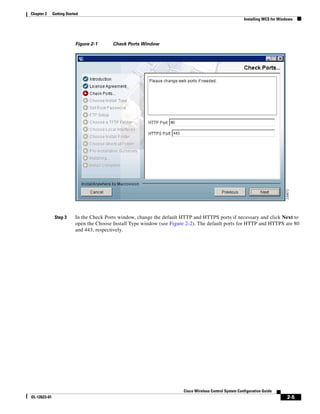
  • 308.
    Chapter 11 Maintaining WCS Checking the Status of WCS Checking the Status of WCS This section provides instructions for checking the status of WCS on either a Windows or Linux server. Checking the Status of WCS on Windows Follow these steps to check the status of WCS when it is installed as a Windows application or Windows service. You can check the status at any time. Step 1 Log into the system as administrator. Step 2 Perform one of the following: • From the Windows Start menu, click Programs > Wireless Control System> WCSStatus. • From the command prompt, navigate to the WCS installation directory (C:Program FilesWCS32bin) and enter WCSAdmin status. The WCSAdmin window appears and displays messages indicating the status of WCS. Step 3 Close the WCSAdmin window when the Close button becomes active. Checking the Status of WCS on Linux Follow these steps to check the status of WCS when it is installed as a Linux application or Linux service. You can check the status at any time. Step 1 Log into the system as root. Step 2 Using the Linux CLI, perform one of the following: • Navigate to the /opt/WCS32 directory (or the directory chosen during installation) and enter ./WCSStatus. • Navigate to the /opt/WCS32/bin directory and enter WCSAdmin status. The CLI displays messages indicating the status of WCS. Cisco Wireless Control System Configuration Guide 11-2 OL-12623-01
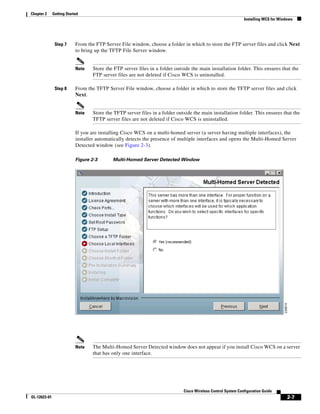
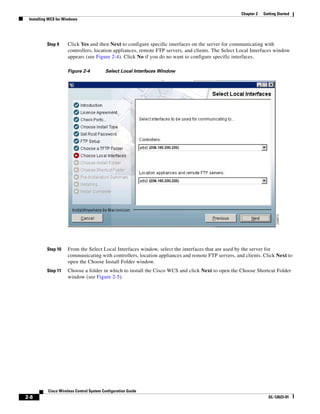
  • 309.
    Chapter 11 Maintaining WCS Stopping WCS Stopping WCS This section provides instructions for stopping WCS on either a Windows or Linux server. Stopping WCS on Windows Follow these steps to stop WCS when it is installed as a Windows application or Windows service. You can stop WCS at any time. Note If any users are logged in when you stop WCS, their WCS sessions stop functioning. Step 1 Log into the system as administrator. Step 2 Perform one of the following: • From the Windows Start menu, click Programs > Wireless Control System > StopWCS. • From the command prompt, navigate to the WCS installation directory (C:Program FilesWCS32bin) and enter WCSAdmin stop. The WCSAdmin window appears and displays messages indicating that WCS is stopping. Note If WCS is installed as a service, messages also appear to indicate that the Nms_Server service is stopping. Step 3 Close the WCSAdmin window when the Close button becomes active. Stopping WCS on Linux Follow these steps to stop WCS when it is installed as a Linux application or Linux service. You can stop WCS at any time. Note If any users are logged in when you stop WCS, their WCS sessions stop functioning. Step 1 Log into the system as root. Note To see which version of WCS you currently have installed, enter nmsadmin.sh version. Step 2 Using the Linux CLI, perform one of the following: • Navigate to the /opt/WCS4.0 directory (or the directory chosen during installation) and enter ./StopWCS. • Navigate to the /opt/WCS4.0/bin directory and enter WCSAdmin stop. Cisco Wireless Control System Configuration Guide Ol-12623-01 11-3
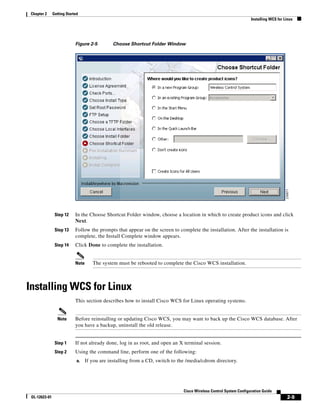
  • 310.
    Chapter 11 Maintaining WCS Backing Up the WCS Database The CLI displays messages indicating that WCS is stopping. Backing Up the WCS Database This section provides instructions for backing up the WCS database. You can schedule regular backups through the WCS user interface or manually initiate a backup on either a Windows or Linux server. Scheduling Automatic Backups Follow these steps to schedule automatic backups of the WCS database. Step 1 Log into the WCS user interface. Step 2 Click Administration > Scheduled Tasks to display the Scheduled Tasks page. Step 3 Click WCS Server Backup to display the Task > WCS Server Backup page. Step 4 Check the Admin Status: Enabled check box. Step 5 In the Max Backups to Keep field, enter the maximum number of backup files to be saved on the server. Range: 7 to 50 Default: 7 Note To prevent the WCS platform from running out of disk space, the server automatically deletes old backup files when the number of files exceeds the value entered for this field. Step 6 In the Interval (Days) field, enter a number representing the number of days between each backup. For example, 1 = a daily backup, 2 = a backup every other day, 7 = a weekly backup, and so on. Range: 1 to 360 Default: 7 Step 7 In the Time of Day field, enter the time when you want the backup to start. It must be in this format: hh:mm AM/PM (for example: 03:00 AM). Note Backing up a large database affects the performance of the WCS server. Therefore, Cisco recommends that you schedule backups to run when the WCS server is idle (for example, in the middle of the night). Step 8 Click Submit to save your settings. The backup file is saved as a .zip file in the ftp-install-dir/ftp-server/root/WCSBackup directory using this format: dd-mmm-yy_ hh-mm-ss.zip (for example, 11-Nov-05_10-30-00.zip). Cisco Wireless Control System Configuration Guide 11-4 OL-12623-01
  • 311.
    Chapter 11 Maintaining WCS Backing Up the WCS Database Performing a Manual Backup This section provides instructions for backing up the WCS database on either a Windows or Linux server. Backing Up the WCS Database (for Windows) Follow these steps to back up the WCS database on a Windows server. Step 1 Log into the system as administrator. Step 2 Create a backup directory for the WCS database with no spaces in the name, such as C:WCS32 _Backup. Note Make sure that the directory name does not contain spaces. Spaces can generate errors. Step 3 Perform one of the following: • Follow these steps from the Windows Start menu: a.Click Programs > Wireless Control System> Backup. The Enter Information window appears. b.Browse to the backup directory that you created and choose the filename or enter the full path of the backup directory that you created and a name for the backup file (such as C:WCS32_BackupNov11) and click OK. • Follow these steps from the command prompt: a.Navigate to the WCS installation directory (C:Program FilesWCS32bin). b.Enter DBAdmin backup backup-filename, where backup-filename is the full path of the backup directory that you created plus a name for the backup file (such as C:WCS32_BackupNov11). The DBAdmin window appears and displays messages indicating the status of the backup. Step 4 Close the DBAdmin window when the Close button becomes active. Note In the example above, the backup file would appear in the C:WCS32_Backup directory as Nov11.nmsbackup. Backing Up the WCS Database (for Linux) Follow these steps to back up the WCS database on a Linux server. Step 1 Log into the system as root. Step 2 Using the Linux CLI, navigate to the /opt/WCS4.0 directory (or any other directory). Step 3 Create a backup directory for the WCS database with no spaces in the name (for example, mkdir WCS4.0_Backup). Note Make sure that the directory name does not contain spaces. Spaces can generate errors. Cisco Wireless Control System Configuration Guide Ol-12623-01 11-5
  • 312.
    Chapter 11 Maintaining WCS Restoring the WCS Database Step 4 Perform one of the following: • Navigate to the /opt/WCS4.0 directory (or the directory chosen during installation) and enter ./Backup. Enter a name for the backup file when prompted (such as WCS4.0_Backup/Nov11). • Navigate to the /opt/WCS4.0/bin directory and enter DBAdmin backup backup-filename, where backup-filename is the full path of the backup directory that you created plus a name for the backup file (such as WCS4.0_Backup/Nov11). • Using KDE or X-Windows, enter DBAdmin - gui backup, browse to the backup directory, and choose the file. The CLI displays messages indicating the status of the backup. Note In the example above, the backup file would appear in the WCS4.0_Backup directory as Nov11.nmsbackup. Restoring the WCS Database This section provides instructions for restoring the WCS database on either a Windows or Linux server. Restoring the WCS Database (for Windows) Follow these steps to restore the WCS database from a backup file on a Windows server. Step 1 Log into the system as administrator. Step 2 Perform one of the following: • Follow these steps from the Windows Start menu: a.Click Start > Programs > Wireless Control System> Restore. The DBAdmin and Enter Information window appears. b.Browse to the backup directory that you created and choose the filename or enter the full path and filename of the backup file (such as C:WCS4.0_BackupNov11.nmsbackup) and click OK. • Follow these steps from the command prompt: a.Navigate to the WCS installation directory (C:Program FilesWCS4.0bin). b.Enter DBAdmin restore backup-filename, where backup-filename is the full path and filename of the backup file (for example, C:WCS4.0_BackupNov11.nmsbackup). Note If you are restoring from a WCS version prior to 3.2, you must enter a directory rather than a backup file because tar/gzip did not exist prior to 3.2. Enter DBAdmin restore directory, where directory is the backup directory that you created. Note If you are restoring from WCS version 4.0.96.0, some previous client data may not be collected. Cisco Wireless Control System Configuration Guide 11-6 OL-12623-01
  • 313.
    Chapter 11 Maintaining WCS Importing the Location Appliance into WCS Step 3 Click Yes if a message appears indicating that WCS is running and needs to be shut down. Step 4 The DBAdmin window appears and displays messages indicating that WCS is shutting down (if applicable) and the WCS database is being restored. Close the DBAdmin window when the Close button becomes active. Note If the restore process shuts down WCS, a restart is attempted after a successful restore. Restoring the WCS Database (for Linux) Follow these steps to restore the WCS database from a backup file on a Linux server. Step 1 If possible, stop all WCS user interfaces to stabilize the database. Step 2 Log into the system as root. Step 3 Using the Linux CLI, perform one of the following: • Navigate to the /opt/WCS4.0 directory (or the directory chosen during installation) and enter ./Restore to start the restoration process. Enter the backup filename when prompted (such as WCS4.0_Backup/Nov11.nmsbackup). • Navigate to the /opt/WCS4.0/bin directory and enter DBAdmin restore backup-filename, where backup-filename is the full path and filename of the backup file (such as WCS4.0_Backup/Nov11.nmsbackup). Note If you are restoring from a WCS version prior to 3.2, you must enter a directory rather than a backup file because tar/gzip did not exist prior to 3.2. Enter DBAdmin restore directory, where directory is the backup directory that you created. Step 4 Click Yes if a message appears indicating that WCS is running and needs to be shut down. Step 5 The DBAdmin window appears and displays messages indicating that WCS is shutting down (if applicable) and the WCS database is being restored. Close the DBAdmin window when the Close button becomes active. Note If the restore process shuts down WCS, a restart is attempted after a successful restore. The CLI displays messages indicating that the WCS database is being restored. Importing the Location Appliance into WCS Cisco 2700 series location appliances operate within the Cisco Wireless LAN Solution infrastructure. Location appliances compute, collect, and store historical location data using Cisco wireless LAN controllers and access points to track the physical location of wireless devices. Cisco Wireless Control System Configuration Guide Ol-12623-01 11-7
  • 314.
    Chapter 11 Maintaining WCS Importing the Location Appliance into WCS Up to 2,500 laptop clients, palmtop clients, VoIP telephone clients, active Radio Frequency Identifier (RFID) asset tags, rogue access points, and clients can be tracked. Note Even though all clients are loaded in the map, the display has a limit of 250 clients per floor to prevent overcrowding. You can do an advanced search of the map to see the items of interest. To import a location appliance into WCS, follow the steps below. Step 1 Navigate to Location > Location Servers. Choose Add Server from the drop-down menu and click Go. Step 2 Enter any name for the appliance, its IP address, and a contact name on the Import window (see Figure 11-1). Keep the username, password, port, and HTTPS fields unaltered and click Save. Figure 11-1 General Properties Step 3 After you import the new location appliance, a pop-up window reminds you that WCS contains data that needs to be transported to the location appliance. Those controllers and network diagrams that are available to be synchronized are listed. From the Select a command drop-down menu, choose Synchronize Servers.. The Synchronize WCS and Location Servers window appears (see Figure 11-2). Note Existing network diagrams, controllers, and event groups must be synchronized with the appropriate location appliance to provide accurate location information. Synchronization is generally recommended after any network design change. You can limit areas that the location appliance tracks by synchronizing only areas that you want to actively track. Limiting synchronization to specific areas provides optimal performance of the location appliance. Cisco Wireless Control System Configuration Guide 11-8 OL-12623-01
  • 315.
    Chapter 11 Maintaining WCS Importing the Location Appliance into WCS Figure 11-2 Synchronizing WCS and Location Servers Step 4 Select the Network Designs option from the Synchronize drop-down menu. Click the Assign hyperlink (far-right) of the appropriate network. Step 5 In the Assign to Servers pop up window that appears, check the box next to the appropriate server (location appliance). Click OK. Step 6 Click the check box next to the new location appliance and click OK. Step 7 Click Synchronize. Step 8 If the network diagram is properly synchronized, two green arrows appear under the Sync. Status column for each diagram. After synchronizing with the network diagram, all floor maps and access point placements associated with that diagram are copied to the location appliance; therefore, when the location appliance is set to synchronize with the diagram’s controllers, it can find them. Step 9 To set up controller synchronization, choose Controllers from the Synchronize drop-down menu. Step 10 Each controller managed by WCS appears in a drop-down menu. Assign each controller to a specific location appliance by choosing the name of the location appliance with which the controllers will synchronize and click Synchronize. Step 11 After the location appliance is properly synchronized with controllers, green arrows appear next to each controller under the Sync. Status column. Note After synchronizing network designs and controllers, ensure that the location appliance polling parameters (Location Server > Administration >Polling Parameters) are enabled so that the location of the elements gets calculated. Note After all relevant network designs and controllers are assigned to a new location appliance and initial synchronization is complete, you can configure the location appliance to automatically synchronize with WCS. For more details, see the “Auto-Synchronizing Location Appliances” section on page 11-11. Cisco Wireless Control System Configuration Guide Ol-12623-01 11-9
  • 316.
    Chapter 11 Maintaining WCS Importing and Exporting Asset Information Importing and Exporting Asset Information This section describes how to import and export asset information stored in a flat text file to minimize manual entry. Importing Asset Information To import asset information for the location server using Cisco WCS, follow these steps: Step 1 In Cisco WCS, choose Location > Location Servers. The All Location Servers summary window appears. Step 2 Click the name of the server for which you want to import asset information. Step 3 Click Administration (left) to display the administrative configuration options. Step 4 Click Import Asset Information. Step 5 Enter the name of the text file or browse for the file name. Information stored in the imported file should be in the following format: • tag format: #tag, 00:00:00:00:00:00, categoryname, groupname, assetname • station format: #station, 00:00:00:00:00:00, categoryname, groupname, assetname Step 6 Click Import. Exporting Asset Information To export asset information from the location server to a file using Cisco WCS, follow these steps: Step 1 In Cisco WCS, choose Location > Location Servers. The All Location Servers summary window appears. Step 2 Click the name of the server from which you want export asset information. Step 3 Click Administration (left) to display the administrative configuration options. Step 4 Click Export Asset Information. Step 5 Click Export. You are prompted to Open (display to screen) or Save (to external PC or server) the asset file or to Cancel the request. Note If you select Save, you are asked to select the asset file destination and name. The file is named “assets.out” by default. Click Close from the dialog box when download is complete. Cisco Wireless Control System Configuration Guide 11-10 OL-12623-01
  • 317.
    Chapter 11 Maintaining WCS Auto-Synchronizing Location Appliances Auto-Synchronizing Location Appliances After all relevant network designs and controllers are assigned to a new location appliance and initial synchronization is complete, you can configure the location appliance to automatically synchronize with WCS by enabling the Location Server Auto-Synchronization feature. Enabling Auto-Synchronization ensures that all future map modifications such as adding access points, changing access point positions or orientations, and any resizings are accurately reflected in the map in case a manual synchronization (Location > Synchronize Servers) is not performed after element changes. You can configure the frequency (minimum of 24 hours) and time of day that the automatic synchronization occurs. Step 1 Choose Administration > Background Tasks. The Background Tasks summary window appears (see Figure 11-3). Figure 11-3 Administration > Background Tasks Step 2 Select the Location Server Synchronization link. Step 3 In the window that appears (Figure 11-4), check the Enabled box next to the Auto Synchronization option. Cisco Wireless Control System Configuration Guide Ol-12623-01 11-11
  • 318.
    Chapter 11 Maintaining WCS Backing Up Location Appliance Data Figure 11-4 Location Server Synchronization Page Step 4 Enter the frequency of the automatic synchronization in the Interval (days) field. The value entered represents number of days. One (1) day is the minimum value. Step 5 Enter the Time of Day (hh:mm AM | PM) that you want the synchronization to occur. Step 6 Click Submit. You are returned to the Scheduled Tasks Summary window. Note To disable the Auto-Synchronization, uncheck the Enabled box for that feature. Note You may also want to enable the Out of Sync Alerts option if it is not already active. When enabled, this option generates alerts for the location appliance when elements such as network designs or controllers are not assigned to a location appliance. Modifications to elements without subsequent synchronization generate location appliance alerts as well. Backing Up Location Appliance Data You can configure the Cisco WCS to regularly back up the data stored on the location appliance. You can specify the frequency and the time-of-day of the backups and the number of previous backups you want to save. Note Back-up data is saved on the FTP server specified during WCS installation. Cisco Wireless Control System Configuration Guide 11-12 OL-12623-01
  • 319.
    Chapter 11 Maintaining WCS Backing Up Location Appliance Data To back up the data stored on a location appliance, follow the steps below. Step 1 Choose Administration > Background Tasks. The window shown in Figure 11-5 appears. Figure 11-5 Administration > Background Tasks Step 2 Check the box next to the Location Server Backup link and then select the link. The Location Server Backup configuration window appears (see Figure 11-6). Figure 11-6 Location Server Backup Configuration Page Step 3 Check the Enabled box, if not already checked from the previous step. Generally, when you check the box at the Administration > Scheduled Tasks window, the check box auto-populates. Cisco Wireless Control System Configuration Guide Ol-12623-01 11-13
  • 320.
    Chapter 11 Maintaining WCS Uninstalling WCS Step 4 Enter the number of Maximum Backups to Keep. Step 5 Enter the Interval (in days) between backups. Step 6 Enter the Time of Day (hh:mm AM | PM) to run the backups. Step 7 Click Submit. The Scheduled Tasks window reappears noting the location server backup as enabled along with the interval and time-of-day settings. Uninstalling WCS This section provides instructions for uninstalling WCS on either a Windows or Linux server. You can uninstall WCS at any time, even while WCS is running. Uninstalling WCS on Windows Follow these steps to uninstall WCS on a Windows server. Step 1 Log into the system as administrator. Step 2 From the Windows Start menu, click Programs > Wireless Control System> Uninstall WCS. Step 3 When the Uninstall Wireless Control System window appears, click Uninstall. Step 4 Follow the instructions on the window to continue the uninstall process. Step 5 When the WCS Uninstaller window indicates that the program is uninstalled, click Finish to close the window. Note If any part of the C:Program FilesWCS32 folder remains on the hard drive, manually delete the folder and all of its contents. If you fail to delete the previous WCS installation, this error message appears when you attempt to reinstall WCS: “Cisco WCS already installed. Please uninstall the older version before installing this version.” Uninstalling WCS on Linux Follow these steps to uninstall WCS on a Linux server. Step 1 Stop WCS. Step 2 Log into the system as root through an X terminal session. Step 3 Using the Linux CLI, navigate to the /opt/WCS4.0 directory (or the directory chosen during installation). Step 4 Enter ./UninstallWCS. Step 5 Click Yes to continue the uninstall process. Cisco Wireless Control System Configuration Guide 11-14 OL-12623-01
  • 321.
    Chapter 11 Maintaining WCS Upgrading WCS Step 6 Click Finish when the uninstall process is complete. Note If any part of the /opt/WCS4.0 directory remains on the hard drive, manually delete the directory and all of its contents. If you fail to delete the previous WCS installation, this error message appears when you attempt to reinstall WCS: “Cisco WCS already installed. Please uninstall the older version before installing this version.” Upgrading WCS This section provides instructions for upgrading WCS on either a Windows or Linux server. Note Scheduled task settings are not preserved when you upgrade from WCS 4.0 or earlier releases. Make sure to record your settings manually if you wish to retain them or go to Administration > Background Tasks after starting WCS to check or change the settings as necessary. Note If you upgrade to a WCS software release later than 4.0.87.0 from a release prior to 4.0.87.0, the users, user groups, tasks, and user passwords do not migrate. Upgrading to 4.0.87.0 before upgrading to a later release migrates the users, user groups, tasks, and user passwords. Upgrading WCS on Windows Follow these steps to upgrade WCS on a Windows server. Note When upgrading from software release 4.096.0 to 4.1.82.0, only one “from” email address is restored for the alarm email filters. If you have multiple “from” email addresses defined in the alarm email filters, they will be lost. The single “from” email address is configured in Administration > Settings > Mail Server (refer to the “Mail Server” section on page 15-19). Step 1 If possible, stop all WCS user interfaces to stabilize the database. Step 2 Back up the WCS database by following the instructions in the “Backing Up the WCS Database (for Windows)” section on page 11-5. Step 3 Uninstall the WCS application by following the instructions in the “Uninstalling WCS on Windows” section on page 11-14. Step 4 Install the new version of WCS by following the instructions in the “Installing WCS for Windows” section on page 2-4. Step 5 Restore the WCS database by following the instructions in the “Restoring the WCS Database (for Windows)” section on page 11-6. Cisco Wireless Control System Configuration Guide Ol-12623-01 11-15
  • 322.
    Chapter 11 Maintaining WCS Upgrading the Network Upgrading WCS on Linux Follow these steps to upgrade WCS on a Linux server. Step 1 If possible, stop all WCS user interfaces to stabilize the database. Step 2 Back up the WCS database by following the instructions in the “Backing Up the WCS Database (for Linux)” section on page 11-5. Step 3 Uninstall the WCS application by following the instructions in the “Uninstalling WCS on Linux” section on page 11-14. Step 4 Install the new version of WCS by following the instructions in the “Installing WCS for Linux” section on page 2-9. Step 5 Restore the WCS database by following the instructions in the “Restoring the WCS Database (for Linux)” section on page 11-7. Upgrading the Network Network upgrades must follow a recommended procedure so that databases can remain synchronized with each other. You cannot for instance upgrade the controller portion of the network to a newer release but maintain the current WCS version and not upgrade it. The supported order of upgrade is WCS first, followed by the controller, and then any additional devices. Recovering the WCS Password You can change the WCS application root user or FTP user password. This option provides a safeguard if you lose the root password. An executable was added to the installer /bin directory (passwd.bat for Windows and passwd.sh for Linux). Follow these steps to recover the passwords and regain access to WCS. For password recovery on a wireless location device, refer to chapters 8 or 9 of the Cisco 2700 Series Location Appliance Configuration Guide. Note If you are a Linux user, you must be the root user to run the command. Step 1 Change to the WCS bin folder. Step 2 Perform one of the following: Enter passwd root-user <newpassword> to change the WCS root password. The newpassword is the root login password you choose. or Enter passwd location-ftp-user <newuser> <newpassword> to change the FTP user and password. The newuser and newpassword are the FTP user and password you choose. Step 3 The following options are available with these commands: • -q — to quiet the output • -pause — to pause before exiting • -gui — to switch to the graphical user interface Cisco Wireless Control System Configuration Guide 11-16 OL-12623-01
  • 323.
    Chapter 11 Maintaining WCS Recovering the WCS Password • -force — to skip prompting for configuration Step 4 Start WCS. Cisco Wireless Control System Configuration Guide Ol-12623-01 11-17
  • 324.
    Chapter 11 Maintaining WCS Recovering the WCS Password Cisco Wireless Control System Configuration Guide 11-18 OL-12623-01
  • 325.
    CH A PT E R 12 Configuring Hybrid REAP This chapter describes hybrid REAP and explains how to configure this feature on controllers and access points. It contains these sections: • Overview of Hybrid REAP, page 12-2 • Configuring Hybrid REAP, page 12-4 Cisco Wireless Control System Configuration Guide OL-12623-01 12-1
  • 326.
    Chapter 12 Configuring Hybrid REAP Overview of Hybrid REAP REVIEW DRAFT—CISCO CONFIDENTIAL Overview of Hybrid REAP Hybrid REAP is a solution for branch office and remote office deployments. It enables customers to configure and control access points in a branch or remote office from the corporate office through a wide area network (WAN) link without deploying a controller in each office. There is no deployment restriction on the number of hybrid-REAP access points per location. The hybrid-REAP access points can switch client data traffic locally and perform client authentication locally when their connection to the controller is lost. When they are connected to the controller, they can also send traffic back to the controller. Hybrid REAP is supported only on the 1130AG and 1240AG access points and on the 2000 and 4400 series controllers, the Catalyst 3750G Integrated Wireless LAN Controller Switch, the Cisco WiSM, and the Controller Network Module for Integrated Services Routers, and the controller within the Catalyst 3750G Integrated Wireless LAN Controller Switch. Figure 12-1 illustrates a typical hybrid-REAP deployment. Figure 12-1 Hybrid REAP Deployment Headquarters WCS DHCP server WAN link VLAN 101 Controller Local VLAN 802.1x Local switch Management 10.10.99.2 AAA AP-Manager 10.10.99.3 server WLAN 99 Branch Trunk port native VLAN 100 155859 Hybrid-REAP Access Points Hybrid-REAP Authentication Process When a hybrid-REAP access point boots up, it looks for a controller. If it finds one, it joins the controller, downloads the latest software image from the controller and configuration information, and initializes the radio. It saves the downloaded configuration in non-volatile memory for use in standalone mode. A hybrid-REAP access point can learn the controller IP address in one of these ways: • If the access point has been assigned an IP address fro m a DHCP server, it can discover a controller through the regular LWAPP discovery process [Layer 3 broadcast, over-the-air provisioning (OTAP), DNS, or DHCP option 43.] Note OTAP does not work on the first boot out of the box. Cisco Wireless Control System Configuration Guide 12-2 OL-12623-01
  • 327.
    Chapter 12 Configuring Hybrid REAP Overview of Hybrid REAP REVIEW DRAFT—CISCO CONFIDENTIAL • If the access point has been assigned a static IP address, it can discover a controller through any of the LWAPP discovery process methods except DHCP option 43. If the access point cannot discover a controller through Layer 3 broadcast or OTAP, Cisco recommends DNS resolution. With DNS, any access point with a static IP address that knows of a DNS server can find at least one controller. • If you want the access point to discover a controller from a remote network where LWAPP discovery mechanisms are not available, you can use priming. This method enables you to specify (through the access point CLI) the controller to which the access point is to connect. When a hybrid-REAP access point can reach the controller (referred to as connected mode), the controller assists in client authentication. When a hybrid-REAP access point cannot access the controller, the access point enters standalone mode and authenticates clients by itself. Note The LEDs on the access point change as the device enters different hybrid-REAP modes. Refer to the Hardware Installation Guide for your access point for information on LED patterns. When a client associates to a hybrid-REAP access point, the access point sends all authentication messages to the controller and either switches the client data packets locally (locally switched) or sends them to the controller (centrally switched), depending on the WLAN configuration. With respect to client authentication (open, shared, EAP, web authentication, and NAC) and data packets, the WLAN can be in any one of the following states depending on the configuration and state of controller connectivity: • central authentication, central switching—In this state, the controller handles client authentication, and all client data tunnels back to the controller. This state is valid only in connected mode. • central authentication, local switching—In this state, the controller handles client authentication, and the hybrid-REAP access point switches data packets locally. After the client authenticates successfully, the controller sends a configuration command with a new payload to instruct the hybrid-REAP access point to start switching data packets locally. This message is sent per client. This state is applicable only in connected mode. • local authentication, local switching—In this state, the hybrid-REAP access point handles client authentication and switches client data packets locally. This state is valid only in standalone mode. • authentication down, switching down—In this state, the WLAN disassociates existing clients and stops sending beacon and probe responses. This state is valid only in standalone mode. • authentication down, local switching—In this state, the WLAN rejects any new clients trying to authenticate, but it continues sending beacon and probe responses to keep existing clients alive. This state is valid only in standalone mode. When a hybrid-REAP access point enters standalone mode, WLANs that are configured for open, shared, WPA-PSK, or WPA2-PSK authentication enter the “local authentication, local switching” state and continue new client authentications. Other WLANs enter either the “authentication down, switching down” state (if the WLAN was configured to central switching) or the “authentication down, local switching” state (if the WLAN was configured to local-switch). When a hybrid-REAP access point enters standalone mode, it disassociates all clients that are on centrally switched WLANs. For 802.1x or web-authentication WLANs, existing clients are not disassociated, but the hybrid-REAP access point stops sending beacons when the number of associated clients reaches zero (0). It also sends disassociation messages to new clients associating to 802.1x or web-authentication WLANs. Controller-dependent activities such as 802.1x authentication, NAC, and web authentication (guest access) are disabled, and the access point does not send any intrusion detection system (IDS) reports to the controller. Furthermore, most radio resource management (RRM) features Cisco Wireless Control System Configuration Guide OL-12623-01 12-3
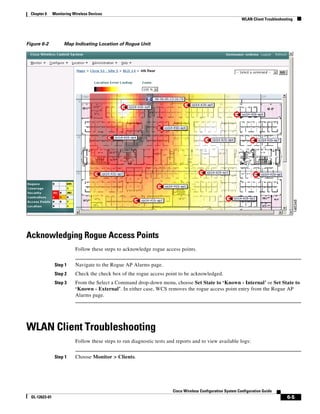
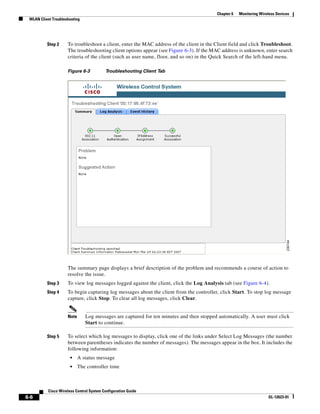
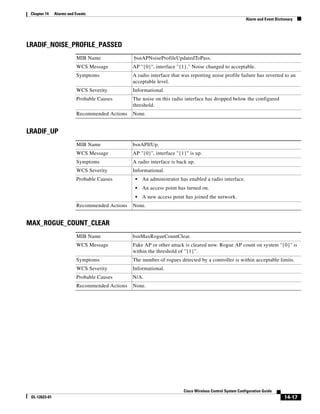
  • 328.
    Chapter 12 Configuring Hybrid REAP Configuring Hybrid REAP REVIEW DRAFT—CISCO CONFIDENTIAL (such as neighbor discovery; noise, interference, load, and coverage measurements; use of the neighbor list; and rogue containment and detection) are disabled. However, a hybrid-REAP access point supports dynamic frequency selection in standalone modes. Note If your controller is configured for network access control (NAC), clients can associate only when the access point is in connected mode. When NAC is enabled, you need to create an unhealthy (or quarantined) VLAN so that the data traffic of any client that is assigned to this VLAN passes through the controller, even if the WLAN is configured for local switching. Once a client is assigned to a quarantined VLAN, all of its data packets are centrally switched. The hybrid-REAP access point maintains client connectivity even after entering standalone mode. However, once the access point re-establishes a connection with the controller, it disassociates all clients, applies new configuration information from the controller, and reallows client connectivity. Hybrid REAP Guidelines Keep these guidelines in mind when using hybrid REAP: • A hybrid-REAP access point can be deployed with either a static IP address or a DHCP address. In the case of DHCP, a DHCP server must be available locally and must be able to provide the IP address for the access point at bootup. • Hybrid REAP supports a 500-byte maximum transmission unit (MTU) WAN link at minimum. • Roundtrip latency must not exceed 100 milliseconds (ms) between the access point and the controller, and LWAPP control packets must be prioritized over all other traffic. • The controller can send multicast packets in the form of unicast or multicast packets to the access point. In hybrid-REAP mode, the access point can receive multicast packets only in unicast form. • Hybrid REAP supports CCKM full authentication but not CCKM fast roaming. • Hybrid REAP supports a 1-1 network address translation (NAT) configuration. It also supports port address translation (PAT) for all features except true multicast. Multicast is supported across NAT boundaries when configured using the Unicast option. • VPN, IPSec, L2TP, PPTP, Fortress authentication, and Cranite authentication are supported for locally switched traffic, provided that these security types are accessible locally at the access point. Configuring Hybrid REAP To configure hybrid REAP, you must follow the instructions in these sections in the order provided: • Configuring the Switch at the Remote Site, page 12-4 • Configuring the Controller for Hybrid REAP, page 12-6 • Configuring an Access Point for Hybrid REAP, page 12-9 • Connecting Client Devices to the WLANs, page 12-12 Configuring the Switch at the Remote Site Follow these steps to prepare the switch at the remote site. Cisco Wireless Control System Configuration Guide 12-4 OL-12623-01

  • 329.
    Chapter 12 Configuring Hybrid REAP Configuring Hybrid REAP REVIEW DRAFT—CISCO CONFIDENTIAL Step 1 Attach the access point that will be enabled for hybrid REAP to a trunk or access port on the switch. Note The sample configuration below shows the hybrid-REAP access point connected to a trunk port on the switch. Step 2 Refer to the sample configuration below to configure the switch to support the hybrid-REAP access point. In this sample configuration, the hybrid-REAP access point is connected to trunk interface FastEthernet 1/0/2 with native VLAN 100. The access point needs IP connectivity on the native VLAN. The remote site has local servers/resources on VLAN 101. A DHCP pool in created in the local switch for both VLANs in the switch. The first DHCP pool (NATIVE) will be used by the hybrid-REAP access point, and the second DHCP pool (LOCAL-SWITCH) will be used by the clients when they associate to a WLAN that is locally switched. The bolded text in the sample configuration illustrates these settings. Note The addresses in this sample configuration are for illustration purposes only. The addresses that you use must fit into your upstream network. Sample local switch configuration: ip dhcp pool NATIVE network 10.10.100.0 255.255.255.0 default-router 10.10.100.1 ! ip dhcp pool LOCAL-SWITCH network 10.10.101.0 255.255.255.0 default-router 10.10.101.1 ! interface FastEthernet1/0/1 description Uplink port no switchport ip address 10.10.98.2 255.255.255.0 spanning-tree portfast ! interface FastEthernet1/0/2 description the Access Point port switchport trunk encapsulation dot1q switchport trunk native vlan 100 switchport trunk allowed vlan 100,101 switchport mode trunk spanning-tree portfast ! interface Vlan100 ip address 10.10.100.1 255.255.255.0 ip helper-address 10.10.100.1 ! interface Vlan101 ip address 10.10.101.1 255.255.255.0 ip helper-address 10.10.101.1 end Cisco Wireless Control System Configuration Guide OL-12623-01 12-5
  • 330.
    Chapter 12 Configuring Hybrid REAP Configuring Hybrid REAP REVIEW DRAFT—CISCO CONFIDENTIAL Configuring the Controller for Hybrid REAP This section provides instructions for configuring the controller for hybrid REAP. The controller configuration for hybrid REAP consists of creating centrally switched and locally switched WLANs. This procedure uses these three WLANs as examples: WLAN Security Switching Interface Mapping (VLAN) employee WPA1+WPA2 Central management (centrally switched VLAN) employee-local WPA1+WPA2 (PSK) Local 101 (local switched VLAN) guest-central Web authentication Central management (centrally switched VLAN) Step 1 Follow these steps to create a centrally switched WLAN. In our example, this is the first WLAN (employee). a. Choose Configure > Controllers. b. Click in the IP Address column for a particular controller. c. Click WLANs > WLANs to access the WLANs page. d. Choose Add WLAN from the Select a command drop-down menu and click GO (see Figure 12-2). Note Cisco access points can support up to 16 WLANs per controller. However, some Cisco access points to not support WLANs that have a WLAN ID greater than 8. In such cases, when you attempt to create a WLAN, you get a message that says “Not all types of AP support WLAN ID greater than 8, do you wish to continue?”. Clicking OK creates a WLAN with the next available WLAN ID. However, if you delete a WLAN that has a WLAN ID less than 8, then the WLAN ID of the deleted WLAN is applied to the next created WLAN. Cisco Wireless Control System Configuration Guide 12-6 OL-12623-01
  • 331.
    Chapter 12 Configuring Hybrid REAP Configuring Hybrid REAP REVIEW DRAFT—CISCO CONFIDENTIAL Figure 12-2 WLANs > New Page e. If you want to apply a template to this controller, choose a template name from the drop-down menu. The parameters will populate according to how the template is set. If you want to create a new WLAN template, use the click here link to be redirected to the template creation page (see the “Configuring WLAN Templates” section on page 10-9). f. Modify the configuration parameters for this WLAN. In our employee WLAN example, you would need to choose WPA1+WPA2 from the Layer 2 Security drop-down box. g. Be sure to enable this WLAN by checking the Admin Status check box under General Policies. Note If NAC is enabled and you created a quarantined VLAN and want to use it for this WLAN, make sure to select it from the Interface drop-down box under General Policies. Also, check the Allow AAA Override check box to ensure that the controller checks for a quarantine VLAN assignment. h. Click Apply to commit your changes. Step 2 Follow these steps to create a locally switched WLAN. In our example, this is the second WLAN (employee-local). a. Follow the substeps in Step 1 to create a new WLAN. In our example, this WLAN is named “employee-local.” b. Click a WLAN ID from the original WLAN window to move to a WLANs edit page. Modify the configuration parameters for this WLAN. In our employee WLAN example, you would need to choose WPA1+WPA2 from the Layer 2 Security drop-down box. Make sure to choose PSK authentication key management and enter a pre-shared key. Cisco Wireless Control System Configuration Guide OL-12623-01 12-7
  • 332.
    Chapter 12 Configuring Hybrid REAP Configuring Hybrid REAP REVIEW DRAFT—CISCO CONFIDENTIAL Note Make sure to enable this WLAN by checking the Admin Status check box under General Policies. Also, make sure to enable local switching by checking the H-REAP Local Switching check box. When you enable local switching, any hybird-REAP access point that advertises this WLAN is able to locally switch data packets (instead of tunneling them to the controller). Note For hybrid-REAP access points, the interface mapping at the controller for WLANs configured for H-REAP Local Switching is inherited at the access point as the default VLAN tagging. This can be easily changed per SSID, per hybrid-REAP access point. Non-hybrid-REAP access points tunnel all traffic back to the controller, and VLAN tagging is dictated by each WLAN’s interface mapping. c. Click Apply to commit your changes. Step 3 Follow these steps if you also want to create a centrally switched WLAN that is used for guest access. In our example, this is the third WLAN (guest-central). You might want to tunnel guest traffic to the controller so you can exercise your corporate data policies for unprotected guest traffic from a central site. a. Follow the substeps in Step 1 to create a new WLAN. In our example, this WLAN is named “guest-central.” b. In the WLANs Edit page, modify the configuration parameters for this WLAN. In our employee WLAN example, you would need to choose None from both the Layer 2 Security and Layer 3 Security drop-down boxes, check the Web Policy check box, and make sure Authentication is selected. Note If you are using an external web server, you must configure a preauthentication access control list (ACL) on the WLAN for the server and then choose this ACL as the WLAN preauthentication ACL. c. Make sure to enable this WLAN by checking the Admin Status check box under General Policies. d. Click Apply to commit your changes. e. If you want to customize the content and appearance of the login page that guest users will see the first time they access this WLAN, follow the instructions in the “Configuring a Web Authentication Template” section on page 10-42. f. To add a local user to this WLAN, click Security and then click Local Net Users. g. When the Local Net Users page appears, choose Add Local Net User from the Select a command drop-down menu. h. In the User Name and Password fields, enter a username and password for the local user. Click the Generate Password check box if you want a password automatically generated. The Password and Confirm Password parameters will be automatically populated. If automatic generation is not enabled, you must supply a password twice. i. From the SSID drop-down list, choose which SSID this guest user applies to. Only those WLANs for which web security is enabled are listed The SSID must be a WLAN that has Layer 3 web authentication policy configured. j. Enter a description of the guest user account. Cisco Wireless Control System Configuration Guide 12-8 OL-12623-01
  • 333.
    Chapter 12 Configuring Hybrid REAP Configuring Hybrid REAP REVIEW DRAFT—CISCO CONFIDENTIAL k. From the Lifetime drop-down list, choose the number of days, hours, or minutes for this user account to remain active. l. Click Save . Step 4 Go to the “Configuring an Access Point for Hybrid REAP” section on page 12-9 to configure two or three access points for hybrid REAP. Configuring an Access Point for Hybrid REAP This section provides instructions for configuring an access point for hybrid REAP. Follow these steps to configure an access point for hybrid REAP. Step 1 Make sure that the access point has been physically added to your network. Step 2 Choose Configure > Access Points. Step 3 Choose which access point you want to configure for hybrid REAP by clicking one from the AP Name list. The detailed access point window appears (see Figure 12-3). Cisco Wireless Control System Configuration Guide OL-12623-01 12-9
  • 334.
    Chapter 12 Configuring Hybrid REAP Configuring Hybrid REAP REVIEW DRAFT—CISCO CONFIDENTIAL Figure 12-3 Detailed Access Point Window The last parameter under Inventory Information indicates whether this access point can be configured for hybrid REAP. Only the 1130AG and 1240AG access points support hybrid REAP. Step 4 Verify that the H-REAP Mode Supported parameter displays Yes. If it does not, continue to Step 5. If H-REAP is showing as supported, skip to Step 7. Step 5 Choose Configure > Access Point Templates. Step 6 Choose which access point you want to configure for hybrid REAP by clicking one from the AP Name list. The AP/Radio Templates window appears (see Figure 12-4). Cisco Wireless Control System Configuration Guide 12-10 OL-12623-01
  • 335.
    Chapter 12 Configuring Hybrid REAP Configuring Hybrid REAP REVIEW DRAFT—CISCO CONFIDENTIAL Figure 12-4 AP/Radio Template Window Step 7 Check the Enable VLAN check box and enter the number of the native VLAN on the remote network (such as 100) in the Native VLAN Identifier field. Note By default, a VLAN is not enabled on the hybrid-REAP access point. Once hybrid REAP is enabled, the access point inherits the VLAN ID associated to the WLAN. This configuration is saved in the access point and received after the successful join response. By default, the native VLAN is 1. One native VLAN must be configured per hybrid-REAP access point in a VLAN-enabled domain. Otherwise, the access point cannot send and receive packets to and from the controller. When the client is assigned a VLAN from the RADIUS server, that VLAN is associated to the locally switched WLAN. Step 8 Click Save to save your changes. Step 9 The Locally Switched VLANs section allows you to view which WLANs are locally switched and their VLAN identifier. You can edit the number of VLANs from which the clients will get an IP address by clicking the Edit link. You are then redirected to a page where you can save the VLAN identifier changes. Step 10 Click Save to save your changes. Step 11 Repeat this procedure for any additional access points that need to be configured for hybrid REAP at the remote site. Cisco Wireless Control System Configuration Guide OL-12623-01 12-11
  • 336.
    Chapter 12 Configuring Hybrid REAP Configuring Hybrid REAP REVIEW DRAFT—CISCO CONFIDENTIAL Connecting Client Devices to the WLANs Follow the instructions for your client device to create profiles to connect to the WLANs you created in the “Configuring the Controller for Hybrid REAP” section on page 12-6. In our example, you would create three profiles on the client: 1. To connect to the “employee” WLAN, you would create a client profile that uses WPA/WPA2 with PEAP-MSCHAPV2 authentication. When the client becomes authenticated, it should get an IP address from the management VLAN of the controller. 2. To connect to the “local-employee” WLAN, you would create a client profile that uses WPA/WPA2-PSK authentication. When the client becomes authenticated, it should get an IP address from VLAN 101 on the local switch. 3. To connect to the “guest-central” WLAN, you would create a profile that uses open authentication. Once the client becomes authenticated, it should get an IP address from VLAN 101 on the network local to the access point. Once the client connects, the local user can type any http address in the web browser. The user is automatically directed to the controller to complete the web-authentication process. When the web login page appears, the user enters his or her username and password. To see if a client’s data traffic is being locally or centrally switched, click Monitor > Devices > Clients. Cisco Wireless Control System Configuration Guide 12-12 OL-12623-01
  • 337.
    C H AP T E R 13 Running Reports WCS reporting is necessary to monitor the system and network health as well as troubleshoot problems. A number of reports can be generated to run on an immediate and scheduled basis. Each report type has a number of user-defined criteria to aid in the defining of the reports. The reports are formatted as a summary, tabular, or graphical layout. Once defined, the reports can be saved for future diagnostic use or scheduled to run and report on a regular basis. Reports are saved in either CSV or PDF format and are either saved to a file for later download or emailed to a specific email address. Reports are saved on the WCS server. The reporting types include the following: • Current, which provides a snap shot of the data from the last polling cycle without continuously polling • Historical, which retrieves data from the device periodically and stores it in the WCS database • Trend, which generates a report using aggregated data. Data can be periodically collected based from devices on user-defined intervals, and a schedule can be established for report generation. With WCS, you also have the ability to export any report that you can view, sort reports into logical groups, and archive for long-term storage. Note If you want the report to print as it appears on the window display, you must choose landscape mode. From the Reports menu, you can access any of the following types: • Client Reports, page 13-5 • Access Point Reports, page 13-4 • Inventory Reports, page 13-7 • Mesh Reports, page 13-8 • Performance Reports, page 13-9 • Security Reports, page 13-11 Choosing a Report If you choose one of the above options from the Reports menu, a window with a list of created report tasks displays. Perform one of the following operations: Cisco Wireless Control System Configuration Guide OL-12623-01 13-1
  • 338.
    Chapter 13 Running Reports • If you want to enable or disable a report schedule, refer to the “Enabling or Disabling a Schedule” section on page 13-2. • If you want to delete a report, refer to the “Deleting a Report” section on page 13-3. • If no reports are defined, you can create a report by selecting New from the Select a command menu. After clicking GO, two new panels appear: General and Schedule. The General panel allows you to configure data gathering parameters. The Schedule panel allows you to control when and how often the report runs, based on what you specify. Refer to the “Accessing the Schedule Panel” section on page 13-3. After running the report, a Results tab shows the report data (see Figure 13-1). Figure 13-1 Results Tab A History Tab appears after there has been some scheduled executions. Enabling or Disabling a Schedule To enable a defined report, check the check box next to the report and select Enable Schedule from the Select a command menu. Click GO. If the scheduled time period for the report has passed, then Expired appears in the Schedule column. To remedy, click the report title and enter new time parameters in the window that appears. To disable a defined report, check the check box next to the report and select Disable Schedule from the Select a command menu. Click GO. The disabled state appears in the Schedule column. Cisco Wireless Control System Configuration Guide 13-2 OL-12623-01
  • 339.
    Chapter 13 Running Reports Deleting a Report To delete a defined report, check the check box next to the report and select Delete from the Select a command menu and click GO. The report is deleted from the listing. Accessing the Schedule Panel The schedule panel is the same for any report. After choosing the Schedule tab, the Schedule window appears (see Figure 13-2). Figure 13-2 Schedule Tab Follow these steps after choosing the Schedule tab within any report type. Step 1 Check the Enable Schedule check box. Step 2 Specify if you want the export format to be .csv (a file containing the MAC addresses of access points) or .pdf from the Export Format drop-down menu. Step 3 Choose either the Save to File or Email To option as the destination type. – If you select the Save to File option, a destination path must first be defined at the Administration > Settings > Report page. Enter the destination path for the files in the Repository Path field. – If you select the Email to option, an SMTP Mail Server must be defined prior to entry of the target email address. Choose Administrator > Settings > Mail Server to enter the appropriate information. Step 4 Enter a start date (MM:DD:YYYY format) in the provided field or click the calendar icon to select a date. The report will begin running on this date. Step 5 Specify a start time using the hour and minute drop-down menus. Step 6 Click on one of the recurrence buttons to select how often the report is run. Cisco Wireless Control System Configuration Guide OL-12623-01 13-3
  • 340.
    Chapter 13 Running Reports Access Point Reports Step 7 When entry is complete, do one of the following: • Click Save to save the entry. • Click Save and Run to save the changes and run the report now. The report is run, and the results are either emailed or saved to a designated file as defined in the Schedule tab. The report runs again at the scheduled time. • Click Run Now if you want to run the report immediately and review the results in the WCS window. The report runs regardless of any scheduled time associated with the report. Note You can use the Run command to check a report scenario before saving it or to run ad hoc reports as necessary. Access Point Reports In the left sidebar menu, all of the access point report options are listed. The choices are as follows: • AP List by SSID and Location Report—Displays information on access points located in specific physical areas and specific SSIDs. • AP Profile Status Report—Displays information on access points located in specific physical areas and with specific SSIDs. • Busiest APs Report—Allows you to view information on the busiest access points in terms of total utilization. The total utilization is the sum of transmitting, receiving, and channel utilization. • Traffic Stream Metrics Report—Shows voice traffic stream metrics and high density related reports. The controller keeps multiple records of the voice metrics data for each client. The access points update the controller with traffic stream metric information every 90 seconds, and 10 minutes of data is stored at one time to generate an on-demand report. WCS polls the data from the controllers and aggregates it as hourly, daily, and weekly. The generated data that is returned includes but is not limited to the following: the level of QoS, the percentage of packet loss ratio on the downlink and uplink, and any queuing delays. • Graphical Traffic Stream Metrics Report—The Traffic Streams Metrics (Graphs) report is equivalent to the Traffic Streams Report, but the information is displayed in graph form. Viewing or Modifying Access Point Reports Follow these steps to view or modify existing access point reports. Step 1 Choose Reports > Access Point Reports. The Access Point Report page appears. Step 2 Choose the Access Point Report type from the left panel. Step 3 Define (or modify) the conditions for the report in the General panel. Step 4 Refer to the “Accessing the Schedule Panel” section on page 13-3 to complete the scheduling process. Step 5 Click the History tab if you want to review details of the current and past runs of the report. Cisco Wireless Control System Configuration Guide 13-4 OL-12623-01
  • 341.
    Chapter 13 Running Reports Client Reports Creating a New Access Point Report Follow these steps to create a new access point report. Note Some of these steps or options are not required for every report. Step 1 Choose Reports > Access Point Reports. The Access Point Reports page appears. Step 2 Click on one of the report types summarized under Access Points Reports (left-side). Step 3 Choose New from the Select a command drop-down menu and click GO. Step 4 Specify a report title. Step 5 Use the Report By drop-down menu to choose the physical area to report on. The following options are available: • AP By Outdoor Area—Generates the report of the outdoor area on a per-access point basis. • AP by Floor Area—Generates the report of the floor area on a per-access point basis. Step 6 Perform one of the following: If you chose outdoor, you need to specify in which campus and outdoor area it is located. If you chose floor area, you need to choose in which campus, building, and floor the area is located. Step 7 Determine which access points you want to include in the report. Step 8 Specify if you want to include 802.11a/n or 802.11b/g/n radios in the report. Step 9 Click the Schedule tab to complete the scheduling process. Refer to the “Accessing the Schedule Panel” section on page 13-3. Client Reports You can run reports of all unique clients that have accessed the network for a specified duration. For example, you may want to show all clients that were on a certain floor in the last three days and see detailed information network activity. The client report options are as follows: • Busiest Clients Report—Displays information on the busiest clients in terms of total throughput of clients during a given period of time. • Client Association Report—Shows a detailed association history of the clients as collected from the controller. The generated data that is returned includes but is not limited to the following: the username and MAC address of the client, which access point it is associated with, and a status. • Client Count Report—Displays data on the numbers of clients that connected to the network through a specific device, in a specific geographical region, or through a specific SSID. • Traffic Stream Metrics Report—Shows voice traffic stream metrics and high density related reports for clients. The controller keeps multiple records of the voice metrics data for each client. The generated data that is returned includes but is not limited to the following: the level of QoS, the percentage of packet loss ratio on the downlink and uplink, and any queuing delays. Cisco Wireless Control System Configuration Guide OL-12623-01 13-5
  • 342.
    Chapter 13 Running Reports Client Reports • Unique Client Report—Shows which unique clients have accessed the network within a specified duration. For example, you could show all clients on a particular floor in the last three days and view detailed information about their network activity. The generated data that is returned includes but is not limited to the following: the vendor and MAC address of the client, which access point it is associated to, and the CCX version supported by the client. Viewing or Modifying Client Reports Follow these steps to view or modify existing client reports. Step 1 Choose Reports > Client Reports. The Client Report page appears. Step 2 Choose the Client Report type from the left panel. Step 3 Define (or modify) the conditions for the report in the General panel. Step 4 Refer to the “Accessing the Schedule Panel” section on page 13-3 to complete the scheduling process. Step 5 Click the History tab if you want to review details of the current and past runs of the report. Creating a New Client Report Follow these steps to create a new client report. Note Some of these steps or options are not required for every report. Step 1 Choose Reports > Client Reports. The Client Reports page appears. Step 2 Click on one of the report types summarized under Client Reports (left-side). Step 3 Choose New from the Select a command drop-down menu and click GO. The two-tabbed entry panel appears. Step 4 Specify a report title. Step 5 Enter the number of clients you want displayed in the report. Step 6 Choose ALL SSIDs or choose a specific SSID to restrict the report to access points using that SSID. Step 7 Enter a specific client MAC address. If no MAC address is specified, then all the clients per specified SSID would be reviewed. Step 8 Specify if you want the report listed by controller, floor area, outdoor area, AP by floor, AP by outdoor area, or SSID. The floor area and outdoor area report generates the report on an area basis while the AP by floor or AP by outdoor area generates the report on a per-access point basis. Step 9 If you chose controller, you need to enter a controller IP address. If you chose floor area or AP by floor area, you need to enter the campus, building, and floor location. If you chose outdoor area or AP by outdoor area, you need to enter the campus and outdoor area. Step 10 Determine which access points you want to include in the report. Step 11 Specify if you want to include 802.11a/n or 802.11b/g/n radios in the report. Cisco Wireless Control System Configuration Guide 13-6 OL-12623-01
  • 343.
    Chapter 13 Running Reports Inventory Reports Step 12 In the Reporting Period section, choose Last to determine the timeframe the report should encompass or choose Between and use the calendar icon to choose a date and set the hour and minutes. Step 13 Click the Schedule tab to complete the scheduling process. Refer to the “Accessing the Schedule Panel” section on page 13-3. Inventory Reports In the left sidebar menu, all of the inventory report options are listed. These reports are generated based on the data already stored in the WCS database. Because inventory reports are not on-demand reports, some configuration changes may have occurred since the storage and may not duplicate the attributes of the controller that are reflected in the stored data. The choices are as follows: • Access Point Inventory Report—Provides data on deployed access points. The data that is returned includes but is not limited to the following: the access points’ MAC address, model, location, and radio status. • Combined Inventory Report—Provides data on all deployed controllers, access points, and location appliances. • Controller Inventory Report—Provides data on deployed controllers. The data that is returned includes but is not limited to the following: the model, IP address, and serial number of the controller, what software version it is running, and where it is located. • Location Server Inventory Report—Provides data on deployed location appliances. The data that is returned includes but is not limited to the following: the IP address and version of the location appliance, which port is being used, and the time the appliance starts up. Viewing or Modifying Inventory Reports Follow these steps to view or modify existing inventory reports. Step 1 Choose Reports > Inventory Reports. The Inventory Reports page appears. Step 2 Choose the Inventory Report type from the left panel. Step 3 Define (or modify) the conditions for the report in the General panel. Step 4 Refer to the “Accessing the Schedule Panel” section on page 13-3 to complete the scheduling process. Step 5 Click the History tab if you want to review details of the current and past runs of the report. Creating a New Inventory Report Follow these steps to create a new inventory report. Note Some of these steps or options are not required for every report. Cisco Wireless Control System Configuration Guide OL-12623-01 13-7
  • 344.
    Chapter 13 Running Reports Mesh Reports Step 1 Choose Reports > Inventory Reports. The Inventory Reports page appears. Step 2 Click on one of the report types summarized under Inventory Reports (left-side). Step 3 Choose New from the Select a command drop-down menu and click GO. The two-tabbed entry panel appears. Step 4 Specify a report title. Step 5 Click the Schedule tab to complete the scheduling process. Refer to the “Accessing the Schedule Panel” section on page 13-3. Mesh Reports Mesh reports are used to analyze and diagnose mesh networks. In the left sidebar menu, all of the mesh report options are listed. The following reports can be generated for 1510 mesh access points. • Mesh Alternate Parent–Lists the number of alternate parents available for a mesh access point. A value of zero (0) indicates the mesh access point has no alternate parents. • Mesh Link Stats–Lists link statistics for a mesh access point such as packets transmitted, packet error rate, parent changes, SNR, and hops from the root access point. • Mesh Node Hops–Lists the number of hops between a mesh access point and its root access point. • Mesh Packet Error Statistics–Notes the percentage of packet errors for packets transmitted by the neighbor mesh access point. Packet error rate percentage = 1- (number of successfully transmitted packets/number of total packets transmitted). • Mesh Packet Statistics–Generates a graph of the total number of packets transmitted and the total number of packets successfully transmitted by the neighbor mesh access point. • Mesh Worst Node Hops–Lists mesh access points by name and MAC address and notes those that are 10 hops (default) away from the root access point. Number of hops can be modified. • Mesh Worst SNR Links–Lists the10 (default) mesh access point-to-neighbor links that exhibit the worst signal-to-noise ratio (SNR). The number of links displayed can be changed. Viewing or Modifying Mesh Reports Follow these steps to view or modify existing inventory reports. Step 1 Choose Reports > Mesh Reports. The Mesh Reports page appears. Step 2 Choose the Mesh Report type from the left panel. Step 3 Define (or modify) the conditions for the report in the General panel. Step 4 Refer to the “Accessing the Schedule Panel” section on page 13-3 to complete the scheduling process. Cisco Wireless Control System Configuration Guide 13-8 OL-12623-01
  • 345.
    Chapter 13 Running Reports Performance Reports Creating a New Mesh Report Follow these steps to create a new mesh report. Note Some of these steps or options are not required for every report. Step 1 Choose Reports > Mesh Reports. The Mesh Reports page appears. Step 2 Click on one of the report types summarized under Mesh Reports (left-side). Step 3 Select New from the Select a command menu. Click GO. The two-tabbed entry panel appears. Step 4 Specify a report title. Step 5 If you want to report more items than the default setting, enter a new value. For example, you could enter a new value at the Mesh Worst SNR Links field which is currently configured by default to report the 10 worst links. Step 6 Specify if you want the report listed by controller, floor area, outdoor area, AP by floor, AP by outdoor area, or SSID. The floor area and outdoor area report generates the report on an area basis while the AP by floor or AP by outdoor area generates the report on a per-access point basis. Step 7 If you chose controller, you need to enter a controller IP address. If you chose floor area or AP by floor area, you need to enter the campus, building, and floor location. If you chose outdoor area or AP by outdoor area, you need to enter the campus and outdoor area. Step 8 If necessary, enter which access points to include in the report. Step 9 Select the neighbor type and display option (table or graph). Step 10 At the Graph Type parameter, choose either packet count or packets per minute. Step 11 Enter the reporting period for the report. You can define the report to collect data for an hourly or weekly period or select a specific date and time range for reporting. Note Hours are defined on a 24-hour basis rather than a 12-hour basis with AM and PM. For example, select hour 13 for 1 PM. Step 12 Click the Schedule tab to complete the scheduling process. Refer to the “Accessing the Schedule Panel” section on page 13-3. Performance Reports In the left sidebar menu, all of the performance report options are listed. The choices are as follows: • 802.11 Counters Report—Shows a graph of data transmission and reception information for access point 802.11 interfaces based on the parameters you selected for the 802.11 counters. • Controller Utilization Report— Shows a report of all controller memory and CPU utilization at configurable intervals. Cisco Wireless Control System Configuration Guide OL-12623-01 13-9
  • 346.
    Chapter 13 Running Reports Performance Reports • Coverage Hole Summary Report—Provides a summary of all coverage hole alarms by access point, floor, etc. This report helps troubleshoot where coverage issues occurred with the client. The data that is returned includes but is not limited to the following: the base radio MAC address of the alarming access point, the radio type, and the coverage threshold. • Location Server Utilization—Provides all location appliance memory and CPU utilization at configurable intervals. The data that is returned includes but is not limited to the following: the radio type, channel number, and average RSSI value. • RF Interference Summary Report—Shows all past interference, power, and channel changes seen on certain access points, floors, etc. This is a trend report that shows the RSSI for different channels on a per access point basis over a given period of time. It allows you to troubleshoot RRM from WCS. The data that is returned includes but is not limited to the following: the radio type, the channel where RSSI was measured, and the average RSSI value. • Radio Utilization Report—Shows all utilization of the radio at configurable times. • Tx Power Level and Channel Report—Shows all transmit power level and channel number changes seen by access points, by a given floor, etc. The data that is returned includes but is not limited to the following: the transmit power level for 802.11a and 802.11b/g interfaces, the channel number used for 802.11a and 802.11b/g interfaces, and the grouping types. • Voice Statistics Report—Shows radio utilization of voice traffic for selected access points. Viewing or Modifying Performance Reports Follow these steps to view or modify existing performance reports. Step 1 Choose Reports > Performance Reports. The Performance Reports page appears. Step 2 Choose the Performance Report type from the left panel. Step 3 Define (or modify) the conditions for the report in the General panel. Step 4 Refer to the “Accessing the Schedule Panel” section on page 13-3 to complete the scheduling process. Step 5 Click the History tab if you want to review details of the current and past runs of the report. Creating a New Performance Report Follow these steps to create a new performance report. Note Some of these steps or options are not required for every report. Step 1 Choose Reports > Performance Reports. The Performance Reports page appears. Step 2 Click on one of the report types summarized under Performance Reports (left-side). Step 3 Choose New from the Select a command drop-down menu and click GO. The two-tabbed entry panel appears. Step 4 Specify a report title. Cisco Wireless Control System Configuration Guide 13-10 OL-12623-01
  • 347.
    Chapter 13 Running Reports Security Reports Step 5 Specify if you want the report listed by controller, floor area, outdoor area, AP by floor, AP by outdoor area, or SSID. The floor area and outdoor area report generates the report on an area basis while the AP by floor or AP by outdoor area generates the report on a per-access point basis. Step 6 If you chose controller, you need to enter a controller IP address. If you chose floor area or AP by floor area, you need to enter the campus, building, and floor location. If you chose outdoor area or AP by outdoor area, you need to enter the campus and outdoor area. Step 7 If necessary, enter which access points or location server to include in the report. Step 8 Specify if you want to include 802.11a/n or 802.11b/g/n radios. Step 9 Enter the reporting period for the report. You can define the report to collect data for an hourly or weekly period or select a specific date and time range for reporting. Step 10 Click the Schedule tab to complete the scheduling process. Refer to the “Accessing the Schedule Panel” section on page 13-3. Security Reports In the left sidebar menu, all of the security report options are listed. The security reports display information about the security of the wireless network. The choices are as follows: • Rogues Detected by APs Report—Displays information about specific rogue access points detected on the network, rather than having to look into each rogue alarm and manually assemble a list. The data that is returned includes but is not limited to the following: the name of the detecting access point, the MAC address of the rogue, and the location of the rogue. • Security Summary Report— Shows the number of association failures, rogues access points, ad hocs, and access point connections or disconnections over one month. Viewing or Modifying Security Reports Follow these steps to view or modify existing security reports. Step 1 Choose Reports > Security Reports. The Security Reports page appears. Step 2 Choose the Security Report type from the left panel. Step 3 Define (or modify) the conditions for the report in the General panel. Step 4 Refer to the “Accessing the Schedule Panel” section on page 13-3 to complete the scheduling process. Step 5 Click the History tab if you want to review details of the current and past runs of the report. Creating a New Security Report Follow these steps to create a new security report. Note Some of these steps or options are not required for every report. Cisco Wireless Control System Configuration Guide OL-12623-01 13-11
  • 348.
    Chapter 13 Running Reports Security Reports Step 1 Choose Reports > Security Reports. The Security Reports page appears. Step 2 Click on one of the report types summarized under Security Reports (left-side). Step 3 Choose New from the Select a command drop-down menu and click GO. The two-tabbed entry panel appears. Step 4 Specify a report title. Step 5 Specify if you want the report listed by controller, floor area, outdoor area, AP by floor, AP by outdoor area, or SSID. The floor area and outdoor area report generates the report on an area basis while the AP by floor or AP by outdoor area generates the report on a per-access point basis. Step 6 If you chose controller, you need to enter a controller IP address. If you chose floor area or AP by floor area, you need to enter the campus, building, and floor location. If you chose outdoor area or AP by outdoor area, you need to enter the campus and outdoor area. Step 7 If necessary, enter which access points or location server to include in the report. Step 8 Enter the reporting period for the report. You can define the report to collect data for an hourly or weekly period or select a specific date and time range for reporting. Step 9 Click the Schedule tab to complete the scheduling process. Refer to the “Accessing the Schedule Panel” section on page 13-3. Cisco Wireless Control System Configuration Guide 13-12 OL-12623-01
  • 349.
    CH A PT E R 14 Alarms and Events This chapter describes the type of events and alarms reported, how to view alarms and events by product or entity and severity, and how to view IDS signature attacks. It contains these sections: • Alarm Dashboard, page 14-2 • Setting Search Filters for Alarms, page 14-4 • Alarm and Event Dictionary, page 14-8 • Configuring Alarm Severity, page 14-54 • Viewing MFP Events and Alarms, page 14-55 • Viewing IDS Signature Attacks, page 14-56 An event is an occurrence or detection of some condition in and around the network. For example, it can be a report about radio interference crossing a threshold, the detection of a new rogue access point, a controller rebooting. Events are not generated by a controller for each and every occurrence of a pattern match. Some pattern matches must occur a certain number of times per reporting interval before they are considered a potential attack. The threshold of these pattern matches is set in the signature file. Events can then generate alarms which further can generate email notifications if configured as such. An alarm is a WCS response to one or more related events. If an event is considered of high enough severity (critical, major, minor, or warning), the WCS raises an alarm until the condition which resulted is judged to be no longer occurring. For example, an alarm may be raised while a rogue access point is detected, but the alarm will terminate after the rogue has not been detected for several hours. One or more events can result in a single alarm being raised. The mapping of events to alarms is their correlation function. For example, some IDS events are considered to be network wide so all events of that type (regardless of which access point the event is reported from) maps to a single alarm. On the other hand, other IDS events are client-specific. For these, all events of that type for a specific client MAC address will map to an alarm which is also specific for that client MAC address, regardless of whether multiple access points report the same IDS violation. If the same kind of IDS violation takes place for a different client, then a different alarm is raised. A WCS administrator currently has no control over which events generate alarms or when they time out. On the controller, individual types of events can be enabled or disabled (such as management, SNMP, trap controls, etc.). Cisco Wireless Control System Configuration Guide OL-12623-01 14-1
  • 350.
    Chapter 14 Alarms and Events Alarm Dashboard Alarm Dashboard The number of active alarms for controllers, access points, location, and rogue elements as well as alarms associated with entities such as coverage, mesh, and severity are actively displayed on the left-side of most WCS windows (see Figure 14-1). Critical (red), Major (orange) and Minor (yellow) alarms are shown in the alarm dashboard, left -to-right. Figure 14-1 Alarm Summary Block To view a listing of a specific type of alarm (critical, major, or minor) for a specific product or entity (such as coverage), click on the appropriate box within the alarm dashboard and a window displaying details for that alarm type and product or entity appears (see Figure 14-2). Note You can also view alarm details for a specific product or entity by choosing Monitor > Alarms and then selecting the desired alarm level from the Severity drop-down menu and the product or entity type from the Alarm Category drop-down menu. Note To search for additional alarms, click New Search... on the left panel of the page. For more details on conducting a search, refer to the “Setting Search Filters for Alarms” section on page 14-4. Note Configuring a username and password login for access points from the controller is a new capability. Cisco Wireless Control System Configuration Guide 14-2 OL-12623-01
  • 351.
    Chapter 14 Alarms and Events Alarm Dashboard Figure 14-2 Alarm Summary Page for WCS Note You can click a box in the alarm dashboard to display alarm events for the entity and alarm type selected. For example, if you click on the minor alarms box for location, the Alarms page for that specific item appears (see Figure 14-2). For more details on a specific alarm listed on the Alarms page, click on the Failure Object link (see Figure 14-3). Cisco Wireless Control System Configuration Guide OL-12623-01 14-3
  • 352.
    Chapter 14 Alarms and Events Alarm Dashboard Figure 14-3 Details for a Specific Failure Object (Alarm) The most recent 802.11 channel where a rogue access point was observed is provided by clicking the Rogue Clients link on the bottom right or choosing Rogue Clients from the Select a command drop-down menu. Note You can use the drop-down menu at the upper-right of the Alarms page to assign, unassign, delete or clear the alarm. The event history of the alarm is also accessible from this menu. Setting Search Filters for Alarms From the Monitor > Alarms page you can search for filters based on severity, category, and date range. Step 1 Choose Monitor > Alarms. The Alarms window appears (see Figure 14-2). In the left-hand column, the saved searches that have been performed are listed. Step 2 Use the controls in the left sidebar to create and save custom searches: • New Search drop-down menu: Opens the Search Alarms window. Use the Search Alarms window to configure, run, and save searches. • Saved Searches drop-down menu: Lists the saved custom searches. To open a saved search, choose it from the Saved Searches list. • Edit link: Opens the Edit Saved Searches window. You can delete saved searches in the Edit Saved Searches window. Step 3 (optional) If you want to change how the alarm search results are displayed, click Edit View. The Edit View window appears (see Figure 14-4). In the left-hand window, highlight which areas you want to view and click Show to move them to the right-hand window. You can then highlight the areas in the right-hand menu and click Up or Down to rearrange the order. Cisco Wireless Control System Configuration Guide 14-4 OL-12623-01
  • 353.
    Chapter 14 Alarms and Events Alarm Dashboard Figure 14-4 Edit View Step 4 If you want to run a new search, click the New Search link. A Search Alarms menu appears (see Figure 14-5. Figure 14-5 Search Alarms Window Cisco Wireless Control System Configuration Guide OL-12623-01 14-5
  • 354.
    Chapter 14 Alarms and Events Alarm Dashboard Step 5 Use the Severity drop-down menu to choose which level of severity to search for. Note A user can modify the severities assigned to various system conditions, but the following definitions are general guidelines that will be used as the default. • All Severities: Selects severities of every type. • Critical: The system requires immediate attention and correction. • Major: An error occurred and will require attention. • Minor: A condition is noted and recorded, but it may not be an error. • Warning: A warning message indicates a potential error condition. Warnings are not displayed in the alarm summary dashboard. • Informational: An information message provides routine information on normal events, but an alarm is not generated. • Clear: The existing alarm is cleared. Step 6 Use the Alarm Category drop-down menu to choose which devices you want to limit in the search. The choices are all, access point, controller, WCS, severity, coverage, rogue access point, mesh links, location servers, and location notifications. Step 7 In the Rogue AP State drop-down menu, determine which rogue access point states you want to search. The choices are all, alert, known, acknowledged, contained, threat, contained pending, trusted missing, and removed. Step 8 In the Rogue Type drop-down menu, specify which type of rogue to search for. The choices are all, access point, ad hoc, infrastructure rogues, IBSS rogues, or all rogues. Step 9 Specify how you want the rogue access point search displayed. From the Search for Rogue APs by drop-down menu, you can choose all access points, access point name, access point MAC address, rogue MAC address, floor area, or outdoor area. Step 10 Specify the amount of time you want the search to cover. The choices in the Time Period drop-down menu are any, last 5 minutes, last 15 minutes, last 30 minutes, last hour, last 8 hours, last 24 hours, or last 7 days. Step 11 Click the Save Search check box if you want to save this search. You can then assign a name to this search. Step 12 Choose how many failure objects should display per page. The choices are 10, 20, 30, 50, or 100. Step 13 Click GO. The search begins and the list of failed objects display (see Figure 14-6). The date and time of the failure and a brief message about the failure is provided. Cisco Wireless Control System Configuration Guide 14-6 OL-12623-01
  • 355.
    Chapter 14 Alarms and Events Alarm Dashboard Figure 14-6 Alarms Displaying After Search Cisco Wireless Control System Configuration Guide OL-12623-01 14-7
  • 356.
    Chapter 14 Alarms and Events Alarm and Event Dictionary Step 14 The alarm search results reveal the following: • Severity—Either Critical, Major, Minor, Warning, Clear, or Info. • Failure Object—Clicking the title toggles between the name and the object in the message column. • WCS—WCS name where alarm was detected. • Owner—Name of person to whom this alarm is assigned or blank. Clicking the title toggles between ascending and descending order. • Date/Time—When the alarm occurred. Clicking the title toggles between ascending and descending order. • Message—Message explaining why the alarm occurred. Clicking the title toggles between ascending and descending order. Step 15 Click the failure object link to get more in depth information on this particular alarm. Alarm and Event Dictionary This section describes the event and alarm notifications that the wireless LAN controller, access points, and location appliances can receive. In addition, specific actions an administrator can do to address these alarms and events are described. Notification Format For each alarm and event notification, the following information is provided: Table 14-1 Notification Format Field Description Title The notification title is generally picked up from an event property file defined in the NMS. MIB Name The MIB Name is the name of the notification as defined in the management information base (MIB). In some cases, if the event is specific only to the NMS, this field is not relevant. You can define multiple events in WCS from the same trap based on the values of the variables present in the trap. In such cases, multiple subentries appear with the same MIB Name. In addition, this field displays the value of the variable that caused WCS to generate this event. WCS Message The WCS Message is a text string that reflects the message displayed in the WCS alarm or event browser associated with this event. Numbers such as "{0}" reflect internal WCS variables that typically are retrieved from variables in the trap. However, the order of the variables as they appear in the trap cannot be derived from the numbers. Symptoms This field displays the symptoms associated with this event. WCS Severity This field displays the severity assigned to this event in WCS. Probable Causes This field lists the probable causes of the notification. Recommended Actions This field lists any actions recommended for the administrator managing the wireless network. Cisco Wireless Control System Configuration Guide 14-8 OL-12623-01
  • 357.
    Chapter 14 Alarms and Events Alarm and Event Dictionary Traps Added in Release 2.0 AP_BIG_NAV_DOS_ATTACK MIB Name bsnApBigNavDosAttack. WCS Message The AP ''{0}'' with protocol ''{1}'' receives a message with a large NAV field and all traffic on the channel is suspended. This is most likely a malicious denial of service attack. Symptoms The system detected a possible denial of service attack and suspended all traffic to the affected channel. WCS Severity Critical. Probable Causes A malicious denial of service attack is underway. Recommended Actions Identify the source of the attack in the network and take the appropriate action immediately. AP_CONTAINED_AS_ROGUE MIB Name bsnAPContainedAsARogue. WCS Message AP ''{0}'' with protocol ''{1}'' on Switch ''{2}'' is contained as a Rogue preventing service. Symptoms An access point is reporting that it is being contained as a rouge. WCS Severity Critical. Probable Causes Another system is containing this access point. Recommended Actions Identify the system containing this access point. You may need to use a wireless sniffer. AP_DETECTED_DUPLICATE_IP MIB Name bsnDuplicateIpAddressReported. WCS Message AP ''{0}'' on Switch ''{3}'' detected duplicate IP address ''{2}'' being used by machine with mac address ''{1}." Symptoms The system detects a duplicate IP address in the network that matches that assigned to an access point. WCS Severity Critical. Probable Causes Another device in the network is configured with the same IP address as an access point. Recommended Actions Correct the misconfiguration of IP addresses in the network. AP_HAS_NO_RADIOS MIB Name bsnApHasNoRadioCards. WCS Message Not supported in WCS yet. Cisco Wireless Control System Configuration Guide OL-12623-01 14-9
  • 358.
    Chapter 14 Alarms and Events Alarm and Event Dictionary Symptoms An access point is reporting that it has no radio cards. WCS Severity N/A. Probable Causes Manufacturing fault or damage to the system during shipping. Recommended Actions Call customer support. AP_MAX_ROGUE_COUNT_CLEAR MIB Name bsnApMaxRogueCountClear. WCS Message Fake AP or other attack on AP with MAC address ''{0}'' associated with Switch ''{2}'' is cleared now. Rogue AP count is within the threshold of ''{1}'." Symptoms The number of rogues detected by a switch (controller) is within acceptable limits. WCS Severity Informational. Probable Causes N/A. Recommended Actions None. AP_MAX_ROGUE_COUNT_EXCEEDED MIB Name bsnApMaxRogueCountExceeded. WCS Message Fake AP or other attack may be in progress. Rogue AP count on AP with MAC address ''{0}'' associated with Switch ''{2}'' has exceeded the severity warning threshold of ''{1}." Symptoms The number of rogues detected by a switch (controller) exceeds the internal threshold. WCS Severity Critical. Probable Causes • There may be too many rogue access points in the network. • A fake access point attack may be in progress. Recommended Actions Identify the source of the rogue access points. Cisco Wireless Control System Configuration Guide 14-10 OL-12623-01
  • 359.
    Chapter 14 Alarms and Events Alarm and Event Dictionary AUTHENTICATION_FAILURE (From MIB-II standard) MIB Name AuthenticationFailure. WCS Message Switch ''{0}''. Authentication failure reported. Symptoms There was an SNMP authentication failure on the switch (controller). WCS Severity Informational. Probable Causes An incorrect community string is in use by a management application. Recommended Actions Identify the source of the incorrect community string and correct the string within the management application. BSN_AUTHENTICATION_FAILURE MIB Name bsnAuthenticationFailure. WCS Message Switch ''{0}." User authentication from Switch ''{0}'' failed for user name ''{1}'' and user type ''{2}." Symptoms A user authentication failure is reported for a local management user or a MAC filter is configured on the controller. WCS Severity Minor. Probable Causes Incorrect login attempt by an admin user from the controller CLI or controller GUI, or a client accessing the WLAN system. Recommended Actions If the user has forgotten the password, the superuser may need to reset it. COLD_START (FROM MIB-II STANDARD) MIB Name coldStart. WCS Message Switch ''{0}." Cold start. Symptoms The switch (controller) went through a reboot. WCS Severity Informational. Probable Causes • The switch (controller) has power-cycled. • The switch (controller) went through a hard reset. • The switch (controller) went through a software restart. Recommended Actions None. CONFIG_SAVED MIB Name bsnConfigSaved. WCS Message Switch ''{0}''. Configuration saved in flash. Symptoms A configuration save to flash is performed on the switch (controller). WCS Severity Informational. Cisco Wireless Control System Configuration Guide OL-12623-01 14-11
  • 360.
    Chapter 14 Alarms and Events Alarm and Event Dictionary Probable Causes The switch (controller) saves the configuration to the flash via a CLI command or entry via the controller GUI or WCS. Recommended Actions If you change the configuration using the controller CLI or controller GUI, you may need to refresh the configuration. IPSEC_IKE_NEG_FAILURE MIB Name bsnIpsecIkeNegFailure. WCS Message IPsec IKE Negotiation failure from remote IP address ''{0}." Symptoms Unable to establish an IPsec tunnel between a client and a WLAN appliance. WCS Severity Minor. Probable Causes Configuration mismatch. Recommended Actions Validate configuration, verify that authentication credentials match (preshared keys or certificates); and verify that encryption algorithms and strengths match. IPSEC_INVALID_COOKIE MIB Name bsnIpsecInvalidCookieTrap. WCS Message IPsec Invalid cookie from remote IP address ''{0}." Symptoms Cannot successfully negotiate an IPsec session. WCS Severity Minor. Probable Causes Synchronization problem. The client believes a tunnel exists while the WLAN appliance does not. This problem often happens when the IPsec client does not detect a disassociation event. Recommended Actions Reset the IPsec client, then restart tunnel establishment. LINK_DOWN (FROM MIB-II STANDARD) MIB Name linkDown. WCS Message Port ''{0}'' is down on Switch ''{1}." Symptoms The physical link on one of the switch (controller) ports is down. WCS Severity Critical. Probable Causes • An access point or a port was manually disconnected from the network. • A port failure. Recommended Actions Troubleshoot physical network connectivity to the affected port. LINK_UP (FROM MIB-II STANDARD) MIB Name linkUp. WCS Message Port ''{0}'' is up on Switch ''{1}." Symptoms The physical link is up on a switch (controller) port. Cisco Wireless Control System Configuration Guide 14-12 OL-12623-01
  • 361.
    Chapter 14 Alarms and Events Alarm and Event Dictionary WCS Severity Informational. Probable Causes A physical link to the switch (controller) is restored. Recommended Actions None. LRAD_ASSOCIATED MIB Name bsnAPAssociated. WCS Message AP ''{0}'' associated with Switch ''{2}'' on Port number ''{1}.'' Symptoms An access point has associated with a switch (controller). WCS Severity Informational. Probable Causes • A new access point has joined the network. • An access point has associated with a standby switch (controller) due to a failover. • An access point rebooted and reassociated with a switch (controller). Recommended Actions None. LRAD_DISASSOCIATED MIB Name bsnAPDisassociated. WCS Message AP ''{0}'' disassociated from Switch ''{1}.'' Symptoms The switch (controller) is no longer detecting an access point. WCS Severity Informational. Probable Causes • A failure in the access point. • An access point is no longer on the network. Recommended Actions Check if the access point is powered up and has network connectivity to the switch (controller). LRADIF_COVERAGE_PROFILE_FAILED MIB Name bsnAPCoverageProfileFailed. WCS Message AP ''{0}'', interface ''{1}." Coverage threshold of ''{3}'' is violated. Total no. of clients is ''{5}'' and no. failed clients is ''{4}.'' Symptoms Number of clients experiencing suboptimal performance has crossed the configured threshold. WCS Severity Minor. Cisco Wireless Control System Configuration Guide OL-12623-01 14-13
  • 362.
    Chapter 14 Alarms and Events Alarm and Event Dictionary Probable Causes Many clients are wandering to the remote parts of the coverage area of this radio interface with no handoff alternative. Recommended Actions • If the configured threshold is too low, you may need to readjust it to a more optimal value. • If the coverage profile occurs on a more frequent basis, you may need to provide additional radio coverage. • If the power level of this radio can be manually controlled, you may need to boost it to increase the coverage area. LRADIF_COVERAGE_PROFILE_PASSED MIB Name bsnAPCoverageProfileUpdatedToPass. WCS Message AP ''{0}'', interface ''{1}." Coverage changed to acceptable. Symptoms A radio interface that was reporting coverage profile failure has reverted to an acceptable level. WCS Severity Informational. Probable Causes The number of clients on this radio interface with suboptimal performance has dropped below the configured threshold. Recommended Actions None. LRADIF_CURRENT_CHANNEL_CHANGED MIB Name bsnAPCurrentChannelChanged. WCS Message AP ''{0}'', interface ''{1}." Channel changed to ''{2}." Interference Energy before update was ''{3}'' and after update is ''{4}.'' Symptoms The current channel assigned to a radio interface has automatically changed. WCS Severity Informational. Probable Causes Possible interference on a channel has caused the radio management software on the controller to change the channel. Recommended Actions None. LRADIF_CURRENT_TXPOWER_CHANGED MIB Name bsnAPCurrentTxPowerChanged. WCS Message AP ''{0}'', interface ''{1}." Transmit Power Level changed to ''{2}.'' Symptoms The power level has automatically changed on a radio interface. WCS Severity Informational. Probable Causes The radio management software on the controller has modified the power level for optimal performance. Recommended Actions None. Cisco Wireless Control System Configuration Guide 14-14 OL-12623-01
  • 363.
    Chapter 14 Alarms and Events Alarm and Event Dictionary LRADIF_DOWN MIB Name bsnAPIfDown. WCS Message AP ''{0}'', interface ''{1}'' is down. Symptoms A radio interface is out of service. WCS Severity Critical if not disabled, otherwise Informational. Probable Causes • A radio interface has failed. • An administrator has disabled a radio interface. • An access point has failed and is no longer detected by the controller. Recommended Actions If the access point is not administratively disabled, call customer support. LRADF_INTERFERENCE_PROFILE_FAILED MIB Name bsnAPInterferenceProfileFailed. WCS Message AP ''{0}'', interface ''{1}''. Interference threshold violated. Symptoms The interference detected on one or more channels is violated. WCS Severity Minor. Probable Causes There are other 802.11 devices in the same band that are causing interference on channels used by this system. Recommended Actions • If the interference threshold is configured to be too low, you may need to readjust it to a more optimum value. • Investigate interference sources such as other 802.11 devices in the vicinity of this radio interface. A possible workaround is adding one or more access points to distribute the current load or slightly increasing the threshold of the access point which is displaying this message. To perform this workaround, follow the steps below: 1. Choose Configure > Controllers. 2. Click on any IP address in that column of the All Controllers page. 3. From the left sidebar menu, choose 802.11a or 802.11b/g and then RRM Thresholds. 4. Adjust the Interference Threshold (%) in the Other Thresholds section. LRADIF_INTERFERENCE_PROFILE_PASSED MIB Name bsnAPInterferenceProfileUpdatedToPass. WCS Message AP ''{0}'', interface ''{1}." Interference changed to acceptable. Symptoms A radio interface reporting interference profile failure has reverted to an acceptable level. WCS Severity Informational. Cisco Wireless Control System Configuration Guide OL-12623-01 14-15
  • 364.
    Chapter 14 Alarms and Events Alarm and Event Dictionary Probable Causes The interference on this radio interface has dropped below the configured threshold. Recommended Actions None. LRADIF_LOAD_PROFILE_FAILED MIB Name bsnAPLoadProfileFailed. WCS Message AP ''{0}'', interface ''{1}." Load threshold violated. Symptoms A radio interface of an access point is reporting that the client load has crossed a configured threshold. WCS Severity Minor. Probable Causes There are too many clients associated with this radio interface. Recommended Actions • Verify the client count on this radio interface. If the threshold for this trap is too low, you may need to readjust it. • Add new capacity to the physical location if the client count is a frequent issue on this radio. LRADIF_LOAD_PROFILE_PASSED MIB Name bsnAPLoadProfileUpdatedToPass. WCS Message AP ''{0}'', interface ''{1}." Load changed to acceptable. Symptoms A radio interface that was reporting load profile failure has reverted to an acceptable level. WCS Severity Informational. Probable Causes The load on this radio interface has dropped below the configured threshold. Recommended Actions None. LRADIF_NOISE_PROFILE_FAILED MIB Name bsnAPNoiseProfileFailed. WCS Message AP ''{0}'', interface ''{1}''. Noise threshold violated. Symptoms The monitored noise level on this radio has crossed the configured threshold. WCS Severity Minor. Probable Causes Noise sources that adversely affect the frequencies on which the radio interface operates. Recommended Actions • If the noise threshold is too low, you may need to readjust it to a more optimal value. • Investigate noise sources in the vicinity of the radio interface (for example, microwave oven). Cisco Wireless Control System Configuration Guide 14-16 OL-12623-01
  • 365.
    Chapter 14 Alarms and Events Alarm and Event Dictionary LRADIF_NOISE_PROFILE_PASSED MIB Name bsnAPNoiseProfileUpdatedToPass. WCS Message AP ''{0}'', interface ''{1}." Noise changed to acceptable. Symptoms A radio interface that was reporting noise profile failure has reverted to an acceptable level. WCS Severity Informational. Probable Causes The noise on this radio interface has dropped below the configured threshold. Recommended Actions None. LRADIF_UP MIB Name bsnAPIfUp. WCS Message AP ''{0}'', interface ''{1}'' is up. Symptoms A radio interface is back up. WCS Severity Informational. Probable Causes • An administrator has enabled a radio interface. • An access point has turned on. • A new access point has joined the network. Recommended Actions None. MAX_ROGUE_COUNT_CLEAR MIB Name bsnMaxRogueCountClear. WCS Message Fake AP or other attack is cleared now. Rogue AP count on system ''{0}'' is within the threshold of ''{1}''. Symptoms The number of rogues detected by a controller is within acceptable limits. WCS Severity Informational. Probable Causes N/A. Recommended Actions None. Cisco Wireless Control System Configuration Guide OL-12623-01 14-17
  • 366.
    Chapter 14 Alarms and Events Alarm and Event Dictionary MAX_ROGUE_COUNT_EXCEEDED MIB Name bsnMaxRogueCountExceeded. WCS Message Fake AP or other attack may be in progress. Rogue AP count on system ''{0}'' has exceeded the severity warning threshold of ''{1}''. Symptoms The number of rogues detected by a controller exceeds the internal threshold. WCS Severity Critical. Probable Causes • There are too many rogue access points in the network. • A fake access point attack is in progress. Recommended Actions Identify the source of the rogue access points. MULTIPLE_USERS MIB Name multipleUsersTrap. WCS Message Switch ''{0}''. Multiple users logged in. Symptoms Multiple users with the same login ID are logged in through the CLI. WCS Severity Informational. Probable Causes The same user has logged in multiple times through the CLI interface. Recommended Actions Verify that the expected login sessions for the same user are valid. NETWORK_DISABLED MIB Name bsnNetworkStateChanged (bsnNetworkState set to disabled). WCS Message Global ''{1}'' network status disabled on Switch with IP Address ''{0}." Symptoms An administrator has disabled the global network for 802.11a and 802.11b/g. WCS Severity Informational. Probable Causes Administrative command. Recommended Actions None. NO_ACTIVITY_FOR_ROGUE_AP MIB Name This is a WCS-only event generated when no rogue activity is seen for a specific duration. WCS Message Rogue AP ''{0}'' is cleared explicitly. It is not detected anymore. Symptoms A rogue access point is cleared from the management system due to inactivity. WCS Severity Informational. Probable Causes A rogue access point is not located on any managed controller for a specified duration. Recommended Actions None. Cisco Wireless Control System Configuration Guide 14-18 OL-12623-01
  • 367.
    Chapter 14 Alarms and Events Alarm and Event Dictionary POE_CONTROLLER_FAILURE MIB Name bsnPOEControllerFailure. WCS Message The POE controller has failed on the Switch ''{0}.'' SYMPTOMS A failure in the Power Over Ethernet (POE) unit is detected. WCS Severity Critical. Probable Causes The power of the Ethernet unit has failed. Recommended Actions Call customer support. The unit may need to be repaired. RADIOS_EXCEEDED MIB Name bsnRadiosExceedLicenseCount. WCS Message The Radios associated with Switch ''{0}'' exceeded license count ''{1}'' The current number of radios on this switch is ''{2}''. Symptoms The number of supported radios for a switch (controller) has exceeded the licensing limit. WCS Severity Major. Probable Causes The number of access points associated with the switch (controller) has exceeded the licensing limits. Recommended Actions Upgrade the license for the switch (controller) to support a higher number of access points. RADIUS_SERVERS_FAILED MIB Name bsnRADIUSServerNotResponding. WCS Message Switch ''{0}''. RADIUS server(s) are not responding to authentication requests. Symptoms The switch (controller) is unable to reach any RADIUS server for authentication. WCS Severity Critical. Probable Causes Network connectivity to the RADIUS server is lost or the RADIUS server is down. Recommended Actions Verify the status of all configured RADIUS servers and their network connectivity. Cisco Wireless Control System Configuration Guide OL-12623-01 14-19
  • 368.
    Chapter 14 Alarms and Events Alarm and Event Dictionary ROGUE_AP_DETECTED MIB Name bsnRogueAPDetected. WCS Message Rogue AP ''{0}'' with SSID ''{3}'' and channel number ''{4}'' is detected by AP ''{1}'' Radio type ''{2}'' with RSSI ''{5}'' and SNR ''{6}''. Symptoms The system has detected a rogue access point. WCS Severity Minor if not on a wired network, Critical if on a wired network. Probable Causes • An illegal access point is connected to the network. • A known internal or external access point unknown to this system is detected as rogue. Recommended Actions • Verify the nature of the rogue access point by tracing it using its MAC address or the SSID, or by using location features to locate it physically. • If the access point is a known internal or external access point, acknowledge it or mark it as a known access point. Consider adding it to the known access point template within WCS. • If the access point is deemed to be a severity threat, contain it using the management interface. ROGUE_AP_NOT_ON_NETWORK MIB Name bsnRogueAPDetectedOnWiredNetwork (bsnRogueAPOnWiredNetwork is set to false). WCS Message Rogue AP ''{0}'' is not able to connect to the wired network. Symptoms A rogue access point is no longer on the wired network. WCS Severity Informational. Probable Causes The rogue access point is no longer reachable on the wired network. Recommended Actions None. Cisco Wireless Control System Configuration Guide 14-20 OL-12623-01
  • 369.
    Chapter 14 Alarms and Events Alarm and Event Dictionary ROGUE_AP_ON_NETWORK MIB Name bsnRogueAPDetectedOnWiredNetwork. WCS Message Rogue AP ''{0}'' is on wired network. Symptoms The system has detected a rogue access point on the wired network. WCS Severity Critical. Probable Causes The system has detected an illegal access point on the wired network. Recommended Actions • Determine if this is a known or valid access point in the system. If so, place it in the known access point list. • Contain the rogue access point using the system to prevent anyone from accessing it until the access point is traced using location or other features. ROGUE_AP_REMOVED MIB Name bsnRogueAPRemoved. WCS Message Rogue AP ''{0}'' is removed; it was detected as Rogue AP by AP ''{1}'' Radio type ''{2}''. Symptoms The system is no longer detecting a rogue access point. WCS Severity Informational. Probable Causes A rogue access point has powered off or moved away and therefore the system no longer detects it. Recommended Actions None. RRM_DOT11_A_GROUPING_DONE MIB Name bsnRrmDot11aGroupingDone. WCS Message RRM 802.11a grouping done; the new group leader’s MAC address is ''{0}.'' Symptoms The radio resource module is finished grouping for the A band and a new group leader is chosen. WCS Severity Informational. Probable Causes The older RRM group leader may have gone down. Recommended Actions None. Cisco Wireless Control System Configuration Guide OL-12623-01 14-21
  • 370.
    Chapter 14 Alarms and Events Alarm and Event Dictionary RRM_DOT11_B_GROUPING_DONE MIB Name bsnRrmDot11bGroupingDone. WCS Message RRM 802.11b/g grouping done; the new group leader’s MAC address is ''{0}.'' Symptoms The radio resource module finished its grouping for the B band and chose a new group leader. WCS Severity Informational. Probable Causes The older RRM group leader may have gone down. Recommended Actions None. SENSED_TEMPERATURE_HIGH MIB Name bsnSensedTemperatureTooHigh. WCS Message The sensed temperature on the Switch ''{0}'' is too high. The current sensed temperature is ''{1}''. Symptoms The system’s internal temperature has crossed the configured thresholds. WCS Severity Major. Probable Causes • Fan failure. • Fault in the device. Recommended Actions • Verify the configured thresholds and increase the value if it is too low. • Call customer support. SENSED_TEMPERATURE_LOW MIB Name bsnSensedTemperatureTooLow. WCS Message The sensed temperature on the Switch ''{0}'' is too low. The current sensed temperature is ''{1}''. Symptoms The internal temperature of the device is below the configured limit in the system. WCS Severity Major. Probable Causes • Operating environment. • Hardware fault. Recommended Actions • Verify the configured thresholds and ensure that the limit is appropriate. • Call customer support. Cisco Wireless Control System Configuration Guide 14-22 OL-12623-01
  • 371.
    Chapter 14 Alarms and Events Alarm and Event Dictionary STATION_ASSOCIATE MIB Name bsnDot11StationAssociate. WCS Message Client ''{0}'' is associated with AP ''{1}'', interface ''{2}''. Symptoms A client has associated with an access point. WCS Severity Informational. Probable Causes A client has associated with an access point. Recommended Actions None. STATION_ASSOCIATE_FAIL MIB Name bsnDot11StationAssociateFail. WCS Message Client ''{0}'' failed to associate with AP ''{1}'', interface ''{2}''. The reason code is ''{3}''. Symptoms A client station failed to associate with the system. WCS Severity Informational. Probable Causes The access point was busy. Recommended Actions Check whether the access point is busy and reporting load profile failures. STATION_AUTHENTICATE MIB Name bsnDot11StationAssociate (bsnStationUserName is set). WCS Message Client ''{0}'' with user name ''{3}'' is authenticated with AP ''{1}'', interface ''{2}''. Symptoms A client has successfully authenticated with the system. WCS Severity Informational. Probable Causes A client has successfully authenticated with the system. Recommended Actions None. STATION_AUTHENTICATION_FAIL MIB Name bsnDot11StationAuthenticateFail. WCS Message Client ''{0}'' has failed authenticating with AP ''{1}'', interface ''{2}''. The reason code is ''{3}''. Symptoms The system failed to authenticate a client. WCS Severity Informational. Probable Causes Failed client authentication. Recommended Actions Check client configuration and configured keys or passwords in the system. Cisco Wireless Control System Configuration Guide OL-12623-01 14-23
  • 372.
    Chapter 14 Alarms and Events Alarm and Event Dictionary STATION_BLACKLISTED MIB Name bsnDot11StationBlacklisted. WCS Message Client ''{0}'' which was associated with AP ''{1}'', interface ''{2}'' is excluded. The reason code is ''{3}''. Symptoms A client is in the exclusion list and is not allowed to authenticate for a configured interval. WCS Severity Minor. Probable Causes • Repeated authentication or association failures from the client station. • A client is attempting to use an IP address assigned to another device. Recommended Actions • Verify the configuration or the client along with its credentials. • Remove the client from the exclusion list by using the management interface if the client needs to be allowed back into the network. STATION_DEAUTHENTICATE MIB Name bsnDot11StationDeauthenticate. WCS Message Client ''{0}'' is deauthenticated from AP ''{1}'', interface ''{2}'' with reason code ''{3}''. Symptoms A client is no longer authenticated by the system. WCS Severity Informational. Probable Causes A client is no longer authenticated by the system. Recommended Actions None. STATION_DISASSOCIATE MIB Name bsnDot11StationDisassociate. WCS Message Client ''{0}'' is disassociated from AP ''{1}'', interface ''{2}'' with reason code ''{3}''. Symptoms A client has disassociated with an access point in the system. WCS Severity Informational. Probable Causes A station may disassociate due to various reasons such as inactivity timeout, or a forced action from the management interface. Recommended Actions None. Cisco Wireless Control System Configuration Guide 14-24 OL-12623-01
  • 373.
    Chapter 14 Alarms and Events Alarm and Event Dictionary STATION_WEP_KEY_DECRYPT_ERROR MIB Name bsnWepKeyDecryptError. WCS Message The WEP Key configured at the station may be wrong. Station MAC Address is ''{0}'', AP MAC is ''{1}'' and Slot ID is ''{2}''. Symptoms A client station seems to have the wrong WEP key. WCS Severity Minor. Probable Causes A client has an incorrectly configured WEP key. Recommended Actions Identify the client and correct the WEP key configuration. STATION_WPA_MIC_ERROR_COUNTER_ACTIVATED MIB Name bsnWpaMicErrorCounterActivated. WCS Message The AP ''{1}'' received a WPA MIC error on protocol ''{2}'' from Station ''{0}." Counter measures have been activated and traffic has been suspended for 60 seconds. Symptoms A client station has detected a WPA MIC error. WCS Severity Critical. Probable Causes A possible hacking attempt is underway. Recommended Actions Identify the station that is the source of this threat. SWITCH_DETECTED_DUPLICATE_IP MIB Name bsnDuplicateIpAddressReported. WCS Message Switch ''{0}'' detected duplicate IP address ''{0}'' being used by machine with mac address ''{1}''. Symptoms The system has detected a duplicate IP address in the network that is assigned to the switch (controller). WCS Severity Critical. Probable Causes Another device in the network is configured with the same IP address as that of the switch (controller). Recommended Actions Correct the misconfiguration of IP addresses in the network. Cisco Wireless Control System Configuration Guide OL-12623-01 14-25
  • 374.
    Chapter 14 Alarms and Events Alarm and Event Dictionary SWITCH_DOWN MIB Name This is a WCS-only event. WCS Message Switch ''{0}'' is unreachable. Symptoms A switch (controller) is unreachable from the management system. WCS Severity Critical. Probable Causes • The switch (controller) has encountered hardware or software failure. • There are network connectivity issues between the management station and the switch (controller). • The configured SNMP community strings on the management station or the switch (controller) are incorrect. Recommended Actions • Check if the switch (controller) is powered up and reachable through the web interface. • Ping the switch (controller) from the management station to verify if there is IP connectivity. • Check the community strings configured on the management station. SWITCH_UP MIB Name This is a WCS-only event. WCS Message Switch ''{0}'' is reachable. Symptoms A switch (controller) is now reachable from the management station. WCS Severity Informational. Probable Causes A switch (controller) is reachable from the management station. Recommended Actions None. TEMPERATURE_SENSOR_CLEAR MIB Name bsnTemperatureSensorClear. WCS Message The temperature sensor is working now on the switch "{0}". The sensed temperature is "{1}". Symptoms The temperature sensor is operational. WCS Severity Informational. Probable Causes The system is detecting the temperature sensor to be operational now. Recommended Actions None. Cisco Wireless Control System Configuration Guide 14-26 OL-12623-01
  • 375.
    Chapter 14 Alarms and Events Alarm and Event Dictionary TEMPERATURE_SENSOR_FAILURE MIB Name bsnTemperatureSensorFailure. WCS Message The temperature sensor failed on the Switch ''{0}''. Temperature is unknown. Symptoms The system is reporting that a temperature sensor has failed and the system is unable to report accurate temperature. WCS Severity Major. Probable Causes The temperature sensor has failed due to hardware failure. Recommended Actions Call customer support. TOO_MANY_USER_UNSUCCESSFUL_LOGINS MIB Name bsnTooManyUnsuccessLoginAttempts. WCS Message User ''{1}'' with IP Address ''{0}'' has made too many unsuccessful login attempts. Symptoms A management user has made too many login attempts. WCS Severity Critical. Probable Causes • An admin user has made too many login attempts. • An attempt to break into the administration account of the management system. Recommended Actions • Identify the source of the login attempts and take the appropriate action. • Increase the value of the login attempt threshold if it is too low. Cisco Wireless Control System Configuration Guide OL-12623-01 14-27
  • 376.
    Chapter 14 Alarms and Events Alarm and Event Dictionary Traps Added in Release 2.1 ADHOC_ROGUE_AUTO_CONTAINED MIB Name bsnAdhocRogueAutoContained. WCS Message Adhoc Rogue ''{0}'' was found and is auto contained as per WPS policy. Symptoms The system detected an adhoc rogue and automatically contained it. WCS Severity Major. Probable Causes The system detected an adhoc rogue and automatically contained it as configured in the system’s wireless prevention policy. Recommended Actions Identify the adhoc rogue through the location application and take the appropriate action. ADHOC_ROGUE_AUTO_CONTAINED_CLEAR MIB Name bsnAdhocRogueAutoContained (bsnClearTrapVariable set to true). WCS Message Adhoc Rogue ''{0}'' was found and was auto contained. The alert state is clear now. Symptoms An adhoc rogue that the system has detected earlier is now clear. WCS Severity Informational. Probable Causes The system no longer detects an adhoc rogue. Recommended Actions None. NETWORK_ENABLED MIB Name bsnNetworkStateChanged (bsnNetworkState set to enabled). WCS Message Global ''{1}'' network status enabled on Switch with IP Address ''{0}." Symptoms An administrator has enabled the global network for 802.11a or 802.11b/g. WCS Severity Informational. Probable Causes Administrative command. Recommended Actions None. Cisco Wireless Control System Configuration Guide 14-28 OL-12623-01
  • 377.
    Chapter 14 Alarms and Events Alarm and Event Dictionary ROGUE_AP_AUTO_CONTAINED MIB Name bsnRogueApAutoContained. WCS Message Rogue AP ''{0}'' is advertising our SSID and is auto contained as per WPS policy. Symptoms The system has automatically contained a rogue access point. WCS Severity Major. Probable Causes The system detected an adhoc rogue and automatically contained it as configured in the system’s wireless prevention policy. Recommended Actions • Track the location of the rogue and take the appropriate action. • If this is a known valid access point, clear the rogue from containment. ROGUE_AP_AUTO_CONTAINED_CLEAR MIB Name bsnRogueApAutoContained (bsnClearTrapVariable set to true). Message Rogue AP ''{0}'' was advertising our SSID and was auto contained. The alert state is clear now. Symptoms The system has cleared a previously contained rogue. WCS Severity Informational. Probable Causes The system has cleared a previously contained rogue. Recommended Actions None. TRUSTED_AP_INVALID_ENCRYPTION MIB Name bsnTrustedApHasInvalidEncryption. WCS Message Trusted AP ''{0}'' is invalid encryption. It is using ''{1}'' instead of ''{2}." It is auto contained as per WPS policy. Symptoms The system automatically contained a trusted access point that has invalid encryption. WCS Severity Major. Probable Causes The system automatically contained a trusted access point that violated the configured encryption policy. Recommended Actions Identify the trusted access point and take the appropriate action. Cisco Wireless Control System Configuration Guide OL-12623-01 14-29
  • 378.
    Chapter 14 Alarms and Events Alarm and Event Dictionary TRUSTED_AP_INVALID_ENCRYPTION_CLEAR MIB Name bsnTrustedApHasInvalidEncryption (bsnClearTrapVariable set to true). WCS Message Trusted AP ''{0}'' had invalid encryption. The alert state is clear now. Symptoms The system has cleared a previous alert about a trusted access point. WCS Severity Informational. Probable Causes The trusted access point has now conformed to the configured encryption policy. Recommended Actions None. TRUSTED_AP_INVALID_RADIO_POLICY MIB Name bsnTrustedApHasInvalidRadioPolicy. WCS Message Trusted AP ''{0}'' has invalid radio policy. It is using ''{1}'' instead of ''{2}." It has been auto contained as per WPS policy. Symptoms The system has contained a trusted access point with an invalid radio policy. WCS Severity Major. Probable Causes The system has contained a trusted access point connected to the wireless system for violating the configured radio policy. Recommended Actions Identify the trusted access point and take the appropriate action. TRUSTED_AP_INVALID_RADIO_POLICY_CLEAR MIB Name bsnTrustedApHasInvalidRadioPolicy (bsnClearTrapVariable set to true). WCS Message Trusted AP ''{0}'' had invalid radio policy. The alert state is clear now. Symptoms The system has cleared a previous alert about a trusted access point. WCS Severity Informational. Probable Causes The trusted access point has now conformed to the configured encryption policy. Recommended Actions None. TRUSTED_AP_INVALID_SSID MIB Name bsnTrustedApHasInvalidSsid. WCS Message Trusted AP ''{0}'' has invalid SSID. It was auto contained as per WPS policy. Symptoms The system has automatically contained a trusted access point for advertising an invalid SSID. WCS Severity Major. Probable Causes The system has automatically contained a trusted access point for violating the configured SSID policy. Recommended Actions Identify the trusted access point and take the appropriate action. Cisco Wireless Control System Configuration Guide 14-30 OL-12623-01
  • 379.
    Chapter 14 Alarms and Events Alarm and Event Dictionary TRUSTED_AP_INVALID_SSID_CLEAR MIB Name bsnTrustedApHasInvalidSsid (bsnClearTrapVariable set to true). WCS Message Trusted AP ''{0}'' had invalid SSID. The alert state is clear now. Symptoms The system has cleared a previous alert about a trusted access point. WCS Severity Informational. Probable Causes The trusted access point has now conformed to the configured policy. Recommended Actions None. TRUSTED_AP_MISSING MIB Name bsnTrustedApIsMissing. WCS Message Trusted AP ''{0}'' is missing or has failed. Symptoms The wireless system no longer detects a trusted access point. WCS Severity Major. Probable Causes A trusted access point has left the network or has failed. Recommended Actions Track down the trusted access point and take the appropriate action. TRUSTED_AP_MISSING_CLEAR MIB Name bsnTrustedApIsMissing (bsnClearTrapVariable set to true). WCS Message Trusted AP ''{0}'' is missing or has failed. The alert state is clear now. Symptoms The system has found a trusted access point again. WCS Severity Informational. Probable Causes The system has detected a previously missing trusted access point. Recommended Actions None. Traps Added in Release 2.2 AP_IMPERSONATION_DETECTED MIB Name bsnAPImpersonationDetected. WCS Message AP Impersonation with MAC ''{0}'' is detected by authenticated AP ''{1}'' on ''{2}'' radio and Slot ID ''{3}''. Symptoms A radio of an authenticated access point has heard from another access point whose MAC Address neither matches that of a rogue nor is it an authenticated neighbor of the detecting access point. WCS Severity Critical. Probable Causes A severity breach related to access point impersonation may be under way. Recommended Actions Track down the MAC address of the impersonating access point in the network and contain it. Cisco Wireless Control System Configuration Guide OL-12623-01 14-31
  • 380.
    Chapter 14 Alarms and Events Alarm and Event Dictionary AP_RADIO_CARD_RX_FAILURE MIB Name bsnAPRadioCardRxFailure. WCS Message Receiver failure detected on the ''{0}'' radio of AP ''{1}'' on Switch ''{2}." Symptoms A radio card is unable to receive data. WCS Severity Critical. Probable Causes • A radio card is experiencing reception failure. • The antenna of the radio may be disconnected. Recommended Actions • Check the access point’s antenna connection. • Call customer support. AP_RADIO_CARD_RX_FAILURE_CLEAR MIB Name bsnAPRadioCardRxFailureClear. WCS Message Receiver failure cleared on the ''{0}'' radio of AP ''{1}'' on Switch ''{2}." Symptoms A radio is no longer experiencing reception failure. WCS Severity Informational. Probable Causes A malfunction in the access point has been corrected. Recommended Actions None. AP_RADIO_CARD_TX_FAILURE MIB Name bsnAPRadioCardTxFailure. WCS Message Transmitter failure detected on the ''{0}'' radio of AP ''{1}'' on Switch ''{2}." Symptoms A radio card is unable to transmit. WCS Severity Critical. Probable Causes • A radio card is experiencing transmission failure. • The antenna of the radio may be disconnected. Recommended Actions • Check the antenna of the access point. • Call customer support. AP_RADIO_CARD_TX_FAILURE_CLEAR MIB Name bsnAPRadioCardTxFailureClear. WCS Message Transmitter failure cleared on the ''{0}'' radio of AP ''{1}'' on Switch ''{2}." Symptoms A radio is no longer experiencing transmission failure. WCS Severity Informational. Probable Causes A malfunction in the access point has been corrected. Recommended Actions None. Cisco Wireless Control System Configuration Guide 14-32 OL-12623-01
  • 381.
    Chapter 14 Alarms and Events Alarm and Event Dictionary SIGNATURE_ATTACK_CLEARED MIB Name bsnSignatureAttackDetected (bsnClearTrapVariable is set to True). WCS Message Switch ''{0}'' is cleared from IDS signature attack. The wireless system is no longer detecting the intrusion. Symptoms The switch (controller) no longer detects a signature attack. WCS Severity Informational. Probable Causes The signature attack that the system previously detected has stopped. Recommended Actions None. SIGNATURE_ATTACK_DETECTED MIB Name bsnSignatureAttackDetected WCS Message IDS Signature attack detected on Switch ''{0}." The Signature Type is ''{1}," Signature Name is ''{2},'' and Signature description is ''{3}." Symptoms The switch (controller) is detecting a signature attack. The switch (controller) has a list of signatures that it monitors. When it detects a signature, it provides the name of the signature attack in the alert it generates. WCS Severity Critical. Probable Causes Someone is mounting a malevolent signature attack. Recommended Actions Track down the source of the signature attack in the wireless network and take the appropriate action. TRUSTED_AP_HAS_INVALID_PREAMBLE MIB Name bsnTrustedApHasInvalidPreamble. WCS Message Trusted AP ''{0}'' on Switch ''{3}'' has invalid preamble. It is using ''{1}'' instead of ''{2}." It has been auto contained as per WPS policy. Symptoms The system has contained a trusted rogue access point for using an invalid preamble. WCS Severity Major. Probable Causes The system has detected a possible severity breach because a rogue is transmitting an invalid preamble. Recommended Actions Locate the rogue access point using location features or the access point detecting it and take the appropriate actions. Cisco Wireless Control System Configuration Guide OL-12623-01 14-33
  • 382.
    Chapter 14 Alarms and Events Alarm and Event Dictionary TRUSTED_HAS_INVALID_PREAMBLE_CLEARED MIB Name bsnTrustedApHasInvalidPreamble (bsnClearTrapVariable is set to true). WCS Message Trusted AP ''{0}'' on Switch ''{3}'' had invalid preamble. The alert state is clear now. Symptoms The system has cleared a previous alert about a trusted access point. WCS Severity Informational. Probable Causes The system has cleared a previous alert about a trusted access point. Recommended Actions None. Traps Added in Release 3.0 AP_FUNCTIONALITY_DISABLED MIB Name bsnAPFunctionalityDisabled. WCS Message AP functionality has been disabled for key ''{0}," reason being ''{1}'' for feature-set ''{2}." Symptoms The system sends this trap out when the controller disables access point functionality because the license key has expired. WCS Severity Critical. Probable Causes When the controller boots up, it checks whether the feature license key matches the controller’s software image. If it does not, the controller disables access point functionality. Recommended Actions Configure the correct license key on the controller and reboot it to restore access point functionality. AP_IP_ADDRESS_FALLBACK MIB Name bsnAPIPAddressFallback. WCS Message AP ''{0}'' with static-ip configured as ''{2}'' has fallen back to the working DHCP address ''{1}." Symptoms This trap is sent out when an access point, with the configured static ip-address, fails to establish connection with the outside world and starts using DHCP as a fallback option. WCS Severity Minor. Probable Causes If the configured IP address on the access point is incorrect or obsolete, and if the AP Fallback option is enabled on the switch (controller), the access point starts using DHCP. Recommended Actions Reconfigure the access point’s static IP to the correct IP address if desired. Cisco Wireless Control System Configuration Guide 14-34 OL-12623-01
  • 383.
    Chapter 14 Alarms and Events Alarm and Event Dictionary AP_REGULATORY_DOMAIN_MISMATCH MIB Name bsnAPRegulatoryDomainMismatch. WCS Message AP ''{1}'' is unable to associate. The Regulatory Domain configured on it ''{3}'' does not match the Controller ''{0}'' country code ''{2}." Symptoms The system generates this trap when an access point’s regulatory domain does not match the country code configured on the controller. Due to the country code mismatch, the access point will fail to associate with the controller. WCS Severity Critical. Probable Causes • If someone changes the controller’s country code configuration and some of the existing access points support a different country code, these access points fail to associate. • An access point on the controller’s network sends join requests to the controller but the regulatory domain is outside the domain in which the controller is operating. Recommended Actions Either remove the access points that are not meant for inclusion in the controller’s domain or correct the controller’s country code setting. RX_MULTICAST_QUEUE_FULL MIB Name bsnRxMulticastQueueFull. WCS Message CPU Receive Multicast Queue is full on Controller ''{0}." Symptoms This trap indicates that the CPU’s Receive Multicast queue is full. WCS Severity Critical. Probable Causes An ARP storm. Recommended Actions None. Cisco Wireless Control System Configuration Guide OL-12623-01 14-35
  • 384.
    Chapter 14 Alarms and Events Alarm and Event Dictionary Traps Added in Release 3.1 AP_AUTHORIZATION_FAILURE MIB Name bsnAPAuthorizationFailure WCS Message • Failed to authorize AP “{0}." Authorization entry does not exist in Controllers “{1}” AP Authorization List. • Failed to authorize AP “{0}." AP’s authorization key does not match with SHA1 key in Controllers “{1}” AP Authorization List. • Failed to authorize AP “{0}." Controller “{1}” could not verify the Self Signed Certificate from the AP. • Failed to authorize AP “{0}." AP has a self signed certificate where as the Controllers “{1}” AP authorization list has Manufactured Installed Certificate for this AP. Symptoms An alert is generated when an access point fails to associate with a controller due to authorization issues. WCS Severity Critical. Probable Causes • The access point is not on the controller's access point authorization list. • The key entry in the controller's access point authorization list does not match the SHA1 key received from the access point. • The access point self-signed certificate is not valid. • The access point has a self-signed certificate and the controller’s access point authorization list (for the given access point) references a manufactured installed certificate. Recommended Actions • Add the access point to the controller’s authorization list. • Update the access point’s authorization key to match the controller’s access point key. • Check the accuracy of the access point’s self-signed certificate. • Check the certificate type of the access point in the controller’s access point authorization list. HEARTBEAT_LOSS_TRAP MIB Name heartbeatLossTrap. WCS Message Keepalive messages are lost between Master and Controller''{0}.” Symptoms This trap will be generated when the controller loses connection with the Supervisor Switch (in which it is physically embedded) and the controller cannot hear the heartbeat (keepalives) from the Supervisor. WCS Severity Major. Probable Causes • Port on the WiSM controller could be down. • Loss of connection with the Supervisor Switch. Recommended Actions None. Cisco Wireless Control System Configuration Guide 14-36 OL-12623-01
  • 385.
    Chapter 14 Alarms and Events Alarm and Event Dictionary INVALID_RADIO_INTERFACE MIB Name invalidRadioTrap. WCS Message Radio with MAC address “{0}” and protocol “{1}” that has joined controller “{2}” has invalid interface. The reason is “{3}.” Symptoms When the controller detects that a Cisco access point that has joined has unsupported radios, the controller generates a trap and it is propagated as an alert in WCS. WCS Severity Critical. Probable Causes The radio hardware is not supported by the controller. Recommended Actions None. RADAR_CLEARED MIB Name bsnRadarChannelCleared WCS Message Radar has been cleared on channel ''{1}'' which was detected by AP base radio MAC ''{0}'' on radio 802.11a. Symptoms Trap is generated after the expiry of a non-occupancy period for a channel that previously generated a radar trap. WCS Severity Informational. Probable Causes Trap is cleared on a channel. Recommended Actions None. RADAR_DETECTED MIB Name bsnRadarChannelDetected WCS Message Radar has been detected on channel ''{1}'' by AP base radio MAC ''{0}'' on radio 802.11a. Symptoms This trap is generated when radar is detected on the channel on which an access point is currently operating. WCS Severity Informational. Probable Causes Radar is detected on a channel. Recommended Actions None. Cisco Wireless Control System Configuration Guide OL-12623-01 14-37
  • 386.
    Chapter 14 Alarms and Events Alarm and Event Dictionary RADIO_CORE_DUMP MIB Name radioCoreDumpTrap WCS Message Radio with MAC address “{0}” and protocol “{1}” has core dump on controller “{2}." Symptoms When a Cisco radio fails and a core dump occurs, the controller generates a trap and WCS generates an event for this trap. WCS Severity Informational. Probable Causes Radio failure. Recommended Actions Capture the core dump file using the controller’s command line interface and send to TAC support. RADIO_INTERFACE_DOWN MIB Name bsnAPIfDown. WCS Message Radio with MAC address “{0}” and protocol “{1}” is down. The reason is “{2}.” Symptoms When a radio interface is down, WCS generates an alert. Reason for the radio outage is also noted. WCS Severity Critical if not manually disabled. Informational if radio interface was manually disabled. Probable Causes • The radio interface has failed. • The access point is not able to draw enough power. • The maximum number of transmissions for the access point is reached. • The access point has lost connection with the controller heart beat. • The admin status of the access point admin is disabled. • The admin status of the radio is disabled. Recommended Actions None. RADIO_INTERFACE_UP MIB Name bsnAPIfUp. WCS Message Radio with MAC address “{0}” and protocol “{1}” is up. The reason is “{2}.” Symptoms When a radio interface is operational again, WCS clears the previous alert. Reason for the radio being up again is also noted. WCS Severity Informational. Probable Causes • Admin status of access point is enabled. • Admin status of radio is enabled. • Global network admin status is enabled. Recommended Actions None. Cisco Wireless Control System Configuration Guide 14-38 OL-12623-01
  • 387.
    Chapter 14 Alarms and Events Alarm and Event Dictionary UNSUPPORTED_AP MIB Name unsupportedAPTrap. WCS Message AP “{0}” tried to join controller “{1}” and failed. The controller does not support this kind of AP. Symptoms When unsupported access points try to join 40xx/410x controllers or 3500 controller with 64 MB flash, these controllers generate a trap and the trap is propagated as an event in WCS. WCS Severity Informational. Probable Causes Access point is not supported by the controller. Recommended Actions None. Traps Added in Release 3.2 LOCATION_NOTIFY_TRAP MIB Name locationNotifyTrap. WCS Message Depending on the notification condition reported, the trap is sent out in an XML format and is reflected in WCS with the following alert messages: • Absence of <Element> with MAC <macAddress>, last seen at <timestamp>. • <Element> with MAC <macAddress> is <In | Out> the Area <campus | building | floor | coverageArea>. • <Element> with MAC <macAddress> has moved beyond <specifiedDistance> ft. of marker <MarkerName>, located at a range of <foundDistance> ft. For detailed info on the XML format for the trap content, consult the 2700 Location Appliance Configuration Guide. Symptoms A 2700 location appliance sends this trap out when the defined location notification conditions are met (such at element outside area, elements missing, and elements exceeded specified distance). WCS uses this trap to display alarms about location notification conditions. WCS Severity Minor (under the Location Notification dashboard). Probable Causes The location notification conditions configured for a 2700 location appliance are met for certain elements on the network. Recommended Actions None. Cisco Wireless Control System Configuration Guide OL-12623-01 14-39
  • 388.
    Chapter 14 Alarms and Events Alarm and Event Dictionary Traps Added In Release 4.0 CISCO_LWAPP_MESH_POOR_SNR MIB Name ciscoLwappMeshPoorSNR WCS Message Poor SNR. Symptoms SNR (signal-to-noise) ratio is important because high signal strength is not enough to ensure good receiver performance. The incoming signal must be stronger than any noise or interference that is present. For example, you can have high signal strength and still have poor wireless performance if there is strong interference or a high noise level. WCS Severity Major. Probable Causes The link SNR fell below 12 db. The threshold level cannot be changed. If poor SNR is detected on the backhaul link for a child or parent, the trap is generated and contains SNR values and MAC addresses. Recommended Actions None. CISCO_LWAPP_MESH_PARENT_CHANGE MIB Name ciscoLwappMeshParentChange WCS Message Parent changed. Symptoms When the parent is lost, the child joins with another parent, and the child sends traps containing both old parent and new parent’s MAC addresses. WCS Severity Info. Probable Causes The child moved to another parent. Recommended Actions None. CISCO_LWAPP_MESH_CHILD_MOVED MIB Name ciscoLwappMeshChildMoved WCS Message Child moved. Symptoms When the parent access point detects a child being lost and communication is halted, the child lost trap is sent to WCS, along with the child MAC address. WCS Severity Info. Probable Causes The child moved from the parent. Recommended Actions None. Cisco Wireless Control System Configuration Guide 14-40 OL-12623-01
  • 389.
    Chapter 14 Alarms and Events Alarm and Event Dictionary CISCO_LWAPP_MESH_CONSOLE_LOGIN MIB Name ciscoLwappMeshConsoleLogin WCS Message Console login successful or failed. Symptoms The console port provides the ability for the customer to change the user name and password to recover the stranded outdoor access point. To prevent any unauthorized user access to the access point, WCS sends an alarm when someone tries to log in. This alarm is required to provide protection because the access point is physically vulnerable being located outdoors. WCS Severity A login is of critical severity. Probable Causes You have successfully logged in to the access point console port or failed on three consecutive tries. Recommended Actions None. CISCO_LWAPP_MESH_AUTHORIZATION_FAILURE MIB Name ciscoLwappMeshAuthorizationFailure WCS Message Fails to authenticate with controller. Symptoms WCS receives a trap from the controller. The trap contains the MAC addresses of those access points that failed authorization. WCS Severity Minor. Probable Causes The access point tried to join the MESH but failed to authenticate because the MESH node MAC address was not on the MAC filter list. Recommended Actions None. CISCO_LWAPP_MESH_CHILD_EXCLUDED_PARENT MIB Name ciscoLwappMeshChildExcludedParent WCS Message Parent AP being excluded by child AP. Symptoms When a child fails authentication at the controller after a fixed number of attempts, the child can exclude that parent. The child remembers the excluded parent so that when it joins the network, it sends the trap which contains the excluded parent MAC address and the duration of the exclusion period. WCS Severity Info. Probable Causes A child marked a parent for exclusion. Recommended Actions None. Cisco Wireless Control System Configuration Guide OL-12623-01 14-41
  • 390.
    Chapter 14 Alarms and Events Alarm and Event Dictionary CISCO_LWAPP_MESH_EXCESSIVE_PARENT_CHANGE MIB Name ciscoLwappMeshExcessiveParentChange WCS Message Parent changed frequently. Symptoms When MAP parent-change-counter exceeds the threshold within a given duration, it sends a trap to WCS. The trap contains the number of times the MAP changes and the duration of the time. The threshold is user configurable. WCS Severity Major. Probable Causes The MESH access point changed its parent frequently. Recommended Actions None. IDS_SHUN_CLIENT_TRAP MIB Name CISCO-LWAPP-IDS-MIB. CLIdsNewShunClient. WCS Message The Cisco Intrusion Detection System "{0}" has detected a possible intrusion attack by the wireless client "{1}." Symptoms This trap is generated in response to a shun client clear alert originated from a Cisco IDS/IPs appliance ("{0}") installed in the data path between the wireless client ("{1}") and the site’s intranet. WCS Severity Critical. Probable Causes The designated client is generating a packet-traffic pattern which shares properties with a well-known form of attack on the customer’s network. Recommended Actions Investigate the designated client and determine if it is an intruder, a virus, or a false alarm. IDS_SHUN_CLIENT_CLEAR_TRAP MIB Name CISCO-LWAPP-IDS-MIB. cLIdsNewShunClientClear. WCS Message The Cisco Intrusion Detection System "{0}" has cleared the wireless client "{1}" from possibly having generated an intrusion attack. Symptoms This trap is generated is response to one of two things: 1) a shun client clear alert originated from a Cisco IDS/IPS appliance ("{0}") installed in the data path between the wireless client ("{1"}) and the site’s intranet, or 2) a scheduled timeout of the original IDS_SHUN_CLIENT_TRAP for the wireless client. WCS Severity Clear. Probable Causes The designated client is no longer generating a suspicious packet-traffic pattern. Recommended Actions None. Cisco Wireless Control System Configuration Guide 14-42 OL-12623-01
  • 391.
    Chapter 14 Alarms and Events Alarm and Event Dictionary MFP_TIMEBASE_STATUS_TRAP MIB Name CISCO-LWAPP-MFP-MIB. ciscoLwappMfpTimebaseStatus. WCS Message Controller "{0}" is "{1}" with the Central time server. Symptoms This notification is sent by the agent to indicate when the synchronization of the controller’s time base with the Central time base last occurred. WCS Severity Critical (not in sync trap) and clear (sync trap). Probable Causes The controller’s time base is not in sync with the Central time base. Recommended Actions None. MFP_ANOMALY_DETECTED_TRAP MIB Name CISCO-LWAPP-MFP-MIB. ciscoLwappMfpAnomalyDetected. WCS Message MFP configuration of the WLAN was violated by the radio interface "{0}" and detected by the radio interface "{1}" of the access point with MAC address "{2}." The violation is "{3}." Symptoms This notification is sent by the agent when the MFP configuration of the WLAN was violated by the radio interface cLApIfSmtDot11Bssid and detected by the radio interface cLApDot11IfSlotId of the access point cLA- pSysMacAddress. This violation is indicated by cLMfpEventType. When observing the management frame(s) given by cLMfpEventFrames for the last cLMfpEventPeriod time units, the controller reports the occurrence of a total of cLMfpEventTotal violation events of type cLMfpEventType. When the cLMfpEventTotal is 0, no further anomalies have recently been detected, and the NMS should clear any alarm raised about the MFP errors. Note This notification is generated by the controller only if MFP was configured as the protection mechanism through cLMfpProtectType. WCS Severity Critical. Probable Causes The MFP configuration of the WLAN was violated. Various types of viola- tions are invalidMic, invalidSeq, noMic, and unexpectedMic. Recommended Actions None. GUEST_USER_REMOVED_TRAP MIB Name CISCO-LWAPP-WEBAUTH-MIB. cLWAGuestUserRemoved. WCS Message Guest user "{1}" deleted on controller "{0}." Symptoms This notification is generated when the lifetime of the guest user {1} expires and the guest user’s accounts are removed from the controller "{0}." WCS Severity Critical. Probable Causes GuestUserAccountLifetime expired. Recommended Actions None. Cisco Wireless Control System Configuration Guide OL-12623-01 14-43
  • 392.
    Chapter 14 Alarms and Events Alarm and Event Dictionary Traps Added/Updated in Release 4.0.96.0 AP_IMPERSONATION_DETECTED MIB Name bsnAPImpersonationDetected. WCS Message AP Impersonation with MAC "{0}" using source MAC "{1}" is detected by authenticated AP "{2}" on "{3}" radio and slot ID "{4}." Symptoms A radio of an authenticated access point had communication with another access point whose MAC address neither matches that of a rogue nor is an authenticated neighbor of the detecting access point. WCS Severity Critical. Probable Causes A security breach related to access point impersonation may be occurring.. Recommended Actions Track down the MAC address of the impersonating access point and contain it. RADIUS_SERVER_DEACTIVATED MIB Name ciscoLwappAAARadiusServerGlobalDeactivated. WCS Message RADIUS server "{0}" (port {1}) is deactivated. Symptoms The controller detects that the RADIUS server is deactivated in the global list. WCS Severity Major. Probable Causes RADIUS server is deactivated in the global list. Recommended Actions None. RADIUS_SERVER_ACTIVATED MIB Name ciscoLwappAAARadiusServerGlobalDeactivated. WCS Message RADIUS server "{0}" (port {1}) is activated. Symptoms The controller detects that the RADIUS server is deactivated in the global list. WCS Severity Major. Probable Causes RADIUS server is deactivated in the global list. Recommended Actions None. Cisco Wireless Control System Configuration Guide 14-44 OL-12623-01
  • 393.
    Chapter 14 Alarms and Events Alarm and Event Dictionary RADIUS_SERVER_WLAN_DEACTIVATED MIB Name CISCO-LWAPP-AAA-MIB. ciscoLwappAAARadiusServerWlanDeactivat- ed. WCS Message RADIUS server "{0}" (port {1}) is deactivated on WLAN "{2}." Symptoms The controller detects that the RADIUS server is deactivated on the WLAN. WCS Severity Major. Probable Causes RADIUS server is deactivated on the WLAN. Recommended Actions None. RADIUS_SERVER_WLAN_ACTIVATED MIB Name CISCO-LWAPP-AAA-MIB. ciscoLwappAAARadiusServerWlanActivated. WCS Message RADIUS server "{0}" (port {1}) is activated on WLAN "{2}." Symptoms The controller detects that the RADIUS server is activated on the WLAN. WCS Severity Clear. Probable Causes RADIUS server is activated on the WLAN. Recommended Actions None. RADIUS_SERVER_TIMEOUT MIB Name CISCO-LWAPP-AAA-MIB. ciscoLwappAAARadiusReqTimedOut. WCS Message RADIUS server "{0}" (port {1}) failed to respond to request from client "{2}" with MAC "{3}." Symptoms The controller detects that the RADIUS server failed to respond to a request from a client or user. WCS Severity Informational. Probable Causes RADIUS server fails to process the request from the client or user. Recommended Actions None. DECRYPT_ERROR_FOR_WRONG_WPA_WPA2 MIB Name CISCO-LWAPP-DOT11-CLIENT-MIB. CiscoLwappDot11ClientKeyDecryptError. WCS Message Decrypt error occurred at AP with MAC "{0}" running TKIP with wrong WPA/WPA2 by client with MAC "{1}." Symptoms The controller detects that a user is trying to connect with an invalid security policy for WPA/WPA2 types. WCS Severity Minor. Probable Causes The user failed to authenticate and join the controller. Recommended Actions None. Cisco Wireless Control System Configuration Guide OL-12623-01 14-45
  • 394.
    Chapter 14 Alarms and Events Alarm and Event Dictionary Traps Added or Updated in Release 4.1 AP_IMPERSONATION_DETECTED MIB Name bsnAPImpersonationDetected. WCS Message AP impersonation of MAC "{0}" using source MAC "{1}" is detected by an authenticated AP "{2}" on "{3}" radio and slot ID "{4}." Symptoms A radio of an authenticated access point received signals from another access point whose MAC address neither matches that of a rogue nor is an authenticated neighbor of the detecting access point. WCS Severity Critical. Probable Causes A security breach related to access point impersonation has occurred. Recommended Actions Track down the MAC address of the impersonating access point and contain it. INTERFERENCE_DETECTED MIB Name COGNIO-TRAPS-MIB.cognioInterferenceDetected. WCS Message Interference detected by type {0} with power {1}. Symptoms A Cognio spectrum agent detected interference over its configured thresh- olds. WCS Severity Minor. Probable Causes Excessive wireless interference or noise. Recommended Actions None. INTERFERENCE_CLEAR MIB Name COGNIO-TRAPS-MIB. cognioInterferenceClear WCS Message Interference cleared. Symptoms The Cognio spectrum expert agent no longer detects an interference source over its configured threshold. WCS Severity Clear. Probable Causes Previous excessive wireless interference or noise is gone. Recommended Actions None. Cisco Wireless Control System Configuration Guide 14-46 OL-12623-01
  • 395.
    Chapter 14 Alarms and Events Alarm and Event Dictionary ONE_ANCHOR_ON_WLAN_UP MIB Name CISCO-LWAPP-MOBILITY-MIB. ciscoLwappMobilityOneAnchorOnW- lanUp. WCS Message Controller "{0}." An anchor of WLAN "{1}" is up. Symptoms Successive EoIP and UDP ping to at least one anchor on the WLAN is up. THIS NEEDS REWORKED. WCS Severity Clear. Probable Causes At least one anchor is reachable from an EoIP/UDP ping. Recommended Actions None. RADIUS_SERVER_DEACTIVATED MIB Name CISCO-LWAPP-AAA-MIB. ciscoLwappAAARadiusServerGlobalDeacti- vated. WCS Message RADIUS server "{0}" (port {1}) is deactivated. Symptoms The controller detects that the RADIUS server is deactivated in the global list. WCS Severity Major. Probable Causes RADIUS server is deactivated in the global list. Recommended Actions None. RADIUS_SERVER_ACTIVATED MIB Name CISCO-LWAPP-AAA-MIB. ciscoLwappAAARadiusServerGlobalActivat- ed. WCS Message RADIUS server "{0}" (port {1}) is activated. Symptoms The controller detects that the RADIUS server is activated in the global list. WCS Severity Clear. Probable Causes RADIUS server is activated in the global list. Recommended Actions None. RADIUS_SERVER_WLAN_DEACTIVATED MIB Name CISCO-LWAPP-AAA-MIB. ciscoLwappAAARadiusServerWlanDeactivat- ed. WCS Message RADIUS server "{0}" (port {1}) is deactivated on WLAN "{2}." Symptoms The controller detects that the RADIUS server is deactivated on the WLAN. WCS Severity Major. Probable Causes RADIUS server is deactivated on the WLAN. Recommended Actions None. Cisco Wireless Control System Configuration Guide OL-12623-01 14-47
  • 396.
    Chapter 14 Alarms and Events Alarm and Event Dictionary RADIUS_SERVER_WLAN_ACTIVATED MIB Name CISCO-LWAPP-AAA-MIB. ciscoLwappAAARadiusServerGlobalWlanAc- tivated. WCS Message RADIUS server "{0}" (port {1}) is activated on WLAN "{2}." Symptoms The controller detects that the RADIUS server is activated on the WLAN. WCS Severity Clear. Probable Causes RADIUS server is activated on the WLAN. Recommended Actions None. RADIUS_SERVER_TIMEOUT MIB Name CISCO-LWAPP-AAA-MIB. ciscoLwappAAARadiusReqTimedOut. WCS Message RADIUS server "{0}" (port {1}) failed to respond to request from client "{2}" with MAC "{3}." Symptoms The controller detects that the RADIUS server failed to respond to a request from the client or user. WCS Severity Informational. Probable Causes The RADIUS server fails to process the request from a client or user. Recommended Actions None. MOBILITY_ANCHOR_CTRL_PATH_DOWN MIB Name CISCO-LWAPP-MOBILITY-MIB. ciscoLwappMobilityAnchorControl- PathDown. WCS Message Controller "{0}." Control path on anchor "{1}" is down. Symptoms When successive ICMP ping attempts to the anchor fails, the anchor is con- clusively down. WCS Severity Major. Probable Causes Anchor not reachable by ICMP ping. Recommended Actions None. MOBILITY_ANCHOR_CTRL_PATH_UP MIB Name CISCO-LWAPP-MOBILITY-MIB. ciscoLwappMobilityAnchorControlUp. WCS Message Controller "{0}." Control path on anchor "{1}" is up. Symptoms The ICMP ping to the anchor is restored, and the anchor is conclusively up. WCS Severity Clear. Probable Causes The anchor is reachable by an ICMP ping. Recommended Actions None. Cisco Wireless Control System Configuration Guide 14-48 OL-12623-01
  • 397.
    Chapter 14 Alarms and Events Alarm and Event Dictionary MOBILITY_ANCHOR_DATA_PATH_DOWN MIB Name CISCO-LWAPP-MOBILITY-MIB. ciscoLwappMobilityAnchorDataPath- Down. WCS Message Controller "{0}." Data path on anchor "{1}" is down. Symptoms Successive EoIP ping attempts to the anchor fails, and the anchor is conclu- sively down. WCS Severity Major. Probable Causes The anchor is not reachable by an EoIP ping. Recommended Actions None. MOBILITY_ANCHOR_DATA_PATH_UP MIB Name CISCO-LWAPP-MOBILITY-MIB. ciscoLwappMobilityAnchorDataPath- Up. WCS Message Controller "{0}." Data path on anchor "{1}" is up. Symptoms The EoIP ping to the anchor is restored, and the anchor is conclusively up. WCS Severity Clear. Probable Causes Anchor is reachable by the EoIP ping. Recommended Actions None. WLAN_ALL_ANCHORS_TRAP_DOWN MIB Name CISCO-LWAPP-MOBILITY-MIB. ciscoLwappMobilityAllAnchorsOnW- lanDown. WCS Message Controller "{0}." All anchors of WLAN "{1}" are down. Symptoms Successive EoIP ping attempts to all the anchors on WLAN is occurring. WCS Severity Critical. Probable Causes Anchors are not reachable by the EoIP ping. Recommended Actions None. MESH_AUTHORIZATIONFAILURE MIB Name CISCO-LWAPP-MESH-MIB. ciscoLwappMeshAuthorizationFailure. WCS Message MESH "{0}" fails to authenticate with controller because "{1}" Symptoms This notification is when a mesh access point fails to join the mesh network because its MAC address is not listed in the MAC filter list. The alarm includes the MAC address of the mesh access point that failed to join. WCS Severity Minor. Cisco Wireless Control System Configuration Guide OL-12623-01 14-49
  • 398.
    Chapter 14 Alarms and Events Alarm and Event Dictionary Probable Causes The mesh node MAC address is not in the MAC filter list, or a security failure from the authorization server occurred. Recommended Actions None. MESH_CHILDEXCLUDEDPARENT MIB Name CISCO-LWAPP-MESH-MIB. ciscoLwappMeshChildExcludedParent. WCS Message Parent AP being excluded by child AP due to failed authentication, AP current parent MAC address "{0}," previous parent MAC address "{1}." Symptoms This notification is sent by the agent when the child access point marks a parent access point for exclusion. When the child fails to authenticate at the controller after a fixed number of times, the child marks the parent for exclu- sion. The child remembers the excluded MAC address and informs the con- troller when it joins the network. The child access point marks the MAC address and excludes it for the time determined by MAP node so that it does not try to join this excluded node. The child MAC address is sent as part of the index. WCS Severity Info. Probable Causes The child access point failed to authenticate to the controller after a fixed number of times. Recommended Actions None. MESH_PARENTCHANGE MIB Name CISCO-LWAPP-MESH-MIB. ciscoLwappMeshParentChange. WCS Message MESH "{0}" changed its parent. AP current parent MAC address "{1}," previous parent MAC address "{2}." Symptoms This notification is sent by the agent when a child moves to another parent. The alarm includes the MAC addresses of the former and current parents. WCS Severity Info. Probable Causes The child access point has changed its parent. Recommended Actions None. MESH_CHILDMOVED MIB Name CISCO-LWAPP-MESH-MIB. ciscoLwappMeshChildMoved. WCS Message Parent AP lost connection to this AP. AP neighbor type is "{0}" Symptoms This notification is sent by the agent when the parent access point loses con- nection with its child. Cisco Wireless Control System Configuration Guide 14-50 OL-12623-01
  • 399.
    Chapter 14 Alarms and Events Alarm and Event Dictionary WCS Severity Info. Probable Causes The parent access point lost connection with its child. Recommended Actions None. MESH_EXCESSIVEPARENTCHANGE MIB Name CISCO-LWAPP-MESH-MIB. ciscoLwappMeshExcessiveParentChange. WCS Message MESH "{0}" changes parent frequently. Symptoms This notification is sent by the agent if the number of parent changes for a given mesh access point exceeds the threshold. Each access point keeps count of the number of parent changes within a fixed time. If the count exceeds the threshold defined by c1MeshExcessiveParentChangeThreshold, then the child access point informs the controller. WCS Severity Major. Probable Causes The child access point has frequently changed its parent. Recommended Actions None. MESH_POORSNR MIB Name CISCO-LWAPP-MESH-MIB. ciscoLwappMeshPoorSNR. WCS Message MESH "{0}" has SNR on backhaul link as "{1}" which is lower then pre- defined threshold. Symptoms This notification is sent by the agent when the child access point detects a signal-ton-noise ratio below 12bB the backhaul link. The alarm includes the SNR value and the MAC addresses of the parent and child. WCS Severity Major. Probable Causes SNR is lower then the threshold defined by c1MeshSNRThreshold. Recommended Actions None. MESH_POORSNRCLEAR MIB Name CISCO-LWAPP-MESH-MIB. ciscoLwappMeshPoorSNRClear. WCS Message MESH "{0}" has SNR on backhaul link as "{1}" which is normal now. Symptoms This notification is sent by the agent to clear ciscoLwappMeshPoorSNR when the child access point detects SNR on the backhaul link that is higher than the threshold defined by c1MeshSNRThreshold. WCS Severity Info. Cisco Wireless Control System Configuration Guide OL-12623-01 14-51
  • 400.
    Chapter 14 Alarms and Events Alarm and Event Dictionary Probable Causes SNR on the backhaul link is higher than the threshold defined by c1MeshSNRThreshold. Recommended Actions None. MESH_CONSOLELOGIN MIB Name CISCO-LWAPP-MESH-MIB. ciscoLwappMeshConsoleLogin. WCS Message MESH "{0}" has console logged in with status "{1}" Symptoms This notification is sent by the agent when login on the MAP console is suc- cessful or when a failure occurred after three attempts. WCS Severity Critical. Probable Causes Login on the MAP console was successful, or a failure occurred after three attempts. Recommended Actions None. LRADIF_REGULATORY_DOMAIN MIB Name ciscoLwappApIfRegulatoryDomainMismatchNotif WCS Message Access Point "{0}" is unable to associate. The Regulatory Domain "{1}" configured on interface "{2}" does not match the controller "{3}" regulatory domain "{4}." Symptoms The system generates this trap when the regulatory domain configured on the access point radios does not match the country code configured on the con- troller. WCS Severity Critical. Probable Causes If the controller’s country code configuration is changed, and some access points support a different country code, then these access points fail to asso- ciate. An access point on the controller’s network sends join requests to the controller, but the regulatory domain is outside the domain in which the con- troller is operating. Recommended Actions Either remove the access points that are not meant for inclusion in the con- troller’s domain or correct the controller’s country code setting. LRAD_CRASH MIB Name ciscoLwappApCrash WCS Message Access Point "{0}" crashed and has a core dump on controller "{1}." Symptoms An access point has crashed. WCS Severity Info. Cisco Wireless Control System Configuration Guide 14-52 OL-12623-01
  • 401.
    Chapter 14 Alarms and Events Alarm and Event Dictionary Probable Causes Access point failure. Recommended Actions Capture the core dump file using the controller’s CLI and send to TAC support. LRAD_UNSUPPORTED MIB Name ciscoLwappApUnsupported WCS Message Access Point "{0}" tried to join controller "{1}" and failed. Associate failure reason "{2}." Symptoms An access point tried to associate to a controller to which it is not supported. WCS Severity Info. Probable Causes The access point is not supported by the controller. Recommended Actions None. Unsupported Traps • BROADCAST_STORM_START: broadcastStormStartTrap • FAN_FAILURE: fanFailureTrap • POWER_SUPPLY_STATUS_CHANGE: powerSupplyStatusChangeTrap • BROADCAST_STORM_END: broadcastStormEndTrap • VLAN_REQUEST_FAILURE: vlanRequestFailureTrap • VLAN_DELETE_LAST: vlanDeleteLastTrap • VLAN_DEFAULT_CFG_FAILURE: vlanDefaultCfgFailureTrap • VLAN_RESTORE_FAILURE_TRAP: vlanRestoreFailureTrap • IPSEC_ESP_AUTH_FAILURE: bsnIpsecEspAuthFailureTrap • IPSEC_ESP_REPLAY_FAILURE: bsnIpsecEspReplayFailureTrap • IPSEC_ESP_INVALID_SPI: bsnIpsecEspInvalidSpiTrap • LRAD_UP: bsnAPUp • LRAD_DOWN: bsnAPDown • STP_NEWROOT: stpInstanceNewRootTrap • STP_TOPOLOGY_CHANGE: stpInstanceTopologyChangeTrap • IPSEC_SUITE_NEG_FAILURE: bsnIpsecSuiteNegFailure • BSN_DOT11_ESS_CREATED: bsnDot11EssCreated • BSN_DOT11_ESS_DELETED BSNDOT11ESSDELETED • LRADIF_RTS_THRESHOLD_CHANGED • LRADIF_ED_THRESHOLD_CHANGED • LRADIF_FRAGMENTATION_THRESHOLD_CHANGED • WARM_START: warmStart Cisco Wireless Control System Configuration Guide OL-12623-01 14-53
  • 402.
    Chapter 14 Alarms and Events Alarm and Event Dictionary • LINK_FAILURE: linkFailureTrap Configuring Alarm Severity The severity levels are configurable for different alarms. You can view the severity levels for all WCS alarm conditions. Follow the steps below to configure alarm severity. Step 1 Choose Monitor > Alarms. Step 2 From the Select a command drop-down menu, choose Severity Configuration and click GO. The All Alarms > Severity Configuration window appears (see Figure 14-7). Figure 14-7 All Alarms > Severity Configuration Step 3 The alarm conditions along with the configured severity levels are listed. For example, if the Severity level is set to minor in the left-hand column, all the corresponding minor alarm conditions are listed. From the pull-down menu on the right you can change the severity level. Select an alarm condition for which you would like to configure a different severity. Step 4 From the drop-down menu in the upper right, make the severity level change and click GO. Note You can also choose to reset to the default severity levels from the drop-down menu. Note Severity levels for the existing alarms will remain unchanged. Severity level changes only apply to the newly generated alarms. Cisco Wireless Control System Configuration Guide 14-54 OL-12623-01
  • 403.
    Chapter 14 Alarms and Events Alarm and Event Dictionary Viewing MFP Events and Alarms The 802.11 client devices generate Cisco Management Frame Protection (MFP) elements and validate which of the packets received contained MFP elements. The clients can then report back to the access point it is associated with and identify any anomalies. The most recent access point to report a similar anomaly is identified, and the most recent channel to record a similar event is also identified. If a rogue access point is detected through periodic polling of the controller, its channel number is not displayed. Upon detecting an excessive number of MFP errors from the current access point, a CCXv5 client can roam to another access point and report the MFP errors as the reason for roaming. Alarm Emails The email notification filter window allows you to add a filter for every alert category. The severity level is set to critical as soon as the alert category is enabled for email notifications, but you can choose a different severity level for the different categories. Email notifications are generated only for the severity levels that are configured. Refer to the “Mail Server” section on page 15-19 for further information. Step 1 Choose Monitor > Alarms. Step 2 From the Select a command drop-down menu, choose Email Notification and click GO. See the Email Notification window example in Figure 14-8. Figure 14-8 Email Notification Window Step 3 Click on a specific alarm category. The detailed email notification window appears (see Figure 14-9). Cisco Wireless Control System Configuration Guide OL-12623-01 14-55
  • 404.
    Chapter 14 Alarms and Events Alarm and Event Dictionary Figure 14-9 Detailed Email Notification Window Step 4 Check which severity levels you want to send emails for. Step 5 Enter the email addresses of those you want to receive the email notification. Insert a comma between email addresses. Step 6 Click OK. Note If you save the email notification setting for an alarm category, any later changes to the global mail server recipient list will not affect the filter settings. Refer to the “Mail Server” section on page 15-19 to make configuration changes. Viewing IDS Signature Attacks You can configure IDS signatures, or bit-pattern matching rules used to identify various types of attacks in incoming 802.11 packets, on the controller. When the signatures are enabled, the access points joined to the controller perform signature analysis on the received 802.11 data or management frames and report any discrepancies to the controller. When these attacks are detected, the controller is notified, and the client can be shut off if desired. WCS displays summaries and details about IDS/IPS exclusion events and alarms as soon as it is notified by a WLAN controller. The summary and details are available through the Security page with a severity level of critical. When a possible intrusion attack by a wireless client occurs, a message appears which states that the Cisco Intrusion Detection System has recognized a possible intrusion attack and that the client will not be allowed access to the network. To view the listing of all signature attacks that have been found, follow these steps. Step 1 Choose Monitor > Events or Monitor > Alarms. Step 2 Choose Security from the Event Category drop-down and click Search. Cisco Wireless Control System Configuration Guide 14-56 OL-12623-01
  • 405.
    Chapter 14 Alarms and Events Alarm and Event Dictionary You will see a list of the failure objects, their level of severity, the date and time of the attack, and a descriptive message. For more information on signatures and how to edit, upload, and download them, refer to the “Configuring Intrusion Detection Systems (IDS)” section on page 3-8. Wireless LAN IDS Event Correlation If more than one controller hears the same attack, only one alarm is generated for that attack. If multiple rogue access points are generating the same kind of network-wide attack, only one alarm is generated. For example, if a signature attack report is classified as MAC-specific, all attacks of a given kind on the same channel from a given rogue access point are grouped together. In this way, more useful details without duplication are given to WCS administrators whenever more than one controller is managed by WCS. Cisco Wireless Control System Configuration Guide OL-12623-01 14-57
  • 406.
    Chapter 14 Alarms and Events Alarm and Event Dictionary Cisco Wireless Control System Configuration Guide 14-58 OL-12623-01
  • 407.
    C H AP T E R 15 Administrative Tasks This chapter describes administrative tasks to perform with WCS. These tasks include the following: • Running Background Tasks, page 15-2 (such as database cleanup, location server synchronization, network audit, server backup) • Performing a Task, page 15-2 • Importing Tasks Into ACS, page 15-4 • Turning Password Rules On or Off, page 15-13 • Configuring RADIUS Servers, page 15-15 • Establishing Logging Options, page 15-17 • Performing Data Management Tasks, page 15-17 • Setting User Preferences, page 15-21 Cisco Wireless Control System Configuration Guide OL-12623-01 15-1
  • 408.
    Chapter 15 Administrative Tasks Running Background Tasks Running Background Tasks Choose Administration > Background Tasks to view several scheduled tasks. The Background Tasks window displays (see Figure 15-1). Figure 15-1 Background Tasks Window You can view the administrative and operating status, task interval, and time of day in which it occurs. To execute a particular task, click the check box of the desired task and choose Execute Now from the Select a command drop-down menu. The task executes based on what you have configured for the specific task. Performing a Task Follow these steps to perform a task (such as scheduling an automatic backup of the WCS database). Note All tasks related to collecting data or any other background task would be handled in a similar manner. Step 3 Choose Administration > Background Tasks to display the Background Tasks page (see Figure 15-1). Step 4 On this window, perform one of the following: • Execute the task now. Click the check box of the task you want to execute. From the Select a command drop-down menu, choose Execute Now and click GO. • Enable the task. Click the check box of the task you want to enable. From the Select a command drop-down menu, choose Enable Collection and click GO. The task converts from grayed out to active after enabling is complete. Cisco Wireless Control System Configuration Guide 15-2 OL-12623-01
  • 409.
    Chapter 15 Administrative Tasks Performing a Task • Disable the task. Click the check box of the task you want to disable. From the Select a command drop-down menu, choose Disable Collection and click GO. The task is grayed out after the disabling is complete. • View details of a task. Click a URL in the Data Set column to view a specific task. The details on that task appear (see the figure in Figure 15-2). Note For this example, performing a WCS server backup was selected as the task. The fields to enter on the detailed screens vary based on what task you choose. Figure 15-2 Detailed Background Task Window Step 5 Check the Admin Status check box to enable it. Step 6 In the Max Backups to Keep field, enter the maximum number of backup files to be saved on the server. Range: 7 to 50 Default: 7 Note To prevent the WCS platform from running out of disk space, the server automatically deletes old backup files when the number of files exceeds the value entered for this field. Step 7 In the Interval (Days) field, enter the number of days between each backup. For example, 1 = a daily backup, 2 = a backup every other day, 7 = a weekly backup, and so on. Range: 1 to 360 Default: 7 Step 8 In the Time of Day field, enter the back-up start time. It must be in this format: hh:mm AM/PM (for example: 03:00 AM). Cisco Wireless Control System Configuration Guide OL-12623-01 15-3
  • 410.
    Chapter 15 Administrative Tasks Importing Tasks Into ACS Note Backing up a large database affects the performance of the WCS server. Therefore, Cisco recommends that you schedule backups to run when the WCS server is idle (such as, in the middle of the night). Step 9 Click Submit to save your settings. The backup file is saved as a .zip file in the ftp-install-dir/ftp-server/root/WCSBackup directory using this format: dd-mmm-yy_ hh-mm-ss.zip (for example, 11-Nov-05_10-30-00.zip). Importing Tasks Into ACS To import tasks into Cisco Secure ACS server, you must add WCS to an ACS server (or non-Cisco ACS server). Adding WCS to an ACS Server Follow these steps to add WCS to an ACS server. Note The instructions and illustrations in this section pertain to ACS version 4.1 and may vary for other versions or other vendor types. Refer to the CiscoSecure ACS documentation or the documentation for the vendor you are using. Step 1 Click Add Entry on the Network Configuration window of the ACS server (see Figure 15-3). Cisco Wireless Control System Configuration Guide 15-4 OL-12623-01
  • 411.
    Chapter 15 Administrative Tasks Importing Tasks Into ACS Figure 15-3 ACS Server Network Configuration Window . Step 2 In the AAA Client Hostname field, enter the WCS hostname. Step 3 Enter the WCS IP address into the AAA Client IP Address field. Step 4 In the Key field, enter the shared secret that you wish to configure on both the WCS and ACS servers. Step 5 Choose TACACS+ in the Authenticate Using drop-down menu. Step 6 Click Submit + Apply. Adding WCS as a TACACS+ Server Follow these steps to add WCS to a TACACS+ server. Step 1 Go to the TACACS+ (Cisco IOS) Interface Configuration window (see Figure 15-4). Cisco Wireless Control System Configuration Guide OL-12623-01 15-5
  • 412.
    Chapter 15 Administrative Tasks Importing Tasks Into ACS Figure 15-4 TACACS+ Cisco IOS Interface Configuration Window Step 2 In the New Services portion of the window, add Wireless-WCS in the Service column heading. Step 3 Enter HTTP in the Protocol column heading. Note HTTP must be in uppercase. Step 4 Click the checkbox in front of these entries to enable the new service and protocol. Step 5 Click Submit. Adding WCS UserGroups into ACS for TACACS+ Follow these steps to add WCS UserGroups into an ACS Server for use with TACACS+ servers. Step 1 Log into WCS. Step 2 Navigate to Administration > AAA > Groups. The All Groups window appears (see Figure 15-5). Cisco Wireless Control System Configuration Guide 15-6 OL-12623-01
  • 413.
    Chapter 15 Administrative Tasks Importing Tasks Into ACS Figure 15-5 All Groups Window Step 3 Click on the Task List URL (the Export right-most column) of the User Group that you wish to add to ACS. The Export Task List window appears (see Figure 15-6). Figure 15-6 Export Task List Window Cisco Wireless Control System Configuration Guide OL-12623-01 15-7
  • 414.
    Chapter 15 Administrative Tasks Importing Tasks Into ACS Step 4 Highlight the text inside of the TACACS+ Custom Attributes, go to your browser’s menu, and choose Edit > Copy. Step 5 Log in to ACS. Step 6 Go to Group Setup. The Group Setup window appears (see Figure 15-7). Figure 15-7 Group Setup Window on ACS Server Step 7 Choose which group to use and click Edit Settings. Wireless-WCS HTTP appears in the TACACS+ setting. Step 8 Use your browser’s Edit > Paste sequence to place the TACACS+ custom attributes from WCS into this field. Step 9 Click the checkboxes to enable these attributes. Step 10 Click Submit + Restart. You can now associate ACS users with this ACS group. Note To enable TACACS+ in WCS, refer to the “Configuring TACACS+ Servers” section on page 15-14. Adding WCS to ACS server for use with RADIUS Follow these steps to add WCS to an ACS server for use with RADIUS servers. If you have a non-Cisco ACS server, refer to the “Adding WCS to a non-Cisco ACS server for use with RADIUS” section on page 15-11. Cisco Wireless Control System Configuration Guide 15-8 OL-12623-01
  • 415.
    Chapter 15 Administrative Tasks Importing Tasks Into ACS Step 1 Go to Network Configuration on the ACS server (see Figure 15-8). Figure 15-8 Network Configuration Window on ACS Server Step 2 Click Add Entry. Step 3 In the AAA Client Hostname field, enter the WCS hostname. Step 4 In the AAA Client IP Address field, enter the WCS IP address. Step 5 In the Key field, enter the shared secret that you wish to configure on both the WCS and ACS servers. Step 6 Choose RADIUS (Cisco IOS/PIX 6.0) from the Authenticate Using drop-down menu. Step 7 Click Submit + Apply. You can now associate ACS users with this ACS group. Note To enable RADIUS in WCS, refer to the “Configuring RADIUS Servers” section on page 15-15. Adding WCS UserGroups into ACS for RADIUS Follow these steps to add WCS UserGroups into an ACS Server for use with RADIUS servers. Step 1 Log into WCS. Step 2 Navigate to Administration > AAA > Groups. The All Groups window appears (see Figure 15-9). Cisco Wireless Control System Configuration Guide OL-12623-01 15-9
  • 416.
    Chapter 15 Administrative Tasks Importing Tasks Into ACS Figure 15-9 All Groups Window Step 3 Click on the Task List URL (the Export right-most column) of the User Group that you wish to add to ACS. The Export Task List window appears (see Figure 15-10). Figure 15-10 Export Task List Window Cisco Wireless Control System Configuration Guide 15-10 OL-12623-01
  • 417.
    Chapter 15 Administrative Tasks Importing Tasks Into ACS Step 4 Highlight the text inside of the RADIUS Custom Attributes, go to your browser’s menu, and choose Edit > Copy. Step 5 Log in to ACS. Step 6 Go to Group Setup. The Group Setup window appears (see Figure 15-11). Figure 15-11 Group Setup Window on ACS Server Step 7 Choose which group to use and click Edit Settings. Find [009001]cisco-av-pair under Cisco IOS/PIX 6.x RADIUS Attributes. Step 8 Use your browser’s Edit > Paste sequence to place the RADIUS custom attributes from WCS into this field. Step 9 Click the checkboxes to enable these attributes. Step 10 Click Submit + Restart. You can now associate ACS users with this ACS group. Note To enable RADIUS in WCS, refer to the “Configuring RADIUS Servers” section on page 15-15. Adding WCS to a non-Cisco ACS server for use with RADIUS WCS requires authorization information sent by a RADIUS server using the Vendor-Specific Attributes (IETF RADIUS attribute number 26). The VSA contains the WCS RADIUS task list information (refer to Figure 15-12). Cisco Wireless Control System Configuration Guide OL-12623-01 15-11
  • 418.
    Chapter 15 Administrative Tasks Setting AAA Mode Figure 15-12 Extracting Task List The content of the VSA is as follows: • Type = 26 (IETF VSA number) • Vendor Id = 9 (Cisco vendor ID) • Vendor Type = 1 (Custom attributes) • Vendor Data = Contains the WCS task information (for example Wireless-WCS: task0 = Users and Group) Each line from the WCS RADIUS task list should be sent in its own RADIUS VSA. Setting AAA Mode Follow these steps to choose a AAA mode. Step 1 Choose Administration > AAA. . Step 2 Choose AAA Mode from the left sidebar menu. The AAA Mode Setting window appears (see Figure 15-13). Cisco Wireless Control System Configuration Guide 15-12 OL-12623-01
  • 419.
    Chapter 15 Administrative Tasks Turning Password Rules On or Off Figure 15-13 AAA Mode Settings Window Step 3 Choose which AAA mode you want to use. Only one can be selected at a time. Any changes to local user accounts are effective only when you are configured for local mode (the default). If you use remote authentication, changes to the credentials are made on a remote server. The two remote authentication types are RADIUS and TACACS+. RADIUS requires separate credentials for different locations (East and West Coast). TACACS+ is an effective and secure management framework with a built-in failover mechanism. Step 4 Click the Fallback to Local check box if you want the administrator to use the local database when the external AAA server is down. Note This option is unavailable if Local was selected as a AAA mode type. Step 5 Click OK. Turning Password Rules On or Off You have the ability to customize the various password rules to meet your criteria. Follow these steps to customize the password rules. Step 1 Choose Administration > AAA. Step 2 From the left sidebar menu, choose Local Password Policy. The password rules are displayed individually, and each has a check box in front of it. Step 3 Click the check boxes to enable the rules you want. The rules are as follows: Note All rules are on by default. • Password minimum length is 8 characters (the length configurable). Cisco Wireless Control System Configuration Guide OL-12623-01 15-13
  • 420.
    Chapter 15 Administrative Tasks Configuring TACACS+ Servers • Password cannot contain username or the reverse of the username. • Password cannot be cisco or ocsic (Cisco reversed). • Root password cannot be public. • No character can be repeated more than three times consecutively in the password. • Password must contain characters from three of the character classes: uppercase, lowercase, digits, and special characters. Configuring TACACS+ Servers This section describes how to add and delete TACACS+ servers. TACACS+ servers provide an effective and secure management framework with built-in failover mechanisms. If you want to make configuration changes, you must be authenticated. Note In order to activate TACACS+ servers, you must enable them as described in the “Importing Tasks Into ACS” section on page 15-4. Step 1 Choose Administration > AAA. Step 2 From the left sidebar menu, choose TACACS+. The TACACS+ window appears (see Figure 15-14). Figure 15-14 TACACS+ Window Step 3 The TACACS+ window shows the TACACS+ server’s IP address, port, retransmit rate, and authentication type (Password Authentication Protocol (PAP)) or Challenge Handshake Authentication Protocol (CHAP). The TACACS+ servers are tried based on how they were configured. Note If you need to change the order of how TACACS+ servers are tried, delete any irrelevant TACACS+ servers and re-add the desired ones in the preferred order. Cisco Wireless Control System Configuration Guide 15-14 OL-12623-01
  • 421.
    Chapter 15 Administrative Tasks Configuring RADIUS Servers Step 4 Use the drop-down menu in the upper right-hand corner to add or delete TACACS+ servers. You can click on an IP address if you want to make changes to the information. Step 5 The current server address and port are displayed. Use the drop-down menu to choose either ASCII or hex shared secret format. Step 6 Enter the TACACS+ shared secret used by your specified server. Step 7 Re-enter the shared secret in the Confirm Shared Secret field. Step 8 Specify the time in seconds after which the TACACS+ authentication request times out and a retransmission is attempted by the controller. Step 9 Specify the number of retries that will be attempted. Step 10 In the Authentication Type drop-down menu, choose a protocol: PAP or CHAP. Step 11 Click Submit. Configuring RADIUS Servers This section describes how to add and delete RADIUS servers. You must enable RADIUS servers and have a template set up for them in order to make configuration changes. Note In order to activate RADIUS servers, you must enable them as described in the “Importing Tasks Into ACS” section on page 15-4. Step 1 Choose Administration > AAA. Step 2 From the left sidebar menu, choose RADIUS. The RADIUS window appears (see Figure 15-15). Figure 15-15 RADIUS Window Cisco Wireless Control System Configuration Guide OL-12623-01 15-15
  • 422.
    Chapter 15 Administrative Tasks Configuring RADIUS Servers Step 3 The RADIUS window shows the server address, authentication port, retransmit timeout value, and authentication type for each RADIUS server that is configured. The RADIUS servers are tried based on how they were configured. Note If you need to change the order of how RADIUS servers are tried, delete any irrelevant RADIUS servers and re-add the desired ones in the preferred order. Step 4 Use the drop-down menu in the upper right-hand corner to add or delete RADIUS servers. You can click on an IP address if you want to make changes to the information. When you click on a particular IP address, the window shown in Figure 15-16 appears. Figure 15-16 RADIUS Server Detailed Window Step 5 The current authentication port is displayed. Use the drop-down menu to choose either ASCII or hex shared secret format. Step 6 Enter the RADIUS shared secret used by your specified server. Step 7 Re-enter the shared secret in the Confirm Shared Secret field. Step 8 Specify the time in seconds after which the RADIUS authentication request times out and a retransmission is attempted by the controller. Step 9 Specify the number of retries that will be attempted. Step 10 In the Authentication Type drop-down menu, choose a protocol: PAP or CHAP. Step 11 Click Submit. Cisco Wireless Control System Configuration Guide 15-16 OL-12623-01
  • 423.
    Chapter 15 Administrative Tasks Establishing Logging Options Establishing Logging Options Use Administration > Logging to access the Administer Logging Options page. This logging function is related only to WCS logging and not syslog information. The logging for controller syslog information can be done on the Controller > Management > Syslog window. Follow the steps below to enable email logging. The settings you establish are stored and are used by the email server. Step 1 Choose Administration > Logging. The Logging Options menu appears (see Figure 15-17). Figure 15-17 Logging Options Window Step 2 Choose a message level option of Trace, Information, or Error in the General portion of the window. Step 3 Click the check boxes within the Log Modules portion of the window to enable various administration modules (such as performance, status, object, configuration, monitor, fault analysis, SNMP mediation, general, location servers, XML mediation, asynchronous, and portal). Note Some functions should be used only for short periods of time during debugging so that the performance is not degraded. For example, trace mode and SNMP meditation should be enabled only during debugging because a lot of log information is generated. Performing Data Management Tasks Within the Settings window, you can determine what data to generate for reports and emails. Choose Administration > Settings in the left sidebar menu. Three choices appear. • Refer to the “Data Management” section on page 15-18 to establish trends for hourly, daily, and weekly data periods. • Refer to the “Report” section on page 15-18 to designate where the scheduled reports will reside and for how long. Cisco Wireless Control System Configuration Guide OL-12623-01 15-17
  • 424.
    Chapter 15 Administrative Tasks Performing Data Management Tasks • Refer to the “Mail Server” section on page 15-19 to set the primary and secondary SMTP server host and port. Data Management Follow the steps below to manage data aggregation on an hourly, daily, and weekly basis. Step 1 Choose Administration > Settings. Step 2 From the left sidebar menu, choose Data Management. The Data Management window appears (see Figure 15-18). Figure 15-18 Data Management Window Step 3 Specify the number of days to keep the hourly data. The valid range is 1 to 31. Step 4 Specify the number of days to keep the daily data. The valid range is 7 to 31. Step 5 Specify the number of weeks to keep the weekly data. The valid range is 2 to 10. Step 6 Click Save. Report Follow the steps below to indicate where the scheduled reports will reside and for how many days. Step 1 Choose Administration > Setting. Step 2 From the left sidebar menu, choose Report. The Report window displays (see Figure 15-19). Cisco Wireless Control System Configuration Guide 15-18 OL-12623-01
  • 425.
    Chapter 15 Administrative Tasks Performing Data Management Tasks Figure 15-19 Report Window Step 3 Enter the location on the WCS server where you want the scheduled reports to reside on the server. Step 4 Specify the number of days the file will stay in the repository. Step 5 Click Save. Mail Server You can configure global email parameters to use when sending emails from WCS reports, alarm notifications, and so on. This mail server page allows you to configure email parameters at a single place to avoid re-entering the information each time you need it. The Mail Server window allows you to set the primary and secondary SMTP server host and port, the sender’s email address, and the recipient’s email address(es). Follow these steps to configure global email parameters. Note You must configure the global SMTP server before setting global email parameters. Step 1 Choose Administration > Setting. From the left sidebar menu, choose Mail Server. The window in Figure 15-20 appears. Cisco Wireless Control System Configuration Guide OL-12623-01 15-19
  • 426.
    Chapter 15 Administrative Tasks Performing Data Management Tasks Figure 15-20 Mail Server Configuration Window The Mail Server window allows you to set the primary and secondary SMTP server host and port, the sender’s email address, and the recipient’s email address. From this window, you can configure email parameters without having to visit multiple places. The primary mail server should be designated, and the secondary is used only if the primary fails. SMTP authorization is also supported for both primary and secondary mail servers. Follow the steps below to configure the mail server. Step 1 Enter the host name of the primary SMTP server. Step 2 The SMTP port is set to 25 by default, but you can change it if your mail server is using a non-default port. Step 3 Enter the designated username if SMTP authorization is turned on for this mail server. Step 4 Provide a password for logging on to the SMTP server and enter it for the Password and Confirm Password parameter. Step 5 Provide the same information for the secondary SMTP server (only if a secondary mail server is available). The secondary server is used only if the primary fails. Step 6 The From field in the Sender and Receivers portion of the window is populated with WCS@<WCS server IP address>. You can change it to a different sender. Step 7 Enter the recipient’s email address(es) in the To field. The email address you provide serves as the default values for other functional areas, such as alarms or reports. Multiple email addresses can be added and should be separated by a comma. Note If you make global changes to the recipient email address(es) in Step 7, they are disregarded if email notifications were set in the “Alarm Emails” section on page 14-55. You are required to set the primary SMTP mail server and the From address fields. Cisco Wireless Control System Configuration Guide 15-20 OL-12623-01
  • 427.
    Chapter 15 Administrative Tasks Setting User Preferences Step 8 Click the Test button to send a test email using the parameters you configured. The results of the test operation are shown on the same screen. The test feature checks the connectivity to both primary and secondary mail servers by sending an email with a "WCS test email" subject line. Step 9 If the test results were satisfactory, click Save. Setting User Preferences